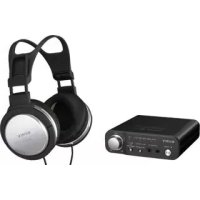
MDRDS1000 - Earphones SONY - Free user manual and instructions
Find the device manual for free MDRDS1000 SONY in PDF.



| Product Type | Digital surround headphone system with processor |
| Brand and model | Sony MDR-DS1000 (processor DP-1000, headphone MDR-XD050) |
| Processor dimensions (W × H × D) | 120 × 35 × 120 mm |
| Processor weight | Approx. 200 g |
| Headphone weight (without cable) | Approx. 175 g |
| Frequency response | 12 - 22,000 Hz |
| Distortion rate | 1% or less (1 kHz) |
| Power supply | 9 V DC via supplied AC adapter |
| Supported audio formats | Dolby Digital, Dolby Pro Logic II, DTS, PCM |
| Sound modes | CINEMA (cinema), MUSIC (music), OFF (normal) |
| Virtual technology | Virtualphones Technology |
| Audio inputs | Optical digital (rectangular type) × 1, stereo analog (mini jack) × 1 |
| Audio outputs | Headphone jack (stereo mini jack) × 2 |
| Supplied accessories | AC adapter, digital optical cable (1.5 m), instruction manual |
| Maintenance and cleaning | Soft cloth slightly dampened with water or mild detergent; do not use solvents |
| Safety | Do not expose to rain or moisture; do not open; refer repairs to qualified service personnel |
| Spare parts and repairability | Replaceable earpads (part number not provided); contact Sony dealer for parts |
| General information | Headphones with 40 mm drivers; compatibility with digital and analog devices |
Frequently Asked Questions - MDRDS1000 SONY
User questions about MDRDS1000 SONY
0 question about this device. Answer the ones you know or ask your own.
Ask a new question about this device
Download the instructions for your Earphones in PDF format for free! Find your manual MDRDS1000 - SONY and take your electronic device back in hand. On this page are published all the documents necessary for the use of your device. MDRDS1000 by SONY.
USER MANUAL MDRDS1000 SONY
Digital Surround Headphone System
Operating Instructions GB
Mode d'emploi FR
Manual de instructaciones ES
K
MDR-DS1000
WARNING
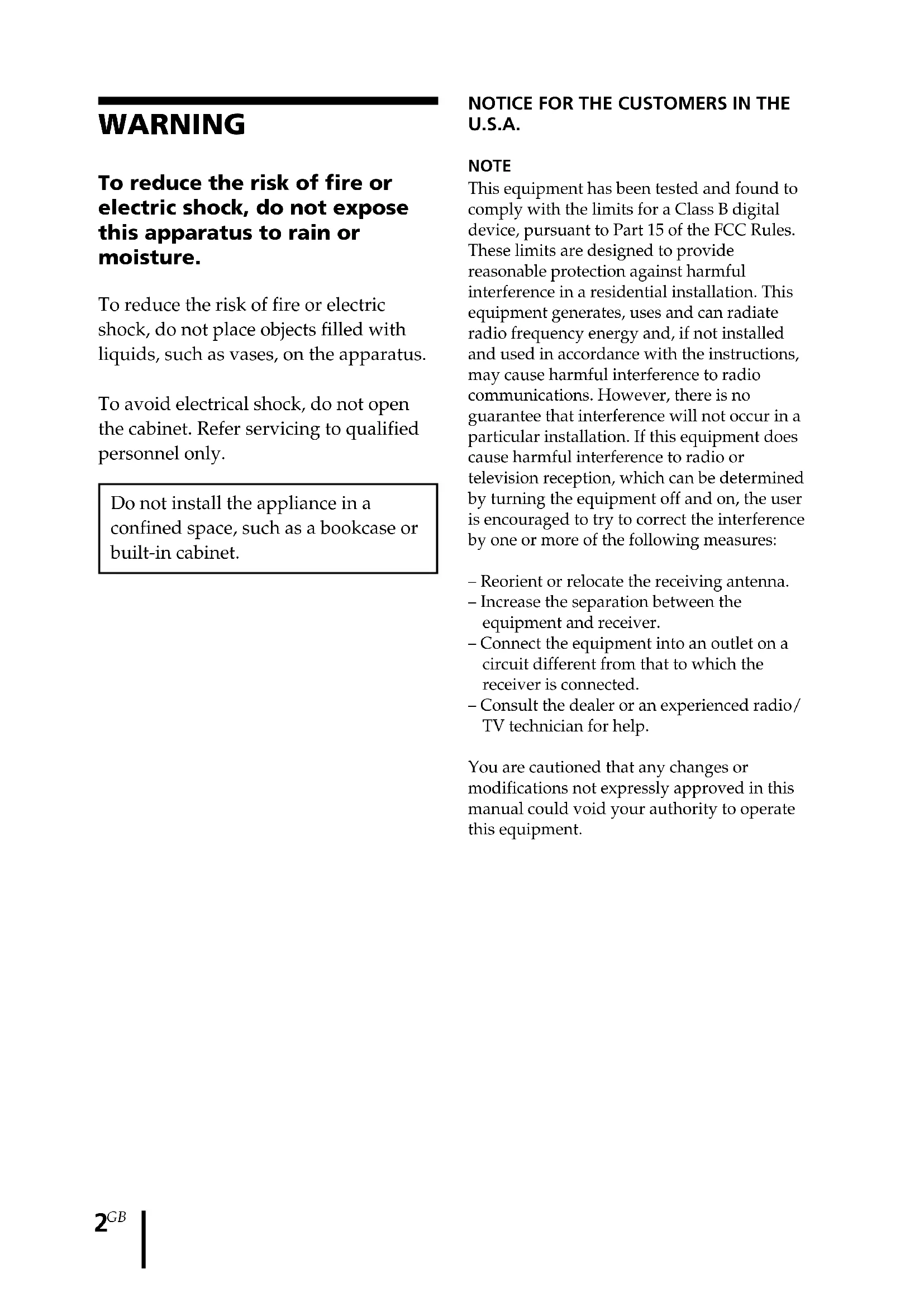
To reduce the risk of fire or electric shock, do not expose this apparatus to rain or moisture.
To reduce the risk of fire or electric shock, do not place objects filled with liquids, such as vases, on the apparatus.
To avoid electrical shock, do not open the cabinet. Refer servicing to qualified personnel only.
Do not install the appliance in a confined space, such as a bookcase or built-in cabinet.
NOTICE FOR THE CUSTOMERS IN THE U.S.A.
NOTE
This equipment has been tested and found to comply with the limits for a Class B digital device, pursuant to Part 15 of the FCC Rules. These limits are designed to provide reasonable protection against harmful interference in a residential installation. This equipment generates, uses and can radiate radio frequency energy and, if not installed and used in accordance with the instructions, may cause harmful interference to radio communications. However, there is no guarantee that interference will not occur in a particular installation. If this equipment does cause harmful interference to radio or television reception, which can be determined by turning the equipment off and on, the user is encouraged to try to correct the interference by one or more of the following measures:
- Reorient or relocate the receiving antenna.
- Increase the separation between the equipment and receiver.
- Connect the equipment into an outlet on a circuit different from that to which the receiver is connected.
- Consult the dealer or an experienced radio/ TV technician for help.
You are cautioned that any changes or modifications not expressly approved in this manual could void your authority to operate this equipment.
RECYCLING NICKEL METAL HYDRIDE BATTERIES
Nickel Metal Hydride batteries are recyclable. You can help preserve our environment by returning your used rechargeable batteries to the collection and recycling location nearest you.
For more information regarding recycling of rechargeable batteries, call toll free 1-800-822-8837, or visit http://www.rbrc.org/
Caution: Do not handle damaged or leaking Nickel Metal Hydride batteries.
Disposal of Old Electrical & Electronic Equipment (Applicable in the European Union and other European countries with separate collection systems)
This symbol on the product or on its packaging indicates that this product shall not be treated as household waste. Instead it shall be handed over to the applicable collection point for the recycling of electrical and electronic equipment. By ensuring this product is disposed of correctly, you will help prevent potential negative consequences for the environment and human health, which could otherwise be caused by inappropriate waste handling of this product. The recycling of materials will help to conserve natural resources. For more detailed information about recycling of this product, please contact your local Civic Office, your household waste disposal service or the shop where you purchased the product.
Table Of Contents
Main Features 4
Checking the Components and Accessories 5
Location and Function of Parts ... 6 Front Panel of the Processor 6 Rear Panel of the Processor 7
Connecting the Headphone System 8
Connecting the processor to digital components 8
Connecting the processor to analogue components. 9
Connecting the supplied AC power adaptor to the processor .... 11
Listening to a Connected Component 12
Using Additional Headphones.. 15
Replacing the Ear Pads 16
Troubleshooting 17
Precautions. 19
Specifications 20
Main Features
The MDR-DS1000 is a digital surround headphone system.
You can enjoy multi-channel surround sound with headphones by simply connecting the digital surround processor to a DVD device etc., with the supplied optical digital connecting cable.
- Compatibility of MDR-DS1000 with a wide variety of audio formats. Compatible with Dolby Digital, Dolby Pro Logic II, and DTS*1 formats. (Can play media marked with "Dolby Digital Surround EX" and "DTS-ES".)
- Dolby Digital/Dolby Pro Logic II and DTS Virtual certified.
- Superior "Virtualphones Technology" ^*2 creates a surround sound field within the headphones with realistic presence.
- R reproduction of movie sound quality by XD technology headphones. The headphones provided use long-stroke diaphragms with wide-diameter 40mm driver units for a broad dynamic range. Their ear-conscious design ensures comfort for long-term viewing and listening by reducing pressure and weight on the ears.
The digital surround processor for this system incorporates the Dolby Digital decoder, the Dolby Pro Logic II decoder and the DTS decoder.
^1 Manufactured under licence from Dolby Laboratories and Digital Theater Systems, Inc. "Dolby," "Pro Logic", and the double-D symbol are trademarks of Dolby Laboratories. "DTS" and "DTS Virtual" are trademarks of Digital Theater Systems, Inc.
2 "Virtualphones Technology" is a registered trademark of Sony Corporation.
The validity of the CE marking is restricted to only those countries where it is legally enforced, mainly in the countries EEA (European Economic Area).
Checking the Components and Accessories
Before setting up the system, check that all of the components are included.
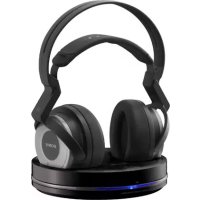
Stereo headphones MDR-XD050 (1) Processor DP-1000 (1)
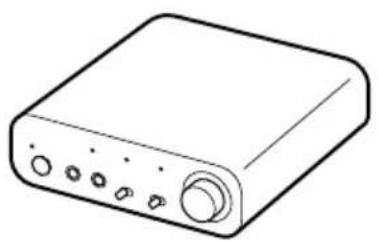
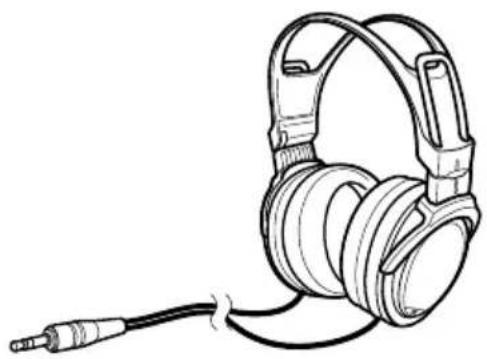
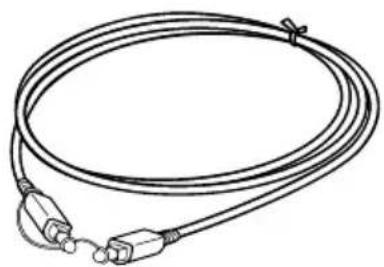
AC power adaptor (1) Optical digital connecting cable
(rectangular type rectangular type) (1)
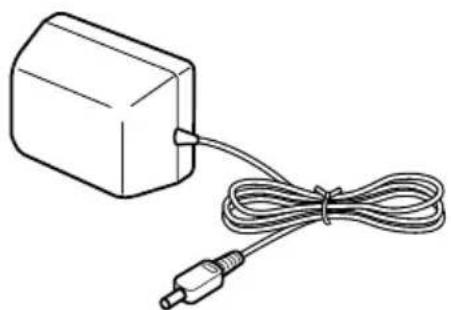
Front Panel of the Processor
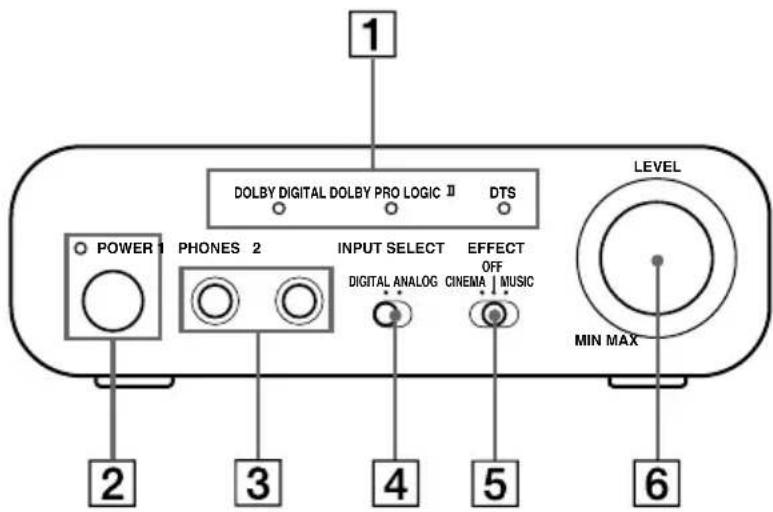
1 DECODE MODE indicators
(See page 14 for details.)
2 POWER indicator
Lights green when the processor is turned on.
POWER (power) switch
Press to turn the processor on/off.
3 PHONES jack
Connect the supplied headphones.
4INPUT SELECT switch
Slide to select the input source (ANALOG/DIGITAL).
5 EFFECT switch
(See page 13 for details.)
Slide to select the sound field (CINEMA/OFF/MUSIC).
Volume control
Adjusts the volume of the headphones connected to the PHONES jack.
Rear Panel of the Processor
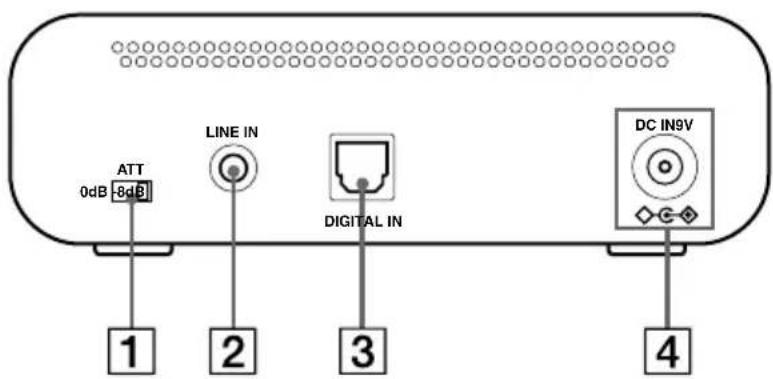
1ATT (attenuator) switch
Set this switch to "0 dB" if the volume is too low for analogue input. Normally, this switch should be set to -8dB
2 LINE IN jack
(See page 9 for details.) Connect the audio output jacks on an audio or video component (sold separately), such as a video cassette player or TV, to these jacks.
3 DIGITAL IN jack
(See page 8 for details.) Connect a DVD device or other digital component (sold separately) to this jack.
4DC IN 9V jack
Connect the supplied AC power adaptor to this jack. (Be sure to use the supplied AC power adaptor. Using products with a different plug polarity or other characteristics can cause a malfunction.)
Connecting the Headphone System
Connecting the processor to digital components
Use the supplied optical digital connecting cable to connect the optical digital output jack* on a DVD device or other digital component to the DIGITAL IN jack of the processor.
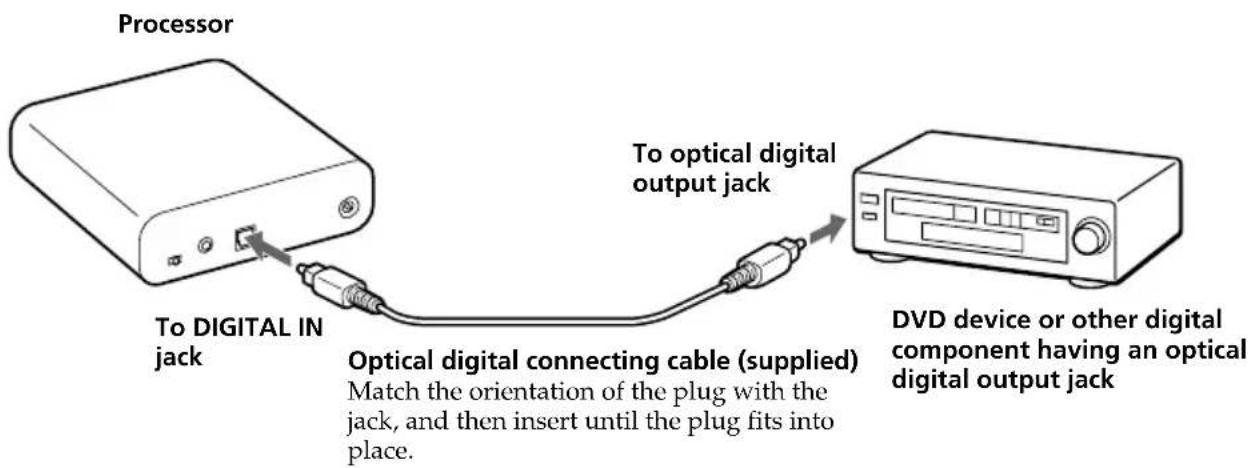
Notes
-
The optical digital connecting cable is an extremely high-precision device and is sensitive to jolts and external pressure. Therefore, be careful when inserting and removing the cable plug.
-
The digital input for the processor does not support sampling frequencies of 96kHz . Set the digital output setting of the DVD device to 48kHz when using this system. Noise may be heard when a 96kHz digital signal is input.
-
If the connected equipment supports PCM output only, all surround sound effects will be processed by DOLBY PRO LOGIC II.
DTS
- A DTS-compatible DVD device is required for playback of DVDs recorded in DTS audio. (For more details, see the instruction manual of your DVD device.)
- When playing CDs recorded in DTS format, noise may occur when fast forwarding or rewinding. This is not a malfunction.
- If the DTS digital output is set to "OFF" on the DVD device, no sound may be heard even if the DTS output is selected in the DVD menu.
- No sound may be heard when a DVD device and this unit is analogue-connected. In this case, use a digital connection.
Connecting cables (sold separately)
Use the optical digital connecting cable POC-15AB (mini-plug rectangular plug) when connecting the optical digital output mini-jack on portable DVD players, portable CD players, or other digital components to the DIGITAL IN jack.
Notes on optical digital connecting cable
- Do not drop objects on the optical digital connecting cable or expose the cable to shock.
- Grasp the plug to connect or disconnect the cable.
- Be sure that the ends of the optical digital connecting cable are kept clean. Dust at the ends of the cable can degrade performance.
- W hen storing the system, attach the cap to the end of the plug and be careful not to fold or bend the optical digital connecting cable with a bend radius less than 25mm (1 inch).
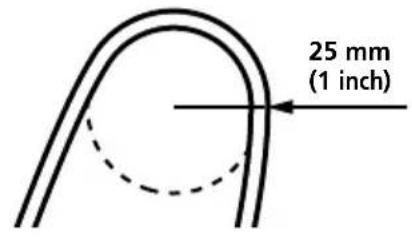
The bend radius of the optical digital connecting cable should be no less than 25mm (1 inch).
Connecting the processor to analogue components
Use an audio cord (sold separately) to connect the audio output jacks on a VCR, TV, or other component to the LINE IN (stereo mini-jack) jack on the processor.
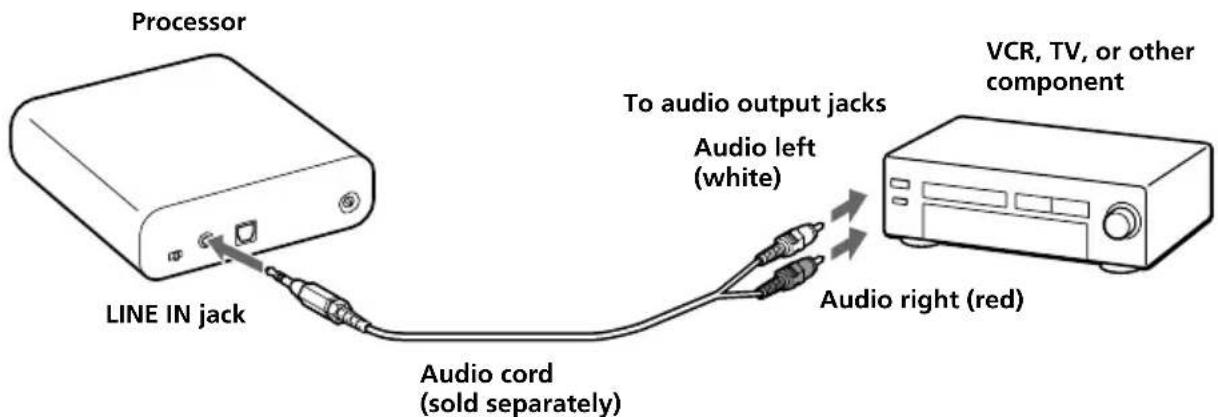
Connecting cables (sold separately)
Use the connecting cable RK-G136 (stereo mini-plug stereo mini-plug) when connecting a stereo mini-jack (line out jack or headphone jack) to the LINE IN jack.

In this case, set the volume on the player at a medium level. Noise can occur if the volume on the player is set too low.
See "Specifications: Recommended accessories" (page 20) for details about other connecting cables (sold separately).
(Continued)
Setting the input level
If the volume is low using the analogue input, set the ATT (attenuator) switch to "0 dB."
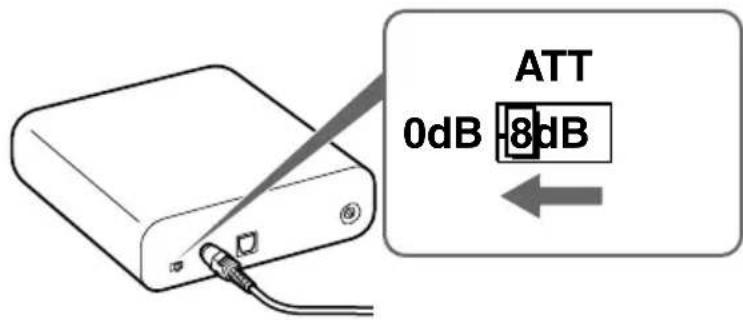
Setting Connected components
0 dB TV, portable components, and other components with a low output level
-8 dB Other components (initial settings)
Notes
- Be sure to lower the volume before setting the ATT switch.
- If audio input to the LINE IN jack is distorted (sometimes, noise can be heard at the same time), set the ATT switch to -8 dB.
Connecting the supplied AC power adaptor to the processor
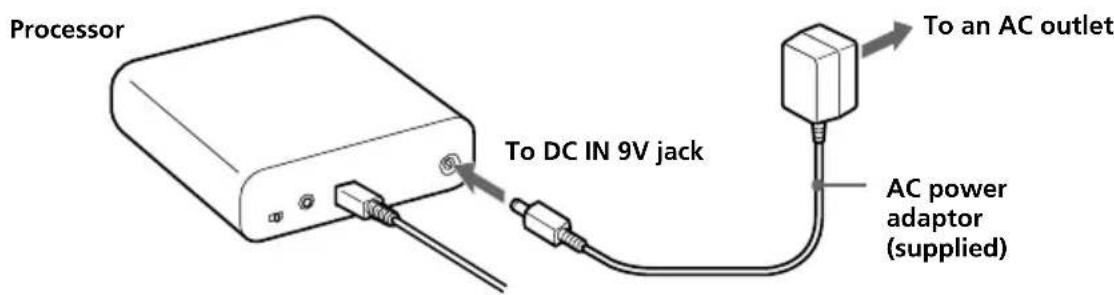
Tips
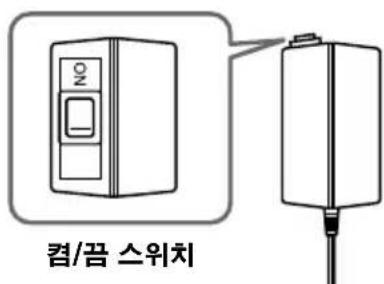
- If your AC power adaptor is equipped with a voltage selector, first be sure that it is set to the correct voltage for your area before connecting it to an AC outlet.
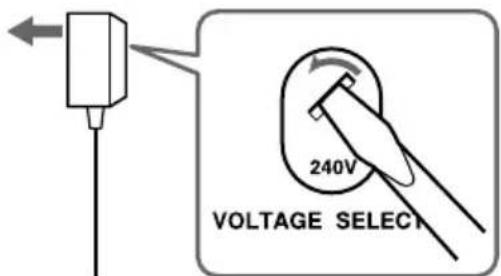
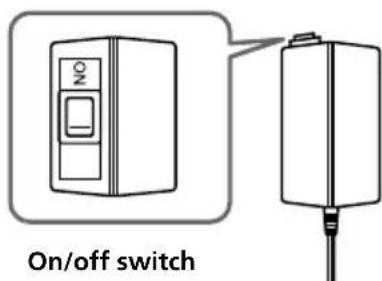
- If your AC power adaptor is equipped with an on/off switch, set it to ON. The power is supplied to the processor.
Notes
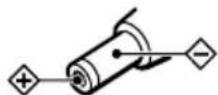
- Be sure to use the supplied AC power adaptor. Using AC adaptors with different plug polarity or other characteristics can cause product failure.
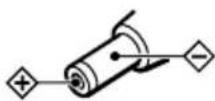
Unified polarity plug
- Be sure to always use the supplied AC power adaptor. Even AC power adaptors having the same voltage and plug polarity can damage this product due to the current capacity or other factors.
- Connect the AC power adaptor to an easily accessible AC outlet. Should you notice an abnormality in the AC power adaptor, disconnect it from the AC outlet immediately.
Listening to a Connected Component
Before starting, be sure to read "Connecting the Headphone System" (pages 8 to 11) and make the proper connections.
1 Turn on the component connected to the processor.
DVD device or other audio or video component
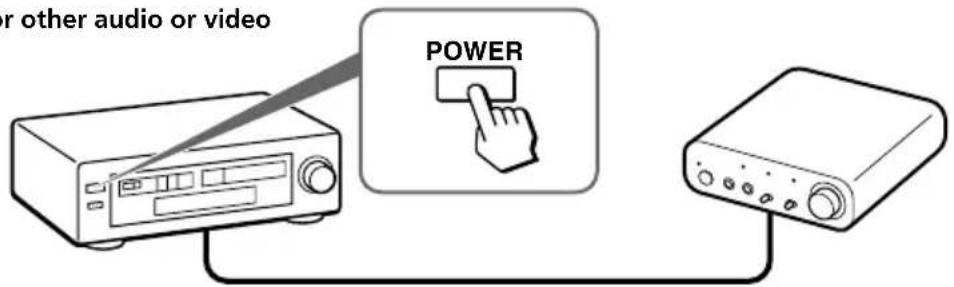
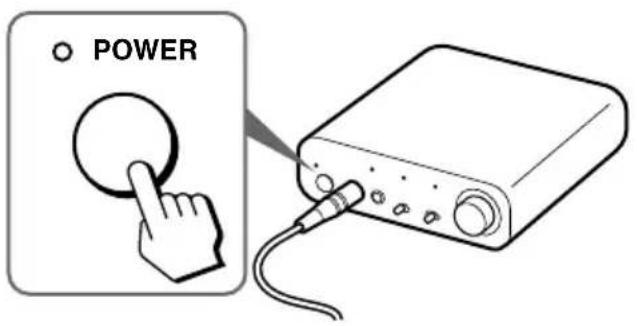
2 Connect the headphones to the PHONES jack, and turn on the processor. The DECODE MODE indicator lights up, depending on the audio signal input from the connected audio or video component and the setting of the EFFECT switch.
3 Put on the headphones.
Wear the headphones' (R) on your right ear and (L) on your left ear.
4 Slide the INPUT SELECT switch to select the component you want to listen to.
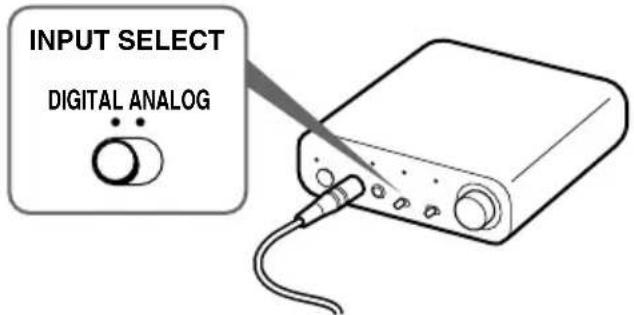
Position of switch Selected sound source
DIGITAL Sound of the component connected to DIGITAL IN jack.
ANALOG Sound of the component connected to LINE IN jack.
Note
To listen to dual audio (MAIN/SUB) sound sources, connect to the LINE IN jack, and then select the sound source you want to listen to on the player, TV, or other component.
5 Start playback of the component selected in step 4.
6 Slide the EFFECT switch to select the desired sound field.
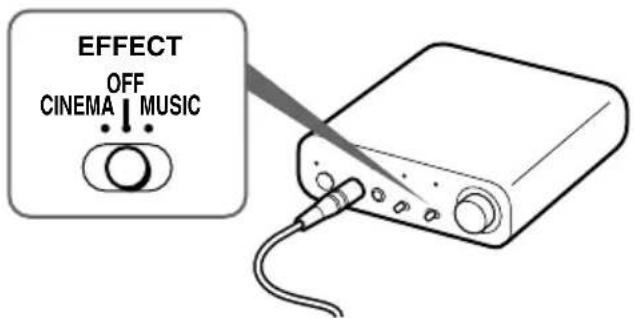
Position of switch Sound field and suitable sound source
OFF Normal playback of the headphones.
CINEMA Produces the kind of surround sound that is found in a typical movie theatre. Suitable for movie sound sources.
MUSIC Produces the kind of sound field that would be found in a listening room with good acoustics. Suitable for music sources.
Note
The volume of the headphones may vary, depending on the input signal and the setting of the EFFECT switch.
(Continued)
DECODE MODE indicators
The processor automatically identifies the format of the input audio signal and the corresponding indicator lights up. Switch the audio between Dolby Digital, DTS, etc., on the connected equipment (DVD device etc.).
DOLBY DIGITAL: Input signal recorded in the DOLBY DIGITAL format.
- DOLBY PRO LOGIC II: Analogue input signal, digital input PCM signal, or Dolby Digital 2-channel signal processed by DOLBY PRO LOGIC II. (If the sound field is set to "OFF," it is not processed by DOLBY PRO LOGIC II.)
- DTS: Input signal recorded in the DTS format.
Note
If the equipment connected to the DIGITAL IN jack is not playing back (fast forwarding, rewinding, etc.), the DECODE MODE indicators may not light up correctly.
7 Adjust the volume.
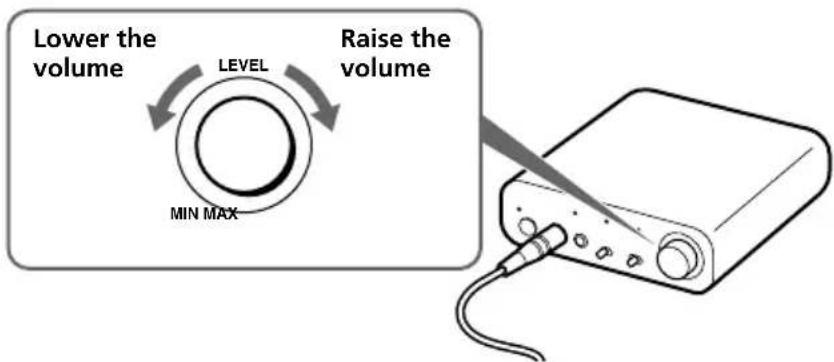
Notes
- When watching films, be careful not to raise the volume too high in quiet scenes. You may hurt your ears when a loud scene is played.
- You may hear some noise when you disconnect the AC power adaptor from the processor before removing the headphones.
Transition time between modes
When sliding switches on the processor to change to new modes, the transition time between modes may vary. This is due to differences in system control between modes.
Notes
- The surround sound effect may not be obtained from sound sources that do not incorporate video, such as music CDs.
- This system simulates the average HRTF* common to most people. However, the effect can differ from person to person since the HRTF can vary between individuals.
Using Additional Headphones
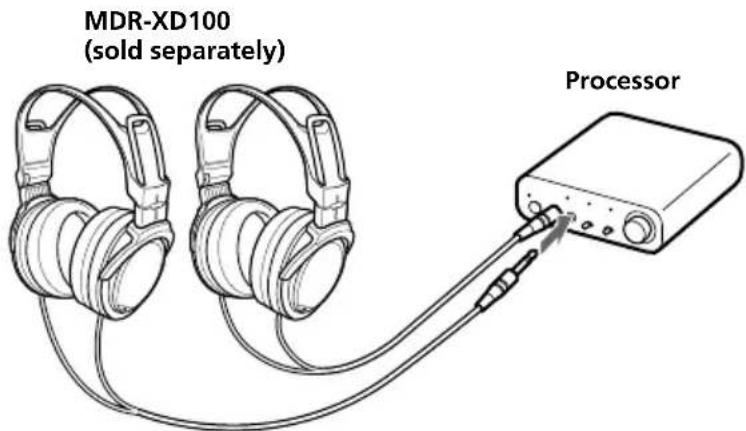
In this system, by using additional stereo headphones (MDR-XD100, sold separately), two persons can enjoy the surround sound experience at the same time.
Replacing the Ear Pads
The ear pads are replaceable. If the ear pads become dirty or worn out, replace them as illustrated below. The ear pads are not commercially available. You can order replacements from the store where you purchased this system, or at your nearest Sony dealer.
1 Remove the old ear pad by pulling it off.
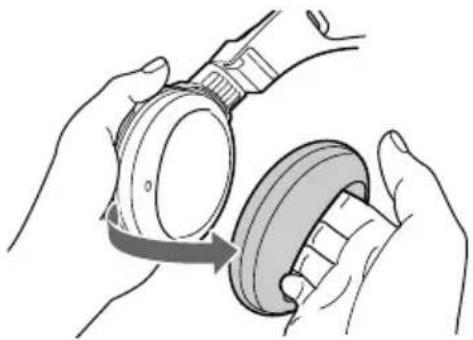
2 Place the new ear pad around the housing.
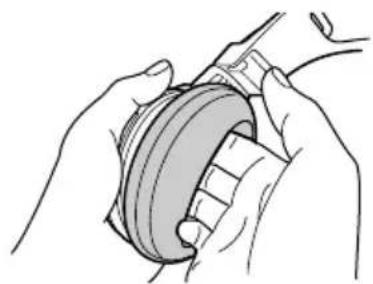
Troubleshooting
If you run into any problems using this headphone system, use the following checklist. Should any problem persist, consult your nearest Sony dealer.
| Symptom Cause and remedy | |
| No sound | Check the connection between the processor and the AV component. Check that the connected AV component's optical digital output is set to "ON" when selecting digital input. Turn on the AV component connected to the processor, and start the playback. Check that the INPUT SELECT switch on the processor is set to the component you want to listen to. If you connect the processor to an AV component using the headphone jack, raise the volume level on the connected AV component. Raise the headphones volume. You are trying to play a DTS audio track on a DVD device that does not support DTS. • Either use a DVD device that supports DTS, or select a Dolby Digital or PCM audio track. You are playing back a DVD disc recorded in DTS when DTS digital output setting for the DVD device (including game machines) is "OFF." • See the instruction manual of your DVD device, and change the DTS digital output setting to "ON." You are playing back a DVD disc recorded in DTS when the DVD device (including game machines) and the processor are analogue-connected. • Use the digital connection. (Analogue sound may not be output from the DVD device.) |
| Distorted or intermittent sound (sometimes with noise) | When analogue input is selected, change the ATT switch on the processor to "-8 dB." If you connect the processor to an AV component using the headphone jack, lower the volume level on the connected AV component. When using DTS audio sources, set the EFFECT switch on the processor to "CINEMA" or "MUSIC" mode (page 13). |
| Low sound | When analogue input is selected, change the ATT switch on the processor to "0 dB." If you connect the processor to an AV component using the headphone jack, raise the volume level on the connected AV component. Raise the headphones volume. |
(Continued)
| Symptom Cause and remedy | |
| Loud background noise | If you connect the processor to an AV component using the headphone jack, raise the volume level on the connected AV component. Check if the plugs of the connecting cable or headphones are dusty. |
| The surround sound effect is not obtained | Set the EFFECT switch on the processor to "CINEMA" or "MUSIC" mode (page 13). The audio being played is not a multi-channel signal. • The surround effect does not work for monaural sound sources. |
| The DOLBY DIGITAL indicator does not turn on | The digital audio output setting for the DVD device (including game machines) may be set to "PCM." • See the instruction manual of your DVD device, and change the setting (such as "Dolby Digital/PCM" or "Dolby Digital") for usage with components having built-in Dolby Digital decoders. • Playback signals are not recorded in Dolby Digital format. • The audio for the chapter being played is not a Dolby Digital signal. |
| The DOLBY PRO LOGIC II indicator does not turn on | The EFFECT switch on the processor is set to "OFF." Analogue input signal, digital input PCM signal or Dolby Digital 2-channel signal is not input. |
| The DOLBY PRO LOGIC II indicator turns on | The EFFECT switch on the processor is set to "CINEMA" or "MUSIC" mode. Analogue input signal, digital input PCM signal or Dolby Digital 2-channel signal is input. |
| The DTS indicator does not turn on | The DTS digital output setting on the DVD device (including game machines) is set to "OFF." • See the instruction manual of your DVD device, and change the DTS digital output setting to "ON." • Playback signals are not recorded in DTS format. • The audio for the chapter being played is not a DTS signal. • The DVD device does not support DTS format. • Use a DVD device that supports DTS. |
| Bilingual sound cannot be selected when using digital input. (Both MAIN and SUB can be heard at the same time.) | Connect the analogue out to the LINE IN jack, and select the sound on the connected component. |
Precautions
On safety
- Do not drop, hit, or otherwise expose the processor or headphones to strong shock of any kind. This could damage the product.
- Do not disassemble or attempt to open any parts of the system.
On power sources and placement
- If you are not going to use the system for a long time, unplug the AC power adaptor from the AC outlet. When removing the plug, grip the AC power adaptor. Do not pull on the cord.
-
Do not place the system in any of the following locations.
-
Location exposed to direct sunlight, near a heater, or other extremely high-temperature location
Dusty location - On an unsteady or inclined surface
- L ocation exposed to large amounts of vibration
Bathroom or other high-humidity locations
On headphones
Act considerably
When the volume is too high, the sound leaks outside the headphones. Be careful not to raise the volume so high that it bothers people around you.
There is a tendency to raise the volume when using in noisy places. However, for reasons of safety, it is advised to keep the volume at a level whereby you can still hear sounds around you.
On cleaning
Use a soft cloth slightly moistened with mild detergent solution. Do not use solvents such as thinner, benzene or alcohol as these may damage the surface.
When the product breaks
- When the product breaks, or if a foreign object gets inside the unit, immediately turn off the power and consult your nearest Sony dealer.
- When taking the system to a Sony dealer, be sure to take both the headphones and processor.
Specifications
Digital surround processor (DP-1000)
Decoder functions Dolby Digital
Dolby Pro Logic II
DTS
Virtual surround function
OFF
CINEMA
MUSIC
Frequency response 12 - 22,000Hz
Distortion rate 1% or less (1kHz)
Audio inputs Optical digital input
(rectangular-type) × 1
Analogue input (stereo
mini-jack) × 1
Audio outputs Headphone jacks
(stereo mini-jack) × 2
Power requirements DC 9 V (from the
supplied AC power
adaptor)
Dimensions
Approx. 120 × 35 ×
120mm
(4^3 / 4 × 1^7 / 16 × 4^3 / 4 in)
(w/h/d)
Mass Approx. 200g
(7.06 oz)
Stereo headphones (MDR-XD050)
Playback frequency range
12 - 22,000 Hz
Mass Approx. 175 g
(6.18 oz)
(without cord)
Supplied accessories
AC power adaptor (9 V) (1)
Optical digital connecting cable
(optical rectangular plug optical rectangular plug, 1.5m 1
Operating Instructions (this manual)
(1)
Recommended accessories
Optical digital connecting cable
POC-15AB (1.5 m) (mini-plug
rectangular plug)
Connecting cable
RK-G136 (1.5m) (stereo mini-plug
stereo mini-plug)
Design and specifications are subject to change without notice.
AVENTISSEMENT
Cable de raccordement
RK-G136 (1,5m) (mini-fiche stereo
mini-fiche stereo)
(当然,国内143000000000000000000000000000000000000000000000000000000000000000000000
2 POWER 五人
豆豆藻藻藻藻藻藻藻藻藻藻藻藻藻藻藻藻藻藻藻藻藻藻藻藻藻藻藻藻藻藻藻藻藻藻藻藻藻藻藻藻藻藻藻藻藻藻藻藻藻藻藻藻藻藻藻藻藻藻藻藻藻藻藻藻藻藻藻藻藻
POWER(전원)스워지
三豆羅斯是 耘于n 晒 时
3PHONES
新同的他三元等
4INPUT SELECT s/w/
- AC 旳旳旳旳旳旳旳旳旳旳旳旳旳旳旳旳旳旳旳旳旳旳旳旳旳旳旳旳旳旳旳旳旳旳旳旳旳旳旳旳旳旳旳旳旳旳旳旳旳旳旍旳旳旳旳旳旳旳旳旳旳旳旳旳旳旳旳旳旳旳旳旳旳旳旳旳旳旳旳旳旳旳旳旳旳旳旳旳旳旳旳旳旳旳旳旳旳旳旳旳时。
主的
- 曾德三日国AC前的用法则人,。
日

- Digital Surround Headphone System
- WARNING
- To reduce the risk of fire or electric shock, do not expose this apparatus to rain or moisture.
- NOTICE FOR THE CUSTOMERS IN THE U.S.A.
- NOTE
- RECYCLING NICKEL METAL HYDRIDE BATTERIES
- Table Of Contents
- Main Features
- Checking the Components and Accessories
- Front Panel of the Processor
- Rear Panel of the Processor
- 1ATT (attenuator) switch
- LINE IN jack
- DIGITAL IN jack
- 4DC IN 9V jack
- Connecting the Headphone System
- Connecting the processor to digital components
- Notes
- DTS
- Connecting cables (sold separately)
- Notes on optical digital connecting cable
- Connecting the processor to analogue components
- Setting the input level
- Setting Connected components
- Connecting the supplied AC power adaptor to the processor
- Tips
- Unified polarity plug
- Listening to a Connected Component
- Slide the INPUT SELECT switch to select the component you want to listen to.
- Position of switch Selected sound source
- Start playback of the component selected in step 4.
- Slide the EFFECT switch to select the desired sound field.
- Position of switch Sound field and suitable sound source
- DECODE MODE indicators
- Adjust the volume.
- Transition time between modes
- Using Additional Headphones
- Replacing the Ear Pads
- Troubleshooting
- Precautions
- On safety
- On power sources and placement
- On headphones
- Act considerably
- On cleaning
- When the product breaks
- Specifications
- Digital surround processor (DP-1000)
- Stereo headphones (MDR-XD050)
- Supplied accessories
- Recommended accessories
- AVENTISSEMENT
- 主的
Brand : SONY
Model : MDRDS1000
Category : Earphones