Evoke F4 with Bluetooth - Radio PURE - Free user manual and instructions
Find the device manual for free Evoke F4 with Bluetooth PURE in PDF.


| Product type | Internet radio, digital (DAB+/DAB/DMB-R) and FM |
| Model | Evoke F4 with Bluetooth |
| Brand | Pure |
| Dimensions (W x D x H) | 209 x 110 x 175 mm |
| Weight | 1.5 kg |
| Mains power | 100-240 V AC, 50/60 Hz, output 5.5 V DC, 3.57 A (adapter supplied) |
| Optional battery | ChargePAK F1 rechargeable (sold separately) |
| Display | White-on-black OLED display, 128 x 64 pixels |
| Speaker | 3.5" full-range speaker |
| Network connectivity | Wi-Fi 802.11 b/g (WEP/WPA/WPA2); Ethernet via optional USB adapter |
| Bluetooth | Bluetooth A2DP via supplied USB adapter |
| Supported audio formats | WMA (v9), AAC, MP3, MP2 |
| Presets | 30 digital stations, 10 FM, unlimited Internet favorites |
| Recording | Instant and timed recording to USB flash drive (not supplied) |
| Alarms and timers | 2 alarms, sleep timer, kitchen timer |
| Inputs | 3.5 mm auxiliary input; USB type A |
| Outputs | 3.5 mm headphone jack; Evoke F4 stereo speaker output |
| Power consumption | Standby: <1 W; operation: 3.4 W |
| Care and cleaning | Clean with a dry cloth. Do not block ventilation openings. |
| Safety | Follow safety instructions: do not expose to water, do not open, use supplied adapter, etc. |
| Repairability | Have repairs carried out by qualified technician. No user-serviceable parts. |
| Warranty | Three-year full warranty |
Frequently Asked Questions - Evoke F4 with Bluetooth PURE
User questions about Evoke F4 with Bluetooth PURE
0 question about this device. Answer the ones you know or ask your own.
Ask a new question about this device
Download the instructions for your Radio in PDF format for free! Find your manual Evoke F4 with Bluetooth - PURE and take your electronic device back in hand. On this page are published all the documents necessary for the use of your device. Evoke F4 with Bluetooth by PURE.
USER MANUAL Evoke F4 with Bluetooth PURE
Thank you for choosing Evoke F4 with Bluetooth. This music streaming and radio system brings a world of listening simply and easily within your reach. You can use it to enjoy music streamed wirelessly from your iOS or Android device or from your PC or Mac; to listen to a wide-range of internet, digital or FM radio stations; and to play thousands of podcasts, on-demand radio programmes and evocative ambient sounds. You can also access the Pure Connect cloud-based on-demand subscription service to gain instant access to millions of music tracks. This manual will get you up and running in no time, and explains how to make the most of your Evoke F4. We're constantly improving and adding new features to our products. To take advantage of any enhancements made since your product was shipped, please visit support.pure.com where you can download the latest version of this user guide in PDF format.
Important Safety Instructions
- Read these instructions – All the safety and operating instructions should be read before this product is operated.
- Keep these instructions – The safety and operating instructions should be retained for future reference.
- Heed all warnings – All warnings on the appliance and in the operating instructions should be adhered to.
- Follow all instructions – All operating and use instructions should be followed.
- Do not use this apparatus near water.
- Clean only with dry cloth.
- Do not block any ventilation openings. Install in accordance with the manufacturer's instructions.
- Do not install near any heat sources such as radiators, stoves, or other apparatus that produce heat.
-
Only use attachments and accessories specified by the manufacturer.
-
Unplug the apparatus during lightning storms or when unused for long periods of time.
-
Do not use the mains adapter outdoors.
-
Be aware of volume levels when using headphones, excessive volume can damage your hearing.
-
Cease use immediately if apparatus exhibits any signs of mechanical damage, excessive temperature, swelling or splitting.
-
Refer all servicing to qualified service personnel. Servicing is required when the apparatus has been damaged in any way, such as power-supply cord or plug is damaged, liquid has been spilled or objects have fallen into the apparatus, the apparatus has been exposed to rain or moisture, does not operate normally, or has been dropped.
-
To reduce the risk of electric shock, do not remove cover (or back) as there are no user-serviceable parts inside. Refer servicing to qualified personnel.
-
Use only power supplies listed in the user instructions (with model no. DSA-24CA-05 055357, manufactured Pure).
-
Servicing is required when the apparatus has been damaged in any way, such as power supply cord or plug is damaged, or the apparatus does not operate normally, or has been dropped.
-
WARNING To reduce the risk of fire or electric shock, do not expose this apparatus to rain or moisture. The apparatus shall not be exposed to dripping or splashing and that objects filled with liquids, such as vases, shall not be placed on apparatus.
-
CAUTION: Danger of explosion if battery is incorrectly replaced. Replace only with the same or equivalent type.
-
WARNING: The direct plug-in adapter is used as disconnect device, the disconnect device shall remain readily operable.
-
This equipment is a Class II or double insulated electrical appliance. It has been designed in such a way that it does not require a safety connection to electrical earth.

Damage to hearing can occur with consistent exposure to high volume when using headphones. Always check the volume level before inserting headphones into your ears.
Use of headphones while operating a vehicle is not recommended and is illegal in some areas. Stop listening to your radio if you find it distracting while operating any type of vehicle or performing any other activity that requires your full attention.
Contents
4 Getting started
4 Quick start
5 Controls and sensors
6 Rear panel
6 Switching between Sleep, Standby and On
7 Screen icons
8 Internet listening via Pure Connect
8 Connecting to the Internet
8 Listening to Internet radio
9 Listening to other Internet content
10 Music streaming
10 Pure Connect tagging service
11 Streaming from the Pure Connect app
11 Download the Pure Connect app
11 Selecting Evoke or other Caskeid compatible device in the Pure Connect app
12 Streaming music from a PC or Mac
12 Listening to streamed tracks on Evoke
13 Listening to digital or FM radio
13 Changing digital stations
13 Searching for digital stations
13 Changing FM stations
13 Storing a preset
13 Listening to a preset
14 Listening to audio from a USB memory stick
14 Using Bluetooth
15 Recording radio programmes
15 Instant recordings
15 Timed recordings
16 Setting alarms and timers
16 Setting an alarm
16 Setting the sleep timer
16 Setting the kitchen timer
16 Cancelling a sounding alarm or timer
16 Snoozing a sounding alarm
16 Changing the alarm snooze time
16 Cancelling a snoozing alarm
17 Options and settings
17 Pure Connect settings
17 Autotune
17 FM settings
17 Network/USB media
18 Audio settings
19 Setting the clock
19 Changing the language shown on the display
19 Upgrading Evoke
19 Changing Evoke's name
19 Bluetooth settings
20 Network settings
21 Using an optional ChargePAK F1
21 Installing a ChargePAK
22 Help and advice
23 Specifications
Getting started
Quick start
Note: If you have a ChargePAK F1 rechargeable battery (sold separately) fit it now before plugging in Evoke. See page 21 for more information.
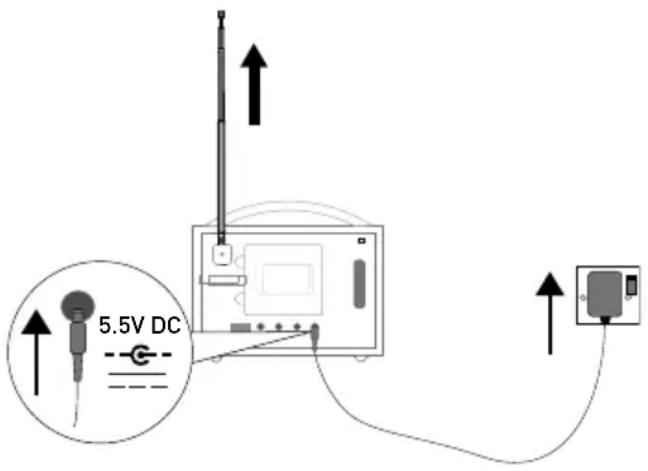
1 Extend the aerial and insert the connector of the supplied power adapter into the 5.5V DC input on the rear of Evoke. Plug the adapter into the power supply. Pure is displayed briefly on-screen.
2 Choose your display language (English, French, German or Italian) by turning the Select dial to highlight the language you want. Push the Select dial in to confirm your choice. Repeat this process to select the time zone and region closest to you.
3 The Home screen is displayed:
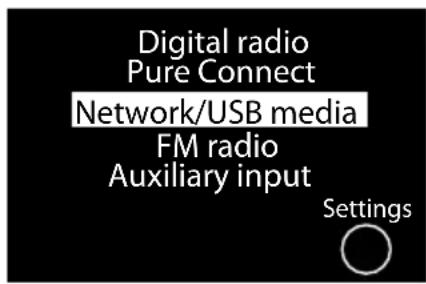
Turn the Select dial to highlight and press to select one of the following options:
Digital radio See page 13
Pure Connect See page 8
Network/USB media See page 12
FM radio
See
page
13
Auxiliary input See page 6
To change any of Evoke's settings, tap the Settings button (see page 17).
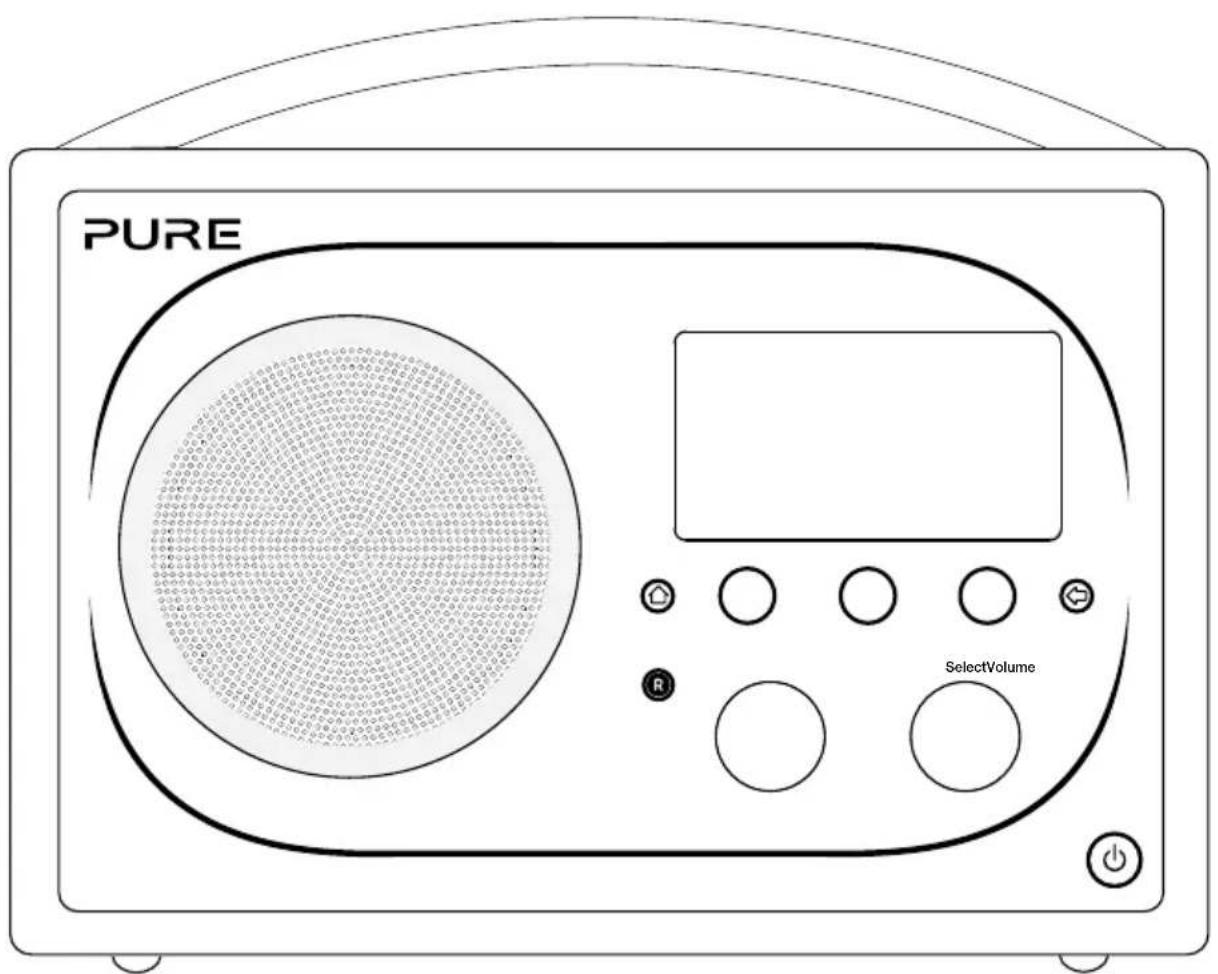
Controls and sensors
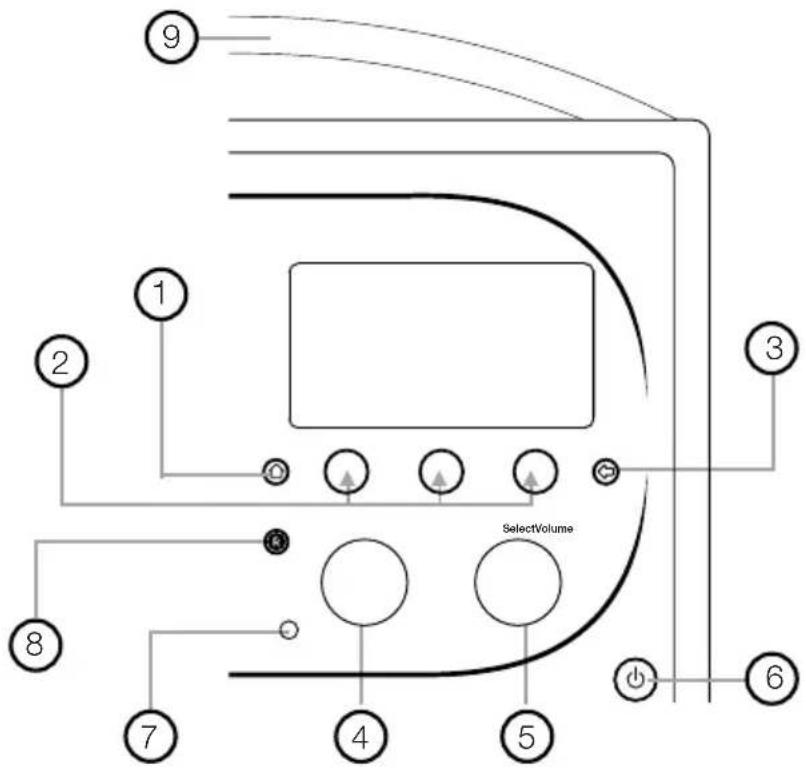
| No. Control Description | ||
| 1 Home Tap to return to the H Home screen. | ||
| 2 | Context-sensitive touch buttons | Tap the button that corresponds to the function shown on screen that you want to use. |
| 3 Back Tap to go back to the previous screen. | ||
| 4 Volume/mute dial Turn to adjust volume. Push to mute and un-mute. | ||
| 5 Select dial | Turn to navigate menus, stations or options and push to select an item.Push to pause a media track or podcast.* | |
| 6 Standby touch key | Tap ⏻ to switch between Sleep, Standby and On. See page 6 for more information. | |
| 7 Light sensor Do not cover. | Adjusts the display brightness according to the light levels in your room (only works when brightness level is set to ‘Automatic’). | |
| 8 Record button Tap to instantly record the internet or digital radio station that is playing.See page 15 for more information. | ||
| 9 | SnoozeHandle | Tap to snooze the alarm. Grip and hold to brighten the display to maximum brightness for 3 seconds.Note: The alarm will not sound if Evoke is powered down and if Evoke is not connected to mains power. |
Rear panel
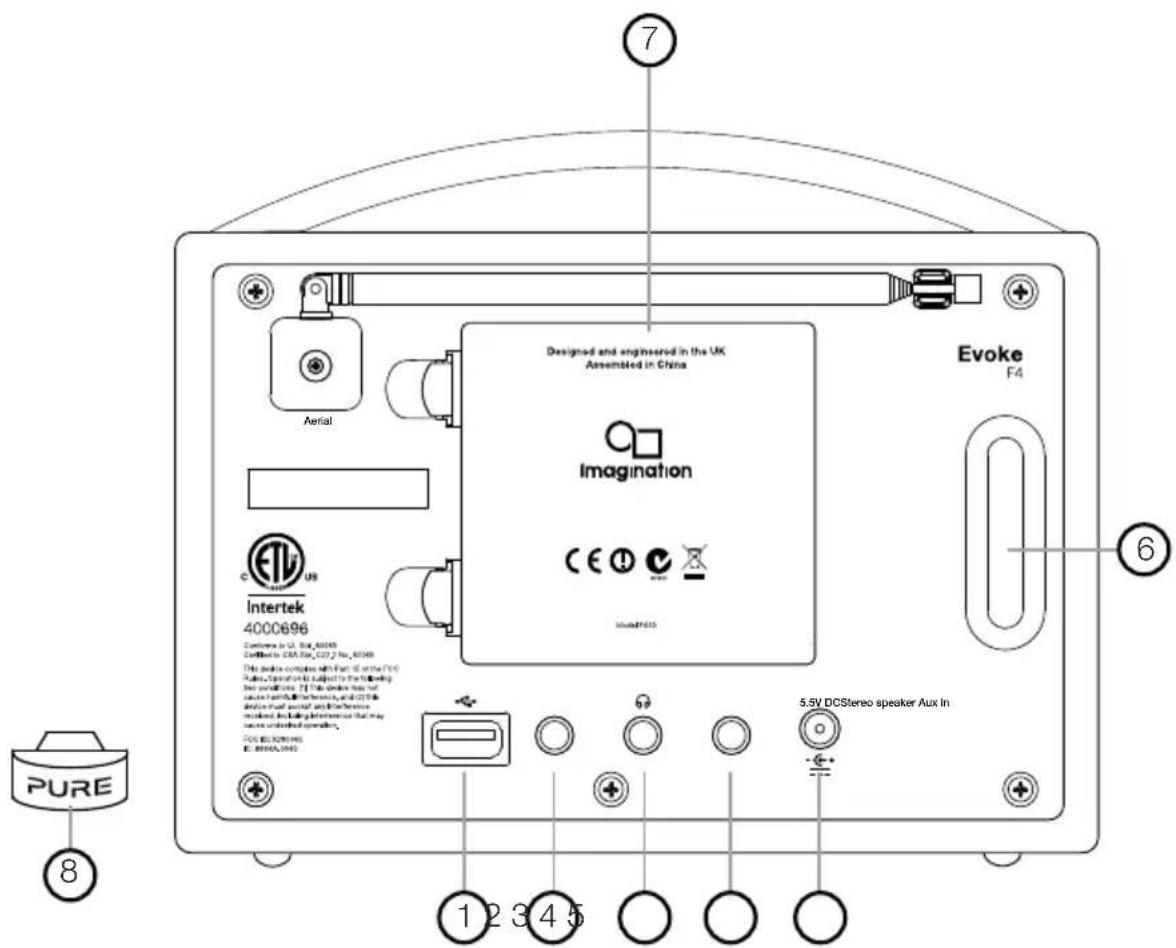
- USB connector for USB Ethernet adapter, Bluetooth adapter or a USB drive for recording/playback. Also used for upgrading Evoke's software when an internet connection is not available.
- Output connector for the Evoke F4 stereo speaker.
- Output connection for headphones (3.5mm).
- 3.5mm auxiliary input connection for an iPod, MP3 player, etc.
- 5.5V DC input connection for supplied mains adapter.
- Acoustically tuned bass reflex port (do not cover).
- Compartment for ChargePAK F1 rechargeable battery (sold separately).
- USB Bluetooth adapter.
Switching between Sleep, Standby and On
Evoke has three power modes, Standby, Sleep and On. In Standby, Evoke uses minimal power. In Sleep mode, Evoke remains connected to the wireless network (once attached) and is ready to stream music using the Pure Connect app. See page 11 for more information.
To enter Sleep mode, tap Standby.
To enter Standby mode, tap and hold Standby.
Once in Sleep/Standby mode, tap Standby to switch to On.
Note: If you press the Standby button and Evoke is being powered by the ChargePAK F1, Evoke will power off and not enter the Sleep power state.
Screen icons
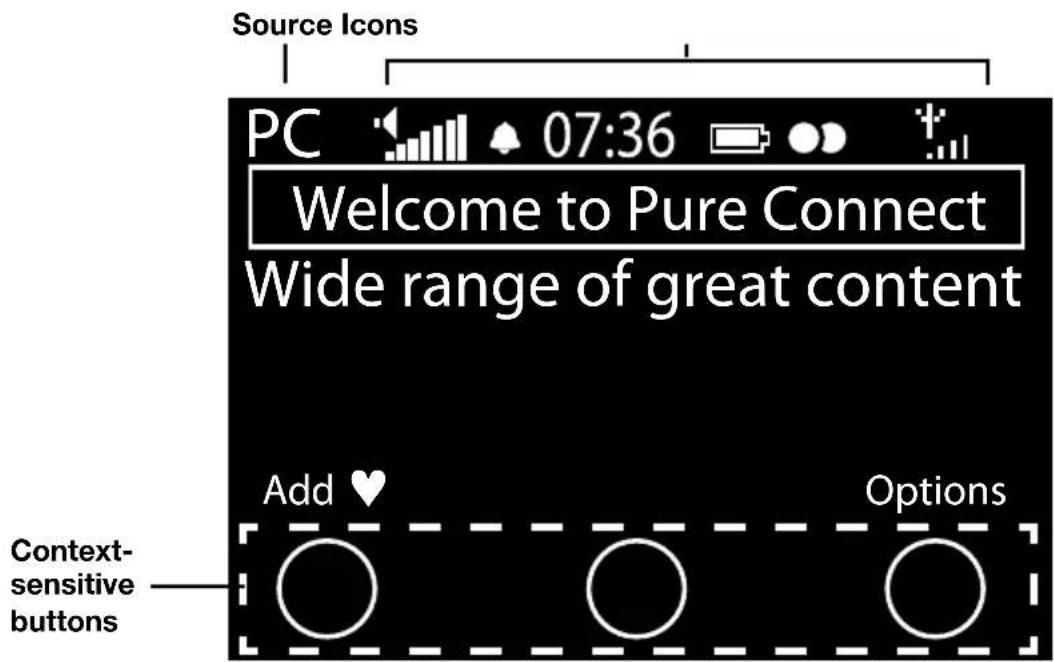
Source Icons
DR Digital radio
PC Pure Connect
MP Media player
FM FM
AUX Auxiliary input

Caskeid
BT Bluetooth
Volume level
Mute
▲ 📊 Alarm/timer set indicators
07:36 Clock
ChargePAK battery level*
Stereo signal
Signal strength (Digital, FM or Wi-Fi)
Ethernet connection active
☐ × Ethernet connection lost
R Timed recording indicator
Internet listening via Pure Connect
Pure Connect is an online media portal that provides you with quick and easy access to thousands of internet radio stations, on-demand programs, podcasts and ambient sounds. You can enjoy all this content on your Evoke, on smartphones and tablets running the Pure Connect app, and on the Pure Connect website. You can also use Pure Connect to access additional subscription services such as Pure Connect's cloud-based music streaming service*, which provides you with instant access to millions of music tracks.
To access Pure Connect on Evoke, you will need to connect Evoke to your network. See below for more information.
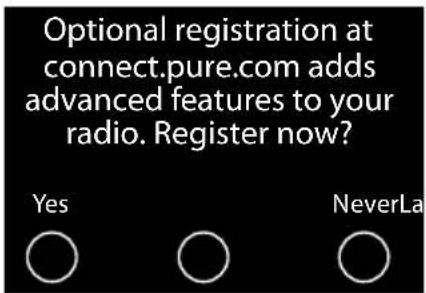
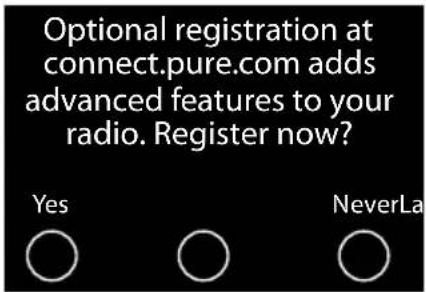
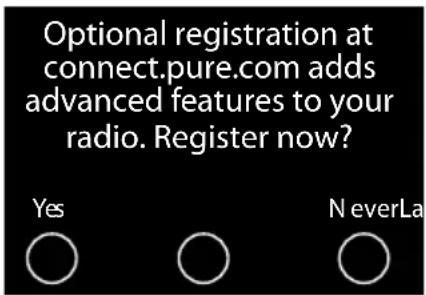
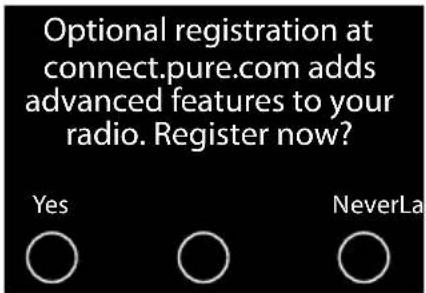
After connecting Evoke to your network, you can register your Evoke on the Pure Connect website. We recommend registering your Evoke as this allows you to manage your Pure Connect favourites and access additional subscription services like music streaming.
Connecting to the Internet
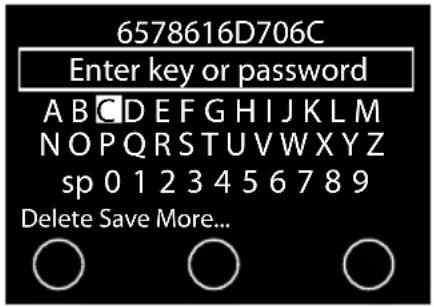
Using your wireless network
- Tap Home and select Pure Connect from the Home screen. Evoke will scan for wireless networks and show them in a list.
- Select your network. If your network requires a key, follow steps 3-4.
- Enter your network key or password by turning and pressing the Select dial to highlight and select characters. Select sp to insert a space. Tap More... for lower-case; tap it again for symbols. Tap Delete to remove the last character.
- Tap Save to finish. Evoke will connect to your network.
Helpful hint: Your Wi-Fi key is case sensitive, make sure to enter it exactly as shown.
Using an Ethernet connection
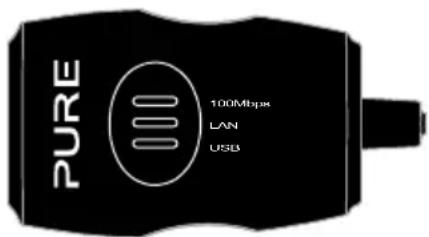
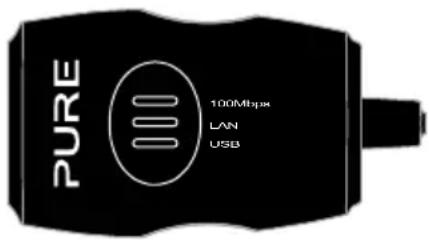
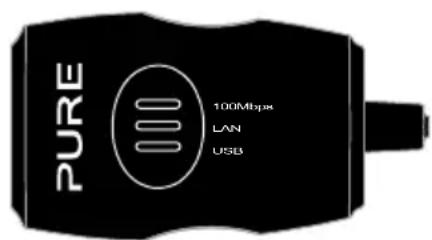
You can also connect Evoke to the Internet using the optional Pure USB Ethernet adapter.
To use the Pure USB Ethernet adapter, connect your network cable to the adapter, then connect the adapter to the USB socket on your Evoke. The adapter USB light comes on and a connection to your network is made automatically.
The Ethernet connection status is shown on screen (see page 7).
Listening to Internet radio
Pure Connect menu
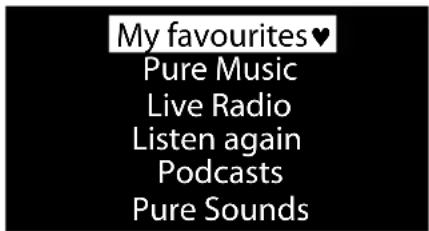
Thousands of radio stations around the world broadcast online. To listen, select Pure Connect from the Home screen. Your Evoke will tune to the last station you listened to or show you the stations list.
Turn the Select dial to enter the Pure Connect menu. Select Live Radio to see a list of currently available Internet stations. Use the Select dial to browse the list and push to tune in. You can add a station to your Favourites by tapping Add.
![Name [All] Genre Country Language Quality Clear all ical] [Netherlands] [Dutch] [All] Go](/content/2026/02/374048/images/32b022b907661c9224af6760fbb0ba72c5489df3799d2c03409f28ca41889b63.jpg)
Station search screen
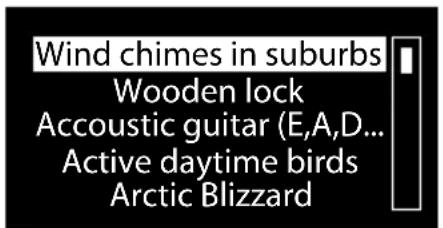
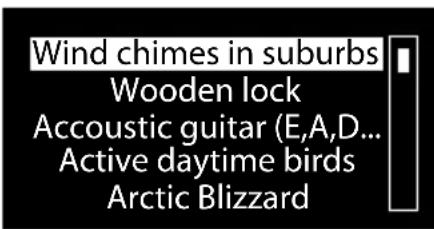
Browsing Pure Sounds
connect.pure.com
Search for a station
Tap Search when browsing the station list to search for stations by Name, Genre, Country, Language, Quality (sound quality), or any combination of these. Use the Select dial to set your options and tap Go to see the list of results.
Searching for an internet radio station using Quick Jump
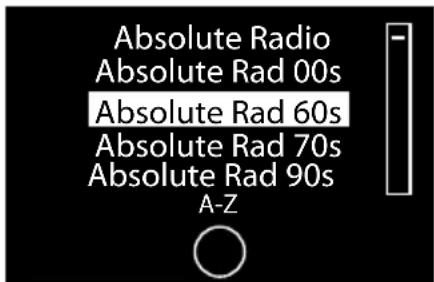
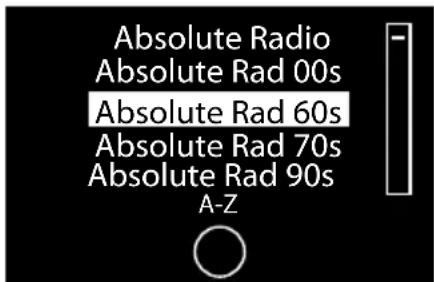
The Quick Jump function lets you to search for stations that begin with a certain letter. To use Quick Jump:
- Tap the A-Z button to open the Quick Jump box.
- Turn and press the Select dial to select the first letter of the radio station that you want to search for.
Listening to other Internet content
Tap Home and select Pure Connect from the Home screen, then one of the following content types:
Listen again
Select this option to access the BBC Listen Again service, which lets you catch up with any BBC radio shows that you might of missed. These archived radio programmes are available to listen to for a set period of time after the live broadcast.
Podcasts
Podcasts are prerecorded audio shows on a wide variety of subjects such as comedy, arts, business, and culture, for you to enjoy anytime.
Pure Sounds
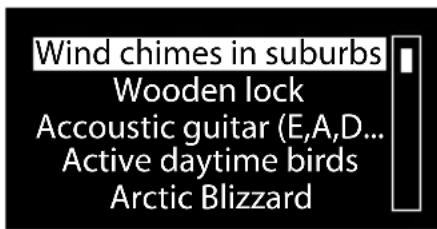
Our library of evocative ambient sounds, including birdsong, cityscapes, and waves on shore.
Creating a Pure Connect account
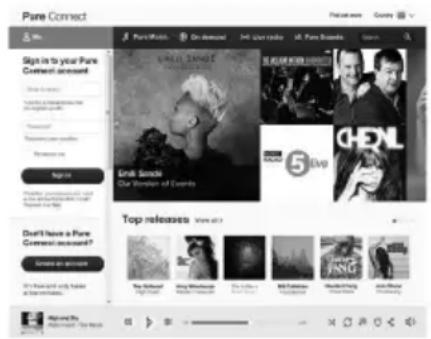
All you need to create a Pure Connect account and register your Evoke is a valid e-mail address. We'll need to send you a couple of e-mails and you won't be able to complete the process without access to them.
To create a Pure Connect account:
- Open your Internet browser.
- Go to connect.pure.com.
- Click Create account and follow the instructions on-screen.
Register your Evoke on Pure Connect
-
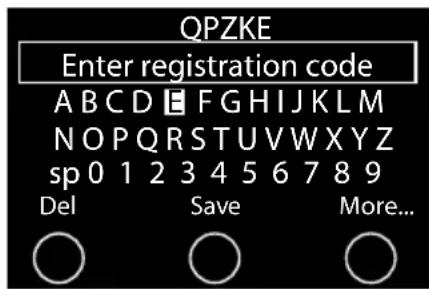
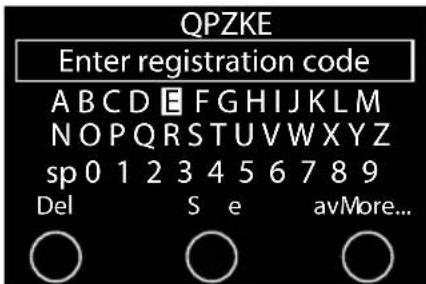
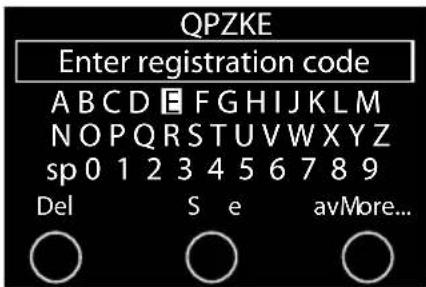
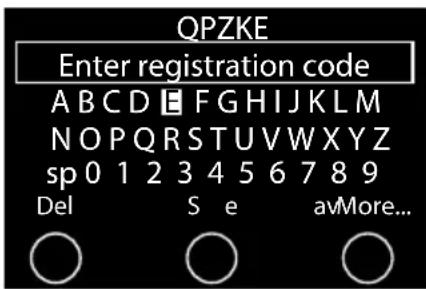
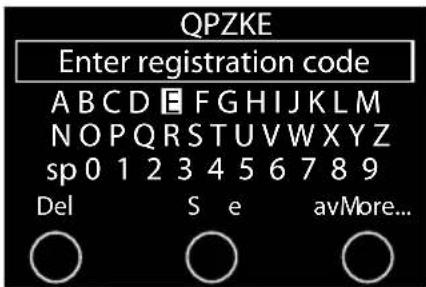
Log in to Pure Connect, click Me and select Devices. You'll see your registration code.
-
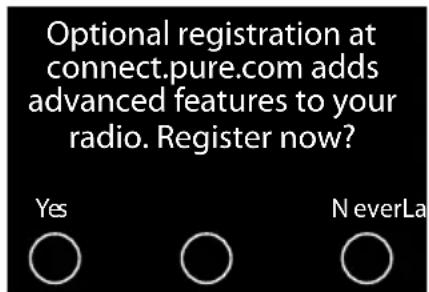
From Pure Connect settings on your radio, select Register with Pure Connect to enter your code. Use the Select dial to highlight and select characters; tap Del to erase characters; and tap Save to finish.
Congratulations! You've registered your Evoke on Pure Connect. The favourites you've created on Pure Connect will be visible on your Evoke, and those you've created on Evoke will appear on Pure Connect.
Music streaming
Pure Connect's music streaming is a cloud-based on-demand subscription service that gives you instant access to millions of music tracks from one of the world's largest music catalogues covering almost every conceivable artist and genre. You can listen on our music streaming and radio systems, on an Apple or Android device running the Pure Connect app or on the Pure Connect website.
Pure Connect's music streaming service is only available in certain countries. Please see http://www.pure.com/availability/ for details.
Accessing Pure Connect's music streaming on Evoke
- Tap Home and select Pure Connect from the Home screen.
- Turn and press the Select dial to select Pure Music.
- Turn and press the Select dial to select one of the following options:
My Tracks: Select this option to access the tracks that you have purchased from Pure Connect.
Catalogue: Select this option to browse or search the complete music catalogue on your Evoke.
By playlist: Select this option to listen to playlists created by you at connect.pure.com or via the Pure Connect App (see "Streaming from the Pure Connect app" on page 11).
Pure Connect tagging service
The Pure Connect tagging service can be used to identify, bookmark and purchase tracks that are playing on a digital, FM or Internet radio station. In addition to accessing your favourite music tracks, the Pure Connect tagging service also automatically back catalogues any music by similar artists that you might be interested in, allowing you to explore something completely new or rediscover forgotten favourites.
Note: To use the Pure Connect tagging service, your Evoke will need to be connected to the internet and you will need a Pure Connect account. See page 9 for more information on setting up a Pure Connect account.
- Tap the Tag button.
- Evoke will identify the name of the song that is being played and allow you to buy it (or stream it if you have a music streaming subscription).
Note: To access your tagged tracks list, you will need to log in to your Pure Connect account at connect.pure.com.
Note: The Pure Connect tagging service will attempt to identify and match any playing track using our extensive catalogue. Purchasing and streaming tracks is subject to availability.
Streaming from the Pure Connect app
You can use the Pure Connect app to stream any music stored on your smartphone or tablet as well as all the content available on Pure Connect to Evoke and other Caskeid compatible devices (such as Jongo).
Note: Any devices that you want to use with the Pure Connect app will need to be on the same network.
Download the Pure Connect app
You can download the Pure Connect app on your smartphone or tablet from the Apple App Store or Google Play.

from the Apple App Store

from Google Play
Selecting Evoke or other Caskeid compatible device in the Pure Connect app
With the Pure Connect app you can stream to a single Caskeid device or multiple Caskeid devices simultaneously.
To start streaming content:
- Select the content that you want to stream in the Pure Connect app.
- Tap the icon in the app player bar on your iOS or Android device to view a list of available devices on your network.
- Tap the ○ icon next to the Caskeid compatible devices that you want to stream to.
Your selected content will start playing on the Caskeid devices that you selected.
See the help supplied with the app for more information on streaming to a Caskeid device.
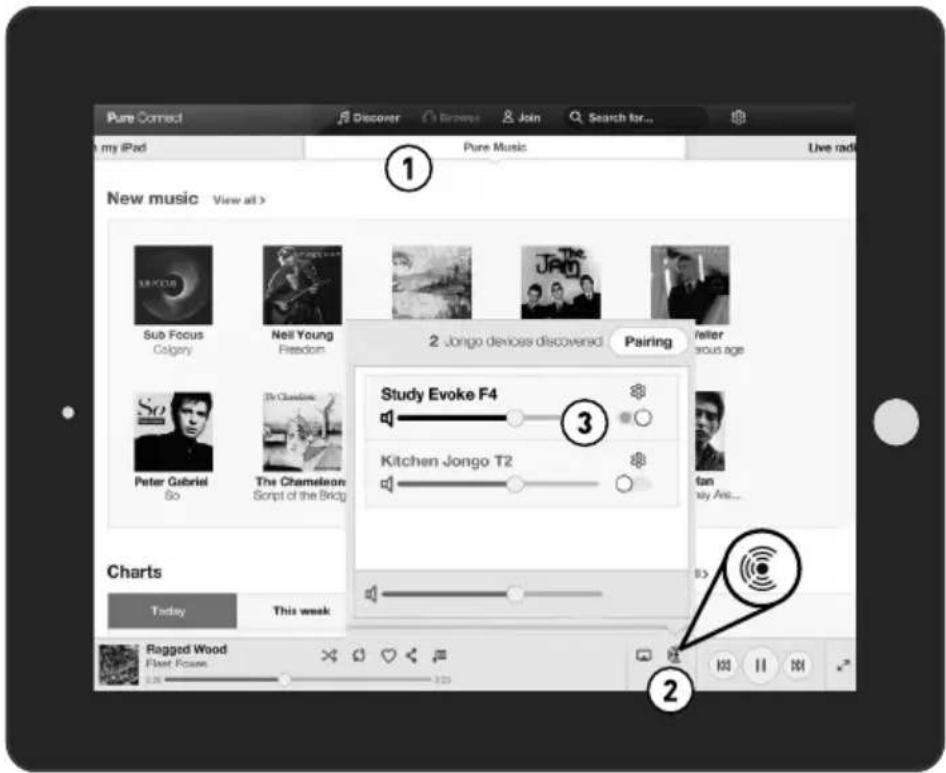
Pure Connect app
Streaming music from a PC or Mac
You can stream music stored on your computer or on a UPnP-compatible Network Attached Storage (NAS) device to Evoke. To stream music from your computer you will need to install media server software on it.
Listening to streamed tracks on Evoke
- Tap Home and turn and press the Select dial to choose Network/USB media player from Home screen.
- Turn and press the Select dial to choose the media player that you want to stream music from.
- Turn and press the Select dial to navigate and select the track or playlist.
Playing/pausing audio playback
Press the Select dial to pause/play a track that is playing on Evoke.
Seeking within a track
While paused, you can hold down the and buttons to seek within the track.
Skipping backwards and forwards between tracks
If you are streaming audio on Evoke from a media server, you can tap the 📄️ whichs to skip back/forward between tracks.
Listening to digital or FM radio
Extend the aerial, then tap Home and select Digital radio or FM radio from the Home screen. The first time you select digital radio, Evoke will perform an autotune to find all available stations and will tune into one when finished.
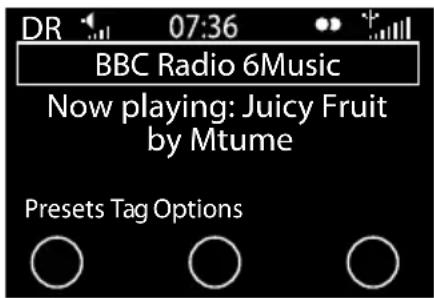
Digital radio screen
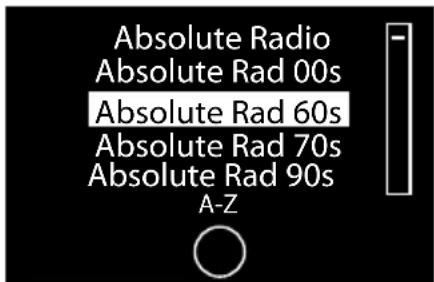
Changing digital radio station
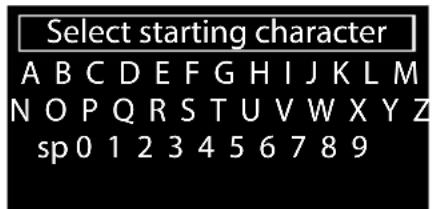
Searching for digital radio station
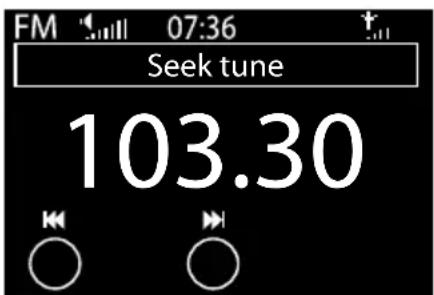
Using seek tuning to change FM stations
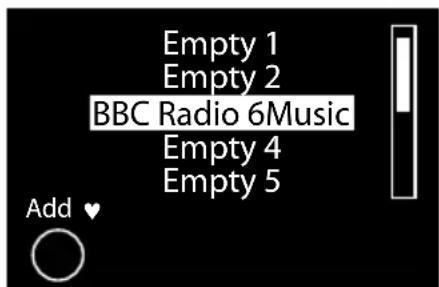
Selecting a preset
Changing digital stations
- Turn the Select dial left or right to browse through the list of available digital stations.
- Push the Select dial to change the station.
Searching for digital stations
- Turn the Select dial left or right.
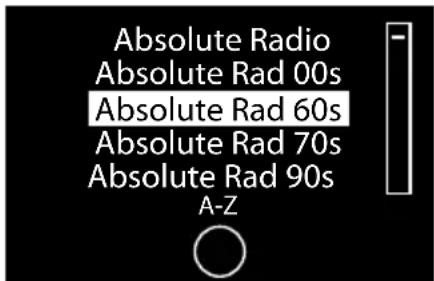
- TapA-Z to open the search option.
- Turn and press the Select dial to select the first letter of the radio station that you want to listen to.
- Push the Select dial to change the station.
Changing FM stations
Seek tuning
-
Turn the Select dial.
-
Tap the letters to seek to the next or previous FM radio station that has a strong signal.
Manual tuning
Turn the Select dial right or left to step up or down 0.05MHz.
Storing a preset
Tune to the station you want to store as a preset and tap Presets. Turn the Select dial to highlight a preset number. Tap Add to store the preset. (You can replace existing presets.)
Listening to a preset
Tap Presets, select the station that you want to recall and tap Listen, or push the Select dial.
Listening to audio from a USB memory stick
Evoke can play music from a USB memory stick connected to the USB port on the back. Evoke supports WMA (Standard V9), AAC, MP3 and MP2 audio files. By default, Evoke looks for audio on your network if you have not connected a USB memory stick to the back of Evoke.
To listen to tracks from a USB memory stick:
- Tap Home and turn and press the Select dial to choose Network/USB media from the Home screen.
- Turn and press the Select dial to select the USB device.
- Turn and press the Select dial to specify the type of audio (Playlists, Artists, Genres or Pure recordings) that you want to listen to.
- Turn and press the Select dial to select the audio that you want to listen to,
Playing/pausing audio playback
Press the Select dial to pause/play a track that is playing on Evoke.
Seeking within a track
While paused, you can hold down the ◀ and buttons to seek within the track.
Skipping backwards and forwards between tracks
Tap the k-bitions to skip back/forward between tracks.
Using Bluetooth
If your phone or tablet is capable of storing audio files, you can use Bluetooth to stream any music stored on your phone or tablet to Evoke.
Note: Adding a Bluetooth device varies on different mobile devices. See your Bluetooth mobile device manual for specific information.
Preparing Evoke to stream audio using Bluetooth
- Ensure that the Bluetooth adapter is inserted into Evoke's USB connector.
- Enable Bluetooth on your mobile device.
- On your mobile device, select the option to add a new Bluetooth device. On some mobile devices you may need to select the search or scan option.
- Start the pairing process on your mobile device. Do this by selecting Evoke from the list of available devices that appear on the mobile device's screen. This will connect automatically once paired.
You will now be able to start streaming audio to Evoke from your Bluetooth device.
Note: You will need to disconnect any connected mobile Bluetooth devices from Evoke to stream using Wi-Fi or to stream from a different Bluetooth device. Bluetooth will automatically disconnect if you go out of range of Evoke. To manually disconnect you will usually need to use the Bluetooth settings on your mobile device.
Note: For more help with Bluetooth, see our "Help and advice" on page 22.
Recording radio programmes
Evoke allows you to record live radio from an internet (via Pure Connect) or digital radio station. You can either schedule recordings or record instantly. To record, you need to connect a USB memory stick to the USB port on the back of Evoke. The length of time that you can record depends on the amount of space available on your USB memory stick and the station that you are recording. A 2GB USB memory stick can record around 15 to 30 hours of digital or internet radio (based on the most common station data rates of 128kbps and 64kbps, respectively). If your USB memory stick runs out of space during a recording, Evoke will stop recording and display a message.
Note: You can only record live radio if you have selected Pure Connect as the audio source.
Instant recordings
To record instantly you will need to:
- Tap Home to display the home menu.
- Turn and press the Select dial to select either Pure Connect or Digital radio.
- Tune into the radio station that you want to record and tap the Record button on the front of Evoke to begin recording.
To stop instant recording, tap the Record button on the front of Evoke.
Timed recordings
You can use the timed recordings function to schedule a recording from an internet or digital radio station that has been added to your favourites.
- Tap Home to display the Home menu.
- Tap Settings and turn and press the Select dial to select Timed recordings.
- Turn and press the Select dial to choose a recording slot.
- Tap the Edit button.
- Turn and press the Select dial to turn the recording On or Off.
- Turn the Select dial to adjust the hour the recording should start and press to confirm. Repeat to set the minutes.
- Turn the Select dial to adjust the hour the recording should end and press to confirm. Repeat to set the minutes.
- Turn the Select dial to set the days the timed recording should occur. Choose between Once only, Daily, Weekdays, Weekends, Every Monday, Every Tuesday, Every Wednesday, Every Thursday, Every Friday, Every Saturday and Every Sunday then press the Select dial to confirm.
- Turn the Select dial to set the radio station source. Choose between Pure Connect or Digital radio then press the Select dial to confirm.
- Turn and press the Select dial to choose the radio station that you want to record from your favourites list.
- A timed recording is indicated by R in the icon bar.
Setting alarms and timers
Evoke has two alarms and two types of timers (kitchen and sleep). To set an alarm or a timer up, tap Home to display the Home screen. Tap Settings. Turn and press the Select dial to select Alarms and timers.
Setting an alarm
- From the Alarms and timers menu, turn and press the Select dial to select either Alarm 1 settings or Alarm 2 settings and tap Edit.
- Turn and press the Select dial to turn the alarm On or Off.
- Turn the Select dial to adjust the hours and press to confirm. Repeat to set the minutes.
- Turn the Select dial to set the days the alarm sounds. Choose between Once only, Daily, Weekdays, Weekends, Every Saturday and Every Sunday then press the Select dial to confirm.
- Turn the Select dial to set the alarm type. Choose between Pure Connect station, Digital radio, FM radio or Tone then press the Select dial to confirm.
- If you've set the alarm type as Pure Connect station, Digital radio or FM radio, turn the Select dial to choose between Last tuned (last station tuned to) or select a favourite Pure Connect station or digital and FM preset if you have any saved.
- Turn the Select dial to change the alarm volume and press to confirm.
- A set alarm is indicated by in the icon bar.
Note: If you are powering Evoke using a ChargePAK, any alarms that are set will not go off unless Evoke is powered on.
Setting the sleep timer
The sleep timer switches your radio into standby/sleep after a specified amount of time. From the Alarms and timers menu, select Sleep timer. Use the Select dial to adjust the length of the sleep timer in 15 minute steps from 15 mins to 1 hour 30 mins. Tap Save to store.
A set sleep timer is indicated by Ⓜ in the icon bar.
Setting the kitchen timer
The kitchen timer sounds a beeping tone after a set period of time.
From the Alarms and timers menu select Kitchen timer and use the Select dial to adjust the length of time. Tap Mins to toggle between minutes and hours. Tap Save to confirm.
A set kitchen timer is indicated by ⏻ in the icon bar.
Cancelling a sounding alarm or timer
To cancel a sounding alarm or timer, push either the Select or Volume dial. A sounding alarm will automatically cancel after 1 hour.
Note: Pushing the Volume dial will not cancel a tone alarm.
Warning: When powered by ChargePAK F1, tapping Standby switches the radio off and any set alarms or timers will not sound.
Snoozing a sounding alarm
Tap the Snooze button or the SnoozeHandle to snooze a sounding alarm for the specified time (default 9 minutes).
Changing the alarm snooze time
From the Alarms and timers menu, select Snooze time. Use the Select dial to adjust the duration of the snooze from 5 to 15, then either 20/25/30/40 minutes, or 1 hour.
Cancelling a snoozing alarm
To cancel a snoozing alarm push either the Select or Volume dial.
Options and settings
Pure Connect settings
These settings are only available when listening to Pure Connect. Tap Home to display the home menu and then tap Settings. Turn and press the Select dial to select Pure Connect.
Pure Music repeat
Turn and press the Select dial to select a repeat option for the specified content on Pure Connect's cloud-based on-demand streaming service. Select All to specify that all tracks should be repeated. Select Track to specify that the track currently playing on Evoke should be repeated. Select Off to disable the repeat option.
Pure Music Shuffle
Turn and press the Select dial to select a shuffle option for the specified content on Pure Connect's cloud-based on-demand streaming service. Select On to shuffle all tracks. Select Off to disable shuffling.
Clear favourites
Select Clear favourites to remove all stations/podcasts/Pure Sounds from your favourites list, as well as from Pure Connect if your radio is connected.
Register with Pure Connect
Enter your Pure Connect registration code if you haven't already done so. See page 9 for more information.
Autotune
The Autotune option scans all digital frequencies for stations and automatically adds any new digital radio stations and removes any inactive ones. This option is only available if listening to digital radio. Tap Home to display the home menu and then tap Settings. Turn and press the Select dial to select Autotune.
FM settings
These settings are only available when listening to FM radio. Tap Home to display the home menu and then tap Settings. Turn and press the Select dial to select FM.
FM stereo
Switch between receiving FM stations in Mono (default) or Stereo. If listening with headphones or have connected an auxiliary speaker, you may want to change this setting to stereo.
Network/USB media
These settings are only available when listening to the Network/USB media source. Tap Home to display the home menu and then tap Settings. Turn and press the Select dial to select Network/USB media.
Repeat
Select the repeat type.
Off (default): Tracks are played until the end of the current album, folder, playlist or search results.
All: Continuously repeats the current album, folder, playlist, or your search results.
Track: Repeats the current track.
Shuffle
Select the order that tracks in the current album, folder, playlist or search results are played:
Off (default): Tracks play in the order that they are displayed on-screen.
On: Tracks play in random order.
Media details
View technical details about your current media server or re-scan for alternative servers:
Current details: Turn the Select dial to view information about the media server, including the media server name, the software version, the IP address and the port number.
Display options
Adjust display settings, such as screen duration and the information displayed while you are listening to each source. Tap Home to display the home menu and then tap Settings. Turn and press the Select dial to select Display.
Information
Different information displays are available for each audio source:
Digital/FM radio
Scrolling text: Text information broadcast by the current station. May include song titles, program details, news, etc.
Reception info: Displays the current frequency and signal strength.
Time and date: Displays the current time and date.
Pure Connect
Description: Broadcast by the current station. May include song titles and programme details. If streaming a track from Pure Connect's cloud-based on-demand streaming service this displays the artist and album of the track.
Location and Genre: Information about the current station, e.g., US Rock.
Time offset: Most stations will be live streams, but otherwise displays how far into a broadcast the station is. If streaming a track from Pure Connect's cloud-based on-demand streaming service this displays how far into the track's duration you are.
Wi-Fi signal strength: Displays a bar indicating the current Wi-Fi signal strength.
Station URL: Displays the URL address of the current station. If listening to a track from Pure Connect's cloud-based on-demand streaming service this displays the URL of the track.
Time and date: Displays the date with a full-screen clock (as in standby mode).
Media player
Track info: Displays artist and album information (id3 tags).
Time offset/duration: Displays a progress bar and timers indicating the current track position.
Wi-Fi signal strength: Displays a bar indicating the current Wi-Fi signal strength.
Time and date: Displays the date with a full-screen clock (as in standby mode).
Active and Standby backlight
You can adjust the duration that the screen is illuminated when switched on or in standby. Select Active backlight to adjust the display settings that apply when the radio is switched on or Standby backlight to adjust the display settings that apply when your radio is in standby. Choose from Always on or Off after 7 seconds.
Active and Standby brightness
You can adjust the brightness of the screen when Evoke is switched on or in standby. Select Active brightness to adjust the display brightness when Evoke is switched on or Standby brightness to adjust the display brightness when Evoke is in standby.
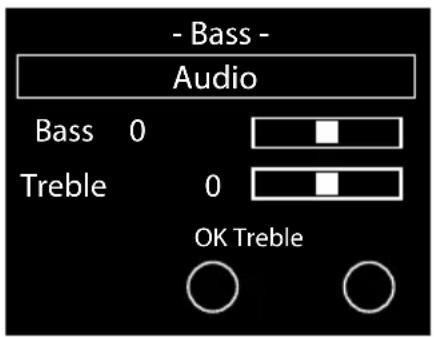
Audio settings
You can use this menu to adjust the bass and treble.
- Tap Home to display the home menu and then tap Settings. Turn and press the Select dial to select Audio.
- Turn the Select dial to adjust the bass level.
- Tap Treble and turn the Select dial to adjust the treble level.
- Tap OK when you have finished adjusting the audio settings.
Setting the clock
The clock will automatically set itself using your digital radio signal, FM radio signal or your network. However, if you cannot receive an updated time signal, or see the message 'Time not available', you can manually set the time and date. To set up the time and date manually:
- Tap Home to display the Home menu and then tap Settings.
- Turn and press the Select dial to select Alarms and timers > Set clock.
- Turn and press the Select dial to adjust the time and date.
- Tap to move to the previous or next setting.
- Tap Save when you have finished setting up the time and date.
Changing the language shown on the display
To switch the display language between English, French, German and Italian:
- Tap Home to display the Home menu and then tap Settings.
- Turn and press the Select dial to select Miscellaneous > Language.
- Turn and press the Select dial to set the display language.
Upgrading Evoke
Software updates may be issued in the future to provide new features and functions We recommend using automatic software updates for your Evoke, which are delivered via the Wi-Fi connection. If a software update is available, Evoke will display a message asking if you would like to install the software update.
To upgrade over your network manually
- Tap Home to display the Home menu and then tap Settings.
- Turn and press the Select dial to select Miscellaneous > Upgrade.
- Evoke will search for any available updates. If an update is available the message New version available: vX.X will appear on screen (X.X is the version number, i.e. v2.1).
- Tap OK to download and install the new software. This can take up to 5 minutes.
To upgrade using a USB drive (when a network is not available)
Contact Pure technical support (http://support.pure.com) for information on how to upgrade Evoke to the latest version of software.
Warning: Do not switch off Evoke while it is updating.
Changing Evoke's name
Your Evoke is assigned a name. This name is used so that you can find your radio easily when using the Pure Connect website to manage your listening. This name is also used to identify Evoke as an available speaker in the Pure Connect app and Bluetooth. By default this name is Evoke F4 *****, but here you can change this to anything you like to make it more memorable.
Note: ***** represents a six digit code that will be unique to each Evoke, which is based on the last six digits of Evoke's MAC address.
To assign a custom name to Evoke:
- Tap Home to display the Home menu and then tap Settings.
- Turn and press the Select dial to select Miscellaneous > View/change device name. The name that has currently been assigned to Evoke will display at the top of the screen.
- Turn and press the Select dial to enter a new name.
- Tap Save when you have finished setting up the radio name.
Bluetooth settings
You can use the Bluetooth menu to make Evoke visible or invisible to other Bluetooth devices.
- Tap Home to display the Home menu and then tap Settings.
- Turn and press the Select dial to select Miscellaneous > Bluetooth
- Turn and press the Select dial to select one of the following options:
On (Discoverable)
On (Hidden)
Off
Network settings
Evoke can be connected to your network using a Wi-Fi or Ethernet connection. The settings that you can change are different depending on the type of connection you are using. Tap Home to display the Home menu and then tap Settings. Turn and press the Select dial to select Network.
Wireless network settings
Connection wizard
Scan for wireless networks to connect to.
View details
Displays your network configuration details.
Network name (SSID)
Encryption method (WEP, WPA or WPA2)
IP address
Network mask
DNS IP address
Router IP address
Device Wi-Fi MAC address
Access point MAC address
Manual setup
Manually configure your wireless network (for advanced users only).
Retry connection: Attempts to reconnect to the selected network.
Network name: Scan for networks or Enter SSID manually to specify a new SSID for your wireless network.
Encryption mode: Change the encryption mode between WEP, WPA (PSK), WPA2 (PSK) or None. Evoke automatically detects the mode for your network. Only change this setting if you think the encryption mode is incorrect.
Key or password: Enter a new encryption key or password.
IP address: Choose between DHCP (dynamic) or Static. If you select Static, another menu will appear where you will need to specify the IP address settings for Evoke.
Ethernet network settings
View details
Displays your network configuration details.
IP address
Network mask
DNS IP address
Router IP address
Device Wi-Fi MAC address
Ethernet MAC address
Manual setup
Manually configure your wireless network (for advanced users only).
IP address: Choose between DHCP (dynamic) or Static. If you select Static, another menu will appear where you will need to specify the IP address settings for Evoke.
General network settings
Clear network settings
Evoke will delete all previous Wi-Fi connections, passwords and other network settings. If using the wireless connection method, this will also perform a fresh scan for available networks.
Using an optional ChargePAK F1
ChargePAK makes your Evoke truly portable, so you can enjoy the programmes you love in the garden or at the beach.
Because it's rechargeable, ChargePAK is much cheaper than regular batteries. It's also more eco-friendly because it reduces the amount of toxic substances sent to landfill. And, because it's a fit-and-forget solution that charges whenever your radio is connected to the power outlet, it's much more convenient than standard rechargeable batteries.
Installing a ChargePAK
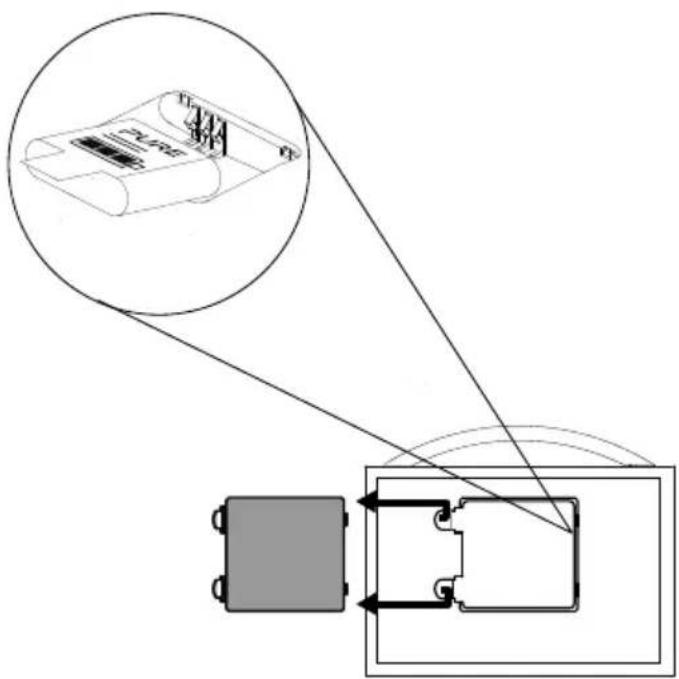
- Switch your Evoke off and disconnect it from the power supply.
- Open the battery compartment and position ChargePAK so that the Pure label is facing the battery compartment lid and ChargePAK's contacts line up with the three terminals in the battery compartment.
- Replace the battery door and connect your product to a power outlet.
- ChargePAK will begin charging. When charging your ChargePAK for the first time or after an extended period of inactivity we recommend that you charge it for around 24 hours to ensure full battery power.
Note: It is normal for your ChargePAK to get warm, especially during charging. Your ChargePAK will give years of trouble-free use under normal circumstances, but like all rechargeable batteries its efficiency will gradually reduce with age.
Important: Evoke can only be powered with a Pure ChargePAK F1 and is not compatible with any other batteries, either disposable or rechargeable, or any other ChargePAK model.
Help and advice
I am having trouble connecting to my network
- Your radio can't connect to wireless networks that are access controlled, such as office networks, without a WEP, WPA or WPA2 key or password.
- Your radio needs to be positioned within the range of your wireless network, which will be reduced if there are walls between your router and radio. Although Evoke is very good at picking up wireless networks, the strength of the Wi-Fi signal will vary depending on your router and the surrounding environment. If Evoke fails to find your wireless network, or the signal drops off, move the radio closer to the router.
- Unless your wireless network is ‘open’ (this is generally not recommended due to the risk of unauthorised access), make sure you have your WEP, WPA or WPA2 key to hand.
- Make sure that you have entered the correct WEP, WPA or WPA2 key or password for your network.
- If you also experience trouble connecting to your network with the Ethernet adapter, check your Internet connection using a computer. If this is OK, try restarting your router or modem.
Screen displays 'Station not available'
- If a station will not play visit http://support.pure.com for assistance.
I can't see Evoke in the list of available Bluetooth devices on my mobile device
- This may be because your Evoke Bluetooth visibility setting is set to ‘On (Hidden)’ or ‘Off’ (see page 19). Your Evoke setting will need to be set to ‘On (Visible)’ to pair with your mobile device.
My mobile device is prompting me for a passcode when I try to pair with Evoke
- Some legacy Bluetooth devices may prompt you to enter a passcode when trying to pair with Evoke. If this occurs, enter the code '0000'.
Radio Digital (DAB/DAB+/DMB-R), FM and internet radio (via Wi-Fi or Ethernet connection).
Frequencies Digital Band III 174–240 MHz, FM 87.5-108 MHz.
Parametric stereo decode up to 256 kbps.
Network Wi-Fi: 802.11b and 802.11g supported with WEP and WPA/WPA2 encryption.
2.412GHz \~ 2.472GHz (channels 1 to 13).
Ethernet (requires optional adapter): 10/100 Mbps.
0.5 MB broadband speed recommended.
Bluetooth: A2DP supported via supplied USB dongle.
Media streaming Audio codecs supported include WMA (Standard V9), AAC, MP3, MP2. Media streaming requires UPnP server or PC/MAC running UPnP server software (supplied upon registration to connect.pure.com).
Speaker 3.5" full range driver.
Input connectors 5.5V DC power adapter socket (adapter supplied). 3.5mm Line-in for auxiliary devices. USB (Full-size A type) for USB recording/playback, product updates (also available over Wi-Fi), Bluetooth dongle or optional USB Ethernet adapter.
Output connectors 3.5mm stereo headphone socket. 3.5mm stereo socket for Evoke F4 stereo auxiliary speaker.
Presets 30 digital radio, 10 FM radio and unlimited internet radio favourites (requires registration at connect.pure.com).
Display Large high contrast white on black graphical 128 x 64 OLED display.
Mains power adapter Input: 100-240C AC, 50/60Hz, 0.8A
Output: 5,5V DC, 3.57A
ChargePAK Pure ChargePAK F1 rechargeable battery pack (available separately).
Power consumption Standby: <1W, Active: 3.4W.
Approvals CE!
CE marked. Hereby, Pure, declares that this Band II LPD device is in compliance with the essential requirements and other relevant provisions of Directive 1999/5/EC. The Declaration of Conformity may be consulted at http://www.pure.com/R&TTE-DoC. ETSI EN 300 401 compliant. Australian C-Tick N1600 and Electrical Safety.
Dimensions 209 mm wide x 110 mm deep x 175 mm high
Weight 1.5kg
Warranty Comprehensive three year warranty.
Disposal of Waste Electrical & Electronic Equipment
This symbol on the product or on its packaging indicates that this product should not be treated as household waste. Instead it should be handed over to a suitable collection point for the recycling of electrical and electronic equipment. By ensuring this product is disposed of correctly, you will help prevent potential negative consequences for the environment and human health, which could otherwise be caused by inappropriate waste handling of this product. The recycling of materials will help to conserve natural resources. For more detailed information about recycling of this product, please contact your local council office, your household waste disposal service or the shop where you purchased the product.
Copyright
Copyright 2014 by Imagination Technologies Limited. All rights reserved. No part of this publication may be copied or distributed, transmitted, transcribed, stored in a retrieval system, or translated into any human or computer language, in any form or by any means, electronic, mechanical, magnetic, manual or otherwise, or disclosed to third parties without the express written permission of Imagination Technologies Limited. Version 5 April 2014.
Trademarks
Evoke F4, ChargePAK, Pure, the Pure logo, Imagination Technologies, and the Imagination Technologies logo are trademarks or registered trademarks of Imagination Technologies Limited.
Caskeid is a superior synchronization technology, providing clear multi-speaker wireless audio.
Caskeid and the Caskeid logo are trademarks or registered trademarks of Imagination Technologies.
All other product names are trademarks of their respective companies.
Warranty Information
Imagination Technologies Limited warrants to the end user that this product will be free from defects in materials and workmanship in the course of normal use for a period of three years from the date of purchase. This guarantee covers breakdowns due to manufacturing or design faults; it does not apply in cases such as accidental damage, however caused, wear and tear, negligence, adjustment, modification or repair not authorized by us.
Please visit www.pure.com/register to register your product with us. Should you have a problem with your unit please contact your supplier or contact Pure Support at the address shown at the rear of this manual.
Disclaimer
Imagination Technologies Limited makes no representation or warranties with respect to the content of this document and specifically disclaims any implied warranties of merchantability or fitness for any particular purpose. Further, Imagination Technologies Limited reserves the right to revise this publication and to make changes in it from time to time without obligation of Imagination Technologies Limited to notify any person or organization of such revisions or changes.
Acknowledgement of License Agreements
Portions of the code used in Evoke F4 are subject to the GPL, LPGL, BSD, and other open source licenses. For more details please refer to: http://www.pure.com/licensing
Evoke
F4 with Bluetooth
EN
DEUTSCH
Sendersuchanzeige
connect.pure.com
Pure Connect App
Audio-Einstellungen
Australian C-Tick N1600 and Electrical Safety.
Radio FM Cf. page 14
Naviguer parmi les sons Pure
connect.pure.com
Paramètres audio
IP Address (Adresse IP)
DNS IP address (Adresse IP DNS)
IP Address (Adresse IP)
DNS IP address (Adresse IP DNS)
Ethernet MAC address (Adresse MAC Ethernet)
Manual setup (Configuration manuelle)
Aide et conseils
Sorgente Icone
DR Radio digitale
PC Pure Connect
MP Media Player
FM FM
connect.pure.com
App Pure Connect
Musica in streaming da PC o Mac
Schermata radio digitale
Impostazioni audio
18 Network/USB media (Netwerk/USB media)
18 Display options (Weergaveopties)
19 De klok instellen
20 De Evoke upgraden
Stationzoekscherm
connect.pure.com
Pure Connect App
Digitale radio-scherm
Network/USB media (Netwerk/USB media)
Media details (Mediadetails)
Audio-instellingen
Handmatig upgraden via uw netwerk
Help en advies
Australian C-Tick N1600 and Electrical Safety.
Afmetingen
209 mm breed x 110 mm diep x 175 mm hoog
Gewicht
1,5 kg
Garantie
ES
Fuente Iconos
DR Radio digital
PC Pure Connect
MP Reproductor multimedia
FM FM
AUX Entrada auxiliar

Caskeid
BT Bluetooth
Volumen
Silencio
connect.pure.com
Pantalla de radio digital
Ayuda y asesoría
Imagination Technologies Limited
Home Park Estate
Kings Langley
Herts, WD4 8LZ
United Kingdom
www.pure.com
http://support.pure.com