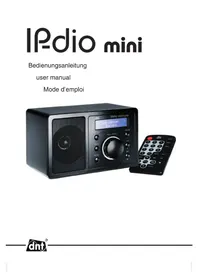
IPDio mini - Radio dnt - Free user manual and instructions
Find the device manual for free IPDio mini dnt in PDF.


| Product Type | Internet Radio |
| Brand | dnt |
| Model | IPDio mini |
| Dimensions (W × D × H) | 168 × 98 × 98 mm |
| Power Supply | 230 V ~ 50 Hz |
| Network Connection | Wi-Fi IEEE 802.11b/g |
| Network Security | WEP 64/128 bits, WPA/WPA2 |
| IP Protocol | IPv4, DHCP or fixed IP |
| Audio Decoders | RealAudio, WMA, MP3, AAC, AU, WAV, OGG, AIFF |
| Playlist Formats | ASX, RAM, M3U, RPM, PLS |
| Speaker Power | 1.5 W |
| Headphone Output | 3.5 mm jack |
| Line Output | 3.5 mm jack |
| Remote Control | Yes, with full functions |
| Main Functions | Internet Radio, alarm, timer, UPnP/Windows Shares playback |
| Display | Backlit screen |
| Care and Cleaning | Soft, dry cloth |
| Safety | Do not expose to moisture, heat >60°C, shocks |
| Customer Service | support@dnt.de, phone +49 6074 37 14 31 |
| Warranty | According to legal provisions, proof of purchase required |
Frequently Asked Questions - IPDio mini dnt
User questions about IPDio mini dnt
0 question about this device. Answer the ones you know or ask your own.
Ask a new question about this device
Download the instructions for your Radio in PDF format for free! Find your manual IPDio mini - dnt and take your electronic device back in hand. On this page are published all the documents necessary for the use of your device. IPDio mini by dnt.
USER MANUAL IPDio mini dnt
text_image
Oldies < Pop >
text_image
Fingkabe von Media Milk: Diter und Reader in Microsoft Files Information on Web Fingkabe/Redesign Delete in Media as: Gettungen... Delete in Media Delete in Media Delete in Media Delete in Media Delete in Media Delete in Media Delete in Media Delete in Media Delete in Media Delete in Media Delete in Media Delete in Media Delete in Media Delete in Media Delete in Media Delete in Media Delete in Media Delete in Media Delete in Media Delete in Media Delete in Media Delete in Media Delete in Media Delete in Media Delete in Media Delete in MediaChasing Cars 2 of 20
EC-Declaration of Conformity

marking
We, Manufacturer/Importer
D-63128 Dietzenbach, Germany
Declare that the product IPdio mini is in conformity with
Council Directive 1999/5/EC (R&TTE Directive)
EN 300 328 v1.6.1
Council Directive 89/336/EEC (EMV Directive) as amended by directive 93/68/EEC
EN 301 489-17 v.1.2.1, EN 61000-3-2:2000-A2, EN 61000-3-3:1995+A1
Council Directive 73/23/EEC (LV Directive) as amended by directive 93/68/EEC
EN 60065:2002, EN 50371:2002
Council Directive 73/23/EEC (ROHS Directive) implemented into S.I. 2005 No. 2748
Packing Regulations 94/62/EC implemented into S.I. 1998 No. 1165
Dietzenbach January 13th, 2008
H.Flugel

text_image
A BSecurity instructions....26
Product information
Systemrequirements 27
Name of each part 28
Remote Control 29
Operation
Getting started 30
Connect to the network 30
Choosing a radio station to listen to 32
Search a station 32
Setting the clock 34
Setting the alarm 34
Windows shares 36
Media Player as UPNP server 39
Confi guration 40
Confi guring My Stuff 41
Troubleshooting 42
Disposal of electrical and electronic equipment 45
Service information 45
Declaration of Conformity ......24
Warranty regulations 67

Please read this information carefully before you use the two way radio.
General instructions
- Don't place the unit on unstable location, if it falls down, people may be injured.
● The unit is not a toy, please beware of small children. - If you connect the unit to other electronic devices, please study also the security instruction of this device.
- If you have any question regarding the unit, how it works, the safety or the correct connection please contact our technical support or ask any specialist.
● The seller will not be liable for any damages caused by misuse of the product and any claim from third parties.
Environmental conditions
- Don't leave the product close to magnetic cards like credit cards. The magnet of the loudspeaker can damage the information on this card.
- Don't drop or shake the unit, it might be damaged.
- Avoid too high pressure to the LC-display, it might be damaged.
- Don't leave the unit where the temperature is higher than 60^ , e.g. in cars with closed windows in the summertime, near heaters or any other type of heat source.
- Don't use the unit in rooms with high humidity e.g. bathrooms.
- Don't use the unit at dusty places.
- If you use the unit close to electromagnetic fields or mobile phones, unwanted noise could be recorded.
Technical problems
- In case any foreign material or liquid gets into the product, please immediately remove the power cord. Before you use it again, ask your authorised dealer to check the product carefully.
- Please do not hesitate to contact our service center.
Packaging material
- Please don't keep any packaging material within reach of small children. It can become a dangerous toy.
Maintenance
- Please remove the battery in case you don't use the product for a longer period of time. Leaking batteries can damage the product. Store the product at a clean and dry place.
- For cleaning use dry and soft cloth.
System requirements
What you need before you can use your Internet radio
Before you can use your Internet radio, you need the following:
● A broadband Internet connection und Flaterate.
● A wireless access point (Wi-Fi) connected to your broadband Internet, preferably via a router.
- If your wireless network is configured to use Wired Equivalent Privacy (WEP) or Wi-Fi Protected Access (WPA) data encryption then you need to know the WEP or WPA code so you can get the Internet radio to communicate with the network.
- If your wireless network is configured for trusted stations you will need to enter the radio's MAC address into your wireless access point. To find the radio's MAC address use menu items as follows: Confi gure à Network Confi g à View Confi g à MAC Address
- To enter the MAC address into your wireless access point, you must read the instructions supplied with the wireless access point.
● The Internet radio should work anywhere within 100 metres of the wireless access point.
- Before you continue, make sure that your wireless access point is powered up and connected to your broadband Internet. To get this part of the system working you must read the instructions supplied with the wireless access point.
View of the Appliance
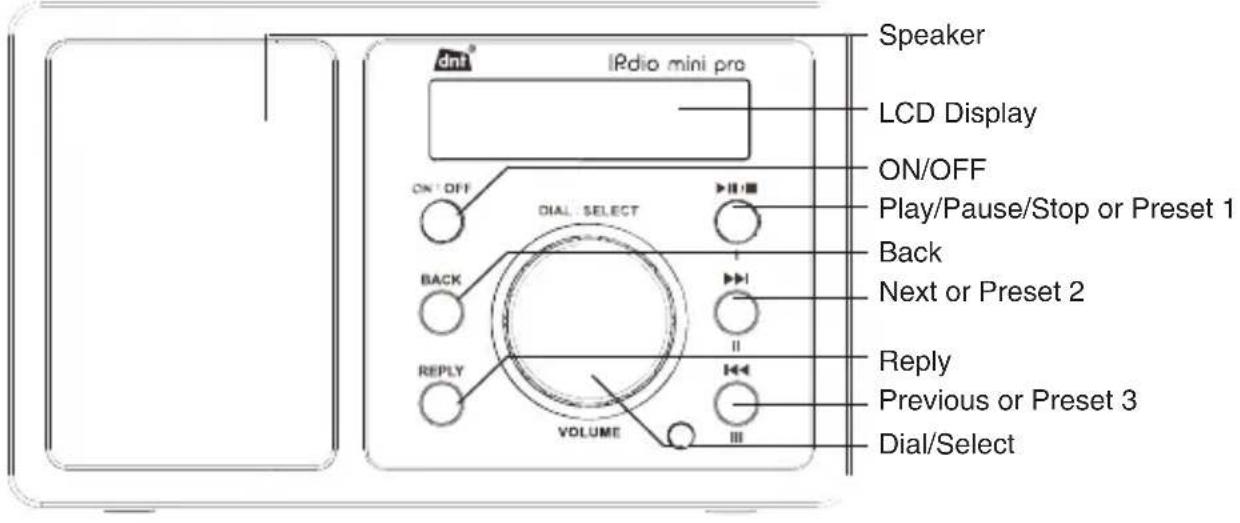
Front
text_image
dnt® iPdio mini pro Speaker LCD Display ON/OFF DIAL SELECT Back Play/Pause/Stop or Preset 1 Next or Preset 2 Reply Previous or Preset 3 Dial/SelectRear side
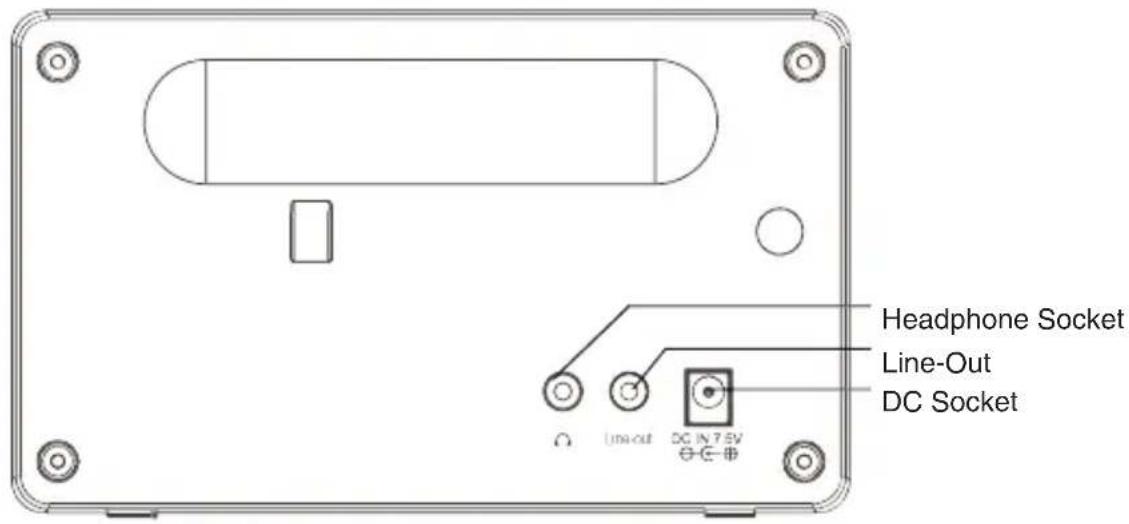
text_image
Headphone Socket Line-Out DC Socket Line-out DC IN 7.5V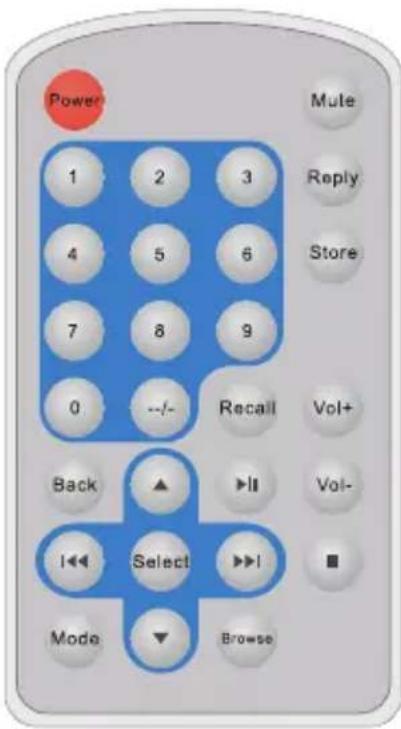
text_image
Power 1 2 3 4 5 6 7 8 9 0 --/- Recall Vol+ Back ▲ ►II Vol- I◄► Select ►►I Mode ▼ BrowsePower: Press to switch the internet radio ON/OFF.
Mute: Press to mute the voice.
Reply: Reserved for future services.
0-9: Numeric buttons for Store and Recall functions.
Store: Use to store 100 (0-99) radio stations.
Recall: Use to Play up the pre-setting stations.
--/-: Select the numeric bits>
Back: Press to go back to the previous display.
+- Vol: Use to adjust the volume.
▲▼ Use to search for stations, and use to change the option show on the display.
Browse: Press to view the name of the track currently playing and then Press up or down to see the list of tracks waiting in the play queue.
▶II: Press to play/pause playback.
Press to start playback at the previous/next track.
Mode: No function in this model.

To store a station into a preset memory with two digits (e.g. Preset 10), press the buttons in the following order: Store, --/-, 10.
To select a station into a preset memory with two digits (e.g. Preset 10), press the buttons in the following order: Recall, --/-, 10.
Getting started
Setup
Please follow those steps for connecting your radio to your network
Turn on the radio:
Plug the cable from the AC adaptor into the socket on the back of the radio, then switch on at the mains.

Only use the AC adaptor that supplied with the radio. Connecting a power supply with a different rating will cause permanent damage to the radio and may be hazardous.
| Reciva RadioARM Powered |
| InitializingNetwork |
| Connecting toNetwork |
● The display on the front of the radio will light up and say:
- Followed by:
- If you listen to the Internet radio and Media player before you turned off the radio, it will be automatically switched to Internet radio mode; Or if you was listening to FM radio, it will be automatically switched to FM radio mode.
● After a few seconds, this will change to show:
Connect to network:

If you make a mistake at any point, press the BACK button to go back to the previous screen.
At first, you need to select network;
- Press the SELECT button.
- Rotate the dial until the display shows Configure.
- Press the SELECT button.
- Rotate the dial until the display says Network Config
- Press the SELECT button.
- When the ESSID for the access point you want to connect to be displayed on the screen, press the SELECT button. You might need to enter the correct WEP(Wired Equivalent Privacy) or WPA(Wi-Fi Protected Access) code.
- If your network is not configured to need a WEP or a WPA code, the display will show:
- If the screen displays:
| Configure |
Network Config
| Network OK |
Eryption Key Required
- Then the network is using one of the encryption systems:
- Wired Equivalent Privacy (WEP) or Wi-Fi protected Access (WPA). You therefore need to enter the correct WEP or WPA code into the radio for it to communicate with you network.
● After 3 seconds the display goes into the code entry mode or press SELECT.
<{}>
END
<>θ
Connecting to Network
- To enter the code, rotate the dial to select each character of the code in turn, pressing the SELECT button after each character.
Make sure the character you want is shown in the centre of the display to be able to select it.
WEP and WPA codes are case sensitive to upper and lower case characters so you must enter them exactly.
- After the final character, rotate the dial to select END and press the SELECT key.
- The display shows “Connecting to network” as the radio connects to the network.
Network OK
- Then it will be displayed:
- You my see a message saying
. This indicates that some new radio stations may be available since you last connected, or others may have ceased to broadcast. The list of available stations will change.
Using the product
Choosing a radio station to listen to
< Stations >
- With
the highlighted menu, press the SELECT button. - If the screen does not display
, rotate the dial until it does and then press the SELECT button. - Rotate the dial to choose from
or .
< location >
- Press the SELECT button to choose the option you want.
- The display will show the number of stations that are loading. The 1st station name will be displayed – stations are listed alphanumerically.
- Press SELECT key for the stations you would like to listen.
- The display will show
while the station are buffering. - When you are listening to a particular station, the following information will show on the display:
For example:
BBC Radio 1: Station Name
32 kbps WMA: Transmission Information
Real Enabled: Media player capabilities
Search a station (located in the menu item stations)
You can directly connect the radio to a station using the search function. The display shows the characters in the 1st line and the input fi eld in the 2nd line.
- Rotate the SELECT button until the 1st character is locate in the middle of the display and press the
Using the product
SELECT button. Repeat this procedure until all characters are shown in the display.
● Finally rotate the dial to select END und press press the SELECT button.
- Now the display shows a list of stations.
- Select the Station you want to listen to in the list and press the SELECT button to confirm.

It doesn't matter, if you use lower and upper case characters for the search string. If you make a mistake at any point, press the BACK button to edit the last character.
Setting the CLOCK

You don't need to setup the clock, because it is automatically updated by internet for GMT+1, which is used most countries in Europe.
If you make a mistake at any point, press BACK button to go back to the previous screen.
< Configure >
< Clock Setup >
< Set time/date >
Set Time 00:00 AM
Set Time 5:08 AM
Set Time 5:12 AM
Set Date 01 Jan 2005
- Press the Back button.
- Rotate the dial until the display says
. - Press the SELECT button.
- Rotate the dial until the display says
. - Press the SELECT button.
- Rotate the dial until the display says
- Press the SELECT button
- Rotate the dial until the hour setting is correct, then press the SELECT button.
- Rotate the dial until the minute setting is correct, then press the SELECT button.
- Rotate the dial until the date setting is correct, then press the SELECT button.
The display says Time and Date Set with the new time shown beneath for 3 seconds, and then returns to the radio station display.
The 24/12 format are alternative, you can set it via menu: Configure\Clock setup\Clock Format;
Setting the ALARM

If you make a mistake at any point, press BACK button to go back to the previous screen.
< Alarm Clock >
- Press the Back button to return to Main menu.
- Rotate the dial until the display says
. - Press the SELECT button.
< Set Alarms >
Enable Alarm Yes / No
Set Alarm 7:12 AM
Set Alarm 7:20 AM
- Rotate the dial until the display says
. - You can select Disable all to delete all the alarm setting, or you can set up to 5 alarms in the radio.
- Rotate the dial to 1 group of clock alarm setting, then press the SELECT button.
After you select 'Yes', you are able to rotate the dial until the hour setting is correct, then press the SELECT button.
- Rotate the dial until the minute setting is correct, then press the SELECT button.
- According to different time necessary, you can select your favourite setting for the alarm setting;
Once\Every day \Weekly \Weekdays /Weekends options are available.
- And you can set the Alarm 'beeps' sound or internet radio station for the alarm to alert the customer when the Alarm expires;
Setting the 'Sleep Timer'

If you make a mistake at any point, press BACK button to go back to the previous screen.
- Press the Back button to the main menu.
- Rotate the dial until the display says
. - Press the SELECT button.
- Rotate the dial until the display says
. - Rotate the dial to change to sleep timer value and then press SELECT to begin the sleep timer. You will be able to select OFF or from 00:15 to 03:15
as the sleep timeout setting;

When you set that the radio will continue to play as normal, but it will go into standby mode after the sleep timer has expired. To turn the radio back on again, simply press the ON/OFF button.
Media Player
In order to play the music fi les you have stored on your PC via the Media player you must ensure the following:
- Your PC has the correct type of music files saved on it which are explained in the following paragraphs.
● The music files on your PC are not 'protected';
● The music files are stored in the correct location on your PC.
● The PC has fi le sharing turned on.
● The music fi les can be 'shared' on the network. - You know the name of your PC
MUSIC CONTENT
The internet radio plays the most popular music types,
| FLIE TYPE FLIE EXTENSION SHOWN ON PC | |
| MP3 .mp3 | |
| Windows Media .wma | |
| Real .Ra | |
| itunes .aac | |
| Ogg Vorbis .ogg | |
(These are the letters that appear after the file name. e.g. MUSIC.mp3)
Instructions for streaming
text_image
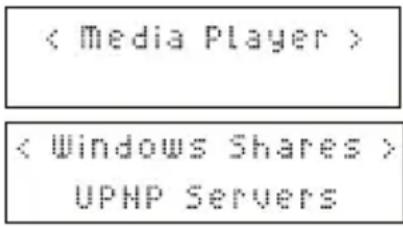
< Media Player > < Windows Shares > UPHP Servers- Select Media Player on the radio. Switch on the internet radio and press BACK until you are at the top level menu. Rotate the dial until Media Player is displayed and press the SELECT button.
- You will be able to choose from 2 playback tracks.
If you select 'Windows Shares' menu:
- Scan for PCs is displayed, press the SELECT button. Your computer network will scan and a list of all available PCs Will be displayed on you internet radio.

If a PC does not have global file sharing turned on, or a third party firewall is protecting the PC it will not be visible when you scan for it.
- Rotate the dial to highlight the PC you want to play music from and press the SELECT button.

You may be asked to enter a username and password to access the PC you have selected. This is the same user name and password you would enter if actually sitting in front of the machine.
Finding folders
- The internet radio will now scan the PC you have selected and display a list of any folder which have got 'sharing' enabled.

Your PC may have folder shared which do not contain the internet radio is just searching for shared folders, so will find all shared folder, regardless of content. Rotate the dial to select the folder that contains the saved music, and press the select button.
- The radio will display 'File Scan...' as it scans through the media fi les in the shared folder. Text on the bottom row of the display will change to indicate that the fi le scan is in progress. If you have a large number of audio fi les this could take several minutes to complete.
Selecting music
- You can now view the content of the shared folder by Album or Artist. Rotate the dial to move through the list.
- Adding music to the queue and managing the queue. When you select music to be played, it is added to the play queue and played sequentially.

At the first time the fi le scan is done, a fi le called '.reciva_media_cache' is written to the folder where the audio fi les are stored. This is in order to speed up subsequent fi le scans.
Listening to a single shared track
- Rotate the dial until ‘By Artist’ is displayed.
- Press the SELECT button.
- Rotate the dial Until the required artist is displayed.
- Press the SELECT button.
- Rotate the dial until the required album name is displayed.
- Press the SELECT button.' [Add to Queue]' will be displayed.
- Rotate the dial until the required tack is displayed.
- Press the SELECT button. The track will begin playing.
Listening to a complete shared album
- Rotate the dial until 'By Artist' is displayed.
- Press the SELECT button.
- Rotate the dial until the required artist is displayed.
- Press the SELECT button.
- Rotate the dial until the required album name is displayed.
- Press the SELECT button. '[Add to Queue]' will be displayed.
- Press the SELECT button. The album will begin playing.
Queuing up tracks for playback later
● Highlight the required track.
- Press the SELECT button. 'Track Added To Queue' will be displayed.
Queuing up albums for playback later.
● Highlight the required album.
- Press the SELECT button.' Tracks Added to Queue' will be displayed.
Controlling playback
- Use the STOP button to stop playback.
- Use the PLAY/PAUSE/STOP button to either pause a currently playing track or to restart a currently paused track or to restart a stopped track.
- Use the PLAY/PAUSE/STOP button to stop a currently playing when you press and hold the button for 2 seconds.
- Use the PREVIOUS button to start playback of the previous track in the queue.
- Use the NEXT button to start playback of the next track in the queue.
Browsing the list of tracks currently queued up for playback
- Press the BROWSE button from the remote control. The currently playing track name will be displayed.
- Rotate the dial to see which tracks are queued up for playback.
- If you want to jump to a particular place in the queue the SELECT button when the required track is displayed.
UPnP
Playing tracks in random order
- Select the individual tracks as described previously.
- Navigate to top-level menu item 'Media Player' using the SELECT and BACK buttons.
- Press the SELECT button.
- Rotate the dial until 'Playback Mode' is displayed.
- Press the SELECT button.
- Rotate the dial until 'SHUFFLE' is displayed.
- Press the SELECT button.
- Rotate the dial to select YES/NO to confirm that Shuffle mode should be enabled.
Playing tracks in the queue repeatedly
- Select the individual tracks as described previously.
- Navigate to top-level menu item 'Media Player' using the SELECT and BACK buttons.
- Press the SELECT button.
- Rotate the dial until 'Playback Mode' is displayed.
- Press the SELECT button.
- Rotate the dial until 'Repeat' is displayed.
- Press the SELECT button.
- Rotate the dial select YES/NO to confirm that Repeat mode should be enabled.
If you select 'UPnP Severs' menu:
Locating and playing media fi les using the radio and UPnP
- Once the UPnP server is configured to share media files with the internet radio, you can play the files by doing the following on the radio.
- Keep pressing BACK to get to the radio's top-level menu and then rotate the dial to select 'Media Player'.
- Press SELECT and then rotate the dial to highlight 'UPnP Severs'.
- Press SELECT and the radio will scan for all available UPnP servers. Note, this may take a few seconds for the radio to complete its scan and before the scan has completed, the radio will display '[Empty']. The radio will continue to display '[Empty] if no UPnP servers are found.
- After a successful scan, select your UPnP server, by rotating the dial if there is more than on UPnP server, and then press SELECT.
- The radio will now list the media categories available from the UPnP server, e.g. 'Music', 'Playlists' etc. Rotate the dial to select which category you wish to browse, press SELECT and rotate the dial to highlight a sub category and press SELECT again. For example, you could select 'Music' and then 'Album'.
- Rotate the dial to highlight the media files that you wish to play and press SELECT.
- The radio will display '[Add to Queue]', press SELECT and the radio will add the tracks to its queue and begin playing them automatically.
Setup a Windows PC to allow the radio to access you audio fi les via an UPnP serves
- If your PC is running Microsoft Windows XP, then you can use Windows Media Player 11(WMP11) to act as your UPnP(Universal Plug and Play) media server 1.0. Windows Media Player 11 may be downloaded from Microsoft's website and install by following the instructions detailed in its installation wizard.
- Once installed, Windows Media Player 11 will create a library from all the media fi les available to it on your PC. To add new media fi les to the library, select' File > Add to Library...> Advanced Options', Click 'Add' and choose the fi les you wish to add and click' OK'.
● You will now need to connect your Internet radio to Windows Media Player 11 and configure it to allow the
radio to access your media library. In order to this, you will need to do the following:
- Keep pressing BACK to get to the radio's top-level menu and then rotate the dial to select 'Media Player'.
Press SELECT and then rotate the dial to highlight 'UPnP Serves'.
Press SELECT and the radio will scan for all available UPnP servers. Note, this may take a few seconds for the radio to complete its scan and before the scan has completed, the radio will display '[Empty]'. The radio will continue to display '[Empty]' if no UPnP servers and found.
After a successful scan. Select your UPnP server, by rotating the dial if there is more than one UPnP server, and then press SELECT (note, your radio will display' Access Denied' at this stage)
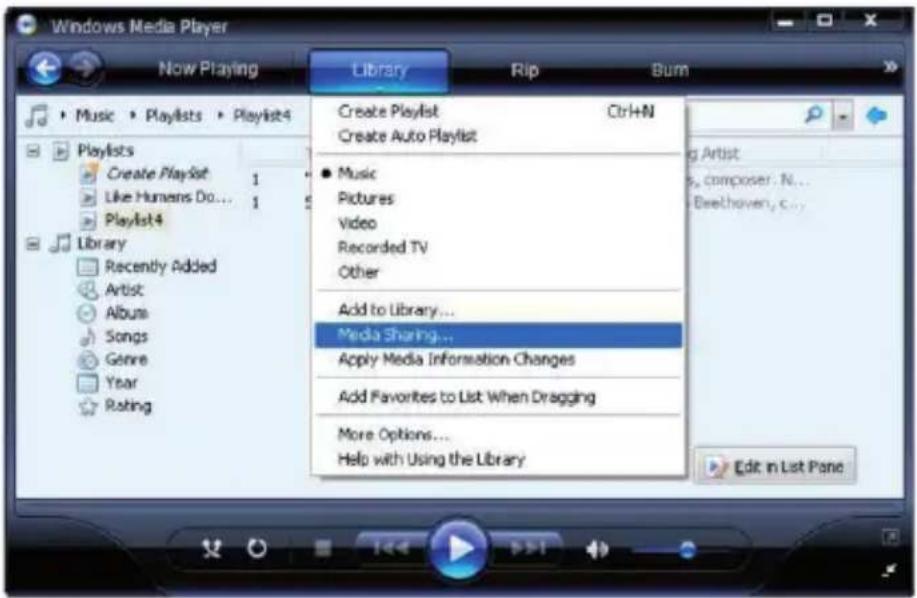
- Your PC will now prompt you that a device has attempted to connect to your UPnP server. In order to allow the radio to have access to the media fi les, you will need to click the 'Library' tab from Windows Media Player 11 and select the 'Media Sharing...' item to open the 'Media Sharing' window.
Selecting 'Media Sharing...' for Windows Media Player11 :
text_image
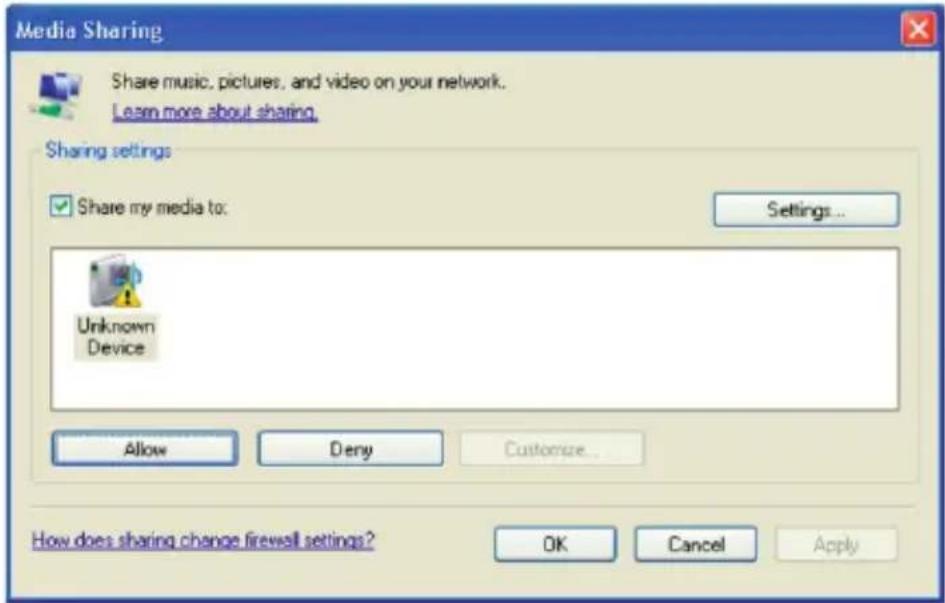
Windows Media Player Now Playing Library Rip Burn Music > Playlists > Playlist4 Playlists Create Playlist 1 Like Humans Do... 1 Playlist4 Library Recently Added Artist Album Songs Genre Year Rating Create Playlist Ctrl+N Create Auto Playlist Music Pictures Video Recorded TV Other Add to Library... Media Sharing... Apply Media Information Changes Add Favorites to List When Dragging More Options... Help with Using the Library Edit in List Pane- From the 'Media Sharing' windows, the radio will be listed as an unknown device. Click on the unknown device listed, then click the 'Allow' button and then click 'OK'.
text_image
Media Sharing Share music, pictures, and video on your network. Learn more about sharing. Sharing settings ✓ Share my media to: Settings... Unknown Device Allow Deny Customize... How does sharing change firewall settings? OK Cancel ApplyKonfi guration
Allowing the Radio to Connect:
- When you were playing, you were able to change the mode of playback via selecting Media Player/Playback Mode.
Confi gure Menu
Choosing the option you want from the Confi gure Menu
- Press the SELECT button.
- Rotate the dial until Configure is displayed
- Press the SELECT button.
- Rotate the dial until the display shows the option you want.
- Press the SELECT button to choose the option shown on the display. The options are explained below.
- Enables you to configure your radio's network settings, scan again for a connection to another wireless network, or to manually confi gure the network parameters. This is useful if you take the Internet radio to another building where you want to use.
- Once the radio has established a certain type of connection to the network, then this type of connection will remain in use while the radio is on.
- Displays the versions numbers of the various parts of software the hardware on you Internet radio.
- Use this option to download new firmware for the radio from the Reciva portal on the internet. If there is new fi rmware available, the radio will prompt you if you want to download it or not. Note, at this stage, you can press the radio's BACK button to cancel the radio beginning a fi rmware upgrade. A fi rmware upgrade may take several minutes, so do no switch off the power to the radio until the operation is complete otherwise the radio may become permanently damaged.
(Language>
- Allows you to change the display language.
- Puts all the setting back to their default as they were when they left the factory. If you perform a factory reset on your radio you will loss all you presets and your wireless network connection.
● This will display a key that can be used to register the radio on the Reciva Customer portal.
- Use this option to set the time, see" Setting the clock".
Selecting this option will alter the internet radio's backlight values.
- After select the ‘Backlight’ menu item, the radio will display its list of three menu modes: ‘Inactive’, ‘Active’ and ‘Standby’. These three states are explained below:
The radio gets into its ‘inactive’ state when there is no user activity for 30 seconds.
The ‘active’ state is when there is user activity.
- 'Standby' is the state when the radio has been turned off
- Rotate the dial to highlight the desired menu mode and press SELECT.
- The radio will now display the current backlight value for the menu mode. You can alter this value by rotating the dial to increase or decrease it.
Selecting this option will see the WiFi strength of Receiver;
After select the 'WiFi Strength' menu item, the radio will display its the WiFi strength of Receiver in percent.
Confi guring 'My Stuff'
Registering an account on Reciva's website
- Open the website, http://www.reciva.com, from your internet browser.
- Click on the 'My Account' link and follow the on-screen instructions to register an account. Please note, during the registration process, a validation code will be sent to you via email. Please enter this code when prompted to do so.
After logging into your account, you will be able to edit your information for 'My Stations', 'My streams', 'My Detail' and "My Radios" from the 'My Account' section. - You can now add your Internet Radio to your account on the website by accessing the 'My radios' link. From the 'My Radios' section, you will need to enter in your radio's eight-digit serial number, which can be found from the 'Confi gure> Version' menu on the radio, and you will also need to enter in your radio's registration code—which can be found from the 'Confi gure> Register' menu on the radio.
Confi guring 'My stations'
- It's possible to search for radio stations that are available in Reciva's stations' database from Reciva's Website. When ever stations are searched for on the website, then will be displayed in a list of search results together with a link to 'Add to my stations'.
- Clicking on the ‘Add to my stations’ link, will add the station to your account’s ‘My stations’ list. This list can be edited by clicking on ‘My stations’ under the ‘My account’ section on the website.
- Once you have internet station available in you ‘My stations’ list, you may play these stations from your Internet Radio. These stations will be available on your radio from the menu item:‘ Stations>My Stuff> My stations’. Please note the stations will only be available to your radio once your radio has downloaded a new stations’ list. To cause the radio to download a new stations’ list immediately, please remove and reconnect the power to your radio.
To add desired stations or streams:
- Once logged into your Reciva website account, you can add your own internet radio streams to the 'My streams' section, which is listed under the 'My account' section
- Clicking on' My streams' sill prompt you to enter the station's name and its media stream URL. The media stream URL should be a link to a website's actual audio stream. If you have any doubt about locating the media stream URL from a webpage, then please refer to the FAQs section on Reciva's website, http://www.reciva.com
- Once you have Internet radio streams available in you 'My streams' list, you may play these stations from your internet radio. These station will be available on your radio from the menu item: Stations >My
Troubleshooting
stuff> My streams'. Please note, the streams will only be available to your radio once your radio has downloaded a new station' list. To cause the radio to download a new stations' list immediately, please remove and reconnect the power to your radio.
Troubleshooting
If you have trouble connecting the radio to your wireless network, these steps may help to resolve the problem:
- Confirm that a Wi-Fi or Ethernet Wired connected PC can access the internet (i.e. can browse the web) using the same network.
- Check that a DHCP server is available, or that you have configured a static IP address on the radio.
- Check that you firewall is not blocking any outgoing ports. As a minimum the radio needs access to UDP and TCP ports 80,554,1755,5000,and 7070.
- Some access points may be set so that only equipment with registered MAC addresses can connect to them. This is one possible cause of the Internet Radio being unable to connect to the Wi-Fi network, and the Internet Radio display will show Bad ESSID or key. To overcome this problem you will need to add the Internet Radio's MAC address to the list of allowed equipment in your access point. The Internet Radio's MAC address can be found using the menu item Confi gure->Network Confi g ->View Confi g -> MAC address. You will need to refer to the guide for you Access Point in order to enter the Internet Radio as an allowed piece of equipment.
- If you have an encrypted network, check that you have entered the correct key or passphrase into the radio. Remember that text-format keys are case sensitive.
- If your wireless network name(ESSID) is 'Hidden'(a setting on the wireless access point), then you can either turn on the name, or you can manually enter the name into the internet radio and media player, Select Confi gure, Select network, Enter ESSID. Confi rm if the Network is encrypted, e.g. requires a WEP or WPA key, then enter the network name.
If your radio can connect to the network successfully, but is unable to play particular stations, it may be due to one of the following reasons:
- The station is not broadcasting at this time of the day (remember it may be located in a different time zone).
- The station has too many people trying to attach to the radio station server and the server capacity is not large enough.
● The station has reached the maximum allowed number of simultaneous listeners.
● The station is not broadcasting anymore. - The link on the radio is out of date. This is updated automatically every day, so the next time you turn on the link will be recognised.
- The internet connection between the server (often located in a different country) and you is slow. Some internet service providers may fail to stream in certain geographical areas. Try using a PC to play back the stream via the broadcaster's web sit. If you can play back the station with a PC, use the form at http://www.reciva.com/station/add_station.asp to notify us so that we can change the station data that is used by the radio.
- If you have a laptop, try connecting it if your Internet Radio cannot find the station.
When you scan for PCS none can be found, or the PC you are looking for does not appear in the list:
- Global File sharing is not enabled on the PC.
● The PC you are looking for is in another part of the network separated by a router.(This may happen if
you have two access points on the same network, and the Media source is on one Access Point and the internet Radio is on another).
- The PC with the Media content may not have the same workgroup as the server managing the network. The easiest solution is to change the PC workgroup name to the same as that being supported by the server.
- You have not connected to the wireless Access point. On the internet radio, select 'Confi gure', 'Network Confi gure', 'Select Network', 'Scan' and then select your Wireless network. (You may need to enter a security key to access the network wirelessly).
- You have not enabled simple fi le sharing on Windows 2000. In Windows 200 the simple fi le sharing can be turned on by going to the Control Pane, selecting Folder options, view Tab. The safest way for users to enable the service is to run the 'Set up a home or small offi ce network' wizard from Control Panel, Network Connections.
- You have a fi rewall set on your PC which is stopping you accessing shared fi les. Windows 2K doesn't come with a real fi rewall so unless you have installed one this should not be a problem.
- You have a third party fi rewall in your network, which is preventing fi le sharing.
- If you have a third party firewall (Like Norton, or Zone Alarm) that will have its own control panel and you will need to consult the manual for your fi rewall.
- If your PC is connected to a managed network, with a server sometimes the PC being searched for needs to be server Workgroup.
You can see the PC you want to play music from, but cannot find any folders on the PC:
- The folder which has your music in it is not shared. You will need to locate the file you want to share, right click on the folder, and select 'Properties', Then tick share this file.
- The folder is not in an accessible place, i.e. it is in, My music, My documents or on the Desktop. You will need to mode the folder to the root directory.
- You have entered the wrong user name or password for the PC account you are trying to access. Check and re-enter the user name and password, note the password is case sensitive.
- You have a fi rewall running which is preventing the internet radio from seeing the shared folder. As a quick check, you can disable fi rewalls like Norton to see if this overcomes the problem, if this resolves the issue then you can either leave the fi rewall off, or allow fi le sharing through the fi re wall.
Note: If you fi rewall is required to provide security for your system, it should not be left off.
Note: Although you can share a CD drive, you cannot stream music directly from the drive.
Whenever I enter my media folder, the internet radio rescans the content of the folder:
- Although the folder with your music in it is shared, it is 'write protected', so the Internet Radio cannot save a list of the folder's content back onto the PC, as it needs to rescan each time.
- Tick the box that allows the Folder to be modified across the network.
Although I can see my music fi les in the folder, I cannot play them and the Internet Radio says they are 'Protected':
- When you copied the music files to the hard drive you had 'Personal Rights management' turned on, this protects the fi les from being played by a third party device like the Internet Radio, you will need to copy the music fi les again, but with the protection turned off.
- You are trying to play I-Tune fi les which have been purchased from the I-Tunes on line store, these are protected and can only be played on an I-Pod. Locally created or ‘ripped’ fi les for I-Pods can be played as they do not carry the extra layer of Media Protection.
Troubleshooting
I can access the PC with my Media, but when I change to the Use Account, I cannot see the folder, although it is shared when I check my PC:
- The Alternative account on the machine may be Private. If when the account was created, the 'Make this account Private' option was selected, then the contents of this account cannot be seen over the network. You will need to move the music to an accessible account.
I can't share a folder, as the option is not highlighted:
● The share folder option will not be available until you have turned simple file sharing on. Run the wizard.
Scan Error:
- When the internet radio is scanning the content of the folders on a PC, it is possible that a scan error may occur if the windows file sharing application times out. This is most likely to occur if both the PC with the media content and the Internet Radio are connected wirelessly.
- Try re-connecting the PC with the media content into the network via cable. This will dramatically increase the speed at which the Internet Radio is able to scan the content of the Media PC.
Playlists:
- Some media ripping applications allow 'Playlists' to be created. The Internet Radio is able to detect and stream these playlists, but they must be stored in the folder with the rest of the Media content and they must have the fi le extension.m3u.
- Windows Media player can create suitable playlist, just select 'create new playlist', drag and drop the tracks you want into the playlist, then use 'Save as' to ensure the fi le type is .m3u. (Existing play lists can be opened and re-saved in this format) When the Internet Radio detects you have playlists, it will enable a new menu option allowing the playlist to be selected and added to the queue.
- If you re-connect to another PC of folder, which does not have any Playlists in the .m3u. format, the playlist option will not be presented in the menu.
If the Internet Radio keeps re-buffering radio station:
- The Internet Radio is streaming the data from the radio station via your broadband connection, if there is a high error rate on your broadband connection, or the connection is intermittent, then it will cause the Internet Radio to pause until the connection is re-established and it has received enough data to start playing again.
- If your Internet Radio keeps stopping, please check the DSL modem to ensure that the Broadband line is not suffering a high error rate or disconnections. If you are experiencing these problems, you will need to contact your broadband supplier.
What is Buffering?
- When playing a stream, the Internet Radio/Media player, downloads a small amount of the stream before it starts playing. This is used to fill in any gaps in the stream that may occur if the internet or the wireless network is busy.
- The Internet Radio streams music data from the PC while you are listening. If a stream gets blocked or experiences Internet congestion while transferring it may stop/interfere with the quality of play. If this happens, check your internet connection speed- it must be faster than the speed of the streams.
Software Licence information
This product contains software licensed under version 2 of the GNU public license and version2.1 of the GNU Lesser Public License, The source code for this software is available from:
http://www.reciva.com/gpl/
This product includes technology owned by Microsoft Corporation and under a licence from Microsoft Licensing GP. Use or distribution of such technology outside of this product is prohibited without a license from Microsoft Corporation and/or Microsoft Licensing, GP as applicable.
Disposal of electrical and electronic equipment
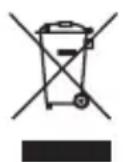
This symbol on the product or in the instructions means that your electrical and electronic equipment should be disposed at the end of its life separately from your household waste. There are separate collection systems for recycling in the EU.
For more information, please contact the local authority or your retailer where you purchased the product.
Service information
In case of complaints your device shows a defect, please consult your dealer or contact the service department of dnt to agree a servicing.
Service time: Monday until Thursday from 8.00-17.00h
Friday from 8.00-16.00h
Hotline/service: +49 6074 3714 31
E-mail: support@dnt.de
Please do not send your device to our address without request by our service team. The expense and the risk of the loss are for debits of the sender. We reserve to refuse the unrequested shipment or return corresponding goods to the sender at buyer's risk and expense.
Lancer la station radio ....54
Régler le volume sonore ....54
natural_image
Empty white rectangle with gray border (no text or symbols)Oldies < Pop >

Lancer la station radio
Protocole audio stream
• RTSP Real Time Streaming Protocol
● MMS Microsoft Media Streaming Protocol
- HTTP Hyper Text Transfer Protocol
Sortie
Warranty regulations
- In general the European warranty regulations are valid. Warranty starts with receipt of unit. In a warranty case, please submit the unit together with invoice, unit pass and error description. Without these documentary evidence we are not obliged to a warranty performance.
- During warranty period we repair all constructional or material defects which are caused by a manufacturing fault. It is in the decision of the manufacturer to change or replace defective parts/units. Further claims are excluded. Changed parts will automatically go over into our property. We will not be held responsible for future damages.
- Manipulation on the unit through non-authorized companies/persons automatically leads to an end of warranty period.
- Excluded of warranty claims are damages due to improper treatment, not following the manual, oxidation of batteries, permanent usage.
- The initial warranty period is not extended because of repair or replacement of parts.
- These warranty regulations are valid in the Federal Republik of Germany.
Application de la garantie
Stamp and signature of the dealer