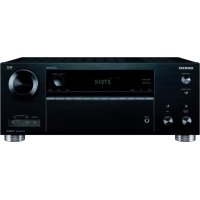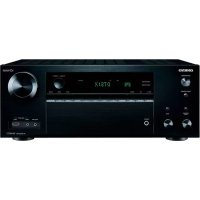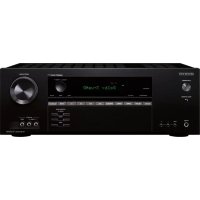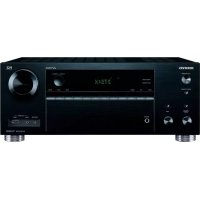
HTR758 - AV receiver ONKYO - Free user manual and instructions
Find the device manual for free HTR758 ONKYO in PDF.



| Product Type | AV Receiver |
| Brand | Onkyo |
| Model | HTR758 |
| Power Output | 80 W per channel (8 ohms, FTC) / 130 W per channel (6 ohms, IEC) |
| Amplifier Channels | 7.1 channels |
| HDMI Inputs | 6 (HDMI IN1 to IN6) |
| HDMI Output | 1 (HDMI OUT with ARC) |
| Decoded Audio Formats | Dolby TrueHD, Dolby Digital Plus, DTS-HD Master Audio, DTS-HD High Resolution, Multichannel PCM, DSD |
| Network Connectivity | Ethernet (DLNA, internet radio vTuner, Pandora, Last.fm, etc.) |
| USB Port | 1 (front) for iPod/iPhone and USB devices |
| Digital Audio Inputs | 2 optical, 2 coaxial |
| Component Video Input | 2 inputs, 1 output |
| Radio Tuner | AM/FM with RDS (except North American models) |
| Speaker Configuration | Audyssey 2EQ (auto-calibration with supplied microphone) |
| Audio Functions | Audyssey Dynamic EQ, Dynamic Volume, Music Optimizer, multiple listening modes |
| Power Supply | AC 120 V / 230 V (depending on model), 50/60 Hz |
| Power Consumption | Approximately 500 W (max) |
| Remote Control | RI (RC-834M) with AA batteries |
| Zone 2 | Line output and separate control |
| Maintenance | Wipe with a soft, dry cloth; do not use solvents |
| Included Accessories | FM/AM antennas, calibration microphone, remote control, batteries, cable labels |
Frequently Asked Questions - HTR758 ONKYO
User questions about HTR758 ONKYO
0 question about this device. Answer the ones you know or ask your own.
Ask a new question about this device
Download the instructions for your AV receiver in PDF format for free! Find your manual HTR758 - ONKYO and take your electronic device back in hand. On this page are published all the documents necessary for the use of your device. HTR758 by ONKYO.
USER MANUAL HTR758 ONKYO
Remarque
① Prises DIGITAL IN COAXIAL et OPTICAL
② Prises COMPONENT VIDEO IN et OUT
③ Port ETHERNET
④ Prise FM ANTENNA et borne AM ANTENNA
⑤ Prises HDMI IN et OUT
⑥ Bornes SPEAKERS
Connexions
La lecture commence.
| Track | My Music |
| Artist | Great Artist |
| Album | My Favorite |
Conseil
My favorite song 1 Artist name My favorite album
0:11/2:00
Remarque
TP (Traffic Program)
Types de programmes RDS (PTY)
Les options sont :
- Ambient noise is too high.
natural_image
Front view of a computer control panel with buttons and indicator lights (no readable text or symbols)MOVIE/TV, MUSIC, GAME
(Modèles européens)
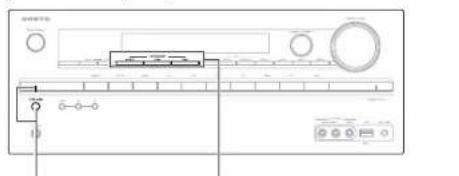
MOVIE/TV, MUSIC, GAME PURE AUDIO
| BD/DVD IN1 | |
| CBL/SAT IN2 | |
| GAME ...... | |
| P C | ...... |
| A U X | ...... |
| TV/CD ...... |
■ BD/DVD, CBL/SAT, GAME, PC, AUX, TV/CD
IN1, IN2
■Left, Center, Right, Surround Right, Surround Left, Subwoofer
■Left, Center 1, Right, Surround Right, Surround Left
▶ UpperL, UpperR, LowerL, LowerR
natural_image
Pure electrical circuit lines without any symbols32910/33101/33501/31612:
18 Park Way, Upper Saddle River, N.J. 07458, U.S.A.
For Dealer, Service, Order and all other Business Inquiries:
Tel: 201-785-2600
Fax: 201-785-2650
Hours: M-F 9am-5pm ET
http://www.us.onkyo.com/
For Product Support Team Only:
1-800-229-1687
Hours:M-F 9am-8pm / Sat-Sun 10am-8pm ET
http://www.us.onkyo.com/
Europe
Onkyo Europe Electronics GmbH
Liegnitzerstrasse 6, 82194 Groebenzell, GERMANY
Tel: +49-8142-4401-0 Fax: +49-8142-4208-213
http://www.eu.onkyo.com/
China, Hong Kong
Onkyo China Limited
Unit 1033, 10/F, Star House, No 3, Salisbury Road, Tsim
Sha Tsui Kowloon, Hong Kong.
Tel: 852-2429-3118 Fax: 852-2428-9039
http://www.onkyochina.com
Asia, Oceania, Middle East, Africa
Please contact an Onkyo distributor referring to Onkyo
SUPPORT site.
http://www.intl.onkyo.com/support/firmware/index.html
The above-mentioned information is subject to change
without prior notice. Visit the Onkyo web site for the latest
update.
Annexe
(.aac/.m4a/.mp4/.3gp/.3g2/.AAC/.M4A/.MP4/.3GP ou .3G2)
0.7 V p-p/75 Ω (Composantes Pr/Cd, Pr/Cr)
1 Vp-p/75 Ω (Composite)
522/530 kHz - 1611/1710 kHz
Stations programmables
40
Généralités
Dimensions (L × H × P) 435 mm × 173.5 mm × 328 mm
18 Park Way, Upper Saddle River, N.J. 07458, U.S.A.
Tel: 800-229-1687, 201-785-2600 Fax: 201-785-2650
http://www.us.onkyo.com/
Onkyo Europe Electronics GmbH
Liegnitzerstrasse 6, 82194 Groebenzell, GERMANY
Tel: +49-8142-4401-0 Fax: +49-8142-4208-213
http://www.eu.onkyo.com/
Onkyo Europe Electronics GmbH (UK Branch)
The Coach House 81A High Street, Marlow, Buckinghamshire, SL7 1AB, UK
Tel: +44-(0)1628-473-350 Fax: +44-(0)1628-401-700
Onkyo China Limited
Unit 1033, 10/F, Star House, No 3, Salisbury Road, Tsim Sha Tsui Kowloon, Hong Kong.
Tel: 852-2429-3118 Fax: 852-2428-9039
http://www.onkyochina.com/
Onkyo China PRC
1301, 555 Tower, No.555 West NanJin Road, Jin an, Shanghai,
China 200041, Tel: 86-21-52131366 Fax: 86-21-52130396
http://www.cn.onkyo.com/
SN 29401098FR-A
(C) Copyright 2012 Onkyo Sound & Vision Corporation Japan. All rights reserved.
Y1203-2
ONKYO

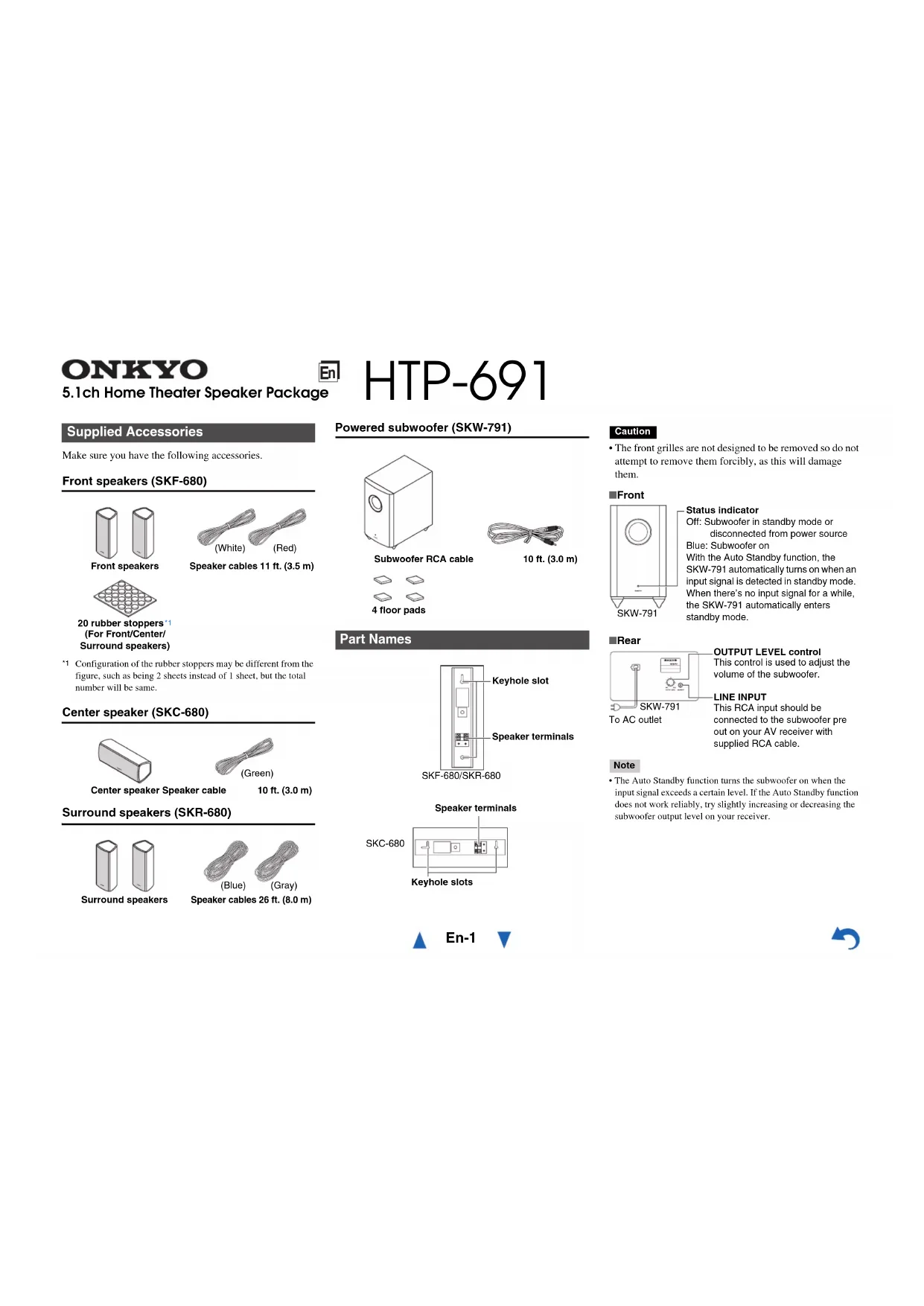
HTP-691
5.1ch Home Theater Speaker Package
Supplied Accessories
Make sure you have the following accessories.
Front speakers (SKF-680)
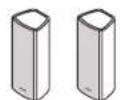
Front speakers
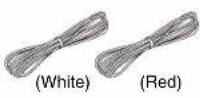
Speaker cables 11 ft. (3.5 m)
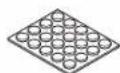
20 rubber stoppers ^1 (For Front/Center/
Surround speakers)
*1 Configuration of the rubber stoppers may be different from the figure, such as being 2 sheets instead of 1 sheet, but the total number will be same.
Center speaker (SKC-680)
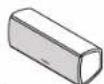
Center speaker Speaker cable
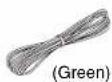
10 ft. (3.0 m)
Surround speakers (SKR-680)
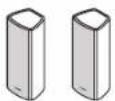
Surround speakers


Speaker cables 26 ft. (8.0 m)
Powered subwoofer (SKW-791)

Part Names
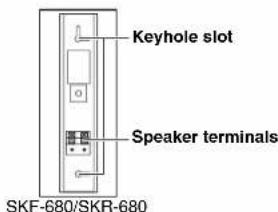
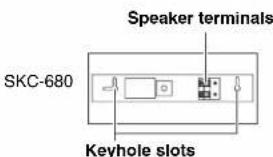

En-1

Caution
- The front grilles are not designed to be removed so do not attempt to remove them forcibly, as this will damage them.
Front
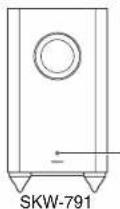
- Status Indicator
Off: Subwoofer in standby mode or disconnected from power source Blue: Subwoofer on With the Auto Standby function, the SKW-791 automatically turns on when an input signal is detected in standby mode. When there's no input signal for a while, the SKW-791 automatically enters standby mode.
Rear
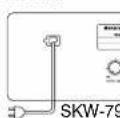
OUTPUT LEVEL control This control is used to adjust the volume of the subwoofer.
To AC outlet
LINE INPUT
This RCA input should be connected to the subwoofer pre out on your AV receiver with supplied RCA cable.
Note
- The Auto Standby function turns the subwoofer on when the input signal exceeds a certain level. If the Auto Standby function does not work reliably, try slightly increasing or decreasing the subwoofer output level on your receiver.

Before Using the Home Theater Speaker Package
Using the Rubber Stoppers for a More Stable Platform
We recommend using the supplied rubber stoppers to achieve the best possible sound from your speakers. The rubber stoppers prevent the speakers from moving, providing a more stable platform.
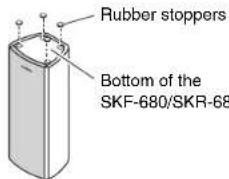
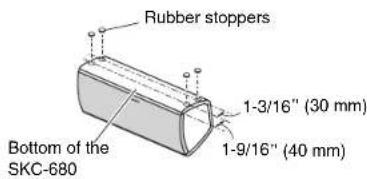
Using the Floor Pads for Subwoofer
If the subwoofer is placed on a hard floor (wood, vinyl, tile, etc.) and playback is very loud, the subwoofer's feet may damage the flooring. To prevent this, place the supplied pads underneath the subwoofer's feet. The pads also provide a stable base for the subwoofer.
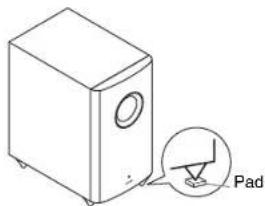
Setting the Subwoofer Level
To set the level of the subwoofer, use the OUTPUT LEVEL control. Set it so that bass sounds are evenly balanced with the treble sounds from the other speakers. Because our ears are less sensitive to very low bass sounds, there's a temptation to set the level of the subwoofer too high. As a rule of thumb, set the subwoofer level to what you think is the optimal level, and then back it off slightly.
Wall Mounting
To mount the front/surround speakers vertically, use the keyhole slot shown to hang each speaker on a screw that's securely screwed into the wall.
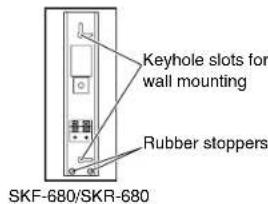
To mount the center speaker horizontally, use the two keyhole slots shown to hang the speaker on two screws that are securely screwed into the wall.
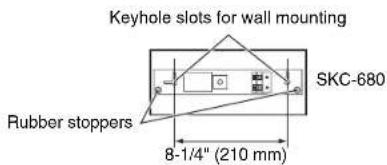
Tlp
- If the center speaker is tilted, loosen the screw on the declined side to move upward so that the speaker could be adjusted vertically.

En-2


Caution
- A mounting screw's ability to support a speaker depends on how well it's anchored to the wall. If you have hollow walls, screw each mounting screw into a stud. If there are no studs, or the walls are solid, use suitable wall anchors. Use screws with a head diameter of 5/16" (9 mm) or less and a shank diameter of 1/8" (4 mm) or less. With hollow walls, use a cable/pipe detector to check for any power cables or water pipes before making any holes.
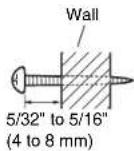
- Leave a gap of between 5/32" (4 mm) and 5/16" (8 mm) between the wall and the base of the screw head, as shown (We recommend that you consult a home installation professional).
Enjoying Home Theater
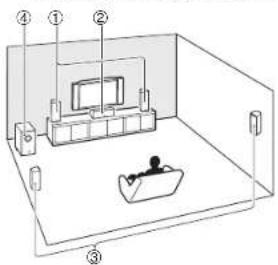
The Home Theater means that you can enjoy surround sound with a real sense of movement in your own home — just like being in a movie theater or concert hall.
① Front left and right speakers (SKF-680)
They should be positioned facing the listener at about ear level, and equally spaced from the TV. Angle them inward slightly so as to create a triangle, with the listener at the apex.
② Center speaker (SKC-680)
Position it close to your TV (preferably on top) facing forward at about ear level, or at the same height as the front left and right speakers.
③ Surround left and right speakers (SKR-680)
Position them at the sides of the listener, or slightly behind, about 2 to 3 feet (60 to 100 cm) above ear level. Ideally they should be equally spaced from the listener.
④ Subwoofer (SKW-791)
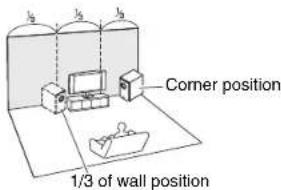
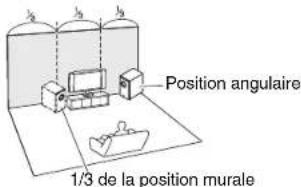
The subwoofer handles the bass sounds of the LFE (Low-Frequency Effects) channel and bass from the satellite speakers when a crossover is specified. The volume and quality of the bass output from your subwoofer will depend on its position, the shape of your listening room, and your listening position. In general, a good bass sound can be obtained by installing the subwoofer in a front corner, or at one-third the way along the front wall, as shown.
Connecting the Speakers
Speaker Connection Precautions
Read the following before connecting your speakers: • Turn off your receiver before making any connections.
- Pay close attention to speaker wiring polarity.
Connect positive (+) terminals to only positive (+) terminals, and negative (−) terminals to only negative (−) terminals. If the speakers are wired incorrectly, the sound will phase and will sound unnatural.

- Be careful not to short the positive and negative wires. Doing so may damage your amp.
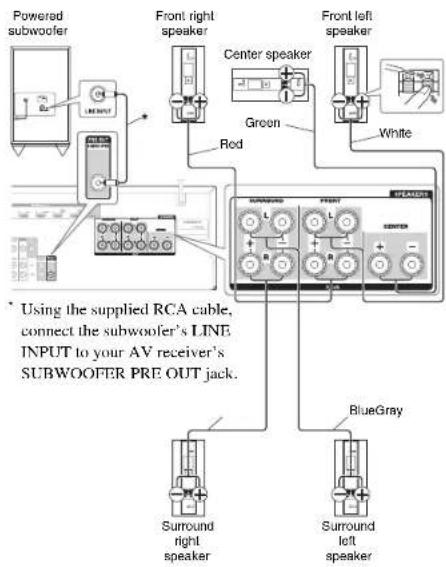
Caution
- With other audio-video components, connect the subwoofer's LINE INPUT to the subwoofer pre out jack of your equipment. Never plug any kind of musical instrument to the subwoofer.
Specifications
■Powered Subwoofer (SKW-791)
Type Bass-reflex
Input sensitivity/Impedance
540 mV/20 kΩ
Rated output Power (FTC)
120 watts minimum continuous power.
4 ohms, driven at 100 Hz with a
maximum total harmonic distortion of 1%
Frequency response 25 Hz to 150 Hz
Cabinet capacity 1.3 cubic feet (37 L)
Dimensions (W × H × D) 10-13/16" × 19-15/16" × 17-1/4"
275 mm × 507 mm × 438 mm
(incl. projection)
Weight 21.4 lbs. (9.7 kg)
Audio Input 1 (RCA analog mono)
Drivers unit 10" (25 cm) Cone Woofer
Power supply AC 120 V, 60 Hz.
Power consumption 35 W
Other Auto Standby function
Non-magnetic shielding
■Front Speakers (SKF-680)
Type 2 Way Closed Box
Impedance 6 Ω
Maximum input power 130 W
Sensitivity 81 dB/W/m
Frequency response 60 Hz to 50 kHz
Crossover frequency 4 kHz
Cabinet capacity 0.074 cubic feet (2.1 L)
Dimensions (W × H × D) 4-3/4" × 11-7/16" × 4"
120 mm × 290 mm × 102 mm
(incl. grille and projection)
Weight 2.4 lbs. (1.1 kg)
Drivers unit 4" (10 cm) Cone Woofer
1" (2.5 cm) Balanced Dome
Terminal
Spring type color coded
Keyhole slot Available
Grille
Fixed
Insert nut
Available (1/4-20UNC)
Other Non-magnetic shielding
■ Center Speaker (SKC-680)
Type 2 Way Closed Box
Impedance 6 Ω
Maximum input power 130 W
Sensitivity 81 dB/W/m
Frequency response 60 Hz to 50 kHz
Crossover frequency 4 kHz
Cabinet capacity 0.074 cubic feet (2.1 L)
Dimensions (W × H × D) 11-7/16" × 4-13/16" × 4-7/16"
290 mm × 122 mm × 113 mm
(incl. grille and projection)
Weight 2.4 lbs. (1.1 kg)
Drivers unit 4" (10 cm) Cone Woofer
1" (2.5 cm) Balanced Dome
Terminal
Spring type color coded
Keyhole slot Available
Grille
Fixed
Insert nut
Available (1/4-20UNC)
Other Non-magnetic shielding
■Surround Speakers (SKR-680)
Type Full Range Closed Box
Impedance 6 Ω
Maximum input power 130 W
Sensitivity
79 dB/W/m
Frequency response 90 Hz to 20 kHz
Cabinet capacity 0.074 cubic feet (2.1 L)
Dimensions (W × H × D) 4-3/4" × 11-7/16" × 4"
120 mm × 290 mm × 102 mm
(incl. grille and projection)
Weight 1.8 lbs. (0.8 kg)
Drivers unit 3-1/4" (8 cm) Cone Speaker
Terminal Spring type color coded
Keyhole slot Available
Grille
Fixed
Insert nut
Available (1/4-20UNC)
Other Non-magnetic shielding
Specifications and appearance are subject to change
without prior notice.
Note
For non-magnetic shielded speakers:
Try moving the speakers away from your TV or monitor. If discoloration should occur, turn off your TV or monitor, wait 15 to 30 minutes, and then turn it back on again. This normally activates the degaussing function, which neutralizes the magnetic field, thereby removing any discoloration effects.

En-4


ONKYO

Dimensions (L × H × P) 10-13/16" × 19-15/16" × 17-1/4"
275 mm × 507 mm × 438 mm (y compris la projection)
Polds 21.4 lbs. (9.7 kg)
Entrée audio 1 (mono analogique RCA)
Dimensions (L × H × P) 4-3/4" × 11-7/16" × 4"
120 mm × 290 mm × 102 mm
Polds 2.4 lbs. (1,1 kg)
Dimensions (L × H × P) 11-7/16" × 4-13/16" × 4-7/16"
290 mm × 122 mm × 113 mm
Dimensions (L × H × P) 4-3/4" × 11-7/16" × 4"
120 mm × 290 mm × 102 mm
Common Procedures in Internet Radio Menu
Note
• Available services may vary depending on the region.
1 Press NET.
A list of the network services appears, and the NET indicator lights. If it flashes, verify that the Ethernet cable is firmly connected to the AV receiver.
2 Select the desired service and press ENTER.
The top page of the selected service appears.
Using Multiple Accounts
The AV receiver supports multiple user accounts, which means you can freely switch between several logins. After registering user accounts, login is performed from the "Users" screen.
1 Press MENU while the Users screen is displayed.
The following menu items appear:
Add new user:
Remove this user:
You can either store a new user account, or delete an existing one.
Tip
- Some of the services don't allow the use of multiple user accounts.
- You can store up to 10 user accounts.
- To switch between accounts you must first log out from the current account, and log in again on the "Users" screen.
Pandora® internet radio –Getting Started (U.S. only) 2
Using Rhapsody (U.S. only).... 3
Using the SiriusXM Internet Radio (North American only) 4
Using Last.fm Internet Radio...... 5
Using Slacker Personal Radio...... 6
Using MP3tunes....7

En-1


Pandora® internet radio –Getting Started (U.S. only)
Pandora is a free, personalized Internet radio service that plays the music you know and helps you discover music you'll love.
1 Use ▲/▼ to select “I have a Pandora Account” or “I’m new to Pandora” and then press ENTER.
If you are new to Pandora select "I'm new to Pandora". You will see an activation code on your TV screen. Please write down this code. Go to an Internet connected computer and point your browser to www.pandora.com/onkyo
Enter your activation code and then follow the instructions to create your Pandora account and your personalized Pandora Internet radio stations. You can create your stations by entering your favorite songs and artists when prompted. After you have created your account and stations you can return to your Onkyo receiver and press enter to begin listening to your personalized Pandora Internet radio.
If you have an existing Pandora account, you can add your Pandora account to your Onkyo receiver by selecting "I have a Pandora Account" and logging in with your email and password.
TIp
- If you want to use multiple user accounts, see "Using Multiple Accounts" (→ page 1). Login can be made from the "Users" screen.
2 To play a station, use ▲/▼ to select the station from your station list, and then press ENTER.
Playback starts and the playback screen appears.
Create a New Station:
Enter the name of a song, artist, or genre and Pandora will create a unique radio station for you based on the musical qualities of that song, artist, or genre.
■Menu Items
I like this song:
Give a song "thumbs-up" and Pandora will play more music like it.
I don't like this song:
Give a song "thumbs-down" and Pandora will ban that song from the current station.
Why is this song playing?:
Discover some of the musical attributes that Pandora uses to create your personal radio stations.
Don't play the song for a month:
If you are tired of a song, you can put the song to sleep and Pandora will not play it for one month.
Create station from this artist:
Creates a radio station from this artist.
Delete this station:
This will permanently delete a station from your Pandora account. All of your thumbs feedback will be lost should you choose to re-create the station with the same song or artist.
Create station from this song:
Creates a radio station from this song.
Rename this station:
Lets you rename the current radio station.
Bookmark this artist:
Pandora will bookmark your favorite artist for your profile on www.pandora.com.
Bookmark this song:
Pandora will bookmark the current song and allow you to buy them all from Amazon or iTunes in one step!
Add to My Favorites:
Adds a station to My Favorites list.
PANDORA
PANDORA, the PANDORA logo, and the Pandora trade dress are trademarks or registered trademarks of Pandora Media, Inc. Used with permission.
Using Rhapsody (U.S. only)
1 Use ▲/▼ to select "Sign in to your account" and then press ENTER.
To use Rhapsody, you need an account. If you don't have one yet, you can create a new account at www.rhapsody.com/onkyo
If you have an existing Rhapsody account, select "Sign in to your account" and press ENTER.
Enter your user name (usually your email) and password in the next keyboard screen, or in Web Setup.
■ Using the keyboard screen
- Use ▲/▼/◄/► and ENTER to enter your user name and password.
- Select "OK"
- Press ENTER. The "Confirm your entries" screen appears.
- Press ENTER.
Tip
- If you want to use multiple user accounts, see "Using Multiple Accounts" (→ page 1). Login can be made from the "Users" screen.
2 Use ▲/▼ to select the menu, then press ENTER.
Search:
You can search for music by Artist, Album, or Track. Music Guide:
You can play tracks from Genres, Top Artists, Top Albums, Top Tracks, New Releases, and Staff Picks. Rhapsody Channels:
Listen to radio channels programmed by Rhapsody's top-notch editors.
Playlists:
Play your own personal playlists.
My Library:
Bookmark your favorite albums and tracks from the Rhapsody catalog using My Library.
Account Info:
Confirm your account information.
Sign Out:
Sign out from your Rhapsody account.
3 Use ▲/▼ to select a channel, and press ENTER or ▶ to start playback.
Playback starts and the playback screen appears. You can control the tracks with the buttons on the remote control.
Enabled buttons: ▶, □, ■, ◀◀, ▶▶, |◀◀, ▶▶|, RANDOM, REPEAT
Note
- On Rhapsody Channels, some of the buttons don't work.
Menu Items
Add track to My Library:
Bookmark currently-playing tracks.
Add album to My Library:
Bookmark currently-playing albums.
Add playlist to My Library:
Bookmark currently-playing playlists.
Add channel to My Channels:
Bookmark currently-playing Rhapsody radio channels.
Add to My Favorites:
Adds a track, channel or playlist to My Favorites list.
Tip
- You can remove bookmarked tracks, albums, and Rhapsody Channels from My Library.
Using the SiriusXM Internet Radio (North American only)
Your Onkyo AV receiver includes a free trial of SiriusXM Internet Radio. The “Account Info” screen shows how many days are left in your trial. After the trial period expires, if you want to continue listening to the service, you must subscribe. To subscribe go to www.siriusxm.com/internetradio with your computer.
When you subscribe, you will be provided with a username and password which has to be entered into the AV receiver.
To use SiriusXM Internet Radio, you must have your AV receiver connected to the Internet. Using the remote control, follow these steps:
1 Use ▲/▼ to select "Sign In", and then press ENTER. If you have an existing SIRIUS account, you can sign in by selecting "Sign In". Enter your user name and password in the next keyboard screen, or in Web Setup. If you don't know your username or password, call Sirius XM at (888) 539-7474 for assistance.
Tlp
- If you want to use multiple user accounts, see "Using Multiple Accounts" (→ page 1). Login can be made from the "Users" screen.
■ Using the keyboard screen
-
Use ▲/▼/◄/► and ENTER to enter your user name and password.
-
Select "OK".
-
Press ENTER. The "Confirm your entries" screen appears.
-
Press ENTER
“Please wait...” appears and then “SiriusXM Internet Radio” screen appears which displays the category available for selection.
2 Use ▲/▼ to select the category and then press ENTER.
The channel list screen for the selected category appears.
3 Use ▲/▼ to select the desired channel and then press ENTER.
The playback screen for the selected channel appears and you can listen to SiriusXM Internet Radio. You can control the tracks with the buttons on the remote control.
Enabled buttons: ■, □, |◀◀, ▶▶
■Menu Items
Add to My Favorites:
Adds a channel to My Favorites list.
((SiriusXM))
SiriusXM Internet Radio subscriptions are sold separately and are governed by the Sirius Terms and Conditions (see www.sirius.com). Be sure to read this agreement before you purchase your subscription. Sirius, XM and all related marks and logos are trademarks of Sirius XM Radio Inc. and its subsidiaries. All rights reserved.

En-4


Using Last.fm Internet Radio
Last.fm is a music service that learns what you love... Your new Onkyo AV receiver is very clever. If you have a free Last.fm account, it will keep track of all the songs you've just played. When you visit the Last.fm website, you can see personal charts of the music you've enjoyed, share them with friends and see what they like, too.
With thousands of biographies, reviews and an endless choice of personalised, ad-free radio stations, Last.fm is a great way to discover music. Pick up your free Last.fm account today at www.last.fm/join
Get a subscription and you can enjoy the best of ad-free Last.fm Radio on your Onkyo AV receiver without a computer!
Recommended Radio:
Discover smart personalised recommendations that adapt as your tastes change.
Artist Radio:
Pick any artist and we'll play you a whole station of music inspired by your choice.
My Library:
Sit back and enjoy selections from all the music you've heard since you joined Last.fm.
Tag Radio:
Polish funk? Death pop? Think of a style and we'll entertain you with it for hours.
Start your free trial straight away when you create your account and see for yourself what it's like to have the world's music at your fingertips. Latest prices and full information are available at www.last.fm/subscribe
1 Use ▲/▼ to select "Sign in to your account", and then press ENTER. If you have the existing Last.fm account, you can sign in to your account to select "Sign in to your account". Enter your user name and password in the next keyboard screen.
■ Using the keyboard screen
- Use ▲/▼/◄/► and the ENTER to enter your user name and password.
- Select "OK".
- Press ENTER. The "Confirm your entries" screen appears.
- Press ENTER.
“Please wait...” appears and then “Last.fm Internet Radio” screen appears.
Tip
- If you want to use multiple user accounts, see “Using Multiple Accounts” (→ page 1). Login can be made from the “Users” screen.
2 Use ▲/▼ to select menu and then press ENTER. Search Station:
You can search station by Artist, Tag, or User Name. Top Artists Station:
You can play tracks of top-rated artists.
Top Tags Station:
You can play tracks of top-rated tags.
Personal Station:
- You can play tracks from personalized station ("Your Library", "Your Neighbourhood" and "Your Recommendations").
Profile:
You can play tracks from “Recently Listened Tracks”, “Library” and “Neighbours”.
Account Info:
Confirm your account information.
Sign Out:
It signs out from your account.
3 Use ▲/▼ to select a station, and press ENTER or ▶ to start playback.
Playback starts and the playback screen appears.
■Menu Items
I Love this track:
Track information is saved in Last.fm server, and playback frequency increases.
Ban this track:
Track information is saved in Last.fm server, and playback frequency reduces.
Add to My Favorites:
Adds a station to My Favorites list.
■ Using scrobbling control
Use ▲/▼ to select "Enable", and then press ENTER.
* Internet radio services provided by a third party may be terminated with or without notice.
Internet radio services may not be available in some areas.
Using Slacker Personal Radio
1 If you do not have an account, create one on the Slacker website (www.slacker.com) with your computer.
If you already have a Slacker account, select "Sign in to your account" and then press ENTER.
The keyboard screen appears. You can enter information from the remote control or the keys on the main unit.
2 If there are no mistakes in the information you have entered, use ▲/▼/◄/► to select "OK" then press ENTER.
An account information confirmation screen appears.
3 If you do not have an account, select "Access without Sign In" and press ENTER to use a restricted version of the service.
Note that use will be restricted.
Tlp
- If you want to use multiple user accounts, see "Using Multiple Accounts" (→ page 1). Login can be made from the "Users" screen.
4 Use ▲/▼ to select a menu item and then press ENTER.
To sign out, use ▲/▼ to select "Sign out" from this screen and then press ENTER.
5 Use ▲/▼ to select a station and then press ENTER or ▶ to start playback from the station.
The playback screen appears.
6 You can control the tracks with the buttons on the remote control.
Rate Song as Favorite:
Stores information to server, making it more likely that the song will be played again.
Ban Song:
Stores information to server, making it less likely that the song will be played again.
Ban Artist:
Stores information to server, making it less likely that the songs from this artist will be played again.
Mark Favorite:
Adds the currently playing station to your favorites.
Unmark Favorite:
Deletes the currently playing station from your favorites.
Add song to Library:
Adds the currently playing track to your library.
Delete song from Library:
Deletes the currently playing track from your library.
Add to My Favorites:
Adds a station or song to My Favorites list.
Using MP3tunes
Listen to your music collection on your home stereo in complete digital fidelity without a personal computer plus safely backup all your songs. Here's how:
Creating an Account on your Computer
1 From your computer, open a web browser and go to: www.mp3tunes.com/signup
2 Create an account.
3 Click the Upload link (www.mp3tunes.com/upload) to add files to your Locker.
4 View, edit and listen to your files by clicking on Player (www.mp3tunes.com/player).
Playing Contents on the AV Receiver
Tip
- Before proceeding, you need to select the MP3tunes service as described in "Common Procedures in Internet Radio Menu" (→page 1).
1 Use ▲/▼ to select "Sign in to your account", and then press ENTER.
2 Enter the e-mail address and password you used when creating your account, select "OK" and press ENTER.
The keyboard screen appears. You can enter your user name and password from the remote controller or the buttons on the AV receiver.
3 If there are no mistakes in the information you have entered, select "OK" and press ENTER.
An account information confirmation screen appears.
Tip
- If you want to use multiple user accounts, see "Using Multiple Accounts" (→ page 1). Login can be made from the "Users" screen.
4 Use ▲/▼ to select the menu, then press ENTER. Music:
The place to find your Artists, Albums, and Playlists. Shuffle:
Starts playing a random selection of tracks from your Locker.
Search:
Find a specific Album, Artist, or Song.
Account Info:
Your MP3tunes account information.
Sign Out:
Log out of your MP3tunes account.
The track at the top of the music list is automatically played back.
Using Internet Radio
5 Use ▲/▼ to select a track and press ENTER or ▶ to start playback.
A playback screen appears.
You can control the tracks with the buttons on the remote control.
Displays additional menu options.
6 You can view or change your MP3tunes account settings by going to www.mp3tunes.com/account.

En-7


Create a New Station :
I don't like this song :
Why is this song playing? :
Don't play the song for a month :
Create station from this artist :
Delete this station :
Create station from this song :
Rename this station :
Bookmark this artist :
Bookmark this song :
Add track to My Library :
Add album to My Library :
Add playlist to My Library :
Add channel to My Channels :
Top Artists Station :
Rate Song as Favorite :
Add song to Library :
Delete song from Library :
Create a New Station:
I don't like this song:
Why is this song playing?:
Don't play the song for a month:
Create station from this artist:
Delete this station:
Create station from this song:
Rename this station:
Add to My Favorites:
Add track to My Library:
Add album to My Library:
Add playlist to My Library:
Add channel to My Channels:
Add to My Favorites:
Add to My Favorites:
Top Artists Station:
Add to My Favorites:
Rate Song as Favorite:
Add song to Library:
Delete song from Library:
Add to My Favorites:
(C) Copyright 2012 Onkyo Sound & Vision Corporation Japan. All rights reserved.
Y1203-2
ONKYO
Using Internet Radio
Using Internet Radio
Common Procedures in Internet Radio Menu
Note
• Available services may vary depending on the region.
1 Press NET.
A list of the network services appears, and the NET indicator lights. If it flashes, verify that the Ethernet cable is firmly connected to the AV receiver.
2 Select the desired service and press ENTER.
The top page of the selected service appears.
Using Multiple Accounts
The AV receiver supports multiple user accounts, which means you can freely switch between several logins. After registering user accounts, login is performed from the "Users" screen.
1 Press MENU while the Users screen is displayed.
The following menu items appear: Add new user:
Remove this user:
You can either store a new user account, or delete an existing one.
Tip
- Some of the services don't allow the use of multiple user accounts.
- You can store up to 10 user accounts.
- To switch between accounts you must first log out from the current account, and log in again on the "Users" screen.
Using Last.fm Internet Radio......2

En-1


Using Last.fm Internet Radio
Last.fm is a music service that learns what you love... Your new Onkyo AV receiver is very clever. If you have a free Last.fm account, it will keep track of all the songs you've just played. When you visit the Last.fm website, you can see personal charts of the music you've enjoyed, share them with friends and see what they like, too.
With thousands of biographies, reviews and an endless choice of personalised, ad-free radio stations, Last.fm is a great way to discover music. Pick up your free Last.fm account today at www.last.fm/join
UK and Germany only: Get a subscription and you can enjoy the best of ad-free Last.fm Radio on your Onkyo AV receiver without a computer!
Recommended Radio: Discover smart personalised recommendations that adapt as your tastes change.
Artist Radio: Pick any artist and we'll play you a whole station of music inspired by your choice.
My Library: Sit back and enjoy selections from all the music you've heard since you joined Last.fm.
Tag Radio: Polish funk? Death pop? Think of a style and we'll entertain you with it for hours.
Start your free trial straight away when you create your account and see for yourself what it's like to have the world's music at your fingertips. Latest prices and full information are available at www.last.fm/subscribe
1 Use ▲/▼ to select "Sign in to your account", and then press ENTER. If you have the existing Last.fm account, you can sign in to your account to select "Sign in to your account". Enter your user name and password in the next keyboard screen.
■ Using the keyboard screen
- Use ▲/▼/◄/► and the ENTER to enter your user name and password.
- Select "OK".
- Press ENTER. The "Confirm your entries" screen appears.
- Press ENTER.
"Please wait..." appears and then "Last.fm Internet Radio" screen appears.
Tip
- If you want to use multiple user accounts, see “Using Multiple Accounts” (→ page 1). Login can be made from the “Users” screen.
2 Use ▲/▼ to select menu and then press ENTER. Search Station:
You can search station by Artist, Tag, or User Name. Top Artists Station:
You can play tracks of top-rated artists.
Top Tags Station:
You can play tracks of top-rated tags.
Personal Station:
You can play tracks from personalized station ("Your Library", "Your Neighbourhood" and "Your Recommendations").
Profile:
You can play tracks from “Recently Listened Tracks”, “Library” and “Neighbours”.
Account Info:
Confirm your account information.
Sign Out:
It signs out from your account.
3 Use ▲/▼ to select a station, and press ENTER or ▶ to start playback.
Playback starts and the playback screen appears.
Track information is saved in Last.fm server, and playback frequency increases.
Ban this track:
Track information is saved in Last.fm server, and playback frequency reduces.
Add to My Favorites:
Adds a station to My Favorites list.
■ Using scrobbling control
Use ▲/▼ to select "Enable", and then press ENTER.
* Internet radio services provided by a third party may be terminated with or without notice.
Internet radio services may not be available in some areas.

En-2


Top Artists Station:
Add to My Favorites:
Remote Control Codes
flowchart
graph LR
    A["Hand icon: H3/WD"] --> B["Hand icon: SL/AD"]
    B --> C["Hand icon: GAME"]
    C --> D["Hand icon: PC"]
    D --> E["Hand icon: AUX"]
    E --> F["Hand icon: AM"]
    F --> G["Hand icon: FM"]
    G --> H["Hand icon: TV/CD"]
    H --> I["Hand icon: MIT"]
    I --> J["Hand icon: USB"]
    J --> K["+"]
    K --> L["Display icon with 'DISPLAY' label"]
    L --> M["→"]
    M --> N["1 2 3"]
    N --> O["4 5 6"]
    O --> P["7 8 9"]
    P --> Q["0"]
Remote Control Codes
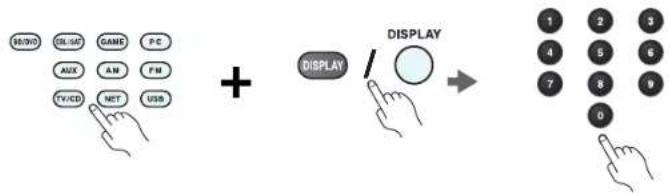
1 While holding down the REMOTE MODE button to which you want to assign a code, press and hold down [DISPLAY] (about 3 seconds).
The REMOTE MODE button/Remote indicator lights.
On Integra products, button names are capitalized. For example, "Remote Mode" button and "Display" button.
Notes:
- Remote control codes cannot be entered for [RECEIVER] and the multi zone button.
- Only TV remote control codes can be entered for [TV].
- Except for [RECEIVER], [TV], and the multi zone button, remote control codes from any category can be assigned for the REMOTE MODE buttons. However, these buttons also work as input selector buttons, so choose a REMOTE MODE button that corresponds with the input to which you connect your component. For example, if you connect your CD player to the CD input, choose [TV/CD] when entering its remote control code.
2 Within 30 seconds, use the number buttons to enter the 5-digit remote control code.
The REMOTE MODE button/Remote indicator flashes twice.
If the remote control code is not entered successfully, the REMOTE MODE button/Remote indicator will flash once slowly.
Notes:
- The flashing element of the remote controller will differ according to your AV receiver's model.
- The remote controller is preconfigured with remote controller presets of different components. By entering a code from the Remote Control Code list, you can activate the relevant preset for that component.
- When there are multiple codes related to one manufacturer, try and enter them one-by-one until it matches your component.
- Depending on the model and year of your component, compatibility is not guaranteed.
- With some models, the remote controller may not not work or its compatibility may be limited to part of the component's functionality.
- Besides, it is not possible to add new codes to the existing remote controller presets.
- Though the provided remote control codes are correct at the time of printing, they are subject to change by the manufacturer.

1


Remote Control Codes
| Dedicated Onkyo Receiver | |
| Default 62503 | |
| Zone 2 62506 | |
| Zone 3 62507 | |
| Cable Set Top Box | |
| ADB 02254, 02769 | |
| Aon 02769 | |
| Arris 02187 | |
| AT&T 00858 | |
| Bright House 01376, 01877 | |
| BT Vision 02294 | |
| Cable & Wireless 01068 | |
| Cable Onc 01376, 01877 | |
| Cablecom 01582 | |
| Cablevision 01376, 01877 | |
| Charter 01376, 01877, 02187 | |
| Cisco 01877, 00858, 01982, 02345, 02378 | |
| Com Hcm | 00817, 00660, 01666, 02015, 02447 |
| Comcast | 01376, 01877, 01982, 02187 |
| Cox | 01376, 01877 |
| Dacryung | 01877 |
| Digeo | 02187 |
| DX Antenna | 01500 |
| France Telecom | 00817 |
| Freebox | 01482 |
| Fujitsu | 01497 |
| Humax | 00660, 02142, 02447, 03051, 03053 |
| Insight 01376, 01877 | |
| J:COM | 03051, 03053 |
| Knology | 01877 |
| Krcatcl | 01385 |
| Macab 00817 | |
| Mediacom 01376, 01877 | |
| Cable Set Top Box | |
| mio TV | 02802 |
| Motorola | 01376, 00858, 01562, 01982, 01998, 02378 |
| Moxi | 02187 |
| NEC | 01496 |
| Neuf TV | 03107 |
| Noos 00817 | |
| NTL | 01068, 01060 |
| Numericable | 02767 |
| Ono 01068, 01562 | |
| Optus | 01060 |
| Orange | 00817 |
| Pace | 01376, 01877, 01068, 01060, 01982 |
| Panasonic | 01488, 01982 |
| Philips | 00817, 01582, 02294, 02767 |
| Pioneer | 01877, 01500 |
| RCN 01376 | |
| Rogers 01877 | |
| Sagem 00817 | |
| Samsung | 01877, 01060, 01666, 02015, 02774 |
| Scientific Atlanta | 01877, 00858, 01982, 02345 |
| SFR | 03107 |
| Shaw | 01376 |
| SingTel | 01998, 02802 |
| Sony 01460 | |
| Stofa 02015 | |
| Suddenlink | 01376, 01877 |
| Sumitomo 01500 | |
| Telewest | 01068 |
| TeliaSonera | 01385 |
| Telus | 02345 |
| Thomson | 01582, 01982, 02769 |
| Time Warner 01376, 01877, 02187 | |
| Cable Set Top Box | |
| Toshiba | 01509 |
| UPC | 01582 |
| Verizon | 02378 |
| Vidcotron | 01877 |
| Virgin Media | 01068, 01060 |
| Visiopass | 00817 |
| VTR | 01376 |
| WideOpenWest | 01877 |
| Ziggo | 00660, 01666, 02015, 02142, 02447, 02774 |
| Cable/PVR Combination | |
| Arris 02187 | |
| Bright House 01376, 01877 | |
| Cable One 01376, 01877 | |
| Cablevision 01376, 01877 | |
| Charter 01376, 01877, 02187 | |
| Cisco 01877, 01982 | |
| Comcast | 01376, 01877, 01982, 02187 |
| Cox | 01376, 01877 |
| Digeo | 02187 |
| Freebox | 01482 |
| Humax | 02142, 03051, 03053 |
| Insight | 01376, 01877 |
| J:COM | 03051, 03053 |
| Knology | 01877 |
| Mediacom | 01376, 01877 |
| Motorola | 01376 |
| Moxi | 02187 |
| Numericable | 02767 |
| Pace | 01877 |
| Panasonic | 01982 |
| Philips | 01582, 02767 |
| Pioneer | 01877 |
| Rogers 01877 | |
| Cable/PVR Combination | |
| Samsung | 01877 |
| Scientific Atlanta | 01877, 01982 |
| Shaw | 01376 |
| Suddenlink | 01376, 01877 |
| Thomson | 01582 |
| Time Warner 01376, 01 | 877, 02187 |
| UPC | 01582 |
| Videotron | 01877 |
| VTR | 01376 |
| WideOpenWest | 01877 |
| Ziggo | 02142 |
| IPTV | |
| ADB 02254, 02769 | |
| Aon 02769 | |
| AT&T 00858 | |
| BT Vision 02294 | |
| Canal+ | 02657 |
| Cisco 00858, 02345, 02378 | |
| Kreatel | 01385 |
| mio TV | 02802 |
| Motorola | 01376, 00858, 01998, 02378 |
| Neuf TV | 03107 |
| Pace | 02657 |
| Scientific Atlanta | 00858, 02345 |
| SFR | 03107 |
| SingTel | 01998, 02802 |
| TeliaSonera | 01385 |
| Telus | 02345 |
| Thomson | 02769 |
| Verizon | 02378 |
| IPTV/PVR Comblnation | |
| ADB 02769 | |
| Aon 02769 | |
Remote Control Codes
| IPTV/PVR Combination | |
| AT&T 00858 | |
| BT Vision 02294 | |
| Cisco 00858, 02345, 02378 | |
| Kreatel 01385 | |
| Motorola 00858, 02378 | |
| Neuf TV 03107 | |
| Philips 02294 | |
| Scientific Atlanta 00858 | |
| SFR 03107 | |
| Verizon 02378 | |
| CD | |
| Advantage 70032 | |
| AH! 70157 | |
| Aiwa 70157 | |
| Arcam 70157 | |
| Atoll Electronique 70157 | |
| Audio Research 70157 | |
| Audiolab 70157 | |
| Audiomeca | 70157 |
| Audioton | 70157 |
| AVI 70157 | |
| Balanced Audio Technology | 70157 |
| Cairn | 70157 |
| California Audio Labs | 70029, 70303 |
| Cambridge | 70157 |
| Cambridge Audio | 70157 |
| Carver 70157 | |
| CCE | 70157 |
| Cyrus | 70157 |
| Denon | 70626, 70766 |
| DKK 70000 | |
| DMX Electronics | 70157 |
| Dynaco | 70157 |
| Genexxa 70000, 70032 | |
| CD | |
| Goldmund | 70157 |
| Grundig | 70157 |
| Harman/Kardon | 70157 |
| Hitachi 70032 | |
| Integra | 71817, 70101 |
| JVC 70072 | |
| Kenwood | 70626, 70157, 70036 |
| Krell | 70157 |
| Linn | 70157 |
| Loewe 70157 | |
| Magnavox | 70157 |
| Marantz | 70626, 70029, 70157 |
| Matsui 70157 | |
| MCS | 70029 |
| Memorex | 70032 |
| Meridian | 70157 |
| Micromega | 70157 |
| Miro | 70000 |
| Mission 70157 | |
| Myryad | 70157 |
| NAD 70000, 70721 | |
| Naim | 70157 |
| NSM 70157 | |
| Onkyo 71817 | |
| Optimus | 70000, 70032 |
| Panasonic | 70029, 70303 |
| Philips 70626, 70157 | |
| Pioneer | 70032, 70101 |
| Polk Audio | 70157 |
| Primare | 70157 |
| Proton | 70157 |
| QED | 70157 |
| Quad 70157 | |
| Quasar | 70029 |
| Radiola | 70157 |
| RCA | 70032 |
| CD | |
| Restek 70157 | |
| Revox | 70157 |
| Rotcl 70157 | |
| SAE | 70157 |
| Sansui | 70157 |
| SAST | 70157 |
| Siemens | 70157 |
| Silsonic 70036 | |
| Simaudio | 70157 |
| Sonic Frontiers | 70157 |
| Sony | 70490, 70000 |
| Sylvania | 70157 |
| TAG McLaren | 70157 |
| Tandy | 70032 |
| Technics 70029, 70303 | |
| Thorens | 70157 |
| Thule Audio | 70157 |
| Traxdata 70626 | |
| Universum | 70157 |
| Victor | 70072 |
| Wards | 70000, 70032, 70157 |
| Yamaha | 70490, 70032, 70036 |
| Zonda | 70157 |
| CD-R | |
| Dcnon | 70626, 70766 |
| JVC 70072 | |
| Kenwood | 70626 |
| Marantz | 70626 |
| Onkyo 71323 | |
| Philips 70626 | |
| Sony | 70000 |
| MD | |
| Onkyo 70868 | |
| Sony | 70490, 70000 |
| MD | |
| Yamaha | 70490 |
| Cassette Deck | |
| Aiwa 40029 | |
| Arcam 40076 | |
| Audiolab 40029 | |
| Carver 40029 | |
| Denon | 40076 |
| Grundig | 40029 |
| Harman/Kardon | 40029 |
| Inkel | 40070 |
| JVC 40244 | |
| Kenwood | 40070 |
| Magnavox | 40029 |
| Marantz | 40029 |
| Myryad | 40029 |
| Onkyo 42157 | |
| Optimus | 40027 |
| Philips 40029 | |
| Pioneer | 40027 |
| Polk Audio | 40029 |
| Radiola | 40029 |
| RCA | 40027 |
| Revox | 40029 |
| Sansui | 40029 |
| Sony | 40243 |
| Thorens | 40029 |
| Victor | 40244 |
| Wards | 40027, 40029 |
| Yamaha | 40097 |
| Accessory | |
| Apple | 81115 |
| Jamo | 82228 |
| Logitech | 82182 |
| Onkyo 82990, 81993, 82351 | |
Remote Control Codes
| Accessory | |
| Polk Audio 82228 | |
Video - Accessory
| ADB 02254, 02769 | |
| Aon 02769 | |
| Apple 02615 | |
| AT&T 00858 | |
| BT Vision 02294 | |
| Canal+ 02657 | |
| Cisco 00858, 02345, 02378 | |
| Kreatel 01385 | |
| mio TV 02802 | |
| Motorola 01376, 00858, 01998, 02378 | |
| Neuf TV 03107 | |
| Pacc 02657 | |
| Philips 02294 | |
| Scientific Atlanta | 00858, 02345 |
| SFR | 03107 |
| SingTel 01998, 02802 | |
| TeliaSonera | 01385 |
| Telus | 02345 |
| Thomson | 02769 |
| Verizon | 02378 |
Receiver
| Onkyo 52503 |
Satellite Set Top Box
| @sat | 01300 |
| @Sky | 01334 |
| Acoustic Solutions | 01284 |
| ADB 00642, 00887, 01259 | |
| Akura | 01626 |
| Alba | 01284 |
| Allvision 01334 | |
Satellite Set Top Box
| Amstrad | 00847, 01175, 01662, 01693 |
| Ansonic | 02418 |
| Arnion | 01300 |
| ASCI 01334 | |
| AssCom | 00853 |
| Astro | 00173, 01100 |
| Atlanta 02418 | |
| Atsat 01300 | |
| AtSky | 01334 |
| Audiola | 02418 |
| Aurora | 00879, 00642, 01433 |
| Austar | 00879, 00642, 01259 |
| Avunit 01631 | |
| Awa 02418 | |
| Axil | 01413, 01457, 02418 |
| Axitronic | 01626 |
| Balmet 01457 | |
| Bell ExpressVu | 00775 |
| Belson 02418 | |
| Big Sat 01457 | |
| Black Diamond | 01284 |
| Blaupunkt 00173 | |
| Boshmann | 01413, 01631 |
| Boston | 01251 |
| Boxer 01458 | |
| British Sky Broadcasting | 00847, 01175, 01662 |
| BskyB 00847, 01175, 01662 | |
| Bush | 01284, 01291, 01626, 01645 |
| Canal Digital | 00853, 01334 |
| Canal Satellite | 00853, 02657 |
| Canal+ 00853, 02657 | |
| CanalSat 00853, 02657 | |
| Centrex 01457 | |
Satellite Set Top Box
| CGV 01413, 01567 | |
| Chess | 01334, 01626 |
| CityCom | 01176 |
| Clatronic 01413 | |
| Clayton 01626 | |
| Com Hem | 01176, 01915 |
| Comag 01413 | |
| Comsat | 01413 |
| Coship | 01457 |
| Crown 01284 | |
| CS | 01631 |
| Cyfra+ 01409 | |
| Cyfrowy Polsat | 00853, 02527 |
| D-box | 00723, 01114 |
| Dantax 01626 | |
| Denver 02418 | |
| Dgtec | 01242, 01631, 02418 |
| Dick Smith Electronics | 02418 |
| Digi Raum Electronics | 01176 |
| Digiality | 01334 |
| Digifusion | 01645 |
| Digihome | 01284 |
| DigiLogic | 01284 |
| DigiQuest | 01300, 01457, 01631 |
| Digisky 01457 | |
| DigitalBox | 01100, 01631 |
| Digiwave | 01631 |
| DirecTV 01377, 00099 | |
| Dish Network | 00775 |
| Dishpro | 00775 |
| DishTV | 01300 |
| DRE | 01176 |
| Dream Multimedia | 01237 |
| DSE 02280, 02418 | |
| DSTV | 00879, 00642, 01433 |
Satellite Set Top Box
| Durabrand | 01284 |
| Echostar | 00775, 00853, 01323, 01409, 02527 |
| Eco-Star | 01413 |
| Edision | 01631 |
| Elap | 01413, 01567 |
| Elbe | 02418 |
| Energy Sistem | 01631, 02418 |
| Engel | 01251 |
| EuroLine | 01251 |
| Europhon | 01334 |
| Europsat 01413, 01611 | |
| Expressvu 00775 | |
| Fagor | 01611 |
| Ferguson 01291 | |
| Finlux | 01626 |
| Fly Com | 01457 |
| FMD | 01413, 01457 |
| Foxtel | 00879, 01176, 01356 |
| Freesat 02408 | |
| Fuba | 00173, 01251 |
| Galaxis | 00853, 00879 |
| General Satellite | 01176 |
| Globo | 01251, 01334, 01626 |
| GOI | 00775 |
| Gold Box | 00853 |
| Gold Vision | 01631 |
| GoldMaster | 01334 |
| Goodmans | 01284, 01291 |
| Gradiente | 00099, 00887 |
| Grandin | 01626 |
| Grocos 01409, 01457 | |
| Grundig | 00847, 00853, 00173, 00879, 01284, 01291 |
| Haicr | 02418 |
| Hallo | 01626 |
Remote Control Codes
| Satellite Set Top Box | |
| Hama 01567 | |
| Hanseatic 01100 | |
| Hirschmann 00173 | |
| Hitachi 01284 | |
| Hornet 01300 | |
| HTS 00775 | |
| Humax 01377, 01176, 01427, 01675, 01808, 01882, 01915, 02144, 02408, 02616 | |
| ID Digital 01176 | |
| ID Sat 01334 | |
| ILLUSION sat 01631 | |
| Imperial 01195, 01334 | |
| Indovision 00887 | |
| iNETBOX 01237 | |
| Inno Hit 01626 | |
| Innova 00099 | |
| inVion 02418 | |
| iotronic | 01413 |
| ISkyB 00887 | |
| ITT | 02418 |
| ITT Nokia 00723 | |
| Jadeworld | 00642 |
| Jacger 01334 | |
| JVC | 00775 |
| KabclBW | 01195, 01882, 01915 |
| Kaon | 01300 |
| Kathrein | 00173, 01561, 01567 |
| Kenwood | 00853 |
| Koenig 01631 | |
| Kreiling | 01626 |
| Kreiselmeyer | 00173 |
| L&S Electronic | 01334 |
| LaSAT 00173 | |
| Lava | 01631 |
| Satellite Set Top Box | |
| Leiko | 01626 |
| Lemon | 01334 |
| Lenoxx | 01611 |
| Linsar | 01284 |
| Listo | 01626 |
| Lodos | 01284 |
| Logik 01284 | |
| Macab 00853 | |
| Manhattan 01300 | |
| Maspro | 00173 |
| Matsui 00173, 01284, 01626 | |
| Maximum | 01334 |
| Mediabox 00853 | |
| Mediacom 01206 | |
| MediaSat | 00853 |
| Medion | 01334, 01626 |
| MegaSat | 01631 |
| Melronic | 01334, 01413, 01631, 02418 |
| Metz | 00173 |
| Moscrbacr 01251 | |
| Movistar | 02527, 02761 |
| Multichoice | 00879, 00642, 01433, 02059, 02060 |
| MySky 01356, 01693, 01850 | |
| NEOTION | 01334 |
| Netsat | 00099, 00887 |
| Nikko | 00723 |
| Nokia | 00853, 00723, 01223 |
| Nordmcnde | 01611 |
| NPG | 01631 |
| Onn | 01284 |
| Optex | 01413, 01611, 01626 |
| Optus 00879, 01356 | |
| Orbis | 01334 |
| Orbitech | 01100, 01195 |
| Satellite Set Top Box | |
| Pace 00847, 00853, 00887, | 01175, 01323, 01356,01423, 01662, 01693,01850, 02059, 02060,02211, 02657 |
| Pacific 01284 | |
| Palcom | 01409, 01611 |
| Panasat | 00879, 01433 |
| Panasonic 00847, 01304, 01404,03099 | |
| Panda | 00173 |
| Pass | 01567 |
| peeKTon | 01457, 02418 |
| Philips 00099, 00853, 00173,01114, 00887, 00133,02211 | |
| Phoenix | 02418 |
| Pino | 01334 |
| Pioneer | 00853, 01308 |
| PMB | 01611 |
| Premiere | 00723 |
| Pro Basic | 00853 |
| Proline | 01284 |
| QNS | 01404 |
| RCA | 01291 |
| Regal | 01251 |
| Roadstar | 00853 |
| Rollmaster | 01413 |
| Rownsonic | 01567 |
| SAB | 01251, 01300, 01631 |
| Sagcm 01114 | |
| Saivod 02418 | |
| Samsung | 01377, 00853, 01175,01206, 01458, 01662,02986 |
| Sansui | 01251 |
| Sanyo | 01626 |
| Sat Control | 01300 |
| Satellite Set Top Box | |
| Sat Industrie | 01611 |
| SAT+ | 01409 |
| Satplus 01100 | |
| SatyCon | 01631 |
| Schaub Lorenz | 02418 |
| Schneider | 01206, 01251 |
| Schwaiger | 01334, 01457, 01631 |
| Sedca Electronique | 01206, 01626 |
| SEG 01251, 01284, 01626 | |
| Servimat | 01611 |
| ServiSat 01251 | |
| Shark | 01631 |
| Sherwood 01409 | |
| Siemcns 00173, 01334, | 01626, 02418 |
| Sigmatek | 02418 |
| SKY | 00099, 00847, 00887, 01175, 01662, 01693, 01850, 02754 |
| SKY Brazil | 00887 |
| SKY Deutschland | 02754 |
| SKY Italia 00853, 01693, 01850 | |
| SKY New Zealand | 02211 |
| SKY PerfecTV! | 02299, 02616, 03099 |
| Sky XL | 01251 |
| Sky+ | 01175, 01662 |
| Skymaster | 01334, 01409, 01567, 01611 |
| Skymax | 01413 |
| Skyplus | 01175, 01334 |
| SkySat | 01100 |
| Skyvision | 01334 |
| SM Electronic | 01409 |
| Smart 01404, 01413, 01631 | |
| SmartVision | 01457 |
| Sony | 00847, 00853, 01558, 02299 |
Remote Control Codes
| Satellite Set Top Box | |
| Star 00887 | |
| Stream System 01300 | |
| Strong 00853, 00879, 01284,01300, 01409, 01626,02418 | |
| Sunny 01300 | |
| Sunstar 00642 | |
| Supernova 00887 | |
| Supratech 01413 | |
| Systcc 01334 | |
| Sytech 02418 | |
| TBoston 01251, 02418 | |
| Teac 01251 | |
| Technical 01626 | |
| Technika 01284 | |
| TechniSat 01100, 01195 | |
| Technosat | 01206 |
| Techwood | 01251, 01284, 01626 |
| TELE System | 01251, 01409, 01611 |
| Telefonica 02527, 02761 | |
| Telcstar | 01100, 01195, 01251,01334, 01626 |
| Televes | 01300, 01334 |
| Televisa | 00887 |
| Tevion | 01409 |
| Thomson | 00847, 00853, 01175,01046, 01291, 01662 |
| Tonna 01611 | |
| Topfield 01206 | |
| Toshiba | 01284 |
| Trevi | 01251 |
| Triax | 00853, 01251, 01291,01413, 01611, 01626,01631 |
| Tricolor TV | 01176 |
| True Visions | 02408 |
| Twinner | 01611 |
| Satellite Set Top Box | |
| UBC | 00642 |
| UEC | 00879, 01356 |
| United 01251, 01626, 02418 | |
| Unitymedia | 01882 |
| Universum | 00173, 01251 |
| Variosat | 00173 |
| VEA | 02418 |
| Vestel 01251, 01284 | |
| Viasat 01195 | |
| Vision 01626 | |
| Visiosat | 01413, 01457 |
| Vitecom 01413 | |
| Vivax | 02418 |
| Volcasat | 02418 |
| Wavelength | 01413 |
| Wharfedale | 01284 |
| Wisi | 00173 |
| Worldsat | 01251 |
| Woxter 02418 | |
| Xsat | 00847, 01323 |
| Xtreme 01300 | |
| Yakumo 01413 | |
| Yes | 00887 |
| Zehnder | 01251, 01334, 01413, 01631 |
| Zinwell | 02280, 02761 |
| Satellite Set Top Box | |
| @sat | 01300 |
| SAT/PVR Combination | |
| @sat | 01300 |
| Amstrad 01175, 01662, | 01693 |
| Atsat | 01300 |
| Bell ExpressVu | 00775 |
| British Sky Broadcasting | 01175, 01662 |
| SAT/PVR Combination | |
| BskyB 01175, 01662 | |
| Bush | 01645 |
| Canal Satellite | 02657 |
| Canal+ | 02657 |
| CanalSat | 02657 |
| Cyfrowy Polsat | 02527 |
| Digifusion 01645 | |
| DigiQuest | 01300 |
| DirecTV | 01377, 00099, 20739 |
| Dish Network | 00775 |
| Disbpro | 00775 |
| Dream Multimedia | 01237 |
| Echostar | 00775, 02527 |
| Edision | 01631 |
| Expressvu | 00775 |
| Foxtel 01356 | |
| Humax | 01176, 01427, 01675, 01808 |
| ID Sat 01334 | |
| iNETBOX | 01237 |
| Kaon | 01300 |
| Kathrein | 01561 |
| Maximum | 01334 |
| Mediacom 01206 | |
| MegaSat | 01631 |
| Movistar | 02527 |
| Multichoice | 02059, 02060 |
| MySky | 01356, 01693, 01850 |
| NEOTION | 01334 |
| Pace | 01175, 01356, 01423, 01662, 01693, 01850, 02059, 02060, 02211, 02657 |
| Panasonic 01304, 03099 | |
| Philips | 00099 |
| Samsung | 01175, 01206, 01662 |
| Sat Control | 01300 |
| SAT/PVR Combination | |
| Schneider 01206 | |
| Sedea Electronique | 01206 |
| SKY | 01175, 01662, 01693, 01850, 02754 |
| SKY Deutschland | 02754 |
| SKY Italia | 01693, 01850 |
| SKY New Zealand | 02211 |
| SKY PerlecTV! | 02299, 03099 |
| Sky+ | 01662 |
| Skyplus | 01175, 01334 |
| Smart | 01631 |
| Sony | 02299 |
| Stream System 01300 | |
| Strong 01300 | |
| Sunny 01300 | |
| TechniSat 01195 | |
| Technosat | 01206 |
| Telefonica 02527 | |
| Telestar | 01195 |
| Thomson | 01175, 01662 |
| Topfield 01206 | |
| Viasat 01195 | |
| Xtreme 01300 | |
| Television | |
| A.R. Systems | 10556, 10037 |
| Accent | 10037 |
| Acer 11339 | |
| Acoustic Solutions | 11037, 11667 |
| Action 10650 | |
| Addison | 10653 |
| AEG | 11037, 11324 |
| Agfaphoto 12719 | |
| Aiko | 10037 |
| Aim | 10037, 10499 |
Remote Control Codes
Television
| Akai 10178, 10556, 10037,10714, 10715, 10208,11675 | |
| Akiba 10037 | |
| Akito 10037 | |
| Akura 10171, 10037, 10714,10668, 11037, 11363,11585, 11667, 11709 | |
| Alba 10037, 10714, 10668,11037, 11585 | |
| Alien 11037 | |
| Allstar 10037 | |
| Amstrad 10171, 10037, 11037 | |
| Anam 10037 | |
| Anam National 10037, 10650 | |
| Andersson 11585 | |
| Anitech 10037 | |
| Ansonic 10037, 10668 | |
| AOC 10178, 10625, 11365 | |
| Ardem 10037, 10714 | |
| Arena 10037 | |
| Aristona 10556, 10037 | |
| ART 11037 | |
| Art Mito | 11585 |
| Asberg | 10037 |
| Astra | 10037 |
| ATD | 10698 |
| Atlantic | 10037 |
| Audiosonic | 10037, 10714, 10715 |
| Audiovox | 11564 |
| Audioworld | 10698 |
| Aventura | 10171 |
| Axxon 10714 | |
| Baird 10208 | |
| Bang & Olufsen | 10565 |
| Barco | 10556 |
Television
| Basic Line 10556, 10037, 10668, 11037 | |
| Baur 10037, 10195, 10512 | |
| Bcaumark | 10178 |
| Beijing | 10208 |
| Beko 10037, 10714, 10715, 11652 | |
| Bclson 10698 | |
| Belstar | 11037 |
| Bcon 10037 | |
| Berthen 10556, 10668 | |
| Bestar | 10037 |
| Bcxa | 12493 |
| Black Diamond | 11037 |
| Blaupunkt | 10195 |
| Blue Sky | 10556, 10037, 10625, 10714, 10668, 11037, 10715, 10499, 11324, 11363, 11652, 11709 |
| Boca | 11652 |
| Boman | 11324 |
| Bork 11363 | |
| BPL | 10037, 10208 |
| Brandt 10625, 10714, 10560 | |
| Brimax | 11709 |
| Brinkmann | 10037, 10668 |
| Brionvega | 10037 |
| Bush | 10556, 10037, 10714, 10668, 11037, 10698, 10208, 11585, 11652, 11667, 12719 |
| Byd:sign | 12140, 12209 |
| Camper 10037 | |
| Carad | 10668, 11037 |
| Carena | 10037 |
| Carrefour | 10037 |
| Cascade 10037 | |
Television
| Casio 10037 | |
| Cathay | 10037 |
| CCE 10037 | |
| Centrum | 11037 |
| Centurion | 10037 |
| Changhong | 10508 |
| Chimei | 11666 |
| Clarivox | 10037 |
| Classic | 10499 |
| Clatronic | 10037, 10714, 11324 |
| Clayton 11037 | |
| Condor | 10037 |
| Conrowa | 10698 |
| Contce | 10037 |
| Cosmel | 10037 |
| CPTEC | 10625, 11363 |
| Crown 10037, 10714, 10668, 11037, 10715, 10208, 11652 | |
| Cyberpix | 11667 |
| D-Vision | 10556, 10037 |
| Daewoo 10178, 10556, 10037, 10634, 10499, 12098 | |
| Dansai 10037, 10208 | |
| Dantax | 10714, 11037, 10715, 11652 |
| Datsura | 10208 |
| Dawa | 10037 |
| Daytron | 10037 |
| De Graaf | 10208 |
| DEC 11709 | |
| Decca 10037 | |
| Denver | 10037, 11709 |
| Desmet | 10037 |
| Diamant 10037 | |
| Diamond | 10698 |
Television
| Dick Smith Electronics | 10698 |
| Digatron | 10037 |
| Digihome | 11667 |
| Digiline | 10037, 10668 |
| Digitek | 11709 |
| Digitor | 10037, 10698 |
| Dixi | 10037 |
| DL | 11363 |
| DMTech | 12001 |
| Domeos 10668 | |
| Drean 10037 | |
| DSE | 10698 |
| Dual 10037, 11037, 11585, 11667 | |
| Durabrand 10178, 10171, 10714, 11037, 11652 | |
| Dux | 10037 |
| DX Antenna | 11817, 13817 |
| Dynatron | 10037 |
| Dynex | 12049 |
| c-motion | 11709 |
| E:max | 11324 |
| Easy Living | 11666, 11709 |
| ECE | 10037 |
| Elbc | 10556, 10037 |
| Electrograph | 11755 |
| Element 11886 | |
| Elfunk 11037 | |
| ELG 10037 | |
| Elin | 10037 |
| Elite | 10037 |
| Emerson | 10178, 10171, 10037, 10714, 10668, 11394, 11864, 11886 |
| Envision | 11365, 11506 |
| Epson 11379 | |
Remote Control Codes
| Television | |
| Erres 10037 | |
| ESA 10171 | |
| ESC 10037 | |
| Euroman 10037 | |
| Europa 10037 | |
| Europhon 10037 | |
| Evesham 11248, 11667 | |
| Excello 11037 | |
| Exquisit 10037 | |
| Ferguson 10037, 10625, 10560, 10195, 11037, 11585 | |
| Fidelity 10171, 10037, 10512 | |
| Finlandia 10208 | |
| Finlux 10556, 10037, 10714, 10715, 11248, 11667 | |
| Firstline 10556, 10037, 10714, 10668, 11037, 10208, 11363 | |
| Fisher 10208 | |
| Flint 10037 | |
| Formenti 10037 | |
| Fraba 10037 | |
| Friac | 10037, 10499 |
| Fujicom 11709 | |
| Fujitsu | 10809 |
| Fujitsu Siemens | 10809, 11248, 11666 |
| Funai 10171, 10714, 10668, 11037, 11394, 11666, 11817, 13817 | |
| G-Hanz 11363 | |
| Gaba 11037 | |
| Galaxi | 10037 |
| Galaxis 10037 | |
| Gateway | 11755 |
| GE | 10178, 11454, 10625, 10560 |
| GEC | 10037 |
| Television | |
| Genesis | 10037 |
| Genexxa | 10037 |
| GFM | 10171, 11864, 11886 |
| Godrej | 11585 |
| Goldfunk | 10668 |
| GoldStar | 10178, 10037, 10714, 10715 |
| Goodmans | 10556, 10037, 10625, 10714, 10560, 10668, 10634, 11037, 10499, 11585, 11667 |
| Gorenje | 11585 |
| Gradiente 10037 | |
| Gractz | 10714 |
| Granada | 10037, 10560, 10208 |
| Grandin | 10556, 10037, 10714, 10668, 11037, 10715, 11652 |
| Grundig 10556, 10037, | 10195, 11223, 11667, 12625 |
| GVA | 11363, 12098 |
| H & B | 12001 |
| Haier | 10037, 10698, 10508 |
| Hallmark 10178 | |
| Hankook 10178 | |
| Hanseatic 10556, 10037, | 10625, 10714, 10634, 10499, 12001 |
| Hantarex 10037 | |
| Hantor | 10037 |
| Harwood 10037 | |
| Hauppauge | 10037 |
| IIB | 11324 |
| HCM 10037 | |
| Highline | 10037 |
| Hinari | 10037, 10208 |
| Hisawa | 10714 |
| Television | |
| Hisense | 10556, 10508, 10208, 11363, 12098 |
| Hitachi | 10150, 10178, 10037, 10634, 11037, 10508, 10499, 10578, 11576, 11585, 11643, 11667, 11691, 12433 |
| Hitachi Fujian | 10150 |
| Hitcc | 10698 |
| Hocher | 10714 |
| Hornyphon | 10037 |
| Hugoson | 11666 |
| Humax | 11295 |
| Hypson 10556, 10037, | 10714, 10668, 11037, 10715 |
| Hyundai | 11037, 10698 |
| Iberia | 10037 |
| ICE | 10037 |
| iLo | 11394 |
| Imperial | 10037 |
| Indiana | 10037 |
| Ingelen | 10714 |
| Inno Hit | 11037, 11585 |
| Innova | 10037 |
| Insignia | 10171, 11423, 11564, 12049 |
| Integra 11807, 13100, | 13500 |
| Interbuy | 10037 |
| Interfunk 10037, 10512 | |
| Internal 10556 | |
| Intervision | 10037 |
| Irradio | 10037 |
| IRT | 10698 |
| Isukai | 10037 |
| ITS | 10037 |
| ITT | 10208 |
| ITT Nokia | 10208 |
| Television | |
| ITV | 10037 |
| JGC | 11709 |
| Jinfeng | 10208 |
| Jinxing | 10556, 10037, 10698 |
| JMB | 10556, 10634, 10499 |
| Jubilee | 10556 |
| JVC | 10650, 10653, 10508, 11428, 11601, 12271 |
| Kaisui 10037 | |
| Karcher | 10714, 11324 |
| Kathrein | 10556 |
| Kendo | 10037, 11037, 11585 |
| Kennex 11037 | |
| Kioto 10556 | |
| Kiton 10037, 10668 | |
| KLL | 10037 |
| Kneissel | 10556, 10037, 10499 |
| Koenig | 10037 |
| Kolin 10150, 10037, 11610, 11755 | |
| Kolster | 10037 |
| Konka | 10037, 10714 |
| Korpel | 10037 |
| Kosmos | 10037 |
| Kunlun | 10208 |
| L&S Electronic | 10714 |
| Lavic 11363 | |
| Lavis | 11037 |
| Leeson 10037 | |
| Lenco 10037, 11037 | |
| Leyco 10037 | |
| LG | 10178, 10556, 10037, 10714, 10715, 10698, 11423, 11768, 11840, 12182, 12358, 12424, 12834 |
| Licsenkoetter | 10037 |
Remote Control Codes
| Television | |
| Lifetec 10037, 10714, 10668, 11037, 12001 | |
| Linsar 11585 | |
| Local India TV 10208 | |
| Local Malaysia TV 10698 | |
| Lodos 11037 | |
| Loewe 10037, 10512, 11884 | |
| Logik 11037, 10698 | |
| Logix 10668 | |
| Luma 11037 | |
| Lumatron 10037, 10668 | |
| Lumenio 10037 | |
| Lux May 10037 | |
| Luxor 11037, 10208 | |
| LXI 10178 | |
| M Electronic 10037, 10714, 10634, 10195, 10512, 11652 | |
| Madison | 10037 |
| Magnavox | 10171, 11454, 11365, 11506, 11755, 11867, 12372 |
| Magnum 10037, 10714, 10715 | |
| Manesth | 10037 |
| Manhattan | 10037, 10668, 11037 |
| Marantz | 11454, 10556, 10037 |
| Mark | 10037, 10714, 10715 |
| Master's | 10499 |
| Mastro 10698 | |
| Masuda | 10037 |
| Matsui | 10556, 10037, 10714, 10195, 11037, 10208, 11666, 11667 |
| Matsushita | 10650 |
| Maxent | 11755 |
| Maxcss | 12493 |
| Meck | 10698 |
| Mediator | 10556, 10037 |
| Television | |
| Medion | 10556, 10037, 10714, 10668, 11037, 10698, 10512, 11248, 11585, 11667, 12001, 12719 |
| Mcgatron | 10178 |
| MEI | 11037 |
| Memorex | 10150, 10178, 11037 |
| Mercury | 10037 |
| Mcrmaid 10037 | |
| Metronic | 10625 |
| Mctz | 10037, 10668, 10195, 11037, 11533 |
| MGA 10150, 10178 | |
| Micromaxx | 10037, 10714, 10668, 11037, 11324, 12001 |
| Microspot | 11614 |
| Mikomi | 11037, 11585 |
| Minato | 10037 |
| Minerva | 10195, 11248 |
| Ministry Of Sound | 11667 |
| Minoka | 10037 |
| Mirai | 11666 |
| Mitsubishi | 10150, 11250, 10178, 10556, 10037, 11037, 10512, 11171 |
| Mivar 10609 | |
| Morce | 10037 |
| Morgan's 10037 | |
| Moserbaer | 11585 |
| MTC | 10512 |
| MTlogic | 10714 |
| Mudan 10208 | |
| Multitce | 10037, 10668, 11037 |
| Multitech | 10037 |
| Myrica | 11666 |
| Myryad | 10556 |
| NAD | 10178, 10037 |
| Television | |
| Naiko 10037 | |
| Nakimura | 10037 |
| National | 10508, 10208 |
| NEC | 10178, 10653, 10508, 10499 |
| Neckermann | 10556, 10037 |
| NEI 10037, 11037 | |
| NEO | 11324 |
| Netsat 10037 | |
| NctTV | 11755 |
| Neufunk | 10556, 10037, 10714 |
| New Tech | 10556, 10037 |
| Newave | 10178 |
| Nikkai 10037 | |
| Nikkci 10714 | |
| Nikko 10178 | |
| Nokia 10208 | |
| Norcent | 11365 |
| Nordmende | 10037, 10714, 10560, 10195, 11585, 11667, 12001 |
| Normerel | 10037 |
| Nortek | 10668 |
| Novatronic | 10037 |
| Novita 11585 | |
| Nu-Tcc | 10698 |
| O.K.Linc | 11037, 11324 |
| Oceanic | 10208 |
| Odys | 12719 |
| Okano | 10037 |
| OKI | 11585, 11667 |
| Olevia | 11610, 12124 |
| Omni | 10698 |
| Onei | 11667 |
| Onidu 10653 | |
| Onimax | 10714 |
| Television | |
| Onix | 10698 |
| Onkyo 11807, 13100, 13500 | |
| Onn | 11667, 11709 |
| Onyx | 11709 |
| Opera 10037, 10714 | |
| Optimus | 10650 |
| Orbit | 10037 |
| Orion 10556, 10037, 10714, 11037, 12001 | |
| Orline 10037 | |
| Ormond | 10668, 11037 |
| Osaki 10556, 10037 | |
| Osio | 10037 |
| Osume 10037 | |
| Otto Versand | 10556, 10037, 10195, 10512 |
| Pacific | 10556, 10714, 11037, 11324 |
| Palladium | 10556, 10037, 10714 |
| Palsonic | 10037, 10698 |
| Panama | 10037 |
| Panasonic | 11480, 10037, 10650, 10508, 10208, 11636, 12170 |
| Panavision | 10037 |
| Panda 10698, 10508, 10208 | |
| Pansonic 11636 | |
| Penney | 10178 |
| Perdio | 10037 |
| Perfekt | 10037 |
| Petters 10037 | |
| Philco 10178, 10171, 10037, 11394 | |
| Philips | 10178, 10171, 11454, 10556, 10037, 10512, 10605, 10690, 11394, 11506, 11867, 12372 |
| Phocus | 10714, 11652 |
Remote Control Codes
| Television | |
| Phoenix 10037 | |
| Phonola 10556, 10037 | |
| Pioneer 10037, 10698, | 10512, 11457, 11636, 12171 |
| Plantron 10037 | |
| Playsonic 10037, 10714, | 10715, 11652 |
| Powerpoint 10037, 10698 | |
| Prinston 11037, 10715 | |
| Profitronic 10037 | |
| Proline 10037, 10625, | 10634, 11037 |
| Prosonic 10037, 10714, | 10668, 11324, 11585, 11667, 11709, 12001 |
| Protech 10037, 10668, | 11037 |
| Proton 10178 | |
| ProVision 10556, 10037 | 10714, 11324 |
| Pvision 12001 | |
| Pyc 10556, 10037 | |
| Qingdao 10208 | |
| Quasar | 10650 |
| Quelle 10037, 10668, | 10195, 11037, 10512 |
| R-Line | 10037 |
| Radiola | 10556, 10037 |
| Radiomarelli | 10037 |
| RadioShack | 10178, 10037 |
| Radiotone | 10037, 10668, 11037 |
| RCA | 10178, 11454, 10625, 10560, 10618, 11781, 12247, 12403, 12429, 12434, 12746, 12932 |
| Realistic 10178 | |
| Recor | 10037 |
| Rectiligne | 10037 |
| Redstar 10037 | |
| Television | |
| Reflex 10037, 10668, 1 | 1037 |
| Relisys | 11585 |
| Rcmotcc | 10171, 10037 |
| Reoc | 10714 |
| Revox | 10037 |
| RFT | 10037 |
| Roadstar | 10037, 10714, 10668, 11037, 10715 |
| Rolson | 12001, 12098 |
| Rowa | 10037, 10698 |
| Saba | 10625, 10714, 10560 |
| Sagem | 10618 |
| Saivod | 10037, 10668, 11037 |
| Salora | 10208, 12001 |
| Sampo | 10178, 10171, 10650, 11755 |
| Samsung | 10178, 10556, 10037, 10618, 10650, 10208, 12051 |
| Sansui 10171, 10037, 10714, 11248, 12001 | |
| Sanyo | 11037, 10508, 10208, 11142, 11365, 11585, 11667, 11974 |
| SBR | 10556, 10037 |
| Schaub Lorenz | 10714, 11324, 11363, 11667, 12001 |
| Schneider | 10556, 10037, 10714, 10668, 11037 |
| Schoentech 11037 | |
| Scotch | 10178 |
| Scott | 10178 |
| Sears | 10178, 10171 |
| Seaway | 10634 |
| Seelver 11037 | |
| SEG | 10037, 10668, 11037, 12719 |
| SEI 10037 | |
| Television | |
| Sei-Sinudyne | 10037 |
| Serie Dorada | 10178 |
| Shanghai | 10208 |
| Sharp | 10650, 10818, 11165, 11423, 11659 |
| Shintoshi | 10037 |
| Shivaki 10178, 10037 | |
| Siam | 10037 |
| Siemens 10037, 10195 | |
| Sicra | 10556, 10037 |
| Silva | 10037 |
| Silva Schneider | 10037 |
| Silver | 10715 |
| SilverCrest | 11037 |
| Sinudyne | 10037 |
| SKY | 10037, 11614, 11775 |
| Skyworth 10037, 10698 | |
| Sliding 11324 | |
| SLX | 10668 |
| Solavox 10037 | |
| Soniko | 10037 |
| Soniq | 12493 |
| Sonitron 10208 | |
| Sonneclair | 10037 |
| Sonoko 10037 | |
| Sonolor | 10208 |
| Sontcc | 10037 |
| Sony | 10810, 11505, 11167, 11651, 11825 |
| Sounddesign | 10178 |
| Soundwave | 10037, 11037, 10715 |
| Sowa | 10178 |
| Squareview | 10171 |
| Standard | 10037, 11037, 11709 |
| Starlitc 10037 | |
| Strato | 10037 |
| Television | |
| SunBriteTV | 11610 |
| Sungoo 11248 | |
| Sunny | 10037 |
| Sunstar 10037 | |
| Sunstech | 12001 |
| Sunwood | 10037 |
| Supersonic | 10208 |
| SuperTech 10556, 10037 | |
| Supra | 10178 |
| Svasa | 10208 |
| Swisstec 11614, 11775 | |
| Sylvania 10171, 11394, | 11864, 11886 |
| Symphonic | 10171, 11394 |
| Synco | 10178, 11755 |
| Syntax | 11610 |
| Sysline | 10037 |
| Tacico | 10178 |
| Talent | 10178 |
| Tashiko | 10650 |
| Tatung | 10037, 11248, 11324 |
| TCL | 10698, 12403, 12429, 12434, 13183 |
| TCM | 10714, 12001 |
| Teac | 10178, 10171, 10037, 10714, 10668, 11037, 10698, 10512, 11248, 11363, 11709, 11755 |
| Tec 10037 | |
| Tech Line 10037, 10668 | |
| Technica | 11037 |
| Technics | 10556, 10650 |
| Technika | 11667 |
| TechniSat 10556 | |
| Technisson | 10714, 11652 |
| Techno 11585 | |
Remote Control Codes
| Television | |
| Technosonic 10556, 10625, 10499, 11324 | |
| Techvision 11709 | |
| Techwood 11037, 11667 | |
| Tecnimagen 10556 | |
| Teco 10178, 10653 | |
| Tedelex 10208, 11709 | |
| Teknika 10150 | |
| TELE System 11585 | |
| Telceor 10037 | |
| Telefunken 10037, 10625, 10714, 10560, 10698, 11585, 11667 | |
| Telefusion 10037 | |
| Telegazi 10037 | |
| Telcmcistcr 10037 | |
| Telesonic 10037 | |
| Telestar 10556, 10037 | |
| Teletech 10037, 10668, 11037 | |
| Teleview | 10037 |
| Tennessee | 10037 |
| Tensai | 10037, 11037, 10715 |
| Tesla | 10556, 10037, 10714, 11037, 11652 |
| Tevion | 10556, 10037, 10714, 10668, 11037, 11248, 11585, 11667 |
| Thomson | 10037, 10625, 10560 |
| Thorn | 10037, 10499, 10512 |
| Thorn-Fcrguson | 10499 |
| TMK | 10178 |
| Tokai | 10037, 10668, 11037 |
| Tokaido | 11037 |
| Topline | 10668, 11037 |
| Toshiba 10195, 11037, | 10618, 10650, 10508, 11169, 11508, 11524, 11652, 12203 |
| Television | |
| Toyoda 11709 | |
| TRANS-continents | 10556, 10037, 10668, 11037 |
| Transonic | 10037, 10698, 10512, 11363 |
| Triad | 10556 |
| Trio | 11248 |
| Triumph | 10556, 10037 |
| TVTEXT 95 10556 | |
| Ulher 10037 | |
| Ultravox | 10037 |
| UMC | 11614, 11775 |
| Unic Line | 10037 |
| Uniden | 12122 |
| United | 10556, 10037, 10714, 11037, 10715, 11652 |
| Unitek | 11709 |
| Universal 10037, 10714 | |
| Universum 10037, 10668, 10195, 11037, 10618, 10512 | |
| Univox | 10037 |
| V7 Videoseven | 11666, 11755 |
| Vestel | 10037, 10668, 11037, 11585, 11667 |
| Vexa | 10037 |
| Victor | 10650, 10653, 11428 |
| Videocon 10037, 10508 | |
| VideoSystem | 10037 |
| Vidtech | 10178 |
| Viewsonic 11365, 11564, 11755, 12049 | |
| Vision | 10037 |
| Vistron | 11363 |
| Vivax | 11709 |
| Vizio | 11758, 12209 |
| Vortec | 10037 |
| Voxson | 10178, 10037 |
| Television | |
| VU | 11365, 12098 |
| Walker | 11667 |
| Waltham | 10037, 10668, 11037 |
| Wansa | 12098 |
| Wards | 10178 |
| Watson 10037, 10714, | 10668, 11037 |
| Wega | 10037 |
| Welltech | 10714, 11652 |
| Weltstar | 11037 |
| Westinghouse | 11755 |
| Wharfedale 10556, 10037, 11324, 11667 | |
| White Westinghouse | 10037 |
| Wilson | 10556 |
| Windsor 10668, 11037 | |
| Windy Sam | 10556 |
| Wintel | 10714 |
| World-of-Vision | 12001 |
| Wyse | 11365 |
| Xcnius | 10634 |
| Xiahua | 10698 |
| XLogic 10698 | |
| Xrypton 10037 | |
| Yamaha | 10650, 11576 |
| Yamishi | 10037 |
| Yokan | 10037 |
| Yoko | 10037 |
| YU-MA-TU | 10037 |
| Zenith | 10178, 10037, 11365, 11423, 12358 |
| Zcepto | 11585 |
| Zonda | 10698 |
| VCR | |
| DirecTV | 20739 |
| Go Video 20614 | |
| VCR | |
| Humax | 20739 |
| Panasonic | 20614, 20616 |
| Philips | 20739 |
| ReplayTV | 20614, 20616 |
| Sonic Blue | 20614, 20616 |
| Sony | 20636 |
| TiVo | 20636, 20739 |
| PVR | |
| DirecTV | 20739 |
| Go Video 20614 | |
| Humax | 20739 |
| Panasonic | 20614, 20616 |
| Philips | 20739 |
| ReplayTV | 20614, 20616 |
| Sonic Blue | 20614, 20616 |
| Sony | 20636 |
| TiVo | 20636, 20739 |
| TV/VCR Combination | |
| Amstrad 10171 | |
| Ferguson | 10625 |
| Fidelity | 10171 |
| GoldStar | 10037 |
| Grundig | 10556, 10037, 10195 |
| LG | 10178 |
| Mitsubishi 10556 | |
| Philips | 10556, 10037 |
| Radiola | 10556 |
| Saba | 10625 |
| Sanyo | 11974 |
| Schneider | 10556, 10037 |
| Sharp | 10818 |
| Siemens | 10037 |
| Sony | 11505 |
| Teac | 10178, 10171 |
Remote Control Codes
| TV/VCR Combination | |
| Technics 10556 | |
| Thomson 10625 | |
| DVD | |
| 3D LAB 30539 | |
| Accurian 30675 | |
| Acoustic Solutions 30713 | |
| AEG 30675 | |
| AFK 31152 | |
| Aiwa 30533 | |
| Akai 30675 | |
| Albu 30539, 30713 | |
| Ambiance 33052 | |
| Amstrad 30713 | |
| Anthcm 32820 | |
| Aristona 30539, 30646 | |
| ASDA 32213 | |
| Audix 30713 | |
| Autovox 30713 | |
| Awa | 32587 |
| Basic Linc | 30713 |
| Bel Canto Design | 31571 |
| Black Diamond | 30713 |
| Blue Parade | 30571 |
| Blue Sky | 30713 |
| Brandt 30503 | |
| Bush 30713 | |
| C-Tech | 31152 |
| California Audio Labs | 30490 |
| Cambridge Audio | 32808 |
| Centrum | 30675, 30713 |
| Changhong | 30627 |
| Cinetec | 30713 |
| Clatronic | 30675 |
| Clayton | 30713 |
| Crown 30713 | |
| DVD | |
| Dantax | 30539, 30713 |
| Denon | 30490, 30634, 31634, 32258, 32748 |
| Dick Smith Electronics | 31152 |
| Digihome | 30713 |
| DigiLogic 30713 | |
| Digix Media | 31394 |
| Disney | 30675 |
| DSE | 30675, 31152 |
| Dual 30713 | |
| Durabrand | 30675, 30713 |
| Dynex | 32596 |
| Dyon | 33052 |
| cBench | 31152 |
| Elfunk 30713 | |
| Elite | 31152 |
| Emerson | 30675, 32213 |
| EuroLine 30675 | |
| Ferguson | 30713 |
| Finlux | 30741 |
| Firstline | 30713 |
| Foehn & Hirsch | 33052 |
| Funai | 30675 |
| GE | 30522 |
| GFM 30675 | |
| Global Sphere | 31152 |
| Go Video | 30741 |
| GoldStar 30741 | |
| Goodmans | 30713, 31152 |
| GPX 30741 | |
| Grandin | 30713 |
| Grundig | 30539, 30713 |
| H & B | 30713 |
| Haaz 31152 | |
| Hanseatic | 30741 |
| DVD | |
| Harman/Kardon | 30582, 31229, 33228 |
| Henss | 30713 |
| Hitachi | 30573, 30713, 31664 |
| Hocher | 30713 |
| HotMedia | 31152 |
| Humax | 30646 |
| Inno Hit | 30713 |
| Insignia 30741, 30675, | 32428, |
| 32596 | |
| Integra | 30503, 30571, 30627, |
| 31612, 31634, 32147 | |
| Irradio 30646 | |
| JVC | 30503, 30539, 30623, |
| 30867, 31597, 31602, | |
| 32855 | |
| Kendo | 30713 |
| Kennex | 30713 |
| Kenwood | 30490, 30534 |
| Lenco 30713, 33052 | |
| Lcxicon | 32545 |
| LG | 30741, 31602 |
| Limit | 33052 |
| Lodos 30713 | |
| Loewe 30539, 30741, 3 | 32474, |
| 32783 | |
| Logik | 30713 |
| Lumatron | 30741, 30713 |
| Lumatron | 30741 |
| Luxman | 30573 |
| Luxor | 30713 |
| Magnavox | 30503, 30539, 30646, |
| 30675, 30713, 31354 | |
| Manhattan | 30713 |
| Marantz | 30539, 32414, 32432, |
| 33444 | |
| Mark 30713 | |
| Malsui | 30713 |
| DVD | |
| Maxim | 30713 |
| MDS 30713 | |
| Mcdion | 30630, 30741 |
| Memorex | 32213 |
| Metz 30571, 30713 | |
| Micromedia | 30503, 30539 |
| Micromega | 30539 |
| Microsoft | 30522, 32083 |
| Minax | 30713 |
| Mitsubishi | 30713 |
| Momitsu 33052 | |
| NAD 30741 | |
| NEC 30741, 31602 | |
| Onkyo 30503, 30627, 31612.32147, 30571, 31634 | |
| Oppo | 30575, 32545 |
| Orion | 30713 |
| Ormond | 30713 |
| Pacific | 30713 |
| Palladium | 30713 |
| Panasonic | 30503, 30490, 31579,31641, 32523, 32710,32859 |
| Pelican Accessories | 30533 |
| Philco | 30675 |
| Philips | 30503, 30539, 30646,30675, 30713, 31340,31354, 32056, 32084,32434, 32689 |
| Pionccr | 30571, 30142, 30631,31571, 32442, 32860 |
| Polk Audio | 30539 |
| Presidian | 30675 |
| ProAudio | 31394 |
| Proscan | 30522 |
| Proson | 30713 |
| Pye | 30539, 30646 |
Remote Control Codes
| DVD | |
| Radionette 30741 | |
| Radiotone 30713 | |
| RCA 30522, 30571, 32213, 32587 | |
| REC 30490 | |
| Red 32213 | |
| Redstar 31394 | |
| Roadstar 30713 | |
| Rotel 30623 | |
| Salora 30741 | |
| Samsung 30490, 30573, 30199, 30820, 31635, 32069, 32329, 32489, 33195 | |
| Sanyo 30713 | |
| Schneider 30539, 30646, 30713 | |
| Schocntech 30713 | |
| Scott 31394 | |
| SEG 30713 | |
| Semp | 30503 |
| Sharp | 30630, 30675, 30713, 32250, 32474, 32652, 32869 |
| Sherwood | 30741, 33052 |
| Shinsonic | 30533 |
| Silva Schneider | 30741 |
| SilverCrest | 31152 |
| Skantic | 30539, 30713 |
| SM Electronic | 31152 |
| Smart | 30713 |
| Sony 30533, 30864, 31033, 31070, 31431, 31516, 31633, 32180 | |
| Soundwave | 30713 |
| Star Clusters | 31152 |
| Strato | 31152 |
| Strong | 30713 |
| Supervision | 31152 |
| DVD | |
| Sylvania | 30630, 30675 |
| Symphonic | 30675 |
| Tamashi | 31394 |
| Tandberg | 30713 |
| Targa | 30741 |
| Tchibo | 30741 |
| TCL 32587 | |
| TCM 30741 | |
| Teac 30571, 30741, 30675, 31394 | |
| Technica 30713 | |
| Technics | 30490 |
| Techwood | 30713 |
| Teletech | 30713 |
| Theta Digital | 30571 |
| Thomson | 30522 |
| Toshiba | 30503, 31639, 32277, 32551, 32705, 33157 |
| Transonic 31394 | |
| TVE 30713 | |
| United | 30675, 30713, 31152 |
| Universum | 30741, 30713 |
| Urban Concepts | 30503 |
| Vcastel 30713 | |
| Victor 31597 | |
| Vizio | 32563 |
| Vtrek | 32587 |
| Waltham 30713 | |
| Wellington | 30713 |
| Weltstar | 30713 |
| Wharfedale | 30713 |
| Windsor | 30713 |
| Windy Sam | 30573 |
| Xbox | 30522, 32083 |
| XLogic 31152 | |
| DVD | |
| Yamaha | 30490, 30539, 30646, 30817, 31354, 32298, 32299 |
| Zenith | 30503, 30741 |
| Blu-ray Disc | |
| Ambiance 33052 | |
| Anthem | 32820 |
| Cambridge Audio | 32808 |
| Denon | 32258, 32748 |
| Dyon | 33052 |
| Foehn & Hirsch | 33052 |
| Funai | 30675 |
| Harman/Kardon | 33228 |
| Insignia | 30675, 32428, 32596 |
| Integra | 32147, 32900, 32910, 33100, 33101, 33500, 33501 |
| JVC | 32855 |
| Lenco 33052 | |
| Lexicon | 32545 |
| LG | 30741, 31602 |
| Limit | 33052 |
| Loewe | 32474, 32783 |
| Magnavox | 30675 |
| Marantz | 32414, 32432, 33444 |
| Momitsu | 33052 |
| Onkyo | 32147, 32900, 32910, 33100, 33101, 33500, 33501 |
| Oppo | 32545 |
| Panasonic | 31641, 32523, 32859 |
| Philips | 32084, 32434, 32689 |
| Pioneer 30142, 32442 | |
| Samsung 30199, 33195 | |
| Sharp | 32250, 32474, 32652 |
| Sherwood | 33052 |
| Blu-ray Disc | |
| Sony 31516, 32180 | |
| Sylvania | 30675 |
| Toshiba | 32551, 32705, 33157 |
| Vizio | 32563 |
| Yamaha | 32298, 32299 |
| DVD-R | |
| Accurian 30675 | |
| Aristona | 30646 |
| Denon | 30490 |
| Emerson 30675 | |
| Funai | 30675 |
| Go Video | 30741 |
| GPX | 30741 |
| Hitachi | 31664 |
| Humax | 30646 |
| Irradio | 30646 |
| JVC | 31597 |
| LG | 30741 |
| Loewe | 30741 |
| Magnavox | 30646, 30675 |
| Medion | 30741 |
| Panasonic | 30490, 31579, 32523, 32710, 32859 |
| Philips | 30646, 31340 |
| Pioneer 30631, 32860 | |
| Pye | 30646 |
| RCA 30522 | |
| Samsung 30490, 31635 | |
| Schneider 30646 | |
| Sharp | 30630, 30675, 32869 |
| Sony 31033, 31070, 31431, 31516, 31633, 32180 | |
| Sylvania | 30675 |
| Turga | 30741 |
| Toshiba | 31639, 32277, 32551 |
Remote Control Codes
DVD-R
| Victor 31597 | |
| Yamaha 30646 | |
| Zenith 30741 |
HD-DVD
| Integra 32901, 33104 33504 | |
| LG 30741 | |
| Microsoft 32083 | |
| Onkyo 32901, 33104 33504 | |
| Xbox 32083 | |
TV/DVD Combination
| Akai 11675 | |
| Black Diamond 11037, | 30713 |
| Blue Sky 11037, 30713 | |
| Bush 11037, 10698, 127 | 19, 30713 |
| Centrum 11037, 30713 | |
| Crown 11037, 30713 | |
| DMTech 12001 | |
| Dual 11037, 30713 | |
| Dynex | 12049 |
| Elfunk 11037, 30713 | |
| Emerson | 11394, 11864, 11886, 30675 |
| Ferguson 11037, 30713 | |
| Goodmans | 11037, 30713 |
| Grandin | 30713 |
| Grundig 30539 | |
| H & B | 12001 |
| Hanseatic 12001 | |
| Hitachi | 11037, 11667, 30713 |
| Insignia | 12049 |
| JVC | 12271 |
| LG 11423 | |
| Logik | 11037, 30713 |
| Luxor | 11037, 30713 |
TV/DVD Combination
| Magnavox | 12372 |
| Matsui | 11037, 30713 |
| Medion | 12719 |
| Nordmende | 12001 |
| Odys | 12719 |
| Panasonic | 12170 |
| Philips | 11454, 10556, 11394, 30539 |
| Powerpoint | 10698 |
| Prosonic 12001 | |
| Pvision | 12001 |
| RCA 12746, 12932 | |
| Schaub Lorenz | 12001 |
| SEG | 11037, 12719, 30713 |
| Sharp | 10818 |
| Soniq | 12493 |
| Sunstech 12001 | |
| Sylvania 10171, 11394, | 11864, 11886, 30630, 30675 |
| Teac 10698 | |
| Technica | 11037, 30713 |
| Telefunken | 10698 |
| Teletech | 11037, 30713 |
| Thomson | 10625 |
| Toshiba | 11524 |
| United 11037, 30713 | |
| Universum | 30713 |
| Vestel 11037 | |
| Viewsonic | 12049 |
| Weltstar | 11037, 30713 |
Memo
Remote Control Codes

19


SN 29401094
(C) Copyright 2012 ONKYO SOUND & VISION CORPORATION Japan. All rights reserved.
Y1112-1