USER MANUAL NBPC1023 COBY
natural_image
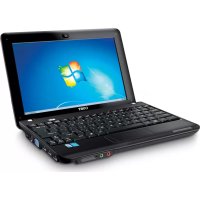
Black laptop computer with visible keyboard and front panel (no text or symbols)
NBPC893 | NBPC1023
EN
Ultra-Portable NETBOOK PC
Instruction Manual Page 2
ES
Ultra-Portátil PC NETBOOK
Manual de instrucciones Page 28
FR
Ultra-Portable PC NETBOOK
Manuel d'instruction Page 56
DE
Ultra-Tragbar NETBOOK PC
Gebrauchsanweisung Page 84
PT
Ultra-Portátil PC NETBOOK
Manual de Instruções Page 112
Table of Contents
PaCKagE CONTENTS 4
SaFETY PRECaUTiONS .... 5
General Operation 5
Battery 6
Power Connection 6
Unit Components 7
NETBOOK aT a glaNCE 8
Top View 8
Left View 10
Bottom View.... 11
BaSiC OPERaTiON 12
Power 12
AC Power 12
Battery Power 12
Getting Started....14
Turning On Your Computer 14
Sleep Mode 14
Shut Down 14
Keyboard Functions 15
Function Key Combinations 15
Numeric Keypad ....16
Using the Touchpad 17
Table of Contents
FEaTURES 18
Using Memory Cards 18
Using the Web Camera 18
Using the Internet 18
LAN Port 18
Wireless 19
Installing Device Drivers ....19
EXTERNAL DEVICES 20
Connecting a Universal Serial Bus (USB) Device ....20
Connecting an External Display 20
Connecting an Audio Device 21
Connecting an External Microphone 21
TROUBIESHOOTiNg 22
SPECiFiCaTiONS.... 27
Package Contents
Congratulations on your purchase of a Coby netbook computer. This instruction manual guides you in setting up and using your new computer. Please read the manual carefully before operation, and keep it for future reference.
This package contains:
Coby computer unit ★
100–240V AC adapter ★
3-cell lithium-ion battery ★

This package may contain plastic bags or other materials that pose a hazard to children. Be sure to safely dispose of all packing materials after opening.

Product names used herein are for identification purposes only and may be the trademarks of their respective companies. Microsoft ^® , Windows ^® XP, Windows ^® 7, and Windows Sound System are trademarks of Microsoft Corporation. Intel ^® , Intel ^® Core ^™ , Intel ^® HD Audio (Azalia) are registered trademark of Intel Corporation. All other brands or product names mentioned in this manual are trademarks or registered trademarks of their respective companies.
Safety Precautions

Follow the guidelines below to ensure the safe operation of your computer.
General Operation
Set up and store the computer on a firm, flat surface. Make sure that your workspace allows for proper ventilation.
To avoid overheating, do not operate the computer on a soft surface, such as a bed, for long periods of time.
Keep the computer away from water. Exposure to moisture may cause malfunction or risk of electric shock.
Do not expose the computer to excessive heat, including direct sunlight and heat-producing appliances.
To avoid potential damage to the hard drive, do not expose the computer to electromagnetic fields from stereos, microwaves, or other household appliances.
If liquid is spilled on or into the computer, unplug it immediately and contact customer service.
Clean with a damp cloth or mild detergent; do not use harsh chemicals.
Handle your computer gently to avoid hard drive damage. Do not drop the computer.
Back up your hard drive regularly to avoid loss of data in the event ★ of damage.
Safety Precautions
Battery
Use only the recommended battery pack. ✦
Keep metallic objects, such as keys and clips, away from the bat-♦ tery pack.
To avoid risk of fire, keep electrical appliances away from the battery pack.
Do not expose the battery pack to heat or moisture. ✦
Do not short-circuit the battery terminals. ★
To avoid damage to the battery, make sure that the battery catch ★ locks firmly in place upon installation.
Power Connection
Connect to a properly grounded outlet of the recommended voltage, only.
Do not use the power cord if it is damaged or frayed. ✦
Do not connect the power cord to a loose or damaged socket. ✦
To unplug the power cord, hold the body of the plug and pull ♦ gently. Do not yank or stress the cord.
Disconnect the cord before cleaning the computer. ✦
Disconnect the cord during electrical storms.
Safety Precautions
Unit Components
Do not connect the LAN port to a telephone line. ★
Connect only appropriate devices and drives to the SD, USB and modem ports on the unit. Do not insert other objects into these ports.
Do not stress, bend, or scratch the LCD. Doing so may cause it to break.
Do not touch or ingest the liquid that spills from a broken LCD. ★
Do not operate the wireless internet within 5 meters of a micro-wave oven or plasma lamp.

Illustrations in this manual may differ from the actual product.
Top View
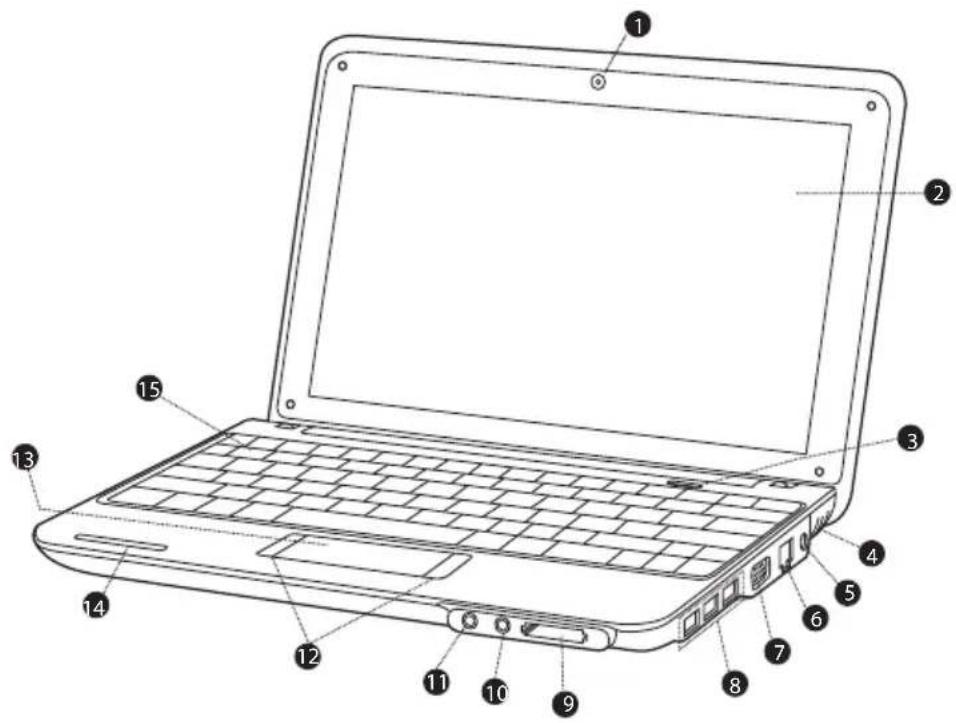
Web camera1.
Display panel2.
Power button3.
Stereo speakers4.
AC adapter jack5.
LAN connection (broadband 6. or cable internet input)
VGA connection (monitor or 7. projector input)
USB port (x3)8.
SD card slot (SDHC compat-9. ible)
-
Headphone jack
-
Microphone jack
-
Integrated mouse (left/right click)
-
Touchpad
-
Keyboard
-
System status indicators
Netbook at a Glance
These indicators display your computer's current status. Please refer to the table below for more information.
| Indicator Symbol | Indicator Type Appearance Status | |
 | Power Solid blue System on | |
| Flashing blue System in standby mode |
| Off System off/hibernating |
 | Battery Off Battery charged | |
| Solid red Charging |
| Flashing red Low battery |
 | HDD The HDD indicator will light when data is being written to/read from the hard disk. |
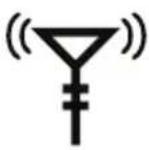 | Wireless LAN | Off No power to wire less card/ RF deactivated |
| Flashing blue, slow | Wireless client is not associated with the network |
| Flashing blue, rapid | Wireless transmitting/receiving data |
 | Caps/Number Lock | Solid blue Caps lock on |
| Solid red Number lock on/numeric keypad active |
| Solid pink Caps lock on, Number lock on/numeric keypad active |
Netbook at a Glance
Left View
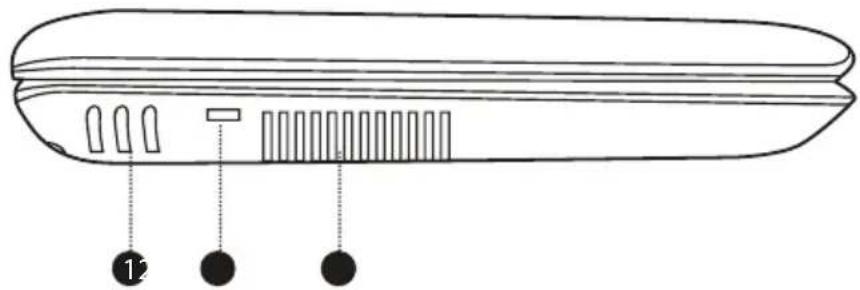
Stereo speakers1.
Security key port (security cable not included)2.
Vent 3.

To avoid overheating, do not block the vents when the computer is in use.
Netbook at a Glance
Bottom View
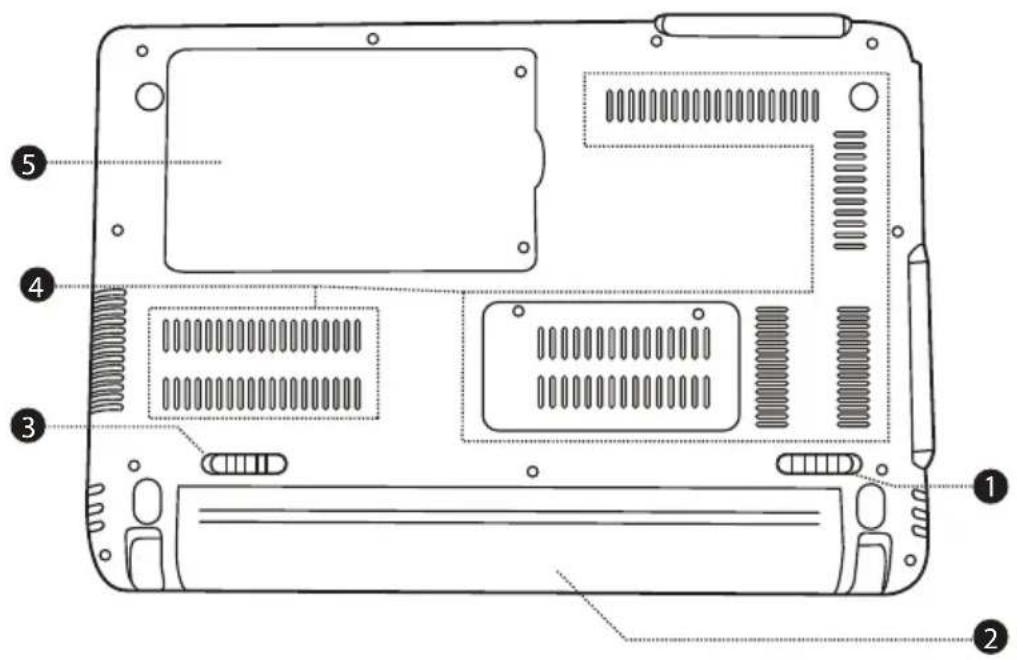
Battery latch (manual)1.
Vent4.
Battery pack2.
Hard drive compartment5.
Battery latch (automatic/3. spring-loaded)

Do not attempt to disassemble or replace your hard drive. For assistance with hard drive replacement and repair, contact a qualified service professional.
To avoid overheating, do not block the vents when the computer is in use.
Basic Operation
Power
Your computer includes both an AC adapter and built-in, rechargeable lithium-ion battery for maximum portability.
AC Power
Use the AC adapter to run your computer on AC power and charge the battery. To connect the AC adapter:
Connect the power cord to the transformer pack. ✦
Plug the power cord into an electrical outlet. ★
Connect the AC adapter to the AC power adapter jack of the computer.
Battery Power
Make sure the battery is fully charged before first use. The battery power status indicator will flash when the battery is low. Connect the AC adapter as instructed above to charge the battery.
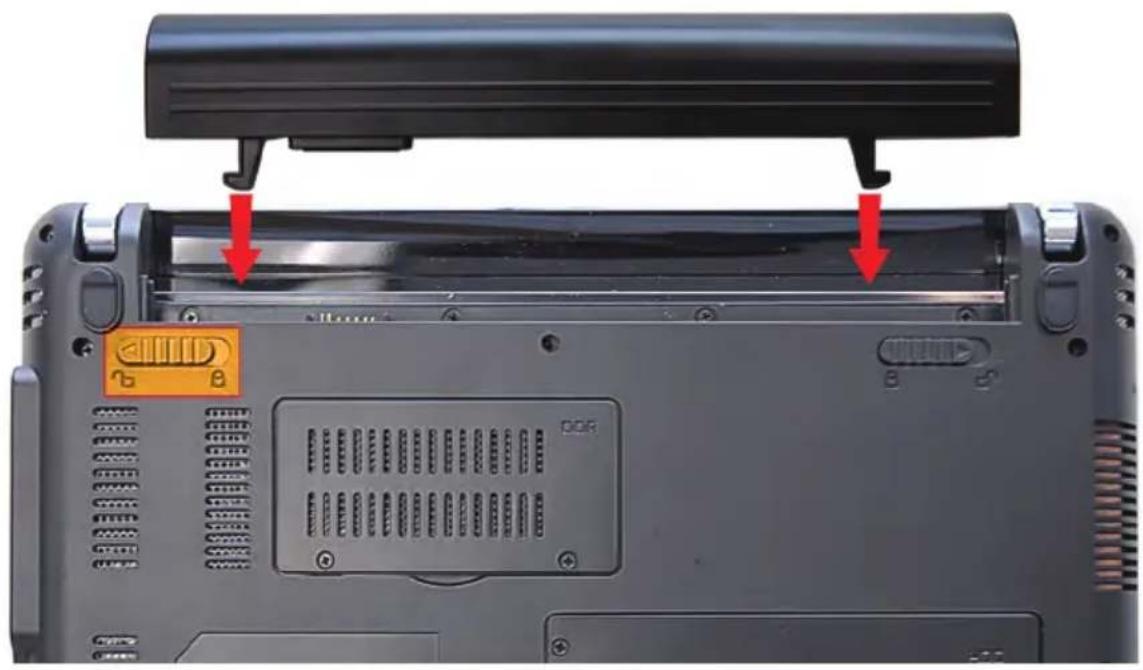
To replace the battery:
Shut down the computer and disconnect all cables, including the AC power cord.
Turn the computer over to access the battery release. Slide the bat-♦ tery release latch to the unlock position and hold.
Slide the battery out. ★
Slide the replacement battery into the bay until it clicks into place. ✦
Slide the release latch to the locked position.
Basic Operation
natural_image
Laptop back panel with a CD drive and red arrows indicating the blade (no text or symbols on the device itself)

The components and programs on your computer consume power at different rates. Using power-intensive components/programs will cause the battery to drain faster.
Your computer's operating system may run more slowly when operating on battery power.

Use only approved battery packs to power your computer. Using an incompatible battery may increase the risk of fire or explosion.
Do not attempt to disassemble or modify the battery pack. A battery pack other than the one specified by us, or a disassembled or modified battery pack, is not covered by the warranty.
When disposing of the battery, comply with local ordinances and regulations. Do not attempt to dispose of the battery in your household trash.
Basic Operation
Getting Started
Open the computer and adjust the display panel for comfortable viewing.
Turning On Your Computer
Press the power button to turn on the computer.
Sleep Mode
When you finish working with your computer, you can put it to sleep or shut it down.
Use sleep mode if you will be away from your computer for only a short time. To enter sleep mode:
Click the Start menu and select Sleep, or ✦
Press Fn + Esc. ★
To wake the computer, press the Power button. ✦

Wait until the power indicator light starts blinking (indicating that the computer is in sleep) before you move your computer. Moving your computer while the hard disk is spinning may cause damage or loss of data.
Shut Down
Your computer should be shut down when not in use for 24 hours or more. Enter the Start menu and select Shut Down to turn off the computer.
Basic Operation
Keyboard Functions
Your computer's standard keyboard incorporates a numeric keypad and function keys.
Function Key Combinations
The function keys allow you to change your computer's operating features instantly. See below for more information on using function key combinations.
| Key Description | |
| Fn + Esc Put your computer in sleep mode. |
| Fn + F1 Enable/disable the built-in wireless internet. |
| Fn + F3 Mute. | |
| Fn + F4 Enable/disable the touch pad. |
| Fn + F5 Shift to other connected display devices, i.e. another monitor. |
| Fn + F6 Decrease display brightness. |
| Fn + F7 Increase display brightness. |
| Fn + F8 Decrease computer volume. |
| Fn + F9 Increase computer volume. |
| Fn + F10 Turn on/off the LCD screen. |
| Fn + Ins/NumLk Enable/disable the Numeric keypad. |
Basic Operation
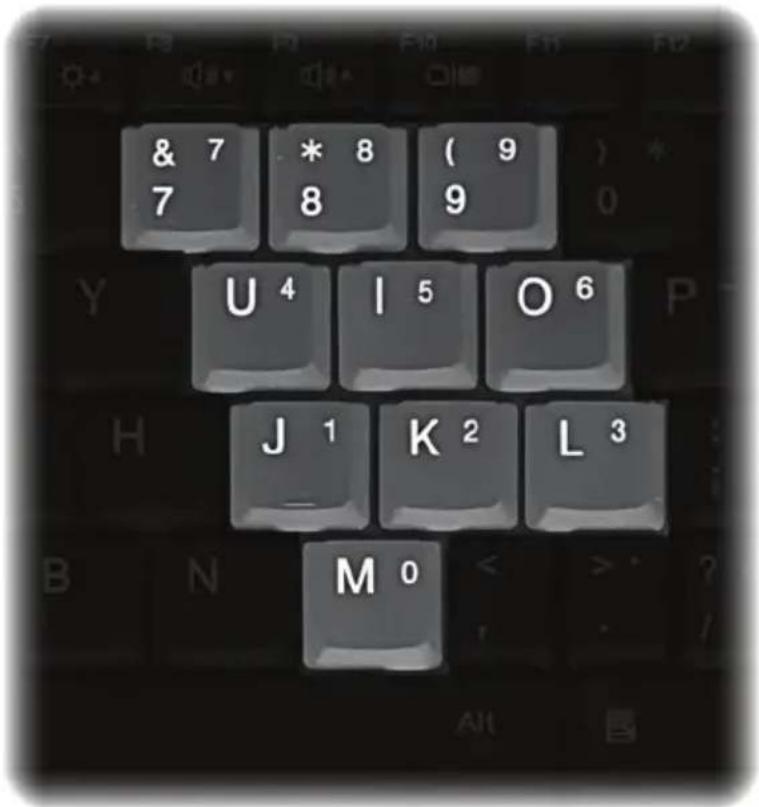
Numeric Keypad
When enabled, the keys indicated below can be used as a 10-key numeric keypad. To enable or disable the numeric keypad, press Fn+Ins/NumLk.
Basic Operation
Using the Touchpad
Use the touchpad and integrated mouse to navigate your computer's operating system. To move the cursor on the screen, slide your fingertip over the touchpad in the direction in which you want the cursor to move
Use the left/right click buttons on the integrated mouse just as you would the left/right click on a conventional mouse to select objects, open programs, or retrieve information.
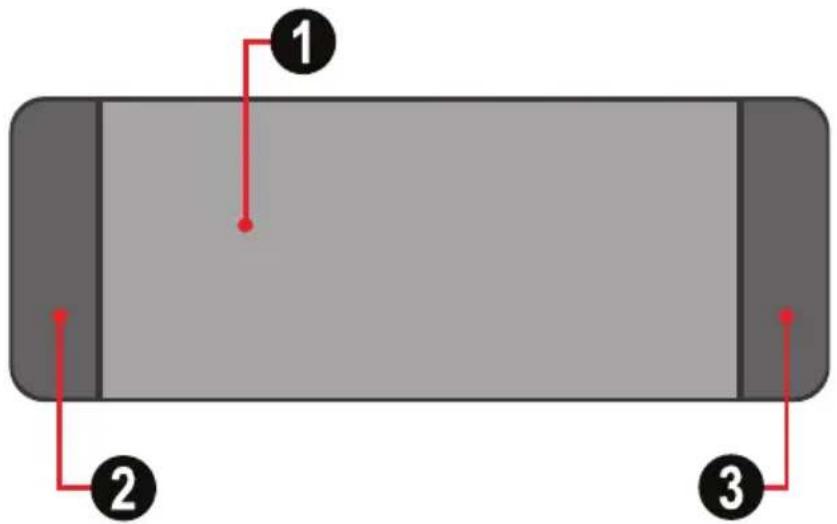
Touchpad1.
Left click2.
Right click3.

Use one finger only to navigate the touchpad. Moisture or dirt may cause the touchpad to function incorrectly.
Sharp objects or excessive pressure may damage the touch-pad's surface.
Do not attempt to remove the cover of the touchpad.
Features
Using Memory Cards
Your computer includes an SD memory card slot for easy transfer of data. To insert a memory card, orient the memory card with the label upward. Gently slide the card into the slot.
To remove a memory card, grasp it by the end and pull gently.

When a memory card is fully inserted, the rear half of the card will remain outside of the card slot.
Using the Web Camera
The built-in web camera can be used for capturing photos, recording video, or as a component of chat and conferencing applications.

Windows users will need to install a third-party dedicated application in order to take pictures and video using the webcam.
Using the Internet
Your computer comes with LAN port for Ethernet connection or local area network (LAN), as well as a built-in wireless connection.
LAN Port
The LAN port supports a standard RJ-45 connector, and allows you to connect the computer to an Ethernet connection and local area network (LAN).

Do not attempt to connect a telephone cable (types RJ11, RJ14, RJ25, RJ61) to the LAN port. Doing so may short-circuit your computer.
Features
Wireless
An antenna system is built into the display for optimal reception, enabling wireless communication wherever you are. To connect to the internet wirelessly, press Fn + F1.
Installing Device Drivers
A compatible device driver is required to ensure correct operation and performance of each component in your computer.

Most installations require a reboot to update the driver. Be sure to perform this step when prompted.
Failing to reboot may compromise the system's stability and require reinstallation of the operating system.
External Devices
Your computer includes multiple connection ports for maximum performance and productivity.
Do not connect or disconnect any external device cables other than USB cables while the computer power is on. To avoid possible damage to attached devices, wait at least five seconds after the computer is shut down to disconnect external devices.
Connecting a Universal Serial Bus (USB) Device
Your computer comes with three Universal Serial Bus Ports compatible with USB 2.0 or USB 1.1 devices such as a keyboard, mouse, camera, hard disk drive, printer, and scanner. USB devices may be connected and disconnected without rebooting the computer (hot swapping), and allow specific classes of hardware to be used without requiring individual device drivers to be installed.

When using a high power consumption USB device such as USB HDD, use an external device power adapter to avoid system damage.
Connecting an External Display
You can connect a VGA monitor via the computer's built-in VGA port. To connect a VGA monitor, plug the 15-pin display cable into the corresponding VGA port on your computer.
To shift to other connected display devices, press Fn + F5. You may also select a device using the Control Panel → Display menu.
External Devices
Connecting an Audio Device
Your computer includes one headphone jack for use in connecting headphones, speakers, or other audio output devices. To connect, insert the audio device plug into the jack.
Connecting an External Microphone
Your computer includes one external jack for connecting a microphone. To connect, insert the microphone plug into the jack.
Troubleshooting
If you have a problem with this device, please read the troubleshooting guide below and check our website at www.cobyusa.com for Frequently Asked Questions (FAQ) and firmware updates. If these resources do not resolve the problem, please contact Technical Support.
address
Coby Electronics Technical Support
150 Knowlton Way
Savannah GA 31407
Email
PCsupport@cobyusa.com
Web
www.cobyusa.com
Phone
877-302-2629: Monday–Friday, 9:00AM–9:00PM EST
Troubleshooting
| Problem Solution | |
| Display |
| Computer does not turn on. | If using AC power, check that the AC adapter is securely connected to the computer and the power cord is plugged into a working electrical outlet. |
| If using battery power, check that the battery is charged. |
| Computer turns on, but there is no screen image. | Confirm that the screen brightness level is not at its minimum setting. (To increase brightness, press Fn +F7.) |
| If using battery power, check that the battery is installed correctly. |
| If using AC power, check that the AC adapter is connected to the computer and the power cord is plugged into a working electrical outlet. |
| Screen goes blank while the computer is on. | Screen saver may be enabled; touch the touchpad or any key to exit screen saver mode. |
| If power management is enabled, the computer may have entered sleep mode. Press the power button to exit sleep mode. |
| Keyboard |
| A number appears when you enter a letter. | The numeric lock function is enabled. To disable it, press Fn + Insert. |
| All or some of the keys on the external numeric keypad do not work. | Make sure that the external numeric keypad is securely connected to the computer. |
| Sleep/Hibernation Mode |
| The computer enters sleep mode unexpectedly. | Check that the battery is charged. |
Troubleshooting
| Problem Solution | |
| If the processor overheats, the computer will automatically enter sleep mode to allow the computer to cool and to protect the processor and other internal components. Check that the computer is properly ventilated and not hot to the touch. |
| Check the sleep mode settings. The computer enters sleep mode (the sleep indicator turns on) immediately after Power-on self-test (POST). |
| The critical low-battery error message appears, and the computer immediately turns off. | Connect the AC adapter to the computer, or replace the battery with a fully charged one. |
| The computer does not return from sleep mode, or the sleep indicator stays on and the computer does not work. | Check the sleep indicator light to confirm that your system is in sleep mode. If it has turned off, your computer has gone into hibernation mode. Press the power button to exit hibernation mode. |
| Check that the battery is charged. A depleted battery will cause the computer to automatically enter hibernation mode. If the battery is depleted, connect to AC power and press the power button to exit hibernation mode. |
| If the system still does not return from sleep mode, your system has stopped responding. Reset the computer by pressing and holding the Power button for 4 seconds or more. Unsaved data may be lost. |
| If the computer fails to reset, unplug the AC adapter and remove, then reinsert, the battery. |
Troubleshooting
| Problem Solution | |
| The screen is unreadable or distorted. | Check that screen resolution and color quality are correctly set. |
| Check that the monitor type is correct. This information is available under the menu Display Settings → Monitor. |
| Confirm that the display device driver is installed correctly. This information is available under the menu Personalize → Display Settings → Advanced Settings → Adapter. The Adapter Information window should display the correct device driver name. NOTE: The device driver name depends on the video chip that has been installed on your computer. Click the Properties button and check the “Device status” box to confirm that the device is working properly. If not, click the Troubleshoot button. |
| Incorrect characters appear on the screen. | Check that your application and operating system are correctly installed. |
| Missing, discolored, or bright dots appear on the screen every time you turn on your computer. | Check that the surface of the screen is not scratched or damaged. If there is no visible damage, these small idiosyncrasies are a standard element of TFT screen technology and will not affect the computer’s performance. |
| Sound |
| No sound can be heard from the speaker even when the volume is turned up. | Confirm that the Mute function is off. |
| Check that no external device, such as a headphone or speaker, is plugged into the audio output (headphone) jack. |
| Check that speakers are selected as a playback device. |
| Battery |
| Your computer shuts down before the battery status indicator turns on, or continues to operate after the battery status indicator lights. | Remove and reinsert the battery. If the problem persists, you may need to replace the battery. |
Troubleshooting
| Problem Solution | |
| The operating time for a fully charged battery is short, or the computer does not operate with a fully charged battery. | Remove and reinsert the battery. If the problem persists, you may need to replace the battery. |
| The surge protector in the battery might be active. Turn off the computer for one minute to reset the protector; then turn on the computer again. |
| The battery does not charge. | Replace the battery. |
| Hard Drive |
| The hard disk drive does not work. | In the Boot menu in AMI Setup Utility, make sure that the hard disk drive is included in the Boot Sequence. |
| Other Problems |
| The computer does not respond. | Turn off the computer by pressing and holding the power button for 4 seconds or more. If the computer still does not respond, remove the AC adapter and the battery. |
| Your computer may lock if it enters sleep mode during a communication operation. To prevent this from happening, disable the sleep timer when you are working on the internet or network. |
For your safety, never attempt to repair the device yourself.
Attempting to do so will invalidate the warranty. Internal components of the device carry a risk of electric shock.
Specifications
| Display Type NBPC893: 8.9" TFT LCD (Matte)NBPC1023: 10.1" TFT LCD (Matte) | |
| Display Resolution NBPC893: 1024x600 (WSVGA)NBPC1023: 1024x600 (WSVGA) | |
| CPU Intel AtomTM N450 1.66 GHz | |
| Hard Drive 2.5" SATA 160 GB (5400 RPM) | |
| Memory 1 GB DDRII RAMRAM Type: PC2-5300 DDR2 SO-DIMM (667 MHz)Installed: 1024 MB (single SO-DIMM)Maximum: 2048 MB (single SO-DIMM) | |
| Networking Wi-Fi 802.11 b/g | |
| Ethernet 10/100 Mb |
| Connectivity USB 2.0 Hi-Speed (x3) | |
| A/V Connections VGA Video Out | |
| 3.5 mm Headphone Out |
| 3.5 mm Microphone In |
| Additional Features Integrated Web Camera, 0.3 MP Resolution | |
| Integrated Microphone |
| SD Memory Card Reader (SDHC compatible) |
| Keyboard US-International | |
| Battery 3-cell Li-ion (2-3 hours runtime) | |
Specifications are subject to change without notice.
Índice
CONTENiDOS DEI PaQUETE 30
MEDIDaS DE SEgURiDaD 31
Cámara Web1.
Panel visor2.
Altavoces estéreo1.
Ventilación 3.
natural_image
Laptop back panel with red arrows pointing to a lid and a small orange logo on the cover (no visible text or symbols)

Operación básica
Coby Electronics Technical Support
150 Knowlton Way
Savannah GA 31407
Correo Electrónico
PCsupport@cobyusa.com
Sitio Web
www.cobyusa.com
Teléfono
877-302-2629: De Lunes a Viernes, 9:00–21:00 EST
PéRiPhéRiQUES EXTERNES ....74
Webcaméra1.
Ecran d'affichage2.
Verrou de pile (manuel)1.
Bloc-piles2.
Verrou de pile (automatique/à 3. ressort)
Ventilation4.
natural_image
Laptop back panel with a CD-ROM drive and red arrows indicating the blade (no text or symbols on the device itself)

Opération de base
Coby Electronics Technical Support
150 Knowlton Way
Savannah GA 31407
Email
PCsupport@cobyusa.com
Site Web
www.cobyusa.com
Téléphone
877-302-2629: Du lundi au vendredi, 9:00–21:00 HNE
Webcam 1.
Bildschirm2.
Einschaltknopf3.
Batterieriegel (manuell)1.
Batteriepack2.
natural_image
Laptop back panel with a CD-ROM drive and red arrows indicating the blade (no text or symbols on the device itself)

Coby Electronics Technical Support
150 Knowlton Way
Savannah GA 31407
E-mail
PCsupport@cobyusa.com
Website
www.cobyusa.com
Telefon
Webcam1.
Alto-falantes estéreo1.
natural_image
Laptop back panel with a black cover and red arrows indicating a component or assembly (no visible text or symbols)

Operação básica
Coby Electronics Technical Support
150 Knowlton Way
Savannah GA 31407
Email
PCsupport@cobyusa.com
Site Web
www.cobyusa.com
Telefone
877-302-2629: Segunda a Sexta, 9:00–21:00 EST
Coby Electronics Corporation
1991 Marcus Ave, Suite 301
Lake Success, NY 11042
www.cobyusa.com
www.ecoby.com
Coby is a registered trademark of Coby Electronics Corporation. Printed in China.