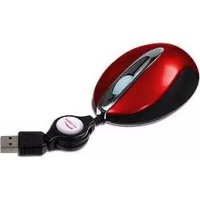
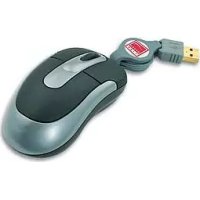
USER MANUAL Retractable Colour Mouse Speedlink
Thank you for purchasing the Colour
Mouse. The Mouse is suitable for all
applications and games. Ideal for daily
use with a PC or games.
Product features:
- Three button mouse
- Optical sensor (800 dpi)
- USB connector
- Buttons integrated in the mouse top
- Retractable cable
Product includes:
- Optical mouse
- Software
- Manual
System requirements:
- Windows 98/ME/2000/XP
- USB port
- CD-ROM-drive
Hardware Installation
USB connection
- Connect the USB cable to the corresponding USB port of your computer. The plug&play function of your computer will detect the new device automatically. Windows
may ask you to insert the Windows Installation CD.
- Follow the instructions on the screen. Please note, that Windows 95/NT do not support USB devices.
GB
Software Installation
for Windows 95/98/ME/2000/XP
Make sure no other mouse drivers are installed or activated. To uninstall existing drivers or programs, please refer to the uninstall program of your installed mouse.
- Insert the supplied CD in your CD ROM drive.
- If the installation program does not start automatically, click on "Start/ Run/Browse" and select your CD ROM drive.
- Double click on the file "setup.exe".
- In the opening window please activate the check box next to "3-Button-Mouse".
- Follow the instructions on the screen.
- Restart your PC when you are asked. To allow you to use the additional functions of the Mouse, first start "Browser Mouse" software.


GB
- Double click on the corresponding icon in the task bar to open the pop-up menu of the browser mouse or click "Start/Programs/Browser Mouse".
- The "Browser Mouse" software has 2 sections: "Wheel" and "Button". Here, you can configure functions such as "Zoom In" and "Scroll Speed".
Troubleshooting
If your mouse is provided with a button wheel and you are unable to use the wheel for scrolling, check the following settings:
Make sure the software has been properly installed. Occasionally, other applications with a scroll function for the mouse may conflict with this function. Remove the application before installing the software for this mouse.
The mouse cursor does not move or moves in jerks.
Clean the optical sensor with a dry cotton bud or similar. Some applications including the scrolling function may


conflict with a mouse that supports this feature. Remove those applications from the system before installing your mouse.
GB
- Do not attempt to service or repair the device yourself. Refer all servicing to qualified service personnel.
- Do not attempt to modify the device in any way. Doing so could invalidate your warranty.
- Do not use this apparatus near water (for example, sinks, baths, pools) or expose it to rain, moisture, or dripping or splashing liquids.
Specifications
Model n°: SL-6174
Resolution: 800 dpi
Interface: USB
Compatible with Windows 98/ME/2000/XP
Guarantee
GB We guarantee this product in respect of workmanship and all built-in components for a period of two years from date of purchase.
If you need help...
In case of technical problems don't hesitate to contact our technical support. The hotline number is given on the back page of this manual.

© Jöllenbeck GmbH. This publication or parts of it may not be reproduced without the express consent of the publisher.