ManualGo.com
LT26M1CW - Téléviseur HAIER - Free user manual and instructions
Find the device manual for free LT26M1CW HAIER in PDF.


Download the instructions for your Téléviseur in PDF format for free! Find your manual LT26M1CW - HAIER and take your electronic device back in hand. On this page are published all the documents necessary for the use of your device. LT26M1CW by HAIER.
USER MANUAL LT26M1CW HAIER
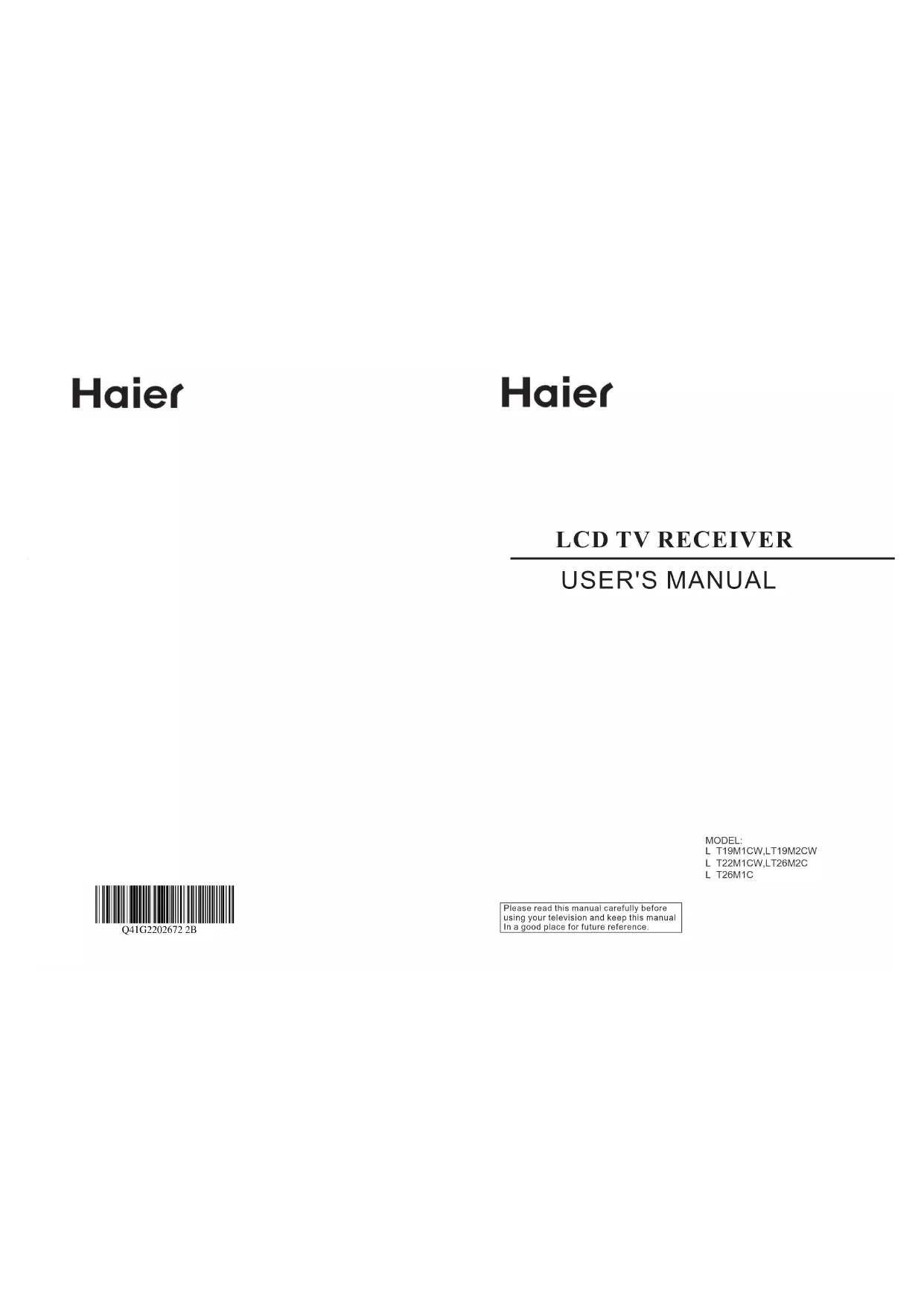
USER'S MANUAL LCD TV RECEIVER Please read this manual carefully before
using your television and keep this manual
In a good place for future reference.
L T19M1CW,LT19M2CW L T22M1CW,LT26M2C L T26M1C Q41G2202672 2BWARNING
• Misuse or modification of this appliance may result in breakdown or injury.
• To reduce the risk of fire or electric shock, do not expose this appliance to rain or moisture.
IMPORTANT INFORMATION
• The appliance is intended for household use only.
• The appliance should always be turned to OFF before plugging or unplugging from socket. Never
yank cord to disconnect from socket; instead, grasp plug and pull to disconnect.
• Check that the voltage on the rating plate of your product corresponds with your local electricity
supply which must be A.C. (Alternating Current).
• If the mains sockets in your home are not suitable for the plug supplied with this product, check
with a qualified electrician for replacement.
FOR OPTIMUM PERFORMANCE
• Do not use in environments which are extremely hot, cold, dusty or humid.
• Keep the unit free from dust and clean with a dry cloth.
• Do not use in areas exposed to direct sunlight or where it can become extremely hot.
Avoid placement where there is a lot of movement, vibration or on an unstable surface.
• To reduce the risk of fire or electric shock, the equipment shall not be exposed to rain or moisture
and objects filled with liquids, such as vases, shall be placed on the apparatus.
To avoid fire, no naked flame source, such as lit candles, should be placed on or around the unit.
• FFor ventilation, leave at least 10 cm free all around the TV. Do not place the TV on a carpet.
• The ventilation holes must be kept clear from obstructions.
• In case of smoke, or unusual noises or smells coming from the unit, switch it off, unplug it from
the wall socket and contact your dealer or service center.
• Place the TV in such a position that the screen is not exposed to direct sunlight. It is best to have
soft indirect lighting whilst watching TV. Avoid dark environments and screen reflection as these
may cause eye fatigue.
• When the TV has been moved from a cold place, it will need time for the moisture from inside to
The appliance coupler is used as the disconnect device of this apparatus, the disconnect device
shall remain readily operable.
IMPORTANT SAFETY INSTRUCTIONS Read all instruction before use and keep for future reference.
• Keep away from sources of strong magnetism - such as speakers.
• The equipment shall not be exposed to dripping or splashing.
The apparatus must be connected to a mains socket outlet with a protected earthed connection.CHILDREN • Children do not always understand the dangers associated with operating electrical appliances. Never allow children to use this appliance. POWER SUPPLY • If the unit uses a mains supply, ensure that the plug is securely inserted into the mains socket, and it is easily accessible.• Protect the power lead from sharp objects, excessive heat and damp or wet locations. Check the power lead periodically, and replace if damaged.• If the unit uses batteries, please ensure that they are inserted correctly - observing the polarity (+/-).• Do not mix new and used batteries.• Please make sure that used batteries are disposed of correctly. Do not burn or incinerate.• Check that the voltage on the rating plate of your product corresponds with your local electricity supply which must be A.C. (Alternating Current).• Any repairs should only be carried out by a fully qualified electrician or an authorised service agent. LISTENING WITH EARPHONES • Listen at moderate volumes to avoid hearing damage.• If you hear no sound during playback, do not turn the volume up as the music may suddenly begin at a high volume. Excessive sound pressure from earphones and headphones can cause hearing loss.• To avoid damaging your ears, adjust the volume to the lowest level before playback, and turn up to the desired level when playback has started.
IMPORTANT SAFETY INSTRUCTIONS Read all instruction before use and keep for future reference.
CAUTION: TO REDUCE THE RISK OF ELECTRIC SHOCK DO NOT REMOVE COVER
(OR BACK), THERE ARE NO USER SERVICEABLE PARTS INSIDE, REFER SERVICING TO QUALIFIED SERVICE PERSONNEL.
• Attempt to disassemble this unit or carry out repairs.
• Attempt to modify the unit in any way.
• Make sure that foreign objects do not get inside the unit.
• Place naked flame sources - such as lit candles on or near the unit.
• Place objects filled with liquids - such as vases, on or next to the unit.
• Cover the unit - allow the unit to be well ventilated.
• Drop the unit or subject it to strong shocks.
• Attempt to service this product yourself as opening or removing covers may expose you to
dangerous voltage or other hazards. Refer all servicing to qualified service personnel.
Antenna Connection 10
Tuning Menu Options 11
Other Connections 13
NOTE: This LCD cabinet drawing is a sample and may not depict
2KNOW YOUR MACHINE A B C D E F G H J K L M N O P Q R S T U V X Y
HOLD/VIEW A B C E D F G H K J M L N P O Q R S T U V Y X
3KNOW YOUR MACHINE B D F G H J M N O P C E Power LED Wall Mount Hole
Common Interface Slot
K L Q R S T A U V X Y HD Ready Digital LCDTV User Manual 1 x LCD TV Control PanelRear Connections
A C D E F G H J Y B V X
4KNOW YOUR MACHINEKNOW YOUR MACHINE HD Ready Digital LCDTV User Manual
a Front ViewSide ConnectionsRear View
K L N O QS RT U M V P
52. Insert two new 1.5V size AAA Batteries with the and marks
• Do not mix different types of
batteries or an old battery with
• To prevent the risk of leakage
or explosions, never recharge
the batteries, apply heat or take
• When not using batteries,
remove them to prevent battery
• If liquid leaks from the batteries,
throw them away. Thoroughly
clean the battery compartment
1. Unclip the Battery Cover from the
REMOTE CONTROL NOTES:
- Please read the important safety
instructions before use.
63. Carefully close the Battery Cover.
To obtain the best performance
from your remote control, please
consider the following:
• Ensure there is no obstruction
between remote control and
• Bright sunlight may affect the
remote control performance.
• Always ensure that both
batteries are replaced at the
HD Ready Digital LCDTV User Manual
7IMPORTANT: When drilling into
walls always check that there
are no hidden wires or pipes etc.
Make sure that the screws and
wall plugs supplied are suitable
for supporting the unit. Consult
a qualified tradesperson if you
NOTE: It would be useful to ask
someone to help you at this
WALL MOUNTING NOTES:
- Please read the important safety
instructions before use.
1. Put the unit face down on a safe,
flat surface that is covered by a
See fig. 4 - 6. HD Ready Digital LCDTV User Manual 84. For the Wall Bracket - Refer to
the user instructions supplied
with the wall bracket (not
3. Use 4 Wall Mount Holes B and
Screws (not included) to mount the
TV on the Bracket (not included).
B HD Ready Digital LCDTV User Manual EN
9NOTE: Make sure your local
voltage is 230V/240V~, 50Hz.
1. Connect the AC Power Cord Z
to the Power Connector X .
2. Connect the AC Power Cord Z
to the mains socket.
ANTENNA CONNECTION Q
1. Connect the Antenna Plug to the
Antenna Input Q located at the
2. For optimum picture quality, adjust
the direction of the antenna.
3. To improve picture quality where
the signal is poor use a signal
amplifier (not included).
CONNECTING THE ANTENNA Antenna Plug
- Switch off the TV before
connecting any external device.
AC POWER CORD CONNECTION HD Ready Digital LCDTV User Manual
10TUNING MENU OPTIONS J A fig. 10 fig. 11
fig. 12 Thank you for your purchase of this TV.Please proceed with the following steps to set-up your TV. Next
A TURN ON THE LCD-TV
1. When the POWER J or A is
pressed the TV will turn on and the
Power LED A on the front of the
TV will change from red to blue
2. When the LCD-TV is turned off
using the POWER J or A , the
LCD-TV will go into standby mode
and the Power LED A will turn
FIRST TIME INSTALLATION
1. This display will appear on the
screen when the TV is turned on
NOTE: If you can not find this
screen press MENU U . Then
use the Natvigation Keys Y to
2. Press the Green Button a to
proceed with the installation.
your country. Then press Green
Button a to continue or press
Yellow b to go back.
5. System searching may take few
minutes to complete.
6. A message will be displayed when
the search is complete. Press Red
Button e to finish system
searching. The LCD TV will
automatically display the first
channel found automatically.
Exit System searching. Please wait...Analog channels found: 0Digital channels found: 0 3/3
3. Use Navigation Keys Y to select
your language. Then press Green
Button a to continue.
Next Country TV Installation Previous 2/3 GemaryIrelandCzech RepublicDenmarkFinlandFranceAustriaBelgium HD Ready Digital LCDTV User Manual
- Switch off the TV before
connecting any external device.
OTHER CONNECTIONS R fig. 17SCART1SCART Leadfig. 18 SCART INPUT
1. Plug the scart lead from the
external device into TV SCART Socket R .
2. SCART 1 - Full SCART, which
transmits RGB, S-Video and CVBS
in and CVBS tuner out (Analog).
3. Press SCART C or SOURCE K
to select the SCART.
- To connect external devices
such as DVD players, set top
boxes or games consoles.
C K HD Ready Digital LCDTV User Manual EN
13OTHER CONNECTIONS U fig. 19Audio Cablesfig. 20 YPbPr INPUT
3. Turn on the power of the LCD-TV
first and then turn on the power
2. Connect the (Y, Pb, Pr) cables
and audio cables to the
1. Make sure that the power of the
LCD-TV and the AV device are
- For connecting devices such as
- You can use your LCD-TV as a
monitor for your personal computer.
1. Connect the D type 15-pin VGA
interface cable (not supplied) to
VGA Input Y on the LCD-TV.
2. Connect the audio cable (not
supplied) to Audio Input S on the
back of the LCD-TV (if necessary).
3. Press PC E or SOURCE K to
select the PC input.
1. Connect the cable from the HDMI
devices to the TV HDMI Input V .
3. Operate the corresponding external
equipment. (Refer to external
equipment operating guide.)
HDMI 1 INPUT CAUTION: You must ensure both
devices are switched off before
to PC K B E HDMI Cable HD Ready Digital LCDTV User Manual
15OTHER CONNECTIONS O
- For connecting an AV device.
1. Make sure that the power of the
LCD-TV and the AV device are off.
2. Connect the cables from the
AV device's output jacks to the
3. Connect the cables from the
AV device's output jacks to the
turn on the AV device.
- For connecting video recorders.
1. Make sure that the power of the
LCD-TV and the AV device are off.
2. Connect the audio and S-Video
cables from the VCR's output jacks
to the S-Video Input O and Audio
3. Turn on the LCD-TV first and then
4. Turn on the LCD-TV first ; and then
5. Press VIDEOOTHER CONNECTIONS L fig. 25
K COMMON INTERFACE SLOT HEADPHONE OUTPUT
1. Connect a set of stereo
headphones (not included) to the
Headphone Output L for private
listening. When headphones are
in use, the speakers will be
automatically disconnected.
IMPORTANT: When using
headphones always set the
volume control to a low level
before you put the headphones
on, then put the headphones
on and gradually increase the
volume to a comfortable
- You can use a Conditional Access
Module (CAM) card to view Pay
1. Insert the CAM card (not included)
in Common Interface Slot K .
2. Please refer to the COMMON INTERFACE section for more
detailed information.
STEREO, DUAL 1 and DUAL 2
for ATV channel. Select Audio
language for DTV channel.
1. Press VOL+ Q to increase the
volume or VOL- Q to decrease
the volume. A number will
appear on screen indicating the
1. Press MUTE R to mute the
sound. A mute icon will appear
2. Press MUTE R again or
VOL+/VOL-to restore the sound.
The mute icon will disappear.
1. Press POWER A to turn on the
LCD-TV. Then press TV D , PC E , SCART C , VIDEO B or
SOURCE K to select the source.
D E B C K Q R L HD Ready Digital LCDTV User Manual
1. Press SOUND P to set the LCD TV to a predefined sound setting.
1. Press PICTURE N to set the LCD TV to a predefined picture setting.
1. You can use the Number Keys F
on the remote control to directly
select TV channels. Enter the
channel number you want to
watch, the keys must be pressed
within 3 seconds of each other.
2. Press PR +/- S to select the
previous or next TV channel.
3. Press PRE PR H to display the
TV channel previously selected.
- Press EPG G to display electronic
list of channels and input
- Press DISPLAY T to display the
current signal status, including
input source/channel audio mode.
1. Press SLEEP M to turn the LCD TV off after a preset time.
2. Use Navigation Keys Y to set the
time (5-180 minutes.)
3. Press OK X to confirm.
X M G O T Y HD Ready Digital LCDTV User Manual
1. Press ASPECT J on the remote
control to enter the picture format
2. Use the Navigation Keys Y to
select a picture format and press
OK X to confirm your choice.
- Automatic: DTV and HDMI
input will automatically display
the correct format, while ATV
and SCART will need to be set.
- Panorama: Removes the black
bars on the side of 4:3
broadcasts with minimal
- 16:9 subtitle: Display 4:3
pictures using the full surface of
the screen leaving the subtitles
- Wide screen: Stretches the
211. Press MENU G or U to enter the
OSD setting. There are five items
in the list: Picture, Sound, TV,
Installation and Parental.
2. Use Navigation Keys Y to select
and press OK X to confirm your
3. Press EXIT V to exit the screen.
- Shows more picture modes and
functions based on your favourite
channels and enables you to
adjust the colour and brightness
- Provides more audio selections.
You can also set the audio
environment of the LCD TV.
- Enables you to adjust special
functions for country, audio
language and the TV channels.
- Enables you to adjust settings
related to the installation of the TV
channels and language.
- Enables you to control special
functions for the TV channels.
MENU OPERATION G fig. 31fig. 32 fig. 33 PictureSound TV InstallationParentalSettings 5 PicturePicture modeBrightnessContrast ColourSharpnessColour temperatureNoise ReductionBack light 9
OSD SETTING V U X Y HD Ready Digital LCDTV User Manual
- To set the LCD TV to a predefined
picture settings. Use Navigation
Keys Y to toggle between User,
Cinema, Sport, Vivid, and Hi-bright.
- To brighten the dark parts of the
- To sharpen the picture quality.
- To choose between Normal
(neutral), Warm (redder), and Cool
- To filter out and reduce the image
noise and improve picture quality.
Use Navigation Keys Y to toggle
between Off, Low, Medium, and
to toggle between Automatic,
- To adjust the balance between
left/right channels.
- To adjust the amount of bass.
- To adjust the amount of treble.
- To add greater depth and
dimension to the TV sound. Use
Navigation Keys Y to toggle
- To set the LCD TV to a
predefined sound setting. Use
Navigation Keys Y to toggle
between Off, Rock, Pop, Live,
Dance, Techno, Classic, and Soft.
- To eliminate the volume
differences between channels
and programs and also reduce
the dynamics of the sound.
- To select the Digital audio out.
Use Navigation Keys Y to toggle
between Off, Bit stream and
Tip: When Bit stream is
selected, make sure the
amplifier supports digital
Y HD Ready Digital LCDTV User Manual
24- The following functions are only
available for digital channels with
Use Navigation Keys Y to adjust
Tip: Before you adjust the
volume, please make sure
Audio description is On.
- To transmit an audio-frequency
for the hearing impaired. Use
Navigation Keys Y to toggle
Navigation Keys Y to toggle
- To select the relevant country.
This is the country you are in,
or the country whose channels
you want to receive if you live
Audio language (Digital TV only)
- To display a dialogue enabling
the preferred language to be set.
This is the language to be used
for all channels if it is available.
- Use the Navigation Keys Y to
toggle between Channel scan,
Update scan, Analog manual
store, Channel skip, Channel
sort and Channel name edit.
1. Use the Navigation Keys Y
to select Channel scan in the
2. Press the Right Navigation
Key Y to enter it and press OK X to start searching the local
program automatically.
1. Use Navigation Keys Y to
select Channel scan in the
2. Press the Right Navigation
Key Y to enter it and press OK X to start searching the local
program automatically.
Channel scan in the Channels menu.
2. Press the Right Navigation Key
Y to enter it and press Navigation
Keys Y to toggle between Search
• Search: to start manual scanning
from the specified frequency.
• Fine tune: to fine tune the
Channel skip in the Channels menu.
2. Press the Right Navigation Key
Y to enter it and use Navigation
Keys Y to highlight the program
you want to skip and press OK X
Tip: The skipped program may
not be found by pressing
Navigation Keys Y but can be
accessed by pressing number
• Programs with this are active
• Programs with this are skipped
1. Use Navigation Keys Y to select
Channel sort in the Channels menu.
2. Press the Right Navigation Key
Y to enter it and use Navigation
Keys Y to highlight a program you
want to sort and press OK X to
3. Use Navigation Keys Y to
highlight the second program you
want to exchange with and press
1. Use Navigation Keys Y to
select Channel name edit in the
2. Press the Right Navigation Key
Y to enter it and press Navigation
Keys Y to highlight the program
3. Press the Red Button e to start
editing program name.
4. Use Navigation Keys Y to edit
name and use the Right
Navigation Keys Y to move to
the next character. Please refer
to the table below for available
5. Press the Green Button a to
Tip: When functions attached
to the Colour Buttons are active
or selected, the Colour Buttons
are shown on screen.
Available characters
Available characters
- To identify the accessory devices
you have connected to the external
• Time zone: to select the time
• Time: to set the time and date
or select auto synchronisation.
Tip: Before setting the time and
date manually, make sure Auto
synchronisation is Off.
• Sleep timer: to set the TV to turn
itself off after a set period of time.
• Analog subtitle: to display the
transmitted subtitle on the screen.
This text can either be permanently
displayed (assuming that the
service is available with the
broadcast) or only when mute is
• Digital subtitle language: to
select the teletext language.
• Subtitle type: to choose the
normal type or hearing impaired
• Digital teletext language: to
select the teletext language.
• Decoding page language: to set
the teletext language to the
Current software info
- This menu appears with your TV
software information.
- To reset most of the picture and
sound settings to their default
Current software info
- To lock a certain TV channel or
external source completely.
- To control access to programs
based on their age ratings. All
settings apply to digital channels.
- To change your access code. If
no PIN-code exists, the menu item
is set to Set PIN. Please follow
the instructions to set it. If a PIN-
code has been entered previously,
the menu item is set to Change
PIN. Please follow the instructions
to change it. All number
combinations from 0000 to 9999
Tip: Remember that 0711 is the
default Change PIN code. If
your access code has been
changed or you have forgotten
the code, you can always get
in by entering the default code.
- (Designed for Europe
PAL/SECAM/DVB-T systems
Teletext. Press again to turn off
- Press MIX f to activate Teletext
overlaying the TV picture.
- Press SIZE h to change the
screen size: Full screen, Top half
- Press INDEX m to return to page
100 or the index page; and then
press 0 to 9. The teletext page
will be numbered and added to
the page you select or the
next page marked as a subtitle
- Press HOLD q to stop the
scrolling of pages, press again to
hidden information such as
R/G/Y/B (Colour button)
- Press Colour Buttons a , e , b ,
and d to select from on screen
options, which have the same
33Common Interface Module
- The Common Interface CI Slot
K , is designed to accept the
Conditional Access CA Module
coupled with a Smart card, in
order to view pay TV programmes
and additional services. Contact
your Common Interface service
provider for further information
about modules and subscription
options. Please note that CA
modules and smart cards are not
included, or supplied as optional
K G fig. 54fig. 55fig. 56PictureSound TV InstallationParentalSettings 5TVCountryAudio LanguageChannelsCommon Interface 4 CA ModuleSmart Card
U WARNING: Switch off your TV
before any module is inserted
into the Common Interface slot.
1. Correctly insert the CA Module
and then the Smart Card into
the CI slot located at the side of
be displayed if the CA module is
detected. Wait for few moments
until the card is activated.
5. When module is removed, the
"Common Interface" menu will
disappear from the screen.
3. Select Common Interface to view
the menu options and information
on the inserted CI card.
4. Press OK X to access the card
menu, for more details refer to
the module's instruction manual.
See fig. 58 - 59. Module informationLanguageSoftware DownloadMain menu OK Cancel Exit Press OK to select, or Exit to quitCountryAudio LanguageChannelsCommon InterfaceTV 4 Common InterfaceSettingsTop Up TV HD Ready Digital LCDTV User Manual
35The following table contains common problems and the solutions to these problems.
Please check this list before you contact technicians. Abnormal coloursTwisted picture
TROUBLESHOOTING Problems No picturePicture too darkAudio only, no imagesPicture only, no audioCannot use remote controlCannot receive sufficient channels through antennaNo colours1. Connect power cord correctly. 2. Turn on power. 3. Connect signal cable correctly. 4. Press any button on the LCD TV.Connect signal cable correctly.1. Connect signal cable correctly. 2. Please use compatible signal. Adjust brightness and contrast. Audio only, no images 1. Please check if input signal is connected correctly. 2. TV-RF signal must not be lower than 50dB. 1. Connect signal cable correctly. 2. Adjust volume to proper level. 3. Connect audio signal cable correctly. 4. TV-RF signal must not be lower than 50dB. 1. Please change battery. 2. Turn off power for 10 seconds; and then restart power. Please use the Channel scan function to increase the number of channels not included in memory.Please adjust the colour setup.1. Check the connection of antenna/signal cable. 2. Check if channel is in play mode. 3. Press signal source and change input mode. Adjust antenna. Keep the TV away from noise sources, such as vehicles, neon lights, and hair dryers.Please use the Update scan method to add the channels not included in memory.Please use multi-directional outdoor antenna. (If your TV is subject to the influence of nearby mountains or buildings). If the item you choose turns grey, that item cannot be selected.Please use the Update scan method to add the channels not included in memory. Sloutions Blinking picture accompanied by ghost imageBroken lines or segmentsCertain TV channels are blocked (Hope to acquire some channels)Overlapping images or ghost imagesCannot use a functionCannot receive programs HD Ready Digital LCDTV User Manual
DISPLAY Aspect Ratio 16:9 16:9 16:9
Resolution 1440 x 900 1680 x 1050 1366 x 768
OSD Language English, German, French, Italian, Spanish, Portuguese, Dutch,
Danish, Finnish, Swedish, Norwegian, Polish, Russian, Greek
ENHANCEMENT Sound Output (RMS Watts) 3 W 3 W 5 W Sound Mode Rock, Pop, Live, Dance, Techno, Classic, Soft
Picture Formats Automatic, Panorama, 4:3, Movie expand 14:9,
Movie expand 16:9, 16:9 subtitle, Wide screen
Picture Mode User, Cinema, Sport, Vivid, Hi-bright
CONNECTIONS Rear Connectors Tuner input (75
PC IN :VGA and Audio cable
SPECIFICATIONS IMPORTANT The wires in this mains lead are coloured as follows:
As the colours of the wires in the mains lead of this
apparatus may not correspond with the coloured
markings identifying the terminals in your plug,
The wire which is coloured blue must
to the terminal which is marked with N or coloured blue. The wire
coloured brown must be connected to the terminal which is marked L
coloured brown. Always ensure that the plug cord grip is fastened correctly.
If you need to replace the fitted plug.
Connecting to Power HD Ready Digital LCDTV User Manual WARNING : Never connect live or neutral wires to the earth terminal of the plug.Only fit an approved 16A plug .If in doubt, consult a qualified electrician.Check that the voltage marked on the product corresponds with your supply voltage.This product is fitted with a 16A plug (Or 10A Plug). If this plug is unsuitable or needs to be replaced, please note the following : 38LCD-FERNSEHGER
ZU IHRER S ICHERHEI T
A D B C E F G H J K M L N O P Q R S T U V X Y
A C D E F G H J Y B V X F
DE K L N O Q S RTU M V P Vo
WE C H S EL S TR O M
W ENN S IE DA S G ER
T Z U M E R S TEN MAL EIN SC HALTE N
EIN G AN GSS I G NAL A US W
PR OG RAMMLI S TE (PR LI S T
Y J X M ovie expand 14:9 DE
ilter (Noise reduction
Digital teletext language
Current software info
as Modul in den Steck
Connecteur d’entrée VGA
1 x LCD TV Control PanelRear Connections
A C D E F G H J Y B V X
J A Thank you for your purchase of this TV.Please proceed with the following steps to set-up your TV. Next
Next TV Installation Exit System searching. Please wait...Analog channels found: 0Digital channels found: 0 3/3
Next LanguageTV InstallationPreviousEnglishFrançaisItalianoNederlandsSvenskaDanskDeutschEspanol 1/3
Next CountryTV InstallationPrevious 2/3 GemaryIrelandCzech RepublicDenmarkFinlandFranceAustriaBelgium e
X Module informationLanguageSoftware DownloadMain menu OK Cancel Exit Press OK to select, or Exit to quitCountryAudio LanguageChannelsCommon Interface TV 4 Common Interface
A B C E D F G H K J M L N P O Q R S T U V Y X
A B C D E F G H J K L M N O P Q R S T U V X Y
Entrada de VGA B D F G H J M N O P C E K L Q R S T A U V X Y
1 x LCD TV Control PanelRear Connections
A C D E F G H J Y B V X
J A fig. 10fig. 11fig. 12Thank you for your purchase of this TV.Please proceed with the following steps to set-up your TV. Next
Y Next LanguageTV InstallationPrevious English
Next CountryTV InstallationPrevious 2/3
Off, Rock, Pop, Live, Dance, Techno,
TELETEXTO HOLD Presionar HOLD –
X Module informationLanguageSoftware DownloadMain menu OK Cancel Exit Press OK to select, or Exit to quitCountryAudio LanguageChannelsCommon InterfaceTV 4 Common InterfaceSettingsTop Up TV ES
HOLD/VIEW A B C E D F G H K J M L N P O Q R S T U V Y X
Slot Common Interface
A C D E F G H J Y B V X
Collegamenti posteriori
IT K L N O Q S RTU M V P
COLLEGAMENTO DEL CAVO DI ALIMENTAZIONE CA HD Ready Digital LCDTV Manuale dell'utente
10OPZIONI MENU DI SINTONIZZAZIONE J A fig. 10fig. 11fig. 12Thank you for your purchase of this TV.Please proceed with the following steps to set-up your TV. Next
A ACCENDERE LA TV LCD
1. Quando viene premuto il pulsante
- Lo slot Common Interface CI K
Peso netto 4,0 kg 5,0 kg 8,8 kg