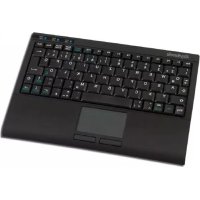
ACK340 U+ - Keyboard KeySonic - Free user manual and instructions
Find the device manual for free ACK340 U+ KeySonic in PDF.



| Product Type | Compact keyboard with touchpad |
| Brand | KeySonic |
| Model | ACK340 U+ |
| Number of keys | 77 (depending on country) |
| Key technology | Membrane X-Type |
| Key lifetime | Approximately 5 million keystrokes per key |
| Key travel | 1.6 ± 0.2 mm (total travel 3.0 ± 0.5 mm) |
| Actuation force | 55 ± 15 g |
| Interface | USB |
| Power supply | +5 V DC ±5% |
| Current consumption | 100 mA max. |
| Operating temperature | 0°C to +50°C |
| Storage temperature | -20°C to +65°C |
| Operating and storage humidity | 10% to 85% RH |
| Integrated touchpad | Smart-Touchpad with multi-finger functions: 2 fingers (scrolling), 3 fingers (right-click) |
| Supported operating systems | Windows 98SE, ME, 2000, XP, Vista |
| Installation | Plug & Play, no special driver required |
| Box contents | Keyboard, user manual |
| Maintenance | Dust off with a brush or compressed air; clean with a slightly damp cloth; do not use aggressive solvents |
| Indicators | Blue LEDs for Caps Lock, Num Lock, Scroll Lock |
| Virtual numeric keypad | Accessible via the Num Lock key, activation of secondary functions with the Fn key |
Frequently Asked Questions - ACK340 U+ KeySonic
User questions about ACK340 U+ KeySonic
0 question about this device. Answer the ones you know or ask your own.
Ask a new question about this device
Download the instructions for your Keyboard in PDF format for free! Find your manual ACK340 U+ - KeySonic and take your electronic device back in hand. On this page are published all the documents necessary for the use of your device. ACK340 U+ by KeySonic.
USER MANUAL ACK340 U+ KeySonic
MaxPoint LEADING IN PERIPHERALS
CE
Declaration of Conformity
We, MaxPoint Handelsgesellschaft mbH - Ahrensburg, declare under our sole responsibility, that the product
Type:
Mini Keyboard
Brand Name:
KeySonic
Model Name:
ACK-340 U+/ACK-540 U+
is herewith confirmed to comply with the requirements set out in the European Council Directive 2004/108/EC.
This declaration is based on the full compliance of the product with the following European standards:
1) EN 55022:1998 + A1:2001 + A2:2003 Class B
2) EN61000-3-2: 2000 + A2: 2005
3) EN6100-3-3: 1995 + A1: 2001 + A2: 2005
4) EN 55024:1998 + A1:2001 + A2:2003
EN 61000-4-2: 1995 + A1: 1998 + A2: 2001
EN 61000-4-3: 2002 + A1: 2002
EN 61000-4-4: 2004
EN 61000-4-5: 1995 + A1: 2001
EN 61000-4-6: 1996 + A1: 2001
EN 61000-4-8: 1993 + A1: 2001
EN 61000-4-11:2004


Mss Pnent Handelsgesellschaft mbH - Kluft-Fischer-Straße 382926 Aachen, Germany - Tel: +46-0410412/408-835 - Fax: +46-0410412/408-801 - Email: info@handelsberg.com - Web: http://www.hansdach.com/
Federal Communications Commission (FCC) Notice
This device complies with Part 15 of the FCC rules. Operation is subject to the following two conditions
(1) This device may not cause harmful interference, and
(2) This device must accept any interference received, including interference that may cause undesired operation.
This equipment has been tested and found to comply with the limits of a Class B digital device, pursuant to Part 15 of the FCC Rules These limits are designed to provide reasonable protection against harmful interference in a residential installation This equipment generates, uses and can radiate radio frequency energy and, if not installed and used in accordance with the instructions, may cause harmful interference to radio communications. However, there is no guarantee that interference will not occur in particular installations If this equipment does cause harmful interference to radio or television reception, which can be determined by turning the equipment off and on, the user is encouraged to try to correct the interference by one or more of the following measures:
1. Reorient / Relocate the receiving antenna.
2. Increase the distance between the mouse and receiver.
3. Connect the equipment into an outlet on a circuit different from that the receiver is connected.
CAUTION:
Change or modifications not expressly approved by the manufacturer responsible for compliance could void the user's authority to operate the equipment.
KeySonic
... touch the difference
ACK-340 U+
ACK-540 U+

Bedienungsanleitung

Operation Manual

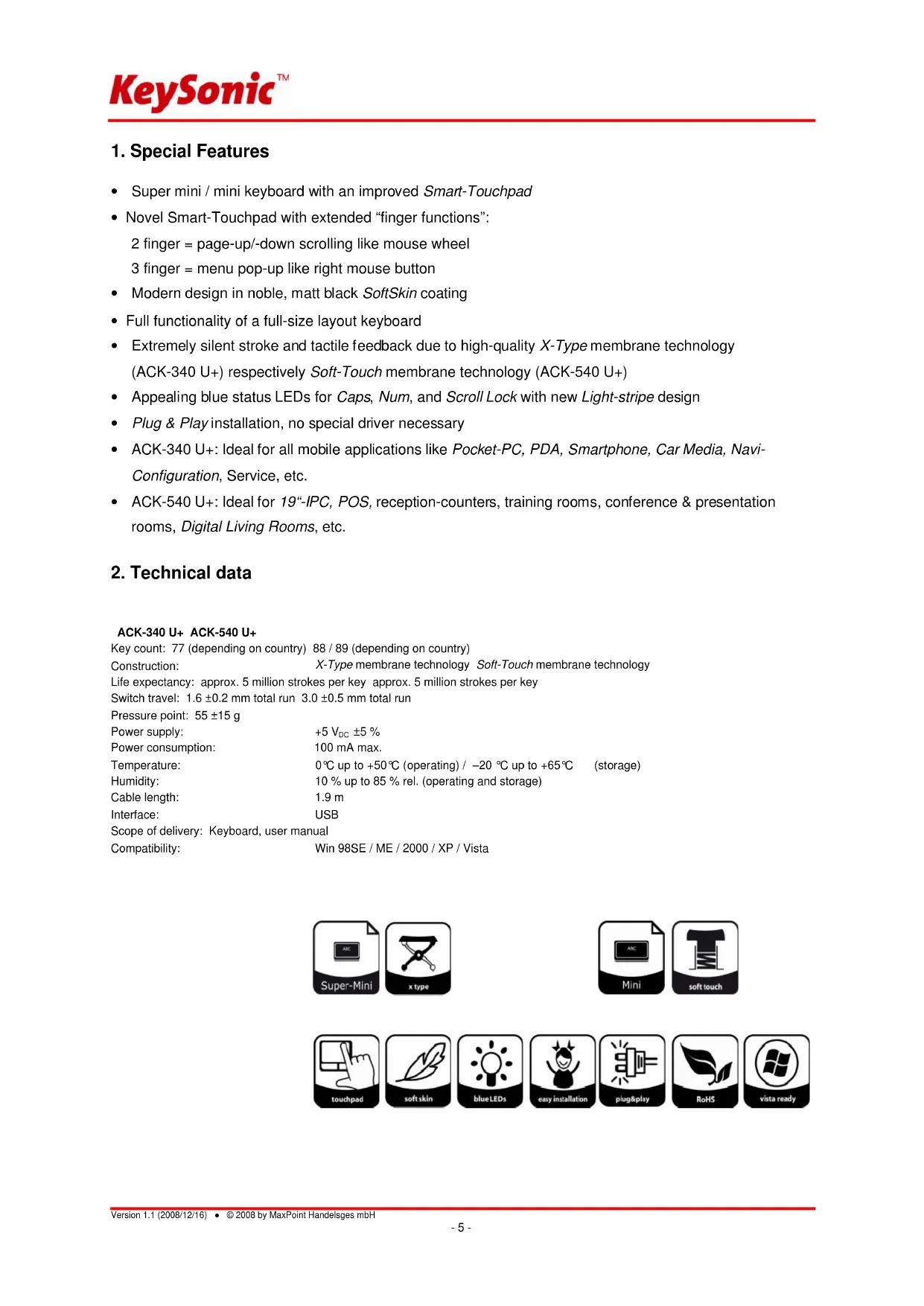
2 finger = page-up/-down scrolling like mouse wheel
3 finger = menu pop-up like right mouse button
- Modern design in noble, matt black SoftSkin coating
Full functionality of a full-size layout keyboard - Extremely silent stroke and tactile feedback due to high-quality X-Type membrane technology (ACK-340 U+) respectively Soft-Touch membrane technology (ACK-540 U+)
- Appealing blue status LEDs for Caps, Num, and Scroll Lock with new Light-stripe design
- Plug & Play installation, no special driver necessary
- ACK-340 U+: Ideal for all mobile applications like Pocket-PC, PDA, Smartphone, Car Media, Navi-Configuration, Service, etc.
- ACK-540 U+: Ideal for 19^th -IPC, POS, reception-counters, training rooms, conference & presentation rooms, Digital Living Rooms, etc.
2. Technical data
ACK-340 U+ ACK-540 U+
Key count: 77 (depending on country) 88 / 89 (depending on country)
Construction: X-Type membrane technology Soft-Touch membrane technology
Life expectancy: approx. 5 million strokes per key approx. 5 million strokes per key
Switch travel: 1.6 ± 0.2 ~mm total run 3.0 ± 0.5 ~mm total run
Pressure point: 55 ± 15g
Power supply: +5V_DC ± 5%
Power consumption: 100 mA max.
Temperature: 0^ up to +50^ (operating) / -20^ up to +65^ storage)
Humidity: 10% up to 85% rel. (operating and storage)
Cable length: 1.9 m
Interface: USB
Scope of delivery: Keyboard, user manual
Compatibility: Win 98SE / ME / 2000 / XP / Vista









3. Installation of the keyboard
3.1 Conditions of the system
This keyboard requires a PC with USB connection and one of the following operating systems:
Windows 98SE / ME / 2000 / XP / Vista
3.2 Connection of the keyboard to the PC
In order to install your keyboard, please perform the following steps:
- Connect your keyboard to a free USB port on your computer.
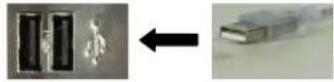
- All state-of-the-art operating systems with Plug & Play support will recognize your keyboard automatically and load the required drivers. If applicable, please follow the instructions on your screen. In certain cases, the installation CD of your operating system might be required according to the instructions on the screen.
Older operating systems do not always support automatic hardware recognition. If you have attached your keyboard via USB, and exactly this error occurs on your system, you have the following alternatives to solve the problem:
- Perform an update of your operating system and return to Step 1.2
- Check whether your BIOS system supports USB keyboards*. Some main board manufacturers offer BIOS up-dates in the Internet for downloading.
-
If the letters and numbers appearing on the screen are not the ones you have typed, please check the locale settings of your operating system*.
-
Refer to the documentation of your PC for details.
4. How to use the keyboard
4.1 Touchpad
As a mouse alternative the keyboard is equipped with an improved Smart-Touchpad inclusive two mouse function keys allowing comfortable and ergonomic handling of the PC, for instance from a sofa.
Thereby the handling of the touchpad is as simple as brilliant.

Gently glide over the touchpad surface with your finger in order to move the cursor, and tap on the surface in order to "click".
- Click, double-click, marking, and drag functions can be performed directly by tapping on the surface of the touchpad. You don't need to apply a lot of pressure in order to do that. You will get the best reaction by
clicking gently and rapidly (optional you can use for that the mouse function keys as well).
- In order to "drag", to draw, or to mark, you must apply a double-click on the touchpad with the finger remaining on the touchpad after the second click. Then, glide over the touchpad with your finger in order to complete the movement.
- Put two fingers on the Touchpad and glide over it to scroll up and down in your application (identically to a mouse scroll wheel).
- Tap with three fingers on the surface of the touchpad to retrieve the context menu at the related position of the cursor (identically to a right mouse button).
- Using notebooks with already integrated touchpad and mouse function keys you have to de-activate these intern control devices in case of error messages or malfunctions*.
In order to increase or decrease the speed of the cursor movements, change the settings of the mouse options in your system control under Windows*.
Advice:
The sensitivity and the deactivation of the click-function of the touchpad cannot be changed. There is also no separate driver supporting these settings.
- Refer to the documentation of your PC for details.
4.2. Keys with double functions
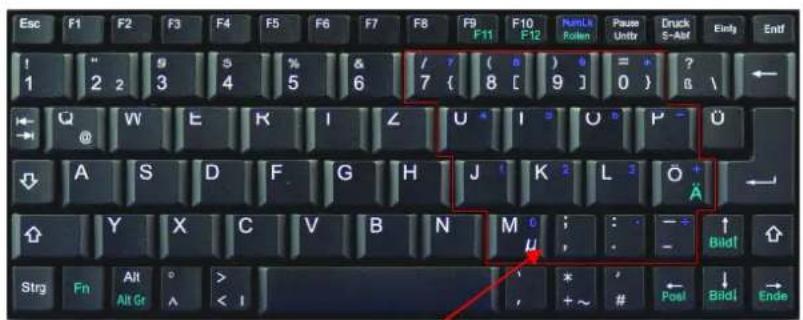
Virtual numeric keypad
- The layout of the keyboard is a special space-saving layout with the same virtual numeric keypad also used in notebooks. Press the NumLk key in the top key row in order to switch the virtual numeric keypad function on and off. (Characters depicted in blue are assigned to the keys)
- With activated NumLk function you can hold pressed the key Fn in the left down corner for temporary deactivation of the virtual numeric keypad. This is particularly convenient to enter letters quickly apart from numbers.
- Without previously activating the NumLk key, the holding down of the Fn key will control the integrated position keys in the same way as an external keypad (please refer to the picture).
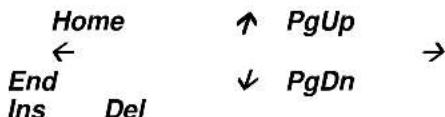
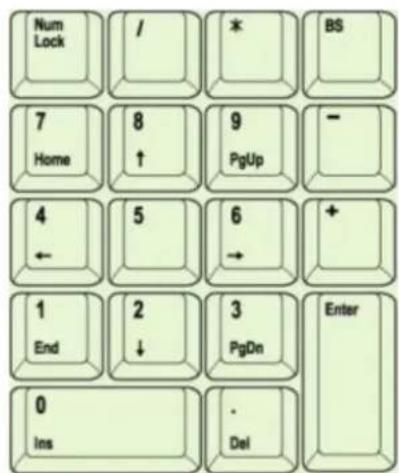
- Independent of the status of the NumLK function (active or not), further double functions are available by keeping the Fn pressed together with
Alt Gr, F11, F12, ScrLk, PgUp, Home, PgDn, End.
In case you need e. g., E^ -symbol, you have to press the following keys simultaneously:
Fn + Alt Gr + "E"
5. How to clean the keyboard
- Remove dust with a brush, with soft compressed air, or with a vacuum cleaner with brush head nozzle.
- Remove fine dirt with a not-too-damp cloth.
DO NOT use any aggressive detergents, solvents, or gasoline in order to clean the keyboard.
Manufacturer's Disclaimer Statement
The information in this document is subject to change without notice and does not represent a commitment on the part of the vendor. No warranty or representation, either expressed or implied, is made with respect to the quality, accuracy or fitness for any particular purpose of this document. The manufacturer reserves the right to make changes to the content of this document and/or the products associated with it at any time without obligation to notify any person or organization of such changes. In no event will the manufacturer be liable for direct, indirect, special, incidental or consequential damages arising out of the use or inability to use this product or documentation, even if advised of the possibility of such damages. This document contains materials protected by copyright. All rights are reserved. No part of this manual may be reproduced or transmitted in any form, by any means or for any purpose without expressed written consent of its authors. Product names appearing in this document are mentioned for identification purchases only. All trademarks, product names or brand names appearing in this document are registered property of their respective owner.