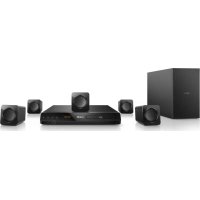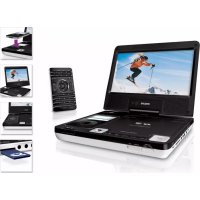
DCP855 - Home Theater System PHILIPS - Free user manual and instructions
Find the device manual for free DCP855 PHILIPS in PDF.


User questions about DCP855 PHILIPS
0 question about this device. Answer the ones you know or ask your own.
Ask a new question about this device
Download the instructions for your Home Theater System in PDF format for free! Find your manual DCP855 - PHILIPS and take your electronic device back in hand. On this page are published all the documents necessary for the use of your device. DCP855 by PHILIPS.
USER MANUAL DCP855 PHILIPS
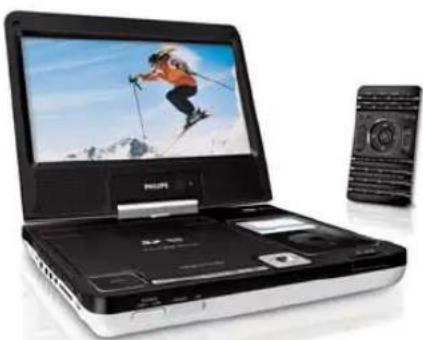
Docking Entertainment System DVD Portable with dock for iPod
User manual
Philips representatives are ready to help you with any questions about your new product .
CALL US BEFORE YOU CONSIDER
RETURNING THE PRODUCT
1-888-PHILIPS(744-5477)
or visit us on the web at www.phillips.com/usupport
PHILIPS
PHILIPS CONSUMER ELECTRONICS NORTH AMERICA
P.O.Box 671539,Marietta,GA.30006-0026
Meet Philips at the Internet
http://www.philips.com
http://www.philips.com/usasupport
DCP750/850
Canada
English
This digital apparatus does not exceed the Class B limits for radio noise emissions from digital apparatus as set out in the Radio Interference Regulations of the Canadian Department of Communications.
Français
The set complies with the FCC-Rules, Part 15 and with 21 CFR 1040.10. Operation is subject to the following two conditions:
- This device may not cause harmful interference, and
- This device must accept any interference received, including interference that may cause undesired operation.
Return your Product Registration Card or register online at
www.philips.com/usasupport today to get the very most from your purchase.
Registering your model with PHILIPS makes you eligible for all of the valuable benefits listed below, so don't miss out. Complete and return your Product Registration Card at once, or register online at www.philips.com/usupport to ensure:
*Proof of Purchase
Returning the enclosed card guarantees that your date of purchase will be on file so no additional paperwork will be required from you to obtain warranty service.
*Product Safety Notification
By registering your product, you'll receive notification - directly from the manufacturer - in the rare case of a product recall or safety defect.
*Additional Benefits
Registering your product guarantees that you'll receive all of the privileges to which you're entitled, including special money-saving offers.
PHILIPS
Congratulations on your purchase, and welcome to the "family".
Dear PHILIPS product owner:
Thank you for your confidence in PHILLIPS. You've selected one of the best-built, best-backed products available today. We'll do everything in our power to keep you happy with your purchase for many years to come.
As a member of the PHILIPS "family," you're entitled to protection by one of the most comprehensive warranties and outstanding service networks in the industry. What's more, your purchase guarantees you'll receive all the information and special offers for which you qualify, plus easy access to accessories from our convenient home shopping network.
Most importantly, you can count on our uncompromising commitment to your total satisfaction.
All of this is our way of saying welcome - and thanks for investing in a PHILIPS product.
P.S. To get the most from your PHILIPS purchase, be sure to complete and return your Product Registration Card at once, or register online at: www.philips.com/usupport
Know these

This "bolt of lightning" indicates unbalanced material within your unit may cause an electrical shock for the safety of the building. Please, please do not remove product covering.
The "exclamation point" calls attention to features for which you should read the enclosed literature closely to prevent operating and maintenance problems. WARNING: To reduce the risk of fire or electric shock, this apparatus should not be exposed to rain or moisture and objects should be protected against water, unless there are no places that should not be placed on this apparatus.
CAUTION: To prevent acute shock, match wide blade of plug to wice slot, fully covered with a protective cloth.
ATTENTION: Pour évidir les choux d'électriques, introduire la lambe plus large de la fiche dans la borne correspondante de la prise et poisser jusqu'à fond.
For Customer Use
Enter below the Serial No. which is located on the rest of the cabinet. Retain this information for future reference. Model No. Serial No.
PHILIPS
Visit our World Wide Web Site at http://www.philips.com/usupport
www.philips.com/usasupport
DISPOSAL OF YOUR OLD PRODUCT
Your product is designed and manufactured with high quality materials and components, which can be recycled and reused.
When this crossed-out wheeled bin symbol is attached to a product it means the product is covered by the European Directive 2002/96/EC. Please inform yourself about the local separate collection system for electrical and electronic products.
Please act according to your local rules and do not dispose of your old products with your normal household waste. The correct disposal of your old product will help prevent potential negative consequences for the environment and human health.
MISE AU REBUT DE VOTRE ANCIEN PRODUIT
www.phillips.com/usasupport
Conozco estas
IMPORTANT SAFETY INSTRUCTIONS
- Read these instructions.
- Keep these instructions.
- Heed all warnings.
- Follow all instructions.
- Do not use this apparatus near water.
- Clean only with dry cloth.
- Do not block any ventilation openings. Install in accordance with the manufacturer's instructions.
- Do not install near any heat sources such as radiators, heat registers, stoves, or other apparatus (including amplifiers) that produce heat.
- Do not defeat the safety purpose of the polarized or grounding-type plug.
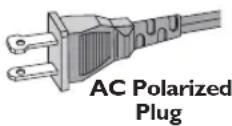
A polarized plug has two blades with one wider than the other. A grounding type plug has two blades and a third grounding prong. The wide blade or the third prong are provided for your safety. If the provided plug does not fit into your outlet, consult an electrician for replacement of the obsolete outlet.
- Protect the power cord from being walked on or pinched, particularly at plugs, convenience receptacles, and the point where they exit from the apparatus.
11.Only use attachments/accessories specified by the manufacturer.
- Use only with the cart, stand, tripod, bracket, or table specified by the manufacturer or sold with the apparatus. When a cart is used, use caution when moving the cart/apparatus combination to avoid injury from tip-over.

- Unplug this apparatus during lightning storms or when unused for long periods of time.
- Refer all servicing to qualified service personnel. Servicing is required when the apparatus has been damaged in any way, such as power-supply cord or plug is damaged, liquid has been spilled or objects have fallen into the apparatus, the apparatus has been exposed to rain or moisture, does not operate normally, or has been dropped.
15.Battery usage CAUTION -To prevent battery leakage which may result in bodily injury, property damage, or damage to the unit:
Install all batteries correctly, + and - as marked on the unit. - Do not mix batteries (old and new or carbon and alkaline, etc.).
- Remove batteries when the unit is not used for a long time.
16 Apparatus shall not be exposed to dripping or splashing.
17.Do not place any sources of danger on the apparatus (e.g. liquid filled objects, lighted candles). - This product may contain lead and mercury. Disposal of these materials may be regulated due to environmental considerations. For disposal or recycling information, please contact your local authorities or the Electronic Industries Alliance: www.eiae.org.
EL 6475-E005: 04/01
CONSIGNES DE SECURITE IMPORTANTES
PHILIPS warranty obligation is limited to the terms set forth below.
WHO IS COVERED:
Philips warrants the product to the original purchaser or the person receiving the product as a gift against defects in materials and workmanship as based on the date of original purchase ("Warranty Period") from an Authorized Dealer. The original sales receipt showing the product name and the purchase date from an authorized retailer is considered such proof.
WHAT IS COVERED:
The Phillips warranty covers new products if a defect arises and a valid claim is received by Philips within the Warranty Period. At its option, Philips will either (1) repair the product at no charge, using new or refurbished replacement parts, or (2) exchange the product with a product that is new or which has been manufactured from new, or serviceable used parts and is at least functionally equivalent or most comparable to the original product in Philips current inventory, or (3) refund the original purchase price of the product.
Philips warrants replacement products or parts provided under this warranty against defects in materials and workmanship from the date of the replacement or repair for ninety (90) days or for the remaining portion of the original product's warranty, whichever provides longer coverage for you. When a product or part is exchanged, any replacement item becomes your property and the replaced item becomes Philips' property. When a refund is given, your product becomes Philips' property.
Note:Any product sold and identified as refurbished or renewed carries a ninety (90) day limited warranty.
Replacement product can only be sent if all warranty requirements are met. Failure to follow all requirements can result in delay.
WHAT IS NOT COVERED - EXCLUSIONS AND LIMITATIONS:
This Limited Warranty applies only to the new products manufactured by or for Philips that can be identified by the trademark, trade name, or logo affixed to it. This Limited Warranty does not apply to any non-Philips hardware product or any software, even if packaged or sold with the product. Non-Philips manufacturers, suppliers, or publishers may provide a separate warranty for their own products packaged with the bundled product.
Philips is not liable for any damage to or loss of any programs, data, or other information stored on any media contained within the product, or any non-Philips product or part not covered by this warranty. Recovery or reinstallation of programs, data or other information is not covered under this Limited Warranty.
This warranty does not apply (a) to damage caused by accident, abuse, misuse,
misapplication, or non-Philips product, (b) to damage caused by service performed by anyone other than Philips or Philips Authorized Service Location, (c) to a product or a part that has been modified without the written permission of Philips, or (d) if any Philips serial number has been removed or defaced, or (e) product, accessories or consumables sold "AS IS" without warranty of any kind by including refurbished Philips product sold "AS IS" by some retailers.
This Limited Warranty does not cover:
- Shipping charges to return defective product to Phillips.
- Labor charges for installation or setup of the product, adjustment of customer controls on the product, and installation or repair of antenna systems outside of the product.
- Product repair and/or part replacement because of improper installation, connections to improper voltage supply, abuse, neglect, misuse, accident, unauthorized repair or other cause not within the control of Philips.
- Damage or claims for products not being available for use, or for lost data or lost software.
- Damage occurring to product during shipping.
- A product that requires modification or adaptation to enable it to operate in any country other than the country for which it was designed, manufactured, approved and/or authorized, or repair of products damaged by these modifications.
- A product used for commercial or institutional purposes (including but not limited to rental purposes).
- Product lost in shipment and no signature verification receipt can be provided.
- Failure to operate per Owner's Manual.
TO OBTAIN ASSISTANCE IN THE U.S.A., PUERTORICO, OR U.S.VIRGIN ISLANDS...
Contact Philips Customer Care Center at:
I-888-PHILIPS (I-888-744-5477)
TO OBTAIN ASSISTANCE IN CANADA...
1-800-661-6162 (French Speaking)
1-888-PHILIPS (1-888-744-5477) - (English or Spanish Speaking)
REPAIR OR REPLACEMENT AS PROVIDED UNDER THIS WARRANTY IS THE EXCLUSIVE REMEDY FOR THE CONSUMER. PHILIPS SHALL NOT BE LIABLE FOR ANY INCIDENTAL OR CONSEQUENTIAL DAMAGES FOR BREACH OF ANY EXPRESS OR IMPLIED WARRANTY ON THIS PRODUCT, EXCEPT TO THE EXTENT PROHIBITED BY APPLICABLE LAW, ANY IMPLIED WARRANTY OF MERCHANTABILITY OR FITNESS FOR A PARTICULAR PURPOSE ON THIS PRODUCT IS LIMITED IN DURATION TO THE DURATION OF THIS WARRANTY.
Some states do not allow the exclusions or limitation of incidental or consequential damages, or allow limitations on how long an implied warranty lasts, so the above limitations or exclusions may not apply to you.
This warranty gives you specific legal rights. You may have other rights which vary from state/province to state/province.
Philips, P.O. Box 671539, Marietta, GA. 30006-0026
GARANTIE LIMITEE PHILIPS UN (1) AN
COUVERTURE DE GARANTIE:
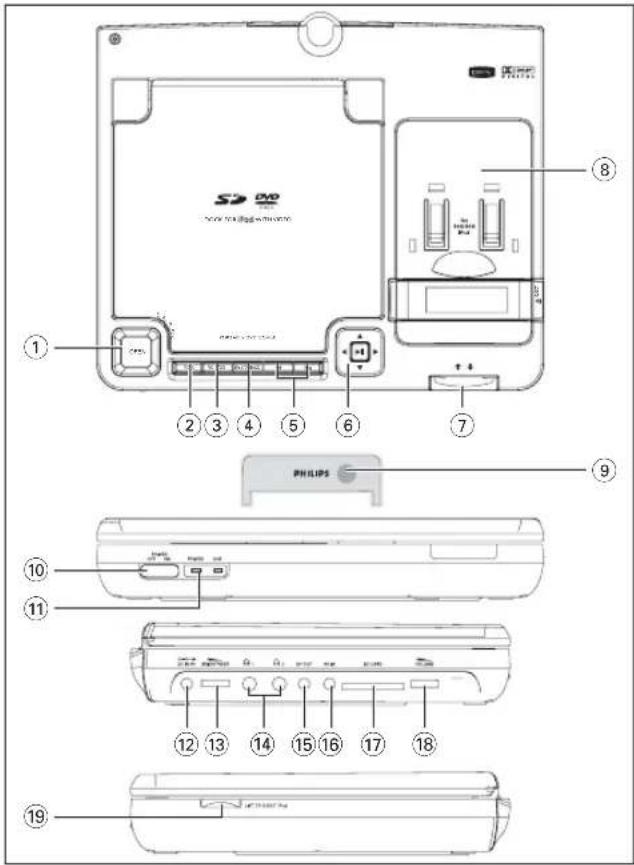
Main unit controls (see figure 11)
OPEN Open the disc door to insert or remove disc.
2) MENU. Display the MENU page
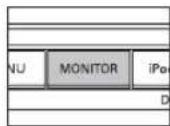
③ MONITOR......Switch the aspect ratio between 16:9 or 4:3.
SOURCEkey....Select respective sources: DISC, DOCK, SD/MMC or A/V.
(5) / / .Skip to the previous/next chapter, track or title.
⑥▲▼,▲▶......Navigate in a menu.
/ search backward/forward in a disc at different speeds.
Start or interrupt playback Confirm a selection.
⑦. Push in to connect with a well placed iPod player or pull
out to disconnect it.
8DOCK for iPod...Place an iPod player.
IR. Remote sensor.
Front of player (see figure 1)
10 POWER ON/OFF... Switch the power on/off.
① POWER and CHG...Power and charge indicators.
Left of player (see figure 1)
- DC-3y.....Power supply socket.
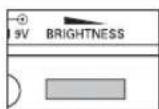
- BRIGHTBETune the TFT screen brightness.
GENERAL INFORMATION
Power Sources
This unit operates on a supplied AC adapter, car adapter, or the built-in lithium battery.
- Make sure that the input voltage of the AC adaptor is in line with the local voltage. Otherwise, the AC adaptor and unit may be damaged.
- Do not touch the AC adaptor with wet hands to prevent electric shock
- When connecting with car power (cigarette lighter) adaptor, be sure the input voltage of the adaptor is identical with car voltage.
- Unplug the AC adaptor from the outlet when the unit is not used for long periods of time.
- Hold the plug to disconnect the AC adaptor. Do not pull the power cord.
Safety and maintenance
- Do not disassemble the unit for laser rays are dangerous to eyes. Any service should be done by qualified service personnel.
- Unplug the AC adaptor to cut the power if liquid or objects get inside the unit.
- Take care not to drop the unit or subject it to strong shocks, which may cause malfunction.
- Hearing safety: listen at a moderate volume. Using headphones at high volume can impair your hearing.
- Important (for models with by-packed headphones): Philips guarantees compliance with the maximum sound power of its audio players as determined by relevant regulatory bodies only with the original model of provided headphones. In case this one needs replacement, we recommend that you contact your retailer to order a model identical to that of the original provided by Philips.
- Traffic safety: do not use while driving or cycling as you may cause an accident
- Do not expose to excessive heat caused by heating equipment or direct sunlight.
- This product is not waterproof: do not allow your player to be submerged in water. Water entering the player may cause major damage.
- Do not use any cleaning agents containing alcohol, ammonia, benzene, or abrasives as these may harm the player.
- Apparatus shall not be exposed to dripping or splashing. Do not place any sources of danger on the apparatus (e.g. liquid filled objects, lighted candles)
- Do not touch the lens!
Note: When the player is in use for a long period of time, the surface will be heated. This is normal.
FUNCTIONAL OVERVIEW
- 电头电话头打电话jacks
15AVOUT Audio/Video output jack.
AVIN Audio/Video input jack.
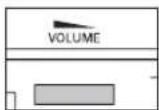
17SD/MMC CARD...Insert an SD/MMC card. - VOLUME......Volume control.
Right of player (see figure 1)
19 EJECT Lift up this handle to eject the iPod player with video.
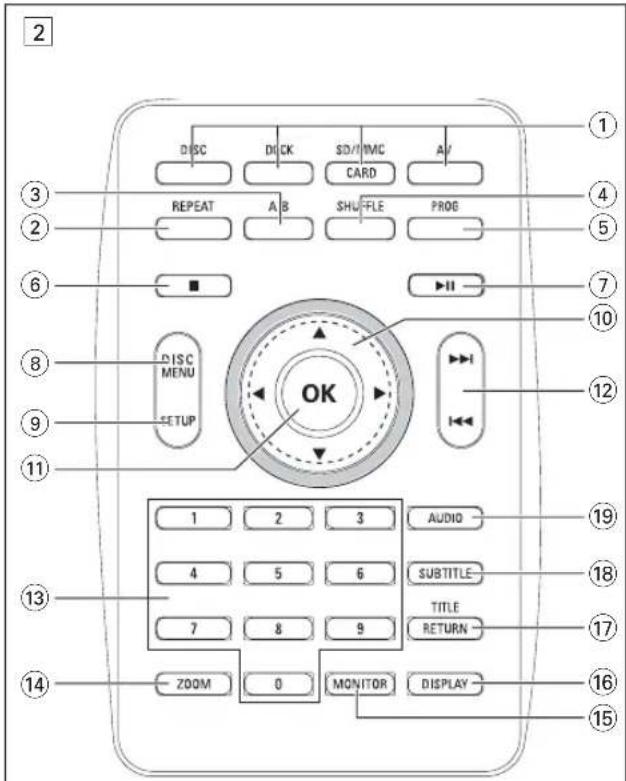
Remote controls (see figure [2])
① Source keys .......Select respective sources: DISC, DOCK (iPod with video), SD/MMC CARD or AV.
② REPEAT. Repeat a chapter/track/title.
(3) A-B. Repeat playback of a specific section on a disc.
④ SHUFFLE...Play a disc randomly.
PROG....Enter the program menu.
Stop playback or erase a program.
7 Start or interrupt playback.
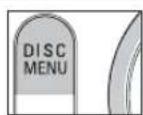
DISC MENU....Enter or exit the disc contents menu.
GENERAL INFORMATION
Hearing Safety
Listen at a moderate volume:
- Using headphones at a high volume can impair your hearing. This product can produce sounds in decibel ranges that may cause hearing loss for a normal person, even for exposure less than a minute. The higher decibel ranges are offered for those that may have already exp some hearing loss.
Sound can be deceiving. Over time your hearing "comfort level" adapts to higher volumes of sound. So after prolonged listening, what sounds "normal" can actually be loud and harmful to your hearing. To guard against this, set your volume to a safe level before your hearing adapts and leave it there.

To establish a safe volume level:
- Set your volume control at a low setting.
- Slowly increase the sound until you can hear it comfortably and clearly, without distortion.
Listen for reasonable periods of time:
- Prolonged exposure to sound, even at normally "safe" levels, can also cause hearing loss.
- Be sure to use your equipment reasonably and take appropriate breaks.
Be sure to observe the following guidelines when using your headphones:
- Listen at reasonable volumes for reasonable periods of time.
- Be careful not to adjust the volume as your hearing adapts.
- Do not turn up the volume so high that you can't hear what's around you.
- You should use caution or temporarily discontinue use in potentially hazardous situations.
- Do not use headphones while operating a motorized vehicle, cycling, skateboarding, etc.; it may create a traffic hazard and is illegal in many areas.
REMOTE CONTROL
SETUP....Enter or exit the system menu.
...Navigate in a menu. / search backward/forward in a disc at different speeds.
OK Confirm a selection.
12 / .Skip to the previous/next chapter, track or title.
13Numeric Keypad (0-9)...Input numbers.
14 ZOOM... Enlarge or reduce a picture or active image on the TFT.
15 MONITOR...Switch the aspect ratio between 16:9 or 4:3.
16 DISPLAY Display information on TFT during playback.
TITLE/RETURN...Display the disc title or return to the previous level of the VCD disc menu.
18 SUBTITLE Select a subtitle language.
19 AUDIO Select an audio language when playing a DVD disc or select an audio mode (Stereo, Mono-Left or Mono-Right) when playing a VCD/CD disc.
CAUTION
Use of controls or adjustments or performance of procedures other than herein may result in hazardous radiation exposure or other unsafe operation.
GENERAL INFORMATION
Handling discs
- Do not attach paper or tape to the disc.
- Keep the disc away from direct sunlight or heat sources.
- Store the disc in a disc case after playback.
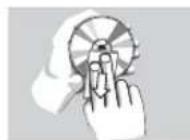
To clean, wipe the disc outwards from the center with a soft, lint-free clean cloth.
On handling the LCD screen
The LCD is manufactured using high precision technology. You may, however, see tiny black points and/or bright points(red, blue, green) that continuously appear on the LCD. This is a normal result of the manufacturing process and does not indicate a malfunction.
Environmental information
We have reduced the packaging to its minimum and made it easy to separate into mono materials: cardboard, PS, PE and PET.
Your set consists of material which can be recycled if disassembled by a specialized company. Please observe the local regulations to dispose of packaging, exhausted batteries and old equipment.
Copyright information
"DivX, DivX" Certified, and associated logos are trademarks of DivX, Inc. and are used under license."
All other brand and product names are trademarks of their respective companies or organizations.
Unauthorized duplication of any recordings downloaded from the internet or made from CDs / VCDs / DVDs is a violation of copyright laws and international treaties.
INTRODUCTION
Your portable DVD player
Your portable DVD player plays digital video discs conforming to the universal DVD Video standard. With it, you will be able to enjoy full-length movies with true cinema picture quality, and stereo or multichannel sound (depending on the disc and on your playback set-up).
The unique features of DVD-Video, such as selection of soundtrack and subtitle languages, and of different camera angles (again depending on the disc), are all included.
What's more, parental lock lets you decide which discs your children will be able to see. You will find your player remarkably easy to use with the On-Screen Display and player display in combination with the remote control.
Unpacking
First check and identify the contents of your package, as listed below:
- Portable DVD player - Remote Control
- Car adaptor (12V) - AC power adaptor
Audio/Video cable User Manual
Warranty Quick Start Guide
Placement
- Place the player on a firm, flat surface.
- Keep away from domestic heating equipment and direct sunlight.
- If the player cannot read CDs/DVDs correctly, try using a commonly available cleaning CD/DVD to clean the lens before taking the player to be repaired. Other cleaning methods may destroy the lens.
Always keep the disc door closed to avoid dust on the lens. - The lens may cloud over when the player is suddenly moved from cold to warm surroundings. It is then not possible to play a CD/DVD. Leave the player in a warm environment until the moisture evaporates.
PREPARATIONS
Power supply
Using the AC/DC adaptor
Connect the supplied adapter to the set and the main power supply (as shown).

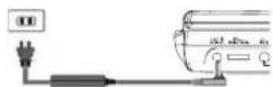
To avoid damage to the player, switch off before plugging or unplugging the AC adaptor.
Using the car adapter
Connect the supplied car adapter to the set and the car cigarette lighter outlet.

TIP
- To avoid damage to the player, switch off before plugging or unplugging the car adaptor.
- When connecting with car power (cigarette lighter) adaptor, be sure the input voltage of the adaptor is identical with car voltage.
Make sure the temperature is below 35^ when the DVD player is connected to DC 16.0V in a car.
Powering your remote control
1 Lift the handle marked EJECT to take out the remote control. Open the battery compartment. Remove the protective plastic tab (first time users only).
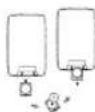
2 Insert 1 x lithium 3V battery, type CR2025, then close the compartment.
CAUTION
- Batteries contain chemical substances, so they should be disposed of properly.
- Danger of explosion if battery is incorrectly replaced. Replace only with the same or equivalent type.
Incorrect use of batteries can cause electrolyte leakage and will corrode the compartment or cause the batteries to burst.
INTRODUCTION
About Built-in Rechargeable Battery
Precautions related to battery recharge
1 Once the battery is fully discharged, immediately recharge it (regardless of whether you plan to use the battery or not) in order to maximize the battery life.
To charge the battery, please directly connect this DVD player to AC mains and the recharge indicator will turn on.
Using and maintaining your rechargeable batteries
1 Please make sure you always use only the AC adapter included with the player to recharge your batteries.
2 Recharge efficiency will degrade when the environmental temperature drops below 50^ (10C) or exceed 95 F (35°C).
3 The lasting time of the fully charged battery when a headphone is connected to the DVD payer is approximately 2.5 hours.
Playable disc formats
In addition to DVD-Video disc, you will also be able to play all Video CDs and audio CDs (including CDR, CDRW, DVD-R and DVR+RW).
DVD-Video
Depending on the material on the disc (a movie, video clips, a drama series, etc.) these discs may have one or more Titles, and each Title may have one or more Chapters. To make access easy and convenient, your player lets you move between Titles, and also between Chapters.

CD with JPEG files
You can also view JPEG still photos on this player.

PREPARATIONS
- Remove the battery if the remote control is not to be used for a long time.
- Perchlorate Material - special handling may apply. See www.dtsc.ca.gov/hazardouswaste/perchlorate.
Connections
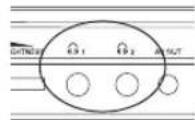
Connecting headphones
Connect the headphones into the 1 or the 2 jack of your set.
Connecting additional equipment
- Turn off your set before connecting to any additional equipment.
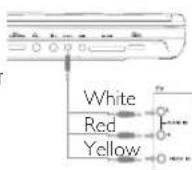
- You can connect the player to a TV or an amplifier to enjoy DVDs or karaoke.
AVOUT
Connect the desired device to this terminal directly as shown.
AVIN
On the DVD player panel, press the source key repeatedly (AV on the remote) to select AV IN (AUX).
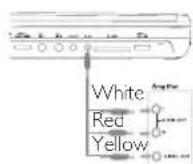
Connection Video Audio (Left) Audio (right)
Color Yellow White Red
INTRODUCTION
Video CD
Depending on the material on the disc (a movie, video clips, a drama series, etc.) these discs may have one or more Tracks, and tracks may have one or more indexes, as indicated on the disc case. To make access easy and convenient, your player lets you m tracks and between indexes.

Audio CD / MP3 CD
Audio CDs / MP3-CD contain music tracks only. You can play them in the conventional way through a stereo system using the keys on the remote control and/or main unit, or via the TV using the On Screen Display (OSD).

About DivX
DivX is a popular media technology created by DivX, Inc. DivX media files contain highly compressed video with high visual quality that maintains a relatively samll file size. DivX files can also include advanced media features like menus, subtitles, and alternate audio tracks. Many DivX media files are available for download online, and you can create your own using your personal content and easy-to-use tools from DivX.com.
Zero Bright Dot
Enjoy highest-quality images that are free from annoying blank spots on the LCD screen. LCD displays commonly have imperfections, termed as 'bright dots' by the LCD industry. A limited number of bright dots were once considered an inevitable side effect of LCD mass production. With Philips' strict quality control procedures used in our Portable DVD Players, our LCD displays are produced with zero tolerance for bright dots. Select Portable DVD Players come with Philips Zero Bright Dot Policy to guarantee optimal screen quality. Warranty service varies from region to region. Contact your local Philips representative for more detailed information.
About SD Memory Card
SD Memory Card is a slim and compact bridge media linking various kinds of digital equipment through its easy connectivity. The card's control circuitry allows data to be read and written (in its protection area) only when appropriate external devices are detected. Using decoder software, an SD Memory Card-compatible device can play music, video clips and more without a drive mechanism like those in CD and DVD players.
PREPARATIONS
SD/MMC card slot
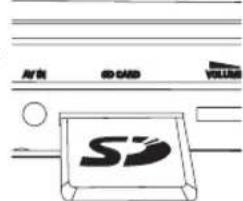
You can play video.audio/picture files stored in an SD/MMC card by inserting it into the
SD/MMC CARD slot.
On the DVD player panel, press the SOURCE key repeatedly (or SD/MMC CARD on the remote).

TIP
Make sure the metal contact of the card to be inserted is facing down.
Dock for iPod
You can dock your iPod player for playback of stored files and recharging. Only 30G, 60G and 80G iPod players with video are supported.
1 Pull out the iPod connector.
2 Dock your iPod player with the top entering first.
3 Push in the iPod connector.

PREPARATIONS
4 Switch on your iPod player to set "TV OUT" to "ON" and select the "NTSC" mode if you want to play video or photo files in your iPod player. (See your iPod user's manual for detailed operation.)
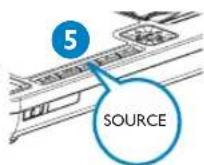
5 Press the SOURCE key repeatedly (or DOCK on the remote) for dock input.
To remove the iPod player
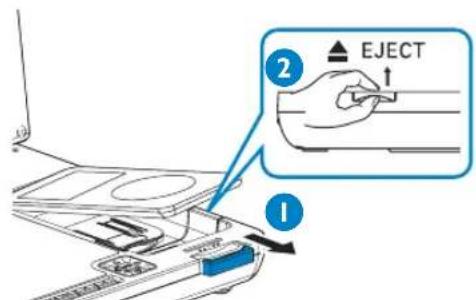
1 Pull out the iPod connector.
2 Lift up the handle marked EJECT to release.
GENERAL EXPLANATION
About this manual
This manual gives the basic instructions for operating this DVD player. Some DVD discs however are produced in a way that requires specific operation or allows only limited operation during playback. In these cases the player may not respond to all operating commands. When this occurs, please refer to the instructions in the disc inlay. When a " appears on the screen, the operation is not permitted by the player or the disc.
Remote control operation
- Unless otherwise stated, all operations can be carried out with the remote control. Always point the remote control directly at the player, making sure there are no obstructions in the path of the infrared beam.
- When there are corresponding keys on the main unit, they can also be used.
Menu navigation
- Your player has an intuitive menu navigation system to guide you through various settings and operations.
- Use the function keys to activate / disable relevant operations.
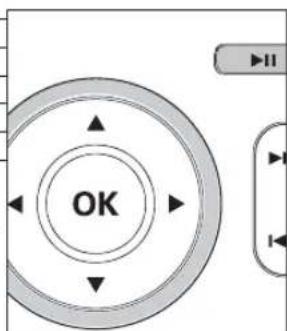
Use ▲▼, △▶ to browse through menus. - Press OK key to confirm your selection.
GENERAL FEATURES
Moving to another title / track / chapter
When a disc has more than one title or track, you can move to another title/track/chapter as follows:
Press briefly during play to select the next title/ track / chapter.
Press briefly during play to step back to the previous title/track/chapter.
To go directly to any title, track or chapter, enter the corresponding number using the numerical keys (0-9).
Search
During playback, press repeatedly for the following forward search options: Press repeatedly for the following backward search options:
| 2 X backwards | 2 X forward |
| 4 X backwards | 4 X forward |
| 8 X backwards | 8 X forward |
| 16 X backwards | 16 X forward |
| 32 X backwards | 32 X forward |
| normal speed | normal speed |
Press OK or to resume normal playback.
GENERAL FEATURES
Changing the audio output (for VCD/CD)
Press AUDIO repeatedly for the following audio options.
x1Mono left x2Mono right
x 3 Stereo

TIP
This key is used to select audio languages during DVD playback.
ZOOM
The Zoom function allows you to enlarge the video image and to pan through the enlarged image. Press Z00M repeatedly to select the following zooming options.
During JPEG operation, the sequence is 100% , 125% , 150% , 200% , 50% , 75% and normal.
REPEAT
Press REPEAT repeatedly for the following repeat options: DVD actions MP3/DivX actions VCD/CD actions JPEG
x1 repeats chapter repeats track repeats track one
x2 repeats title repeats folder repeats all all
x3 repeats all cancels repeat cancels repeat off
x4 cancels repeat
BASIC FUNCTIONS
Switching on for OSD language setup
English is the default language of your player's on screen display. You may choose to use English, French or Spanish for your player's on screen display.
Country OSD Language Options
America
English, French, Spanish
1 Slide the POWER switch to ON to switch on the player.
2 Press SETUP for the setup menu.
3 Select General Setup Page and press OK.
4 Scroll and select OSD Lang and press to select from OSD language options.
5 Select your preferred language and press OK.
Loading discs and switching on
1 Press OPEN to open the disc door.
2 Insert your chosen disc, label side up (also when a double sided DVD disc is inserted). Make sure it is sitting properly in the correct recess.
3 Gently push to close the door.
4 Slide the POWER switch to ON to switch on the player.

TIP
A normal mechanical noise is heard during playback.
BASIC FUNCTIONS
Playing a DVD disc
After switching on, inserting the disc and closing the door, playback starts automatically. The screen shows the type of disc loaded. The disc may invite you to select an item from a menu. Use the (\triangle \triangle \triangle \triangle \triangle \triangle \triangle \triangle \triangle \triangle \triangle \triangle \triangle \triangle \triangle \triangle \triangle \triangle \triangle \triangle \triangle \triangle \triangle \triangle \triangle \triangle \triangle \triangle \triangle \triangle \triangle \triangle \triangle \triangle \triangle \triangle \triangle \triangle \triangle \triangle \triangle \triangle \triangle \triangle \triangle \triangle \triangle \triangle \triangle \triangle \triangle
Note: Since it is usual for DVD movies to be released at different times in different regions of the world, all players have region codes and discs can have an optional region code. If you load a disc of a different region code to your player, you will see the region code notice on the screen. The disc will not play, and should be unloaded.
Playing an audio or video CD disc
After switching on, inserting the disc and closing the door, playback starts automatically. The screen shows the type of disc loaded as well as information about the disc's contents.
While playing VCD with MTV/Karaoke, press number keys(0-9) to select the track and press OK to play the track. Press TITLE/RETURN to go back to menu of the selection.
Playing DivX disc
- Philips provide you the DivX® VOD (Video on Demand) registration code that allows you to rent and purchase videos using the DivX® VOD service. For more information, visit www.divx.com/vod.
- Select the DivX® VOD on the Video Setup Page.
The registration code will appear. - Use the registration code to purchase or rent the videos from DivX® VOD service at www.divx.com/vod. Follow the instructions and download the video onto a CD-R for playback on this DVD player.

TIP
All the downloaded videos from DivX® VOD can only be played back on this DVD player.
GENERAL FEATURES

TIP
The repeat function is also available for JPEG, SD/MMC etc. The actions may vary for different media being played.
SHUFFLE
Press SHUFFLE on the remote to play all tracks (for CD), chapters (for DVD) or all tracks in the selected folder/whole disc (for MP3) randomly.
Repeat A-B
To repeat or loop a sequence in a title:
- Press A-B at your chosen starting point;
A appears on the screen.
Press A-B again at your chosen end point;
AB appears on the display, and the repeat sequence begins.
To exit the sequence, press A-B.
Volume Control
- Use the rotatory switch on the left side of the unit to increase or decrease playback volume.
Brightness
- Use the rotary switch on the left side of the unit to finetune the TFT brightness.
GENERAL FEATURES
MONITOR (on the main unit)
Press MONITOR repeatedly to adjust the display mode (normal or full screen).
DISPLAY
Press DISPLAY on the remote repeatedly for the following display options:
DVD CD/VCD DivX
x1 Title elapsed Single elapsed Single elapsed
x 2 Title remained Single remained Single remained
x 3 Chapter elapsed Total elapsed Display off
x 4 Chapter remained Total remained
X5 Display off Display off

TIP
During JPEG operation, pressing this button enables you to select 17 slideshow modes.
PROGRAM
1 During playback, press PROG on the remote to enter a program menu.
2 Use the numerical keys 0-9 to directly input the tracks or chapters (single track number with digit "0" in front, for example "05").
3 Move the cursor by pressing to select START and then press OK to start program playback.
BASIC FUNCTIONS
Playing a MP3 CD
The following playback features are available for MP3 CDs. Please refer to the corresponding sections for more information. Volume control, skipping tracks, searching, repeat, shuffle, etc. Use the keys to highlight your selected music folder. Press OK to play.
Playing a JPEG discs
Use the , , keys to highlight your selected picture folder. Press OK. The player will then automatically enter the slide show mode.
During playback, you can:
Use the , , to rotate the picture.
Use the to filp up/down.
- Use the to flip left/right.
Press DISC MENU to go back to folder screen.
- Press to go to group preview.
Use the , , to highlight the preview picture and access the on-screen functions. - Press ZOOM repeatedly to display the picture with different scales.
Use the , , to view the zoomed picture.
Note: Unless stated otherwise, all operations described are based on remote control operation.
BASIC FUNCTIONS
Playing files stored in an SD/MMC card
After connecting an SD/MMC card to this player, you can play audio/video files stored in the card by selecting the desired file with and OK.
Playing files stored in your iPod player
After connecting your iPod player as described in the "Connections" section, you can play files stored in the iPod player with / (search backward/forward) and keys on the DVD player or keys on your iPod player directly.

TIP
- To recharge your iPod player, you must connect the DVD player to AC mains or the car cigarette lighter outlet. If your iPod player is in the power-on status, make sure the currently selected source of the DVD player is "DOCK".
- Please take out the tab marked "for 30G iPod" in the dock if you want to dock a 60G or 80G iPod player.
- It is impossible to recharge your iPod with the built-in battery of the DVD player.
Make sure to recharge your iPod player below 35^ - After switching on your iPod player, set "TV OUT" to "ON" and select the "NTSC" mode. To play photos in your iPod player, you need to press▶1 on your iPod player. Otherwise, there will be no picture on the TFT screen when you play video files in your iPod player. (See your iPod user's manual for detailed operation.)
For photos stored in your iPod player, only the key is available.
SPECIAL DVD FEATURES
Checking the contents of DVD-Video discs: DISC MENU. For titles and chapters, selection menus may be included on the disc. The DVD's menu feature allows you to make selections from these menus. Press the appropriate numerical key, or use the , , keys to highlight your selection, and press OK.
Disc menu
Press DISC MENU. The menu may list, for example, camera angles, spoken language and subtitle options, and chapters for the title.
Changing the language
Press AUDIO. If the current disc has different language options, this now appears on the screen. Press AUDIO repeatedly until you have reached your desired language option.
Subtitle
Press SUBTITLE. If the current disc has different subtitles options, this now appears on the screen. Press SUBTITLE repeatedly until you have reached your desired subtitles option.

TIP
The above two features depend on whether your disc contains any language or subtitle options.
SPECIAL DVD FEATURES
Playing a title
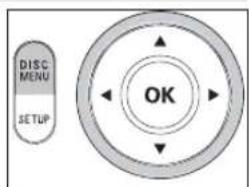
1 Press DISC MENU to enter the disc title menu.
2 Use or numeric keys (0-9) to select a play option.
3 Press OK to confirm.
SETUP OPERATIONS
To maximize your playback experience, use SETUP to fine tune your settings. Use the , keys to highlight your selection, and press OK.
1 Press SETUP. A list of features is shown.
2 Use the keys to highlight your selection.
When the cursor highlights these settings, press OK to:
General Setup Page select display and other options
Video Setup Page select video options
Password Setup Page select password options
Preference Page select playback preferences
Exit exit the system menu
3 Press to abort current settings or go back to previous menu level.
4 Press SETUP to exit.
When the cursor highlights these settings, press OK to:
General Setup Page
| TV Display | select display ratio |
| Angle Mark | select angle mark display options |
| OSD Lang | select onscreen display language |
| Screen Saver | select screen saver options |
| Last Memory | select last playback memory options |
Press to abort current settings or go back to previous menu level
SETUP OPERATIONS
Video Setup Page
When the cursor highlights these settings, press OK to:
Quality select video quality options
DivX VOD get DivX ID for VOD
Press to abort current settings or go back to previous menu level
Password Setup Page
When the cursor highlights these settings, press OK to:
Password change existing password (3308 by default)
Press to abort current settings or go back to previous menu level
Note: Parental options are only selectable when password mode is deactivated.
Preference Page
When the cursor highlights these settings, press OK to:
Audio select audio language options
Subtitle select subtitle language options
Disc Menu select disc menu language options
Parental select parental
Default restore factory settings
Press to abort current settings or go back to previous menu level
TROUBLESHOOTING
If it appears that the DVD-Video player is faulty, first consult this checklist. It may be that something has been overlooked.
WARNING
Under no circumstances should you try to repair the set yourself as this will invalidate the guarantee.
If a fault occurs, first check the points listed, before taking the set for repair. If you are unable to solve a problem by following these hints, consult your dealer or service centre.
Symptom Remedy
| No power | - Check if both plugs of the mains cord are properly connected. |
| - Check if there is power at the AC outlet by plugging in another appliance. | |
| - Check if the built-in battery is drained. | |
| - Check if car adaptor is connected appropriately. | |
| Distorted picture | - Check the disc for fingerprints and clean with a soft cloth, wiping from centre to edge. |
| - Sometimes a small amount of picture distortion may appear. This is not a malfunction. | |
| Completely distorted picture / no colour in the TV screen | - The NTSC setting may be in the wrong status. Match your TV's setting with the player's setting. |
| No sound | - Check audio connections. If using a HiFi |
TROUBLESHOOTING
| Symptom | Remedy |
| Disc can't be played | - Ensure the disc label is upwards.- Clean the disc.- Check if the disc is defective by trying another disc. |
| The player does not respond to the remote control | -Aim the remote control directly at the sensor on the front of the player. Avoid all obstacles that may interfere with the signal path. Inspect or replace the batteries. |
| Distorted or B/W picture with DVD | - Use only discs formatted according to the TV-set used (NTSC). |
| Player does not respond to all operating commands during playback | - Operations are not permitted by the disc.- Refer to the instructions in the disc inlay. |
| Player feels warm - When the player is in use for a long period of time, the surface will be heated. This is normal. | |
| Display goes dimmer when AC is unplugged playtime with battery. It is normal. Adjust the brightness using the rotary brightness control. | |
This set complies with the radio interference requirements of the European Union.
TECHNICAL DATA
Dimensions 210× 178× 39mm
8.3 x 7.0 x 1.5 inches
Weight 1.9kg / 4.2 pounds
Power supply DC 9V 1.0A
Power Consumption 9W
Operating temperature range 0 - 45°C
Laser wavelength 650nm
Video system NTSC
Frequency response 20Hz - 20KHz± 1dB
Signal/noise ratio ≥ 85dB
Audio distortion + noise ≤ -80(1KHz)
Channel separation ≥ 85dB
Dynamic range ≥ 80dB
Output
Audio out (analog audio) Output level: 2V ± 10%
Load impedance: 10KΩ
Video out Output level: 1Vp - p± 20%
Load impedance: 75Ω
PHILIPS reserves the right to make design and specification changes for product improvement without prior notice.
Modifications not authorized by the manufacturer may void users authority to operate this device.
All rights reserved.