LX8500W - Home Theater System PHILIPS - Free user manual and instructions
Find the device manual for free LX8500W PHILIPS in PDF.


User questions about LX8500W PHILIPS
0 question about this device. Answer the ones you know or ask your own.
Ask a new question about this device
Download the instructions for your Home Theater System in PDF format for free! Find your manual LX8500W - PHILIPS and take your electronic device back in hand. On this page are published all the documents necessary for the use of your device. LX8500W by PHILIPS.
USER MANUAL LX8500W PHILIPS
Mode nocturne - activation/désactivation33
Menu Reglages video 33
TV Type 33
Affichage TV 33
Fonction de balayage progressif - activation/désactivation 34
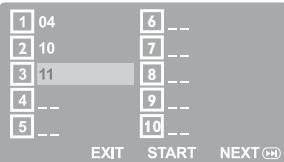
Program: Track (01-17)
MULTI-CHANNEL (Muticanal)
Mode nocturne - activation/désactivation
Make sure your DVD system and TV are connected and turned on!
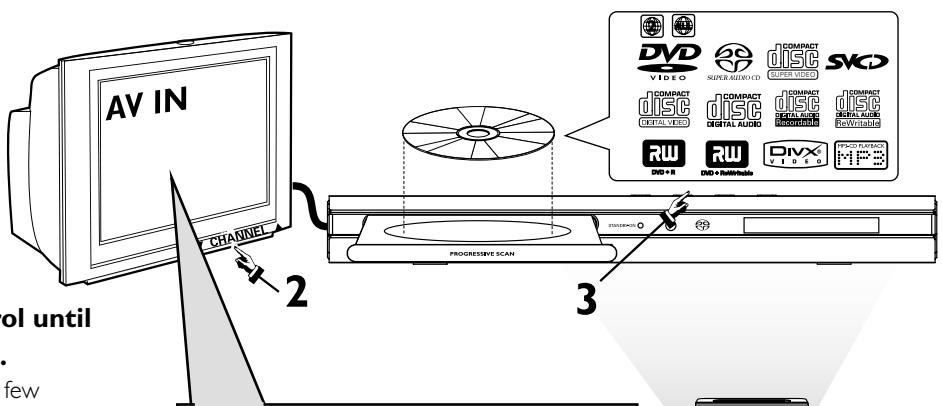
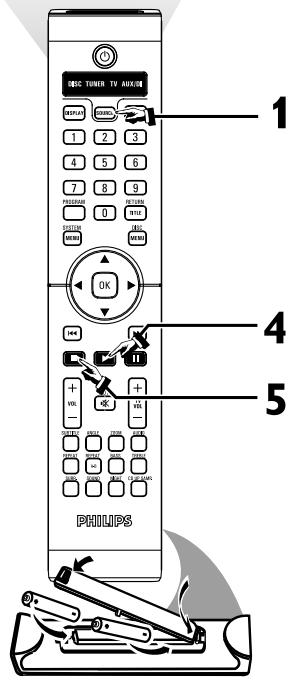
1 Press SOURCE on the remote control until "DISC" appears on the display panel.
The DISC LED on the remote will light up for a few seconds.
2 Turn on the TV and select the correct Video In mode.
You should see the blue DVD background screen on the TV (if no disc in the DVD system).
3 Press OPEN/CLOSE at the top of the DVD system and load a disc, then press OPEN/CLOSE again to close the disc tray.
Make sure the disc label is facing up. For double-sided discs, load the side you want to play face up.
4 Playback will start automatically.
If a disc menu appears, use buttons on the remote to make the necessary selection, then press OK to confirm. Or, use the numeric keypad on the remote to select features. Follow the instructions given in the disc menu.
5 To stop playback, press STOP
No picture?
Check the AV (Audio/Video) mode on your TV.
- Usually this channel is between the lowest and highest channels and may be called FRONT, A/V IN, or VIDEO.
- Or, you may go to channel 1 on your TV, then press the Channel down button repeatedly until you see the Video In channel.
- Or, your TV remote control may have a button or switch that chooses different video modes.
- See your TV manual for more details.
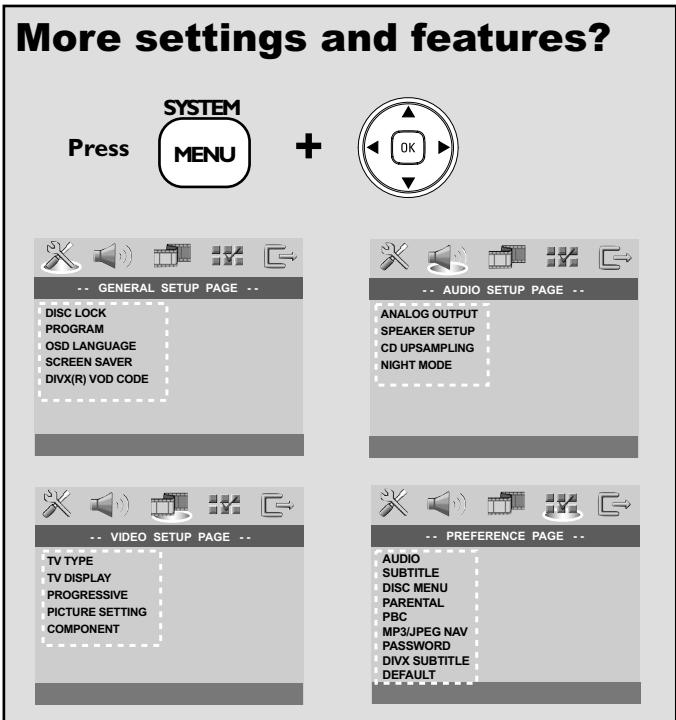
Refer to chapters "Getting Started" and "DVD Setup Menu Options" in the user manual.
No sound from rear speakers?
Press SURR to select 'MULTI-CHANNEL'.
Distorted sound from rear speakers?
Press and hold to select another transmission channel.
Enhance the sound quality?
Sound Press repeatedly to select a predefined digital sound effect.
OR/AND
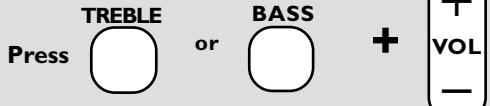
Refer to chapters "Getting Started - Setting the speakers' channel" and "Sound Controls" in the user manual.