Game Sound JR - Mp3 player ZipyLife - Free user manual and instructions
Find the device manual for free Game Sound JR ZipyLife in PDF.



| Product Type | MP3 player with handheld game console |
| Brand | ZipyLife |
| Model | Game Sound JR |
| Screen | TFT LCD 2.7 inches, 960x240 pixels |
| External storage | Micro-SD card up to 8 GB (not included) |
| Supported audio formats | MP3, WMA, WAV, AAC, APE, FLAC |
| Supported video formats | RM/RMVB (1280x720), AVI, FLV, WMV, MP4 |
| Image formats | JPEG |
| E-book | TXT format |
| Built-in games | 36 HD games (action and 3D sport) |
| Supported game formats | 32-bit GBA, SMD, GB, GBC |
| Camera | 1.3 megapixels |
| TV output | Yes (PAL/NTSC) |
| FM Radio | Yes (optional, requires earphones) |
| Speaker | Built-in |
| Battery | Rechargeable lithium-polymer 850 mAh |
| Ports | Mini USB, earphone/AV jack, TF card slot |
| Additional functions | Calendar, clock, alarm, voice recording |
| Power supply | via USB (5V) |
| Safety | Do not expose to water, heat, avoid prolonged high volume |
| Cleaning | Soft dry cloth |
Frequently Asked Questions - Game Sound JR ZipyLife
User questions about Game Sound JR ZipyLife
0 question about this device. Answer the ones you know or ask your own.
Ask a new question about this device
Download the instructions for your Mp3 player in PDF format for free! Find your manual Game Sound JR - ZipyLife and take your electronic device back in hand. On this page are published all the documents necessary for the use of your device. Game Sound JR by ZipyLife.
USER MANUAL Game Sound JR ZipyLife
natural_image
Icon of a game controller with action pad and buttons (no text or symbols)natural_image
Icon of a cassette tape inside a rounded square frame (no text or symbols)natural_image
Circular target icon with concentric rings and a central dot (no text or symbols)Pulse 📷/▶!! (botón 1) para disparar.
natural_image
Generic folder icon with a stylized document or window design (no text or symbols)ZiPY
PRECAUÇÕES
natural_image
Icon of a game controller with action pad and buttons (no text or symbols)natural_image
Icon of a cassette tape inside a rounded square frame (no text or symbols)natural_image
Close-up of a camera lens icon with concentric rings and central lens (no text or symbols)natural_image
Icon depicting a stylized document or scroll with horizontal lines, no text or symbols present.ZiPY
natural_image
Icon of a game controller with action pad and buttons (no text or symbols)natural_image
Icon of a cassette tape inside a rounded square frame (no text or symbols)natural_image
Circular button icon with concentric rings and a central dot (no text or symbols)natural_image
Close-up of a purple medical device with a medical cross symbol and blue screen (no visible text or symbols)natural_image
Purple handheld electronic device with a screen displaying a white logo, no visible text or symbols on the device itself.natural_image
Generic folder icon with a horizontal bar and tick marks, no text or symbols present.Réveil
CONDITIONS DE GARANTIE AID
ZiPY
PRECAUTIONS AND MAINTENANCE
When using the device, remember to follow the following precautions to prevent the deformation of the case, the breakage of the screen or glass, or also may cause loss of fluid.
All this causes a malfunction. Remember:
- Do not expose the device to water. The device is not waterproof.
- Be careful not to throw the device in a sink or other water container.
- Do not use the device in wet places or outside in bad weather, for example, if it rains or snows.
- If you touch the device with wet hands or is placed in a wet garment, the device may get wet and cause a malfunction.
- Be sure not to sit down with the device in your pocket.
- Do not expose the device to heat. The damage to the device may be irreversible and can cause an abnormal reaction in the battery: swelling or explosion.
- Do not bring the device to heat sources: radiators, heaters, etc..
- Do not expose to high temperatures such as in direct sunlight or in a car parked in the sun.
- When you connect the headphones take care not to damage the connection port.
- When you disconnect the headphones from the device, try to hold the headphone plug. Pulling the headphone cord can damage it.
- Avoid listen at very high levels, because prolonged listening could damage your hearing.
- At high levels, the external sound can be inaudible and could be dangerous, especially driving a car or bicycle.
Feature
● 2.7" TFT LCD screen with crystal clear sharp images
● 960 x 240 pixels display resolution
● Built in 36 x high-resolution 3D Sport Games and exciting Arcade games
● Support 32-bit GBA、SMD、GB、GBC format game
● Supports direct online game download
● Supports flash games
● Built-in Micro-SD card slot, supports up to 8GB
● Built-in 1.3 Megapixel digital video camera
● Built-in AV Output (TV-NTSC/TV-PAL)
● Plays MP3, WMA, WAV, AAC, APE, FLAC audio format files
● Plays RM/RMVB (1280* 720), AVI, FLV, WMV, MP4 video format files
● Picture browsing of JPEG format files
● Built-in 850mAh li-poly battery
● Built-in FM RADIO (optional)
● Built-in loudspeaker
● Supports TXT E-Book format files
● Supports calendars, clock and alarm clock
● Multi-language support
● Available in wide range of attractive color
Button & function
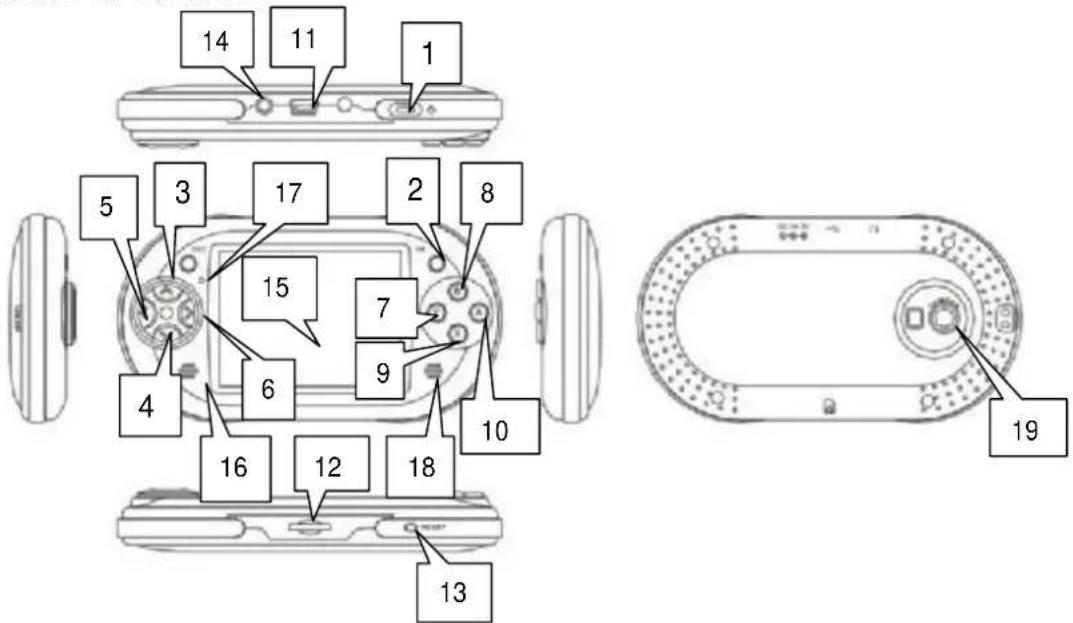
1: Power on/Power off/Exit key
2: Play/Pause/Shuttle/Shooting/OK key
3: Up/Cursor/Object moving direction Key
4: Down/Cursor/Object moving direction Key
5: Left / Cursor/Object moving direction Key
6: Right / Cursor/ Object moving direction Key
7: Fric Key in game
8: "B" key/Exit key: turning or jumping in game
9: Menu key
10: "A" Key/Confirm key
11: Mini USB Jacket
12: TF card slot
13: Reset
14: Earphone jacket, AV output jacket
15: LCD screen
16: Speaker
17: LED indicator
18: MIC
19: Camera
Basic Operation
Power on/off
Press and hold the power "ON/OFF"(button 1) for 3 seconds to power on or power off.
Reset
Press Reset (button 13) to reset the device.
Main Menu
After power on the device, it will go to the main menu where shows following icons.
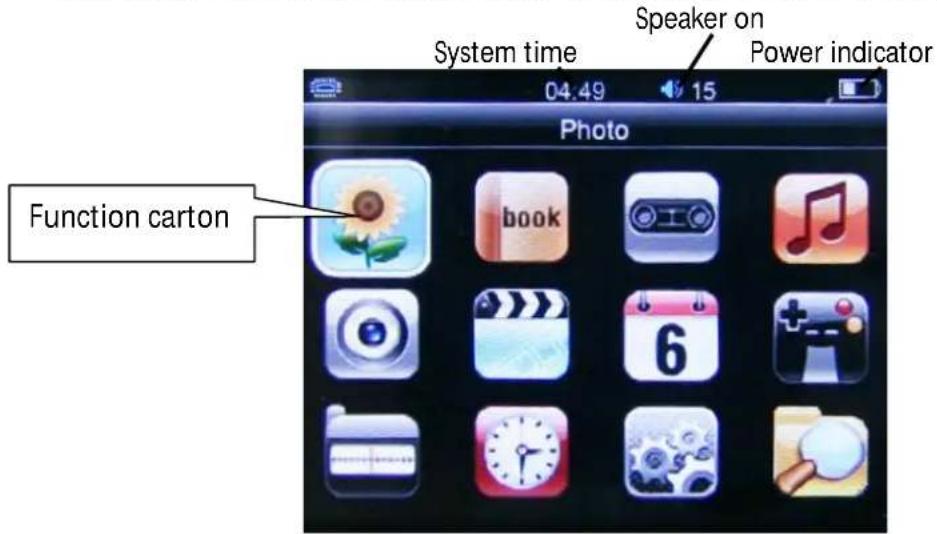
Game
This device has 36 high-resolution 3D Sport Game and exciting Arcade game built in Move Up key (button 3) or down key (Button 4) or Left key (Button 5) or Right key (Button 6) to select game icon as following
natural_image
Icon of a game controller with action buttons and a plus sign (no text or symbols)Press OK key (button 2), it will show following,
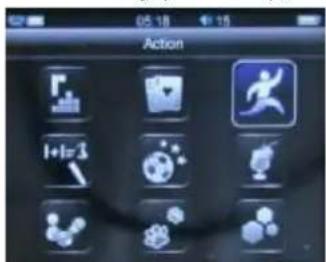
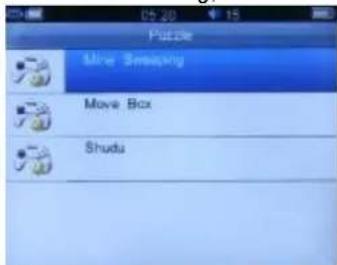
Press Up key (button 2) to select game
Press Ok key (button 10) to confirm the game.
To play the game, following operation key extremely important,
| Key | Function |
| Direction | (Up key, but t on 3) (Down key, Button 4)< (Left key, button 5)> (Right key, button 6) |
| OK | Confirm/Enter (button 2) |
| Start/Pause (button 2) | |
| A | Turn/Jump etc (button 10) |
| B | Fire/Kick/Beat (button 8) |
| Sub-menu (button 1) |
Photo
Move Up key (button 3) or down key (Button 4) or Left key (Button 5) or Right key (Button 6) to select photo icon.

natural_image
Illustration of a sunflower with green leaves against a blue sky background (no text or symbols)Press OK to enter into Photo mode, you will see below icon, choose photo you want to browsing
e-book
Move Up key (button 3) or down key (Button 4) or Left key (Button 5) or Right key (Button 6) to select e-book icon

Press OK to enter into ebook.
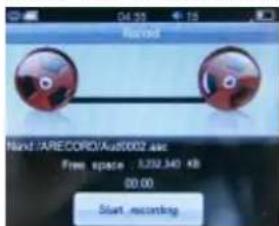
Record
Move Up key (button 3) or down key (Button 4) or Left key (Button 5) or Right key (Button 6) to select Record icon.
natural_image
Icon of a cassette tape inside a rounded square frame (no text or symbols)Press "ok" to enter into.
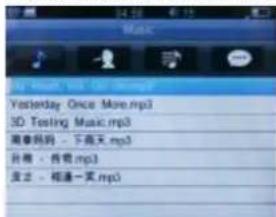
Music
Move Up key (button 3) or down key (Button 4) or Left key (Button 5) or Right key (Button 6) to select Music icon.

Press OK to enter into music list.
Camera
Move Up key (button 3) or down key (Button 4) or Left key (Button 5) or Right key (Button 6) to select Camera icon

natural_image
Circular target icon with concentric rings and central dot, no text or symbols presentPress "OK" to enter into Camera. You'll see following,
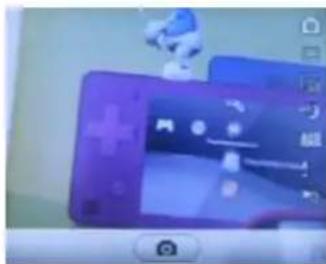
Press " [播放] (button 1) to shot.
Choose ∧、∨ to adjust the brightness
Choose <、> to adjust the focus
Press "X (button 9) to enter into sub-menu, you'll find following,
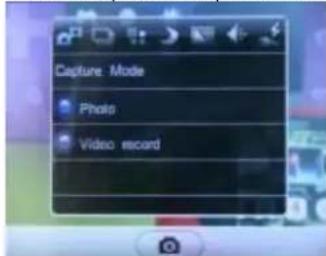
You can choose photo capture, press 📄/▶ (button 1) to start photo capture. see also the icon explanation.
| Carton | Item | Function | |
 | Capture Mode | Picture | |
| Video record | |||
 | Capture type | Single | |
| Multiple | |||
 | Resolution | 320* 240 | |
| 640* 480 | |||
| 1280* 960 | |||
| 1600* 1200 | |||
 | Night Mode | Off | |
| On | |||
 | White Balance | Automatic | |
| Sunlight | |||
| Cloudy | |||
 | Quality | Good | |
| Better | |||
| Best | |||
 | Power freq | 50Hz | |
| 60Hz | |||
All captured file will be saved in DCIM list in PHOTO mode.
Choose 'Video record capture',

Press 📷/▶▶ (button 1) Start Video record shooting
Press ∧、∨ to adjust the brightness
Press <、> to adjust the focus
Press "X (button 9) to go to sub-menu Video record actors setting menu, You'll see
| Carton | Type | Function | |
 | Capture Mode | Photo | |
| Video record | |||
 | Video Format | MPEG4 | |
 | Resolution | 320*240* 640*480 | |
 | Night Mode | Off | |
 | White Balance | Automatic | |
| Sunlight | |||
| Cloudy | |||
 | Quality Good | ||
 | Power freq | 50Hz | |
| 60Hz | |||
The entire video record program saved in VIDEO sub-menu RECORD Mode.
Video
Move Up key (button 3) or down key (Button 4) or Left key (Button 5) or Right key (Button 6) to select Video icon
Press "ok" to enter into video mode.
All the video playing are same as music playing, please refer to 6.6 Music
Calendar
Move Up key (button 3) or down key (Button 4) or Left key (Button 5) or Right key (Button 6)
to select Calendar icon.
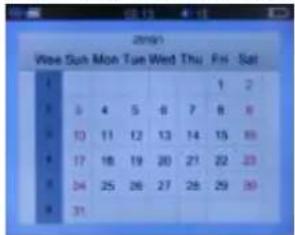
Press "OK" to enter into calendar.
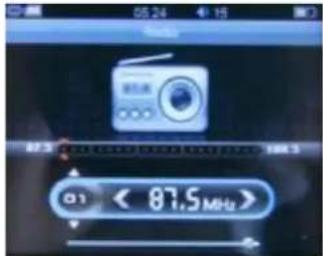
FM Radio
Please make sure you already insert earphone into the earphone jacket before you choose FM radio mode.
Move Up key (button 3) or down key (Button 4) or Left key (Button 5) or Right key (Button 6) to select Radio icon.
natural_image
Generic folder icon with a vertical bar and tick marks, no text or symbols present.Press "OK" to enter into Radio mode.
Alarm
Move Up key (button 3) or down key (Button 4) or Left key (Button 5) or Right key (Button 6) to select Alarm icon
Press "OK" to enter into Alarm mode
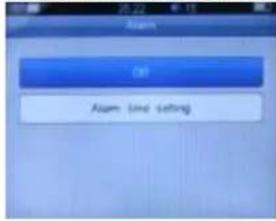
Choose Alarm time setting to set the time and put Alarm on
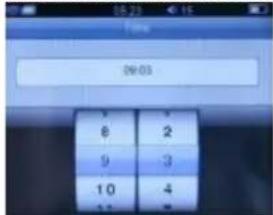
Press "OK" to confirm
Press "B" to exit.
System setting
Move Up key (button 3) or down key (Button 4) or Left key (Button 5) or Right key (Button 6) to select System setting icon

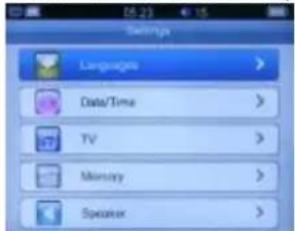
Press "OK" to enter into, you'll see.
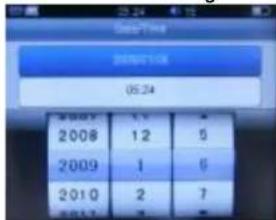
Date/Time setting : Select Date/Time to set the time and date
TV: Choose ∧、∨ to select the TV setting, you can choose PAL or NTSC
TV OUT function is only for picture、movie and game. Please connect AV cable to TV.
Memory: The built-in Flash or SD card can be selected as the memory medium
Speaker: press ∧、∨ to put the speaker on /off
Press ok to confirm after you select the items
Press "B" to exit.
Connect to PC.
To connect to PC, please insert USB cable into the USB jacket to use as a flash drive.
Trouble shooting
| Trouble | Reason | Solution |
| Can not turn on | No power?Error operation? | 7) Charge the device8) Reset the device. |
| Can not find flash disk sign | USB jacket broken?PC problem? | 7) Change USB cable8) Re-start PC |
| No sound | Volume to small?Earphone broken?Music format is not supported? | 10) Increase volume11) Change earphone12) Make sure the music format is supported. |
AID WARRANTY CONDITIONS
AID, in compliance with the Customer Protection Law (Ley 23/2003, July 10th, of Warranty in the Sale of Consumer Goods, BOE no. 165, 11/07/2003), offers Direct Warranty to Spain and Portugal customers for all our brands' products: ZIPY, MUSE, NEW ONE, AC-RAYAN, TNB, BARKAN, BRASFORMA, THE COMPLEMENTS, and GO BY ZIPY, under the following conditions:
A – Our products have a two year warranty. During the first year original defects that may be detected are repaired. In those cases stipulated by law, the buyer will be entitled to the replacement of the device by a new one, provided that the defects are not due to the negligence or exclusive fault of the buyer in handling the device. During the second year the buyer will need to prove that the malfunctioning of the device is due to a manufacturing defect. In both cases the warranty will apply provided that:
- The product has been used for its destined purpose alone.
- It was not opened, manipulated or altered in any way by someone other than the Official Technical Service.
- It has not undergone shock, flood, overheating, electric overcharge or any other external circumstance that may constitute a possible reason of INVALIDATING the warranty.
- The product will be returned to AID in proper packaging together with the receipt where the brand and type of product, the date of the purchase, the name and address of the shop that sold it and the reason for the malfunctioning should be clearly stated.
Any of the following circumstances invalidates the present warranty:
- Breaking the ports, the screen or the glass.
- Loss of liquid from the screen.
- Wearing out, obvious marks of incorrect manipulation, inappropriate use, ill-treatment, shock, falls, dirt, and so on.
- The data contained in the products are under no circumstances covered by any warranty whatsoever, nor are they to be considered during the physical repairing process of the products. AID guarantees absolute confidentiality of the data.
- AID does not cover the incorrect configuration or installation of the software / hardware on the part of the client, neither as a component nor as a peripheral, included prives / controllers included.
- The legislation on guarantees sets certain limits. "the guarantee does not cover additional components such as batteries, nor any elements that are subject to maintenance due to its use such as earphones". These accessories have a 6 months guarantee.
- Waterproof bags have a 48-hour trial period, such as indicated on the product itself, therefore once this time period is elapsed they will no longer be covered by any guarantee.
- Final users do not need to send us the device accessories, especially if they are not the original ones, since we will not be held responsible for them.
CASES:
- If the product is out our guarantee, the AID technical department will facilitate a budget for the repair by fax or e-mail. Said budget will need to be authorized in writing, sealed and signed, and the user will have to satisfy the repair fee as well as the freight.
- If the budget is not accepted a diagnosis fee will be charged. (6€)
- Repairs have a 90 days guarantee, provided that the breakdown is under the same concept and in the case of budgeted breakdowns alone.
B – All the freight costs for the product will be covered by AID using only the transportation company designed by AID following the authorization procedure.
The expenses derived from incorrect or unjustified returns on the part of the client will be covered by the client alone.
C – Any incidence detected at the moment of the reception of the merchandise must be immediately notified at the AID Post-Sales Department: maria@accesoriosdigital.com in compliance with Article 366 from the Code of Commerce, AID will not consider complaints about breakages, shocks or absence of boxes or pieces 24 hours after the delivery of the merchandise.
In the case of shipments originated in Canarias, Ceuta and Melilla, AID will not pay the customs tax nor any kind of reimbursable expenses.
DECLARATION OF CONFORMITY
ACCESORIOS INTELIGENTES DIGITAL S.A.
We declare under our sole responsibility that the product:
MP 5/ Game Console: GAME SOUND JR which belongs to the brand Zipy, made in China
Conforms with the requirements of the Directives below by compliance with the following standards listed:
EN55022:2006/A2:2010
EN55024:2010
In accordance with the provisions of the Directive 99/05/EC, European Parliament and Council on March 9, 1999, transposed into Spanish legislation by Royal Decree 1890/2000, of November 20, 2000.
Place and date of issue:
August, 19, 2011
Signed by: Miguel Fauro


Waste management for all of your containers and domestic packagings that you deposit in the recycling bin
The packaging contains removable materials in order to treat them later in waste management
Do not deposit the device or the battery in the bin. Please, put it in a recycling bin or carry it to your local nearby store
Deposit the packaging materials in the yellow bin
This device conforms to the EU directives
This unit conforms to the ROHS regulations
Symbol of frequency restriction in some countries of European Union