INU019D - Tablet INGO - Free user manual and instructions
Find the device manual for free INU019D INGO in PDF.


User questions about INU019D INGO
0 question about this device. Answer the ones you know or ask your own.
Ask a new question about this device
Download the instructions for your Tablet in PDF format for free! Find your manual INU019D - INGO and take your electronic device back in hand. On this page are published all the documents necessary for the use of your device. INU019D by INGO.
USER MANUAL INU019D INGO
| SPECIFICATIONS 3 | INFORMATION AND SUPPORT | 29 |
| Package includes 3 | UPDATE INGOKIDS SOFTWARE | 29 |
| Main interface 4 | ||
| Charging 5 | FAQ / TROUBLESHOOTING | 29 |
| Main screen 5 | ||
| Screen lock 6 | SUPPORT 31 | |
| Capacitive touch panel 7 | ||
| Camera 8 | WARNING | 31 |
| Ebooks 9 | DISPOSAL | 32 |
| Video player 10 | ||
| Music player 11 | ||
| Connect to the PC 12 | ||
| Storage 12 | ||
| Android interface 13 | ||
| Automatic updates 13 |
| INITIAL SETUP | 14 |
| 1. Language | 15 |
| 2. Set Time & Date | 16 |
| 3. Set WiFi | 17 |
| 4. Set parental account | 18 |
| 5. Create a Children Account | 19 |
| 6. Apps Filter | 20 |
| 7. Online content | 21 |
| 8. Time Limit | 22 |
| PARENT AREA | 24 |
| How to access Parent Area | 24 |
| Create a new kid account | 25 |
| Modify an account | 25 |
| Download applications |
SPECIFICATIONS
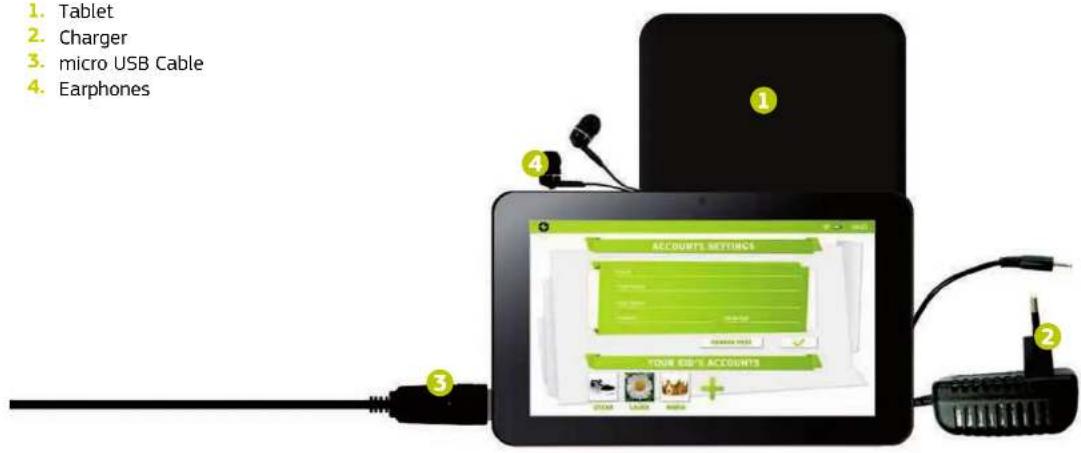
PACKAGE INCLUDES:
- Tablet
- Charger
- micro USB Cable
- Earphones
MAIN INTERFACE

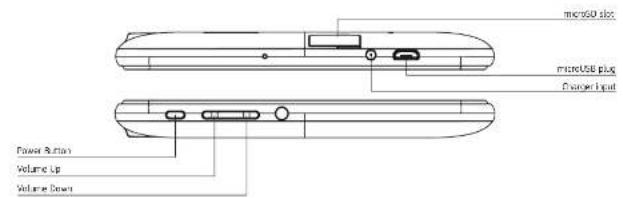
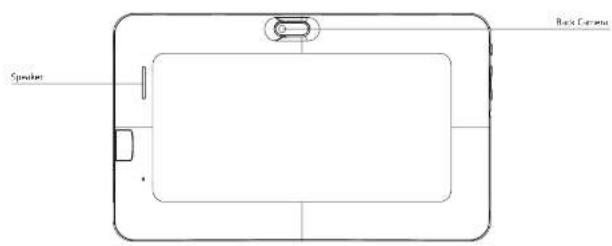
CHARGING
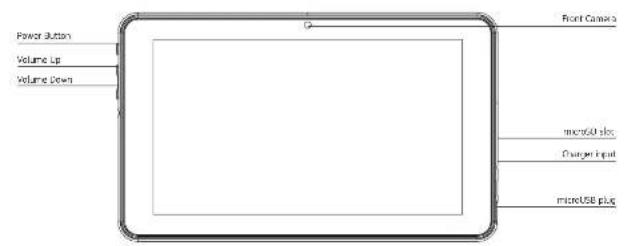
Your tablet can only be charged with the supplied Power Adaptor. Plug the adaptor to the mains socket and the adaptor cable connector to the Tablet plug.
MAIN SCREEN
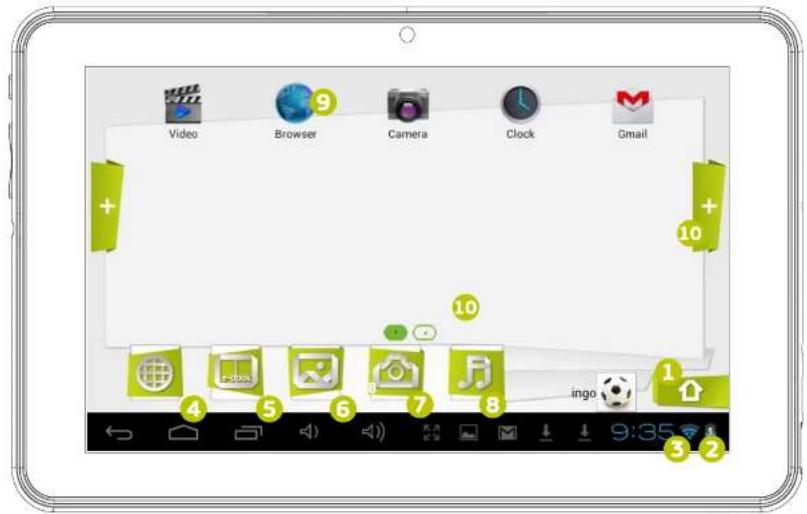
These are the main icons you will find in the main screen of your Ingo tablet:
- Home button
- Battery indicator
3.WiFi signal indicator - Browser
5.Ebook reader - Video and photo gallery
- Camera
- Music player
- Approved apps
- Page navigator
SCREEN LOCK
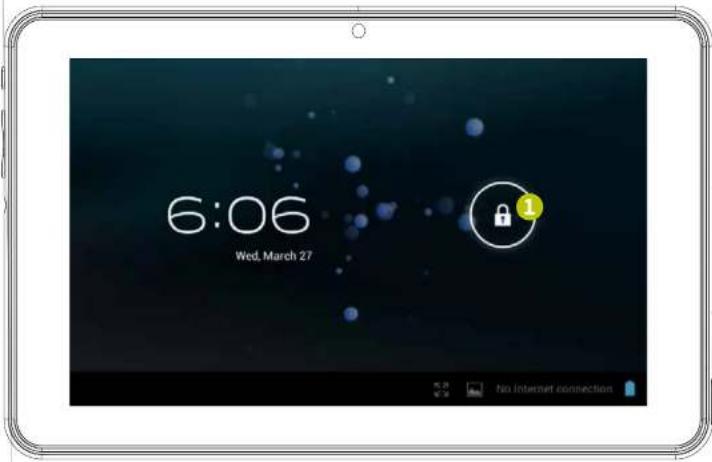
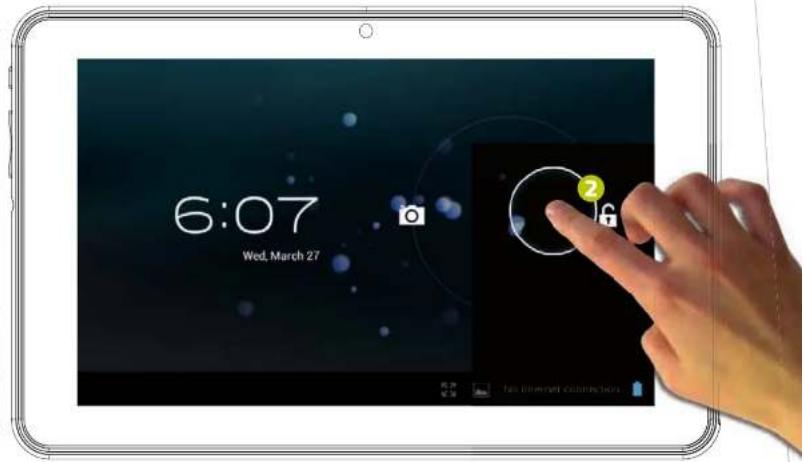
Your Ingo tablet locks automatically the screen after some time inactive. To unlock select the lock icon and slide it to the open lock.
- Lock icon
2.0pen lock icon
CAPACITIVE TOUCH PANEL
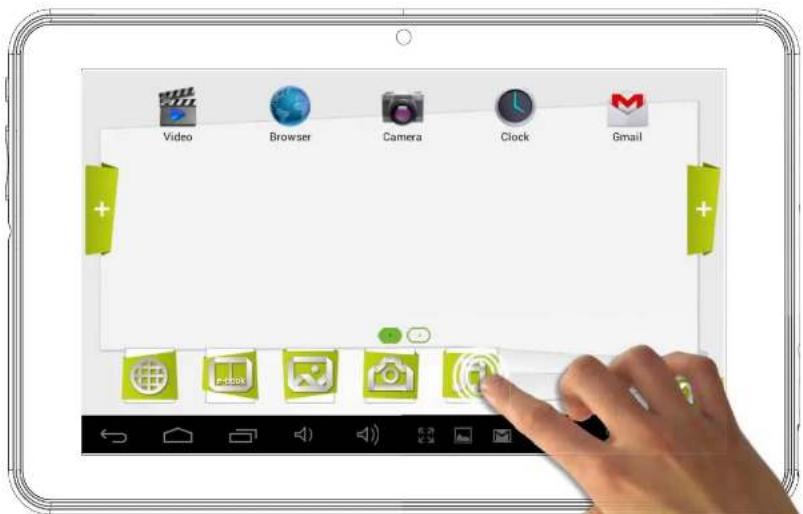
The Ingo tablet has a multi touch capacitive screen. You only need your fingers to control it. Touch the screen to open applications, videos and files.
- Slide up and down to scroll and swipe left and right to navigate in the menus
- Use two fingers to zoom in or out while viewing pictures, webpages or other documents
Note: The response of the capacitive touch panel varies between persons, this is linked to the nature of the technology.
CAMERA
The Ingo Tablet comes with 2 digital cameras to take pictures and make videos, one in the front to take pictures of you and use it for videocalls and another one in the back to take pictures of your family and friends.
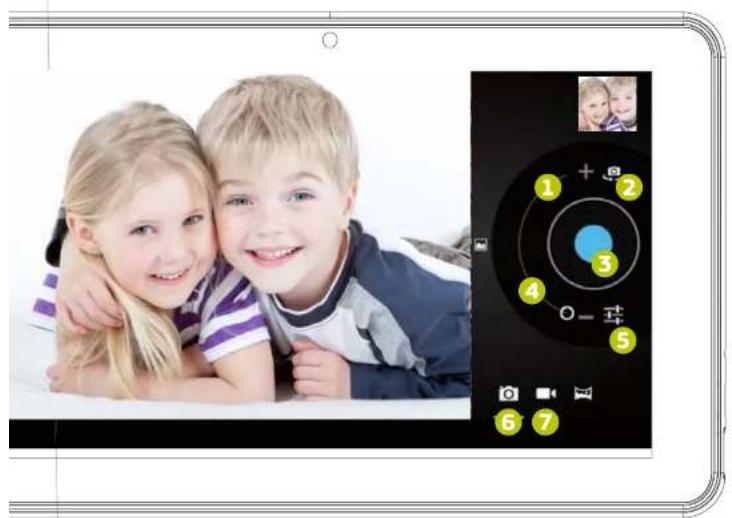
- Digital Zoom (Enlarge)
- Choose between front and back cameras
- Take a picture / Start recording video / Stop recording video
- Digital zoom (Reduce)
- Camera settings
- Photo mode
- Video mode
All the pictures and videos you take will be stored in the internal memory and you can see them in the gallery.
EBOOKS
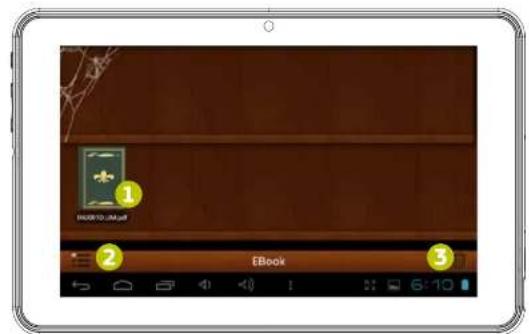
The Ingo Tablet comes with an Ebook reader. You can use it to read digital books you purchase or transfer to the internal memory.
- Available eBooks
- Swap views between library view and list view
- Delete
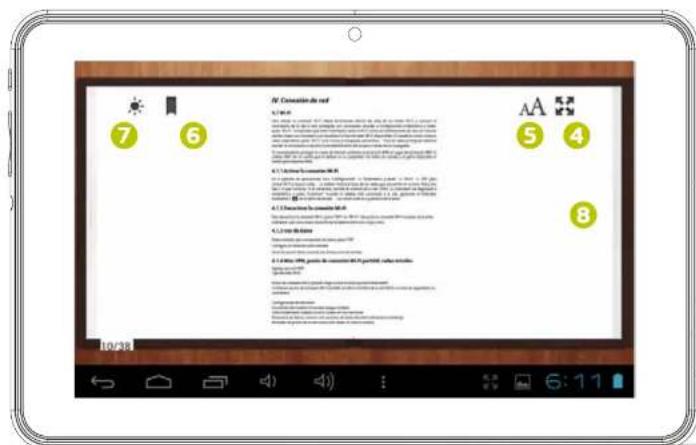
To open an ebook just touch the book cover and it will open.
- Full window view
- Change font size
6.View/Add/Edit bookmarks - Change screen brightness
- To swap pages just slide your finger to the right or left
VIDEO PLAYER
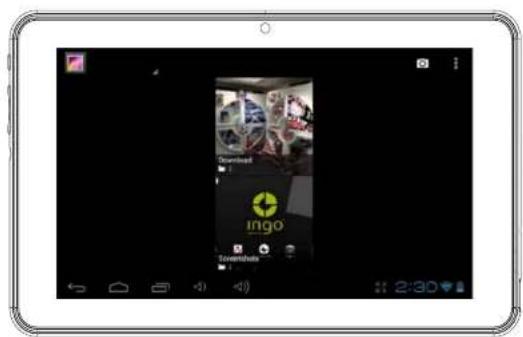
To browse all the available videos you need to access the gallery, there you will see the videos and photos organized in folders.
To open a folder just touch over the picture,
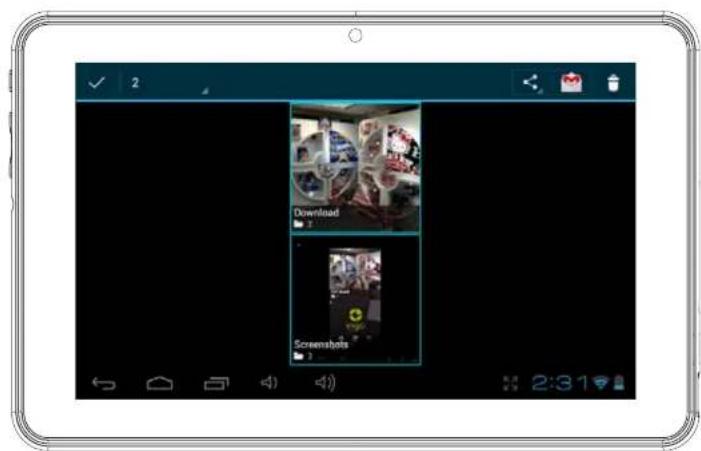
To select a folder hold your finger over the picture for a couple of seconds
To delete all the contents of the folder press the trash icon on the top right of the screen
- When the folder is opened, you can see the video or image thumbnails
- To open a video or image just touch over the thumbnail
MUSIC PLAYER
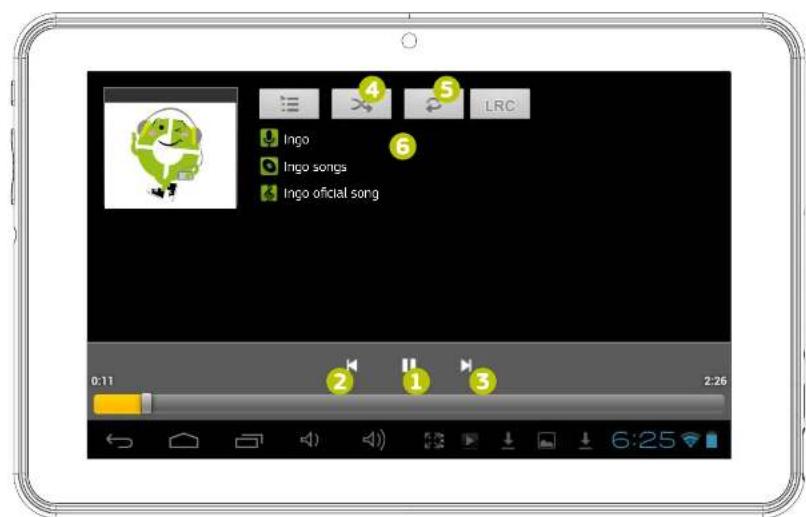
To play music on your tablet press the music icon on the Kids main screen
You will be able to select the music sorted by artists, albums, songs and playlists
- Play / Pause
2.Back - Forward
4.Shuffle - Repeat
- Song information
To create a new playlist choose playlist and select add new.
Follow the instructions on how to connect the tablet to the
computer to add more music to your tablet.
CONNECT TO THE PC
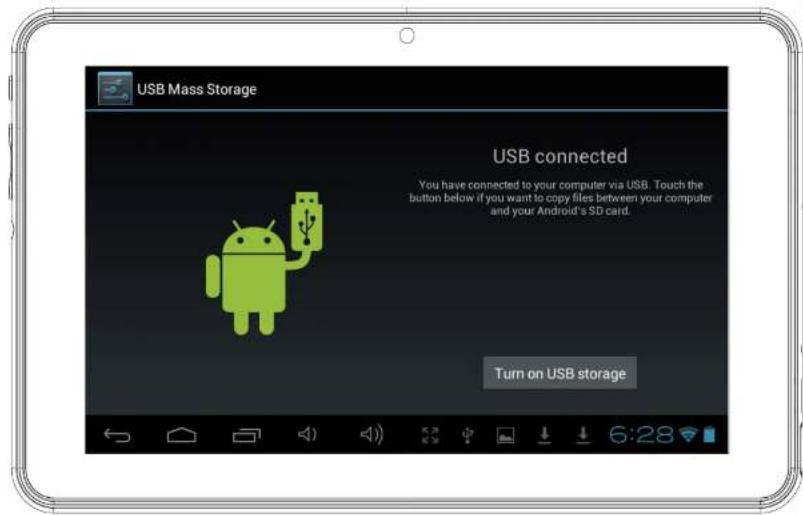
Your Ingo Tablet comes with a microUSB cable so you can connect it to your computer and transfer files, pictures, videos and eBooks. You need to plug the microUSB cable to the Tablet and the USB connector to the computer USB plug. Once connected a window asking if you want to transfer files will appear on your tablet, touch over the button to activate the USB storage function.
STORAGE
Your tablet comes with 4Gb of Flash memory, but not all of it is available as user storage. Some is used to store Android system information, applications and tablet data.
In order to increase the available memory you can add a microSD card into the slot. Once it's recognised you will be able to see the videos in the gallery and the music in the music player. If you want to transfer files between the internal storage and the microSD card you can use the file explorer available in the Android interface.
The Ingo tablet will be recognised as removable storage on your computer. On the computer open the file explorer to transfer the data.
Note: While the tablet is connected to the PC you will not be able to access the data on your tablet.
ANDROID INTERFACE
The Ingo tablet uses Android 4.1 operating system. In order to access the Android interface please follow the following steps:
- Exit to the login window by pressing the home button
- Go to the parental area by pressing the lock icon
- Press the Android icon to exit to Android interface, you may be required
to enter the parental password and confirm
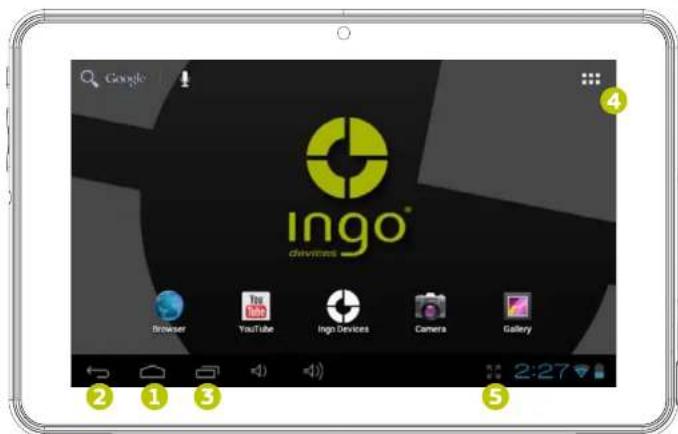
The android interface looks like this:
1.Back
2. Home
3. Recently opened applications
4. App menu: You can see all the installed apps
5. Date / Time / Battery level / WiFi signal / Access settings and notifications
To go back to IngoKids interface you need to press the IngoKids icon Android interface should only be used by parents. All the parental controls are not enabled while you are in Android main interface
AUTOMATIC UPDATES
When WiFi is enabled the system will perform regular checks for software updates. If an update is available we recommend that you accept it as it will contain important upgrades to your system that will enhance performance and functionality.
INITIAL SETUP
We recommend that you fully charge your tablet before starting it. Connect the charger to the AC power socket and the charger plug to the tablet. Tablet will charge completely in some hours.
When you turn on your tablet for the first time you will be prompted to follow the initial setup. During this initial configuration you will set up the following items:
Language
Time & date
- Enable and configure WiFi connection
- Set a parental account
- Set a kids account. For this account you will set up the following:
- Apps filter: Choose what applications can use your child
- Online content: Define how can your child access the internet
- Time limit: Setup the amount of time your child can use the tablet

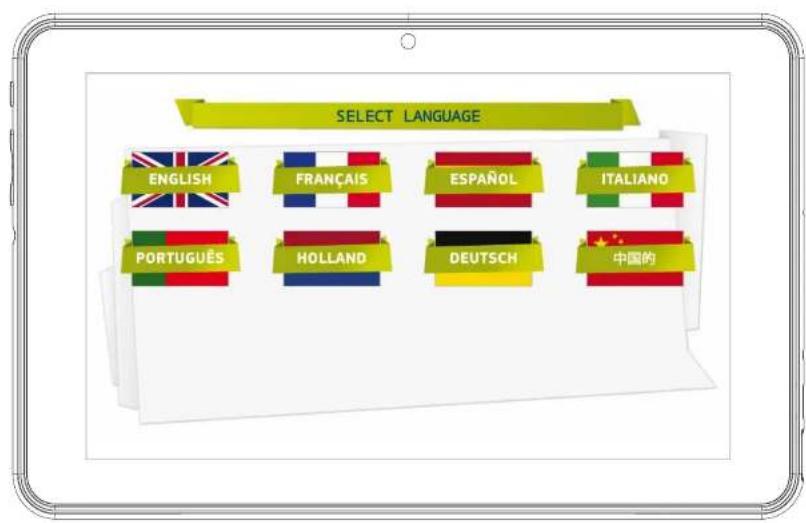
LANGUAGE
Choose your preferred language for the IngoKids and Android interfaces
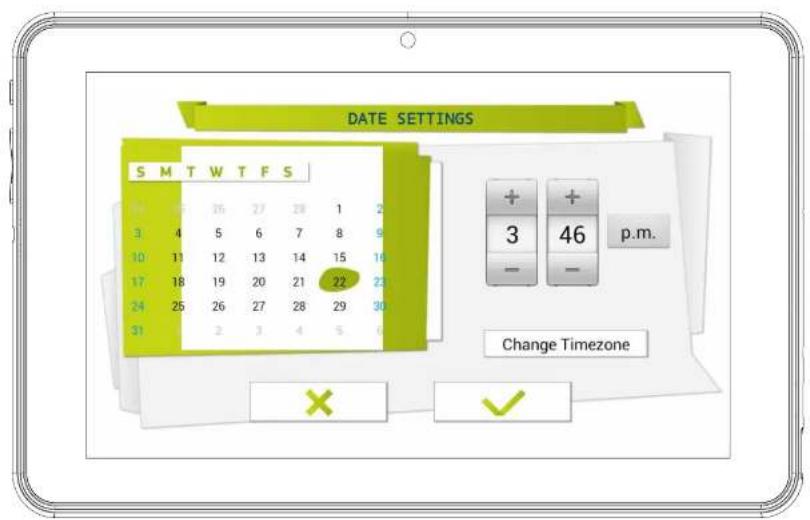
SET TIME & DATE
- You can modify the default time settings of your tablet;
- Make sure you check that thetimezone is the correct one for your region.
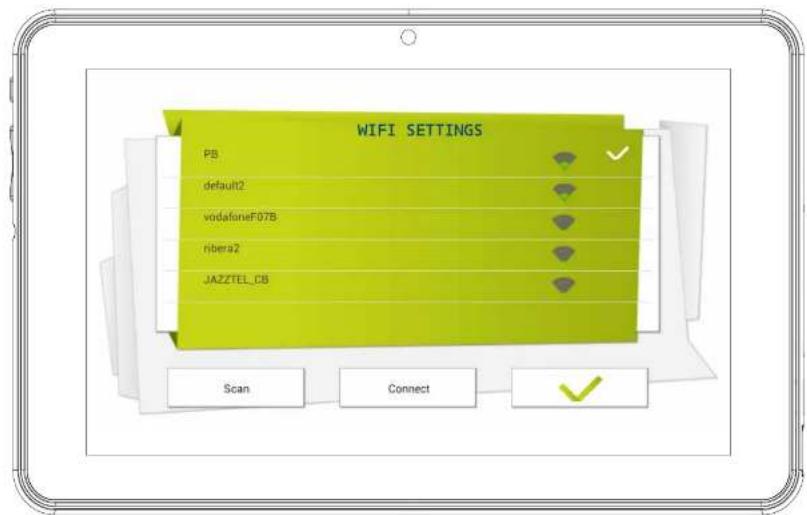
SET WIFI
- WiFi comes disabled by default.
- To enable WiFi press the Connect button
- A list of available WiFi networks will appear
- Choose your network, if the network is password protected it will prompt you to insert the password (Remember to have it in hand)
- If no WiFi networks are found check that your router is on and that the wifi is enabled. Then press Scan to search again for WiFi networks
SET PARENTAL ACCOUNT
Enter your email
- Enter password: This password helps protect the Parents Area, this way your child can not modify any important setting.
- Enter your name
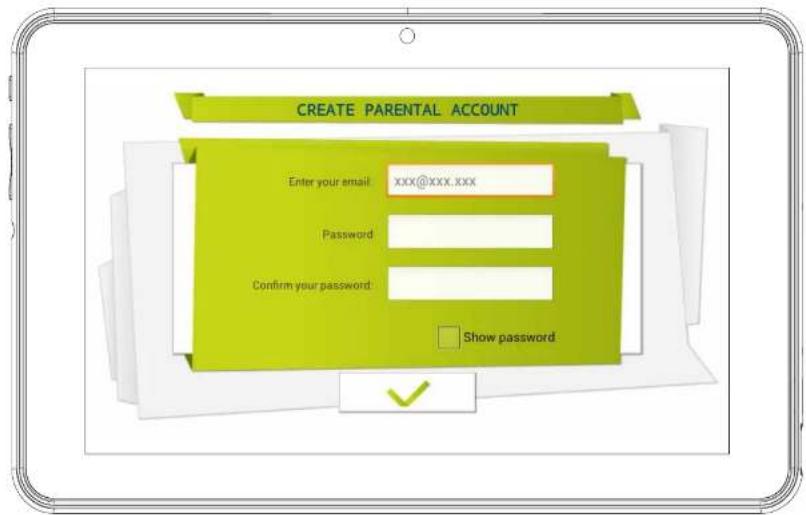
NOTE: The parental password is very important as it will be always requested to access the parents area. We strongly suggest that you don't share this passwords with your children as they may use it to access parents area and change important tablet settings.
If you forget the parental password you can request to reset it by sending an email to the provided email address. So it's very important that you have regular access to the email address supplied.
CREATE A CHILDREN ACCOUNT
- Name: Insert your child's name
Birthday: Insert your child's birthday - Gender: Select your child's gender
- Select: Choose your child's avatar from the preloaded images
- Photo: Take a picture and use it as your child's avatar
- Password: You can choose if you want to protect your children account with a password, it's good if the tablet will be shared between
different children with different settings.
By default "No password" is selected.
If Password is selected you will be prompted to enter the kid password when you confirm the new account.
The password can be from 1 to 14 characters long, with only letters and numbers.
You can also let children use a pattern password instead of characters and numbers. If you want children to have a pattern password select "Pattern". Then you will be prompted to create a pattern sliding your fingers that links at least 5 dots. In order to make the password easier to remember you can't use the same dot two times.

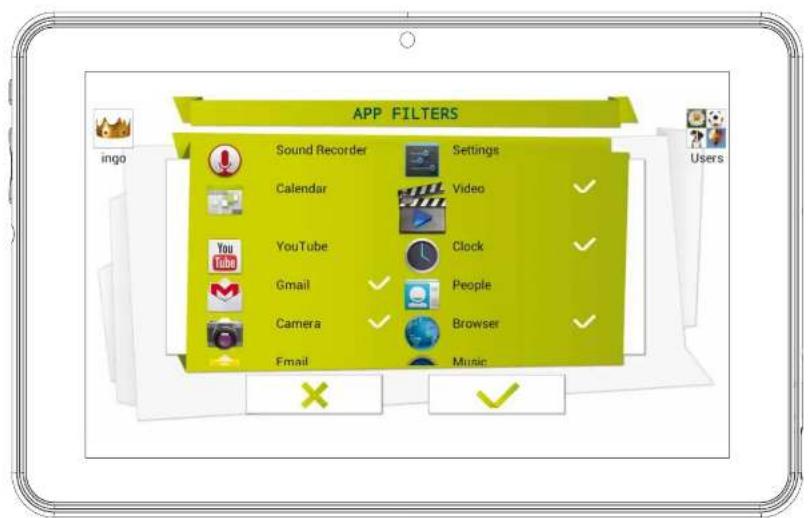
APP5 FILTER
Apps filter allows you to define which applications can your children access. It's a very good way to ensure that the tablet is used the way you intended.
The installed apps are appro
ved based on our criteria
- Click over the app icon to select or deselect an application
To save the changes press the OK button
The applications that are not checked will not be allowed. By default we have approved the apps we consider suitable for all children, but since every child is different we suggest that you check also the preapproved apps.
ONLINE CONTENT
Online content lets you select how your child connects to the internet
Full access: No restrictions apply, child can visit any website
- No internet access: Internet access is disabled, when child opens browser no website is available. This mode doesn't restrict the internet connection to the apps. If you wish to block completely all data connections you should disable WiFi on the WiFi settings.
-
Restrict browsing to allowed websites only: Child can only visit the websites that are on the Allowed websites list.
-
Press the Modify Allowed Websites button to access the list and enter new websites your child can visit
- To add a new website you need to press the + button

Note: The Online Content filter is only available for the default browser installed in the IngoKids software. If you install a third party browser (Like Google Chrome, Opera, Dolphin Browser, etc) all the online content filters won't work with them.
Note: Even if the restricted browsing is enabled we recommend adult supervision to ensure the correct filtering of the websites. Internet is known for its content being updated instantly, so regular adult checks to the approved content are strongly suggested.
TIME LIMIT
Time Limit is the way to limit how and when your child can use the IngoKids tablet.
-
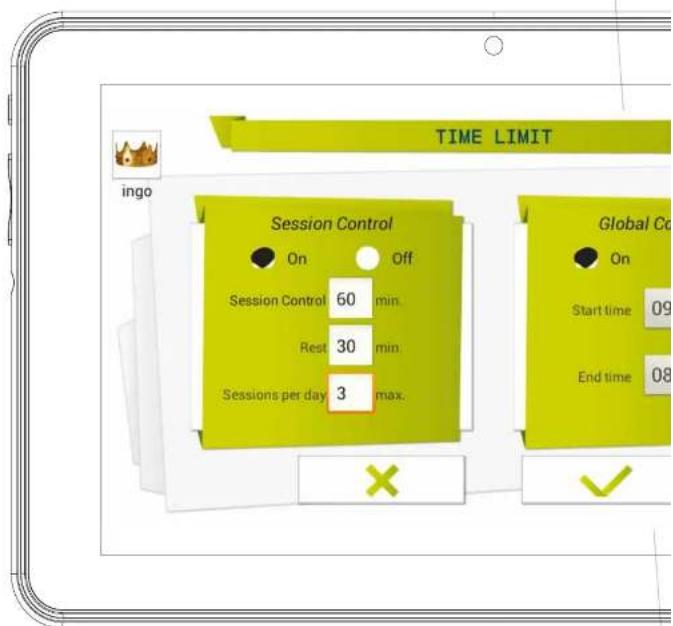
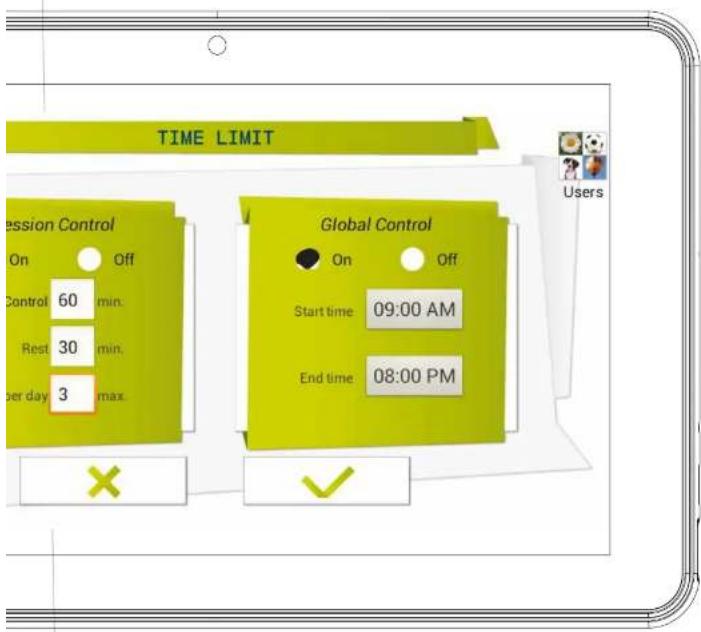
Session control: When enabled it lets you define for how long and how many times your child can use the tablet per day.
-
Session control: Set the maximum time the tablet can be used at once
- Rest: Define the time the child must rest after a session has finished
Sessions per day: Set the maximum
number of sessions your child can do per day
For example: Child can use the tablet 3 times a day for 30 minutes sessions.
After 30 minutes the Kid account will be disabled and will rest for 30 minutes. You will set Sessions per day to 3.
-
Global Control: When enabled lets you define the timeframe when your child will be able to use the tablet
-
Start time: Input the hour of the day your child can start using the tablet.
Before that time the tablet will turn on but he will not be able to access the account - End time: Input the hour of the day your child will stop using the tablet.
After that time the tablet will turn on but he
will not be able to access the account
For example: Child can use the tablet from 9:00am (Start
time) to 8:00pm (End time)
Note: The Global control has more importance than the Session control, so even
if children has not exhausted all the available session time he will not be able to
access his/her account once Global Control daily period expires
PARENT AREA
HOW TO ACCESS PARENT AREA
Once setup is complete you will be taken to the login interface. This is the screen you will see every time you power on your tablet
- Access WiFi Settings
Parent Area - Enter the kid account
Help
Press the Parent Area icon. You will be prompted to insert the parent password you created during initial setup.
In the Parent Area you can modify the kids settings, create new kid accounts and download apps.
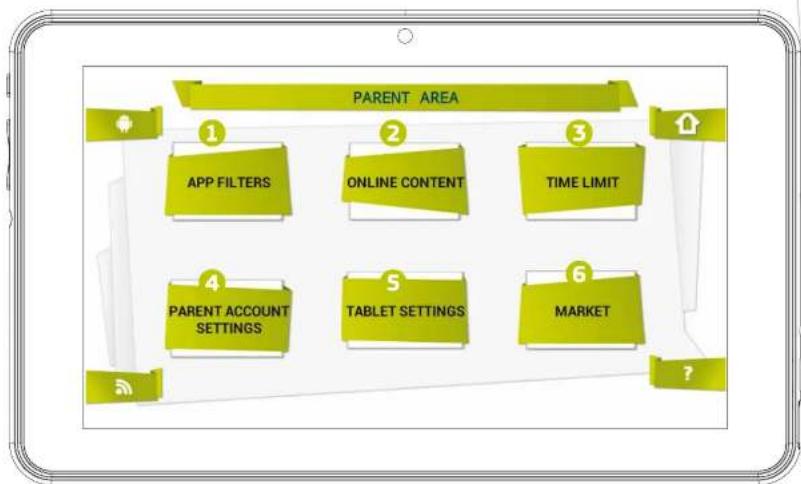
- Apps filter: Choose what applications can use your child
- Online content: Define how can your child access the internet
- Time limit: Setup the amount of time your child can use the tablet
- Parent Account Settings: Modify your settings and password and create new kid accounts
- Tablet settings: Edit some important tablet settings
- Market: Access google Play and Ingo market in order to browse and download more applications
CREATE A NEW KID ACCOUNT
In order to create a new kid account you need to Access "Parent Account Settings" and press the + button. From there you need to follow the steps described in the section 2 of this Manual (Initial Setup from point 2.5)
MODIFY AN ACCOUNT
To modify kid settings parent needs to open each function separately (Apps Filter, Online Content and Time Limit).
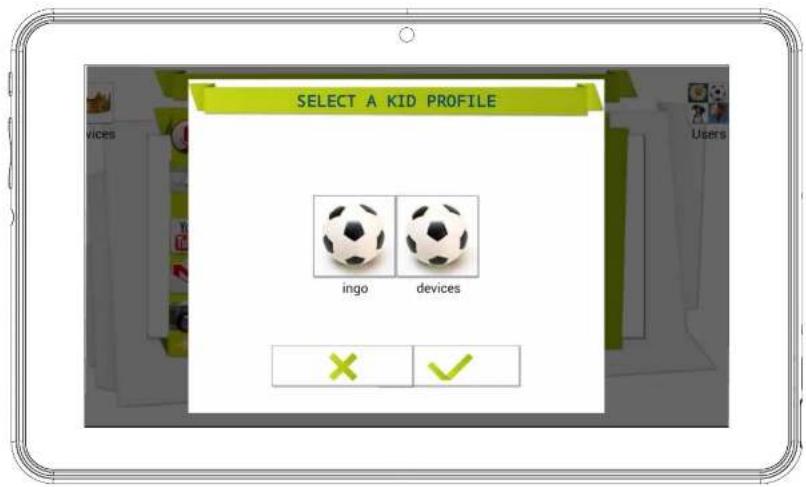
- The kid account that he is modifying is showed in the top right (parent will see the account avatar and the account name)
- If the tablet has more than one kid account he can choose the kid account to modify in the top right corner.
- Current account being modified
- Choose another account.
DOWNLOAD APPLICATIONS
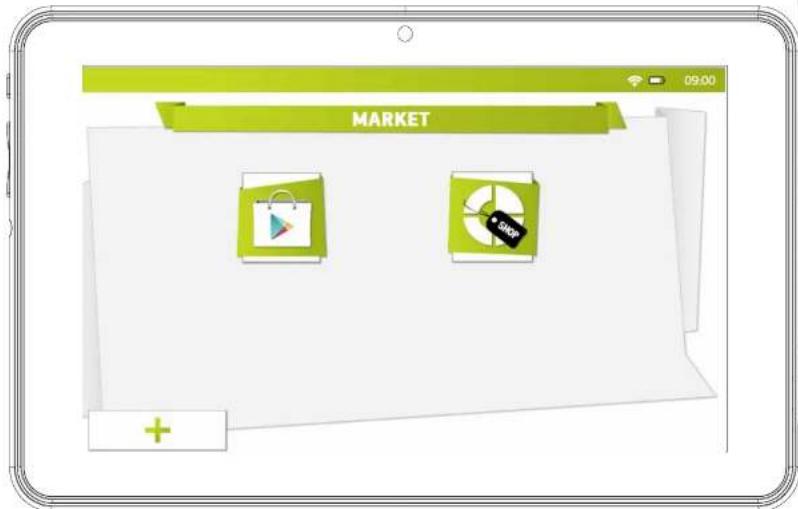
The IngoKids tablet comes with google Play and ingo market presinstalled. To access both markets parent needs to go to the Market section of the Parent Area.
- Google Play: The official android app market. Parents need to setup a google account and they will have access to all those apps.
Ingo official children application marketplace.
Parents will find custom apps designed especially for IngoKids tablets and accessories.
By default neither store is available from the IngoKids interface, the only way to access the store is through the Parents Area. If you want your children to access directly any of the two stores (Not recommended) you need to allow the app in the Apps Filter section of the Parents Area
Note: Both markets need a WiFi connection to work. Ensure WiFi is enabled and connected to a WiFi network before accessing them.
GOOGLE PLAY
Get access to the official Android store from google and purchase or freely download thousands of applications and games. To access Google Play you need a google account.
If you already have a gmail address choose "Sign in"
and insert your google email and password.
You will be then prompted to enter Credit card information
(If you have not already done it in previous
google products), this is an optional step and you can skip it by pressing the Skip button.
- If you don't have a google account or want to create a new want for the Ingo tablet you need to select "Get a Google Account" and you will be prompted to enter the following information:
First and last name
- Choose your new gmail.com address name. If address is not available it will prompt you to insert a different one
- Choose and confirm your password
- Choose a security question and email address to recover your password in case you forget it
- It will prompt you to insert a credit card number. You can choose "Not now" to avoid it.
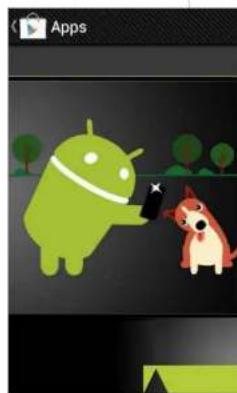
To download apps from google play you can browse through the Apps section or search using the search button.
INGO MARKET
Ingo market will feature multiple apps suited for your Ingo Tablet. Check it regularly to look for new apps and games available for you.
UNINSTALL APPLICATIONS
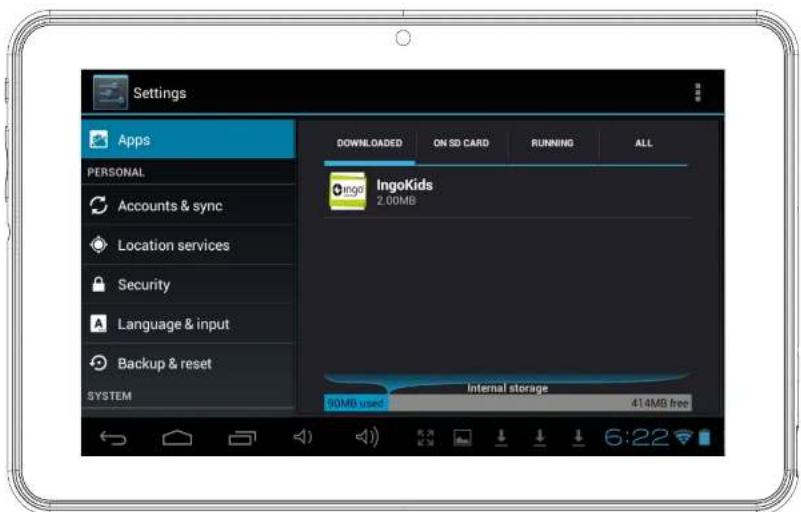
To uninstall an existing apps you need to go to
the Android Interface Settings Apps and choose the app you want to remove
INFORMATION AND SUPPORT
UPDATE INGOKIDS SOFTWARE
Your tablet will check regularly for updates. When WiFi is enabled the system will perform regular checks for software updates. If an update is available we recommend that you accept it as it will contain important upgrades to your system that will enhance performance and functionality.
FAQ/TROUBLESHOOTING
I have lost the parents account password, what can I do
When the tablet prompts you to insert the parents password press the "Forgot password" button and you will be prompted to insert an email address. An email with the instructions about how to reset the password will be sent to that address.
I have enabled the lock screen pattern or PIN and I can't remember it, what can I do
The lock screen security is used to protect your tablet data in case of theft or loss. In case pattern or password the device will lock. In order to use the tablet again contact our customer service.
What is the maximum capacity of the external memory?
The tablet supports up to 32Gb micro SD memory cards.
Where can I find a silicone or rubber case to protect the tablet?
Check our website www.ingodevices.com to check when the accessory products for our tablets are available
Can we connect a 3G USB Dongle to the tablet?
The USB port admits plugging a 3G USB Dongle to connect to the internet using a cellular data plan. You will need a microUSB to USB adaptor in order to plug USB devices to your tablet.
Plug the 3G Dongle to the tablet; in a few seconds it will require you to insert the PIN code of your modem's SIM card (Your mobile carrier should have given it to you together with the SIM card). Once inserted the PIN code you can surf the internet using your data plan.
The tablet sound is low, is it normal?
The tablet volume is limited to protect your children ears.
To ensure the maximum volume you must ensure that it's placed at its maximum level pressing the +. Also we recommend you to have the speaker uncovered, since when leaving the tablet in a desk the speaker will be covered and it will sound low.
Tablet doesn't power ON.
Check the tablet's power level, charge it with the adaptor for 2 hours and check again.
There is no sound coming from earphone
Check if volume is set to '0'. Check if earphone is working properly by testing it in another device.
There is loud noise from earphones or speaker
Check if there is dust in the earphone or speaker.
Tablet gets locked and doesn't respond to touch or buttons.
Reset your tablet by holding the power key for a few seconds.
An application is not working properly
Not all Android apps are compatible with all Android devices. If you have downloaded the app try to download it again and reinstall it.
How do I delete a Google account?
If an account is added, the account is shown in Android Interface Settings Accounts & sync, where you may also add another account. To delete an unwanted account, select the account. The account sync information will load. You can access the account settings in the top right corner (Three aligned dots appear). In the settings menu select "Remove account".
Other questions

If you have other questions about setting up or using our tablet please visit www.ingodevices.com to find more about your tablet, read the realted FAQ, download product guides and watch the online videotutorials.
SUPPORT
IngoKids interface has a help section that will solve most of your issues, if you still need support you can visit our website http://www.ingodevices.com where you will find tutorials, video tutorials and answers to the frequent asked questions.
If you need further support there is a dedicated help line for this product. For help and advice ring:
UK 02035147021
FRANCE 0891 65 0101
SPAIN 902 023 951
Please have your receipt ready when you call. You can also contact us via our website http://www.ingodevices.com
WARNING
- Packaging material is not part of the product. When unpacking the device make sure no packaging material is left to the reach of children
Device is not intended to be dismantled
Only charge the IngoKids tablet with the supplied power adaptor - Keep the device away from water and moisture
- Clean the screen using a humid tissue. Do not use alcohol, sprays or cleaning products as they may damage the screen
The tlet is designed to resist soft impacts. We can not guarantee it can resist strong impacts, abuse or inappropriate use.
The plug on the power supply cord is intended to serve as the disconnect device. The socket-outlet shall be installed near the equipment and shall be easily accessible.
DISPOSAL

not disposed of correctly.
e details of the recycling options available in your area.
Used batteries are hazardous waste and NOT to be disposed of with the household waste. As a consumer you are legally obligated to return all batteries for environmentally responsible recycling - no matter whether or not the batteries contain harmful substances).
Return batteries free of charge to public collection points in your community or to shops selling batteries of the respective kind.
Only return fully discharged batteries.
) marked Cd = cadmium, Hg = mercury, Pb = lead
Only use mercury and cadmium-free batteries.
Non rechargeable batteries are not to be recharged.
- Rechargeable batteries should be removed from product before recharging
- Rechargeable batteries should be charged under adult supervision.
Different types of batteries or new and used batteries are not to be mixed
- Batteries are to be inserted with the correct polarity
- Batteries should be replaced under the supervision of an adult.
- Exhausted batteries are to be removed from the product.
The supply terminals are not to be short-circuited.
Used batteries are hazardous waste and NOT to be disposed of the household waste!! Return the batteries to your dealer or to collection points in your community.
- Keep batteries away from children. Children might swallow batteries.
- Contact a physician immediately if a battery was swallowed
- Check your batteries regularly to avoid battery leakage.
- Batteries shall not be exposed to excessive heat such as sunshine, fire or the like.
CAUTION: Danger of explosion if battery is incorrectly replaced
1. Replace the text with the name of a new variable

Ingo Devices assumes no responsibility for any errors that may appear in this manual. Due to our continuous improvement, Ingo Devices reserves the right to change without notice, product offerings, specifications and compatibility.
www.ingodevices.com

Ingo® devices
Ingo Devices, SL
Bernat Metge, 77-79
08205-Sabadell
BARCELONA -SPAIN
Ingo Devices UK Ltd.
St John's Innovat
Cowley Road
Cambridge CB4 0WS
United Kingdom
After Sales Service
http://support.ingodevices.com
Spain: 902 023 951
UK:02035147021
France:0891650101

/ingodevices @ingodevices
www.ingodevices.com

Ingo devices
TABLET PRO
MANUAL DE USUARIO
ES
ESPECIFICACIONES 3
Pantalla principal 5
St John's Innovation Centre
Cowley Road
Cambridge CB4 0WS
United Kingdom
After Sales Service
http://support.ingodevices.com
Spain: 902 023 951
UK:02035147021
France:0891650101

/ingodevices @ingodevices
www.ingodevices.com

Ingo devices
TABLET PRO
MANUEL DE L'UTILISATEUR
FR
Specifications 3
L'emballage content 3
Interface principale 4
Charger 5
Ecran principal 5
Verrouillage de I'ecran 6
Inno Devices UK Ltd.
Inge Devices Ltd:
Gawley Board
Cowley Road
Cambridge CB4 0WS
United Kingdom
After Sales Service
http://support.ingodevices.com
Spain: 902 023 951
UK:02035147021
France:0891650101

/ingodevices @ingodevices
www.ingodevices.com