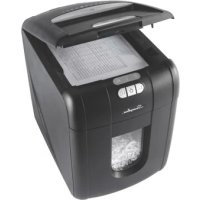
StackandShred 175X - Shredder Swingline - Free user manual and instructions
Find the device manual for free StackandShred 175X Swingline in PDF.



User questions about StackandShred 175X Swingline
0 question about this device. Answer the ones you know or ask your own.
Ask a new question about this device
Download the instructions for your Shredder in PDF format for free! Find your manual StackandShred 175X - Swingline and take your electronic device back in hand. On this page are published all the documents necessary for the use of your device. StackandShred 175X by Swingline.
USER MANUAL StackandShred 175X Swingline
Stack-and-Shred™ 175X™
Thank you for choosing this shredder from Swingline. Please review these instructions to ensure you are operating the shredder correctly.
Safety First

To guard against injury, the following basic safety precautions must be observed in the set-up of this product.
- Ensure the machine is plugged into an easily accessible power outlet, and ensure the cable is not likely to trip up a passer by.
- Any attempt to repair this unit by unqualified personnel will invalidate the warranty. Please return to supplier.
- Unplug your shredder before moving it or when it is not in use for an extended period of time.
- Do NOT operate with a damaged power supply cord or plug, after it malfunctions, or after it has been damaged in any manner.
- Do NOT overload electrical outlets beyond capacity as this can result in fire or electrical shock.
- The socket-outlet should be installed near the equipment and shall be easily accessible.
- Do NOT alter the attachment plug. The plug is configured for the appropriate electrical supply.
- Do NOT use near water.
- Do NOT use aerosol dusters or cleaners.
- Do NOT spray anything into the shredder.
- Do NOT load the auto-feed chamber with unopened junk mail, magazines, bound documents etc.
Although this shredder has been designed to comply with UL 60950 safety standards including the "probe accessibility tests", do not operate the shredder near children or pets.
Description of Product Parts
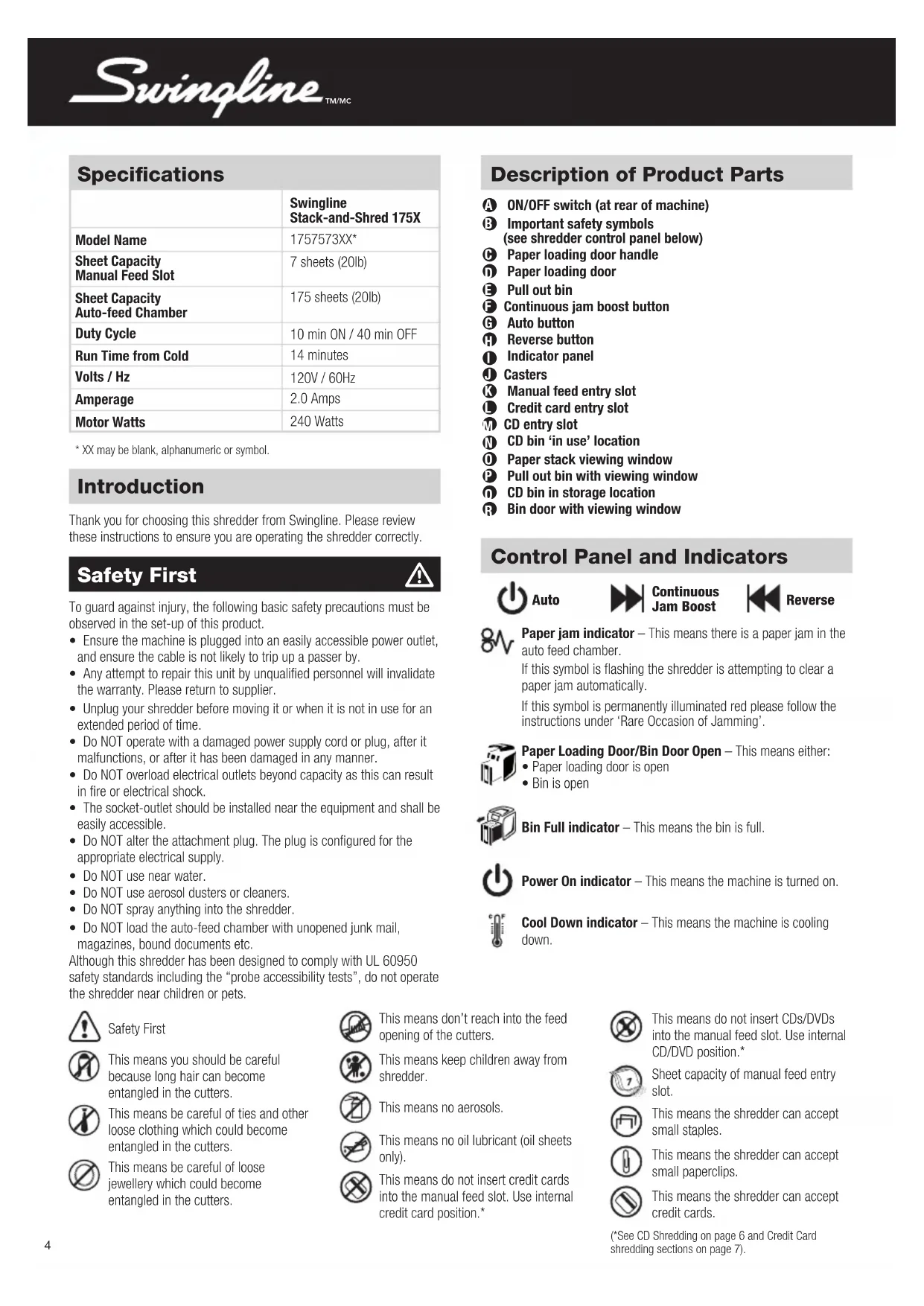
ON/OFF switch (at rear of machine)
Important safety symbols (see shredder control panel below)
Paper loading door handle
Paper loading door
Pull out bin
Continuous jam boost button
Auto button
Reverse button
Indicator panel
Casters
Manual feed entry slot
Credit card entry slot
CD entry slot
CD bin in use' location
0 Paper stack viewing window
Pull out bin with viewing window
CD bin in storage location
Bin door with viewing window
Control Panel and Indicators

Auto

Continuous
Jam Boost

Reverse

Paper jam indicator - This means there is a paper jam in the auto feed chamber.
If this symbol is flashing the shredder is attempting to clear a paper jam automatically.
If this symbol is permanently illuminated red please follow the instructions under 'Rare Occasion of Jamming'.

Paper Loading Door/Bin Door Open - This means either:
- Paper loading door is open
- Bin is open

Bin Full indicator - This means the bin is full.

Power On indicator - This means the machine is turned on.

Cool Down indicator - This means the machine is cooling down.

Safety First

This means you should be careful because long hair can become entangled in the cutters.

This means be careful of ties and other loose clothing which could become entangled in the cutters.

This means be careful of loose jewellery which could become entangled in the cutters.

This means don't reach into the feed opening of the cutters.

This means keep children away from shredder.

This means no aerosols.

This means no oil lubricant (oil sheets only).

This means do not insert credit cards into the manual feed slot. Use internal credit card position.*

This means do not insert CDs/DVDs into the manual feed slot. Use internal CD/DVD position.*

Sheet capacity of manual feed entry slot.

This means the shredder can accept small staples.

This means the shredder can accept small paperclips.

This means the shredder can accept credit cards.
(See CD Shredding on page 6 and Credit Card shredding sections on page 7).
| Illuminated Icons Explained | |||||
| LED IlluminationDoor Open Cool Down Paper Jam Auto Bin Full | |||||
| Indicator | |||||
| Colour of symbol | Red | Red | Red | Blue | Red |
| Power ON/OFF switch OFF | |||||
| Sleep mode | |||||
| Power ON/OFF switch ON | |||||
| Stand by | |||||
| Auto mode | light | ||||
| Continuous jam boost mode | light | light | |||
| Reverse mode | light | light | |||
| Paper loading door open | light | light | |||
| Bin open | light | light | |||
| Motor is cooling down | flash | light | |||
| Paper jam | light | light | |||
| Paper jam clearance | flash | light | |||
| Too many sheets are being fed into manual feed slot | light | ||||
| Cutters are self-cleaning | flash | light | |||
| Paper loading door is locked | |||||
| Autofeed operation | light | ||||
| Bin full | light | light | |||
| Swingline Stack-and ShredTM 175X Shredding Capability | ||||
| Stack-and-Shred 175X CAN shred the following: | • Stapled paper 1 inch/25mm within the corner • 26/6 or smaller staples • Small sized paper loaded centrally • 175 sheets color printing | • Paper clip paper 1 inch/25mm within the corner • Capable of shredding small/medium (max wire thickness = 0.9 mm) paper clips • 175 sheets plain paper • >27lb paper (through manual feed slot ONLY) | • Tabloid (11 x 17") folded in half max. 2 sheets • 175 sheets single sided printed paper • 20lb paper - Letter - 8.5 x 11" - Tabloid single sheet folded in half to make Letter | Although the Stack-and-Shred 175X will accept fastened sheets, Swingline recommends that staples and paper clips are removed and folded paper un-folded prior to shredding to extend the life of the product. |
| Stack-and-Shred 175X CANNOT shred the following: | • Heavy Duty Staples. Check the staple leg length is not greater than 1/4". • Large clips. Check the length of the paperclip is not longer than 1.25". • Plastic sheets, laminated documents, plastic folders, glossy paper or a sheet covered with print on both sides. | • A document with more than 25 sheets held together by a staple or clip. • Multiple folded sheets* (e.g. Tabloid sheets folded in half). • Thick paper or card • Adhesive labels • Crumpled sheets* * We recommend you feed these types of documents through the manual feed slot. However, the Stack-and-Shred 175X can automatically shred folded and crumpled sheets if flattened out prior to loading. | ||
Auto-feed Technology
The Stack-and-Shred 175X has been designed to automatically shred up to 175 sheets from the auto-feed chamber and up to 7 sheets through the manual feed slot. The auto-feed mechanism has been designed to handle paper fastened with staples and paper clips and to only pull a few sheets of paper into the cutting mechanism to minimize the risk of paper jams.
Operation
1 Unpack the product.
Connect the shredder to power supply.
Ensure the ON/OFF button on the back of the machine is in the ON position, which will illuminate the blue standby symbol ( ).
To commence shredding, press the Auto button ), which sets the shredder into auto mode. You are now ready to shred.
5 To load the shredder, simply lift the loading door handle (see fig 1 on page 3) to open the loading door and insert documents. You can open the door further to 90 degrees for easier access if required. Load up to 175 sheets at a time into the feed chamber. Do not fill above the 175 MAX level, this could damage the shredder (see fig 2).
The shredder will start the shredding cycle automatically ONLY after closing the loading door (see fig 1). If there is still paper in the Autofeed chamber after first attempt open and reclose the paper loading door a second time.
If you only have up to 7 sheets to shred, you can use the manual feed slot, provided the auto feed chamber is empty (see fig 3).
Insert paper to be shredded into the feed area. The shredder will detect the paper and start automatically.
If the shredder is left in auto mode for more than 2 minutes without being used, the shredder will automatically turn back to standby mode in order to save power.
The shredder will automatically wake up from sleep mode when paper is inserted into the shred mouth or you open the loading door. There is no need to press the Auto button (O).
Bin or Loading Door Open Safety Function
As a safety precaution, if the bin or loading door is opened during shredding, the shredder will stop and the door open indicator will illuminate (7).
Automatic Jam Clearance
In the unlikely event of the shredder jamming, the Stack-and-Shred 175X will automatically reverse and forward the engine three times to clear a jam. During this operation the Paper Jam indicator will flash (8v).
Rare Occasions of Jamming
In the unlikely event of the shredder jamming, the Stack-and-Shred 175X will stop shredding. Check that the bin is not full then try clearing the jam using the reverse (▶) and continuous jam boost (▶) buttons then return to Auto mode (▶). If this is unsuccessful follow the reverse function instructions.
Reverse Function
Should you wish to reverse paper out whilst shredding, a reverse button (▶) has been fitted for your convenience.
Reverse the paper out then turn the machine off using the ON/OFF switch at the rear of the shredder. Remove the paper from the manual feed slot (if being used) or open the loading door, remove the remaining stack of paper, then pull the jammed paper free of the cutting mechanism.
To resume shredding, turn the shredder on using the ON/OFF switch at the rear of the shredder. Return the switch to the auto position ().
Over Heating
If the Stack-and-Shred 175X is used continuously for over 10 minutes the shredder may overheat and the cool down indicator will illuminate red ( ). Please allow the shredder to cool down. When the shredder is ready to be used the thermometer symbol will no longer illuminate. If the shredder needs to cool down while shredding, no action is needed. The shredder will automatically restart shredding paper once it has cooled down after periods of continuous use. All you need to do is ensure paper is loaded into the chamber and the bin is empty when the machine is cooling down.
Bin Full
The shredder will not function when the bin is full and the bin full symbol ( ) is illuminated. You should empty the bin.
- Pull open the bin slowly to empty.
- Push the empty bin back into place and press the auto button to resume shredding.
CD/DVD Shredding
A separate CD/DVD tray is provided to collect the shredded CD/DVD shards, ensure that this is correctly mounted onto the bin before shredding.
Lift up the paper loading door (see fig 4).
Always insert CDs/DVDs in the CD/DVD slot (see fig 5). Only shred one CD at a time.
3 Close the paper loading door.
Empty the CD/DVD bin after 8 CDs/DVDs to avoid waste spilling over into the paper waste bin.
5 Remove the CD/DVD tray before recommencing to shred paper.
Credit Card Shredding
Lift up the paper loading door (see fig 4).
Insert the credit card into the roller as shown (see fig 6). Only shred one credit card at a time.
3 Close the paper loading door.
Swingline encourages customers to recycle shredded paper. Please note that shredded paper cannot be recycled if mixed with credit card shards. If recycling, please separate shredded paper and credit cards.
Self-cleaning Cutters
After emptying and replacing a full bin, the shredder will run in forward for 4 seconds, stop for 2 seconds and then reverse for 4 seconds to clear away any remaining paper from the cutter mechanism. This unique 'self-cleaning' mechanism is additional jam prevention technology from Swingline.
Maintenance
The rollers on the auto-feed mechanism may become dirty over time, please wipe clean with a dry cloth to maintain maximum product performance (see fig 7).
The auto-start infra-red sensor, located in the paper feed entry-slot, can occasionally become covered in paper-dust causing the shredder to run despite no paper being fed into the machine. Switch the shredder off at the rear of the machine and carefully clean the sensor using a cotton-swab (see fig 8).
Shredder Accessories
We recommend that a paper waste bag for recycling shredded paper is used on all models.
Accessory Part Number Box Qty
Recycling Waste Bag 1765032 20 bags
Plastic Waste Bag 40060 100 bags
Limited Warranty
Limited 2 year Cutter Warranty for Stack and Shred 175X Shredder and Limited 2 Year Warranty for all other Parts
ACCO Brands USA LLC, 300 Tower Parkway, Lincolnshire, IL 60069 (in Canada, ACCO Brands Canada Inc., 5 Precidio Court, Brampton, ON L6S-6B7; and in Mexico, ACCO Mexicana, S.A. de C.V. Av. Circuito Industrial Norte #6 Parque Industrial Lerma 52000, Lerma Edo. De Mexico) (each, respectively, "ACCO Brands") warrants to the original purchaser that the cutters of this Swingline™ Stack and Shred 175X Shredder are free from defects in workmanship and material under normal use and service for a period of 2 years after purchase and all other parts are free from defects in workmanship and material under normal use and service for a period of 2 years after purchase.
ACCO Brands' obligation under this warranty is limited to replacement or repair, at ACCO Brands' option, of any warranted part found defective by ACCO Brands without charge for material or labor. Any replacement, at ACCO Brands' option, may be the same product or a substantially similar product that may contain remanufactured or refurbished parts. This warranty shall be void in the following circumstances:
(i) if the product has been misused,
(ii) if the product has been damaged by negligence or accident, or (iii) if the product has been altered by anyone other than ACCO Brands or ACCO Brands' authorized agents.
For warranty execution, please call:
1-800-541-0094 in the USA
1-800-263-1063 in Canada
01-(55)-1500-5700 / 5778 in Mexico
Or go to www.swingline.com.
TO THE EXTENT ALLOWED BY APPLICABLE LAW, THIS WARRANTY IS IN LIEU OF ALL OTHER EXPRESSED WARRANTYES. REPRESENTATIONS OR PROMISES INCONSISTENT WITH OR IN ADDITION TO THIS WARRANTY ARE UNAUTHORIZED AND SHALL NOT BE BINDING ON ACCO BRANDS. TO THE EXTENT PERMITTED BY APPLICABLE LAWS, ANY IMPLIED WARRANTY (IF APPLICABLE) ARE LIMITED IN DURATION TO THE DURATION OF THIS WARRANTY. SOME STATES AND JURISDICTIONS DO NOT ALLOW LIMITATIONS ON HOW LONG AN IMPLIED WARRANTY LASTS, SO THE ABOVE LIMITATION MAY NOT APPLY TO YOU. TO THE EXTENT PERMITTED BY APPLICABLE LAW, IN NO EVENT SHALL ACCO BRANDS BE LIABLE FOR ANY SPECIAL, INCIDENTAL, PUNITIVE, EXEMPLARY, CONSEQUENTIAL OR SIMILAR DAMAGES, WHETHER OR NOT FORSEEABLE. SOME STATES AND JURISDICTIONS DO NOT ALLOW THE EXCLUSION OR LIMITATION OF SPECIAL, INCIDENTAL, PUNITIVE, EXEMPLARY, CONSEQUENTIAL, OR SIMILAR DAMAGES, SO THE ABOVE EXCLUSION OR LIMITATION MAY NOT APPLY TO YOU.
FOR CONSUMERS WHO HAVE THE BENEFIT OF CONSUMER PROTECTION LAWS OR REGULATIONS IN THEIR JURISDICTION OF PURCHASE OR, IF DIFFERENT, IN THEIR JURISDICTION OF RESIDENCE, THE BENEFITS CONFERRED BY THIS WARRANTY ARE IN ADDITION TO ALL RIGHTS AND REMEDIES CONVEYED BY SUCH CONSUMER PROTECTION LAWS AND REGULATIONS.
To the extent permitted by law, this warranty is not transferable and will automatically terminate if the original product purchaser sells or otherwise disposes of the product.
This warranty gives you specific legal rights. Other rights, which vary from jurisdiction to jurisdiction, may exist. In addition some jurisdictions do not allow (i) the exclusion of certain warranties, (ii) limitations on how long an implied warranty lasts and/or (iii) the exclusion or limitation of certain types of costs and/or damages, so the above limitations may not apply.
Troubleshooting Guide for Stack-and-Shred™ 175X™
| QUESTION ANSWER | APPLICABLE MACHINES | ||||||||||
| 60X | 80X | 100X | 175X | 175XL | 250X | 500X | 750X | ||||
| 1 | The shredder will not start. | a | Check power switch on the back of the machine is turned on. | ✓ | ✓ | ✓ | ✓ | ||||
| b | Check that the Auto button (100X, 250X, 500X & 750X) has been pressed or the switch is in the Auto position and the power switch on the back has been turned on.Note: The Auto button (80X) light turns off after 2 mins of non-use. The shredder wakes up automatically if paper is in the autofeed chamber or fed into the manual feed slot | ✓ | ✓ | ✓ | ✓ | ||||||
| c | Is the "bin door/ loading door open" indicator light red (?)? Make sure both the loading door and the bin door are closed. | ✓ | ✓ | ✓ | ✓ | ||||||
| 2 | There are documents in the autofeed chamber but the shredder has stopped running. | a | Is the cool-down indicator light red (?)? If so, allow the shredder to cool down. Shredding will resume automatically after the shredder has cooled down. | ✓ | ✓ | ✓ | |||||
| b | If the "bin door/ loading door open/bin full" indicator light is red ( ), empty the bin. Also check to see if the loading door and bin doors are closed. Shredding will resume automatically. | ✓ | ✓ | ✓ | ✓ | ||||||
| c | Is the jam indicator light red (8)? If so, the shredder was unable to clear a jam even after the automatic jam clearance cycle. Use the manual reverse button ( ) to back out paper from the cutters. Open the lid and remove the offending papers. | ✓ | ✓ | ✓ | ✓ | ||||||
| d | If there are crumpled sheets in the stack, they may not feed properly. It is recommended that you feed them through the manual feed slot. | ✓ | ✓ | ✓ | ✓ | ||||||
| e | If there are multiple folded sheets in the stack, unfold the sheets before placing them back in the stack or feed through the manual feed slot. | ✓ | ✓ | ✓ | ✓ | ||||||
| f | If there are unopened envelopes in the stack, remove them, open the envelopes and lay the contents flat into the autofeed chamber, unfolding any folded sheets. Envelopes can be shredded through the manual feed slot. | ✓ | ✓ | ✓ | ✓ | ||||||
| g | Examine the rollers, if they are covered with paper dust, clean them with a dry cloth. | ✓ | ✓ | ✓ | ✓ | ||||||
| FOR ADDITIONAL INFORMATION ON WHAT TO SHRED THROUGH AUTO FEED AND WHAT TO SHRED VIA MANUAL FEED SLOT, PLEASE SEE SECTION IN THE MANUAL ON 'SHreddING CAPABILITY' | |||||||||||
| 60x | 80x | 100x | 175x | 175x1 | 250x | 500x | 750x | ||||
| 3 | There isn't any paper in the shredder but it won't stop running. | a | The auto-start infra-red sensor, located in the paper feed entry-slot, can occasionally become covered in paper-dust causing the shredder to run despite no paper being fed into the machine. Switch the shredder off at the rear of the machine and carefully clean the sensor using a cotton-swab (see fig 1). | ✓✓ | ✓✓ | ✓✓✓ | |||||
| b | If the shredder still does not stop running, call ACCO at: 0845 658 6600 | ✓✓ | ✓✓ | ✓✓✓ | |||||||
| 4 | Every time I shut the bin, the shredder turns itself on automatically for a few seconds. | a | After the bin is removed and replaced, the shredder will run for approximately 8 seconds to clear away any remaining paper from the cutter mechanism. | ✓✓ | ✓✓✓ | ✓✓ | |||||
| 5 | I have to feed the paper quite a long way into the manual feed slot before it engages with the cutting mechanism | a | Unlike conventional shredders, the paper needs to pass through the autofeed chamber before the paper meets the cutting mechanism. For this reason, the manual feed slot has been designed to be extremely easy to slide paper into. | ✓✓ | ✓✓ | ✓✓✓ | |||||
| 6 | I have locked the shredder but there is a paper jam and my sensitive documents are still in the machine | a | Enter your PIN to unlock the loading door and clear the jam. If you have forgotten the code or you have left the shredder to continue your working day, the machine will open automatically after 30 minutes of inactivity. After clearing the jam, reload the shredder before locking the loading door again. | ✓✓ | ✓✓ | ||||||
| Do I need to enter the same four digits, as a locking PIN, each time I use the shredder? | b | No. The shredder will register the four digit PIN code each time so you could change your PIN number every time you use the shredder. | ✓✓ | ✓✓ | |||||||
| I have just realised that I have some documents in the autofeed chamber that I don't want to shred but the loading door is locked. | c | Re-entering your four digit PIN code unlocks the paper loading door. | ✓✓ | ✓✓ | |||||||
| What happens if someone tries to guess my PIN code to get access to my documents? | d | After 3 incorrect attempts to enter the code the locking mechanism will not accept any more entries. The loading door will remain locked until the shredding is complete. | ✓✓ | ✓✓ | |||||||
| 7 | How should I maintain my shredder? | a | Use Swingline oil sheets to lubricate the cutting head, do not use other types/brands of oil. | ✓✓ | ✓✓ | ✓ | |||||
| b | Clean the auto-start infra red sensor on a regular basis (see point 3a). | ✓✓ | ✓✓ | ✓✓✓ | |||||||
| c | Clean rollers free of any paper dust with a dry cloth. | ✓✓ | ✓✓ | ✓✓✓ | |||||||
Spécifications
O visit www.swingline.com.
CONFORME LO PERMITAN LAS LEYES APLICABLES, ESTA GARANTIA REEMPLAZA CUALQUIER OTRA GARANTIA VERBAL O ESCRITA. NO ESTA AUTORIZADA NINGUNA REPRESENTACION O PROMESA ADICIONAL QUE NO SEA CONSISTENTE CON ESTA GARANTIA Y NO REPRESENTARAO OBLIGACION LEGAL ALGUNA PARA ACCO BRANDS. HASTA DONDE LO PERMITEN LAS LEYES APLICABLES, LA DURACON DE CUALQUIER GARANTIA IMPLICITA (SI CORRESPONDIERA) ESTA LIMITADA A LA DURACON DE ESTA GARANTIA. ALGUNOS ESTADOS Y JURISDICIONES NO PERMITEN LIMITACIONES EN RELATION AL TIEMPO DE DURACON DE UNA GARANTIA IMPLICITA, POR LO TANTO, LA LIMITACION ANTERIOR PUEDE NO SER APLICABLE EN SU CASO. HASTA DONDE LAS LEYES APLICABLES LO PERMITAN, EN NINGUN CASO ACCO BRANDS ASUME RESPONSABILIDAD LEGAL POR DANOS ESPECIALES, INCIDENTALES, PUNITIVOS, EJEMPLARES, CONSECTUES O SIMILARES YA SEAN PREDECIBLES O NO. ALGUNOS ESTADOS Y JURISDICIONES NO PERMITEN LA EXCLUSION O LIMITACION DE LOS DANOS Y PERJUICIOS ESPECIALES, INCIDENTALES, PUNITIVOS, EJEMPLARES, CONSECTUES O SIMILARES, DE MODO QUE LA EXCLUSION O LIMITACION PRECEDEDENTE PUEDE NO SER APLICABLE A SU CASO.
Note: This equipment has been tested and found to comply with the limits for a Class B digital device, pursuant to part 15 of the FCC Rules. These limits are designed to provide reasonable protection against harmful interference in a residential installation. This equipment generates, uses and can radiate radio frequency energy and, if not installed and used in accordance with the instructions, may cause harmful interference to radio communications. However, there is no guarantee that interference will not occur in a particular installation. If this equipment does cause harmful interference to radio or television reception, which can be determined by turning the equipment off and on, the user is encouraged to try to If this equipment does cause harmful interference to radio or television reception, which can be determined by turning the equipment off and on, the user is encouraged to try to correct the interference by one or more of the following measures:
Reorient or relocate the receiving antenna.
Increase the separation between the equipment and receiver.
Connect the equipment into an outlet on a circuit different from that to which the receiver is connected.
Consult the dealer or an experienced radio/TV technician for help.
CANADA CLASS B NOTICE
This Class B digital apparatus complies with Canadian ICES-003
MODIFICATIONS
Any modifications made to this device may void the authority granted to the user by the FCC and/or by Industry Canada to operate this equipment.
ACCO is a registered trademark of ACCO Brands.
Copyright © 2011 ACCO Brands. All rights reserved.
Issue August 2012
Fusion is a registered trademark of ACCO Brands.