Charlie 2.0 - Speaker Roth - Free user manual and instructions
Find the device manual for free Charlie 2.0 Roth in PDF.


User questions about Charlie 2.0 Roth
0 question about this device. Answer the ones you know or ask your own.
Ask a new question about this device
Download the instructions for your Speaker in PDF format for free! Find your manual Charlie 2.0 - Roth and take your electronic device back in hand. On this page are published all the documents necessary for the use of your device. Charlie 2.0 by Roth.
USER MANUAL Charlie 2.0 Roth
In the Box 3
Safety instructions 3
Connecting 4
Front and back controls 5
Remote Control 6
Dr Feelgood - symptoms & cures 7
Specifications 8
Service 8
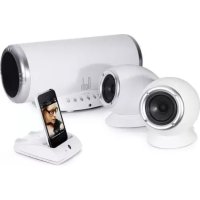
In the Box
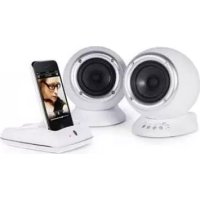
RothDock for iPod
CHARLiE stereo speakers - sonically matched to give you the best sound
Remote control
Cables: Speaker, USB, power
Thank you…
For taking the Roth Audio CHARLiE home
We have designed CHARLiE to look beautiful and, with today's advanced technologies, to sound as good as he looks. We're pleased - actually we're delighted - with the results and we hope you will be too.
CHARLIIE is no ordinary little fella, and we're sure he'll deliver for you every bit as well as he has for us since we created him. He can party hard, or he can play soft and gentle when you want him to - just let him know, and he'll fit right in with your moods. He'll be happy when you're happy, but he's happiest when he's playing great music - that's what he does best.
Turn him on.
Safety Instructions
CHARLiE is really easy to use, but please, before you start him up, read the safety and operating instructions
Please DO...
- Keep these instructions in a safe place for future reference – can we politely recommend that overflowing drawer where you keep all your other manuals?
- Make sure that CHARLiE's new home has adequate ventilation. So don't leave him on beds, sofas, rugs, enclosed bookcases / cabinets and any other area which might restrict his breathing and cause him to overheat - a hot and bothered CHARLiE is a sorry sight.
- Be sure to put CHARLiE on a clean, dry and flat surface before operation. Nice wooden table = good. Damp sandpit = bad.
- Please ensure CHARLiE is connected to the correct power supply as indicated, and please unplug him if you're not using him for a while - this saves not only CHARLiE's insides, but also the world outside. Always ensure power cables are placed safely and are not obstructing a walkway.
-
You really should get your CHARLiE serviced by an authorised service engineer if:
-
The power supply or cord is damaged
- It drops or is struck by a falling object
- It's exposed to rain or moisture
- It's not operating normally or shows a sudden change in performance
Please DON'T...
- Put CHARLiE near water - he can't swim, and he hates damp. So avoid placing little CHARLiE near bathtubs, sinks, washing machines, swimming pool, sauna etc - he's usually polite, but he won't thank you for it.
- Expose him to direct sunlight or to extremes of temperature or humidity – best not leave CHARLiE under a tanning lamp, then.
- Place CHARLiE near direct heat sources such as radiators, stoves, gas fires, naked flames or candles
- Drop CHARLiE - he may break and he will definitely get a fright - or apply excessive force to the controls, or place heavy objects on top of him.
- Allow excessive levels of dust to gather on CHARLiE. To clean him, use a soft dry cloth. If necessary, use a damp cloth without any solvents - CHARLiE is no fan of solvents.
- Try to remove CHARLIE's back cover – there are no user serviceable parts anyway, and you don't want an electric shock, so get out of there now!
NOTE: Any unauthorized changes or modifications to CHARlie render the manufacturer's warranty null and void.

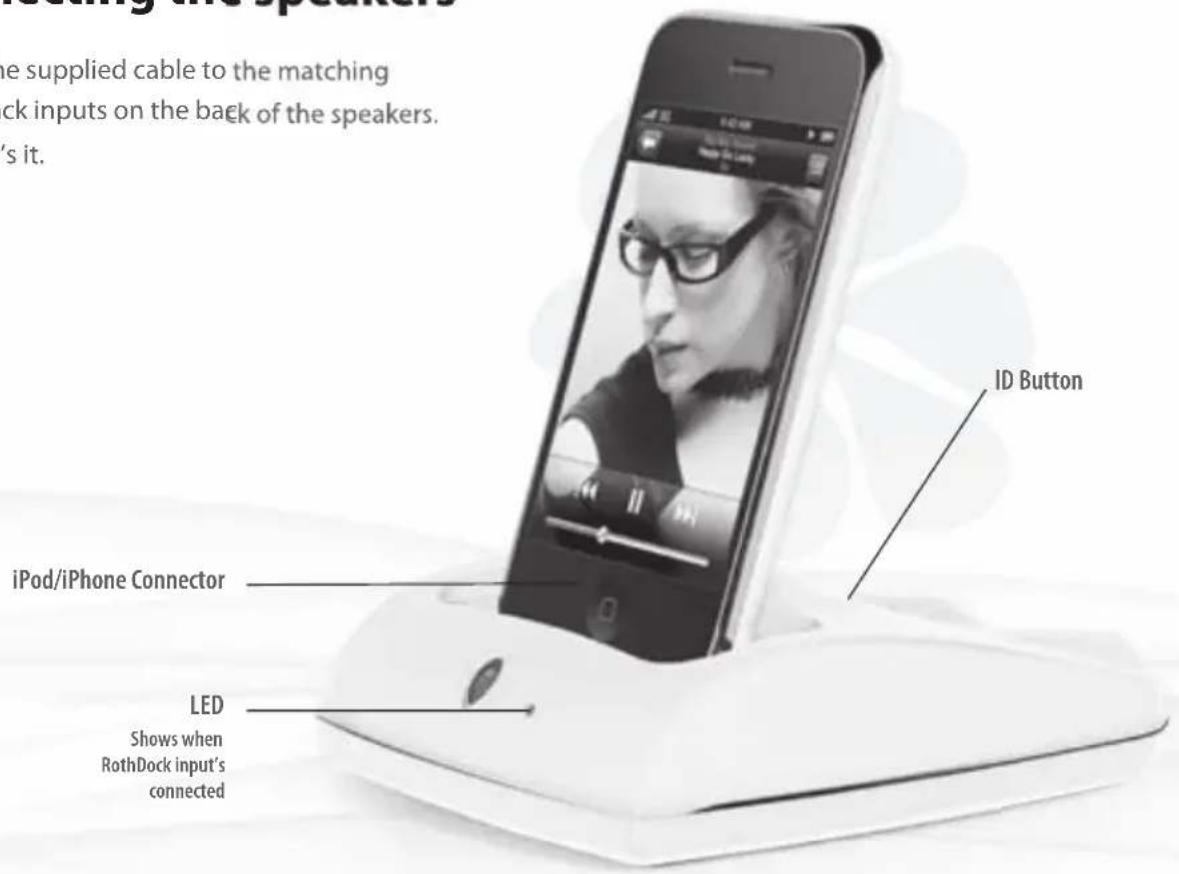
Connecting the RothDock
- Press the ID button on the top surface of RothDock for 5 seconds until the led flashes on and off.
- Then press the ID button on the back of the speaker until the led flashes.
- When both units are paired, the lights will remain on, and you should hear a steady tone through your speakers. The process should only take a few seconds.
Connecting other devices
You can correct other devices by using the auxiliary input on the back of the dock and also directly into the speaker by using the auxiliary input or USB inputs.
Music player (MP3, MP4 or mobile phone)
CD Player
Computer
Connecting the speakers
Plug in the supplied cable to the matching 3.5mm jack inputs on the back of the speakers. Erm, that's it.
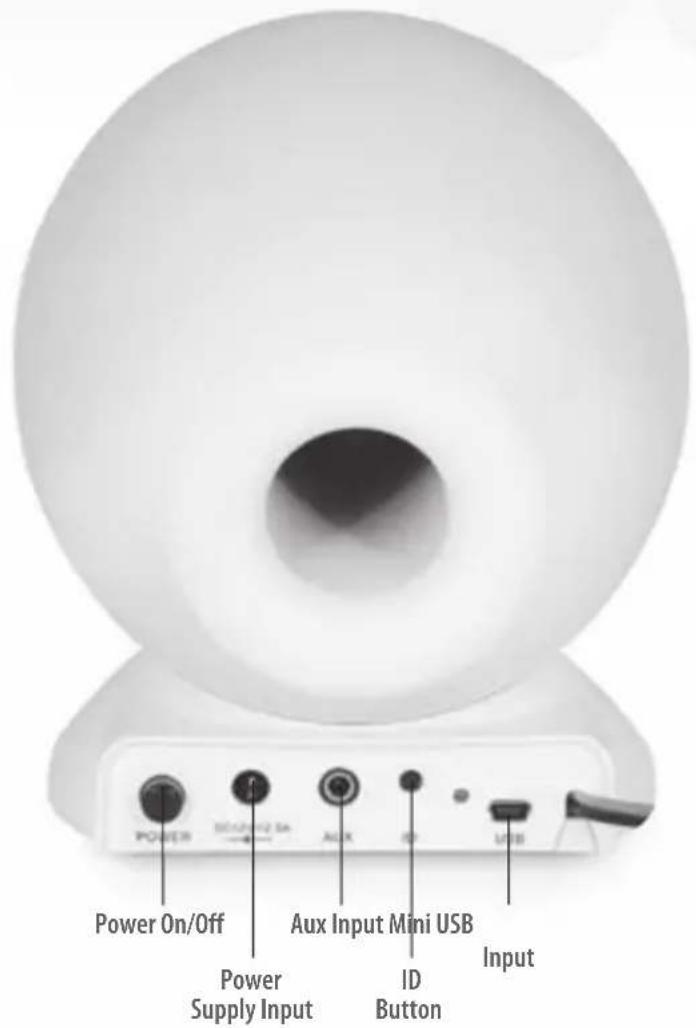
The Back
Power Button Press to ON for power - the indicator will light up while the power is ON. Later on, try pressing it OFF to give it a rest.
Power Input With mains cable supplied, nice!
Aux input 3.5mm for connecting MP3 player, CD player, computer, whatever.
ID Button For setting up the wireless link to CHARLiE's RothDock.
USB Input For connecting to your computer for direct digital streaming.
Speaker Cable For connecting to the other speaker.
NOTE: Before you switch ON, set the volume control to the lowest setting to avoid damage to the speakers. Just in case you don't, the speaker-protection circuit will mute the volume for a few seconds after the power is switched ON.
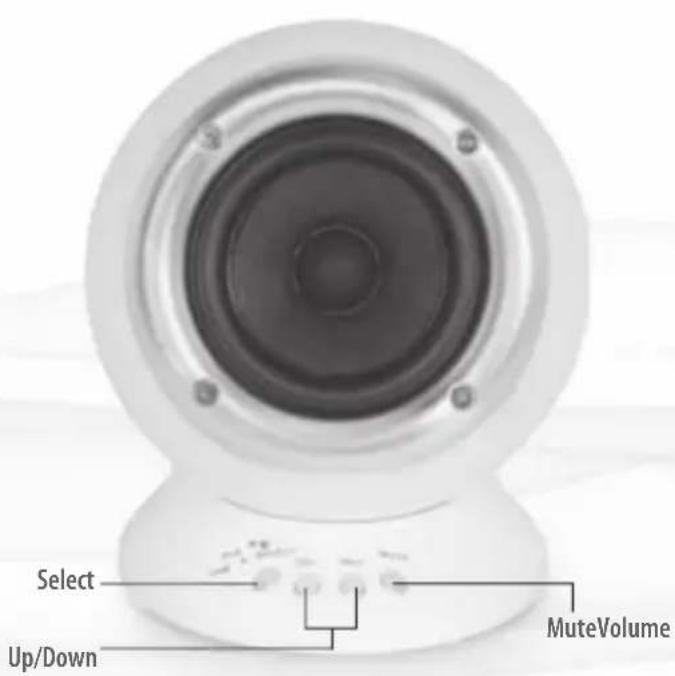
The Front
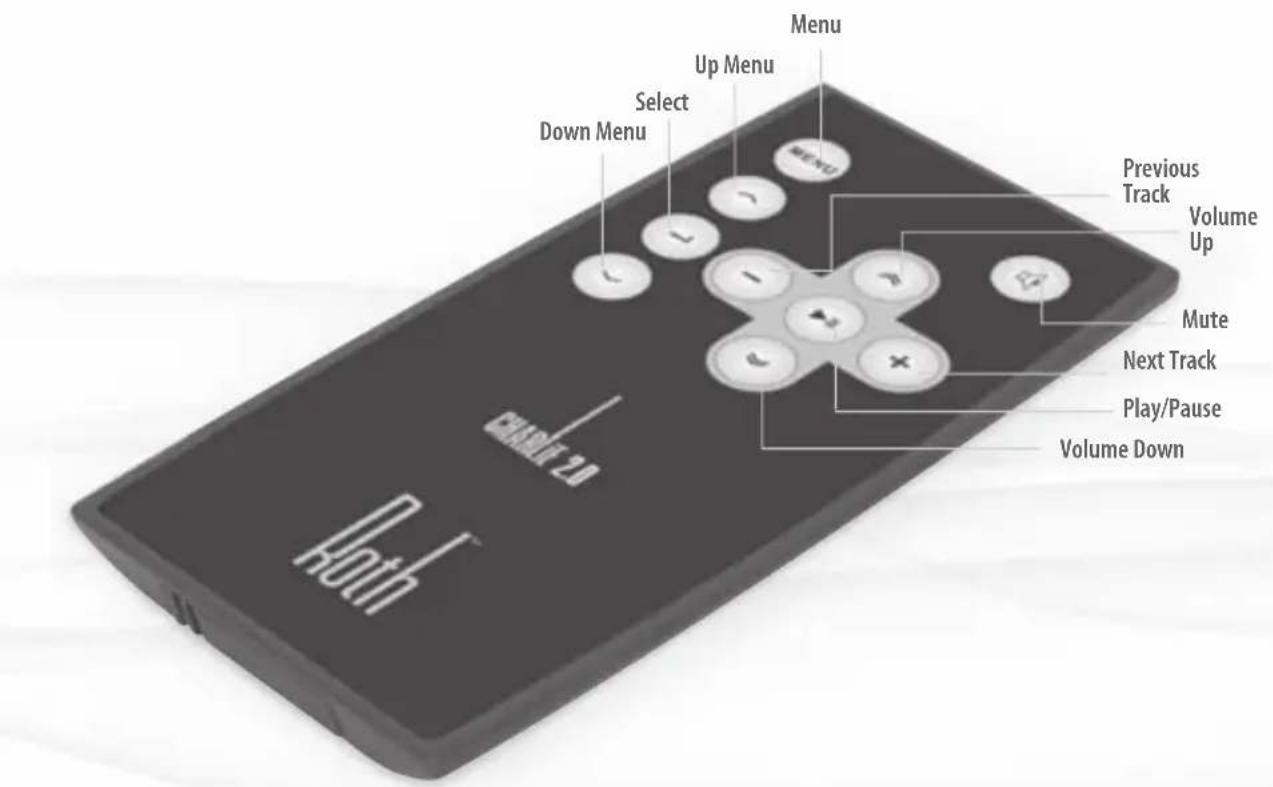
Select For switching between different sound sources - RothDock, Aux, USB Inputs.
Volume Up Full control - you can turn it up... 'ray!
Volume Down Or you can turn it down... boo!
Mute You can cut the music quickly if you need to, y'know, for phone calls 'n'suff!
The Remote Control
- Speaker control
Volume Press ^ 日 + ^ 日 to bring the noise
Press " - " to take it down
- iPod control
Some iPod functions can be controlled using the CHARLiE's remote.
Play/pause song Press play/pause
Turn off iPod Press and hold Play
Skip to next song Press 'Next/fast forward'
Start a song again Press 'Previous/rewind' once
Play previous song Press 'Previous/rewind' twice
Fast forward song Press and hold 'Next/fast forward'
Rewind a song Press and hold 'Previous/rewind'
Dr Feelgood
Your CHARLiE should give you years of trouble-free audio fitness, but if it isn't performing as it should, it could be due to one of these simple problems. If you're still having trouble, please contact your authorised dealer or service centre.
| Won't turn on when the POWER switch is pressed | Power adaptor isn't connected properly Mains supply is off Make sure the power cable is firmly plugged in is switched on Test the mans with another appliance or different socket | |
| No sound The volume is turned down | Wireless connection not working properly Speaker cable not connected correctly Input selector set to wrong source | Press the volume up button to bring the noise Check that ID light is on. If not, repeat wireless connection process Check that the speaker cable is connected correctly Check the input selector is set to the source you want - iPod dock or Aux |
| No sound from left or right speaker | One or both speakers are not properly connected | Check speaker cable and ensure it's connected securely to both speakers |
| The acoustic image is unstable (sounds unnatural or weirdly bass light) | The positive and negative polarities of the unit anRemove the speaker cables and re-connect them correctly (red to red, white to white) | |
| RothDock and speakers won't pair | Interference from nearby wireless systems RothDock too far from the speaker with wireless netection | Press both ID buttons in sequence again (the wireless sys-tun-has 12 different channels to work through and you may need to try a few to find the ideal one for your location) Set both devices side by side while you establish the connection, then move them to their desired positions (absolute max 15m) |
| iPod/iPhone volume doesn't affect audio volume | iPod volume control only controls volume to the hasd your CHARliE's volume control when your iPod/iPho phone jack | Is duly your CHARliE's volume control when your iPod/iPho is docked |
| Crackling sound from speakers | Bad connection A problem with your audio source | Check docking station connection (or the 3.5mm cable con nction if using). Make sure it's using 'line out' 'audio out' 'headphone out' from your source, NOT 'speaker out' Test the 3.5mm cable with another audio source eg CD player, MP3 player |
| Sound is distorted Volume level | on iTube is too high | Turn it down a bit (well, if it makes it sound better...) |
| Sound source is distorted | Sound source is distorted | WAV and MIDI files are often poor quality and distortion sounds worse through a quality system - try a different audio source eg CD |
| Radio interference | You may be too close to a radio tower | Try moving the speakers to different positions |
| Remote control doesn't work | Low battery Remote's not in range or pointing the wrong way | Replace battery Point the remote at the dock from no more than 20ft distance |
Specification
CHARLiE 2.0 Desktop Speaker System
Max Output Power: 15Wx2
Frequency Response: 50hz-16khz(±2db)
Distortion: ≤1%
Signal To Noise Ratio: ≥80db
Input Impedance: 10KΩ
Output Impedance 8Ω
Transmitter Distance: 10m
Size (WxHxD) 120mm x 140mm x 130mm
Weight: Single Speaker 0.8kg
Inputs 3.5 Aux x 1, USB x 1
Roth
www.rothaudio.co.uk
Sommaire
Selection For switching between different sound sources - RothDock, Aux, USB Inputs.
CHARLIE 2.0 Desktop Speaker System
Dimensions (L x H x P)
120mm x 140mm x 130mm
Email: info@rothaudio.co.uk www.rothaudio.co.uk
Compatible with:
iPhone (2G, 3G, 3GS), iPod Nano (3rd, 4th,
5th Gen), iPod Touch, iPod Classic
Inhalt
CHARLI E 2.0 Desktop Speaker System
Email: info@rothaudio.co.uk www.rothaudio.co.uk
Compatible with:
iPhone (2G, 3G, 3GS), iPod Nano (3rd, 4th)
5th Gen), iPod Touch, iPod Classic
Indices
Selezione For switching between different sound sources - RothDock, Aux, USB Inputs.
Aumento Volume
CHARlie 2.0 Desktop Speaker System
Rispostain frequency:50hz-16khz(±2db)
Distorsione: ≤1%
120mm x 140mm x 130mm
Email: info@rothaudio.co.uk www.rothaudio.co.uk
Compatible with:
iPhone (2G, 3G, 3GS), iPod Nano (3rd, 4th)
5th Gen), iPod Touch, iPod Classic
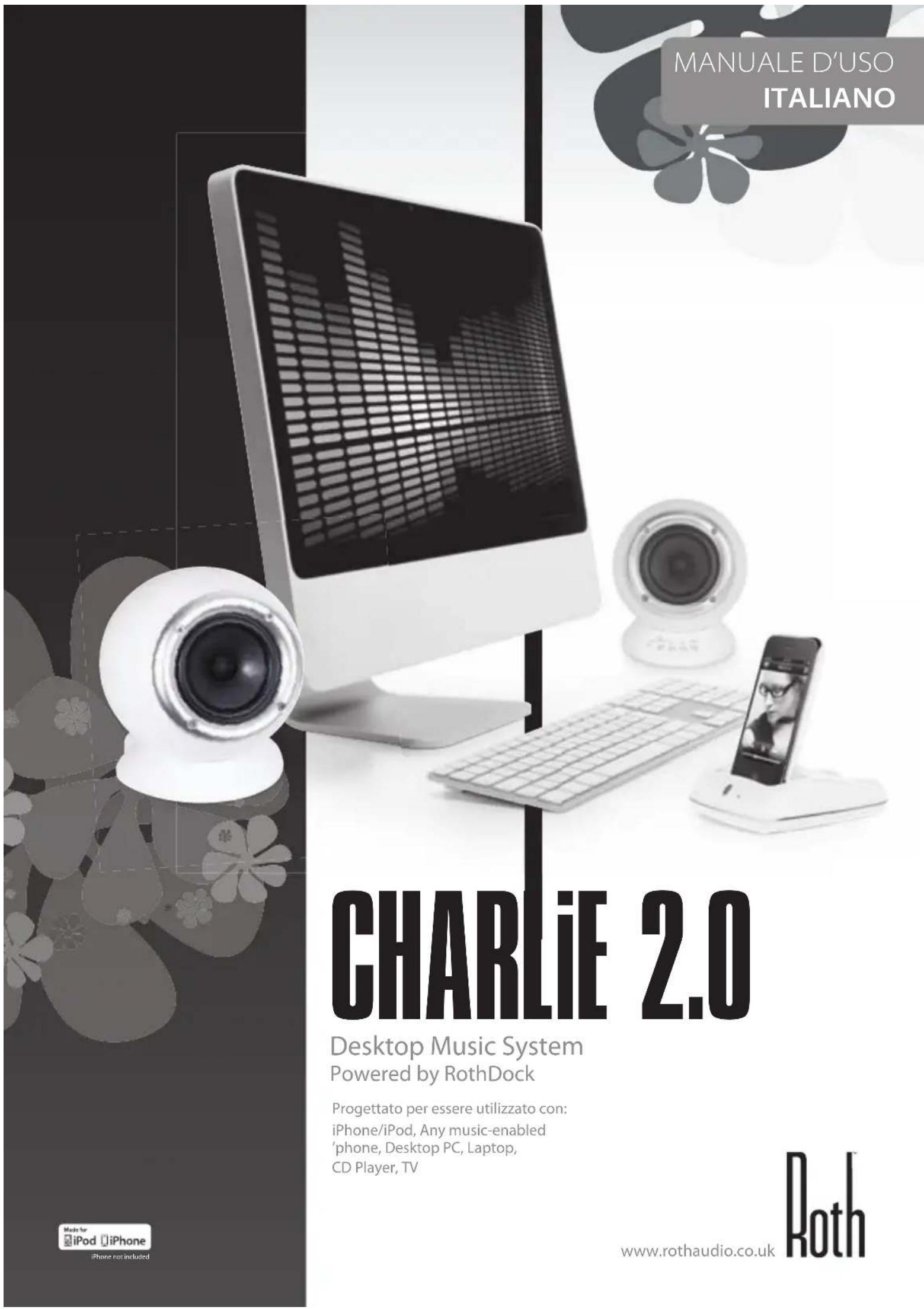
CHARlie 2.0
Desktop Music System
Powered by RothDock
Designet for a brukes med:
iPhone/iPod, Any music-enabled
'phone, Desktop PC, Laptop, CD
Player, TV
Innhold
CHARLIE 2.0 Desktop Speaker System
Email: info@rothaudio.co.uk www.rothaudio.co.uk
Compatible with:
iPhone (2G, 3G, 3GS), iPod Nano (3rd, 4th)
5th Gen), iPod Touch, iPod Classic
MANUAL DEL USUARIO ESPÁÑOL
CHARlie 2.0
Desktop Music System
Powered by RothDock
iPhone/iPod, Any music-enabled
'phone, Desktop PC, Laptop, CD
Player, TV
Indices
CHARlie 2.0 Desktop Speaker System
120mm x 140mm x 130mm
Peso: Altavoz individual: 0.8kg
Entradas 3.5 Aux x 1, USB x 1
Roth
www.rothaudio.co.uk
Servizio
Sirvanse contactar con su
distribuidor o commercial
Autorizzato local.
Email: info@rothaudio.co.uk
www.rothaudio.co.uk
Compatible with:
iPhone (2G, 3G, 3GS), iPod Nano (3rd, 4th,
5th Gen), iPod Touch, iPod Classic