ManualGo.com
AVHX5500BHS - Car stereo PIONEER - Free user manual and instructions
Find the device manual for free AVHX5500BHS PIONEER in PDF.
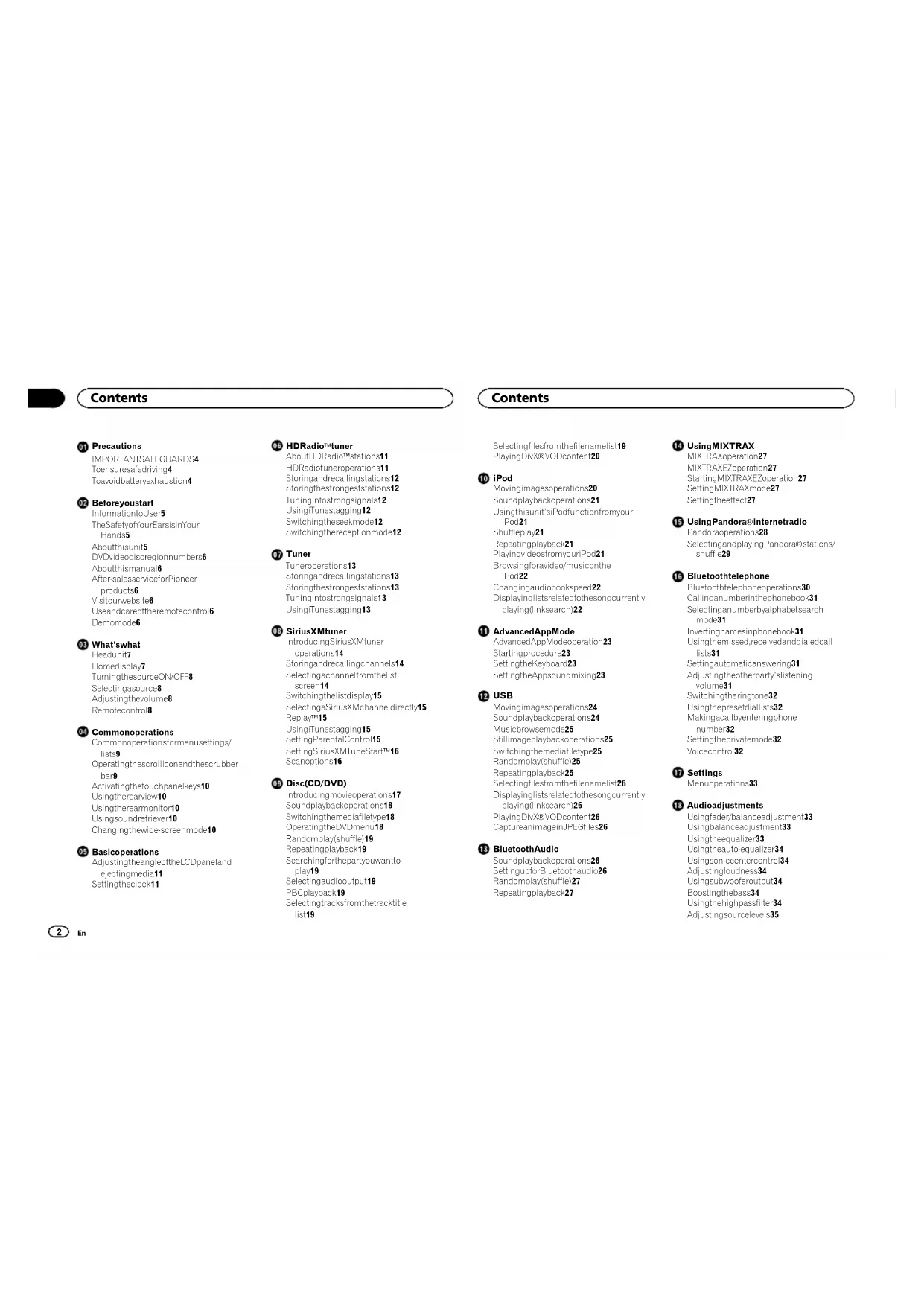


Download the instructions for your Car stereo in PDF format for free! Find your manual AVHX5500BHS - PIONEER and take your electronic device back in hand. On this page are published all the documents necessary for the use of your device. AVHX5500BHS by PIONEER.
USER MANUAL AVHX5500BHS PIONEER
IMPORTANT SAFEGUARDS 4
To ensure safe driving 4
To avoid battery exhaustion 4
Information to User 5
The Safety of Your Ears is in Your
After-sales service for Pioneer
Use and care of the remote control 6
Turning the source ON/OFF 8
Selecting a source 8
Adjusting the volume 8
Common operations for menu settings/
Operating the scroll icon and the scrubber
Activating the touch panel keys 10
Using the rear view 10
Using the rear monitor 10
Using sound retriever 10
Changing the wide-screen mode 10
Adjusting the angle of the LCD panel and
Setting the clock 11
About HD Radioä stations 11
HD Radio tuner operations 11
Storing and recalling stations 12
Storing the strongest stations 12
Tuning in to strong signals 12
Using iTunes tagging 12
Switching the seek mode 12
Switching the reception mode 12
Storing and recalling stations 13
Storing the strongest stations 13
Tuning in to strong signals 13
Using iTunes tagging 13
Storing and recalling channels 14
Selecting a channel from the list
Switching the list display 15
Selecting a SiriusXM channel directly 15
Introducing movie operations 17
Sound playback operations 18
Switching the media file type 18
Operating the DVD menu 18
Random play (shuffle) 19
Repeating playback 19
Searching for the part you want to
Selecting audio output 19
Selecting tracks from the track title
Selecting files from the file name list 19
Playing DivXâ VOD content 20
Moving images operations 20
Sound playback operations 21
Using this unit’s iPod function from your
Repeating playback 21
Playing videos from your iPod 21
Browsing for a video/music on the
Changing audiobook speed 22
Displaying lists related to the song currently
playing (link search) 22
Advanced App Mode operation 23
Starting procedure 23
Setting the Keyboard 23
Setting the App sound mixing 23
USB Moving images operations 24
Sound playback operations 24
Music browse mode 25
Still image playback operations 25
Switching the media file type 25
Random play (shuffle) 25
Repeating playback 25
Selecting files from the file name list 26
Displaying lists related to the song currently
playing (link search) 26
Playing DivXâ VOD content 26
Capture an image in JPEG files 26
Sound playback operations 26
Setting up for Bluetooth audio 26
Random play (shuffle) 27
Repeating playback 27
Using MIXTRAX MIXTRAX operation 27
Setting the effect 27
Using Pandoraâ internet radio
Pandora operations 28
Selecting and playing Pandoraâ stations/
Bluetooth telephone operations 30
Calling a number in the phone book 31
Selecting a number by alphabet search
Inverting names in phone book 31
Using the missed, received and dialed call
Setting automatic answering 31
Adjusting the other party’s listening
Switching the ring tone 32
Making a call by entering phone
Setting the private mode 32
Using fader/balance adjustment 33
Using balance adjustment 33
Using the equalizer 33
Using the auto-equalizer 34
Adjusting loudness 34
Using subwoofer output 34
Boosting the bass 34
Using the high pass filter 34
Adjusting source levels 35
<CRD4703-B/N>2Setting up the video player
Setting the aspect ratio 36
Automatic playback of DVDs 37
Switching the auxiliary setting 38
Setting the RGB Input 38
Setting the App sound mixing 38
Setting MIXTRAX mode 38
Changing the picture adjustment 38
Selecting the system language 38
Setting SiriusXM Tune Startä 38
Setting Demo Mode 38
Setting the rear output and subwoofer
Using the keyboard 39
Setting the ever scroll 39
Setting the Bluetooth audio 39
Updating Bluetooth connection
Displaying the Bluetooth system
Setting the rear view camera (back up
Auto EQ (auto-equalizing) 40
Setting the video signal 41
Selecting the illumination color 43
Selecting the OSD (on-screen display)
Selecting the background display 43
Adjusting the response positions of the
touch panels (Touch Panel
Connecting the power cord 46
When connecting to separately sold power
When connecting the external video
component and the display 47
When connecting with a rear view
Optional SiriusXM Tuner connection 48
Installation using the screw holes on the
Installing the microphone 50
Additional information
Compressed audio compatibility
Sequence of audio files 61
Using the display correctly 61
Bluetooth profiles 61
License, Warranty Disclaimer & Limitation of
<CRD4703-B/N>3Thank you for purchasing this PIONEER
To ensure proper use, please read through this
manual before using this product. It is especially
important that you read and observe WARN-
INGs and CAUTIONs in this manual. Please
keep the manual in a safe and accessible place for
IMPORTANT SAFEGUARDS Please read all of these instructions regarding
your display and retain them for future refer-
1 Do not install the display where it may
(i) obstruct the driver’s vision, (ii) impair
the performance of any of the vehicle’s
operating systems or safety features, in-
cluding air bags, hazard lamp buttons or
(iii) impair the driver’s ability to safely
operate the vehicle.
2 Do not operate this display if doing so in
any way will divert your attention from
the safe operation of your vehicle. Al-
ways observe safe driving rules and fol-
low all existing traffic regulations. If you
experience difficulty in operating the
system or reading the display, park your
vehicle in a safe location and make nec-
3 Please remember to wear your seat belt
at all times while operating your vehicle.
If you are ever in an accident, your inju-
ries can be considerably more severe if
your seat belt is not properly buckled.
4 Never use headphones while driving.
5 To promote safety, certain functions are
disabled unless the parking brake is on,
and the vehicle is not in motion.
6 Never set the volume of your display so
high that you cannot hear outside traffic
and emergency vehicles.
WARNING Do not attempt to install or service your dis-
play by yourself. Installation or servicing of
the display by persons without training and
experience in electronic equipment and au-
tomotive accessories may be dangerous
and could expose you to the risk of electric
shock or other hazards.
To ensure safe driving
NECTION OR USE OF THIS LEAD MAY VIOLATE APPLICABLE LAW AND MAY RE-
SULT IN SERIOUS INJURY OR DAMAGE.
! To avoid the risk of damage and injury and the
potential violation of applicable laws, this unit is
not for use with a video screen that is visible to
! To avoid the risk of accident and the potential vio-
lation of applicable laws, no viewing of front seat
video should ever occur while the vehicle is
! In some countries or states the viewing of images
on a display inside a vehicle even by persons
other than the driver may be illegal. Where such
regulations apply, they must be obeyed and this
unit’s video features should not be used.
When you attempt to watch a video image while
driving, the warning “Viewing of front seat
video source while driving is strictly prohib-
ited.” will appear on the front display.
To watch a video image on the front display, park
your vehicle in a safe place and apply the park-
Parking brake interlock
Certain functions (Video viewing and certain
touch panel keys) offered by this unit could be
dangerous and/or unlawful if used while driving.
To prevent such functions from being used while
the vehicle is in motion, there is an interlock sys-
tem that senses when the parking brake is set. If
you attempt to use the functions described
above while driving, they will become disabled
until you stop the vehicle in a safe place, and (1)
apply the parking brake, (2) release the parking
brake, and then (3) apply the parking brake
again. Please keep the brake pedal pushed
down before releasing the parking brake.
When using a display connected
to rear monitor output
The rear monitor output on this unit (V OUT)is
used to connect a rear display that allows pas-
sengers in the rear seats to watch videos.
WARNING NEVER install the rear display in a location
where the driver can watch videos while driving.
When using the rear view camera
With an optional rear view camera, this unit can
be used as an aid to keep an eye on trailers, or
when backing into a tight parking spot.
! The rear view camera function is to be used
as an aid to keep an eye on trailers, or while
backing up. Do not use for entertainment
! Please note that the edges of the rear view
camera images may differ slightly according
to whether full screen images are displayed
when backing up, and whether the images
are used for checking the rear when the ve-
hicle is moving forward.
To avoid battery exhaustion
Keep the vehicle engine running when using
this unit to avoid draining the battery power.
! When no power is supplied to this unit, such
as when the vehicle battery is being re-
placed, the microcomputer of this unit re-
turns to its initial condition. We recommend
that you transcribe the audio adjustment
WARNING Do not use with vehicles that do not feature an
4 Section Precautions
AVH-X3500BHS, AVH-X2500BT IC: 775E-K058
This device complies with Part 15 of FCC Rules and Industry Canada licence-exempt
RSS standard(s). Operation is subject to the
following two conditions: (1) this device may
not cause interference, and (2) this device
must accept any interference, including inter-
ference that may cause undesired operation
This transmitter must not be co-located or op-
erated in conjunction with any other antenna
The antenna for Bluetooth cannot be removed
(or replaced) by user.
This equipment complies with FCC/IC radia-
tion exposure limits set forth for an uncon-
trolled environment and meets the FCC radio
frequency (RF) Exposure Guidelines in Sup-
plement C to OET65 and RSS-102 of the IC
radio frequency (RF) Exposure rules. This
equipment has very low levels of RF energy
that it deemed to comply without maximum
permissive exposure evaluation (MPE). But it
is desirable that it should be installed and op-
erated keeping the radiator at least 20 cm or
more away from person’s body (excluding ex-
tremities: hands, wrists, feet and ankles).
MODEL NO.: AVH-X1500DVD This device complies with Part 15 of the FCC Rules. Operation is subject to the following
(1) this device may not cause harmful interfer-
ence, and (2) this device must accept any in-
terference received, including interference
that may cause undesired operation.
Alteration or modifications carried out with-
out appropriate authorization may invalidate
the user’s right to operate the equipment.
This equipment has been tested and found
to comply with the limits for a Class B digital
device, pursuant to Part 15 of the FCC Rules.
These limits are designed to provide reason-
able protection against harmful interference
in a residential installation. This equipment
generates, uses and can radiate radio fre-
quency energy and, if not installed and used
in accordance with the instructions, may
cause harmful interference to radio commu-
nications. However, there is no guarantee
that interference will not occur in a particu-
lar installation. If this equipment does cause
harmful interference to radio or television re-
ception, which can be determined by turning
the equipment off and on, the user is encour-
aged to try to correct the interference by one
or more of the following measures:
- Reorient or relocate the receiving antenna.
- Increase the separation between the equip-
- Connect the equipment into an outlet on a
circuit different from that to which the re-
ceiver is connected.
- Consult the dealer or an experienced radio/
TV technician for help.
The Safety of Your Ears is in
Get the most out of your equipment by playing it
at a safe level—a level that lets the sound come
through clearly without annoying blaring or dis-
tortion and, most importantly, without affecting
your sensitive hearing. Sound can be deceiving.
Over time, your hearing “comfort level” adapts to
higher volumes of sound, so what sounds “nor-
mal” can actually be loud and harmful to your
hearing. Guard against this by setting your
equipment at a safe level BEFORE your hearing
ESTABLISH A SAFE LEVEL:
! Set your volume control at a low setting.
! Slowly increase the sound until you can hear
it comfortably and clearly, without distortion.
! Once you have established a comfortable
sound level, set the dial and leave it there.
BE SURE TO OBSERVE THE FOLLOWING GUIDELINES:
! Do not turn up the volume so high that you
can’t hear what’s around you.
! Use caution or temporarily discontinue use
in potentially hazardous situations.
! Do not use headphones while operating a
motorized vehicle; the use of headphones
may create a traffic hazard and is illegal in
The tuner frequencies on this unit are allocated
for use in North America. Use in other areas
may result in poor reception.
WARNING Handling the cord on this product or cords asso-
ciated with accessories sold with the product
may expose you to chemicals listed on proposi-
tion 65 known to the State of California and
other governmental entities to cause cancer and
birth defect or other reproductive harm. Wash
hands after handling.
! Do not allow this unit to come into contact
with liquids. Electrical shock could result.
Also, damage to this unit, smoke, and over-
heating could result from contact with
! Keep this manual handy for future reference.
! Always keep the volume low enough to hear
! Avoid exposure to moisture.
! If the battery is disconnected or discharged,
any preset memory will be erased.
Important (Serial number)
The serial number is located on the bottom of
this unit. For your own security and conven-
ience, be sure to record this number on the en-
closed warranty card.
5 Section Before you start
<CRD4703-B/N>5DVD video disc region numbers
Only DVD video discs with compatible region
numbers can be played on this player. You can
find the region number of the player on the bot-
tom of this unit and in this manual (refer to
Specifications on page 65).
! This unit features a number of sophisticated
functions to ensure superior reception and
operation. All the functions have been de-
signed for the easiest possible use, but many
are not self-explanatory. This operation man-
ual will help you benefit fully from this unit’s
potential and to maximize your listening en-
! This manual uses diagrams of actual screens
to describe operations. However, the screens
on some units may not match those shown
in this manual depending on the model
! In the following instructions, USB memory
sticks and USB audio players are collectively
referred to as “USB storage device”.
! In this manual, iPod and iPhone will be re-
ferred to as “iPod”.
After-sales service for
Please contact the dealer or distributor from
where you purchased this unit for after-sales
service (including warranty conditions) or any
other information. In case the necessary infor-
mation is not available, please contact the com-
panies listed below:
Please do not ship your unit to the companies at
the addresses listed below for repair without ad-
Pioneer Electronics (USA) Inc.
Long Beach, CA 90801-1760
CANADA Pioneer Electronics of Canada, Inc.
CUSTOMER SATISFACTION DEPARTMENT
Markham, Ontario L3R 2Z5, Canada
For warranty information please see the Limited
Warranty sheet included with this unit.
Visit us at the following site:
http://www.pioneerelectronics.com
http://www.pioneerelectronics.ca
1 Register your product. We will keep the de-
tails of your purchase on file to help you refer
to this information in the event of an insur-
ance claim such as loss or theft.
2 Receive updates on the latest products and
3 Download owner’s manuals, order product
catalogues, research new products, and
4 Your feedback is important in our continual
effort to design and build the most advanced,
consumer-focused product in the industry.
Use and care of the remote
Installing the battery
Slide the tray on the back of the remote control
out and insert the battery with the plus (+) and
minus (–) poles aligned properly.
! When using for the first time, pull out the
film protruding from the tray.
! Keep the battery out of the reach of children.
Should the battery be swallowed, consult a
! Batteries (battery pack or batteries installed)
must not be exposed to excessive heat such
as sunshine, fire or the like.
! Use one CR2025 (3 V) lithium battery.
! Remove the battery if the remote control is
not used for a month or longer.
! There is a danger of explosion if the battery is
incorrectly replaced. Replace only with the
same or equivalent type.
! Do not handle the battery with metallic tools.
! Do not store the battery with metallic ob-
! If the battery leaks, wipe the remote control
completely clean and install a new battery.
! When disposing of used batteries, comply
with governmental regulations or environ-
mental public institutions’ rules that apply in
! “Perchlorate Material – special handling may
perchlorate. (Applicable to California,
Using the remote control
Point the remote control in the direction of the
front panel to operate.
! The remote control may not function properly
! Do not store the remote control in high tem-
peratures or direct sunlight.
! Do not let the remote control fall onto the
floor, where it may become jammed under
the brake or accelerator pedal.
The feature demo automatically starts when you
select Off for the source and continues while
the ignition switch is set to ACC or ON. To can-
cel the feature demo, press and hold MUTE.
Press and hold MUTE again to restart. Operat-
ing the feature demo while the car engine is
turned off it may drain the battery power.
The red lead (ACC) of this unit should be con-
nected to the ignition on/off function. Failure to
do so may result in battery drain.
6 Section Before you start
1 RESET For details refer to Resetting the microproces-
4 MUTE Press to mute. Press again to unmute.
Displaying the home display.
The display returns to the Launcher screen
while a 3rd-party application is being used in
Double-clicking the icon on the Launcher
screen returns the display to the home dis-
6 MODE Turning the information display off.
Use to connect an auto EQ microphone.
CAUTION Do not use unauthorized products.
! When the navigation system is connected,
press MODE to switch to the navigation dis-
play. Press MODE and hold to turn the dis-
Press MODE again to turn the display on.
! For details on how to operate a navigation
system from this unit, refer to its operation
! When an iPhone that is running an applica-
tion that supports Advanced App Mode is
connected, press MODE to switch to the ap-
plication display. You can use the application
by touching the display.
! For details on how to connect an iPod or
USB storage device to this unit, refer to
When connecting with optional CD-IU201V
JAN AM DB Dolby PLII
Selecting a favorite source.
When the source icon is not displayed, it can
be displayed by pressing the home key or
Switching to Advanced App Mode.
Displaying the rear view image.
For details refer to Using the rear view on
Turning the source off.
Switching to clock adjustment display.
(Function of AVH-X5500BHS/AVH-X4500BT)
1 Press SRC/OFF to turn the source on.
Turning the source off using the buttons
1 Press SRC/OFF and hold until the source turns
Available source modes
! Disc – Built-in DVD and CD player
! Using the touch panel keys on the home dis-
1 Touch the source icon and then touch the
desired source name.
! When the source icon is not displayed, it
can be displayed by touching the screen.
! While operating the menu, you cannot se-
lect a source by touching the source icon.
The USB/iPod icon will change as follows:
! USB is displayed when a USB storage device is
connected to USB input.
! iPod is displayed when an iPod is connected to
! USB/iPod is displayed when no device is con-
Adjusting the volume
2 MODE Turning the information display off.
3 SRC/OFF Refer to Source off key on the previous
menu during PBC playback.
Press to pause or resume playback.
Press to perform fast reverse.
Press to change the fast reverse speed.
<CRD4703-B/N>8n Press to perform fast forward.Press to change the fast forward speed. o Press to return to the previous track (chap-ter). p Press to go to the next track (chapter). g Press to stop playback.If you resume playback, playback will startfrom the point where you stopped. Touch thekey again to stop playback completely.7 FOLDER/P.CHPress to select the next or previous disc orfolder.Press to recall radio station frequencies as-signed to preset tuning keys.8 MUTEPress to mute. Press again to unmute.9 MENUPress to display the DVD menu during DVDplayback.TOP MENUPress to return to the top menu during DVDplayback.a AUDIOPress to change the audio language duringDVD playback.Press to switch audio output for DivX/MPEG-4.SUBTITLEPress to change the subtitle language duringDVD/DivX/MPEG-4 playback.ANGLEPress to change the viewing angle duringDVD playback.b BAND/ESCPress to select the tuner band when tuner isselected as a source. Also used to cancel thecontrol mode of functions.Press to switch between modes when play-ing the following types of data:! DiscCompressed audio and audio data (CD-DA) such as with CD-EXTRA and MIXED-MODE CDs! USB storage deviceAudio data, video data, and photo data Common operations for
2 1 Scroll iconAppears when selectable items are hidden.2 Scrubber barAppears when items cannot be displayed ona single page only.Viewing the hidden items1 Touch the scroll icon or drag the scrubber barto view any hidden items.! Also, you can drag the list to view any hiddenitems.Specifying the playback point1 Drag the scrubber bar on the screen.(Not available when the scrubber bar is grayedout.)English What’s what
Switching the touch keys on the display.
The below functions are available. Use of the
rear view camera feature requires a rear view
camera sold separately.
This unit can be setup to display the rear
view image automatically when you move
the shift lever to the REVERSE (R) position.
! Camera for rear view mode
The rear view can be turned on to display at
The rear view camera needs to be set to a set-
ting other than Off to turn on rear view
For details about the settings, refer to Setting the
rear view camera (back up camera) on page 40.
Using the rear view key to
display the rear view
Displaying the rear view image by
turning the rear view image on.
When the rear view image is dis-
played, you can switch to the
source display by touching the dis-
play. You can operate from the
source display temporarily at this
time. If you do not perform any op-
erations within a few seconds, the
display will return to the rear view
To turn off the rear view image,
press the home button to return to
the home display and then press
Using the rear monitor
Connecting a rear monitor, sold separately, to
this unit allows images and videos to be viewed
from the rear seats.
! Touch keys and operation screens do not dis-
play on the rear monitor.
! Images and video will continue to be dis-
played whether the vehicle is in motion or
Using sound retriever
pressed audio and restores rich
! is more effective than .
! This function is enabled for playback on the
sources listed below.
! The sound retriever setting is turned Off
when the MIXTRAX function is used in USB
Changing the wide-screen
Selecting the appropriate screen
ratio for the playback video.
1 Display the screen mode.
2 Touch the desired wide mode setting.
The 4:3 picture is enlarged in the horizontal di-
rection only, granting viewers a 4:3 TV picture
(normal picture) without any omissions.
The 4:3 picture is enlarged in the same propor-
tion both vertically and horizontally; ideal for a
cinema sized picture (wide screen picture).
The 4:3 picture is displayed as is, granting view-
ers no sense of disparity as the proportions are
the same as that of the normal picture.
! You cannot operate this function while driv-
! Different settings can be stored for each
! When a video is viewed in a wide screen
mode that does not match its original aspect
ratio, it may appear different.
! Remember that using the wide mode feature
of this system for commercial or public view-
ing purposes may constitute an infringement
on the author’s rights protected by the Copy-
! The video image will appear coarser when
viewed in ZOOM mode.
! This function is enabled for playback on the
sources listed below.
— Disc: DVD-V, Video-CD, DivX, MPEG-1,
LCD panel and ejecting media CAUTIONKeep hands and fingers clear of the unit whenopening, closing, or adjusting the LCD panel. Beespecially cautious of children’s hands and fin-gers. Adjusting the LCD panel angle (Function of AVH-X5500BHS/AVH-X4500BT)1 Press h(eject) to display the ejectingmenu.2 Adjust the LCD panel to an easily view-able angle.Laying the panel down.Returning the panel to the uprightposition.# As the set angle is saved, the LCD panel will au-tomatically be adjusted to the same position the nexttime the LCD panel is opened. Ejecting a disc (Function of AVH-X5500BHS/AVH-X4500BT)1 Press h(eject) to display the ejectingmenu.2 Eject a disc.Ejecting a disc. Ejecting a disc (Function of AVH-X3500BHS/AVH-X2500BT/AVH-X1500DVD)% Press h to eject a disc. Setting the clock 1 Touch the Clock key.The Clock Adjustment screen appears.For details refer to Home display on page 7.2 Select the item to set.3 Touch a or b to set the correct date andtime. About HD Radioä stations (Function of AVH-X5500BHS/AVH-X3500BHS)HD Radioä stations offer high-quality audio anddata services. HD Radio stations are brought toyou by local FM/AM stations.HD Radio stations feature the following:! High quality audio! FM multicasting! Data servicesProgram Service Data: Contributes to the superior userexperience of HD Radio Technology. Presents song name,artist, station IDs, HD2/HD3 Channel Guide, and other rel-evant data streams.Adjacent to traditional main stations are extra local FMchannels. These HD2/HD3 Channels provide new, originalmusic as well as deep cuts into traditional genre.Digital, CD-quality so und. HD Radio Technology enableslocal radio stations to broadcast a clean digital signal.AM sounds like today’s FM and FM sounds like a CD.iTunes â Tagging provides you the opportunity to discovera wide range of content and the means to “tag” that con-tent for later review and purchase from the iTunes â Store.Visual information related to content being played onyour HD Radio receiver, such as Album Art, historical pho-tographs, still art from live broadcasts, among other re-lated content. HD Radioä Technology ! HD Radio Technology manufactured under li-cense from iBiquity Digital Corporation. U.S.and Foreign Patents. HD Radioä and theHD, HD Radio, and “Arc” logos are propriet-ary trademarks of iBiquity Digital Corp. HD Radio tuner operations
2345678 1 Band keySelecting a band (FM or AM) by touching theband key.The touch panel key for the selected band ishighlighted.English Basic operations
<CRD4703-B/N>11Switching between FM1, FM2, and FM3 by
touching the band key.
When AM is selected, you cannot switch to
another AM band by touching the band key.
Saving song information (tag) from the
broadcasting station to your iPod.
3 Reception mode key
Switching to the analog broadcast of the
Switching between Digital broadcasting sta-
Tuning up or down manually.
Touch and hold down for more than two sec-
onds to skip stations. Seek tuning starts as
soon as you release. Touch again to cancel
When an analog station is received, tuning
down operation is conducted within the ana-
log broadcasting. (6 d 2)
If a digital broadcast is not yet received, tun-
ing-up operation tunes in the next analog sta-
tion. (2 d 6) Analog FM 1Digital FM-1ch
Displaying the preset channel list.
Touch panel keys not listed under HD Radio
tuner operations may appear on the display.
Refer to Indicator list on page 57.
Storing and recalling stations
You can easily store up to six stations for each
! Six stations for each band can be stored in
1 Display the preset channel list screen.
Refer to HD Radio tuner operations on the pre-
The preset channel list appears in the display.
2 Touch and hold down one of the preset
tuning keys to store the selected frequency
The selected radio station frequency has been
stored in the memory.
3 Touch the appropriate preset tuning key
to select the desired station.
Storing the strongest stations
BSM (best stations memory) automatically
stores the six strongest stations in the order of
their signal strength.
Storing broadcast frequencies with BSM may re-
place broadcast frequencies you have saved
using the preset tuning keys.
1 Display the preset channel list screen.
Refer to HD Radio tuner operations on the pre-
The preset channel list appears in the display.
2 Touch BSM to turn BSM on.
The six strongest broadcast frequencies will be
stored under preset tuning keys in order of their
# To cancel the storage process, touch Cancel.
Tuning in to strong signals
Local seek tuning allows you to tune in to only
those radio stations with sufficiently strong sig-
nals for good reception.
The more there are on the screen, the fewer
the stations that can be selected. Only stations
with the strongest signals in your local area can
, this unit will be able to re-
ceive broadcasts from weaker stations.
Using iTunes tagging
For more details about iTunes tagging, refer to
About iTunes tagging on page 60.
Storing the tag information to
1 Tune in to the broadcast station.
2 Store the tag information to this unit.
Refer to HD Radio tuner operations on the pre-
You can store the information if the Tag indica-
tor is displayed while the desired song is being
# While storing the tag data on this unit, Tag
# The tag information for up to 50 songs can be
stored on this unit.
# Depending on the timing of when the tag infor-
mation is stored, the tag information for the song
played before or after the currently playing song may
3 When completed, indicator turns
indicator is displayed.
Storing the tagged information
1 Connect your iPod.
When your iPod is connected to this unit, your
iPod starts storing the tagged information auto-
and the tagged information is stored on
Switching the seek mode
There are two seek tuning settings, one is HD
(Digital broadcasting stations seek) and the
other is ALL (normal seek).
ALL—HD Switching the reception mode
If the reception for a digital broadcast becomes
poor, this unit automatically switches to the ana-
log broadcast of the same frequency. If this
function is set to D/A AUTO, the tuner switches
between digital broadcast and analog broadcast
automatically. If this function is set to ANALOG,
the tuner will only receive analog broadcasts.
D/A AUTO—ANALOG HD Radioä tuner
2 WWWWWWWWWWWWWWWWWWWWWWWW1 Band key Selecting a band (FM1, FM2 or FM3)by touching the left icon. Switching to the AMband by touching the right icon.The icon for the selected band is highlighted.2 Tag keySaving song information (tag) from thebroadcasting station to your iPod.3 Local keySetting the local seek level.4 Tuning keyTuning up or down manually.Touch and hold down for more than two sec-onds to skip stations. Seek tuning starts assoon as you release. Touch again to cancelseek tuning.5 List keyDisplaying the preset channel list.6 Preset channel keySelecting a preset channel. Basic operations Switching preset channels using the buttons 1 Press c or d (TRK). Seek tuning using the buttons 1 Press and hold c or d (TRK). Notes! Listening AM radio while an iPod is chargedfrom this unit may generate noise. In thiscase, disconnect the iPod from this unit.! Touch panel keys not listed under Tuner oper-ations may appear on the display.Refer to Indicator list on page 57. Storing and recalling stations You can easily store up to six stations for eachband as presets.1 Display the preset screen.Refer to Tuner operations on this page.The preset screen appears in the display.2 Touch and hold down one of the presettuning keys to store the selected frequencyto the memory.The selected radio station frequency has beenstored in the memory.3 Touch the appropriate preset tuning keyto select the desired station. Storing the strongest stations BSM (best stations memory) automaticallystores the six strongest stations in the order oftheir signal strength.Storing broadcast frequencies with BSM may re-place broadcast frequencies you have savedusing the preset tuning keys.1 Display the preset screen.Refer to Tuner operations on this page.The preset screen appears in the display.2 Touch BSM to turn BSM on.The six strongest broadcast frequencies will bestored under preset tuning keys in order of theirsignal strength. # To cancel the storage process, touch Cancel.
Tuning in to strong signals Local seek tuning allows you to tune in to onlythose radio stations with sufficiently strong sig-nals for good reception.FM: Off —— — —AM: Off — —The more there are on the screen, the fewerthe stations that can be selected. Only stationswith the strongest signals in your local area canbe selected.If there are fewer, this unit will be able to re-ceive broadcasts from weaker stations. Using iTunes tagging
Note For more details about iTunes tagging, refer toAbout iTunes tagging on page 60. Storing the tag information to
this unit 1 Tune in to the broadcast station.2 Store the tag information to this unit.Refer to Tuner operations on this page.You can store the information if the Tag indica-tor is displayed while the desired song is beingbroadcast. # While storing the tag data on this unit, Ta g flashes.# The tag information for up to 50 songs can bestored on this unit.# Depending on the timing of when the tag infor-mation is stored, the tag information for the songplayed before or after the currently playing song mayalso be stored.3 When completed, indicator turnsoff andindicator is displayed. Storing the tagged information
to your iPod 1 Connect your iPod.When your iPod is connected to this unit, youriPod starts storing the tagged information auto-matically.2 When completed,indicator turns offand the tagged information is stored onyour iPod.English Tuner
<CRD4703-B/N>13Introducing SiriusXM tuner
operations (Function of AVH-X5500BHS/AVH-X3500BHS)You can use this unit to control SiriusXM Con-nect Vehicle Tuner, which is sold separately.For more information on how to install SiriusXMConnect Vehicle Tuner, consult the installationguide included with the tuner.Everything worth listening to is on SiriusXM, get-ting over 130 channels, including the most com-mercial‐free music, plus the best sports, news,talk and entertainment. A SiriusXM VehicleTuner and Subscription are required. For moreinformation, visit www.siriusxm.com.
To subscribe to the SiriusXM Satellite Radio service 1 Select SiriusXM as a source.You should be able to tune in to Channel 1. Ifyou cannot get Channel 1, make sure that yourSiriusXM Connect Vehicle Tuner is installed cor-rectly as described in the tuner installationguide.2 Switch to Channel 0 and check the Radio ID. The SiriusXM Radio ID can be found by tuningto Channel 0. In addition, the Radio ID is locatedon the bottom of the SiriusXM Connect VehicleTuner.Please note that the SiriusXM Radio ID does notinclude the letters I, O, S or F.You will need this number to activate your sub-scription.3 Activate the service either online or byphone.! Visit the website, www.siriusxm.com/activate- now ! Call SiriusXM Listener Care at 1-866-635-2349to activate.# The SiriusXM satellites will send an activationmessage to your tuner. When the tuner has receivedthe message, “Subscription Updated” is displayed.Once you have subscribed, SiriusXM will send an ac-tivation message to your tuner.The activation process usually takes 10 to 15 minutesbut may take up to an hour in some cases. Do notturn off the unit while the activation message is dis-played. Touch panel keys
6798bac 1 List keyDisplaying the preset channel list.2 Information keySwitching the SiriusXM information.Category name—Content informationTouch and hold for more than two seconds toscroll the text.3 Band keySelecting a band from SXM1, SXM2 orSXM3.4 iTunes â song tagging keySaving iTunes â song tagging from the broad-casting station to your iPod.5 Search keySelecting a channel from the list screen.6 Parental control keyThe Parental Control screen appears.7 Live keyUse to return to the live broadcast while inInstant Replay mode.8 Direct keyA numeric keypad appears, allowing you toenter SiriusXM channel numbers directly.9 Pause and play keyUse while in Instant Replay mode.a Forward/Backward keyWhile in Instant Replay mode, use to skip upor down or press and hold to fast forward orfast rewind.b Tuning keyTuning up or down manually.Touch and hold down for more than two sec-onds to skip stations. Seek tuning starts assoon as you release. Touch again to cancelseek tuning.c Preset channel keyRecalling the preset channels by touchingthe key.Storing the current station in the presetchannel list by touching and holding the key. Basic operations Manual tuning (step by step) using the buttons 1 Press c or d (TRK). Seek tuning using the buttons 1 Press and hold c or d (TRK).
Note Touch panel keys not listed under IntroducingSiriusXM tuner operations may appear on the dis-play.Refer to Indicator list on page 57. Storing and recalling channels You can easily store up to six channels for eachband as presets.! Six channels for each band can be stored inmemory.1 Display the preset channel list screen.Refer to Introducing SiriusXM tuner operations onthis page.The preset channel list appears in the display.2 Touch and hold down one of the presettuning keys to store the selected channel tothe memory.The selected channel has been stored in thememory.3 Touch the appropriate preset channel keyto select the desired station. Selecting a channel from the
Selecting a channel from the all
channel list You can select a channel from any of the avail-able channels.1 Touch the search key to open the listscreen.2 Select the all channels.3 Select the desired channel. SiriusXM tuner
14 Section SiriusXM tuner
Selecting a channel from the
You can select a channel from the available cat-
The types of categories available will depend on
the types of channels available.
1 Touch the search key to open the list
2 Select a category from the list.
3 Select the desired channel.
4 Touch the close key to close the list
You can switch between list types while a list is
% Touch Info while a list is showing to
switch between list types.
The list displayed will switch between the below
types in the order given.
Channel Name—Artist Name—Song Title—Con-
Selecting a SiriusXM
You can select a SiriusXM channel directly by
entering the desired channel number.
1 Touch the direct key to switch to direct
2 Touch 0 to 9 to input the desired channel
# To cancel the input numbers, touch C.
3 Select the SiriusXM channel of the en-
The SiriusXM channel of the entered number is
Selecting the SiriusXM channel
of the entered number.
You can pause, rewind or replay the channel you
are currently listening to.
! Touch Pause/Play key to pause or play.
! Touch Forward or Backward keys to skip
through content. Press and hold the Forward
or Backwards keys to fast scan through the
! Touch Live key to exit Replay mode and go to
the live point in the broadcast.
Using iTunes tagging
For more details about iTunes tagging, refer to
About iTunes tagging on page 60.
iTunes tagging of SiriusXM songs
1 Tune in to the broadcast station.
tor is displayed while the desired song is being
# While storing the tag data on this unit, Ta g
# The tag information for up to 50 songs can be
stored on this unit.
# Depending on the timing of when the tag infor-
mation is stored, the tag information for the song
played before or after the currently playing song may
3 When completed, indicator turns
indicator is displayed.
Storing the tagged information
1 Connect your iPod.
When your iPod is connected to this unit, your
iPod starts storing the tagged information auto-
and the tagged information is stored on
Setting Parental Control
The SiriusXM Parental Control feature allows
you to control access to channels that you con-
sider inappropriate for younger listener.
When enabled, the Parental Control feature re-
quires you to enter a passcode to tune to the
1 Touch the parental control key to open
Touch to confirm the passcode.
The default passcode is 0000.
If a valid passcode is entered, the channel list
appears on the Parental Control screen together
with a lock or unlock icon.
3 The below operations can be completed
from the Parental Control screen.
Access to the current broadcast channel can be
locked. You will need to input your passcode
later on to listen to a locked channel.
% To lock a specific channel, touch the
name of the desired channel on the list.
A locked lock icon will appear next to the name
of a locked channel.
Touch the name of a locked channel a second
time to unlock the channel.
Clear All (clearing the locks from
You can clear the locks from all locked channels
% Touch Clear All to unlock all locked chan-
nels at the same time.
Edit Code (changing the passcode)
You can change your passcode.
1 Touch Edit Code to switch to the pass-
15 Section SiriusXM tuner
<CRD4703-B/N>152 Use the numeric keypad to enter a newfour-digit passcode and then touch the Enter key. Touch to confirm the passcode.Once the new passcode is set, the Parental Con-trol screen will open. Note If Check Tuner displays instead, refer toSiriusXM Satellite Radio on page 53. Setting SiriusXM Tune Startä SiriusXM Tune Start can be used to set the startposition for playback of the audio content beingbroadcast when the channel is changed.1 Press the home button to switch to thehome display.2 Touch the system key to open the systemmenu.3 Touch SiriusXM Tune Start on the systemmenu to turn SiriusXM Tune Start on or off.On: The current broadcast audio song is playedback from the start of the song.Off: The live broadcast is played for the currentaudio channel. Scan options Channels and songs can be played back on thisunit by scan play. Tune Scanä Scan through short previews of songs you mayhave missed on your preset music channels.1 Touch the list key to display the presetchannel list.2 Touch Tune Scan.Each song in the current channelplays for eight seconds at a time.Refer to Scan play operations on this page for alist of functions that can be used during scanplay. Note Tune Start and Tune Scan are compatible withSXV200 tuner but not available to SXV100. Category scan Scan through each channel in a category.1 Touch the search key.2 Touch the desired category.3 Touch Scan.The live broadcast for each chan-nel in the current category playsfor five seconds at a time.Refer to Scan play operations on this page for alist of functions that can be used during scanplay. Scan play operations
1 Scan play keySelecting the channel or song playing2 Scan next keySwitching to the next song during the Tune Scan Switching to the next channel during the cat-egory scan3 Scan escape keyQuitting scan play SiriusXM tuner
16 Section SiriusXM tuner
L+R FULL Return 98h7 eg b When playing a disc containing a mixture of vari-ous media file types00'15'' -00'59'' yy
OFF Media 987 i3e4 1 Fast forward key/Reverse keyFast forwarding or reversingTouch to change the fast forward and reversespeed.2 Search keyStarting the search function.3 Switch subtitle language keyWith DVDs/DivX files featuring multi-subtitlerecordings, you can switch between subtitlelanguages during playback.4 Switch audio language keyWith DVDs/DivX files that provides audioplayback in different languages and differentaudio systems (Dolby Digital, DTS, etc.), youcan switch between languages/audio sys-tems during playback.Depending on the setting, the video may notbe played back with the audio system usedto record the DVD.5 TOP MENU keyReturning to the top menu during DVD play-back.6 MENU keyDisplaying the DVD menu during DVD play-back.7 Slow-motion playback keyMoving the selection ahead one frame at atime during playback.Touch and hold down the key for more thantwo seconds to slow down playback speed.Touching the key increases the playbackspeed over four incremental settings duringslow motion playback from DVD video/Video CD. 8 Stop keyStopping playback.If you resume playback, playback will startfrom the point where you stopped. Touch thekey again to stop playback completely.9 Screen mode keyChanging the screen mode.Refer to Changing the wide-screen mode onpage 10.a Pause and play keyPausing playback.Returning to normal playback duringpaused, slow motion, or frame-by-frame play-back.b Return keyReturning to the specified scene to whichthe DVD currently being played has been pre-programmed to return.This function cannot be used if a specifiedscene has not been preprogrammed on theDVD disc.c Bookmark keyDuring playback, touch the point at whichyou want to resume playback the next timethe disc is loaded.! You can set one bookmark per DVD video.You can set up to five bookmarks total.! To clear the bookmark on a disc, touchand hold the key during playback.! The oldest bookmark is replaced by thenew one.d Arrow keyDisplaying arrow keys to operate the DVDmenu.e Repeat keySelecting the repeat range.f Viewing angle keyWith DVDs featuring multi-angle (scenesshot from multiple angles) recordings, youcan switch among viewing angles duringplayback.g Audio output keySwitching the audio output, when playingvideo discs recorded with LPCM audio.h Slow keySpeeding down the playback speed in foursteps, during slow motion playback on DVDvideo/Video CD.! There is no sound during slow motionplayback.! Images during slow motion playback maybe unclear for some discs.! Reverse slow motion playback is not avail-able.i Media keySwitching between media file types to playon DVD/CD/USB. Basic operations Playing back videos1 Insert the disc into the disc loading slot withthe label side up.Playback will automatically start.! If you are playing a DVD or Video CD, a menumay appear. Refer to Operating the DVD menuon the next page and PBC playback on page 19. ! When the automatic playback function is on,the unit will skip the DVD menu and automati-cally start playback from the first chapter ofthe first title. Refer to Automatic playback ofDVDs on page 37.! When the source icon is not displayed, it canbe displayed by touching the screen.! If a message is displayed after loading a disccontaining DivX VOD content, touch Play.Refer to Playing DivX â VOD content on page 20. Ejecting a disc! Refer to Ejecting a disc on page 11.English Disc (CD/DVD)
! This DVD player can play back a DivX file re-
corded on CD-R/RW, DVD-R/RW, or MPEG-1/
MPEG-2/MPEG-4. (Please see the following
section for files that can be played back.
Refer to DivX video files on page 59.)
! Do not insert anything other than a DVD-R/
RW or CD-R/RW into the disc loading slot.
! Some operations may not be available while
watching a media due to the programming
of the disc. In such cases, the
pears on the screen.
! There may be touch panel keys not listed
under Introducing movie operations on the
previous page that appear on the screen.
Refer to Indicator list on page 57.
! With some DVDs, switching between lan-
guages/audio systems may only be possible
using a menu display.
! You can also switch between languages/
audio systems using Video Setup menu. For
details, refer to Setting the audio language on
! This unit will return to normal playback if you
change the audio language during fast for-
ward/fast reverse, pause or slow motion play-
! With some DVDs, switching between subtitle
languages may only be possible using a
! You can also switch between subtitle lan-
guages using Video Setup menu. For de-
tails, refer to Setting the subtitle language on
! This unit will return to normal playback if you
change the subtitle language during fast for-
ward/fast reverse, pause or slow motion play-
! During playback of a scene shot from multi-
ple angles, the angle icon is displayed. Use
the Video Setup menu to turn the angle
icon display on or off. For details, refer to Set-
ting the multi-angle DVD display on page 36.
! You will return to normal playback if you
change the viewing angle during fast for-
ward/fast reverse, pause or slow motion play-
Sound playback operations
You can use this unit to listen to DVD-R/DVD-
RW/CD/CD-R/CD-RW sound files.
this unit when playing MP3/WMA/AAC files.
Displaying a list of track titles/file names to
select songs on a CD.
Displaying the file name list to select the
Switching between media file types on a
4 Sound retriever key
Refer to Using sound retriever on page 10.
Playing songs in random order.
Selecting the repeat range.
7 Previous folder key/Next folder key
8 Pause and play key
Pausing and starting playback.
Switching the media file type
When playing a digital media containing a mix-
ture of various media file types, such as DivX,
MPEG-1, MPEG-2, MPEG-4 and MP3, you can
switch between media file types to play.
% Touch Media to switch media file types.
CD (audio data (CD-DA))—Music/ROM (com-
DVD-R/RW/ROM cannot be played back on this
Operating the DVD menu
Some DVDs allow you to make a selection from
the disc contents using a menu.
Using the arrow keys
1 Display arrow keys to operate the DVD
# Depending on the contents of the DVD disc, this
function may not work properly. In such cases, use
the touch panel keys to operate the DVD menu.
Random play (shuffle)
% Touch the random key.
! Songs – Play back videos/songs in the se-
lected list in random order.
! Albums – Play back videos/songs from a ran-
domly selected album in order.
! Folder – Play back songs/tracks in the se-
lected folder in random order.
! Disc – Play back songs/tracks in the selected
disc in random order.
! On – Play back files in random order within
the repeat range, Folder and Disc.
! Off – Cancel random play.
% Touch the repeat key.
! Disc – Play through the current disc
! Chapter – Repeat the current chapter
! Title – Repeat the current title
! Track – Repeat the current track
! File – Repeat the current file
! Folder – Repeat the current folder
! One – Repeat just the current video/song
! This function cannot be operated during
Video CD playback featuring PBC (playback
! If you perform chapter search, fast forward/
reverse, frame-by-frame playback or slow mo-
tion playback, the repeat play will stop.
! When playing discs with compressed audio
and audio data (CD-DA), playback is re-
peated within the type of data currently play-
ing even if Disc is selected.
! If you select another folder during repeat
play, the repeat play range changes to Disc.
! If you perform track search or fast forward/
reverse during File, the repeat play range
! If you perform title/chapter search or fast for-
ward/reverse during Chapter, the repeat play
is set to off automatically.
! If you perform track search or fast forward/
reverse during Track, the repeat play range
! When Folder is selected, it is not possible to
play back a subfolder of that folder.
Searching for the part you
You can use the search function to find the part
For DVD videos, you can select Title (title),
Chapter (chapter) or 10key (numeric keypad).
For video CDs, you can select Track (track) or
10key (numeric keypad).
! Chapter search is not available when disc
playback is stopped.
! This function cannot be operated during
some DVD videos or Video CD playback fea-
turing PBC (playback control).
Refer to Introducing movie operations on page
2 Touch the desired search option (e.g.,
3 Touch 0 to 9 to input the desired number.
# To cancel the entered numbers, touch C.
4 Start playback from the selected part.
Registering the numbers and
With discs featuring a menu, you can also use
the DVD menu to make your selection.
Refer to Introducing movie operations on page
Selecting audio output
When playing DVD video discs recorded with
LPCM audio, you can switch the audio output.
When playing video CDs, you can switch be-
tween stereo and monaural audio output.
! This function is not available when disc play-
% Touch the audio output key to switch
! L+R – Left and right
! Mix – Mixing left and right
You may not be able to select or use this func-
(Function for Video CDs)
During playback of Video CDs featuring PBC
(playback control), PBC On is displayed.
1 Start the search function.
Refer to Introducing movie operations on page
2 Touch 10key to display the numeric key-
3 Touch 0 to 9 corresponding to a menu
4 Start playback from the selected part.
Registering the numbers and
! You can display the menu by touching
Return during PBC playback. For details,
refer to the instructions provided with the
! PBC playback of a Video CD cannot be can-
! During playback of Video CDs featuring PBC
(playback control), you cannot select the re-
peat play range or use the search function.
Selecting tracks from the
You can select tracks to playback using the track
title list which is a list of the tracks recorded on
1 Display the track title list.
Refer to Sound playback operations on the pre-
2 Touch your favorite track title.
Selecting files from the file
<CRD4703-B/N>19File name list is a list of file names (or folder
names) from which you can select a file (or fold-
1 Touch the search key to display the file
(or folder) name list.
2 Touch your favorite file (or folder) name. # When you have selected a folder, a list of thenames of the files (or the folders) in it can be viewed.Repeat this operation to select the desired file name.# If folder 1 (ROOT) contains no files, playbackcommences with folder 2. Note
If part of the recorded information does not dis-
play, a scroll key appears on the right side of list.
Touch the scroll key to scroll.
Some DivX video on demand (VOD) content may
only be playable a fixed number of times. When
you load a disc containing this type of content,
the number of times it has been played will be
shown on-screen. You can then decide whether
or not to play the disc.
! For DivX VOD content without this restriction,
you can load the disc into your player and
play the content as often as you like, with no
! You can confirm the number of times that
the content can be played by checking the
message, This DivX rental has used
! In order to play DivX VOD contents on this
unit, you first need to register the unit with
your DivX VOD contents provider. For details
on your registration code, refer to Displaying
VOD registration code on page 37.
! DivX VOD content is protected by a DRM
(Digital Rights Management) system. This re-
stricts playback of content to specific, regis-
% If a message is displayed after loading a
disc containing DivX VOD content, touch
Playback of the DivX VOD content will start. # To skip to the next file, touch Next Play.# If you do not want to play the DivX VOD content,touch Stop. Moving images operations
You can use the unit to view iPod movie files.
! Depending on your iPod, there may not be
any output unless you use CD-IU201S/CD-
IU201V (sold separately). Be sure to use CD-
1 Fast forward key/Reverse key
Fast forwarding or reversing
Touch to change the fast forward and reverse
3 iPod control mode key
Conducting operation from your iPod and lis-
tening to it using your car’s speakers.
Playing the video on your iPod in a random
Selecting the repeat range.
Changing the screen mode.
Refer to Changing the wide-screen mode on
7 Pause and play key
Returning to normal playback during
paused, slow motion, or frame-by-frame play-
Basic operations Playing back videos1 Touch the search key to pull up the iPodmenus.2 Select a movie to play.Refer to Playing videos from your iPod on thenext page.! When the source icon is not displayed, itcan be displayed by touching the screen.! Disconnect headphones from the iPod be-fore connecting it to this unit.! Depending on the iPod model and theamount of data stored in the iPod, it maytake some time for playback to begin.! Use the touch panel keys to select the iPodafter connecting it to this unit.! No Device is displayed when disconnect-ing the iPod.Fast forwarding or reversing using the buttons 1 Press and hold c or d (TRK).
! To ensure proper operation, connect the
dock connector cable from the iPod directly
! While the iPod is connected to this unit, the
iPod cannot be turned on or off.
! Touch panel keys not listed under Moving im-
ages operations may appear on the display.
Refer to Indicator list on page 57.
dcb a987 6 iPod audio (App Mode) FULL
ef 1 Song titleDisplaying the Songs list on the iPod.2 Artist nameDisplaying the Artists list on the iPod.3 MIXTRAX EZ keyStarting MIXTRAX EZ.Refer to MIXTRAX EZ operation on page 27.4 ArtworkStarting link search on your iPod when youtouch the artwork display.5 Search keyDisplaying iPod menus.6 Sound retriever keyRefer to Using sound retriever on page 10.7 iPod control mode keyConducting operation from your iPod and lis-tening to it using your car’s speakers.8 Shuffle keyPlaying songs on the iPod in random order.9 Repeat keySelecting the repeat range.a Change speed keyChanging the speed of audiobook playbackon the iPod.b GenreDisplaying the Genres list on the iPod.c Album titleDisplaying the Albums list on the iPod.d Pause and play keyPausing and starting playback.e Unit operation keyPerforming operations from this unit and lis-tening to the music on your iPod using yourcar’s speakers.f Screen mode keyChanging the screen mode. Using this unit’s iPod
function from your iPod You can listen to sound from applications onyour iPod using the car’s speakers whenApp Mode is selected.This function is not compatible with the follow-ing iPod models.! iPod nano 1st generation! iPod with video Note While this function is in use, the iPod will notturn off even if the ignition key is turned off. Op-erate the iPod to turn off the power.1 Switch the control mode to App Mode.Refer to Moving images operations on the pre-vious page.Refer to Sound playback operations on this page.2 Operate the connected iPod to select avideo/song and play.Notes! The following functions are still accessiblefrom the unit even if the control mode is setto App Mode.However, the operation will depend on yourapplications.— Playing/pausing— Fast forwarding/reversing— Tracking up/down— Moving to a chapter up/down! App Mode is compatible with the followingiPod models.— iPod touch 4th generation— iPod touch 3rd generation— iPod touch 2nd generation— iPod touch 1st generation— iPod classic 160GB— iPod classic 120GB— iPod classic— iPod nano 6th generation— iPod nano 5th generation— iPod nano 4th generation— iPod nano 3rd generation— iPod nano 2nd generation— iPhone 4S— iPhone 4— iPhone 3GS— iPhone 3G— iPhone Shuffle play % Touch the shuffle key. ! Songs – Play back videos/songs in the se- lected list in random order. ! Albums – Play back videos/songs from a ran- domly selected album in order. ! Folder – Play back songs/tracks in the se- lected folder in random order. ! On – Play back files in random order within the repeat range. ! Off – Turn off shuffle play.
Repeating playback % Touch the repeat key. ! One – Repeat just the current video/song
! All – Repeat all videos/songs in the selected list on the iPod Playing videos from your iPod Videos can be played on this unit if an iPod withvideo capabilities is connected. ! This unit can play back “Movies”, “Music vid-
eos”, “Video Podcast” and “TV show” which are downloaded from the iTunes store.1 Touch Search to display iPod menus.Refer to Moving images operations on the pre-vious page.English iPod
<CRD4703-B/N>212 Switch to iPod video mode.PlaylistsArtistsAlbumsSongsPodcastsGenres ROOT # If you want to switch to iPod video mode, touchthe icon.Switching to iPod video mode.3 Play the video from the iPod.Video PlaylistsMoviesMusic VideosVideo PodcastsTV ShowsRentals ROOT # If you want to switch to iPod music mode, touchthe icon.Switching to iPod music mode. Browsing for a video/music
on the iPod To make operating and searching easy, opera-tions to control an iPod with this unit are de-signed to be as similar to the iPod as possible. Searching for a video/music by
category 1 Touch the search key to pull up the iPodmenus.Refer to Sound playback operations on the pre-vious page.2 Touch one of the categories in which youwant to search for a video/music.! Video Playlists (video playlists)! Movies (movies)! Music Videos (music videos)! Video Podcasts (video podcasts)! TV Shows (TV shows)! Rentals (rentals)! Playlists (playlists)! Artists (artists)! Albums (albums)! Songs (songs)! Podcasts (podcasts)! Genres (genres)! Composers (composers)! Audiobooks (audiobooks)3 Touch the title of the list that you wantto play.Repeat this operation until you find the desiredvideo/music.Notes! Depending on the generation or version ofthe iPod, some functions may not be avail-able.! You can play playlists created with theMusicSphere application. The applicationwill be available on our website.! Playlists that you created with theMusicSphere application are displayed in ab-breviated form. Searching the list by alphabet 1 Select a category.Refer to Searching for a video/music by categoryon this page.2 Switch to alphabet search mode.Switching to alphabet searchmode.Alphabet search mode is displayed.3 Touch the first letter of the title of thevideo/song you are looking for.While searching, touch panel key operation isnot available.# To refine the search with a different letter, touchCancel.4 Touch the title of the list that you wantto play.Repeat this operation until you find the desiredsong/video. Changing audiobook speed % Touch the change speed key to changethe speed. 2 Playback at a speed faster thannormal 1 Playback at normal speed 1/2 Playback at a speed slower thannormal Displaying lists related to
the song currently playing
(link search) Touch the artwork to open a list of the names ofsongs on the album currently playing. Touch thename of the song you want to play to start play-ing that song. Note If part of the recorded information does not dis-play, a scroll key appears on the right side of list.Touch the scroll key to scroll. iPod
<CRD4703-B/N>22Advanced App Mode operation
This system can switch to the Advanced App
Mode, which you can display and operate the
application for iPhone on the screen.
In Advanced App Mode, you can operate appli-
cations with finger gestures such as tapping,
dragging, scrolling or flicking on the screen of
WARNING Certain uses of a smartphone may not be
legal while driving in your jurisdiction, so
you must be aware of and obey any such re-
If in doubt as to a particular function, only
perform it while the car is parked.
No feature should be used unless it is safe
to do so under the driving conditions you
! Pioneer is not liable for any issues that
may arise from incorrect or flawed app-
! The content and functionality of the sup-
ported applications are the responsibility
of the App providers.
! In Advanced App Mode, functionality
through the product is limited while driv-
ing, with available functions determined
by the App providers.
! Availability of Advanced App Mode func-
tionality is determined by the App provider,
and not determined by Pioneer.
! Advanced App Mode allows access to ap-
plications other than those listed (subject
to limitations while driving), but the extent
to which content can be used is deter-
mined by the App providers.
Advanced App Mode is compatible with the fol-
! iPod touch 4th generation
— Applications operable by switching this sys-
tem to Advanced App Mode are only those
available for Advanced App Mode.
— Please check iPhone applications supported
Advanced App Mode at
http://www.pioneerelectronics.com/
! Use the CD-IU201S (sold separately) when you
! The only port that supports Advanced App Mode
! When listening to music and sounds from appli-
cation simultaneously, see the following section.
Refer to Setting the App sound mixing on this
! While driving, you cannot enter text on your iPod.
! Use the connected iPod to open an application.
1 Install the AppRadio app on your iPhone.
When you use this function, set the RGB input
to iPhone. For details, refer to Setting the RGB Input on page 38.
3 Start an application available for Ad-
vanced App Mode from the iPhone.
An image of the application is displayed on the
screen of this system.
! You can start an application available for Ad-
vanced App Mode also from a launcher appli-
4 Press the home button to switch to the
5 Touch the Apps key.
6 Operate the application.
Setting the Keyboard
CAUTION For your safety, the keyboard functionality is only
available when the vehicle is stopped and the
parking brake is engaged.
Depending on the application, you can input
text on the display. In order to input text correctly
using keyboard which appears on this unit, you
need to set the language setting in this function.
When the Advanced App Mode is used, the lan-
guage setting for the keyboard set for the func-
tion and the language setting for the iPhone
keyboard need to be the same.
! Keyboard is available only in Advanced App
When you tap a text input area of an application
screen. You can input the desired text directly
! The language preference for the keyboard of
this system should be same as the setting on
If the settings for this product and the
iPhone are different, you may not be able to
enter characters properly.
1 Press the home button to switch to the
2 Touch the system key to open the system
3 Touch Keyboard on the System menu to
select desired language.
4 Touch the desired language.
French (French)—German (German)—Greek
(Greek)—Russian (Russian)—English (US Eng-
lish)—English (UK) (UK English)—Dutch
(Dutch)—Italian (Italian)—Norwegian (Norwe-
gian)—Swedish (Swedish)—Finnish (Finnish)
—Spanish (Spanish)—Portuguese (Portu-
5 Tap the text input area on the application
screen of the iPhone.
to hide the keyboard.
Setting the App sound mixing
You cannot turn on or off Mixing when this unit
is playing a song of iPod.
The sound of application during Advanced App
Mode can be adjusted.
Enable this setting when you want to mix the
App sound with the sound from a built-in source
(such as the radio). The volume of the App
sound can be selected from 3 levels.
1 Press the home button to switch to the
2 Touch the system key to open the system
3 Touch App sound mixing on the System
menu to select desired setting.
OFF (off)—Low (low)—Mid (mid)—High (high)
23 Section Advanced App Mode
2 1 Fast forward key/Reverse keyFast forwarding or reversingTouch to change the fast forward and reversespeed.2 Search keyDisplaying USB menus.3 Switch subtitle language keyWith DivX files featuring multi-subtitle re-cordings, you can switch between subtitlelanguages during playback.4 Media keySwitching between media file types to playon Music/Video/Photo.5 Switch audio language keyWith DivX files that provides audio playbackin different languages and different audiosystems (Dolby Digital, DTS, etc.), you canswitch between languages/audio systemsduring playback.6 Repeat keySelecting the repeat range.Refer to Repeating playback on the next page.7 Slow-motion playback key(Function for DivX file/MPEG-1/MPEG-2/MPEG-4)Moving the selection ahead one frame at atime during playback.Touch and hold down the key for more thantwo seconds to slow down playback speed.8 Stop keyStopping playback.If you resume playback, playback will startfrom the point where you stopped. Touch thekey again to stop playback completely.9 Screen mode keyChanging the screen mode.Refer to Changing the wide-screen mode onpage 10.a Pause and play keyPausing playback.Returning to normal playback duringpaused, slow motion, or frame-by-frame play-back. Basic operations
1 Connect the USB device.
Playback will automatically start.
When the source icon is not displayed, it can
be displayed by touching the screen.
Fast forwarding or reversing using the buttons
1 Press and hold c or d (TRK). Notes ! Touch panel keys not listed under Moving im- ages operations may appear on the display.Refer to Indicator list on page 57.! You can also switch between languages/audio systems using Video Setup menu. Fordetails, refer to Setting the audio language onpage 35.! This unit will return to normal playback if youchange the audio language during fast for-ward/fast reverse, pause or slow motion play-back.! You can also switch between subtitle lan-guages using Video Setup menu. For de-tails, refer to Setting the subtitle language onpage 35.! This unit will return to normal playback if youchange the subtitle language during fast for-ward/fast reverse, pause or slow motion play-back. Sound playback operations You can use this unit to listen to USB audio files.Notes! The play time may not display correctly.! When playing back files recorded as VBR(variable bit rate) files, the play time will notbe correctly displayed if fast forward or re-verse operations are used.! To ensure proper operation, connect thedock connector cable from the iPod directlyto this unit.! While the iPod is connected to this unit, theiPod cannot be turned on or off.! If the characters recorded on the disc are notcompatible with this unit, those characterswill not be displayed.! Text information may not be correctly dis-played depending on the recorded environ-ment.! Disconnect the USB portable audio player/USB memory when you are done using it. ! When you select Speana on Selecting the background display on page 43, the artwork isnot displayed. Touch panel keys
3 1 MIXTRAX EZ keyStarting MIXTRAX EZ.2 Information keySwitching the text information to display onthis unit when playing MP3/WMA/AAC/WAVfiles.3 Search keyDisplaying the file name list to select thefiles.4 Media keySwitching between media file types to playon USB.5 Sound retriever keyRefer to Using sound retriever on page 10.6 Random keyPlaying songs in random order.7 Repeat keySelecting the repeat range. USB
<CRD4703-B/N>248 DB keyCreating a database that enables searchesby artist name, genre, and other options.Refer to Music browse mode on this page.9 Previous folder key/Next folder keySelecting a folder.a Pause and play keyPausing and starting playback. Basic operations Playing back tracks1 Connect the USB device.Playback will automatically start.When the source icon is not displayed, it canbe displayed by touching the screen.Fast forwarding or reversing using the buttons 1 Press and hold c or d (TRK).
Music browse mode (Function for USB)This unit creates an index in order to facilitatebrowsing for a song. You can search by the cate-gories such as Albums and Artists. CAUTION ! This function is not available when the USBstorage device is locked.! This function is not available when the freespace of USB storage device is less than 5MB. ! While this unit creates an index, do not turnthe unit off. It may cause loss of data on yourUSB storage device.! If you switch to video or JPEG image displaywhile a database is being created, or when adatabase could not be created, a messageappears and database creation stops.1 Touch DB to create a database in Musicbrowse mode.Refer to Sound playback operations on the pre-vious page.2 When “Save the Database to memory?”is displayed, touch “Yes”.Saving of the database is completed. If you donot save it, touch “No”.When the saving is completed, “Database saveto memory was completed.” appears.Music browse mode will start.3 Display a list and touch the tag key.4 Select a file. Still image playback operations You can use this unit to view still images savedon a USB storage device. Touch panel keys
3456789a 1 Fast forward key/Reverse keySelecting a picture.2 Search keyDisplaying the file name list to select thefiles.3 Capture keyCapturing an image in JPEG files.4 Media keySwitching between media file types whenthere is more than one media file type savedto the USB device. This key does not appearif there is only one media file type saved tothe USB device.5 Random keyPlaying files in a random order.6 Repeat keySelecting the repeat range.7 Previous folder key/Next folder keySelecting a folder.8 Rotate keyRotating the displayed picture 90° clockwise.9 Screen mode keyChanging the screen mode.Refer to Changing the wide-screen mode onpage 10.a Pause and play keyStarting or pausing the slideshow. Basic operations Playing still images1 Connect the USB device.Playback will automatically start.! When the source icon is not displayed, it canbe displayed by touching the screen.Selecting a file using the buttons 1 Press c or d (TRK). Fast file searching 1 Press and hold c or d (TRK). ! You can search 10 JPEG files at a time.If there are fewer than 10 files, the search willcover the first or last file.Notes! Files are played back in file number orderand folders are skipped if they contain nofiles. (If folder 1 (ROOT) contains no files,playback commences with folder 2.)! Touch panel keys not listed under Still imageplayback operations may appear on the dis-play.Refer to Indicator list on page 57. Switching the media file type % Touch Media to switch between mediafile types. Random play (shuffle) % Touch the random key. ! On – Play back files in random order within the repeat range, Folder and Media. ! Off – Cancel random play.
Repeating playback % Touch the repeat key. ! Folder – Repeat the current folder English USB
<CRD4703-B/N>25! All – Repeat all files
! When Folder is selected, it is not possible to
play back a subfolder of that folder.
! If you select USB source, the repeat play
range changes to All.
Selecting files from the file
(Function for compressed audio/DivX/MPEG-1/
Operation is the same as that for Disc.
Refer to Selecting files from the file name list on
Displaying lists related to
the song currently playing
Touch the artwork to open a list of the names of
songs on the album currently playing. Touch the
name of the song you want to play to start play-
! If part of the recorded information does not
display, a scroll key appears on the right side
of list. Touch the scroll key to scroll.
! This function is available for USB devices in
Operation is the same as that for Disc.
Refer to Playing DivX
VOD content on page 20.
Capture an image in JPEG files
You can capture image data and use it as wall-
paper. Images can be stored and recalled easily
! Only one image can be stored on this unit.
Old image is overwritten with the new one.
1 Touch f to pause the slide show when
the desired image is displayed.
2 Touch Capture to capture the desired
3 When “Do you save this image?” is dis-
While storing the image to this unit, “Saving
the image. Don’t switch off the battery.” is
displayed. When the process is finished, “Image
saved.” is displayed.
# To cancel the storage process, touch No.
Sound playback operations
(Function of AVH-X5500BHS/AVH-X4500BT/AVH-
X3500BHS/AVH-X2500BT)
You can use this unit to listen to Bluetooth audio
! Depending on the Bluetooth audio player
connected to this unit, the available opera-
tions will be limited to the following two lev-
— A2DP profile (Advanced Audio Distribution
Profile): You can only playback songs on your
— AVRCP profile (Audio/Video Remote Control
Profile): You can perform playback, pause
playback, select songs, etc.
! As there is a wide variety of Bluetooth audio
players available on the market, operations
available with specific models may vary ex-
tensively. When attempting to run a
Bluetooth audio player using this unit, refer
to the instruction manual that came with the
player as well as to this manual for assis-
! As the signal from your cellular phone may
cause noise, avoid using it when you are lis-
tening to songs on your Bluetooth audio
! The sound from a Bluetooth audio player
connected to this unit will be muted while a
call is in progress on a cellular phone con-
nected to this unit via Bluetooth wireless
! The play time may not display correctly.
! Depending on the type of Bluetooth audio
player you have connected to this unit, oper-
ation and information display may not be
available for some functions.
Displaying the file name list to select the
Playing songs in random order.
Selecting the repeat range.
4 Pause and play key
Pausing and starting playback.
Setting up for Bluetooth audio
Before you can use the Bluetooth audio function
you must establish a Bluetooth wireless connec-
tion between the unit and your Bluetooth audio
First, you need to connect a Bluetooth audio to
For detailed instructions on connecting your
Bluetooth audio to this unit via Bluetooth wire-
less technology, refer to Bluetooth connection
<CRD4703-B/N>26Notes
! When playing back files recorded as VBR
(variable bit rate) files, the play time will not
be correctly displayed if fast forward or re-
verse operations are used.
! To ensure proper operation, connect the
dock connector cable from the iPod directly
! While the iPod is connected to this unit, the
iPod cannot be turned on or off.
! If the characters recorded on the disc are not
compatible with this unit, those characters
will not be displayed.
! Text information may not be correctly dis-
played depending on the recorded environ-
Random play (shuffle)
% Touch the random key.
! On – Play back files in random order.
! Off – Cancel random play.
% Touch the repeat key.
! One – Repeat the current song only
! All – Repeat all songs
MIXTRAX is original technology for creating
non-stop mixes of selections from your audio li-
brary, complete with DJ effects that make them
sound as if a DJ is right there with you playing
MIXTRAX EZ operation
You can use this unit to play iPod/USB audio
MIXTRAX EZ is used to add a variety of sound ef-
fects between songs for arranging the pauses
between songs. It allows you to enjoy listening
! This function is only available when a file on
a USB storage device or a song on an iPod is
! This function is not available when the con-
trol mode is set to App Mode.
! Depending on the file/song, sound effects
may not be available.
! Depending on the file/song, non-stop play-
Turn on this function to play back audio files
1 Press the home button to switch to the
2 Touch the system key to open the system
3 Touch MIXTRAX Setup on the system
MIXTRAX setting items are displayed.
! Short Playback Mode – When turned on, se-
lect an audio track playback length. When
this mode is turned off, the audio track will
play all the way to the end.
60s (60 sec.)—90s (90 sec.)—120s (120 sec.)
—150s (150 sec.)—180s (180 sec.)—Random
When Random is selected, the playback time
varies between 60 s, 90 s, 120 s, 150 s, and
180 s selected at random when the playback
! Display Effect – When Display Effect is set
to on, the artwork display can be moved ac-
cording to the music type.
! Cut-In Effect – When Cut-In Effect is set to
on, sound effects will play between tracks.
! Effect Setting – Use Effect Setting to set up
the sound effect you want to insert between
You can change the settings for fixed sounds
There are six different fixed sounds available
that can be inserted for playback between
The sound effects are used as effects to signal
the end of a song being played and the begin-
ning of the next song in series.
The fixed sounds and sound effects are set as
combinations as MIXTRAX sounds.
! Phaser – A fixed sound that sounds like surg-
! Roll – A fixed sound that repeats playback of
! Turntable – A fixed sound that mimics DJ
<CRD4703-B/N>27! Flanger2 – A rushing sound that mimics
that rising and falling sounds of a jet engine.
! Reverb – A fixed sound effect that creates a
reverberation effect.
! Echo2 – A fixed sound effect that creates an
! Cross Fade – A sound effect that creates a
fade in and fade out effect between songs.
! Flanger1 – A rushing sound that mimics
that rising and falling sounds of a jet engine.
! Echo1 – A sound effect that creates an echo-
! Loop – A sound effect that repeats playback
of one section of a song track.
Setting sounds and sound effects
as presets using the preset key
The Standard and Simple sound effects are set
already as default presets.
% Touch Standard or Simple to check the
The registered preset sound effect for the key
that was touched is set as a preset.
Registering sounds and sound
Registers a desired combination of sounds and
sound effects to Custom.
Touch Custom to easily set the desired sound or
2 Add a check mark to the desired sound
effect by touching the option.
The marked sound effect is registered as a pre-
! If a sound effect is touched in the selection
screen for Standard or Simple, the Custom
screen is automatically displayed and the
sound effect is registered to Custom.
! You can listen to fixed sounds to hear exam-
ples by touching the speaker icon.
To play Pandora on the Pioneer car audio/video
products, connect an iPod, iPhone, Androidä
device or BlackBerry device with the most re-
cent Pandora application installed, and start the
Pandora application.
Requirements to access Pandora using the
Pioneer car audio/video products:
Connect an iPod to USB input or an Android de-
vice or a BlackBerry device using Bluetooth to
play Pandora on this unit.
iPod touch 2G, iPod touch 3G or iPod touch 4G
(firmware version 3.0 or later)
Certain firmware versions for the iPhone may not
be compatible with the Pandora application. If
this appears to be the case, please update the
firmware to a version that is compatible with
! Android compatibility
Android OS Version 2.2 or later
! BlackBerry compatibility
BlackBerry OS Version 4.3 or later
! Latest version of the Pandora application, down-
loaded to your device (Search Apple iTunes App
Store or Android market for “Pandora”).
! Current Pandora account (Free account and paid
accounts available from Pandora; create a free
http://www.pandora.com/register or through the
Note: If the Data Plan for your iPhone or
Android device does not provide for unlimited
data usage, additional charges from your carrier
may apply for accessing the Pandora service via
3G and/or EDGE networks.
! Connection to the Internet via 3G, EDGE or Wi-Fi
! Optional Pioneer adapter cable connecting your
iPhone to the Pioneer car audio/video products.
! Access to the Pandora service will depend on the
availability of a cellular and/or Wi-Fi network for
purposes of allowing your device to connect to
! Ability of the Pioneer car audio/video products to
access the Pandora service is subject to change
without notice and could be affected by any of
the following: compatibility issues with future
firmware versions of iPhones or Android devices;
compatibility issues with future firmware ver-
sions of the Pandora application for them;
changes to the Pandora music service by
Pandora; discontinuation of the Pandora music
! Certain functions of the Pandora service are not
available when accessing the service through the
Pioneer car audio/video products, including, but
not limited to, creating new stations, deleting sta-
tions, emailing current stations, buying tracks
from iTunes, viewing additional text information,
logging in to Pandora, and adjusting Cell Net-
Pandora internet radio is a music service not af-
filiated with Pioneer. More information is avail-
able at http://www.pandora.com.
Setting the Pandora connect mode
Set the Pandora connection mode appropriately
to notify the system whether you are streaming
Pandora over an iPod via USB or over an
Android device or a BlackBerry device via
! The iPod must have iOS 3.0 or later installed
in order to use Pandora.
! The Android device must have Android OS Version 2.2 or later installed to use Pandora.
<CRD4703-B/N>28! An Internet connection is required to use an
iPod, an Android device, or a BlackBerry de-
! Only iPods can be connected to the AVH-
1 Press the home button to switch to the
2 Touch the system key to open the system
3 Touch Pandora connect mode repeatedly
until the desired setting appears on the
Wired: An iPod is connected using an actual
Bluetooth: An Android device or a BlackBerry
device is connected using Bluetooth.
Displays the shuffle/station list. Select the
desired station or shuffle mode.
2 Sound retriever key
(Only available on iPod)
Refer to Using sound retriever on page 10.
Stores track information (Bookmark).
Bookmarks are viewable in your profile.
Giving a “thumbs-down” tells Pandora you do
not like the current track. Pandora will skip to
the next track, and will not play that track on
Giving a “thumbs-up” tells Pandora that you
like the current track. Pandora will continue
to play that track and tracks like it on the sta-
6 Pause and play key
Pausing and starting playback.
1 Connect an iPod to USB input with a USB
cable using an iPod or iPhone Dock Connec-
tor, or an Android device or BlackBerry device
! Touch panel keys not listed under Pandora op-
erations may appear on the display.
Refer to Indicator list on page 57.
! Pandora limits the number of skips allowed
on their service. If you attempt to skip tracks
beyond the limit, "SKIP LIMIT REACHED" is
displayed. If you have reached the skip limit
and you give a "thumbs-down", the current
track will continue to play, but your feedback
Selecting and playing
Touch the list for your Pandora stations to select
one of them to play.
1 Display the shuffle/station list.
Refer to Pandora operations on the previous
2 Change the sort order.
You can sort the items in the list
You can sort the items in the list
in order of the dates on which the
You can scroll the titles in the list
while you touch and hold down
3 Select shuffle or the desired station.
Shuffle mode will play tracks
from your selected stations. You
an edit shuffle preferences on
You can use Bluetooth telephone.
! Leaving the unit on standby to connect to
your phone via Bluetooth while the engine is
not running can drain the battery.
! Advanced operations that require attention
such as dialing numbers on the monitor,
etc., are prohibited while driving. Park your
vehicle in a safe place when using these ad-
! Bluetooth connection menu cannot be se-
lected while driving.
! Operations available may be limited depend-
ing on the cellular phone connected to this
! Be sure to park your vehicle in a safe place
and apply the parking brake when perform-
! If you are unable to complete the connection
using this unit, use the device to connect to
! If you connect more than one device at a
time, connected device may not operate
properly. Connecting one device at a time is
d When switching to the enteri ng phone number mode 13 APR PM
C+ AbcdefghiXXXXXXXXXXXXXXXXPrivate
Displaying the preset dial screen.
Switching to the phone book mode.
Displaying the Bluetooth connection menu.
Turning the ring tone for incoming calls on
Turning automatic answering on or off.
Switching to the missed, received and dialed
Switching the mode to enter the phone num-
Rejecting an incoming call.
Canceling call waiting.
Adjusting the other party’s listening volume.
Turning private mode on or off.
Accepting an incoming call.
Making a phone call, when selecting a
Switching between callers on hold.
! Private mode can only be operated while you
are talking on the phone.
! To end the call, both you and the other caller
must hang up your phones.
! Touch panel keys not listed under Bluetooth
telephone operations may appear on the dis-
e Incoming call notice
Indicates that an incoming call has been re-
ceived and has not been checked yet.
! Not displayed for calls made when your
cellular phone is disconnected from this
Setting up for hands-free phoning
Before you can use the hands-free phoning
function you must set up the unit for use with
your cellular phone. This entails establishing a
Bluetooth wireless connection between this unit
and your phone, registering your phone with
this unit, and adjusting the volume level.
First, you need to connect a Bluetooth tele-
For detailed instructions on connecting your
phone to this unit via Bluetooth wireless tech-
nology, refer to Pairing from this unit on page
Adjust the earpiece volume of your cellular
phone to your preference. The unit will record
the adjusted volume level as the default set-
! The volume of the caller’s voice and ring
tone may vary depending on the type of cellu-
! If there is a large volume difference between
the ring tone and caller’s voice, the overall
volume level may become unstable.
<CRD4703-B/N>30! Make sure to adjust the volume to a proper
level before disconnecting the cellular phone
from the unit. If the volume is muted (zero
level) on your cellular phone, the volume
level of your cellular phone remains muted
even after the cellular phone is discon-
Calling a number in the
The contacts on your phone will normally be
transferred automatically when the phone is
connected. If it is not, use your phone menu to
transfer the contacts. The visibility of this unit
should be on when you use the phone menu.
Refer to Switching visible unit on page 43.
After finding the number you want to call in the
phone book, you can select the entry and make
1 Touch the phone book key to switch to
the phone book mode.
2 Select the phone number list.
The detailed phone number list of the selected
3 Select the phone number.
# If you want to store the phone number, touch and
4 Touch the off-hook key to make the call.
5 Touch the on-hook key to end the call.
The contacts on your phone will normally be
transferred automatically when the phone is
connected. If it is not, use your phone menu to
transfer the contacts. The visibility of this unit
should be on when you use the phone menu.
Refer to Switching visible unit on page 43.
Selecting a number by
alphabet search mode
If a lot of numbers are registered in the phone
book, you can search for the phone number by
alphabet search mode.
1 Touch the phone book key to switch to
the phone book mode.
2 Touch ABC to switch to alphabet search
3 Touch the first letter of the entry you are
The Phone Book entries starting with that letter
(e.g. “Ben”, “Brian” and “Burt” when “B” is se-
lected) will be displayed.
# If you want to change the character to Russian,
touch the icon. To return to English, touch the icon
Changing the character to Rus-
# The order of the first name and last name may be
different from that of the cellular phone.
4 Touch the list to display the phone num-
ber list of the selected entry.
# If several phone numbers are included in an
entry, select one by touching the list.
# If you want to switch to the call history list, touch
Switching to the call history list.
5 Touch the off-hook key to make the call.
6 Touch the on-hook key to end the call.
Inverting names in phone book
When your cellular phone is connected to this
unit, the first and last names of your contacts
may be registered to the phone book in reverse
order. You can use this function to change the
(Inverting the names in the phone book)
1 Touch the phone book key to switch to
the phone book mode.
2 Invert names in phone books.
Inverting names in phone books.
3 “Would you like to invert all names?” ap-
pears. Touch Yes to continue.
While the names are inverted,
# If the inversion fails, “Invert Name Error” ap-
pears. In such cases, try again from the beginning.
Inverting the names of your contacts from this
unit does not affect the data on your Bluetooth
Using the missed, received
and dialed call lists
The 80 most recent calls dialed, received, and
missed are stored in the memory. You can
browse them and call numbers from these lists.
1 Touch the history key to display the call
2 Select Missed Calls, Dialed Calls or
Displaying the received call list.
Displaying the dialed call list.
Displaying the missed call list.
3 Touch the list number to select a phone
Name and phone number are displayed in the
# If you want to store the phone number, touch and
4 Touch the off-hook key to make the call.
5 Touch the on-hook key to end the call.
Setting automatic answering
If this function is on, this unit automatically an-
swers all incoming calls.
% Touch the auto-answer key to turn auto-
matic answering on or off.
Adjusting the other party’s
To maintain the good sound quality, this unit
can adjust the other party’s listening volume. If
the volume is not loud enough for the other
party, use this function.
# This function can be performed even while talk-
# Settings can be stored for each device.
Switching the ring tone
You can select whether or not to use this unit’s
ring tone. If this function is set to on, the ring
tone for this unit will sound.
1 Connect your cellular phone to this unit.
2 Touch the tone key to turn the ring tone
Using the preset dial lists
You can easily store up to six phone numbers as
1 Touch the preset dial key to display the
2 Touch one of the phone numbers to se-
# If you want to delete a preset phone number,
touch and hold the phone number you wish to de-
3 Touch the off-hook key to make the call.
4 Touch the on-hook key to end the call.
Making a call by entering
phone number 13 APR PM
+ AbcdefghiXXXXXXXXXXXXXXXXPrivate
Be sure to park your vehicle in a safe place and
apply the parking brake when performing this
1 Touch the key pad key to start entering
# Up to 24 digits can be entered.
3 Touch the off-hook key to make the call.
4 Touch the on-hook key to end the call.
Entering phone number mode cannot be oper-
ated unless a Bluetooth telephone is connected
Setting the private mode
During a conversation, you can switch to private
mode (talk directly on your cellular phone).
% Touch the private mode key to turn pri-
vate mode on or off.
If your cellular phone is equipped with the voice
control feature, you can use voice commands to
make calls, for example.
! Operation varies depending on the type of
cellular phone. Refer to the instruction man-
ual that came with your cellular phone for de-
tailed instructions.
! For details on cellular phone models that are
compatible with this feature, refer to the in-
formation on our website.
1 Touch the voice control key.
The display switches to the voice control screen.
You can also switch to the voice control screen
by pressing and holding down the home button
while the source is on. 13 ARP PM
1 Voice control 2 Start voice control.
Indicates that continuous calls
can be made uninterrupted.
Indicates that the display is
! In order for your voice commands to be rec-
ognized and interpreted correctly, ensure
that conditions are suitable for recognition.
! Please note that wind blowing through the
vehicle windows and noise coming from out-
side the vehicle can interfere with voice com-
! For optimum pick-up, the microphone should
be placed directly in front of the driver at a
! Speaking too soon after the start of the com-
mand may cause voice recognition to fail.
! Speak slowly, deliberately, and clearly.
Refer to Setting up the video player on page
2 Audio function key
Refer to Audio adjustments on this page.
Returning to the current source display.
Refer to System settings on page 38.
You can choose menus within each menu
(Audio function menu, etc.) and register
them to this favorite menu.
when a Disc or USB source is selected.
when the mute function is on or a JPEG file
1 Press the home button to switch to the
2 Touch any of the following touch panel
keys to select the menu to be adjusted. BluetoothFavoriteThemeSystemSettingsAudioVideo Using fader/balance adjustment
Fader/Balance displays when Rear Speaker is
set to Full on the System Menu.
You can change the fader/balance setting to pro-
vide an ideal listening environment for all of the
1 Press the home button to switch to the
or to adjust the front/rear
Range: Front 15 to Rear 15
# Select F/R 0 L/R 0 when only using two speak-
You can also set the fader/balance by dragging
the dot on the displayed table.
Using balance adjustment
Balance displays when Rear Speaker is set to
Subwoofer on the System Menu. This setting
will allow you to adjust the balance between
right/left sound output.
1 Press the home button to switch to the
or to adjust the left/right
Range: Left 15 to Right 15
You can also set the balance by dragging the dot
on the displayed table.
You can adjust the equalization to match the
car’s interior acoustic characteristics as de-
Recalling equalizer curves
There are seven stored equalizer curves which
you can easily recall at any time. Here is a list of
the equalizer curves.
Display Equalizer curve
! The equalizer curves for Custom1 and
Custom2 can be adjusted.
! You cannot select Custom1 and Custom2
when using the auto-equalizer.
! When Flat, no changes are made to the
sound. You can check the effects of the
equalizer curves by switching alternatively
between Flat and another equalizer curve.
<CRD4703-B/N>331 Press the home button to switch to the
# You cannot select or adjust the equalizer curves
of Custom1 and Custom2 when using the auto-
4 Touch the desired setting.
S.Bass—Powerful—Natural—Vocal—Flat—
Adjusting the 8-band graphic
You can adjust the level of each band for the
! A separate Custom1 curve can be created
for each source. If you make adjustments
when a curve other than Custom2 is se-
lected, the equalizer curve settings will be
! A Custom2 curve that is common for all
sources can be created. If you make adjust-
ments when the Custom2 curve is selected,
the Custom2 curve will be updated.
1 Press the home button to switch to the
4 Touch the desired setting.
S.Bass—Powerful—Natural—Vocal—Flat—
5 Touch the table to adjust the level of the
Range: +12dB to –12dB Using the auto-equalizer
The auto-equalizer is an equalizer curve created
by auto EQ (refer to Auto EQ (auto-equalizing) on
You can turn the auto-equalizer on or off.
If you connect an optional microphone to this
unit, you can use this function.
1 Press the home button to switch to the
# You cannot use this function if auto EQ has not
Using sonic center control
Sound that is suited for the listening position
can easily be created with this function.
1 Press the home button to switch to the
or to select a listening position.
Range: Left 7 to Right 7
Loudness compensates for deficiencies in the
low-frequency and high-frequency ranges at low
1 Press the home button to switch to the
2 Touch the audio function key to open the
3 Touch c or d to select a desired level for
Off (off)—Low (low)—Mid (mid)—High (high)
Using subwoofer output
This unit is equipped with a subwoofer output
which can be turned on or off.
! The cut-off frequency and output level can be
adjusted when the subwoofer output is on.
1 Press the home button to switch to the
4 Touch On or Off next to Subwoofer to
turn the subwoofer output on or off.
5 Touch Normal or Reverse next to Phase
to select the phase of subwoofer output.
6 Touch c or d next to Level to adjust the
output level of the subwoofer.
7 Touch c or d next to Frequency to select
the cut-off frequency.
50Hz—63Hz—80Hz—100Hz—125Hz
Only frequencies lower than those in the se-
lected range are outputted from the subwoofer.
You can boost the bass level.
1 Press the home button to switch to the
2 Touch the audio function key to open the
3 Touch c or d to select a desired level.
Using the high pass filter
When you do not want low sounds from the sub-
woofer output frequency range to play from the
front or rear speakers, turn on the HPF (high
pass filter). Only frequencies higher than those
in the selected range are output from the front
1 Press the home button to switch to the
2 Touch the audio function key to open the
3 Touch c or d next to the frequency to se-
lect cut-off frequency.
Off (off)—50Hz—63Hz—80Hz—100Hz—
Only frequencies higher than those in the se-
lected range are output from the front or rear
34 Section Audio adjustments
<CRD4703-B/N>34Adjusting source levels
With SLA (source level adjustment), the volume
levels of each source can be adjusted to prevent
significant differences between sources.
! Settings are based on the FM volume level,
which remains unchanged.
1 Press the home button to switch to the
2 Touch the audio function key to open the
3 Compare the FM volume level with the
level of the source you wish to adjust.
4 Touch Source Level Adjuster on the audio
or to adjust the source vol-
! Source Level Adjuster is not available when
FM is selected as the source.
! The AM volume level can also be adjusted
! Video CD, CD, compressed audio, DivX,
MPEG-1, MPEG-2 and MPEG-4 are automati-
cally set to the same source level adjustment
Setting the subtitle language
You can set a desired subtitle language. When
available, the subtitles will be displayed in the
1 Press the home button to switch to the
2 Touch the video setup key to open the
3 Touch Subtitle Language on the
A subtitle language menu is displayed.
4 Touch the desired language.
The subtitle language is set.
# If you have selected Others, refer to When you se-
lect Others on this page.
! If the selected language is not available, the
language specified on the disc is displayed.
! You can also switch the subtitle language by
touching the switch subtitle languages key
! The setting made here will not be affected
even if the subtitle language is switched dur-
ing playback using the switch subtitle lan-
Others is selected. Refer to Language code chart
% Touch 0 to 9 to input the language code.
# To cancel the entered numbers, touch C.
# To register the code, touch the following touch
Registering the code.
Setting the audio language
You can set the preferred audio language.
1 Press the home button to switch to the
2 Touch the video setup key to open the
3 Touch Audio Language on the Video
An audio language menu is displayed.
4 Touch the desired language.
The audio language is set.
# If you have selected Others, refer to When you se-
lect Others on this page.
! If the selected language is not available, the
language specified on the disc is used.
! You can also switch the audio language by
touching the switch audio languages key
! The setting made here will not be affected
even if the audio language is switched dur-
ing playback using the switch audio lan-
Setting the menu language
You can set the preferred language in which the
menus recorded on a disc are displayed.
1 Press the home button to switch to the
35 Section Setting up the video player
A menu language menu is displayed.
4 Touch the desired language.
The menu language is set.
# If you have selected Others, refer to When you se-
lect Others on the previous page.
If the selected language is not available, the lan-
guage specified on the disc is displayed.
Setting the multi-angle DVD
The angle icon can be set so it appears on
scenes where the angle can be switched.
1 Press the home button to switch to the
2 Touch the video setup key to open the
3 Touch Multi Angle on the Video Setup
menu to turn angle icon display on or off.
Setting the aspect ratio
There are two kinds of display: a wide screen dis-
play that has a width-to-height ratio (TV aspect
ratio) of 16:9, and regular display that has a TV
aspect of 4:3. Be sure to select the correct TV as-
pect for the display connected to V OUT.
! When using regular display, select either
Letter Box or Pan Scan. Selecting 16:9 may
result in an unnatural picture.
! If you select the TV aspect ratio, the unit’s
display will change to the same setting.
1 Press the home button to switch to the
2 Touch the video setup key to open the
3 Touch TV Aspect on the Video Setup
menu to select the TV aspect ratio.
Touch TV Aspect repeatedly until the desired as-
! 16:9 – Wide screen picture (16:9) is displayed
as is (initial setting)
! Letter Box – The picture is the shape of a let-
terbox with black bands on the top and bot-
! Pan Scan – The picture is cut short on the
right and left sides of the screen
! When playing discs that do not specify
Pan Scan, the disc is played back in
Letter Box display even if you select the
Pan Scan setting. Confirm whether the disc
package bears the 16 : 9 LB mark.
! The TV aspect ratio cannot be changed for
some discs. For details, refer to the disc’s in-
Setting the slideshow interval
JPEG files can be viewed as a slideshow on this
unit. In this setting, the interval between each
1 Press the home button to switch to the
2 Touch the video setup key to open the
Touch Time Per Photo Slide repeatedly until the
desired setting appears.
! 5sec – JPEG images switch at intervals of 5
Setting parental lock
Some DVD video discs let you use parental lock
to restrict children from viewing violent and
adult-oriented scenes. You can set parental lock
to the desired level.
! When you have a parental lock level set and
play a disc featuring parental lock, code
number input indications may be displayed.
In such cases, playback will begin when the
correct code number is entered.
Setting the code number and level
A code number must be registered in order to
play back discs with parental lock.
1 Press the home button to switch to the
2 Touch the video setup key to open the
3 Touch Parental on the Video Setup menu.
4 Touch 0 to 9 to input a four digit code
# To cancel the entered numbers, touch C.
# To register the code, touch the following touch
Registering the code.
The code number is set, and the level can now be
5 Touch 1 to 8 to select the desired level.
The parental lock level is set.
! 8 – Playback of the entire disc is possible (ini-
! 7 to 2 – Playback of discs for children and
non-adult-oriented discs is possible
! 1 – Playback of discs for children only is pos-
! We recommend to keep a record of your
code number in case you forget it.
! The parental lock level is stored on the disc.
Look for the level indication written on the
disc package, included literature or on the
disc itself. Parental lock of this unit is not
possible if a parental lock level is not stored
! With some discs, the parental lock may be
active only for certain levels of scenes. The
playback of those scenes will be skipped. For
details, refer to the instruction manual that
You can change the set parental lock level.
1 Press the home button to switch to the
2 Touch the video setup key to open the
3 Touch Parental on the Video Setup menu.
Setting up the video player
36 Section Setting up the video player
This sets the code number, and the level can
# If you enter an incorrect code number, the
icon is displayed. Touch C and enter the correct code
# If you forget your code number, refer to If you for-
get your code number on this page.
6 Touch 1 to 8 to select the desired level.
The new parental lock level is set.
If you forget your code number
Setting the DivX subtitle file
when Custom is selected if no DivX external
subtitle files exist.
1 Press the home button to switch to the
2 Touch the video setup key to open the
3 Touch DivX® Subtitle on the Video Setup
menu to select the desired subtitle setting.
! Custom – Display the DivX external subtitles
! Up to 42 characters can be displayed on one
line. If more than 42 characters are set, the
line breaks and the characters are displayed
! Up to 126 characters can be displayed on
one screen. If more than 126 characters are
set, the excess characters will not be dis-
In order to play DivX VOD (video on demand)
contents on this unit, the unit must first be reg-
istered with a DivX VOD contents provider. For
registration, generate a DivX VOD registration
code and submit it to your provider.
! Keep a record of the code as you will need it
when you register your unit to the DivX VOD
1 Press the home button to switch to the
2 Touch the video setup key to open the
3 Touch DivX® VOD on the Video Setup
Registration Code and Deregistration Code
4 Touch Registration Code.
Your registration code is displayed.
Displaying the deregistration code
If your device is already registered, deregister it
by entering the deregistration code.
1 Press the home button to switch to the
2 Touch the video setup key to open the
The deregistration is complete.
Automatic playback of DVDs
When a DVD disc with a DVD menu is inserted,
this unit will cancel the menu automatically and
start playback from the first chapter of the first
! Some DVDs may not operate properly. If this
function is not fully operated, turn this func-
tion off and start playback.
1 Press the home button to switch to the
2 Touch the video setup key to open the
3 Touch DVD Auto Play to turn automatic
# To turn automatic playback off, touch
DVD Auto Play again.
Setting up the video player
37 Section Setting up the video player
<CRD4703-B/N>37Switching the auxiliary setting
Activate this setting when using an auxiliary de-
vice connected to this unit.
1 Press the home button to switch to the
2 Touch the system key to open the system
3 Touch AUX Input on the system menu to
turn AUX Input on or off.
Activate this setting when using an external
video component connected to this unit.
1 Press the home button to switch to the
2 Touch the system key to open the system
3 Touch AV Input on the system menu to
turn AV Input on or off.
Setting the RGB Input
You can switch the setting of RGB input.
1 Press the home button to switch to the
2 Touch the system key to open the system
3 Touch RGB Input on the system menu to
turn iPhone or NAVI.
If you use Advanced App Mode, set to iPhone.
Setting the App sound mixing
Refer to Setting the App sound mixing on page
Setting MIXTRAX mode
Changing the picture
You can adjust the Brightness (brightness),
Contrast (contrast), Color (color) , Hue (hue),
Dimmer (dimmer), and Temperature (tempera-
ture) for each source and rear view camera.
! You cannot adjust Color, Hue and Contrast
for the audio source.
1 Press the home button to switch to the
2 Touch the system key to open the system
3 If you are adjusting the
Picture Adjustment, select the unit.
Completing Picture Adjust-
ment for the Navigation system
when the RGB input setting is
Mode when the RGB input set-
ting is set to iPhone.
Adjusting the Picture Adjust-
ment for the rear view camera.
Adjusting the Picture Adjust-
ment for the source.
4 Touch any of the following touch panel
keys to select the function to be adjusted.
Picture Adjustment items are displayed.
! Brightness – Adjusts the black intensity
! Contrast – Adjusts the contrast
! Color – Adjusts the color saturation
! Hue – Adjusts the tone of color (red or green
! Dimmer – Adjusts the brightness of the dis-
! Temperature – Adjusts the color tempera-
ture, resulting in a better white balance
# You can adjust Hue only when the color system
# With some rear view cameras, picture adjust-
ment may not be possible.
5 Touch c or d to adjust the selected item.
Each time you touch c or d, the level of the se-
lected item increases or decreases.
# Dimmer can be adjusted from +1 to +48.
# Temperature can be adjusted from +3 to –3.
! You cannot operate this function while driv-
! Different Brightness/Contrast/Dimmer set-
tings can be set for when the illumination
switch is on and when it is off.
Selecting the system language
The system language can be selected.
If text information such as the title name, artist
name or a comment is embedded in a European
language, they can also be displayed on this
! The language can be changed for the follow-
(English and Russian only)
— Multi language setting for DivX
(English and Russian only)
— Language for cautions
Some operations on this unit are prohib-
ited from use while driving or require
careful attention when operated. In such
cases, a caution will appear on the dis-
play. You can change the language for
caution messages with this setting.
! If the embedded language and the selected
language setting are not the same, text infor-
mation may not display properly.
! Some characters may not be displayed prop-
1 Press the home button to switch to the
2 Touch the system key to open the system
3 Touch System Language on the system
menu to select the desired language.
4 Touch the desired language.
English (English)—Français (French)—Español
(Spanish)—Portuguese (Portuguese)—中文
(Simplified Chinese)
Setting SiriusXM Tune Startä
Once Demo Mode is turned on, the Demo
Refer to Demo mode on page 6.
1 Press the home button to switch to the
38 Section System settings
<CRD4703-B/N>382 Touch the system key to open the system
3 Touch Demo mode on the system menu
to turn Demo mode on or off.
! On – The Demo screen appears.
! Off – The Demo screen does not appear.
Switching sound muting/
Sound from this system is automatically muted
or attenuated when a signal from equipment
with a mute function is received.
! Sound from this system returns to normal
when the muting or attenuation is canceled.
1 Press the home button to switch to the
2 Touch the system key to open the system
3 Touch Mute/ATT until the desired setting
Touch Mute/ATT until the desired setting ap-
pears in the display.
! ATT –20dB – Attenuation (ATT –20dB has a
stronger effect than ATT –10dB)
! ATT –10dB – Attenuation
! Off – Turns the sound muting/attenuation off
! When Mute is displayed, the sound is turned
off and no audio adjustments can be made.
! When ATT is displayed, the sound is attenu-
ated and only the volume can be adjusted.
(No other audio adjustments can be made.)
! Operation returns to normal when the phone
connection is ended.
Setting the rear output and
subwoofer controller
This unit’s rear output (rear speaker leads out-
put and RCA rear output) can be used for full-
range speaker (Full) or subwoofer (Subwoofer)
connection. If you switch the rear output setting
to Subwoofer, you can connect a rear speaker
lead directly to a subwoofer without using an
Initially, the unit is set for a rear full-range speak-
er connection (Full).
1 Turn the source off.
Refer to Turning the source ON/OFF on page 8.
2 Press the home button to switch to the
3 Touch the system key to open the system
4 Touch Rear Speaker on the system menu
to switch the subwoofer output or full-range
# When no subwoofer is connected to the rear out-
put, select Full (full-range speaker).
# When a subwoofer is connected to the rear out-
put, select Subwoofer (subwoofer).
! Even if you change this setting, there will be
no output unless you turn the subwoofer out-
put on (refer to Using subwoofer output on
! Both rear speaker lead outputs and RCA rear
output are switched simultaneously in this
Keyboard is available only in Advanced App
Refer to Setting the Keyboard on page 23.
Setting the ever scroll
When ever scroll is set to On, recorded text infor-
mation scrolls continuously in the display. Set to
Off if you prefer the information to scroll just
1 Press the home button to switch to the
2 Touch the system key to open the system
3 Touch Ever Scroll on the system menu to
turn ever scroll on or off.
Setting the Pandora connect
Refer to Setting the Pandora connect mode on
X3500BHS/AVH-X2500BT)
You need to activate the Bluetooth Audio
source in order to use a Bluetooth audio player.
1 Press the home button to switch to the
2 Touch the system key to open the system
3 Touch Bluetooth Audio on the system
menu to turn Bluetooth audio on or off.
Clearing Bluetooth memory
Never turn the unit off while the Bluetooth mem-
ory is being cleared.
1 Turn the source off.
Refer to Turning the source ON/OFF on page 8.
2 Press the home button to switch to the
3 Touch the system key to open the system
After selecting a desired item, a confirmation
display appears. Touch OK to delete the memo-
# If you do not want to clear the memory, touch
This function is used to update this unit with the
latest Bluetooth software. For about Bluetooth
software and updating, refer to our website.
Never turn the unit off and never disconnect the
phone while the software is being updated.
1 Turn the source off.
Refer to Turning the source ON/OFF on page 8.
2 Press the home button to switch to the
3 Touch the system key to open the system
39 Section System settings
# Follow the on-screen instructions to finish updat-
Displaying the Bluetooth
If this unit fails to operate properly, you may
need to consult your dealer for repair. In such
cases, you may be asked to specify the system
version. Perform the following procedure to
check the version on this unit.
1 Turn the source off.
Refer to Turning the source ON/OFF on page 8.
2 Press the home button to switch to the
3 Touch the system key to open the system
4 Touch Bluetooth Version Information to
display to the version of the Bluetooth mod-
Setting the rear view
camera (back up camera)
CAUTION Pioneer recommends the use of a camera
which outputs mirror-reversed images. Oth-
erwise, the screen image will appear re-
This unit features a function that automatically
switches to the rear view camera video (R.C IN)
when a rear view camera is installed on your car
and the shift lever is moved to the REVERSE
(R) position. (For more details, consult your
You can also switch the rear view image by
pressing the touch key.
For details refer to Using the r ear view on page
! After you set up the rear view camera setting,
move the shift lever to REVERSE (R) and
confirm that the rear view camera video is
shown on the display.
! Change this setting if the display switches to
the rear view camera video by error while you
are driving forward.
! To stop watching the rear view camera video
and return to the source display, press and
! Touch the RearView source icon to display
the rear view camera image while driving.
Touch the source icon again to turn the rear
view camera off. For details, refer to Selecting
1 Press the home button to switch to the
2 Touch the system key to open the system
3 Touch Camera Polarity on the system
menu to select the appropriate setting.
! Battery – When the polarity of the connected
lead is positive while the shift lever is in RE-
! Ground – When the polarity of the connected
lead is negative while the shift lever is in RE-
! Off – When a rear view camera is not con-
! The rear view key setting also turns off on the
Auto EQ (auto-equalizing)
The auto-equalizer automatically measures the
car’s interior acoustic characteristics, and then
creates an auto-equalizer curve based on that in-
! To perform this function, dedicated micro-
phone (e.g. CD-MC20) is required.
WARNING As a loud tone (noise) may be emitted from the
speakers when measuring the car’s interior
acoustic characteristics, never perform auto EQ
! Thoroughly check the conditions before per-
forming auto EQ as the speakers may be
damaged if these functions are performed
— The speakers are incorrectly connected. (For
example, when a rear speaker is connected
as a subwoofer output.)
— A speaker is connected to a power amp deliv-
ering output higher than the speaker’s maxi-
mum input power capability.
! If the microphone is placed in an unsuitable
position the measurement tone may become
loud and measurement may take a long
time, resulting in battery drainage. Be sure
to place the microphone in the specified lo-
Before operating the auto EQ
! Carry out auto EQ in as quiet a place as pos-
sible, with the car engine and air condition-
ing switched off. Also cut power to car
phones or portable telephones in the car, or
remove them from the car before carrying
out auto EQ. Sounds other than the measure-
ment tone (surrounding sounds, engine
sound, telephones ringing etc.) may prevent
correct measurement of the car interior
acoustic characteristics.
! Be sure to carry out auto EQ using the op-
tional microphone. Using another micro-
phone may prevent measurement, or result
in incorrect measurement of the car interior
acoustic characteristics.
! In order to perform auto EQ, the front speak-
er must be connected.
! When this unit is connected to a power amp
with input level control, auto EQ may not be
possible if the power amp’s input level is set
below the standard level.
! When this unit is connected to a power amp
with an LPF, turn this LPF off before perform-
ing auto EQ. Also set the cut-off frequency
for the built-in LPF of an active subwoofer to
the highest frequency.
! The distance has been calculated by com-
puter to be the optimum delay to give accu-
rate results for the circumstances, so please
continue to use this value.
— The reflected sound within the car is
strong and delays occur.
— The LPF on active subwoofers or external
amps delay the lower sounds.
! Auto EQ changes the audio settings as fol-
— The fader/balance settings return to the
center position. (Refer to Using fader/bal-
ance adjustment on page 33.)
40 Section System settings
(Refer to Recalling equalizer curves on
— The front, center and rear speakers will
automatically be adjusted to a high pass
! Previous settings for auto EQ will be overwrit-
! If using an AVH-X3500BHS, AVH-X2500BT, or
tension cable (sold separately) to the AUX
1 Stop the car in a place that is quiet, close
all the doors, windows and sun roof, and
then turn the engine off.
If the engine is left running, engine noise may
prevent correct auto EQ.
2 Fix the optional microphone in the center
of the headrest of the driver’s seat, facing
The auto EQ may differ depending on where you
place the microphone. If desired, place the mi-
crophone on the front passenger seat to carr y
3 Turn the ignition switch to ON or ACC.
If the car’s air conditioner or heater is turned on,
turn it off. Noise from the fan in the air condi-
tioner or heater may prevent correct auto EQ.
4 Press the home button to switch to the
5 Touch the system key to open the system
6 Touch Auto EQ Measurement to enter
auto EQ measurement mode.
7 Plug the microphone into the micro-
phone input jack on this unit. AVH-X5500BHS and AVH-X4500BTAVH-X3500BHS, AVH-X2500BTand AVH-X1500DVDAUX input (AUX)Extension Cable(Sold separately)Microphone 8 Touch Start to start auto EQ.
9 When the 10-second countdown starts,
get out of the car and close the door within
A measurement tone (noise) is emitted from the
speakers, and auto EQ measurement begins.
When auto EQ is completed, The measurement
has finished. Please disconnect the micro-
phone and then push HOME key. is displayed.
When the car’s interior acoustic characteristics
cannot be measured correctly, an error message
will be displayed. (Refer to Understanding auto
EQ error messages on page 56.)
# It takes about nine minutes for auto EQ measure-
ment to be completed when all the speakers are con-
# To stop auto EQ, touch Stop.
10 Store the microphone carefully in the
glove compartment or another safe place.
If the microphone is subjected to direct sunlight
for an extended period, high temperatures may
cause distortion, color change or malfunction.
Setting the video signal
When you connect this unit to an AV equipment
to this unit, select the suitable video signal set-
! As this function is initially set to Auto, the
unit will automatically adjust the video signal
! You can operate this function only for the
video signal input into the AV input.
1 Press the home button to switch to the
2 Touch the system key to open the system
3 Touch Video Signal Setting on the func-
Video Signal Setting items are displayed.
! AV – Adjusts the AV video signal
! AUX – Adjusts the AUX video signal
! Camera – Adjusts the rear view camera video
4 Touch c or d to select the desired video
Auto—PAL—NTSC—PAL-M—PAL-N—SECAM English
41 Section System settings
Refer to Menu operations on page 33.
for the desired menu to register the menu.
The star icon for the selected menu is filled in.
# To cancel the registration, touch the star icon in
the menu column again.
3 Display the favorite menu and choose a
Refer to Menu operations on page 33.
You can register up to 12 columns.
If you are using a cellular phone that can be
connected via Bluetooth wireless technology, we
recommend that you use your phone to search
for this unit and establish a connection between
it and your phone. The PIN code is set to 0000
as default. The product name for this unit will
display on your phone as the device name. For
details, refer to Entering PIN code for Bluetooth
wireless connection on the next page. For further
details concerning the procedures for establish-
ing Bluetooth wireless connections, refer to the
instruction manual for the phone.
Pairing from this unit
1 Press the home button to switch to the
2 Touch the Bluetooth key to open the
Bluetooth connection menu.
3 Touch Connection to select a device.
While searching, is displayed and when avail-
able devices are found, the device names or
Bluetooth device addresses (if names cannot be
obtained) are displayed.
# If you want to switch between the device names
and Bluetooth device addresses, touch the icon.
Switching between the device
names and Bluetooth device ad-
# To cancel searching, touch Stop.
# If three devices are already paired, Memory Full
is displayed and pairing cannot be performed. In
such cases, delete a paired device first. Refer to this
# If no device can be found, Not Found is dis-
played. In such cases, check the status of the
Bluetooth device and search again.
5 Touch a device name to select the device
you want to connect to.
While connecting, Pairing is displayed. If the
connection is established, Paired is displayed.
# If your device support SSP (Secure Simple Pair-
ing), 6-digit number appears on the display of this
unit. Once the connection is established, this num-
# If the connection fails, Error is displayed. In such
cases, try again from the beginning.
# The PIN code is set to 0000 as the default, but
can be changed. Refer to Entering PIN code for
Bluetooth wireless connection on the next page.
# Once the connection is established, the device
Touch the device name to disconnect.
# If you want to delete a paired Bluetooth tele-
phone, display Delete OK?. Touch Yes to delete the
Deleting a paired device.
# Never turn the unit off while the paired Bluetooth
telephone is being deleted.
device automatically
If this function is set to on, a connection be-
tween your Bluetooth device and this unit will
take place automatically as soon as the two devi-
ces are less than a few meters apart.
Initially, this function is set to on.
1 Press the home button to switch to the
2 Touch the Bluetooth key to open the
Bluetooth connection menu.
3 Touch Auto Connect to turn automatic
If your Bluetooth device is ready for a Bluetooth
wireless connection, a connection to this unit
will automatically be established. # To turn automatic connection off, touchAuto Connect again.If connection fails, “Auto connection failed.Retry?” appears. Touch Yes to reconnect. 4 Once you turn your vehicle’s ACC switch
on again, a connection is established auto-
Switching visible unit
This function sets whether or not to make this
unit visible to the other device.
Initially, this function is set to on.
1 Press the home button to switch to the
2 Touch the Bluetooth key to open the
Bluetooth connection menu.
3 Touch Visibility to select visibility off. # To turn visibility on, touch Visibility again. Entering PIN code for Bluetooth
To connect your Bluetooth device to this unit via
Bluetooth wireless technology, you need to enter
a PIN code on your Bluetooth device to verify the
connection. The default code is 0000, but you
can change it with this function.
1 Press the home button to switch to the
2 Touch the Bluetooth key to open the
4 Touch 0 to 9 to input pin code.
5 After inputting PIN code (up to 8 digits),
store in this unit. Storing the PIN code in this unit. Displaying Bluetooth Device
This unit displays its Bluetooth device address.
1 Press the home button to switch to the
2 Touch the Bluetooth key to open the
3 Touch Device Information to display de-
The Bluetooth device address is displayed.
Selecting the illumination color
This unit is equipped with multiple-color illumi-
Direct selection from preset
You can select an illumination color from the
1 Press the home button to switch to the
2 Touch the theme key to open the theme
3 Touch Illumination and then touch a color
Customizing the illumination color
1 Press the home button to switch to the
2 Touch the theme key to open the theme
3 Touch Illumination and then touch
4 Display the customizing menu. Displaying the customizingmenu. 5 Touch the color bar to customize the
6 Touch c or d to fine-tune the color.
7 Touch the icon and hold to store the cus-
tomized color in the memory.
Memo Storing the customized color inthe memory. The customized color has been stored in the
The set color will be recalled from the memory
the next time you touch the same icon.
Selecting the OSD (on-screen
The OSD color can be changed.
1 Press the home button to switch to the
2 Touch the theme key to open the theme
4 Touch one of the colors on the list.
Selecting the background
You can switch the background that is displayed
when listening to a source.
1 Press the home button to switch to the
2 Touch the theme key to open the theme
4 Touch the desired setting. # If no JPEG images are stored in this unit, youcannot select photo. To store a JPEG image to thisunit, refer to Capture an image in JPEG files on page 26. # If you want to delete the captured JPEG image,touch and hold the key of the JPEG image.# You can view the hidden settings by flicking thedisplay. English
<CRD4703-B/N>43Adjusting the response
positions of the touch panels
(Touch Panel Calibration)
If you feel that the touch panel keys on the
screen deviate from the actual positions that re-
spond to your touch, adjust the response posi-
tions of the touch panel. There are two
adjustment methods: 4-point adjustment, in
which you touch four corners of the screen; and
16-point adjustment, in which you make fine-ad-
justments on the entire screen.
! Park your car in a safe place and use this
function. Do not operate it while driving.
! Touch the screen gently for adjustment.
Forcefully pressing the touch panel may
damage the touch panel. Do not use a sharp
pointed tool such as a ballpoint pen or me-
chanical pen. Doing so may damage the
! If the touch panel cannot be adjusted prop-
erly, consult your local Pioneer dealer.
1 Turn the source off.
Refer to Turning the source ON/OFF on page 8.
2 Press and hold the home button to start
Touch Panel Calibration.
The 4-point touch panel adjustment screen ap-
pears. When 2-point appears at once, touch
3 Touch each of the arrows on the four cor-
# To cancel the adjustment, press and hold the
4 Press the home button to complete 4-
Data for the adjusted position is saved.
# Do not turn off the engine while the data is being
5 Press the home button to proceed to 16-
The 16-point touch panel adjustment screen ap-
# To cancel the adjustment, press and hold the
6 Gently touch the center of the + mark dis-
played on the screen.
After you touch all the marks, the data for the
adjusted position is saved.
# Do not turn off the engine while the data is being
7 Press and hold the home button to com-
plete the adjustment.
An auxiliary device or portable device sold sepa-
rately can be connected to this unit.
About AUX connection methods
You can connect auxiliary devices to this unit.
Mini pin plug cable (AUX)
When connecting an auxiliary device using a mini
iPods and portable audio/video players can be
connected to this unit via mini plug cable.
! If an iPod with video capabilities is con-
nected to this unit via 3.5 mm plug (4 pole)
cable (such as the CD-V150M), you can enjoy
the video contents of the connected iPod.
! A portable audio/video player can be con-
nected by using a 3.5 mm plug (4 pole) with
an RCA cable (sold separately). However, de-
pending on the cable, a reverse connection
between the red (right side audio) cable and
yellow (video) cable may be required in order
for the sound and video image to be repro-
% Insert the stereo mini plug into the AUX
Refer to Connection on page 46.
Resetting the microprocessor
By pressing RESET, you can reset the microproc-
essor to its initial settings without changing the
bookmark information.
The microprocessor must be reset in the follow-
! Before using this unit for the first time after
! If the unit fails to operate properly
2 Press RESET with a pen tip or other
Refer to What’s what on page 7.
Switch your engine ON or set the ignition switch
to ACC ON before pressing RESET in the follow-
! After completing connections
! When erasing all stored settings
! When resetting the unit to its initial (factory) set-
44 Section Other functions
<CRD4703-B/N>44WARNING
! In some countries or states the viewing of images
on a display inside a vehicle even by persons
other than the driver may be illegal. Where such
regulations apply, they must be obeyed and this
unit’s DVD features should not be used.
! Do not drill a hole into the engine compart-
ment to connect the yellow cable of the dis-
play unit to the vehicle battery. Engine
vibration may eventually cause the insulation
to fail at the point where the wire passes
from the passenger compartment into the
engine compartment. Take extra care in se-
curing the wire at this point.
! Make sure that cables will not interfere with
moving parts of the vehicle, such as the shift
lever, parking brake or seat sliding mecha-
! Use speakers over 50 W (output value) and
between 4 W to 8 W (impedance value). Do
not use 1 W to 3 W speakers for this unit.
! The black cable is ground. When installing
this unit or power amp (sold separately),
make sure to connect the ground wire first.
Make sure that the ground cable is properly
connected to metal parts of the car body
using a spade terminal sold commercially.
The ground wire of the power amp and the
one of this unit or any other device must be
connected to the car separately with different
screws. If the screw for the ground wire loos-
ens or falls out, it could result in fire, genera-
tion of smoke or malfunction.
! This unit cannot be installed in a vehicle
without ACC (accessory) position on the igni-
O N S T A R T O F F ACC position No ACC position
! Use this unit with a 12-volt battery and nega-
tive grounding only. Failure to do so may re-
sult in a fire or malfunction.
! To prevent a short-circuit, overheating or mal-
function, be sure to follow the directions
— Disconnect the negative terminal of the bat-
tery before installation.
— Secure the wiring with cable clamps or adhe-
sive tape. Wrap adhesive tape around wiring
that comes into contact with metal parts to
— Place all cables away from moving parts,
such as the shift lever and seat rails.
— Place all cables away from hot places, such
as near the heater outlet.
— Do not connect the yellow cable to the battery
by passing it through the hole to the engine
— Cover any disconnected cable connectors
with insulating tape.
— Do not shorten any cables.
— Never cut the insulation of the power cable of
this unit in order to share the power with
other devices. The current capacity of the
— Use a fuse of the rating prescribed.
— Never wire the negative speaker cable directly
— Never band together negative cables of multi-
! When this unit is on, control signals are sent
through the blue/white cable. Connect this
cable to the system remote control of an ex-
ternal power amp or the vehicle’s auto-anten-
na relay control terminal (max. 300 mA
12 V DC). If the vehicle is equipped with a
glass antenna, connect it to the antenna
booster power supply terminal.
! Never connect the blue/white cable to the
power terminal of an external power amp.
Also, never connect it to the power terminal
of the auto antenna. Doing so may result in
battery drain or a malfunction.
2. Clamp firmly with
needle-nosed pliers.
· The position of the parking brake switch depends on the vehicle model. For details,
consult the vehicle Owner’s Manual or dealer.
If you use an equipment with Mute function, wire this lead to
the Audio Mute lead on that equipment. If not, keep the Audio
Mute lead free of any connections.
Used to detect the ON/OFF status of the parking
brake. This lead must be connected to the power
supply side of the parking brake switch.
Connect to system control terminal of the power amp or
Connect to the constant 12 V supply terminal.
Connect to terminal controlled by ignition switch (12 V DC).
Black (chassis ground)
Connect to a clean, paint-free metal location.
Front speaker Front speaker
Green/black Violet/black
With a 2 speaker system, do not connect anything to the speaker leads
that are not connected to speakers.
· Change the initial setting of this unit. The
subwoofer output of this unit is monaural.
When using a subwoofer of 70 W (2 Ω), be sure to connect with Violet and Violet/black leads of this unit.
Do not connect anything to Green and Green/black leads.
Of the two lead wires connected to the back lamp, connect the one
in which the voltage changes when the gear shift is in the
REVERSE (R) position. This connection enables the unit to
sense whether the car is moving forwards or backwards.
Connect to lighting switch terminal.
Use a mini plug cable to connect with auxiliary
Please contact your dealer to
inquire about the connectable
Insert the 26 pin cable in the direction
indicated in the figure.
26 pin cable (Supplied with navigation unit)
Hard-wired remote control adapter can be connected
<CRD4703-C/N>46When connecting to separately sold power amp Connect with RCA cables (sold separately)Rear speakerPerform these connections when using the optional amplifier.System remote controlFront speaker Front speakerLeft RightRear speakerPower amp (sold separately)Power amp (sold separately)Power amp (sold separately)SubwooferSubwooferTo front outputTo rear outputTo subwoofer outputBlue/whiteConnect to system control terminal of the power amp or auto-antenna relay control terminal (max. 300 mA 12 V DC).This productRear outputFront outputSubwoofer output When connecting the external video component and the display External video component (sold separately)Audio inputs(R IN, L IN) Display with RCA input jacks (sold separately)To video inputTo video outputTo audio outputs
his productRCA cables (sold separately)Rear monitor output (V OUT)Video input (V IN) ! It is necessary to change AV Input in the
system menu when connecting the external
Refer to Setting AV input on page 38.
This product’s rear video output is for connec-
tion of a display to enable passengers in the rear
seats to watch the DVD, etc.
! Never install a rear display in a location that is
visible to the driver while the vehicle is in motion.
47 Section Connection
<CRD4703-B/N>47When connecting with a rear
If you switch the shift lever to REVERSE (R), the
display on this unit will automatically switch to
the rear view image. You need to set the
Camera Polarity properly in the system unit to
use. For details on settings, refer to Setting the
rear view camera (back up camera) on page 40.
You can also switch to the rear view image by
pressing the Touch key. For details, refer to
Using the rear view on page 10.
WARNING USE INPUT ONLY FOR REVERSE OR MIR-
! You must use a camera which outputs
mirror reversed images.
! The screen image may appear reversed.
! The rear view camera function is to be used
as an aid to keep an eye on trailers, or while
backing up. Do not use for entertainment
! Objects in the rear view may appear closer or
more distant than they actually are. To video outputRear view camera (sold separately)Rear view camera input (R.C IN)Violet/whiteOf the two lead wires connected to the back lamp, connect the one in which the voltage changes when the gear shift is in the REVERSE (R) position. This connection enables the unit tosense whether the car is moving forwards or backwards.This productRCA cable (sold separately) Optional SiriusXM Tuner
(Function of AVH-X5500BHS/AVH-X3500BHS) SiriusXM tuner (sold separately)
his productSiriusXM BUS cable(Supplied with SiriusXM tuner)SiriusXM BUS input When connecting with optional
his productInterface cable (CD-IU201V) (sold separately)AUX input (AUX)1.5 m (4 ft. 11 in.)Dock connectorUSB cable(Supplied with this unit)Connect to separately sold USB device.USB/iPod input iPod with video capabilities(sold separately) Connection
48 Section Connection
<CRD4703-B/N>48When connecting with optional
CD-IU201S cable This product1.5 m (4 ft. 11 in.)Dock connectorUSB cable(Supplied with this unit)Connect to separately sold USB device.USB/iPod input iPod with video capabilities(sold separately)RGB inputInterface cable (CD-IU201S) (sold separately) Notes
! Check all connections and systems before
! Do not use unauthorized parts as this may
! Consult your dealer if installation requires
drilling of holes or other modifications to the
! Do not install this unit where: — it may interfere with operation of the vehicle.— it may cause injury to a passenger as a resultof a sudden stop. ! The semiconductor laser will be damaged if
it overheats. Install this unit away from hot
places such as near the heater outlet.
! Optimum performance is obtained when the
unit is installed at an angle of less than 30°.
! When installing, to ensure proper heat dis-
persal when using this unit, make sure you
leave ample space behind the rear panel and
wrap any loose cables so they are not block-
5cmcm Leave ample space 5 cm
! To some types of vehicles, this unit cannot be
properly installed. In such case, use the op-
tional installation kit (ADT-VA133).
Installation using the screw
holes on the side of the unit
% Fastening the unit to the factory radio-
Position the unit so that its screw holes are
aligned with the screw holes of the bracket, and
tighten the screws at 3 locations on each side.
4 1 If the pawl gets in the way, bend it down.2 Factory radio mounting bracket3 Use either truss (5 mm × 8 mm) or flush sur-face (5 mm × 9 mm) screws, depending onthe bracket screw holes.4 Dashboard or console English
49 Section Installation
X3500BHS/AVH-X2500BT)
CAUTION It is extremely dangerous to allow the micro-
phone lead to become wound around the steer-
ing column or shift lever. Be sure to install the
unit in such a way that it will not obstruct driv-
Install the microphone in a position and orienta-
tion that will enable it to pick up the voice of the
person operating the system.
When installing the microphone
1 Fit the microphone lead into the groove.
2 1 Microphone lead2 Groove 2 Install the microphone clip on the sun
With the sun visor up, install the microphone
clip. (Lowering the sun visor reduces the voice
1 Microphone clip2 ClampUse separately sold clamps to secure thelead where necessary inside the vehicle. When installing the microphone
on the steering column
1 Detach the microphone base from the mi-
To detach the microphone base from the micro-
phone clip, slide the microphone base.
3 1 Microphone2 Microphone clip3 Microphone base 2 Install the microphone on the steering
3 1 Double-sided tape2 Install the microphone on the rear side of thesteering column.3 ClampUse separately sold clamps to secure thelead where necessary inside the vehicle. Adjusting the microphone angle
The microphone angle can be adjusted.
50 Section Installation
The disc is dirty. Clean the disc.
Additional information
51 Appendix Additional information
Additional information
Additional information
When you contact your dealer or your nearest
Pioneer Service Center, be sure to note the error
AMP Error This unit fails to
No Data This unit cannot
No Signal The SiriusXM Connect Vehicle
FF-FF The disc is dirty. Clean the disc.
Additional information
53 Appendix Additional information
Skipped The inserted
by the DivX VOD contents
Format Read Sometimes
External storage device (USB)
Format Read Sometimes
Skipped The connected
Additional information
Additional information
by the DivX VOD contents
Format Read Sometimes
Format Read Sometimes
9X/-DX Communication
iPod failure. Disconnect the
Error-10 The power failed
Additional information
55 Appendix Additional information
When correct measurement of the car’s interior
acoustic characteristics is not possible using
auto EQ, an error message may appear on the
display. In such cases, refer to the table below to
see what the problem is and how it may be cor-
rected. After checking, try again.
Message Cause Action
which outputs mirror-
reversed images. Oth-
image will appear re-
Additional information
56 Appendix Additional information
Indicates that the volume is ad-
Indicates that the mute function
Indicates that the sound is atte-
Shows when downloadable song
Disabled while song information
(tag) from an HD Radio station is
being saved to this unit.
Indicates that the digital format is
Indicates that the digital format is
Indicates that the digital format is
Indicates the sampling fre-
Indicates that the digital format is
Indicates the audio channel.
Indicates that a disc with PBC On
! Indicates that a cellular
! Indicates that an incoming
call has been received and
has not been checked yet.
Indicates the battery strength of
! The level shown on the indica-
tor may differ from the actual
! If the battery strength is not
available, nothing is displayed
in the battery strength indica-
Indicates that the connected
Bluetooth device only supports
Bluetooth telephone.
Indicates that the connected
Bluetooth device only supports
Show the album title when receiv-
ing the tag information.
Shows the album title of the song
currently being played for MP3/
Shows the song title when receiv-
ing the tag information.
Shows the song title of the song
currently being played for MP3/
Shows the comment currently
Shows the station name currently
Shows the artist name when re-
ceiving the tag information.
Shows the artist name of the ar-
tist currently being played for
MP3/WMA/AAC/WAV files.
Shows home phone information.
Shows office phone information.
Shows other phone information.
Shows the composer name.
Shows the category name.
Shows the folder name of the
folder containing the MP3/WMA/
AAC file currently being played.
Shows the file name of the MP3/
WMA/AAC file currently being
Shows the preset number of the
station currently being tuned in
Shows the channel currently
Shows SiriusXM information.
Shows the title number currently
Shows the chapter number cur-
rently being played.
Shows the replay time currently
Shows when the game alert func-
tion is on while receiving
Shows the genre of the track/
song currently being played.
Additional information
57 Appendix Additional information
<CRD4703-B/N>57Area 3 Shows when radio signal is re-ceived.ANALOGShows when analog audio of HDRadio signal is received. DIGITAL Shows when digital audio of HDRadio signal is received.Shows when HD Radio station in-formation is received.Touch to turn BSM on.Indicates that Auto EQ is on.Shows when this unit has thesong information (tag).Indicates that the unit is currentlyprocessing an operation such assearch. DB Shows when creating the data-base in Music browse mode. DB Shows when saving the databasein Music browse mode.Indicates the signal strength ofthe cellular phone.Indicates that a Bluetooth tele-phone is connected. Handling guidelines
Discs and player Use discs featuring any of the following logos.Use 12-cm discs. Do not use 8-cm discs or anadapter for 8-cm discs.Use only conventional, fully circular discs. Do notuse shaped discs.Do not insert anything other than a DVD-R/RW orCD-R/RW into the disc loading slot.Do not use cracked, chipped, warped, or other-wise damaged discs as they may damage the play- er. Unfinalized CD-R/RW discs cannot be playedback.Do not touch the recorded surface of the discs.Store discs in their cases when not in use.Do not attach labels, write on or apply chemicalsto the surface of the discs.To clean a disc, wipe the disc with a soft cloth out-ward from the center.Condensation may temporarily impair the player’sperformance. Let it rest for about one hour to ad-just to a warmer temperature. Also, wipe anydamp discs off with a soft cloth.Playback of discs may not be possible because ofdisc characteristics, disc format, recorded applica-tion, playback environment, storage conditions,and so on.Road shocks may interrupt disc playback.Certain functions may not be available for someDVD video discs.It may not be possible to play back some DVDvideo discs.It is not possible to play back DVD-RAM discs.This unit is not compatible with discs recorded inAVCHD (Advanced Video Codec High Definition)format. Do not insert AVCHD discs as you may notbe able to eject the disc.When using discs that can be printed on label sur-faces, check the instructions and the warnings ofthe discs. Depending on the discs, inserting andejecting may not be possible. Using such discsmay result in damage to this equipment.Do not attach commercially available labels orother materials to the discs.! The discs may warp making the disc unplay-able.! The labels may come off during playback andprevent ejection of the discs, which may resultin damage to the equipment. External storage device (USB) Depending on the external storage device (USB),the following problems may occur.! Operations may vary.! The storage device may not be recognized.! Files may not be played back properly. USB storage device Connections via USB hub are not supported.Do not connect anything other than a USB stor-age device.Firmly secure the USB storage device when driv-ing. Do not let the USB storage device fall onto thefloor, where it may become jammed under thebrake or accelerator pedal.Depending on the USB storage device, the devicemay cause noise to occur in the radio.Copyright protected files that are stored in theUSB devices cannot be played back.You cannot connect a USB portable audio player/USB memory to this unit via USB hub.Partitioned USB memory is not compatible withthis unit.Depending on the kind of USB portable audioplayer/USB memory you use, the device may notbe recognized or audio files may not be playedback properly.Do not leave the USB portable audio player/USBmemory in direct sunlight for extended amountsof time. Doing so may cause the device to mal-function from the extreme rise in temperature. iPod To ensure proper operation, connect the dock con-nector cable from the iPod directly to this unit.Firmly secure the iPod when driving. Do not let theiPod fall onto the floor, where it may becomejammed under the brake or accelerator pedal. Additional information
58 Appendix Additional information
<CRD4703-B/N>58About iPod settings
! When an iPod is connected, this unit changes
the EQ (equalizer) setting of the iPod to off in
order to optimize the acoustics. When you dis-
connect the iPod, the EQ returns to the original
! You cannot set Repeat to off on the iPod when
using this unit. Repeat is automatically
changed to All when the iPod is connected to
Incompatible text saved on the iPod will not be dis-
Unfinalized DVD-R/RW discs which have been re-
corded in the Video format (video mode) cannot
Playback of DVD-R/RW discs may not be possible,
due to disc characteristics, scratches or dirt on
the disc, or dirt, condensation, etc. on the lens of
Depending on the application settings and the en-
vironment, playback of discs recorded on a per-
sonal computer may not be possible. (For details,
contact the manufacturer of the application.)
When CD-R/RW discs are used, playback is possi-
ble only for discs which have been finalized.
Playback of CD-R/RW discs recorded on a music
CD recorder or a personal computer may not be
possible due to disc characteristics, scratches or
dirt on the disc, or dirt, condensation, etc., on the
Depending on the application settings and the en-
vironment, playback of discs recorded on a per-
sonal computer may not be possible. (For details,
contact the manufacturer of the application.)
Playback of CD-R/RW discs may become impossi-
ble in case of direct exposure to sunlight, high
temperatures, or the storage conditions in the ve-
Titles and other text information recorded on a
CD-R/RW disc may not be displayed by this unit
(in the case of audio data (CD-D A)).
DualDiscs are two-sided discs that have a record-
able CD for audio on one side and a recordable
DVD for video on the other.
Playback of the DVD side is possible with this unit.
However, since the CD side of DualDiscs is not
physically compatible with the general CD stand-
ard, it may not be possible to play the CD side with
Frequent loading and ejecting of a DualDisc may
result in scratches on the disc. Serious scratches
can lead to playback problems on this unit. In
some cases, a DualDisc may become stuck in the
disc loading slot and will not eject. To prevent this,
we recommend you refrain from using DualDisc
Please refer to the information from the disc man-
ufacturer for more detailed information about
JPEG is short for Joint Photographic Experts
Group and refers to a still image compression
technology standard.
Files are compatible with Baseline JPEG and EXIF
2.1 still images up to a resolution of 8 192 × 7 680.
(EXIF format is used most commonly with digital
Playback of EXIF format files that were processed
by a personal computer may not be possible.
There is no progressive JPEG compatibility.
Depending on the composition of the file informa-
tion, such as the number of audio streams or file
size, there may be a slight delay when playing
Some special operations may be prohibited due to
the composition of the DivX files.
Only DivX files downloaded from a DivX partner
site are guarantee for proper operation. Unauthor-
ized DivX files may not operate properly.
DRM rental files cannot be operated until play-
Recommended file size: 2 GB or less with a trans-
mission rate of 2 Mbps or less.
The ID code of this unit must be registered to a
DivX VOD provider in order to playback DivX VOD
files. For information on ID codes, refer to Display-
For more details about DivX, visit the following
corresponding file name extension (.jpg,
! This unit plays back files with these file name
extensions (.jpg, .jpeg or .jpe) as a JPEG
image file. To prevent malfunctions, do not
use these extensions for files other than
WAV File extension: .wav
Quantization bits: 8 and 16 (LPCM), 4 (MS ADPCM)
Sampling frequency: 16 kHz to 48 kHz (LPCM),
22.05 kHz and 44.1 kHz (MS ADPCM)
compatibility (disc, USB)
Bit rate: 48 kbps to 320 kbps (CBR), VBR Sampling frequency: 32 kHz to 48 kHz
Windows Mediaä Audio Professional, Lossless,
Voice/DRM Stream/Stream with video: Not com-
Bit rate: 8 kbps to 320 kbps (CBR), VBR Sampling frequency: 8 kHz to 48 kHz (32 kHz,
44.1 kHz, 48 kHz for emphasis)
Compatible ID3 tag version: 1.0, 1.1, 2.2, 2.3, 2.4
(ID3 tag Version 2.x is given priority over Version
Additional information
59 Appendix Additional information
<CRD4703-B/N>59AAC Compatible format: AAC encoded by iTunesFile extension: .m4aSampling frequency: 11.025 kHz to 48 kHzBit rate: 16 kbps to 320 kbpsApple Lossless: Not compatibleAAC file bought from the iTunes Store (.m4p fileextension): Not compatible DivX compatibility Compatible format: DivX video format imple-mented in relation to DivX standardsFile extensions: .avi or .divxDivX Ultra format: Not compatibleDivX HD format: Not compatibleDivX files without video data: Not compatibleDivX plus: Not compatibleCompatible audio codec: MP2, MP3, Dolby DigitalLPCM: CompatibleBit rate: 8 kbps to 320 kbps (CBR), VBRSampling frequency: 8kHz to 48kHzCompatible external subtitle file extension: .srt MPEG-1/MPEG-2/MPEG-4 video File extensions: .mpg or .mpeg (MPEG-1/MPEG-2),.avi (MPEG-4)Compatible audio codec: MP2 (MPEG-1/MPEG-2),MP2, MP3, Dolby Digital (MPEG-4)H.264 (MPEG-4AVC): CompatibleLPCM: Not compatibleBit rate: 8 kbps to 320 kbps (CBR), VBRSampling frequency: 8kHz to 48kHz Supplemental information Some characters in a file name (including the fileextension) or a folder name may not be displayed.This unit may not work properly depending on theapplication used to encode WMA files.There may be a slight delay at the start of playbackof audio files embedded with image data or audiofiles stored on a USB storage device that has nu-merous folder hierarchies. Disc (CD/DVD) Playable folders: up to 99 for CD-R/RWPlayable folders: up to 700 for DVD-R/RWPlayable files: up to 999 for CD-R/RWPlayable files: up to 3 500 for DVD-R/RWFile system: ISO 9660 Level 1 and 2, Romeo, Joliet,UDF 1.02 (DVD-R/RW)Multi-session playback: CompatiblePacket write data transfer: Not compatibleRegardless of the length of blank sections be-tween the songs from the original recording, com-pressed audio discs play with a short pausebetween songs. External storage device (USB) Playable folders: up to 1 500 (up to 700 for DivX/MPEG-1/MPEG-2/MPEG-4)Playable files: up to 15 000Playback of copyright-protected files: Not compati- ble Partitioned external storage device (USB): Only thefirst playable partition can be played.There is no compatibility for Multi Media Cards(MMC). CAUTION
! Pioneer accepts no responsibility for data
lost on the USB memory/USB portable audio
player even if that data is lost while using
! Pioneer cannot guarantee compatibility with
all USB mass storage devices and assumes
no responsibility for any loss of data on
media players, smart phones, or other devi-
ces while using this product.
! Do not leave the discs/external storage de-
vice (USB) or iPod in places with high tem-
This unit supports only the following iPod mod-
els. Supported iPod software versions are shown
below. Older versions may not be supported.
! iPod touch 4th generation (software version
! iPod touch 3rd generation (software version
! iPod touch 2nd generation (software version
! iPod touch 1st generation (software version
! iPod classic 160GB (software version 2.0.4)
! iPod classic 120GB (software version 2.0.1)
! iPod classic (software version 1.1.2)
! iPod with video (software version 1.3)
! iPod nano 6th generation (software version
! iPod nano 5th generation (software version
! iPod nano 4th generation (software version
! iPod nano 3rd generation (software version
! iPod nano 2nd generation (software version
! iPod nano 1st generation (software version
! iPhone 3G (software version 4.2.1)
! iPhone (software version 3.1.3) Depending on the generation or version of theiPod, some functions may not be available.Operations may vary depending on the softwareversion of iPod.When using an iPod, an iPod Dock Connector toUSB Cable is required.When you use Pioneer CD-IU51V/CD-IU201V inter-face cable, consult your dealer for details.About the file/format compatibility, refer to theiPod manuals.Audiobook, Podcast: Compatible
CAUTION Pioneer accepts no responsibility for data lost
on the iPod, even if that data is lost while this
About iTunes tagging
This function can be performed with the following
— iPod touch 4th generation
— iPod touch 3rd generation
— iPod touch 2nd generation
Additional information
60 Appendix Additional information
— iPod nano 6th generation
— iPod nano 5th generation
— iPod nano 4th generation
— iPod nano 3rd generation
The song information (tag) can be saved from
the broadcasting station to your iPod. The songs
will show up in a playlist called “Tagged playlist”
in iTunes the next time you sync your iPod. Then
you can directly buy the songs you want from
The tagged songs and the song that you can buy
from the iTunes Store may be different. Make
sure to confirm the song before you make the
If you cannot use this function normally, update
Sequence of audio files
The user cannot assign folder numbers and
specify playback sequences with this unit. Example of a hierarchy
05 : Folder: Compressedaudio file01 to 05: Foldernumber1 to 6: Playbacksequence Disc
Folder selection sequence or other operation
may differ depending on the encoding or writing
External storage device (USB)
The playback sequence is the same as the re-
corded sequence in the external storage device
To specify the playback sequence, the following
method is recommended.
1 Create a file name that includes numbers
that specify the playback sequence (e.g.,
001xxx.mp3 and 099yyy.mp3).
2 Put those files into a folder.
3 Save the folder that contains the files to the
external storage device (USB).
However, depending on the system environment,
you may not be able to specify the playback se-
For USB portable audio players, the sequence is
different and depends on the player.
Using the display correctly
! If liquid or foreign matter should get inside
this unit, turn off the power immediately and
consult your dealer or the nearest authorized
PIONEER Service Station. Do not use the
unit in this condition because doing so may
result in fire, electric shock, or other failure.
! If you notice smoke, a strange noise or smell,
or any other abnormal signs from the display,
turn off the power immediately and consult
your dealer or the nearest authorized
PIONEER Service Station. Using this unit in
this condition may result in permanent dam-
! Do not disassemble or modify this unit, as
there are high-voltage components inside
which may cause electric shock. Be sure to
consult your dealer or the nearest authorized
PIONEER Service Station for internal inspec-
tion, adjustments, or repairs.
Handling the display
! Never touch the screen with anything be-
sides your finger when operating the touch
panel function. The screen can scratch
! When the display is subjected to direct sun-
light for a long period of time, it will become
very hot resulting in possible damage to the
LCD screen. You should avoid exposing the
display unit to direct sunlight as much as
! The display should be used within the tem-
perature range of 14 °F to 140 °F.
At temperatures higher or lower than this op-
erating temperature range, the display may
not operate normally.
! The LCD screen is exposed in order to in-
crease its visibility within the vehicle. Do not
press it strongly on it as this may damage it.
! Do not push the LCD screen forcefully as
this may scratch it.
Liquid crystal display (LCD) screen
! Heat from the heater may damage the LCD
screen, and cool air from the cooler may
cause moisture to form inside the display re-
sulting in possible damage.
! Small black dots or white dots (bright dots)
may appear on the LCD screen. These are
due to the characteristics of the LCD screen
and do not indicate a malfunction.
! When using a cellular phone, keep the an-
tenna away from the display to prevent dis-
ruption of the video image by the
appearance of spots, colored stripes, etc.
LED (light-emitting diode) backlight
! At low temperatures, using the LED backlight
may increase image lag and degrade the
image quality due to the characteristics of
the LCD screen. Image quality will improve
with an increase in temperature.
! To protect the LED backlight, the display will
darken in the following environments:
— In the direct sunlight
— Near the heater vent
! The product lifetime of the LED backlight is
more than 10 000 hours. However, it may de-
crease if used in high temperatures.
! If the LED backlight reaches the end of its
product lifetime, the screen will become dark
and the image will no longer be projected. In
such cases, please consult your dealer or the
nearest authorized PIONEER Service Station.
Keeping the display in good
! When removing dust from the screen or
cleaning the display, first turn the system
power off, then wipe with a soft dry cloth.
! When wiping the screen, take care not to
scratch the surface. Do not use harsh or
abrasive chemical cleaners.
In order to use Bluetooth wireless technology,
devices must be able to interpret certain pro-
files. This unit is compatible with the following
! PBAP (Phone Book Access Profile)
! A2DP (Advanced Audio Distribution Profile)
Additional information
61 Appendix Additional information
& Limitation of Liability
This item incorporates copy protection technol-
ogy that is protected by U.S. patents and other
intellectual property rights of Rovi Corporation.
Reverse engineering and disassembly are pro-
SAFETY PROVISIONS Disclaimer
THE WARRANTIES SET FORTH IN PIONEER’S LIMITED WARRANTY ARE THE ONLY WARRAN-
TIES MADE BY PIONEER OR ANY OF ITS LICEN-
SORS, AS APPLICABLE. PIONEER AND ITS LICENSORS EXPRESSLY DISCLAIM ALL OTHER WARRANTIES, EXPRESS OR IMPLIED, INCLUD-
ING, WITHOUT LIMITATION, WARRANTIES OF MERCHANTABILITY AND FITNESS FOR A PAR-
Limitation of Liability
ABILITY, OR ANY OTHER LEGAL THEORY, WILL NOT EXCEED ONE THOUSAND DOLLARS (USD
SOME JURISDICTIONS DO NOT ALLOW THE EXCLUSION OF DAMAGES OR LIMITATION OF LIABILITY, SO THE ABOVE EXCLUSIONS OR LIMITATIONS, TO THE EXTENT PROHIBITED BY APPLICABLE LAW, MAY NOT APPLY TO YOU.
word mark and logos are regis-
tered trademarks owned by Bluetooth SIG, Inc.
and any use of such marks by PIONEER CORPORATION is under license. Other trade-
marks and trade names are those of their re-
is a trademark of DVD Format/Logo
Licensing Corporation.
Apple and iTunes are trademarks of Apple Inc.,
registered in the U.S. and other countries.
Supply of this product only conveys a license for
private, non-commercial use and does not con-
vey a license nor imply any right to use this prod-
uct in any commercial (i.e. revenue-generating)
real time broadcasting (terrestrial, satellite,
cable and/or any other media), broadcasting/
streaming via internet, intranets and/or other
networks or in other electronic content distribu-
tion systems, such as pay-audio or audio-on-de-
mand applications. An independent license for
such use is required. For details, please visit
http://www.mp3licensing.com.
WMA Windows Media is either a registered trademark
or trademark of Microsoft Corporation in the
United States and/or other countries.
This product includes technology owned by
Microsoft Corporation and cannot be used or
distributed without a license from Microsoft
iPhone, iPod, iPod classic, iPod nano, and iPod
touch are trademarks of Apple Inc., registered in
the U.S. and other countries.
“Made for iPod” and “Made for iPhone” mean
that an electronic accessory has been designed
to connect specifically to iPod or iPhone, respec-
tively, and has been certified by the developer to
meet Apple performance standards. Apple is
not responsible for the operation of this device
or its compliance with safety and regulatory
standards. Please note that the use of this ac-
cessory with iPod or iPhone may affect wireless
Android is a trademark of Google Inc.
search In Motion Limited and is registered in the
United States and may be pending or registered
in other countries. PIONEER CORPORATION is
not endorsed, sponsored, affiliated with or other-
wise authorized by Research In Motion Limited.
Manufactured under license from Dolby
Laboratories. Dolby and the double-D symbol
are trademarks of Dolby Laboratories.
and associated logos are
trademarks of Rovi Corporation or its subsidia-
ries and are used under license.
ABOUT DIVX VIDEO: DivX
format created by DivX, LLC, a subsidiary of Rovi
Corporation. This is an official DivX Certified
device that plays DivX video. Visit divx.com for
more information and software tools to convert
your files into DivX videos.
ABOUT DIVX VIDEO-ON-DEMAND: This
device must be registered in
order to play purchased DivX Video-on-Demand
(VOD) movies. To obtain your registration code,
locate the DivX VOD section in Displaying the
for more information on how to complete your
SiriusXM Satellite Radio
SiriusXM and all related marks and logos are
trademarks of Sirius XM Radio, Inc. All rights re-
Pandoraâ internet radio
PANDORA, the PANDORA logo, and the
Pandora trade dress are trademarks or regis-
tered trademarks of Pandora Media, Inc. Used
MIXTRAX MIXTRAX is a trademark of the PIONEER CORPORATION.
Additional information
62 Appendix Additional information
<CRD4703-B/N>62libpng
Please be aware in advance that Pioneer will not
respond to questions concerning the contents
This licence was originally written in English
and translated here only to help the reader
understand its content. Therefore, please note
that translated licence is NOT legally identified
with the original English text.
This copy of the libpng notices is provided for
your convenience. In case of any discrepancy
between this copy and the notices in the file
png.h that is included in the libpng distribution,
the latter shall prevail.
COPYRIGHT NOTICE, DISCLAIMER, and LI-
If you modify libpng you may insert additional
notices immediately following this sentence.
This code is released under the libpng license.
libpng versions 1.2.6, August 15, 2004, through
1.5.0, January 6, 2011, are Copyright (c) 2004,
2006-2010 Glenn Randers-Pehrson, and are dis-
tributed according to the same disclaimer and li-
cense as libpng-1.2.5 with the following
individual added to the list of Contributing Au-
libpng versions 1.0.7, July 1, 2000, through 1.2.5
- October 3, 2002, are Copyright (c) 2000-2002
Glenn Randers-Pehrson, and are distributed ac-
cording to the same disclaimer and license as
libpng-1.0.6 with the following individuals added
to the list of Contributing Authors
Simon-Pierre Cadieux
and with the following additions to the disclaim-
There is no warranty against interference with
your enjoyment of the library or against infringe-
ment. There is no warranty that our efforts or
the library will fulfill any of your particular pur-
poses or needs. This library is provided with all
faults, and the entire risk of satisfactory quality,
performance, accuracy, and effort is with the
libpng versions 0.97, January 1998, through
1.0.6, March 20, 2000, are Copyright (c) 1998,
1999 Glenn Randers-Pehrson, and are distrib-
uted according to the same disclaimer and li-
cense as libpng-0.96, with the following
individuals added to the list of Contributing Au-
libpng versions 0.89, June 1996, through 0.96,
May 1997, are Copyright (c) 1996, 1997 Andreas
Dilger Distributed according to the same dis-
claimer and license as libpng-0.88, with the fol-
lowing individuals added to the list of
Contributing Authors:
libpng versions 0.5, May 1995, through 0.88, Jan-
uary 1996, are Copyright (c) 1995, 1996 Guy Eric
Schalnat, Group 42, Inc.
For the purposes of this copyright and license,
"Contributing Authors" is defined as the follow-
ing set of individuals:
The PNG Reference Library is supplied "AS IS".
The Contributing Authors and Group 42, Inc. dis-
claim all warranties, expressed or implied, in-
cluding, without limitation, the warranties of
merchantability and of fitness for any purpose.
The Contributing Authors and Group 42, Inc. as-
sume no liability for direct, indirect, incidental,
special, exemplary, or consequential damages,
which may result from the use of the PNG Refer-
ence Library, even if advised of the possibility of
Permission is hereby granted to use, copy, modi-
fy, and distribute this source code, or portions
hereof, for any purpose, without fee, subject to
the following restrictions:
1. The origin of this source code must not be
2. Altered versions must be plainly marked as
such and must not be misrepresented as being
the original source.
3. This Copyright notice may not be removed or
altered from any source or altered source distri-
The Contributing Authors and Group 42, Inc.
specifically permit, without fee, and encourage
the use of this source code as a component to
supporting the PNG file format in commercial
products. If you use this source code in a prod-
uct, acknowledgment is not required but would
A "png_get_copyright" function is available, for
convenient use in "about" boxes and the like:
printf("%s",png_get_copyright(NULL));
Also, the PNG logo (in PNG format, of course) is
supplied in the files "pngbar.png" and
"pngbar.jpg (88x31) and "pngnow.png" (98x31).
Libpng is OSI Certified Open Source Software.
OSI Certified Open Source is a certification
mark of the Open Source Initiative.
Glenn Randers-Pehrson
Additional information
63 Appendix Additional information
Dutch, Flemish (nl),
Sotho, Southern (st),
Pashto, Pushto (ps),
Additional information
Additional information
<CRD4703-B/N>64Specifications
Power source 14.4 V DC (10.8 V to 15.1 V al-
Grounding system Negative type
Maximum current consumption
10.0 A Dimensions (W × H × D):
D Chassis 178mm × 100mm ×
(7 in. × 3-7/8 in. × 6-1/2 in.)
Nose 171mm × 97mm ×
(6-3/4 in. × 3-7/8 in. × 3/4 in.)
(AVH-X5500BHS/AVH-X4500BT)
Nose 171mm× 97mm×9mm
(6-3/4 in. × 3-7/8 in. × 3/8 in.)
(AVH-X3500BHS/AVH-X2500BT/AVH-
Weight 2.0kg (4.4 lbs)
(AVH-X5500BHS/AVH-X4500BT)
Weight 1.7 kg (3.7 lbs)
(AVH-X3500BHS/AVH-X2500BT/AVH-X1500DVD)
Screen size/aspect ratio ... 6.95 inch wide/16:9
Screen size/aspect ratio ... 6.1 inch wide/16:9
Pixels 1 152000 (2400 × 480)
Display method TFTactive matrix, driving type
Color system NTSC/PAL/PAL-M/PAL-N/
Durable temperature range (power off)
–4 °F to +176 °F Audio
Maximum power output ... 50 W × 4
70 W × 1/2 W (for subwoofer)
Continuous power output
22W × 4 (50Hz to 15 000Hz,
5 % THD, 4 W load, both chan-
Load impedance 4 W (4 W to 8 W (2 W for 1 ch)
1 kHz/2.5 kHz/8 kHz/10 kHz
Gain +6dB to –24 dB Phase Norma l/Reverse
Gain +12 dB to 0 dB DVD Player
R/RW, DVD-R/RW/R DL Region number 1
Frequency response 5 Hz to 44000 Hz (with DVD,
at sampling frequency 96 kHz)
Signal-to-noise ratio 96dB (1kHz) (IHF-A network)
Signal-to-noise ratio 91 dB (1 kHz) (IHF-A network)
Number of channels 2 (stereo)
MP3 decoding format MPEG-1 & 2 Audio Layer 3
WMA decoding format Ver. 7, 7.1, 8, 9, 10, 11, 12 (2ch
(Windows Media Player)
AAC decoding format MPEG-4 AAC (iTunes encoded
(Ver. 10.6 and earlier)
(Except ultra and HD) (.avi,
USB 1.1, USB 2.0 full speed
USB 2.0 high speed (For
Maximum current supply
File system FAT16, FAT32
WMA decoding format Ver. 7, 7.1, 8, 9, 10, 11, 12 (2ch
(Windows Media Player)
AAC decoding format MPEG-4 AAC (iTunes encoded
(Ver. 10.6 and earlier)
22.05 kHz, 24 kHz, 32 kHz,
(Except ultra and HD) (.avi,
Frequency range 87.9 MHz to 107.9 MHz
Usable sensitivity 9dBf (0.8 µV/75W, mono, S/N:
Signal-to-noise ratio 80 dB (digital broadcasting)
(AVH-X5500BHS/AVH-X3500BHS)
Signal-to-noise ratio 72 dB (analog broadcasting)
Frequency range 530kHz to 1710kHz (10kHz)
Usable sensitivity 25µV (S/N: 20 dB)
Signal-to-noise ratio 80 dB (digital broadcasting)
(AVH-X5500BHS/AVH-X3500BHS)
Signal-to-noise ratio 62 dB (analog broadcasting)
Version Bluetooth 3.0 certified
Output power +4dBm Maximum
CEA2006 Specifications
Power output 14 W RMS × 4 Channels (4 W
S/N ratio 91dBA (reference: 1 W into
Specifications and the design are subject to
modifications without notice.
Additional information
Additional information
Pioneer Electronics (USA) Inc.
Markham, Ontario L3R 2Z5, Canada
http://www.pioneerelectronics.ca
JAN AM DB Dolby PLII
La lecture commence.
89 Section Mode Advanced App
90 Section Mode Advanced App
60s (60 sec.)—90s (90 sec.)—120s (120 sec.)
C+ AbcdefghiXXXXXXXXXXXXXXXXPrivate
+ AbcdefghiXXXXXXXXXXXXXXXXPrivate
SiriusXM Connect Vehicle
SiriusXM Connect Vehicle
! PBAP (Phone Book Access Profile)
mat/Logo Licensing Corporation.
PIONEER CORPORATION.
(Windows Media Player)
(Windows Media Player)
22,05 kHz, 24 kHz, 32 kHz,
Pioneer Electronics (USA) Inc.
Pioneer Electronics of Canada, Inc.
CUSTOMER SATISFACTION DEPARTMENT
http://www.pioneerelectronics.ca
JAN AM DB Dolby PLII
C+ AbcdefghiXXXXXXXXXXXXXXXXPrivate
+ AbcdefghiXXXXXXXXXXXXXXXXPrivate
H.264 (MPEG-4AVC): compatible
! PBAP (Phone Book Access Profile)
Logo Licensing Corporation.
“Made for iPod” y “Made for iPhone” significan
Source la concede Open Source Initiative.
Jemer central (khm),
1 kHz/2.5 kHz/8 kHz/10 kHz
(Windows Media Player)
(Windows Media Player)
22,05 kHz, 24 kHz, 32 kHz,
PIONEER ELECTRONICS AUSTRALIA PTY. LTD.
340 Ferrier Street, Unit 2, Markham, Ontario L3R 2Z5, Canada
ã 2012 PIONEER CORPORATION. All rights reserved.