 ManualGo.com
 DEHX8500BH - Car stereo PIONEER - Free user manual and instructions
Find the device manual for free DEHX8500BH PIONEER in PDF.


Download the instructions for your Car stereo in PDF format for free! Find your manual DEHX8500BH - PIONEER and take your electronic device back in hand. On this page are published all the documents necessary for the use of your device. DEHX8500BH by PIONEER.
USER MANUAL DEHX8500BH PIONEER
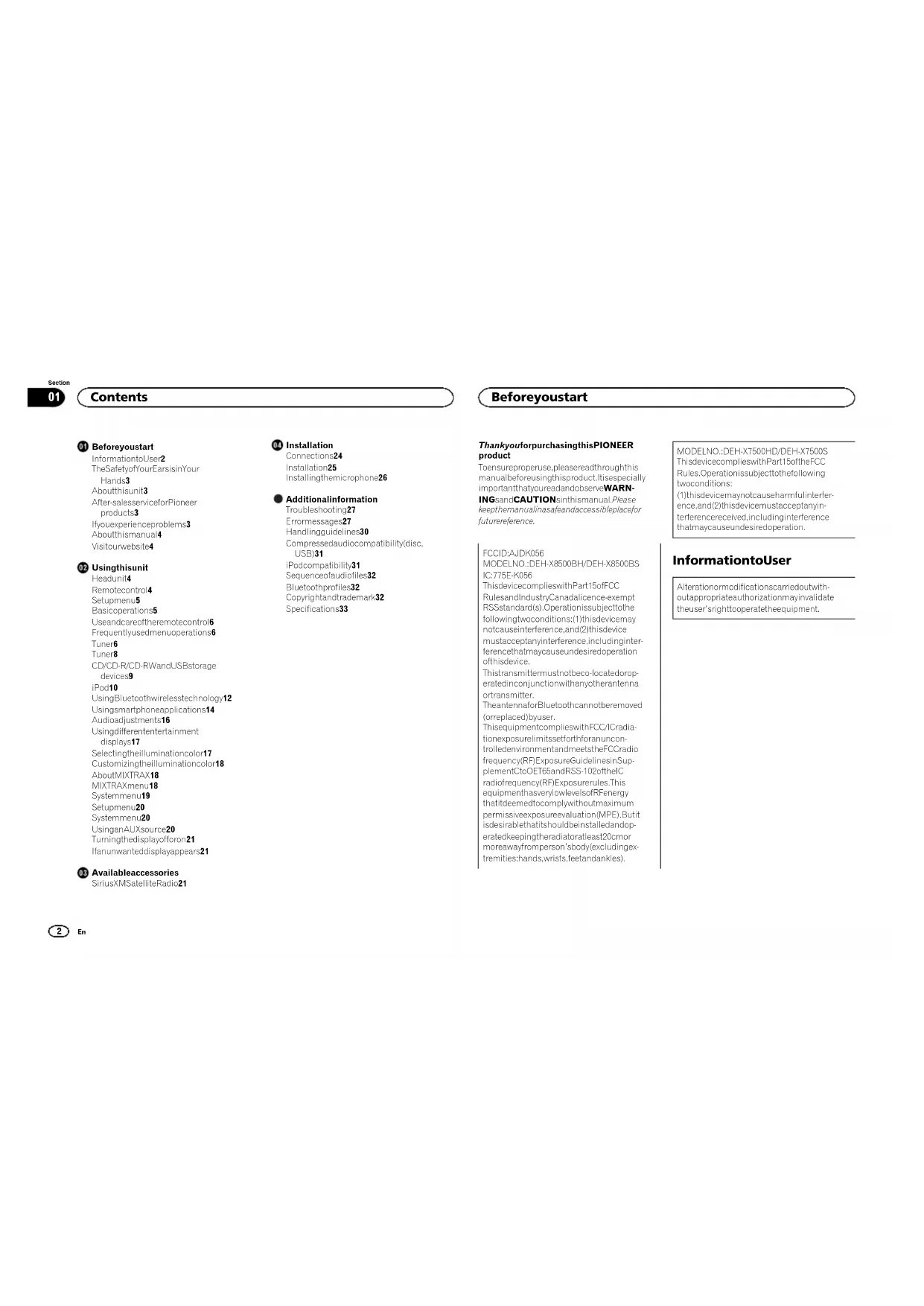
CD RDS RECEIVER AUTORADIO CD RDS REPRODUCTOR DE CD CON RECEPTOR RDS DEH-X8500BH DEH-X7500HD DEH-X8500BS DEH-X7500S English EspañolFrançaisBefore you start
Information to User 2
The Safety of Your Ears is in Your
After-sales service for Pioneer
If you experience problems 3
Use and care of the remote control 6
Frequently used menu operations 6
Using Bluetooth wireless technology 12
Using smartphone applications 14
Audio adjustments 16
Using different entertainment
Selecting the illumination color 17
Customizing the illumination color 18
Turning the display off or on 21
If an unwanted display appears 21
Available accessories
SiriusXM Satellite Radio 21
Additional information
Sequence of audio files 32
Bluetooth profiles 32
Copyright and trademark 32
Thank you for purchasing this PIONEER
To ensure proper use, please read through this
manual before using this product. It is especially
important that you read and observe WARN-
INGs and CAUTIONs in this manual. Please
keep the manual in a safe and accessible place for
MODEL NO.: DEH-X8500BH/DEH-X8500BS IC: 775E-K056
This device complies with Part 15 of FCC Rules and Industry Canada licence-exempt
RSS standard(s). Operation is subject to the
following two conditions: (1) this device may
not cause interference, and (2) this device
must accept any interference, including inter-
ference that may cause undesired operation
This transmitter must not be co-located or op-
erated in conjunction with any other antenna
The antenna for Bluetooth cannot be removed
(or replaced) by user.
This equipment complies with FCC/IC radia-
tion exposure limits set forth for an uncon-
trolled environment and meets the FCC radio
frequency (RF) Exposure Guidelines in Sup-
plement C to OET65 and RSS-102 of the IC
radio frequency (RF) Exposure rules. This
equipment has very low levels of RF energy
that it deemed to comply without maximum
permissive exposure evaluation (MPE). But it
is desirable that it should be installed and op-
erated keeping the radiator at least 20 cm or
more away from person’s body (excluding ex-
tremities: hands, wrists, feet and ankles).
MODEL NO.: DEH-X7500HD/DEH-X7500S This device complies with Part 15 of the FCC Rules. Operation is subject to the following
(1) this device may not cause harmful interfer-
ence, and (2) this device must accept any in-
terference received, including interference
that may cause undesired operation.
Alteration or modifications carried out with-
out appropriate authorization may invalidate
the user’s right to operate the equipment.
This equipment has been tested and found
to comply with the limits for a Class B digital
device, pursuant to Part 15 of the FCC Rules.
These limits are designed to provide reason-
able protection against harmful interference
in a residential installation. This equipment
generates, uses and can radiate radio fre-
quency energy and, if not installed and used
in accordance with the instructions, may
cause harmful interference to radio commu-
nications. However, there is no guarantee
that interference will not occur in a particu-
lar installation. If this equipment does cause
harmful interference to radio or television re-
ception, which can be determined by turning
the equipment off and on, the user is encour-
aged to try to correct the interference by one
or more of the following measures:
- Reorient or relocate the receiving antenna.
- Increase the separation between the equip-
- Connect the equipment into an outlet on a
circuit different from that to which the re-
ceiver is connected.
- Consult the dealer or an experienced radio/
TV technician for help.
The Safety of Your Ears is in
Get the most out of your equipment by playing it
at a safe level—a level that lets the sound come
through clearly without annoying blaring or dis-
tortion and, most importantly, without affecting
your sensitive hearing. Sound can be deceiving.
Over time, your hearing “comfort level” adapts to
higher volumes of sound, so what sounds “nor-
mal” can actually be loud and harmful to your
hearing. Guard against this by setting your
equipment at a safe level BEFORE your hearing
ESTABLISH A SAFE LEVEL:
! Set your volume control at a low setting.
! Slowly increase the sound until you can hear
it comfortably and clearly, without distortion.
! Once you have established a comfortable
sound level, set the dial and leave it there.
BE SURE TO OBSERVE THE FOLLOWING GUIDELINES:
! Do not turn up the volume so high that you
can’t hear what’s around you.
! Use caution or temporarily discontinue use
in potentially hazardous situations.
! Do not use headphones while operating a
motorized vehicle; the use of headphones
may create a traffic hazard and is illegal in
The tuner frequencies on this unit are allocated
for use in North America. Use in other areas
may result in poor reception.
WARNING Handling the cord on this product or cords asso-
ciated with accessories sold with the product
may expose you to chemicals listed on proposi-
tion 65 known to the State of California and
other governmental entities to cause cancer and
birth defect or other reproductive harm. Wash
hands after handling.
! Do not allow this unit to come into contact
with liquids. Electrical shock could result.
Also, damage to this unit, smoke, and over-
heating could result from contact with
! Always keep the volume low enough to hear
! Avoid exposure to moisture.
! If the battery is disconnected or discharged,
any preset memory will be erased.
Important (Serial number)
The serial number is located on the bottom of
this unit. For your own security and conven-
ience, be sure to record this number on the en-
closed warranty card.
Function setting operations are completed even
if the menu is canceled before the operations
After-sales service for
Please contact the dealer or distributor from
where you purchased this unit for after-sales
service (including warranty conditions) or any
other information. In case the necessar y infor-
mation is not available, please contact the com-
panies listed below:
Please do not ship your unit to the companies at
the addresses listed below for repair without ad-
Pioneer Electronics (USA) Inc.
Long Beach, CA 90801-1760
CANADA Pioneer Electronics of Canada, Inc.
CUSTOMER SATISFACTION DEPARTMENT
Markham, Ontario L3R 2Z5, Canada
For warranty information please see the Limited
Warranty sheet included with this unit.
If you experience problems
Should this unit fail to work properly, please con-
tact your dealer or nearest authorized PIONEER Service Station.
3 Section Before you start
! In the following instructions, USB memory
sticks and USB audio players are collectively
referred to as “USB storage device”.
! In this manual, iPod and iPhone will be re-
ferred to as “iPod”.
http://www.pioneerelectronics.com
http://www.pioneerelectronics.ca
! Learn about product updates (such as firm-
ware updates) for your product.
! Register your product to receive notices
about product updates and to safeguard pur-
chase details in our files in the event of loss
! Access owner’s manuals, spare parts infor-
mation, service information, and much
(list) a MIX/DISP OFF
! Use a Pioneer USB cable when connecting a
USB storage device. Connecting a USB stor-
age device directly may be dangerous be-
cause it may stick out.
! Do not use unauthorized products.
Remote controller buttons marked with the
same numbers as on the unit work in the same
way as the corresponding unit button, regard-
less of button name.
4 Section Using this unit
e VOLUME Press to increase or decrease
f MUTE Press to mute. Press again to
Press to perform manual seek
tuning, fast forward, reverse
and track search controls.
Also used for controlling func-
DEH-X8500BH and DEH-
X8500BS Press to end a call, reject an in-
coming call, or reject a call
waiting while on another call.
AUDIO DEH-X7500HD and DEH-
X7500S Press to select an audio func-
i DISP/SCRL Press to select different dis-
Press to pause or resume play-
DEH-X8500BH and DEH-
X8500BS Press to start talking to the
caller while using the phone.
TION DEH-X7500HD and DEH-
X7500S Press to select functions.
ENTER Press to display the list de-
pending on the source.
While in the operating menu,
press to control functions.
When you turn the ignition switch to ON after in-
stallation, set up menu appears on the display.
You can set up the menu options below.
1 After installation of this unit, turn the
ignition switch to ON.
2 Turn M.C. to switch to YES.
# If you do not use the unit for 30 seconds, the set
up menu will not be displayed.
# If you prefer not to set up at this time, turn M.C.
If you select NO, you cannot set up in the set up
3 Press M.C. to select.
4 Follow these steps to set the menu.
To proceed to the next menu option, you need to
confirm your selection.
Language select (multi-language)
1 Turn M.C. to select the desired language.
English—Français—Español
2 Press M.C. to confirm the selection.
Calendar (setting the date)
1 Turn M.C. to change the year.
2 Press M.C. to select day.
3 Turn M.C. to change the day.
4 Press M.C. to select month.
5 Turn M.C. to change the month.
6 Press M.C. to confirm the selection.
Clock (setting the clock)
1 Turn M.C. to adjust hour.
2 Press M.C. to select minute.
3 Turn M.C. to adjust minute.
4 Press M.C. to confirm the selection.
Contrast (display contrast setting)
1 Turn M.C. to adjust the contrast level.
0 to 15 is displayed as the level is increased or
2 Press M.C. to confirm the selection.
5 To finish your settings, turn M.C. to select
# If you prefer to change your setting again, turn
M.C. to switch to NO.
6 Press M.C. to select.
! You can set up the menu options from the
system menu. For details about the settings,
refer to System menu on page 19.
! You can cancel set up menu by pressing
! Handle the front panel with care when re-
moving or attaching it.
! Avoid subjecting the front panel to excessive
! Keep the front panel out of direct sunlight
and high temperatures.
! To avoid damaging the device or vehicle inte-
rior, remove any cables and devices attached
to the front panel before detaching it.
Removing the front panel to protect your unit from
1 Press the detach button to release the front
2 Push the front panel upward (M) and then pull
3 Always store the detached front panel in a pro-
tective case or bag.
Re-attaching the front panel
1 Slide the front panel to the left.
Make sure to insert the tabs on the left side of
the head unit into the slots on the front panel.
2 Press the right side of the front panel until it is
If you cannot attach the front panel to the
head unit successfully, make sure that you are
placing the front panel onto the head unit cor-
rectly. Forcing the front panel into place may
result in damage to the front panel or head
1 Press SRC/OFF to turn the unit on.
Turning the unit off
1 Press and hold SRC/OFF until the unit turns
5 Section Using this unit
02Selecting a source
1 Press SRC/OFF to cycle between:
SiriusXM (SiriusXM Satellite Radio)—TUNER
(tuner)—CD (CD player)—USB (USB)/iPod
(iPod)—Pandora (Pandora)—Apps (Smart-
phone App)—AUX (AUX)—BT Audio (BT
! SiriusXM is not available for DEH-
X8500BH and DEH-X7500HD.
! BT Audio is not available for DEH-
X7500HD and DEH-X7500S.
Adjusting the volume
1 Turn M.C. to adjust the volume.
CAUTION For safety reasons, park your vehicle when re-
moving the front panel.
When this unit’s blue/white lead is connected to
the vehicle’s auto-antenna relay control termi-
nal, the vehicle’s antenna extends when this
unit’s source is turned on. To retract the anten-
na, turn the source off.
Use and care of the remote
Using the remote control
1 Point the remote control in the direction of the
front panel to operate.
When using for the first time, pull out the film
protruding from the tray.
Replacing the battery
1 Slide the tray out on the back of the remote
2 Insert the battery with the plus (+) and minus
(–) poles aligned properly.
! Keep the battery out of the reach of children.
Should the battery be swallowed, consult a
! Batteries (battery pack or batteries installed)
must not be exposed to excessive heat such
as sunshine, fire or the like.
! Use one CR2025 (3 V) lithium battery.
! Remove the battery if the remote control is
not used for a month or longer.
! There is a danger of explosion if the battery is
incorrectly replaced. Replace only with the
same or equivalent type.
! Do not handle the battery with metallic tools.
! Do not store the battery with metallic ob-
! If the battery leaks, wipe the remote control
completely clean and install a new battery.
! When disposing of used batteries, comply
with governmental regulations or environ-
mental public institutions’ rules that apply in
! “Perchlorate Material – special handling may
perchlorate. (Applicable to California,
! Do not store the remote control in high tem-
peratures or direct sunlight.
! The remote control may not function properly
! Do not let the remote control fall onto the
floor, where it may become jammed under
the brake or accelerator pedal.
Frequently used menu
Returning to the previous display
Returning to the previous list/category (the folder/
category one level higher)
Returning to the ordinary display from the list/cat-
1 Turn M.C. or LEVER.
! In this manual, “Turn M.C.” is used to describe
the operation used to select a function or list.
Only for DEH-X8500BH and DEH-X7500HD About HD Radioä stations
HD Radioä stations offer high-quality audio and
data services. HD Radio stations are brought to
you by local FM/AM stations.
HD Radio stations feature the following:
! High quality audio
! Data services Program Service Data: Contributes to the superior userexperience of HD Radio Technology. Presents song name,artist, station IDs, HD2/HD3 Channel Guide, and other rel-evant data streams.Adjacent to traditional main stations are extra local FMchannels. These HD2/HD3 Channels provide new, originalmusic as well as deep cuts into traditional genre.Digital, CD-quality sound. HD Radio Technology enableslocal radio stations to broadcast a clean digital signal.AM sounds like today’s FM and FM sounds like a CD. Using this unit
6 Section Using this unit
02iTunes â Tagging provides you the opportunity to discovera wide range of content and the means to “tag” that con-tent for later review and purchase from the iTunes â Store. HD Radioä Technology HD Radio Technology manufactured under li-cense from iBiquity Digital Corporation. U.S.and Foreign Patents. HD Radioä and the HD, HD Radio, and “Arc” logos are proprietary trade- marks of iBiquity Digital Corp. Basic operations
6 1 TAG indicator2 Tags transferring indicator3 Signal reception status indicatorWhen digital signal is received,is dis-played. Otherwise,is displayed.4 Band indicator5 5 (stereo) indicator6 LOC indicatorAppears when local seek tuning is on.7 Preset number indicator8 Signal level indicator9 Frequency indicatorSelecting a band1 Press BAND/until the desired band (FM-1,FM-2,FM-3 for FM or AM) is displayed.Manual tuning (step by step)1 Turn LEVER.! When an analog station is received, tuningdown operation is conducted within theanalog broadcasting. (6 d 2)! If a digital broadcast is not yet received,tuning-up operation tunes in the next ana-log station. (2 d 6)Seeking1 Turn and hold down LEVER.! While turning and holding down LEVER,you can skip stations. Seek tuning startsas soon as you release LEVER. Storing and recalling stations
for each band 1 Press (list).The preset screen is displayed.2 Use M.C. to store the selected frequencyin the memory.Turn to change the preset number. Press andhold to store.3 Use M.C. to select the desired station.Turn to change the station. Press to select.# You can also change the station by pressing or .
Switching the display Selecting the desired text information% Press/DISP.Channel and program service name (frequency)—song title/channel and program service name(frequency)—song title/artist name—song title/genre—album title/genreNotes! If the channel and program service namecannot be acquired, the broadcast frequencyis displayed instead. If the channel and pro-gram service name are detected, the channeland program service name will be displayed.! Depending on the band, text information canbe changed. Using iTunes tagging This function can be performed with the followingiPod models.— iPod touch 4th generation— iPod touch 3rd generation— iPod touch 2nd generation— iPod touch 1st generation— iPod classic 160GB— iPod classic 120GB— iPod classic— iPod nano 6th generation— iPod nano 5th generation— iPod nano 4th generation— iPod nano 3rd generation— iPhone 4S— iPhone 4— iPhone 3GS— iPhone 3G— iPhoneHowever, tag information can be stored in thisunit even while other iPod models are used.The song information (tag) can be saved fromthe broadcasting station to your iPod. The songswill show up in a playlist called “Tagged playlist”in iTunes the next time you sync your iPod. Thenyou can directly buy the songs you want fromthe iTunes Store.! The tagged songs and the song that you canbuy from the iTunes Store may be different.Make sure to confirm the song before youmake the purchase.Storing the tag information to this unit1 Tune in to the broadcast station. 2 Press and hold M.C. if TAG is indicated in the display while desired song is broadcasting.! While storing the tag data on this unit,TAG flashes.Storing the tagged information to your iPod1 The tag information on this unit is transferredto the iPod automatically when an iPod is con-nected. Function settings 1 Press M.C. to display the main menu.2 Turn M.C. to change the menu optionand press to select FUNCTION.3 Turn M.C. to select the function.Once selected, the following functions can beadjusted.BSM (best stations memory)BSM (best stations memory) automatically storesthe six strongest stations in the order of their sig-nal strength.1 Press M.C. to turn BSM on.To cancel, press M.C. again.Local (local seek tuning)English Using this unit
7 Section Using this unit
02Local seek tuning allows you to tune in to onlythose radio stations with sufficiently strong sig-nals for good reception.1 Press M.C. to display the setting mode.2 Press M.C. to turn local on or off.3 Turn M.C. to select the desired setting. FM: Level 1—Level 2—Level 3—Level 4 AM: Level 1—Level 2The highest level setting allows reception ofonly the strongest stations, while lower levelsallow the reception of weaker stations.Seek mode (seek mode)Seek tuning setting can be changed between digi-tal station seek (Seek HD) and all station seek(Seek ALL) depending on the reception status.1 Press M.C. to select the desired setting.Seek ALL—Seek HDBlending (reception mode)If a digital broadcast reception condition getspoor, this unit automatically switches to the ana-log broadcast of the same frequency level. If thisfunction is set to on, the tuner switches betweendigital broadcast and analog broadcast automati-cally. If this function is off, reception will be con-ducted within an analog broadcast.1 Press M.C. to turn this function on or off. Note
If Seek mode is set to Seek HD and Blending is
set to off, the tuner cannot receive broadcasts.
In this case, the seek mode or reception mode is
changed automatically as follows: ! When Seek mode is set to Seek HD, if youswitch Blending from on to off, Seek mode ischanged to Seek ALL.! When Blending is set to off, if you switchSeek mode from Seek ALL to Seek HD,Blending is changed to on. Tuner
Only for DEH-X8500BS and DEH-X7500S Basic operations
3 Non-RDS or AM 1 Band indicator
2 5 (stereo) indicator
Appears when local seek tuning is on.
5 Signal level indicator
7 Frequency indicator Selecting a band1 Press BAND/until the desired band (FM-1,FM-2,FM-3 for FM or AM) is displayed.Manual tuning (step by step)1 Turn LEVER.! Select Manual (manual tuning) under TuningMode to use this function. For details aboutthe settings, refer to Tuning Mode (LEVER tun-ing setting) on this page.Switching preset stations1 Turn LEVER.! Select Preset (preset channel) under TuningMode to use this function. For details aboutthe settings, refer to Tuning Mode (LEVER tun-ing setting) on this page.Seeking1 Turn and hold down LEVER.! While turning and holding down LEVER,you can skip stations. Seek tuning startsas soon as you release LEVER. Storing and recalling stations
For details, refer to Storing and recalling stations
for each band on the previous page.
Switching the display
Selecting the desired text information
Program service name (frequency)—artist
! If the program service name cannot be ac-
quired, the broadcast frequency is displayed
instead. If the program service name is de-
tected, the program service name will be dis-
! Depending on the band, text information can
2 Turn M.C. to change the menu option
and press to select FUNCTION.
3 Turn M.C. to select the function.
Once selected, the following functions can be
adjusted. BSM (best stations memory)BSM (best stations memory) automatically storesthe six strongest stations in the order of their sig-nal strength.1 Press M.C. to turn BSM on.To cancel, press M.C. again.Local (local seek tuning)Local seek tuning allows you to tune in to onlythose radio stations with sufficiently strong sig-nals for good reception.1 Press M.C. to display the setting mode.2 Press M.C. to turn local on or off.3 Turn M.C. to select the desired setting. FM: Level 1—Level 2—Level 3—Level 4 AM: Level 1—Level 2The highest level setting allows reception ofonly the strongest stations, while lower levelsallow the reception of weaker stations.Tuning Mode (LEVER tuning setting)You can assign a function to the LEVER on theunit.Select Manual (manual tuning) to tune up ordown manually or select Preset (preset channel)to switch between preset channels. 1 Press M.C. to select Manual or Preset.
8 Section Using this unit
1 Bit rate/sampling frequency indicator
Shows the bit rate or sampling frequency of
the current track (file) when the compressed
! When playing back VBR (variable bit
rate)-recorded AAC files, the average bit
rate value is displayed. However, depend-
ing on the software used to decode AAC
files, VBR may be displayed.
2 Folder number indicator
Shows the current folder number when play-
Appears when Sound Retriever function is
6 Song time (progress bar)
7 Play time indicator Playing a CD/CD-R/CD-RW1 Insert the disc into the disc loading slot withthe label side up.Ejecting a CD/CD-R/CD-RW1 Press h (eject).Playing songs on a USB storage device1 Plug in the USB storage device using the USBcable.! Use a Pioneer USB cable to connect the USBstorage device to the unit.Stopping playback of files on a USB storage de- vice ! You may disconnect the USB storage device atany time.Selecting a folder1 Press or . Selecting a track1 Turn LEVER.Fast forwarding or reversing1 Turn and hold down LEVER to the right or left.Returning to root folder1 Press and hold BAND/ . Switching between compressed audio and CD-DA1 Press BAND/ . Switching between playback memory devicesYou can switch between playback memory deviceson USB storage devices with more than one MassStorage Device-compatible memory device.1 Press BAND/ . ! You can switch between up to 32 differentmemory devices. Notes
! When playing compressed audio, there is no
sound during fast forward or reverse.
! Disconnect USB storage devices from the
unit when not in use.
Operations using the MIXTRAX
button Turning MIXTRAX on or offYou can use this function when USB is selected asthe source.1 Press MIX/DISP OFF to turn MIXTRAX on or off. ! For more details about MIXTRAX, refer toAbout MIXTRAX on page 18.! For more details about MIXTRAX functions,refer to MIXTRAX menu on page 18. Switching the display
Selecting the desired text information
! Depending on the version of iTunes used to
write MP3 files to a disc or media file types,
incompatible text stored within an audio file
may be displayed incorrectly.
! Text information items that can be changed
depend on the media.
Selecting and playing files/
tracks from the name list
This function is available when OFF is selected
in Music browse. For details, refer to
Music browse (music browse) on page 19.
(list) to switch to the file/track
2 Use M.C. to select the desired file name
(or folder name). Changing the file or folder name1 Turn M.C.Playing1 When a file or track is selected, press M.C.Viewing a list of the files (or folders) in the se-lected folder1 When a folder is selected, press M.C.Playing a song in the selected folder1 When a folder is selected, press and hold M.C. Browsing for a song
You can use this function when USB is selected
This function is available when ON is selected in
Music browse. For details, refer to
Music browse (music browse) on page 19.
(list) to switch to the top menu
2 Use M.C. to select a category/song. Changing the name of the song or category1 Turn M.C. Artists (artists)—Albums (albums)—Songs (songs)—Genres (genres)Playing1 When a song is selected, press M.C.Viewing a list of songs in the selected category1 When a category is selected, press M.C. English
9 Section Using this unit
02Playing a song in the selected category1 When a category is selected, press and hold M.C. Searching the list by alphabet1 When a list for the selected category is dis-played, pressto switch to alphabet searchmode.2 Turn M.C. to select a letter.3 Press M.C. to display the alphabetical list. Notes
! This unit must create an index in order to fa-
cilitate Artists, Albums, Songs, and Genres
searches. Typically, it will take approximately
70 seconds to create an index for 1 000
songs, and we recommend that up to 3 000
songs be used. Please note that certain types
of file may take longer to index than others.
! Depending on the number of files in the USB
storage device, there may be a delay when
! Keys may not have any effect during the cre-
ation of an index or list.
! Lists are recreated each time the unit is
Playing songs related to the
currently playing song
You can use this function when USB is selected
This function is available when ON is selected in
Music browse. For details, refer to
Music browse (music browse) on page 19.
You can play songs from the following lists.
• Album list of the currently playing artist
• Song list of the currently playing album
• Album list of the currently playing genre
1 Press and hold M.C. to switch to link play
2 Turn M.C. to change the mode; press to
! Artist – Plays an album by the artist currently playing.! Album – Plays a song from the album cur-rently being played.! Genre – Plays an album from the genre cur-rently being played. The selected song/album will be played after the
currently playing song.
! The selected song/album may be canceled if
you use functions other than link search (e.g.
fast forward and reverse).
! Depending on the song selected to play, the
end of the currently playing song and the be-
ginning of the selected song/album may be
2 Turn M.C. to change the menu option
and press to select FUNCTION.
3 Turn M.C. to select the function.
Once selected, the following functions can be
adjusted. ! Link play is not available when OFF is se-lected in Music browse. For details, refer toMusic browse (music browse) on page 19.Play mode (repeat play)1 Press M.C. to select a repeat play range.CD/CD-R/CD-RW! Disc repeat – Repeat all tracks! Track repeat – Repeat the current track! Folder repeat – Repeat the current folderUSB storage device! All repeat – Repeat all files! Track repeat – Repeat the current file! Folder repeat – Repeat the current folderRandom mode (random play)1 Press M.C. to turn random play on or off.Link play (link play)1 Press M.C. to display the setting mode.2 Turn M.C. to change the mode; press to select.For details about the settings, refer to Playingsongs related to the currently playing song onthis page.Pause (pause)1 Press M.C. to pause or resume.Sound Retriever (sound retriever)Automatically enhances compressed audio andrestores rich sound.1 Press M.C. to select the desired setting.1—2—OFF (off)1 is effective for low compression rates, and 2is effective for high compression rates. iPod
Basic operations DEH-X8500BH and DEH-X8500BS 86 75
Appears when Sound Retriever function is
7 Song time (progress bar)
8 Play time indicator Playing songs on an iPod1 Connect an iPod to the USB cable using aniPod Dock Connector.Selecting a track (chapter)1 Turn LEVER.Fast forwarding or reversing1 Turn and hold down LEVER to the right or left.Selecting an album1 Press or .
10 Section Using this unit
! The iPod cannot be turned on or off when the
control mode is set to Ctrl Audio.
! Disconnect headphones from the iPod be-
fore connecting it to this unit.
! The iPod will turn off about two minutes after
the ignition is switched off.
Operations using the MIXTRAX
! For more details about MIXTRAX, refer to
About MIXTRAX on page 18.
! For more details about MIXTRAX functions,
refer to MIXTRAX menu on page 18.
Switching the display
Selecting the desired text information
1 Press (list) to switch to the top menu
2 Use M.C. to select a category/song.
Changing the name of the song or category
Playlists (playlists)—Artists (artists)—Albums
(albums)—Songs (songs)—Podcasts (pod-
casts)—Genres (genres)—Composers (com-
posers)—Audiobooks (audiobooks)
1 When a song is selected, press M.C.
Viewing a list of songs in the selected category
1 When a category is selected, press M.C.
Playing a song in the selected category
1 When a category is selected, press and hold
Searching the list by alphabet
1 When a list for the selected category is dis-
to switch to alphabet search
2 Turn M.C. to select a letter.
3 Press M.C. to display the alphabetical list.
! You can play playlists created with the Music-
Sphere application. The application will be
available on our website.
! Playlists that you created with the Music-
Sphere application are displayed in abbrevi-
Playing songs related to the
currently playing song
You can play songs from the following lists.
• Album list of the currently playing artist
• Song list of the currently playing album
• Album list of the currently playing genre
to switch to link play
2 Turn M.C. to change the mode; press to
! Artist – Plays an album by the artist currently
! Album – Plays a song from the album cur-
rently being played.
! Genre – Plays an album from the genre cur-
rently being played.
The selected song/album will be played after the
currently playing song.
! The selected song/album may be canceled if
you use functions other than link search (e.g.
fast forward and reverse).
! Depending on the song selected to play, the
end of the currently playing song and the be-
ginning of the selected song/album may be
Using this unit’s iPod function
This unit’s iPod function can be controlled by
using the connected iPod.
Ctrl iPod is not compatible with the following
! iPod nano 1st generation
to switch the control
! Ctrl iPod – This unit’s iPod function can be
operated from the connected iPod.
! Ctrl Audio – This unit’s iPod function can be
controlled by using this unit.
! Switching the control mode to Ctrl iPod
pauses song playback. Use the iPod to re-
! The following operations are still accessible
from the unit even if the control mode is set
— Fast forward/reverse
— Selecting a song (chapter)
! The volume can only be adjusted from this
2 Turn M.C. to change the menu option
and press to select FUNCTION.
3 Turn M.C. to select the function.
Once selected, the following functions can be
! Play mode, Shuffle mode, Shuffle all,
Link play and Audiobooks are not available
when Ctrl iPod is selected in the control
mode. For details, refer to Using this unit’s
iPod function from your iPod on this page.
Play mode (repeat play)
1 Press M.C. to select a repeat play range.
! Repeat One – Repeat the current song
! Repeat All – Repeat all songs in the se-
! When the control mode is set to Ctrl iPod, the
repeat play range will be same as what is set
for the connected iPod.
Shuffle mode (shuffle)
1 Press M.C. to select the desired setting.
! Shuffle Songs – Play back songs in the se-
lected list in random order.
! Shuffle Albums – Play back songs from a
randomly selected album in order.
! Shuffle OFF – Cancel random play.
Shuffle all (shuffle all)
1 Press M.C. to turn shuffle all on.
To turn off Shuffle all, select Shuffle OFF in
Shuffle mode. For details, refer to
Shuffle mode (shuffle) on this page.
Link play (link play)
1 Press M.C. to display the setting mode.
2 Turn M.C. to change the mode; press to select.
For details about the settings, refer to Playing
songs related to the currently playing song on
11 Section Using this unit
1 Press M.C. to pause or resume.
Audiobooks (audiobook speed)
1 Press M.C. to select the desired setting.
! Faster – Playback at a speed faster than
! Normal – Playback at normal speed
! Slower – Playback at a speed slower than
Sound Retriever (sound retriever)
1 Press M.C. to select the desired setting.
1 is effective for low compression rates, and 2
is effective for high compression rates.
Using Bluetooth wireless
! Leaving the unit on standby to connect to
your phone via Bluetooth while the engine is
not running can drain the battery.
! Operations may vary depending on the kind
! Advanced operations that require attention
such as dialing numbers on the monitor,
using the phone book, etc., are prohibited
while driving. Park your vehicle in a safe
place when using these advanced opera-
! Be sure to park your vehicle in a safe place
and apply the parking brake when perform-
Setting up for hands-free phoning
Before you can use the hands-free phoning
function you must set up the unit for use with
your cellular phone.
Use the Bluetooth telephone connection
menu. Refer to Connection menu operation on
Refer to Phone menu operation on the next
! Refer to Phone menu operation on the next
Answering an incoming call
1 When a call is received, press
Rejecting an incoming call
1 When a call is received, press and hold
Answering a call waiting
1 When a call is received, press
Switching between callers on hold
Canceling call waiting
Adjusting the other party’s listening volume
1 Turn LEVER while talking on the phone.
! When private mode is on, this function is not
Turning private mode on or off
while talking on the phone.
Switching the information display
/DISP while talking on the phone.
! If private mode is selected on the cellular
phone, hands-free phoning may not be avail-
! The estimated call time appears in the dis-
play (this may differ slightly from the actual
Using voice recognition
This feature can be used on an iPod equipped
with voice recognition that is connected by
Bluetooth with the source set to iPod or
% Press and hold M.C. to switch to voice
! For details on voice recognition features,
check the manual for the iPod you are using.
! Some commands may not be available on
Connection menu operation
! Be sure to park your vehicle in a safe place
and apply the parking brake when perform-
! Connected devices may not work properly if
more than one Bluetooth device is con-
nected at a time (e.g. a phone and a separate
audio player are connected simultaneously).
to display the connec-
# You cannot perform this step during a call.
2 Turn M.C. to select the function.
Once selected, the following functions can be
Device list (connecting or disconnecting a device
from the device list)
! When no device is selected in the device list,
this function is not available.
1 Press M.C. to display the setting mode.
2 Turn M.C. to select the name of a device you
want to connect/disconnect.
! Press and hold M.C. to swap between the
Bluetooth device address and the device
3 Press M.C. to connect/disconnect the selected
Once the connection is established, Con-
nected is displayed.
Delete device (deleting a device from the device
! When no device is selected in the device list,
this function is not available.
1 Press M.C. to display the setting mode.
2 Turn M.C. to select the name of a device you
! Press and hold M.C. to swap between the
Bluetooth device address and the device
3 Press M.C. to display Delete YES.
4 Press M.C. to delete the device information
from the device list.
! While this function is in use, do not turn off
Add device (connecting a new device)
12 Section Using this unit
021 Press M.C. to start searching.
! To cancel, press M.C. while searching.
! If this unit fails to find any available cellular
phones, Not found is displayed.
2 Turn M.C. to select a device from the device
! Press and hold M.C. to swap between the
Bluetooth device address and the device
3 Press M.C. to connect the selected device.
! To complete the connection, check the de-
vice name (Pioneer BT Unit). Enter the
PIN code on your device if necessary.
! PIN code is set to 0000 as the default. You
can change this code.
! 6-digit number appears on the display of
this unit. Once the connection is estab-
lished, this number disappears.
! If you are unable to complete the connec-
tion using this unit, use the device to con-
! If three devices are already paired, Device
Full is displayed and it is not possible to
perform this operation. In this case, delete
a paired device first.
Auto connect (connecting to a Bluetooth device
1 Press M.C. to turn automatic connection on or
Visibility (setting the visibility of this unit)
Bluetooth visibility can be turned on so that other
devices can discover the unit.
1 Press M.C. to turn the visibility of this unit on
Pin code input (PIN code input)
You must enter a PIN code on your device to con-
firm the Bluetooth connection. The default code is
0000, but you can change it with this function.
1 Press M.C. to display the setting mode.
2 Turn M.C. to select a number.
3 Press M.C. to move the cursor to the next posi-
4 After inputting PIN code, press and hold M.C.
to the PIN code input display, and you can
change the PIN code.
Device INFO (Bluetooth device address display)
1 Press M.C. to display the setting mode.
2 Press M.C. to select the desired setting.
Device name—Bluetooth device address
Phone menu operation
Be sure to park your vehicle in a safe place and
apply the parking brake when performing this
to display the phone menu.
2 Turn M.C. to select the function.
Once selected, the following functions can be
Missed calls (missed call history)
Dialed calls (dialed call history)
Received calls (received call history)
1 Press M.C. to display the phone number list.
2 Turn M.C. to select a name or phone number.
3 Press M.C. to make a call.
! To display details about the contact you se-
lected, press and hold M.C.
PhoneBook (phone book)
! The contacts on your phone will normally be
transferred automatically when the phone is
connected. If it is not, use your phone menu to
transfer the contacts. The visibility of this unit
should be on when you use the phone menu.
Refer to Visibility (setting the visibility of this
1 Press M.C. to display ABC Search (alphabeti-
2 Turn M.C. to select the first letter of the name
you are looking for.
3 Press M.C. to display a registered name list.
4 Turn M.C. to select the name you are looking
5 Press M.C. to display the phone number list.
6 Turn M.C. to select a phone number you want
7 Press M.C. to make a call.
Phone Function (phone function)
You can set Auto answer, Ring tone and PH.B.
Name view from this menu. For details, refer to
Function and operation on this page.
Function and operation
1 Display Phone Function.
Refer to Phone Function (phone function) on
2 Press M.C. to display the function menu.
3 Turn M.C. to select the function.
Once selected, the following functions can be
Auto answer (automatic answering)
1 Press M.C. to turn automatic answering on or
Ring tone (ring tone select)
1 Press M.C. to turn the ring tone on or off.
PH.B.Name view (phone book name view)
1 Press M.C. to invert the order of names in the
! Depending on the Bluetooth audio player
connected to this unit, the available opera-
tions will be limited to the following two lev-
— A2DP profile (Advanced Audio Distribution
Profile): You can only playback songs on your
You cannot use the A2DP connection when
iPod or Pandora (iPhone) is selected as a
— AVRCP profile (Audio/Video Remote Control
Profile): You can perform playback, pause
playback, select songs, etc.
! Functions will vary depending on the
Bluetooth audio player you are using. When
using your player with this unit, refer to the
instruction manual that came with your
Bluetooth audio player as well as this man-
! As the signal from your cellular phone may
cause noise, avoid using it when you are lis-
tening to songs on your Bluetooth audio
! The sound of the Bluetooth audio player will
be muted when the phone is in use.
! When the Bluetooth audio player is in use,
you cannot connect to a Bluetooth telephone
! Playback continues even if you switch from
your Bluetooth audio player to another
source while listening to a song.
13 Section Using this unit
02! Depending on the type of Bluetooth audioplayer you have connected to this unit, oper-ation and information display may not beavailable for some functions. Setting up for Bluetooth audio Before you can use the Bluetooth audio functionyou must set up the unit for use with yourBluetooth audio player. You will need to pair thisunit with your Bluetooth audio player.1 ConnectionUse the Bluetooth telephone connectionmenu. Refer to Connection menu operation onpage 12. Basic operations
4 1 Device nameShows the device name of the connectedBluetooth audio player.2 Track number indicator3 PLAY/PAUSE indicator4 S.Rtrv indicatorAppears when Sound Retriever function is on. 5 Song time (progress bar)6 Play time indicatorFast forwarding or reversing1 Turn and hold down LEVER to the right or left.Selecting a track1 Turn LEVER.Pausing and starting playback1 Press BAND/ .
Switching the display Selecting the desired text information% Press/DISP. Note Depending on the device, text information canbe changed. Function settings 1 Press M.C. to display the main menu.2 Turn M.C. to change the menu optionand press to select FUNCTION.3 Turn M.C. to select the function.Once selected, the following functions can beadjusted.Play (play)1 Press M.C. to start playback.Stop (stop)1 Press M.C. to stop the playback.Pause (pause)1 Press M.C. to pause or resume.Random (random play)1 Press M.C. to turn random play on or off.! This function may not be available depend-ing on the type of Bluetooth audio playerconnected.! The random play range varies dependingon the Bluetooth audio player in use.Repeat (repeat play)1 Press M.C. to select a repeat play range.! This function may not be available depend-ing on the type of Bluetooth audio playerconnected.! The repeat play range varies depending onthe Bluetooth audio player in use.Sound Retriever (sound retriever)1 Press M.C. to select the desired setting.1—2—OFF (off)1 is effective for low compression rates, and 2is effective for high compression rates. Using smartphone applications ImportantUse of third party apps may involve or requirethe provision of personally identifiable infor-mation, whether through the creation of auser account or otherwise, and for certain ap-plications, the provision of geolocation data.ALL THIRD PARTY APPS ARE THE SOLE RE-SPONSIBILITY OF THE PROVIDERS, INCLUD-ING WITHOUT LIMITATION COLLECTION ANDSECURITY OF USER DATA AND PRIVACYPRACTICES. BY ACCESSING THIRD PARTYAPPS, YOU AGREE TO REVIEW THE TERMSOF SERVICE AND PRIVACY POLICIES OF THEPROVIDERS. IF YOU DO NOT AGREE WITHTHE TERMS OR POLICIES OF ANY PROVIDEROR DO NOT CONSENT TO THE USE OF GEO-LOCATION DATA WHERE APPLICABLE, DONOT USE THAT THIRD PARTY APP. Information for the smartphone
compatibility The following devices are compatible with thisfunction.! iPhone and iPod touchIn this chapter, iPod and iPhone will be re-ferred to as “iPhone”.! Androidä device For iPhone users ! Use a Pioneer USB cable to connect aniPhone. For Android device users ! The device supports Bluetooth SPP (SerialPort Profile) and A2DP (Advanced Audio Dis-tribution Profile).The device is connected to this unit viaBluetooth. Using this unit
14 Section Using this unit
02Compatibility with all Android devices is not
For details about Android device compatibility
with this unit, refer to the information on our
! Please check our website for a list of sup-
ported smartphone applications for this unit.
! Pioneer is not liable for any issues that may
arise from incorrect or flawed app-based
! The content and functionality of the sup-
ported applications are the responsibility of
Requirements to access Pandora using the
Pioneer car audio/video products: ! iPhone compatibilityApple iPhone (first generation), iPhone 3G,iPhone 3GS, iPhone 4, iPhone 4S, iPod touch 1G,iPod touch 2G, iPod touch 3G or iPod touch 4G(firmware version 3.0 or later)Certain firmware versions for the iPhone may notbe compatible with the Pandora application. Ifthis appears to be the case, please update thefirmware to a version that is compatible withPandora.! Latest version of the Pandora application, down-loaded to your device (Search Apple iTunes AppStore for “Pandora”).! Current Pandora account (Free account and paidaccounts available from Pandora; create a freeaccount online athttp://www.pandora.com/register or through thePandora application for the iPhone).! Data PlanNote: If the Data Plan for your iPhone does notprovide for unlimited data usage, additionalcharges from your carrier may apply for accessingthe Pandora service via 3G and/or EDGE net-works.! Connection to the Internet via 3G, EDGE or Wi-Finetwork.! Optional Pioneer adapter cable connecting youriPhone to the Pioneer car audio/video products. Limitations: ! Access to the Pandora service will depend on theavailability of a cellular and/or Wi-Fi network forpurposes of allowing your device to connect tothe Internet.! Ability of the Pioneer car audio/video products toaccess the Pandora service is subject to changewithout notice and could be affected by any ofthe following: compatibility issues with futurefirmware versions of iPhone; compatibility issueswith future firmware versions of the Pandora ap-plication for the iPhone; changes to the Pandoramusic service by Pandora; discontinuation of thePandora music service by Pandora.! Certain functions of the Pandora service are notavailable when accessing the service through thePioneer car audio/video products, including, butnot limited to, creating new stations, deleting sta-tions, emailing current stations, buying tracksfrom iTunes, viewing additional text information,logging in to Pandora, and adjusting Cell Net-work Audio Quality. Pandora internet radio is a music service not af-
filiated with Pioneer. More information is avail-
able at http://www.pandora.com.
You can play Pandora by connecting your
iPhone with the Pandora application installed.
Starting procedure for iPhone users
1 Connect an iPhone to the USB cable using
an iPhone Dock Connector.
2 Select Wired in APP CONNECT MODE. For
details, refer to APP CONNECT MODE (APP
connect mode setting) on page 20.
If using DEH-X7500HD and DEH-X7500S, pro-
ceed to the next step.
3 Switch the source to Pandora.
4 Start up the application on the smart-
phone and initiate playback.
Starting procedure for Android
Only for DEH-X8500BH and DEH-X8500BS The device has Android OS 2.2 or later.
1 Connect your Android device to this unit
using Bluetooth wireless technology. For de-
tails, refer to Connection menu operation on
2 Select Bluetooth in APP CONNECT MODE.
For details, refer to APP CONNECT MODE
(APP connect mode setting) on page 20.
3 Switch the source to Pandora.
The smartphone application will start up auto-
matically. If it fails to start, follow the instruc-
tions on the screen to attempt to resolve the
1 Thumbs Up/Thumbs Down indicator
3 PLAY/PAUSE indicator
Appears when Sound Retriever function is
5 Song time (progress bar)
6 Play time indicator Giving a Thumbs Up1 Pressto give a “Thumbs Up” for the trackcurrently playing.Giving a Thumbs Down1 Pressto give a “Thumbs Down” for thetrack currently playing and to skip to the nexttrack.Skipping tracks1 Turn LEVER to the right. Switching the display
Selecting the desired text information
! Depending on the station, text information
! Due to music licensing restrictions, Pandora
limits the total number of skips per hour.
15 Section Using this unit
02Selecting and playing the Shuffle/
The display shown on this unit may not be the
same as that shown on the connected device.
(list) to switch to the Shuffle/sta-
2 Use M.C. to select the Shuffle or desired
station. Changing the sort order1 Press(list). ! ABC – You can sort the items in the list alpha- betically ! DATE – You can sort the items in the list in order of the dates on which the items werecreatedChanging Shuffle or stations1 Turn M.C.Playing1 When Shuffle or the station is selected, press M.C.
1 Press M.C. to display the main menu.
2 Turn M.C. to change the menu option
and press to select FUNCTION.
3 Turn M.C. to select the function.
Once selected, the following functions can be
adjusted. Bookmark (bookmark)1 Press M.C. to store track information.Pause (pause)1 Press M.C. to pause or resume.Sound Retriever (sound retriever)1 Press M.C. to select the desired setting.1—2—OFF (off)1 is effective for low compression rates, and 2is effective for high compression rates. Using other applications
You can use this unit to perform streaming play-
back of and control tracks in smartphone appli-
cations or just for streaming playback.
Starting procedure for iPhone users
1 Connect an iPhone to the USB cable using
an iPhone Dock Connector.
2 Select Wired in APP CONNECT MODE. For
details, refer to APP CONNECT MODE (APP
connect mode setting) on page 20.
If using DEH-X7500HD and DEH-X7500S, pro-
ceed to the next step.
3 Switch the source to Apps.
4 Start up the application on the smart-
phone and initiate playback.
Starting procedure for Android
Only for DEH-X8500BH and DEH-X8500BS
1 Connect your Android device to this unit
using Bluetooth wireless technology. For de-
tails, refer to Connection menu operation on
2 Select Bluetooth in APP CONNECT MODE.
For details, refer to APP CONNECT MODE
(APP connect mode setting) on page 20.
3 Switch the source to Apps.
4 Start up the application on the smart-
phone and initiate playback.
Basic operations DEH-X8500BH and DEH-X8500BS 542
Appears when Sound Retriever function is
4 Song time (progress bar)
Selecting the desired text information
iOS versions earlier than 5.0.
1 Press M.C. to display the main menu.
2 Turn M.C. to change the menu option
and press to select FUNCTION.
3 Turn M.C. to select the function.
Once selected, the following functions can be
adjusted. Pause (pause)1 Press M.C. to pause or resume.Sound Retriever (sound retriever)1 Press M.C. to select the desired setting.1—2—OFF (off)1 is effective for low compression rates, and 2is effective for high compression rates. Audio adjustments
1 Press M.C. to display the main menu.
2 Turn M.C. to change the menu option
and press to select AUDIO.
3 Turn M.C. to select the audio function.
Once selected, the following audio functions
can be adjusted. ! The cut-off frequency and output level can beadjusted when the subwoofer output is on. Using this unit
16 Section Using this unit
02! SLA is not available when FM is selected as
Fader/Balance (fader/balance adjustment)
1 Press M.C. to display the setting mode.
2 Press M.C. to cycle between fader (front/rear)
and balance (left/right).
3 Turn M.C. to adjust the front/rear speaker bal-
Turn M.C. to adjust the left/right speaker bal-
Preset EQ (equalizer recall)
1 Press M.C. to display the setting mode.
2 Turn M.C. to select an equalizer curve.
Powerful—Natural—Vocal—Custom1—Cus-
G.EQ (equalizer adjustment)
You can adjust the currently selected equalizer
curve setting as desired. Adjusted equalizer curve
settings are stored in Custom1 or Custom2.
! Custom1 can be set separately for each
source. However, each of the below combina-
tions are set to the same setting automatically.
! USB, iPod, PANDORA (iPhone), and Apps
! BT Audio, PANDORA (Android), and Apps
! Custom2 is a shared setting used in common
1 Press M.C. to display the setting mode.
2 Press M.C. to cycle between the following:
Equalizer band—Equalizer level
3 Turn M.C. to select the desired setting.
Equalizer band: 100Hz—315Hz—1.25kHz—
Equalizer level: +6 to –6
Loudness compensates for deficiencies in the low-
frequency and high-frequency ranges at low vol-
1 Press M.C. to display the setting mode.
2 Press M.C. to turn loudness on or off.
3 Turn M.C. to select the desired setting.
Low (low)—Mid (mid)—High (high)
Subwoofer1 (subwoofer on/off setting)
This unit is equipped with a subwoofer output
which can be turned on or off.
1 Press M.C. to display the setting mode.
2 Press M.C. to turn subwoofer output on or off.
3 Turn M.C. to select the phase for the sub-
Turn M.C. to the left to select reverse phase,
and Reverse appears in the display. Turn M.C.
to the right to select normal phase, and Nor-
mal appears in the display.
Subwoofer2 (subwoofer adjustment)
Only frequencies lower than those in the selected
range are outputted from the subwoofer.
1 Press M.C. to display the setting mode.
2 Press M.C. to cycle between the cut-off fre-
quency and the output level for the subwoofer.
3 Turn M.C. to select the cut-off frequency.
50Hz—63Hz—80Hz—100Hz—125Hz
4 Turn M.C. to adjust the output level for the sub-
+6 to –24 is displayed as the level is increased
Bass Booster (bass boost)
1 Press M.C. to display the setting mode.
2 Turn M.C. to select a desired level.
0 to +6 is displayed as the level is increased or
HPF (high pass filter adjustment)
When you do not want low sounds from the sub-
woofer output frequency range to play from the
front or rear speakers, turn on the HPF (high pass
filter). Only frequencies higher than those in the
selected range are output from the front or rear
1 Press M.C. to display the setting mode.
2 Press M.C. to turn high pass filter on or off.
3 Turn M.C. to select the cut-off frequency.
50Hz—63Hz—80Hz—100Hz—125Hz
SLA (source level adjustment)
SLA (Source level adjustment) lets you adjust the
volume level of each source to prevent sudden
changes in volume when switching between sour-
! Settings are based on the FM volume level,
which remains unchanged.
! The AM volume level can also be adjusted with
! Each of the below combinations are set to the
same setting automatically.
! USB, iPod, PANDORA (iPhone), and Apps
Adjustment range: +4 to –4
entertainment displays
You can enjoy entertainment displays while lis-
tening to each sound source.
1 Press M.C. to display the main menu.
2 Turn M.C. to change the menu option
3 Turn M.C. to select the entertainment
Once selected, the following entertainment
functions can be adjusted.
Background (background setting)
1 Press M.C. to display the setting mode.
2 Turn M.C. to select the desired setting.
pending on the application used to encode
3 Press M.C. to select.
Clock (clock display setting)
1 Press M.C. to select the desired setting.
ON (clock display)—Elapsed time (elapsed
time display)—OFF (clock off)
! Only for DEH-X7500HD and DEH-X7500S You can switch the function by pressing
Selecting the illumination color
17 Section Using this unit
023 Turn M.C. to select the illumination func-
Once selected, the following illumination func-
tions can be adjusted.
! Phone is not available for DEH-X7500HD and
Key Side (key section color setting)
You can select desired colors for the illuminated
sections on the left side on the front of this unit.
1 Press M.C. to display the setting mode.
2 Turn M.C. to select the desired setting.
You can select any one of the options in the fol-
! Preset colors (ranging from White to
! Scan (cycle through all colors)
! Sets of colors (Warm, Ambient, Calm)
! Custom (customized illumination color)
Display Side (display section color setting)
You can select desired colors for the illuminated
sections on the right side on the front of this unit.
1 Press M.C. to display the setting mode.
2 Turn M.C. to select the desired setting.
You can select any one of the options in the fol-
! Preset colors (ranging from White to
! Scan (cycle through all colors)
! Sets of colors (Warm, Ambient, Calm)
! Custom (customized illumination color)
Key & Display (key and display color setting)
You can select the desired colors for the keys and
display of this unit.
1 Press M.C. to display the setting mode.
2 Turn M.C. to select the desired setting.
You can select any one of the options in the fol-
! Preset colors (ranging from White to
! Scan (cycle through all colors)
! Sets of colors (Warm, Ambient, Calm)
Phone (phone color setting)
You can select the desired key colors to display
when an incoming call is received.
1 Press M.C. to display the setting mode.
2 Turn M.C. to select the desired setting.
You can select any one of the options in the fol-
! Flashing – The color selected from Key
! Flash FX 1 to Flash FX 6 – The system auto-
matically cycles through all available key
colors for this unit. Select the desired
! OFF – No change in key color made when
incoming calls are received.
! The MIX/DISP OFF color cannot be changed.
! When Scan is selected, the system automati-
cally cycles through the preset colors.
! When Warm is selected, the system auto-
matically cycles through the warm colors.
! When Ambient is selected, the system auto-
matically cycles through the ambient colors.
! When Calm is selected, the system automati-
cally cycles through the calm colors.
! When Custom is selected, the customized
color saved is selected.
You can create custom illumination colors for
both Key Side and Display Side.
1 Press M.C. to display the main menu.
3 Turn M.C. to display Key Side or
Display Side. Press to select.
4 Press M.C. and hold until the customizing
illumination color setting appears in the dis-
5 Press M.C. to select the primary color.
R (red)—G (green)—B (blue)
6 Turn M.C. to adjust the brightness level.
Adjustment range: 0 to 60
# You cannot select a level below 20 for all three of
R (red), G (green), and B (blue) at the same time.
# You can also perform the same operation on
You cannot create a custom illumination color
while Scan, Warm, Ambient or Calm is se-
About MIXTRAX MIXTRAX technology is used to insert a variety
of sound effects in between songs, allowing you
to experience your music as a nonstop mix com-
plete with visual and lighting effects.
! Depending on the file/song, sound effects
may not be available.
! MIXTRAX includes a MIXTRAX flashing color
mode that when switched on turns the flash-
ing colors on and off in time with the audio
track. If you find the feature distracting while
driving, please turn MIXTRAX off. Refer to Op-
erations using the MIXTRAX button on page 9.
Once selected, the following MIXTRAX functions
can be adjusted. The function is enabled when
SHORT PLAYBACK (short playback mode)
You can select the length of the playback time.
1 Press M.C. to display the setting mode.
2 Turn M.C. to select the desired setting.
1.0 MIN (1.0 minute)—1.5 MIN (1.5 minutes)—
2.0 MIN (2.0 minutes)—2.5 MIN (2.5 minutes)
—3.0 MIN (3.0 minutes)—Random (random)
! Turn this option OFF if you want to play a selec-
tion all the way through from start to finish.
FLASH AREA (flash area)
18 Section Using this unit
02You can select areas for flashing colors.
1 Press M.C. to display the setting mode.
2 Turn M.C. to select the desired setting.
Key & Display (key and display)—KEY SIDE
(key section)—OFF (off)
! When KEY SIDE is selected, the illuminated
sections on the left side on the front of this
! When OFF is selected, the color set under IL-
LUMINATION is used as the display color.
Flashing Color (flash pattern)
You can select flashing color patterns.
1 Press M.C. to display the setting mode.
2 Turn M.C. to select the desired setting.
You can select any one of the options in the fol-
! Sound Level Mode Color 1 to Color 6 –
Flashing colors will flash on and off in syn-
chronization with the sound level in a
song. Select the desired mode.
! Low Pass Mode Color 1 to Color 6 –
Flashing colors will flash on and off in syn-
chronization with the bass level in a song.
Select the desired mode.
! Flashing Color Random – The pattern for
the flashing colors is randomly selected for
each song from the sound level mode and
! Sound Level Mode Random – The pattern
for the flashing colors is randomly selected
for each song from the sound level mode.
! Low Pass Mode Random – The pattern for
the flashing colors is randomly selected for
each song from the low pass mode.
DISP EFFECT (display effect)
The MIXTRAX special effects display can be turned
1 Press M.C. to display the setting mode.
2 Turn M.C. to select the desired setting.
MIXTRAX 1 (MIXTRAX special effects dis-
play 1)—MIXTRAX 2 (MIXTRAX special effects
display 2)—OFF (normal display)
CUT IN EFFECT (manual cut-in effect)
You can turn on or off the MIXTRAX sound effects
while manually changing tracks.
1 Press M.C. to select the desired setting.
MIX Settings (MIXTRAX settings)
For details, refer to MIXTRAX settings on this page.
! The MIX/DISP OFF color cannot be changed.
! MIX/DISP OFF does not flash.
You can change the settings for fixed sounds
! The fixed sound settings can be changed
! The sound effect settings can be changed
from any of the following menus:
LOOP EFFECT, Flanger EFFECT,
2 Press M.C. to display the function menu.
3 Turn M.C. to select the function.
Once selected, the following functions can be
MIX Fixed (MIXTRAX sound effects)
The fixed sounds can be removed from MIXTRAX
1 Press M.C. to select the desired setting.
ON (fixed sounds and sound effects)—OFF
LOOP EFFECT (loop effect)
The loop effect, which is inserted at the end of
each song automatically, can be removed from
1 Press M.C. to select the desired setting.
Flanger EFFECT (flanger effect)
The flanger effect can be removed from the sound
1 Press M.C. to select the desired setting.
Echo EFFECT (echo effect)
The echo effect can be removed from the sound ef-
1 Press M.C. to select the desired setting.
Crossfade EFFECT (crossfade effect)
The crossfade effect can be removed from the
1 Press M.C. to select the desired setting.
! When iPod is selected as the source, the
crossfade effect is disabled.
3 Turn M.C. to select the system menu
Once selected, the following system menu func-
tions can be adjusted.
! BT AUDIO, Clear memory, BT Version info.
and APP CONNECT MODE are not available
for DEH-X7500HD and DEH-X7500S.
! APP CONNECT MODE is not available when
Pandora or Apps is selected as the source.
Language select (multi-language)
For your convenience, this unit offers a choice of
several languages. You can select the language
1 Press M.C. to select the language.
English—Français—Español
Calendar (setting the date)
1 Press M.C. to select the segment of the calen-
dar display you wish to set.
2 Turn M.C. to set the date.
Clock (setting the clock)
1 Press M.C. to select the segment of the clock
display you wish to set.
2 Turn M.C. to adjust the clock.
EngineTime alert (elapsed time display setting)
This setting displays how much time has elapsed
since the machine was turned on.
You can set a timer and an alarm.
1 Press M.C. to select the desired setting.
OFF—15Minutes—30Minutes
19 Section Using this unit
02You can browse music on a USB storage device.
1 Press M.C. to select the desired setting.
You can select any one of the options in the fol-
! ON – Category/song list can be used.
! OFF – File/folder list can be used.
Warning tone (warning tone setting)
If the front panel is not detached from the head
unit within four seconds of turning off the ignition,
a warning tone sounds. You can turn off the warn-
1 Press M.C. to turn the warning tone on or off.
AUX (auxiliary input)
Activate this setting when using an auxiliary de-
vice connected to this unit.
1 Press M.C. to turn AUX on or off.
Dimmer (dimmer setting)
To prevent the display from being too bright at
night, the display is automatically dimmed when
the car’s headlights are turned on. You can turn
the dimmer on or off.
1 Press M.C. to turn dimmer on or off.
Contrast (display contrast setting)
1 Press M.C. to display the setting mode.
2 Turn M.C. to adjust the contrast level.
0 to 15 is displayed as the level is increased or
Ever-scroll (scroll mode setting)
When ever scroll is set to ON, recorded text infor-
mation scrolls continuously in the display. Set to
OFF if you prefer the information to scroll just
1 Press M.C. to turn the ever scroll on or off.
BT AUDIO (Bluetooth audio activation)
You need to activate the BT Audio source in order
to use a Bluetooth audio player.
1 Press M.C. to turn the BT Audio source on or
Clear memory (clearing the Bluetooth device
data stored on this unit)
Bluetooth device data stored on this unit can be
cleared. To protect your personal information,
clear the device memory before you pass the unit
on to someone else. The following information will
1 Press M.C. to show the confirmation display.
Clear memory YES is displayed. Clearing
memory is now on standby.
If you do not want to clear the Bluetooth device
data stored on this unit, turn M.C. to display
Cancel and press it again to select.
2 Press M.C. to clear the memory.
Cleared is displayed and the Bluetooth device
! While this function is in use, do not turn
BT Version info. (Bluetooth version display)
You can display the system versions of this unit
and of Bluetooth module.
1 Press M.C. to display the information.
APP CONNECT MODE (APP connect mode set-
Select an appropriate option for your smartphone.
1 Press M.C. to select the desired setting.
Wired (for iPhone)—Bluetooth (for Android
1 Press and hold SRC/OFF until the unit
2 Press and hold M.C. until the main menu
appears in the display.
3 Turn M.C. to change the menu option
and press to select SETUP.
4 Turn M.C. to select the set up menu func-
Once selected, the following set up menu func-
tions can be adjusted.
! Software Update is not available for DEH-
X7500HD and DEH-X7500S.
S/W control (rear output and subwoofer setting)
This unit’s rear output (rear speaker leads output
and RCA rear output) can be used for full-range
speaker (Rear SP :F.Range) or subwoofer (Rear
SP :S/W) connection. If you switch the rear output
setting to Rear SP :S/W, you can connect a rear
speaker lead directly to a subwoofer without using
1 Press M.C. to switch the rear output setting.
! When no subwoofer is connected to the
rear output, select Rear SP :F.Range (full-
! When a subwoofer is connected to the rear
output, select Rear SP :S/W (subwoofer).
! Even if you change this setting, there will be
no output unless you turn the subwoofer out-
put on (refer to Subwoofer1 (subwoofer on/off
setting) on page 17).
! If you change this setting, subwoofer output in
the audio menu will return to the factory set-
! Both rear speaker lead outputs and RCA rear
output are switched simultaneously in this set-
Software Update (updating the software)
This function is used to update this unit with the
latest Bluetooth software. For about Bluetooth
software and updating, refer to our website.
! Never turn the unit off while the Bluetooth soft-
ware is being updated.
1 Press M.C. to display the data transfer mode.
Follow the on-screen instructions to finish up-
dating the Bluetooth software.
1 Press and hold SRC/OFF until the unit
2 Press and hold M.C. until the main menu
appears in the display.
3 Turn M.C. to change the menu option
and press to select SYSTEM.
4 Turn M.C. to select the system menu
For details, refer to System menu on the pre-
2 Press SRC/OFF to select AUX as the
AUX cannot be selected unless the auxiliary set-
ting is turned on. For more details, refer to AUX
(auxiliary input) on this page.
20 Section Using this unit
02Turning the display off or on
% Press and hold MIX/DISP OFF until the
display turns on or off.
If an unwanted display appears
Turn off the unwanted display using the proce-
4 Turn M.C. to switch to YES.
5 Press M.C. to select.
SiriusXM Satellite Radio
Only for DEH-X8500BS and DEH-X7500S You can use this unit to control SiriusXM Con-
nect Vehicle Tuner, which is sold separately.
For more information on how to install SiriusXM Connect Vehicle Tuner, consult the installation
guide included with the tuner.
Everything worth listening to is on SiriusXM, get-
ting over 130 channels, including the most com-
mercial‐free music, plus the best sports, news,
talk and entertainment. A SiriusXM Vehicle
Tuner and Subscription are required. For more
information, visit www.siriusxm.com.
To subscribe to the SiriusXM Satellite Radio service
1 Switch the source to SiriusXM.
You should be able to tune in to Channel 1. If
you cannot get Channel 1, make sure that your
SiriusXM Connect Vehicle Tuner is installed cor-
rectly as described in the tuner installation
2 Switch to Channel 0 and check the Radio
You will need this number to activate your sub-
scription. For details, refer to Displaying the
Radio ID on the next page.
3 Activate the service either online or by
phone. ! Go to www.siriusxm.com, and click on ACTI-VATE RADIO to start the activation process.! Call SiriusXM Listener Care at 1-800-XM-RADIO (1-866-635-2349) to activate.# As part of the activation process, the SiriusXMsatellites will send an activation message to yourSiriusXM Connect Vehicle Tuner. Once the tuner hasreceived the message, this unit will display“Subscription Updated -”. Once the update is com-pleted, you can start tuning in to the channels inyour subscription.The activation process usually takes 10 to 15 minutesbut may take up to an hour in some cases. Do notturn off the unit while the activation message is dis-played. Basic operations
2 Tags transferring indicator
3 SiriusXM band indicator
4 Scan play indicator
b Time until the live broadcast starts Selecting a band1 Press BAND/ . ! Band can be selected from SXM-1, SXM-2or SXM-3.Returning to the current live broadcast1 Press and hold BAND/ .
21 Section Available accessories
03Selecting a channel
This function is available when Channel is se-
lected in Operate Mode. For details, refer to
Operate Mode (operation mode setting) on the
! By turning and holding down LEVER, you
can increase or decrease the channel
number continuously.
Skip backward or forward
This function is available when Replay is selected
in Operate Mode. For details, refer to
Operate Mode (operation mode setting) on the
1 Turn LEVER to left to skip back and to the right
Fast forwarding or fast rewind
This function is available when Replay is selected
in Operate Mode. For details, refer to
Operate Mode (operation mode setting) on the
1 Turn and hold down LEVER to the left to fast
rewind and to the right to fast forward.
Switching the display
Selecting the desired text information
Channel Name/playback time—Artist Name/
playback time—Song Title/playback time—Con-
tent Info/playback time—Category/playback
! Depending on the channel, text information
! Text information may change during Tune
Displaying the Radio ID The SiriusXM Radio ID can be found by tuning
to Channel 0. In addition, the Radio ID is located
on the bottom of the SiriusXM Connect Vehicle
Please note that the SiriusXM Radio ID does not
include the letters I, O, S or F.
You can select where to start the broadcast
when switching to a preset music channel.
For details, refer to Tune Start (tune start) on
You can scan through channels within catego-
ries or songs from your preset channels.
Music channels stored as preset channels are
played back by scan play.
Each song in the current channel plays for eight
For details, refer to Tune Scan (scanning the
songs) on the next page.
The live broadcast for each channel in the cur-
rent category plays for five seconds at a time.
For details, refer to Selecting a channel from the
category list on this page.
Selecting the channel or song playing
Switching to the next track during the Tune Scan
1 Turn LEVER to the right.
Switching to the next channel during the category
1 Turn LEVER to the right.
The last channel or song will continue to play
You can select a channel from the list.
Selecting a channel from the all
You can select a channel from any of the avail-
2 Turn M.C. to display All Channels and
3 Turn M.C. to select a channel.
! Press to change the display.
Channel Name—Artist Name—Song Title—
4 Press M.C. to tune to the channel.
Setting preset channels
You can store your favorite channels as presets
and recall them later on.
2 Turn M.C. to display Presets and press to
3 Turn M.C. to select a preset channel.
4 Press and hold M.C. to store the current
channel as a preset.
5 Press M.C. to recall the preset channel.
# You can tune the preset channel up or down
manually by pressing
Selecting a channel from the category list
You can select a channel from the current cate-
3 Turn M.C. to select a channel.
! Press to change the display.
Channel Name—Artist Name—Song Title—
! Press and hold M.C. to switch to scan play.
For details, refer to Scan options on this page.
4 Press M.C. to tune to the channel.
Using iTunes tagging
For more details about iTunes tagging, refer to
Using iTunes tagging on page 7.
Storing the tag information to this unit
1 Tune to a music channel.
2 Press and hold M.C. if TAG is indicated in the
display while desired song is broadcasting.
! While storing the tag data on this unit,
! Not all songs will be available for TAG.
Storing the tagged information to your iPod
1 The tag information on this unit is transferred
to the iPod automatically when an iPod is con-
Available accessories
22 Section Available accessories
03Operation mode setting
% Press and hold to select the desired
Channel (channel)—Replay (Replay)
Function and operation
1 Press M.C. to display the main menu.
2 Turn M.C. to change the menu option
and press to select FUNCTION.
3 Turn M.C. to select the function.
Once selected, the following functions can be
Press M.C. to pause or resume.
Operate Mode (operation mode setting)
1 Press M.C. to select the desired setting.
Channel (channel)—Replay (Replay)
Tune Scan (scanning the songs)
1 Press M.C. to switch to scan play. For details,
refer to Scan options on the previous page.
Tune Start (tune start)
You can select where to start the broadcast when
switching to a preset music channel.
1 Press M.C. to select the desired setting.
You can select any one of the options in the fol-
! ON – The broadcast will start from the be-
ginning of a song when tuning to a preset
music channel (when available).
! OFF – The broadcast will play from the live
point when tuning to a preset music chan-
Parental Control (Parental Control)
For details, refer to Setting Parental Control on this
Setting Parental Control
The SiriusXM Parental Control feature allows
you to control access to channels that you con-
sider inappropriate for younger listener.
When enabled, the Parental Control feature re-
quires you to enter a passcode to tune to the
Locked channels are indicated by a L symbol.
The default passcode is 0000.
3 Turn M.C. to select a number.
4 Press M.C. to move the cursor to the next
5 After inputting passcode, press M.C.
You will be able to proceed to the next step if you
enter the correct passcode.
6 Turn M.C. to select the function.
Once selected, the following functions can be
Locked Channels (locking the channels)
Access to the current broadcast channel can be
locked. You will need to enter your passcode in
order to access a locked channel.
1 Press M.C. to select the desired setting.
2 Press M.C. to turn the lock on or off.
Clear all (clearing all channel locks)
You can clear the locks from all locked channels
1 Press M.C. to select the desired setting.
2 Turn M.C. to switch to YES.
Edit Code (changing the passcode)
You can change your passcode.
1 Press M.C. to display the setting mode.
Enter your current passcode.
! The default passcode is 0000.
2 Turn M.C. to select a number.
3 Press M.C. to move the cursor to the next posi-
4 After inputting passcode, press M.C.
Enter a new passcode.
5 Turn M.C. to select a number.
6 Press M.C. to move the cursor to the next posi-
7 After inputting passcode, press M.C.
The new passcode is saved.
Available accessories
23 Section Available accessories
! Use speakers over 50 W (output value) and
between 4 W to 8 W (impedance value). Do
not use 1 W to 3 W speakers for this unit.
! The black cable is ground. When installing
this unit or power amp (sold separately),
make sure to connect the ground wire first.
Ensure that the ground wire is properly con-
nected to metal parts of the car’s body. The
ground wire of the power amp and the one of
this unit or any other device must be con-
nected to the car separately with different
screws. If the screw for the ground wire loos-
ens or falls out, it could result in fire, genera-
tion of smoke or malfunction. Ground wireMetal parts of car’s bodyPOWER AMPOther devices(Another electronic device in the car) Important
! When installing this unit in a vehicle without
an ACC (accessory) position on the ignition
switch, failure to connect the red cable to the
terminal that detects operation of the ignition
key may result in battery drain.
O N S T A R T O F F ACC position No ACC position
! Use this unit with a 12-volt battery and nega-
tive grounding only. Failure to do so may re-
sult in a fire or malfunction.
! To prevent a short-circuit, overheating or mal-
function, be sure to follow the directions
— Disconnect the negative terminal of the bat-
tery before installation.
— Secure the wiring with cable clamps or adhe-
sive tape. Wrap adhesive tape around wiring
that comes into contact with metal parts to
— Place all cables away from moving parts,
such as the shift lever and seat rails.
— Place all cables away from hot places, such
as near the heater outlet.
— Do not connect the yellow cable to the battery
by passing it through the hole to the engine
— Cover any disconnected cable connectors
with insulating tape.
— Do not shorten any cables.
— Never cut the insulation of the power cable of
this unit in order to share the power with
other devices. The current capacity of the
— Use a fuse of the rating prescribed.
— Never wire the negative speaker cable directly
— Never band together negative cables of multi-
! When this unit is on, control signals are sent
through the blue/white cable. Connect this
cable to the system remote control of an ex-
ternal power amp or the vehicle’s auto-anten-
na relay control terminal (max. 300 mA
12 VDC). If the vehicle is equipped with a
glass antenna, connect it to the antenna
booster power supply terminal.
! Never connect the blue/white cable to the
power terminal of an external power amp.
Also, never connect it to the power terminal
of the auto antenna. Doing so may result in
battery drain or a malfunction.
6 Wired remote input
Hard-wired remote control adapter can be
connected (sold separately).
7 Microphone input (DEH-X8500BH and DEH-
8 Microphone (DEH-X8500BH and DEH-
d SiriusXM Connect Vehicle Tuner (sold sepa-
Perform these connections when not connect-
ing a rear speaker lead to a subwoofer.
LR F R Perform these connections when using a sub-
e Black (chassis ground)
Connect to a clean, paint-free metal location.
Connect to the constant 12 V supply termi-
Connect to terminal controlled by ignition
Connect to system control terminal of the
power amp or auto-antenna relay control ter-
minal (max. 300 mA 12 V DC).
Connect to lighting switch terminal.
k When using a subwoofer of 70 W (2 W), be
sure to connect the subwoofer to the violet
and violet/black leads of this unit. Do not
connect anything to the green and green/
! When using a two-speaker system, do not
connect anything to speaker leads that are
not connected to a speaker.
! Change the set up menu of this unit. Refer to
S/W control (rear output and subwoofer set-
The subwoofer output of this unit is monau-
Power amp (sold separately)
Perform these connections when using the op-
1 System remote control
Connect to Blue/white cable.
2 Power amp (sold separately)
3 Connect with RCA cables (sold separately)
! Check all connections and systems before
! Do not use unauthorized parts as this may
! Consult your dealer if installation requires
drilling of holes or other modifications to the
! Do not install this unit where: — it may interfere with operation of the vehicle.— it may cause injury to a passenger as a resultof a sudden stop. ! The semiconductor laser will be damaged if
it overheats. Install this unit away from hot
places such as near the heater outlet.
! Optimum performance is obtained when the
unit is installed at an angle of less than 60°.
! When installing, to ensure proper heat dis-
persal when using this unit, make sure you
leave ample space behind the rear panel and
wrap any loose cables so they are not block-
DIN front/rear mount
This unit can be properly installed using either
front-mount or rear-mount installation.
Use commercially available parts when instal-
1 Insert the mounting sleeve into the dash-
For installation in shallow spaces, use the sup-
plied mounting sleeve. If there is enough space,
use the mounting sleeve that came with the ve-
2 Secure the mounting sleeve by using a
screwdriver to bend the metal tabs (90°) into
2 1 Dashboard2 Mounting sleeve# Make sure that the unit is installed securely inplace. An unstable installation may cause skippingor other malfunctions. DIN Rear-mount
1 Determine the appropriate position
where the holes on the bracket and the side
2 Tighten two screws on each side.
1 Remove the trim ring. 1 Trim ring2 Notched tab! Releasing the front panel allows easier ac-cess to the trim ring.! When reattaching the trim ring, point theside with the notched tab down. 2 Insert the supplied extraction keys into
both sides of the unit until they click into
3 Pull the unit out of the dashboard.
Removing and re-attaching the
You can remove the front panel to protect your
Press the detach button and push the front
panel upward and pull it toward you.
For details, refer to Removing the front panel to
protect your unit from theft and Re-attaching the
front panel on page 5.
Securing the front panel
The front panel can be secured with the sup-
Installing the microphone
Only for DEH-X8500BH and DEH-X8500BS CAUTION It is extremely dangerous to allow the micro-
phone lead to become wound around the steer-
ing column or shift lever. Be sure to install the
unit in such a way that it will not obstruct driv-
Install the microphone in a position and orienta-
tion that will enable it to pick up the voice of the
person operating the system.
When installing the microphone
1 Fit the microphone lead into the groove.
2 1 Microphone lead2 Groove 2 Install the microphone clip on the sun
With the sun visor up, install the microphone
clip. (Lowering the sun visor reduces the voice
1 Microphone clip2 ClampUse separately sold clamps to secure thelead where necessary inside the vehicle. When installing the microphone
on the steering column
1 Detach the microphone base from the mi-
To detach the microphone base from the micro-
phone clip, slide the microphone base.
3 1 Microphone2 Microphone clip3 Microphone base Installation
26 Section Installation
3 1 Double-sided tape2 Install the microphone on the rear side of thesteering column.3 ClampUse separately sold clamps to secure thelead where necessary inside the vehicle. Adjusting the microphone angle
The microphone angle can be adjusted.
Troubleshooting Symptom Cause ActionThe displayautomaticallyreturns to theordinary dis-play.You did not per-form any opera-tion withinabout 30 sec-onds.Perform operationagain.The repeatplay rangechanges un-expectedly.Depending onthe repeat playrange, the se-lected rangemay changewhen anotherfolder or track isbeing selectedor during fastforwarding/re-versing.Select the repeatplay range again.A subfolder isnot playedback.Subfolders can-not be playedwhen Folder re-peat (folder re-peat) isselected.Select another re-peat play range.NO XXXX ap-pears when adisplay ischanged (NOTITLE, for ex-ample).There is no em-bedded text in-formation.Switch the displayor play anothertrack/file.No text informa-tion can be ob-tained.! Switch thebroadcast station.! Operate thisunit in areas withget good recep-tion condition.The unit ismalfunction- ing. There is inter-ference.You are using adevice, such asa cellularphone, that maycause audibleinterference.Move electricaldevices that maybe causing the in-terference awayfrom the unit.Symptom Cause ActionThe soundfrom theBluetoothaudio sourceis not playedback.There is a call inprogress on aBluetooth con-nected cellularphone.The sound will beplayed back whenthe call is termi-nated.A Bluetoothconnected cel-lular phone iscurrently beingoperated.Do not use thecellular phone atthis time.A call wasmade with aBluetooth con-nected cellularphone and thenimmediately ter-minated. As aresult, commu-nication be-tween this unitand the cellularphone was notterminatedproperly.Reconnect theBluetooth con-nection betweenthis unit and thecellular phone. Error messages
When you contact your dealer or your nearest
Pioneer Service Center, be sure to note the error
27 Section Additional information
AMP ERROR This unit fails to
The disc is dirty. Clean the disc.
ERROR-15 The inserted
ERROR-23 Unsupported
USB storage device/iPod
NO AUDIO There are no
SKIPPED The connected
PROTECT All the files in
PATIBLE The USB device
CHECK USB The connected
Additional information
Additional information
EnMessage Cause Action
ERROR-19 Communication
iPod failure. Disconnect the
iPod failure. Disconnect the
Not found No related
ERROR-10 The power failed
ERROR-19 Communication
vice.Go to BT MENU to
vice.Go to BT MENU to
Additional information
29 Appendix Additional information
EnSiriusXM Satellite Radio
No Signal The SiriusXM Connect Vehicle
Use only discs that feature either of the following
Use 12-cm discs. Do not use 8-cm discs or an
adapter for 8-cm discs.
Use only conventional, fully circular discs. Do not
Do not insert anything other than a CD into the
Do not use cracked, chipped, warped, or other-
wise damaged discs as they may damage the play-
Unfinalized CD-R/RW discs cannot be played
Do not touch the recorded surface of the discs.
Store discs in their cases when not in use.
Do not attach labels, write on or apply chemicals
to the surface of the discs.
To clean a CD, wipe the disc with a soft cloth out-
ward from the center.
Condensation may temporarily impair the player’s
performance. Let it rest for about one hour to ad-
just to a warmer temperature. Also, wipe any
damp discs off with a soft cloth.
Playback of discs may not be possible because of
disc characteristics, disc format, recorded applica-
tion, playback environment, storage conditions,
Road shocks may interrupt disc playback.
Read the precautions for discs before using them.
When using discs that can be printed on label sur-
faces, check the instructions and the warnings of
the discs. Depending on the discs, inserting and
ejecting may not be possible. Using such discs
may result in damage to this equipment.
Do not attach commercially available labels or
other materials to the discs.
! The discs may warp making the disc unplay-
! The labels may come off during playback and
prevent ejection of the discs, which may result
in damage to the equipment.
Address any questions you have about your USB
storage device to the manufacturer of the device.
Connections via USB hub are not supported.
Do not connect anything other than a USB stor-
Firmly secure the USB storage device when driv-
ing. Do not let the USB storage device fall onto the
floor, where it may become jammed under the
brake or accelerator pedal.
Depending on the USB storage device, the follow-
ing problems may occur.
! Operations may vary.
! The storage device may not be recognized.
! Files may not be played back properly.
! The device may cause audible interference
when you are listening to the radio.
To ensure proper operation, connect the dock con-
nector cable from the iPod directly to this unit.
Firmly secure the iPod when driving. Do not let the
iPod fall onto the floor, where it may become
jammed under the brake or accelerator pedal.
Additional information
30 Appendix Additional information
EnAbout iPod settings
! When an iPod is connected, this unit changes
the EQ (equalizer) setting of the iPod to off in
order to optimize the acoustics. When you dis-
connect the iPod, the EQ returns to the original
! You cannot set Repeat to off on the iPod when
using this unit. Repeat is automatically
changed to All when the iPod is connected to
Incompatible text saved on the iPod will not be dis-
DualDiscs are two-sided discs that have a record-
able CD for audio on one side and a recordable
DVD for video on the other.
Since the CD side of DualDiscs is not physically
compatible with the general CD standard, it may
not be possible to play the CD side with this unit.
Frequent loading and ejecting of a DualDisc may
result in scratches on the disc. Serious scratches
can lead to playback problems on this unit. In
some cases, a DualDisc may become stuck in the
disc loading slot and will not eject. To prevent this,
we recommend you refrain from using DualDisc
Please refer to the information from the disc man-
ufacturer for more detailed information about
CAUTION Do not leave discs, a USB storage device, or an
iPod in any place that is subject to high temper-
Bit rate: 48 kbps to 320 kbps (CBR), 48 kbps to
Sampling frequency: 32 kHz, 44.1 kHz, 48 kHz
Windows Mediaä Audio Professional, Lossless,
Voice/DRM Stream/Stream with video: Not com-
Bit rate: 8 kbps to 320 kbps (CBR), VBR Sampling frequency: 8 kHz to 48 kHz (32 kHz,
44.1 kHz, 48 kHz for emphasis)
Compatible ID3 tag version: 1.0, 1.1, 2.2, 2.3, 2.4
(ID3 tag Version 2.x is given priority over Version
WAV File extension: .wav
Quantization bits: 8 and 16 (LPCM), 4 (MS ADPCM)
Sampling frequency: 16 kHz to 48 kHz (LPCM),
22.05 kHz and 44.1 kHz (MS ADPCM)
AAC Compatible format: AAC encoded by iTunes
File extension: .m4a
Sampling frequency: 11.025 kHz to 48 kHz
Transmission rate: 16 kbps to 320 kbps, VBR Apple Lossless: Not compatible
AAC file bought from the iTunes Store (.m4p file
extension): Not compatible
Supplemental information
Only the first 32 characters can be displayed as a
file name (including the file extension) or a folder
This unit may not work properly depending on the
application used to encode WMA files.
There may be a slight delay at the start of playback
of audio files embedded with image data or audio
files stored on a USB storage device that has nu-
merous folder hierarchies.
Playable folder hierarchy: up to eight tiers (A prac-
tical hierarchy is less than two tiers.)
Playable folders: up to 99
Playable files: up to 999
File system: ISO 9660 Level 1 and 2, Romeo, Joliet
Multi-session playback: Compatible
Packet write data transfer: Not compatible
Regardless of the length of blank sections be-
tween the songs from the original recording, com-
pressed audio discs play with a short pause
Playable folder hierarchy: up to eight tiers (A prac-
tical hierarchy is less than two tiers.)
Playable folders: up to 1 500
Playable files: up to 15 000
Playback of copyright-protected files: Not compati-
Partitioned USB storage device: Only the first par-
tition can be played.
There may be a slight delay when starting play-
back of audio files on a USB storage device with
numerous folder hierarchies.
! Pioneer accepts no responsibility for data
lost on the USB storage device even if that
data is lost while using this unit.
! Pioneer cannot guarantee compatibility with
all USB mass storage devices and assumes
no responsibility for any loss of data on
media players, smart phones, or other devi-
ces while using this product.
This unit supports only the following iPod mod-
els. Supported iPod software versions are shown
below. Older versions may not be supported.
! iPod touch 4th generation (software version
! iPod touch 3rd generation (software version
! iPod touch 2nd generation (software version
! iPod touch 1st generation (software version
! iPod classic 160GB (software version 2.0.4)
Additional information
31 Appendix Additional information
En! iPod classic 120GB (software version 2.0.1)
! iPod classic (software version 1.1.2)
! iPod with video (software version 1.3.0)
! iPod nano 6th generation (software version
! iPod nano 5th generation (software version
! iPod nano 4th generation (software version
! iPod nano 3rd generation (software version
! iPod nano 2nd generation (software version
! iPod nano 1st generation (software version
! iPhone (software version 3.1.2)
Depending on the generation or version of the
iPod, some functions may not be available.
Operations may vary depending on the software
When using an iPod, an iPod Dock Connector to
USB Cable is required.
A Pioneer CD-IU51 interface cable is also avail-
able. For details, consult your dealer.
About the file/format compatibility, refer to the
Audiobook, Podcast: Compatible
CAUTION Pioneer accepts no responsibility for data lost
on the iPod, even if that data is lost while this
Sequence of audio files
The user cannot assign folder numbers and
specify playback sequences with this unit.
Folder selection sequence or other operation
may differ depending on the encoding or writing
Playback sequence is the same as recorded se-
quence in the USB storage device.
To specify the playback sequence, the following
method is recommended.
1 Create a file name that includes numbers
that specify the playback sequence (e.g.,
001xxx.mp3 and 099yyy.mp3).
2 Put those files into a folder.
3 Save the folder containing files on the USB
However, depending on the system environment,
you may not be able to specify the playback se-
For USB portable audio players, the sequence is
different and depends on the player.
In order to use Bluetooth wireless technology,
devices must be able to interpret certain pro-
files. This unit is compatible with the following
! PBAP (Phone Book Access Profile)
Copyright and trademark
word mark and logos are regis-
tered trademarks owned by Bluetooth SIG, Inc.
and any use of such marks by PIONEER CORPORATION is under license. Other trade-
marks and trade names are those of their re-
Apple and iTunes are trademarks of Apple Inc.,
registered in the U.S. and other countries.
Supply of this product only conveys a license for
private, non-commercial use and does not con-
vey a license nor imply any right to use this prod-
uct in any commercial (i.e. revenue-generating)
real time broadcasting (terrestrial, satellite,
cable and/or any other media), broadcasting/
streaming via internet, intranets and/or other
networks or in other electronic content distribu-
tion systems, such as pay-audio or audio-on-de-
mand applications. An independent license for
such use is required. For details, please visit
http://www.mp3licensing.com.
WMA Windows Media is either a registered trademark
or trademark of Microsoft Corporation in the
United States and/or other countries.
This product includes technology owned by
Microsoft Corporation and cannot be used or
distributed without a license from Microsoft
iPhone, iPod, iPod classic, iPod nano, and iPod
touch are trademarks of Apple Inc., registered in
the U.S. and other countries.
“Made for iPod” and “Made for iPhone” mean
that an electronic accessory has been designed
to connect specifically to iPod or iPhone, respec-
tively, and has been certified by the developer to
meet Apple performance standards. Apple is
not responsible for the operation of this device
or its compliance with safety and regulatory
standards. Please note that the use of this ac-
cessory with iPod or iPhone may affect wireless
Android is a trademark of Google Inc.
SiriusXM Satellite Radio
SiriusXM and all related marks and logos are
trademarks of SiriusXM Radio, Inc. All rights re-
Pandora is a registered trademark of Pandora
MIXTRAX MIXTRAX is a trademark of the PIONEER CORPORATION.
Additional information
32 Appendix Additional information
Power source 14.4 V DC (10.8 V to 15.1 V al-
Grounding system Negative type
Maximum current consumption
10.0 A Dimensions (W × H × D):
DIN Chassis 178mm × 50mm ×
(7 in. × 2 in. × 6-1/2 in.)
Nose 188mm × 58mm ×
(7-3/8 in.× 2-1/4 in.× 3/4 in.)
D Chassis 178mm × 50mm ×
(7 in.× 2 in.× 6-1/2 in.)
Nose 170mm × 46mm ×
(6-3/4 in.× 1-3/4 in.× 3/4 in.)
Weight 1.05 kg (2.3 lbs)
Maximum power output ... 50 W × 4
70 W × 1/2 W (for subwoofer)
Continuous power output
22W × 4 (50Hz to 15000Hz,
5 % THD, 4 W load, both chan-
Load impedance 4 W to 8 W ×4
Gain +6dB to –24 dB Phase Normal/Reverse
Gain +12 dB to 0 dB CD player
System Compact disc audio system
Usable discs Compact disc
Signal-to-noise ratio 94dB (1 kHz) (IHF-A network)
Number of channels 2 (stereo)
MP3 decoding format MPEG-1 & 2 Audio Layer 3
WMA decoding format Ver. 7, 7.1, 8, 9, 10, 11, 12 (2ch
(Windows Media Player)
AAC decoding format MPEG-4 AAC (iTunes encoded
(Ver. 10.6 and earlier)
Maximum current supply
1A USB Class MSC (Mass Storage Class)
File system FAT12, FAT16, FAT32
MP3 decoding format MPEG-1 & 2 Audio Layer 3
WMA decoding format Ver. 7, 7.1, 8, 9, 10, 11, 12 (2ch
(Windows Media Player)
AAC decoding format MPEG-4 AAC (iTunes encoded
(Ver. 10.6 and earlier)
Frequency range 87.9 MHz to 107.9 MHz
Usable sensitivity 9dBf (0.8 µV/75 W, mono, S/N:
Signal-to-noise ratio 80 dB (digital broadcasting)
(DEH-X8500BH/DEH-X7500HD)
Signal-to-noise ratio 72 dB (analog broadcasting)
Frequency range 530 kHz to 1 710 kHz
Usable sensitivity 25µV (S/N: 20 dB)
Signal-to-noise ratio 80 dB (digital broadcasting)
(DEH-X8500BH/DEH-X7500HD)
Signal-to-noise ratio 62 dB (analog broadcasting)
Version Bluetooth 3.0 certified
Output power +4dBm Maximum
CEA2006 Specifications
Power output 14 W RMS × 4 Channels (4 W
S/N ratio 91 dBA (reference: 1 W into
Specifications and the design are subject to
modifications without notice.
Additional information
Additional information
Pioneer Electronics (USA) Inc.
Markham, Ontario L3R 2Z5, Canada
http://www.pioneerelectronics.ca
Apps (Smartphone App)—AUX (AUX)—BT Audio (audio BT)
Artists (artistes)—Albums (albums)—Songs
tes)—Albums (albums)—Songs (plages musi-
Bass Booster (accentuation des graves)
2.0 MIN (2,0 minutes)—2.5 MIN (2,5 minutes)
BT AUDIO (activation audio Bluetooth)
Channel (canal)—Replay (Relecture)
Channel (canal)—Replay (Relecture)
60 Section Installation
61 Section Installation
Not found Aucune plage
vice.Go to BT MENU to re-
vice.Go to BT MENU to re-
SiriusXM Connect Vehicle
SiriusXM Connect Vehicle
! PBAP (Phone Book Access Profile)
PIONEER CORPORATION.
(Windows Media Player)
(Windows Media Player)
Pioneer Electronics (USA) Inc.
Pioneer Electronics of Canada, Inc.
CUSTOMER SATISFACTION DEPARTMENT
http://www.pioneerelectronics.ca
CD)—USB (USB)/iPod (iPod)—Pandora
tos)—3.0 MIN (3,0 minutos)—Random (aleato-
ce.Go to BT MENU to re-
ce.Go to BT MENU to re-
! PBAP (Phone Book Access Profile)
“Made for iPod” y “Made for iPhone” significan
D Bastidor 178mm × 50mm ×
(Windows Media Player)
(Windows Media Player)
EsPIONEER CORPORATION
PIONEER ELECTRONICS AUSTRALIA PTY. LTD.
340 Ferrier Street, Unit 2, Markham, Ontario L3R 2Z5, Canada
ã 2012 PIONEER CORPORATION. All rights reserved.