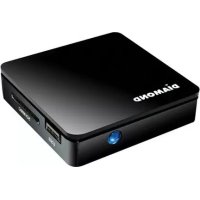
HD Media Wonder MP700 - Media player Diamond Multimedia - Free user manual and instructions
Find the device manual for free HD Media Wonder MP700 Diamond Multimedia in PDF.


| Product type | Media player |
| Brand | Diamond Multimedia |
| Model | HD Media Wonder MP700 |
| Dimensions | 190 x 140 x 35 mm |
| Weight | 400 g |
| Power supply | 100-240 V AC, 50/60 Hz, consumption ≤ 10 W (3 W without peripheral) |
| Supported audio formats | MP3, WMA (bitrate 32-384 Kbps) |
| Supported photo formats | JPEG, BMP, TIFF, PNG, GIF |
| Supported video formats | RM/RMVB, MP4 (DivX, Xvid), DVD (VOB, MPEG), VCD (DAT, MPG, MPEG) |
| External subtitles | SMI, SRT, ASS, SSA |
| File systems | FAT16, FAT32, NTFS |
| Input interfaces | 1 x SD/MMC, 2 x USB 2.0 (OTG, 1A/5V) |
| Audio output | Digital coaxial, stereo RCA |
| Video output | Composite CVBS, YUV YPbPr (720p HD) |
| Remote control | Effective range > 6 m |
| Operating temperature | 0 °C to 40 °C |
| Operating humidity | 20% to 80% |
| Warranty | 2 years limited (subject to registration within 30 days) |
| Main functions | Playback of media files (audio, photo, video) from SD/MMC card, USB flash drive, USB hard drive; thumbnail browsing; file copy and delete; language settings, slideshow, repeat, display format, TV system |
| Maintenance and cleaning | Clean with a dry, soft cloth. Avoid moisture and chemicals. |
| Safety | Do not expose to shocks, water, or extreme temperatures. Disconnect before cleaning. |
| Spare parts and repairability | Remote control, AV and YUV cables, power adapter. For repair, contact Diamond technical support. |
| General information | Supports hot-swap on USB. No internal memory. Requires external storage media. |
Frequently Asked Questions - HD Media Wonder MP700 Diamond Multimedia
User questions about HD Media Wonder MP700 Diamond Multimedia
0 question about this device. Answer the ones you know or ask your own.
Ask a new question about this device
Download the instructions for your Media player in PDF format for free! Find your manual HD Media Wonder MP700 - Diamond Multimedia and take your electronic device back in hand. On this page are published all the documents necessary for the use of your device. HD Media Wonder MP700 by Diamond Multimedia.
USER MANUAL HD Media Wonder MP700 Diamond Multimedia
Thank you for purchasing the Diamond HD Media Wonder Mini Media Player
The HD Media Wonder provides you the enjoyment of downloading the MP3, WMA, JPG, BMP, MP4, VCD, DVD, RM, RMVB and other format via the Internet. The memory cards: SD, MMC are supported. Mobile U disk drives and USB compatible.
Introduction
Function
Support photo formats: JPEG, M-JPEG, BMP, TIFF, PNG.
Support Audio formats: MP3,WMA
Support Video formats: RM, RMVB, AVI, MPEG1 (VCD), MPEG2 (DVD), MP4.
Support cards: SD,MMC and hot-swappable
Connect with U disk, mobile hard disk
Support USB and card insert at the same time, and can switch to each other
With a 15 screen picture browsing
Concise document interface management, convenience of users in different regions.
Specifications
Power supply, 100-240V
Dimensions : 190x140x35 mm
Weight: 400g
Working temperature and humidity, 0 40^ 20070 80070
Storage temperature and humidity, 20 45^ , 10^70 90^70
1.3 function Diagram
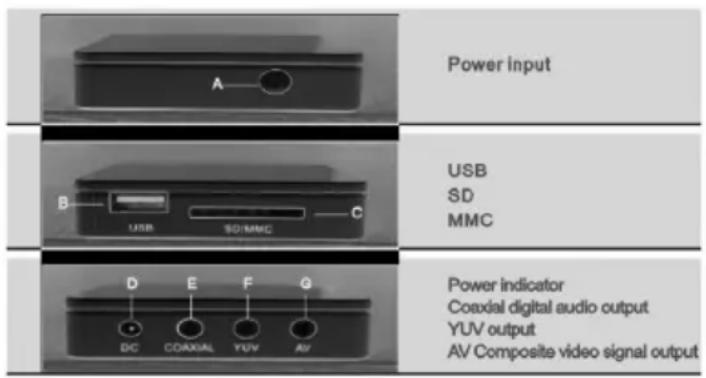
A. Power input
B. USB interface
C. SD/MMC
D. Power indicator
E. Coaxial digital audio output
F. YUV output
G. AV Composite video signal output
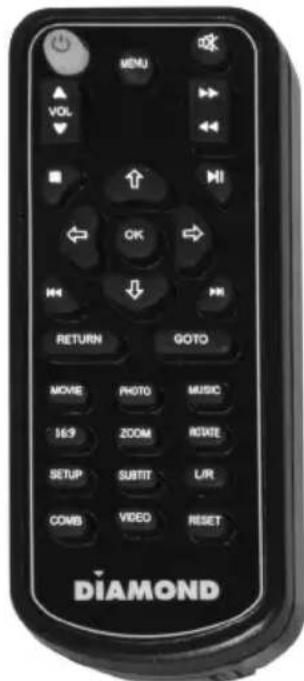
GOTO: Press the "GOTO" button, the machine pop-up menu automatically, the cursor location in time. Press the left \ right to choose hours, minutes and seconds. Press up down key to add and minus time.
SUBTIT: Press the SUBTIT under the plug-in subtitles situation can open, off, zooming subtitles, subtitles for the two amplification.
COMB: Press the key to play background music while displaying pictures.
RESET: Click this key, the machine back to factory default settings (output NTSC video composite video)
VIDEO: The key of video output signal switching. When properly connected with the local TV but no TV show. Please click this button to switch the output signal, when the output signal match the television image will be displayed.
RESET: Press this key in the root directory, the machine back to factory default settings (at this time NTSC video output composite video)
VIDEO: This machine video output signal switch keys. When connected with the television properly but no tv show, please click button to switch the machine's output signal. When the output signal model of the machine match well with television input signals, the image will be displayed.
Connect with TV
Connect with TV's A/V
Plug the A/V cable (red, white, yellow) into the TV's CVBS, Left channel, right channel. Then plug another end of the cable into U2's A/V socket.
HD (Component) connect
Plug one end of the YUV video line (green blue and red) on the local Y, Pb/Cb, Pr/Cr. The other side of the green, red, blue connect with the high-definition TV input (green, blue and red). At the same time connect AV Video red, white Cable to the machine's left channel, right channel (audio output), The other end of the red and white lines connect with TV audio input.
Notice: after connect with TV, it is necessary to verify your media player connections to your TV are correct.
Please make sure choose the correct the TV signal source after connected with TV. If there are no images, please click "VIDEO" on the remote control to switch the output signal until match the television signal.
When your TV can support high-definition input, we recommend that you choose "HD MODE" to watch.
Operation and Function
Insert the storage device which including file, screen is as follows:
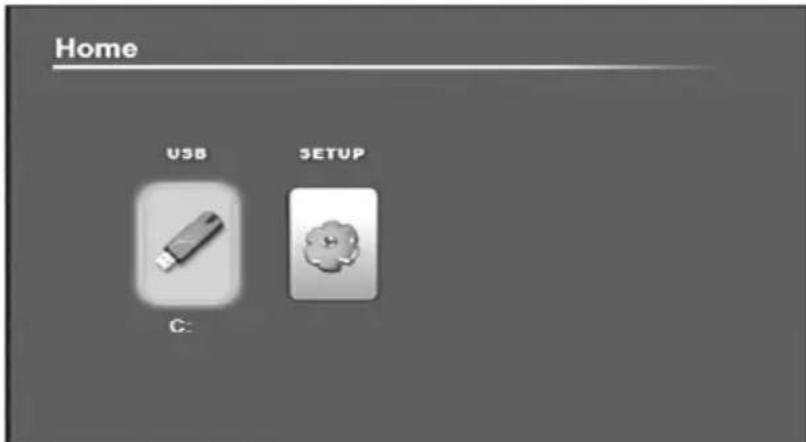
Screen display connected storage devices and set up menu. If multiple storage devices are inserted at the same time, it will be displayed separately. Press the arrow keys on the host or remote Control to select storage devices.
Operation on play files
Choose the right storage device, then press "OK" key on RMBOX or on the remote control to the Select menu as follows. Please select files in the storage device before playing.
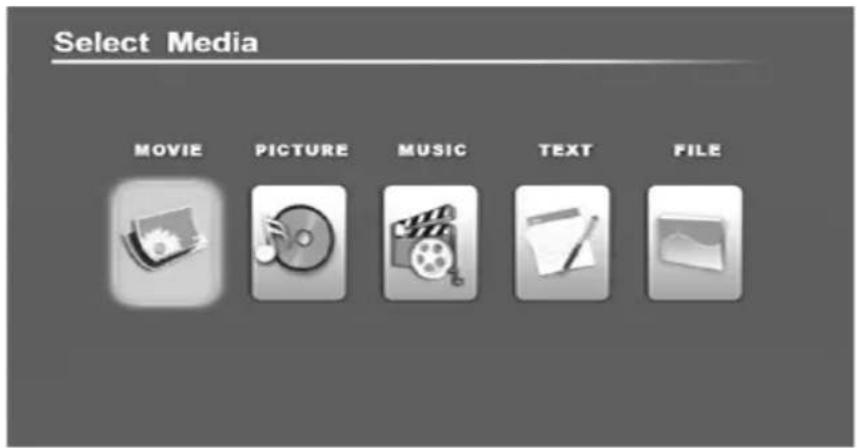
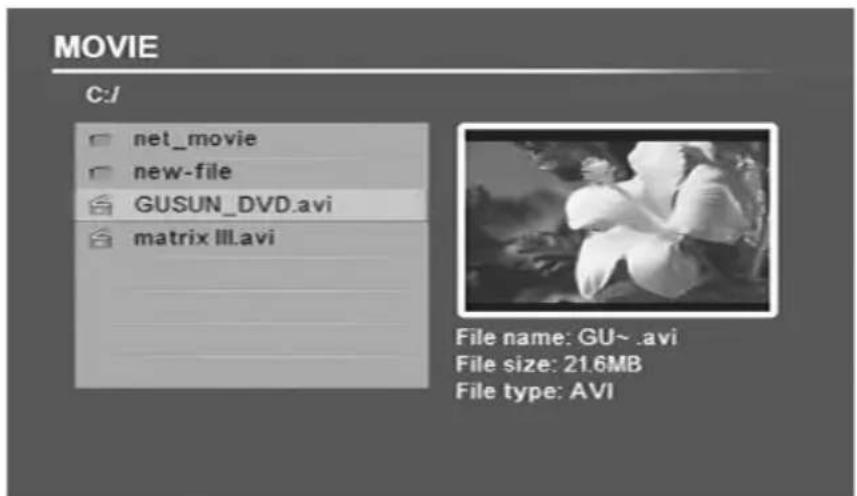
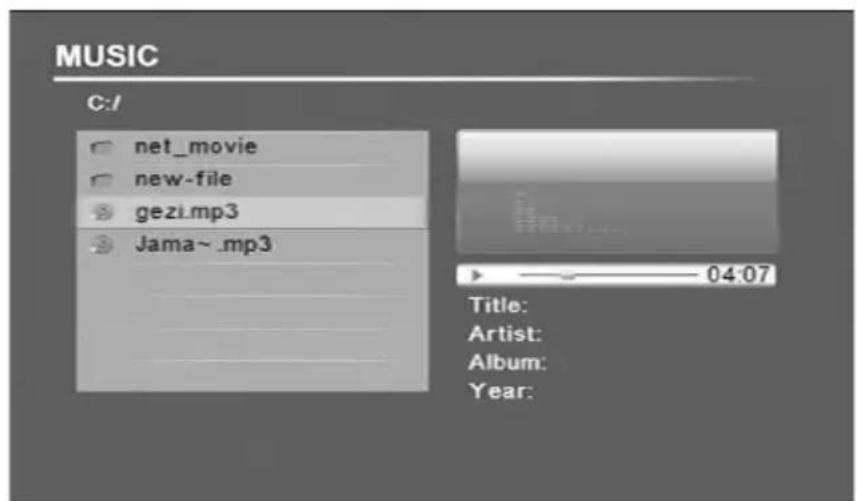
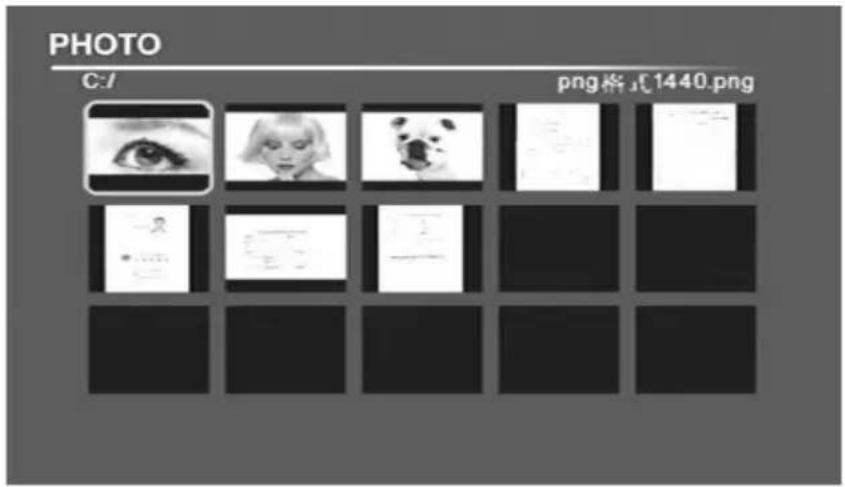
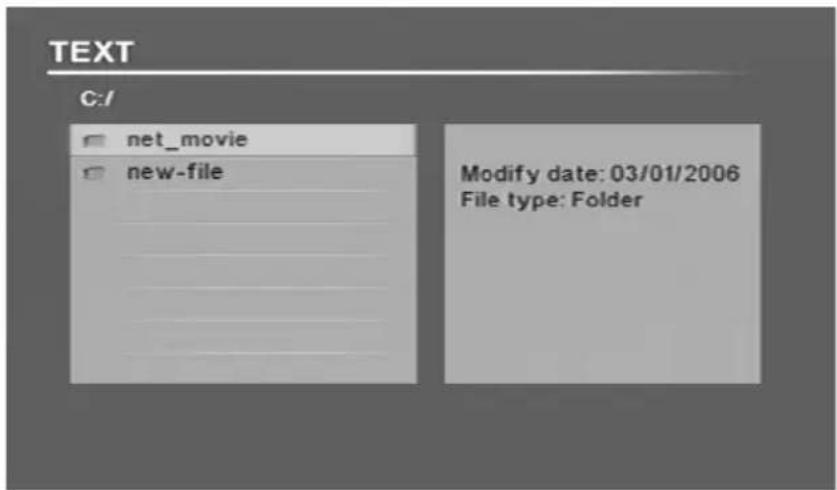
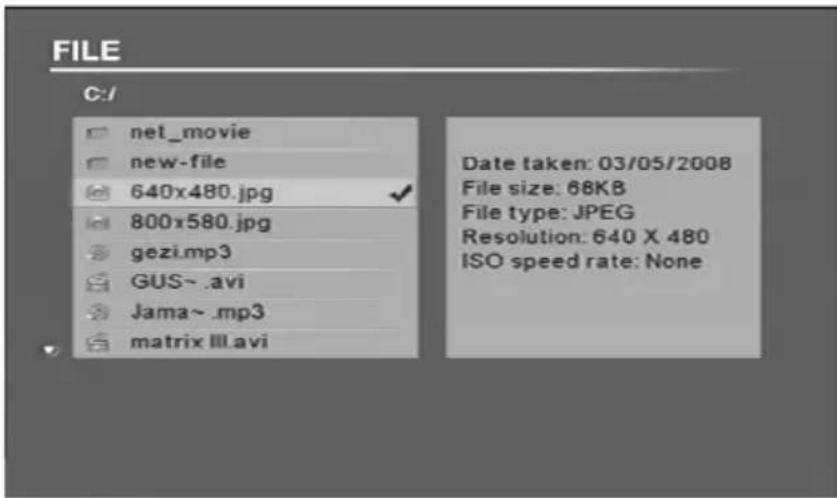
Four modes such as "movie", "music", "photo", "file" may show on the screen. press the "OK" key on RMBOX or on the remote control to play each mode. The screens in each Mode show as follow.
M 0 V i e
Music
Picture
Text
File
modes "movie", "music", "photo" show on the screen is a preview of the corresponding files in the storage device, while mode "file" lists all documents in the storage device and their information. Press the directional keys on the remote control to the right file, then press the "OK "key or "ENTER" key on the remote control to play.
Copying and deleting
Copy or delete any files in "file" mode.
Press the "UP", "DOWN" key on the remote control to choose any files that you want to copy or delete, secondly press the "right" key to verify the file, then you may see a " " behind the selected file as follows.
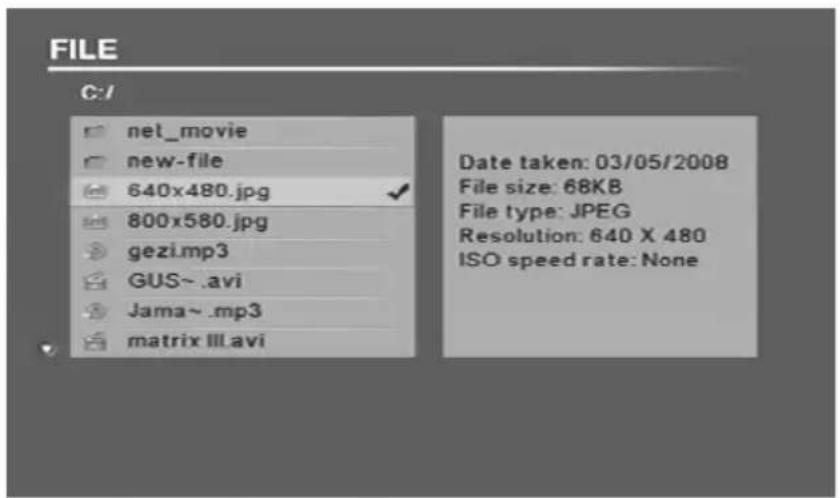
Copy or delete several files, please repeat the above operations.
After selecting the files, press the "MENU" key on the remote control to display "copy", "delete" dialog box as follows.
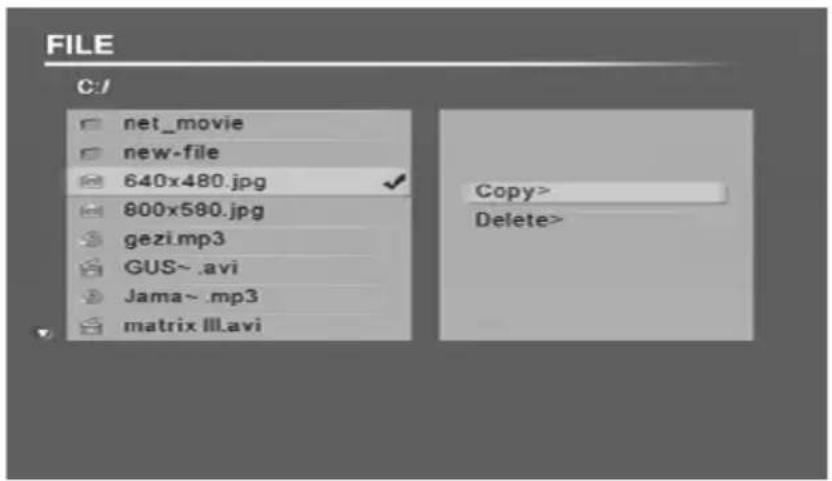
Press "up", "down" to choose the operation which you need; Press "ENTER" key to the corresponding operation; Press "MENU" key to cancel "copy\delete".
when pressing the "copy" key, the storage location of the contents that you want to copy may show on the right of the screen as follows.
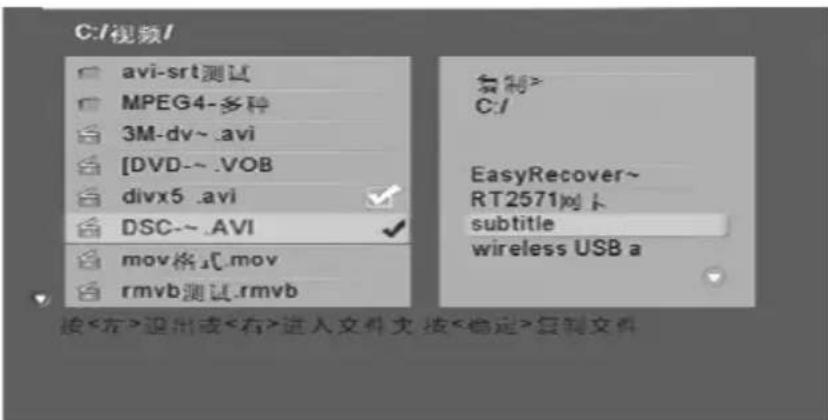
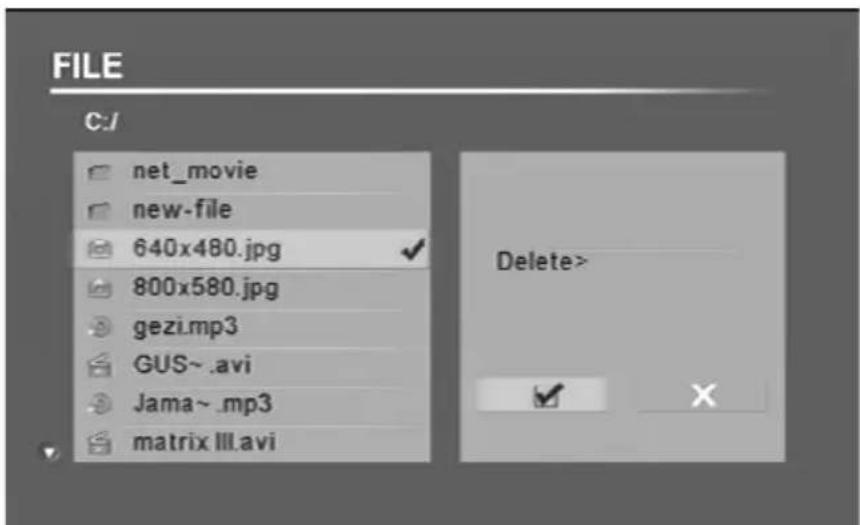
press "up" "down" key to choose file folder; press "left" "right" key to exit\enter the file folder; Press "OK" key to start copying. When pressing "delete" key, a delete dialog box may display on the screen, choose "to delete files, choose"x"to cancel delete operation. Note: can not be copied to format NTFS storage devices)
Settings
when RMBOX is turned on, press the directional keys on RMBOX or on the remote control to choose "setting" option as follows:
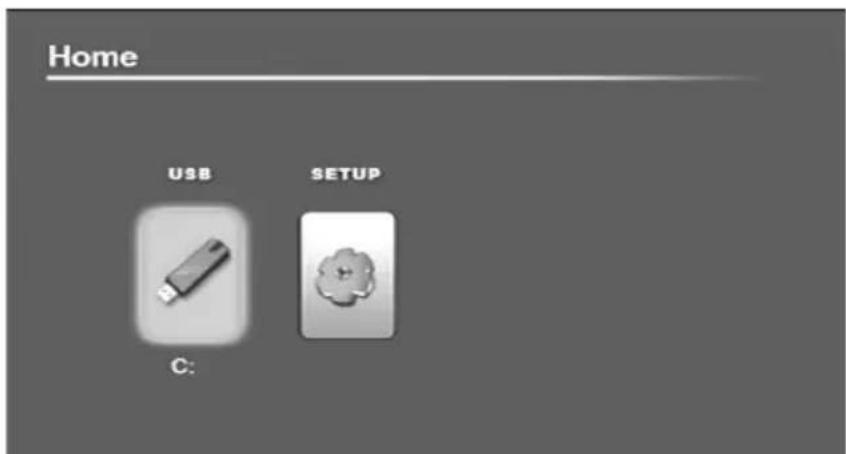
Press "Play\pause" key or "OK" key on the remote control into the Setting menu as follows.
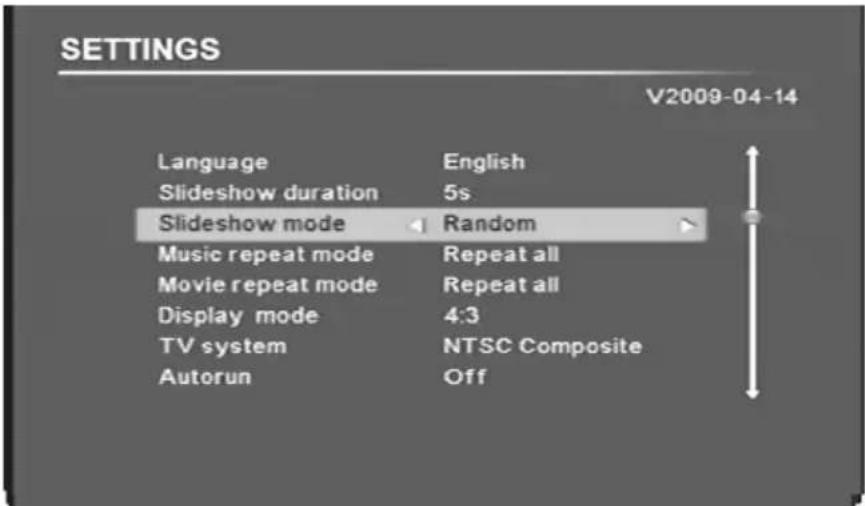
Press arrow keys on the remote control to move cursor to the option that need to be set (shown as the table below). Press directional keys on RMBOX or "left" "right" keys on the remote control to do the setting operation, then press "OK" key on U2 on the remote control to verify and save the settings.
| setting items particular | setting menu remark | |
| language simplified Chinese, English setting the language | ||
| Slideshow duration 3s | 5s, 15s, 1min, | |
| 15min, 1hr. Setting the photo display time | ||
| Slideshow mode Random,fading...... Setting the photo | display mode | |
| Music repeat mode Repeat one, repeat all Setting the | music repeat mode | |
| Movie repeat mode Repeat one, repeat all Setting the | movie repeat mode | |
| Display mode 16, 9, 4, 5 Setting the TV's display proportion | ||
| TV system PAL composite | ||
| NTSC composite | ||
| PAL interlace | ||
| PAL progressive | ||
| NTSC interlace | ||
| NTSC progressive | ||
| HD mode Advice: if your TV support HD | ||
| mode, please choose this mode, | ||
| Auto run on, off Setting the machine's auto run function | ||
| Fault | solution |
| The player will not power on | ·power adapter is not plugged in-- Please plug adapter. And ensuring that the adapter connect well. |
| ·If the above is confirmed unmistakably, Please contact the designated repair or advisory designated customer service departments | |
| failed to play when insert storage device | ·unsupported format ·no file in the storage device ·make sure at least one file in the storage device ·compatible photo format: JPG、BMP、TIFF、PNG、GIF ·compatible audio format: MP3、WMA ·compatible video format: RM、RMVB、AVI、MPEG1 (VCD)、MPEG2 (DVD)、MPEG4 |
| No picture on TV | ·Video Cable not plug or inserted wrong—please insert video cable. And ensuring that TV and video cables are correctly connected. If the above is confirmed unmistakably, Please contact the designated repair or advisory designated customer service departments ·mismatching the media player output mode and the TV input mode. press the “VIDEO” key on the remote control to switch media player output mode, If no TV show yet, Please contact the designated repair or advisory designated customer service departments |
| No sound | ·make sure the audio cable is correctly connected, If the above is confirmed unmistakably, Please contact the designated repair or advisory designated customer service departments. |
5 FAQ
| Question | Answer |
| Is my media player compatible with what kind of card | ·SD、MMC、U-,USB Mobile Hard |
| How to store the image file? | ·Using PC-attached storage card reader to transfer image files to a memory card or USB U-Mobile hard drive. |
| Not compatible with the RMBOX memory card. | ·You should be able to buy a compatible memory card adapter. For example: you have a XD card, you can buy a card compatible with XD memory card adapter, and use this memory card adapter to host and link up the XD card. |
| RMBOX a built-in storage? | ·No. the media player had no built-in memory to store multimedia files, you must use a compatible memory card, U disk or USB hard drive as storage media. |
| Can I also insert the memory card number? | ·No. only one card slot, so you can only insert an SD, MMC two kinds of memory cards in an arbitrary, and can also insert the U-USB interface, USB mobile hard drive, and to achieve the three storage of documents mutual exchange. |
6 Basic assemblies
| assemblies | quantity |
| remote control | 1 |
| AV cable | 1 |
| YUV cable | 1 |
| User manual | 1 |
| maintain cards | 1 |
| AC Power cord | 1 |
7 specification table
| parameter items | U2 | |
| Support file format | Audio format | MP3; WMA (code rate 32Kb/s—384Kb/s) |
| Photo format | JPG BMP TIFF PNG GIF | |
| Video format | RM/RMVB ( code rate 1.6Mb/s, video size 1024*576) | |
| MP4: .avi, include Divx3-6, Xvid (code rate 4.5Mb/s, video size 720*576) | ||
| DVD: .vob, .mpeg; code rate 10M; video size 720*576 | ||
| VCD: .DAT, .MPG, .MPEG; full code rate | ||
| External subtitles | *.SMI, *SRT, *ASS, *SSA | |
| File system | FAT16、FAT32、NTFS | |
| Input interface | Storage card | SD/MMC, volatge range: 2.7-3.3V |
| Two USB interface | 2.0High-speed, OTG, max output current 1A/5V. Directly connected to a variety of mobile hard disk, No need for additional power supply. Support hot-swappable | |
| Output interface | Audio | digital Coaxial audio output: standard RCA Block The left and right stereo output: standard RCA Block |
| Video | CVBS: PAL/NTSC double mode; standard RCA Block YCbCr, YPbPr(720P HDoutput); standard RCA Block | |
| other | Remote distance | Effective range more then 6m |
| Power switch | Electronic hardware switch, turn off current less then 3mA/DC | |
| electric parameter | video | range: 1.0V±0.1V (75Ω load): S/N≥55dB |
| audio | range: 2V±0.2V (10KΩ load): S/N≥85dB | |
| Power | Input voltage100-240VAC, power Consumption: ≤10 W(3W with no input device), Power standard configuration 1A/9V | |
Note: If the design of the product and the specification had changed, please forgive us not inform separately.
Technical Support
Diamond Technical Support staff is here to help resolve any issues that you may be experiencing with the installation. Prior to contacting technical support please make sure you have the following information available.
- Model #: (Printed on the bar code, located on the box)
- Installation CD Version: (printed on the CD label)
- The version of Windows that your system is running.
- The manufacturer and model # of your computer.
- CPU type and speed (example: Intel Pentium4 2.4GHz)
- A complete description of the problem that you are experiencing including any steps that you have taken to try to resolve the issue.
Technical Support Options
Free Telephone Support
818-357-5165
(long distance rates may apply)
Mon - Fri, 8 - 4:30 PST
http://www.diamondmm.com
SHIPPING
Starting June 1st 2009 Diamond Multimedia will pay for shipping cost from Diamond back to US and Canadian customers provided the product is indeed under warranty and there is no damage caused by improper installation or modification of the merchandise. Customers located outside of the United States and Canada or using military addresses (APO,etc) will be required to pay for return shipping. Average shipping times range from 5 to 10 days, depending on actual shipment destination. Shipments made outside the US may take longer to deliver.
Diamond Multimedia reserves the right to claim for shipping fees along with service charges for any product that is returned incomplete or not under warranty. Return Authorization (RMA) is required for all warranty return products.
ONE YEAR LIMITED WARRANTY
The warranty described below is extended only to the original buyer and is not transferable.
Diamond warrants to the original purchaser of the hardware product, that the product is free from defects in materials or workmanship under normal use and service for a period of one (1) year from the date of purchase. All cables and accessories provided with a Diamond product are warranted to be free from defects in materials or workmanship under normal use and service for a period of for (90) ninety days from date of purchase.
Diamond's sole obligation under this warranty shall be, at Diamond's option, to: (I) repair the defective product or parts; (II) deliver to customer an equivalent product or part to replace the defective product. When a product or part is replaced or exchanged, that item becomes the customer's property and the replaced or exchanged item becomes Diamond's property. When a refund or replacement product is given, the defective product becomes Diamond's property. Replacement parts or products may be new or include serviceable used parts with at least the same functional equivalence to the original product. If, at the time of repair, a product is "out of warranty" or within the last ninety (90) days of the warranty period, Diamond warrants any repair for ninety (90) days. All software provided is subject to the terms of the associated software end-user license agreement.
WARRANTY EXCLUSIONS AND LIMITATIONS
TO BE ELIGIBLE FOR THIS WARRANTY, YOU NEED TO PROVIDE THE ORIGINAL SALES RECEIPT SHOWING THE DATE OF PURCHASE OF THE PRODUCT. DIAMOND MAY REQUEST THE ORIGINAL SALES RECEIPT OR A COPY AS PROOF OF THE DATE OF PURCHASE.
Diamond does not warrant third party products which Diamond distributes "AS IS" unless otherwise specified. Third party products may be warranted by the third party.
Diamond makes no warranty or representation that: (I) the operation of the product will be uninterrupted or error free; (II) defects in the product will be corrected; or (III) that the product will meet Customer's requirements or work in combination with any hardware or software provided by third parties.
TO THE FULLEST EXTENT ALLOWED BY LAW, THE WARRANTYES, REMEDIES AND LIMITATIONS CONTAINED HEREIN ARE EXCLUSIVE AND ARE IN LIEU OF ALL OTHER WARRANTYES, TERMS OR CONDITIONS, EXPRESS OR IMPLIED, EITHER IN FACT OR BY OPERATION OF LAW, STATUTORY OR OTHERWISE, INCLUDING WITHOUT LIMITATION, WARRANTYES, TERMS OR CONDITIONS OF MERCHANTABILITY, FITNESS FOR A PARTICULAR PURPOSE, QUALITY, CORRESPONDENCE WITH DESCRIPTION AND NON-INFRINGEMENT, ALL OF WHICH ARE EXPRESSLY DISCLAIMED.
DIAMOND WILL NOT BE LIABLE UNDER THIS WARRANTY IF ITS TESTING AND EXAMINATION DISCLOSE THAT THE ALLEGED DEFECT OR MALFUNCTION IN THE PRODUCT OR SOFTWARE DOES NOT EXIST OR WAS CAUSED BY CUSTOMER'S OR ANY THIRD PARTY'S MISUSE, NEGLECT, IMPROPER INSTALLATION OR TESTING, UNAUTHORIZED ATTEMPTS TO OPEN, REPAIR OR MODIFY THE PRODUCT OR SOFTWARE, OR ANY OTHER CAUSE BEYOND THE RANGE OF THE INTENDED USE, OR BY ACCIDENT, FIRE, LIGHTNING, OTHER HAZARDS, OR ACTS OF GOD. THIS WARRANTY WILL NOT APPLY TO PRODUCTS USED FOR NUCLEAR RELATED, WEAPONS RELATED, MEDICAL OR LIFE SAVING PURPOSES.
TO THE FULLEST EXTENT ALLOWED BY LAW, DIAMOND ALSO EXCULES FOR ITSELF AND ITS SUPPLIERS ANY LIABILITY, WHETHER BASED IN CONTRACT OR TORT (INCLUDING NEGLIGENCE), FOR INCIDENTAL, CONSEQUENTIAL, INDIRECT, SPECIAL OR PUNITIVE DAMAGES OF ANY KIND, OR FOR LOSS OF REVENUE OR PROFITS, LOSS OF BUSINESS, LOSS OF INFORMATION OR DATA, OR OTHER FINANCIAL LOSS ARISING OUT OF OR IN CONNECTION WITH THE SALE, INSTALLATION, MAINTENANCE, USE, PERFORMANCE, FAILURE, OR INTERRUPTION OF ITS PRODUCTS, EVEN IF DIAMOND, ITS SUPPLIERS OR ITS RESELLER HAS BEEN ADVISED OF THE POSSIBILITY OF SUCH DAMAGES. DIAMOND'S SOLE LIABILITY WITH RESPECT TO ITS PRODUCT IS LIMITED TO REPAIR OR REPLACEMENT OF THE PRODUCT, AT DIAMOND'S OPTION. THIS DISCLAIMER OF LIABILITY FOR DAMAGES WILL NOT BE AFFECTED IF ANY REMEDY PROVIDED HEREIN SHALL FAIL FOR ESSENTIAL PURPOSE.
DISCLAIMER: Some jurisdictions may not allow the exclusion or limitation of incidental or consequential damages for products supplied to consumers, or the limitation of liability for personal injury, so the foregoing limitations and exclusions may not apply or may be limited in their application to you. When implied warranties are not allowed to be excluded in their entirety, they will be limited to the duration of the applicable written warranty. This warranty gives you specific legal rights that may vary depending on the law of the applicable jurisdiction.
OBTAINING WARRANTY SERVICE: Please review the "help" resources referred to in your products accompanying documentation before seeking warranty service. If the product is still not functioning properly after making use of these resources, please access the support page at http://www.diamondmm.com/support.php for warranty instructions and services. Some additional charges may apply for phone support.
Prelambule
Supportes formats Audio: MP3,WMA
Support les formats Video: RM, RMVB, AVI, MPEG1 (VCD), MPEG2 (DVD), MP4.
Supportes cartes: SD, MMC and hot-swappable
Options Service technique
Chatsworth, CA. 91311
www.diamondmm.com