XtremeSound 5.1 - Soundcard Diamond Multimedia - Free user manual and instructions
Find the device manual for free XtremeSound 5.1 Diamond Multimedia in PDF.


User questions about XtremeSound 5.1 Diamond Multimedia
0 question about this device. Answer the ones you know or ask your own.
Ask a new question about this device
Download the instructions for your Soundcard in PDF format for free! Find your manual XtremeSound 5.1 - Diamond Multimedia and take your electronic device back in hand. On this page are published all the documents necessary for the use of your device. XtremeSound 5.1 by Diamond Multimedia.
USER MANUAL XtremeSound 5.1 Diamond Multimedia
Please read through the following safety tips to ensure for a safe and proper installation of this product.

Please make sure to read all the instructions thoroughly before attempting the installation of this sound card.

- Do not attempt to install this product during an electrical storm.
- Make sure your computer system is connected to a properly grounded power outlet.
- Touching the exposed metal part of your computer case (on the rear side) will discharge static electricity from your body. We recommend you perform this step before touching this product or any part inside your computer and periodically while working inside your PC.

- Internal Boards may contain "Lead" which may cause cancer, birth defects and other reproductive harm. Please wash your hands thoroughly after handling these products.
This notice is required under California " proposition 65 " and Health & Safety code.
Package Contents
Please verify your package contains the following items.
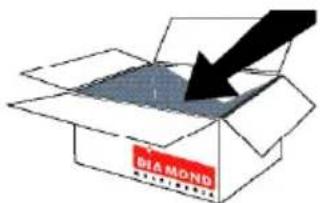
- Xtreme Sound PCI Card
- Installation CD
- Quick Start Guide
- Warranty Card
text_image
BIA MONDBefore You Begin
Please have the following items available prior to the installation
- System / Motherboard manual (or working knowledge)
- A philips head screwdriver
- Can of compressed air (optional, recommended for upgraders)
XS 5.1
text_image
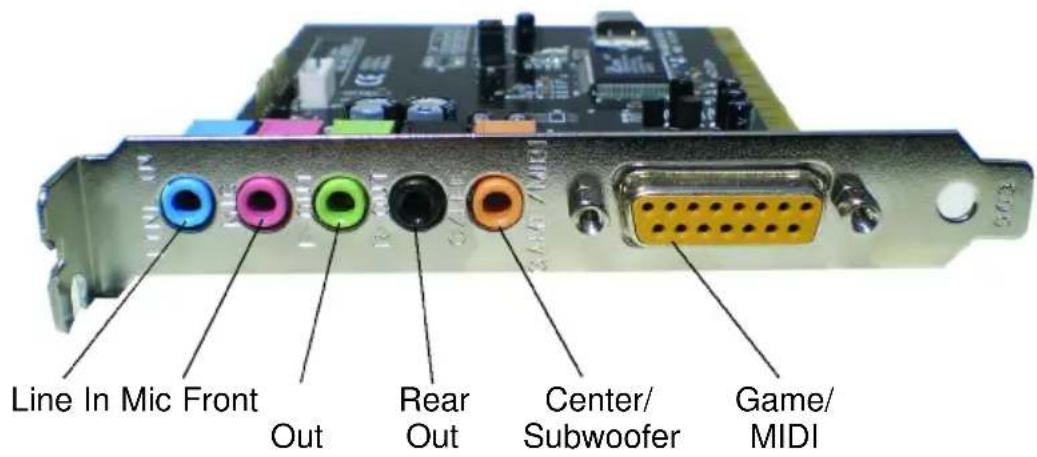
Line In Mic Front Out Rear Out Center/ Subwoofer Game/ MIDIXS 7.1
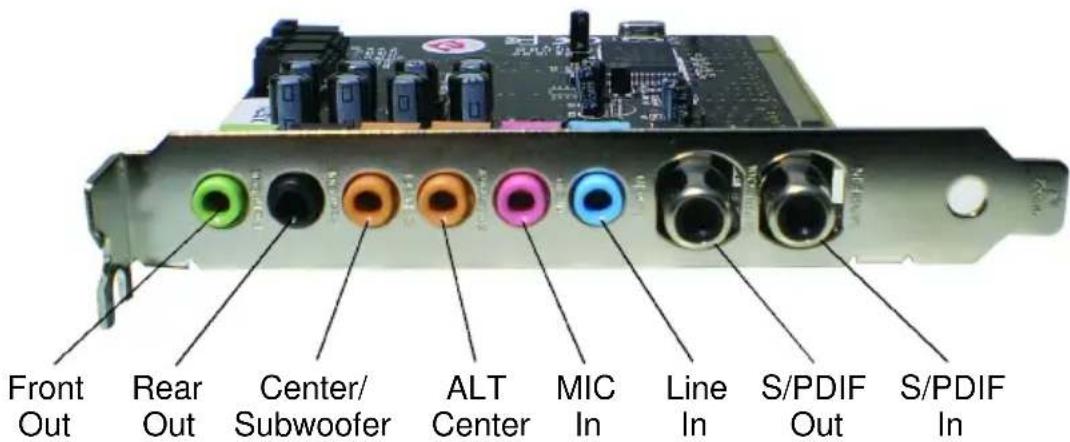
text_image
Front Out Rear Out Center/ Subwoofer ALT Center MIC In Line In S/PDIF Out S/PDIF InXS 7.1DDL
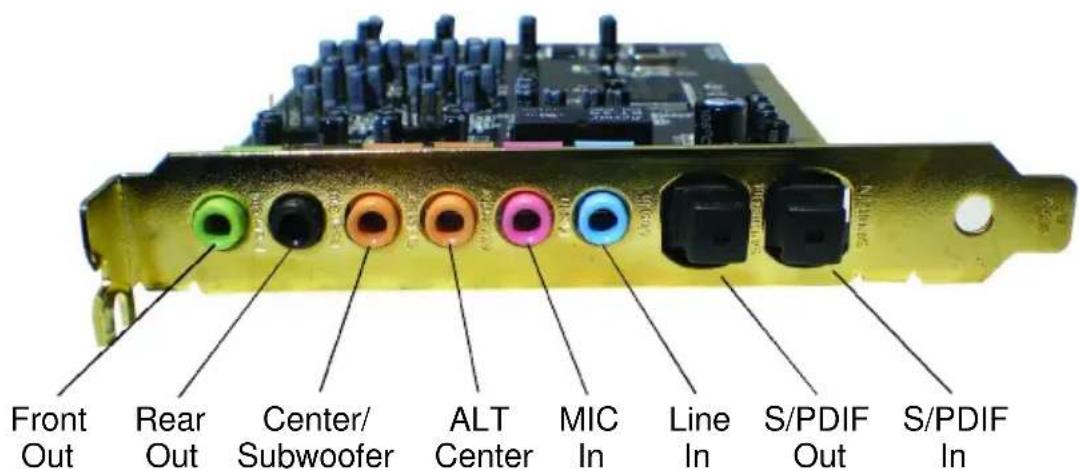
text_image
Front Out Rear Out Center/ Subwoofer ALT Center MIC In Line In S/PDIF Out S/PDIF InHardware Installation
Please consult your systems user guide for exact instructions regarding opening the computer case and installing new cards.
- With the computer power turned OFF disconnect the power cable from the computer.
- Open the computer case following the instructions from your system manufacturer.
- Locate an available PCI slot on the motherboard.
- Insert the Xtreme Sound PCI card into the slot that you located in step 3.
- Screw the metal bracket into place.
- Close the computer case.
- Reconnect any loose cables (Power, mouse, keyboard, etc.)
- Connect your speakers to the sound card.
Refer to the diagram on the previous page.
Selecting the placement of your speakers
Use the following diagram for a basic guideline to help assist in arranging the placement of your speakers.
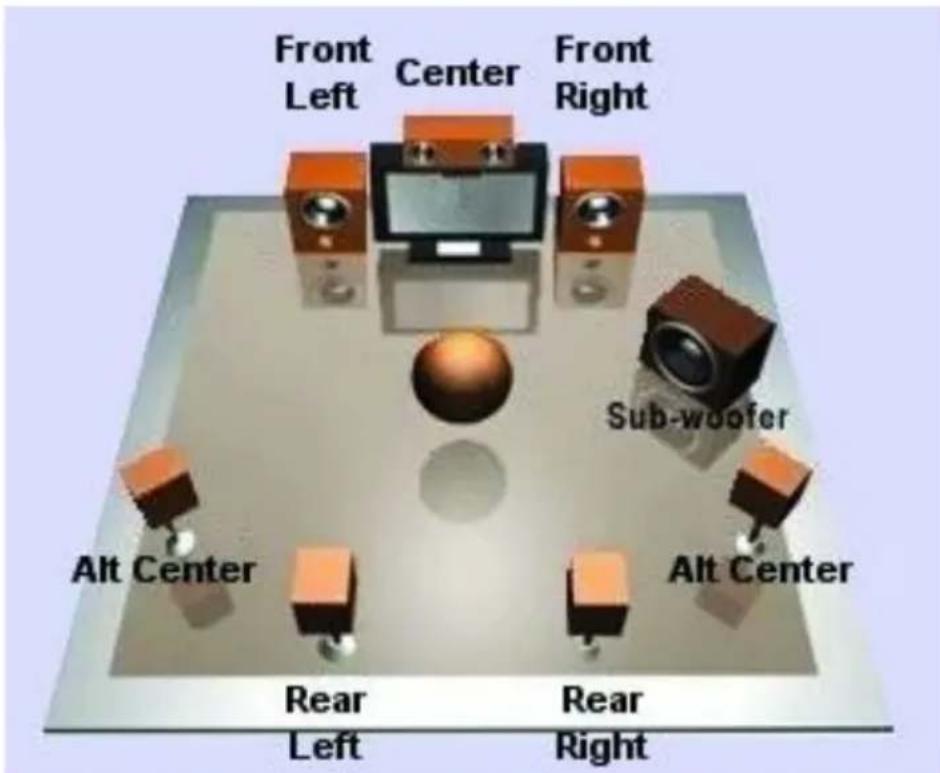
text_image
Front Left Center Front Right Sub-woofer Alt Center Alt Center Rear Left Rear RightPrior to booting Into Windows
Please complete the following steps before your system boots into Windows if your previous sound card was integrated onto your motherboard.
- Turn on the power to the computer and enter your systems BIOS setup (CMOS). Please consult your system documentation for exact instructions regarding entering and using your system CMOS.
- Locate and disable the previous sound device. Usually this will be listed within an Integrated Peripherals section.
- Save and exit from CMOS.
- Your system will reboot at this point. Let the system boot into Windows and do not insert the installation CD until requested in the up and coming steps.
Xtreme Sound Driver Installation
Please start your computer and do NOT insert the installation CD until you are prompted to do so.
- Windows will detect new hardware upon startup. Click the CAN-CEL button on the found new hardware wizard.
- Insert the Xtreme Sound installation CD and wait for the CD to start.
- Click the Install Sound Driver button.
- A wizard will appear. Click the NEXT button to continue.
- Confirm the installation options and click NEXT to continue.
- Click NEXT to begin the driver installation.
- Click OK to reboot the system.
- Remove the installation CD.
Application Installation
The following steps are optional and not required for the general use of the Xtreme Sound card.
Audacity
Audacity is a sound editing tool that can edit MP3, WAV and other popular sound types. You can use it to cut parts from songs, mix songs together, fade in/out, increase / decrease volume and more!
- Insert the installation CD and wait for the menu to appear.
- Click the Bonus Software button.
- Click the Audacity button.
- Click NEXT to continue.
- Click I Accept the Agreement and click NEXT.
- Click NEXT to continue.
- Confirm the installation path and click NEXT.
- Confirm additional tasks and click NEXT to continue.
- Click the INSTALL button.
- Click the FINISH button.
- Click HELP / ONLINE HELP for more information.
- Remove the installation CD.
Acrobat Reader
Use Acrobat Reader to view the documentation on the install CD.
- Insert the installation CD and wait for the menu to appear.
- Click the Bonus Software button.
- Click the Acrobat Reader button.
- Click NEXT to continue.
- Confirm the path and click NEXT.
- Click OK to complete the installation.
WINDVD (XS71DDL ONLY)
- Insert installation CD into your CD-ROM drive.
- Double click My Computer on the desktop (or click Start, My Computer).
- Right click your CD-ROM drive icon. Left click OPEN.
- Double click the software folder.
- Double click the WinDVD.exe icon.
- Click NEXT to begin the installation process.
- Click YES to the license agreement.
- Type your name, company name, and in the space for serial number refer to the serial number sticker found on the front of this quick start guide.
- Confirm the path and click NEXT.
- Confirm the program folder and click NEXT.
- Confirm the default application settings and click NEXT.
- Click the FINISH button.
Xtreme Sound Control Panel
Double click the Diamond icon either in the system tray or in the control panel. The following screen appears.
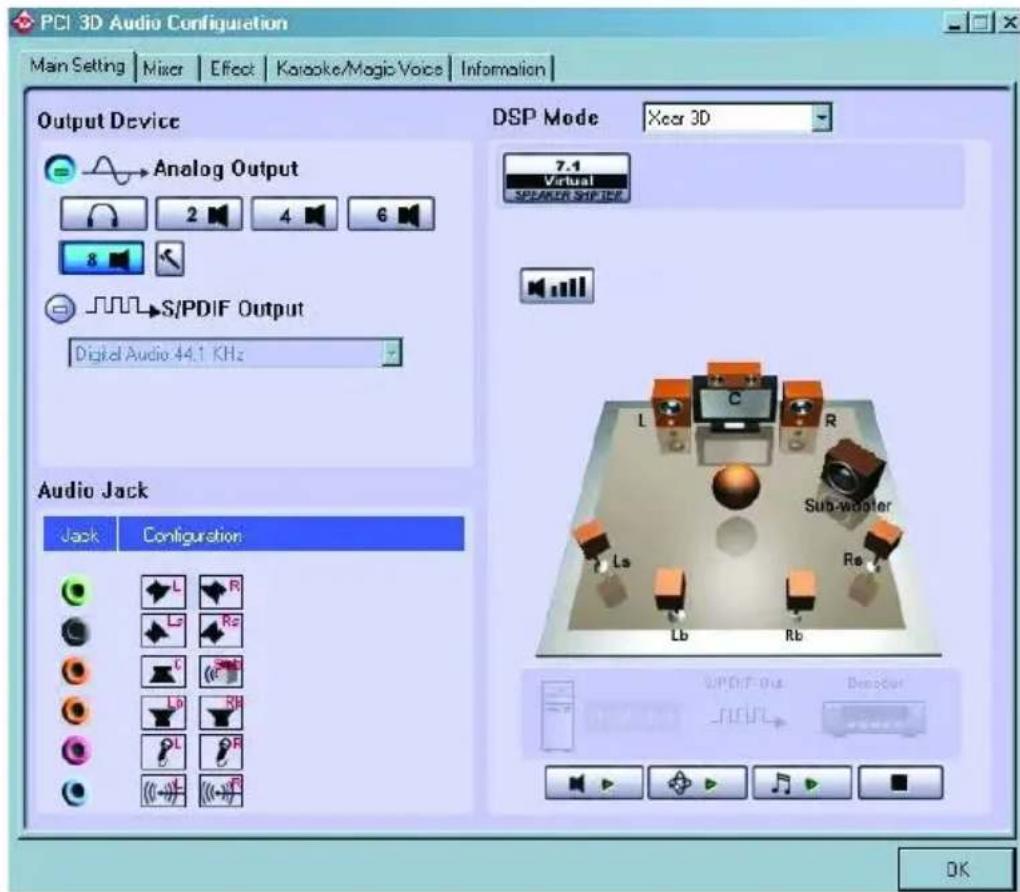
text_image
PCI 3D Audio Configuration Main Setting | Mixer | Effect | Karaoke/Magic Voice | Information Output Device Analog Output 2 4 6 S/PDIF Output Digital Audio 44.1 KHz DSP Mode Xcar 3D 7.1 Virtual SPREAD/SPIRER Audio Jack Jack Configuration L R Lg Rg G SSB Lb RH L P R Lb Rb Sub-woofer Rs Ls Lb Rb WPDF Out Demodder OKMain Setting Tab
Output Device Analog Output
You can select between headphones & 2, 4, 6, or 8 channel modes. Note: The XS51 sound card can select between 2, 4, or 6 channel modes.
Click the hammer icon and the following screen appears.

text_image
Speaker Environment Center/Bass Output Swap Side/Back Surround Output Swap Bass Enhancement OKCenter/Bass Output Swap
Swap the center channel with the bass channel
Side/Back Surround Output Swap
Swap the side surround channel with the back surround channel
Bass Enhancement
Increase the bass response by 15% by selecting this box.
S/PDIF Output
Click the – symbol to activate this option. This is used when you have a coaxial cable connected between the S/PDIF out on the sound card to a S/PDIF on a home receiver.
Sound Tests
The follow sound tests are included and built into the sound card driver.

Vocal sound test for each speaker that is attached and selected
Helicopter sound demonstrating surround sound capabilities

Musical surround sound test.

Stops playback of any of the 3 sound tests.
Mixer Tab
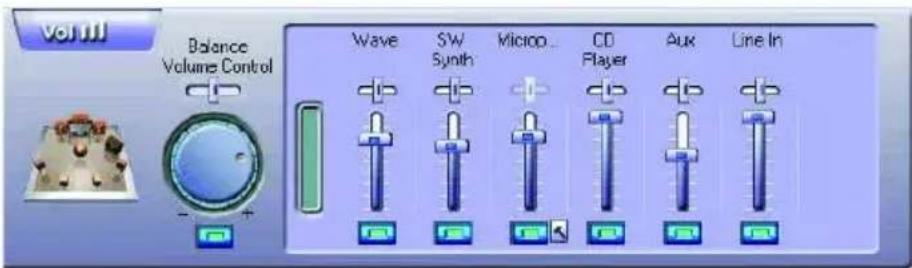
The mixer tab is where you control the component volumes on the sound card for both recording and playback.
Playback Mixer
The playback mixer is used to control all sound components that are playing back through your system speaker system.
text_image
vol III Balance Volume Control Wave SW Synth Microop... CD Player Aux Line In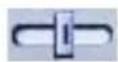
Balance
With this slider set to the middle position an equal volume of sound will be present out the left and right channels. Moving the slider left or right of the middle position will cause the left or right channel o be more prominent.
Notice: Each component on the sound card also has an individual balance slider. Moving the balance on an individual component only affects that particular component.

Volume
Use this knob to raise or lower the overall system volume level.

Mute
The mute button located just under the volume knob will mute the entire sound system when lit. Click once to toggle this control on/off. Notice: Each component on the sound card also has an individual mute button. Clicking the mute on an individual component only affects that particular component.
Wave
The Wave slider controls the volume of any program using the Wave playback portion of the sound card. This usually includes and is not limited to files with the following extensions: .WAV, .MP3, .RM, etc). Most games will use the Wave channel for sound effects and voice playback.
SW Synth
The SW Synth slider controls the volume of any program using the MIDI playback portion of the sound card.
This usually will be any file utilizing the .MID file extension or games using MIDI playback for their back ground musical score.
Microphone
The Microphone slider controls the volume of the microphone component. If the volume is not loud enough please see the advanced setting. The microphone connector is located on the rear of the sound card and is designated by a pink colored connector.
- Advanced Setting
text_image
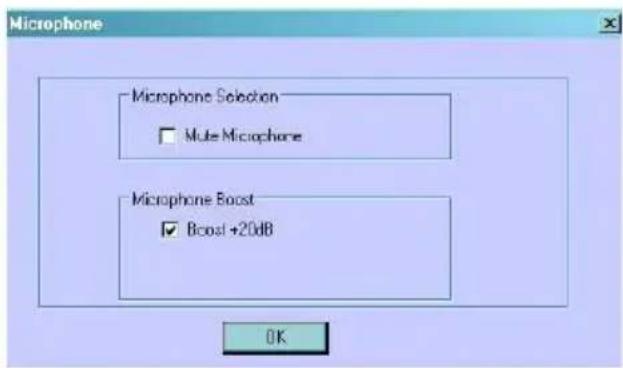
Microphone Microphone Selection □ Mute Microphone Microphone Boost ☑ Boost +20dB OKThe Advanced setting allows for mute and boost controls. Check the Mute Microphone box if you do not want to hear the Microphone through your sound system speakers. Check the Boost +20dB box if the microphone volume is too low.
CD Player
The CD Player slider controls the volume of the CD player component. This is only used if you have a CD audio cable connected between a CD-ROM drive and the sound card. Most systems no longer utilize this connection and instead the Wave volume should be used to control the playback of an audio CD.
Aux
The Aux slider controls the volume of the auxiliary input. This input is a connector located on the top of the sound card circuit board. Most applications typically do not make use of this connector.
Line In
The line in slider controls the volume of the Line In connector which is located of the rear side of the sound card and is designated by a blue colored connector.
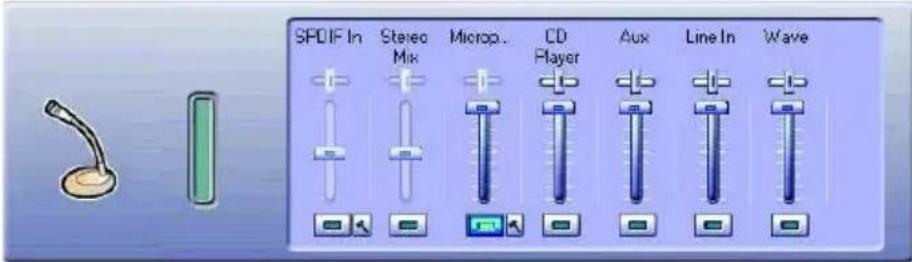
Recording Mixer
The playback mixer is used to control all sound components that are playing back through your system speaker system.
text_image
SPDIF In Stereo Mix Microp.. CD Player Aux Line In WaveSPDIF In
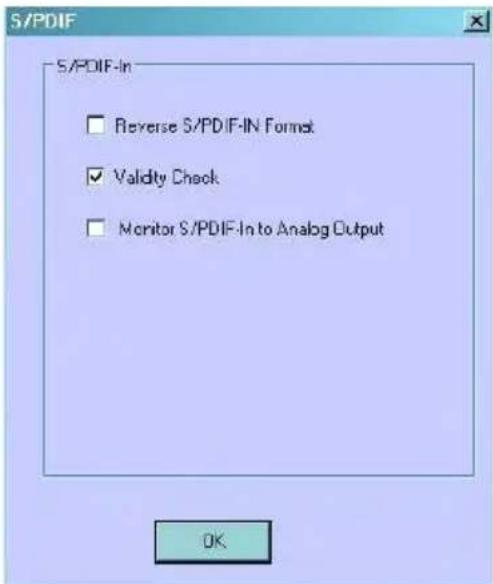
Advanced Setting
text_image
S/PDIF S/PDIF-In Reverse S/PDIF-IN Format Validity Check Monitor S/PDIF-In to Analog Output OKReverse S/PDIF Format
Check this box to reverse the order of the S/PDIF format.
Validity Check
Check this box to perform a constant validity check.
Monitor S/PDIF-In to Analog Output
Checking this box causes all digital input coming in through the S/PDIF input connector on the rear of the sound card to be converted and played back through the analog channels of the sound card.
Stereo Mix
Selecting Stereo Mix allows audio applications to record sound being played back through the Wave component on the sound card.
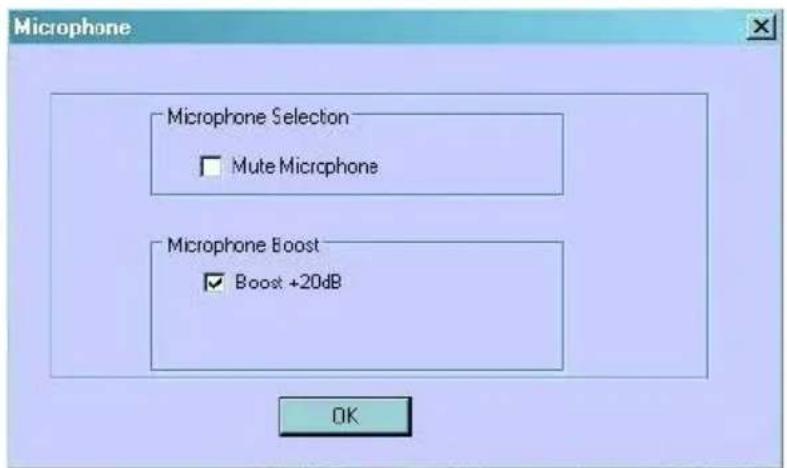
Microphone
Selecting Microphone allows audio applications to record sound from a microphone connected to the MIC connector on the rear of the sound card. The MIC connector is designated by a pink colored connector.
Advanced Setting:
text_image
Microphone - Microphone Selection Mute Microphone - Microphone Boost Boost +20dB OKCD Player
Selecting the CD player allows for audio applications to record from the analog CD input connector on the sound card.
NOTE: This connection is not normally used since most CD player applications use the bus to transfer the CD audio digitally.
Aux
Selecting Aux allows for audio applications to record from the Aux input connector on the sound card.
NOTE: This connector is not normally used by most applications.
Line In
Selecting Line In allows for audio applications to record from the Line In connector on the rear of the sound card. The Line In connector is designated by a blue connector.
Wave
Selecting Wave for the recording device allows for audio applications to record from the wave component on the sound card. Any sound mapped through this device will be recorded.
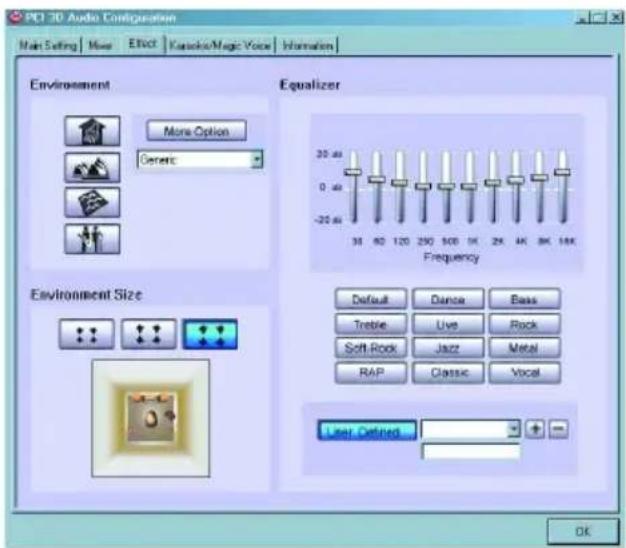
Effect Tab
The Effect tab allows for customizing the sound stage. There is a 10 band graphic equalizer with presets in addition to a variety of environmental effects and sizes.
text_image
CD 3D Audio Configuration Main Setting More Effect Karaoke/Magic Voice Information Environment More Option Generic Equalizer 20 ms 0 ms -20 ms Frequency 35 80 120 250 500 1K 2K 4K 8K 16K Environment Size Default Dance Bass Treble Live Rock Soft Rock Jazz Metal RAP Classic Vocal Layer Defined + OKKaraoke/Magic Voice Tab
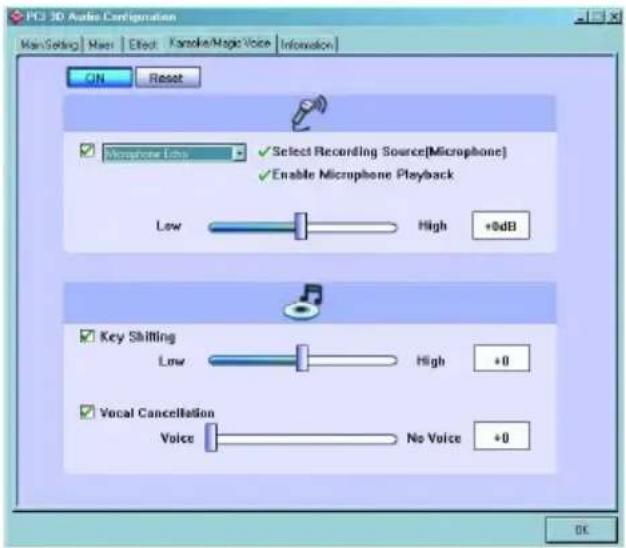
The Karaoke/Magic Voice tab allows for functioning in conjunction with Karaoke discs (CD+G).
text_image
PC 3D Audio Configuration Main/Setting Max Effect Kanoke/Magic Voice Information ON Reset ✓ Microphone Eds ✓ Select Recording Source(Microphone) ✓ Enable Microphone Playback Low High +0dB ✓ Key Shifting Low High +0 ✓ Vocal Cancellation Voice No Voice +0 OKSelect the On button to enable these features.
Microphone Echo allows for an adjustable range of echo applied to the incoming sound from the microphone.
Key Shifting allows to slow down and speed up Karaoke CD music.
Voice Cancellation attempts to remove vocal portions from the current audio CD being played.
Information Tab
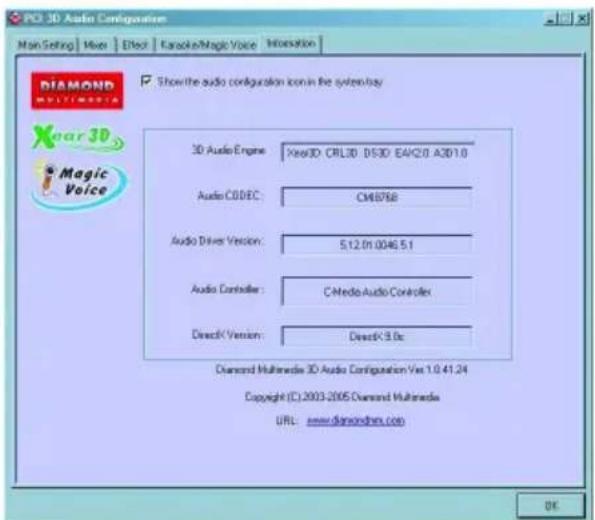
The information tab displays the driver version and various trademarks.
text_image
PC3 3D Audio Configuration Main Setting | Mode | Help | Karaoke/Magic Voice | Information Show the audio configuration icon in the system bay 3D Audio Engine: Xie3D CRL3D DS3D EA420 A301.0 Audio CODEC: CM8768 Audio Driver Version: 5.12.01.0046.5.1 Audio Controller: C-Medio Audio Controller Direct Version: DirectX 9.0c Diamond Multimedia 3D Audio Configuration Vue 1.0.41.24 Copyright (C):2003-2005 Diamond Multimedia URL: www.diamondsndem.com OKCheck the option to Show the audio configuration icon in the system tray if you would like to be able to access the PCI 3D Audio Configuration from a Diamond icon in the system tray.
Technical Support
Diamond Technical Support staff is here to help resolve any issues that you may be experiencing with the installation of the Diamond sound card. Prior to contacting technical support please make sure you have the following information available.
- Model #: (Printed on the bar code, located on the box)
- Installation CD Version: (printed on the CD label)
- The version of W indows that your system is running.
- The manufacturer and model # of your computer.
- CPU type and speed (example: Intel Pentium4 2.4GHz)
- A complete description of the problem that you are experiencing including any steps that you have taken to try to resolve the issue.
Technical Support Options
Free Telephone Support
818-357-5165
(long distance rates may apply)
Mon - Fri, 8 - 4:30 PST
http://www.diamondmm.com
One Year Limited Warranty
The warranty described below is extended only to the original buyer and is not transferable.
PLEASE NOTE THAT THE PRODUCT YOU HAVE PURCHASED IS DISTRIBUTED AND WARRANTED BY DIAMOND MULTIMEDIA ("DIAMOND") AS DESCRIBED BELOW. QUESTIONS REGARDING THIS WARRANTY AND WARRANTY CLAIMS SHOULD BE MADE TO DIAMOND.
Diamond warrants to the original purchaser of the hardware product, that the product is free from defects in materials or workmanship under normal use and service for a period of one (1) year from the date of purchase at retail. All cables and accessories provided with a Diamond product are warranted to be free from defects in materials or workmanship under normal use and service for a period of for (90) ninety days from date of purchase at retail.
Diamond's sole obligation under this warranty shall be, at Diamond's option, to: (i) repair the defective product or part; (ii) deliver to customer an equivalent product or part to replace the defective product. When a product or part is replaced or exchanged, the item becomes customer's property and the replaced or exchanged item becomes Diamond's property. When a refund or replacement product is given, the defective product becomes Diamond's property.
Replacement parts or products may be new or include serviceable used parts with at least the same functional equivalence to the original product. If, at the time of repair, a product is "out of warranty" or within the last ninety (90) days of the warranty period, Diamond warrants any repair for ninety (90) days. All software provided is subject to the terms of the associated software end-user license agreement.
WARRANTY EXCLUSIONS AND LIMITATIONS
THIS WARRANTY IS ONLY APPLICABLE TO PRODUCTS SOLD BY DIAMOND AFTER MAY 1, 2007.
THIS WARRANTY IS ONLY APPLICABLE IF PRODUCT REGISTRATION IS RECEIVED WITHIN 30 DAYS OF THE DATE THE PRODUCT IS PURCHASED. TO BE ELIGIBLE FOR THIS WARRANTY, YOU MUST REGISTER AT diamondmm.com. THE ORIGINAL SALES RECEIPT SHOWING THE DATE OF PURCHASE OF THE PRODUCT IS PROOF OF THE DATE OF PURCHASE. DIAMOND MAY REQUEST THE ORIGINAL SALES RECEIPT OR A COPY AS PROOF OF DATE OF PURCHASE.
Diamond does not warrant third party products which Diamond distributes "AS IS" unless otherwise specified. Third party products may be warranted by the third party.
Diamond makes no warranty or representation that: (i) the operation of the product will be uninterrupted or error free; (ii) defects in the product will be corrected; or (iii) that the product will meet Customer's requirements or work in combination with any hardware or software provided by third parties.
TO THE FULLEST EXTENT ALLOWED BY LAW, THE WARRANTIES, REMEDIES AND LIMITATIONS CONTAINED HEREIN ARE EXCLUSIVE AND ARE IN LIEU OF ALL OTHER WARRANTIES, TERMS OR CONDITIONS, EXPRESS OR IMPLIED, EITHER IN FACT OR BY OPERATION OF LAW, STATUTORY OR OTHERWISE, INCLUDING WITHOUT LIMITATION, WARRANTIES, TERMS OR CONDITIONS OF MERCHANTABILITY, FITNESS FOR A PARTICULAR PURPOSE, QUALITY, CORRESPONDENCE WITH DESCRIPTION AND NON-INFRINGEMENT, ALL OF WHICH ARE EXPRESSLY DISCLAIMED.
DIAMOND WILL NOT BE LIABLE UNDER THIS WARRANTY IF ITS TESTING AND EXAMINATION DISCLOSE THAT THE ALLEGED DEFECT OR MALFUNCTION IN THE PRODUCT OR SOFTWARE DOES NOT EXIST OR WAS CAUSED BY CUSTOMER'S OR ANY THIRD PARTY'S MISUSE, NEGLECT, IMPROPER INSTALLATION OR TESTING, UNAUTHORIZED ATTEMPTS TO OPEN, REPAIR OR MODIFY THE PRODUCT OR SOFTWARE, OR ANY OTHER CAUSE BEYOND THE RANGE OF THE INTENDED USE, OR BYACCIDENT, FIRE, LIGHTNING, OTHER HAZARDS, OR ACTS OF GOD. THIS WARRANTY WILL NOT APPLY TO PRODUCTS USED FOR NUCLEAR RELATED, WEAPONS RELATED, MEDICAL OR LIFE SAVING PURPOSES.
TO THE FULLEST EXTENT ALLOWED BY LAW, DIAMOND ALSO EXCLUDES FOR ITSELF AND ITS SUPPLIERS ANY LIABILITY, WHETHER BASED IN CONTRACT OR TORT (INCLUDING NEGLIGENCE), FOR INCIDENTAL, CONSEQUENTIAL, INDIRECT, SPECIAL OR PUNITIVE DAMAGES OF ANY KIND, OR FOR LOSS OF REVENUE OR PROFITS, LOSS OF BUSINESS, LOSS OF INFORMATION OR DATA, OR OTHER FINANCIAL LOSS ARISING OUT OF OR IN CONNECTION WITH THE SALE, INSTALLATION, MAINTENANCE, USE, PERFORMANCE, FAILURE, OR INTERRUPTION OF ITS PRODUCTS, EVEN IF DIAMOND, ITS SUPPLIERS OR ITS RESELLER HAS BEEN ADVISED OF THE POSSIBILITY OF SUCH DAMAGES. DIAMOND 'S SOLE LIABILITY WITH RESPECT TO ITS PRODUCT IS LIMITED TO REPAIR OR REPLACEMENT OF THE PRODUCT, AT DIAMOND 'S OPTION. THIS DISCLAIMER OF LIABILITY FOR DAMAGES WILL NOT BE AFFECTED IF ANY REMEDY PROVIDED HEREIN SHALL FAIL FOR ESSENTIAL PURPOSE.
DISCLAIMER: Some jurisdictions may not allow the exclusion or limitation of incidental or consequential damages for products supplied to consumers, or the limitation of liability for personal injury, so the foregoing limitations and exclusions may not apply or may be limited in their application to you. When implied warranties are not allowed to be excluded in their entirety, they will be limited to the duration of the applicable written warranty. This warranty gives you specific legal rights that may vary depending on the law of the applicable jurisdiction.
OBTAINING WARRANTY SERVICE: Please review the online "help" resources referred to in the accompanying documentation before seeking warranty service. If the product is still not functioning properly after making use of these resources, please access the online help website at diamondmm.com for warranty instructions or to obtain warranty services. Some additional charges may apply for phone support.
Diamond Multimedia
9650 DeSoto Ave.
Chatsworth, CA. 91311
www.diamondmm.com