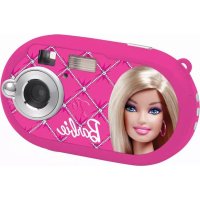
DJ028BB - Camera LEXIBOOK - Free user manual and instructions
Find the device manual for free DJ028BB LEXIBOOK in PDF.



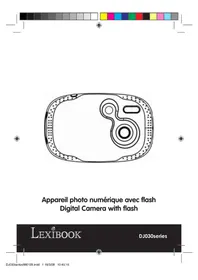
| Product type | Digital camera |
| Brand | Lexibook |
| Model | DJ028BB |
| Reference | DJ028series |
| Power supply | 2 LR03/AAA batteries 1.5 V (not included) |
| Photo resolution (interpolation) | 5 MP, 3 MP, 1.3 MP |
| Main functions | Photo, video, flash, self-timer, burst, photo frame, webcam |
| Flash | Built-in flash (auto, forced, off) |
| Self-timer | 10 seconds |
| Burst mode | 3 photos in burst |
| Photo frame | Several models available |
| Webcam mode | Yes (via USB cable) |
| Connection | USB (cable included) |
| Included software | MAGIX Video easy SE, MAGIX Photo Manager 10 |
| Screen | LCD, can be turned off to use the viewfinder |
| Viewfinder | Yes |
| Internal memory | Yes (capacity not specified) |
| Maintenance | Clean with a cloth slightly dampened with water, no detergent |
| Safety | Do not disassemble, do not expose to heat or moisture, not a toy |
| Warranty | 2 years (excluding non-compliant use) |
| Origin | Made in China |
Frequently Asked Questions - DJ028BB LEXIBOOK
User questions about DJ028BB LEXIBOOK
0 question about this device. Answer the ones you know or ask your own.
Ask a new question about this device
Download the instructions for your Camera in PDF format for free! Find your manual DJ028BB - LEXIBOOK and take your electronic device back in hand. On this page are published all the documents necessary for the use of your device. DJ028BB by LEXIBOOK.
USER MANUAL DJ028BB LEXIBOOK
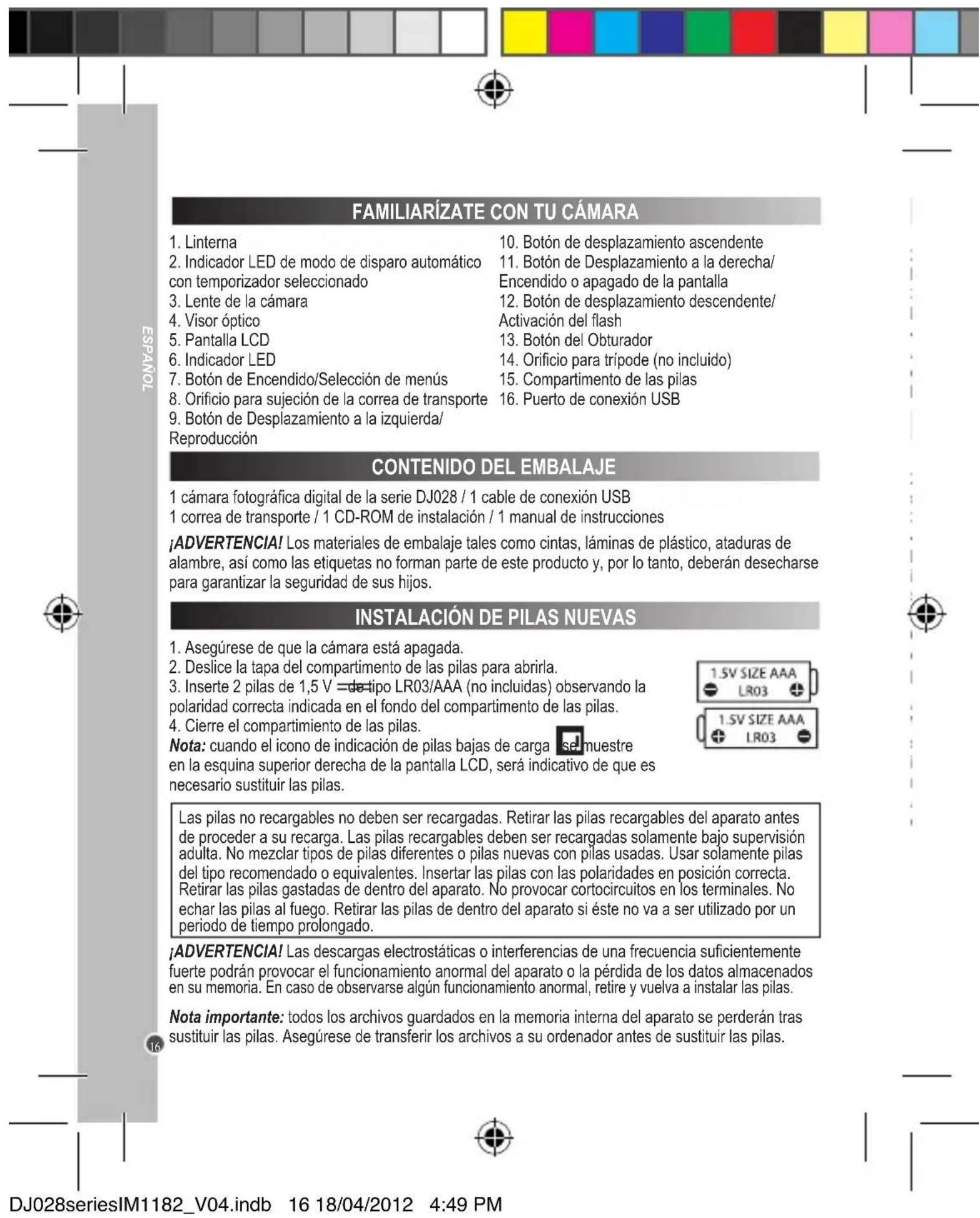
WARNING: Malfunction or loss of memory may be caused by strong frequency interference or electrostatic discharge. Should any abnormal function occur, remove the batteries and insert them again.
Important note: All the files stored in the unit's memory will be lost when replacing the batteries. Make sure you transfer the files to your computer before changing the batteries.
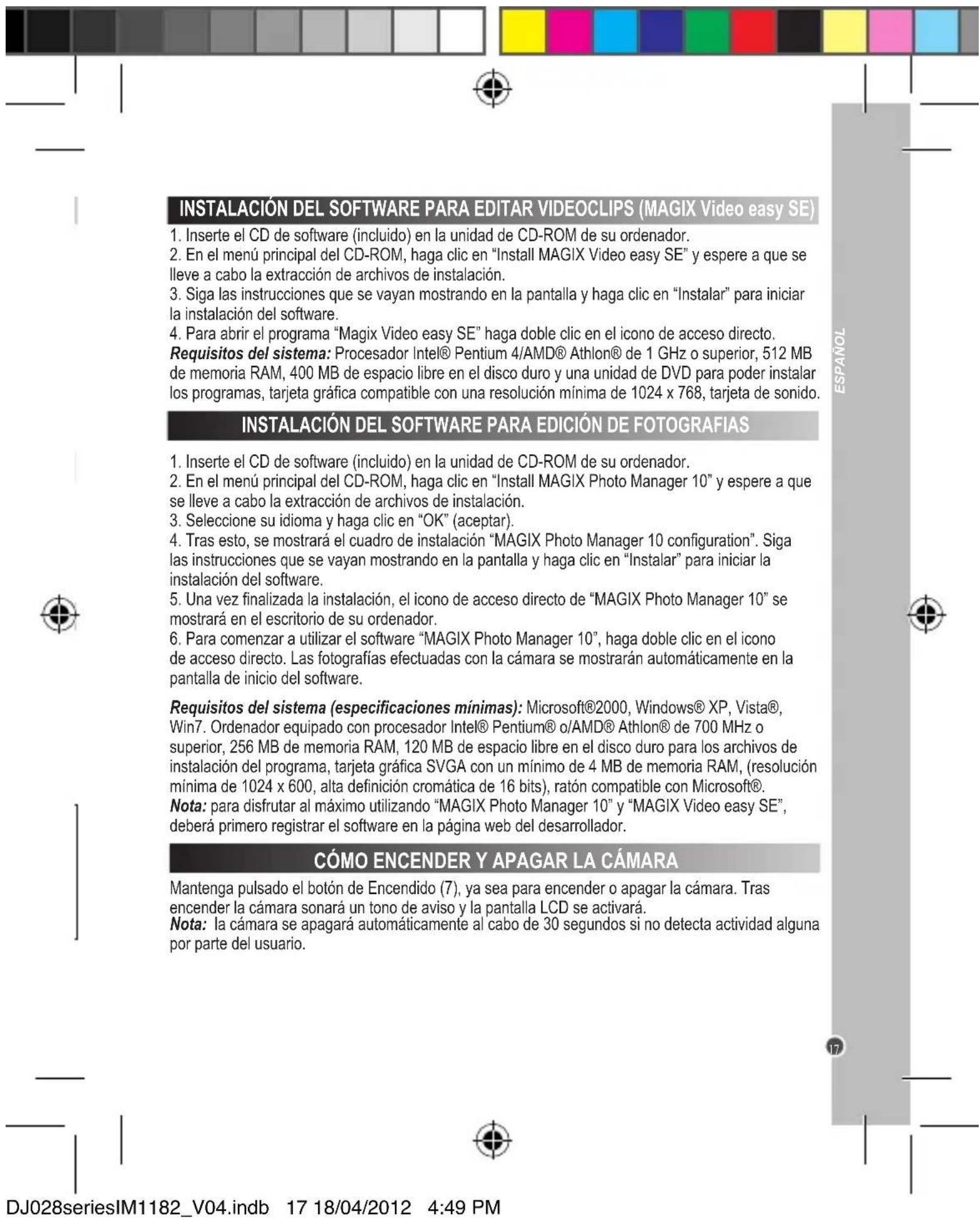
INSTALLING THE VIDEO SOFTWARE (Magix Video easy SE)
- Insert the CD Software (included) into your CD-ROM drive.
- In the main menu, click "Install MAGIX Video easy SE" and wait during the extraction.
- Follow the onscreen instructions and press "Install" to begin the installation.
- To launch "Magix Video easy SE" double clk on the shortcut.
System requirements: Intel® Pentium 4 or AMD® Athlon® 1 GHz and higher, 512 MB RAM, 400 MB free hard disk memory and a DVD drive for program installation, graphics card with a screen resolution of at least 1024 x 768, sound card.
Supported devices: Video, TV, or graphics cards with video input.
INSTALLING THE PHOTO SOFTWARE (Magix Photo Manager 10)
- Insert the CD Software (included) into your CD-ROM drive.
- In the main menu, click "Install MAGIX Photo Manager 10" and wait during the extraction.
- Select your language and click "OK".
- "The MAGIX Photo Manager 10 configuration" window displays. Follow the onscreen instructions and press "Install" to begin the installation.
- Once you have finished installing, the "MAGIX Photo Manager 10" shortcut will appear on the desk of your computer.
- To start using "MAGIX Photo Manager 10", double click on the shortcut. The pictures taken with the camera automatically appear on the home screen.
System requirements (minimum configuration): Microsoft® Windows® 2000 XP | Vista® I 7. PC with Intel® Pentium® or AMD® Athlon® 700 MHz or higher, 256 MB RAM, 120 MB hard disk space for program files, SVGA graphics card with min. 4 MB RAM, (min. resolution 1024 x 600, 16-bit high-color), Microsoft® compatible mouse.
Note: To enjoy unlimited use of "MAGIX Photo Manager 10" and "MAGIX Video easy SE", you need to register first.
TURNING THE CAMERA ON AND OFF
Press and hold the Power button (7) to turn the camera on or off. When you turn the camera on a beep will sound and the LCD screen lights up.
Note: The camera will auto power off 30 seconds of inactivity.
TAKING PHOTOS
Single shooting
You are already in 'Single shooting' mode when you switch on the camera and the camera icon appears. Press the Shutter button (13) to take a photo. The camera will beep to confirm that a picture is taken. The number of pictures that you can take and store in the memory appears in the bottom left-hand corner of the screen.
If you are not in 'Single shooting' mode because you have been using another mode, press the Menu button (7) once. Press the Shutter button (13) repeatedly until you see the camera icon press the Menu button (7) to confirm.
Note: If there is not enough light to take a photo, 'Too dark' will appear on the screen. You need to turn the flash on to take a photo. See the 'Flash function' section below for how to do this.
Continuous shooting
- When you are in 'Single shooting' mode, press the Menu button (7) once.
- Press the Shutter button (13) repeatedly until you see the continuous shooting icon
- Press the Menu button (7) to confirm.
- Press the Shutter button (13) to take three pictures continuously.
Note:
- When the camera's built-in memory is full, you will not be able to take any pictures.
- You cannot use the flash feature in 'Continuous shooting' mode.
Flash function
To use the flash, repeatedly press the Flash button (12) until your desired setting is shown by the icon on the screen:

Flash is on / Auto flash is on / Flash is off
Note:
- When the flash is recharging, will flash on the screen and the red LED will turn on. Wait until the red LED has turned off before you take your next photo.
- When batteries are low the flashlight does not work.
Display button
You can turn off the LCD screen and use the viewfinder to select your photo. Press the Display button (11) to turn the LCD screen on or off.
Inserting a photo frame
In the "Take a photo" mode, press once on the Up button (10). The screen will display an example of a photo frame (to see other photo frame examples, press the Up button (10) again, and when you see one that you like press the shutter-release button (13) to choose it and take the photo.
Note: the photo frame function cannot be used in video mode.
SELF-TIMER
- In 'Single shooting' mode, press the Menu button (7) once.
- Press the Shutter button (13) repeatedly until you see the self-timer icon


- Press the Menu button (7) to confirm.
- Press the Shutter button (13) and the camera will take a picture 10 seconds later.
SELECTING THE PHOTO RESOLUTION BY INTERPOLATION
- In 'Single shooting' mode, press the Menu button (7) once.
- Use the Up (10) and Down (12) buttons to select the resolution icon Press the Shutter button (13) repeatedly to toggle between:

High resolution - 5 MP

duim resolution - 3 MP ,

solution - 1.3 MP
- Press the Menu button (7) to confirm your selection.
SELECTING THE IMAGE QUALITY
- In 'Single shooting' mode, press the Menu button (7) once.
- Use the Up (10) and Down (12) buttons to select the image quality icon Press the Shutter button (13) repeatedly to toggle between:

High image quality

image quality
- Press the Menu button (7) to confirm your selection.
Note: When you select 'Low image quality' the camera will compress the photo so that the file saved is smaller. Compressing a photo reduces the image quality.
SELECTING THE LIGHT SOURCE FREQUENCY
- In 'Single shooting' mode, press the Menu button (7) once.
- Use the Up (10) and Down (12) buttons to select the frequency icon 60. Press the Shutter button (13) repeatedly to toggle between:
60Hz/50Hz
- Press the Menu button (7) to confirm your selection.
Note: A higher frequency increases the camera shutter speed so the effect of light fluctuations from sources such as fluorescent lamps are reduced.
CAPTURINGVIDEOCLIPS

- Switch on the camera and press the Menu button (7) once.
- Press the Shutter button (13) repeatedly until you see the video icon
- Press the Menu button (7) to confirm.
- Press the Shutter button (13) to start taking a video. The recording length is displayed on the bottom right-hand corner of the screen.
- Press the Shutter button (13) again to stop videoing and automatically save it in AVI format.
- To delete videos, see the 'Deleting photos and videos' section.
Note:
- The flash function is disabled in video mode.
- Once downloaded onto your computer, you can use Media player and Quick time to play the AVI files.
- The video clip's length may change according to the memory space available on the camera.
PLAYBACK MODE
- Switch on the camera and then press the Playback button (9).
- Use the Up (10) and Down (12) buttons to display the next or previous photo/video. The video icon
is displayed on the upper-left corner of the screen to indicate a video.
- To playback or pause a video, press the Shutter button (13).
- To exit the playback mode, press the Playback button (9) at any time.
Note: If no pictures are stored in the camera's built-in memory, the playback mode is not available ('No Photo' will be displayed on the screen). Press the Playback button (9) to go back to 'Single shooting' mode.
DELETING PHOTOS AND VIDEOS
Deleting one file in playback mode
- In playback mode, use the Up (10) and Down (12) buttons to display the desired photo or video.
- Press the Menu button (7) and use the Up (10) and Down (12) buttons to select 'Yes'.
- Press the Shutter button (13) to confirm.
Deleting all files
- In 'Single shooting' mode, press the Menu button (7).
- Use the Up (10) and Down (12) buttons to select the delete all icon
- Press the Shutter button (13) and use the Up (10) and Down (12) buttons to select 'Yes'.
- Press the Shutter button (13) to confirm and delete all files.
DOWNSLOADING YOUR PHOTOS AND VIDEOS
Using "MAGIX Photo Manager 10":
- Connect the supplied USB cable to the camera and the computer's USB port.
- Turn on the camera. "Mass storage" appears on the screen when connection to the computer has been successfully completed.
- Double click on the shortcut "MAGIX Photo Manager 10". The pictures taken with the camera automatically appear on the home screen.
- Press "Import" button on the main menu (up left).
- You can copy and paste the pictures into any directory you choose.
Publishing your photos on social networking sites:
- Using "Magix Photo Manager 10", select the photo that you wish to publish on Facebook or Flickr.
- The selected image appears in an orange frame.
- In the menu bar, click the "Online" tab and select "Upload media to other web services" and then either "Upload media to Flickr" or "Upload media to Facebook".
- The "Upload" window will be displayed on screen. Fill in the various fields (file name, description, key words, etc.).
- Click "Upload" to confirm.
- Depending on your upload destination, you will either open the Facebook or the Flickr home page.
- Next follow in the instructions displayed on the screen to finish uploading.
WEBCAM MODE
Connected to your PC, your camera can be used as a webcam.
Webcam mode
- Turn the digital camera off.
- Connect the video camera to your computer using the USB cable provided.
- Double-click on the desktop folder 'Dual Mode Camera' and double-click on 'PCCam' the real-time images taken by the webcam.

Instant messaging (chat)
You can use your camera as a webcam with your instant messaging client (Yahoo Messenger, MSN Messenger, Skype...).
MAINTENANCE AND WARRANTY
Only use a soft, slightly damp cloth to clean the unit. Do not use detergent. Do not expose the unit to direct sunlight or any other heat source. Do not immerse the unit in water. Do not dismantle or drop the unit. Do not try to twist or bend the unit.
This product is covered by our 2-year warranty.
To make use of the warranty or the after-sales service, please contact your retailer and supply proof of purchase. Our warranty covers material or installation-related defects attributable to the manufacturer, with the exception of wear caused by failure to respect the instructions for use or any unauthorised work on the equipment (such as dismantling, exposure to heat or damp, etc). It is recommended to keep the packaging for any further reference.
In a bid to keep improving our services, we could implement modification on the colours and the details of the product shown on the packaging.
NOTE: Please keep this instruction manual, it contains important information.
Reference: DJ028series
Designed and developed in Europe - Made in China ©2012 Lexibook®
United Kingdom & Ireland
For any further information, please call our Helpline: 0808 1003015
http://www.lexibook.com

This product is not a toy.

Environmental Protection
Unwanted electrical appliances can be recycled and should not be discarded along with regular household waste! Please actively support the conservation of resources and help protect the environment by returning this appliance to a collection centre (if available).

CÓMOC HACER FOTOS CON EL APARATO
TONYDASE
Disparo unico
MANUTENÇA O GARANTIA
T. +(351) 220 824 521 | lexibook@ajaguiar.com
http://www.lexibook.com

BnepseIbunipoddesip Hnpeoepbunipoddes
: sennnne nnnnne nnnnne nnnnne nnnnne nnnnne nnnnne nnnnne nnnnne nnnnne nnnnne nnnnne nnnnne nnnnne nnnnne nnnnne nnnnne nnnnne nnnnne nnnnne nnnnne nnnnne nnnnne nnnnne nnnnne nnnnne nannnee
y
eepnepnne
xepnneepnneepnneepnneepnneepnneepnneepnneepnneepnneepnneepnneepnneepnneepnneepnneepnneepnneepnneepnneepnneepnneepnneepnneepnneepnneepnneepnneepnneepnneepnneepnneepnneepnne
EENANH
:Inpoid np won/N /inpoid joo weN
1 1 :jpeepepepd / aeseyand joe
: aubias / aio
[In] be assessed eesh
eeppeeppeeppeeppeeppeeppeeppeeppeeppeeppeeppeeppeeppeeppeeppeeppeeppeeppeeppeeppeeppeeppeeppeeppeeppeeppeeppeeppeeppeeppeeppeeppeeppeeppeeppeeppeeppeeppeeppeeppeeppeeppe
e e e e e e e e e e e e e e e e e e e e e e e e e e e e e e e e
1


- INSTALLING THE VIDEO SOFTWARE (Magix Video easy SE)
- INSTALLING THE PHOTO SOFTWARE (Magix Photo Manager 10)
- TURNING THE CAMERA ON AND OFF
- TAKING PHOTOS
- Single shooting
- Continuous shooting
- Note:
- Flash function
- Display button
- Inserting a photo frame
- SELF-TIMER
- SELECTING THE PHOTO RESOLUTION BY INTERPOLATION
- SELECTING THE IMAGE QUALITY
- SELECTING THE LIGHT SOURCE FREQUENCY
- CAPTURINGVIDEOCLIPS
- PLAYBACK MODE
- DELETING PHOTOS AND VIDEOS
- Deleting one file in playback mode
- Deleting all files
- DOWNSLOADING YOUR PHOTOS AND VIDEOS
- Using "MAGIX Photo Manager 10":
- Publishing your photos on social networking sites:
- WEBCAM MODE
- Instant messaging (chat)
- MAINTENANCE AND WARRANTY
- Environmental Protection
- CÓMOC HACER FOTOS CON EL APARATO
- Disparo unico
- MANUTENÇA O GARANTIA
Brand : LEXIBOOK
Model : DJ028BB
Category : Camera