DVDP1FE - DVD player LEXIBOOK - Free user manual and instructions
Find the device manual for free DVDP1FE LEXIBOOK in PDF.


| Product Type | Portable DVD Player |
| Brand | Lexibook |
| Model | DVDP1FE |
| Dimensions (L x W x H) | 195 x 158 x 38.5 mm |
| Power Supply | AC 100-240V 50/60Hz adapter; DC 9V 1000mA; built-in rechargeable lithium battery |
| Power Consumption | 10 W |
| Battery Life | 1 h 30 to 2 h |
| Charging Time | Approximately 4 h |
| Compatible Disc Types | DVD, DVD-R, DVD-RW, CD, CD-R, CD-RW, Photo CD, DivX |
| Region Code | 2 (Japan, Europe, South Africa, Middle East) |
| TV System | PAL / NTSC |
| Video Outputs | Composite 1.0 V P-P 75 ohms |
| Audio Outputs | Analog 0.5 Vrms 600 ohms; digital coaxial |
| Headphone Jack | Yes, 3.5 mm |
| Remote Control | Yes, with CR2025 battery included |
| Parental Control | Yes |
| Warranty | 1 year |
| Included Accessories | AC adapter, car adapter, remote control, CR2025 battery, carrying case, user manual |
| Laser Safety | Class 1 laser; do not expose to moisture |
| Maintenance | Dry, soft cloth; do not use chemicals |
| Operating Temperature | 5°C to 35°C |
| Operating Humidity | 5% to 90% |
| Signal-to-Noise Ratio | > 90 dB |
| Dynamic Range | > 90 dB |
Frequently Asked Questions - DVDP1FE LEXIBOOK
User questions about DVDP1FE LEXIBOOK
0 question about this device. Answer the ones you know or ask your own.
Ask a new question about this device
Download the instructions for your DVD player in PDF format for free! Find your manual DVDP1FE - LEXIBOOK and take your electronic device back in hand. On this page are published all the documents necessary for the use of your device. DVDP1FE by LEXIBOOK.
USER MANUAL DVDP1FE LEXIBOOK
LECTEUR DVD PORTABLE PORTABLE DVD PLAYER
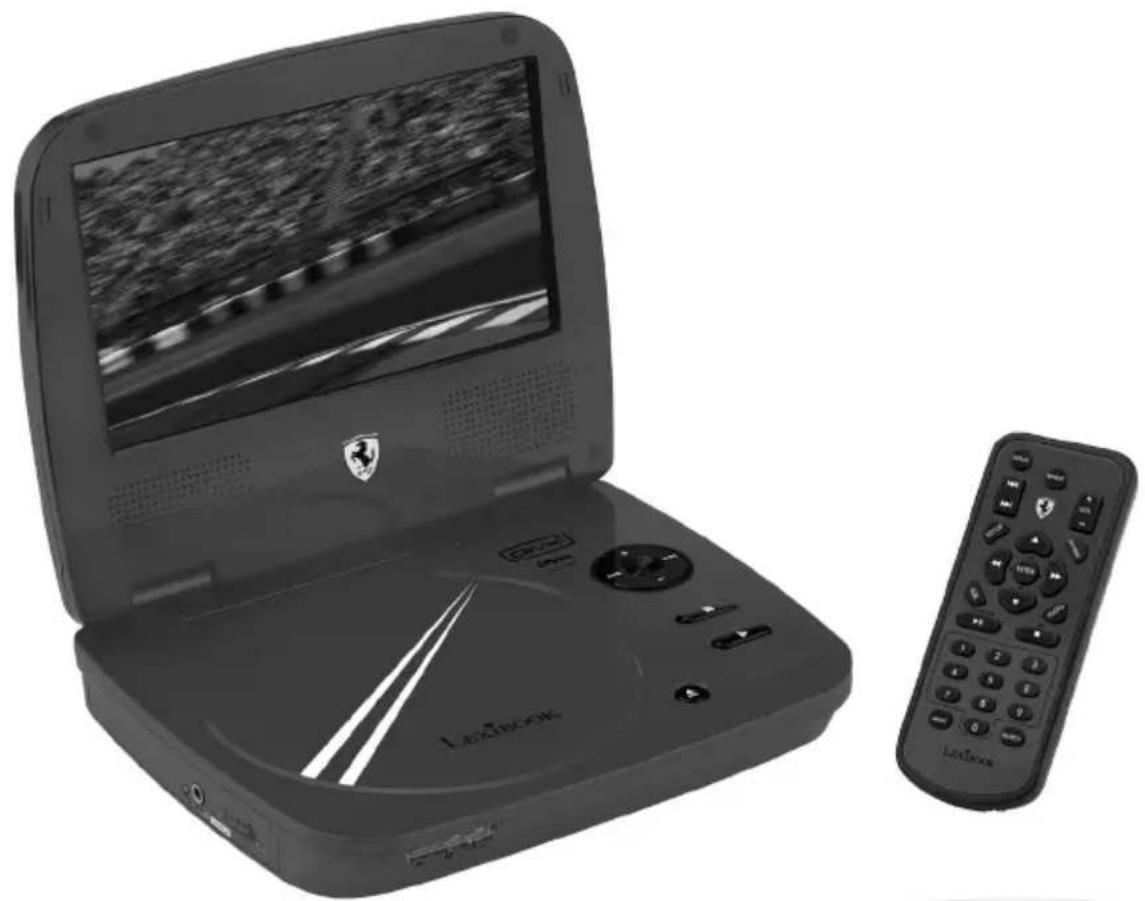
LEXIBOOK
www.lexibook.com
MISE EN GARDE RISQUE D'LECTROCUTION NE PAS OUVRIR

MISE EN GARDE: AFIN DE RÉDUIRE LES RISQUES D'ÉLECTROCUTION, NE PAS ENLEVER LE COUVERCLE (NI L'ARRÊRE). NE CONTIENT AUCUNE PIECE POUVANT ÉTRE RÉPARÉE NI REMPLACÉE PAR L'UTILISATEUR. CONFIER TOUTÉ RÉPARATION À UN TECHNICIEN QUALIFIÉ.
CLASSE 1 - PRODUIT LASER
CE PRODUIT LASER EST DE CLASSE 1. L'UTILISATION DE COMMANDES OU DE REGLAGES AINSI QUE L'EXECUTION DE PROCEDURES AUTRES QUE CELLES SPECIFIÉES DANS CE DOCUMENT PEUVENT ENTRainer UNE EXPOSITION A DES RADIATIONS DANGEREUSES.
| Safety instructions | 17 | Subtitle | 25 |
| Important safety instructions | 19 | Audio | 25 |
| Portable DVD player description | 20 | Angle | 25 |
| Remote control | 20 | Search | 25 |
| Battery installation | 21 | Display | 25 |
| Using the remote control | 21 | DVD settings | 26 |
| Charging the built-in lithium battery | 21 | Language setup | 26 |
| Charging time/playback time | 21 | Language | 26 |
| Installation | 22 | Screen saver | 26 |
| Unpacking the device | 22 | Default settings | 26 |
| Power connection | 22 | Video setup | 26 |
| Headphones connection | 22 | Aspect ration | 26 |
| Disc types | 22 | TV system | 27 |
| Disc maintenance | 23 | Resume | 27 |
| Regional management information | 24 | Audio Setup | 27 |
| Key functions | 24 | Parental control | 27 |
| Play/stop | 24 | Misc setup | 27 |
| Pause | 24 | DivX registration | 27 |
| Previous/next | 24 | Picture CD | 28 |
| Scan forward/backward | 24 | Specifications | 28 |
| Other functions | 25 | Troubleshooting | 29 |
| DVD menu | 25 | Maintenance | 30 |
| Repeat mode | 25 | Warranty | 30 |
Safety Instructions

CAUTION RISK OF ELECTRIC SHOCK DO NOT OPEN

CAUTION: TO REDUCE THE RISK OF ELECTRIC SHOCK. DO NOT REMOVE COVER (OR BACK). NO USER SERVICEABLE PARTS INSIDE. REFER SERVICING TO QUALIFIED SERVICE PERSONNEL.
The graphic symbols on the back cover of the set mean the following:

The lightning flash with arrowhead symbol within an equilateral triangle is intended to alert the user to the presence of uninsulated "dangerous voltage" within the product's enclosure that may be of sufficient magnitude to constitute a risk of electric shock to persons.

The exclamation point within an equilateral triangle is intended to alert the user to the presence of important operating and maintenance (servicing) instructions in the literature accompanying the appliance.
WARNING:
- To reduce the risk of fire or electric shock, do not expose this appliance to rain or moisture.
- The apparatus shall not be exposed to dripping or splashing and that no objects filled with liquids, such as vases, shall be placed on the apparatus.
- The mains plug is used as the disconnect device, the disconnect device shall remain readily operable.
- In order to disconnect the apparatus from the mains completely, the mains plug should be disconnected from the mains socket outlet completely.
DANGER

LASER SAFETY
This unit employs an optical laser beam system in the CD mechanism, designed with built in safeguards. Do not attempt to disassemble, refer to qualified service personnel. Exposure to this invisible laser light beam may be harmful to the human eye.
THIS IS A CLASS-1 LASER PRODUCT. USE OF CONTROLS, OR ADJUSTMENTS OR PROCEDURES OTHER THAN THOSE SPECIFIED HEREIN, MAY RESULT IN HAZARDOUS LASER LIGHT BEAM EXPOSURE.
Invisible laser radiation when open and interlock failed or defeated. Avoid direct exposure to laser beam.
Manufactured under license from Dolby Laboratories "Dolby", "Pro Logic" and the double-D symbol are trademarks of Dolby Laboratories. Confidential unpublished works. © 1992-1997 Dolby Laboratories, Inc. All rights reserved.
This product incorporates copy protection technology that is protected by U.S. and foreign patents, including patent numbers 5,315,448 and 6,836,549, and other intellectual property rights. The use of Macrovision's copy protection technology in the product must be authorized by Macrovision. Reverse engineering or disassembly is prohibited.
Important safety instructions
- Read these instructions.
- Keep these instructions.
- Heed all warnings.
- Follow all instructions.
- Do not use this unit near water.
- Clean only with a dry cloth.
- Do not block any ventilation openings. Install in accordance with manufacturer's instructions.
- Do not install near any heat sources such as radiators, heat registers, stoves or other apparatus (including amplifiers) that produce heat.
- Do not defeat the safety purpose of the polarized or grounding-type plug. A polarized plug has two blades with one wider than the other. A grounding-type plug has two blades and a third grounding prong. The wide blade or the third prong is provided for your safety. If the provided plug does not fit into your outlet, consult an electrician for replacement of the obsolete outlet.
- Protect the power cord from being walked on or pinched particularly at plugs, convenience receptacles, and the point where they exit from the unit.
- Only use attachments/accessories specified by the manufacturer.
- Unplug this unit during lightning storms or when unused for long periods of time.
- Refer all servicing to qualified service personnel. Servicing is required when the unit has been damaged in any way, such as the following: the power-supply cord or plug has been damaged; liquid has been spilled or objects have fallen into the unit; and/or the unit has been exposed to rain or moisture, does not operate normally, has changed its performance or has been dropped.
- Do not overload wall outlet. Use only power source as indicated.
- Use replacement parts as specified by the manufacturer.
- Upon completion of any service or repairs to this product, ask the service technician to perform safety checks.
- If you experience problems with the DC car adapter, check the fuse and if necessary, change it (2A). Always replace the fuse with the same type and rating. If the fuse has blown, check all connections and inspect the cord for any damage. If the fuse blows repeatedly, take the car adapter to your local retail store. Do not replace the fuse with a higher rating as it may damage the player.
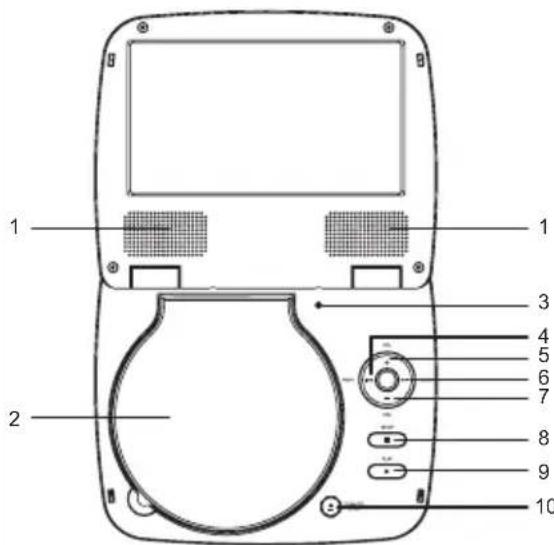
Portable DVD player description
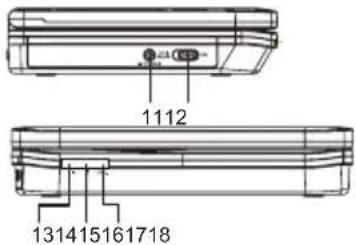
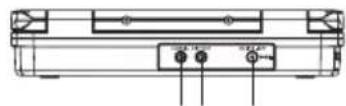
Remote control
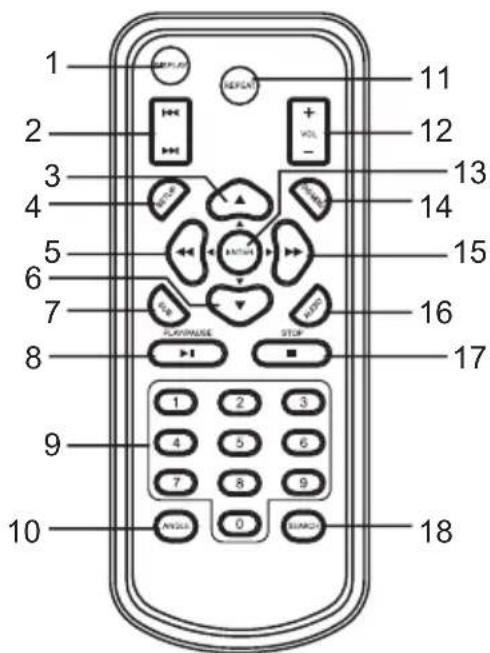
- DISPLAY key
- PREVIOUS/NEXT keys
- UP key (direction key)
- SETUP key
- LEFT/FAST REWIND key (direction key)
- DOWN key (direction key)
- SUBTITLE key
- PLAY/PAUSE key
- Numeric keys
- ANGLE key
- REPEAT key
- VOLUME UP/DOWN keys
- ENTER key
14.DVD MENU key - RIGHT/FAST FORWARD key (direction key)
- AUDIO key
- STOP key
18.SEARCHkey
Battery installation
-
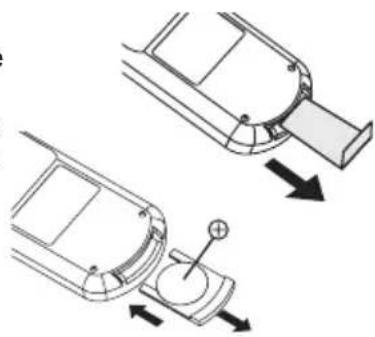
The first time you use the remote control, remove the battery tab located at the rear of the unit.
-
Open the battery compartment cover by pressing the unlock switch to the right and then sliding the battery holder out.
-
Insert 1 lithium CR2025 3V--type battery (included) as illustrated and slide the battery cover in until it clicks firmly into place.
Non-rechargeable batteries are not to be recharged. Rechargeable batteries are to be removed from the product before being charged. Rechargeable batteries are only to be charged under adult supervision. Different types of batteries or new and used batteries are not to be mixed. Only batteries of the same or equivalent type as recommended are to be used. Batteries are to be inserted with the correct polarity. Exhausted batteries are to be removed from the product. The supply terminals are not to be short circuited. Do not throw batteries into a fire. Remove the batteries if you are not going to use the product for a long period of time.
WARNING: Malfunction or loss of memory may be caused by strong frequency interference or electrostatic discharge. Should any abnormal function occur, remove the battery and insert it again.
Using the remote control
- When direct sunlight, an incandescent lamp, fluorescent lamp or any other strong light shines on the remote sensor of the unit, the remote operation may be unstable.
- When the battery becomes weak, the operating distance of the remote control reduces significantly and you need to replace the battery.
Charging the built-in lithium battery
Your DVD player is equipped with a built-in rechargeable lithium battery.
Fully charge the battery before using it for the first time.
- Plug the AC/DC or car adapter into the jack on the back of the DVD player and insert the plug into a mains wall socket or car cigarette lighter. When the unit is turned on, the power indicator is yellow.
- Slide the Power (CHARGE) switch to the "OFF position".
- When the battery is being charged, the battery indicator is red.
- When the battery is fully charged, the indicator becomes green.
CHARGING TIME/PLAYBACK TIME
| Charging time | Playback time |
| Approx. 4 hours | Approx. 1½ to 2 hours |
Note:
- The playback time may vary based on pattern usages of the DVD player.
- You cannot use the player while it is being charged.
- displays when the battery is low.
- Only use the adapter supplied with the DVD player. Do not use other adapter.
- The socket-outlet shall be installed near the equipment and shall be easily accessible.
WARNING: Malfunction or loss of memory may be caused by strong frequency interference or electrostatic discharge. Should any abnormal function occur, unplug the AC/DC adapter from the mains socket and plug it back in.
Installation
Unpacking the device
When unpacking, ensure that the following elements are included:
1 x portable DVD player
1 x remote control
1 x CR2025 lithium type battery
1 x AC/DC adapter
1 x car adapter
1 x earphones
1 x A/V cable
1 x pouch
1 x instruction manual
WARNING: All packaging materials, such as tape, plastic sheets, wire ties and tags are not part of this DVD player and should be discarded.
Power connection
Use the AC/DC adapter (AC ~ 110V-240V 50/60Hz) or the car adapter to connect the portable DVD player to a main socket. Make sure the remote control battery has been inserted as shown in the Remote control section.
Headphones connection
On the left side of the unit is a headphones socket, suitable for any normal earphones fitted with a 3.5mm jack plug. When the headphones are in use, the speakers are turned off.
CAUTION: Too high volume, especially when using headphones, can damage your hearing. For this reason, please turn the volume down before connecting the headphones. Note:
- Please switch off the DVD player before you make any connections.
- Before using this product for the first time, please remove the static label from the LCD screen.
Disc types
| DVD VIDEO | Audio + Video | Disc size 12cm single side, single layer / single side, double layer PAL and NTSC DVD disc Playback time 135min / 240min max. |
| COMPACT DISC DIGITAL AUDIO | Audio | Disc size 12cm / 8cm CD disc Playback time 74min/20min max. |
Note:
The portable DVD player is compatible with DivX, DVD-R, DVD-RW, CD-R, CD-RW and CD pictures discs.
- Discs can only be used when they have been correctly recorded.
Disc maintenance
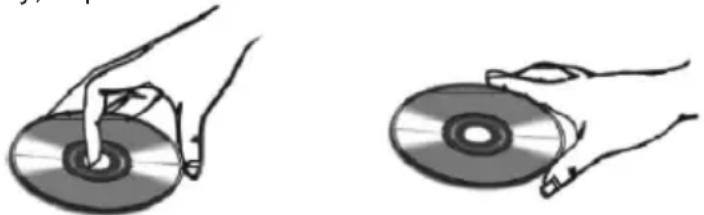
Caring for discs (A)
- Do not touch the shiny surface of the disc or bend the disc.
- Never use solvents such as benzene or other strong chemical cleaners since these could damage the unit's finish.
- It is important that no liquid reaches the inside of the unit.
- Remove the disc from the case by holding it at the edges while pressing the centre hole lightly.
- Place the disc into the tray with the label facing up.
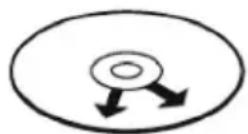
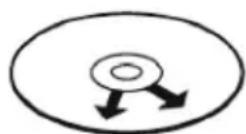
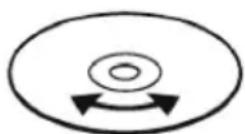
- A dirty disc may not play correctly. If a disc becomes dirty, wipe it with a soft cloth in a straight line from centre to edge.
- Avoid exposure to direct sun light, temperature extremes, and moisture.
- Treat the disc carefully. Handle the disc only by its edges. Never allow your fingers to contact with the shiny, unprinted side of the disc.
(A)
Clean the discs (B)
- Do not attach adhesive tape, stickers, etc. to the disc label.
- Clean the disc periodically with a soft, lint-free, dry cloth. Never use detergents or abrasive cleaners to clean the disc. If necessary, use a CD cleaning kit.
- If a disc skips or gets stuck on a section of the disc, it is probably dirty or damaged (scratched).
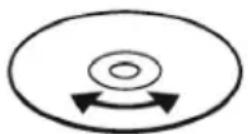
- When cleaning the disc, wipe in straight lines from the centre of the disc to the outer edge of the disc. Never wipe in circular motions.
(B)
Correct
Incorrect
- Discs should be stored in their cases after each use to avoid damage.
- Do not expose discs to direct sunlight, high temperatures or dust, etc.
- Prolonged exposure or extreme temperatures con warp the disc.
- Do not stick or write anything on either side of the disc. Sharp writing instruments, or ink, may damage the surface.
Regional management information
This DVD player is designed and manufactured to respond to the regional management information that is recorded on a DVD disc. If the Region number described on the DVD disc does not correspond to the regional number of this DVD player, this DVD player cannot play that disc.
This Region number of this DVD player is Middle-East).

(Japan, Europe, South Africa,
Key functions
IMPORTANT NOTE: The functions described below are mainly only available for DVD discs unless specified otherwise, i.e. audio CD. The on-screen messages and operations may be different for other type of discs.
Play/Stop
- Open the lid of the DVD player to turn the unit on.
- Press the OPEN button on the player to open the disc tray.
- Hold the disc without touching either of its surfaces and place it on the tray with the printed title face up (for a Double-sided DVD Disc, put the disc with label A/1 up).
-
Close the tray; the disc will load automatically.
-
If it is a DVD disc, the main menu or the title page will be displayed. Use the direction keys of the remote control to select the desired option, and then press the PLAY▶ key or ENTER key to confirm.
-
If it is a CD, the first track will play automatically.
-
Press the STOP key if you want to stop the disc playback. You can resume playback by pressing the PLAY key. Playback will resume at the location where you have pressed the STOP key.
- Press the STOP key twice to cancel the resume function and completely stop the disc.
Pause
- Press the key to pause the DVD or CD playback.
- Press gain to resume playback.
Previous Next
During DVD or CD playback, press the key to return to the beginning of the previous chapter or track. Or press the key to move to the beginning of the next chapter or track.
Scan Forward Backward
Press to search forward and pto search backward. Press either key repeatedly during playback to change the search speed: '2X', '4X', '8X' and '16X' and normal playback.
Note: Press the key twice at any moment to resume to normal speed.
Other functions
DVD Menu
During DVD playback, press the DVD MENU key to go to the DVD main menu. Use the direction keys of the remote control to select the desired option and press the ENTER key to confirm.
Repeat Mode
This function is available for DVD and audio CD but with different effects.
- For DVD disc playback, press the REPEAT key once to repeat the current chapter; twice to repeat the current title; and three times to repeat the entire disc.
- For CD playback, press the REPEAT key once to repeat the current track, and twice to repeat the whole disc (repeat all tracks).
- Press the key repeatedly to cancel the repetition.
Subtitle
Press the SUB (subtitle) key repeatedly to turn on and change the subtitle language shown onscreen.
Note: Number of subtitles available depends on the DVD disc.
Audio
- During DVD playback, press the AUDIO key to change the audio language of the DVD disc (if this function is available with the disc). Press the AUDIO key repeatedly to change the language.
- During audio CD playback, press the AUDIO key repeatedly to select 'Stereo', 'Left', 'Right' or 'Mix'.
Angle
- If a DVD disc contains a multi-angle feature, the viewing angles may be selected.
- During playback, press the ANGLE key repeatedly to select the desired viewing angle.
Note: The number of viewing angles depends on the disc. Also, some DVDs only allow access to the DVD angle function via the disc menu.
Search
You can jump to a specific time location, track, chapter or title.
- Press the SEARCH key to enter the search mode.
- Press the keys to select the search criteria:
DVD - a title, a chapter or specific time of a title.
- CD - a track, specific time of a track or specific time of the disc.
- Use the numeric keys to enter the desired title, chapter, time or track.
- Press ENTER and the player will jump to the target location immediately.
Display
Press the DISPLAY key to show the time and status information on the screen (elapsed time, remaining title, elapsed chapter, remaining chapter ...). Press this key repeatedly to hide the information.
DVD settings
The portable DVD player provides 4 setting menus: 'Language', 'Video', 'Audio' and 'Misc'.
- To access the setting menus, the disc must be stopped (press th key once or twice).
- To enter the setting menus page, press the SETUP key.
- Use the keys to select a menu and press the ENTER key to confirm.
- Use the direction keys / / / to navigate through the menus and select the available options. Press the ENTER key to confirm your settings.
- To exit the setting menus page, press the SETUP key at any time.
Note: If the disc is not stopped, you will not be able to access the settings menu.
Language setup
Press the SETUP key, and use the / keys to highlight 'Language'. Then press the key to enter the settings.
Note: Use the key to return to the previous menu.
Language
1.Use the keys to select:
Language
- Subtitle
Audio
DVD menu
- Press then use the keys to select a language.
- Press the ENTER key to confirm your selection.
Screen Saver
With this option, you can turn the screensaver on or off.
- Use the keys to select 'Screen saver'.
- Press then use the keys to select 'On' or 'Off'.
- Press the ENTER key to confirm your selection.
Note: The screen saver default setting is 'On'.
Default Settings
Restores the player to the factory settings.
- Use the keys to select 'Use Default Settings'.
- Press the ENTER key and then use the key to select 'Yes' or 'No'.
- Press the ENTER key to confirm your selection.
Video setup
Press the SETUP key, and use the / keys to highlight 'Video'. Then press the key to enter the settings.
Note: Use the key to return to the previous menu.
Aspect Ratio
-
Use the keys to select 'Aspect Ratio' and press
2.Use the keys to select: -
4:3' - Use this setting if you have normal TV.
16:9' - Use this setting if you have a wide-screen TV. -
Press the ENTER key to confirm your selection.
TV System
1.Use the keys to select TV System' and press
2.Use the keys to select:
- 'PAL' - Use this setting if the TV has a PAL system.
-
'NTSC' - Use this setting if the TV has a NTSC system.
-
Press the ENTER key to confirm your selection.
Resume
1.Use the keys to select 'Resume' and press
2. Use the keys to select 'On' to open the playback mode, or 'Off' to close the playback mode.
Audio setup
Press the SETUP key, and use the / keys to highlight 'Audio'. Then the key to enter the settings.
Note: Use the key to return to the previous menu.
-
Press to enter the 'Digital Output' settings.
2.Use the keys to select: -
'OFF' - Use this setting to deactivate the digital audio output. I.e. if you are using the front audio out sockets to connect to a TV or stereo system.
- 'PCM' - Use this setting when your connected device is not capable of decoding multi-channel audio such as Dolby Digital or MPEG-2.
- 'RAW' - Use this setting when your connected device can support multi-channel audio such as Dolby Digital and MPEG-2.
Parental control
The parental control feature allows parents to prevent their children from watching inappropriate material on a DVD. The player will deny access to the DVD contents if the DVD's rating is over PG-13. To unlock the parental control function, you will have to enter the 4-digit security password (the default code is 8888), and press the ENTER button.
Misc setup
Press the SETUP key, and use the / keys to highlight 'Misc'. Then press the key to enter the settings.
Note: Use the key to return to the previous menu.
DivX Registration
This function allows you to rent or purchase online DivX files. You will then be able to download the films, burn them on a CD or a DVD and play them on your player. Press the ENTER key to display your registration code. Use this code to confirm the purchase or the rental of DivX files from specialist websites such as www.divx.com/vod. To exit the registration code display screen, press the ENTER key.
Picture CD
- Load a picture CD into the tray. If the disc is identified, the player will display the list of the folders and photos stored on the CD.
- Use the keys to select a folder, then press the ENTER key to start browsing through the files.
- Use the keys to select a photo, then press the ENTER key to launch a slide show of the pictures.
- Press pause and/or resume the slide show.
- Pres to skip to the next picture, press to return to the previous picture.
- Use the direction keys to flip or rotate the pictures.
Note:
- During the slide show, the numeric keys can also be used to input directly the number corresponding to a photo.
- Press the STOP key at any time to go back to the list of pictures.
- Press the DVD MENU key at any time to view thumbnails of the next 9 photos.
- During the slide show, press the DISPLAY key to show the file type and photo number i.e. 'Track 14/59'.
- During the slide show, press the ANGLE key to change how a new picture enters onto the screen i.e. Right to left, top to bottom etc. There are 17 options to choose from.
Specifications
GENERAL
Power source AC 100V-240V 50/60Hz DC 9V 1000mA
Power consumption 10W
External dimensions (LxWxH) 195x158x38.5mm
Operating Temperature 5^ to 35^ (41^ to 95^)
Operating position Horizontal
Operating humidity 5% to 90%
SYSTEM
Laser Semiconductor laser wave length 650nm
Signal system PAL/NTSC
S/N more than 90db
Dynamic Range more than 90db
OUTPUT
Composite video 1.0V P-P 75ohm negative sync. Audio output (Analog) 0.5Vrms 600 ohm
AC/DC ADAPTER
Input AC 100V -240V 50/60Hz
Output DC 9V 1000mA
Troubleshooting
| Problem Solution | |
| The player does not turn on. | - Check the power connection. - The battery may be empty. Recharge the battery. |
| No picture on the screen. | - Check the battery power. |
| No sound. | - If the player is connected to other devices (TV or audio amplifier), check the connections. |
| The player does not play the inserted disc. | - Make sure the connected devices operate properly. - Check the unit's volume. |
| The remote control does not operate properly/ The player does not respond properly to the remote control. | - Make sure the disc is properly inserted. - Clean the disc. - Turn off the parental control function or change the rating category. - Make sure there are no obstacles between the remote control and the player's remote sensor. - Make sure to aim the remote control at the remote sensor on the front panel of the player. |
| Low quality picture. | - Check the remote control's battery and replace it if necessary. - Make sure to use the remote control within 3 meters of the remote sensor. - Check the disc for dirt and scratches. - Shut down the player, wait ten seconds, and restart the unit. |
| The player's keys don't operate properly. | - Power surges or other electrical phenomena may cause malfunction. Shut down the player, wait ten seconds, and restart the unit. |
Maintenance
To prevent fire or shock hazard, disconnect your unit from the AC power source when cleaning. The finish on your unit may be cleaned with a dust cloth and cared for as other furniture. Use a soft, clean cloth moistened with plain, lukewarm water to clean the exterior of the unit. Use caution when cleaning and wiping the plastic parts. Mild soap and a damp cloth may be used on the front panel.
Warranty
This product is covered by our 1-year warranty.
For any claim under the warranty or after sale service, please contact your distributor and present a valid proof of purchase. Our warranty covers any manufacturing material and workmanship defect, with the exception of any deterioration arising from the non-observation of the instruction manual or from any careless action implemented on this item (such as dismantling, exposition to heat and humidity, etc.). It is recommended to keep the packaging for any further reference.
In a bid to keep improving our services, we could implement modification on the colours and the details of the product shown on the packaging.
NOTE: Please keep this instruction manual, it contains important information.
Reference: DVDP1FE
© 2009 LEXIBOOK®
© 2009 Ferrari S.p.A
Designed and developed in Europe - Made in China
Lexibook UK Ltd,
Wimbledon Village Business Centre,
Thornton House, Thornton Road,
Wimbledon, London SW19 4NG
UK
For any further information, please call Helpline 0808 1003015
www.lexibook.com

WARNING: Prolonged use at full power of this product might damage the ear of the user.

This product is not a toy.

Environmental Protection
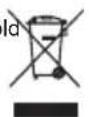
Unwanted electrical appliances can be recycled and should not be discarded along with regular household waste! Please actively support the conservation of resources and help protect the environment by returning this appliance to a collection centre (if available).
Contenido
Sistema de television
Consumoelectrico 10W
Dimensiones externas (largo x ancho x alto) 195 x 158 x 38,5 mm
Lexibook Ibérica S.L.
(B)
Connect Incorrect
Incorrect