DJ040FE - Camera LEXIBOOK - Free user manual and instructions
Find the device manual for free DJ040FE LEXIBOOK in PDF.


User questions about DJ040FE LEXIBOOK
0 question about this device. Answer the ones you know or ask your own.
Ask a new question about this device
Download the instructions for your Camera in PDF format for free! Find your manual DJ040FE - LEXIBOOK and take your electronic device back in hand. On this page are published all the documents necessary for the use of your device. DJ040FE by LEXIBOOK.
USER MANUAL DJ040FE LEXIBOOK
Résolution normale (1600x1200 pixels).

Please refer to images A & B (front view, back view and bottom view).
- Flash
- Camera lens
- LED
4.2 (Flash)/SET button
5.Shutter/confirmation button - Power/Menu button
- Playback mode button
8.Up button
9. Down button
10. LCD screen
11. USB connector port
12. Tripod hole (not included)
13. Battery compartment/SD card slot
INSERTING NEW BATTERIES
- Make sure the camera is off.
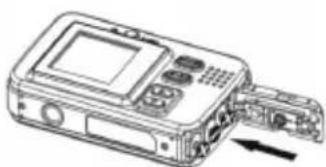
- Open the battery compartment by sliding the battery door in the direction of the arrow.
- Insert 3 × LR03/AAA 1,5V type batteries (not included) observing the polarity indicated at the bottom of the battery compartment, and as per the diagram shown opposite.
- Close the battery compartment.
Note: When the "low battery" icon flashes on the LCD screen, replace the batteries.
Non-rechargeable batteries are not to be recharged. Rechargeable batteries are to be removed from the product before being charged. Rechargeable batteries are only to be charged under adult supervision. Different types of batteries or new and used batteries are not to be mixed. Only batteries of the same or equivalent type as recommended are to be used. Batteries are to be inserted with the correct polarity. Exhausted batteries are to be removed from the product. The supply terminals are not to be short circuited. Do not throw batteries into a fire. Remove the batteries if you are not going to use the product for a long period of time.
WARNING: Mal-function or loss of memory may be caused by strong frequency interference or electrostatic discharge. Should any abnormal function occur, remove the batteries and insert them again.
Important note: all files stored into the unit's internal memory will be lost when switching off the camera or replacing the batteries. Make sure you transfer the files to your computer before turning off the product or changing the batteries.
INSTALLING A MEMORY CARD
Please refer to image C.
Your digital camera has a built-in memory of 16MB (2 pictures or 20 seconds of video). You may also insert a SD card (2GB maximum, not included) to increase the memory size of the camera.
- Turn the camera off, then open the door of the battery compartment.
- Push the SD card firmly into the slot located below the batteries until you hear a "click" sound. The icon will be displayed after inserting an SD card and powering the unit on.
- Close the battery door.
Note:
- When an external memory card has been inserted in the camera, all the photos/videos taken will be stored on the external memory card.
- To remove the card, push it in slightly to release it from the slot.
- The SD card must be FAT-formatted to be used with your digital camera. Use your computer to format the card. The formatting process may vary according to your computer operating system. Refer to the instructions provided with your computer and/or the SD card for detailed information.
IMPORTANT NOTE: It is highly recommended to add a SD card to increase the storage capacity of the unit.
INSTALLING THE SOFTWARE AND THE CAMERA DRIVER
Follow these instructions to install the "PhotoTags Express" and "Webcam Express" software and the camera driver on your computer system.
- Insert the CD Software (included) in your CD-ROM drive. The CD will auto run, and the installation menu will appear.
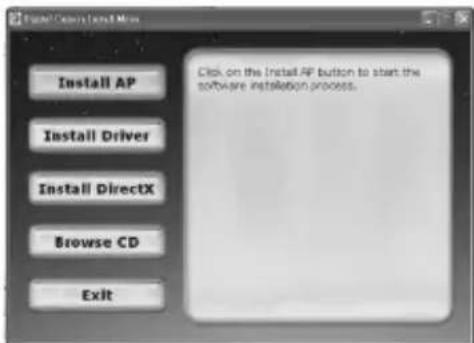
Click "Install AP" on the "Digital Camera Install Menu" window and select a language from the drop down list.
HSITON
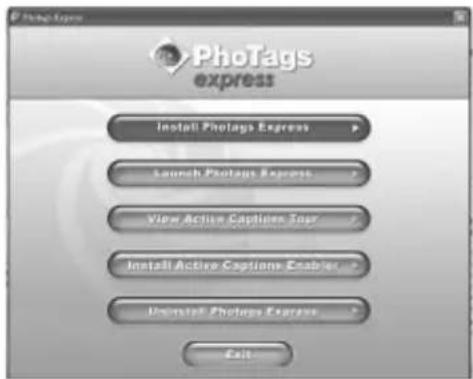
Click "Install PhotoTags Express" and follow the instructions to install "PhotoTags Express" and "WebCam Express". "PhotoTags Express" and "WebCam Express" software offer many applications for photo editing and printing. When the installation is completed, a confirmation window will be displayed. Untick the "Start the application" option and click the "Finish" button to close the window and
go back to the installation menu. Now you can install the camera driver.
- Click "Install Driver", and then follow the instructions to install the camera driver.
- You will need to reboot your computer after the driver installation. The "MegaCam" driver allows you to use your digital camera as a webcam.
Note:
- If the CD does not auto run, click "Start", "Run", then type in "D:\autorun.exe" in the Run dialog text box (where D:\ is your CD-ROM drive) and press Enter.
- You must install the driver before downloading pictures/videos from the camera or using it as a webcam.
- Make sure the camera is not connected to your computer before installing the driver and the software.
- When launching the "PhotoTags Express" software for the first time, a registration dialog box is displayed on-screen. You can choose to register the program, skip the registration process or to stop displaying this dialog box again.
TURNING THE CAMERA ON AND OFF
NOTE: Before using this product for the first time, remove the static label from the LCD screen.
- Press and hold the Power/Menu button (6) until the LCD screen lights up. The camera will make a "beep" sound to confirm that it is ready for use.
- Press and hold the Power/Menu button (6) for about 3 seconds again to turn the camera off.
Note: The camera will auto power off after 60 seconds of inactivity.
TAKING PHOTOS
You are already in camera mode when you switch on the unit:
- Press the Shutter button (5) to take a photo. The LED lights up, then the number of pictures stored in memory is shown on the LCD screen.
- To check the number of pictures you took, the battery level, the photo resolution and quality, press the Power/Menu button (6) once in camera

mode. Press the Up button (8) or wait a few seconds to go back automatically to the camera mode.
Note:
- When the camera's built-in memory is full, if you try to take a photo, the LCD screen will display a warning message.
- When the SD card inserted in the camera is full, if you try to take a photo, the camera will beep twice. Make sure you transfer your photos to your computer.
FLASH FUNCTION
Switch on the camera:
1. Flash on
In camera mode, press the Flash/SET (4) button repeatedly until the icon appears on the lower left corner of the LCD screen. The flash function will be activated.
2. Auto Flash
In camera mode, press the Flash/SET (4) button repeatedly until the icon appears on the lower left corner of the LCD screen. The auto flash function will be activated.
3. Flash off
In camera mode, press the Flash/SET (4) button repeatedly until the flash icon disappears from the lower left corner of the LCD screen. The flash function will be disabled.
SELECTING THE PHOTO RESOLUTION
-
In camera mode, press the Power/Menu button (6) to enter the settings menu (the number of photos/videos stored in memory, the battery level, the photo resolution and quality are displayed on screen), then press the Flash/SET (4) button. The "Resolution" icon appears on the LCD screen.
-
Use the Up (8) or the Down (9) buttons to select the desired resolution, then press the Flash/SET (4) within 5 seconds to confirm your choice.
There are 3 resolution modes:

High resolution (2048x1536 pixels).

Normal resolution (1600x1200 pixels).

Low resolution (640x480 pixels).
Note : The camera automatically goes back to camera mode after a few seconds of inactivity.
SELECTING THE PHOTO QUALITY
- In camera mode, press the Power/Menu button (6) to enter the settings menu then press the Flash/SET (4) button. The "Resolution" icon appears on the LCD screen.
- Press the Power/Menu button (6) once again: the "Quality" icon is displayed on the LCD screen.
- Use the Up (8) or the Down (9) buttons to select the desired quality, then press the Flash/SET (4) within 5 seconds to confirm your choice.
There are 2 quality levels:
High quality
Standard
Note: The camera automatically goes back to camera mode after a few seconds of inactivity.
- In camera mode, press the Power/Menu button (6) repeatedly until the "Self-timer" icon appears.
- Press the Shutter button (5) within 5 seconds to turn on the self-timer function.
- The digital camera will take a picture 10 seconds later.
Note:
- The self-timer feature is automatically turned off after the picture has been taken.
- If you don't press the Shutter button (5) to confirm the activation of the self-timer function, the camera will automatically go back to photo mode.
- The camera automatically goes back to camera mode after a few seconds of inactivity.
CAPTURINGVIDEOCLIPS
- In camera mode, press the Power/Menu button (6) repeatedly until the "Video" icon appears,
- Press the Shutter button (5) within 5 seconds to start the video capture. The recording length is displayed on the LCD screen.
- Press the Shutter button (5) again to stop the video capture and save it in AVI format.
Note:
- The flash function is disabled in video mode.
- To watch the videos, you must transfer them to your computer (see the
"Downloading your photos and your videos" section, p.20).
- The videos will be saved in AVI format. You can use Media player and Quick time to play them.
- The video clips' length may change according to the memory space available on the camera's built-in memory or on the SD card.
- The camera automatically goes back to camera mode after a few seconds of inactivity.
PLAYBACK MODE
- Switch on the unit. In camera mode, press the Playback mode (7) button to enter playback mode.
- Use the Up (8) and the Down (9) buttons to display the next or the previous photo.
- Press the Shutter button (5) to launch a slideshow of the photos. To stop the slideshow, press the Up (8) or the Down (9) buttons.
- Press the Playback mode (7) button at any time to go back to camera mode.
Note:
- If there are no pictures stored in the camera's built-in memory or in the SD card, when pressing the Playback mode (7), the message "NO PICTURE" will be displayed on screen.
- The videos cannot be played in playback mode.
Deleting one file
- In playback mode, use the Up (8) or the Down (9) buttons to display the desired photo or video.
- Press the Flash/SET (4) button, the icon will appear on the LCD display and the camera will make fast "beep" sounds. Press the Shutter button (5) within 5 seconds to delete the photo or the video.
Deleting all files
- In camera mode, press the Power/Menu button (6) repeatedly until the icon is displayed on screen.
- Press the Shutter button (5) within 5 seconds. The number of photos/ videos stored in memory starts flashing.
- Press the Shutter button (5) again within 5 seconds to confirm the deletion of all photos and videos. The LED flashes during the deletion.
Note: The camera automatically goes back to camera mode after a few seconds of inactivity.
DAILY
Manual downloading
- Turn off the camera, then connect it to your computer via the USB cable provided. You will hear a small "beep" sound and the LCD screen will turn on. The icon appears on the screen to indicate that the unit is in "Downloading" mode.
- Click the "Start" button, then select "My computer" and double-click "Removable Disk". Double-click the "DCIM" folder then the "100IMAGE" folder to display the photos and the videos stored on the memory card.
- Transfer the files to the desired folder.
Note: When you disconnect the USB cable, the camera is automatically turned off.
Downloading using "PhotoTags Express"
- Turn off the camera, then connect it to your computer via the USB cable provided. You will hear a small "beep" sound and the LCD screen will turn on. The icon appears on the screen to indicate that the unit is in "Downloading" mode.
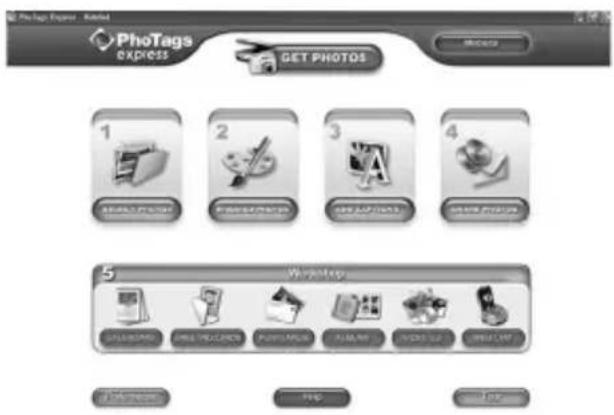
- Launch the "PhotoTags Express" program and click the "Get Photos" button on the main menu screen.
- The "Get Photos Wizard - Device Selection" window will appear. Select the "Removable disk" driver from the "Active Devices" list of on the left of the screen.
Note: Make sure you have selected the "Removable disk" driver or you won't be able to download your pictures/videos. - Select the "Custom" or the "Express" copy method and click the "Next" button.
- With the "Custom" method, you can sort the photos by name, keyword and categories. Click the "Next" button to continue. With the "Express" copy method, you will go directly to the following step.
- Choose where to place your photos. Click the "Browse" button to select the destination folder where you want all your photos to be saved.
- Click the "Finish" button to transfer the photos/videos from your camera to
the destination folder.
Note: When you disconnect the USB cable, the camera is automatically turned off.
WEBCAM MODE
Connected to your PC, your camera can be used as a webcam.
Webcam mode
- Turn the digital camera off.
- Press and hold the Shutter button (5), and connect the video camera to your computer using the USB cable provided.
- Do not release the Shutter button (5) until the icon appears on the LCD screen. You are now in webcam mode. To view the real-time images taken by the webcam, go to "My Computer" and double click the new drive called "MegaCam".
Capture a video clip
- Put your camera in webcam mode and connect it to your computer then launch the "Webcam Express" software.
- In "Capture" mode, click the "Capture" button to start the video capture.
- Click the "Stop" button to stop the video capture.
Take snapshots
- Put your camera in webcam mode and connect it to your computer then launch the "Webcam Express" software.
- In "Capture" mode, click the "Snapshot" button to take a snapshot.
Instant messaging (chat)
You can use your camera as a webcam with your instant messaging client (Yahoo Messenger, MSN Messenger, Skype...).
Ex: using MSN Messenger
- Put your camera in webcam mode and connect it to your computer then launch MSN Messenger.
- On the MSN interface, select "Actions", then "Start a Video Conversation".
- Select the person you want to chat with, and press "OK".

MAINTENANCE
Only use a soft, slightly damp cloth to clean the unit. Do not use detergent. Do not expose the unit to direct sunlight or any other heat source. Do not immerse the unit in water. Do not dismantle or drop the unit. Do not try to twist or bend the unit.
ENGLISH
WARRANTY
NOTE: Please keep this instruction manual, it contains important information. This product is covered by our two-year warranty. To make use of the warranty or the after-sales service, please contact your retailer and supply proof of purchase. Our warranty covers material or installation-related defects attributable to the manufacturer, with the exception of wear caused by failure to respect the instructions for use or any unauthorised work on the equipment (such as dismantling, exposure to heat or damp, etc).
Reference: DJ040series
Designed in Europe - Made in China
©2009 Lexibook®
LEXIBOOK UK Ltd,
Unit 10 Petersfield Industrial Estate,
Bedford Road, Petersfield, Hampshire,
GU32 3QA,
United Kingdom
Helpline: 0808 100 3015
http://www.lexibook.com

This product is not a toy.
Environmental Protection
Unwanted electrical appliances can be recycled and should not be discarded along with regular household waste! Please actively support the conservation of resources and help protect the environment by returning this appliance to a collection centre (if available).
CONOCE TU CÁMARA
Resolution normal (1600 x 1200 pixels).

aja resolution (640 x 480 pixeles).
Instant Messaging (Chat)
Normale resolutie (1600x1200 pixels).

Lage resolutie (640x480 pixels).
Address/Adresse:
Zip code/Code Postal: Country/Pays: City
Phone/Telphone:


What is your overall impression of
VanyctefetrTie cctefes
very satisfactory ties sausalsan
Disappointing/Decevant Very disappointing/Tres decevant
ment :
Satisfactory/Satisfaisant
Very satisfactory/Très satisfaisan