DC2980 - Controller Dawicontrol - Free user manual and instructions
Find the device manual for free DC2980 Dawicontrol in PDF.


| Product Type | SCSI Controller (PCI expansion card) |
| Brand | Dawicontrol |
| Model | DC2980 |
| Interface | PCI 32-bit busmaster |
| SCSI Standard | Ultra2 Wide SCSI (LVD/SE) |
| Number of Supported Devices | Up to 15 |
| Maximum Transfer Speed | 80 MB/s (Ultra2 Wide) |
| SCSI Bus | LVD and SE (auto-detection) |
| BIOS | Flash BIOS, update via SCSIFMT software |
| Supported Operating Systems | Windows 95, 98, ME, 2000, XP, NT |
| Internal Connectors | 1 LVD 68-pin connector, 1 Ultra 50-pin connector (estimated) |
| External Connectors | 1 external 68-pin high-density connector (estimated) |
| Power Supply | Via PCI bus (3.3V/5V) |
| Dimensions | Approximately 120 mm x 60 mm |
| Weight | Approximately 80 g |
| Compatibility | Plug and Play (PCI auto-configuration) |
| Advanced Features | Automatic termination, configuration via SCSI Setup, LUN support |
| Safety | Disconnect computer before installation, avoid electrostatic discharge |
| Maintenance | Clean with a soft dry cloth, avoid moisture |
| Warranty | Not specified (consult dealer) |
Frequently Asked Questions - DC2980 Dawicontrol
User questions about DC2980 Dawicontrol
0 question about this device. Answer the ones you know or ask your own.
Ask a new question about this device
Download the instructions for your Controller in PDF format for free! Find your manual DC2980 - Dawicontrol and take your electronic device back in hand. On this page are published all the documents necessary for the use of your device. DC2980 by Dawicontrol.
USER MANUAL DC2980 Dawicontrol
PCI Ultra2 Wide SCSI Hostadapter
15th Edition
© Copyright 1992 - 2002 by DAWICONTROL GmbH P.o.Box 1709 D-37007 Göttingen
HotLine: +49/551/35000 Monday-Friday: 9:00-17:00
All rights reserved worldwide, especially the rights for the reproduction and translation even of extracts only. Commercial retailing only after prior written management consent.
IBM,PC,XT,AT and OS/2 are registered trademarks of International Business Machines. MS-DOS and MS-Windows are registered trademarks of Microsoft Inc. Novell NetWare is a registered trademark of Novell Inc. Dawicontrol is registered trademark of Dawicontrol Computersysteme GmbH.
15ème édition
Copyright 1992-2002 by
The factory settings of SCSI hostadapter DC-2980 U2W were chosen to make changing the jumper settings unnecessary in most cases. Yet prior to installation you should verify that the actual jumper settings correspond to the recommended defaults.
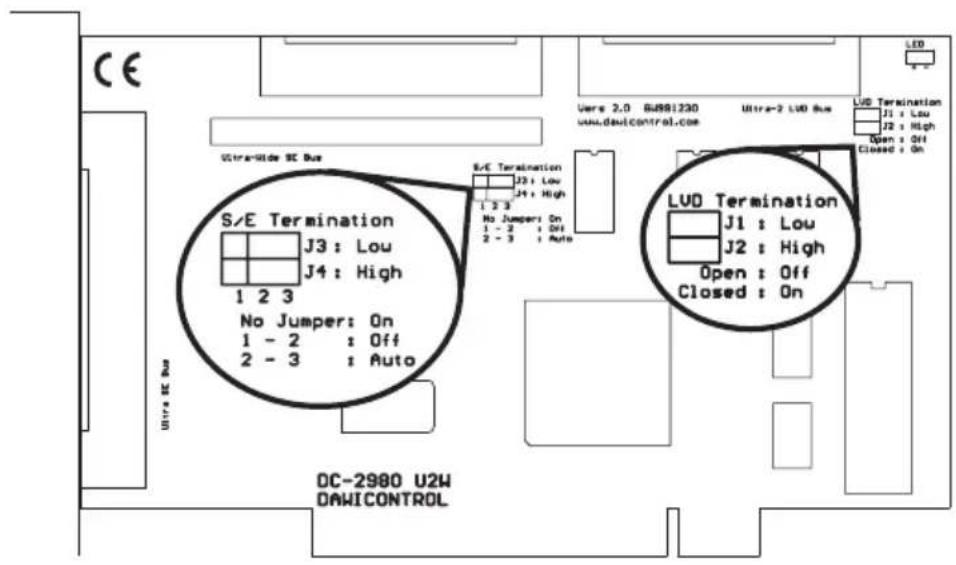
Figure: DC-2980 U2W
Jumper J3 + J4 SCSI hostadapter termination (S/E Bus)
no jumper set ON
position 1-2 OFF
position 2-3 automatic (default)
Jumper J1 + J2 SCSI hostadapter termination (LVD Bus)
no jumper set OFF
position 1-2 ON (default)
Automatic termination means that the SCSI hostadapter automatically checks whether any devices are connected to the internal and/or external devices and enables or disables the terminators accordingly. We recommend only changing this setting if problem arise from special configurations.
2. Installation
You will have to open your computer to install the DC-2980 U2W SCSI hostadapter. Please note the relevant manufacturer's guarantee terms. Switch off and unplug the computer before you ever open the casing! Plug the DC-2980 U2W SCSI hostadapter into any free 32-bit "bus master" PCI slot.
3. ConnectingSCSI Devices
You can connect up to 15 different SCSI devices to every SCSI bus. Every SCSI device is assigned its own SCSI-ID which is an address where commands destined for the relevant device are to be sent to. Please make sure to set a different ID for every connected device. The SCSI-ID for the DC-2980 U2W SCSI hostadapter is set via the SCSI setup. Please make sure, that only two of the three hostadapter ULTRA SCSI connectors are used on the same time since a star-shaped construction is not permissible. With the DC-2980 U2W, the LVD connection may always be used because the LVD-Bus is electrically separated.
4. SCSI Bus Termination
To ensure trouble-free signal transfer, both ends of the SCSI bus are to be connected to so-called Termination Resistors. Therefore it is mandatory to disable the active terminators on the DC-2980 U2W SCSI hostadapter when you connect devices to two connectors of the hostadapter at the same time. If you have chosen automatic SCSI termination the SCSI hostadapter takes care of termination automatically. Please note that you have to disable the termination as you connect more than one device, until only the last device at the SCSI bus has to be terminated. If you are using 8 bit and 16 bit SCSI devices at the same time, connect the 16 bit devices at the end of the SCSI bus in order to ensure proper termination. Always check compliance with these conditions first if any functional defects occur.
5. BIOS Update
Via the SCSIFMT program, you can quickly and efficiently update the BIOS of your DC-2980 U2W SCSI hostadapter, for example, after downloading a new BIOS version from the Internet.
- First verify that the file 2980BIOS.BIN is in the current directory together with the new BIOS version.
- Next start the SCSIFMT program under DOS and select your hostadapter from the list displayed on the startup screen.
- For safety reasons it is best to first back up your current BIOS via the Save Current Flash BIOS option. This involves copying the old BIOS to file 2980BIOS.OLD.
- Then choose Update Flash BIOS. This will cause the hostadapter's BIOS to be re-programmed. This process can take up to 30 seconds and must not be interrupted.
6. SCSI Setup
The BIOS of your DC-2980 U2W SCSI hostadapter mainly serves as a SCSI hard disk manager. But it also provides a SCSI setup utility via which you can customise various parameters of the hostadapter and the connected devices.
During SCSI BIOS installation, press DEL to enter the SCSI setup program. The current settings will be displayed. Use the arrow keys to select a value and the Plus and Minus keys to change it. Press the F1 key to restore all default values. The line items represent the following settings:
Hostadapter SCSI ID: Defines the SCSI-ID of the hostadapter. Please use SCSI-IDs 8-15 only if you don't have connected 8 bit SCSI devices. If the setting is Auto, the hostadapter automatically sets itself to an unused ID.
Power-On Wait: Specifies whether the hostadapter is to wait for SCSI devices that may not be ready to operate after starting the computer. Some hard disks need a bit of time before the pick up their nominal speed.
LUN Support: Use this to enable LUN support if you are working with devices with several LUNs (Logical Units; e.g. CD jukeboxes or PD drives).
BIOS Support for Removable Disks: Specifies whether the BIOS is to install removable disks. You would normally only need this function if you intend to start your computer from a removable disk drive.
BIOS Support: Defines BIOS support enable/disable for every individual SCSI device.
Disconnect/Reselect: Specifies whether a device is to disconnect from the SCSI bus while processing a command so that other devices can use the bus' capacity. This method provides a practical means of having several SCSI devices processing different requests in parallel as it were.
Transfer Method: Defines the data transfer type for a SCSI device. Provided options are Synchronous, Asynchronous and Auto. If set to Auto, the SCSI device will automatically select the data transfer mode.
Transfer Width: Defines the data width for the SCSI device. Provided options are 8 bit, 16 bit and Auto. If set to "Auto", the SCSI hostadapter automatically detects the data width of the SCSI device.
Boot SCSI ID: Defines the SCSI ID that the boot sequence is to start with.
BIOS Support for bootable CDs: Allows you to specify whether you wish to boot from bootable CD-ROMs.
Maximum Data Rate: Sets the maximum synchronous data transfer rate for every device. Please note that data transfer rates greater than 10 MByte per second (8 bit) or 20 MByte per second (16 bit) limit the maximum length of the SCSI bus to 3m ( < 3 devices) resp. 1,5m ( >3 devices) and require SCSI cables that meet the extended Ultra SCSI requirements. If LVD devices are operated at the LVD-Bus exclusively, the cable length may come to 12 meters.
Press ESC to quit the setup program. If you have changed any values you will be asked to confirm that you want to save the modified configuration.
7. Installation under Windows 95, 98, ME 7.1 General Information
Windows 95, 98 as well as Windows ME have a built-in standardised SCSI interface that allows you to adapt your specific hardware to the different SCSI hostadapters. Hardware adaptation is done by driver "DC2980.MPD" located in the "WIN95-98" directory on your installation diskette. The file "DC2980.INF" (also stored in the "WIN95-98" directory) controls the Windows Installer.
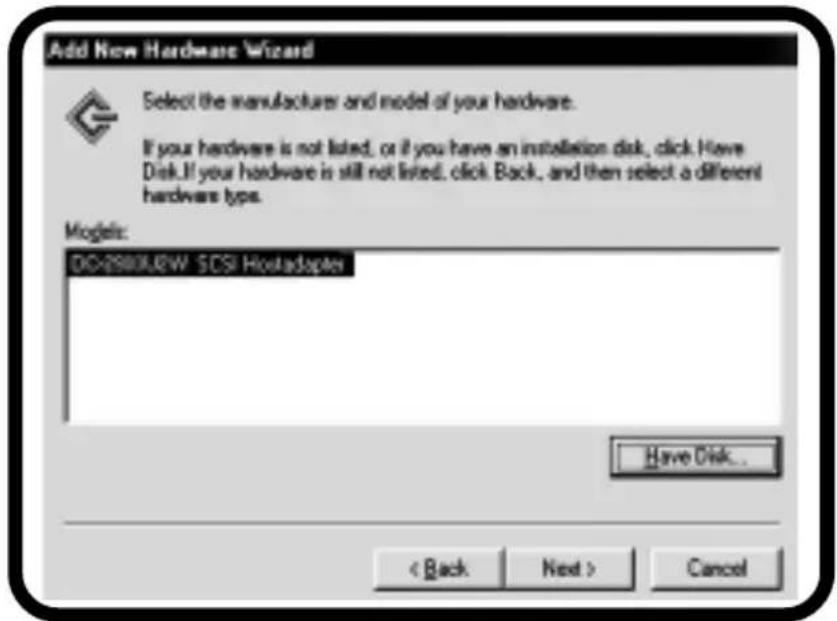
The device drivers required for running CD-ROM or removable disk drives etc. are part of the Windows 95 operating system providing an automatic setup procedure which much facilitates the installation process. Windows will recognize your SCSI Hostadapter automatically during the first booting. In the dialog "new hardware found" you have to chose for installation "driver on producers disk".
Then select the "Browse" option; the installation files are located in the „WIN95-98“ directory on your installation diskette. When you have specified the drive and folder, Windows displays a dialog indicating the exact type and name of your SCSI hostadapter.
PCI SCSI hostadapters are automatically configured by the PCI BIOS, i.e. the SCSI hostadapter is assigned a free interrupt and a free I/O address which cannot be changed via Windows' Device Manager.
After PC restart the SCSI hostadapter and all SCSI devices connected to it will be listed in Windows' Device Manager. Should Windows have recognized your SCSI hostadapter and installed the appropriate driver automatically, we still recommend using the driver contained in the hostadapter package. Start Control Panel, double-click the System icon, choose Device Manager, and select the icon representing the installed SCSI hostadapter. Then activate the Drivers tab and choose the Other Driver or Updated Driver option to install the original driver delivered on diskette.
7.2 Summary of DC2980.MPD Command Line Switches
If you wish to use the Power Save function or if any problems are caused by customised configurations, you can add the following switches to the SCSI driver by means of the options provided on the Settings tab in Windows' Device Manager:
PS = . Specifies the interval (in minutes) after which inactive drives are to be switched off
^ = . Specifies the Target-IDs for which the synchronous/asynchronous data transfer settings of Windows' Device Manager are to be ignored, i.e. for which control is given to the SCSI device. Hostadapters supplied with a SCSI setup ignore this parameter and use the setup settings instead.
!SN=x,.,x This parameter defines the devices that are to run in asynchronous instead of in synchronous mode even if the device tries to switch into synchronous mode. Hostadapters supplied with a SCSI setup ignore this parameter and use the setup settings instead.
/ SN = x,.., x This parameter specifies the devices to be operated in Synchronous Data Transfer mode if this mode is supported by these devices, independent of the Windows settings. Entering ., / SN = 1,4" , for example, enables the synchronous mode for SCSI-IDs 1 and 4. Hostadapters supplied with a SCSI setup ignore this parameter and use the setup settings instead.
//DISC=x,...,x Specifies the devices for which the "disconnect" settings of Windows device manager are to be ignored and with it this function is not available.
8. Installation under Windows 2000, Windows XP 8.1. General Information
Windows 2000/XP has a built-in standardised SCSI interface that allows you to adapt your specific hardware to the different SCSI hostadapters. Hardware adaptation is done by driver "DC2980.SYS" located in the "WIN2000" directory on your installation diskette. The file "DC2980.INF" (also stored in the "WIN2000" directory) controls the Windows 2000/XP Installer.
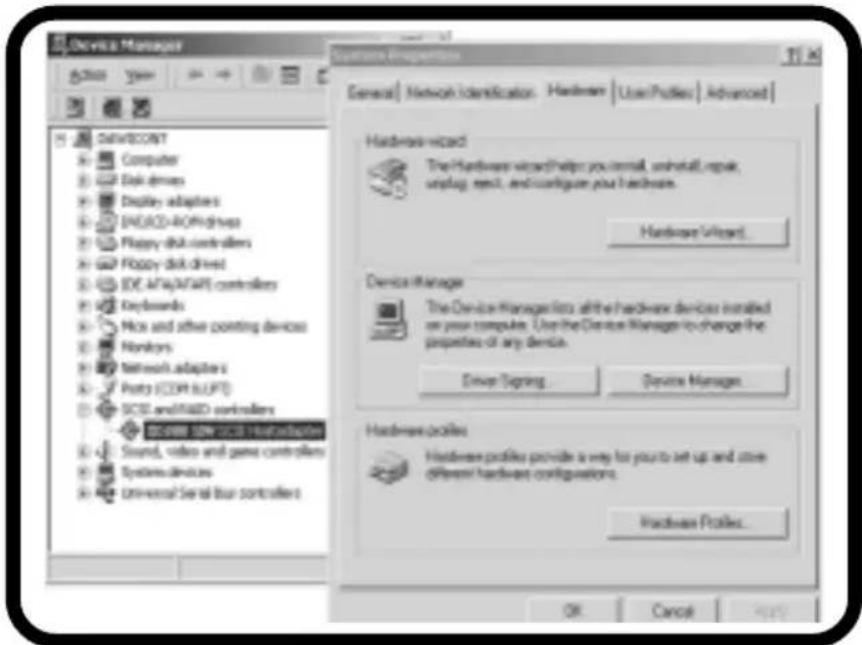
The device drivers required for running CD-ROM or removable disk drives etc. are part of the Windows 2000/XP operating system providing an automatic setup procedure which much facilitates the installation process. Windows 2000/XP recognizes your SCSI hostadapter automatically and installs a suitable standard Windows driver. To install the delivered driver or a current one from the Internet, open the symbol "System" in the control panel (XP:switch to "classic view") and choose the category "Hardware".
Then click the "Device Manager" and choose the SCSI hostadapter under the section SCSI and RAID controller. Choose "Driver Update" under the category
"Drivers". The assistant starts to update the device drivers. Please follow the instructions on the screen. The necessary files for the installation are located in the "\WIN2000" directory of your installation diskette. After you have determined the corresponding drive and directory, a window with the exact model description of your SCSI hostadapter appears.
PCI SCSI hostadapters are automatically configured by the PCI BIOS, i.e. the SCSI hostadapter is assigned a free interrupt and a free I/O address which cannot be changed via Windows' Device Manager.
After PC restart the SCSI hostadapter and all SCSI devices connected to it will be listed in Windows' Device Manager.
8.2. Summary of DC2980.SYS Command Line Switches
If you wish to use the Power Save function or if any problems are caused by customized configurations, you can add the following switches to the SCSI driver by means of the options provided on the Settings tab in Windows' Device Manager:
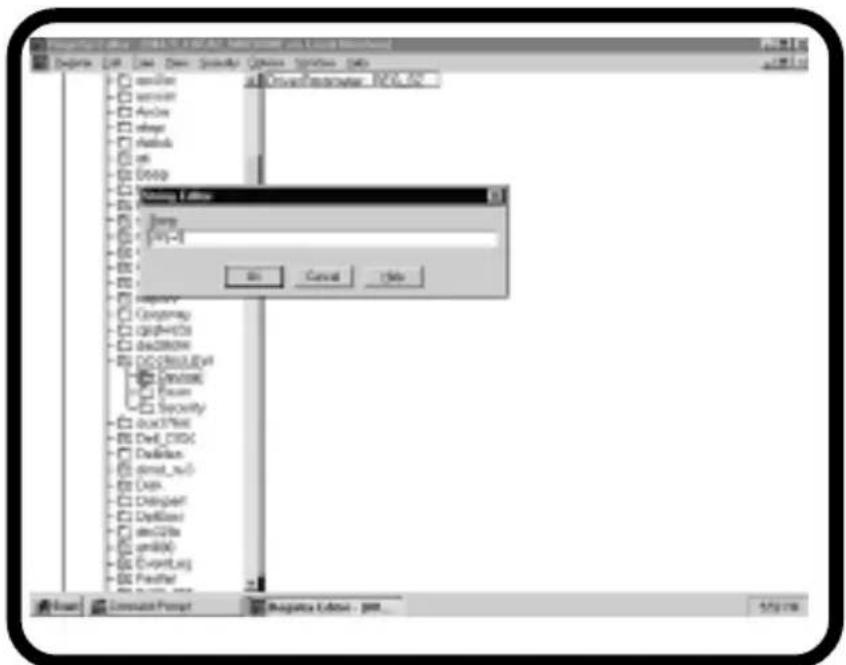
Start the "REGEDIT32" program. Display the SCSI adapter parameters by opening "HKEY_LOCAL_MACHINE", "SYSTEM", "CurrentControlSet", and "Services" in that sequence. Then choose "DC2980", "Parameter" and select "Device". A "DriverParameter" entry listing the current settings will be displayed on the right panel. Click on "DriverParameter" to open a dialog that allows you to change the parameter settings.
PS = . Specifies the interval (in minutes) after which inactive drives are to be switched off
^ = . Specifies the Target-IDs for which the synchronous/asynchronous data transfer settings of Windows' Device Manager are to be ignored, i.e. for which control is given to the SCSI device. Hostadapters supplied with a SCSI setup ignore this parameter and use the setup settings instead.
//SN=x,...,x This parameter defines the devices that are to run in asynchronous instead of in synchronous mode even if the device tries to switch into synchronous mode. Hostadapters supplied with a SCSI setup ignore this parameter and use the setup settings instead.
/ SN = x,.., x This parameter specifies the devices to be operated in Synchronous Data Transfer mode if this mode is supported by these devices, independent of the Windows settings. Entering "/SN=1,4", for example, enables the synchronous mode for SCSI-IDs 1 and 4. Hostadapters supplied with a SCSI setup ignore this parameter and use the setup settings instead.
//DISC=x,...,x Specifies the devices for which the "disconnect" settings of Windows device manager are to be ignored and with it this function is not available.
9. Installation under Windows NT
9.1 General Information
Windows NT has a built-in standardised SCSI interface that allows you to adapt your specific hardware to the different SCSI hostadapters. Hardware adaptation is done by driver „DC2980.SYS“ located in the „WINNT95“ directory on your installation diskette. The device drivers required for running CD-ROM or removable disk drives etc. are part of the Windows NT operating system providing an automatic setup procedure which much facilitates the installation process. Windows NT differentiates between two installation methods:
- SCSI hostadapter installation during installation of Windows NT. This method is deployed when the boot disk or the CD-ROM drive containing the Windows NT installation CD is connected to your SCSI hostadapter.
- Separate installation of your SCSI hostadapter on a fully configured Windows NT system. You can choose this installation method also when first installing Windows NT if the devices connected to your SCSI hostadapter are not required for installation.
9.2 Installation During Windows NT Installation
First install Windows NT as described in the manual and keep your SCSI driver diskette ready. Should you not work with the original diskette make sure that the disk you are using contains the file TXTSETUP.OEM in the root directory and all other Windows NT file in the „WINNT“ subdirectory. In the course of Windows NT installation the installer gives you the option to set up additional SCSI hostadapters. Insert your SCSI driver diskette into drive A: when prompted for it. The setup program displays the exact name and type of your SCSI hostadapter and asks you to press ENTER to confirm the information. Afterwards it installs your SCSI hostadapter.
9.3 Separate Installation
Run the SCSI Adapter utility from Windows' Control Panel and activate the Drivers tab. On this tab first click on Add and then on Diskette. You will then be requested to insert the driver disk into the drive and specify the appropriate directory. If you are using the original driver diskette, the files required for installation are located in the "WINNT" subdirectory.
If the specified drive and directory are not correct, Windows will default to automatic installation of your SCSI hostadapter. Should Windows NT have recognised your SCSI hostadapter and installed the appropriate driver automatically, we still recommend using the driver contained in the host adapter package. In this case you would have to uninstall the driver at this point by selecting the driver and clicking on the Delete button. Restart Windows NT so that you can access the connected devices.
9.4 Summary of DC2980.SYS Command Line Switches
If you wish to use the Power Save function or if any problems are caused by customised configurations, you can add the following switches to the SCSI driver.
Start the "REGEDIT32" program. Display the SCSI adapter parameters by opening HKEY_LOCAL_MACHINE, SYSTEM, CurrentControlSet, and Services in that sequence. Then choose "DC2980" and select Device. A DriverParameter entry listing the current settings will be displayed on the right panel. Click on DriverParameter to open a dialog that allows you to change the parameter settings.
The following parameters are supported by Windows NT:
/PS = . Specifies the interval (in minutes) after which inactive drives are to be switched off.
^ = . Specifies the Target-IDs for which the synchronous/asynchronous data transfer settings of Windows' Device Manager are to be ignored, i.e. for which control is given to the SCSI device. Hostadapters supplied with a SCSI setup ignore this parameter and use the setup settings instead.
!SN=x,...,x This parameter defines the devices that are to run in asynchronous instead of in synchronous mode, independent of the Windows mode setting for these devices. Hostadapters supplied with a SCSI setup ignore this parameter and use the setup settings instead.
SN = x,.., x This parameter specifies the devices to be operated in Synchronous Data Transfer mode if this mode is supported by these devices, independent of the Windows settings. Entering "/SN=1,4", for example, enables the synchronous mode for SCSI-IDs 1 and 4. Hostadapters supplied with a SCSI setup ignore this parameter and use the setup settings instead.
//DISC=x,...,x Specifies the devices for which the "disconnect" settings of Windows device manager are to be ignored and with it this function is not available.
position 1-2 debranché