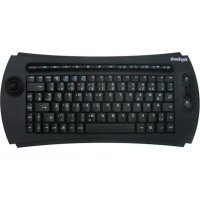
KSK5200 RFM - Keyboard KeySonic - Free user manual and instructions
Find the device manual for free KSK5200 RFM KeySonic in PDF.

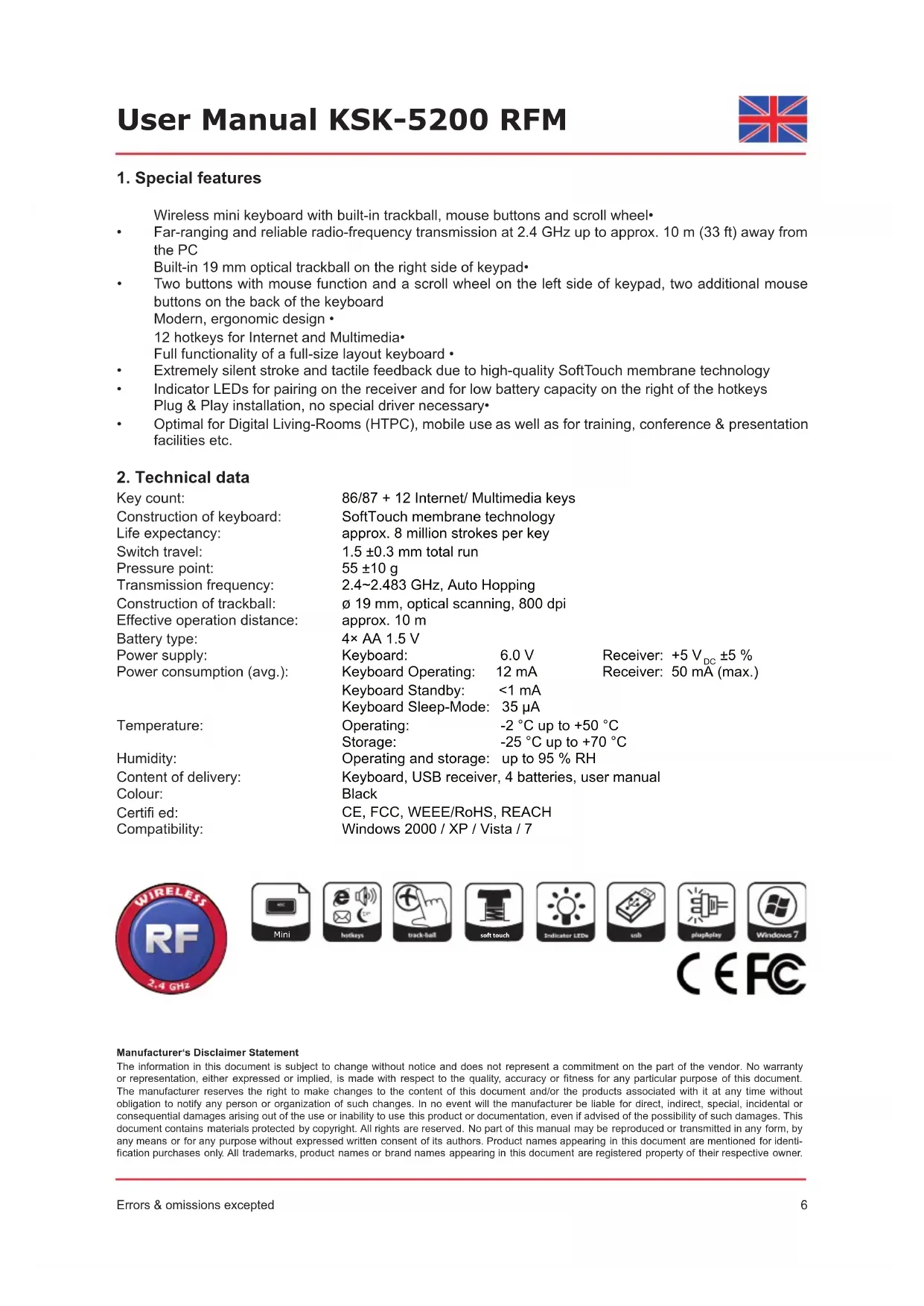


| Product type | Wireless keyboard with integrated trackball |
| Brand | KeySonic |
| Model | KSK5200 RFM |
| Number of keys | 86/87 + 12 Internet/Multimedia keys |
| Construction | Membrane SoftTouch |
| Key lifespan | Approximately 8 million keystrokes per key |
| Actuation travel | 1.5 ±0.3 mm |
| Actuation force | 55 ±10 g |
| Radio frequency | 2.4 ~ 2.483 GHz, Auto Hopping |
| Effective range | Approximately 10 m |
| Trackball technology | Ø 19 mm, optical, 800 dpi |
| Keyboard power supply | 4 AA 1.5 V batteries (included) |
| Receiver power supply | +5 VDC ±5% via USB |
| Keyboard current consumption (operation) | 12 mA |
| Keyboard current consumption (standby) | 35 μA |
| Operating temperature | -2 °C to +50 °C |
| Storage temperature | -25 °C to +70 °C |
| Humidity | Up to 95% RH |
| System compatibility | Windows 2000, XP, Vista, 7 |
| Package contents | Keyboard, USB receiver, 4 AA batteries, manual |
| Color | Black |
| Certifications | CE, FCC, WEEE/RoHS, REACH |
| Maintenance and cleaning | Dust with a brush or vacuum; dirt with a slightly damp cloth; do not use solvents or harsh cleaners |
| Spare parts / repairability | Replaceable AA batteries; the trackball can be disassembled for cleaning; no spare parts provided by the manufacturer |
Frequently Asked Questions - KSK5200 RFM KeySonic
User questions about KSK5200 RFM KeySonic
0 question about this device. Answer the ones you know or ask your own.
Ask a new question about this device
Download the instructions for your Keyboard in PDF format for free! Find your manual KSK5200 RFM - KeySonic and take your electronic device back in hand. On this page are published all the documents necessary for the use of your device. KSK5200 RFM by KeySonic.
USER MANUAL KSK5200 RFM KeySonic
... touch the difference
KSK-5200 RFM

Bedienungsanleitung

Operation Manual

2,4~2,483 GHz, Auto-Hopping
Receiver: 50mA
Tastatur Standby: <1 mA
CE, FCC, WEEE/RoHS, REACH
Farbe:
Windows 2000 / XP / Vista / 7
Zertifikiert:
Kompatibilität:








Wireless mini keyboard with built-in trackball, mouse buttons and scroll wheel
Far-ranging and reliable radio-frequency transmission at 2.4 GHz up to approx. 10m (33 ft) away from the PC
Built-in 19 mm optical trackball on the right side of keypad
- Two buttons with mouse function and a scroll wheel on the left side of keypad, two additional mouse buttons on the back of the keyboard
Modern,ergonomic design
12 hotkeys for Internet and Multimedia
Full functionality of a full-size layout keyboard
Extremely silent stroke and tactile feedback due to high-quality SoftTouch membrane technology
Indicator LEDs for pairing on the receiver and for low battery capacity on the right of the hotkeys Plug & Play installation, no special driver necessary
Optimal for Digital Living-Rooms (HTPC), mobile use as well as for training, conference & presentation facilities etc.
2. Technical data
Key count:
Construction of keyboard:
Life expectancy:
Switch travel:
Pressure point:
Transmission frequency:
Construction of trackball:
Effective operation distance:
Battery type:
Power supply:
Power consumption (avg.):
86/87 + 12 Internet/Multimedia keys
SoftTouch membrane technology approx. 8 million strokes per key
1.5 ± 0.3 ~mm total run
55 ± 10g
2.4~2.483 GHz, Auto Hopping
19mm optical scanning,800 dpi
approx. 10m
4× AA1.5V
Keyboard: 6.0 V
Keyboard Operating: 12 mA
Keyboard Standby: <1 mA
Keyboard Sleep-Mode: 35 A
Operating: -2°C up to +50 °C
Storage: -25 °C up to +70 °C
Operating and storage: up to 95% RH
Keyboard, USB receiver, 4 batteries, user manual
Black
CE, FCC, WEEE/RoHS, REACH
Windows 2000 / XP / Vista / 7
Receiver: +5V_DC ± 5%
Receiver: 50mA (max.)
Temperature:
Humidity:
Content of delivery:
Colour:
Certified:
Compatibility:






Manufacturer's Disclaimer Statement
The information in this document is subject to change without notice and does not represent a commitment on the part of the vendor. No warranty or representation, either expressed or implied, is made with respect to the quality, accuracy or fitness for any particular purpose of this document. The manufacturer reserves the right to make changes to the content of this document and/or the products associated with it at any time without obligation to notify any person or organization of such changes. In no event will the manufacturer be liable for direct, indirect, special, incidental or consequential damages arising out of the use or inability to use this product or documentation, even if advised of the possibility of such damages. This document contains materials protected by copyright. All rights are reserved. No part of this manual may be reproduced or transmitted in any form, by any means or for any purpose without expressed written consent of its authors. Product names appearing in this document are mentioned for identification purchases only. All trademarks, product names or brand names appearing in this document are registered property of their respective owner.
3. Installation
3.1 System requirements
This keyboard requires a PC with USB connection and one of the following operating systems: Windows 2000 / XP / Vista / 7
For the installation of the keyboard under the mentioned above operating systems you need NO special driver!
3.2 Installation of the USB receiver
In order to install your keyboard, please perform the following steps:
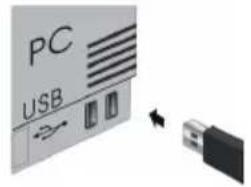
Connect the USB receiver to a free USB port on your computer.
Advise: Please ensure, that the USB receiver has a minimal distance of 20 cm to metallic dividing walls, other computer cases, monitors, ZIP drives, loudspeakers and switching power supplies.
- All mentioned above state-of-the-art operating systems with Plug & Play support will recognize your keyboard automatically and load the required drivers. During the phase of installation your operating system informs you via changing Pop-up information windows on the task-bar about the current status of installation. Please be patient, until the system informs you finally about the successful installation. The USB receiver is now ready for operation.
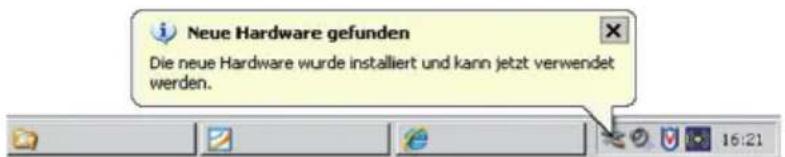
Older operating systems not always support automatic recognition of USB devices. If you have attached your USB receiver and exactly this error occurs on your system, you have the following alternatives to solve the problem:
Perform an update of your operating system and return to Step 3.2
- In some cases the installation CD of your operating system is necessary according to the instructions on your screen. In this circumstance please follow these instructions*.
- Check whether your BIOS system supports USB keyboards*. Some main board manufacturers offer BIOS up-dates for download over the Internet.
- Ensure in your system settings, that the used USB connection was not deactivated in your operating system*.
-
Should your system updates keep out of success, it is recommended to test the keyboard with another PC with the same operating system to rule out a hardware damage of the USB receiver.
-
Refer to the documentation of your PC for details.
Information on disposal of old batteries (Battery Regulation)
The new Regulation obliges battery manufacturers and importers to take back, sort and dispose all old batteries. The consumer is obliged to give back used batteries in retail stores or in municipal collection points. The disposal in municipal waste is explicitly prohibited according to Battery Regulation. You can send batteries purchased from us after consumption to the following address via suffi cients stamped mail:
MaxPoint Handelsgesellschaft mbH, Kurt-Fischer-Straße 50, D-22926 Ahrensburg Batteries, which contain pollutants, are marked with the symbol of a crossed-out dustbin similar to the symbol in the illustration. The chemical description of the pollutant is situated below the symbol of the dustbin. "Cd" stands for Cadmium, "Pb" for Lead, "Hg" for Mercury.
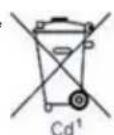
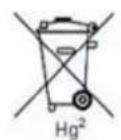
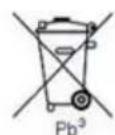
3.3 Keyboard installation
Recommended requirement is the successful installation of the USB receiver under point 3.2
- If you haven't done yet, remove the covering of the battery case on the bottom of your keyboard. Install the included four batteries of type AA 1.5 V considering the right polarity in the battery case (see picture).
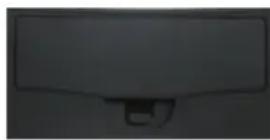
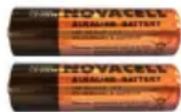
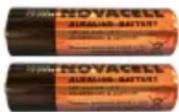
- The USB receiver and the keyboard are factory-made already synchronised on the same channel. Normally you have not to make a new-synchronisation (as described under point 3.4).
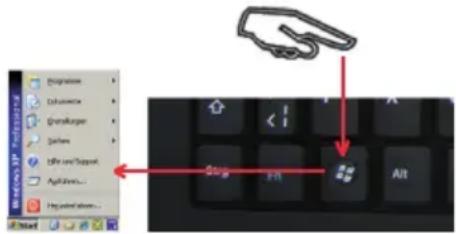
Now you can check this by pressing any key of your keyboard. If you press the Windows key, for instance, the Windows Pop-up menu down left on your screen has to open. If so, your wireless keyboard is working correctly now. If not, please synchronise the USB receiver and the keyboard again like described under point 3.4.
Advise: Should the functionality be influenced by other users applying their wireless keyboard close-by, make a new synchronisation as described under point 3.4.
3.4 New-synchronisation of the radio channel
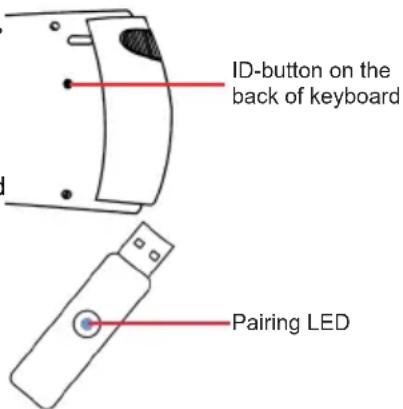
When you install your keyboard for the first time and no connection can be established, please synchronise the radio channel between keyboard and USB receiver again. Press the ID button on the back of the keyboard and release. Make sure the distance between keyboard and receiver is within 60~cm . The pairing LED will be flashing for 3 seconds, indicating that the USB receiver has detected signals successfully, which means the connection is established. The keyboard is ready for use now. Check the functionality of the keyboard as described under point 3.3.
In implausible case the keyboard does not work even after new-synchronisation, you have the following options to solve this problem:
Repeat the procedure of synchronisation as described under 3.4.
Sometimes it is necessary to repeat this routine several times, until the right radio channel is found.
- In case your USB receiver is attached to an USB hub, you should install it directly on the USB connector of your notebook or desktop.
- During the procedure of synchronisation the keyboard should be located close to the USB receiver to make sure, that the immediate environment has no influence on the radio transmission (for instance reduction/interferences due to metal cases, other sources of interferences etc.).
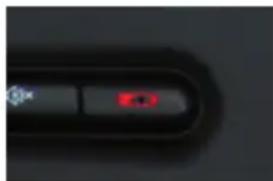
Ensure that you use only batteries with full loading capacity. In case of doubt change the old batteries before next synchronisation against new ones as a precaution. Low battery capacity is signalised by permanent glowing of the blue LED above the trackball.
Low Battery Indicator
4. How to use the keyboard
- After successful launch enjoy now during the operation a free and independent choice of location up to approx. 10m distance to the PC. More or less range can be caused, like mentioned above, by metallic dividing walls, other computer cases, monitors, ZIP drives, loudspeakers, switching power supplies etc., but also by different loading capacity of the batteries.
4.1 Trackball
As a mouse alternative the keyboard is equipped with a optical Trackball inclusive two mouse function keys allowing comfortable and ergonomic handling of the PC, for instance from a sofa. Thereby the handling of the Trackball is as simple as brilliant.
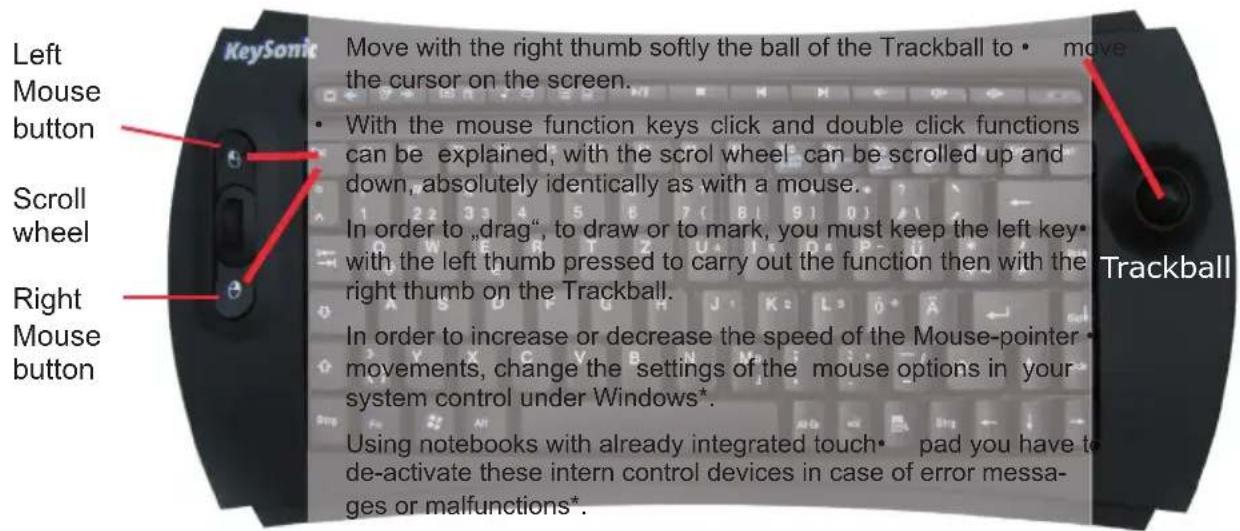
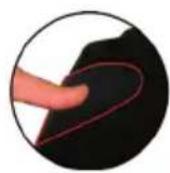
On the back side of the keyboard are two additional big mouse-function buttons.

Should the precision of the cursor decrease after several months of usage, the following things could be responsible for that:
- Please check the installed batteries for their state. In the case of doubt exchange them for new.
Advise: A too low battery capacity might be responsible for the fact that the operation distance to the radio remote control of the PC is impaired respectively signs are let out sporadically when writing. - Clean the mechanical suspension as well as the sensor of the track ball. For this, turn with the thumb and the forefinger the external plastic ring to the left (with light pressure against the clockwise), until it becomes unscrewed.
- For easy extraction hold your hand about the trackball now and turn the keyboard, so that the plastic ring and the ball fall in your hand from the fixture. Clean now the mechanical role suspension of the track ball as well as the small opening of the sensor with a soft paintbrush or with gentle air pressure. For cleaning DO NOT use sharp or pointed objects respectively liquid detergents, solvents or gasoline! After the assembly in reverse order the sensibility should be returned.
4.2 Multifunctional keys
The keyboard has 12 integrated multifunctional keys for a fast and comfortable operation. These keys perform the below described functions; e.g. open documents or start software programs or web pages. The five left keys have a second function by pressing key Fn at the same time.
| MCE Hotkeys | Indicator for Batteries | Indicates that the load condition of the batteries is below 2.4 Volt. It flashes until a new battery has been inserted or until the battery has been completely used up. |
| Mute | Activates or de-activates computer sound | |
| Volume + | Increases the computer's sound volume | |
| Volume - | Decreases the computer's sound volume | |
| Next | Starts the next track of the CD, VCD, DVD or media file | |
| Previous | Starts the previous track of the CD, VCD, DVD or media file | |
| Stop | Stops the track of the CD, VCD, DVD or media file | |
| Play/ Pause | One-time pressing starts the track of a CD, VCD, DVD or media file; repeated pressing pauses the replay | |
| Live TV | Opens the standard application for Internet TV (+Fn) | |
| My PC | Opens „My Computer" in the explorer few | |
| My Music e-Mail | Opens the standard application for Music (+Fn) Opens the home page of the preset E-mail program | |
| My Pictures Home | Opens the standard application for pictures (+Fn) Starts the default Web browser and goes to the home web page | |
| My Video Next view | Opens the standard application for Videos (+Fn) Opens the next few, for instance of the Internet explorer | |
| My TV Previous view | Opens the TV Player (DVB-T, if available) (+Fn) Opens the previous few, for instance of the Internet explorer |
Media hotkeys only can be used after the program of Media Center is activated.
5. How to clean the keyboard
- Remove dust with a brush, with soft compressed air, or with a vacuum cleaner with brush head nozzle.
Remove fine dirt with a not-too-damp cloth.
DO NOT use any aggressive detergents, solvents or gasoline in order to clean the keyboard.