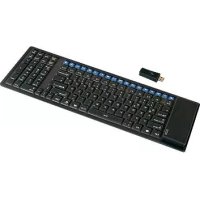
ACK126RF - Keyboard KeySonic - Free user manual and instructions
Find the device manual for free ACK126RF KeySonic in PDF.



User questions about ACK126RF KeySonic
0 question about this device. Answer the ones you know or ask your own.
Ask a new question about this device
Download the instructions for your Keyboard in PDF format for free! Find your manual ACK126RF - KeySonic and take your electronic device back in hand. On this page are published all the documents necessary for the use of your device. ACK126RF by KeySonic.
USER MANUAL ACK126RF KeySonic
Declaration of Conformity
We, MaxPoint Handelsgesellschaft mbH - Ahrensburg, declare under our sole responsibility, that the product
Type:
Wireless keyboard / 2.4 GHz
Brand Name:
KeySonic
Model Name:
ACK-126 RF
is herewith confirmed to comply with the requirements set out in the R&TTE Directive 1999/5/EC of 9. March 1999.
This declaration is based on the full compliance of the product with the following European specifications/standards:
EN 50371
(Health)
EN 60950-1
(Safety)
EN 301 489-1/-3
(EMC)
EN 300 440-1/-2
(Radio)
The product shall be marked with the
CE conformity marking and the Notified Body number
C€ 0678
Ahrnsburg,09.10.207

Federal Communications Commission (FCC) Notice
This device complies with Part 15 of the FCC rules. Operation is subject to the following two conditions
(1) This device may not cause harmful interference, and
(2) This device must accept any interference received, including interference that may cause undesired operation.
This equipment has been tested and found to comply with the limits of a Class B digital device, pursuant to Part 15 of the FCC Rules. These limits are designed to provide reasonable protection against harmful interference in a residential installation. This equipment generates, uses and can radiate radio frequency energy and, if not installed and used in accordance with the instructions, may cause harmful interference to radio communications. However, there is no guarantee that interference will not occur in particular installations. If this equipment does cause harmful interference to radio or television reception, which can be determined by turning the equipment off and on, the user is encouraged to try to correct the interference by one or more of the following measures:
-
Reorient / Relocate the receiving antenna.
-
Increase the distance between the mouse and receiver.
- Connect the equipment into an outlet on a circuit different from that the receiver is connected.
CAUTION:
Change or modifications not expressly approved by the manufacturer responsible for compliance could void the user's authority to operate the equipment.
KeySonic™
... touch the difference
ACK-126 RF

Bedienungsanleitung

Operation Manual

1.2 Installation des USB-Receivers
1.1 System Requirements
This keyboard requires a PC with PS/2 connection and one of the following operating systems:
Windows 98SE / ME / 2000 / XP / Vista
1.2 Installation of the USB receiver
In order to install your keyboard, please perform the following steps:
- Connect the USB receiver (USB dongle receiver) to a free USB port on your computer. The LED in the USB receiver starts to glow and signalises therewith, that the USB receiver is workable connected with your PC.
Advise: Please ensure, that the USB receiver has a minimal distance of 20cm to metallic dividing walls, other computer cases, monitors, ZIP drives, loudspeakers and switching power supplies.
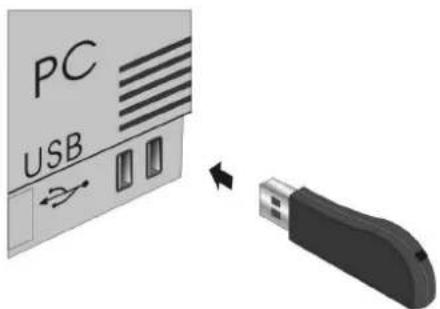
- All state-of-the-art operating systems with Plug & Play support will recognize your keyboard automatically and load the required drivers. During the phase of installation your operating system informs you via changing Pop-up information windows on the task-bar about the current status of installation. Please be patient, until the system informs you finally about the successful installation. The USB receiver is now ready for operation.
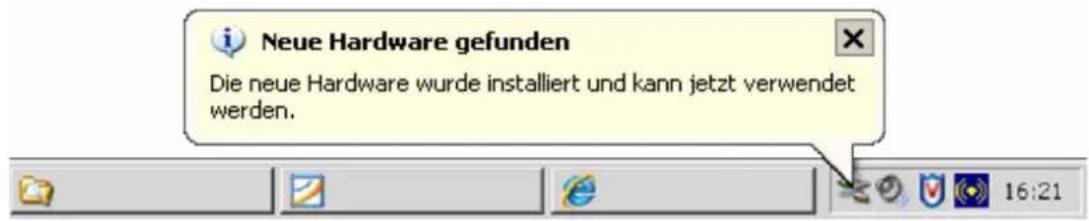
Older operating systems not always support automatic recognition of USB or PS/2 devices. If you have attached your USB receiver and exactly this error occurs on your system, you have the following alternatives to solve the problem:
- Perform an update of your operating system and return to Step 1.2
- In some cases the installation CD of your operating system is necessary according to the instructions on your screen. In this circumstance please follow these instructions.
- Under Windows 98/2000 the installation of the included driver on CD-ROM is necessary*. Please follow the instructions on your screen after starting the driver CD.
- Check whether your BIOS system supports USB keyboards*. Some main board manufacturers offer BIOS up-dates for download over the Internet.
- Ensure in your system settings, that the used USB connection was not deactivated in your operating system*.
-
Should your system-updates keep out of success, it is recommendable to test the keyboard with another PC with the same operating system to rule out a hardware damage of the USB receiver.
-
Please refer details to the manual of your PC.
1.3 Keyboard installation
- Recommended requirement for that is the successful installation of the USB receiver under point 1.2
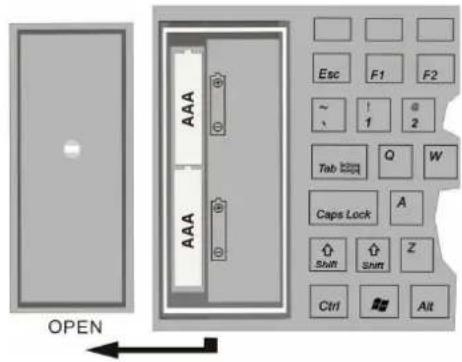
- Remove on the "OPEN" symbol the silicone cover of the battery case on top side of your keyboard. Install the both included batteries of type AAA-1.5 V considering the right polarity in the battery case (see picture).
- The USB receiver and the keyboard are factory-made already synchronised on the same channel. Normally you have not to make a new-synchronisation (as described under point 1.4).
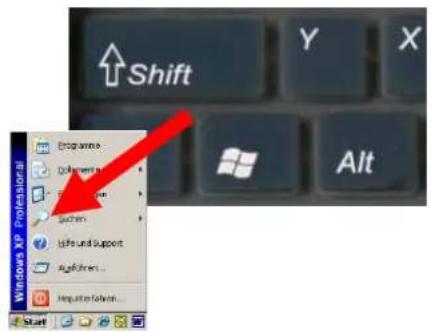
- You can check this by pressing any key of your keyboard. If you press the Windows key, there has to open for instance the Windows Pop-up menu down left on your screen. If so, your wireless keyboard is working correctly now. If not, please synchronise the USB receiver and the keyboard again like described under point 1.4.
1.4 New-synchronisation of the radio channel
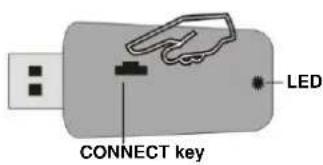
- When you start up your keyboard for the first time and no connection could be established, so synchronise the radio channel between keyboard and USB receiver again by pressing firstly the „CONNECT“ key on the USB receiver. The LED in the USB receiver starts blinking and signalises therewith, that it is waiting on synchronisation-signal of the keyboard.
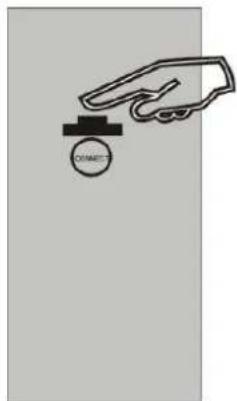
- Press now during the next 15 seconds the „CONNECT“ key on backside of your keyboard. The keyboard sends with it the synchronisation signal to USB receiver. After successful synchronisation the blinking LED of the USB receiver turns to continuous lighting.
The keyboard is ready for use now. Check it as described under point 1.3.
Advise: Should the „CONNECT“ key on your keyboard not be pressed within 15 seconds, so the blinking LED turns to continuous lighting without previous synchronisation.
Is your keyboard after new-synchronisation still not working, you have the following possibilities to solve the problem:
- Repeat the procedure of synchronisation as described under 1.4. Sometimes it is necessary to repeat this routine several times, until the right radio channel was found.
- In case your USB receiver is attached to an USB hub, you should install it directly on the USB connector of your notebook or desktop.
- During the procedure of synchronisation the keyboard should be located close to the USB receiver to make sure, that the immediate environment has no influence on the radio transmission (for instance reduction/interferences due to metal cases, other sources of interferences etc.).
- Ensure that you use only batteries with full loading capacity. In case of doubt change the old batteries before next synchronisation against new ones as a precaution.
2. How to use the keyboard
After successful synchronisation the radio transmission range between keyboard and receiver is approx. 10m . More or less range can be caused, like mentioned above, by metallic dividing walls, other computer cases, monitors, ZIP drives, loudspeakers, switching power supplies etc., but also by different loading capacity of the batteries.
Should the functionality be influenced by other users applying their wireless keyboard close-by, make a new-synchronisation as described under point 1.4.
2.1 Security advice:
Warning — the keyboard gets damaged in the following cases:
- Contact with sharp objects
- Open fire or heat above +80^ (+176^)
- Extreme temperatures under -40^ ( -40^ )
- Complete immersion in water including the keyboard cable
- Compressing the keyboard when it is rolled
- Strong deformation (extreme twisting or stretching)
Storage under heavy objects for a long time - Exposure to the following chemicals: Oils, hydrocarbons (gasoline, petroleum, toluene etc.), acetone, aggressive oxidizers, highly concentrated acids and alkaline solutions
2.2 Multifunction keys
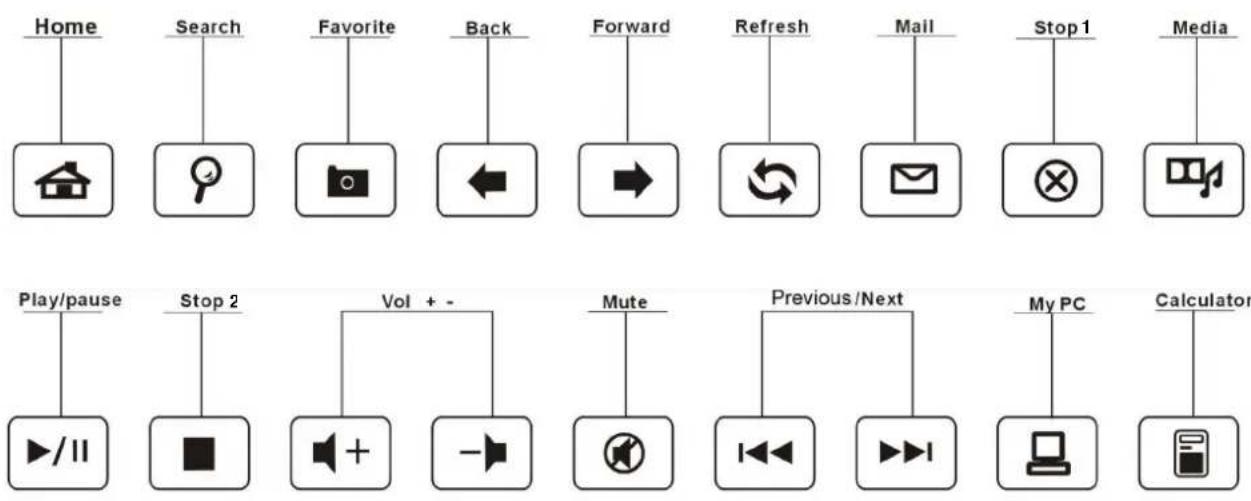
Home Opens the home page of the preset Internet browser
Search Opens the search assistant for images, documents, files, printers etc.
- Favorite Opens the favorite few in Internet or file explorer
- Back Opens the previous few, for instance of the Internet explorer
- Forward Opens the next few, for instance of the Internet explorer
- Refresh Refreshes the current shown page in the Internet explorer
- Mail Opens the home page of the preset E-mail program
- Stop1 Stops loading and refreshing of a web side
Media Opens the home page of a preset media player
- Play/Pause One-time pressing starts the track of a CD, VCD, DVD or media file; repeated pressing pauses the replay
- Stop2 Stops the track of the CD, VCD, DVD or media file
- Vol + Raises the sound volume
- Vol - Reduces the sound volume
- Mute Activates or de-activates the muting
- Previous Starts the previous track of the CD, VCD, DVD or media file
- Next Starts the next track of the CD, VCD, DVD or media file
- My PC Opens the „My computer" in the explorer few
- Calculator Opens the screen, calculator