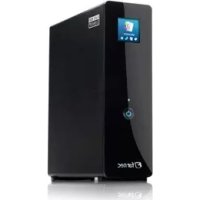
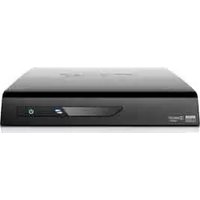
MMFHDL - Media player Fantec - Free user manual and instructions
Find the device manual for free MMFHDL Fantec in PDF.



| Product Type | Media Player |
| Brand | Fantec |
| Model | MMFHDL |
| Internal Hard Drive | SATA 3.5-inch (not included) |
| Video Outputs | HDMI v1.3, composite (CVBS), component Y/Pb/Pr, SCART |
| Audio Outputs | Analog stereo (via A/V), coaxial and optical S/PDIF |
| Supported Video Resolutions | NTSC, PAL, 480p, 576p, 720p, 1080i, 1080p |
| Video Formats | AVI, MKV, TS, M2TS, MPG, MP4, M4V, MOV, VOB, ISO, IFO, DAT, WMV, ASF, RM, RMVB, FLV |
| Audio Formats | MP3, OGG, WMA, WAV, AAC, FLAC |
| Image Formats | HD JPEG, BMP, GIF, TIF, PNG |
| USB Ports | 1 device port (PC connection), 2 host USB 2.0 ports |
| Wired Network | Ethernet 10/100 Mbps (RJ45) |
| Wireless Network | Wi-Fi 802.11b/g/n via optional USB adapter |
| Network Functions | Samba sharing, UPnP server, internet radio (SHOUTcast), BitTorrent download via web server |
| File Systems | FAT, FAT32, NTFS, EXT3 |
| Power Supply | 12 V DC (power adapter included) |
| Included Accessories | Remote control, A/V cables, Y/Pb/Pr, USB, power adapter, manual, driver CD |
| Operating Temperature | +5 °C to +35 °C |
| Dimensions (approx.) | Not specified in the manual |
| Weight (approx.) | Not specified in the manual |
Frequently Asked Questions - MMFHDL Fantec
User questions about MMFHDL Fantec
0 question about this device. Answer the ones you know or ask your own.
Ask a new question about this device
Download the instructions for your Media player in PDF format for free! Find your manual MMFHDL - Fantec and take your electronic device back in hand. On this page are published all the documents necessary for the use of your device. MMFHDL by Fantec.
USER MANUAL MMFHDL Fantec
1.1 Preface 3
1.2 Packing List 4
1.3 Cautions 4
1.4 Connection 6
1.5 Power On/Off 11
1.6 Menu Language 11
1.7 HDD Format 12
2. About the Player 13
2.1 Remote Control 13
2.2 Front Panel 15
2.3 Rear Panel 15
3. Setup Menu 16
3.1 Changing Audio Settings 16
3.2 Changing Video Settings 17
3.3 Changing Network Settings 18
3.4 Changing System Settings 21
3.5 Miscellaneous 23
4. Browser Menu 24
4.1 Browsing All 24
4.2 Browsing Music 25
4.3BrowsingPhotos 26
4.4 Browsing Movies 27
4.5 A/V Streaming via Network 28
4.6 A/V Streaming via UPnP-server 30
4.7 Renaming/Deleting Files 32
4.8 Managing the Playlist 32
5. File Copy Menu 34
6. Internet Radio 35
7. Web Server & BitTorrent 36
7.1 Web Server (unicgi) 36
7.2 Account Management 37
7.3 Visit Neighbor (samba) 37
7.4 BitTorrent Download (btpd) 38
8.Upgrading the Firmware 41
9. Appendixes 42
9.1 Specifications 42
9.2 Frequently Asked Questions 43
9.3 Copyrights and Trademarks 45
9.4 Warranty 45
9.5 GPL Statement 45
1. Introduction
1.1 Preface
Thank you very much for purchasing FANTEC MM-FHDL. We hope you will enjoy using it as a great home entertainment partner. This player has the following functionality.
A/V Output
HDMI V1.3 for high-definition video and digital audio
- Composite & component video and stereo audio for analog audio-visual connection
S/PDIF coaxial & optical interface for high-fidelity digital audio
- Adjustable video output resolution (NTSC, PAL, 480p, 576p, 720p, 1080i, 1080p)
MultimediaPlayback
Supports major audio, video and image file formats (1080p HD video decoding)
- Movie format: AVI/MKV/TS/M2TS/MPG/MP4/M4V/MOV/VOB/ISO/IFO/DAT/WMV/ASF/RM/RMVB/FLV
Music format: MP3/OGG/WMA/WAV/AAC/FLAC
- Photo format: HD JPEG/BMP/GIF/TIF/PNG
- Photo slide show with background music
Network Feature
A/V streaming/transmission via Ethernet (10M/100M) & Wi-Fi (802.11b/g/n, optional)
- File sharing via Samba server
A/V streaming via UPnP Media Server
- BitTorrent download (controlled and managed via web server)
- Internet Radio (SHOUTcast)
File Copy
Supports copying & moving files among USB devices, Local HDD, and Network
USB 2.0 Support
- USB DEVICE port (for computer connection)
- USB HOST port x 2 (for USB storage devices)
Note: All the information contained in this manual was correct at the time of publication. However, as our engineers are always updating and improving the product, your device's software may have a slightly different appearance or modified functionality than presented in this manual.
1.2 Packing List
| Part | Quantity |
| Player | 1 |
| A/V cable 1 | |
| Y/Pb/Pr cable 1 | |
| USB cable 1 | |
| Remote Control 1 | |
| Remote Control Battery 2 | |
| AC/DC adaptor 1 | |
| AC/DC adaptor Power Cord 1 | |
| User Manual (printed) 1 | |
| Driver CD (with User Manual) 1 | |
| Warranty card 1 |
Note:
The actual contents in the package might be different from the packing list in this manual.
1.3 Cautions
The FANTEC MM-FHDL design and manufacture has your safety in mind. In order to safely and effectively use this player, please read the following before usage.
1.3.1 Usage Cautions
User should not modify this player. If commercial hard disk is being used, the environmental temperature should be within +5^ +35^ .
1.3.2 Power
The player's power voltage: DC 12V.
When using this player, please connect the supplied AC adapter or AC adapter cable to the player's power jack. When placing the adapter cable, make sure it can not get damaged or be subject to pressure. To reduce the risk of electric shock, unplug the adapter first before cleaning it. Never connect the adapter to the player in a humid or dusty area. Do not replace the adapter or cable's wire or connector.
1.3.3 Radio Interference
- If not properly shielded, almost all electronic devices will get radio interference. Under some conditions, your player might get interference.
- The design of this player has followed the FCC/CE standard, and has followed the following rules:
(1) This player may not cause harmful interference;
(2) This player could accept some interference received including interference that may cause undesired operation.
1.3.4 Repair
If the player has a problem, you should take it to an appointed repair center and let the specialists do the repair, never repair the player yourself, you might damage the player or endanger yourself or your data.
1.3.5 Disposing of the Player
When you dispose of the player, be sure to dispose it appropriately. Some countries may regulate disposal of electrical device, please consult with your local authority.
1.3.6 Hard Disk Cautions
The player uses an internal hard disk for data storage, in normal case, format or repair is not required.
You should carefully read the < Frequently Asked Questions > chapter, and check our website for latest information before formatting the hard disk.
- Physical impact may create bad sector in the hard disk, you can use CHKDSK to fix the problem.
- All data stored in the player may be lost due to physical impact, electrical shock, power lost, HDD format etc. Please backup your data.
- It is suggested to do defragment after a long period of usage.
- Regularly backup the data in the hard disk so that it can be recovered in the event of data corruption or loss. Our company takes no responsibility for loss of data stored on the hard disk.
1.3.7 Others
When using this player, please do not let the player come into contact with water or other liquid, if water is accidentally spilled on the player, please use a dry cloth to absorb the spillage.
Electronic products are vulnerable, when using please avoid shaking or hitting the player, and do not press the buttons too hard.
Do not let the player come into contact with water or other liquid.
Do not disassemble the player, repair the player or change the design of the player, any damage done will not be included in the repair policy.
Do not press the buttons of the player too hard.
Avoid hitting the player with hard object, avoid shaking the player, and stay away from magnetic fields.
During electrostatic discharge and the strong electromagnetic field, the product will malfunction, then unplug the power cable and the product will return to normal performance next time it is powered on.
1.4 Connection
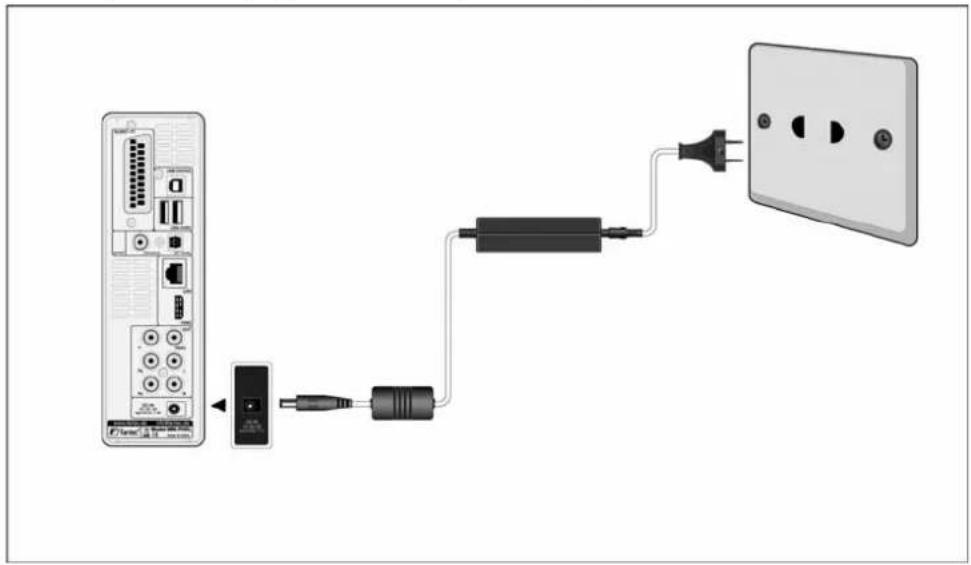
1.4.1 Connecting the Power Supply
(1) Follow the picture and connect the AC adaptor to the player's DC IN jack;
(2) Follow the picture and plug in the AC adaptor to the power outlet.
1.4.2 Connecting to a PC
(1) Make sure the player is powered on;
(2) Plug in the squarish connector of the USB cable to this player's USB DEVICE port;
(3) Plug in the rectangular connector of the USB cable to computer.
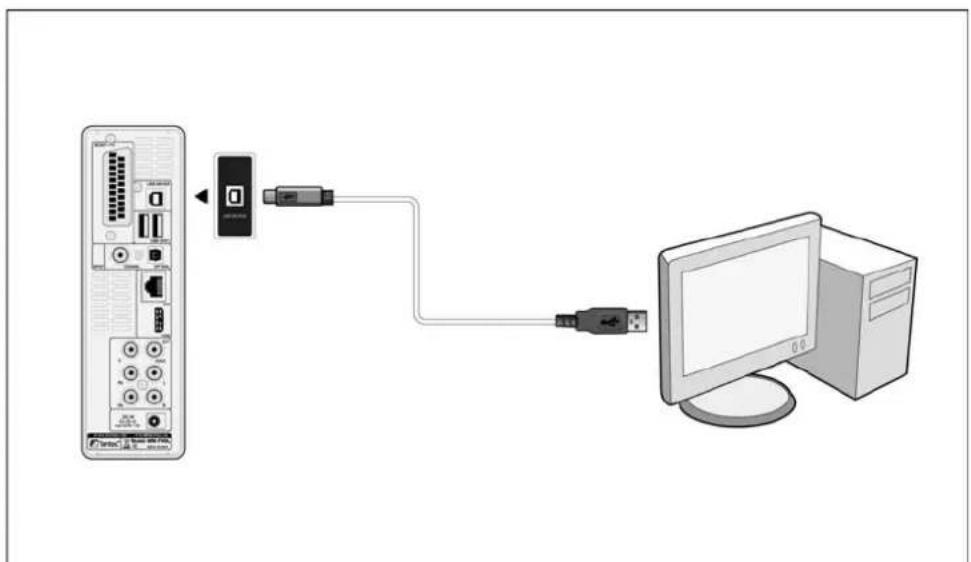
In this way, you can manage content on the built-in HDD of the player on your local PC.
1.4.3 Connecting a USB Device
(1) Make sure the player is powered on;
(2) Plug in the USB stick or USB HDD etc. to the USB HOST port of this player.
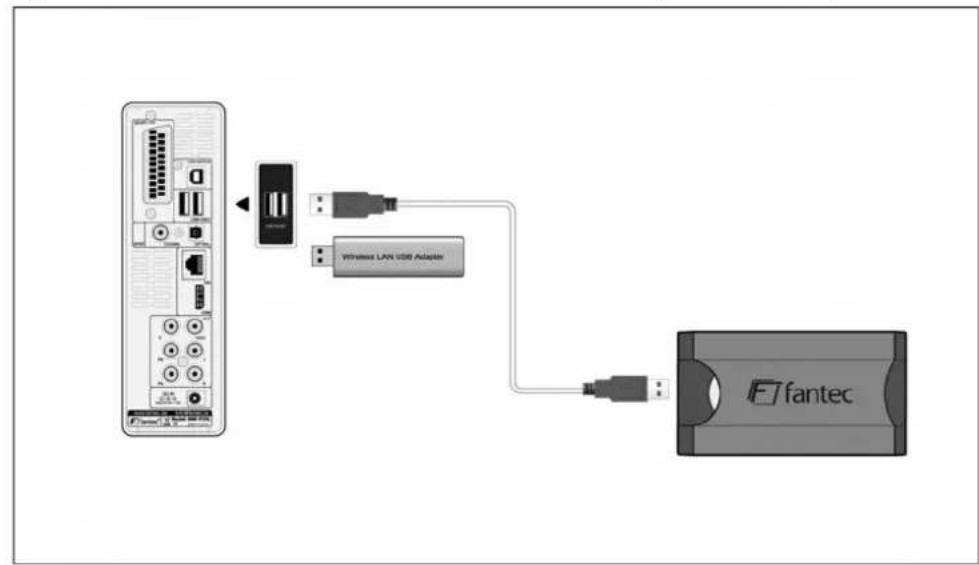
In this way, you can browse contents on the USB device.
1.4.4 Connecting to a TV
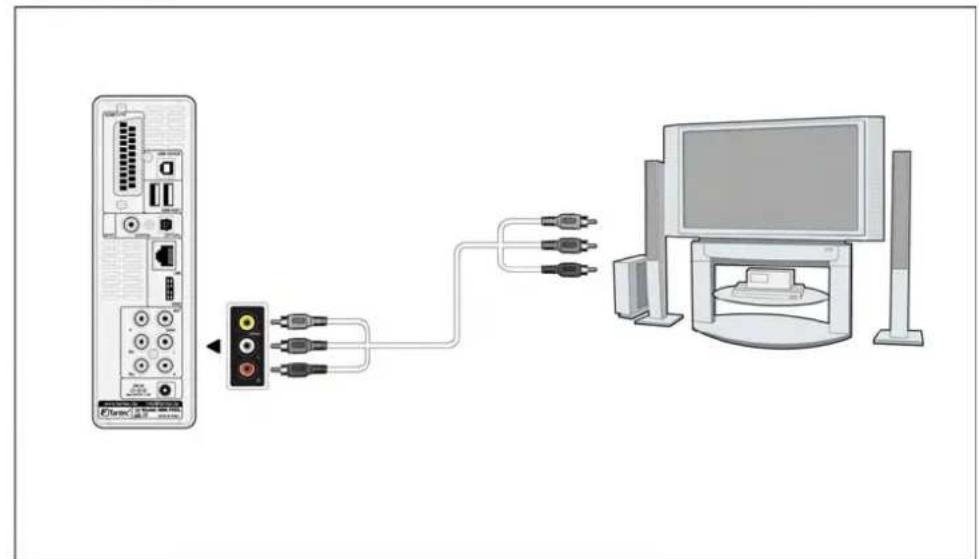
1.4.4.1 A/V OUT
(1) Follow the picture and plug in the 3 color connector to the player's A/V OUT jack;
(2) Follow the picture and plug in the 3 color connector to the TV's A/V IN jack.
In this way, you can enjoy the content in the player on TV or other display devices.
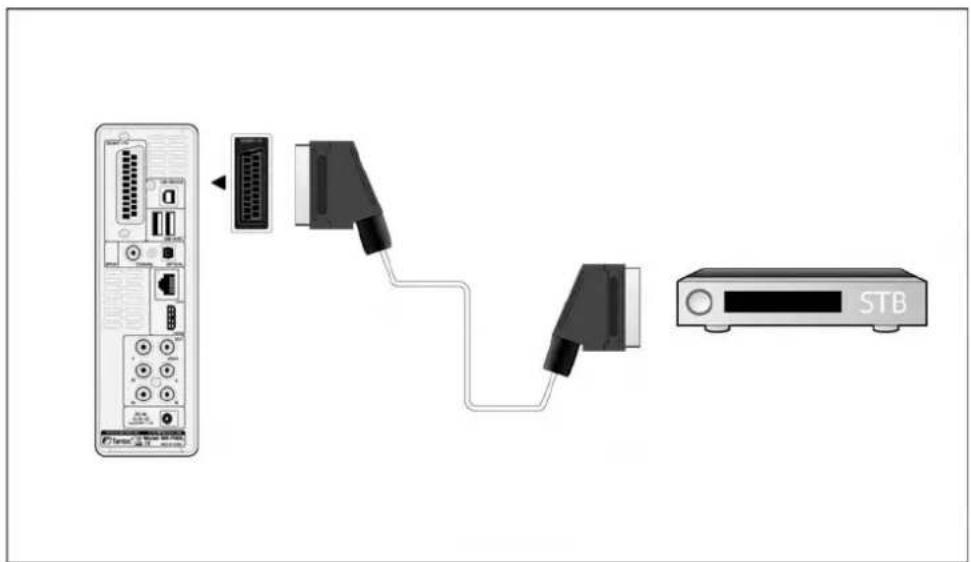
1.4.4.2 SCART OUT
(1) Follow the picture and plug one connector on the SCART cable to the player's SCART socket;
(2) Follow the picture and plug the other connector on the SCART cable to the TV's SCART socket.
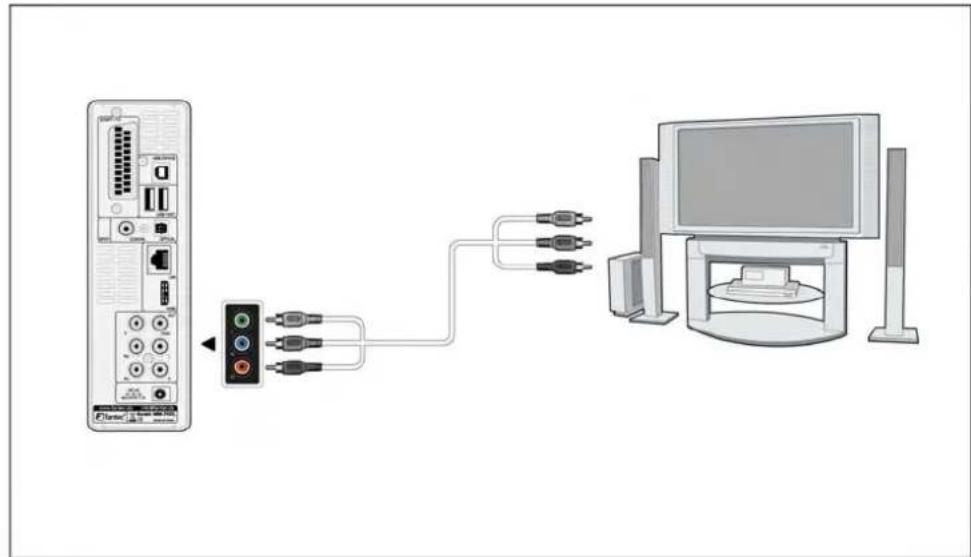
1.4.4.3 Y/Pb/Pr Component OUT
(1) Follow the picture and plug in the 3 color connector to the player's Y/Pb/Pr jack;
(2) Follow the picture and plug in the 3 color connector to the TV's Y/Pb/Pr jack.
Audio Connection while using Y/Pb/Pr Video out:
First method: use the audio output from the A/V OUT jack;
Second method: use the audio output from the S/PDIF Coaxial or Optical jack.
1.4.4.4 HDMI OUT
(1) Follow the picture and plug one connector on your HDMI cable to the player's HDMI jack;
(2) Follow the picture and plug the other connector on your HDMI cable to the TV's HDMI jack.
Note: The HDMI cable is an optional accessory sold separately.
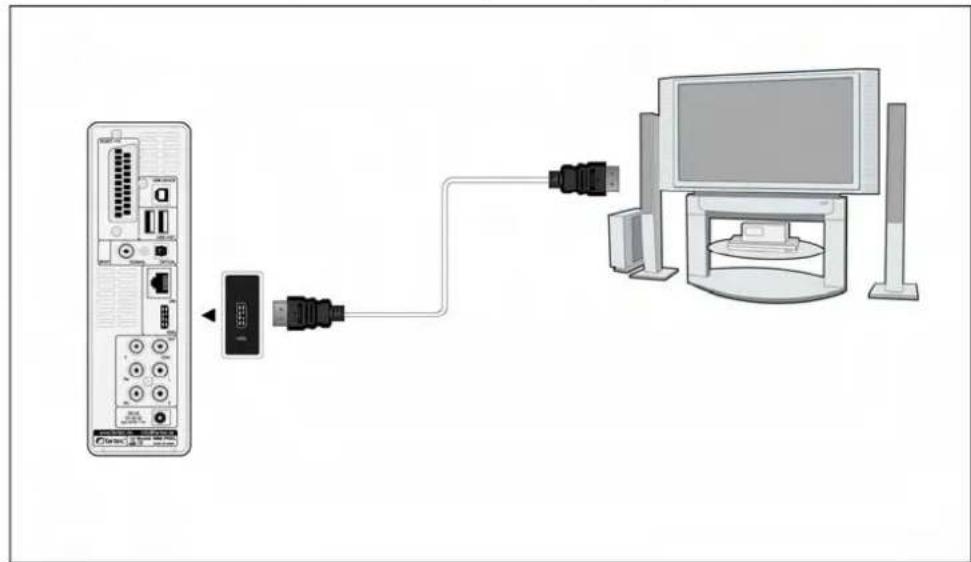
In this way, you can have the highest quality video and audio via a single cable.
1.4.5 Connecting to an Digital Amplifier
(1) Follow the picture and plug in the RCA connector on your coaxial cable to the player's S/PDIF Coaxial jack. Or if you use optical fiber, please plug in the Toslink connector on your optical fiber to the player's S/PDIF Optical jack;
(2) Follow the picture and plug in the other connector on your coaxial cable or optical fiber to the digital audio device (digital amplifier or decoder).
Note: Optical fiber and coaxial cable are not supplied.
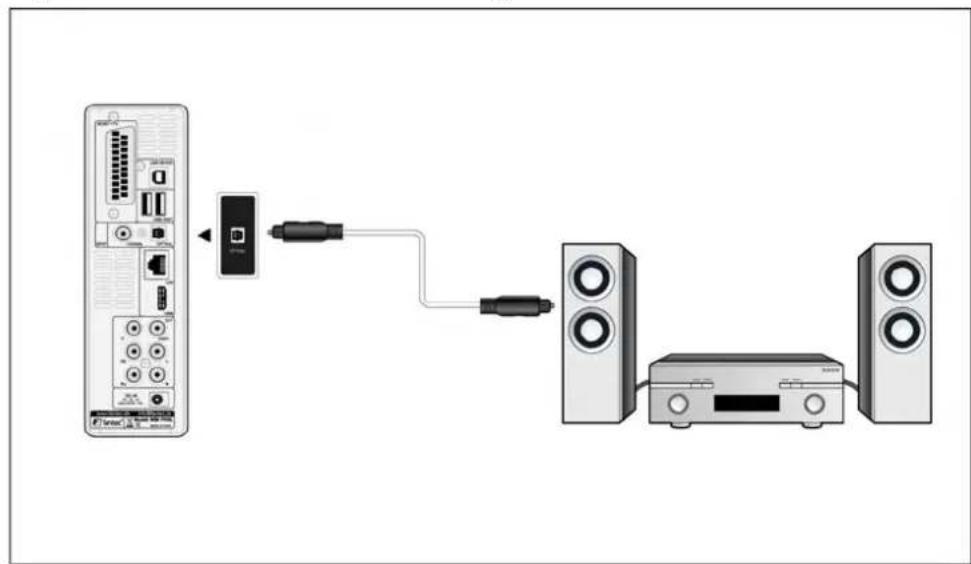
In this way, you can enjoy powerful Dolby Digital or MPEG sound. (Please refer to '3.1 Changing Audio Settings' for configuration)
1.4.6 Connecting to a LAN
To connect to a LAN (Local Area Network) you require a cat5, cat5e or cat6 network cable (not supplied).
(1) Connect one of the crystal plugs on the cable to the player's RJ45 LAN socket;
(2) Connect the other crystal plug on the cable to a RJ45 LAN port on your router, switch, or hub devices.
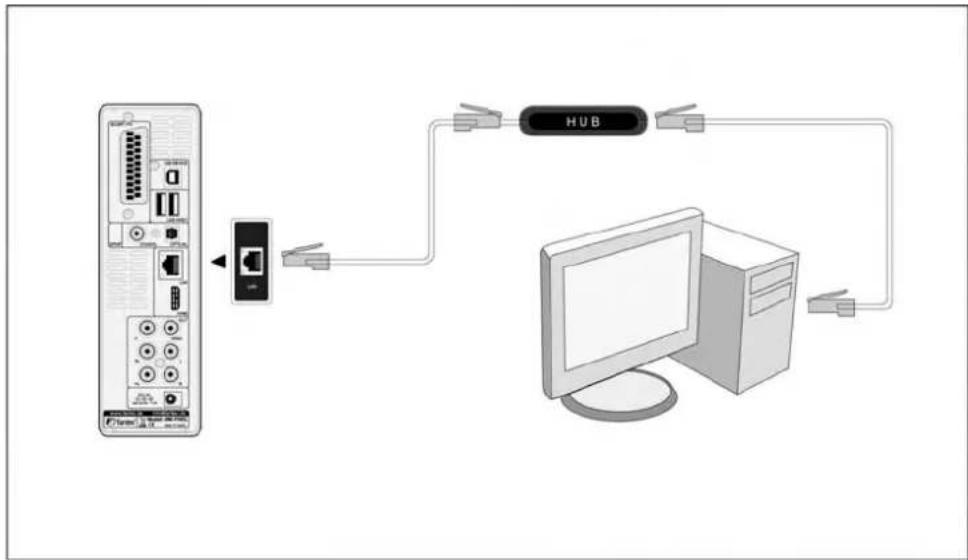
1.4.7 Connecting to a WLAN
(1) Make sure the player is powered on;
(2) Plug the Wireless LAN USB Adapter (i.e. Wi-Fi USB Dongle) to the USB HOST port of the player.
Note: The Wi-Fi Dongle is an optional accessory sold separately. (Please refer to '3.3 Changing Network Settings' for more details about wireless setup)
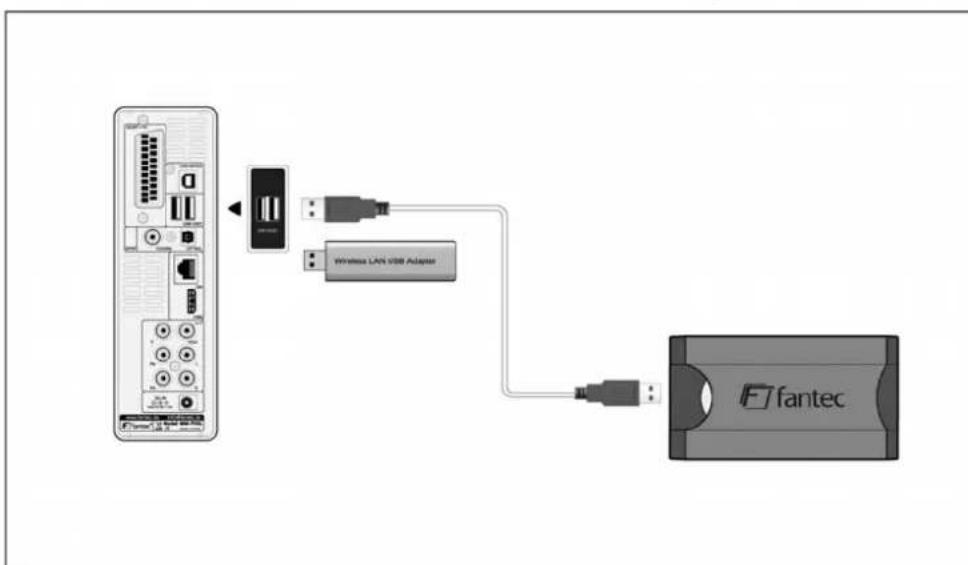
1.5 Power On / Off
Power On
After connecting the DC IN jack and press the power button on the front panel, the player will soon enter the home screen, and the power indicator will turn blue.
Power Off
Press the power button on the front panel, the player will soon enter standby mode, and the power indicator will turn red. Then unplug the power cord to cut off the power supply.
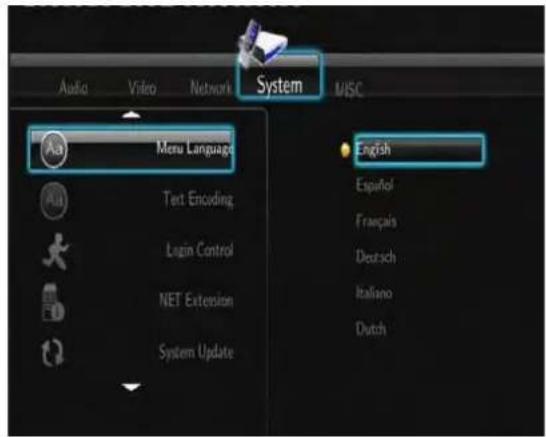
1.6 Menu Language
The system language of this player can be set to English or other languages. Change the language you wish in the setup menu, the selected language will take effect immediately.
1.7 HDD Format
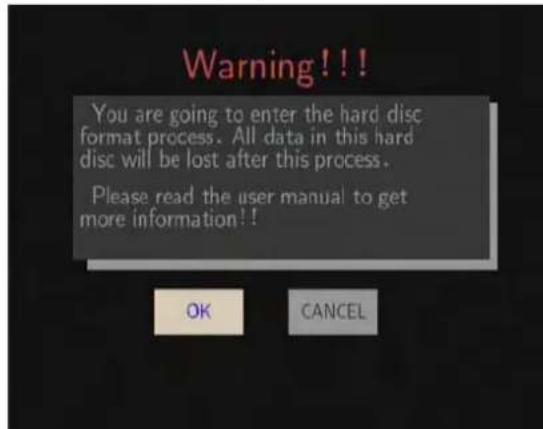
For users who wish to install a new SATA HDD into the player, please refer to the following procedures to format the hard disk on the player before usage.
Note: This page can be also accessed via Setup->System->HDD Format menu.
- Step 1: Select OK on the Warning page, press ENTER to confirm.
- Step 2: Select Format, press ENTER, and then hard disk format will start.
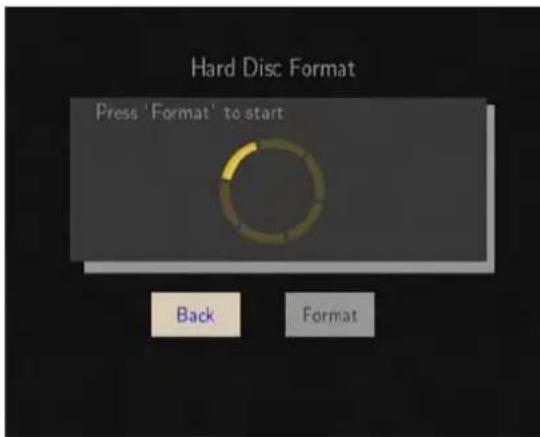
The formatting procedure will be finished within a few minutes. And then you can use the hard disk properly on the player.
Note: HDD format will remove all data stored on the hard disk drive. Please take care and backup your data in advance!
2. About the Player
2.1 Remote Control
All procedures in this manual can be carried out using the remote control buttons. See the following for details on each button and its function:
| 1 2 3 4 5 6 7 8 9 10 11 12 13 14 15 16 17 18 19 | 35 34 33 32 31 30 29 28 27 26 25 24 23 22 21 fantec | 1. STANDBY 2. MUTE |
| 3. TV SYSTEM 4. BROWSER | ||
| 5. Numeric buttons 6. REPEAT | ||
| 7. FR 8. VOL- | ||
| 9. FF 10. PLAY | ||
| 11. HOME 12. Navigational buttons | ||
| 13. MENU 14. PAUSE/STEP | ||
| 15. SLOW 16. INS REPLAY | ||
| 17. CM SKIP 18. SELECT | ||
| 19. CONFIRM 20. AUDIO | ||
| 21. SUBTITLE 22. ZOOM IN | ||
| 23. ZOOM OUT 24. A-B | ||
| 25. ANGLE 26. SETUP | ||
| 27. RETURN 28. STOP | ||
| 29. NEXT 30. VOL+ | ||
| 31. PREV 32. GOTO | ||
| 33. COPY 34. MUSIC | ||
| 35. INFO |
| No. | Button | Function |
| 1 | STANDBY | Press to enter standby mode or wake up. |
| 2 | MUTE | Press to mute audio output, and press again to resume. |
| 3 | TV SYSTEM | Press to switch between NTSC, PAL, 480P, 576P, 720P, 1080I, and 1080P. |
| 4 | BROWSER | Press to enter the browser menu. |
| 5 | Numeric buttons | Press to enter numeric input when changing settings. |
| 6 | REPEAT | Press to set repeat option: One, All and Shuffle. |
| 7 | FR | Press to fast rewind the current playback. Press repeatedly to select speeds. |
| 8 | VOL- | Press to decrease the volume. |
| 9 | FF | Press to fast forward the current playback. Press repeatedly to select speeds. |
| 10 | PLAY | Press to begin playback. |
| 11 | HOME | Press to enter the home screen. |
| 12 | Navigational buttons | Press the arrow buttons to select menu options, and the ENTER button to confirm. |
| 13 | MENU | Press to activate tools menus: • Press in the browser menu to rename and delete files. • Press in My SHORTcuts in NET of the browser menu to add shortcuts for network access. |
| 14 | PAUSE/STEP | Press to pause the current playback. Press again to step to the next frame. Press the PLAY button to resume playback. |
| 15 | SLOW | Press to play back in slow motion. Press the PLAY button to resume regular playback. |
| 16 | INS REPLAY | Press to backward 10 seconds of the current playback, which suitable for sport programs. |
| 17 | CM SKIP | Press to advance 30 seconds of the current playback. |
| 18 | SELECT | Press to select files in browser and file copy menu. |
| 19 | CONFIRM | Press to confirm and add the selects to the playlist. |
| 20 | AUDIO | Press to select an audio track. |
| 21 | SUBTITLE | Press to set subtitle options. |
| 22 | ZOOM IN | Press to zoom in the image (photo or video). |
| 23 | ZOOM OUT | Press to zoom out the image (photo or video). |
| 24 | A-B | Press to set the beginning and end points of a section to repeat. |
| 25 | ANGLE | Press to change the view angle during DVD (with multi-angle) playback. |
| 26 | SETUP | Press to enter the setup menu. |
| 27 | RETURN | Press to return to the previous screen while navigating menus. |
| 28 | STOP | Press to stop playback. |
| 29 | NEXT | Press to view the next file / page down. |
| 30 | VOL+ | Press to increase the volume. |
| 31 | PREV | Press to view the previous file / page up. |
| 32 | GOTO | Press to jump to a specific point on a title. Specify the point using Title, Chapter and Time. |
| 33 | COPY | Press to enter the file copy menu. |
| 34 | MUSIC | Press to start playing music in the music playlist. |
| 35 | INFO | Press to hide or display the information bar during playback. |
2.2 Front Panel
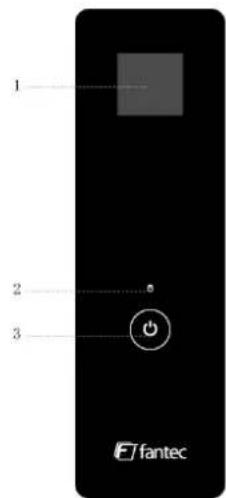
- LCD screen 2. Working indicator
- Power indicator & button
2.3 Rear Panel
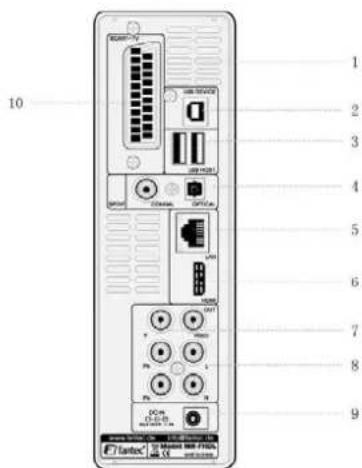
- Air Flow hole 2. USB DEVICE port
- USB HOST port x 2 4. S/PDIF COAXIAL & OPTICAL jack
5.RJ45 LAN socket 6.HDMI jack - Y/Pb/Pr OUT jack 8. A/V OUT jack
- DC IN jack 10. SCART socket
3. Setup Menu
The Setup menu allows you to personalize and configure the preferences for your player.
To select a Setup option:
- Select the Setup icon on the home screen, or press the SETUP button on the remote control.
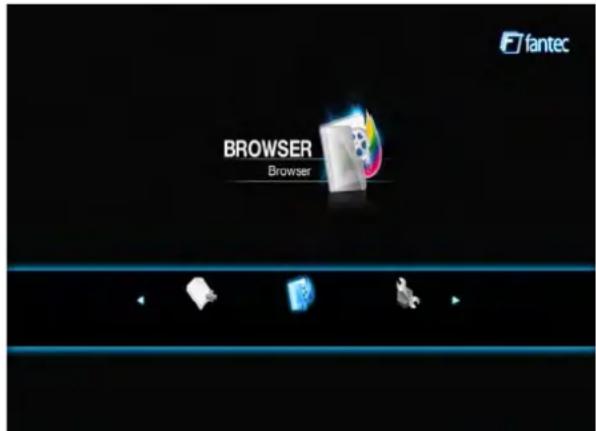
- Use the LEFT/RIGHT navigational buttons to select an option, and then press ENTER.
There are five Setup options, including Audio, Video, Network, System, and MISC. Use the UP/DOWN navigational buttons to select a menu. Press ENTER to confirm. Press RETURN to cancel and display the previous menu screen.
3.1 Changing Audio Settings
Use this menu to configure audio settings.
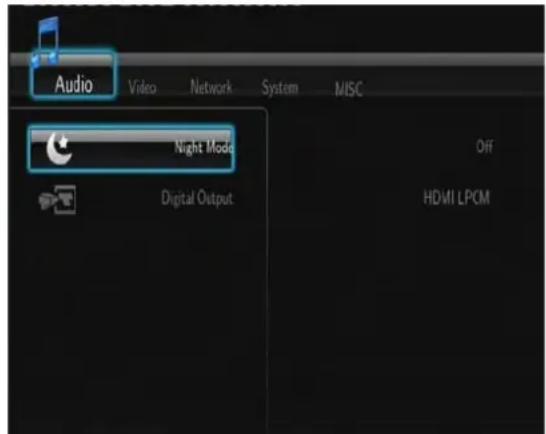
Night Mode
- Choose between Off / On / Comfort. If the option is turned on, the audio output volume will be decreased to make you more comfortable.
Digital Output
- Choose between HDMI LPCM / HDMI RAW / SPDIF LPCM / SPDIF RAW. In raw mode, Dolby Digital or MPEG sound can be bypassed to the HDMI TV or Digital amplifier.
3.2 Changing Video Settings
Use this menu to configure video settings.
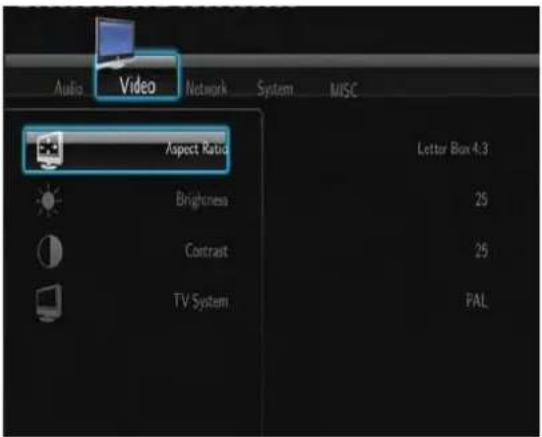
Aspect Ratio
Pan Scan 4:3: Display a wide picture on the entire screen and cuts off the redundant portions. Select when a standard 4:3 TV is connected.
Letter Box 4:3: Display a wide picture with two black borders on the top and bottom of 4:3 screen. Select when a standard 4:3 TV is connected.
16:9: Compress the image to convert the whole image. Select when a 16:9 TV is connected.
Brightness
- Adjust the level of brightness.
Contrast
- Adjust the level of contrast.
TV SYSTEM
- Select to adjust video output resolution: NTSC / PAL / 480P / 576P / 720P 50HZ / 720P 60HZ / 1080I 50HZ / 1080I 60HZ / 1080P 50HZ / 1080P 60HZ.
3.3 Changing Network Settings
Use this menu to configure Ethernet and WLAN (Wireless Local Area Network) settings.
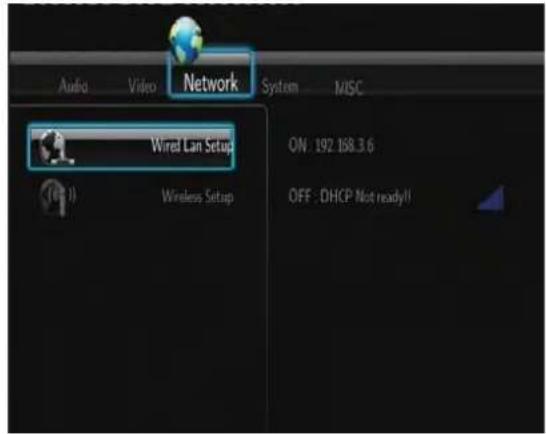
Wired LAN Setup
- DHCP IP (AUTO)
Select to obtain IP address automatically.
- FIX IP (MANUAL)
Select to manually input the IP Address, Subnet Mask, Default Gateway, and DNS Server IP Address.
Wireless Setup
- Selecting a connection profile
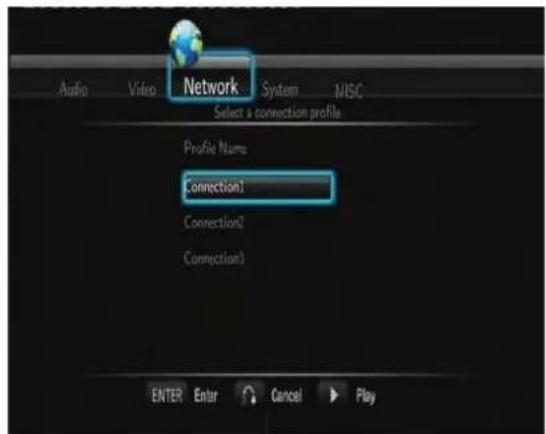
This player can store up to three wireless network connections. Press ENTER to go to next step, press RETURN to cancel, and press PLAY to connect.
Get Connection Mode
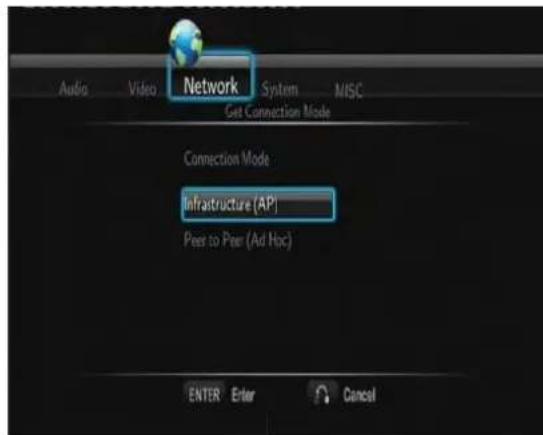
Choose between Infrastructure (AP) and Peer to Peer (Ad Hoc). Press ENTER to go to next step, and press RETURN to cancel.
Infrastructure (AP)
Infrastructure mode is used to connect computers with wireless network adapters, also known as wireless clients, to an existing wired network with the help from wireless router or access point.
Get SSID Name
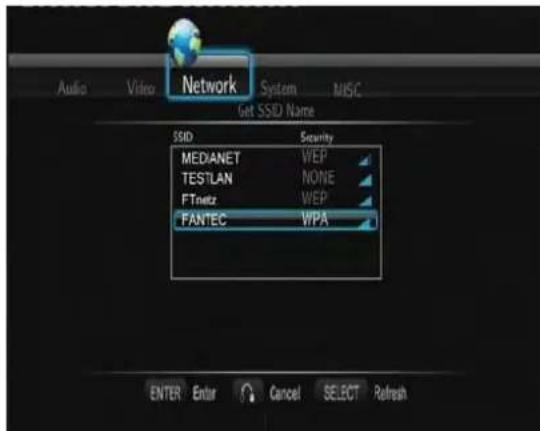
Press ENTER to go to next step, press RETURN to cancel, and press SELECT to refresh the SSID list.
Note: In the Security list, WEP (Wired Equivalent Privacy) and WPA (Wi-Fi Protected Access) means the network is encrypted, i.e. an encryption key is needed to access the network. NONE means it is an open system network.
Input WEP/WPA Key
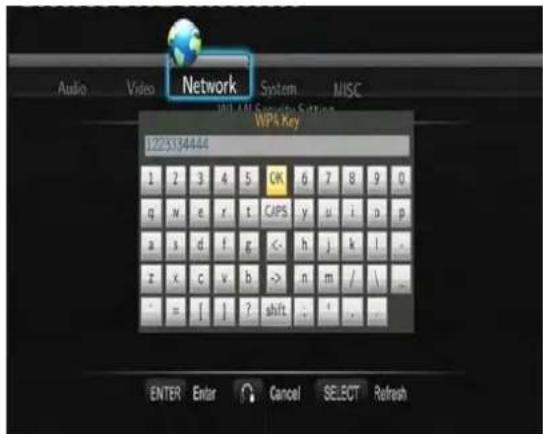
Encryption keys can be inputted via the virtual keyboard. Press the navigational buttons to select, ENTER to input, CAPS to switch between uppercase and lowercase, <- to delete a character, -> to insert a space, shift to make more symbols available, and OK to confirm.
Test connection
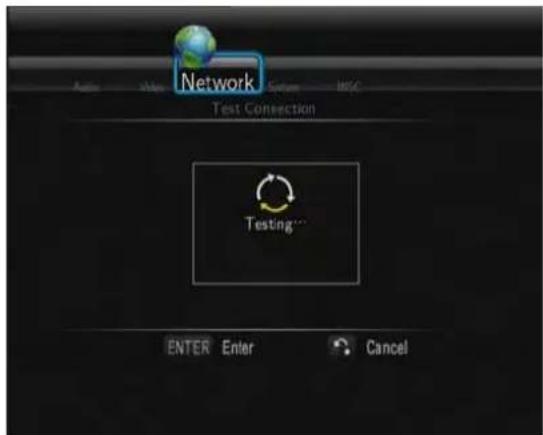
The testing process will take for a while, please be patient to wait. If the test is ok, the network information (Profile Name, IP address, Subnet Mask, Gateway, etc.) will be displayed on the screen.
- Peer to Peer (Ad Hoc)
Peer to Peer mode, which is also called Ad Hoc mode or computer-to-computer mode, is used to connect wireless clients directly together, without the need for a wireless router or access point.
Ad-Hoc Setup
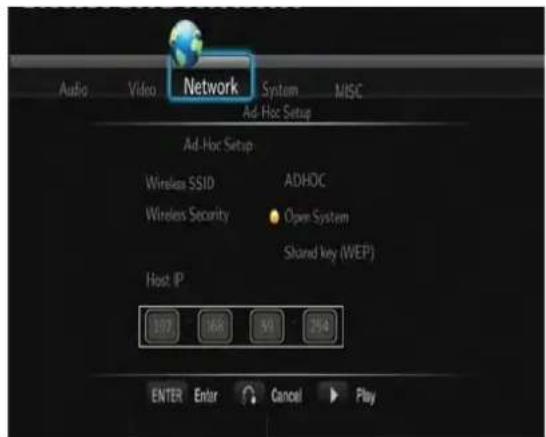
Press ENTER to go to next step, press RETURN to cancel, and press PLAY to connect.
3.4 Changing System Settings
Use this menu to configure system settings.
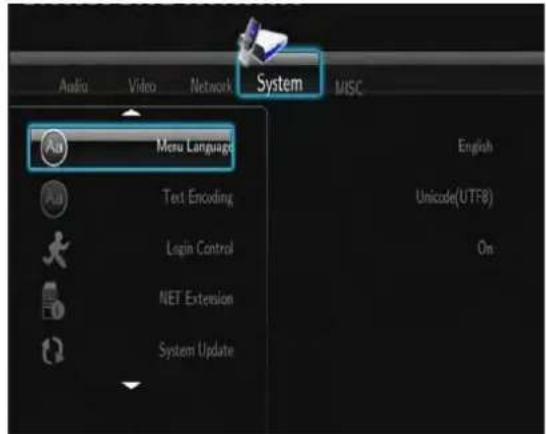
Menu Language
- Select to choose the OSD (On-Screen Display) language.
Text Encoding
- Select to set the text encoding option (subtitle display).
Login Control
- Select to turn on / off password protect for the Web server (Neighbor Web).
Extension Info
- Select to install / upgrade / uninstall extended packages: btpd (BitTorrent Protocol Daemon), samba (file sharing), and unicgi (Web server).
Install / Upgrade
1) Copy the .ipk files (e.g., btpd_0.0.1_mipsel.ipk, samba_3.0.23c_mipsel.ipk, and unicgi_0.0.1_mipsel.ipk) to the root directory of a USB stick, and insert it to the USB HOST port on the player.
2) Select Install / Upgrade and press ENTER to confirm.
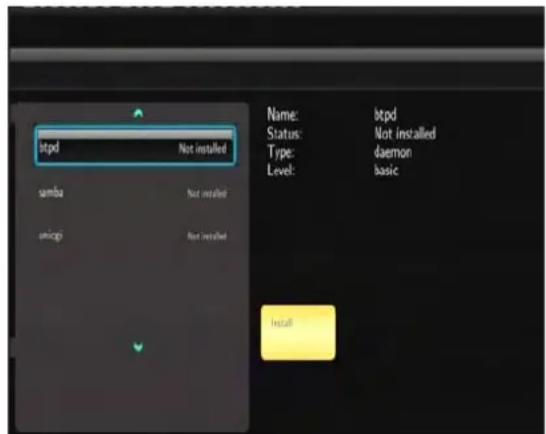
- Uninstall
Select Uninstall and press ENTER to confirm.
Note: When the packages are installed properly, you can click Run / Stop to control the BitTorrent, samba, and Web server services.
System Update
- Select to update the firmware or extension package via a USB stick.
1) Copy 'install.img' or extension files to the root directory of a USB stick, and connect it to the USB HOST port of the player.
2) Press ENTER to confirm.
HDD Format
- Select to format the built-in HDD.
Note: Please take care that all data on the hard disk will be removed after formatting.
System Info
- Select to view system information (firmware version, HDD info, Mac address, etc.)
Restore Default
- Select to restore factory defaults.
3.5 Miscellaneous
Use this menu to adjust miscellaneous settings.
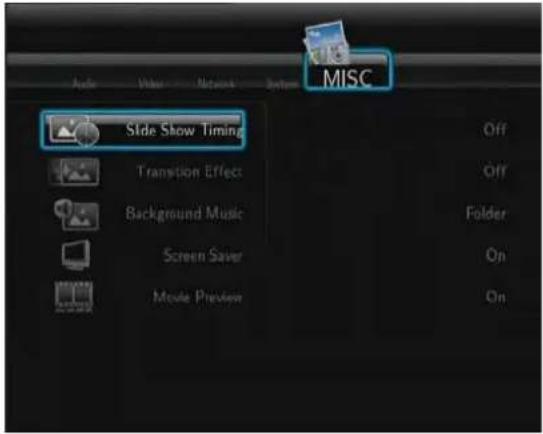
Slide Show Timing
- Select to set the interval time for photo slide show.
Transition Effect
- Select to set the transition effect for photo slide show.
Background Music
- Select to set the background music options while view pictures: Off / Folder / Playlist.
Screen Saver
- Select to turn on / off screen saver.
Movie Preview
- Select to turn on / off movie preview in the browser menu.
Resume Playback
- Select to turn on / off resume playback (auto-bookmarking) feature for movies.
4. Browser Menu
The browser menu allows you to browse and play media files stored on USB devices, Local HDD, Network, UPnP-server, and Playlist. To enter the menu, select the Browser icon on the home screen, or press the BROWSER button on the remote control.
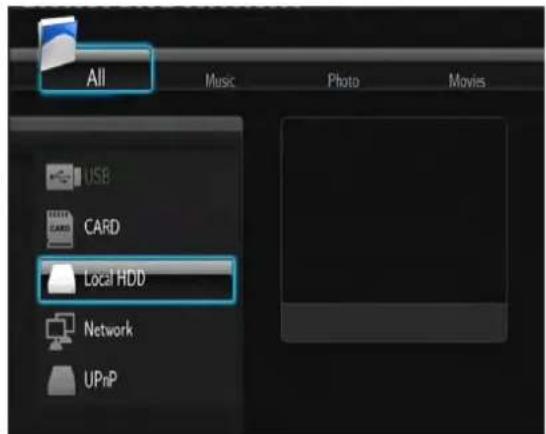
The following buttons can be used while navigating the browser menu.
| Button | Function |
| UP / DOWN | Move cursor up / down to select devices, folders, or files. |
| LEFT / RIGHT | Select filter options: All, Music, Photos, and Movies. |
| PREV / NEXT | Go to previous / next page. |
| ENTER | Enter or confirm the selected item. |
| SELECT | Select files under Browser -> HDD menu. |
| CONFIRM | Add the selected files to the playlist. |
| RETURN | Return to the previous menu. |
4.1 Browsing All
In this mode, all folders and supported contents (music, photos, and movies) will be displayed.
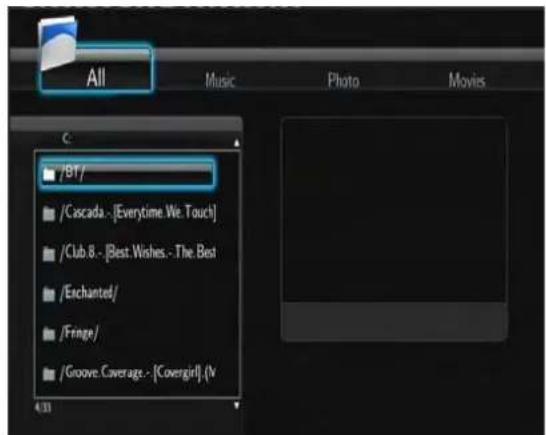
Note:
Please refer to chapter 9.1 Specifications for more about the supported content formats.
Music tracks might not be able to played continuously under All filter, please switch to the Music filter instead.
4.2 Browsing Music
In this mode, all folders and supported audio files in current directory will be displayed.
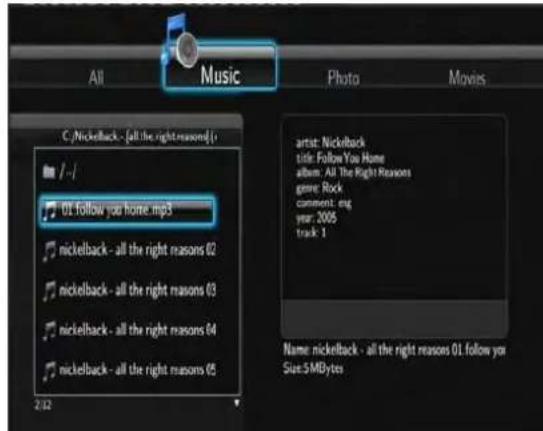
The following buttons can be used to control music playback.
| Button | Function |
| PLAY | Begin playback. |
| PAUSE / STEP | Pause playback. |
| FR / FF | Fast rewind or fast forward. Press repeatedly to select the speed. |
| REPEAT | Set repeat options: One, All, and Shuffle. |
| INFO | Hide or display the information bar during playback. |
| STOP | Stop playback. |
4.3 Browsing Photos
In this mode, all folders and supported image files in current directory will be displayed.
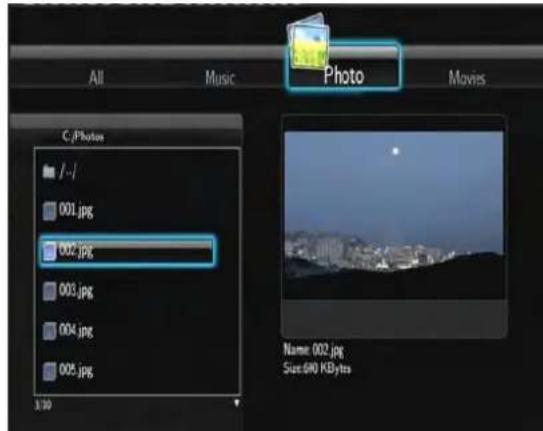
The following buttons can be used to control music playback.
| Button | Function |
| PLAY | Begin playback. |
| PREV / NEXT | View the previous or next photo. |
| LEFT / RIGHT | Rotate a photo in any angle. |
| ZOOM IN / OUT | Zoom in / out the image. |
| INFO | Hide or display the information bar during playback. |
| STOP | Stop playback. |
You can view photos in slide show mode with background music. When it is enabled, the slide show starts automatically once you press PLAY button. (Please refer to Slide Show Timing, Transition Effect, and Background Music in chapter 3.5 Miscellaneous' for more details)
4.4 Browsing Movies
In this mode, all folders and supported video files in current directory will be displayed.
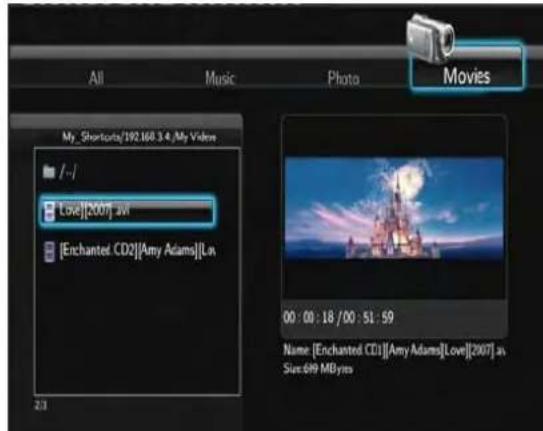
The following buttons can be used to control video playback.
| Button | Function |
| PLAY | Begin playback. |
| PAUSE / STEP | Pause playback; Press again to step to next frame. |
| SLOW | Play video in slow motion. Press repeatedly to select the speed. |
| FR / FF | Fast rewind or fast forward. Press repeatedly to select the speed. |
| PREV / NEXT | View the previous or next movie. |
| REPEAT | Set repeat options: Title, Chapter, and All. |
| ZOOM IN / OUT | Zoom in / out the image. |
| INFO | Hide or display the information bar during playback. |
| GOTO | Display playback search menu. |
| A-B | Set the beginning and end points of a section to repeat. |
| ANGLE | Change the view angle during DVD (with multi-angle) playback. |
| MENU | Return to the root menu during DVD playback. |
| INS REPLAY | Backward 10 seconds of the current playback |
| CM SKIP | Advance 30 seconds of the current playback. |
| AUDIO | Select an audio track while watching BivX video or DVD with multiple audio tracks. |
| SUBTITLE | Set subtitle options. |
| STOP | Stop playback. |
4.5 A/V Streaming via Network
You can stream the media files shared on the home network (Ethernet or WLAN). Please refer to '3.3 Changing Network Settings' for details about network settings.
There are two ways to locate media files shared on your local network in the Network menu. One is to browse through Workgroup; the other way is to browse through 'My_Shortcuts'.
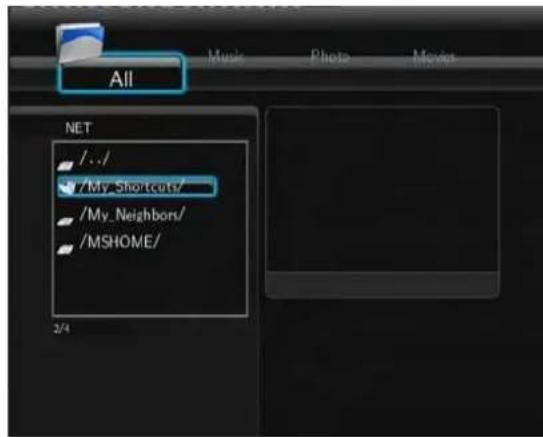
4.5.1 Browsing through Workgroup
You can choose the workgroup which your PC belongs to from the workgroup list, find your PC name, and press the ENTER button to confirm. Then you can select and play the shared media files that you want to browse.
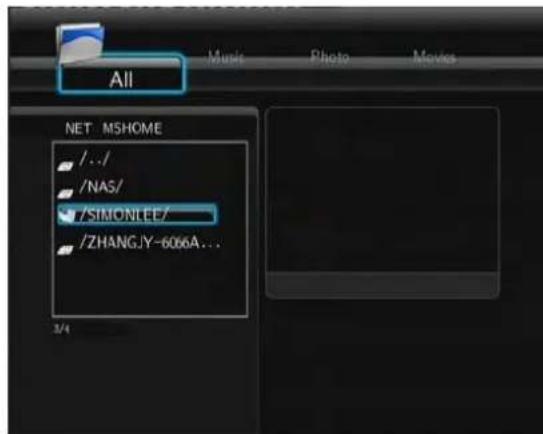
Note:
- While browsing high definition video files (resolution up to 720p / 1080i / 1080p) via Ethernet or WLAN, the video might be buffering. It is normal due to the limit of network speed or signal strength.
- Due to different network conditions, sometimes the workgroup might not be accessed or shown in the list. And then you need to use 'My_Shortcuts' to browse shared files.
4.5.2 Browsing through 'My_Shortcuts'
You can also set 'Specific File Server IP' and access it from 'My_Shortcuts' in the menu.
- Press the MENU button and a popup menu appears.
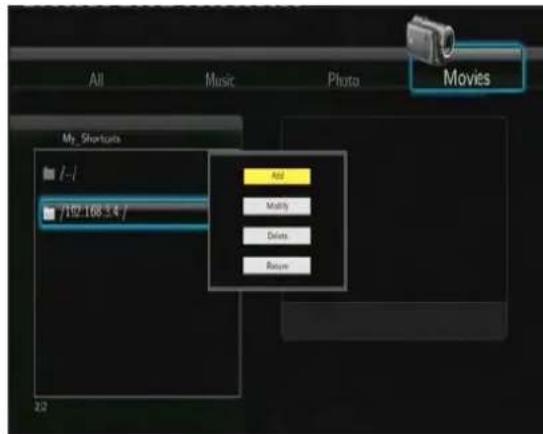
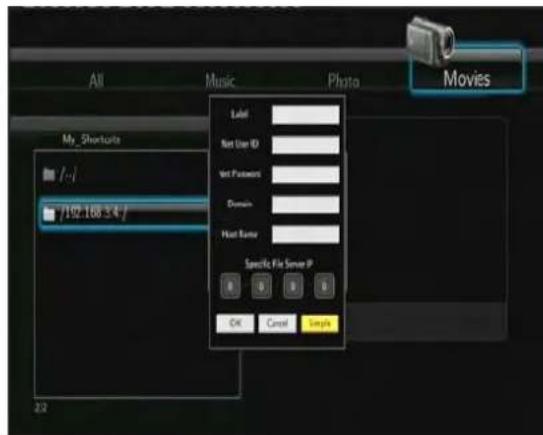
- Select Add to open a popup menu where you can input Net User ID (Username), Net Password, Domain, Host Name, and Specific File Server IP of destination PC. Select OK to confirm, Cancel to cancel, and Simple / Detail to switch between simple and advanced options.
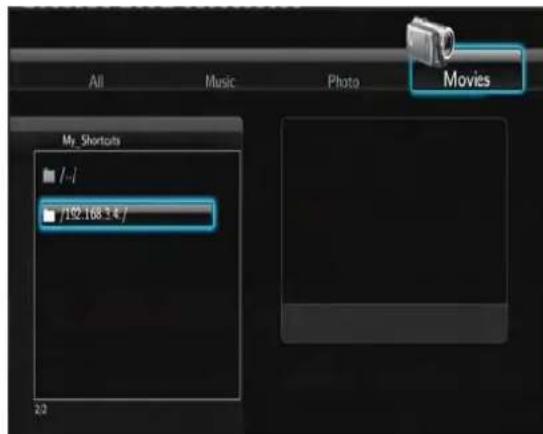
- Select the shortcut you added and press the ENTER button to confirm. Then you can select and play the shared media files on the destination computer.
4.6 A/V Streaming via UPnP-server
A built-in UPnP (Universal Plug and Play) client has been integrated on the system, which enables the player to auto-detect UPnP Media Servers on the network to browse and stream media files from them.
4.6.1 Installing UPnP Media Server on your PC
There're a lot of free and commercial UPnP Media Server software, such as Windows Media Connect, Windows Media Player 11, XBMC Media Center (Linux/Mac/Windows), MediaTomb (Linux), etc. Please install one of them on you computer. In the following chapters, we will take Windows Media Player 11 on Microsoft Windows XP SP2 for an example.
4.6.2 Sharing Media on your PC
The Media Sharing feature of Windows Media Player 11 lets you enjoy the contents of your Windows Media Player library from anywhere in your home.
- Open Windows Media Player 11, click Library -> Add Library -> Advanced Options to add or remove media files from the library.
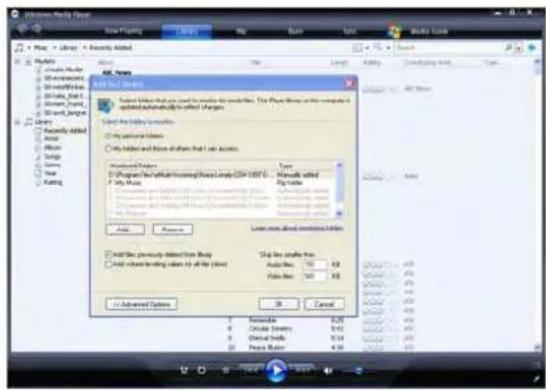
- Click Library -> Media Sharing, then you can allow or deny devices to access the media library. Click Allow to authorize your player.
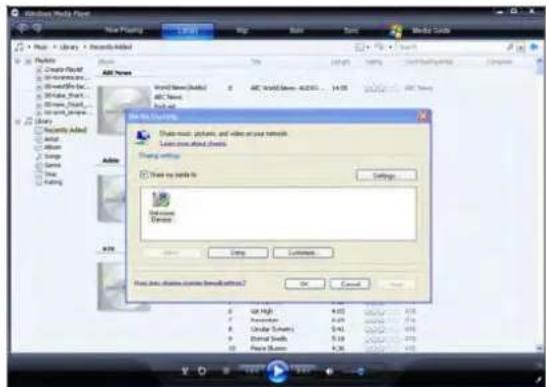
4.6.3 Streaming Media on your Player
- Connect your player to the home network (LAN or WLAN).
- Visit Browser - > UPnP menu on the player, select the UPnP-server, and press ENTER.
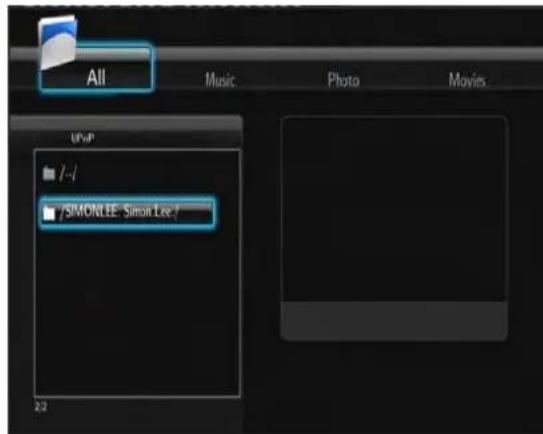
- Then you can browse the media library shared by Windows Media Player 11.
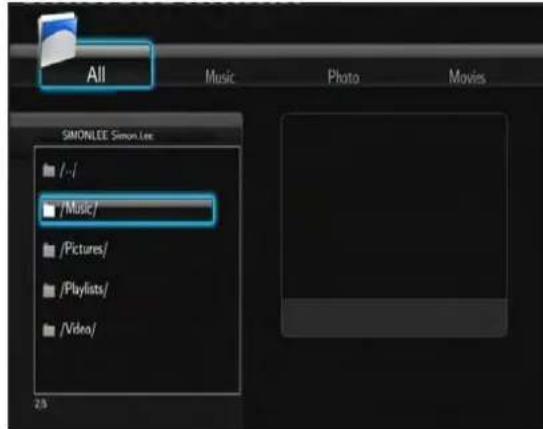
Note:
Make sure your player and your computer are on the same local area network and subnet.
- Firewalls may prevent your player to communicating with your computer. Please open the ports manually and add your player to the 'trusted' list, or disable the firewall temporarily.
4.7 Renaming / Deleting Files
When navigating in the browser menu, you can press the MENU button to activate a popup menu where you can rename and delete files or folders.
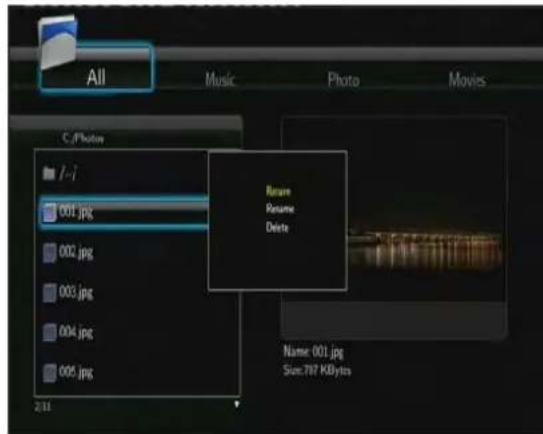
Press the UP / DOWN buttons to select from Return, Rename, and Delete. And press ENTER to confirm.
4.8 Managing the Playlist
This player supports the playlist function, which allows you to add your favorite contents on local HDD to the playlists (All, Music, Photos, and Movies), and enjoy them at any time.
4.8.1 Adding files to the playlist
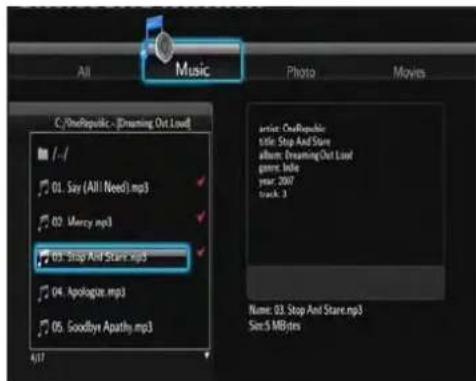
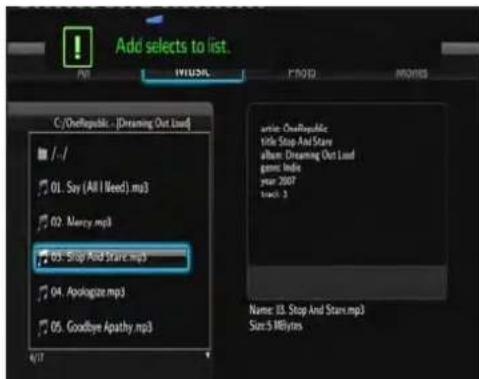
Select the favorite file you wish to add, press the SELECT button, and the file will be marked. Press the CONFIRM button to confirm, and then an on-screen message 'Add selects to list' will be shown. Multiple selections are allowed. See photo below.
4.8.2 Browsing the playlist
Press the UP / DOWN buttons to select Play List in the browser menu. Press the LEFT / RIGHT buttons to select between All, Music, Photos, and Movies. And press the ENTER button to confirm. Then you will enter the playlist.
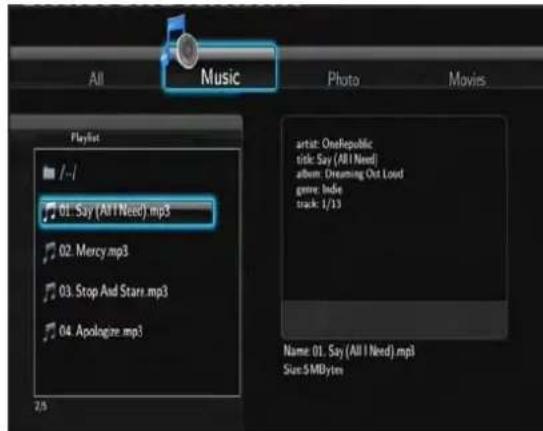
If you wish to delete a file from the playlist, press the SELECT button to select, and then press the CONFIRM button to confirm.
5. File Copy Menu
Select the File Copy icon from the home screen to enter the File Copy menu, which allows you to copy files between USB devices, Local HDD, and Network.
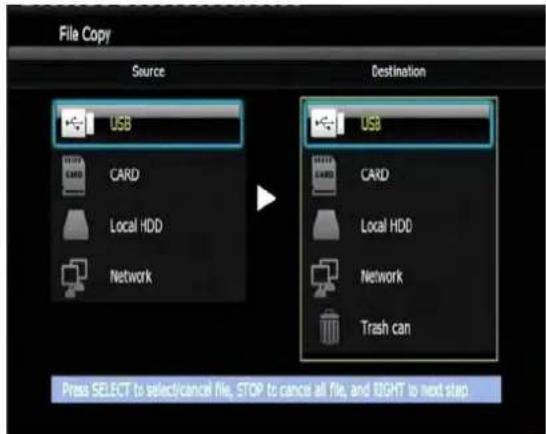
The following buttons can be used under the file copy menu.
| Button | Function |
| UP / DOWN | Move cursor up / down to select devices, folders |
| RIGHT | Go to the next step. |
| SELECT | Select (or cancel) folders or files (The selected items will be ticked). |
| STOP | Cancel all selections. |
| ENTER | Confirm the selected options. |
Please refer to the following operations to copy / move folders / files between devices.
- Step 1: Select the source device and destination device.
- Step 2: Select the source files you want to copy.
- Step 3: Select the destination folder to store the above files.
- Step 4: Select Copy or Move to proceed.
6. Internet Radio
This player integrates the SHOUTcast free Internet radio function. Select the Internet Radio icon on the main interface to enter this menu.
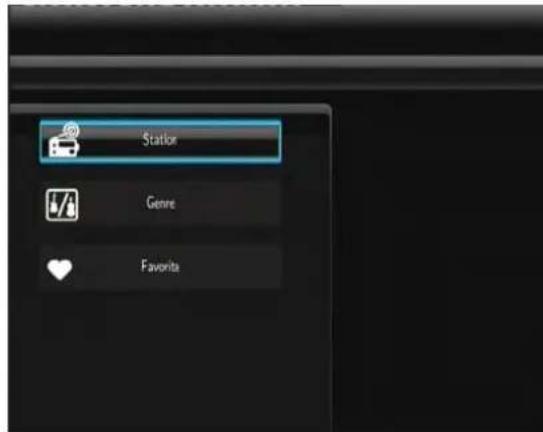
Note:
- Make sure the player is connected properly to a LAN or WLAN with Internet access, please refer to '3.3 Changing Network Settings' for more details;
- When you enter the Digital Radio menu at the first time, it will take several seconds to download data from the Internet, please be patient to wait:
For more about SHOUTcast, please refer to the website: www.shoutcast.com
The following buttons can be used under this menu.
| Button | Function |
| UP / DOWN | Move cursor up / down to select station, channel, and genre. |
| PREV / NEXT | Page up / down. |
| ENTER | Confirm and enter the selected menu. |
| MENU | Add / delete a station to / from Favorite while it is highlighted. |
| PLAY | Begin playback after a channel has been selected. |
| STOP | Stop playback. |
| RETURN | Return to the previous menu. |
Station
- All downloaded stations will be listed under this menu.
Genre
- You can search for stations by genre (pop, rock, jazz, etc.) under this menu.
Favorite
- Your favorite stations can be kept under this menu.
7. Web Server & BitTorrent
7.1 Web Server (unicgi)
A Web server called 'Neighbor Web' has been integrated into the player.
- Connect the player to your home network (LAN or WLAN).
Get the IP address of the player under SETUP -> NETWORK menu. - Type the IP address (e.g., 192.168.3.15) in the address bar of Internet Explore on your PC. Then you can access the Web server from your PC.
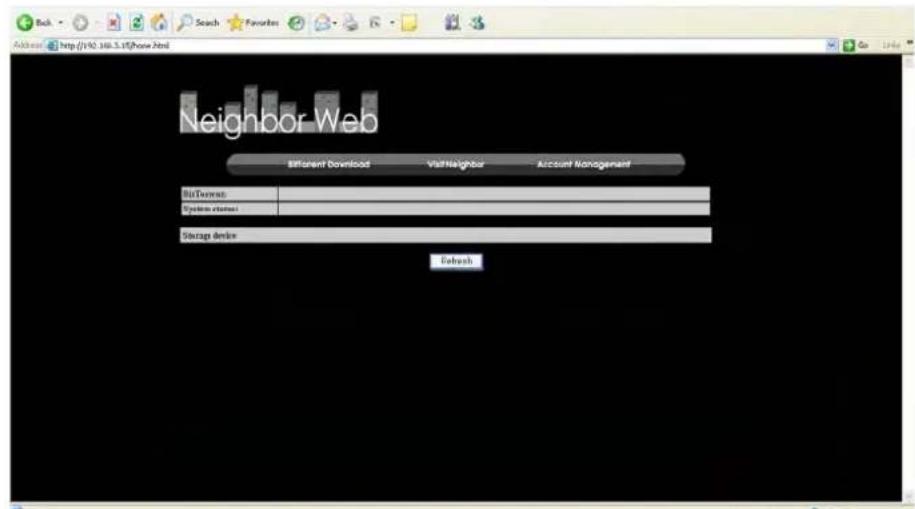
Note: Please refer to Extension Info in chapter 3.4 Changing System Settings, and make sure all related packages 'btpd', 'samba', and 'unicgi' are installed and run properly in advance.
7.2 Account Management
- Click Account Management on the home page of Neighbor Web.
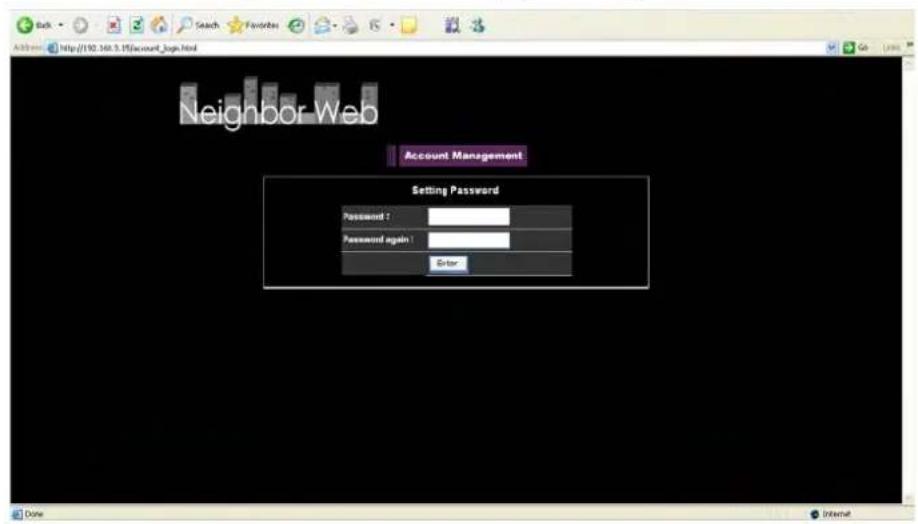
- This page allows you to set a password for accessing Neighbor Web.
Note:
- Password will become effective when Login Control is turned on. (Please refer to Login Control in chapter '3.4 Changing System Settings' for more details)
- The default user name is 'admin', and the default password is '123'.
7.3 Visit Neighbor (samba)
- Click Visit Neighbor on the home page of Neighbor Web.
- Then you will be able to browse, edit, and copy files to / from the local HDD of the player.
7.4 BitTorrent Download (btpd)
BitTorrent is a peer-to-peer file sharing protocol used for distributing large amounts of data on the Internet. A BitTorrent utility (btpd - BitTorrent Protocol Daemon) has been integrated into the player (Please refer to Extension Info in chapter '3.4 Changing System Settings' for more details about installing and uninstalling btpd).
The BitTorrent client btpd is running in daemon (a process running in the background) mode and you can manipulate the process via the Web server.
- Click BitTorrent Download on the home page of Neighbor Web, then you will enter the BitTorrent Download page.
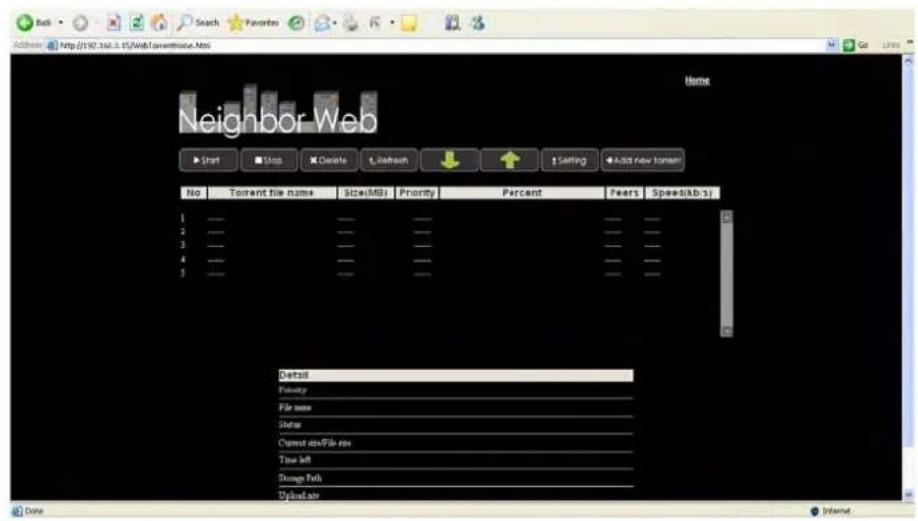
7.4.1 Add new torrent
- Click Add new torrent on the BitTorrent Download page.
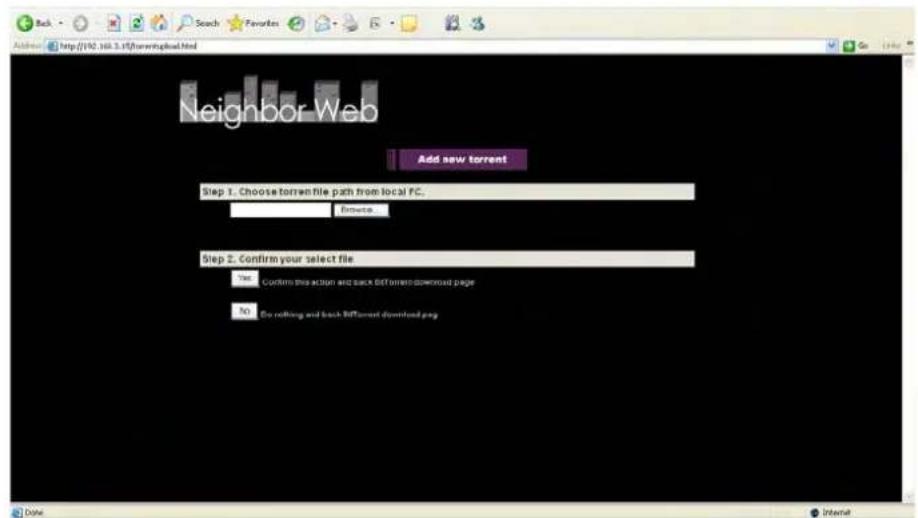
- Click Browse to upload a torrent file, and click Yes to confirm.
7.4.2 Managing the downloads
The BitTorrent Download page also allows you to start, stop, delete torrents, and set priorities for torrents, as well as view the status of current torrents.
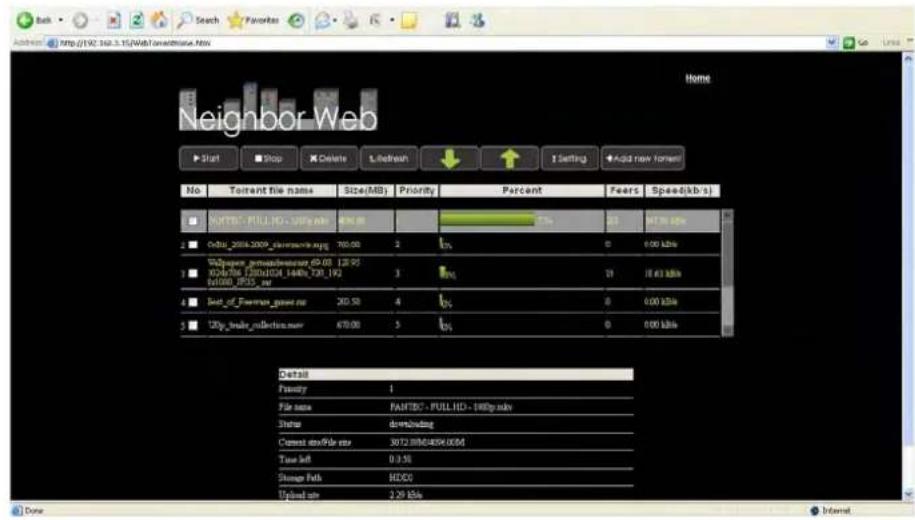
- Click Start to begin download.
- Click Stop to stop download.
- Click Delete to delete the selected torrent.
- Click Refresh to refresh the current status.
- Click Down arrow to decrease the priority for the selected torrent.
- Click Up arrow to increase the priority for the selected torrent.
7.4.3 Settings
- Click Setting on the BitTorrent Download page to enter the BitTorrent Setting page.
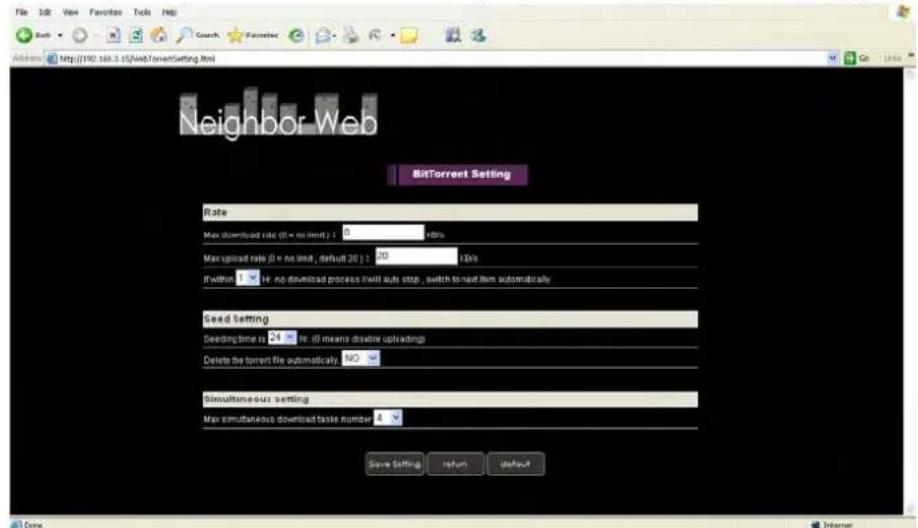
In the BitTorrent Setting page, you can configure the following settings.
- Set the maximum download rate.
- Set the maximum upload rate.
- Set the idle hours to start the next download automatically.
- Set the seeding hours.
- Set to delete the finished torrent files automatically or not.
- Set the maximum number of simultaneous download tasks.
8. Upgrading the Firmware
The firmware is the operating system (OS) installed on the device. Firmware upgrades can bring new features, improvements and bug fixes.
Please refer to System Update and Extension Info in chapter '3.4 Changing System Settings' for more details.
You can also use the following method to upgrade the firmware:
- Copy 'install.img' to the root directory of a USB key;
- Plug the USB key to the USB HOST port on the player;
- Press and hold the POWER button on the front panel, and connect the player with power supply;
- Wait for more than 3 seconds, and then loose your finger on the POWER button.
Then the upgrade process will start automatically. The LED indicator on the front panel will be enlightened and flashing during installation. If it is connected to a TV set, an install page will appear on the TV screen.
9. Appendixes
9.1 Specifications
I/O INTERFACES SUPORTED:
Built-in 3.5" SATA HDD
- USB 2.0 HOST port x 2 (compatible to USB 1.1)
- USB 2.0 DEVICE port (connecting to PC)
Composite (CVBS) A/V jack
- Component Y/Pb/Pr jack
Euro SCART jack
HDMI V1.3 interface
S/PDIF coaxial & optical jack
DC-IN 12V
FILE SYSTEM SURPORTED:
FAT/FAT32/NTFS/EXT3
CONTENT FORMATS SUPPORTED:
AVI/MKV/TS/M2TS/MPG/MP4/MOV/M4V/VOB/ISO/IFO/DAT/WMV/ASF/RM/ RMVB/FLV, resolution up to 720p/1080i/1080p
MP3/OGG/WMA/WAV/AAC/FLAC
- HD JPEG/BMP/GIF/TIF/PNG
VIDEO CODECS SURPORTED:
MPEG-1
HD MPEG-2
- HD MPEG-4 SP/ASP/AVC (H.264)
WMV9 (VC-1)
RealNetworks (RM/RMVB) 8/9/10, up to 720p
AUDIO CODECS SURPORTED:
- MP2/3, OGG Vorbis, WMA (DRM, and Advanced Profile not supported), PCM, LPCM, MS-ADPCM, LC-AAC, HE-AAC, COOK, RA-Lossless
SUBTITLE FORMS SURPORTED:
- SRT, SMI, SSA, ASS, IDX/SUB, SUB
NETWORK FEATURE
10/100Mbps Auto-Negotiation Ethernet
- 802.11b/g/n WLAN, up to 300Mbps (supported by optional WLAN USB Adapter)
Note: The specifications and design of this product are subject to change without notice.
9.2 Frequently Asked Questions
Question 1. When I try to disconnect the USB device, I keep on getting "The device 'Generic volume' cannot be stopped right now. Try stopping the device again later." message, what should I do?
Answer:
Close any program that might be accessing data on the player, including Windows® Explorer. If it does not work, close all programs and wait for another 20 seconds, then try the green arrow icon again. If it still does not work, you should shut down the player and disconnect the USB cable.
Question 2. I find new file names and folder names that I never created before or they have strange gibberish names.
Answer:
Most likely, the player's file allocation table (FAT) has been corrupted. This might be due to the player shutting down (due to low battery power) while reading or writing to your computer by the USB connection. Windows and Macintosh often write extra files to the hard disk such as finder.def or System volume info. These are normal and will not do any harm to the player.
Question 3. I used my player to transfer files back and forth between different computers. Will defragmenting the player hard disk do any harm to it?
Answer:
Defragmenting the player hard disk may be useful after having transferred many files to and from the player. It is never harmful to use the defragment on the player. Make sure no other programs are running while using the Windows® defragment utility. Make sure you have connected the player with the external power adapter during this procedure.
Question 4. My files have disappeared from the player.
Answer:
Make sure that you browse your files via the correct browser mode which means correct filtered views such as Photos, Music, or Movies.
Question 5. During power on, why does the TV will have a short flashing, blue screen or screenshot?
Answer:
This is normal, when the system initializes, it will setup the corresponding parameters so it can output the correct video signal to the TV, during the initializing time, the TV will receive incorrect signals or the signals will not be stable and will cause the TV screen to flash, some TV's will treat this as no signal, and will display a blue screen or screenshot.
Question 6. Why when I switch to Y/Pb/Pr 480p, 576p, 720p, 1080i, and 1080p, does the TV screen display an unwatchable picture?
Answer:
Please check if your TV supports Y/Pb/Pr 480p, 576p, 720p, 1080i, and 1080p output, if your TV does not support, please use the A/V signal display instead, press the TV SYSYEM button on the remote control, then switch the TV's video input to NTSC or PAL.
Question 7. Why is there no sound on movie or music playback when using Y/Pb/Pr component output?
Answer:
Y/Pb/Pr output is a video output only, and does not include sound signals. When using Y/Pb/Pr output, please plug the A/V OUT or the S/PDIF jack to output sound.
Question 8. I cannot get SSID name, the screen always displays: 'Can't get any SSID!!'
Answer:
When the WLAN USB Adapter is connected to the player, it needs some time to get initialized.
Please wait for about 1~2 minutes and try refreshing the SSD list again.
Question 9. I cannot see files shared on my computer via Browser->Network menu.
Answer:
Please check following items:
1) Connect the player to network and obtain an IP address first;
2) Please enable NetBIOS of TCP/IP on computer;
3) Please check your PC's firewall settings;
4) Please enable your PC's 'Guest' account;
5) Please share the folders which you wish to browse on your PC, and make sure that 'Everyone' or 'Guest' has the right to access.
Question 10. I configured everything correctly, but still cannot get the wireless network or UPnP function to work.
Answer:
Are you using a firewall such as Norton Internet Security, McAfee Personal Firewall, Zone Alarm, etc. or even the built-in firewall of Windows XP? (Don't forget that Service Pack 2 for Windows XP automatically upgrades your firewall and turn it on by default)
If you have a firewall, it may need to be configured or have exceptions created to allow you to see and communicate with the player on the network. To test if your firewall is preventing network communication (including PING and access shared folders), try disabling it to see if you can connect. If you can connect with the firewall disabled, you may need to add the player to the 'Trusted' list or configure the firewall for local intranet access. Worst-case, disable your firewall long enough to use the player, then enable it again when done.
Question 11. I am using the 802.11n Wi-Fi dongle with an 802.11n wireless router, why the speed is still 802.11g 54Mbps rather than 300Mbps?
Answer:
The IEEE 802.11n Draft standard prohibits using high throughput with WEP or TKIP as the
unicast cipher. If you use these encryption methods (e.g. WEP, WPA-TKIP), your data rate will drop to 54 Mbps. You may contact the Access Point or router manufacturer to download the latest firmware, or try other encryption methods (WPA2-AES or WPA2-TKIP), or choose to configure an unsecured profile, but this option is not recommended.
9.3 Copyrights and Trademarks
Copyrights
All rights reserved. No part of this manual may be reproduced, or transmitted in any form or by any means, whether by electronically or mechanically, without the express written permission from the copyright holder.
Copyrighted materials, such as software, music files, or movies, are protected by local law, and may not be illegally copied or used without permission from the copyright owner.
Trademarks
Microsoft and Windows are registered trademarks of Microsoft Corporation.
All other trademarks are property of their respective holders.
9.4 Warranty
What your warranty does not cover:
-Acts of nature, such as fire, static discharge.
-Damage from unauthorized repair, alteration or accident.
-Damage from misuse or neglect.
-A unit that has been modified or incorporated into other products or is used for institutional or other commercial purposes.
- Loss of customer's software, firmware, information, or memory data.
-Improper handling or installation.
9.5 GPL Statement
This product contains free software which is licensed under the GNU General Public License. After you purchase this product, you may procure, modify or distribute the source code of the GPL/LGPL software that is used in this product.
To obtain a copy of our open source software, please contact our support center and we will provide you with a CD-ROM of the source code that is used, charging only the actual expense involved. However, please be noted that we can not provide guarantee with the source code, and there is also no technical support for the source code from us.
TECHNICAL INFORMATION
License information for the software used in the unit.
This product contains Free Software which is licensed under the GNU General Public License. After you purchase this product, you may procure, modify or distribute the source code of the GPL/LGPL
software that is used in this product.
If you contact our Support Center, we will provide you with a CD-ROM of the source code that is used, charging only the actual expensed involved. However, please be noted that we can not provide guarantee with the source code, and there is also no technical support for the source code from us.
GNU GENERAL PUBLIC LICENSE
Version 2, June 1991
Copyright (C) 1989, 1991 Free Software Foundation, Inc.
51 Franklin Street, Fifth Floor, Boston, MA 02110-1301, USA
Everyone is permitted to copy and distribute verbatim copies of this license document, but changing it is not allowed.
Preamble
The licenses for most software are designed to take away your freedom to share and change it. By contrast, the GNU General Public License is intended to guarantee your freedom to share and change free software--to make sure the software is free for all its users. This General Public License applies to most of the Free Software Foundation's software and to any other program whose authors commit to using it. (Some other Free Software Foundation software is covered by the GNU Lesser General Public License instead.) You can apply it to your programs, too.
When we speak of free software, we are referring to freedom, not price. Our General Public Licenses are designed to make sure that you have the freedom to distribute copies of free software (and charge for this service if you wish), that you receive source code or can get it if you want it, that you can change the software or use pieces of it in new free programs; and that you know you can do these things.
To protect your rights, we need to make restrictions that forbid anyone to deny you these rights or to ask you to surrender the rights. These restrictions translate to certain responsibilities for you if you distribute copies of the software, or if you modify it.
For example, if you distribute copies of such a program, whether gratis or for a fee, you must give the recipients all the rights that you have. You must make sure that they, too, receive or can get the source code. And you must show them these terms so they know their rights.
We protect your rights with two steps: (1) copyright the software, and (2) offer you this license which gives you legal permission to copy, distribute and/or modify the software.
Also, for each author's protection and ours, we want to make certain that everyone understands that there is no warranty for this free software. If the software is modified by someone else and passed on, we want its recipients to know that what they have is not the original, so that any problems introduced by others will not reflect on the original authors' reputations.
Finally, any free program is threatened constantly by software patents. We wish to avoid the danger that redistributors of a free program will individually obtain patent licenses, in effect making the program proprietary. To prevent this, we have made it clear that any patent must be licensed for everyone's free use or not licensed at all.
The precise terms and conditions for copying, distribution and modification follow.
TERMS AND CONDITIONS FOR COPYING, DISTRIBUTION AND MODIFICATION
- This License applies to any program or other work which contains a notice placed by the copyright holder saying it may be distributed under the terms of this General Public License. The "Program", below, refers to any such program or work, and a "work based on the Program" means either the Program or any derivative work under copyright law: that is to say, a work containing the Program or a portion of it, either verbatim or with modifications and/or translated into another language. (Hereinafter, translation is included without limitation in the term "modification".) Each licensee is addressed as "you".
Activities other than copying, distribution and modification are not covered by this License; they are outside its scope. The act of running the Program is not restricted, and the output from the Program is covered only if its contents constitute a work based on the Program (independent of having been made by running the Program). Whether that is true depends on what the Program does.
- You may copy and distribute verbatim copies of the Program's source code as you receive it, in any medium, provided that you conspicuously and appropriately publish on each copy an appropriate copyright notice and disclaimer of warranty; keep intact all the notices that refer to this License and to the absence of any warranty; and give any other recipients of the Program a copy of this License along with the Program.
You may charge a fee for the physical act of transferring a copy, and you may at your option offer warranty protection in exchange for a fee.
- You may modify your copy or copies of the Program or any portion of it, thus forming a work based on the Program, and copy and distribute such modifications or work under the terms of Section 1 above, provided that you also meet all of these conditions:
a) You must cause the modified files to carry prominent notices stating that you changed the files and the date of any change.
b) You must cause any work that you distribute or publish, that in whole or in part contains or is derived from the Program or any part thereof, to be licensed as a whole at no charge to all third parties under the terms of this License.
c) If the modified program normally reads commands interactively when run, you must cause it, when started running for such interactive use in the most ordinary way, to print or display an announcement including an appropriate copyright notice and a notice that there is no warranty (or else, saying that you provide a warranty) and that users may redistribute the program under these conditions, and telling the user how to view a copy of this License. (Exception: if the Program itself is interactive but does not normally print such an announcement, your work based on the Program is not required to print an announcement.)
These requirements apply to the modified work as a whole. If identifiable sections of that work are not derived from the Program, and can be reasonably considered independent and separate works in themselves, then this License, and its terms, do not apply to those sections when you distribute them as separate works. But when you distribute the same sections as part of a whole which is a work based on the Program, the distribution of the whole must be on the terms of this License, whose permissions for other licensees extend to the entire whole, and thus to each and every part regardless of who wrote it.
Thus, it is not the intent of this section to claim rights or contest your rights to work written entirely by you; rather, the intent is to exercise the right to control the distribution of derivative or collective works based on the Program.
In addition, mere aggregation of another work not based on the Program with the Program (or with a work based on the Program) on a volume of a storage or distribution medium does not bring the other work under the scope of this License.
- You may copy and distribute the Program (or a work based on it, under Section 2) in object code or executable form under the terms of Sections 1 and 2 above provided that you also do one of the following:
a) Accompany it with the complete corresponding machine-readable source code, which must be distributed under the terms of Sections 1 and 2 above on a medium customarily used for software interchange; or,
b) Accompany it with a written offer, valid for at least three years, to give any third party, for a charge no more than your cost of physically performing source distribution, a complete machine-readable copy of the corresponding source code, to be distributed under the terms of Sections 1 and 2 above on a medium customarily used for software interchange; or,
c) Accompany it with the information you received as to the offer to distribute corresponding source code. (This alternative is allowed only for noncommercial distribution and only if you received the program in object code or executable form with such an offer, in accord with Subsection b above.)
The source code for a work means the preferred form of the work for making modifications to it. For an executable work, complete source code means all the source code for all modules it contains, plus any associated interface definition files, plus the scripts used to control compilation and installation of the executable. However, as a special exception, the source code distributed need not include anything that is normally distributed (in either source or binary form) with the major components (compiler, kernel, and so on) of the operating system on which the executable runs, unless that component itself
accompanyes the executable.
If distribution of executable or object code is made by offering access to copy from a designated place, then offering equivalent access to copy the source code from the same place counts as distribution of the source code, even though third parties are not compelled to copy the source along with the object code.
- You may not copy, modify, sublicense, or distribute the Program except as expressly provided under this License. Any attempt otherwise to copy, modify, sublicense or distribute the Program is void, and will automatically terminate your rights under this License. However, parties who have received copies, or rights, from you under this License will not have their licenses terminated so long as such parties remain in full compliance.
- You are not required to accept this License, since you have not signed it. However, nothing else grants you permission to modify or distribute the Program or its derivative works. These actions are prohibited by law if you do not accept this License. Therefore, by modifying or distributing the Program (or any work based on the Program), you indicate your acceptance of this License to do so, and all its terms and conditions for copying, distributing or modifying the Program or works based on it.
- Each time you redistribute the Program (or any work based on the Program), the recipient automatically receives a license from the original licensor to copy, distribute or modify the Program subject to these terms and conditions. You may not impose any further restrictions on the recipients' exercise of the rights granted herein. You are not responsible for enforcing compliance by third parties to this License.
- If, as a consequence of a court judgment or allegation of patent infringement or for any other reason (not limited to patent issues), conditions are imposed on you (whether by court order, agreement or otherwise) that contradict the conditions of this License, they do not excuse you from the conditions of this License. If you cannot distribute so as to satisfy simultaneously your obligations under this License and any other pertinent obligations, then as a consequence you may not distribute the Program at all. For example, if a patent license would not permit royalty-free redistribution of the Program by all those who receive copies directly or indirectly through you, then the only way you could satisfy both it and this License would be to refrain entirely from distribution of the Program.
If any portion of this section is held invalid or unenforceable under any particular circumstance, the balance of the section is intended to apply and the section as a whole is intended to apply in other circumstances.
It is not the purpose of this section to induce you to infringe any patents or other property right claims or to contest validity of any such claims; this section has the sole purpose of protecting the integrity of the free software distribution system, which is implemented by public license practices. Many people have made generous contributions to the wide range of software distributed through that system in reliance on consistent application of that system; it is up to the author/donor to decide if he or she is
willing to distribute software through any other system and a licensee cannot impose that choice.
This section is intended to make thoroughly clear what is believed to be a consequence of the rest of this License.
- If the distribution and/or use of the Program is restricted in certain countries either by patents or by copyrighted interfaces, the original copyright holder who places the Program under this License may add an explicit geographical distribution limitation excluding those countries, so that distribution is permitted only in or among countries not thus excluded. In such case, this License incorporates the limitation as if written in the body of this License.
- The Free Software Foundation may publish revised and/or new versions of the General Public License from time to time. Such new versions will be similar in spirit to the present version, but may differ in detail to address new problems or concerns.
Each version is given a distinguishing version number. If the Program specifies a version number of this License which applies to it and "any later version", you have the option of following the terms and conditions either of that version or of any later version published by the Free Software Foundation. If the Program does not specify a version number of this License, you may choose any version ever published by the Free Software Foundation.
- If you wish to incorporate parts of the Program into other free programs whose distribution conditions are different, write to the author to ask for permission. For software which is copyrighted by the Free Software Foundation, write to the Free Software Foundation; we sometimes make exceptions for this. Our decision will be guided by the two goals of preserving the free status of all derivatives of our free software and of promoting the sharing and reuse of software generally.
NO WARRANTY
- BECAUSE THE PROGRAM IS LICENSED FREE OF CHARGE, THERE IS NO WARRANTY FOR THE PROGRAM, TO THE EXTENT PERMITTED BY APPLICABLE LAW. EXCEPT WHEN OTHERWISE STATED IN WRITING THE COPYRIGHT HOLDERS AND/OR OTHER PARTIES PROVIDE THE PROGRAM "AS IS" WITHOUT WARRANTY OF ANY KIND, Either EXPRESSED OR IMPLIED, INCLUDING, BUT NOT LIMITED TO, THE IMPLIED WARRANTYES OF MERCHANTABILITY AND FITNESS FOR A PARTICULAR PURPOSE. THE ENTIRE RISK AS TO THE QUALITY AND PERFORMANCE OF THE PROGRAM IS WITH YOU. SHOULD THE PROGRAM PROVE DEFECTIVE, YOU ASSUME THE COST OF ALL NECESSARY SERVICING, REPAIR OR CORRECTION.
- IN NO EVENT UNLESS REQUIRED BY APPLICABLE LAW OR AGREED TO IN WRITING WILL ANY COPYRIGHT HOLDER, OR ANY OTHER PARTY WHO MAY MODIFY AND/OR REDISTRIBUTE THE PROGRAM AS PERMITTED ABOVE, BE LIABLE TO YOU FOR
DAMAGES, INCLUDING ANY GENERAL, SPECIAL, INCIDENTAL OR CONSEQUENTIAL DAMAGES ARISING OUT OF THE USE OR INABILITY TO USE THE PROGRAM (INCLUDING BUT NOT LIMITED TO LOSS OF DATA OR DATA BEING RENDERED INACCURATE OR LOSSES SUSTAINED BY YOU OR THIRD PARTIES OR A FAILURE OF THE PROGRAM TO OPERATE WITH ANY OTHER PROGRAMS), EVEN IF SUCH HOLDER OR OTHER PARTY HAS BEEN ADVISED OF THE POSSIBILITY OF SUCH DAMAGES.
DEUTSCH
Inhaltsverzeichnis
1. Einführung 3
- SRT, SMI, SSA, ASS, IDX/SUB, SUB
9.3 Copyrights and Trademarks
Copyrights
7.3 Visit Neighbor (Samba)
INTERFACES I/O PRISES EN CHARGE:
- SRT, SMI, SSA, ASS, IDX/SUB, SUB
CHARACTERISTIQUES RESEAU



- About the Player 13
- Setup Menu 16
- Browser Menu 24
- File Copy Menu 34
- Internet Radio 35
- Web Server & BitTorrent 36
- 8.Upgrading the Firmware 41
- Appendixes 42
- Introduction
- Preface
- A/V Output
- MultimediaPlayback
- Network Feature
- File Copy
- USB 2.0 Support
- Packing List
- Note:
- Cautions
- Usage Cautions
- Power
- Radio Interference
- Repair
- Disposing of the Player
- Hard Disk Cautions
- Others
- Connection
- Connecting the Power Supply
- Connecting to a PC
- Connecting a USB Device
- Connecting to a TV
- A/V OUT
- SCART OUT
- Y/Pb/Pr Component OUT
- HDMI OUT
- Connecting to an Digital Amplifier
- Connecting to a LAN
- Connecting to a WLAN
- Power On / Off
- Power On
- Power Off
- Menu Language
- HDD Format
- About the Player
- Remote Control
- Front Panel
- Rear Panel
- Setup Menu
- Changing Audio Settings
- Night Mode
- Digital Output
- Changing Video Settings
- Aspect Ratio
- Brightness
- Contrast
- TV SYSTEM
- Changing Network Settings
- Wired LAN Setup
- - DHCP IP (AUTO)
- - FIX IP (MANUAL)
- Wireless Setup
- - Selecting a connection profile
- Get Connection Mode
- Infrastructure (AP)
- Get SSID Name
- Test connection
- - Peer to Peer (Ad Hoc)
- Ad-Hoc Setup
- Changing System Settings
- Menu Language
- Text Encoding
- Login Control
- Extension Info
- Install / Upgrade
- - Uninstall
- System Update
- HDD Format
- System Info
- Restore Default
- Miscellaneous
- Slide Show Timing
- Transition Effect
- Background Music
- Screen Saver
- Movie Preview
- Resume Playback
- Browser Menu
- Browsing All
- Browsing Music
- Browsing Photos
- Browsing Movies
- A/V Streaming via Network
- Browsing through Workgroup
- Browsing through 'My_Shortcuts'
- A/V Streaming via UPnP-server
- Installing UPnP Media Server on your PC
- Sharing Media on your PC
- Streaming Media on your Player
- Renaming / Deleting Files
- Managing the Playlist
- Adding files to the playlist
- Browsing the playlist
- File Copy Menu
- Internet Radio
- Station
- Genre
- Favorite
- Web Server & BitTorrent
- Web Server (unicgi)
- Account Management
- Visit Neighbor (samba)
- BitTorrent Download (btpd)
- Add new torrent
- Managing the downloads
- Settings
- Upgrading the Firmware
- Appendixes
- Specifications
- I/O INTERFACES SUPORTED:
- FILE SYSTEM SURPORTED:
- CONTENT FORMATS SUPPORTED:
- VIDEO CODECS SURPORTED:
- AUDIO CODECS SURPORTED:
- SUBTITLE FORMS SURPORTED:
- Frequently Asked Questions
- Answer:
- Question 7. Why is there no sound on movie or music playback when using Y/Pb/Pr component output?
- Question 8. I cannot get SSID name, the screen always displays: 'Can't get any SSID!!'
- Question 9. I cannot see files shared on my computer via Browser->Network menu.
- Question 10. I configured everything correctly, but still cannot get the wireless network or UPnP function to work.
- Question 11. I am using the 802.11n Wi-Fi dongle with an 802.11n wireless router, why the speed is still 802.11g 54Mbps rather than 300Mbps?
- Copyrights and Trademarks
- Copyrights
- Trademarks
- Warranty
- What your warranty does not cover:
- GPL Statement
- TECHNICAL INFORMATION
- GNU GENERAL PUBLIC LICENSE
- Preamble
- NO WARRANTY
- DEUTSCH
- Inhaltsverzeichnis
- Einführung 3
- INTERFACES I/O PRISES EN CHARGE:
- CHARACTERISTIQUES RESEAU
Brand : Fantec
Model : MMFHDL
Category : Media player