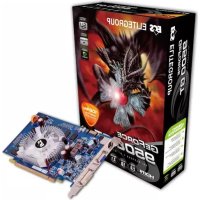
N9500GT1GDSF - Graphic card ECS - Free user manual and instructions
Find the device manual for free N9500GT1GDSF ECS in PDF.



| Product Type | Graphics card |
| Brand | ECS |
| Model | N9500GT1GDSF |
| Interface | PCI Express or AGP |
| Graphics Processor | NVIDIA GeForce 9500 GT |
| Video Memory | 1 GB DDR2 |
| Video Outputs | VGA, DVI, TV-out (depending on model) |
| Power Supply Required | System power supply 300 W minimum |
| Additional Power Connector | No (some models may have one) |
| Supported Operating Systems | Windows 2000/XP/2003/Vista |
| Approximate Dimensions | 17 × 10 × 2 cm |
| Approximate Weight | 200 g |
| Main Functions | 3D acceleration, multi-monitor output via nView, SLI support, temperature control |
| Included Software | NVIDIA ForceWare drivers, ECS VGA Installer utility, DirectX |
| Cleaning and Maintenance | Dust with a soft dry cloth. Do not use liquids. |
| Spare Parts and Repairability | No spare parts available. In case of failure, contact customer service. |
| General Information | Manual available in multiple languages. Check the ECS website for updates. |
Frequently Asked Questions - N9500GT1GDSF ECS
User questions about N9500GT1GDSF ECS
0 question about this device. Answer the ones you know or ask your own.
Ask a new question about this device
Download the instructions for your Graphic card in PDF format for free! Find your manual N9500GT1GDSF - ECS and take your electronic device back in hand. On this page are published all the documents necessary for the use of your device. N9500GT1GDSF by ECS.
USER MANUAL N9500GT1GDSF ECS
2005 Elitegroup Computer Systems Co., Ltd. All rights Reserved. No part in this manual may be reproduced in any form by any organization and individual without written consent of Elitegroup Computer Systems Co., Ltd. (ECS).
Trademark Recognition
All the trademarks, signals and logos used in this manual are the properties of Elitegroup Computer Systems Co., Ltd. The trademarks and logos are authorized by ECS to use publicly. All other company and product names used in this manual are the properties of the respective companies and products.
NVIDIA and "NVIDIA" marks presented on the related products are trademarks and/or registered trademarks of NVIDIA Corporation
Disclaimer
The information in this document is subject to change without notice.
Federal Communications Commission (FCC)
This equipment has been tested and found to comply with the limits for a Class B digital device, pursuant to Part 15 of the FCC Rules. These limits are designed to provide reasonable protection against harmful interference in a residential installation. This equipment generates, uses, and can radiate radio frequency energy and, if not installed and used in accordance with the instructions, may cause harmful interference to radio communications. However, there is no guarantee that interference will not occur in a particular installation. If this equipment does cause harmful interference to radio or television reception, which can be determined by turning the equipment off and on, the user is encouraged to try to correct the interference by one or more of the following measures:
- Reorient or relocate the receiving antenna
- Increase the separation between the equipment and the receiver
- Connect the equipment onto an outlet on a circuit different from that to which the receiver is connected
- Consult the dealer or an experienced radio/TV technician for help
Shielded interconnect cables and a shielded AC power cable must be employed with this equipment to ensure compliance with the pertinent RF emission limits governing this device. Changes or modifications not expressly approved by the system's manufacturer could void the user's authority to operate the equipment.
Preface
- Introducing the Product 1
System Requirements 1
- Hardware Installation 2
2.1.Package Contents. 2
2.2.Hardware Installation 2
- Software Installation 3
3.1. Install Motherboard Drive Utility 3
3.2.InstallDirectX 4
3.3.Install the Video Card Driver 5
3.3.1.Uninstall the Old Drivers.. 5
3.3.2.Install the Video Card Driver 6
3.3.3. Update the Video Card Driver Program 9
- Software Setup 11
4.1. Adjust the Screen Resolution and Color Quality 11
4.2. Adjust the Monitor Refresh Rate 11
4.3.Information on Video Card. 12
4.4. Screen Adjustment 12
4.5. nView Display Settings 13
4.6.Display Mode Timing 13
4.7. Performance and Quality Settings 14
4.8.Color Correction 14
4.9. Overlay Controls 15
4.10. Tools 15
4.11.NVRotate. 16
4.12.Temperature Settings 16
4.13. Screen Resolution and Refresh Rate 17
4.14. Desktop Management 17
4.15. Screen Menu Editing 18
4.16.SLI Multi-GPU 18
Multi-Language Translation
1. Introducing the Product
Thank you for choosing this ECS VGA card. We are pleased that you have selected one of the best-engineered VGA cards with enhanced functions available today. We recommend that you read through this User's manual before installing your video card to ensure that the installation process goes smoothly.
System Requirements
- 800 MHz processor or higher
- At least 128 MB system memory
AGP or PCI Express slot - CD-ROM or DVD-ROM drive
- Microsoft Windows 2000/XP/2003/VISTA
- At least 100 MB free HD drive space
2. Hardware Installation
2.1. Package Contents
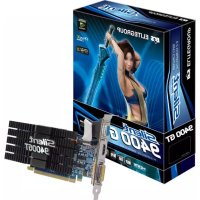
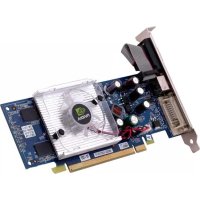
- VGA Card with NVIDIA Graphics Engine
- Software and Driver CD
- Quick Installation Guide
- Cable Adapter

The model name and illustrations used in this User's Manual are for reference only, and may be slightly different from your card.
2.2. Hardware Installation
- Shut down your PC and unplug the system power connector.
- Take the case cover off. If there is any homogeneous device, please remove them (To avoid damage from static electricity, make sure that you have discharge the static electricity before installation).
- Take the VGA card out from the static-proof bag and install it on the motherboard carefully (Some cards have an additional power cable; if your card has one, make sure that the cable is connected with the power supply, or the card may not work properly!).
- Put on the case cover and connect the monitor cable to the rear Video output port of the VGA card.
- Reboot your PC.

- Please do not Plug and Play the VGA card cable while you computer is still running, or you may damage the VGA card components easily.
- Ensure you insert the VGA card in the correct slot. PCI-Express cards differ from AGP cards (Please refer to the pictures below!). Make sure that you locate the correct slot or you could cause damage to your PC.
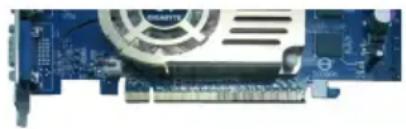
PCI Express
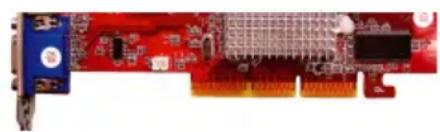
AGP
- Motherboard could possibly come with two PCI-Express slots, please refer to your motherboard manual for the correct slot location for use with a single card system.
3. Software Installation
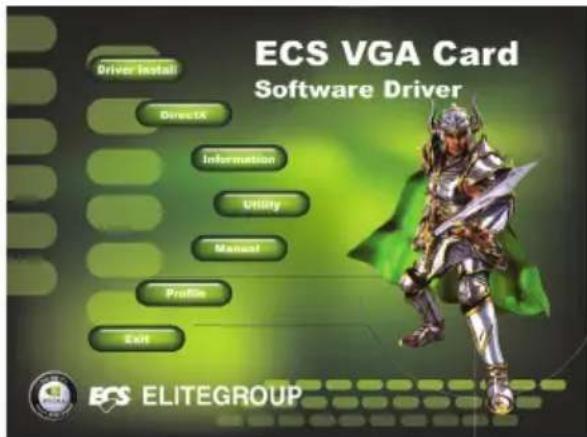
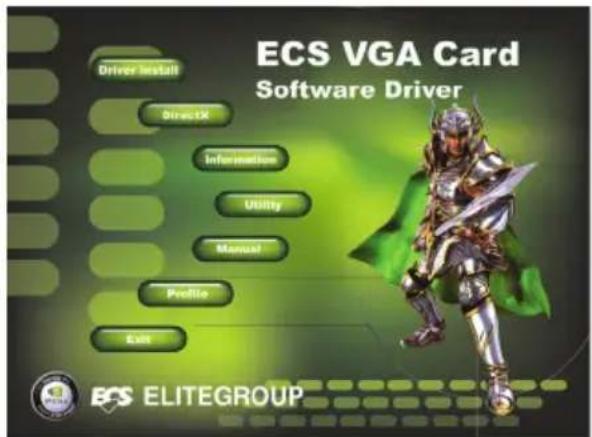
Insert the Software and Driver CD into your CD-ROM, the ECS VGA INSTALLER program will run automatically (If your system does not come up this program, please run the Install CD.exe in the sub-menu).
3.1. Install Motherboard Drive Utility
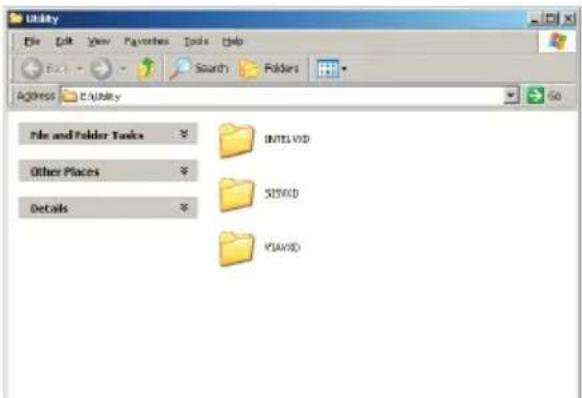
Motherboard drive utility should be installed first if you are not using Intel chipset.
Step 1:
Select
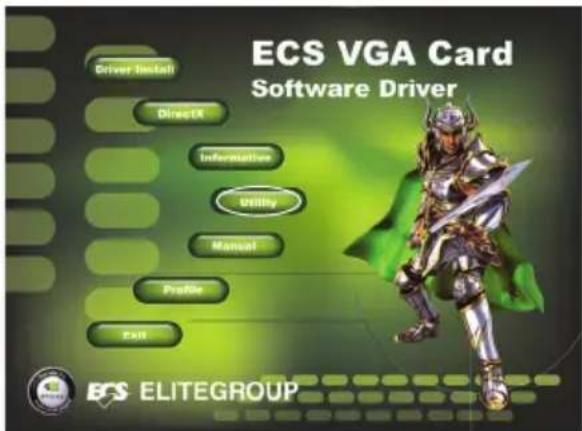
Step 2:
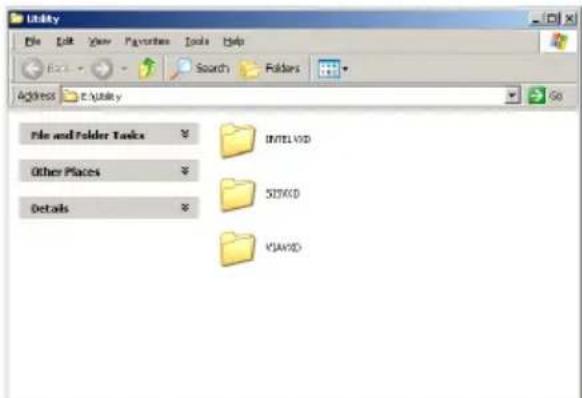
In the following window, select the correct chipset category of your motherboard and then install the driver.
3.2. Install DirectX
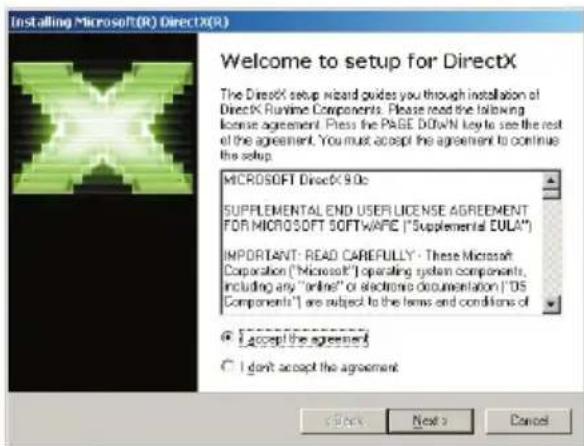
DirectX maximizes your VGA cards' performance, stability and security. You can skip this step if your operation system is Windows XP SP2 or above.
Step 1:
Select
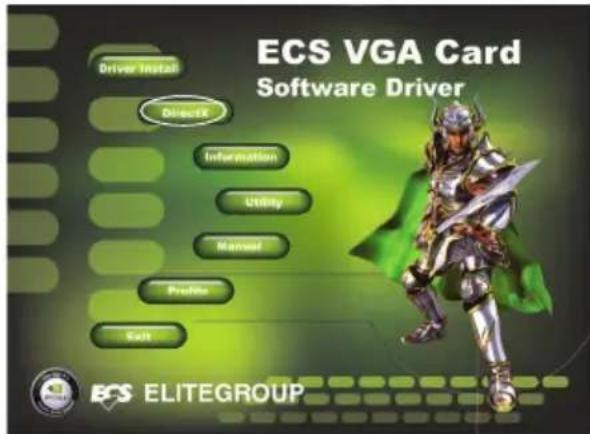
Step 2:
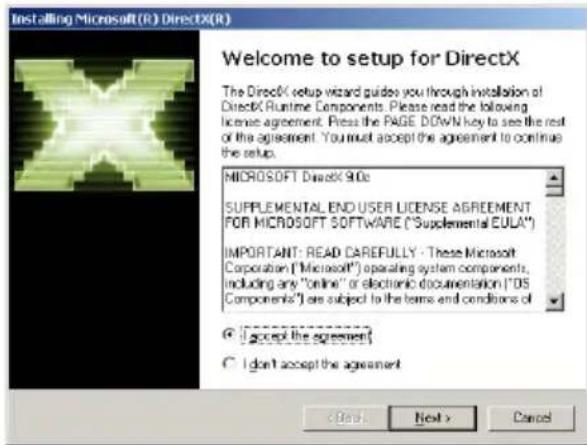
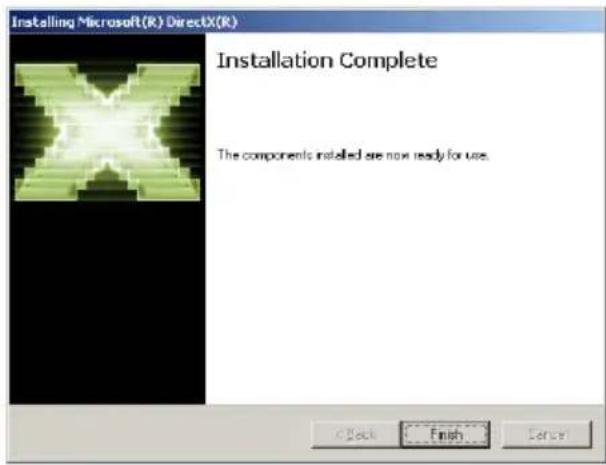
Install DirectX step by step according to the instructions on the screen.
Step 3:
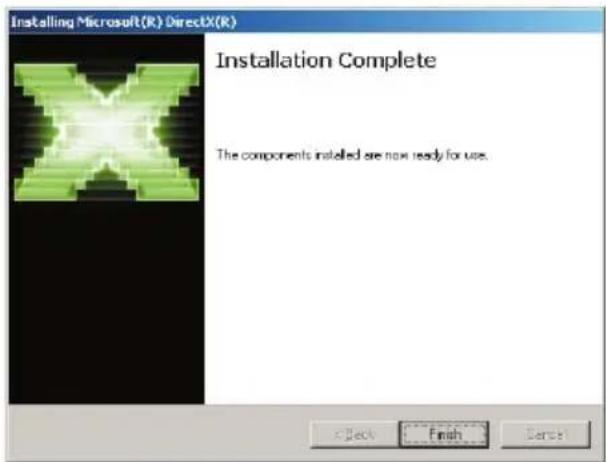
Restart your computer when the installation is completed.
3.3 Install VGA Card Driver
3.3.1. Uninstall the Old Drivers
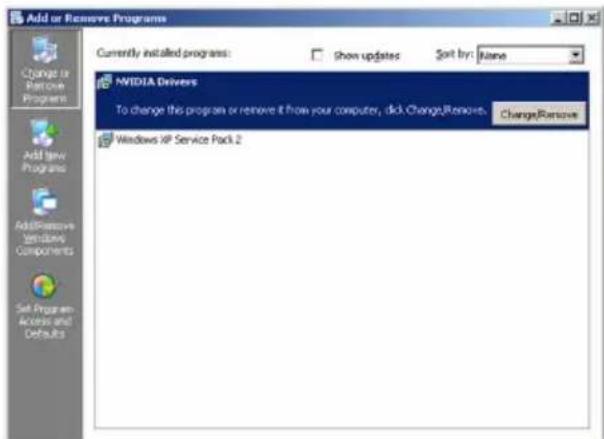
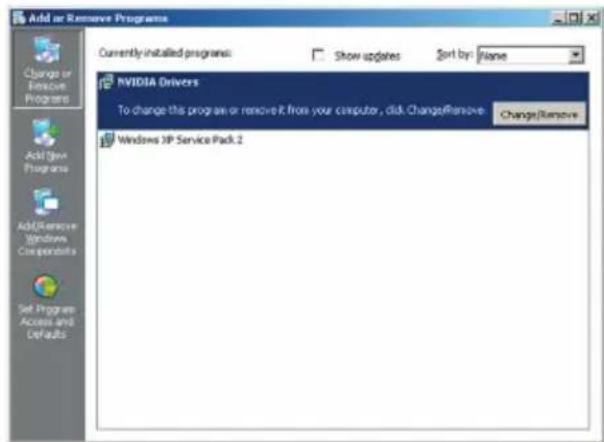
If you have drivers installed on your system already, remove these drivers before installing the new one.
Step 1:
Select Add/Remove Programs in Control Panel window.
Step 2:
Select
3.3.2. Install the VGA Card Driver
You may install the VGA card driver through either of the following two approaches.
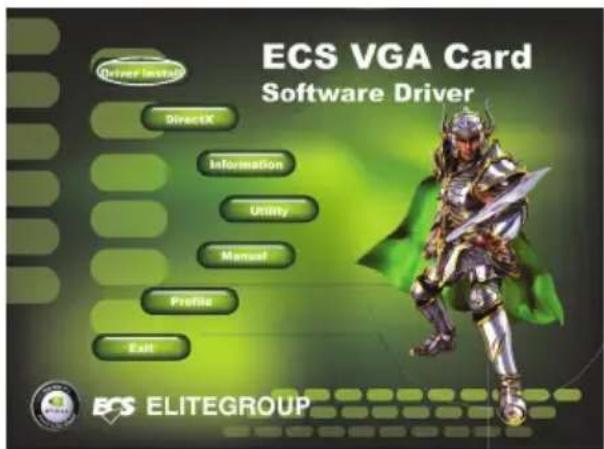
Approach 1: Auto-Installation of ECS VGA INSTALLER Program.
Step 1:
Select
Step 2:
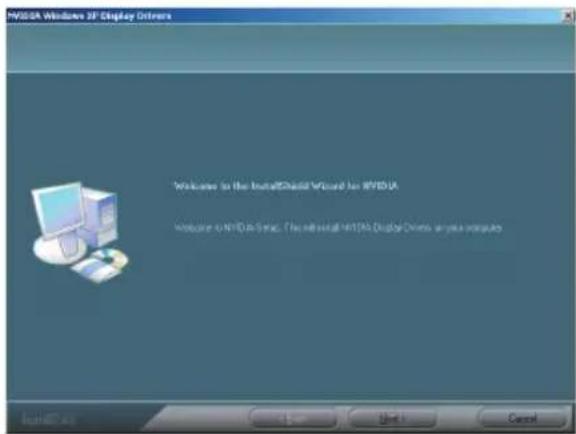
The Installation Program runs automatically
Step 3:
Install the Driver following the instructions on the screen.
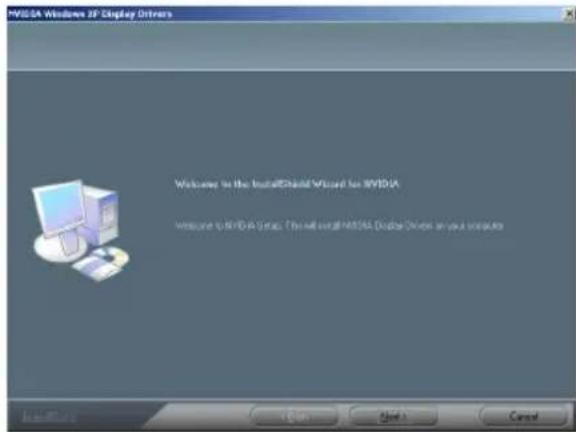
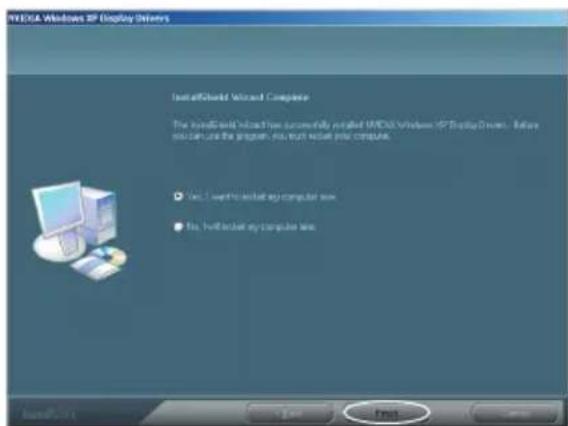
Step 4:
Click
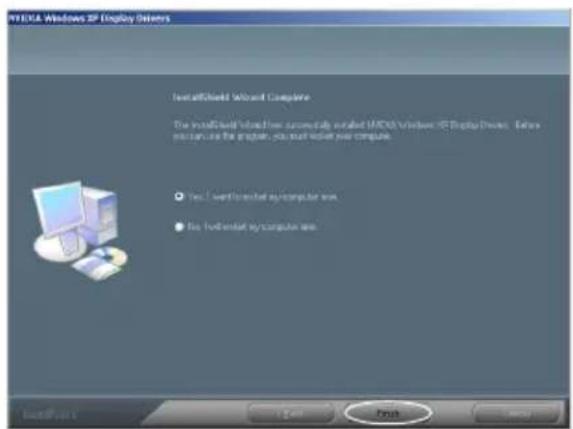
Approach 2: System Finds New Hardware Device
Start the computer after you finish the installation. The Found New Hardware window will appear. Insert the installation CD that came with your graphics card package into your CD-ROM. Now you can also select
Step 1:
Select
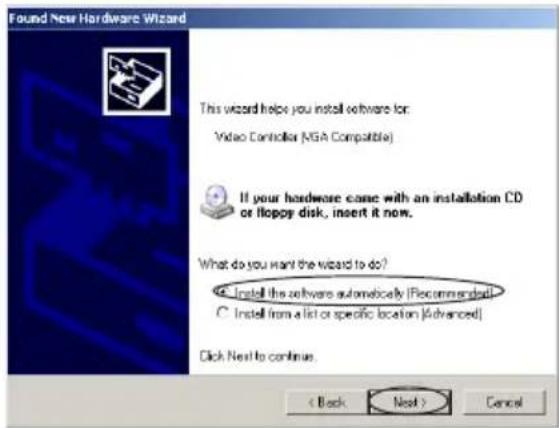
Step 2:
The system searches for the Software and Driver CD driver program and install automatically. (Please make sure the driver disk is in your CD-ROM)
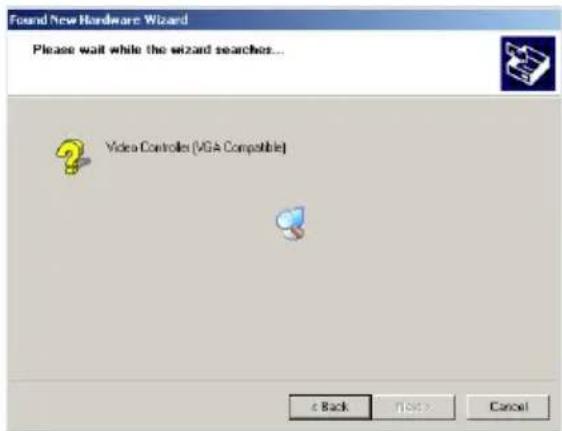
Step 3:
Finish the installation and restart your computer.
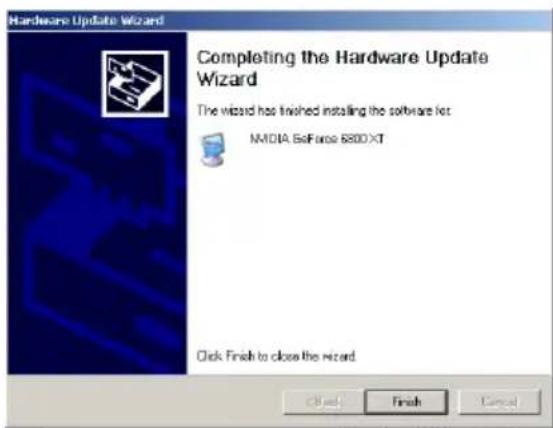
3.3.3. Update the VGA Card Driver Program
ECS Website (www.ecs.com.tw) will update Video Driver Program in time. Please log on the site and download the latest program to maximize the system performance. You can update the program through the following two approaches.
Approach 1: Download the updating program and install directly.
Download and execute the updating program. For the details you can refer to the installation of VGA card driver program.
Approach 2: Update the drive program manually.
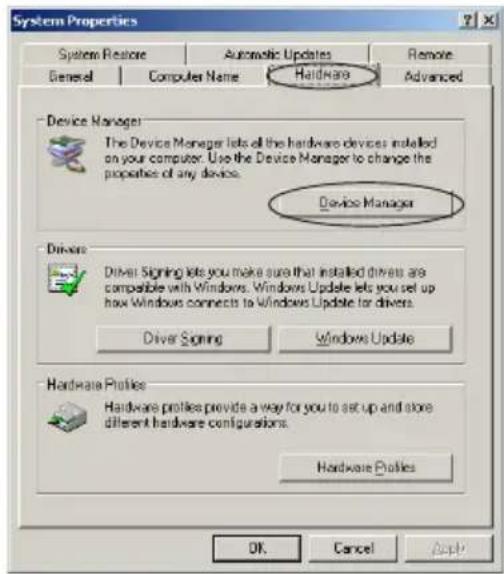
Step 1:
Select System in Control Panel, and select Hardware tab and click
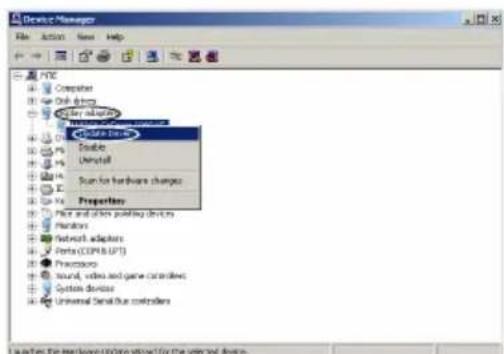
Step 2:
Double-click
Step 3:
In
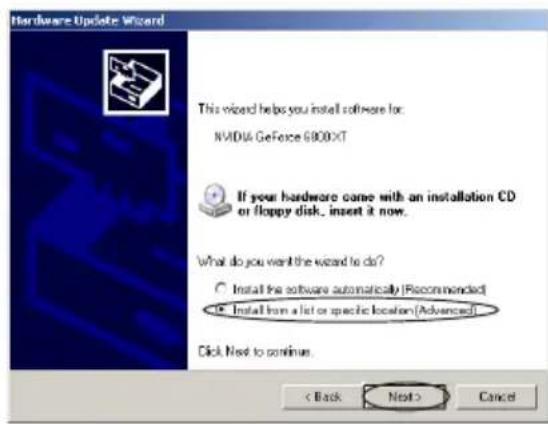
Step 4:
Select the option
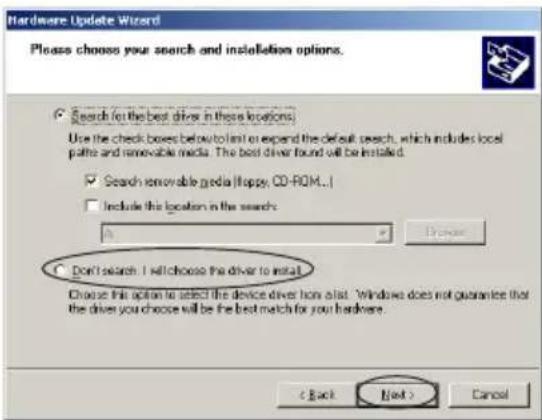
Step 5:
In
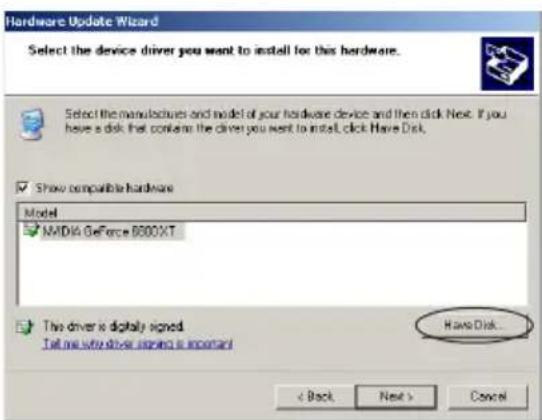
4. Software Setup
After you have installed the driver and any additional features, you may want to configure the display settings.

Not all the functions described below are supported by your card. VGA card functions differ by the Graphics Engines!
4.1 Adjust the Screen Resolution and Color Quality
Step 1:
Right-click your mouse anywhere on an empty space on your Windows desktop and select
Step 2:
Select the Settings tab, and now you can set the desired screen resolution by using your mouse to move the slider to either increase the resolution (move the slider left towards less). You can also change the color quality by clicking on the Colors pull-down menu. It is recommended that you set this at highest setting possible (Picture 1).
4.2 Adjust the Monitor Refresh Rate
Click the Advanced button in the Display Properties window, select the Monitor tab, and you can now choose the refresh rate form the Refresh Frequency pull-down menu (Picture 2).
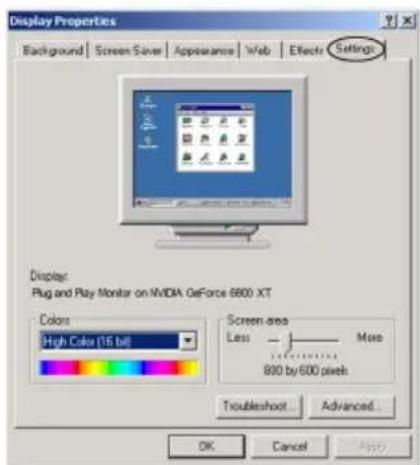
Picture 1
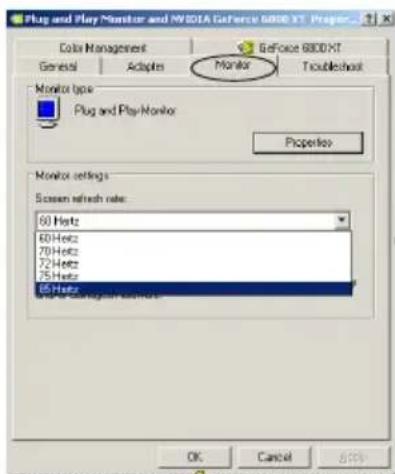
Picture 2
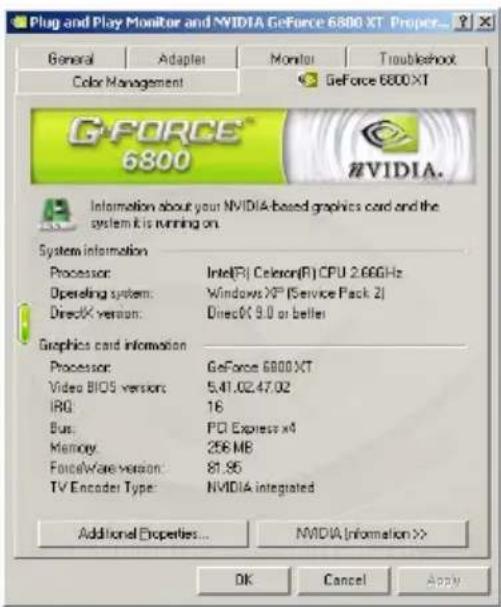
4.3 Information on VGA Card
The item
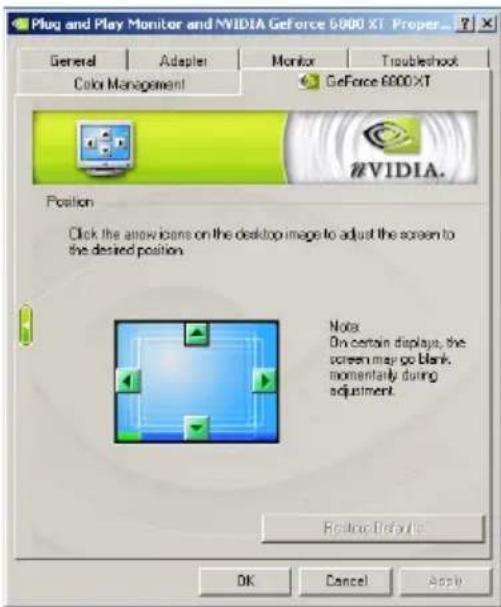
4.4. Screen Adjustment
Click the arrow icon on the image on the desktop can adjust the location of the screen.
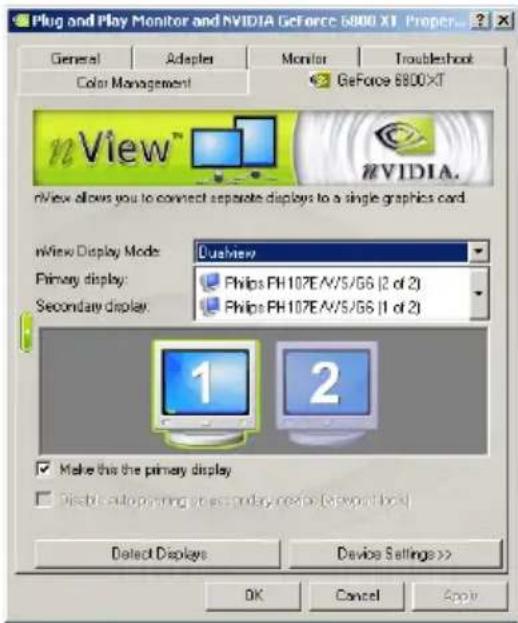
4.5. nView Display Settings
The nView display mode allows you to connect the VGA card to two display devices (including digital display and TV). nView includes five modes: Single-Monitor, Duplication, Horizontal Span, Vertical Span, or Simultaneous Display.
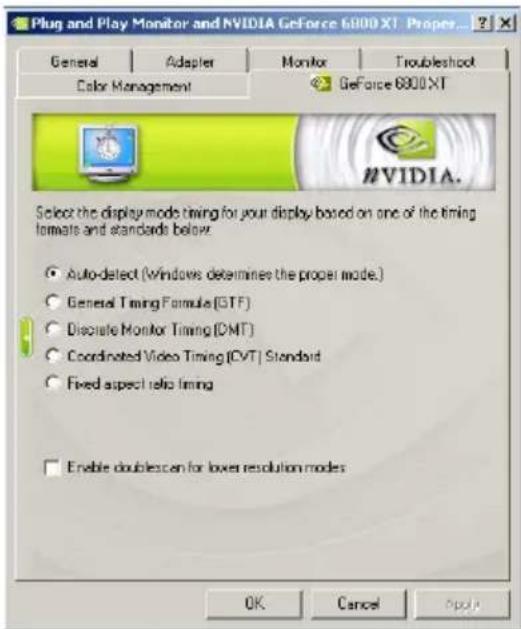
4.6. Display Mode Timing
This item allows you to set the display mode timing for the monitor.
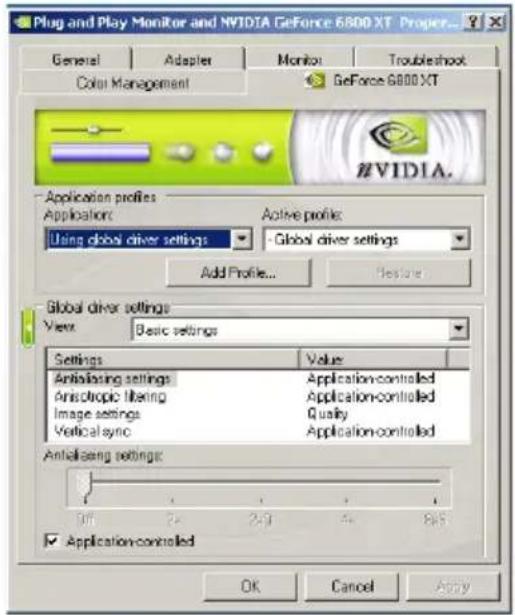
4.7. Performance and Quality Settings
The performance and quality function allows you to create custom profiles depending on different software needs. The NVIDIA Utility comes loaded with a large selection of profiles for popular games. All profiles can be customized with the available options.
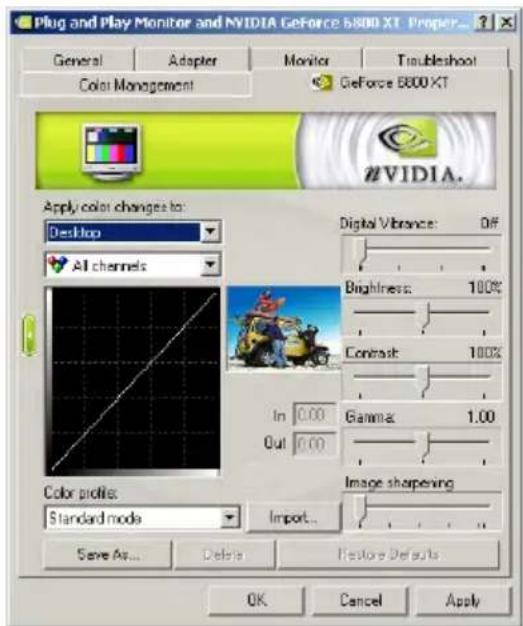
4.8. Color Correction
You can change a number of color related options in the color correction tab. Profiles can also be altered, saved and imported for different needs. The five default settings of your card are Digital Vibrance, Brightness, Contrast, Gamma and Image Sharpening.
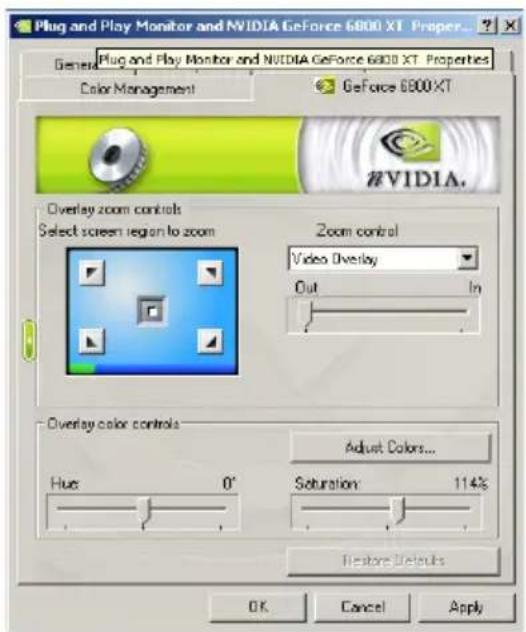
4.9. Video Overlay Settings
The Video Overlay Settings function is used to adjust the way video looks on your display when playback software is using hardware overlay.
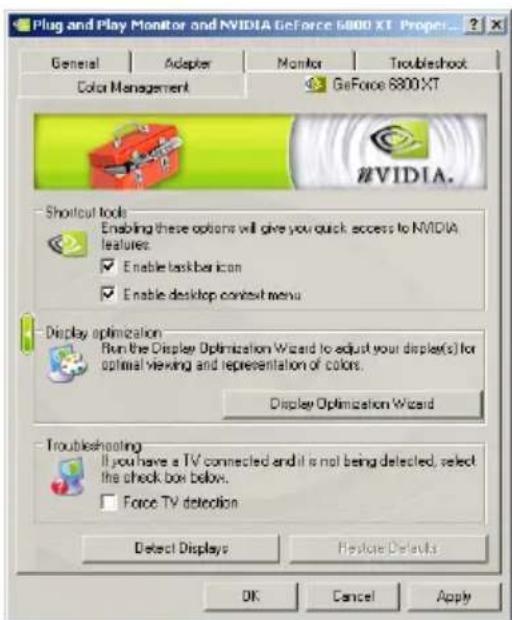
4.10. Tools
This item enables you to detect connected TV devices and reset default settings.
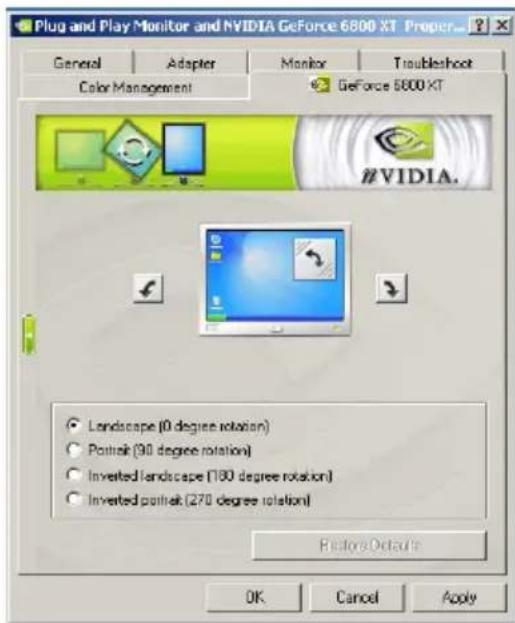
4.11. NVRotate
The NVRotate function allows you to rotate your display area. This is useful for monitors that can be used in both landscape and portrait modes. Select between modes using the arrow keys
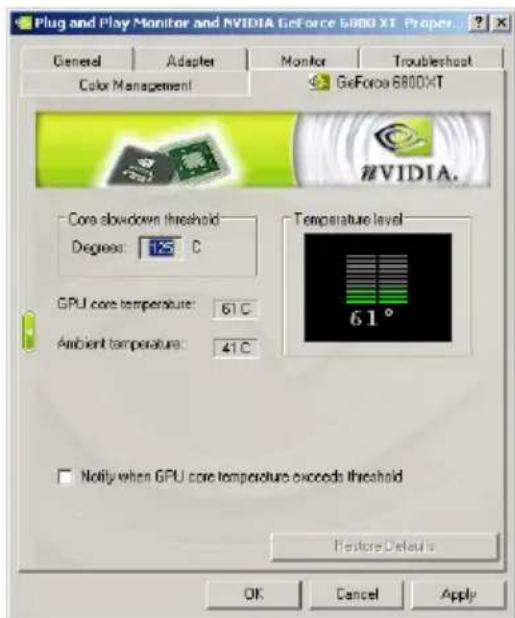
4.12. Temperature Settings
The Temperature Settings function shows the temperature of your graphics card and has an alarm function in case your card is in danger of overheating.
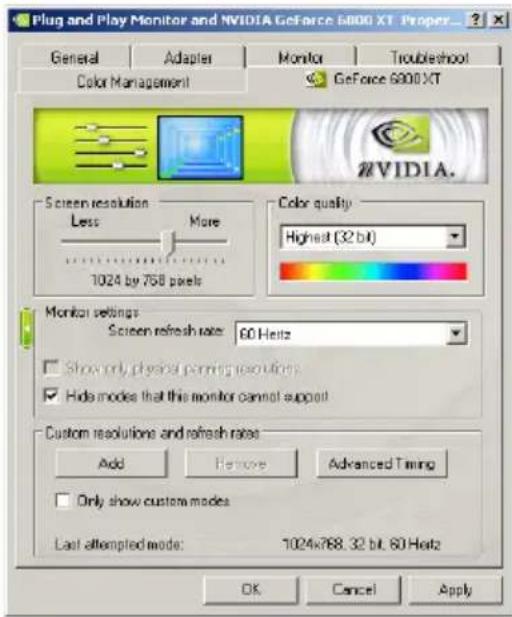
4.13. Screen Resolutions and Refresh Rates
This item allows you to quickly adjust resolution, color quality and screen refresh rate of your monitor.
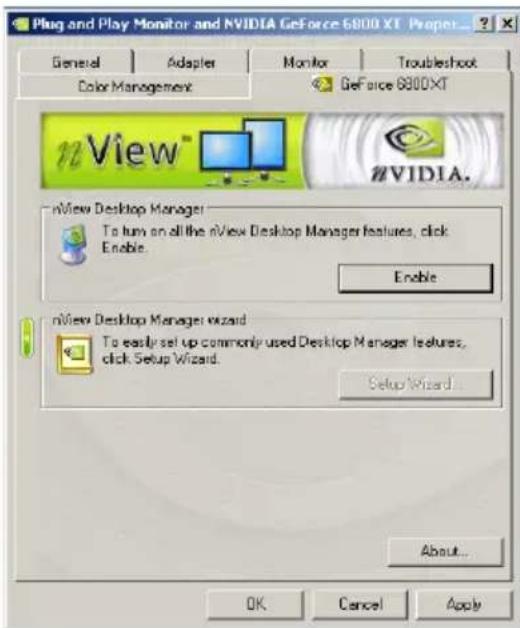
4.14. Desktop Management
The Desktop Management function is an easy-to-use function allowing you to fine tune many display settings.
4.15. Screen Menu Editing
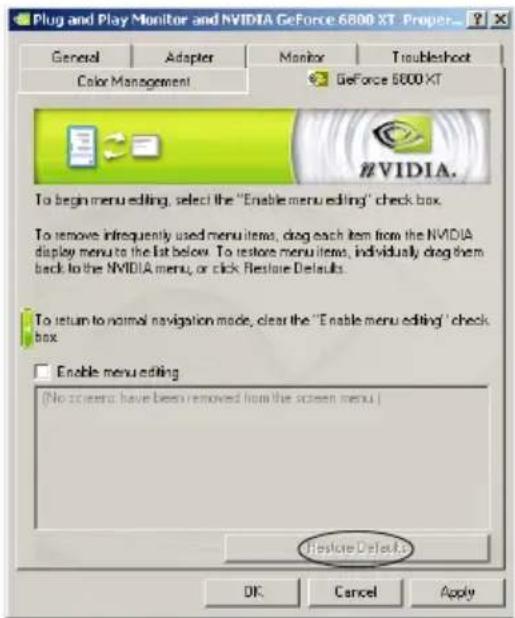
This function allows user to define tools tab. To delete the menu items not used frequently, you can pull them down from NVIDIA monitor menu to the below list. To recover, pull them back to the menu one by one, or click
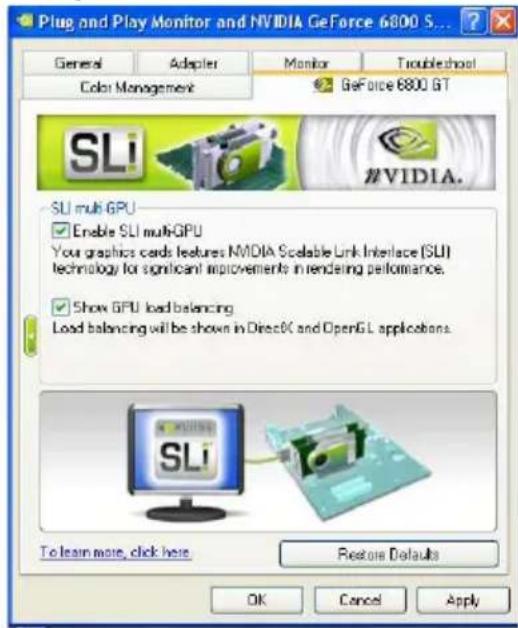
4.16.SLI Multi-GPU
SLI (Scalable Link Interface) technology can improve the rendering performance dramatically.
4.14. Desktop-Management
B OTKpbIbWeMcR OKHe Bbl6epnTe TOT YHNCET, KOTOpbI COOTBeTCTByeT BaWei MaTePHNcKo PNaTe, N yCTaHOBnTe dpaBep.
3.2.YcmaHobka DirectX
DirectX no3B0JAEyIyUHHTb pa6Otu, cTa6nIbHocTb n 6e3OnaCHOCt b BaWei BnDEOKAPtbl. Ecnn y Bac yCTaHOBHeHa onepaunOHna cnCTema Windows XP c SP2 nII N Bblwe, To cJeDuOuNe warn MoXHo npOnyCTNTb.
War 1:
BbI6epnte B rnaBHOM MeHIO nyHKT
Liar 2:
YcTaHOBnTe DirecX, cIeDyI INHCTpyKzmaM, KOToPbIe 6yDuT NOBnTbcr Ha 3KpaHe.
Uar 3:
Iocne OKOHuaHn yCTaHOBKn nepe3arpy3nTe KOMnbIOTep.
3.3 YcmaHOBka dpauBepa buDeokapmbi
3.3.1. YdaneHne cTapbIX dpaBepOB
Ecni Bbl yke yctaHaBnBaHn dpaBepa DnBnDeOkapTbI,TO nepei HOBOY yCTaHOBKO INX cneDyET ydaNITb.
War 1:
Выберптунт Add/Remove Programs B Control Panel.
War 2:
BbIbepnte npHKT
3.3.2. YctaHOBka HObIx dpaIbepOB
BbMOKeTe yCTaHOBtB HOBble dpaIBepa, nCNoJIb3yJIIO6Ou N3 DByx HIXeONiCAHHbIX CnOCo6OB.
Cnoco6 1: ABtOMaTnuecka yCTaHOBka n3 npoRpaMMbI ECS VGA INSTALLER.
War 1:
Bb6epTe B rnaBHOM MeHIO nyHKT
War 2:
ABTOMATUeCKn 3aNyCTITcR nporpaMMA yCTaHOBKn.
Uar 3:
YcTaHOBInTe IpaIbep, CneDy INHCTpyKzmaM Ha 3KpaHe.
Uar 4:
По Okончани установки нажмITE Кноку Finish и nepe3arpynte KOMьЮТер
Cnoc6 2: CnCTema MoKeT aBTOMaTnueckn paCNo3HaTb HOBoe yCTpoIcTBO
BkHouHTe KOMbIOTep nOcNe 3aBepSeHnY yCTaHOBKn. Cpa3y Jx e NOBtCn OKHO OTo6paXeHnY HObIX yCTpOInCTB. BcTaBbTe yCTaHOBOUHbN DnCK, PnIIraembl K BnDeOkaPte, B CD-ROM. IJy UcTaHOBKn dpaIBepOB Bbl MoKeTe Nl6o HaxaTb KHOInKy
War 1:
- Trademark Recognition
- Disclaimer
- Federal Communications Commission (FCC)
- Preface
- Multi-Language Translation
- Introducing the Product
- System Requirements
- Hardware Installation
- Package Contents
- Hardware Installation
- Software Installation
- Install Motherboard Drive Utility
- Step 1:
- Step 2:
- Install DirectX
- Step 3:
- Install VGA Card Driver
- Uninstall the Old Drivers
- Install the VGA Card Driver
- Step 4:
- Approach 2: System Finds New Hardware Device
- Update the VGA Card Driver Program
- Step 5:
- Software Setup
- Adjust the Screen Resolution and Color Quality
- Adjust the Monitor Refresh Rate
- Information on VGA Card
- Screen Adjustment
- nView Display Settings
- Display Mode Timing
- Performance and Quality Settings
- Color Correction
- Video Overlay Settings
- Tools
- NVRotate
- Temperature Settings
- Screen Resolutions and Refresh Rates
- Desktop Management
- Screen Menu Editing
- 4.16.SLI Multi-GPU
- Desktop-Management
- 3.2.YcmaHobka DirectX
- War 1:
- Liar 2:
- Uar 3:
- YcmaHOBka dpauBepa buDeokapmbi
- YdaneHne cTapbIX dpaBepOB
- War 2:
- YctaHOBka HObIx dpaIbepOB
- Uar 4:
Brand : ECS
Model : N9500GT1GDSF
Category : Graphic card