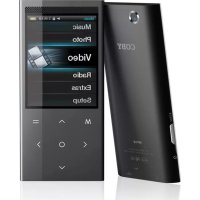
MP768 - Mp3 player COBY - Free user manual and instructions
Find the device manual for free MP768 COBY in PDF.



| Product type | MP3 and video player |
| Brand | Coby |
| Model | MP768 |
| Screen | 2.4-inch TFT LCD (320 x 240 pixels) |
| Internal memory | Flash (capacity not specified) |
| Supported audio formats | MP3, WMA, APE, OGG, WAV |
| Supported video formats | AVI (MPEG-4/XviD), WMV9, 3GP (conversion required) |
| Supported photo formats | JPEG, BMP, GIF, PNG, TIF |
| FM radio | Yes, with 40 presets |
| Built-in camera | 0.3 MP (640 x 480), photos and videos |
| Built-in speakers | Yes (disabled when headphones plugged in) |
| Audio output | 3.5mm headphone jack |
| PC interface | USB 2.0 high speed |
| Supported operating systems | Windows 7/Vista/XP, Mac OS X |
| Power supply | Rechargeable Li-poly battery via USB |
| Audio battery life | 8 hours (MP3 128 kbps) |
| Included software | Coby Media Manager (management and conversion) |
| Box contents | Player, USB cable, stereo earphones, quick start guide |
| Care and cleaning | Unplug before cleaning; use a damp cloth, no liquid or aerosol products |
| Safety instructions | Do not open the case, avoid moisture, protect your hearing, use only recommended parts |
| Repairability | Reset via Reset button; entrust any repair to a qualified professional |
Frequently Asked Questions - MP768 COBY
User questions about MP768 COBY
0 question about this device. Answer the ones you know or ask your own.
Ask a new question about this device
Download the instructions for your Mp3 player in PDF format for free! Find your manual MP768 - COBY and take your electronic device back in hand. On this page are published all the documents necessary for the use of your device. MP768 by COBY.
USER MANUAL MP768 COBY
Congratulations on your purchase of a Coby ^® Video MP3 Player. This guide is provided to help you get started quickly with your player; please read it carefully and save it for future reference.
For detailed instructions, up-to-date information, and helpful tips, please visit the Coby website at www.cobyusa.com.

The manual is available for download from the Coby website as a PDF file.
To view PDF documents, download and install the free Adobe Acrobat reader from the Adobe website at www.adobe.com.
Package Contents
Please make sure that the items shown below are included in the package. Should an item be missing, please contact the local retailer from which you purchased this product.
COBY Video MP3 player ★
USB cable ★
Professional stereo earphones ★
Quick start guide ★

This package may contain plastic bags or other materials that pose a hazard to children. Be sure to safely dispose of all packing materials after opening.
Features
Slim and sleek multimedia player fits anywhere ★
Powerful solution plays MP3 and WMA music files as well as advanced OGG and APE formats
Enjoy video and photos on the large 2.4" color ✦ screen
FM radio tuner with 40-station preset memory ★
Touch controls with backlighting ✦
Built-in camera shoots movies and photos ✦ (MP768 only)
Built-in speakers (MP767 and MP768 only) ✦
Coby Media Manager software included ★
Rechargeable Li-poly battery ★
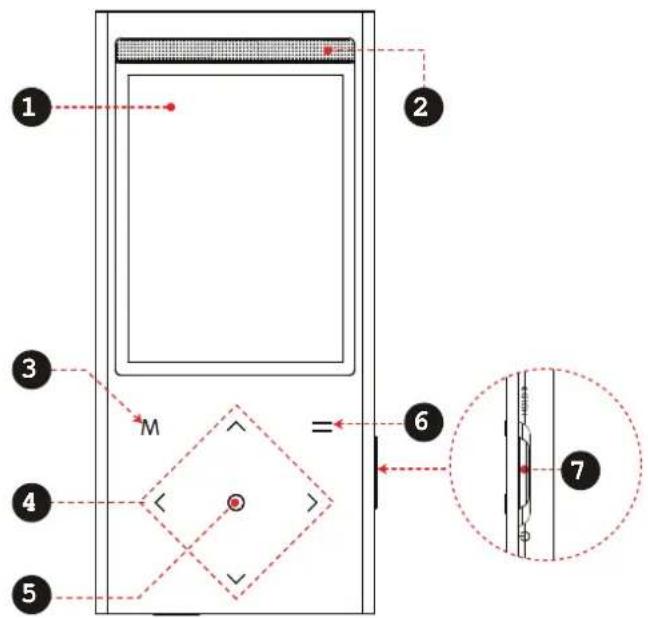
Unit at a Glance

| Name Description | |||
| 1 LCD screen Color display screen. | |||
| 2 Speakers [MP767 and MP768 only] | Speaker output is automatically disabled when headphones are connected to the player. | ||
| 3 Cancel/Menu Key | Press to return to the previous screen.Press and hold to access the Main menu.When the player is connected to a computer, press to cancel the USB data connection and switch to USB power mode. | ||
| Name Description | |||
| 4 Control Key | Browse items in a list.During music playback: increase the volume level.During video playback: skip to the previous track. | ||
| Browse items in a list.During music playback: decrease the volume level.During video playback: skip to the next track. | |||
| During music playback: skip to the previous track.During video playback: decrease the volume level. | |||
| During music playback: skip to the next track.During video playback: increase the volume level. | |||
| 5 Enter Key | <OK>Enter a selected item in a list.During playback: play/pause. | ||
| 6 Option Key | <OPTION>Access options menu, if available. | ||
| 7 Power/Hold Switch | Slide and hold the switch down to turn the player on or off.Slide and lock the switch up to disable the controls. | ||
| Name Description | |||
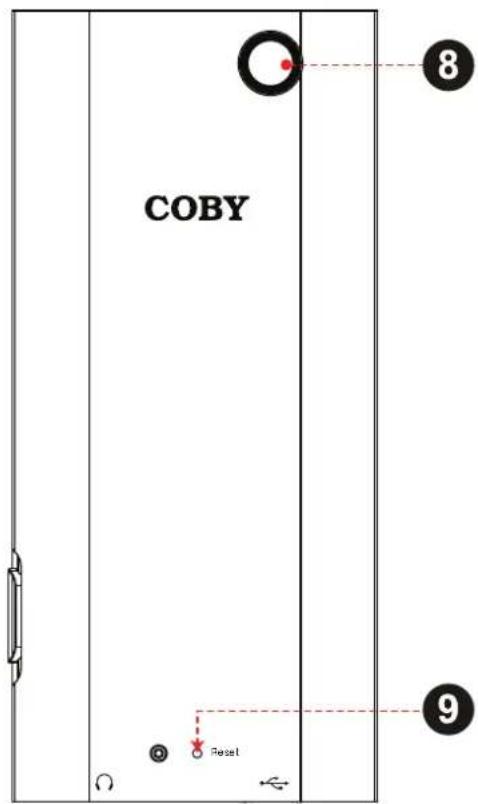
| 8 Camera Lens[MP768 only] | Shoot videos and photos. | ||
| 9 | Reset Key | Use a paperclip to press this button to reinitialize the player if it should freeze or behave abnormally. | |
| 10 Headphone Jack Connect a pair of headphones or earphones with a 3.5mm plug for private listening. | |||
| 11 USB Port Connect to a computer to transfer media files to the player. Connect to a computer to charge the player. | |||

Getting Started

To start playing media on your player:
Connect the player to your computer to charge 1 the battery.
Install the Coby Media Manager software from 2. the player onto your computer.
Use Coby Media Manager to transfer (sync) 3. media files from your computer to the player.
Enjoy your synchronized music, video, and 4. photo files on the player!
About the Main Menu
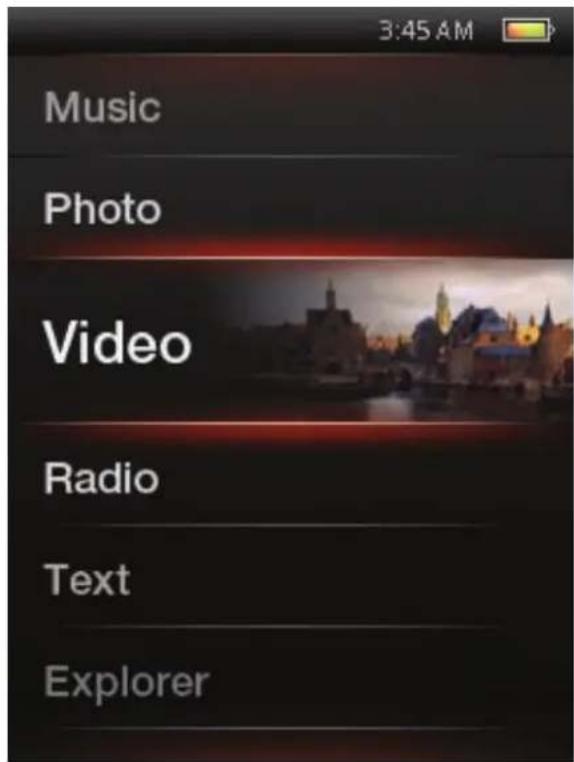
When you turn the player on, you will see the Main menu. This menu allows you to change the player's mode.
Press
Press and hold

In some modes, you may need to press
| Music Browse and | play music. |
| Photo Browse and | view photos. |
| Video Browse and | play videos. |
| Radio Listen to FM | radio broadcasts. |
| Extras Camera: Shoot photos.*DV: Shoot videos.*Text: Browse and read text filesExplorer: Browse and manage all files on the player. | |
| Setup Adjust the player's options. | |
* Available on MP768 only.
Connect and Charge the Battery

Upon initial use, the player should be charged fully to ensure optimal performance and battery life. If the player has not been used for a long period of time, the battery may need to be recharged.
With the included USB cable:
Connect the small end of the cable to the USB 1. port of the player.
Connect the large end of the cable to an avail-2. able USB 2.0 Hi-speed port on your computer.
When the player is connected and charging, the notice "USB Connected" will be displayed on the screen.
Tip
You can press

The computer must be powered on and not in sleep mode in order to charge the battery.
The player will not charge if it is connected to a low-power USB port.
If the player is connected to the computer through a USB hub, the hub must be self-powered to charge the battery.

The battery used in this device may present a fire or chemical burn if mistreated. Do not disassemble, incinerate, or heat the battery. Do not leave the battery in a place subject to direct sunlight, or in a car with its windows closed. Do not connect the player to a power source other than that which is indicated here or on the label as this may result in the risk of fire or electric shock.
Install Coby Media Manager

Please install and use the "Coby Media Manager" (CMM) software provided on the player. Using the CMM software is the easiest way to:
Transfer (sync) media files to the player ★
Convert video and audio files to a format compatible with your player ★
Keep your player's software up to date ★
Browse and play your media library on your computer. ✦

Coby Media Manager requires a computer with Microsoft Windows 7/Vista/XP or Macintosh OS X, 100MB hard disk space available, and a USB 1.1 port (USB 2.0 recommended for high speed transfers).
Microsoft Windows
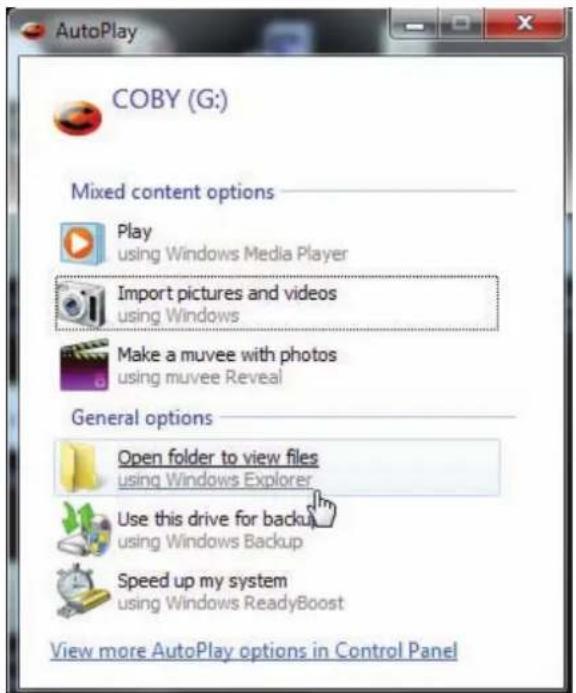
Connect the player to a 1. computer with the USB cable provided. Windows will display an "Autoplay" screen. Click "Open device to view files using Windows Explorer".
Double-click the player 2. icon to view the files stored on the player.
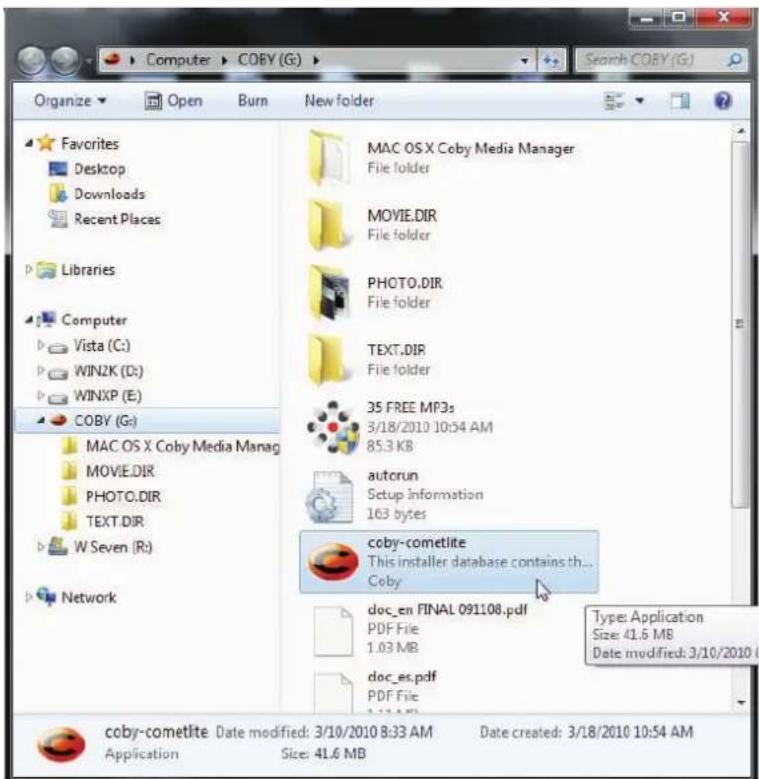
| Find and double-click the 3 file “coby-cometlite” and then wait for the system to extract the main application files. | 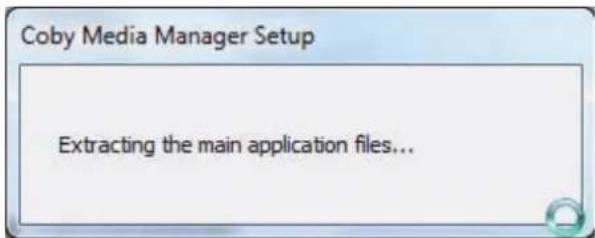 |
| The setup wizard will 4. launch automatically once the files have been extracted. Follow the on-screen instructions to complete the installation process. | 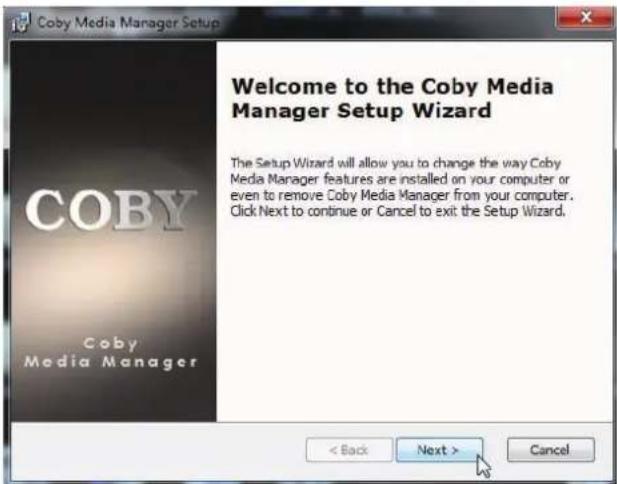 |
Macintosh OS X
Connect the player to a 1. computer with the USB cable provided.
Open a finder window. 2. Click on the "Removable Disk" icon located on the left side of the finder window to view the files stored on the player.
Open the "MAC OS X Coby Media Manager" folder to view its contents. Find and then double-click the file "coby-mediamanager.dmg".
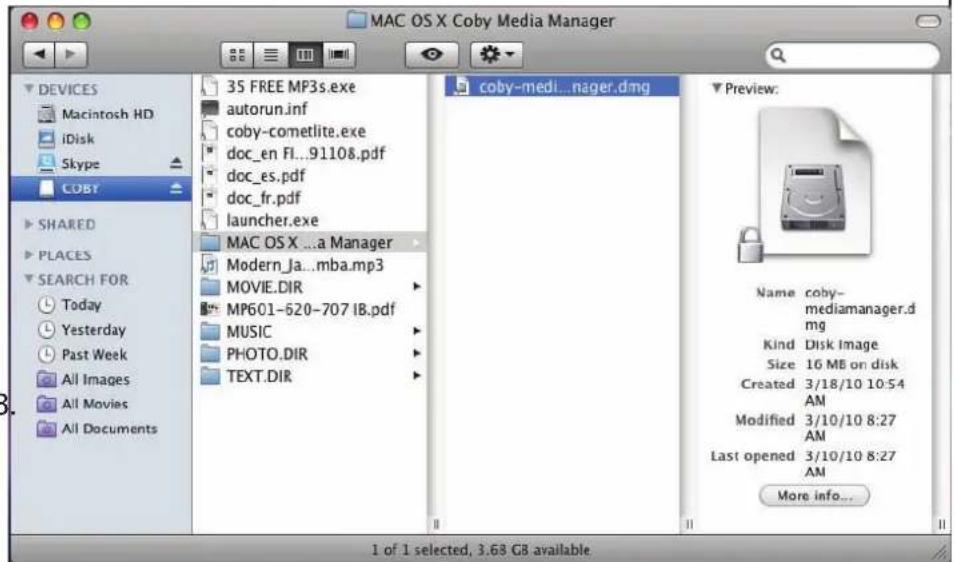
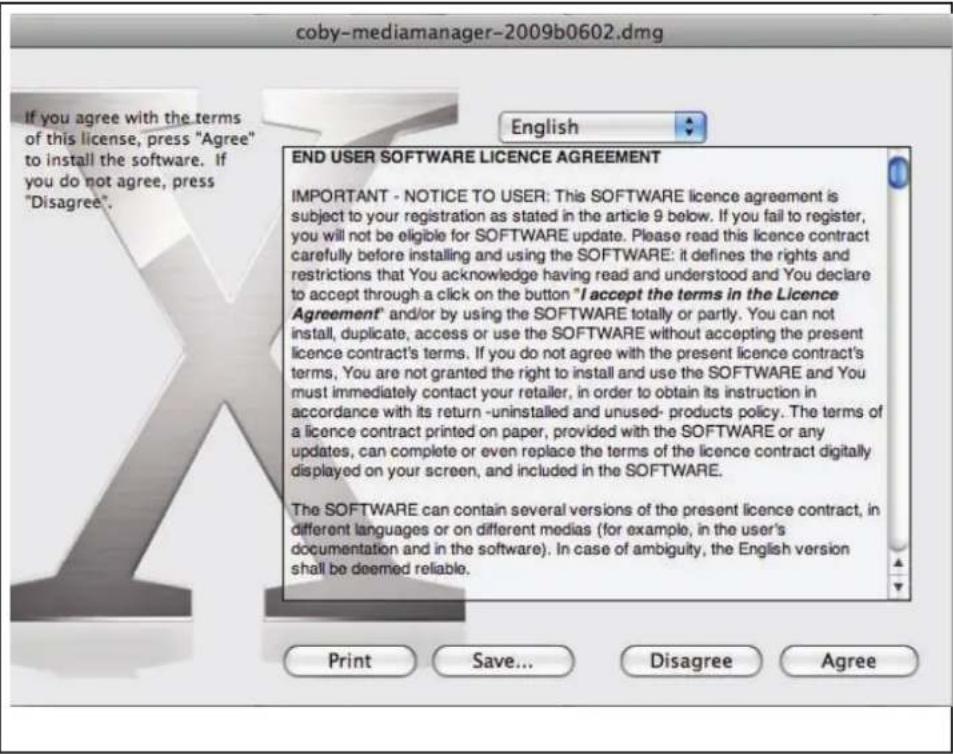
The setup wizard will 4. launch. Follow the on-screen instructions to complete the installation process.
Transfer Media to the Player

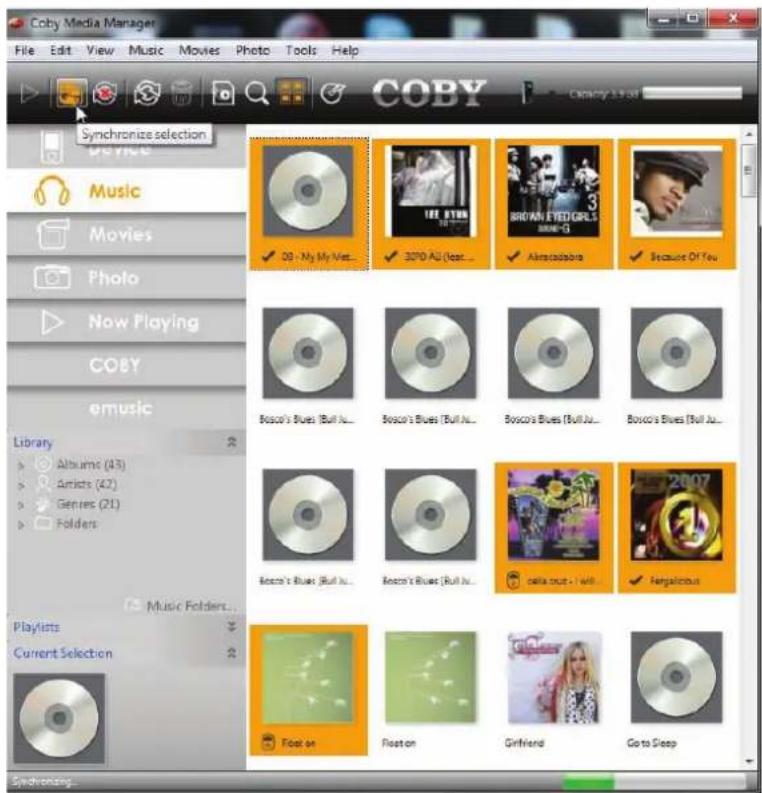
Use CMM to transfer media from a computer to the player.

The instruction manual for CMM can be found on your player. You may need to download and install the free Acrobat PDF reader from Adobe at www.adobe.com/go/getreader/ in order to view the instruction manual.
Connect the player to the 1 computer with the USB cable provided.
Start the CMM program.2.

natural_image
Abstract logo design with red, orange, and black curved shapes forming a stylized letter C (no text or symbols)Coby Media Manager
To find music, movies, and photos on the computer, click on the Music, Movies, or Photo tabs located in the left panel.
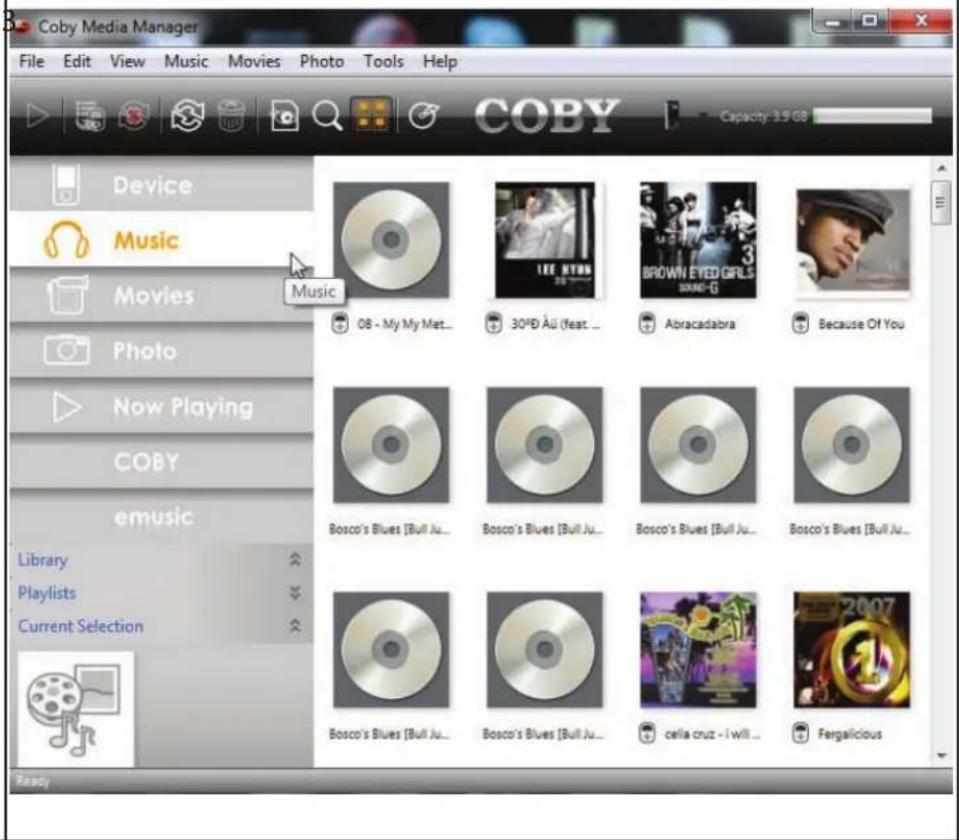
Click to select the files that you want to synchronize, then click the "Syncrhonize selection" button located at the top of the screen.
Tip
In Windows, hold "Ctrl" or "Shift" on the keyboard while clicking with the mouse to select multiple files.
In Mac OS X, hold "Command" or "Shift" while clicking with the mouse to select multiple files.
Specifications

Please visit www.cobyusa.com for the latest product information. Design, specifications, and manual are subject to change without notice.
MP757 series
| Memory Internal flash memory | |
| Display 2.4" TFT LCD (320 x 240) | |
| Format Support | Music: MP3, WMA, APE, OGG, WAVVideo: AVI (MPEG-4/XviD), WMV9, 3GP*Photo: JPEG, BMP, GIF, PNG, TIF |
| Tuner | FM radio with 40 presets |
| Audio Output | 3.5 mm headphone |
| PC Interface | USB 2.0 Hi-speed |
MP757 series
| OS Support | Microsoft Windows 7Microsoft Windows VistaMicrosoft Windows XPMacintosh OS X |
| Power | Rechargeable Li-poly battery |
| Music Play Time 8 | hours ** |
- Videos may need to be converted with the included software for device playback.
Music play time is an estimated value based on playing an MP3 encoded at 128 kbps. Actual play time may vary depending on encoding method used and other factors.
MP767 series
| Memory Internal flash memory | |
| Display 2.4" TFT LCD (320 x 240) | |
| Format Support | Music: MP3, WMA, APE, OGG, WAVVideo: AVI (MPEG-4/XviD), WMV9, 3GP*Photo: JPEG, BMP, GIF, PNG, TIF |
| Tuner FM radio with 40 presets | |
| Audio Output 3.5 | mm headphoneStereo speakers |
| PC Interface | USB 2.0 Hi-speed |
| OS Support | Microsoft Windows 7Microsoft Windows VistaMicrosoft Windows XPMacintosh OS X |
MP767 series
| Power | Rechargeable Li-poly battery |
| Music Play Time 8 | hours ** |
* Videos may need to be converted with the included software for device playback.
Music play time is an estimated value based on playing an MP3 encoded at 128 kbps. Actual play time may vary depending on encoding method used and other factors
MP768 series
| Memory Internal flash memory | |
| Display 2.4" TFT LCD (320 x 240) | |
| Format Support | Music: MP3, WMA, APE, OGG, WAVVideo: AVI (MPEG-4/XviD), WMV9, 3GP*Photo: JPEG, BMP, GIF, PNG, TIF |
| Camera 0.3 MP (640 x 480) | |
| Tuner FM radio with 40 presets | |
| Audio Output | 3.5 mm headphone Integrated speaker |
| PC Interface | USB 2.0 Hi-speed |
| OS Support | Microsoft Windows 7 Microsoft Windows Vista Microsoft Windows XP Macintosh OS X |
MP768 series
| Power | Rechargeable Li-poly battery |
| Music Play Time | 8 hours** |
Videos may need to be converted with the included software for device playback.
Music play time is an estimated value based on playing an MP3 encoded at 128 kbps. Actual play time may vary depending on encoding method used and other factors.
Troubleshooting & Support

If you have a problem with this device, please check our website at www.cobyusa.com for Frequently Asked Questions (FAQ) and product updates. If these resources do not resolve the problem, please contact Technical Support.
Address Coby Electronics Technical Support
150 Knowlton Way
Savannah, Georgia 31407
Email techsupport@cobyusa.com
Web www.cobyusa.com
Phone 800-727-3592: Monday to Friday, 8:30AM–9:00PM EST
Saturday, 9:00 AM–5:30PM EST
718-416-3197: Monday to Friday, 8:00AM-5:30PM EST
The player does not turn on.
Ensure that the player is fully charged. Try charging the player overnight (8 hours).
Reset the player (use a paper clip to gently press the Reset button on the rear of the player) and try again.
The buttons do not work.
Reset the player (use a paper clip to gently press the Reset button on the rear of the player) and try again.
I cannot transfer files to the player.
Ensure that your computer is running a sup- ported operating system.
If using a USB extension cable, ensure that it is securely attached to the player and the PC, or try using another USB cable.
Ensure that the player's memory capacity is not full.
There is no sound during playback.
Check the volume level. ✦
Ensure that the headphones are attached ✦ securely to the player.
The sound quality of the music is poor.
Try playing the file on your computer. If the sound quality is still poor, try downloading the file again or re-encoding the file yourself.
Ensure that the bit rate of the file is not too low. ✦ The higher the bit rate of the file, the better it will sound. The minimum recommended bitrate is 128kbps for MP3s and 96kbps for WMAs.
Try lowering the volume of the player. ✦
Ensure that the headphones are attached ✦ securely to the player.
The player will not play my music file.
Ensure that the file is in a compatible format.
The file may be copy-protected and you no longer have authorization to play this file. If you feel this is in error, please contact the service from which you downloaded the file.
The LCD characters are corrupted or something is wrong with the display.
Ensure that the correct menu language has been set. ✦
Reset the player (use a paper clip to gently press the Reset button on the rear of the player) and try again.
The player has malfunctioned.
Reset the player (use a paper clip to gently press the Reset button on the rear of the player) and try again.
Safety Notices


CAUTION
WARNING: SHOCK HAZARD. DO NOT OPEN. AVIS: RISQUE DE CHOC ELECTRIQUE. NE PAS OUVRIR

CAUTION: TO REDUCE THE RISK OF FIRE AND ELECTRIC SHOCK, DO NOT REMOVE THE COVER (OR BACK) OF THE UNIT. REFER SERVICING ONLY TO QUALIFIED SERVICE PERSONNEL.

The lightning flash with arrowhead symbol within an equilateral triangle is intended to alert the user to the presence of uninsulated “dangerous voltage” within the product’s enclosure that may be of sufficient magnitude to constitute a risk of electric shock.

The exclamation point within an equilateral triangle is intended to alert the user to the presence of important operation and servicing instructions in the literature accompanying the appliance.

For recycling or disposal information about this product, please contact your local authorities or the Electronics Industries Alliance: www.eiae.org.
For Customer Use:
Enter below the serial number that is located on the rear of the unit. Retain this information for future reference.
Model No.
Serial No.
WARNING: To prevent fire or shock hazard, do not expose this device to rain or moisture. Dangerous high voltage is present inside the enclosure. Do not open the cabinet.
Protect your hearing: Hearing experts advise against the constant use of personal stereos played at high volume. Constant exposure to high volumes can lead to hearing loss. If you should experience ringing in the ears or hearing loss, discontinue use and seek medical advice.
Note: If the product suddenly has no response or powers off, an electrostatic discharge may be the cause. In this circumstance, please follow the procedures below for recovery:
Reset the player (use a paper clip to gently press the Reset button • on the rear of the player).
Turn on the unit again•
FCC Statement:
This device complies with Part 15 of the FCC Rules. Operation is subject to the following two conditions:
(1) This device may not cause harmful interference, and
(2) This device must accept any interference received, including interference that may cause undesired operation.
Note: This equipment has been tested and found to comply with the limits for Class B digital devices, pursuant to Part 15 of the FCC rules. These limits are designed to provide reasonable protection against harmful interference in a residential installation. This equipment generates, uses and can radiate radio frequency energy and, if not installed and used in accordance with the instructions, may cause harmful interference to radio communications. However, there is no guarantee that interference will not occur in a particular installation. If this equipment does cause harmful interference to radio or television reception, which can be determined by turning the equipment off and on, the user is encouraged to try to correct the interference by one or more of the following measures:
Reorient or relocate the receiving antenna.
Increase the separation between the equipment and receiver.
Connect the equipment into an outlet on a circuit different from that to which the receiver is connected.
Consult the dealer or an experienced radio/TV technician for help•
Use of shielded cable is required to comply with Class B limits in Subpart B of Part 15 of the FCC rules.
Do not make any changes or modifications to the equipment unless otherwise specified in the manual. If such changes or modifications should be made, you could be required to stop operation of the equipment.
Important Safety Instructions
Read Instructions: All the safety and operating instruc-1. tions should be read before the product is operated.
Retain Instructions: The safety and operating instruc-2. tions should be retained for future reference.
Heed Warnings: All warnings on the product and in 3. the operating instructions should be adhered to.
Follow Instructions: All operating and usage instruc-4. tions should be followed.
Cleaning: Unplug this product from the wall outlet be-5. fore cleaning. Do not use liquid cleaners or aerosol cleaners. Use a damp cloth for cleaning.
Attachments: Use only attachments recommended by 6. the manufacturer. Use of other attachments may be hazardous.
Water and Moisture: Do not use this product near 7. water (e.g., near a bath tub, washbowl, kitchen sink, laundry tub, in wet basements, or near a swimming pool and the like).
- Ventilation: Slots and openings in the cabinet are provided for ventilation to ensure reliable operation of the product and to protect it from overheating. These openings should never be blocked by placing the product on a bed, sofa, rug, or other similar surface. This product should not be placed in a built-in installation such as a bookcase or rack unless proper ventilation is provided or the manufacturer instructions have been adhered to.
Power Sources: This product should be operated only 9. from the type of power source indicated on the rating label. If you are not sure of the type of power supply to your home, consult your product dealer or local power company. For products intended to operate from battery power or other sources, refer to the operating instructions.
Overloading: Do not overload wall outlets, extension 10. cords, or integral convenience receptacles as this can result in a risk of fire or electric shock.
Object and Liquid Entry: Never push objects of any 11. kind into this product through openings as they may touch dangerous voltage points or shout-out parts that could result in a fire or electric shock. Never spill liquid of any kind on the product.
Servicing: Do not attempt to service this product your-12. self as opening or removing covers may expose you to dangerous voltage or other hazards. Refer all servicing to qualified service personnel.
Damage Requiring Service: Unplug this product from 13. the wall outlet and refer servicing to qualified service personnel under the following conditions: a) when the power-supply or plug is damaged; b) if liquid has been spilled or if objects have fallen into the product; c) if the product has been exposed to rain or water; d) if
the product does not operate normally by following the operating instructions. Adjust only those controls that are covered by the operating instructions as improper adjustment of other controls may result in damage and will often require extensive work by a qualified technician to restore the product to its normal operation; e) if the product has been dropped or damaged in any way; f) when the product exhibits a distinct change in performance—this indicates a need for service.
Replacement Parts: When replacement parts are re-14. quired, be sure that your service technician has used replacement parts specified by the manufacturer or have the same characteristics as the original part. Unauthorized substitutions may result in fire, electric shock, or other hazards.
- Safety Check: Upon completion of any service or repairs to this product, ask the service technician to perform safety checks to ensure that the product is in proper operating condition.
Heat: The product should be situated away from heat 16. sources such as radiators, heat registers, stoves, or other products (including amplifiers) that produce heat.
Legal and Trademark Notices
Coby is a registered trademark of Coby Electronics Corporation. All other trademarks and logos are property of their respective owners unless indicated otherwise.
Muchas gracias


Para empezar ↓
Especificaciones

Coby Electronics Technical Support
150 Knowlton Way
Savannah, Georgia 31407
Correo Electrónico
techsupport@cobyusa.com
Sitio Web
www.cobyusa.com
Teléfono
800-727-3592: De Lunes a Viernes, 8:30AM-9:00PM EST
Sábados, 9:00 AM–5:30PM EST
718-416-3197: De Lunes a Viernes, 8:00AM-5:30PM EST
Spécifications

Adresse Coby Electronics Technical Support 150 Knowlton Way Savannah, Georgia 31407
Courriel techsupport@cobyusa.com
Web www.cobyusa.com
Téléphone 800-727-3592: Lundi–Vendredi, 8:30AM–9:00PM EST Samedi, 9:00 AM–5:30PM EST 718-416-3197: Lundi–Vendredi, 8:00AM–5:30PM EST
Do not make any changes or modifications to the equipment unless otherwise specified in the manual. If such changes or modifications should be made, you could be required to stop operation of the equipment.
Coby Electronics Corp.
1991 Marcus Ave, Suite 301
Lake Success, NY 11042
www.cobyusa.com
www.ecoby.com
Coby is a registered trademark of Coby Electronics Corporation. Printed in China.