M300 - Smartphone SWITEL - Free user manual and instructions
Find the device manual for free M300 SWITEL in PDF.



User questions about M300 SWITEL
0 question about this device. Answer the ones you know or ask your own.
Ask a new question about this device
Download the instructions for your Smartphone in PDF format for free! Find your manual M300 - SWITEL and take your electronic device back in hand. On this page are published all the documents necessary for the use of your device. M300 by SWITEL.
USER MANUAL M300 SWITEL
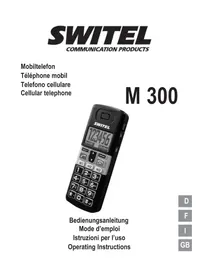
COMMUNICATION PRODUCTS
Mobiltelefon
Téléphone mobil
Telefono cellulare
Cellular telephone
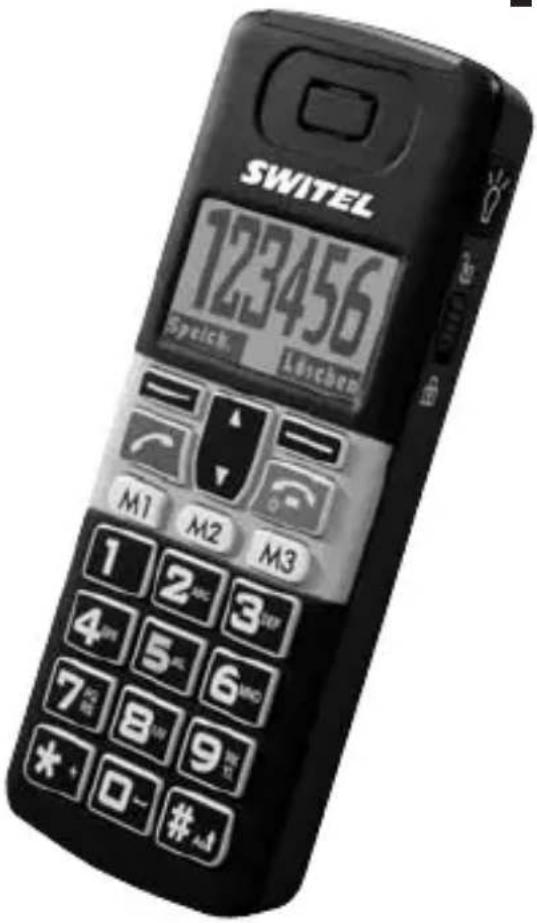
M 300
text_image
SWITEL 123456 Speich, Löschen M1 M2 M3 1 2 3 4 5 6 7 8 9 * 0 - #A#
Bedienungsanleitung
Mode d'emploi
Operating Instructions
Wichtiger Hinweis
natural_image
Diagram of a smartphone showing internal components and an arrow indicating a location (no text or symbols present)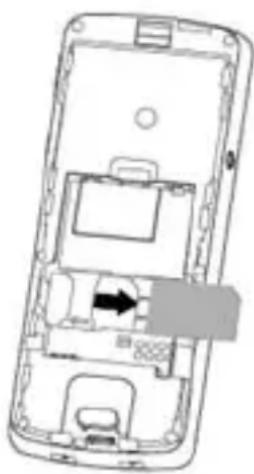
natural_image
Interior view of a smartphone showing internal compartments and a highlighted device (no text or symbols visible)natural_image
Diagram of a smartphone showing internal components and an arrow indicating a specific area (no text or symbols present)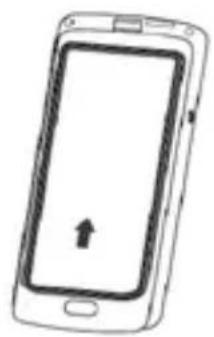
natural_image
Line drawing of a smartphone with an upward arrow on the screen (no text or symbols)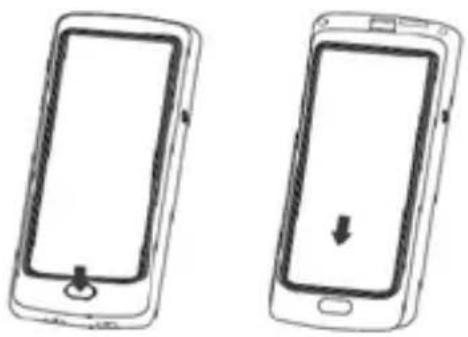
natural_image
Two smartphone diagrams showing front and side views with a downward arrow indicating a change (no text or symbols present)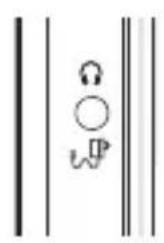
natural_image
Pure electrical circuit lines without any symbolsnatural_image
Diagram of a smartphone showing internal compartments and a black arrow pointing to one compartment (no text or symbols present)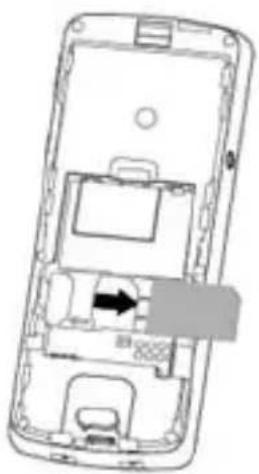
natural_image
Diagram of a smartphone showing internal components and a directional arrow (no text or symbols)natural_image
Diagram of a smartphone showing internal components and an arrow indicating a specific area (no text or symbols present)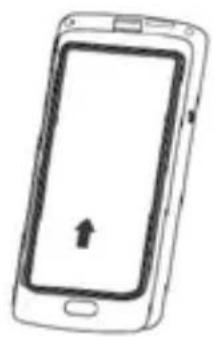
natural_image
Line drawing of a smartphone with an upward arrow on the screen (no text or symbols)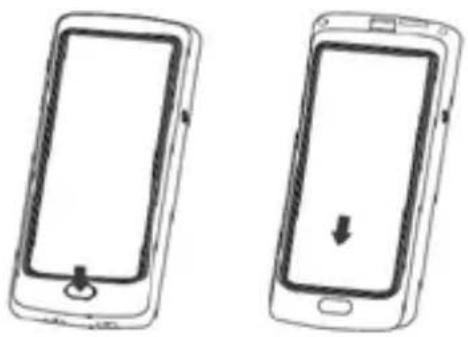
natural_image
Two smartphone diagrams showing front and side views with a downward arrow indicating a change (no text or symbols present)Recharger la pile rechargeable
Mémoire occupée .....13
Mode muet .....12
Pile rechargeable .....4, 5, 6
Prendre un appel .....12
Profils sonores .....21
natural_image
Diagram of a smartphone showing internal components and an arrow indicating a location (no text or symbols present)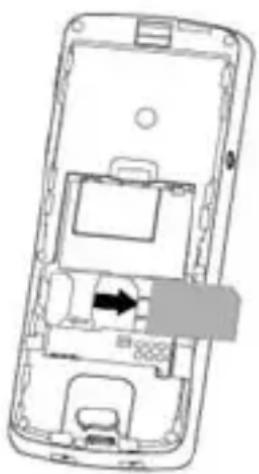
natural_image
Diagram of a smartphone interior showing internal compartments and a highlighted device (no text or symbols)natural_image
Pure electrical circuit lines without any symbolstext_image
Diagram of a device panel with labeled components including a light bulb, lock, and lock switchYour telephone is delivered without any SIM card. You need a SIM card to use the phone regularly.
Starting up the phone
After having inserted the SIM card press the End Call Key for approx. 3 s. If necessary enter the PIN1 ("SIM PIN" or "Provider PIN" / you got the SIM PIN together with your SIM card from your provider) and press Select. The phone will go to idle state.
Press Menu, select Settings, Clock settings, Date and Time and confirm each with pressing Select. Enter the time, press OK, enter the date, press OK, select the time zone (Switzerland = GMT+1) and press Select. Press the End Call Key 📞 briefly - the phone will go to idle state.
Emergency call without SIM card
Generally you can make an Emergency Call without any SIM card installed. If the phone is not on, switch it on. Check for adequate signal strength.
Key in the emergency number and press the call key. “Emergency call” is shown and the connection will be established.
When making an emergency call, remember to give all the necessary information as accurately as possible. Remember that your wireless phone may be the only means of communication at the scene of an accident - do not cut off the call until given permission to do so.
1 Safety Information ....2
Intended use, Areas of use, General information, Power adapter plug, Rechargeable batteries, Disposal
2 Preparing the Telephone ....5
Safety information, Checking the package contents, Installing the SIM card and the battery, Charging the battery, Connecting a headset, Key Functions, Icons in the handset display
3 Using the phone ....10
General, Switching the mobile phone off and on, Key lock, Using the torch, Telephoning, Phone Book, Call list, SMS
4 Settings 20
Phone settings, Clock settings, Network settings, Call settings, Sound profiles, Alarm clock, Permanent torch
5 Appendix ....23
In case of problems, Maintenance, Guarantee
1 Safety Information
Please read this operating instruction manual thoroughly.
Intended use
This telephone is designed for use when connected to a mobile phone network. Any other use is considered unintended use. Unauthorised modification or reconstruction is not permitted. Under no circumstances open the device or complete any repair work yourself.
Areas of use
- Do not use the phone in prohibited areas.
- Switch the phone off in the vicinity of medical equipment (e.g. in hospitals).
- Do not use the phone in petrol stations or near fuels and chemicals.
- Inquire by the airline company whether mobile phones may be used before using the phone in aircraft.
General information
- Prevent exposure to smoke, dust, vibration, chemicals, moisture, heat and direct sunlight. The phone is not waterproof; therefore, keep it dry.
- Only use original accessories and batteries. Never attempt to connect other products.
- If you want to connect the phone to another device, read the manual supplied with that device with regard to any detailed safety information. Never attempt to connect incompatible products.
- Repairs to this device may only be completed by qualified service personnel.
- All mobile communication equipment is subject to interference which may impair its performance.
- Keep the phone and accessories out of the reach of children. The SIM card can be removed.
⚠ Caution! Small children can swallow them.
- The ringing tone is issued via the loudspeaker. Take an incoming call first and then hold the phone to your ear. This prevents any possible hearing damage.
- Only use the phone while driving or riding a transport vehicle in road traffic when using the approved hands-free equipment and appropriately positioned holders. Ensure that no safety-related functions are interfered with when operating the phone. It is essential to observe the applicable laws and national regulations.
- Always maintain a distance of at least 20 cm to implanted heart pacemakers to prevent any possible interference. If you have had a pacemaker implanted, do not carry the phone in a breast pocket when switched on. Always hold the phone to the ear furthest away from the pacemaker during calls.
Switch the phone off immediately if you notice or suspect any adverse effects.
- This phone is hearing aid compatible. If you wear a hearing aid, however, please contact your doctor or the hearing aid manufacturer to inquire about any possible impairments through mobile communication equipment.
- Do not rely on the mobile phone as a safeguard for emergencies. For a variety of technical reasons, it is not possible to guarantee a reliable connection under all circumstances.
Power adapter plug
⚠ Attention: Only use the power adapter plug supplied because other power supplies could damage the telephone. Ensure access to the power adapter plug is not obstructed by furniture or such.
Rechargeable batteries
⚠️ Achtung: Never throw batteries into a fire. Only use the batterie delivered with the phone or batteries of the same type.
Disposal
In order to dispose of your device, take it to a collection point provided by your local public waste authorities (e.g. recycling centre). The adjacent symbol indicates that the device must not be disposed of in normal domestic waste!
According to laws on the disposal of electronic and electrical devices, owners are obliged to dispose of old electronic and electrical devices in a separate waste container.
Batteries must be disposed of at the point of sale or at the appropriate collection points provided by the public waste authorities.
Packaging materials must be disposed of according to local regulations.



2 Preparing the Telephone
Safety information
⚠ Attention: It is essential to read the Safety Information in Chapter 1 before starting up.
Checking the package contents
The package contains:
• 1 mobile phone M300 • 1 power adapter plug
• 1 cover with notepad • 1 Li-ion battery
• 1 operating manual
Keep the packaging material for later use.
Please note that the phone is delivered with a protection film on the lens area that should be removed before use.
Installing the SIM card and the battery
Before using the phone for the first time you have to insert a SIM card. The SIM card and its contacts can easily be damaged by scratches or bending, so be careful when handling. Keep all miniature SIM cards out of small children's reach.
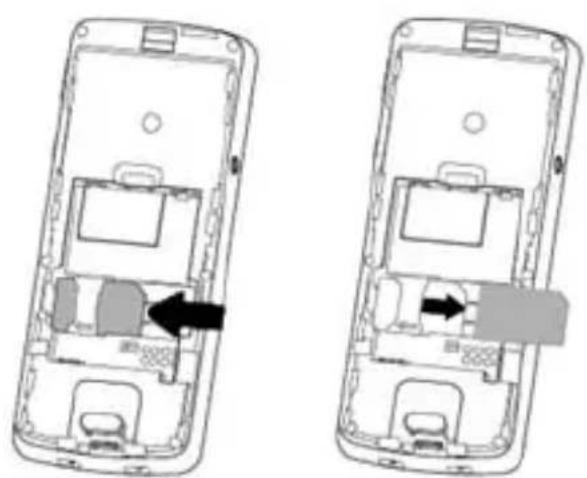
Slide the SIM card with the golden contacts facing down in the moulded SIM card holder. Make sure the right position of the bevelled corner! For taking the SIM card out pull it as shown from underneath the holder.
natural_image
Two views of a smartphone showing internal components and a close-up of the interior (no text or symbols visible)GB
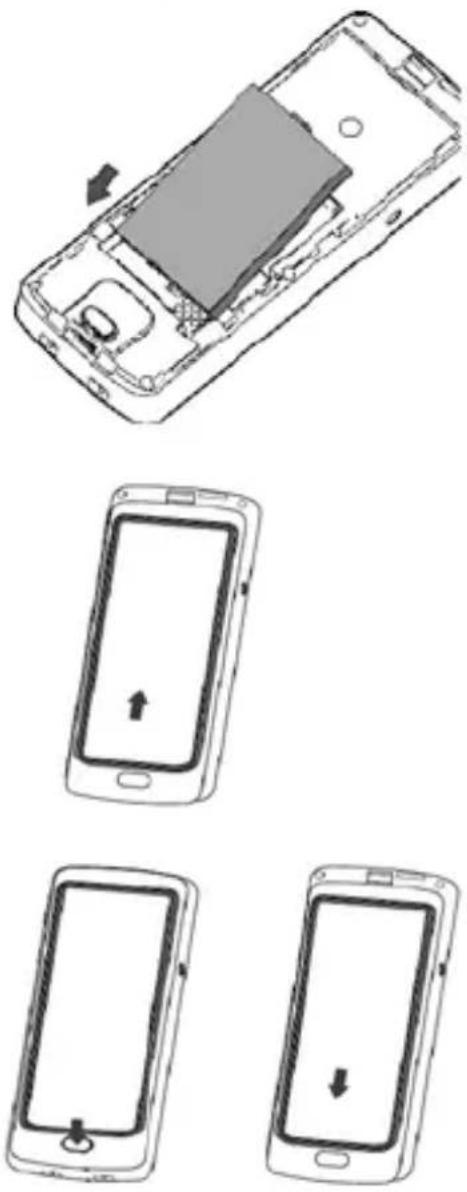
Align the gold-coloured connectors on the battery with the corresponding connectors on the phone, and push the opposite end of the battery until it snaps into the right place.
Remove the index memory card and note the telephone numbers stored to the one touch dialling buttons, your own telephone number and the person's telephone number to be called in case of an emergency. Replace the index memory card again.
Replace the back cover by placing it flat on the back of the handset and sliding up until it clicks into place. Make sure the cover fits correctly.
For later removing the back cover push in the button at the bottom of the back cover and slide the cover down.
natural_image
Diagram showing a smartphone with internal components and three views of the phone's front panel (no text or symbols present)Charging the battery
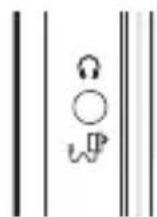
Connect the charger lead firmly into the socket on the left side of the handset. Plug the charger into an AC mains socket. The battery indicator bar scrolls and a symbol is displayed. The first charging of the battery may take up to 15 hours. If the battery is fully charged, disconnect the charger from the phone and the AC outlet.
Connecting a headset (not supplied)
The connector must be a 2.5mm 3-pole jack plug that inserts in the Power/Headset socket on the left side of the handset.
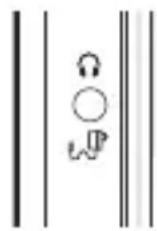
⚠ Attention: Only use compatible headsets. Ask your dealer for this. When connecting a headset, pay special attention to volume levels to avoid affection to your hearing ability. If a headset is connected appears in the display.
Key Functions
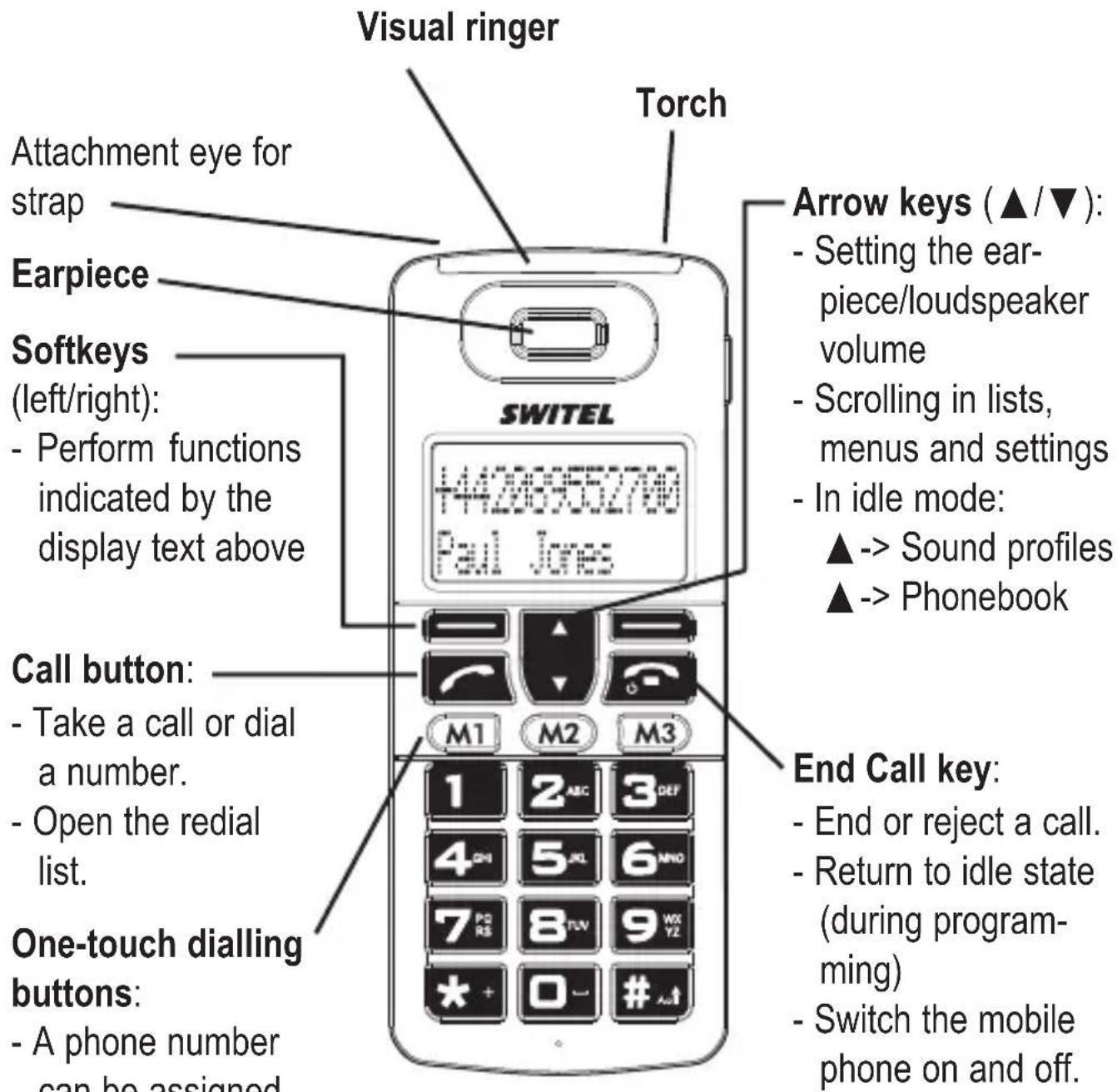
text_image
Visual ringer Torch Attachment eye for strap Earpiece Softkeys (left/right): - Perform functions indicated by the display text above Call button: - Take a call or dial a number. - Open the redial list. One-touch dialling buttons: - A phone number can be assigned Arrow keys (▲/▼): - Setting the ear-piece/loudspeaker volume - Scrolling in lists, menus and settings - In idle mode: ▲-> Sound profiles ▲-> Phonebook SWITEL +42869552700 Paul Jones M1 M2 M3 1 2 ABC 3 DEF 4 OHI 5 XL 6 NNO 7 PGRS 8 FUV 9 WIX YZ * + 0 - # ↑ End Call key: - End or reject a call. - Return to idle state (during programming) - Switch the mobile phone on and off.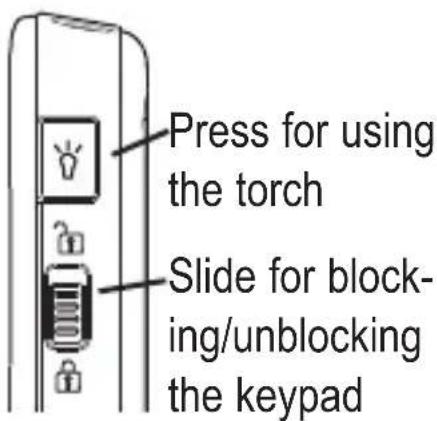
text_image
Press for using the torch Slide for block- ing/unblocking the keypad⚠ Warning: The torch uses a high-brightness LED and you should not point the beam directly into eyes, or view with optical instruments.
Icons in the handset display
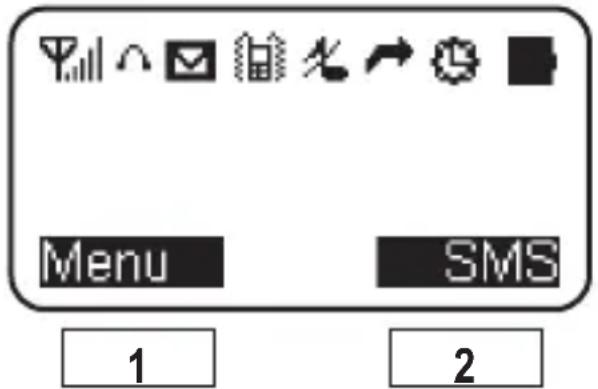
text_image
Menu SMS 1 21 - Left softkey in idle state: opens the main menu.
2 - Right softkey in idle state: opens the SMS menu.
The softkeys change to different functions in other modes.

Signal strength of the phone connection.

Battery indication: Charge the phone if battery nearly empty is shown.
The icon flashes during charging of the battery.

Call diversion is activated.

Alarm is activated

No call alert / silent is activated.

A headset is connected (not supplied).

A new SMS message has been received.

The key lock function is activated.

Vibration alert is activated.

There are new calls in the call list.

Hands-free is activated.

The microphone is deactivated (muted).
GB
3 Using the phone
General
Menu lists are used for set up and operation. After having pressed the softkey Menu, the softkeys will change their function (left: Select, right: Back).
Use the arrow keys ▲/▼ to scroll through menus and lists (e. g. phonebook).
Press Back or Select, to get to the next or previous step.
When writing text (e.g. phonebook or SMS) use 📄 switch cases (upper case: ABC, title case: Abc, lower case: abc or numerals: 123).
Use the arrow keys ▲/▼ to move the cursor and Delete to delete characters.
Switching the mobile phone off and on
Switch off: Press and hold down the End Call Key, until the Switel sign appears in the display. After a short time the display gets dark.
Switch on: Press and hold down the End Call Key 📄 until the display is illuminated.
Key lock
Activate: Slide the switch on the right hand side of the phone to the lower position 🔒 appears in the display. You can furthermore take and reject calls. During a call the lock is deactivated.
Deactivate: Slide the switch in the upper position again
Using the torch
Press and hold down the switch marked with ⚙️
You can also set the torch to permanent "on" (Menu -> Permanent torch -> On).
⚠ Warning: The torch uses a high-brightness LED and you should not point the beam directly into eyes, or view with optical instruments. Please note that this feature requires much energy and so the standby time for the phone will significantly decrease.
Telephoning
The phone has to be in idle state.
Dialling a telephone number and making a call

Key in the phone number including the area code. To make international phone calls: Add a "+" by pressing twice, and add the country (or region) code in front of the area code (delete the leading 0 if necessary).

Press the call key to dial the telephone number.

For ending the call press the End Call button.
Making a call using the direct keys
Press one of the direct keys M1 - M3. The relevant number saved to this key will be dialled. For saving a number to a direct key refer to “Saving a phonebook entry to a direct key”.
Making a call using the redial function
Press the call key in idle state. The last 10 dialled telephone numbers will be displayed. Select an entry using ▲/▼.
Press the call key to dial the telephone number.
Taking a call
If your telephone is ringing press the call key.
or Press Silent, to disable the ringer for this call. Nevertheless you can take this call as long as the caller didn't hang up.
or Press Reject, to reject this call. The caller will hear the busy tone (if supported by your provider).
Setting the receiver volume

The volume can be adjusted during a call. The setting will be saved.
Activating hands-free
During a call: Press Options, select Speakerphone and press Select. The loudspeaker will be switched on and appears in the display.
Press the End Call Key to cut off the connection.
or If you only want to switch off the loudspeaker and continue the call in "normal" mode press Options, select Speakerphone off and press Select.
Muting the microphone in the handset
Durin a call press Options, select Mute and press Select. The microphone is muted and appears on the display.
For unmuting the microphone press Options, select Unmute and press Select.
Setting up a 3-party conference
"3-party" is a network feature to talk to multiple subscribers simultaneously (check with your service provider).
- Call the first subscriber.
- Press Hold, to put this call "on hold".
-
Call the second subscriber.
-
When the second subscriber answers, press Options and select Conference, to activate 3-party conference.
Note: You can switch from one subscriber to the other and talk to each one separately using Swap.
Phone Book
You can save names and telephone numbers in the phone (up to 250 entries) and on the SIM card.
Opening the phone book
In idle state press ▼.
or During a call press Options, select Main menu -> Phonebook.
Note: entries on the SIM card phone book are marked with entries in the phone are marked with
Checking used space
For checking how many entries are already made press Menu -> Phonebook -> Used space. You will get information about the available memory in the phone as well as on the SIM card.
Creating a new entry

Press ▼ to open the phone book.
Press Options, select New and press Select. Select whether the entry should be saved in the phone or on the SIM card.

Enter the name and press Next.

Enter the telephone number and press Save.
Dialling numbers from the phone book

Press ▼ to open the phone book.

Select an entry using the arrow keys or enter the first character of the entry.

Press the call key to dial the telephone number.
Editing an entry

Press ▼ to open the phone book.

Select an entry and press Options, select Edit and press Select.

Edit the entry and press Save.
Viewing an entry

Press ▼ to open the phone book.

Select an entry and press Options, select Details and press Select.
Deleting an entry

Press ▼ to open the phone book.

Select an entry and press Options, select Delete and press Select.
Deleting all entries
Press Menu -> Phonebook -> Delete all. Select whether the entries in the phone or on the SIM card will be deleted and confirm.
Copying all entries
Press Menu -> Phonebook -> Copy all. Select whether the entries in the phone should be copied to the SIM card or vice-versa and confirm.
Saving a phonebook entry to a direct key

Press ▼ to open the phone book.

Select an entry, press Options, select Set to fast key and press Select.

Enter the password (in delivery state 0 0 0 0) and press OK.

Select a direct key M1, M2 or M3 and press Select.
Call list
New entries in the call list are marked with ⚠A new missed call will be displayed ("Missed Call") as long as you did not press Select (showing the call) or Cancel.
Viewing the call list
Press Menu, select Call log and press Select. Use ▲/▼ to select Received calls, Dialled calls or Missed calls. Select Call duration to show the duration of the latest call.
or The phone is in idle state:
Press the call key to show the received calls, the dialled calls and the missed calls.
GB
Note: If you select an entry and press Options you have the following options:
- Details: You get more details to this entry.
- Call: The telephone number is dialled.
- Edit before call: You can edit the telephone number before dialling.
- Send message: You can send a message to this telephone number.
- Save: The telephone number is stored in the phonebook.
- Delete: The entry will be deleted.
- Delete all: The entire list will be deleted.
SMS
You can send and receive text messages (SMS/Short Message Service). Received messages are stored internal in the phone (up to 100) or on the SIM card.
Unread messages are stored in the inbox and marked with ☒ After having received a new message “New message” will be displayed as long as you did not press Select (showing the message) or Cancel.
The SMS menu
After pressing SMS you have the following options:
- New: You can write a new SMS.
- Inbox: Opens the inbox (received SMS).
- Outbox: Opens the outbox (sent SMS).
- Draftbox: Access to the draftbox.
- MSG settings: Access to various settings.
- Used space: Displays the internal memory space (phone) and SIM card.
- Delete all: All SMS will be deleted.
Writing and sending a SMS
Press SMS, select New and press Select. Write your SMS using the keypad. For further information on entering text refer to "Using the phone/General".
Enter the text, press Options, select Send and press Select.
Enter the recipient's telephone number and press Select.

or
Select a number from the phonebook. Press Contacts, select an entry and press Select.
The sending state is displayed.
Note: If you do not want to send your message now but storing it for further editing, select Save to draft. If you want a copy of the sent message saved in the outbox, select Send and save.
If sending failed the message will again be shown in editing mode.
Reading messages
Press SMS, select Inbox and press Select. Select an entry using ▲/▼ . Press Select, to view this message.

You can read the text as well as the receiving date and time of the message.
After pressing Options select from the following:
- Delete: You can delete the message.
- Reply: You can send a reply to the sender of the message..
- Forward: You can edit the message and send it to a different telephone number.
- Call sender: You can directly call the message's sender.
- Extract No.: You can store the telephone number to the phon-book.
Checking the outbox, the draftbox and the used space
Press SMS, select an entry and press Select.
Deleting all SMS
Press SMS, select Delete all and press Select.
Select from the following:
- Cancel all, to delete all messages.
- Delete inbox, to delete messages in the inbox.
- Delete outbox, to delete messages in the outbox.
- Delete draftbox, to delete messages in the draftbox.
SMS settings
Press SMS, select Msg settings and press Select.
Select from the following:
- Message center, to enter the telephone number for the message center.
Note: Your phone reads the service number from the SIM card. If it has been accidentally changed, you'll need to get the correct number and reprogram it.
- Message validity: You can set the length of time that your text messages are stored at the message centre (network service) / check with your service provider.
- Status report: You can request the network to send delivery reports on your text messages (network service - check with your service provider)
- Reply path: To set whether the reply path on / check with your service provider.
4 Settings
You are able to adjust various settings on the phone, and also to reset them to their factory default values.
Press Menu, select Settings and press Select. You have the following options:
Phone settings
- Language: You can set the display language.
- Display settings: You can set the contrast, the back light and some characteristics of the idle display.
- Security settings: You can set the phone to request the PIN code of your SIM card every time the phone is switched on. To enter this function you need the PIN code (Note: some SIM cards don't allow it turned off)
⚠ Attention: if you enter an incorrect PIN three times the SIM card is blocked, and you must enter the PUK number or contact your service provider, to unblock it and set a new PIN code.
PIN and PUK numbers come with your SIM card.
- Factory reset: You can reset the phone to delivery state. For this, you have to enter the password (in delivery state 1 2 3 4).
Clock settings
- Date and Time: You can set date and time.
- Date format: You can set the date format (DD/MM/YYYY or MM/DD/YYYY).
-
Time format: You can set the time format (12 hours or 24 hours).
-
Clock type: You can select the clock type shown in the idle display (analog or digital).
- World time: You can set a second time zone.
Network settings (check with your service provider)
- Call waiting: When activated you can take a second call during a current call using the call key ▼the first call is put on hold.
- Diverts: You can set different call diversions.
- Call barring: You can restrict making and receiving calls.
- Network select: You can select a different network.
Call settings
- Auto redial: To set your phone to make up to ten attempts to connect the call after an unsuccessful call attempt (check with your service provider).
- Anykey answer: When activated you can take an incoming call by pressing any key.
- Send own number: You can set sending own number on, off or by network default (check with your service provider).
Sound profiles
Five sound profiles for quick changing are preset in your phone. You can modify the settings for General, Meeting, Outdoor, Silent and Customize. Select an entry and edit the settings for ringtone, message tone, call alert, ringtone volume, keytone volume, vibrator and alarm tone and rename the profile.
Alarm clock
You can set up to three different alarms to sound at the time you want just once, or repeatedly, for example every working day.
When alarm sounds, you can stop the alarm by pressing Cancel. If you press Snooze, the alarm stops and rings again in five minutes.
Setting an alarm time
Press Menu, select Alarm clock and press Select.
Select Alarm 1, Alarm 2 or Alarm 3 and press Select.
Select ON or OFF and press Select.
After having selected ON enter the desired alarm time and press OK.
Select One shot alarm or Weekly alarm. Select the respective days using the call key 📄
When an alarm is activated appears in the idle display.
Permanent torch
You can set the torch function to a permanent torch.
Please note that this feature requires much energy and so the standby time for the phone will significantly decrease.
Press Menu, select Permanent torch and press Select.
5 Appendix
In case of problems
Should problems arise with the phone, please refer to the following information first. In the case of technical problems, you can contact our hotline service, Tel. 0900 00 1675 within Switzerland (cost via Swisscom at time of going to print: CHF 2.60/min). In the case of claims under the terms of guarantee, please contact your sales outlet. There is a 2 year period of guarantee.
| “Call failed” appears | Check dialled number is correct, with full area code |
| SIM card fitted – only makes emergency call | Some SIM cards are thinner than others. Lightly press the SIM card holder to ensure a proper contact is made. |
| The mobile phone display is blank (screen off) | The phone is in energy saving mode and the display has switched off (Note: You can still receive calls).Press any key and the display will switch back on.The phone is switched off. Press Power On/Off for 3 seconds to switch it on again. |
| Phoning outside your own country | If you are away from your network provider, your phone may link with another GSM network.Contact your network provider for additional costs incurred using the phone abroad. |
| Can an emergency call be made without a signal or credit? | You cannot make a call if the phone has no signal. If your display says Limited Service or SOS, the phone cannot receive a signal from your network, or has run out of credit, so can only call the emergency number. |
GB
| You can call the emergency number if there is no credit on your phone. | |
| How can reception be improved? | If the signal is weak, try another location to make or continue with a call, e.g. when indoors move towards a window. Reception is often poor in elevators, tunnels or underground railways and car parks. |
| Can I suppress / withhold my telephone number? | If you want withhold your phone telephone number, use the main menu under Call settings/ Send own number. (This network service may not be available) |
| On displayed, unit does not respond. | Slide the switch on the right hand side of the phone upwards in the direction of the “open lock” symbol 🔒. |
| What is the SMS service centre number? | A number for the short message service usually stored on the SIM card by the operator and should not need to be entered or changed. |
| When do I start to incur call charges? | Charges start when a call connects to a person or an answering machine. There is no charge for writing or receiving an SMS, only when sending an SMS, and none for using phone features e.g. alarm clock. |
| Did I successfully send my SMS? | If your SMS is in the SMS Outbox then it was OK, or you can get confirmation after the SMS is delivered – contact your operator for details. |
Maintenance
Clean the housing surfaces with a soft, fluff-free cloth.
Do not use any cleaning agents or solvents.
Guarantee
SWITEL equipment is produced and tested according to the latest production methods. The implementation of carefully chosen materials and highly developed technologies ensure trouble-free functioning and a long service life. The terms of guarantee do not apply where the cause of equipment malfunction is the fault of the telephone network operator or any interposed private branch extension system. The terms of guarantee do not apply to the batteries or power packs used in the products. The period of guarantee is 24 months from the date of purchase.
All deficiencies related to material or manufacturing errors within the period of guarantee will be redressed free of charge. Rights to claims under the terms of guarantee are annulled following tampering by the purchaser or third parties. Damage caused as the result of improper handling or operation, normal wear and tear, incorrect positioning or storage, improper connection or installation or Acts of God and other external influences are excluded from the terms of guarantee. In the case of complaints, we reserve the right to repair defect parts, replace them or replace the entire device. Replaced parts or devices become our property. Rights to compensation in the case of damage are excluded where there is no evidence of intent or gross negligence by the manufacturer.
If your device shows signs of defect during the period of guarantee, please return it to the sales outlet in which you purchased the SWITEL device together with the purchase receipt. All claims under the terms of guarantee in accordance with this agreement can only be asserted at the sales outlet.
No claims under the terms of guarantee can be asserted after a period of two years from the date of purchase and hand-over of the product.
Index
A
Alarm clock .....22
Anykey answer .....21
Areas of use .....2
Auto redial .....21
C
Call barring .....21
Call list .....15
Call settings .....21
Call waiting .....21
Clock settings .....20
Clock type .....21
Conference .....13
Copying all entries .....15
Creating a new entry .....14
D
Date and Time .....20
Date format .....20
Deleting all entries .....15
Deleting all SMS .....18
Dialling a telephone number . . .11
Direct keys .....11
Display settings .....20
Disposal 4
Diverts .....21
E
Editing an entry .....14
F
Factory reset .....20
G
Guarantee .....25
H
Hands-free .....12
Headset 7
|
Icons 9
In case of problems .....23
Intended use .....2
K
Key Functions .....8
Key lock 10
L
Language 20
M
Maintenance .....24
Making a call .....11
Muting the microphone .....12
N
Network select .....21
Network settings .....21
P
Package contents .....5
Phone Book .....13
Phone settings .....20
Power adapter plug ....4
R
Reading messages .....18
Receiver volume .....12
Rechargeable battery .....4, 5, 6
Redial 11
S
Safety Information .....2
Security settings .....20
Send own number .....21
Setting an alarm time .....22
SIM card ....5
SMS 16
Sound profiles .....21
Space 13
Switching the mobile phone off and on....10
T
Taking a call 12
Time format .....20
Torch 11,22
U
Using the phone .....10
W
World time .....21
Writing and sending a SMS . . .17
SWITEL Declaration of conformity
This equipment complies with the European R&TTE directive. To view the complete Declaration of Conformity, please refer to the free download available at our web site: www.switel.com.
Service Hotline
In the event of technical problems, you can contact our hotline service, Tel. 0900 00 1675 within Switzerland (cost via Swisscom at time of going to print: CHF 2.60/min).