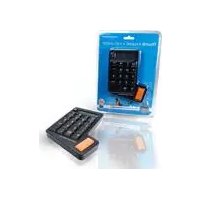
CNUMCALT - Keyboard CONCEPTRONIC - Free user manual and instructions
Find the device manual for free CNUMCALT CONCEPTRONIC in PDF.


| Product Type | Numeric Keyboard with Calculator |
| Brand | Conceptronic |
| Model | CNUMCALT |
| Dimensions (approx.) | 8.5 x 14 x 2.5 cm |
| Weight (approx.) | 150 g |
| Power Supply | Included CR2032 battery (standalone) or USB (connected) |
| Connectivity | USB Mini-B (cable included) |
| Operating Modes | Calculator (CAL), Numeric Keypad (LOCK PC), Shortcut Keys (PC) |
| Special Functions | Square root, percentage, send value to computer, copy/paste shortcuts, etc. |
| Display | LCD Screen |
| Box Contents | Numeric keypad, CR2032 battery, USB Mini-B cable, multilingual user guide |
| Care and Cleaning | Wipe with a soft, dry cloth. Do not use chemical products. |
| Safety | Do not expose to water or moisture. Avoid shocks. |
| Spare Parts and Repairability | Replaceable CR2032 battery. Repairs by technical service (support@concepttronic.net). |
| System Compatibility | Windows, macOS, Linux (automatically recognized) |
| Standalone Power | Operates approximately 6 minutes 30 seconds without use before auto shut-off |
| Warranty | Standard manufacturer warranty (according to retailer) |
| Use Without Computer | Possible in calculator mode only, without send function |
Frequently Asked Questions - CNUMCALT CONCEPTRONIC
User questions about CNUMCALT CONCEPTRONIC
0 question about this device. Answer the ones you know or ask your own.
Ask a new question about this device
Download the instructions for your Keyboard in PDF format for free! Find your manual CNUMCALT - CONCEPTRONIC and take your electronic device back in hand. On this page are published all the documents necessary for the use of your device. CNUMCALT by CONCEPTRONIC.
USER MANUAL CNUMCALT CONCEPTRONIC
![graph TD A["Num Lock"] --> B["POCul"] B --> C["Cut"] C --> D["Copy"] D --> E["Paste"] F["Home"] --> G["Inh"] G --> H["PgUp"] H --> I["%"] J["End"] --> K["Unoo"] K --> L["PdDn"] L --> M["="] N["Iris"] --> O["Unoo"] O --> P["Del"]](/content/2026/02/354068/images/8aea2075e3d1ba3e0899c52aa61e13a13ac1523719c58b35d7740cdfb8b652e8.jpg)
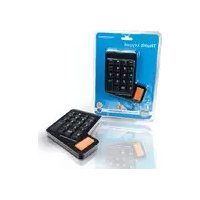
Congratulations on the purchase of your Conceptronic Numeric Keypad with Calculator.
This User Guide gives you a step-by-step explanation of how to use the Conceptronic Numeric Keypad with Calculator.
When problems occur, we advise you to go to our support-site (go to www.conceptronic.net and click 'Support'. Here you will find the Frequently Asked Questions Database.
When you have other questions about your product and you cannot find it at our website, then contact us by e-mail: support@conceptronic.net
For more information about Conceptronic products, please visit the Conceptronic Web Site: www.conceptronic.net
1. Package contents
The following items are present in the package of the Conceptronic Numeric Keypad with Calculator:
- Conceptronic Numeric Keypad with Calculator (Battery CR2032 included)
• USB to Mini-USB cable
• This Multilanguage User Guide
2. Connecting to a computer
The CNUMCALT can be used standalone or connected to a computer.
Use the included USB cable which comes with the CNUMCALT to connect to your computer.
- Insert the Mini-USB connector of the USB cable in the CNUMCALT.
- Insert the normal USB connector of the USB cable in a free USB port on your computer.
The CNUMCALT will be recognized and installed automatically.
After recognition and installation, the CNUMCALT is operating in calculator mode by default.
ENGLISH
3. User modes and layouts
When the CNUMCALT is connected to your computer, the device provides 3 different operation modes. The operation modes are indicated on the display of the CNUMCALT:
Operation Mode Indicated on the display as:
Calculator Mode CAL
Numeric Keypad Mode LOCK PC
Shortcut Keypad Mode PC
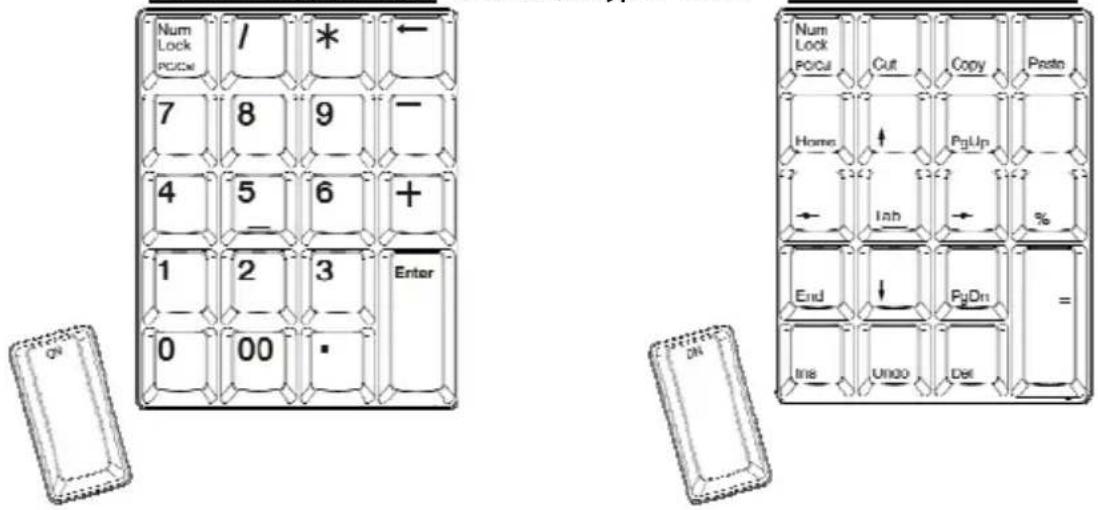
You can switch between the different operation modes with the "Num/Lock PC/Cal" button on the CNUMCALT. Each operation mode has a different layout for the keypad, which are shown below:
Calculator mode Alternative calculator mode
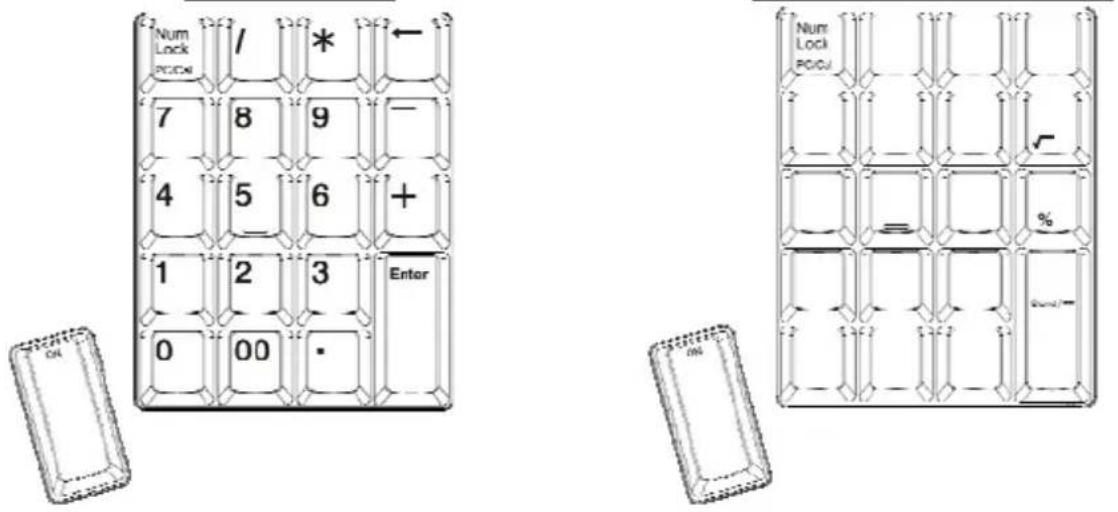
Numeric keypad mode Shortcut keypad mode
4. Using the CNUMCALT
4.1 Using the CNUMCALT in calculator mode
When the CNUMCALT is set to calculator mode (CAL), you can use the CNUMCALT as a regular calculator. If you press and hold the orange “On” / thumb key on the CNUMCALT, you can access the following special functions:

Use the square root function of the calculator.

Use the percentage function of the calculator.

Send the value on your calculator screen to your computer.
When using the “Send” function, you can send the value on the display to your computer, for example to your Excell sheet which is active on your screen.
Tip : The calculator mode can also be used standalone, without a computer connection. When using the calculator mode standalone, all features except the 'send' function will work.
When the CNUMCALT is used standalone, the battery in the device will provide the power. If the CNUMCALT is active and not used for about 6:30 minutes, it will automatically turn off.
4.2 Using the CNUMCALT in numeric keypad mode
When the CNUMCALT is set to numeric keypad mode (LOCK PC), you can use the CNUMCALT as a numeric keypad on your computer, with the numeric layout shown in chapter 3.
If you press and hold the orange "On" / thumb key on the CNUMCALT, you can access the shortcut layout of the CNUMCALT, which is printed in orange on the keys of the CNUMCALT. The shortcut layout can be found in chapter 3.
4.3 Using the CNUMCALT in shortcut keypad mode
When the CNUMCALT is set to shortcut keypad mode (PC), you can use the CNUMCALT as a shortcut keypad on your computer, with the shortcut layout shown in chapter 3.
If you press and hold the orange "On" /thumb key on the CNUMCALT, you can access the numeric layout of the CNUMCALT, which is printed in white on the keys of the CNUMCALT. The numeric layout can be found in chapter 3.
Enjoy the use of your Numeric Keypad with Calculator!
ESPAÑOL
CNUMCALT de Conceptronic
Guía de usuario


- CONGRATULATIONS ON THE PURCHASE OF YOUR CONCEPTRONIC NUMERIC KEYPAD WITH CALCULATOR
- PACKAGE CONTENTS
- CONNECTING TO A COMPUTER
- ENGLISH
- USER MODES AND LAYOUTS
- USING THE CNUMCALT
- 4.1 USING THE CNUMCALT IN CALCULATOR MODE
- 4.2 USING THE CNUMCALT IN NUMERIC KEYPAD MODE
- 4.3 USING THE CNUMCALT IN SHORTCUT KEYPAD MODE
- ENJOY THE USE OF YOUR NUMERIC KEYPAD WITH CALCULATOR
- ESPAÑOL
- CNUMCALT DE CONCEPTRONIC
- GUÍA DE USUARIO
Brand : CONCEPTRONIC
Model : CNUMCALT
Category : Keyboard