
TOBIN01B - Keyboard CONCEPTRONIC - Free user manual and instructions
Find the device manual for free TOBIN01B CONCEPTRONIC in PDF.


| Product Type | Wired Keyboard |
| Brand | Conceptronic |
| Model | TOBIN01B |
| Interface | USB Type-A |
| Key Layout | 104 keys (US layout) |
| Dimensions (L x W x H) | 440 x 140 x 25 mm |
| Cable Length | 1.5 m |
| Weight | 580 g |
| Power Source | USB bus-powered |
| Compatible Operating Systems | Windows, macOS, Linux |
| Multimedia Keys | Yes (12 shortcut keys) |
| Key Switch Type | Membrane |
| Backlight | No |
| Wrist Rest | No |
| Material | Plastic |
| Cleaning Instructions | Wipe with a soft, dry cloth |
| Safety Precautions | Avoid liquid contact; disconnect before cleaning |
| Spare Parts Availability | Not available separately |
| Repairability | Not designed for user repair |
| Package Contents | Keyboard, quick start guide |
| Warranty | 2 years |
| Certifications | CE, FCC |
Frequently Asked Questions - TOBIN01B CONCEPTRONIC
User questions about TOBIN01B CONCEPTRONIC
0 question about this device. Answer the ones you know or ask your own.
Ask a new question about this device
Download the instructions for your Keyboard in PDF format for free! Find your manual TOBIN01B - CONCEPTRONIC and take your electronic device back in hand. On this page are published all the documents necessary for the use of your device. TOBIN01B by CONCEPTRONIC.
USER MANUAL TOBIN01B CONCEPTRONIC
natural_image
Line drawing of a laptop keyboard layout with no text or symbols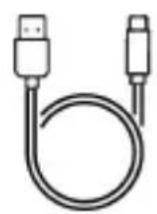

INSTALLATION
Installation | Instalación | Installation | Installazione | Telepítés | Instalacja Instalação

1

flowchart
graph LR
    A["Computer monitor"] --> B["Smartphone"]
    B --> C["Gear Icon"]
    C --> D["Bluetooth Bluetooth Icon"]
    D --> E["Bluetooth Keyboard"]
②
Device's operating system
2 / 3
①

②






③



Select device

SPECIFICATION
EN - Installation and usage
Power On
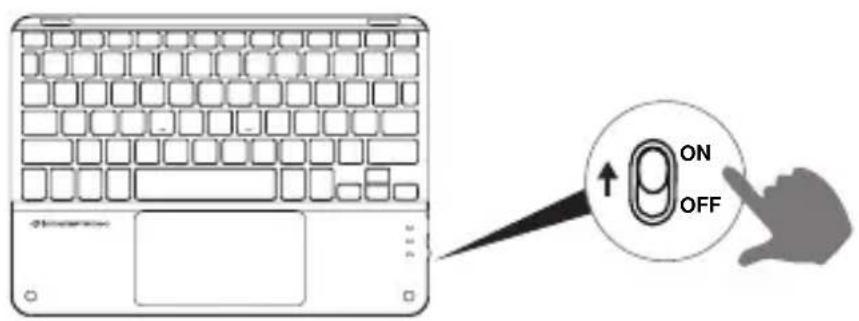
Turn on the keyboard by switching the toggle on the side of the keyboard to the "on" position.
First-Time Setup
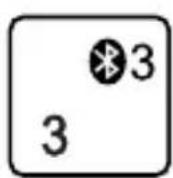
Pairing BT1:
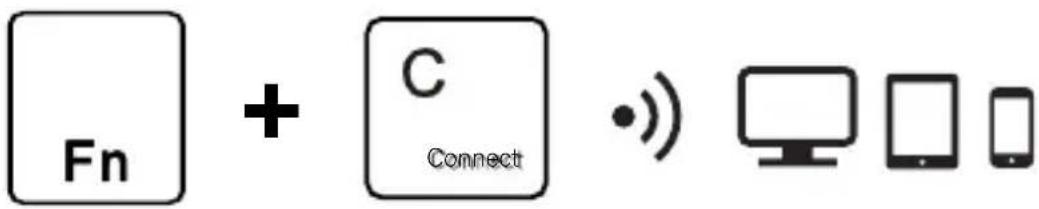
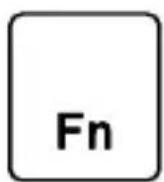
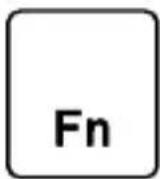
- Turn on the keyboard and press FN + C to start Bluetooth pairing. The Bluetooth indicator light will flash, and the default connection will be set to BT1.
- On your device, navigate to the Bluetooth settings and select "Bluetooth Keyboard" from the list of available devices to pair.
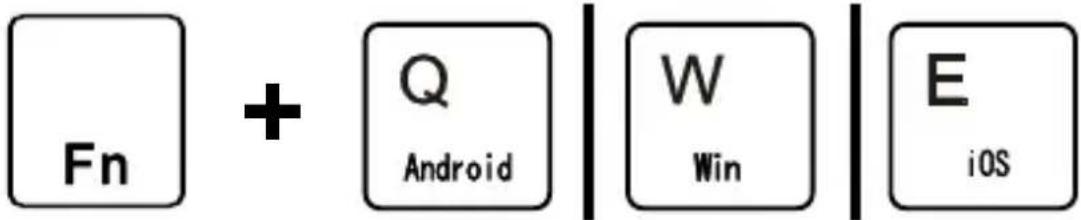
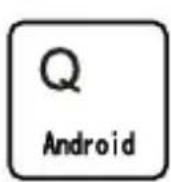
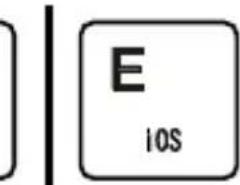
- Select the device's operating system by pressing: FN + Q for Android, FN + W for Windows, or FN + E for iOS.
Pairing BT2 or BT3:
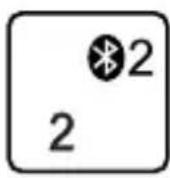
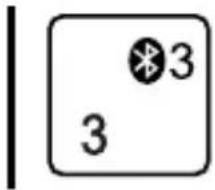
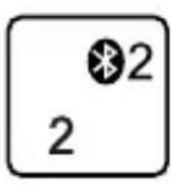
- Press FN + BT2 or FN + BT3, then press FN + C to start Bluetooth pairing. The Bluetooth indicator light will start flashing.
- On your device, navigate to the Bluetooth settings and select "Bluetooth Keyboard" from the list of available devices to pair.
- Once paired, select the device's operating system.
Switching Between Paired Devices
Once all three devices are paired, press FN + BT1, FN + BT2, or FN + BT3 to switch between devices.
Changing the Paired Device
To pair a new device, press FN + BT1, FN + BT2, or FN + BT3, then press FN + C to start pairing. Once paired, select the device's operating system.
Power-Saving Sleep Mode
The keyboard will automatically enter sleep mode after 15 minutes of inactivity. To wake the keyboard, simply press any key and wait for about 3 seconds. It will automatically reconnect to the Bluetooth device and resume normal operation.
Battery and Charging
Low Power: LED flashes when the battery is low.
Charging: Plug the included USB cable into the keyboard and a USB charger (not included). The LED will light up red while charging.
Fully Charged: The LED will turn blue when charging is complete.
Charging Tips: Charge only when the power light flashes. Ensure each charge lasts at least 2 hours for optimal battery performance.
When Not in Use: Switch off the keyboard to extend battery life.
Multimedia keys
Note: Multimedia keys vary depending on the operating system. Some keys may not respond on certain operating systems.
 | Back to home page | ▶II | Pause/Play |
 | Search | ▶▶I | Next track |
 | Select all | ◀- | Volume - |
 | Copy | ◀+ | Volume + |
 | Paste | ★- | Brightness - |
 | Screen capture | ★★+ | Brightness + |
 | Previous track | Lock screen |
Troubleshooting
- Verify that the keyboard is powered on.
- Ensure the keyboard is within the operable distance of the device.
- Check that the battery has sufficient power.
- Make sure the device's Bluetooth is turned on.
- Confirm that the Bluetooth keyboard is connected to the device's Bluetooth.
- Ensure the Bluetooth keyboard has paired successfully with the device.
Safety and warning instructions
- Keep the device away from water, humidity, fire or hot environments.
- Keep your device and all its parts and accessories out of the reach of small children.
■ Do not leave the packaging material lying around carelessly. This may become dangerous playing material for children.
■ Avoid dropping, throwing or crushing the device.
■ Do not open, change or damage the device.
■ Do not use a damaged USB charger or cable to charge the device. Using an improper charging method may result in fire or explosion.
■ Do not recharge batteries near a fire or in extremely hot conditions.
■ Observe signs and notices that prohibit or restrict the use of electronic devices.
■ Turn off your device in any location where instructed to do so.
■ Unplug all cables and turn your device off before cleaning.

Disposal of waste electrical equipment and batteries: Do not dispose of waste electrical equipment and batteries with household waste. Please hand them to your local recycling point. Batteries should be fully discharged when disposed of. Incorrect storage/disposal can harm the environment and/or cause injury.

CE marking: Conceptronic declares that this product complies with the directives listed in the section 'Declaration of Conformity'.
Radiation Exposure Statement:
This device has been evaluated and found to meet general RF exposure requirements. It can be used in portable exposure conditions without restriction. The device operates within the frequency range of 2402 - 2480 MHz, with a maximum output power (EIRP) of 3dBm.

- INSTALLATION
- / 3
- SPECIFICATION
- EN - Installation and usage
- Power On
- First-Time Setup
- Pairing BT1:
- Pairing BT2 or BT3:
- Switching Between Paired Devices
- Changing the Paired Device
- Power-Saving Sleep Mode
- Battery and Charging
- Multimedia keys
- Troubleshooting
- Safety and warning instructions
- Radiation Exposure Statement:
Brand : CONCEPTRONIC
Model : TOBIN01B
Category : Keyboard