EW3752 - Soundcard Ewent - Free user manual and instructions
Find the device manual for free EW3752 Ewent in PDF.



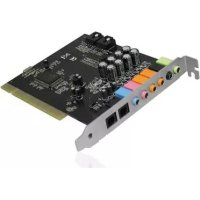
| Product Type | Internal PCI 7.1 Sound Card |
| Brand | Ewent |
| Model | EW3752 |
| Interface | PCI (white slot) |
| Audio Channels | 7.1 (up to 8 speakers) |
| Front Connectors | Front (green), rear (black), center/subwoofer (orange) |
| Input Connectors | Microphone (pink), line (blue), CD IN (4-pin), AUX (4-pin) |
| Optical Connectors | TOSLINK optical output, TOSLINK optical input |
| Software Features | Xear 3D: spatial effects, SPDIF control, speaker configuration |
| System Compatibility | Windows (XP, Vista, 7, 8, 10) - drivers included on CD |
| Power | Via PCI slot (no external power) |
| Estimated Dimensions | 12.5 x 6.5 x 1.5 cm |
| Estimated Weight | 50 g |
| Box Contents | Sound card, CD-ROM, user manual |
| Warranty | 5 years (according to Ewent conditions) |
| Maintenance | Regular dusting with compressed air; avoid humidity |
| Safety | Unplug the computer before installation; intervention by qualified personnel |
| Repairability | Spare parts not provided; repair by Ewent or authorized center |
| General Information | Manual available in multiple languages; technical support via online form |
Frequently Asked Questions - EW3752 Ewent
User questions about EW3752 Ewent
0 question about this device. Answer the ones you know or ask your own.
Ask a new question about this device
Download the instructions for your Soundcard in PDF format for free! Find your manual EW3752 - Ewent and take your electronic device back in hand. On this page are published all the documents necessary for the use of your device. EW3752 by Ewent.
USER MANUAL EW3752 Ewent
5.0 Service et support
Trademarks: all brand names are trademarks and/or registered trademarks of their respective holders.
The information contained in this document has been created with the utmost care. No legal rights can be derived from these contents. Eminent cannot be held responsible, nor liable for the information contained in this document.
Ewent is a member of the Eminent Group
CE
ewent
by eminent
Warnings and points of attention
Repairing of the product should be done by qualified Ewent staff!
Table of contents
1.0 Introduction 2
1.1 Functions and features 2
1.2 Packaging contents 3
1.3 Connections on the sound card 3
2.0 Installation procedure 3
2.1 Connecting the EW3752 4
2.2 Installing the drivers (Windows) 4
3.0Sound settings. 5
3.1 Windows settings 5
3.2 Using the software (Xear 3D) 5
4.0 Frequently asked questions 5
5.0 Service and support 6
6.0 Warranty conditions 6
7.0 Declaration of Conformity 7
1.0 Introduction
Congratulations with the purchase of this high-quality Ewent product! This product has undergone extensive testing by Ewent's technical experts. Should you experience any problems with this product, you are covered by a five-year Ewent warranty. Please keep this manual and the receipt in a safe place.
Register your product now on www.ewent-online.com and receive product updates!
1.1 Functions and features
The Ewent EW3752 PCI sound card is especially suited for playing and recording sound on your computer. The EW3752 is equipped with advanced techniques. Therefore, all your audio, music or the sound of your games, is of excellent quality. You can connect up to eight speakers for the ultimate sound experience. Even SPDIF/TOSLINK connections are available! Do you like gaming with surround sound? Then connect your digital receiver to the optical (TOSLINK) connection on the EW3752 to enjoy crystal clear digital sound.
1.2 Packaging contents
The following parts need to be present:
EW3752 PCI sound card 7.1
CD-ROM
- Manual
1.3 Connections on the sound card
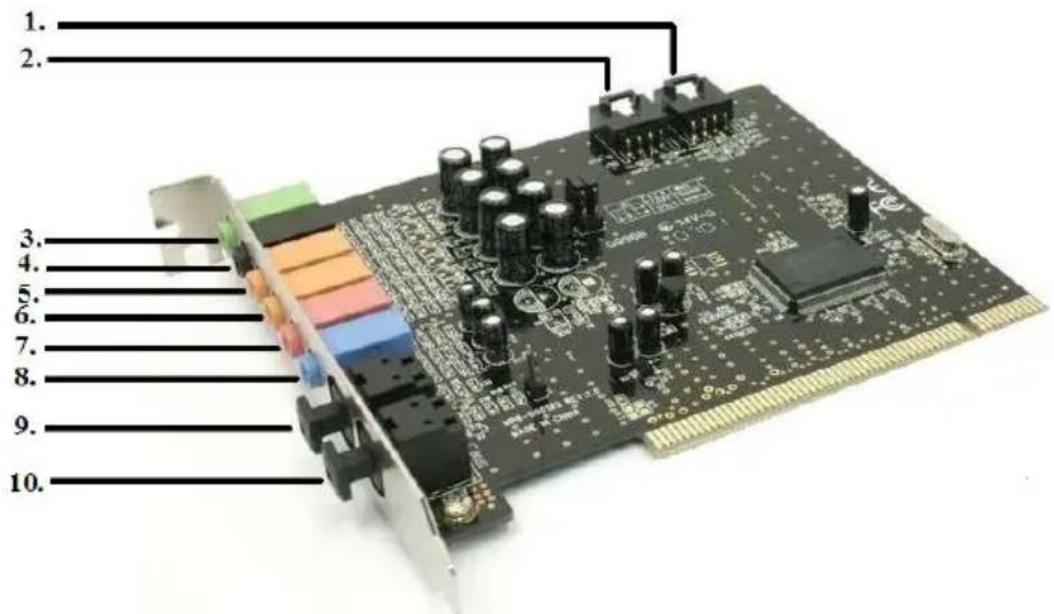
(1) CD IN connection (from sound card to your CD-ROM/DVD-player)
(2) AUX connection (for external audio devices)
(3) Front speaker
(4) Rear speaker
(5) Center speaker
(6) Subwoofer connection
(7) Connection for Microphone
(8) LINE connection
(9) Optical connection to connect your digital receiver
(10) Optical in
2.0 Installation procedure
The sound card can be installed using the steps below.
2.1 Connecting the EW3752
- Make sure the computer is turned off and the cables are disconnected from the computer.
- Using a Philips screwdriver you can remove the screws at the back of the casing in order to open the casing.
- Look for a free PCI slot (White slot on the main board).
- Place the sound card right above the PCI slot. Make sure the connections of the sound card align with the connections of the PCI slot.
- Now gently press the sound card into the PCI slot. You can feel the card 'click' into the PCI slot.
- Now fix the sound card into the casing by tighten a screw. Some casing do have a plastic clamp instead of using screws to fix a PCI card to the casing.
- Close the casing en tighten the screws at the back of the casing.
- Connect the cables and start the computer.
2.2 Installing the drivers (Windows)
Attention: When using Windows Vista and Windows 7: If your computer is up-to-date, the sound card may be installed automatically. If installed automatically, you can still install the software.
During the installation permission will be asked. Grant permission to install the drivers.
Hint: If the CD-Rom does not start automatically, you can also start the wizard manually:
- Click 'Start'
- Click 'Run'
- Type: 'x:\wizard.exe' where 'x' is the drive letter of your CD-ROM or DVD-station
-
Press the 'Enter' key
-
After the computer has been started, the 'Wizard new hardware' appears.
- Click 'cancel'.
- Insert the CD-ROM into the CR-ROM or DVD-player of your computer. The CD-ROM starts automatically.
- Select your language.
- Click 'Next'.
- Choose your operating system and click 'Next'.
- Follow the instructions shown on screen to install the drivers.
- Restart the computer to finish the software installation.
3.0 Sound settings
3.1 Windows settings
After the software has been installed and Windows has been restarted, a speaker icon appears in the taskbar.
- Click the speaker icon.
- The volume control appears on screen.
You can alter several sound settings at the volume control:
The balance: the balance can be controlled by sliding the bar from the left to the right and back.
The volume can be controlled by sliding the bar up and down.
To disable the sound, mark 'Mute'
- Click 'Options' and then 'Properties' to decide which audio devices are shown in the volume control screen.
3.2 Using the software (Year 3D)
- At the lower right part of the taskbar, an icon named 'Year 3D' is available. Using this software, you can alter multiple sound settings.
- Click the 'Year 3D' icon in the taskbar to open the program.
- At 'Manual.contr'. you can set which speaker configuration you are using. Choose '2' if you are using a two speaker stereo system. Choose '8' if you are using a 7.1 surround sound system.
- If you have a digital receiver connected to the sound card, then click 'SPDIF control' and choose the desired setting.
4.0 Frequently asked questions
Q: Windows does not recognize the sound card? What to do?
A: If the sound card is not recognized, there may be a hardware conflict. Insert the sound card into another PCI slot.
A: Check if there are Windows updates available for your computer.
Q: I do not hear any sound while the card is installed correctly.
A: Check whether the speakers are on and check whether the speakers are connected correctly. Are your speaker correctly connected and you do not hear any sound? Then check the volume control settings as described in chapter 3. Possibly the sound has been muted. If changing the settings does not help, there may be a conflict with other devices in your computer.
Q: Is it possible to create spatial effects?
A: By using the 'Year 3D' software, you can select several spatial effects at 'Effect'. Each settings has its own specific effect.
5.0 Service and support
This users manual has been carefully written by Ewent's technical experts.
If you have problems installing or using the product, please fill out the support form at the website. This users manual has been carefully written by Ewent's technical experts. If you have problems installing or using the product, please fill out the support form at the website www.Ewent-online.com/support.
You can also contact us by phone. Below you will find a list with phone numbers for each supported country.
| Country | Phone number | Rate per minute* |
| Belgium (Dutch) | 070 277 286 | €0.30 |
| Belgium (French) | 070 277 286 | €0.30 |
| Denmark | +45 69918565 | Local Costs |
| Finland | +35 8942415826 | Local Costs |
| Germany | (+49) (0)30 887 | Local Costs |
| 89 298 | ||
| Italy | +39 0240042016 | Local Costs |
| Norway | +47 21075033 | Local Costs |
| Spain | 807 080 042 | €0.41 |
| Sweden | +46 840 309985 | Local Costs |
| The Netherlands | 0900-3646368 | €0.45 |
| UK | (+44) (0)203 318 | Local Costs |
| 9998 |
- Rates mentioned in this table do not include cell phone charges.
6.0 Warranty conditions
The five-year Ewent warranty applies for all Ewent products unless mentioned otherwise before or during the moment of purchase. When having bought a second-hand Ewent product the remaining period of warranty is measured from the moment of purchase by the product's first owner. The Ewent warranty applies to all Ewent products and parts inextricably connected to and/or mounted on the main product. Power supply adapters, batteries, antennas and all other products not integrated in or directly connected to the main product and/or products of which, without reasonable doubt, can be assumed that wear and tear show a different pattern than the main product are not covered by the Ewent warranty. Products are not covered by the
Ewent warranty when exposed to incorrect/improper use, external influences and/or when opened by parties other than Ewent.
7.0 Declaration of Conformity
To ensure your safety and compliance of the product with the directives and laws created by the European Commission you can obtain a copy of the Declaration of Conformity concerning your product by sending an e-mail message to: ewent@ewentonline.com.
Clearly state 'Declaration of Conformity' and the article code of the product of which you would like to obtain a copy of the Declaration of Conformity.


- 5.0 SERVICE ET SUPPORT
- EWENT
- WARNINGS AND POINTS OF ATTENTION
- TABLE OF CONTENTS
- 1.0 INTRODUCTION
- 1.1 FUNCTIONS AND FEATURES
- 1.2 PACKAGING CONTENTS
- 1.3 CONNECTIONS ON THE SOUND CARD
- 2.0 INSTALLATION PROCEDURE
- 2.1 CONNECTING THE EW3752
- 2.2 INSTALLING THE DRIVERS (WINDOWS)
- 3.0 SOUND SETTINGS
- 3.1 WINDOWS SETTINGS
- 3.2 USING THE SOFTWARE (YEAR 3D)
- 4.0 FREQUENTLY ASKED QUESTIONS
- 5.0 SERVICE AND SUPPORT
- 6.0 WARRANTY CONDITIONS
- 7.0 DECLARATION OF CONFORMITY
Brand : Ewent
Model : EW3752
Category : Soundcard