USER MANUAL W120 Tibuta
Manufacturer's name: CHITECH SHENZHEN TECHNOLOGY CO.,LTD
Manufacturer's address:101,NO.48,Xiashijia.Road,GongmingTown,Guangming Dist.,Shenzhen,China
Thank you for choosing a Tibuta Tablet PC. To ensure that you are fully satisfied with your device, we invite you to read the information in this user manual. Tips: Do not disassemble the machine by yourself. Only the software pre-installed on the machine can be used. For more software support, please contact us.
This is a translation of the original version
Warranty,User Manual www.tibuta.cn > Support >FAQ >Manual
- Presentation of the device -
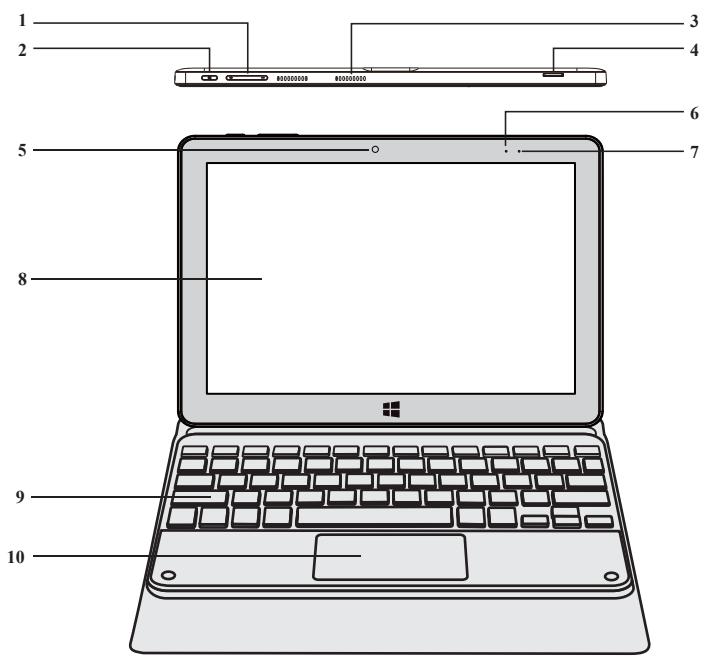
Front view
Right view
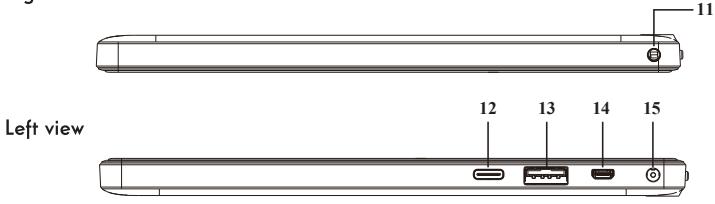
Note : The presentation of the device and some features may vary by country, model or version.
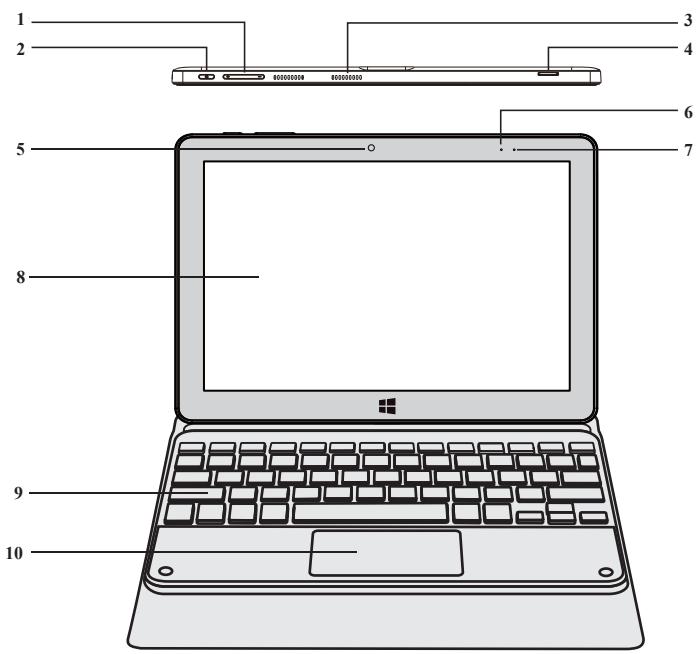
Front view
- Volume + / Volume -
- Power button A long press of this button allows you to turn your notebook on or off.
- Speakers
- Micro-SD card reader The micro-SD card reader allows you to read or write to micro-SDHC / micro-SDXC memory cards.
- Front camera - Webcam Use this camera for video calls or to take pictures.
- Power-on LED
- Charging indicator This indicator lights up while the tablet is being charged.
- Screen
- Keyboard
- Touchpad The touchpad allows you to enjoy the features of a mouse. It offers an intuitive interface thanks to its multi-gestures features.
Right view
- Microphone The microphone allows you to use the voice commands on your device, make audio/video calls, or make audio recordings.
Left view
12.Datae port
13. USB port type A
This port is compatible with USB devices such as a keyboard, mouse, flash drive (USB sticks, memory card readers.), external hard disk, printer.
14. Mini HDMI port (High - Definition Multimedia Interface) This port allows you to connect your device to an HDMI-compatible device such as a TV, monitor or projector.
15. Mains power port This port provides power when connected to an adapter.
FCC Caution: Any changes or modifications not expressly approved by the party responsible for compliance could void the user's authority to operate this equipment.
This device complies with part 15 of the FCC Rules. Operation is subject to the following two conditions:
(1) this device may not cause harmful interference, and
(2) this device must accept any interference received, including interference that may cause undesired operation.
This device and its antenna(s) must not be co-located or operating in conjunction with any other antenna or transmitter.
NOTE: This equipment has been tested and found to comply with the limits for a Class B digital device, pursuant to Part 15 of the FCC Rules. These limits are designed to provide reasonable protection against harmful interference in a residential installation. This equipment generates, uses and can radiate radio frequency energy and, if not installed and used in accordance with the instructions, may cause harmful interference to radio communications. However, there is no guarantee that interference will not occur in a particular installation.
If this equipment does cause harmful interference to radio or television reception, which can be determined by turning the equipment off and on, the user is encouraged to try to correct the interference by one or more of the following measures:
-- Reorient or relocate the receiving antenna.
-- Increase the separation between the equipment and receiver.
-- Connect the equipment into an outlet on a circuit different from that to which the receiver is connected.
-- Consult the dealer or an experienced radio/TV technician for help. The device has been evaluated to meet general RF exposure requirement. The device can be used in portable exposure condition without restriction
The WLAN function for this device is restricted to indoor use only when operating in the 5150 to 5250 MHz frequency range. FCC ID:2AXUI-W120
Warning:
1.To prevent possible hearing damage, do not listen at high volume levels for long
periods


2.Use the Tablet Pc in the environment with the temperature between -10^ and 40^ , otherwise, it may damage your Tablet PC. It can be operating under 2000m.
3.The product shall only be connected to a USB interface of version USB2.0 or higher and that the connection to a power USB is prohibited.
4.For this device, head/ Face/Body/Limb sar was performed with the device configurd in the positions according to EN62209-1:2016 & EN62209-2:2010, and head/ Face/ Body/ Limb sar was performed with the device 5mm from the phantom.
- Caution: Risk of explosion battery is replaced by an incorrect type, dispose of used batteries according to the instructions.
6.For Adapter: Shall be installed near the equipment and shall be easily accessible.
Only can use the adapter as below:
Rated Input & Output: AC100V-240V, 50/60Hz,0.8A,DC12.0V,3A
The plug could be disconnected from adapter.
We.
CHITECH SHENZHEN TECHNOLOGY CO.LTD (101, NO.48,Xiashijia Road, Gongming
Town. Guangming Dist., Shenzhen, China) hereby declare that the radio equipment type is Tablet PC compliance with Directive 2014/53/EU.
Keyboard
Using the keyboard
Installing the tablet to keyboard case
Align the docking interface of the tablet with the interface of the keyboard, and then fasten the four corners.
Removing the tablet to keyboard case
With the device upright, push the edges of the left part one by one using both hands until the device protrudes from the case and remove the device from it.
Function keys
The keypad on your device is equipped with function keys for performing actions or settings.
Note : The key icons displayed and the functions offered may vary depending on the model.
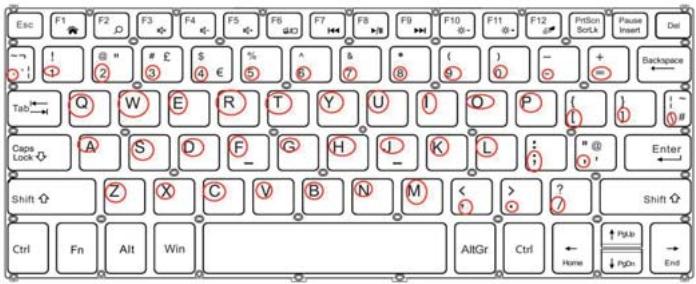
- Click setting/Time&language/language®ion/English(United States)
- Directly click the red circle on the keyboard to display the corresponding content, as shown in the above position.
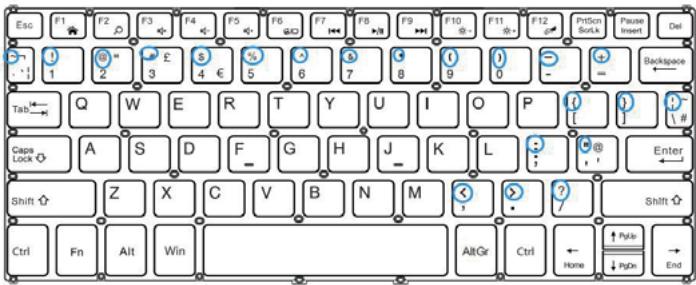
- Press Shift + blue circle above to display the blue circle content.
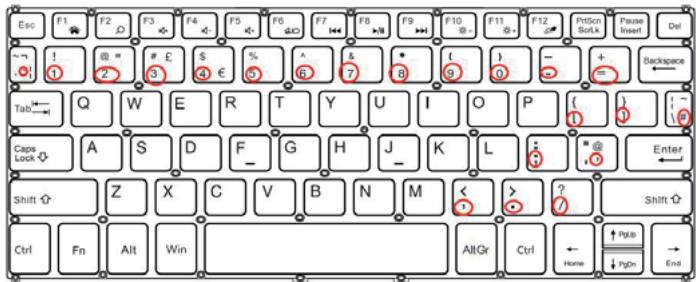
- Click setting/Time&language/language®ion/English(United Kingdom)
- Directly click the red circle on the keyboard to display the corresponding content, as shown in the above position.
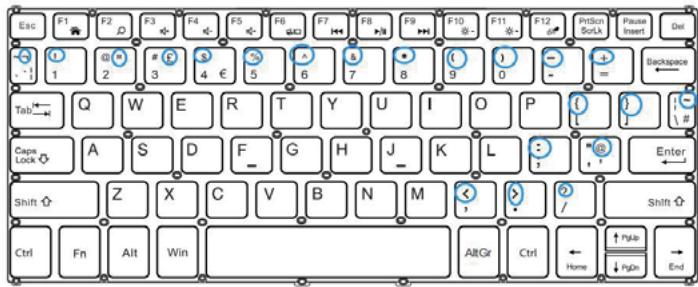
6. Press Shift + blue circle above to display the blue circle content.
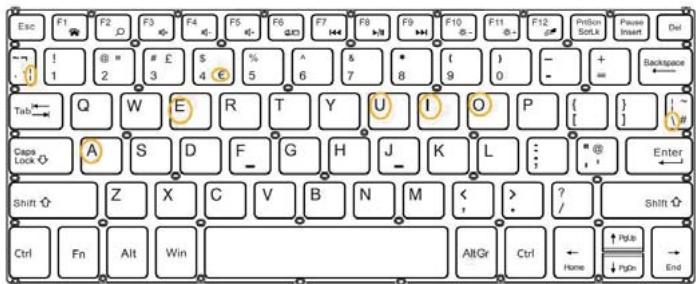
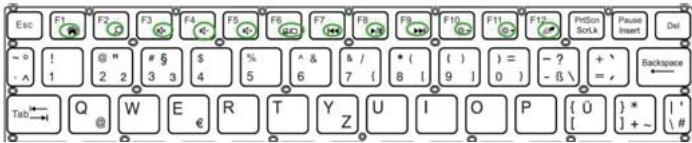
7. Press Strg+Alt or AltGr+ the yellow circle above at the same time to display the yellow circle content.
8. Common functions in American English and English(United Kingdom): FN+ The green circle above can display the corresponding content.
WARRANTY CARD
Model Name
Product Serial No.
Date of purchase

dd

mm

yy
Customer's Details
Name
Address in full
Telephone No.
Dealer Name & Address
Customer's signature & Date Dealer's signature with rubber stamp
FCUKCE


CONTACT INFORMATION
www.tibuta.cn
Designed by Tibuta,Assembled in PRC
Aide et assistance
FR

www.fibuta.cn

1.Cliquez Setting/Time&language/language®ion/English(United States)
Designed by Tibuta,Assembled in PRC

Company: OASIS SERVICE SP.ZO.O,
Address: ul.Mfynarska 42 lok.115 01-171 Warszawa
Mail: oasiservicepl@outlook.com
- Presentation of the device -
Vorderansicht

Rechte Ansicht
1.Klicken setting/Time&language/language®ion/English(United States)
Designed by Tibuta,Assembled in PRC
EU | REP
Company: OASIS SERVICE SP.Z.O.O,
CHITECH SHENZHEN TECHNOLOGY CO.,LTD (101, NO.48, Xiashijia
Road, Gongming Town, Guangming Dist., SHENZHEN, China) por la presente
CHITECH SHENZHEN TECHNOLOGY CO.,LTD. (101, n.48, Xiashijia
The emissions are maintained within the band of operation under all conditions of normal operation
tibuta

Windows 11

intel

FCC ID: 2AXUI-W120