70mai A510 - Dash Cam

A510 - Dash Cam 70mai - Free user manual and instructions

Find the device manual for free A510 70mai in PDF.

📄 94 pages English EN Download 💬 AI Question 13 questions
Notice 70mai A510 - page 3
View the manual : Français FR Deutsch DE English EN Español ES Italiano IT
Pick your language and provide your email: we'll send you a specifically translated version.

User questions about A510 70mai

13 questions about this device. Answer the ones you know or ask your own.

Ask a new question about this device

The email remains private: it is only used to notify you if someone responds to your question.

How to connect the 70mai A510 dash cam to the mobile app?
Frequently Asked Questions - 04/04/2026
Response Notice-Facile

To connect your 70mai A510 dash cam to the mobile app, you need a smartphone with Android 5.0 or iOS 11.0 minimum. Download the official 70mai app by searching for it in the Google Play Store (Android) or the App Store (iOS), or by scanning the QR code provided in the manual.

Turn on the 70mai A510 dash cam and access its settings. Enable the 2.4GHz Wi-Fi function (the camera is compatible with IEEE 802.11 b/g/n). The camera will display a network name (SSID) starting with 70mai_ followed by a series of numbers, as well as an access password.

On your smartphone, open the Wi-Fi settings and look for the network corresponding to your camera (70mai_XXXX). Select this network and enter the password displayed on the dash cam screen to establish the connection.

Then launch the 70mai app and select the option to add a new device. The app will automatically detect your camera and complete the pairing. Once connected, you will be able to view videos, modify settings, activate parking mode with motion detection, and update the firmware directly from the app.

If the connection fails, ensure that the 2.4GHz Wi-Fi is enabled on the camera and that you are connected to the correct network. If the problem persists, restart both devices, clear the cache of the 70mai app, or reinstall it to reset the connection.

Respond (be the first)
How to set the date on the 70mai A510 Dash Cam?
Frequently Asked Questions - 04/04/2026
Response Notice-Facile

To set the date on your 70mai A510 Dash Cam, follow these simple steps:

Steps to set the date

  1. Turn on the Dash Cam: Make sure the device is powered on.
  2. Access the main menu: Press the Menu button or the corresponding icon on the touchscreen.
  3. Open settings: Navigate through the menu to select Settings or Preferences.
  4. Select the Date and Time option: This section allows you to adjust the date and time of the device.
  5. Set the date: Change the day, month, and year using the on-screen controls (buttons or touch).
  6. Confirm the changes: Validate the settings to save the new date.
  7. Exit the menu: Return to the main screen to resume normal use of the Dash Cam.

Note that the date is important for the video recordings to be correctly timestamped, making it easier to review them later.

Respond (be the first)
What does "continuous driving time" mean on the 70mai A510 Dash Cam?
Frequently Asked Questions - 04/04/2026
Response Notice-Facile

"Continuous driving time" refers to the duration during which the camera records without interruption while the vehicle is in motion. On the 70mai A510 Dash Cam, this function is central to the device's operation: as long as you are driving and the vehicle is powered, the camera records continuously.

The 70mai A510 is designed to be permanently powered via the vehicle's cigarette lighter (5V/2A). This external power supply allows the camera to film continuously for the entire duration of your trip, without battery life limitations. Therefore, there is no recording duration restriction as long as the vehicle remains connected to this power source.

The device has an internal battery of 500 mAh in Li-ion technology, which is non-removable. This battery does not serve to power continuous recording while driving, but rather as a backup battery. It kicks in during power outages or in parking mode, allowing the camera to record a few extra minutes after a power loss.

In summary, "continuous driving time" is not a limitation on your camera, but a description of its normal operating mode: as long as your vehicle is running and the camera remains connected to the cigarette lighter, it records indefinitely. Recording automatically stops when the engine is turned off and resumes as soon as you restart the vehicle.

Respond (be the first)
What is the firmware of the 70mai Dash Cam A510 and how to check its version?
Frequently Asked Questions - 11/01/2026
Response Notice-Facile

The firmware of the 70mai Dash Cam A510 is the internal system software that controls the complete operation of the device. It manages all recording features, video processing with the Sony IMX307 sensor, motion detection, parking mode, built-in GPS geolocation, and compatibility with the 70mai mobile app. Firmware updates fix bugs, improve recording stability, optimize performance, and may add new features to your dashcam.

How to check the firmware version on your 70mai A510:

  • Download and launch the 70mai mobile app (available on the App Store and Google Play)
  • Connect your phone to the camera's Wi-Fi network (the dashcam automatically creates a built-in Wi-Fi hotspot)
  • Open the app menu (menu icon at the top right)
  • Go to the Firmware Update settings
  • The current firmware version will be displayed here, along with a notification if an update is available (small red dot)

Firmware update: If an update is available in the 70mai app, it will be done directly via Wi-Fi. You can also download the update file from the official 70mai website (help@70mai.com or www.70mai.com), save it to your microSD memory card, and the camera will detect and install the update automatically on the next startup.

System settings: You can also access the general system settings of the A510 camera by pressing the function button under the settings icon on the dashcam's touchscreen, where you can modify time, language, and other essential settings.

Requirements: Android 5.0 or iOS 11.0 or higher is required to connect the mobile app to the camera's Wi-Fi network. Keeping your firmware up to date ensures stable recording, optimal performance, and access to the latest security features of your 70mai Dash Cam A510.

Respond (be the first)
How to format an SD card directly on the 70mai A510 Dash Cam?
Frequently Asked Questions - 11/01/2026
Response Notice-Facile

To format an SD card directly on your 70mai A510 Dash Cam, follow these simple steps:

  1. Turn on the Dash Cam by pressing the power button.
  2. Access the main menu by touching the screen or pressing the "Menu" button depending on the model.
  3. Navigate to settings (often labeled "Settings" or "Paramètres").
  4. Find the formatting option, usually under a submenu like "Storage" or "SD Card".
  5. Select "Format" or "Format SD Card" and confirm your choice when the camera prompts you.
  6. Wait while the camera formats the SD card. This process only takes a few moments.
  7. Once completed, the Dash Cam will indicate that the SD card is ready for use.

Formatting erases all data on the SD card, so make sure to back up your important files before proceeding.

Respond (be the first)
How to format the SD card of the 70mai A510 Dash Cam on a computer?
Frequently Asked Questions - 10/01/2026
Response Notice-Facile

Important: The manufacturer 70mai strongly recommends formatting the SD card directly in the A510 Dash Cam before first use. Go to the Settings menu, select the Card Formatting option, and confirm. This method ensures the best compatibility.

If you absolutely need to format the card on a computer before insertion, here is the procedure. First, ensure that your microSD card is compatible: capacity between 32 GB and 256 GB, class 10 minimum with U1 speed or higher.

On Windows: Insert the SD card into a card reader (or USB adapter). Open File Explorer, locate your SD card, then right-click on it and select Format. For a card of 32 GB or less, choose FAT32; for 64 GB or more, select exFAT. Check the Quick Format box and click Start.

On Mac: Insert the SD card into a reader or via USB adapter. Open Disk Utility (Applications > Utilities > Disk Utility), select your SD card in the left pane, then click the Erase button at the top. Choose exFAT as the format (this format works on all systems), name the card if you wish, and confirm by clicking Erase.

Warning: Formatting deletes all files on the card. Make a backup before proceeding. After formatting via computer, reinsert the card into the A510 Dash Cam and format it again in the device via the Settings menu to ensure optimal compatibility.

Respond (be the first)
How to protect the external battery of the Dash Cam 70mai A510 from heat and sunlight in the car?
Frequently Asked Questions - 09/01/2026
Response Notice-Facile

Protecting the external battery of your Dash Cam 70mai A510 from heat and sun exposure in your car is essential to preserve its lifespan and performance. Here are some practical tips:

1. Choose a shaded location

Avoid leaving the battery on the dashboard or near windows where it will be directly exposed to sunlight. Prefer a shaded location, such as under a seat or in the trunk.

2. Use thermal insulation

Wrap the battery in an insulating cover or a thermal bag designed to protect against heat. This helps limit the impact of high temperatures.

3. Install a sunshade

Place a sunshade on the windshield when parking your car in the sun. This reduces the interior temperature and protects sensitive equipment.

4. Promote ventilation

If possible, leave a window slightly open to allow air circulation and prevent excessive heat buildup. However, ensure that this does not compromise the vehicle's security.

5. Remove the battery in case of prolonged high heat

If you plan to leave your car parked for a long time in very hot weather, it is best to remove the battery and store it in a cool, dry place.

By following these tips, you will help maintain the performance and longevity of the external battery of your Dash Cam 70mai A510, even under high heat conditions.

Respond (be the first)
How to use and configure the rear camera with the 70mai A510 Dash Cam?
Frequently Asked Questions - 08/01/2026
Response Notice-Facile

The 70mai A510 Dash Cam can be connected to a compatible rear camera to provide an additional view of the back of the vehicle. Here’s how to use and configure this rear camera:

1. Installation and connection of the rear camera

  • Make sure the rear camera is properly connected to the Dash Cam via the supplied cable. Check that the connectors are well inserted to avoid false contacts.
  • Position the rear camera at the back of your vehicle, ideally in the center and at a height that allows good visibility without obstruction.

2. Configuration in the Dash Cam settings

  • Turn on the Dash Cam and access the settings menu.
  • Activate the rear camera function if it is not already activated.
  • Ensure that the Dash Cam can switch automatically or manually between the front and rear view according to your needs.

3. Video recording

  • Make sure that video recording is enabled for the rear camera so that footage is saved while driving.
  • The videos from the rear camera will generally be recorded at the same time as those from the front camera, allowing you to view both angles.

4. Practical tips

  • Regularly clean the lens of the rear camera to ensure a clear image.
  • Test the camera after installation to check the image quality and proper functioning.
  • If you encounter connection or display issues, check the cables and restart the Dash Cam.

By following these steps, you will be able to fully enjoy the rear camera functionality of your 70mai A510 Dash Cam for better safety and visibility while driving.

Respond (be the first)
Does the 70mai A510 dash cam allow you to see all around the car?
Frequently Asked Questions - 08/01/2026
Response Notice-Facile

The 70mai A510 dash cam is primarily designed to record the road in front of your vehicle. It does not allow you to see all around the car as it is equipped with a forward-facing lens, providing a wide frontal field of view but limited to the immediate surroundings in front of the vehicle.

Why doesn't the dash cam cover all around the vehicle?

Most dash cams, including the 70mai A510 model, are designed to capture events occurring in front of the car, particularly for safety and insurance reasons. They do not have integrated side or rear cameras.

Solutions for viewing around the vehicle

  • Install additional cameras: You can add compatible rear or side cameras to cover blind spots.
  • Use a 360° camera system: These systems provide a panoramic view around the vehicle but often require professional installation and a larger budget.
  • Properly position the dash cam: Place the camera at the center of the windshield, behind the rearview mirror, to maximize the frontal field of view.

In summary, the 70mai A510 does not allow you to see all around the car, but it offers excellent frontal coverage. For complete monitoring, additional equipment should be considered.

Respond (be the first)
Do I need to activate Bluetooth to view videos on the 70mai A510 Dash Cam?
Frequently Asked Questions - 08/01/2026
Response Notice-Facile

No, it is not necessary to activate Bluetooth to view the recorded videos on the 70mai A510 Dash Cam. Bluetooth does not play a role in accessing your recordings. The dash cam exclusively uses Wi-Fi to communicate with the 70mai mobile app.

To view your videos via the 70mai app, connect your smartphone to the 2.4GHz Wi-Fi network emitted by the dash cam. Once connected, open the 70mai app and you will be able to view, play, and download your video files. This method only requires that Wi-Fi is enabled on your phone and on the dash cam - Bluetooth is not required.

You also have the option to view the videos by removing the microSD card from the dash cam (supported capacity: 32 to 256 GB, class 10, U1 or higher) and inserting it into a compatible card reader connected to your computer or another device. This method does not require any wireless connection.

If your phone prompts you to activate Bluetooth when connecting to the dash cam, check that you have correctly selected the camera's Wi-Fi network in your device's Wi-Fi settings. Also, ensure that your phone has at least Android 5.0 or iOS 11.0 to establish the Wi-Fi connection with the dash cam.

Respond (be the first)
Does the 70mai A510 dash cam record when the car is parked?
Frequently Asked Questions - 08/01/2026
Response Notice-Facile

Yes, the 70mai A510 dash cam can record when the car is parked, thanks to its parking surveillance mode. Here are the important points to know:

Recording in parking mode

  • The parking mode allows the camera to remain active even when the engine is off.
  • It uses motion detection or a shock sensor to trigger recording if an event is detected around the vehicle.

Necessary conditions

  • The camera must be powered continuously, either via a dedicated power cable or a parking wiring kit.
  • This mode must be activated in the dash cam settings.

Parameter customization

  • You can adjust the sensitivity of the motion detection to avoid unnecessary recordings.
  • It is also possible to completely disable the parking mode if you do not want the camera to record when the car is parked.

In summary, if the function is activated and the camera is properly powered, the 70mai A510 will automatically record in case of detected movement or shock while parked.

Respond (be the first)
Why do I have to format my SD card every time I use it with the 70mai A510 Dash Cam?
Frequently Asked Questions - 08/01/2026
Response Notice-Facile

If you need to format your SD card every time you use it with your 70mai A510 Dash Cam, several reasons may explain this behavior:

1. SD Card Compatibility

Ensure that the SD card is compatible with your dash cam. The 70mai A510 generally recommends microSD cards of class 10 or higher, with a specified maximum capacity (often up to 128 GB). An incompatible or low-quality card may cause errors requiring frequent formatting.

2. File System and Formatting

The camera uses a specific file system, often FAT32 or exFAT. If the SD card is formatted in another format, the camera may request reformatting. It is advisable to format the card directly from the dash cam to ensure compatibility.

3. Errors or Failures of the SD Card

A damaged or defective SD card can lead to file corruption and force regular formatting. Try using another high-quality SD card to see if the problem persists.

4. Dash Cam Settings and Updates

Check that your dash cam has the latest firmware, as updates may improve SD card management. Review the settings to see if there is an option for automatic formatting or error management.

Practical Tips

  • Use a microSD card recommended by the manufacturer.
  • Format the SD card directly from the dash cam before first use.
  • Avoid turning off the camera during recording to prevent file corruption.
  • If the problem persists, test with another SD card to isolate the cause.

By following these tips, you should reduce the frequency of necessary formatting and improve the reliability of your 70mai A510 dash cam.

Respond (be the first)
Which microSD card is recommended for the 70mai A510 Dash Cam?
Frequently Asked Questions - 08/01/2026
Response Notice-Facile

To ensure smooth and reliable video recording with your 70mai A510 Dash Cam, it is important to choose a suitable microSD card. Here are the essential criteria to consider:

1. MicroSD Card Capacity

The recommended capacity generally ranges from 16 GB to 128 GB. A higher capacity will allow you to store more videos before the card is full.

2. Write Speed

Opt for a class 10 or UHS-1 (Ultra High Speed 1) microSD card to ensure sufficient write speed for continuous video recording without interruption.

3. Reliability and Brand

Choose recognized and reliable brands such as SanDisk, Samsung, Kingston, or Lexar. These brands offer better durability and less risk of data corruption.

4. Format and Compatibility

Ensure that the microSD card is formatted in FAT32 or exFAT, formats that are generally compatible with the 70mai A510 Dash Cam.

In summary, prioritize a class 10 or UHS-1 microSD card, with a capacity between 16 and 128 GB, from a recognized brand, to ensure stable and reliable video recordings with your 70mai A510 Dash Cam.

Respond (be the first)

Download the instructions for your Dash Cam in PDF format for free! Find your manual A510 - 70mai and take your electronic device back in hand. On this page are published all the documents necessary for the use of your device. A510 by 70mai.

USER MANUAL A510 70mai

70mai Dash Cam A510 Series User Manual

70mai A510 - 70mai Dash Cam A510 Series User Manual - 1

70mai A510 - 70mai Dash Cam A510 Series User Manual - 2
Scan the QR code and email us at help@70mai.com

70mai A510 - 70mai Dash Cam A510 Series User Manual - 3

70mai A510 - 70mai Dash Cam A510 Series User Manual - 4
View the User guide for product functions and FAQs.

Contents

This user manual has also been translated into Portuguese, Hungarian, Ukrainian, Korean and Vietnamese.

Scan the QR code to read the user manual with all supported languages.

70mai A510 - Contents - 1

English 01
Espanol. 09
Deutsch 15
Francais 22
Italiano 29
Pycckn 36
Polski 43
Čeština 49
Româna 55
日本語 61
nunny 67
Bahasa Indonesia. 73
Filipino 79
繁體中文 85

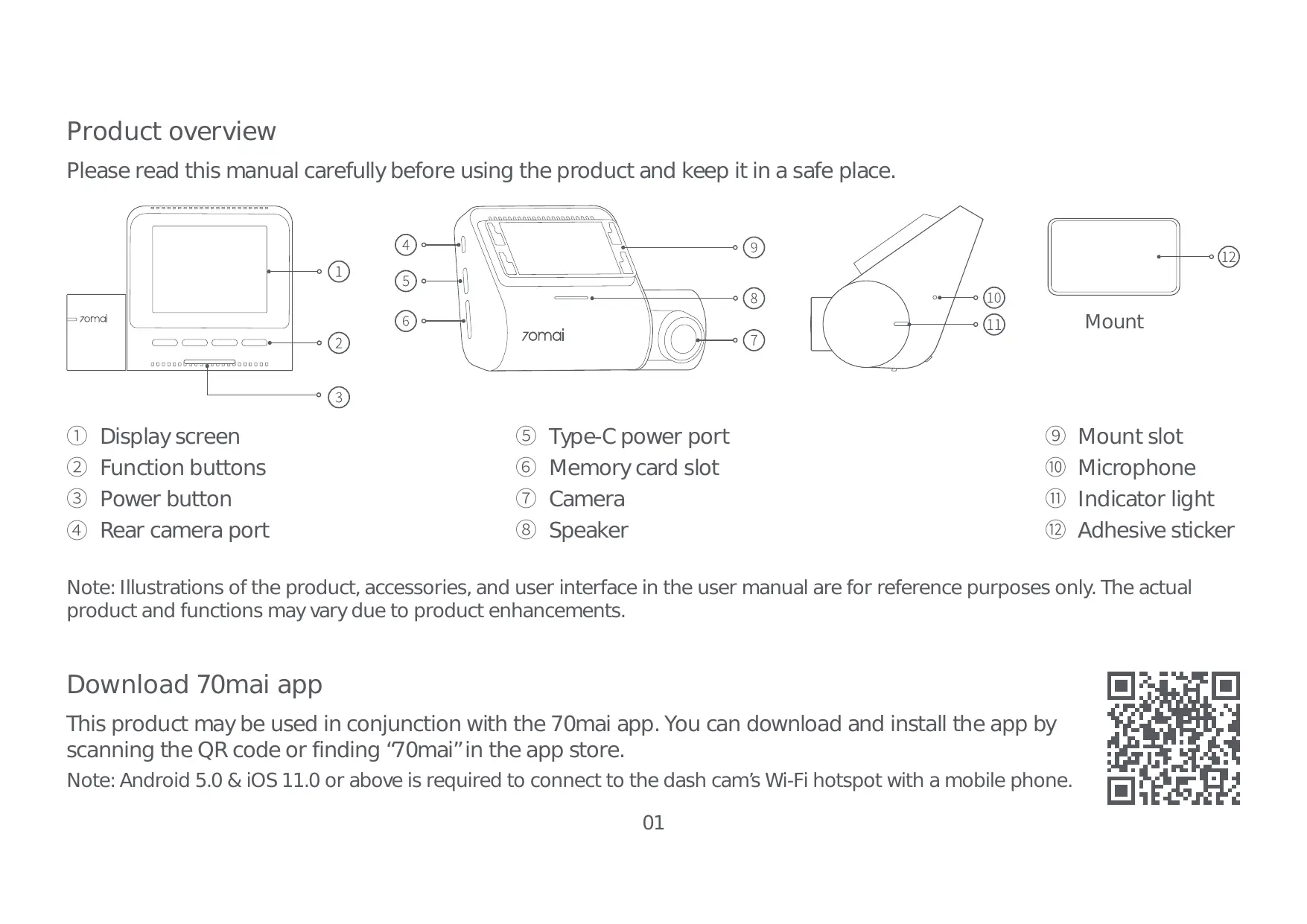
Product overview

Please read this manual carefully before using the product and keep it in a safe place.
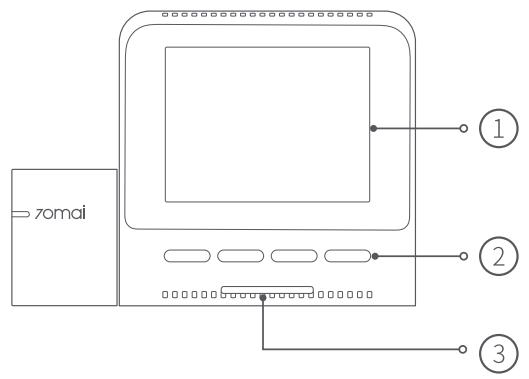
70mai A510 - Product overview - 1

70mai A510 - Product overview - 2

70mai A510 - Product overview - 3

70mai A510 - Product overview - 4
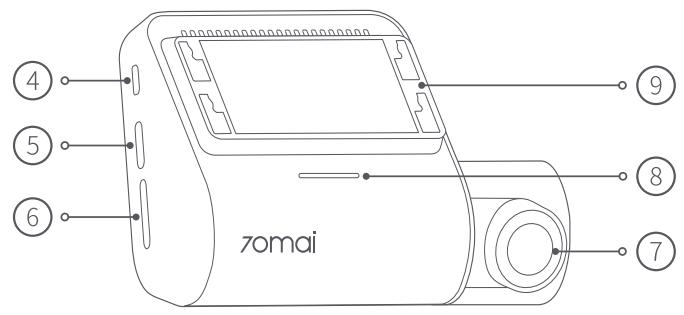
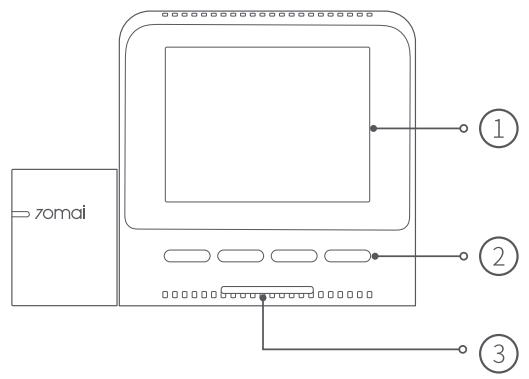
Mount

(1) Display screen
(2) Function buttons
(3) Power button
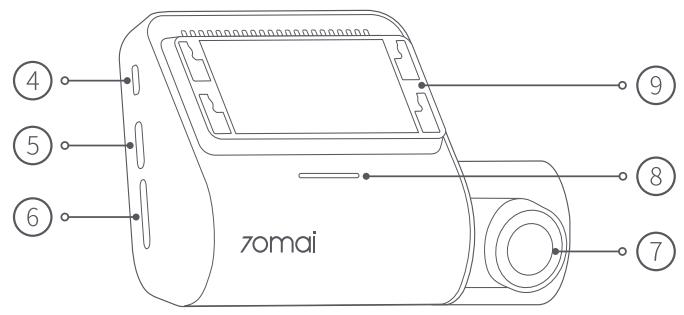
(4) Rear camera port

(5) Type-C power port
(6) Memory card slot
(7) Camera
(8) Speaker

(9) Mount slot
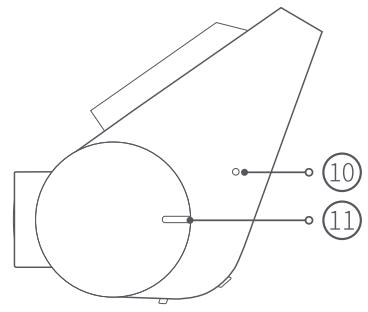
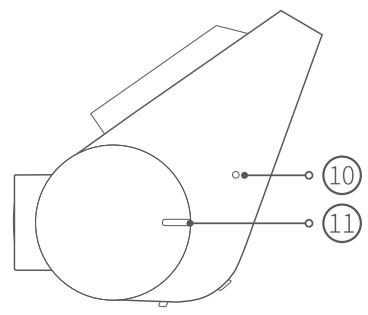
(10) Microphone
(1) Indicator light
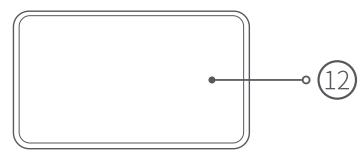
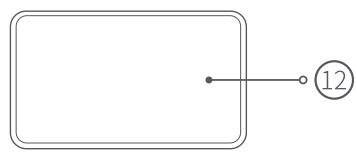
(12) Adhesive sticker

Note: Illustrations of the product, accessories, and user interface in the user manual are for reference purposes only. The actual product and functions may vary due to product enhancements.

Download 70mai app

This product may be used in conjunction with the 70mai app. You can download and install the app by scanning the QR code or finding "70mai" in the app store.

Note: Android 5.0 & iOS 11.0 or above is required to connect to the dash cam's Wi-Fi hotspot with a mobile phone.

70mai A510 - Download 70mai app - 1

Package contents

If you purchased the dash cam only, check the following items in the package:

  1. Dash Cam × 1
  2. Mount × 1
  3. Power cord × 1
  4. Car charger × 1
  5. Wiring trim tool × 1
  6. Electrostatic sticker × 2
  7. Adhesive sticker × 1
  8. User manual × 1

If you purchased the Dash Cam Set, check the following items in the package:

  1. Dash Cam × 1
  2. Mount × 1
  3. Power cord × 1
  4. Car charger × 1
  5. Wiring trim tool × 1
  6. Electrostatic sticker × 2
  7. Adhesive sticker × 1
  8. User manual × 1
  9. Rear camera package* × 1

  10. This package contains the rear camera (integrated with lead

wire), signal wire and other accessories for the rear camera. For more information, please refer to the rear camera user manual.

Installation

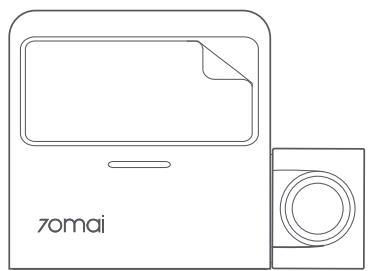
1. Installing the electrostatic sticker

Paste the electrostatic sticker on the recommended area on the front windshield. Press the sticker to remove air bubbles out.
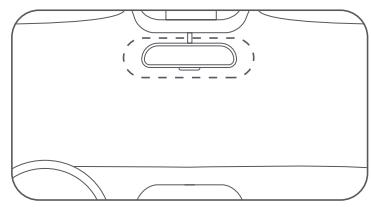
70mai A510 - Installing the electrostatic sticker - 1

Avoid the edge of the windshield and select the flat and smooth area for the installation.

Note: Keep the windshield clean and dry without liquid residue to prevent the sticker from losing adhesion and dash cam from dropping.

2. Installing the mount

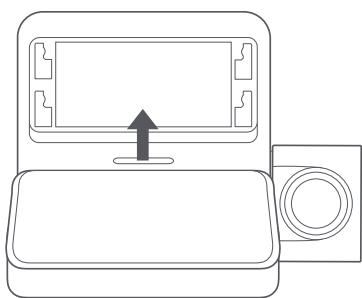
Attach the mount to the mount slot and slide up.
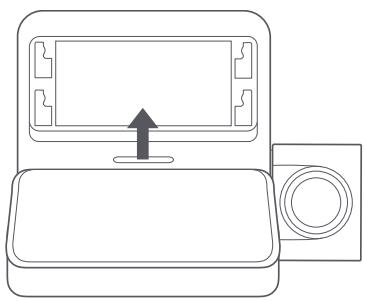
70mai A510 - Installing the mount - 1

  1. Installing the memory card Insert the memory card into the slot.
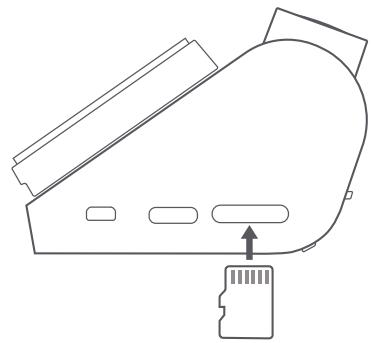
70mai A510 - Installing the mount - 2

  1. Mounting the dash cam Paste the dash cam onto the electrostatic sticker.
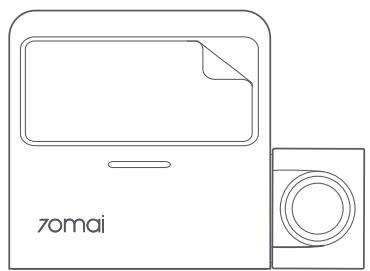
70mai A510 - Installing the mount - 3

  1. Routing cable

Route the power cord to the vehicle's power outlet and connect to power.

Start the car engine, and the dash cam will automatically turn on.

70mai A510 - Installing the mount - 4

Notes:

  • Use the included wiring trim tool to hide the power cord underneath the vehicle's headliner and rubber seal along the A-pillar.

  • Depending on the vehicle, the power outlet may be located in a different position. The provided figure is for reference only.

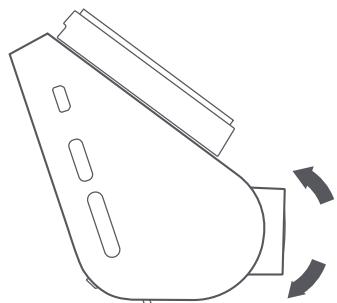
  • Adjusting the camera angle

Adjust the camera angle based on the image presented on the main screen when dash cam is turned on.
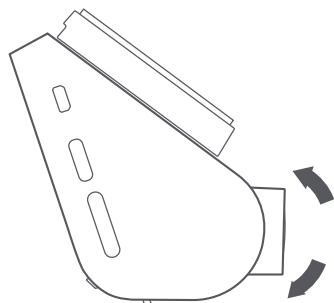
70mai A510 - Installing the mount - 5

Accessories (optional)

The rear recording function of this product needs to be used with a rear camera. Scan the QR code to obtain the user guide for the rear camera.

70mai A510 - Installing the mount - 6

Note: To avoid the rear camera malfunction due to device incompatibility, it is recommended to use a rear camera from 70mai brand.

Specifications

Product: Dash Cam

Model: A510, A510-1, A510-2

Input: 5 ~V = 2 ~A

Battery capacity: 500mAh

Resolution: 2592 × 1944

Lens: FOV 138^ / F1.8

Battery type: Li-ion battery

Power supply: Car cigarette lighter

Wireless connectivity: Wi-Fi IEEE 802.11 b/g/n 2.4GHz, Bluetooth® 4.2

Bluetooth/Wi-Fi operation frequency: 2400-2483.5MHz

GPS/GLONASS operation frequency: 1559-1610MHz

Bluetooth maximum output: < 13dBm

Wi-Fi maximum output: < 20dBm

Memory card instructions

  • A memory card (sold separately) must be installed in the dash cam before use.
  • The dash cam supports standard microSD cards. Please use memory cards with capacity of 32GB ~ 256GB and rating of class 10, U1 or higher.
  • The default file partition format of the memory card may be inconsistent with the format supported by the dash cam. When inserting the memory card for the first time, please format it in the dash cam before use. Formatting the memory card will delete all files on the card. Please back up important data to another device beforehand.
  • The memory card may become damaged or deteriorated after repeated cycles of overwriting, and this may affect its ability to save video and image files. If this occurs, immediately replace it with a new memory card.
  • Please use a high-quality memory card purchased from a reputable vendor. Inferior memory cards may have issues such as actual reading/writing speeds that do not match the stated speeds, and an actual storage capacity that does not match the stated storage capacity. We shall not be held liable for lost or damaged videos caused by the use of a low-quality memory card.
  • Do not insert or remove a memory card while the dash cam is turned on.

Precautions

Before using this dash cam, please read all the precautions and user guide to ensure correct and safe use.

  • This dash cam is a driving aid designed to record external images of the vehicle. And it does not have the function of ensuring the user's driving safety. Users must abide by local traffic rules and regulations and take driving safety as a priority consideration. Do not operate this product while driving.
  • Due to differences in vehicle conditions, driving style, driving environment, and other factors, some functions may not work properly. A power failure, usage in environments outside the normal operating temperature or humidity range, a collision, or a damaged memory card may cause the dash cam to function abnormally. There is no guarantee that this dash cam will function normally under all circumstances. Videos recorded by this dash cam are for reference purposes only.
  • Please install this dash cam correctly, and do not block the driver's line of sight, or block the vehicle's airbag, in order to avoid product failure or personal injury.
  • If the front windshield where the dash cam is installed is covered with colored automotive film, it may affect the video recording quality or cause video distortion.
  • Avoid collisions or forceful jolts to the dash cam, otherwise the product may malfunction. Keep this dash cam away from any strong magnetic fields.
  • Never use chemical solvent or detergent to wash the dash cam.
  • Do not use this dash cam in environments with temperatures over 60^ or below - 10^ .
  • When the dash cam has been operating for a period of time, the temperature of the outer casing will rise, please be careful when touching.
  • Please only use this dash cam within the scope permitted by law.
  • Please use the included car charger, power cord, and other accessories in order to avoid product failure due to non-conformance. We shall not be held liable for any loss or damage caused by the use of a non-genuine car charger or power cord.
  • If you use power adapter to charge the dash cam, only use the power adapters that comply with the local safety standards or certified and supplied by qualified manufacturers.
  • The dash cam and its accessories may contain small parts. To avoid choking or other hazards or damages caused by the children, keep the dash cam out of the reach of children.

Regulatory compliance information

WEEE information

70mai A510 - WEEE information - 1
m = 311 ;

All products bearing this symbol are waste electrical and electronic equipment (WEEE as in directive 2012/19/EU) which should not be mixed with unsorted household waste. Instead, you should protect human health and the environment by handing over your waste equipment to a designated collection point for the recycling of waste electrical and electronic equipment, appointed by the government or local authorities. Correct disposal and recycling will help prevent potential negative consequences to the environment and human health. Please contact the installer or local authorities for more information about the location as well as terms and conditions of such collection points.

EU declaration of conformity

CE

The manufacturer hereby, declares that this equipment is in compliance with the applicable Directives and European Norms, and amendments. The full text of the EU declaration of conformity is available at the following internet address: https://help.70mai.asia/1193.html

UK CA

Hereby, 70mai Co., Ltd. declares that the radio equipment types A510, A510-1, A510-2 are in compliance with Radio Equipment Regulations 2017. The full text of the UKCA declaration of conformity is available at the following internet address: https://help.70mai.asia/2145.html

Cautions

  • Disposal of a battery into fire or a hot oven, or mechanically crushing or cutting of a battery, that can result in an explosion.
  • Leaving a battery in an extremely high temperature surrounding environment that can result in an explosion or the leakage of flammable liquid or gas.
  • A battery subjected to extremely low air pressure that may result in an explosion or the leakage of flammable liquid or gas.
    This device is equipped with a built-in battery that cannot be removed or replaced. Do not disassemble or modify the battery by yourself.
  • Replacement of a battery with an incorrect type can defeat a safeguard (for example, in the case of some lithium battery types).

FCC

15.19 Labelling requirements.

This device complies with part 15 of the FCC Rules. Operation is subject to the following two conditions: (1) This device may not cause harmful interference, and (2) this device must accept any interference received, including interference that may cause undesired operation.

15.21 Information to user.

Any Changes or modifications not expressly approved by the party responsible for compliance could void the user's authority to operate the equipment.

15.105 Information to the user.

Note: This equipment has been tested and found to comply with the limits for a Class B digital device, pursuant to part 15 of the FCC Rules. These limits are designed to provide reasonable protection against harmful interference in a residential installation. This equipment generates uses and can radiate radio frequency energy and, if not installed and used in accordance with the instructions, may cause harmful interference to radio communications. However, there is no guarantee that interference will not occur in a particular installation. If this equipment does cause harmful interference to radio or television reception, which can be determined by turning the equipment off and on, the user is encouraged to try to correct the interference by one or more of the following measures:

-Reorient or relocate the receiving antenna.
-Increase the separation between the equipment and receiver.
- Connect the equipment into an outlet on a circuit different from that to which the receiver is connected.
- Consult the dealer or an experienced radio/TV technician for help.

RF warning for Mobile device:

This equipment complies with FCC radiation exposure limits set forth for an uncontrolled environment. This equipment should be installed and operated with minimum distance 20cm between the radiator & your body.

FCC ID: 2AOK9-A510

ISED compliance statement

This device contains licence-exempt transmitter(s)/receiver(s) that comply with Innovation, Science and Economic Development Canada's licence-exempt RSS(s). Operation is subject to the following two conditions:

ISED Radiation Exposure statement

This equipment complies with IC RSS-102 radiation exposure limits set forth for an uncontrolled environment. This equipment should be installed and operated with minimum distance 20 cm between the radiator and your body.

For further information, please go to www.70mai.com

Manufacturer: 70mai Co., Ltd.

Address: Room 2220, Building 2, No. 588 Zixing Road, Minhang District, Shanghai, China

Dirección: Room 2220, Building 2, No. 588 Zixing Road, Minhang District, Shanghai, China

Produktübersicht

Modell: A510, A510-1, A510-2

Adresse: Room 2220, Building 2, No. 588 Zixing Road, Minhang District, Shanghai, China

Adresse : Room 2220, Building 2, No. 588 Zixing Road, Minhang District, Shanghai, Chine

Modello: A510, A510-1, A510-2

Ingresso: 5 ~V = 2 ~A

RACCOLTA DIFFERENZIATA

Indirizzo: Room 2220, Building 2, n. 588 Zixing Road, Minhang District, Shanghai, China

O630p yctpoiCTBa

BhimateIbNo npouHtTe daHHoe pyKOBoDCTBO nepei nCpOJIb3OBaHNem pOdyKta I XpaHIne erO B HaNexHOM MeCTe.
70mai A510 - O630p yctpoiCTBa - 1

70mai A510 - O630p yctpoiCTBa - 2

70mai A510 - O630p yctpoiCTBa - 3

70mai A510 - O630p yctpoiCTBa - 4
KpePJIeHne

YCTaHOBiTe BnDeopereNcTpaTOp Ha 3JIeKTPoCTaTnueckyHO NaKJIeNkY.
70mai A510 - O630p yctpoiCTBa - 5

5.Проблема зашия

Прotinge Ka6eIb ПИТаHЯ K Г He3dU ПИТaHЯ aBTOMO6nla N ПОДКЛЮчITE ПИТaHHe.

3aŋcτιteДВɪrαTeJIb;
BnndeoperntpaTOp BKJIouHTcA BtOMaTnueCKN.

ПриимechиЯ.

Hn3KOKaueCTBeHHoN KapTbI NaMRTN.

He BCTabIaIte n He ydaIaIte KapTu pAmrTn pnBkIuChHOM BIndeOpErNcTpaTope.

OHN pa6oTaHOT, 6paTntecb B KOMpaHnIO, 3aHmHaUcYUc8 yCTaHOBko OBOPyIDOBaHnI, IJI N B MeCThBi OPraHbI BlaCTN.

Дeкларачnia O COOTBETCTBnHOpMaTnBhIM Tpe6obAHnЯm EC

70mai A510 - Дeкларачnia O COOTBETCTBnHOpMaTnBhIM Tpe6obAHnЯm EC - 1

Ampes: Room 2220, Building 2, No. 588 Zixing Road, Minhang District, Shanghai, China

Przejność produktu

Model: A510, A510-1, A510-2

Adres: Room 2220, Building 2, No. 588 Zixing Road, Minhang District, Shanghai, China

Přehled vyrobku

Model: A510, A510-1, A510-2

Příkon: 5 V --- 2 A

Kapacita baterie: 500 mAh

Rozlišeni: 2592 × 1944

Adresa: Room 2220, Building 2, No. 588 Zixing Road, Minhang District, Šanghaj, Čina

Model: A510, A510-1, A510-2

Intrare: 5 ~V = 2 ~A

Capacitate baterie: 500 mAh

Adresă: Room 2220, Building 2, No. 588 Zixing Road, Minhang District, Shanghai, China

製品概要

VWvWvWvWvWvWvWvWvWvWvWvWvWvWvWvWvWvWvWvWvWvWvWvWvWvWvWvWvWvWvWvWvWvWvWvWvWvWvWvWvWvWvWvWvWvWvWvWvWvWvW

70mai

70mai 70mai"70mai" App Store

WuYi: 110

70mai A510 - 70mai - 1

T

vwnnnae nnnnne nee nee nee nee nee nee nee nee nee nee nee nee nee nee nee nee nee nee nee nee nee nee nee nee nee nee nee nee nee nee nee nee nee nee nee nee nee nee nee nee nee nee nee nee nee nee nee nee nee nee neee

1.6698669816
2. 1
3. aW 1
4. 1
5. 1 W 1
6. 2
7.
8. 1

y

1.6698667 1
2. u7u 1 u
3. 1 W 1
4. nivn 1
5. 1 W 1
6. 2
7.
8. 1

国国国国国国W W W W W W W W W W W W W W W W W W W W W W W W W W W W

V

V 15

yuyu:yuyu:yuyu:yuyu:yuyu:yuyu:yuyu:yuyu:yuyu:yuyu:yuyu:yuyu:yuyu:yuyu:yuyu:yuyu:yuyu:yuyu:yuyu:yuyu:yuyu:yuyu:yuyu:yuyu:yuyu:yuyu

2.

70mai A510 - 2. - 1

70mai A510 - 2. - 2

  • WwovvWvWvWvWvWvWvWvWvWvWvWvWvWvWvWvWvWvWvWvWvWvWvWvWvWvWvWvWvWvWvWvWvWvWvWvWvWvWvWvWvWvWvWvWvWvWvWvWvWvWv

  • 5

70mai A510 - 2. - 3

Uunnneu (naon)

Wwunwnwnnwnnnwnnnnnnnnnnnnnnnnnnnnnnnnnnnnnnnnnnnnnnnnnnnnnnnnnnnnnnnnnnnnnnnnnnnnnnnnnnnnnnnnnnnnnnnnnnnnnnnnnnnnnnnnnnnnnnnnnnnnnnnnnnnnnnnnnnnnnnnnnnnnnnnnnnnnnnnnnnnnnnnnnnnnnnnnnn nn

70mai A510 - 2. - 4

70mai

yuaanw

Wan: Dash Cam

a: A510, A510-1, A510-2

WnV:5V=2A

500mAh

nana 2592x1944

FOV 138°/F1.8

Li-ion

1

Wi-Fi IEEE 802.11 b/g/n 2.4GHz,

Bluetooth® 4.2

Bluetooth/Wi-Fi: 2400-2483.5 MHz

GPS/GLONASS: 1559-1610MHz

Bluetooth: < 13 dBm

Wi-Fi: < 20 dBm

#

: Room 2220, Building 2, No. 588 Zixing Road, Minhang District, Shanghai, China

Ringkasan produkt

Model: A510, A510-1, A510-2

Input: 5 ~V = 2 ~A

Kapasitas baterai: 500 mAh

Resolusi: 2.592 × 1.944

Lensa: FOV 138^ / F 1,8

Jenis baterai: Baterai li-ion

Alamat: Room 2220, Building 2, No. 588 Zixing Road, Minhang District, Shanghai, China

Kabuan ng produkto

(5) Type-C ng power port
(6) But as ng memory card
(7) Camera
(8) Speaker

(9) Butas na kinakabit
(10) Mikropono
(1) Indicator light
(2) Mga pandikit na istiker

鏡片:FOV 138^ / F1.8

電池類型:鋰離子電池

電源供應:車輛點菸器

無線連接:Wi-Fi IEEE 802.11 b/g/n 2.4GHz, Bluetooth® 4.2

Bluetooth/Wi-Fi操作頻率:2400- 2483.5MHz

GPS/GLONASS操作頻率:1559- 1610MHz

Bluetooth最大輸出:<13dBm

Wi-Fi最大輸出:<20dBm

記憶卡說明
Manual assistant
Powered by Anthropic
Waiting for your message
Product information

Brand : 70mai

Model : A510

Category : Dash Cam