USER MANUAL TQLED32PR POLAROID
EXCLUSIONS DE GARANTIE
EXCLUSIONS DE GARANTIE LIÉES À L'ORIGINE DU DOMMAGE
The warning sign showing a lightning bolt in a triangle indicates that this product contains "dangerous electrical voltages".
CAUTION
RISK OF ELECTRIC SHOCK DO NOT OPEN
CAUTION: TO AVOID THE RISK OF ELECTROCUTION, DO NOT REMOVE THE COVER (OR THE BACK OF THE DEVICE).
NO PARTS ARE REPLACEABLE BY THE USER. PLEASE CONTACT QUALIFIED PERSONNEL IN CASE OF FAILURE.

The warning sign showing an exclamation point in a triangle indicates that this point of the manual requires special attention.

CAUTION: - TO REDUCE THE RISK OF FIRE, ELECTRIC SHOCK OR SERIOUS INJURY:
Read these safety instructions before using your device and store them for possible future reference.
- This device must only be connected to a mains network whose characteristics are identical to those shown on the device identification plate.
- The mains plug must always be easily accessible. It serves as a mains disconnecting switch of the device.
- To disconnect the device from the mains, the plug must be disconnected. Hold the mains cable by its plug. Do not pull on the mains cable to disconnect the plug.
- The mains cables must be routed so that they are not trampled upon or pinched by objects placed on or against them.
- If the mains cable of the device is damaged, it must be replaced by the manufacturer, its after-sales service or a similarly qualified person to avoid any danger.
- The device must not be exposed to dripping or splashing water, moisture or liquids.
- Do not place the device near water, for example in a bathroom or near a sink.
- No objects filled with liquids such as vases should be placed on or above the device.
-
Never touch the mains cable with wet hands, this could cause a short circuit or electric shock.
-
To avoid the risk of fire, do not place sources of open flames, such as lighted candles, or heat sources such as radiators, on or near the device.
- The device is intended for use only in a temperate climate.
- If smoke, an unusual odour or strange noise is emitted by the device: unplug the mains cable from the electrical outlet and consult the after-sales service or repair center. Never attempt to make repairs yourself, this could be potentially dangerous.
- Do not attempt to open or disassemble the device. This would expose you to dangerous voltages.
- The slots and openings of the device are intended for ventilation and to ensure its operation. To prevent overheating, these openings must not be obstructed or covered in any way, such as by newspapers, tablecloths or curtains.
- Always leave a minimum distance of 10cm around the device for sufficient ventilation.
- Never push any object into the device through one of its openings, as it may come into contact with electrical components, which can cause an electric shock or fire.
- In case of thunderstorm or lightning, immediately unplug the mains cable from the wall outlet.
- Always turn off the device when not in use. Unplug the mains cable from the electrical outlet when the device will not be used for a long period of time.
- Unplug the device from the electrical outlet before cleaning. Do not use liquid or aerosol cleaners. Use a dry, soft cloth for cleaning.
- If the product does not bear the logo, it is a Class I device. It must then be connected to a mains socket with a protective earth connection.
- If it is a class I appliance, the user's protection is grounded. The appliance must be connected to a power supply base with a connection to the protective earth.

CAUTION --: TO AVOID RISK OF INJURY OR DAMAGE TO THE PRODUCT OR OTHER EQUIPMENT:
- This product is intended for household and personal use only. Do not use this product for commercial, industrial or other purposes.
- Do not subject the product to strong shocks, extreme temperatures or direct sunlight for prolonged periods.
- Keep the product away from magnetic objects, motors and transformers.
- Do not use the product outdoors, regardless of weather conditions. Install the device only on a stand (furniture, wall...) that can support its weight safely.
-
WARNING: never place a TV on an unstable location. This can fall, causing injuries or even the death of a person. Many injuries, especially in the case of children, can be avoided by taking simple precautions such as:
-
The use of furniture or stands recommended by the TV manufacturer.
- The exclusive use of furniture that can support the weight of the TV safely.
- Make sure that the device does not protrude from the edge of the furniture on which it is placed.
- Never place the device on a tall piece of furniture (e.g. cabinets or bookcases) without attaching both the furniture and the device to a suitable stand.
- Do not place the device on a trolley or on a stand that is not stable. Do not install the device on any fabric or other materials placed between its base and the supporting furniture. The device could fall and be damaged or seriously injure a person.
- Do not use or watch the TV while driving. This is dangerous, and illegal in some countries.
- Explain to children the dangers they face when climbing on the furniture to reach the device or its controls.
- If you keep this device and change the location, you should apply the same considerations.
- CAUTION: to avoid accidents, this device must be securely attached to the floor or wall according to the installation instructions.

CAUTION: TO AVOID EYE HAZARDS:
- It is best to have soft indirect lighting to watch TV. Avoid completely dark environments and any reflection on the screen, as these can cause eyestrain.

USE AND HANDLING OF BATTERIES:
- CAUTION: danger of explosion if the batteries are not inserted correctly or if they are replaced by a non-similar or incompatible model.
- Replace the batteries only with batteries of the same type or equivalent type.
- Batteries must not be exposed to excessive heat such as that from the sun, fire or similar origin.
- Never throw batteries into fire and never expose them to heat sources.
- Do not mix different types of batteries, or new and used batteries.
- The batteries must be inserted according to the polarities indicated on the battery and in the battery case of the remote control.
- Used batteries must be removed from the remote control.
- The batteries must be disposed of safely at the assigned specific collection points to preserve the environment. Follow the disposal instructions indicated on the batteries and at the collection points.
- Keep batteries out of the reach of children and animals. Only adults are capable of handling the batteries.
For installation, handling, cleaning and disposal of the device, refer to the following chapters of the user manual.
General Description 5
Specifications and Accessories 7
Overview 9
Remote Control. 10
Turn on first time 12
Menu Operation 15
USB 38
External connection 43
Reference 44
Picture defects and the reason 46
Warranty conditions 47
Feature:
- Auto tuning and fine tuning
One mini YPbPr input socket
- Two HDMI inputs socket (HDMI 1.4)
One mini AV input socket
Support USB
One Coaxial output
- Wide range voltage input
Note:
- In case of any design change, a notice will not be released.
The buttons on the lower-left panel control your TV's basic features, including the on-screen menu. To use the more advanced features, you must use the remote control.
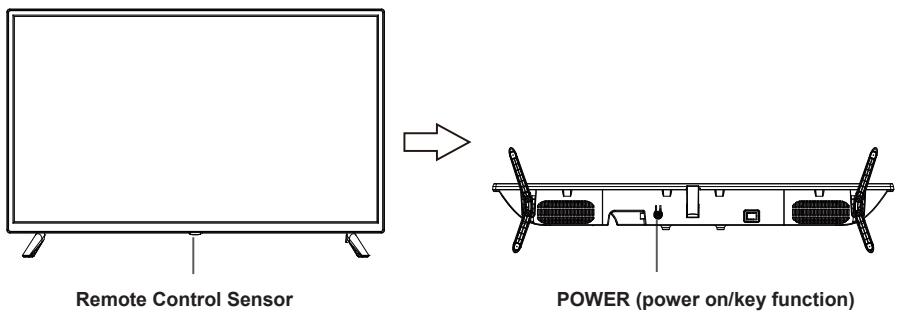
Red light indicates the TV is in standby mode.
- No light indicates the TV is on.
Key Function Description
Note: The key instructions are subject to below.

Display/Hide key icon: When there is no button icon popping up, press the key, the key icon will pop up like the picture shows above, the key icon will automatically turn off after 5 seconds of inactivity.
Icon selection: Short press the button, move the loop to the right, select the icon.
Icon function selection: Long press the key to achieve the function of the selected icon.
Icon Description:
Power off Icon: Corresponding to the "POWER" button of remote.
Menu Icon: Corresponding to the "MENU" button of remote.
Source Icon: Corresponding to the "SOURCE" button of remote.
+ Volume+ Icon: Corresponding to the "VOL+" button of remote.
Volume- Icon: Corresponding to the "VOL-" button of remote.
CH+ Icon: Corresponding to the "CH+" button of remote.
CH-Icon: Corresponding to the "CH-" button of remote.
When the main menu or source menu is OPEN.
Specifications and Accessories
| Reference | TQLED32PR001 |
| Model | KDE32ML311EATS |
| Display | TV LED HD 32"GAMME ACCESS 32 SERIE 1000 |
| Resolution | 1366x768 pixels |
| Colour display | 16.7M |
| Contrast | 1200:1 |
| Ratio | 16:9 |
| Service life | 30.000 hours |
| Tuner | HD DTV (receives digital channels, satellite, TV guide, teletext display, multi-language display) |
| TV power supply | AC 110-240V ~ 50/60Hz 1.5A |
| Consumption | 65W |
| Dimensions | 732.0mm (L)x195.6mm (D)x473.2mm (H) |
| Weight | 3.55kg |
| Base | Removable, in 2 parts |
| Operating temperature | 0°C to 40°C |
| Remote control power supply | 3V --- (2 x LR03/AAA 1.5 V batteries, not supplied) |
| USB ports with voltage and current | 5V --- 0.5A |
| Hotel lock | Yes |
| Speaker | Built-in 2x8W |
| Inputs | Antennas (T2 and S2), HDMI, Mini YPbPr, Mini AV, USB, CI+ |
| Outputs | Coaxial , Mini AV |
| Functions via USB | PVR (digital video recorder) |
| Multimedia playback formats via USB | Video: MPG, AVI, TS, MOV, MKV, DAT, MP4, VOB |
| Music: MP3, AAC, WMA, M4A |
| Photos: JPEG, BMP, PNG |
| Text: TXT |
These characteristics are subject to change without notice.
ACCESSIONS:
| Stand | 2 pieces |
| Remote control | 1 piece |
| User Guide | 1 piece |
The pictures provided in this manual are for illustrative purposes only, refer to the actual product for confirmation.
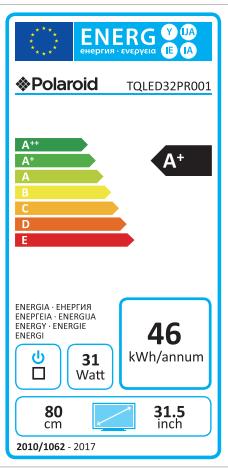
| PRODUCT DATA SHEET RELATING TO ENERGY |
| Brand | Polaroid |
| Reference | TQLED32PR001
(Model: KDE32ML311EATS) |
| Energy efficiency class | A+ |
| Visible screen diagonal | 80 cm; 31.5 inches |
| Power consumption in On mode (W) | 31W |
| Energy consumption (kWh per year), based on the power consumption of a TV operating four hours a day for three hundred and sixty-five days. The actual consumption depends on the conditions of use of the TV. | 46 kWh/year |
| Power consumption in Standby mode (W) | <0.5W |
| Power consumption in Off mode (W) | 0W |
| Screen resolution (pixels) | 1366 x 768 |
TV Terminal Connections
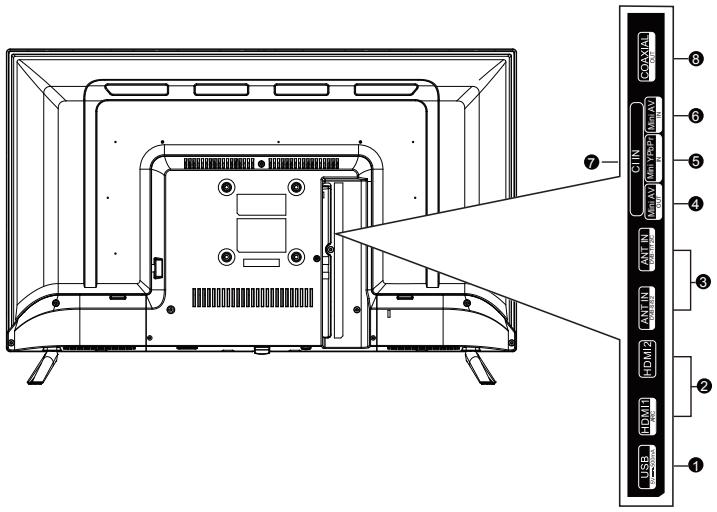
USB: Connect to USB flash driver to play supported multimedia content.
HDMI1/HDMI2: Connect to the HDMI jack of a device with an HDMI output.
3 ANT: Connect to an antenna or cable TV system.
4 AV OUT: Connect to the Mini output jack on your PC.
5 YPbPr: Connect Component video
6 AV IN:AV Input
CI: CI Input.
3 COAX: Connect Coaxial out.
REMOTE CONTROL OUTLOOK & FUNCTION KEY DEFINITION
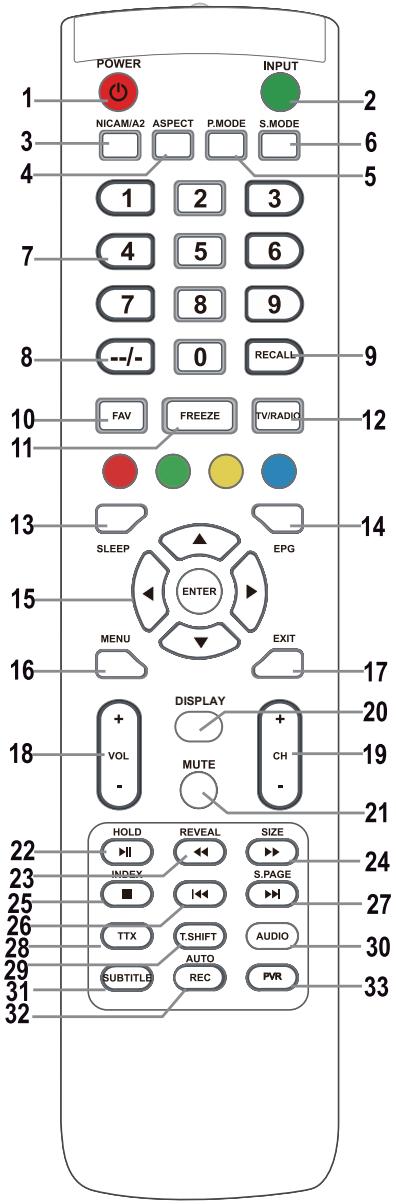
1. POWER按钮
Turns the television on from the stand-by mode.
Press to select the desired input.
NICAM/A2 input or output.
Page aspect ratio selection, e.g. 16:9, Zoom, Auto, 4:3
Repeatedly press to select a picture mode.
- S.MODE: To change the sound setting.
Press 0-9 to directly select a TV channel while watching the TV. In teletext mode enter the page number, etc.
It is used to enter channel numbers with various digit counts, e.g. for 1 - 11 - 111.
Button for switching to the previously watched channel.
Press in the TV mode to enter/exit the favourites menu.
Freeze the picture
Switching between the television and radio modes.
Set the automatic shut off time for the television.
Press to show/hide the electronic program guide.
Used for navigating in a menu on the screen and for setting up the television according to your preferences.
It is used to enter/exit the Channel list menu. (Only DTV/ATV)
In TV mode, it displays the LCD television's main menu.
Function for exiting a menu or a screen.
Press to increase/decrease the volume.
Press to switch between individual channels.
Button of displaying the source and information about channels.
Press to mute the sound. Press it again to renew the sound or press VOL+.
HOLD button: hold the current display In the MEDIA mode: Playback/pause or start a time shift recording.
REVEAL button: Press REVEAL to display or hide hidden teletext information (depends on the broadcast).
button: fast rewind
SIZE button: Press SIZE to change the size of the screen in the MEDIA mode.
▶ button: fast forward.
INDEX button: call up a teletext content page.
■ button: Stop recording/playback.
In the MEDIA mode: skip to the previous track
27. S.PAGE/▶ button
S.PAGE button: Press S.PAGE to enter a teletext subpage.
▶按钮: skip to the next track.
Turn teletext on or off.
Note: The teletext function is optional and the availability of buttons depends on the model. Teletext information fully depends on the operator of the channel.
It is used to start recording with a time shift (i.e. time shift). Function is only available in the DTV mode.
DTV/MEDIA mode: select a background sound, if available.
ATV mode: select a sound mode: Stereo/Dual I/II/Mono.
Other sources: select the left/right channel
Button for showing/hibing subtitles in the bottom part of the screen, if they are available.
AUTO button: Used for automatic configuration in the PC mode.
REC button: Press to start recording. (only in the DTV mode.)
It is used to enter/exit the PVR setting menu.
Note:
Remove battery during storage or when you are not using the device for a long time.
To control the device using the remote control, point the remote control at the device and then press the button with the required function. The maximum range of the remote control is about 5 meters with a deviation of up to +/-30^ from the perpendicular direction to the reception sensor of the remote control on the front side of the device. The falling capacity of the batteries gradually reduces the remote control range.
There must be no solid obstacles in the area between the remote control and the device when the remote control is being used.
During standard use the lifetime of batteries in the remote control is about 1 year.
When the effective range of the remote control is substantially reduced, or when there are problems with its use, change both the batteries in the remote control.
If you will not be using the remote control for a longer period of time, take out both batteries from it - in this way you will prevent potential damage caused by their leakage.
Avoid strong impact of light (e.g. sunlight or light from strong fluorescent/saving sources) which can reduce the effectiveness and reliability of IR remote control.
Turn on first time
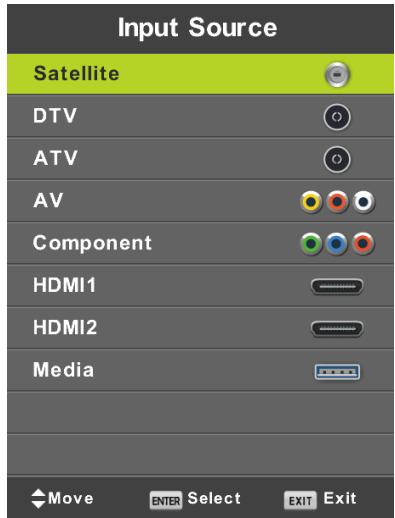
Press SOURCE to display the list of input sources.
Press / or SOURCE to select the required input source.
Press OK to switch to the appropriate input source.
Press EXIT to exit menu.
To watch television connect the antenna cable with functional reception (antenna, common antenna, cable...) to TV input marked as "RF-In".
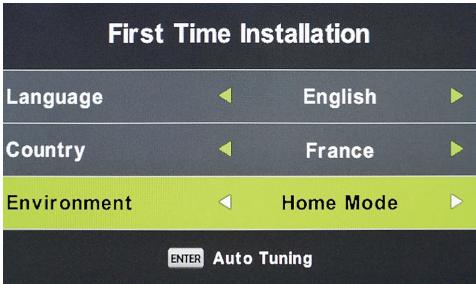
Language selection
Using buttons / select the language used in menus and news.
Country selection
Using buttons / select the country menu.
Using buttons / select the required country.
Automatic tuning
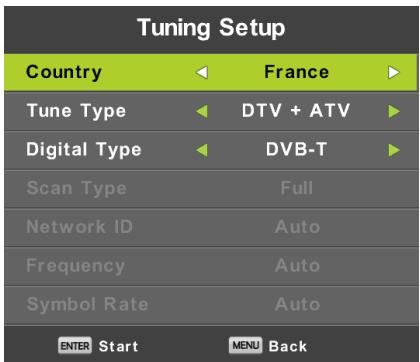
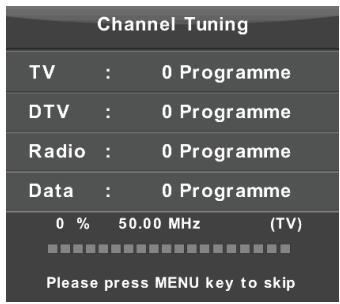
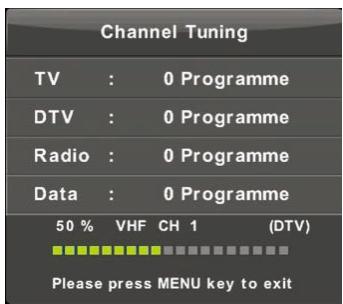
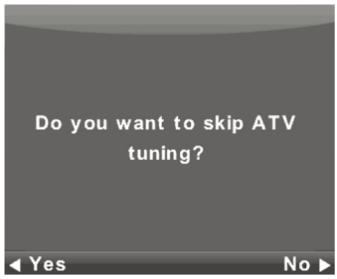
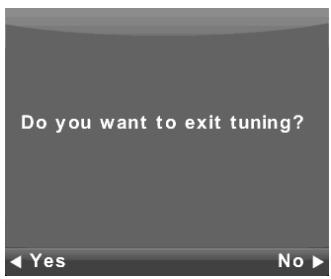
Select between the Analogue (ATV) or digital (DTV) reception or keep both receptions ATV + DTV . First will be processed the tuning of the analogue television channels (ATV). If you want to skip the ATV tuning, press the Menu button and the button with left arrow.
Afterwards, the tuning of the digital television channels will be done (DTV). If you want to skip the DTV tuning, press the Menu button and the button with left arrow
Turn on first time
Note:
When the automatic tuning does not find any receivable channel (e.g. due to poor antenna) or you interrupted the tuning manually, you can still tune channels manually, one by one, in the device menu described below. For this you will need some technical information about the broadcast that you want to receive, e.g. the method of transmission, of the channels frequency, sound modes, the transmission speed etc.
A successful completion of the automatic tuning results in saving of the list of the available TV programs and radio stations, which you can receive immediately. In the case of multiple occurrences of the same or similar programs (e.g. due to local variations of the same central program or a remote reception with interference or local reception "clean" reception) verify, which station works best for you or modify the list.
Automatic satellite tuning is adapted to tune one satellite antenna with a single LNB and corresponds to the setting DiSEQC = None/None. If your antenna is complicated, specify the antenna parameters (especially control LNB DiSEqC commands) by setting that the installer of your antenna system tells you. Enter these data in the Satellite setting/Dish Setup, described in the next section.

WARNING:
We strongly recommend that the antenna system is installed by an expert. A good quality installation will reward you with a stable and trouble-free reception.
Press MENU to display the main menu.
Use the buttons to select the item CHANNEL in the main menu.
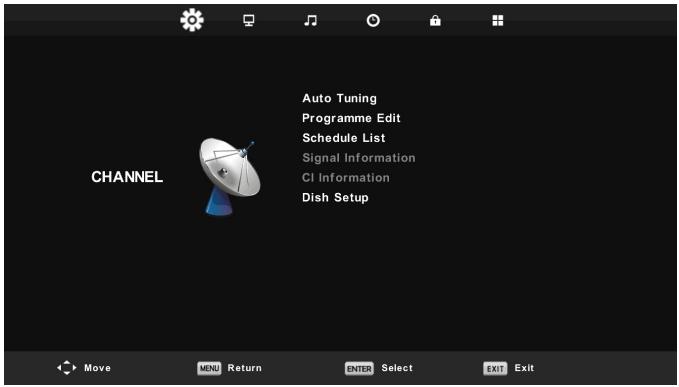
- Using the buttons / select the item, which you want to modify in the menu CHANNEL.
- Press OK and perform the modification.
- When you finish the modification, press MENU, save the changes and return to the previous menu.
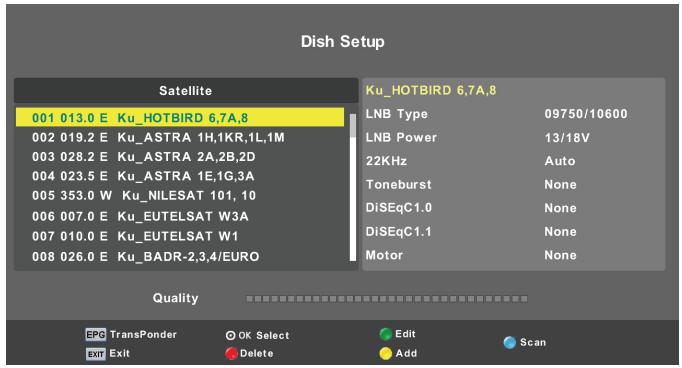
Acting on the information from your installer of the antenna system, specify all parameters for each of the satellites for which your system is ready and which you intend to receive. If a parameter is wrong or your antenna system will not accept any values Auto or None/None, it will not be possible to receive the satellite or under the name of a particular satellite will be accepted another satellite.
When setting a satellite follow the description of the buttons for individual functions on the screen.
Select a satellite from the list, use the Right arrow to move in the parameter settings and set them correctly. Return to the list using the button EXIT. When the parameters are properly set and if it is active the first of the transponders on the list of the given satellite (still hidden) broadcasts the horizontal indicator Quality (bottom of the window) changes from empty to a nonzero value, e.g. it will be in the middle of the range. If you want to display the list of transponders of a given satellite, press the button EPG. Each transponder is mainly characterized by a frequency (and also by H/V polarization and symbol rate, e.g. 27500 kSym/s) and carries several TV programs and if you want to receive them, when selected, the indicator Quality must again show non-zero value, e.g. the middle of the range.
Fast scan M7 FastScan
- Set correctly the DiSEqC switches for the Astra 23.5^ east satellite.
- Set the scanning mode to Fast Scan
- Press OK and wait until the scanning is finished.
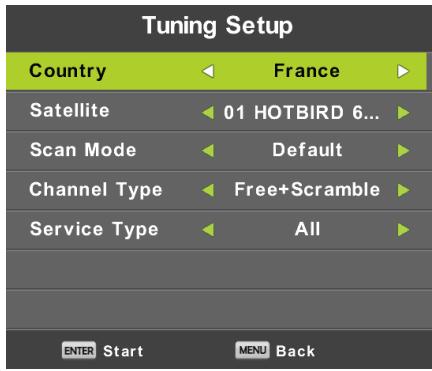
Note on FastScan:
FastScan finds the appropriate operator channel table and saves it in the device list. The list taken by FastScan function, the position and the numbers of the individual channels are determined by the broadcast operator and the user can not change them. The list is stored in the device regardless of the current reception options, antenna settings, subscriptions etc. The user is guaranteed to have in the device all the channels the operator is transmitting.
Note about updating the FastScan:
The device will check the channel list of the operator FastScan for up to date channel list availability when switched into Standby mode. To do this, simply switch off the TV at the selected Satellite input. The device will not stop to power the satellite antenna during the update, the status LED may flash several times. Only after completion of the update (about 3 minutes) will its consumption fall below the prescribed value of 0.5W .
Advanced/Special tuning
You can perform advanced and special tuning in the Dish Setup of the satellite.
You can scan one or more satellites, one or more transponders by selection from their list using the button OK. After selection press blue button and select from the following window three selections:
- Scanning mode between Default (is searched according to the list on TV), Blind scan (the slowest, searches many modes and parameters of broadcasting regardless if any broadcasting exists there), Network (first is scanned for the network table NIT and then are scanned the transponders found there).
- Channel type select - Free/FTA, for which reception is not necessary any card of conditional access (CA) and Scrambled (sometimes called "coded"), where you need an access card. The scrambled channels are displayed in the list by a symbol of a key.
- Service type - select DTV and Radio.
Example of advanced tuning process Skylink:
- Set correctly according to your antenna system the satellites' reception Astra 23,5° east (Astra 1E, 1G, 3A).
(Or check the presence and setting of individual transponders according to the list of the operator.)
- Select (check by pressing OK) in the list of this satellite the transponder 12070 MHz, horizontal polarization, symbol rate 27500 kSym/s.
- After you press Scan select Network tuning. The television will first find the NIT table on TP12070 and then tunes in the programs, which are not listed there.
(If you receive also the satellite Astra 19,2^ east, tune programs from several transponders of this satellite, if you paid for these programs and want to receive them.)
- You can delete from the extensive list of programs those, which you do not require, e.g. because they belong to another operator, whose access card you do not own.
Press MENU to display the main menu.
Use the buttons to select the item CHANNEL in the main menu.
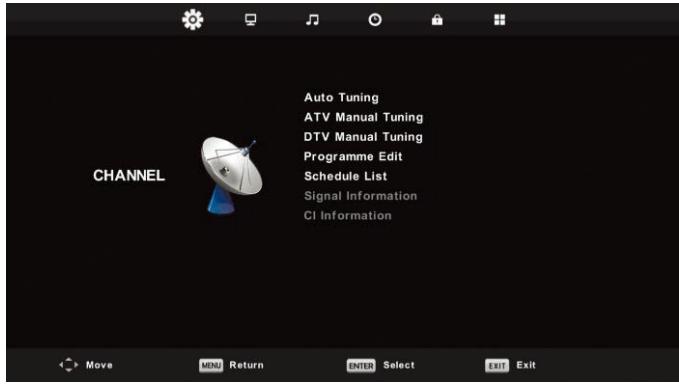
- Using the buttons / select the item, which you want to modify in the menu CHANNEL.
- Press OK and perform the modification.
- When you finish the modification, press MENU, save the changes and return to the previous menu.
Automatic tuning
Using the buttons / select the item Auto Tuning and enter it by pressing OK. The same action will happen like in the first tuning, all the previously tuned channels will be deleted.
Manual ATV tuning
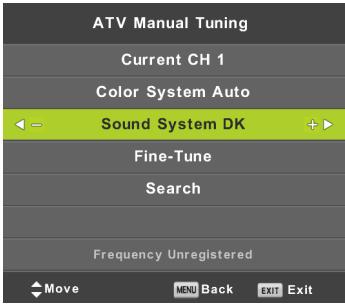
Current CH (Current channel)
Setting the channel number.
Color System
Select the color system.
Sound System
Select the sound system.
Fine-Tune
Fine tuning of channel frequency.
Search
Start channel search.
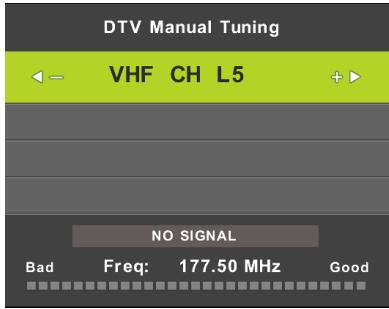
Manual DTV tuning
Using the buttons / select the item DTV Manual Tuning and press OK to enter the submenu. Using the buttons / select the channel and press OK to perform program search.
Program edit
Using the buttons / select the item Program Edit and press OK to enter the submenu.
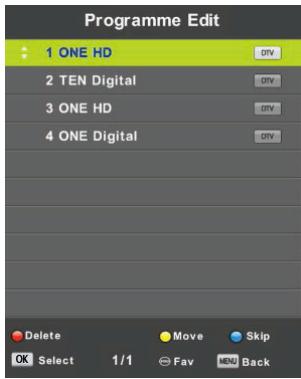
Use the three color buttons to program a channel.
First, press the buttons / to mark the channel, which you want to select. Then:
Use the red button to remove the program from the list.
Use the yellow button to move the program.
Use the blue button to skip the channel (the television will automatically skip the channel when you will use the buttons PR + I - for switching channels).
Press FAV to add or remove the channel from the list of the Favourite channels.
The position and numbers of each channel captured by FastScan are determined by the broadcast operator and the user can not change them. The color buttons are inoperative.
Schedule list
You can program in the digital broadcast system certain time dependent actions, which are called Events. These events scheduled by you (programmed) are saved in the list.
Using the buttons / select the item Schedule List and press OK to enter the submenu. It is available with some sources.
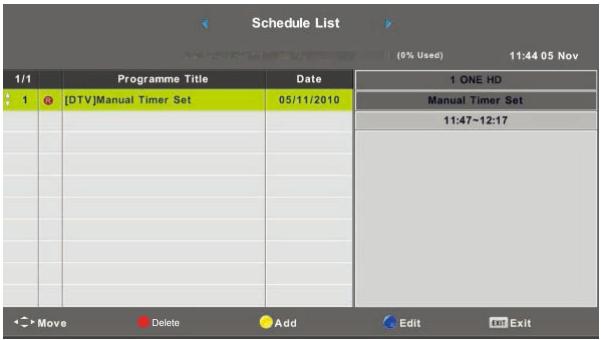
Enter the following interface using the yellow button
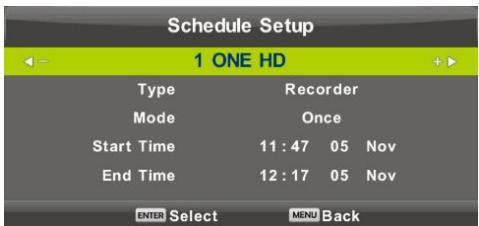
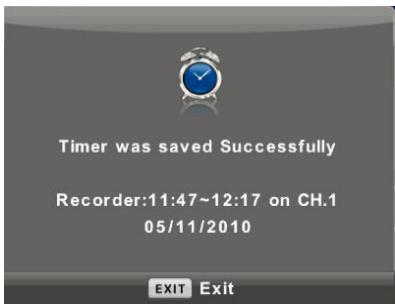
If there is a conflict in the set time a warning appears.
Note:
Scheduled tasks require precise time setting, otherwise their execution may be inaccurate or unreliable. Use accurate time from broadcast to schedule tasks, set correct time zone, daylight saving time, and perform tasks when the TV is on.
Note:
If your Conditional Access System (CAM) supports URI protection, you need to enter the PIN (CI CAM PIN) of your CA system for the first time. This is different from the TV lock password, it is assigned by the CAM operator.
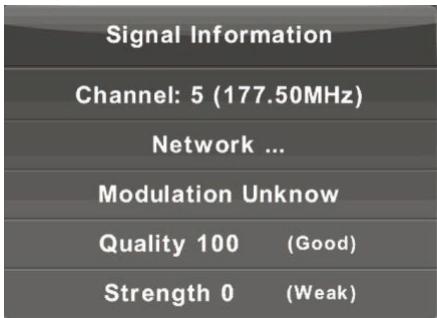
Use the buttons / to select the item Signal Information. Press OK to display detailed information about the signal, its strength and quality (interference level). Available only for the DTV signal. For satisfactory reception use only programs/channels with the highest values of both variables, max. is 100.
Press MENU to display the main menu.
Use the buttons / to select the item PICTURE in the main menu.
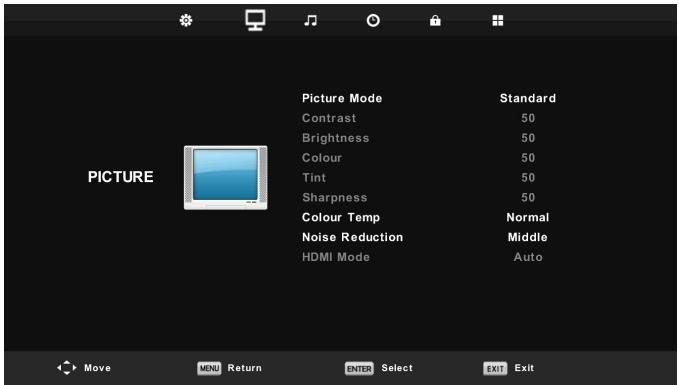
- Using the buttons / select the item, which you want to set in the menu PICTURE.
-
Press OK and set.
-
After you finish the setting, save it by pressing the button MENU and return to the previous menu.
Picture mode
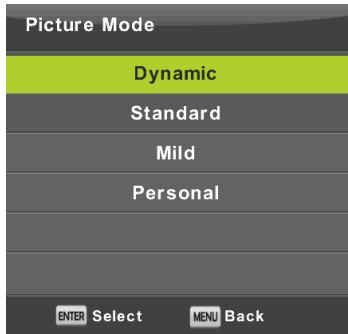
Using the buttons / select the item Picture Mode and press OK to enter the menu. If the picture is in the Personal mode, you can change the values of contrast, brightness, colors, sharpness and tint.
Tip:
For direct picture mode change you can use the button P.M.
Contrast/Brightness/Color/Tint/Sharpness
Contrast: The level of intensity of the light places in the picture. The dark places remain unchanged.
Brightness: Setting the overall brightness of the picture. It will affect the dark places in the picture.
Colour: Setting the color saturation according to your preferences.
Tint: Used for color compensation, only for NTSC.
Sharpness: Setting the highlighting of picture details.
Note:
The items are available only for Personal picture setting.
Color temperature
Change of the overall color presentation.
Using the buttons / select the item Color Temperature and then press OK to enter the submenu.
Using the buttons / select the mode (available picture modes: Cold, Normal, Warm).
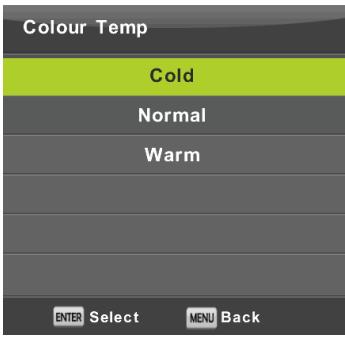
Cold Emphasizes blue tint of the white color.
Normal Keeps the white color neutral.
Warm Emphasizes reddish tint of the white color
Noise reduction
Used to filter and suppress noise in an image and improve image quality.
Using the buttons / select the item Noise Reduction and them press OK to enter the submenu.
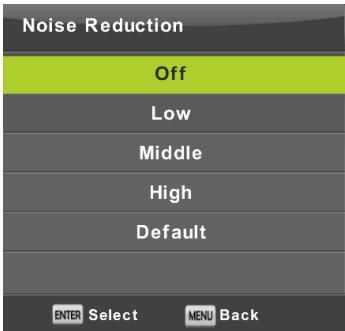
Off: Noise detection in the picture is off.
Low: Detection and reduction of a low picture noise.
Middle: Detection and reduction of a medium strong picture noise.
High: Detection and reduction of a strong picture noise.
Default: Set as default
HDMI mode
Select for the currently connected source in the HDMI input either Video (e.g. satellite receiver) or PC (computer) or AUTO. This way you will adjust the picture processing and its size to the current source. When a source is not connected the HDMI is not active.
Press MENU to display the main menu.
Press to select in the main menu the item SOUND
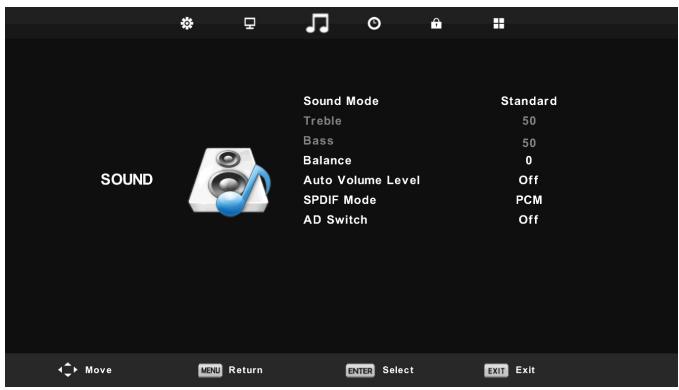
- Using the buttons / select the item, which you want to set in the menu SOUND.
- Press OK and set.
- After you finish the setting, save it by pressing the button MENU and return to the previous menu.
Sound mode
Use the buttons / to select the item Sound Mode and press OK to enter the submenu.
Use the buttons / to make selection.
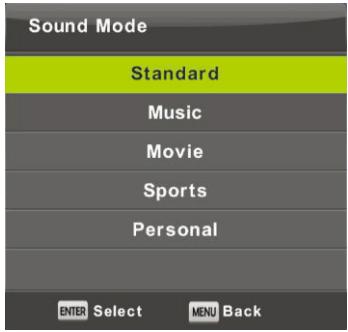
Tip:
To change the sound mode directly, use the button S.M. on the remote controller.
Standard: Provides balanced sound in all environments.
Music: Maintains the original sound. Suitable for music programs.
Movie: Emphasizes the treble and bass for an enhanced audio experience.
Sports: Emphasizes voice in sports programs.
Personal: It allows you to customize the sound settings.
Note:
Bass and treble are available only in the Personal mode, where you can set it as necessary.
Balance
Use the buttons / to select the item Balance. Use the buttons / to perform the adjustment.
Automatic volume levelling
Use the buttons / to select the item Auto Volume Level and then use the buttons / to select the option On or Off.
Digital output
Use the buttons / to select the item S/PDIF Mode and then use the buttons / to select the option Off, PCM or Auto. Designed to process the external digital sound.
Switching the sound description
Use the buttons / to select the item AD Switch and then use the buttons / to select the option On or Off. Function for the visually impaired, at which an active audio track describes the current picture. It requires the support of the encoded data stream. When you turn the function on, it adds to the original sound of the program a commentary with a preset volume, with which are some programs equipped by the broadcaster.
Note:
Balance: this item allows to set the speaker output and to optimize listening from the place where you are. Auto Volume Level: This item is used to automatically reduce the differences between the volumes of channels and programs.
Press MENU to display the main menu.
Use the buttons / to select the item TIME in the main menu
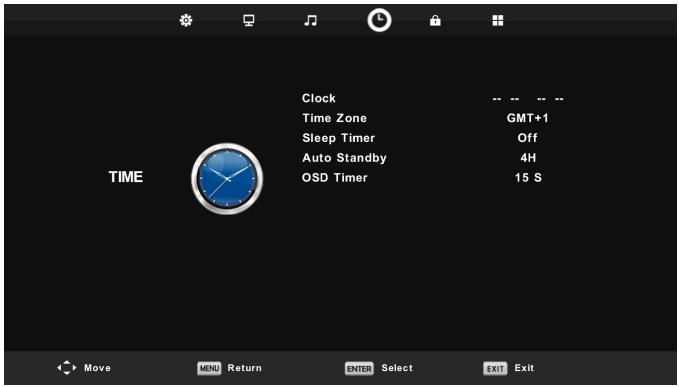
- Using the buttons / select the item, which you want to set in the menu TIME.
- Press OK and set.
- After you finish the setting, save it by pressing the button OK and return to the previous menu.
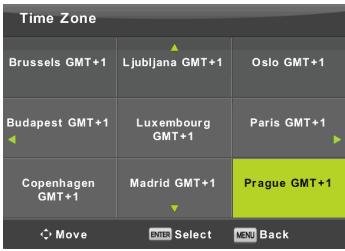
Time zone
Use the buttons / to select the item Time Zone and press OK to enter the submenu.
Use the buttons / / to select the time zone.
Note:
Correct time setting (incl. the switching to summer time) is needed for many functions of digital broadcasting, e.g. EPG. The accurate time is present in the broadcasting and the device synchronizes with it. It is necessary only for the user to set the correct time zone.
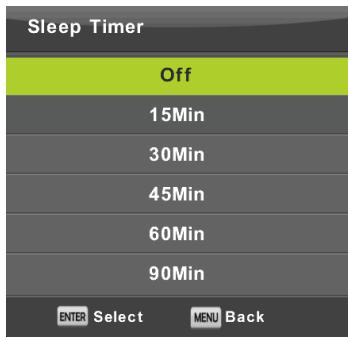
Sleep Timer
Use the buttons / to select the item Sleep Timer and press OK to enter the submenu.
Use the buttons / to select (available options: Off, 15 min, 30 min, 45 min, 60 min, 90 min, 120 min, 240 min).
Automatic standby mode
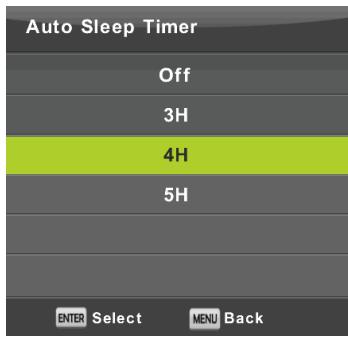
Use the buttons / to select the item Auto Standby and press OK to enter the submenu.
Use the buttons / to make selection.
Tip:
If you do not use the remote control during the set time, the TV automatically switches to standby mode. If you use the controller, the timer resets. The length of time suffices for most users. You can deactivate the shutoff function entirely by selecting OFF.
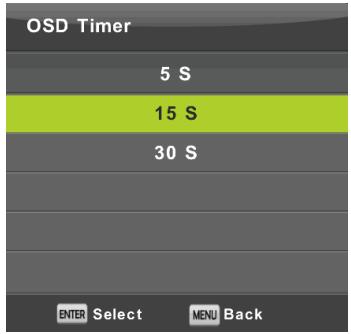
Use the buttons / to select the item OSD Timer and press OK to enter the menu.
Use the buttons / to select how long should be displayed the setting options on the screen before they disappear.
Press MENU to display the main menu.
Use the buttons / to select in the main menu the item Lock. You have to enter a valid password.
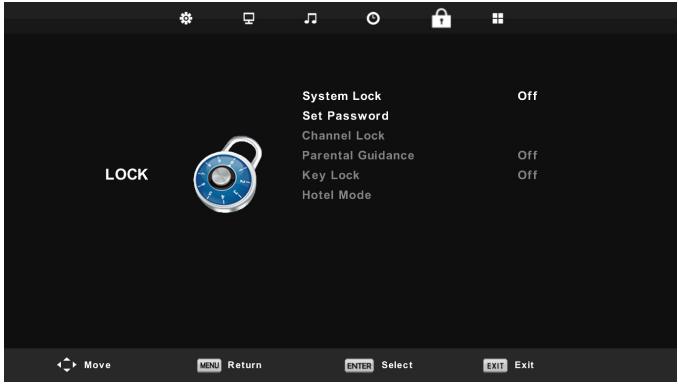
- Using the buttons / select the item, which you want to set in the menu LOCK.
- Press / and enter the setting.
- After you complete the setting, save it by pressing MENU and return to the previous menu.
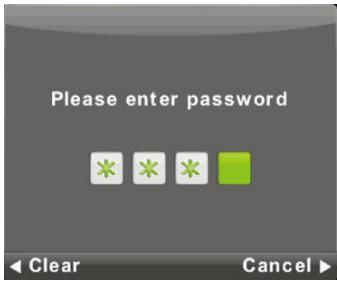
The default factory password is 0000, and if you forget what you have set, contact a service centre.
Lock system
Use the buttons / to select the item Lock System, press OK and select one of the following three options.
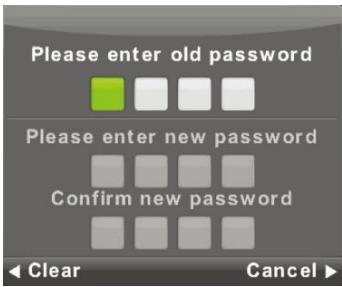
Setting the password
Use the buttons / to select the item Set Password and then press OK to enter the submenu and enter the new password.
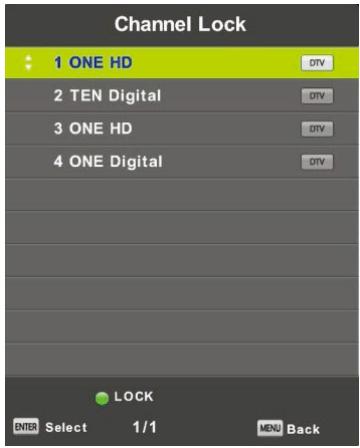
Channel Lock
Use the buttons / to select the item Channel Lock and then press OK to enter the submenu and select. Use the green button to lock or unlock the channel. You have to enter the a password to watch it.
Parental Guidance
Use the buttons / to select the item Parental Guidance and then press OK to enter the submenu where you select the age suitable for your children.
The broadcaster can provide information about a program about a recommended or minimum age for watching it. If a program is broadcast with hidden mark of minimum age, the device then compares it with what you entered, and possibly prompts for a password, so that you can watch the program for higher age.
Key Lock
Use the buttons / to select the item Key Lock and then use the buttons / to select the option Off or On. If the key lock is active, you can not use the buttons on the control panel of the TV.
Hotel mode
Hotel Mode is used to restrict certain TV functions, to make it easy to operate in places where should be e.g. limited maximum volume or to prevent tuning TV.
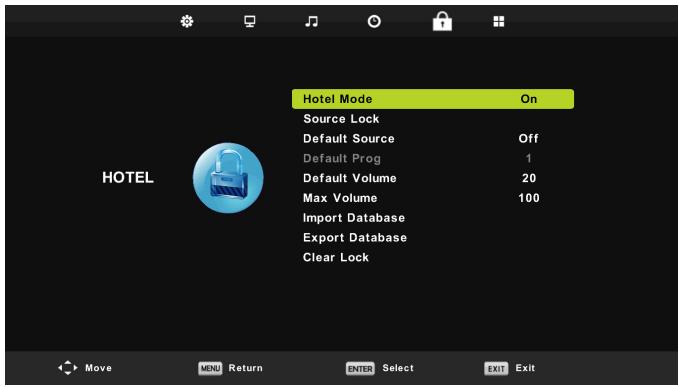
- Use the buttons / on the remote control to select the hotel mode in the menu Lock.
- Press OK on the remote controller to enter the submenu.
- After you finish the setting, save it by pressing the button MENU and return to the previous menu.
Hotel mode
Using the buttons / select the item Hotel Mode and then use the buttons / to select the option On or Off.
Source Lock
Use the buttons / to select the item Source Lock and then press OK to enter the submenu and to select.
Default Source
Use the buttons / to select the item Default Source and then press OK to enter the submenu and to select.
Default Program
Use the buttons / to select the item Default Prog and then use the buttons / to select.
Maximum Volume
Use the buttons / to select the item Max Volume and then use the buttons / to select.
Clear Lock
Use the buttons / to select the item Clear Lock and then press OK to delete the previous settings.
Press MENU to display the main menu.
Use the buttons / to select the item SETUP in the main menu.
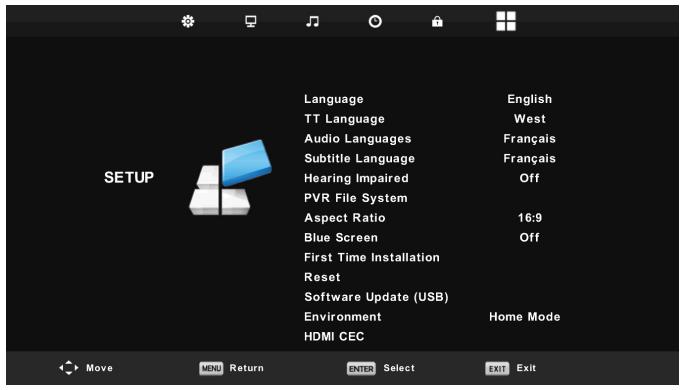
- Using the buttons / select the item, which you want to set in the menu SETUP.
- Press / and enter the setting.
- After you finish the setting, save it by pressing the button MENU and return to the previous menu.
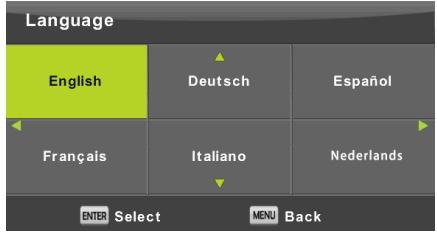
Select the displayed language of the menu on the screen. English is the selected default menu language. Use the buttons / / to select the menu language.
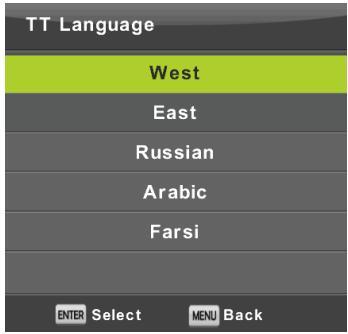
TT Language
Use the buttons / to select the item TT Language and then press OK to enter the submenu.
Use the buttons / / to select the teletext language if the national alphabet is not correctly displayed.
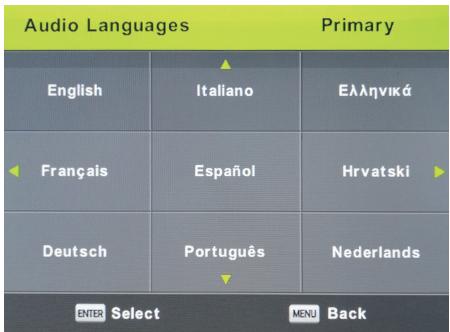
Audio Language
Press / to select the item Audio Languages and then press OK to enter the menu. Automatically selects a specific language if it is present in the broadcast. You can use two languages in order of primary and secondary. If there is no language selected by you, the language of the broadcaster will be selected.
Use the buttons / to select the primary/secondary language.
Use the buttons / / to select the audio languages.
Subtitle Language
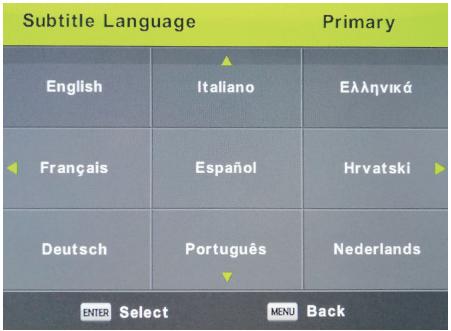
Press / to select the item Subtitle Language and then press OK to enter the submenu. Automatically selects a specific language if it is present in the broadcast. You can use two languages in order of primary and secondary. If there is no language selected by you, the language of the broadcaster will be used.
Use the buttons / to select the primary/secondary language of the subtitles. Use the buttons / / / to select the subtitle language.
Hearing Impaired
Use the buttons / to select the item Hearing Impaired and then press OK to select the option On or Off. Depends on the program broadcasting.
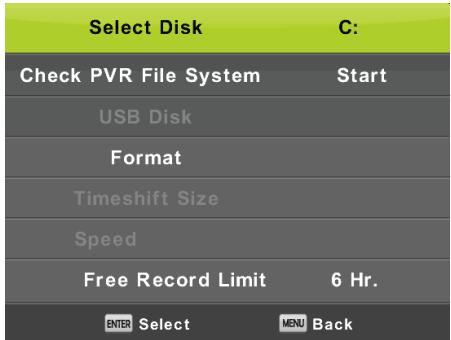
PVR File System
It is an option to set recording (PVR) of digital broadcasts on your USB storage device. Due to the size of data of the incoming digital broadcasting the setting is more detailed. Use the buttons / to select the item REC File System and then press OK to enter the submenu.
Use the buttons / to select the item Check REC File System and then enter the settings by pressing OK. The speed of the USB device will be checked. The result determines what best broadcast is your USB device capable of holding. When the result is unsatisfactory, format the TV, which will attempt to adapt the USB device better to the digital broadcast recording. Due to the limit of the file size and recording choose lower values. Higher values rapidly increase the demands on your memory device, both on size and especially the speed.

WARNING:
Formatting permanently erases all contents of the memory device!
Note:
First try each USB device for speed and the reliability of recording.
When the result is unsatisfactory, replace it with another one, mainly faster. The speed of the USB memory is the basic parameter of the reliability of the recording and also of the time shift.
Note on recording and copyright protection:
PVR and time shift recordings can place higher demands on the speed of the connected memory and verification of the copyrights to the encrypted broadcast.
Changing the mode (e.g. start and end) or some operations may wait for these external stimuli and response to the user's instructions may slow down. If the broadcast rights only allow watching and not a recording, the device will notify you. The recording on your storage device is encrypted for protection of copyright against use on another device.
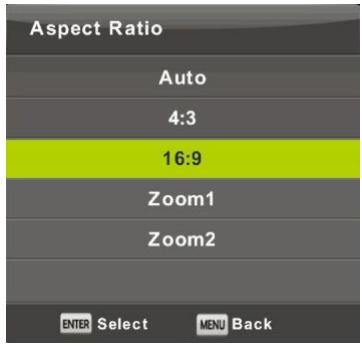
Aspect ratio
Use the buttons / to select the item Aspect Ratio and then press OK to enter the submenu.
Use the buttons / to select the aspect ratio (available options: Auto, 4:3, 16:9, Zoom1, Zoom2).
Blue screen
Use the buttons / to select the item Blue Screen and press OK to select the option On or Off. The function will apply if there is no useful picture signal to display.
First Time Installation
Use the buttons / to select the option First Time Installation and then press OK to enter the settings. You erase the previous settings and tuning and go through the whole process of putting the device into operation again.
Reset, Reset the default factory setting.
Use the buttons / to select the item Reset and then press OK to enter the submenu.
The function performs return of TV settings to factory defaults, except for deletion of the list of tuned programs.
Software Update (USB)
Use the buttons / to select the item Software Update (USB), insert the USB device in the USB slot and then press OK, to update the software.

WARNING:
Update the new TV software only in case when you have the original software producer for the given type including the description of the changes. Any attempt to update with non-genuine software, even with small differences may end up causing irreversible damage to the TV, which is not covered by warranty
HDMI CEC
The feature performs settings of special items of digital communication between devices at the HDMI interface. Follow the instructions in your external HDMI CEC to set the items and verify the correct communication.
Press / to select the item HDMI CEC and then press OK to enter the submenu.
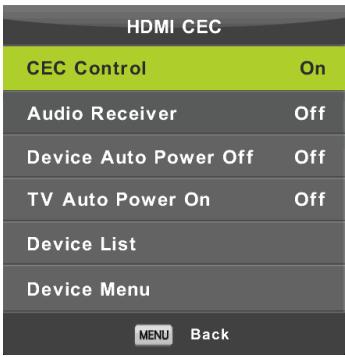
CEC Control
Press / to switch on or off the HDMI CEC function.
Audio Receiver
Press to switch on or off the HDMI Audio receiver function.
Auto Standby, Device Auto Power Off, TV Auto Power On.
Press / to turn on or off the auto standby mode for this TV set as well as for a connected device.
Press the OK button to open the main menu of the device.
Press the button MENU to display the main menu (in the ATV mode).
Use the buttons to select the item CHANNEL in the main menu.
- Using the buttons / select the item, which you want to set in the menu CHANNEL.
- Use the buttons / to set a value.
- When you finish the setting save it by pressing the button MENU and return to the previous menu.
Automatic tuning
Use the buttons / to select the item Auto Tuning and press OK to start tuning.
Manual ATV tuning
Using the buttons / select the item ATV Manual Tuning and press OK to enter the submenu.
Manual DTV tuning
Using the buttons / select the item DTV Manual Tuning and press OK to enter the submenu.
Programme Edit
Use the button / to select the item Programme Edit and press OK to enter the submenu.
Note:
- The menu Sound and its description are the same like in the DTV mode (however the item AD switch is not available).
- The menu Lock and its description are the same like in the DTV mode.
- In the menu TIME the items to set time and the time zone selection are not available.
- In the menu Setup are not available the items Hearing impaired and PVR recording.
Note:
- The menu Picture and its description are the same like in the DTV mode.
- The menu Sound and its description are the same like in the DTV mode (however the item AD switch is not available).
- The menu Lock and its description are the same like in the DTV mode.
- The menu Channel is not available in the AV/Component input/HDMI modes.
- In the menu Time the items to set time and the time zone selection are not available.
- AV does not support Hearing Impaired items and PVR recording; Component input or HDMI do not support teletext language and Hearing Impaired items.
USB
Note:
Before you use the Media menu, connect the USB device and then press SOURCE and set the input source to Media. The TV set detects the majority of the USB devices and shortly offers you to switch to playback. When you will not respond, the offer disappears and the TV remains in the original mode.
Use the buttons / to select the item Media in the menu Source and press Enter to enter the settings.
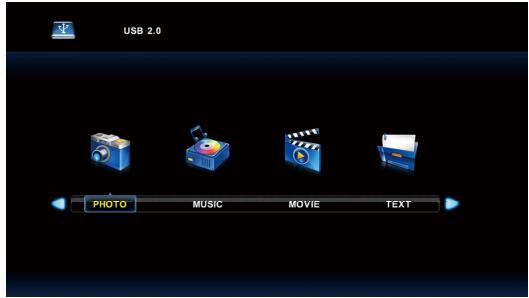
Use the buttons to select in the main menu the item Media, which you want to set and press Enter to enter the settings.
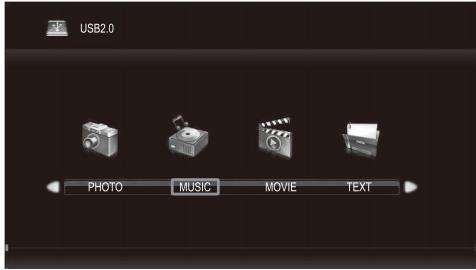
Use the buttons / to select in the main menu the item PHOTO and then enter the interface by pressing OK. Press Exit to return to the previous menu and to exit menu.
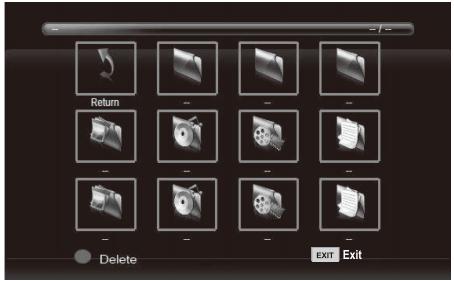
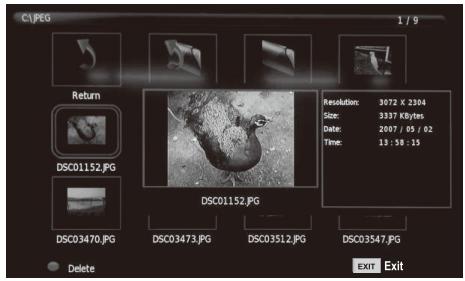
Press to select in the file menu the file, which you want to view and press the OK button to display the picture. If you want to view only this image, press the button Pause, otherwise the slideshow of all the photos in the directory starts, beginning with the tagged picture. Press the down arrow to hide the information bar with slideshow controls. To resume the paused slideshow, press Play/Pause. Stop the slideshow by pressing EXIT, you will return to the directory list.
When you pause on an image in the directory list, after a while, the file information appears on the right, and a preview of the image is displayed in the middle.
Basic functions:
Repeat ALL
Use the buttons / to select the repeat mode, press OK and select Repeat None/Repeat all/Repeat 1.
Music
Use the buttons / to select the item Music, press OK and select the music background.
Playlist
Use the buttons / to select the item Playlist, press OK to enter.Info
Use the buttons / to select the item Information, press OK to enter. Detailed information about the picture is displayed.
Rotate
Use the buttons b/B to select the item Rotate. You can rotate the picture as needed.
Zoom in/Zoom Out
You can select zooming in or out of the picture.
Move View
If the picture is larger than the screen, use this function to move the picture.
Use the buttons / to select in the main menu the item MUSIC and then enter the interface by pressing OK. Press Exit to return to the previous menu and to exit menu.
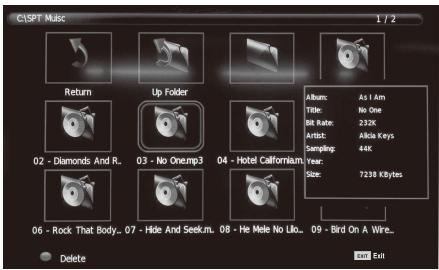
Use the buttons / to select the disk unit, which you want to play and press OK to enter the interface. You can hide the information bar by using the arrow button down, you can renew it by pressing OK. End playback by pressing EXIT, you will return to the directory. When you pause in the directory on a music file, after a while the information about the file is displayed on the right and a playback starts.
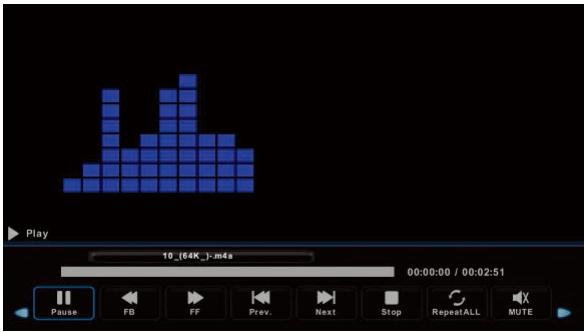
Use the buttons / to select the item to return to the previous menu.
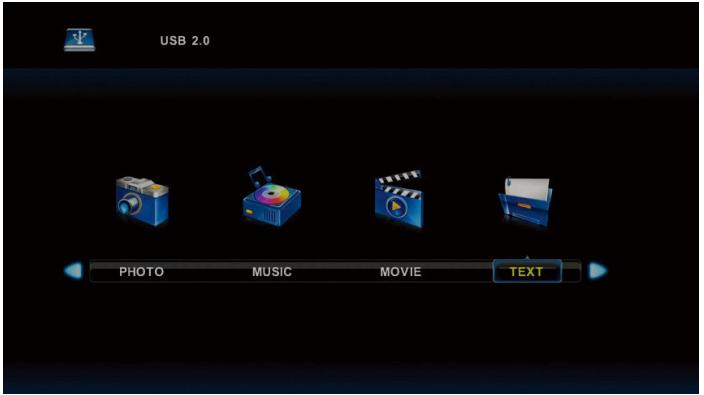
Use the buttons / to select in the main menu the item MOVIE and then enter the interface by pressing OK. Press Exit to return to the previous menu and to exit menu.
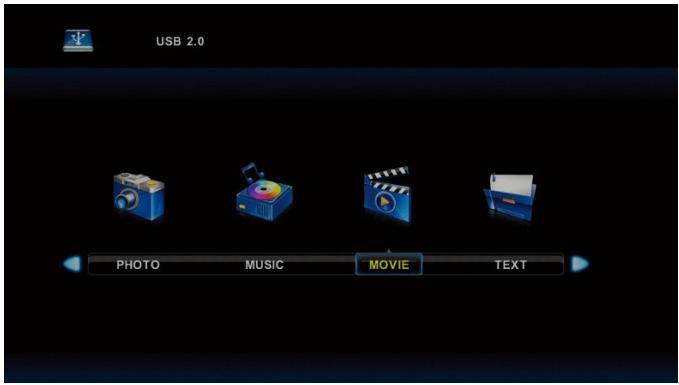
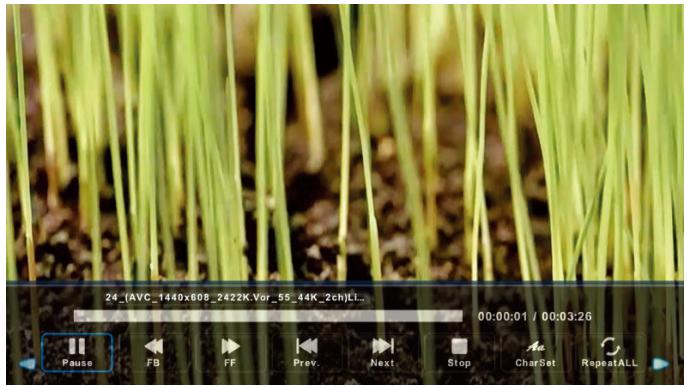
Use the buttons to select the disk unit, which you want to play and press OK to enter the interface. Press the media button to play the selected movie if it is acceptable for playing, especially its codec.
Press Display to select information bar at the bottom, which you want to start and press OK to enter it.
If there is in the movie directory also a file with external subtitles with the same name as the movie, the device will play it (the button SUBTITLE). You can select among national alphabets by pressing CharSet in the information bar. When you pause in the directory on a movie file, after a while information about the file is displayed on the right and the file starts playing.
Press Exit to return to the previous menu and press again to exit the overall menu.
Use the buttons / to select in the main menu the item TEXT and then enter the interface by pressing OK. Press Exit to return to the previous menu and to exit menu.
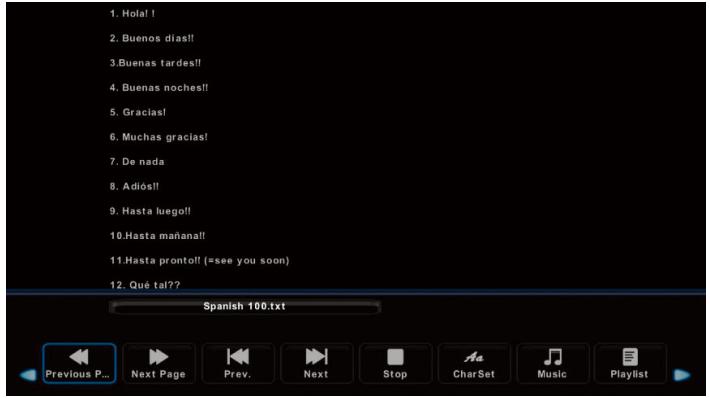
Use the buttons to select the drive unit which you want to browse and press OK to enter the interface.
Use the buttons / to select the item to return to the previous menu
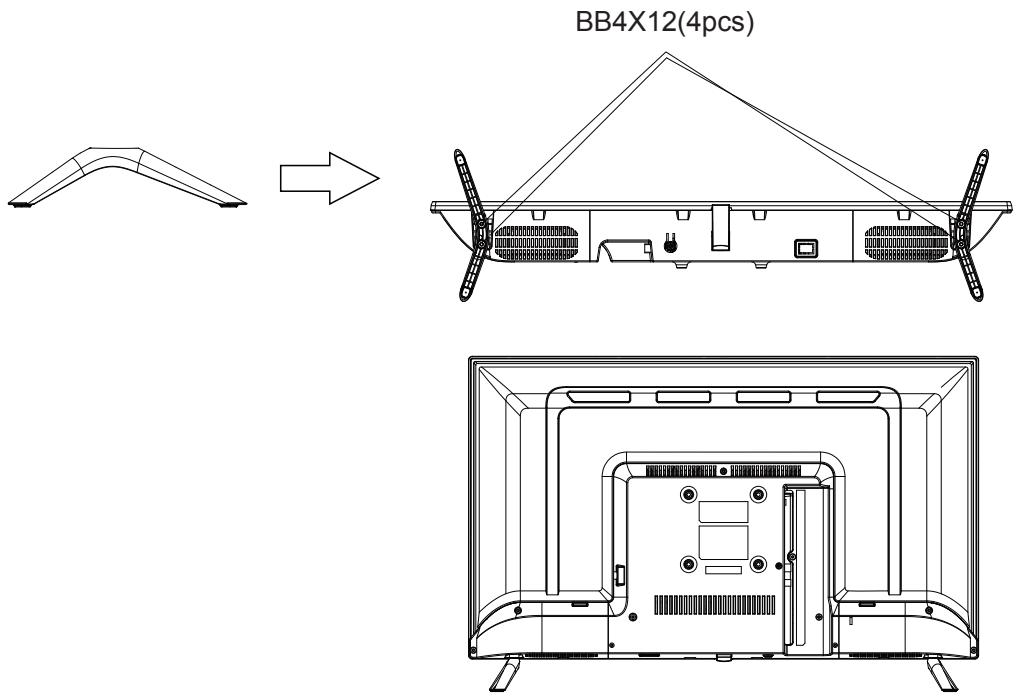
1. Assemble the stand
Before attaching/detaching the stand, make sure to turn off the TV.
Before performing work spread cushioning over the base area to lay the LED TV on. This will prevent it from being damaged.
Stand installation instruction
Troubleshooting
If you have any problem, check the couter measures for each symptom listed below. The following symptoms may have been caused by inappropriate adjustment rather than actual malfunction of the unit. If the trouble persists, contact the Customer Care Centre, see back page for contact details.
| Symptoms | Possible solutions |
| No power | Please check the power cord plugged in and that the power outlet works.
Unplug the power cord and plug it in after 60 seconds and restart the TV. |
| No picture | Please check antenna connection.
Station may be experiencing problems, please tune to another station.
Please adjust the settings of contrast and brightness. |
| Good picture but no sound | Please increase the volume.
Please check TV is under mute mode, press MUTE button on the remote control.
Please check sound settings
If external devices are being used, check their volumes are not set too low or turned off.
If using AVI or Component inputs, please make sure cables are connected properly and not loose.
If using DVI to HDMI cable, a separate audio cable is required. Make sure a headphone jack is not connected. |
| Good sound but abnormal color or no picture | Please check antenna connection and antenna condition. If using Component input, please check Component connections, incorrect or loose connections may cause colour problems or cause the screen to be blank. |
| No response to remote control | Batteries of remote control may have exhausted, if necessary, please change the batteries.
Clean the remote control lens. The distance between LED TV and remote control should be within 8m, within recommended operating angle and path is free of obstructions. |
| Colored dots may be present on the screen | Although the LED screen is made with high-precision technology and 99.99% or more of the pixels are effective, black dots may appear or bright points of light (red, blue, or green) may appear constantly on the LED screen. This is a structural property of the LED screen and not a malfunction. |
| Picture is breaking up | Keep the TV away from noisy electrical sources such as cars, hair dryers, welders, and all optional equipment.
Electrical atmospheric interference such as local or distant lightning storms may cause picture to break up.
When installing optional equipment, leave some space between the optional equipment and the TV.
Check the antenna and connection.
Keep the antenna away from any power or input/output cables. |
| After Auto Tuning only some channels are available | Check your area is covered by Digital Video Broadcasts. Try re-tuning or manually tuning missing channels.
Check that you are using the correct antenna type - please see pg. 16 'Antenna connection'. |
| Channel cannot be selected | Check if the channel has been blocked in the main menu settings. |
| USB not playing | Please check connecting USB cable and power supply is connected. Hard drive has not been formatted. Please make sure USB disk is compatible and the multimedia data formats are supported. |
| Picture is distorted, macroblock, small block, dots, pixelization, etc | Compression of video contents may cause distortion especially on fast moving pictures such as sports and action movies. |
| Noise from speaker | Check cable connections, make sure a video cable is not connected to an audio input. Low signal level may cause sound distortion. |
| TV turns off automatically | Check if the Off Timer or Sleep timer is turned on. |
| TV turns on automatically | Check if the On Timer is set to On in the Setup menu. |
| Picture is not shown in full screen | First check if it is caused by the input signal. Then try to adjust Zoom in Function menu. |
Picture defects and the reason
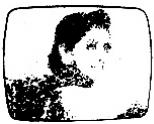
Snowy Picture
Snowy picture is usually due to weak signal. Adjust antenna or install an antenna amplifier.
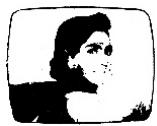
Double Image or Ghosts
Double images are usually caused by reflections from tall buildings. Adjust the direction of the antenna or raise it.
Ghosting may also occur when still pictures are displayed continuously. It may disappear after a few moments.
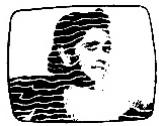
Radio Wave Interference
Wave patterns are moving on the screen, which are usually caused by nearby radio transmitters or short-wave receiving equipment.
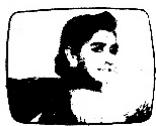
High Temperature Electrothermal Interference
Diagonal or herringbone patterns appear on the screen or part of picture is missing. This is probably caused by high temperature electrothermal equipment in a nearby hospital.
OPERATING MANAGEMENT:
Your product is guaranteed 2 years.
To request support, contact the customer service at 0811 482 202.
You will then be asked the defective part and the original invoice stating the product regulation. We may ask you for photos of your appliance.
FAILURE TO PACKING:
If it appeared, after unpacking the product or device, a vice preventing the use of the product in its expected configuration, contact the customer service within 72 hours worked.
DISCLAIMER OF WARRANTY
The guarantee does not apply in case of accidental physical damage, it does not cover such damage and failures that resulted:
- improper installation (of a bad installation) or a misuse or poor maintenance of the product.
- improper use of the material or not complying with the instructions in the user manual.
- lightning, flood, fire, power surge, shock, poor ventilation, a fall, discoloration due to the action of light, burning, humidity, excessive heating without humidifier, or irregular ground or insects.
- repairs made and/or working on the hardware and/or opening of it by an unauthorized person by the manufacturer.
- maintenance, repair or replacement of parts due to normal usury or failure to maintain.
- modification of the construction and original features of the guaranteed product.
corrosion, oxidation, a bad connection nor an external power supply problem.
EXCLUSION OF WARRANTY RELATING TO THE NATURE OF DAMAGES (INDIRECTS DAMAGES)
The guarantee covers only the right to repair or replace the guaranteed product. Consequently, the indirect damage resulting from the failure or damage not covered by warranty, including:
Commissioning costs, adjusting, cleaning;
- Damage of any kind resulting from the unavailability of the product guaranteed during the period between deterioration and failure and repair or the replacement of the product guaranteed.
OTHER EXCLUSIONS
- Damage and faults under specific exclusions in the warranty manufacture guaranteed product, as mentioned in the product instructions for use;
The aesthetic damage;
The products guarantee that the customer is not able to return or those who returned without their accessories.
PIXEL POLICY
- In accordance with the ISO 13406-2 norm, a product is considered defective when the number of dead or lit pixels is over 3.
SUPPORT
Please refer you to the board below to find easily your alter sales number:
| COUNTRY | PHONE NUMBER | EMAIL | WEB |
| FR
(only for metropolitan France) | (+33) 0811 482 202 | sav@polaroid-France.com | www.mms-support.net
www.polaroid.tech |
| BEL | +352.26.11.00.90 | support_BE@market-maker.fr | |
| NL |
| DE | +49359127224626 | Service@letmerepair.com | |
| IT | 199 309 314 | helpdesk@stitaly.it | |
| ES | + 349521794 79 | support_ES@market-maker.fr | |
| PT | (+34) 952 179 557 | info@letmerepair.pt | |
| CH | 0900 77 88 99 | info@dstv.ch | |
Market Maker Brand Licensing, hereby declares that this equipment, conforms to the essential requirements and other relevant provisions of Directive 2014/53/UE. The declaration of Conformity can be viewed at the following address:
http://www.mms-support.net/OTA/ECD_MMBLTQLED32PR001.pdf
PLR IP Holdings, LLC, its licensees and affiliates, fully support all electronic waste initiatives. As responsible stewards of the environment, and to avoid violating established laws, you should properly dispose of this product in compliance with all applicable regulations, directives or otherGovernances in the area where you reside. Please check with local authorities or the retailer where you purchased this product to determine a location where you can appropriately dispose of the product.
THE DISPOSAL OF ELECTRICAL AND ELECTRONIC EQUIPMENT WASTE PRODUCTS ON THE PART OF FINAL USERS IN THE EUROPEAN UNION
This symbol on the product or on the container indicates that this product cannot be eliminated with the general waste. The user is responsible for eliminating this kind of waste by throwing them away at a "recycling point" specifically for electrical and electronic waste. Selective collection and electrical equipment recycling contribute to preserve natural resources and warrant waste recycling to protect environment and health. In order to receive further information about electrical and electronic waste collecting and recycling, contact your Local Council, the service of household waste or the establishment where the product was acquired.

Instantly recognizable. Instantly reassuring. The Polaroid Classic Border lets you know you've purchased a product that exemplifies the best qualities of our brand and that contributes to our rich heritage of quality and Innovation.
© 2019. All Rights Reserved
Polaroid, Polaroid & Pixel, Polaroid Classic Border Logo and Polaroid Color Spectrum are trademarks of PLR IP Holdings, LLC, used under license. PLR IP Holdings, LLC does not manufacture this product or provide any Manufacturer's Warranty or support.
www.polaroid.tech
Market Maker Brand Licensing - 79/81 Ancienne Route Nationale 7-69570 Dardilly, France
GAMMA ACCESS 32 SERIE 1000 TQLED32PR001 MANUALE DELL'UTENTE

Domande ?
Bisogno d'aiuto?
Market Maker Brand Licensing, 79/81 Ancienne Route Nationale 7, 69570 Dardilly, France
GAMME ACCESS 32 SERIE 1000 TQLED32PR001 MANUAL DEL USUARIO
Contraste/Brillo/Color/Matiz/Nitidez