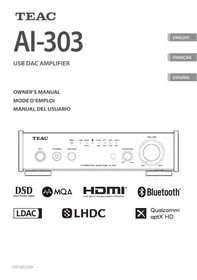
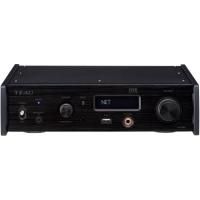
AL-303 - Audio Amplifier TEAC - Free user manual and instructions
Find the device manual for free AL-303 TEAC in PDF.



| Product type | Integrated stereo amplifier |
| Rated output power | 2 × 25 W (8 Ω, 1 kHz, 0.03% THD) ; 2 × 50 W (4 Ω, 1 kHz, 0.03% THD) |
| Frequency response | 2 Hz – 70 kHz (-5 dB, LINE IN) |
| Signal-to-noise ratio | ≥ 100 dB (LINE IN) |
| Total harmonic distortion + noise | 0.008% (20 Hz – 20 kHz, 4 Ω, 6.25 W) |
| Dimensions (W × H × D) | 215 × 61 × 257 mm (incl. protrusions) |
| Weight | 2.3 kg |
| Power supply | AC 100 – 240 V, 50/60 Hz |
| Power consumption | 33 W (standby ≤ 0.5 W) |
| Analog audio inputs | 2 pairs of RCA jacks (LINE 1, LINE 2), impedance 10 kΩ |
| Digital audio inputs | 1 × coaxial (RCA), 1 × optical (TOSLINK), 1 × USB Type-C, 1 × HDMI (eARC) |
| Supported digital audio formats | Linear PCM up to 384 kHz/32 bit, DSD up to 11.2 MHz (DoP), MQA |
| Bluetooth | Version 4.2, Class 2, range approx. 10 m ; codecs LDAC, LHDC, aptX HD, AAC, SBC ; multipoint up to 2 devices |
| Headphone output | 3.5 mm stereo mini-jack, 220 mW + 220 mW (32 Ω, 1 kHz, 1% THD) |
| Subwoofer output | 1 × RCA jack (SUBWOOFER OUT, controlled by main volume) |
| Recommended speaker impedance | 4 Ω – 8 Ω |
| Special functions | MQA decoding, Crossfeed (stereo/mono blend), digital filters (RDOT/FIR), upconversion (2×/4×/8×), HDMI eARC with CEC |
| Supplied accessories | Power cord, remote control (RC-1337), AAA batteries (×2), foot pads (×3), instruction manual |
| Safety | Class I construction, overcurrent protection, auto standby (standby after 30 min), compliant with CE and IC standards |
| Operating temperature | +5 °C to +35 °C, humidity 5 % – 85 % (non-condensing) |
| Maintenance and cleaning | Clean with a soft, slightly damp cloth (diluted neutral detergent) ; unplug before cleaning |
Frequently Asked Questions - AL-303 TEAC
User questions about AL-303 TEAC
0 question about this device. Answer the ones you know or ask your own.
Ask a new question about this device
Download the instructions for your Audio Amplifier in PDF format for free! Find your manual AL-303 - TEAC and take your electronic device back in hand. On this page are published all the documents necessary for the use of your device. AL-303 by TEAC.
USER MANUAL AL-303 TEAC
- Do not expose this apparatus to drips or splashes.
- Do not place any objects filled with liquids, such as vases, on the apparatus.
- Do not install this apparatus in a confined space such as a book case or similar unit.
- The apparatus should be located close enough to the AC outlet so that you can easily reach the power cord plug at any time.
- If the product uses batteries (including a battery pack or installed batteries), they should not be exposed to sunshine, fire or excessive heat.
- CAUTION for products that use replaceable lithium batteries: there is danger of explosion if a battery is replaced with an incorrect type of battery. Replace only with the same or equivalent type.

Precautions concerning batteries
Misuse of batteries could cause them to rupture or leak leading to fire, injury or the staining of nearby things. Please read and observe the following precautions carefully.
- Be sure to insert the batteries with correct positive () and negative () orientations.
- Use batteries of the same type. Never use different types of batteries together.
- If the remote control is not used for a long time (more than a month), remove the batteries to prevent them from leaking.
- If the batteries leak, wipe away the leakage inside the battery compartment and replace the batteries with new ones.
- Do not use batteries of types other than those specified.
- Do not mix new batteries with old ones or use different types of batteries together.
- Do not heat or disassemble batteries. Never throw batteries into fire or water.
- Do not carry or store batteries with other metallic objects. The batteries could short circuit, leak or explode.
- Never recharge a battery unless it is confirmed to be a rechargeable type.
- Do not expose batteries to extremely low air pressure as it could result in an explosion or leakage of flammable liquids or gases.
Supplier's declaration of conformity
Model number: Al-303

Trade name: TEAC
Responsible party: 11 Trading Company, LLC
Address: 3502 Woodview Trace #200 Indianapolis, IN 46268
U.S.A.
URL: https://11tradingcompany.com/contact-us/
This device complies with Part.15 of FCC Rules.
Operation is subject to the following two conditions:
1) This device may not cause harmful interference
2) This device must accept any interference received, including interference that may cause undesired operation.
Information
This equipment has been tested and found to comply with the limits for a Class B digital device, pursuant to Part 15 of the FCC Rules. These limits are designed to provide reasonable protection against harmful interference in a residential installation. This equipment generates, uses, and can radiate radio frequency energy and, if not installed and used in accordance with the instructions, may cause harmful interference to radio communications. However, there is no guarantee that interference will not occur in a particular installation. If this equipment does cause harmful interference to radio or television reception, which can be determined by turning the equipment off and on, the user is encouraged to try to correct the interference by one or more of the following measures:
- Reorient or relocate the equipment and/or the receiving antenna.
- Increase the separation between the equipment and receiver.
- Connect the equipment into an outlet on a circuit different from that to which the receiver is connected.
- Consult the dealer or an experienced radio/TV technician for help.
CAUTION
Changes or modifications not expressly approved by the party responsible for compliance could void the user's authority to operate the equipment.
MQA (Master Quality Authenticated)
MQA is an award-winning British technology that delivers the sound of the original master recording. The master MQA file is fully authenticated and is small enough to stream or download.
Visit mqa.co.uk for more information.
The AI-303 includes MQA technology, which enables you to play back MQA audio files and streams, delivering the sound of the original master recording.
The state of the MQA indicator shows whether the unit is decoding and playing an MQA stream or file, guaranteeing that the sound is identical to that of the source material. When the MQA indicator lights blue, this shows that the file playing is an MQA studio file that has either been approved in the studio by the artist/producer or has been verified by the copyright owner.
- This unit can decode MQA streams and files only when the playback source is USB, HDMI (ARC), COAXIAL or OPTICAL.
Indicator during MQA playback
| Type | MQA indicator |
| MQA | Green |
| MQA Studio | Blue |
| MQA Core | Magenta |
Crossfeed function
- By using the crossfeed function when listening through headphones, a sound that is closer to the sound heard from speakers can be re-created. In particular, this can improve appreciation of music recorded with extreme left and right channel separation, which was common in the early days of stereo recording, as well as when listening for extended periods.
- When using speakers, the sound image will be focused toward the center of the stereo field. This has the effect of making vocals and narration clearer and easier to understand.
- Turn the CROSSFEED knob all the way to the left to turn off the crossfeed function and use ordinary stereo playback. Turning this all the way to the right will focus all the sound to the center and make it mono.
HDMI (eARC)
By using a single HDMI cable to connect the HDMI connector of this unit to the ARC connector of a TV that supports ARC (Audio Return Channel) or eARC (Enhanced Audio Return Channel), digital audio (up to 192kHz / 24 -bit) from the TV or player connected to the TV can be output from the speaker and headphone jacks of the Al-303.
Since HDMI CEC is supported, the TV remote control can be used to adjust the volume of this unit and mute it. In addition, the power of this unit can be linked to turning the TV power on/off (standby).
HDMI CEC support commands differ according to the TV, so synchronized operation with all TVs is not guaranteed.
- This unit complies with the eARC (Enhanced Audio Return Channel) specification, but it does not support the decoding of Dolby Atmos®, Dolby TrueHD, DTS:X™, DTS-HD and other formats. Set the audio output of the TV to linear PCM before connecting.
- The digital audio signals that can be output varies by TV. Even if a Blu-Ray Player or other playback device outputs high-resolution audio signals, the TV might restrict resolution to 48kHz / 16 -bit. For details, check with the manufacturer of the TV that you are using.
Bluetooth® notes
When using this unit with a mobile phone or other Bluetooth devices, they should be no more than about 10 m (33 ft) apart.
Depending on the circumstances of use, however, the effective transmission distance might be shorter.
Wireless communication with every device that supports Bluetooth wireless technology is not guaranteed.
To determine the compatibility between this unit and another device that supports Bluetooth wireless technology, refer to that device's operation manual or contact the shop where you purchased it.
Content protection
This unit supports SCMS-T as a form of content protection when transmitting audio, so it can play protected audio.
Transmission security
This unit supports security functions during Bluetooth wireless transmission in accordance with the Bluetooth standard specifications, but it does not guarantee the privacy of such transmissions.
TEAC CORPORATION will bear no responsibility should an information leak occur during Bluetooth wireless transmission.
Profiles
This unit supports the following Bluetooth profiles.
A2DP (Advanced Audio Distribution Profile)
AVRCP (Audio/Video Remote Control Profile)
In order to transfer audio using Bluetooth wireless transmission, the Bluetooth device must support A2DP.
In order to control playback on the Bluetooth device, it must support AVRCP.
Even if a Bluetooth device supports the same profiles, though, its functions might differ according to its specifications.
Codec
This unit supports the following codecs. It will automatically select one that is appropriate for the other Bluetooth device during audio transfer.
- LDAC
- LHDC
Qualcomm aptX™ HD audio
Qualcomm aptXTM audio
AAC
SBC
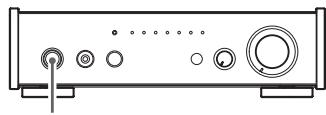
1 Press the standby/on ( / ) button to turn the unit on.
2 Press the SOURCE button one or more times to select Bluetooth (3).
This puts the unit into Bluetooth mode.
3 Pair or connect with another Bluetooth device.
Pairing with another Bluetooth device
The first time another Bluetooth device is used with this unit, they must be paired.
To prepare this unit to pair, put it into Bluetooth mode and press the SOURCE button or remote control button for at least three seconds. When this unit is ready to pair, its indicator flashes rapidly.
After this unit enters pairing mode, pair with it (shown as Al-303) on the other Bluetooth device. The indicator stops flashing and stays lit when pairing completes and they are connected.
For details, refer to the operation manual of that Bluetooth device.
To connect with a Bluetooth device that has already been paired, follow the connection procedures for that device.
- When pairing or connecting, devices should be within a few meters of each other. If they are too far apart, pairing and connection afterwards might become impossible.
- If you want to delete pairing data and initialize the Bluetooth circuit, press the SOURCE button or remote control button for at least 10 seconds. At this time, all input indicators will flash twice.
ATTENTION
Regardless of the connection standby states of this unit and the other Bluetooth device, if the Bluetooth indicator continues blinking for a long time, turn off both this unit and the other device. Then, restart them and conduct connection procedures again.
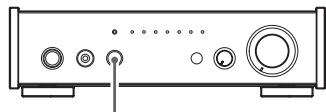

SOURCE
4 Start audio output on the other Bluetooth device.
- Confirm that the volume is turned up on the other Bluetooth device. If the volume of the audio being output is not turned up, no sound might be output from this unit.
5 Adjust the volume.
- The volumes of this unit and the other Bluetooth device are not linked. This unit cannot control the volume of the other Bluetooth device, and that device cannot control the volume of this unit.
NOTE
- You cannot select the codec to be used by pressing a button, for example.
- Due to the characteristics of Bluetooth wireless technology, compared to the playback on the Bluetooth device, audio output through this unit will be slightly delayed.
Checking the Bluetooth audio codec
The audio codec being used for Bluetooth playback is shown by the green indicator.
Support for multipoint connection
Connecting with 2 Bluetooth devices at the same time is possible. Audio can only be output from one at a time when connected. Output from the device that most recently started playback will be prioritized. Playback will be stopped on the previously playing device.
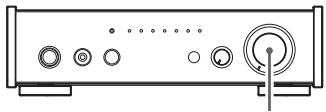
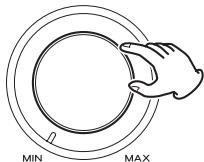
VOLUME
LDAC is an audio coding technology developed by Sony that enables the transmission of High-Resolution (Hi-Res) Audio content, even over a Bluetooth connection.
Unlike other Bluetooth compatible coding technologies such as SBC, it operates without any down-conversion of the Hi-Res Audio content, and allows approximately three times more data* than those other technologies to be transmitted over a Bluetooth wireless network with unprecedented sound quality, by means of efficient coding and optimized packetization.
- excluding DSD format contents
**in comparison with SBC (Subband Coding) when the bitrate of 990 kbps (96/48 kHz) or 909 kbps (88.2/44.1 kHz) is selected
This product has energy-saving sleep and standby states.
The operation of these functions depend on the automatic standby setting and the selected input source.
Sleep overview
Only when the input source is USB, HDMI (ARC), Bluetooth, COAXIAL or OPTICAL
If there is no digital input signal from the selected source and no operation occurs for about three minutes, the unit will enter sleep mode.
Inputting the selected digital signal will wake the unit (automatic power on function).
- When in sleep mode, the input indicators will light dimly.
When the automatic standby function is on
The unit will enter standby mode after about 30 minutes if it remains in sleep mode or if there is no sound when the input source is LINE. When in standby mode, inputting the selected digital signal will not turn the unit on again.
Press the standby/on ( / ) button on the main unit or the remote control to turn the unit on again.
Power consumption in standby mode is 0.5W or less.
Checking procedure
If the automatic standby function is off, all the input indicators will light temporarily when the unit is turned on.
Setting the automatic standby function
When the unit is in a standby state, press and hold the standby/on (O/I) button. After about three seconds the input indicators will change as shown below and the automatic standby setting will change.
From all lit to two flashes: automatic standby function on
From the current input indicator lit to all indicators lit: automatic standby function off
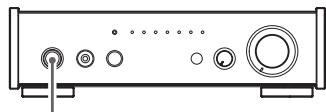
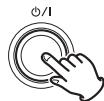
Press and hold
Operating systems that have been confirmed for use
We provide information about operating systems that have been confirmed for use on the product web page at the following URL.
https://teac.jp/int/product/ai-303/
Installing the driver
When using Mac
This unit can be operated with the standard OS driver, so there is no need to install a driver.
A dedicated driver must be installed on the computer, however, to use Bulk Pet.
When using Windows
The dedicated driver must be installed on the computer.
Installing the driver on a computer
Install the dedicated driver on the computer after downloading it from the following URL.
For details about installation and OS setting procedures, see the installation guide included with the driver.
https://teac.jp/int/product/ai-303/download
The sampling frequencies that can be transmitted are 44.1kHz 48kHz 88.2 kHz,96 kHz,176.4 kHz,192 kHz,352.8 kHz and 384kHz
2.8MHz, 5.6MHz and 11.2MHz DSD are also supported.
When properly connected, you will be able to select "TEAC USB AUDIO DEVICE" as the audio output for the operating system.
Downloading playback application TEAC HR Audio Player
You can download Mac and Windows versions of our free TEAC HR Audio Player application that supports playback of DSD files.
https://teac.jp/int/product/ai-303/download
Playing back audio files on a computer
1 Connect this unit to the computer using a USB cable.
- When a dedicated driver is necessary for connection, it must be installed on the computer beforehand (page 19).
- Use a cable that has a USB Type-C connector for connecting to this unit.
2 Turn the computer on.
- Confirm that the computer has started up correctly.
3 Press the standby/on ( /1) button to turn the unit on.
4 Press the SOURCE button repeatedly to select USB.
5 Start playback of an audio file on the computer.
If you can adjust the volume from the computer, set it to its maximum level and use this unit's VOLUME knob to adjust the level for the best audio quality.
- If you are using the TEAC HR Audio Player application, the volume cannot be adjusted from the computer.
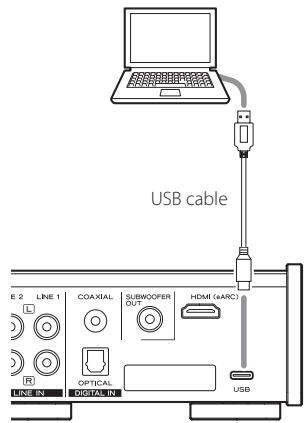
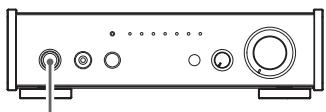
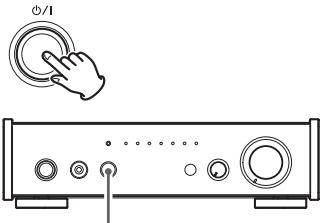

SOURCE
The computer and this unit cannot control each other.
- Do not do any of the following when playing back audio files over the USB connection. Doing so could cause the computer to malfunction. Always quit the audio playback software before conducting any of these operations.
-
Unplugging the USB cable
-
Putting the unit into standby mode.
-
Changing the current input selection
-
To avoid outputting computer operation sounds, change the settings on the computer.
- Connect the computer and this unit and wait until the driver has loaded properly before starting the audio playback software. When connecting for the first time or using a different USB port, driver loading could take some time.
Sampling frequency display during playback
Press the remote control DISPLAY button to show for a few seconds the sampling frequency (Fs) of the sound source playing back.
Digital filters
Press the remote control FILTER button to change the digital filter type.
- This setting has no effect when the input is DSD.
RDOT filter
RDOT is an analogous interpolation method, that uses fluency logic. This filter features re-creation of natural tones and sound space. With upconversion, 4 settings are available.
FIR filter
This FIR filter features short delay with slow roll-off. Compared to RDOT, the sound is warmer. Upconversion is disabled.
Upconversion
The upconversion function can be used with input sources other than analog audio.
Press the remote control UPCONVERT button to change this setting.
- This setting only functions when the RDOT digital filter is selected.
The relationships between input sampling frequencies and sampling frequencies after upconversion are shown on the table below.
| Input source | Upconversion setting | ||||
| Digital audio input | USB | OFF | 2× Fs | 4× Fs | 8× Fs |
| Input sampling frequency | Sampling frequency after upconversion | ||||
| [kHz] | [kHz] | ||||
| 32 | - | 32 | 64 | 128 | 256 |
| 44.1 | 44.1 | 44.1 | 88.2 | 176.4 | 352.8 |
| 88.2 | 88.2 | 88.2 | 88.2 | 176.4 | 352.8 |
| 176.4 | 176.4 | 176.4 | 176.4 | 176.4 | 352.8 |
| - | 352.8 | 352.8 | 352.8 | 352.8 | 352.8 |
| 48 | 48 | 48 | 96 | 192 | 384 |
| 96 | 96 | 96 | 96 | 192 | 384 |
| 192 | 192 | 192 | 192 | 192 | 384 |
| - | 384 | 384 | 384 | 384 | 384 |

These values are not converted.
The maximum upconversion is 8× Fs.
- Upconversion is not possible when the input is DSD.
Input indicator lighting
Pressing the DISPLAY, FILTER or UPCONVERT button on the remote control will cause the input indicator lighting to change, showing the state, as follows.
| Item | State | Input source indicators | ||||||
| USB | HDMI(ARC) | 3 | COAXLDAC | OPTLHDC | LINE 1aptX | LINE 2AAC | ||
| Sampling frequency of playing audio* | 48kHz multiples | Blue | - | - | - | - | - | - |
| 44.1kHz multiples | - | Blue | - | - | - | - | - | |
| 32kHz multiples | - | - | Blue | - | - | - | - | |
| Sampling frequency of playing audio (PCM)* | 1x | - | - | - | - | - | - | Green |
| 2x | - | - | - | - | - | Green | - | |
| 4x | - | - | - | - | Green | - | - | |
| 8x | - | - | - | Green | - | - | - | |
| Sampling frequency of playing audio (DSD)* | DSD64 | - | - | - | - | - | - | Magenta |
| DSD128 | - | - | - | - | - | Magenta | - | |
| DSD256 | - | - | - | - | Magenta | - | - | |
| Digital filter | RDOT | - | Blue | Blue | - | - | - | Green |
| FIR | - | Blue | Blue | - | - | Green | - | |
| Upconversion setting | OFF | Blue | Blue | - | - | - | - | Green |
| 2× Fs | Blue | Blue | - | - | - | Green | - | |
| 4× Fs | Blue | Blue | - | - | Green | - | - | |
| 8× Fs | Blue | Blue | - | Green | - | - | - | |
*These are shown at the same time.
Troubleshooting
If you experience a problem with the unit, please take a moment to review the following information before requesting service. If it still does not operate correctly, contact the retailer where you purchased the unit.
| General | The unit does not turn on. | Check that the power cord is completely plugged into the power outlet. If the outlet is switched, confirm that the switch is in the ON position. |
| Connect a different electrical device to the outlet to confirm that it is supplying power. | ||
| Connections with a computer | All the indicators on the front are blinking. | The protection circuit is operating because excessive electrical current flowed to a speaker output connector. Turn the unit off and check if anything is wrong with the speaker output connectors. In addition, confirm that nothing is wrong with the speaker cables and speakers themselves. |
| Computer does not recognize this unit. | If the connection requires a driver, confirm that the latest driver has been installed properly and restart the computer. The latest driver can be downloaded from the website for this product, which is shown on page 19. Even if a computer operating system has been confirmed to work with this unit, proper connection still might not be possible depending on the composition of the computer hardware and software. | |
| Noise occurs. | Starting other applications during playback of an audio file may interrupt playback or cause noise. Do not start other applications during playback. | |
| Audio files cannot be played back. | Connect this unit to the computer, and set this unit's input to USB before starting audio playback software and audio file playback. Proper playback might not be possible if you connect this unit to the computer or change its input to USB after starting the audio playback software. | |
| Volume | Volume is low when connected to a computer or Bluetooth device. | Confirm that the volume setting is not low on the computer or other Bluetooth device. Better sound quality can be achieved by maximizing the volume of the source device and adjusting the volume with this unit. |
| Connections with a TV | Sound from a TV connected by HDMI is not output. | Connect the cable to an HDMI connector labeled ARC or eARC on the TV. Set the TV audio output to use an external sound system. Select PCM for the digital audio output of the TV. |
Since this unit uses a microcontroller, external noise and other interference can cause the unit to malfunction. If this occurs, unplug the power cord, wait for a while, and then turn the unit on again and restart operations.
Specifications
Amplifier
Rated output
25 W + 25 W. 0.03% (LINE IN, 1 kHz, 8 Ω, JEITA)
50 W + 50 W. 0.03% (LINE IN, 1 kHz, 4 Ω, JEITA)
THD+N 0.008%
(LINE IN, 20 Hz - 20 kHz, 4 Ω, 6.25 W, JEITA)
THD+N. 0.004%
(LINE IN, 1 kHz, 4 Ω, 6.25 W, JEITA)
S/N ratio. 100 dB (LINE IN, JEITA)
Frequency response 2 Hz - 70 kHz
(LINEIN,-5dB,JEITA
Digital audio inputs
Coaxial digital connector 1
Optical digital connector 1
Supported sampling frequencies
Linear PCM
32 kHz, 44.1 kHz, 48 kHz, 88.2 kHz, 96 kHz, 176.4 kHz,
192 kHz (16/24-bit)
DSD. 2.8 MHz
supported using 176.4kHz / 24 -bit DoP transmission)
USB Type C port USB 2.0 standard
Supported sampling frequencies
Linear PCM
44.1 kHz, 48 kHz, 88.2 kHz, 96 kHz, 176.4 kHz, 192 kHz,
352.8 kHz, 384 kHz (16/24/32-bit)
DSD. 2.8 MHz, 5.6 MHz, 11.2 MHz
HDMI. ARC/eARC 192 kHz/24-bit (PCM)
Analog audio inputs
RCA connectors 2
Input impedance 10 kΩ
Bluetooth wireless technology
Bluetooth version. 4.2
Output class.... Class 2
(transmission distance without obstructions* 10 m)
Supported profiles. A2DP, AVRCP
Supported A2DP codesc.LDAC, LHDC,
Qualcomm*aptXTM HD audio,
QualcommaptXTM audio,AAC,SBC
Supported A2DP content protection. SCMS-T
Maximum number of stored pairings 8
Maximum number of multipoint connections 2
*The transmission distance is approximate. The transmission distance could vary depending on the surrounding environment and electromagnetic waves.
Headphones output
Rated output. 220 mW + 220 mW
(LINE IN, 32Ω, 1 kHz, 1%, 25°C, JEITA)
THD+N. 0.006%
(LINE IN, 32 ,1kHz,50mW JEITA
General
Power supply. AC 100-240 V, 50/60 Hz
Power consumption 33 W
External dimensions (W× H× D including protrusions)
215× 61× 257mm (81 / 2^ × 21 / 2^ × 101 / 8^ )
Weight 2.3 kg (5 1/8 lb)
Operating temperature range +5^ to +35^
Operating humidity range.... 5% to 85% (no condensation)
Storage temperature range. -20^ to +55^
Included accessories
Power cord × 1
Foot pads × 3
Remote control (RC-1337) × 1
Batteries for remote control (AAA)× 2
Owner's manual (this document, including warranty) × 1
For information about the warranty, users living in the USA and Canada should see pages 74-75. Users living in Europe and other regions should see page 75.
- Specifications and appearance are subject to change without notice.
Weight and dimensions are approximate.
- Illustrations in this owner's manual might differ slightly from production models.

CAUTION
RISK OF ELECTRIC SHOCK DO NOT OPEN

ATTENTION: POUR RÉDUIRE LE RISQUE D'ÉLECTROCUTION, NE RETIREZ PAS LE CAPOT (OU L'ARRÊRÉ). AUCUNE PIECE INTERNE N'EST RÉPARABLE PAR L'UTILISATEUR. CONFIEZ TOUTE RÉPARATION À UN SERVICE APRES-VENTE QUALIFIÉ.

MQA and the Sound Wave Device are registered trademarks of MQA Limited © 2016
"DSD" is a registered trademark.
The Bluetooth® word mark and logos are registered trademarks owned by Bluetooth SIG, Inc. and any use of such marks by TEAC CORPORATION is under license.
Qualcomm aptX is a product of Qualcomm Technologies, Inc. and/or its subsidiaries.
Qualcomm is a trademark of Qualcomm Incorporated, registered in the United States and other countries. aptX is a trademark of Qualcomm Technologies International, Ltd., registered in the United States and other countries.
The LHDC logo is a registered trademark of Savitech Corporation.
Apple, Mac, OS X and macOS are trademarks of Apple Inc., registered in the U.S. and other countries.
Microsoft and Windows are either registered trademarks or trademarks of Microsoft Corporation in the United States and/or other countries.
Bulk Pet is a registered trademark of INTERFACE CO., LTD.
LDAC™ and LDAC logo are trademarks of Sony Corporation.
The terms HDMI and HDMI High-Definition Multimedia Interface, and the HDMI Logo are trademarks or registered trademarks of HDMI Licensing Administrator, Inc. in the United States and other countries.
https://teacsupport.aqipa.com/
https://teac.jsp/int/
MQA (Master Quality Authenticated)
- LDAC
- LHDC
Qualcomm aptX™ HD audio
Qualcomm aptX™ audio
AAC
SBC
https://teac.jp/int/product/ai-303/download
https://teac.jp/int/product/ai-303/download
QualcommaptXTM audio,AAC,SBC
Protection de contenu A2DP prise en charge ............ SCMS-T
Parte responsible: 11 Trading Company, LLC
URL: https://11tradingcompany.com/contact-us/
MQA and the Sound Wave Device are registered trademarks of MQA Limited © 2016
"DSD" is a registered trademark.
The Bluetooth® word mark and logos are registered trademarks owned by Bluetooth SIG, Inc. and any use of such marks by TEAC CORPORATION is under license.
Qualcomm aptX is a product of Qualcomm Technologies, Inc. and/or its subsidiaries.
Qualcomm is a trademark of Qualcomm Incorporated, registered in the United States and other countries. aptX is a trademark of Qualcomm Technologies International, Ltd., registered in the United States and other countries.
The LHDC logo is a registered trademark of Savitech Corporation.
Apple, Mac, OS X and macOS are trademarks of Apple Inc., registered in the U.S. and other countries.
Microsoft and Windows are either registered trademarks or trademarks of Microsoft Corporation in the United States and/or other countries.
Bulk Pet is a registered trademark of INTERFACE CO., LTD.
LDAC™ and LDAC logo are trademarks of Sony Corporation.
The terms HDMI and HDMI High-Definition Multimedia Interface, and the HDMI Logo are trademarks or registered trademarks of HDMI Licensing Administrator, Inc. in the United States and other countries.
https://teacsupport.aqipa.com/
https://teac.jsp/int/
COAXIAL: cable coaxial digital RCA
OPTICAL: cable digital optico (TOS)
E Terminal SUBWOOFER OUT
Si desea utiliser un subwoofer, conectelo a este terminal.
MQA (Master Quality Authenticated)
A2DP (Advanced Audio Distribution Profile)
AVRCP (Audio/Video Remote Control Profile)
- LDAC
- LHDC
Qualcomm aptX™ HD audio
Qualcomm aptXTM audio
AAC
SBC
https://teac.jp/int/product/ai-303/download
https://teac.jp/int/product/ai-303/download
Terminal digital coaxial 1
Terminal digital optico. 1 Frequencias de muestreo admitidas PCM lineal 32kHz 44,1 kHz,48 kHz,88,2 kHz,96 kHz,176,4 kHz, 192 kHz (16/24 bits)
DSD. 2,8 MHz
compatible using transmission DoP a 176,4 kHz/24 bits
Dealer's address/Adresse du revendeur
Length of Warranty
The parts and labor warranty will be effective for one (1) year from the date of the original purchase for products not used for commercial purposes. For products used commercially, the warranty is ninety (90) days for magnetic heads and optical pickups, one (1) year for all other parts and ninety (90) days for labor.
Who Is Covered Under This Warranty
This warranty is valid only in the United States or Canada, dependent upon the country in which original purchase was made, and enforceable only by the original purchaser within the country in which the purchase was made.
What Is Not Covered Under This Warranty
- Damage to or deterioration of the external cabinet.
- Damage resulting from accident, misuse, abuse, or neglect.
- Damage resulting from failure to follow instructions contained in the products owners' manual or otherwise provided with the product.
- Damage occurring during shipment of the product (Claims must be presented to the carrier).
- Damage resulting from the repair or attempted repair by anyone other than TEAC or an authorized TEAC service station.
- Damage resulting from modification or attempted modification of product not authorized by TEAC.
- Damage resulting from causes other than product defects, including lack of technical skills, competence, or experience of the user.
- Damage to any unit that has been altered or which the serial number has been defaced, modified or removed.
What TEAC Will Pay For
TEAC will pay all labor and material expenses for items covered by the warranty. Payment of shipping charges is covered in the next section.
How To Obtain Warranty Service
Your unit must be serviced by an authorized TEAC service station within the country in which the product was purchased. If you are unable to locate an authorized service station in your area, please contact TEAC at the applicable address shown at the end of this warranty statement. PLEASE DO NOT RETURN YOUR UNIT TO TEAC WITHOUT OUR PRIOR AUTHORIZATION. You must pay shipping charges if it is necessary to ship the product for service. However, if the necessary repairs are covered by warranty, we will pay the return shipping charges to any destination within the country in which the product was purchased. Whenever warranty service is required, you must present the original dated sales receipt, or other proof indicating the purchase place and date, as proof of warranty coverage.
LIMITATION OF IMPLIED WARRANTYES
ALL IMPLIED WARRANTYES, INCLUDING WARRANTY OF MERCHANTABILITY AND FITNESS FOR A PARTICULAR PURPOSE, ARE LIMITED IN DURATION TO THE LENGTH OF THIS WARRANTY.
EXCLUSION OF DAMAGES
TEAC'S LIABILITY FOR ANY DEFECTIVE PRODUCT IS LIMITED TO REPAIR OR REPLACEMENT OF THE PRODUCT, AT TEAC'S OPTION. TEAC SHALL NOT BE LIABLE FOR DAMAGE BASED UPON INCONVENIENCE, LOSS OF USE OF THE PRODUCT, INTERRUPTED OPERATION, COMMERCIAL LOSS OR LOST PROFITS, OR ANY OTHER DAMAGES, WHETHER INCIDENTAL, CONSEQUENTIAL, PUNITIVE OR OTHERWISE.
SOME STATES OR PROVINCES DO NOT ALLOW LIMITATIONS ON HOW LONG AN IMPLIED WARRANTY LASTS AND/OR DO NOT ALLOW THE EXCLUSION OR LIMITATION OF INCIDENTAL OR CONSEQUENTIAL DAMAGES, SO THE ABOVE LIMITATIONS AND EXCLUSIONS MAY NOT APPLY TO YOU.
THIS WARRANTY GIVES YOU SPECIFIC RIGHTS, AND MAY VARY FROM SOME OF THE RIGHTS PROVIDED BY LAW. THESE RIGHTS MAY VARY FROM STATE TO STATE OR PROVINCE TO PROVINCE.
This product is subject to the legal warranty regulations of the country of purchase. In case of a defect or a problem, please contact the dealer where you bought the product.
In countries/regions other than the USA, Canada and Europe
This warranty gives you specific legal rights, and you may also have other rights that vary by country, state or province. If you have a warranty claim or request, please contact the dealer where you bought the product.
The serial number for this product is printed on the nameplate on the bottom of the unit.
Please write it here and retain this for your records.

- Precautions concerning batteries
- Supplier's declaration of conformity
- Information
- CAUTION
- MQA (Master Quality Authenticated)
- Crossfeed function
- HDMI (eARC)
- Bluetooth® notes
- Content protection
- Transmission security
- Profiles
- Codec
- Pairing with another Bluetooth device
- ATTENTION
- Start audio output on the other Bluetooth device.
- Adjust the volume.
- NOTE
- Checking the Bluetooth audio codec
- Support for multipoint connection
- Sleep overview
- Only when the input source is USB, HDMI (ARC), Bluetooth, COAXIAL or OPTICAL
- When the automatic standby function is on
- Checking procedure
- Setting the automatic standby function
- Operating systems that have been confirmed for use
- Installing the driver
- When using Mac
- When using Windows
- Installing the driver on a computer
- https://teac.jp/int/product/ai-303/download
- Downloading playback application TEAC HR Audio Player
- Playing back audio files on a computer
- Connect this unit to the computer using a USB cable.
- Turn the computer on.
- Press the standby/on ( /1) button to turn the unit on.
- Press the SOURCE button repeatedly to select USB.
- Start playback of an audio file on the computer.
- Sampling frequency display during playback
- Digital filters
- RDOT filter
- FIR filter
- Upconversion
- Input indicator lighting
- Troubleshooting
- Specifications
- Amplifier
- Digital audio inputs
- Analog audio inputs
- Bluetooth wireless technology
- Headphones output
- General
- Included accessories
- https://teac.jsp/int/
- E Terminal SUBWOOFER OUT
- Length of Warranty
- Who Is Covered Under This Warranty
- What Is Not Covered Under This Warranty
- What TEAC Will Pay For
- How To Obtain Warranty Service
- LIMITATION OF IMPLIED WARRANTYES
- EXCLUSION OF DAMAGES
- In countries/regions other than the USA, Canada and Europe
Brand : TEAC
Model : AL-303
Category : Audio Amplifier