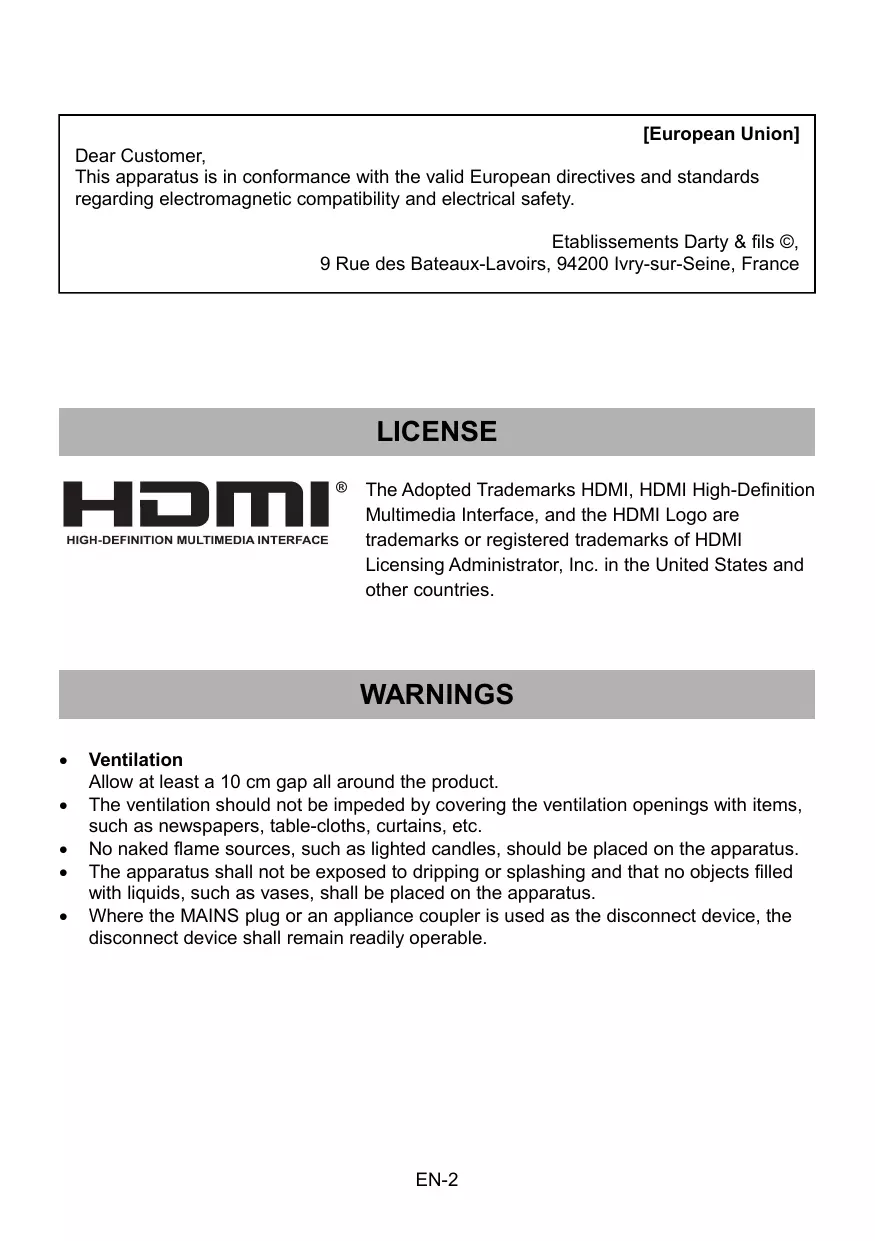
USER MANUAL MONITEUR24WCF JVC
Operating Instructions
HOMI HIGH-DEFINITION MULTIMEDIA INTERFACE
TABLE OF CONTENTS
LICENSE 2
WARNINGS 2
SAFETY PRECAUTIONS 3-4
PACKAGE CONTENTS 5
STAND ASSEMBLY 5
WALL MOUNTING 6
CONNECTIONS 7-9
ANGLE ADJUSTMENT 10
CONTROL BUTTONS 11
USING THE OSD MENU 12-16
TROUBLESHOOTING GUIDE 17
CLEANING AND MAINTENANCE 17
SPECIFICATIONS 18
V. Position (VGA mode)
Hotline Darty France
(Operations: Standard, Movie, Game, Internet)
DCR
CLEANING AND MAINTENANCE 17
SPECIFICATIONS 18
External power supply 18
PRODUCT INFORMATION SHEET 19-20
DISPOSAL 21
This product is manufactured, distributed, serviced and warranted exclusively by Etablissements DARTY et Fils.
"JVC" is the trademark of JVCKENWOOD Corporation, used by Etablissements DARTY et Fils under license.
[European Union]
Dear Customer,
This apparatus is in conformance with the valid European directives and standards regarding electromagnetic compatibility and electrical safety.
The Adopted Trademarks HDMI, HDMI High-Definition Multimedia Interface, and the HDMI Logo are trademarks or registered trademarks of HDMI Licensing Administrator, Inc. in the United States and other countries.
WARNING
- Ventilation
Allow at least a 10 cm gap all around the product. - The ventilation should not be impeded by covering the ventilation openings with items, such as newspapers, table-cloths, curtains, etc. - No naked flame sources, such as lighted candles, should be placed on the apparatus. - The apparatus shall not be exposed to dripping or splashing and that no objects filled with liquids, such as vases, shall be placed on the apparatus. - Where the MAINS plug or an appliance coupler is used as the disconnect device, the disconnect device shall remain readily operable.
SAFETY PRECAUTION
- Read these instructions carefully before using this equipment and keep them for future reference. Always handle the monitor with care when moving it.
- Never remove the rear cover. This monitor contains high-voltage parts. You may be seriously injured if you touch them.
- Do not use the product near water. To reduce the risk of fire or electric shock, do not expose this apparatus to rain or moisture.
- Avoid exposing the monitor to direct sunlight or another heat source. Orient the screen away from direct sunlight to reduce glare.
- Avoid touching the screen. Skin oils are difficult to remove.
- Do not rub or apply pressure to the monitor panel, as it may permanently damage the screen.
- Do not place this product on an unstable cart, stand or table.
- Do not block any ventilation openings.
- Do not install near heat sources such as radiators, heat registers, stoves, or other devices that produce heat.
- Place the monitor in a well ventilated area. Do not place anything on the monitor that prevents heat dissipation.
- Do not place heavy objects on the monitor, video cable or power cord.
- If smoke, an abnormal noise, or a strange odor is present, immediately switch the monitor off.
- Protect the power cord from being tread upon or pinched, particularly at the plug. Be sure that the power outlet is located near the apparatus so that it is easily accessible.
- Only use attachments/accessories specified by the manufacturer.
- Unplug this apparatus when it will be unused for long periods of time. Refer all servicing to qualified service personnel.
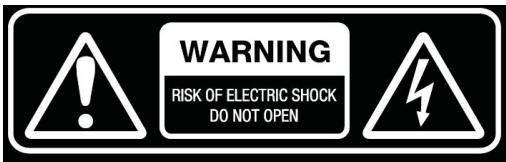
To reduce the risk of electrical shock, do not open the unit. No user serviceable parts inside. Refer servicing to qualified service personnel.
This symbol indicates that a dangerous voltage constituting a risk of electric shock is present within this unit.

This symbol indicates that there are important operating and maintenance instructions in the literature accompanying this unit.
| Class II equipment
To identify equipment meeting the safety requirements specified for Class II equipment according to IEC 61140.
This symbol indicates that a safety connection to electrical earth (ground) is not required. |
| For indoor use only |
| Use only power supplies listed in the instruction manual. |

This mark is applied to show the equipment conforms to European safety and electromagnetic compatibility standards.
The letters 'CE' signify that products sold in the EEA have been assessed to meet high safety, health, and environmental protection requirements.
PACKAGE CONTENTS
Please check the following items are present when you unpack the box, and save the packing materials in case you need to transport the monitor in the future.
Monitor - Stand base - Stand body Cover plate Power adapter - HDMI cable - Screws - User manual
ASSEMBLING THE STAND
Step 1
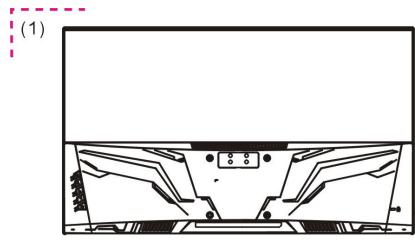
Lay the monitor on a cloth with the panel facing down to prevent the panel from being damaged.
Step 2
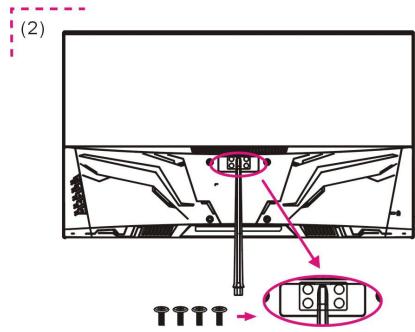
Align the Stand Body with the screw holes on the back of the monitor. Then tighten the supplied screws as shown.
Step 3
Attach the Cover Plate to the back of the monitor.
Step 4
Align the Stand Base with Stand Body. Then tighten the supplied screw as shown.
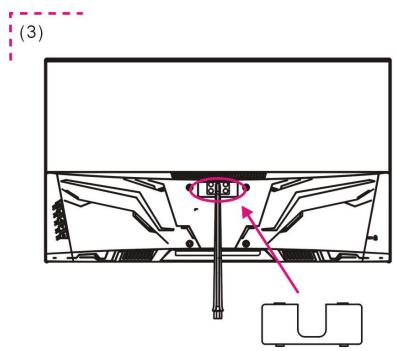
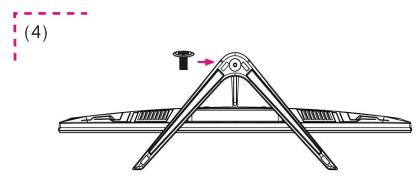
Press the upper end of cover plate until it secures in place.
1 Attach the cover plate to the back from the bottom end, aligning the groove of the cover plate with the stand body.
Before installing the monitor on the wall, please detach the stand from the monitor.

- To ensure sufficient ventilation, Install the monitor at least 10cm (4 inches) away from the wall and leave about 10 cm of space at each side of the monitor.
- Please consult a professional technician for wall mount installations. The manufacturer accepts no liability for installations not performed by a professional technician.
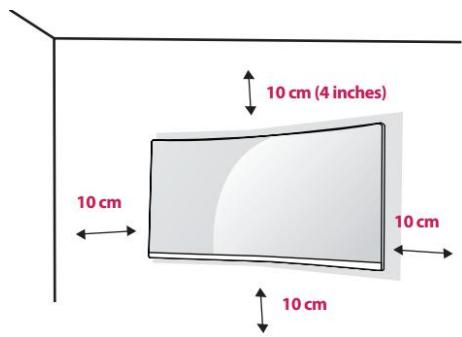
- Place a clean, dry and lint-free cloth on a flat, stable surface.
- Gently lay the monitor on the cloth with the screen facing down.
- Identify the four wall mounting screw holes on the back of the monitor.
- Install the wall mounting bracket (not supplied) on the back of the monitor and attach the monitor to the wall according to the mounting bracket's instructions.
- Make sure that all screws (not supplied) are tightened and secured properly.

NOTE:
- Use the wall mounting bracket and screws that conform to VESA standards.
- For more information, please refer to the user manual for the wall mounting bracket.
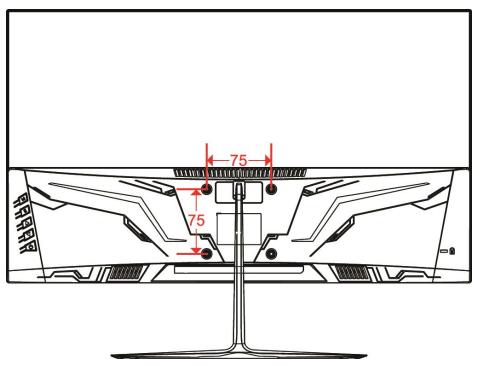
Wall mount:
75 x 75 mm
Screw size:
M4 x 8 mm

Make sure both the monitor and the device to be connected are switched off.
HDMI Connection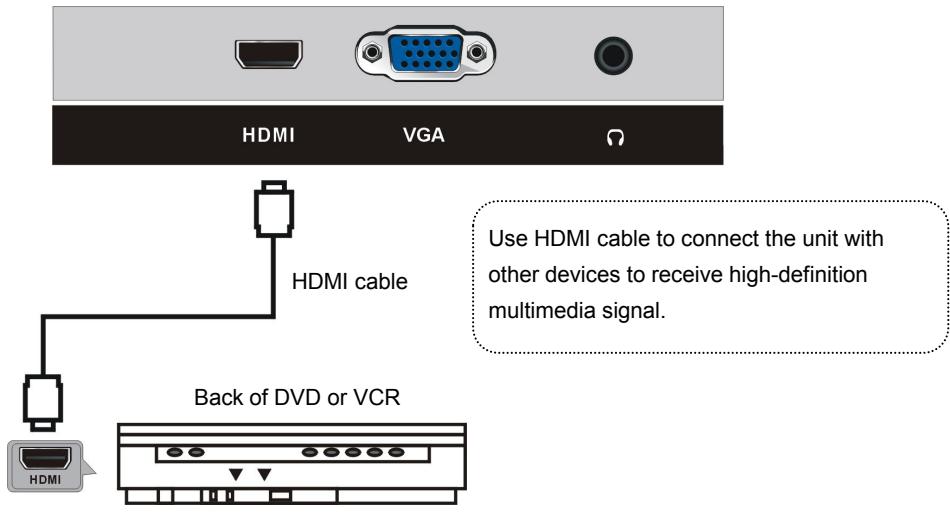
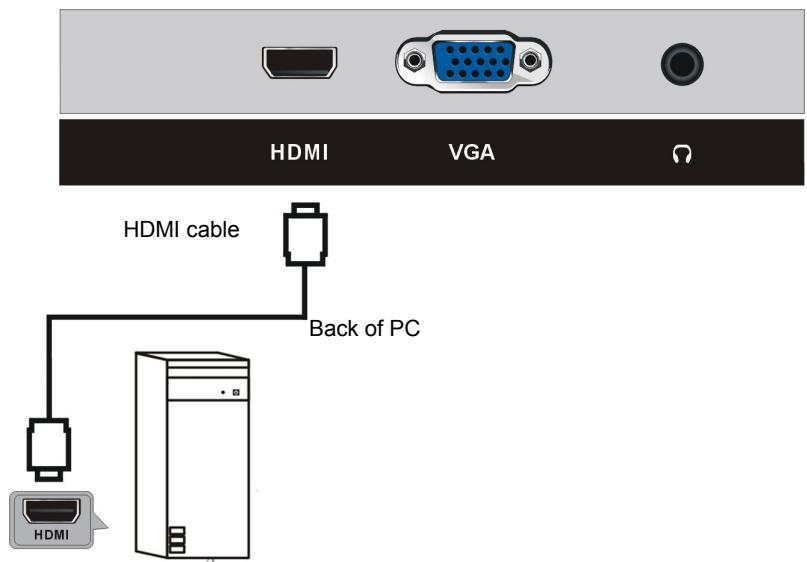
EARPHONE CONNECTION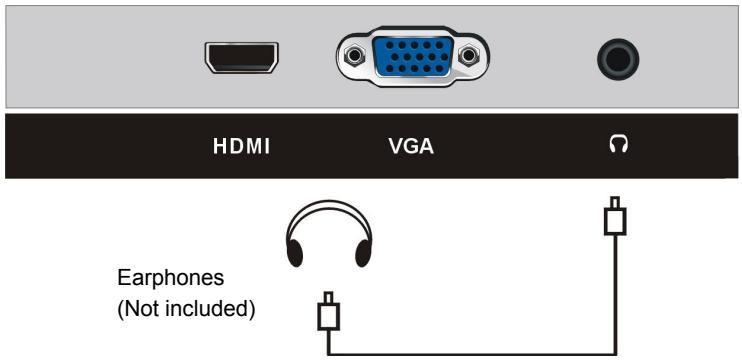
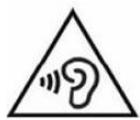
To prevent possible hearing damage, do not listen at high volume levels for long periods.
VGA Connection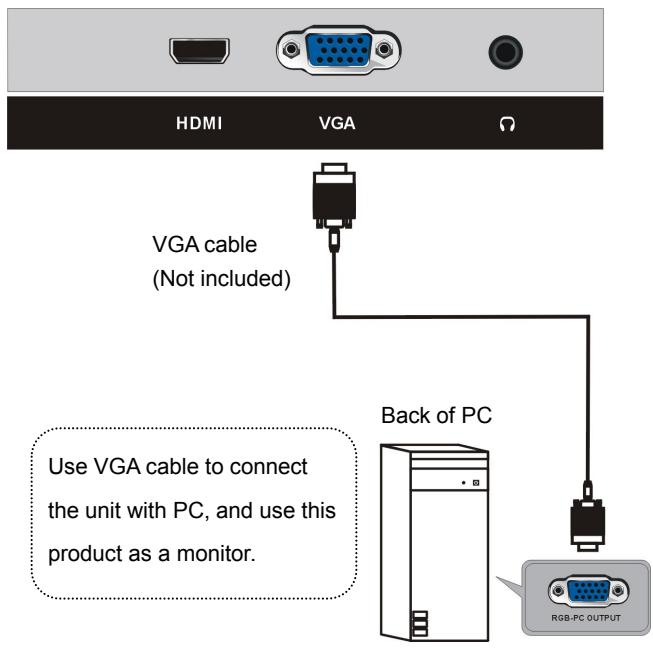
Power Connection
Turn on the monitor first, then the computer.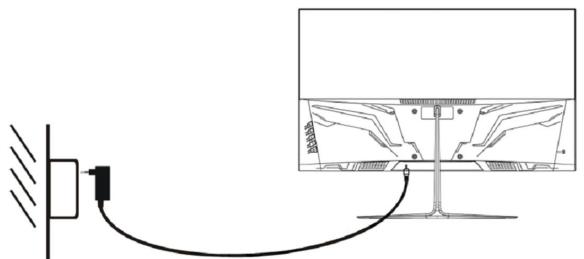
- Insert one end into the power jack on the back of the monitor.
- Plug the other end of the adapter into the mains socket.
Using the Kensington Lock
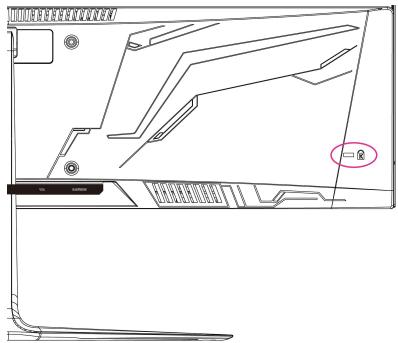
The connector for the Kensington security system is located at the back of the monitor.
Connect the monitor to a table using the Kensington security system cable (not supplied).
For more information on installation and usage, refer to the Kensington lock user manual or visit the website at http://www.kensington.com.
ADJUSTING THE ANGLE
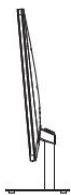
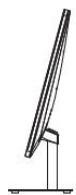
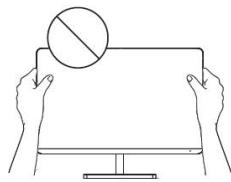
Drawings are for reference only and please refer to the actual monitor. - The angle of the screen can be adjusted forward 5 degrees or backward 15 degrees for a comfortable viewing experience. - Be careful not to touch or press the screen area when adjusting the angle of the monitor.
USER CONTROLS
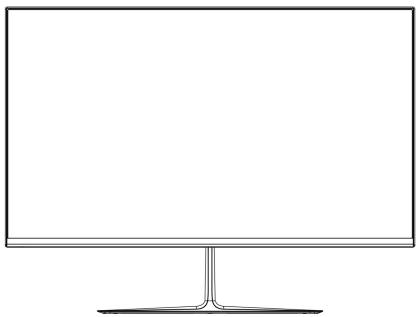
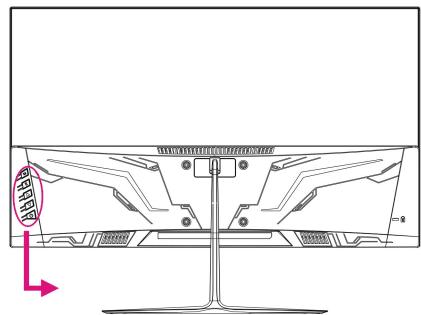
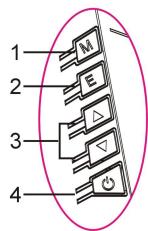
- M (MENU) button - Press this button to enter menu setting page.
- E (EXIT) button - Press this button to return to previous setting page.
- Triangle/Inverted triangle button - In menu setting page, press this button to select an option or adjust the value.
- POWER button - Press this button to power ON/OFF the monitor.
- Press M (MENU) button to display the main menu.
- Press the ▲/▼ button to select the desired option.
- Press the MENU button again to enter the sub-menu.
- Press the ▲/▼ button to adjust the highlighted option.
- Press E (EXIT) button to return to the previous setting page.
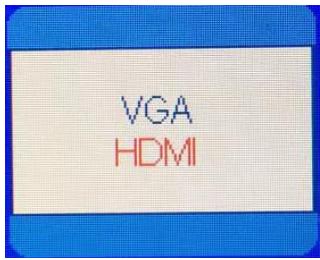
- Press the E button to display the Input Source, then press the M button to confirm your selection.
- This item is used to select an input source.
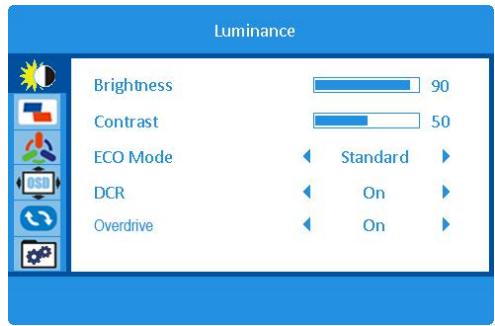
2. Luminance
- Press the M button to display the main menu.
- Press the ▲/▼ button to select Luminance.
- Press the M button to enter the sub-menu.
- Press the ▲/▼ button to select the desired option of the sub-menu.
Brightness
- Press the ▲/▼ button to select Brightness and press the M button to confirm your selection.
- This item is used to adjust the value of Brightness by pressing the / button.
Contrast
- Press the / button to select Contrast and press the M button to confirm your selection.
- This item is used to adjust the value of Contrast by pressing the / button.
Eco Mode
- Press the / button to select Eco Mode and press the M button to confirm your selection.
- This item is used to select the desired Eco mode by pressing the / button.
(Options: Standard/Movie/Game/Internet)
DCR
- Press the / button to select DCR and press the M button to confirm your selection.
- This item is used to turn on/off Dynamic Contrast Ratio by pressing the / button.
Overdrive
- Press the / button to select Overdrive and press the M button to confirm your selection.
- This item is used to select the desired Overdrive by pressing the / button.
(Options: Off/Strong/Medium/Weak)
- Overdrive setting allows users to change response time so as to eliminate the trailing of images on the screen while dealing with the rapidly moving objects on the screen.
- It is mainly used for gamers who are playing fast-paced games to achieve the best response time that can deliver smoother moving graphics.
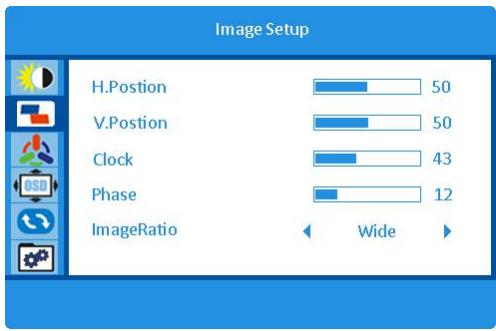
3. Image Setup
H. Position (VGA mode)
- Press the left/right button to select H. Position and press the M button to confirm your selection.
- This item is to adjust the image horizontal position by pressing the left/right button.
V. Position (VGA mode)
- Press the left/right button to select V. Position and press the M button to confirm your selection.
- This item is to adjust the image vertical position by pressing the left/right button.
Clock (VGA mode)
- Press the left/right button to select Clock and press the M button to confirm your selection.
- This item is to adjust the picture clock to reduce the vertical noise by pressing the left/right button.
Phase (VGA mode)
- Press the left/right button to select Phase and press the M button to confirm your selection.
- This item is to adjust the picture phase to reduce the horizontal noise by pressing the left/right button.
Image Ratio (VGA & HDMI modes)
- Press the ▲/▼ button to select Image Ratio and press the M button to confirm your selection.
- This item is used to adjust the image aspect ratio by pressing the ▲/▼ button.
(Options: Wide/4:3)
4. Color Setup
Color Temp.
- Press the ▲/▼ button to select Color Temp and press the M button to confirm your selection.
- This item is used to select the desired Color Temp by pressing the ▲/▼ button. (Options: Warm/User/Cool/Normal)
Red
- Press the ▲/▼ button to select Red
and press the M button to confirm your selection.
- This item is to finely tune the red color temperature by pressing the ▲/▼ button.
Green
- Press the ▲/▼ button to select Green and press the M button to confirm your selection.
- This item is to finely tune the green color temperature by pressing the ▲/▼ button.
Blue
- Press the ▲/▼ button to select Blue and press the M button to confirm your selection.
- This item is used to finely tune the blue color temperature by pressing the ▲/▼ button.
Low Blue Mode
- Press the ▲/▼ button to select Low Blue Mode and press the M button to confirm your selection.
- This item is used to select the desired low blue mode by pressing the ▲/▼ button.
(Options: Off/Strong/Medium/Weak)
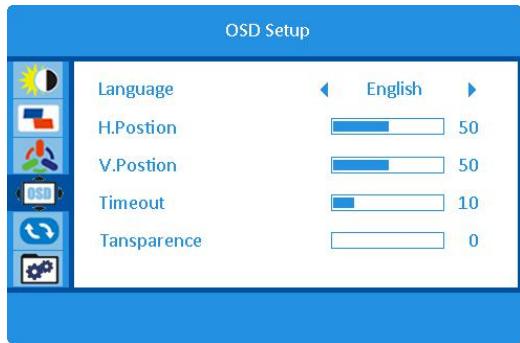
5. OSD Setup
Language
- Press the ▲/▼ button to select Language and press the M button to confirm your selection.
- This item is used to select the language displayed by the OSD menu by pressing the
▲/▼ button.
H. Position
- Press the ▲/▼ button to select H. Position and press the M button to confirm your selection.
- This item is used to adjust the OSD horizontal position by pressing the ▲/▼ button.
V. Position
- Press the ▲/▼ button to select V. Position and press the M button to confirm your selection.
- This item adjusts the OSD vertical position by pressing the ▲/▼ button.
Timeout
- Press the ▲/▼ button to select Timeout and press the M button to confirm your selection.
- This item adjusts the display time by pressing the ▲/▼ button.
Transparency
- Press the ▲/▼ button to select Transparency and press the M button to confirm your selection.
- This item adjusts the OSD transparency by pressing the ▲/▼ button.
6. Reset
Auto Config (VGA mode)
- Press the ▲/▼ button to select Auto Config and press the M button to confirm your selection.
- This item automatically adjusts the horizontal/vertical position, focus, and clock of the image.
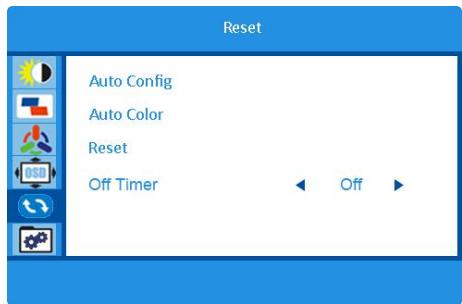
Auto Color (VGA mode)
- Press the ▲/▼ button to select Auto Color and press the M button to confirm your selection.
- This item is used to adjust white balance.
Reset
- Press the ▲/▼ button to select Reset and press the M button to confirm your selection.
- This item is used to restore to factory settings.
Off Timer
- Press the ▲/▼ button to select Off Timer and press the M button to confirm your selection.
- This item is used to set a shutdown timer. (Options: 1~24h)
This monitor is set to turn off automatically 4 hours after you turn on the display if there is no adjustment to the display.
- Press the ▲/▼ button to select Input Select and press the M button to confirm your selection.
- This item is used to select the input source.
(Options: HDMI/VGA)
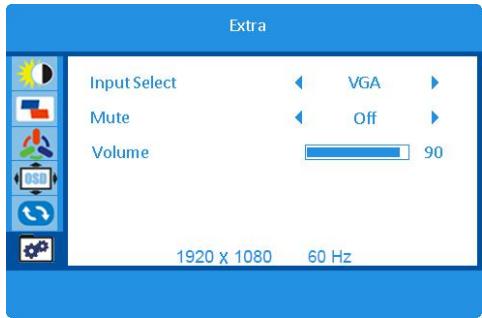
Mute
- Press the ▲/▼ button to select Mute and press the M button to confirm your selection.
- This item is used to turn on/off mute function.
Volume
- Press the up/down button to select Volume and press the M button to confirm your selection.
- This item is used to adjust the volume level.
TROUBLESHOOTING
| Symptom | Remedy |
| No power | Make sure the power cord is connected properly. |
| No image | • Make sure the power cord is connected properly.
• Make sure the signal cable is securely connected.
• When LED light indicates red, this monitor is in STANDBY mode. Please move your personal mouse to see if the image resumes. |
| Abnormal colors | Please adjust the RGB color. |
| The image bounces or a wave pattern is present. | Remove any electrical device or appliance that may cause interference. |
CLEANING AND MAINTENANCE
Switch off and unplug the monitor from the mains socket before cleaning.
Wipe the housing with a soft damp cloth.
Wipe any dust off the screen periodically with a soft, clean and dry cloth. Do not use any fluid as this may damage the screen.
Do not immerse the monitor in water or any other liquid.
Never use any abrasive or chemical detergents.
SPECIFICATIONS
| Display color | Up to 16,7M colors supported |
| Brightness | 250 cd/m2 |
| Contrast ratio | 1000:1 static
20000:1 dynamic |
| View angle | 178° horizontal
178° vertical |
| Response time | 14 ms |
| Factory Support Mode | 640 x 480 @ 60/75 Hz
800 x 600 @ 60/75 Hz
1024 x 768 @ 60/75 Hz
1280 x 1024 @ 60/75 Hz
1440 x 900 @ 60 Hz
1680 x 1050 @ 60 Hz
1920 x 1080 @ 60 Hz |
| HDMI Timing (Video) | 480P @ 60 Hz
576P@50Hz
720P @ 50/60 Hz
1080P @ 50/60 Hz |
| Dimensions
(Width x Height x Depth) | With stand: 540 x 405 x 154 mm
Without stand: 540 x 317 x 41 mm |
| Net weight | With stand: 2.385 kg
Without stand: 2.11 kg |
External power supply
| Information published | Value and precision | Unit |
| Manufacturer's name or trade mark, commercial registration number and address | DONG GUAN HP-POWER TECHNOLOGY., LIMITED No.9, Hepan Road, Tangxia Town, Dongguan City, Guangdong, P.R.China |
| Model identifier | HP36A-1203000-AE |
| Input voltage | 100-240 | V |
| Input AC frequency | 50/60 | Hz |
| Output voltage | 12,0 | V |
| Output current | 3,0 | A |
| Output power | 36,0 | W |
| Average active efficiency | 87,43 | % |
| Efficiency at low load (10%) | 82,10 | % |
| No-load power consumption | 0,077 | W |
| ~ | Alternating current |
| --- | Direct current |
PRODUCT INFORMATION SHEET
| Parameter | Parameter value and precision | Unit |
| Supplier's name or trade mark | JVC | |
| Supplier's address | Etablissements Darty & fils ©,9 Rue des Bateaux-Lavoirs,94200 Ivry-sur-Seine, France |
| Model identifier | 24WCF | |
| Energy efficiency class for standard Dynamic Range (SDR) | F | |
| On mode power demand for Standard Dynamic Range (SDR) | 19 | W |
| Energy efficiency class (HDR) | n.a. | |
| On mode power demand in High Dynamic Range (HDR), if implemented | n.a. | W |
| Off mode, power demand, if applicable | 0,3 | W |
| Standby mode power demand, if applicable | 0,5 | W |
| Networked standby mode power demand, if applicable | n.a. | W |
| Electronic display category | monitor | |
| Size ratio | 16 | : | 9 | integer |
| Screen resolution (pixels)Horizontal and vertical pixels | 1920 | x | 1080 | pixels |
| Screen diagonal | 61 | cm |
| Screen diagonal | 24 | inches |
| Visible screen area | 15,625 | dm2 |
| Panel technology used | LCD | |
| Automatic Brightness Control(ABC) available | NO | |
| Voice recognition sensor available | NO | |
| Room presence sensor available | NO | |
| Image refresh frequency rate (default) | 60 | Hz |
| Minimum guaranteed availability of software and firmware updates (from the date of end of the placement on the market) | 8 | Years |
| Minimum guaranteed availability of spare parts (from the date of end of the placement on the market) | 7 | Years |
| Minimum guaranteed product support | 7 | Years |
| Minimum duration of the general guarantee offered by the supplier | 2 | Years |
| Power supply type | External/Standardised external | |
| External standardised power supply |
| i | Supported standard name | HP36A-1203000-AE |
| ii | Input voltage | 100-240 | V |
| iii | Output voltage | 12 | V |
19 kWh/1000h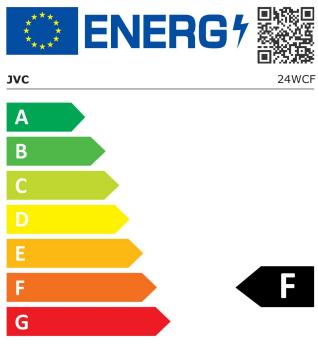
102/6102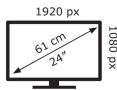
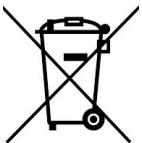

As a responsible retailer we care about the environment. As such we urge you to follow the correct disposal procedure for the product, packaging materials and, if applicable, accessories. This will help conserve natural resources and ensure that the materials are recycled in a manner that protects health and the environment.
You must follow laws and regulations about disposal. Waste electrical products must be disposed of separately from household waste when the product reaches the end of its life. Contact the store where you bought the product and your local authority to learn about disposal and recycling.
We apologise for any inconvenience caused by minor inconsistencies in these instructions, which may occur as a result of product improvement and development.
EU Declaration of Conformity
Product Description:
The object of the declaration described above is in conformity with the relevant Union harmonisation legislation:
Low Voltage Directive (LVD)
Eco design requirements for energy-related products (ErP)
RoHS
EMC:
EN 55032: 2015+A1:2020
EN 61000-3-3: 2013+A1: 2019
EN IEC 61000-3-2: 2019+A1: 2021
EN 55035:2017+A11:2020
LVD:
EN IEC 62368-1:2020+A11:2020
ErP:
(EU) 2019/2021
(EU) 2021/340
(EU) 2019/2013
(EU) 2021/341
EN 62087-1:2016
EN 62087-3:2016
EN 50564:2011
EN 50643:2018 + A1:2020
(EU) 2019/1782
EN 50563:2011 + A1:2013
This declaration of conformity is drawn up under the sole responsibility of the manufacturer.
The person responsible for this declaration is:
Place, Date / Location:
Ivry-sur-Seine, Jun 7, 2022



JVC