URC4913 - Remote control PHILIPS - Free user manual and instructions
Find the device manual for free URC4913 PHILIPS in PDF.


User questions about URC4913 PHILIPS
0 question about this device. Answer the ones you know or ask your own.
Ask a new question about this device
Download the instructions for your Remote control in PDF format for free! Find your manual URC4913 - PHILIPS and take your electronic device back in hand. On this page are published all the documents necessary for the use of your device. URC4913 by PHILIPS.
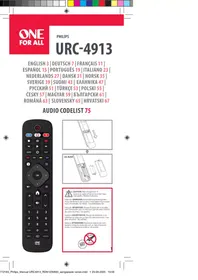
USER MANUAL URC4913 PHILIPS
Digits for Channel Entry
6. GUIDE
Guide
15. HOME
Home
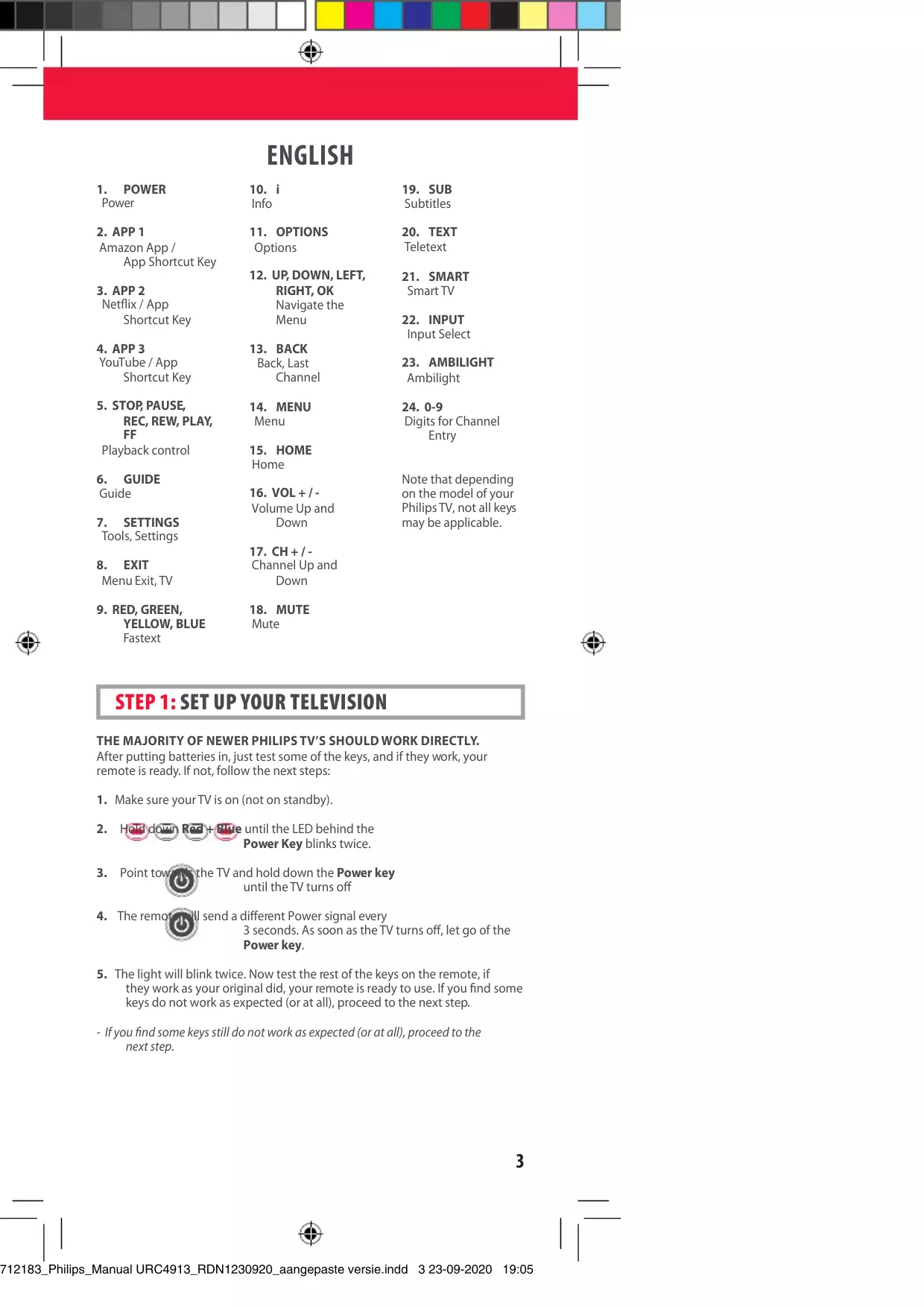
Note that depending
on the model of your
7. SETTINGS
Tools, Settings
16. VOL + / -
Volume Up and Down
Philips TV, not all keys may be applicable.
8. EXIT
Menu Exit, TV
17. CH + / -
Channel Up and Down
9. RED, GREEN,
YELLOW, BLUE Fastext
18. MUTE
Mute

STEP 1: SET UP YOUR TELEVISION
THE MAJORITY OF NEWER PHILIPS TV'S SHOULD WORK DIRECTLY.
After putting batteries in, just test some of the keys, and if they work, your remote is ready. If not, follow the next steps:
-
Make sure your TV is on (not on standby).
-
Hold down Red + Blue until the LED behind the
Power Key blinks twice.
- Point towards the TV and hold down the Power key
until the TV turns off
- The remote will send a different Power signal every
3 seconds. As soon as the TV turns off, let go of the
Power key.
- The light will blink twice. Now test the rest of the keys on the remote, if they work as your original did, your remote is ready to use. If you find some keys do not work as expected (or at all), proceed to the next step.
- If you find some keys still do not work as expected (or at all), proceed to the next step.
ENGLISH
STEP 2: IF STEP 1 DOES NOT WORK AS EXPECTED
ARE SOME KEYS NOT WORKING AS EXPECTED?
If you find some keys do not work as expected (or at all), proceed to the next step.
- Make sure your TV is on (not on standby).
- Hold down RED + BLUE until the LED behind the Power Key blinks twice
- Point towards the TV and hold one of the keys that is not working correctly (for example Menu).
- The remote will send a signal every 3 seconds.
- When the correct function is shown on the screen (in this case the menu), let go of the key.
- The LED will blink twice - your remote is ready to use.
LEARNING
LEARN A NEW FUNCTION TO YOUR REMOTE
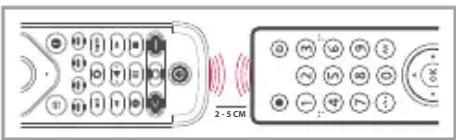
Your One For All remote can learn any function from your original (working) remote.
text_image
2-5 CM
- Place the original remote facing the One For All remote on a flat surface.
- To learn: Hold down GREEN + YELLOW until the LED blinks twice.
- Press 975. The LED will blink twice.
- Press the key on the One For All remote you want to learn on, for Example: the VOL + key. The LED will blink rapidly.
- Press the key on the Original remote you want to learn, for Example: the VOL + key of your Audio Device
- Two blinks: ok. Repeat from step 4 for any more keys to learn. Long blink: try again from step 4.
- When you have learned all the keys you need, press and hold the OK key for 3 seconds. The LED will blink twice.
HOW TO DELETE A LEARNED FUNCTION
- Hold down GREEN + YELLOW until the LED blinks twice.
- Press 976.
- Press the key to reset twice.
- The LED flashes twice and the key will revert to the original function.
ENGLISH
SOUND BAR / AUDIO RECEIVER VOLUME CONTROL
SOUND BAR / AUDIO RECEIVER VOLUME CONTROL
If you have your TV connected to a Sound Bar or Audio Receiver, it's possible to set up your One For All remote to control the Volume and Mute of this device. There are two ways to do this:
AUDIO SIMPLESET
If you have a Sound Bar or Audio Device from one of the brands listed in the table below, you can use the SimpleSet method to program your remote to control it. If you do not have one of the below brands, please proceed to the next section.
| Digit | Brand |
 | Bose |
 | Denon |
 | Samsung / Harman/Kardon / JBL |
 | LG / JVC |
 | Marantz / Philips |
 | Onkyo |
 | Panasonic / Technics |
 | Pioneer |
 | Sony |
 | Yamaha |

Note that each of the brands has a digit associated with it, for example 4 for LG (and JVC).
To set up your remote to control your Sound Bar / Audio Device, first make sure your TV and Sound Bar / Audio Device are both powered on, and that there is something playing that you can hear (this procedure will test the Mute function). Next:
- Hold down the VOLUME UP and VOLUME DOWN buttons together until the LED under the POWER key blinks twice.
- Now point the remote towards your Sound Bar / Audio Devices and hold down the digit key for your brand (for example 4 for LG). The remote will send the Mute function to your device every 3 seconds.
- As soon as your Sound Bar / Audio Device mutes the volume, release the digit key. The LED under the Power key will blink twice, and the Volume Up, Down and Mute keys should now control your Sound Bar / Audio Device.
AUDIO CODE SETUP
If your Sound Bar / Audio Device is not one of the brands listed above, you can also set up the remote to control it by entering a 4 digit code. The codes are listed in the Audio Codelist section of this manual, and are listed by brand and then popularity. Locate the brand of your Sound Bar / Audio Device in this code list and then the procedure is:
ENGLISH
- Hold down the VOLUME UP and VOLUME DOWN keys until the LED under the Power key blinks twice.
- Enter the first 4 digit code for your Sound Bar / Audio Device. The LED should blink twice on the last digit.
- Now try the Volume Up, Down and Mute and see if they control your Sound Bar or Audio Device.
- If they work, your remote is set up. If not try again from step 1 using the next code in the list.
POWER MACRO
If you have set up your Sound Bar or Audio Device using SimpleSet or Code Setup, you can now turn your TV and Audio Device both on and off using a single key. Simply hold down the Power key for 3 seconds and the remote will send the Power function to both the TV and the Audio Device / Sound Bar. If you press and release the key, it will only control the TV.
APP SHORTCUT KEYS

The One For All remote features three App Shortcut Keys which can be used to open apps on your TV. If your original remote control has an Amazon App, Netflix, or YouTube key, these keys will perform the same function.
However if you try these keys and they do not work, but your TV still has the ability to watch a streaming service, you can use this key as a shortcut by programming a macro (a series of button presses) on it. You could also program the keys to access other apps on your TV.
To program the macro, you first need to know the sequence keys you use to access the service. For example, some TVs will start Netflix by pressing the Home key, then Menu Right twice, and finally the Enter key. Once you have determined the sequence for the app you want on your TV, follow these steps:

- Sit in front of your device with It switched on (not on standby)
- Hold down the App Shortcut key until the LED blinks twice.
- Now perform the sequence of keys exactly as would normally. The remote will operate your TV and the macro is recorded in real time - so if it normally takes a few seconds for your device to react don't worry.
- Once you have finished the sequence - and the Streaming Service has started on your device - hold down the App Shortcut key until the LED blinks twice and goes out. The macro is now stored.
Tips
- Make sure the OFA remote Is operating the TV before programming
- If you find the Macro doesn't work as expected, you can just repeat the same sequence to reprogram
- When programming, wait for your TV to respond first, the remote will remember the timing
RESET
If you would like to reset your remote back to its default settings, please do the following:
- Hold down the Green and Yellow keys until the LED blinks twice
- Press 977
- The LED will blink 4 times and the remote is now reset.
FRANÇAIS
1. PWR
Bouton
d'alimentation
2. APP 1
Amazon App/
Raccourci app
3. APP 2
Netflix/Raccourci app
4. APP 3
YouTube/Raccourci app