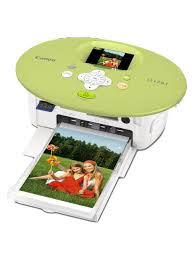
SELPHY CP790 - Photo printer CANON - Free user manual and instructions
Find the device manual for free SELPHY CP790 CANON in PDF.


| Product type | Compact photo printer |
| Brand | Canon |
| Model | SELPHY CP790 |
| Printing method | Dye-sublimation thermal transfer (with overcoat) |
| Print resolution | 300 x 300 dpi |
| Gradation levels | 256 shades per color |
| Ink | Dedicated ink cassette (Y/M/C/overcoat) |
| Supported paper sizes | Postcard, L, Card (including labels), Wide format |
| Print speed (postcard) | Approx. 47 s |
| LCD screen | 3-inch color TFT, approx. 230,000 dots |
| USB interface | Type A connector (PictBridge) and Type B (computer) |
| Wireless connectivity | IrSimple, IrDA IR, Bluetooth (via optional BU-30) |
| Compatible memory cards | CF, Microdrive, xD-Picture Card, SD, miniSD, SDHC, miniSDHC, MMC, MS, MS Duo, microSD (with adapter) |
| Power supply | Compact AC adapter CA-CP200 W (100-240 V AC), Optional battery NB-CP2L |
| Power consumption | 60 W max. (4 W standby) |
| Dimensions (printer only) | 246.9 x 178.0 x 86.4 mm |
| Dimensions (with basket) | 276.8 x 198.0 x 211.6 mm |
| Weight (printer only) | Approx. 1,100 g |
| Weight (basket) | Approx. 400 g |
| Operating temperature | 5 – 40 °C |
| Operating humidity | 20 – 80 % |
| Supplied software | COMPACT PHOTO PRINTER Solution Disk (SELPHY Photo Print) |
Frequently Asked Questions - SELPHY CP790 CANON
User questions about SELPHY CP790 CANON
0 question about this device. Answer the ones you know or ask your own.
Ask a new question about this device
Download the instructions for your Photo printer in PDF format for free! Find your manual SELPHY CP790 - CANON and take your electronic device back in hand. On this page are published all the documents necessary for the use of your device. SELPHY CP790 by CANON.
USER MANUAL SELPHY CP790 CANON
Save Your Memories with SELPHY
Compact, Stylish, Powerful!
Save your precious moments with SELPHY.

What You Can Do with Your SELPHY
Necessary Preparations to Use SELPHY pp. 10-12
Compatible Memory Cards and Images That Can Be Printed _ p. 14
Print a Single Image p. 15
Print All Images p. 17
VariousPrints pp.20-31
Print Images from a Computer pp. 34-38
INDEX
Package Contents 4
Ink and Paper (Sold Separately) 5
Read This First 5
For Your Safety 6
Conventions Used in This Guide 7
Getting Familiar with SELPHY 8
Setting Up SELPHY 9
Getting Started 10
Setting the Display Language 13
Printing Images 14
Cleaning Up After Printing 18
Storing the Printed Photos 19
Printing a Variety of Images 20
Trimming Photos 24
Printing with Frames 26
Creating Calendars 28
Creating a Photo Diary 30
Searching Images 32
Printing from Your Computer 34
Printing from Your Digital Camera 39
Printing Images Using Camera Specified
Settings (DPOF Print) 40
Printing from Your Mobile Phone 41
Using the Battery Pack 43
SELPHY Settings 44
Troubleshooting 46
Handling Precautions 48
Specifications 49
Package Contents
Check if the following items are included in your printer package, using the check boxes. If anything is missing, contact the retailer where you purchased the printer.


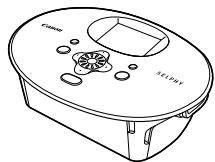
SELPHY Printer Unit
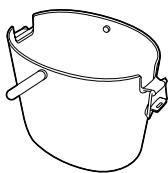
□ Basket (orage case)
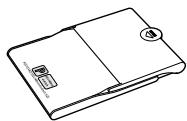
Paper Cassette (Postcard size) PCP-CP300
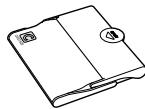
Paper Cassette (Card size)* PCC-CP300

□ Printer User Guide (This Guide)

Warranty Card
Remove the contents from the box.
Remove the contents from the basket.
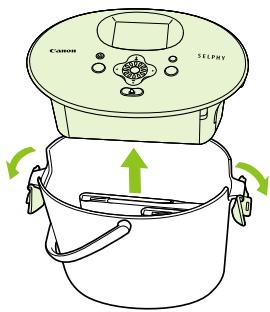
Release the catch on either side of the basket, and remove SELPHY.
- Remove the included accessories from the basket.
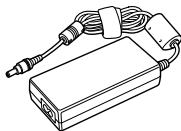
- Compact Power Adapter
CA-CP200 W
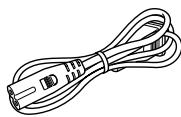
Power Cord
CD-ROM:
COMPACT PHOTO PRINTER Solution Disk
Ink and Paper (Sold Separately)
Before using the printer, be sure to purchase a Color Ink cassette/Paper Set separately.
| Color Ink Cassette/Paper Set | Necessary Paper Cassette | ||
| Product Name | Paper Size | Number of Possible Prints | |
| Color Ink Cassette/Paper Set KP-36IP (Postcard) | Postcard Size | 36 | Paper Cassette PCP-CP300 (Included with SELPHY) |
| Color Ink Cassette/Paper Set KP-72IN (Photo Paper) | 72 | ||
| Color Ink Cassette/Paper Set KP-108IN (Photo Paper) | 108 | ||
| Color Ink Cassette/Paper Set KC-36IP | Card Size | 36 | Paper Cassette PCC-CP300*1 |
| Color Ink Cassette/Label Set KC-18IF (Full-page labels) | 18 | ||
| Color Ink Cassette/Label Set KC-18IL (8-label sheets) | 18 | ||
| Color Ink Cassette/Paper Set KW-24IP | Wide Size | 24 | Paper Cassette PCW-CP100*2 |
| Color Ink Cassette/Paper Set KL-36IP | L Size | 36 | Paper Cassette PCL-CP300*1 |
| Color Ink Cassette/Paper Set KL-36IP 3 Pack | 108 | ||
1 Some accessories may not be available depending on the region.
2 Please purchase the paper cassette in addition to the dedicated Color Ink/Paper Set.
Read This First

Warning Against Copyright Infringement
The images printed with this product should be intended for personal use. Do not print images that infringe upon copyright laws without the prior permission of the copyright holder.

Warranty Limitations
This product's warranty is only effective in the country of sale. If a problem arises while the printer is in use abroad, please return it to the country of sale before proceeding with a warranty claim to a Canon Customer Support Help Desk.

LCD Monitor
The LCD monitor is produced with extremely high-precision manufacturing techniques. More than 99.99% of the pixels operate to specification. However, some pixels may occasionally misfire or appear as red or black dots. This has no effect on the printed image and does not constitute a malfunction.
The LCD monitor may be covered with a thin plastic film for protection against scratches during shipment. If so, remove the film before using the printer.
For Your Safety
Before using SELPHY, please ensure that you read this "For Your Safety" section. Always ensure that SELPHY is operated correctly.
The safety precautions noted on the following pages are intended to prevent injuries to yourself and other persons, or damage to the equipment.
Be sure to also check the guides included with any separately sold accessories you use.

WARNING
Denotes the possibility of serious injury or death.

CAUTION
Denotes the possibility of injury.
CAUTION
Denotes the possibility of damage to the equipment.

WARNING
This Printer
- Do not attempt to disassemble or alter any part of the equipment in a way that is not expressly described in this guide.
To avoid the risk of injury, do not touch the interior of the printer if it has been dropped or otherwise damaged. - Stop operating the printer immediately if it emits smoke, a strange smell, or otherwise behaves abnormally.
Do not use organic solvents such as alcohol, benzine, or thinner to clean the equipment.
Do not allow liquids or foreign objects to enter the printer.
This could result in electrical shock or fire.
Should this occur, immediately turn the printer's power off and unplug it.
Use only recommended power sources.
Using other power sources could result in electrical shock or fire.
Do not touch this printer or the power plug during thunderstorms.
This could result in electrical shock or fire. Immediately stop using the equipment and distance yourself from it.
Power (Compact Power Adapter)
Store this equipment out of the reach of children and infants.
Mistakenly putting the power cord around a child's neck could result in asphyxiation.
Use only recommended power sources.
Do not cut, damage, alter or place heavy items on the power cord.
Unplug the power cord periodically and wipe away any dust and dirt that has collected on the plug, the exterior of the power outlet, and the surrounding area with a dry cloth.
Do not handle the power cords with wet hands.
This could result in electrical shock or fire.
OtherWarnings
Do not play the supplied CD-ROM(s) in any CD player that does not support data CD-ROMs.
Playing the CD-ROM(s) in an audio CD player (music player) could damage the speakers. It is also possible to suffer hearing loss from listening with headphones to the loud sounds of a CD-ROM played on a music CD player.
Do not stick any part of your hand into the printer interior.
This could lead to injury or damage the printer.
- Do not use the power cord for any other equipment except this printer, use it beyond its rated capacity or voltage, or leave the plug partially inserted into a power outlet.
This could result in electrical shock or fire.
- Avoid using, placing or storing the printer in the following places.
-Places subject to strong sunlight.
-Places subject to temperatures above 40^ (104°F).
-Humid or dusty areas.
Electrical shock or heating could result in burn, injury or fire. Heat may cause deformation of the printer's casing.
Do not allow metallic pins to touch or allow dust to collect on the power plug.
This could result in electrical shock, fire, malfunction or other damage.
CAUTION
Unplug the power cord from the power outlet when you are not using the printer.
Do not use the compact power adapter if it is covered by clothing.
If connected for a long period, this could result in overheating, deformation of the casing or fire.
Conventions Used in This Guide
This printer will be referred to as "SELPHY" or "printer".
The various types of memory cards that can be used in this printer are collectively referred to as "memory cards".
The following icons are used in the text to represent SELPHY's buttons:
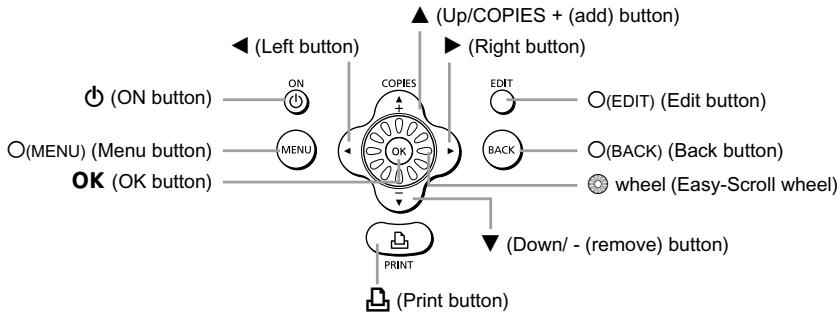
Language that displays on the screen appears inside [ ] (square brackets).
①: Things you should be careful about.
: Supplemental information.
(p. XX): Reference pages. "XX" stands for page number.
This guide is written assuming that all functions are at their default settings.
Getting Familiar with SELPHY
Learn more about the parts names and displays on the screen in this section.
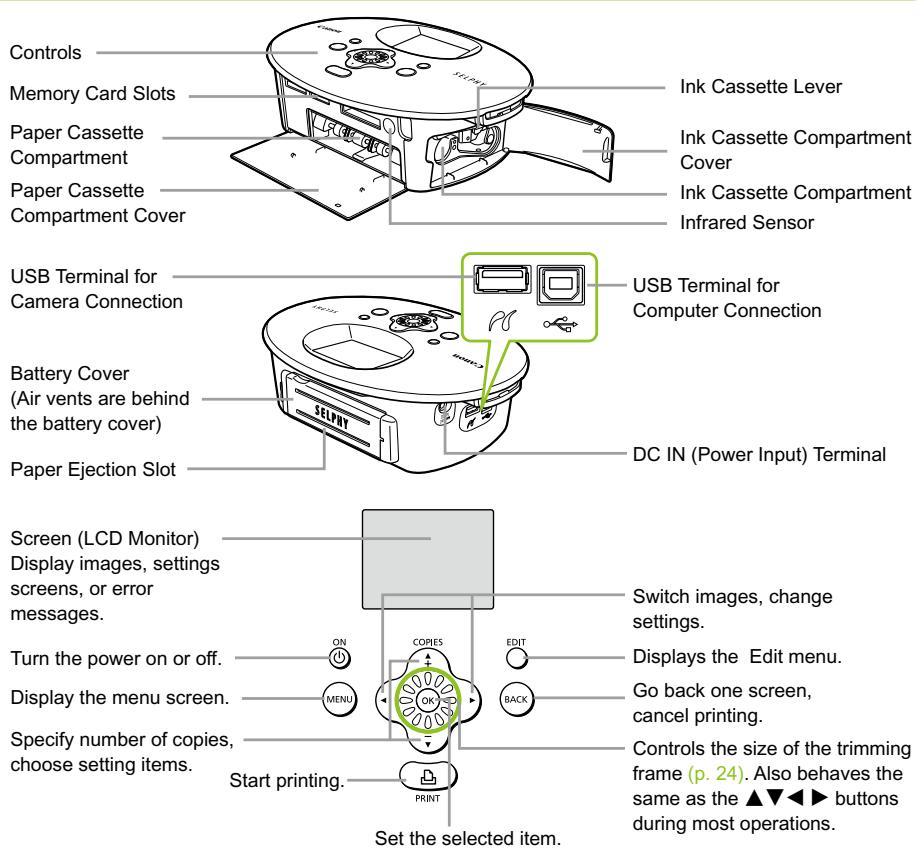
Components Guide
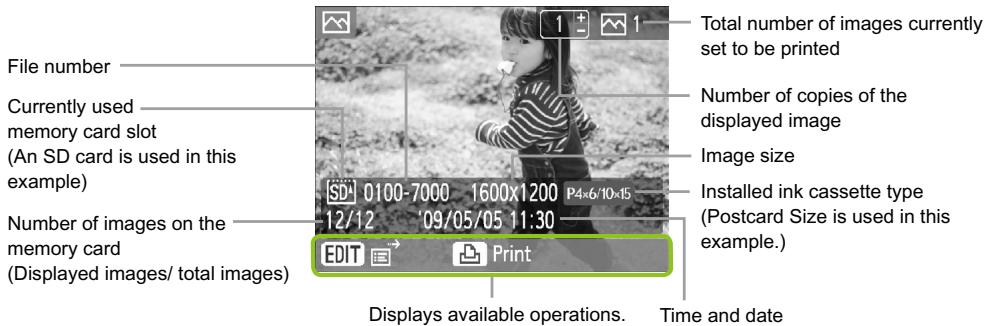
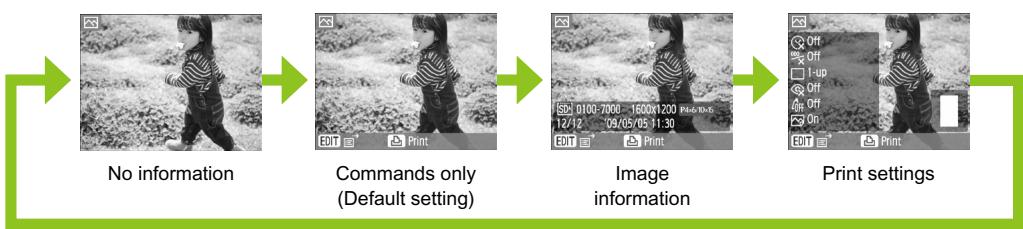
Information Displayed on the Screen
The image above is a sample image of information that can be displayed using [Image Info] (p. 9).
Changing the Information Displayed on the Screen
You can change the information that is displayed on the screen. However, if SELPHY's power is turned off the setting will return to [Tool Tips].
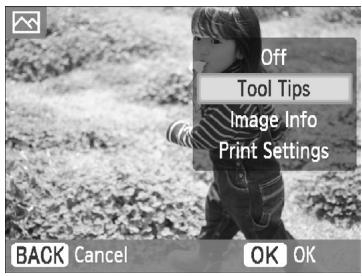
Change the information displays.
While in the image display screen (p. 15), press the O(EDIT) button.
Press the buttons, or turn the wheel to choose [Info Display] and press the OK button.
Press the buttons, or turn the wheel to choose a settings, then press the OK button.
Setting Up SELPHY
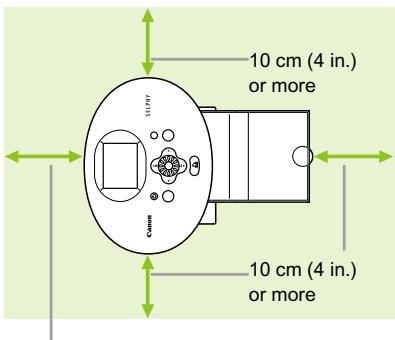
Length of the paper or more
- Place SELPHY on a stable and even surface, such as a table. Never place it on an unstable or tilted surface.
- Keep SELPHY at least 1 ~m (3 ft.) from devices emitting electromagnetic waves or strong magnetic fields.
Make sure there is at least 10cm (4 in.) of free space around SELPHY.
Make sure there is free space of at least the length of the paper behind SELPHY. (During printing the paper will pass in and out.)

- Never place SELPHY close to motors or other devices that generate strong electromagnetic fields. This may damage or cause the printer to malfunction.
Do not place near television or radio. This may cause the printer to malfunction.

The LCD monitor may be covered with a thin plastic film for protection against scratches during shipment. If so, remove the film before using SELPHY.
Getting Started
This section will prepare you to start printing images. The Postcard size Ink Cassette/ Paper Set (sold separately) (p. 5) will be used as an example. However, in places where the operation differs for other paper sizes, an explanation will be given.
Preparing the Ink Cassette
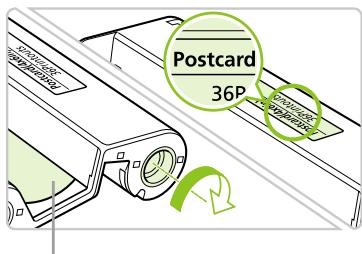
Ink sheet
Check the ink cassette
Check that the paper size and the size shown on the ink cassette (Card Size, Postcard Size etc.) match.
- Check that the ink sheet is taut with no slack. If the ink sheet is slack, push and turn the sprocket as shown in the illustration.

Do not touch or pull on the ink sheet. Do not touch the ink cassette with wet or sweaty hands. You may not be able to print if the ink sheet is damaged, dirty or wet.
Preparing the Paper Cassette
1
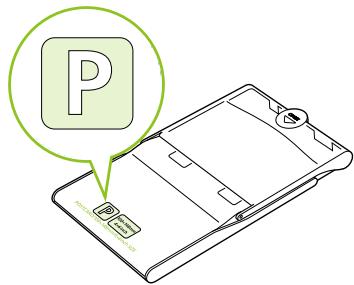
Check the paper size.
Check that the prepared ink cassette and the size shown on the paper cassette (Card Size, Postcard Size, etc.) match.
2
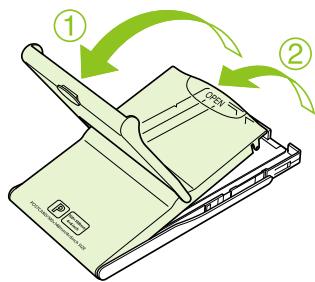
Open the lid.
There are two steps to open the lid. Open the outer lid ① first, then open the inner lid ② .
For Wide size paper cassettes (sold separately), open the outer lid first, then slide the inner lid in the direction of the arrow to open it.
3

4
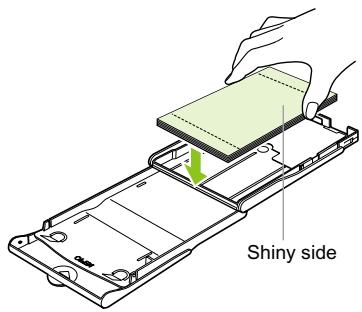
Set the paper.
Set the paper into the paper cassette that you prepared in Step 1.
- You can place up to 18 sheets in the paper cassette (up to 12 for Wide size). Inserting 19 or more sheets (13 or more for Wide size) may damage the printer or cause malfunction.
Hold the paper stack as shown in the illustration, with the shiny side facing up. Do not touch the print side (shiny side) of the paper with your fingers. Doing so may prevent you from making clean prints.
When a protective sheet is present, remove it and only set the paper stack into the cassette.
- When making postcard size prints that have a section for pasting a stamp, insert the paper so that the stamp section is facing the inner lid (as shown in the illustration).
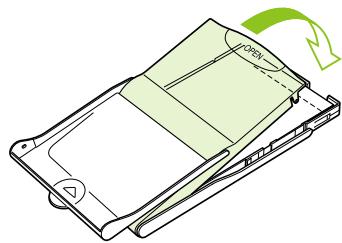
Close the lid.
- Close the inner lid until it clicks into place. Leave the outer lid open during printing.
For Wide size paper cassette (sold separately), close the inner lid first, then slide the inner lid until it clicks to the opposite direction of the arrow.

Always use the paper specific to SELPHY CP series printers included in the genuine Canon brand Ink Cassette/Paper Sets. Use only dedicated paper. Regular printing paper, regular postcards, or paper specified for use in SELPHY ES series printers cannot be used.
Never do the following, as it may lead to failure or cause the printer to malfunction:
- mistakenly reversing the paper (the shiny side is the print side)
- bending or separating the paper at the perforations before printing
- using label sheets that have begun to peel or label sheets with portions peeled back
- writing on a sheet before printing
- printing on already printed paper
- reusing a spent ink cassette
Do not touch the springs of the paper cassette.
If the springs are bent or deformed, paper will not feed correctly into SELPHY.
- Do not touch the print surface (shiny side), scratch it or touch the paper with wet hands. Prints will not be desirable if the print surface becomes dirty or wet.
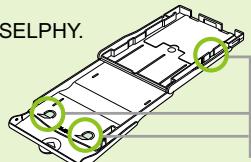
Spring
Inserting the Ink and Paper Cassettes
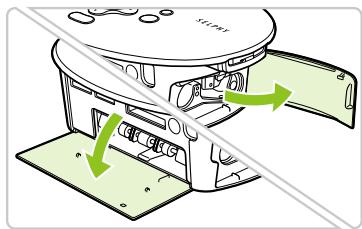
1
Open the covers.
Open the covers for the ink cassette and paper cassette compartments.
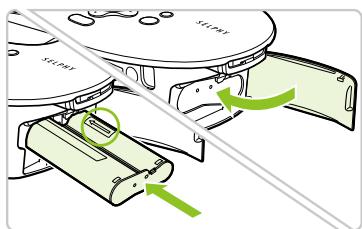
2
Insert the ink cassette.
- Insert the ink cassette into the printer in the direction indicated by the arrow on the cassette until it clicks and locks into place.
Close the ink cassette compartment cover.
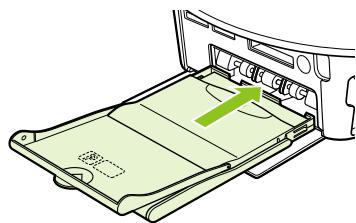
3
Insert the paper cassette.
Making sure that the outer lid is open (p. 11), insert the paper cassette all the way into the compartment.
Connecting SELPHY
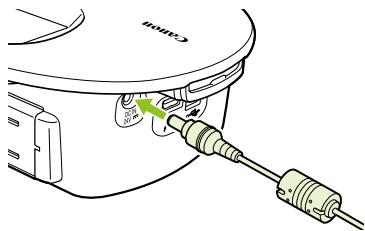
1
Plug the cord into SELPHY.
Fully insert the adapter plug into SELPHY.
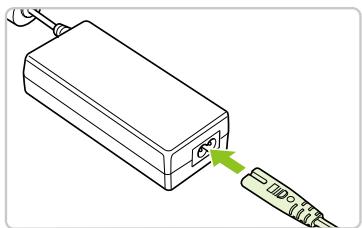
2
Connect the power cord.
Connect the power cord to the compact power adapter, then plug the other end into a power outlet.

Do not handle the power cords with wet hands.
Setting the Display Language
You can change the language displayed in the LCD monitor menus and messages.

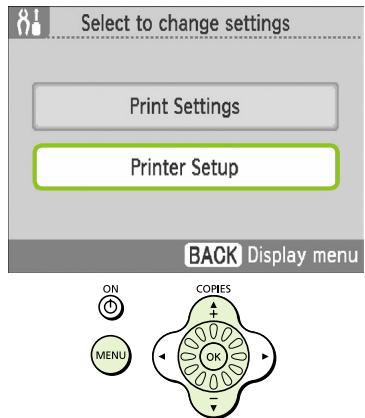
Display the setting screen.
Press the O(MENU) button.
Press the buttons, or turn the wheel to choose [Change Settings], then press the OK button.
Press the buttons, or turn the wheel to choose [Printer Setup], then press the OK button.

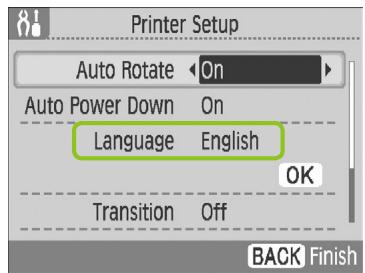
Display the language setting screen.
Press the buttons, or turn the wheel to choose [Language].
Press the OK button.

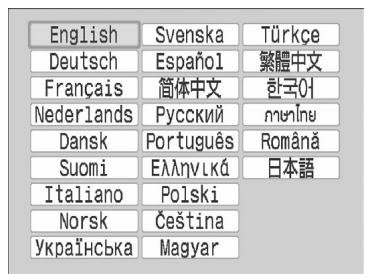
Choose a language.
Press the buttons, or turn the wheel to choose a language, then press the OK button.
Pressing the (BACK) button twice will restore the image display screen.

You can also display the language setting screen by pressing and holding the OK button and then pressing the O(MENU) button.
Printing Images
You can print images on a memory card when it is inserted into SELPHY.
Compatible Memory Cards
| Memory Card Slots (p.8, p.15) (SELPHY memory card slots) | Memory Cards That Can Be Used Without an Adapter | Memory Cards That Require an Adapter (commercially available) |
| CF microdrive | CompactFlash Card Microdrive | xD-Picture Card*1 |
| SD/miniSD MMC+ RS-MMC | SD Memory Card miniSD Card SDHC Memory Card miniSDHC Card MultiMediaCard | microSD Card microSDHC Card MMCmicro Card |
| MS MS Duo | Memory Stick Memory Stick PRO Memory Stick Duo Memory Stick PRO Duo | Memory Stick micro |
1 Purchase the CompactFlash Card Adapter for xD-Picture Card. 2 Reduced-Size MultiMediaCard

For memory cards requiring an adapter, be sure to first insert the memory card into the adapter before inserting the adapter into the appropriate card slot. If you insert the memory card into a card slot without using an adapter, you may not be able to remove the memory card from SELPHY.
Use a memory card formatted in the device used for taking the images. A memory card formatted in the computer may not be recognized.

Refer to the user guide included with your memory card and adapter for handling instructions.
Images That Can Be Printed
The following image types can be printed with SELPHY.
Jpeg type data conforming to the Exif standard.

Irregularly sized images, or images that have been edited on a computer may not display or print properly.
Choosing and Printing Images
You can choose an image and specify the number of copies for printing. SD memory cards will be used as an example, but you can print from other memory cards using the same steps.

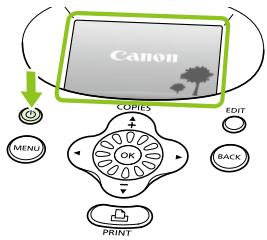
Turn on the power.
Press and hold the button until the screen on the left displays.
To turn the power off, press and hold the button.

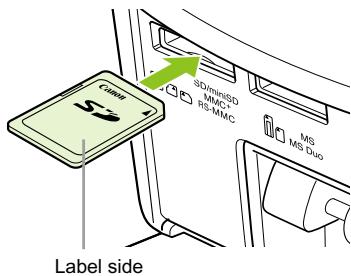
Insert a single memory card into the slot.
- Insert a single memory card containing the images you want to print all the way into the appropriate memory card slot.
The screen in Step 3 (image display screen) appears.

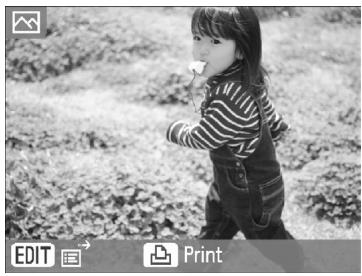
Choose an image.
Press the buttons to choose an image to print.
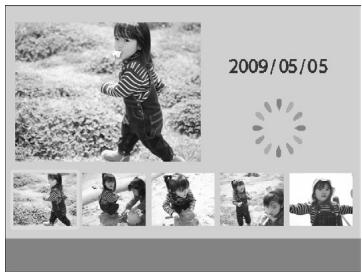
If you turn the wheel, the screen on the left will appear. If there are more than 6 available images, images will scroll in sets of 5 in the direction the wheel is turned.
The selected image will be magnified in the upper left portion of the screen. Pressing the OK button restores the single image view screen.
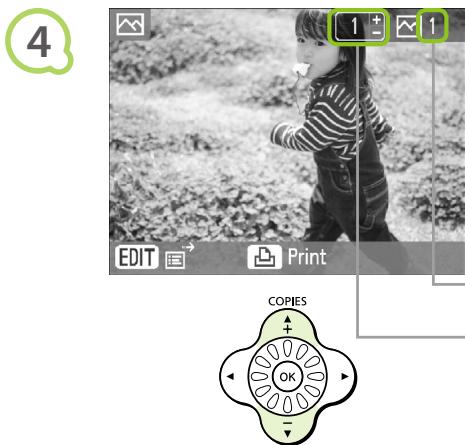
Choose the number of copies.
Press the button once, and then press the buttons to choose a value.
- You can specify 99 copies per image (or a total of 999 copies).
To print another image, repeat Steps 3 and 4.
Total number of images currently set to be printed
Number of copies of the displayed image

Print.
Press the button to start printing.
During printing, the paper will pass in and out from the back of SELPHY several times. Do not touch the paper until printing has finished and the printed sheet collects on the print output tray (on top of the paper cassette).
- Do not let 19 or more printed sheets (13 or more for Wide size) collect on the print output tray.
To cancel printing, press the (BACK) button.

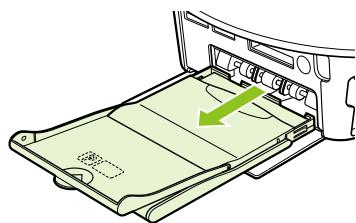
Insert the paper.
When the paper is depleted, remove the paper cassette from SELPHY.
- Refill new paper, and reinsert the paper cassette into SELPHY (pp. 11 - 12).

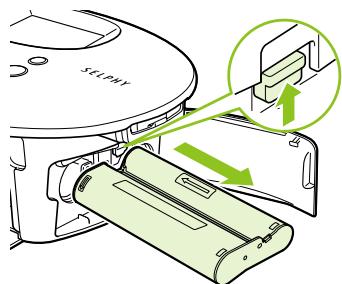
Change the ink cassette.
- When the color ink is depleted, open the ink cassette compartment cover and move the lock as shown in the illustration. The ink cassette will be ejected.
Insert a new ink cassette (p. 12).

Never pull out the paper cassette, open the ink cassette cover, or remove the memory card during printing or directly after turning on the printer. This may cause the printer to malfunction.

When the total number of copies for printing is set to 0 and you press the button, the currently displayed image will print once.
If SELPHY is idle for 5 minutes, the power turns off in order to save energy (p. 45).
Printing All Images
You can print all images on a memory card at once.


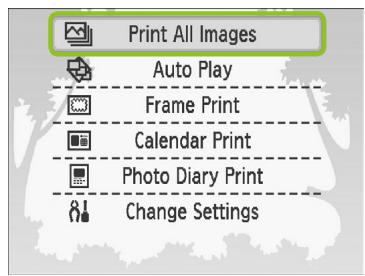



Display the menu.
Press the O(MENU) button.
Display the setting screen.
Press the buttons, or turn the wheel to choose [Print All Images], then press the OK button.
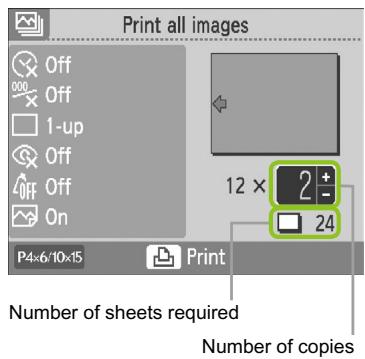
Choose the number of copies.
Press the buttons to set the number of copies.
You can specify up to 99 copies per image.
If there are more than 1000 images on the card, only 999 copies will be printed in order of the most recent by shooting date.
Print.
Press the button to start printing.
To cancel printing, press the (BACK) button.
Cleaning Up After Printing
After you finish printing, follow the steps below to clean up and store SELPHY.
Turn the power off (p. 15), then remove the memory card.
Unplug the power cord from the power outlet and disconnect the adapter plug from SELPHY.
If the compact power adapter is hot, wait until it has cooled down before you store it.
- Remove the paper cassette and close the paper cassette compartment cover. Keep the remaining paper inside the cassette.
- Keep the ink cassette inside SELPHY.
Storing the Accessories
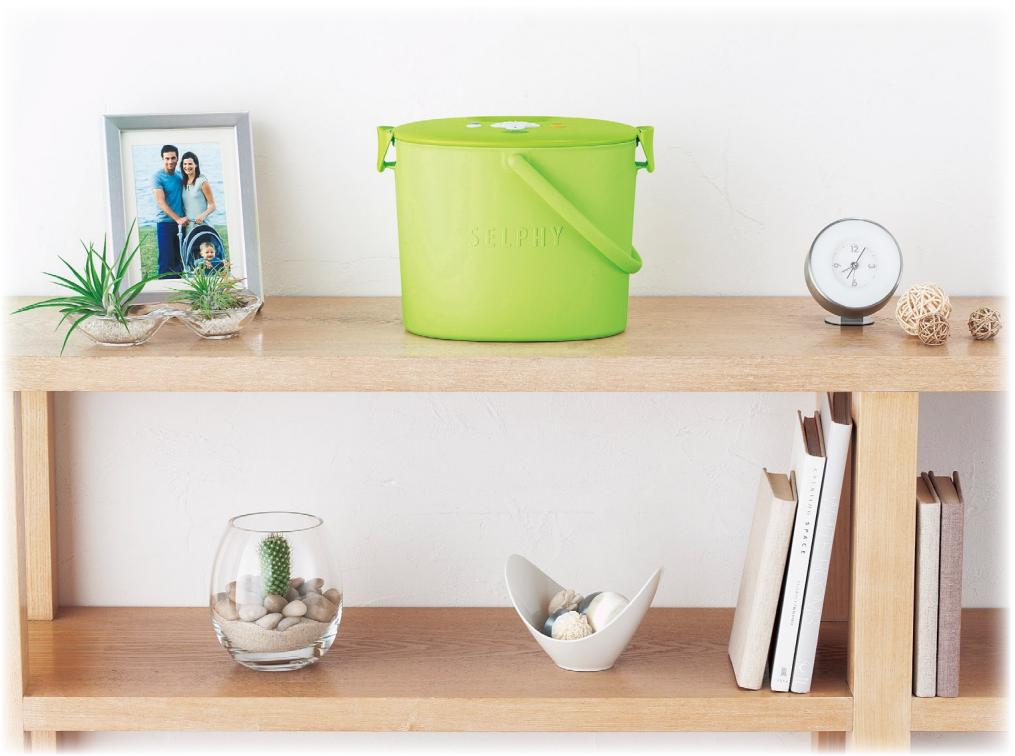
Clean up easily by placing the printer accessories into the basket.
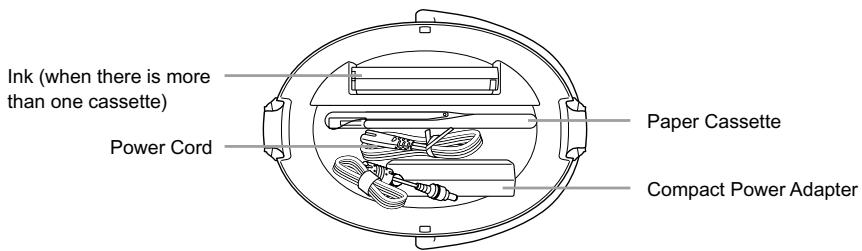

Do not store anything other than printer accessories or consumables in the basket. Doing so may damage the basket or the accessories.

Do not unpack paper before it is used, and keep it in a dark place.
If you have more than one ink cassette, store one inside SELPHY and the other in the basket. Any additional ink cassettes should be placed in a bag and stored in a dark place where the ink sheet will not get dusty.

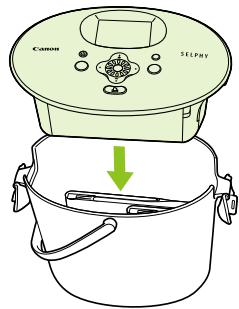
Place SELPHY in the basket.
Make sure the catches are open, then place SELPHY in the basket.
Take care not to pinch your fingers between SELPHY and the basket.

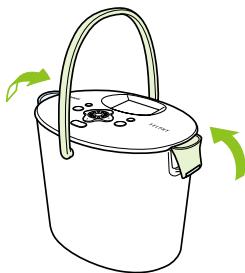
Fasten the catch.
- Lift the catches and fasten them into place. You should hear a clicking sound when they lock.
- When carrying SELPHY, be sure you have fastened the catches as instructed above. Carry SELPHY by using the handle on the basket.
Store SELPHY in a level, dark place where it will not get dusty.

If dust enters SELPHY and sticks to the paper or color ink, print quality deteriorates.
Storing the Printed Photos
- When both sides of a print have perforations, you can remove the edges by bending them.
Use an oil-based pen to write on prints. - Avoid storing photos in places with high temperatures (40°C/104°F or higher), places with high humidity or dust, or places subject to direct sunlight.
- Avoid actions that may result in color change, color fading or color bleeding, such as the following: Sticking any type of adhesive tape on a print surface, allowing print surfaces to come into contact with vinyl or plastic, applying alcohol or other volatile solvents to a print surface, leaving print surfaces tightly pressed against other surfaces or objects for prolonged periods.
If you wish to mount prints in an album, choose an album with photo covers made of nylon, polypropylene or cellophane.

Color may change over time or depending on storage conditions. Canon assumes no liability for color changes.
Printing a Variety of Images
You can set various printing features, such as imprinting the shooting date or adjusting the color of an image. You do not need to repeat the settings for each image because once the settings are made, they are applied for all images.
Making Settings
1

Print All Images

Auto Play

Frame Print

Calendar Print

Photo Diary Print

Change Settings

(MENU)
Display the change settings screen.
Press the O(MENU) button.
Press the buttons, or turn the wheel to choose [Change Settings], then press the OK button.
2

Select to change settings
Print Settings
Printer Setup
BACK
Display menu
Display the print settings screen.
Press the buttons, or turn the wheel to choose [Print Settings], then press the OK button.
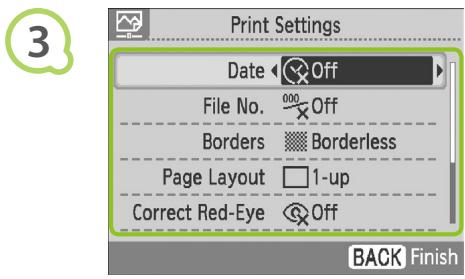

Printing with the Date (Date)
Choose the item and change the settings.
Press the buttons, or turn the wheel to choose an item.
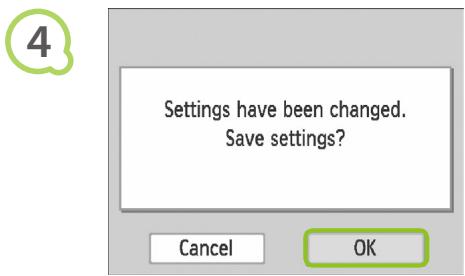
Press the buttons to make a selection, then press the O(BACK) button and the confirmation screen will appear.
Refer to (pp. 21-23) for information about each setting.
Make the settings.
Press the buttons, or turn the wheel to choose [OK], then press the OK button to make the settings.
The menu screen will appear. Press the O(BACK) button to restore the image display screen.
Print.
Choose an image for printing (p. 15) and a number of copies (p. 16), and press the button to print.
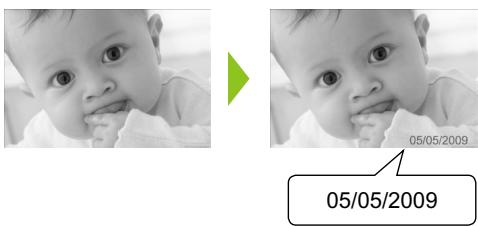
You can print images with the shooting date.
Off (Default setting) / On

Since the date printed will be the date the image was recorded by the camera, it cannot be changed on SELPHY.
You can change the way the date is printed (p. 23).



0100-0002
Prints images with the file number.
00 Off (Default setting) / 00 On

Printing With or Without Border (Borders)
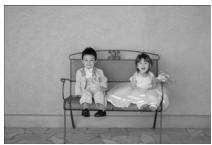
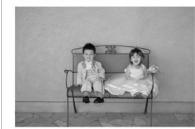
Set images to print with or without a border.
Borderless(Default setting)/Bordered

When printing on card sized paper (p. 5), images printed in [8-up] layouts will not be printed with borders, even if [Bordered] is selected.

Choosing a Layout and Printing (Page Layout)
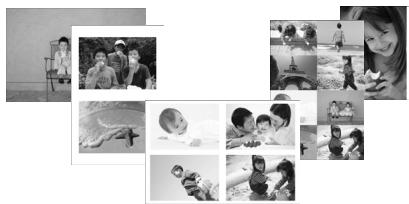
- Set the number of images that you want to print on one sheet. The number of images that you specified (p. 16) will be printed in the layout set.
| □ 1-up (Default setting) | - | □ 8-up | Prints eight images on one sheet |
| □ 2-up | Prints two images on one sheet | □ Index | Prints as an index |
| □ 4-up | Prints four images on one sheet | □ 89×55mm 7×10cm 4"×6" | Prints an image on the left side of the paper, leaving the right side free to write messages after printing. |
Set the layout to [8-up] when using color ink cassette/label set KC-18IL (8-label sheet) (p. 5).
89×55mm], 7×10cm], and 4^ × 6^ cannot be selected when using card size paper (p. 5).

The image position cannot be specified.
Depending on the selected layout, the settings made in Borders, Red Eye Correction (p. 23), Image Optimize (p. 23), and My Colors (p. 23) may not be applied. For conditions where settings will not be applied, refer to the explanations written in each section.
If you choose [Print All Images] in [Index] (p. 17), you can print all images on a memory card as an index print.

Correcting Red Eyes and Printing (Correct Red-Eye)
Correct images with red-eye.
Off (Default setting) / On

Red-eye may not be automatically detected or optimally corrected when faces appear extremely small, large, dark or bright in relation to the overall image, with faces turned to the side or at a diagonal, or faces with a portion hidden.
- Portions other than the eyes may be mistakenly corrected. Set [Correct Red-Eye] to [On] only when printing images with red-eye.
If you set [Page Layout] (p. 22) to [4-up], [8-up], or [Index], red-eye will not be corrected.

Getting the Best Results with Auto Correction (Image Optimize)



SELPHY will automatically correct the image to achieve optimum image quality.
Off/On(Default setting)

Some images may not be adjusted correctly.

When [Page Layout] (p. 22) is set to [Index], Image Optimize will not be applied.

Changing the Color Tone and Printing (My Colors)
You can adjust the colors in your images, or make your images sepia-toned or black and white.
| OFF Off (Default setting) | - | AW B/W | Black and white |
| AV Vivid | Emphasizes the contrast and color saturation for a vivid impression | AP Positive Film | Intense, natural colors like those obtained with positive film |
| AN Neutral | Tones down the contrast and color saturation for neutral hues | AL Lighter Skin | Lightens skin tones |
| Se Sepia | Tones the image into sepia | AD Darker Skin | Darkens skin tones |

When [Page Layout] (p. 22) is set to [Index], the My Colors settings will not be applied.

Choosing the Date Format (Date Format)
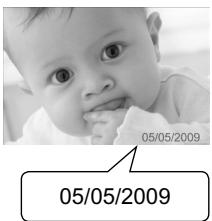

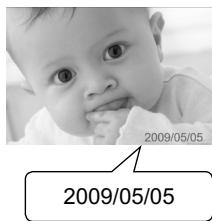
You can change the style of the printed date (p. 21).
mm/dd/yy (Default Setting), dd/mm/yy, yy/mm/dd
Trimming Photos
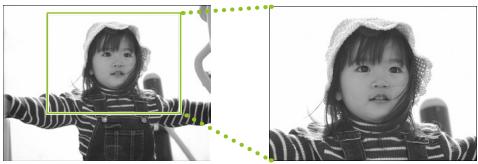
You can print part of an image by using the trimming feature.

Choose an image (p. 15)

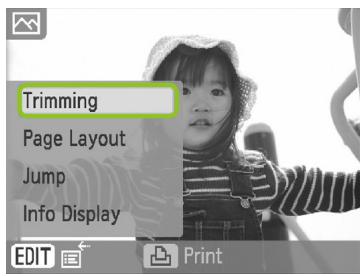
Display the trimming setting screen.
Press the O(EDIT) button.
Press the buttons, or turn the wheel to choose [Trimming], then press the OK button.
The frame showing the part of the image that will be printed will appear on the image.

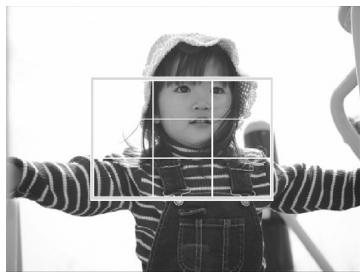
Choose a horizontal or vertical trimming frame.
Every time the O(EDIT) button is pressed, the trimming frame will change between horizontal and vertical orientations.

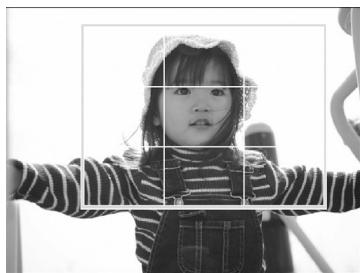
Choose where to trim the image.
Move the frame by pressing the buttons.
- Turning the wheel to the right will make the trimming frame larger, and turning it to the left will make the frame smaller.

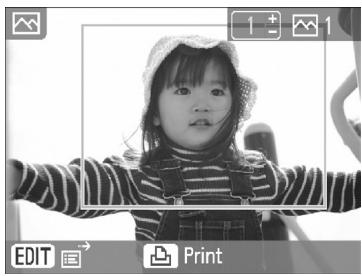
Make the setting.
Once you have pressed the OK button, the trimming frame is set and the printer restores the image display screen.
To trim other images before printing at the same time, repeat Steps 1 to 5.
To cancel trimming after the trimming frame has been set, press the (EDIT) button, then choose [Reset trimming] from the menu and press the OK button. Press the OK button again to confirm.

Print.
Press the buttons to choose the number of copies.
Press the button to start printing.
After printing has finished, all trimming frame settings will be cleared.

Images with a resolution smaller than 640 × 480 pixels, larger than 5616 × 3744 pixels, or with a width-to-height ratio narrower than 16:9 cannot be trimmed.
You can set up to 50 trimming frames at a time.
- You can also trim images when using the [Frame Print] (p. 26), [Calendar Print] (p. 28), or [Photo Diary Print] (p. 30) settings.
Trimming settings will not be saved if the power is turned off or the memory card is removed.
Printing with Frames

- You can decorate your favorite images with frames.
1

Print All Images

Auto Play

Frame Print

Calendar Print

Photo Diary Print

Change Settings
Display the frame screen.
Press the O(MENU) button.
Press the buttons, or turn the wheel to choose [Frame Print], then press the OK button.
2

1/3 Select this image?



Next
3

2/3 Select a frame


Next
Choose an image.
Press the buttons or turn the wheel to choose an image, then press the OK button.
Press the O(EDIT) button to bring up the Edit menu, where you can use the jump function (p. 33), or change the display information (p. 9).
Choose a frame.
Press the buttons, or turn the wheel to choose a frame, then press the OK button.

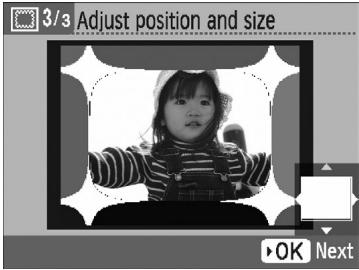

Choose the size and placement of the image.
Turn the wheel to the right to make the image bigger, and turn to the left to make the image smaller.
Press the buttons to move the image.
The image will rotate 90^ each time the O(EDIT) button is pressed.
Press the OK button to accept the setting.
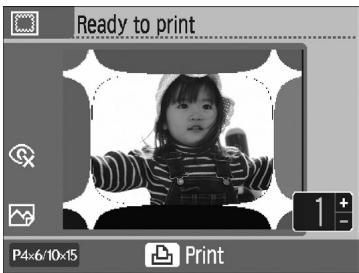
Print.
Press the buttons to choose the number of copies.
Press the button to start printing.

With the exception of [Correct Red-Eye] (p. 23), [Image Optimize] (p. 23), and [My Colors] (p. 23), settings made in "Printing a Variety of Images" will not be applied.
- Changing the settings in [My Colors] (p. 23) will change the color settings on the image but will not affect the frame.
Images with a resolution below 640 × 480 or a width-to-height ratio greater than 2:1 cannot be printed with frames.
Creating Calendars
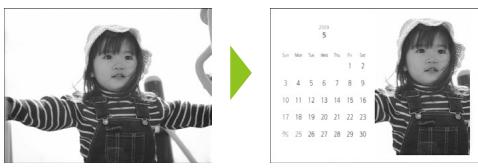
You can turn your favorite images into calendars.

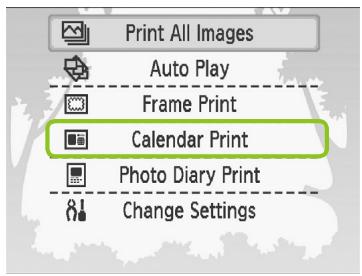
Display the calendar screen.
Press the (MENU) button.
Press the buttons, or turn the wheel to choose [Calendar Print], then press the OK button.

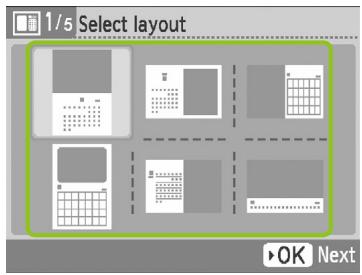
Choose a layout.
Press the buttons, or turn the wheel to choose a layout, then press the OK button.
- You can choose from 6 different layouts when printing on L size or postcard size paper, 5 layouts when printing on card size paper, and 2 layouts when printing on wide size paper.

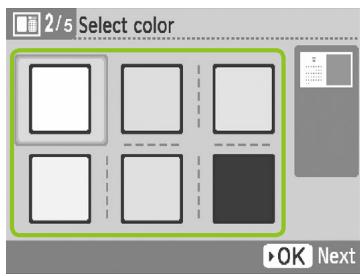
Choose a background color.
Press the buttons, or turn the wheel to choose a color, then press the OK button.

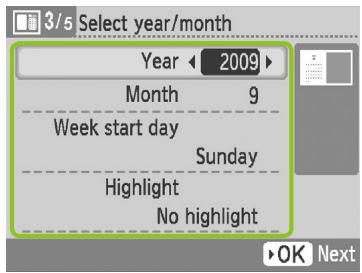
Set the year, month, the starting day of the week, and highlight holidays.
Press the buttons to choose an item, then press the buttons, or turn the wheel to change the settings.
Press the OK button.
5
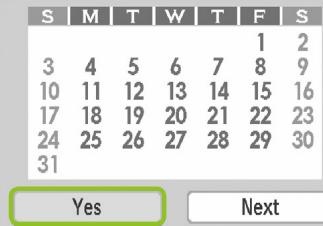
4/5 Add more highlights?
6
7
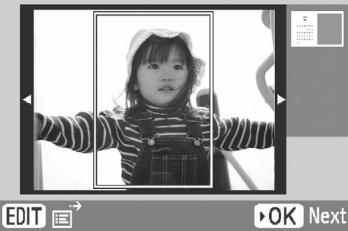
5/5 Select this image?
8

- With the exception of [Correct Red-Eye] (p. 23), [Image Optimize] (p. 23), and [My Colors] (p. 23), settings made in "Printing a Variety of Images" will not be applied.
- Changing the settings in [My Colors] (p. 23) will change the color settings on the image but will not affect the calender.
Images with a resolution lower than 640 × 480 cannot be printed as calendars.
Choose whether or not to add holidays.
To add holidays, press the buttons, or turn the wheel to choose [Yes], and press the OK button.
If you do not wish to add holidays, press the buttons, or turn the wheel to choose [Next], and press the OK button. Skip to Step 7.
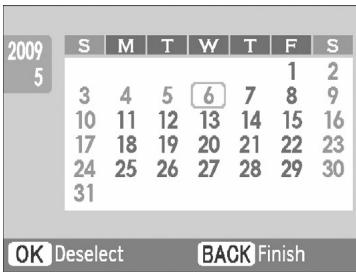
Add holidays.
Press the buttons, or turn the wheel to choose a date, then press the OK button.
The selected date will turn red.
Pressing the OK button again will clear the selection.
When you are finished, press the (BACK) button.
The screen in Step 5 will be restored. Press the buttons, or turn the wheel to choose [Next], and press the OK button.
Choose an image.
Press the buttons, or turn the wheel to choose an image, then press the OK button.
Press the (EDIT) button to bring up the Edit menu, where you can use the trimming function (p. 24), the jump function (p. 33), or change the display information (p. 9).
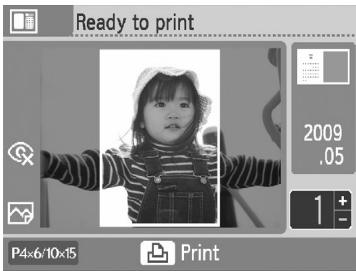
Review image and print.
Press the buttons to choose a number of copies.
Press the button to start printing.
Creating a Photo Diary
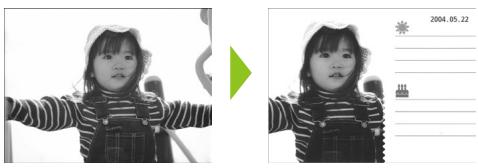
You can insert the shooting date into your images and print them as a photo diary.
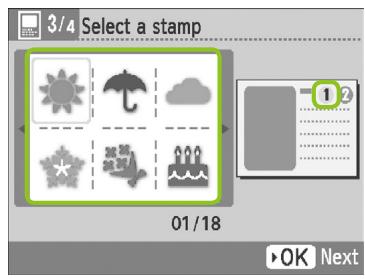
You can also print with stamps (Up to 2).
1
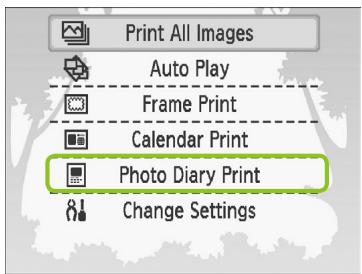
Display the photo diary screen.
Press the (MENU) button.
Press the buttons, or turn the wheel to choose [Photo Diary Print], then press the OK button.
2
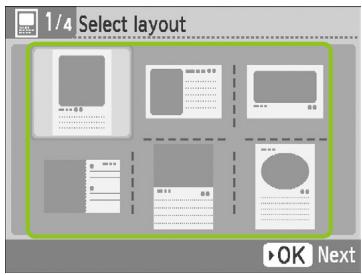
Choose a layout.
Press the 0 wheel to choose a layout, then press the OK button.
- When using card size, L size, or postcard size paper, you can choose from 6 different layouts. When using wide size paper, you can choose from 2 layouts.
3
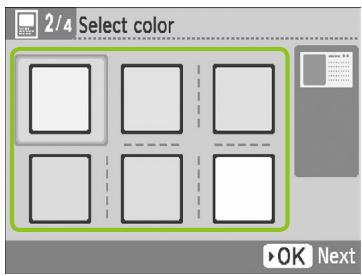
Choose a background color.
Press the buttons, or turn the wheel to choose a color, then press the OK button.




Even if [Date] is set to [Off] (p. 21), the date will be printed. However, with the exception of [Correct Red-Eye] (p. 23), [Image Optimize] (p. 23), [My Colors] (p. 23), and [Date Format] (p. 23), other settings made in "Printing a Variety of Images" will not applied.
- Changing the settings in [My Colors] (p. 23) will change the color settings on the image but will not affect the photo diary settings.
Images with a resolution lower than 640 × 480 cannot be printed as calendars.
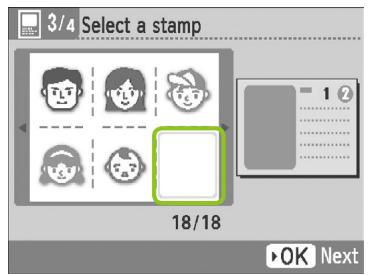
Choose stamps.
Press the buttons, or turn the wheel to choose the stamp to be printed in the area marked [①] and press the OK button.
Follow the same steps to choose a stamp to be printed in the area marked [②] and press the OK button.
To print without stamps, press the (\triangle \triangle \triangle \triangle \triangle \triangle \triangle \triangle \triangle \triangle \triangle \triangle \triangle \triangle \triangle \triangle \triangle \triangle \triangle \triangle \triangle \triangle \triangle \triangle \triangle \triangle \triangle \triangle \triangle \triangle \triangle \triangle \triangle \triangle \triangle \triangle \triangle \triangle \triangle \triangle \triangle \triangle \triangle \triangle \triangle \triangle \triangle \triangle \triangle \triangle \triangle
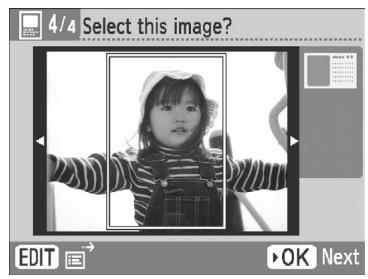
Choose an image.
Press the buttons, or turn the wheel to choose an image, then press the OK button.
Press the O(EDIT) button to bring up the Edit menu, where you can use the trimming function (p. 24), the jump function (p. 33), or change the display information (p. 9).
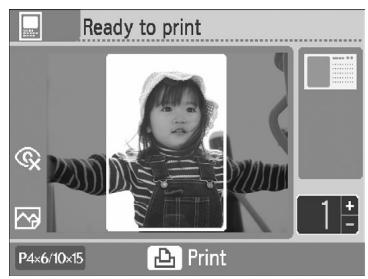
Review image and print.
Press the buttons to choose a number of copies.
Press the button to start printing.
Searching Images
Search Images Using Auto Play
You can play all the images on your memory card in order of their file number (images will display for 3 seconds each), and search for images to print.
1
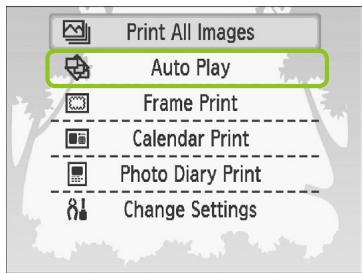
Auto play images.
Press the O(MENU) button.
Press the buttons, or turn the wheel to choose [Auto Play], then press the OK button.
The loading image screen appears, and then auto play begins.
2
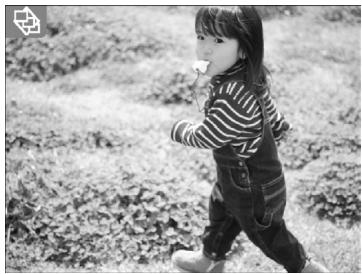
Viewing your images.
Each image will be shown for about 3 seconds.
If you press the buttons, or turn the wheel during playback, you can scroll through the images. If you hold down the buttons you can fast-forward through the images.
Press the (BACK) button to end playback.
3
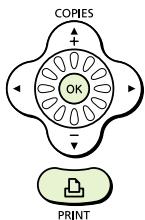
Choose an image and print.
- Pressing the OK button once will pause playback; pressing the OK button again will resume playback.
Pressing while playback is paused will print the currently displayed image.
When printing has finished, playback will resume.

- Only one image per page will be printed. [Page Layout] settings made in "Printing a Variety of Images" (p. 22) will be disregarded.
You can add transition effects to auto play (p. 45).
Using the Jump Function to Search Images
You can jump to an image using a specified search key.
1
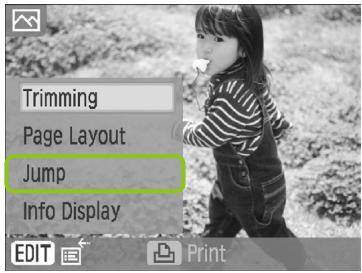
Display the jump screen.
While in the image display screen (p. 15), press the O(EDIT) button.
Press the buttons, or turn the wheel to choose [Jump], then press the OK button.
2
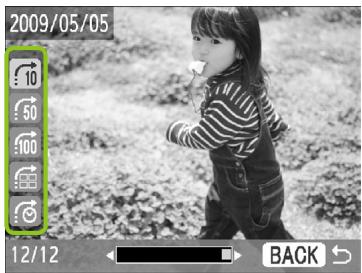
Choose a search key.
Press the buttons to choose a search key, and press the buttons, or turn the wheel to jump.
When (Jump Selected Date) is selected, press the button or the OK button to enter jump mode. Press the buttons to choose a date, and press the buttons, or turn the wheel, to view the only images taken on that date.
| Search Key | Jump Details |
| :10 Jump 10 Images | Jumps ahead 10 images. |
| :50 Jump 50 Images | Jumps ahead 50 images. |
| :100 Jump 100 Images | Jumps ahead 100 images. |
| :20 Jump Selected Images | Jumps to images where you have set a number of copies (p. 16). |
| :⊗ Jump Selected Date | Displays images by date. |

Displaying Images in Filtered Playback
1
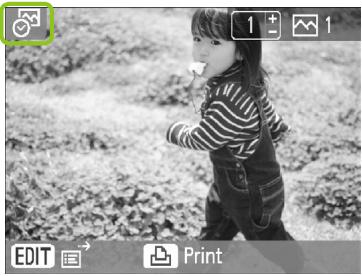
Display images filtered by date.
Choose (Jump Selected Date) and press the button or the OK button.
Press the buttons to choose a date, then press the OK button.
will appear on the screen, and only the images taken on the selected date can be displayed.
2
Display filtered images.
Press the buttons, or turn the wheel to display the images filtered by the selected date.
To release the filter, press the O(EDIT) button and choose [View all] from the edit menu.
Printing from Your Computer
If you connect your computer to SELPHY and use the supplied software, you can view all images at once and take advantage of various printing functions that cannot be done with just SELPHY alone. Following the audio guidance will allow inexperienced computer users to print easily.
Choose favorite images from the list and print
- You can choose images you wish to print from a list, and print them all at once.
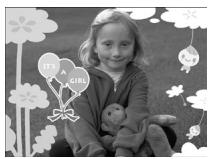
Print with decorations
- You can add frames or stamps to your images and print. You can also add text to your images and print.
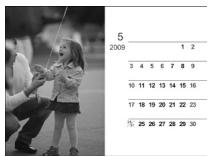
Print calendars
You can add calendars to your prints.
Items to Prepare
SELPHY and a Computer
Supplied CD-ROM (COMPACT PHOTO PRINTER Solution Disk) (p. 4)
- USB Cable shorter than 2.5m (8.2 ft) (Commercially available). SELPHY terminal requires a Type B connector.
System Requirements
| Windows | Macintosh | |
| OS | Windows Vista (including Service Pack 1) Windows XP Service Pack 2, Service Pack 3 | Mac OS X v10.4 – v10.5 |
| Configuration | The above OS should be pre-installed on computers with built-in USB ports. | |
| CPU | Pentium 1.3 GHz or higher | PowerPC G4/G5 or Intel Processor |
| RAM | Windows Vista: 1 GB or more Windows XP: 512 MB or more | 512 MB or more |
| Interface | USB | |
| Free Hard Disk Space | 80 MB or more | 100 MB or more |
| Display | 1,024 x 768 pixels or more | 1,024 × 768 pixels or more |
You need a CD-ROM drive to install the software.
Windows XP and Mac OS X 10.5 are used for these explanations.



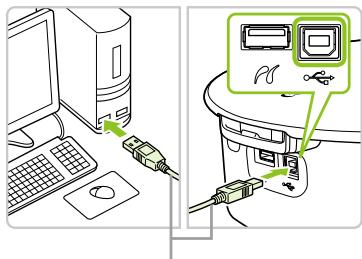
Commercially available USB cable
Install the software.
Windows
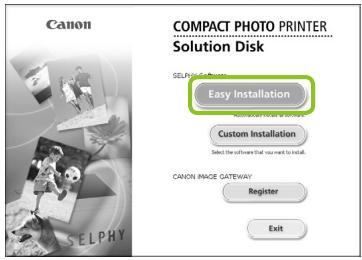
- Place the CD-ROM in the computer's CD-ROM drive and click [Easy Installation] when the screen on the left appears.
Follow the on-screen instructions to proceed.
If the User Account Control window appears, follow the on-screen instructions to proceed.
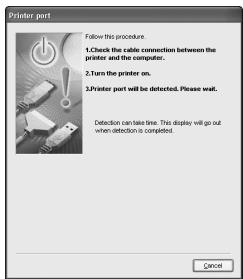
Proceed with the installation to display the screen on the left.
Macintosh
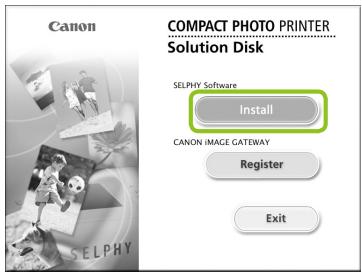
Place the CD-ROM in the computer's CD-ROM drive and double-click
- When the screen on the left appears, click [Install] and follow the on-screen instructions to proceed.
- When the install finishes, click [Finish] to complete the installation.
Prepare SELPHY.
Turn off SELPHY and remove the memory card.
Insert a paper cassette that contains paper, and an ink cassette into SELPHY (pp. 10 - 12).
Connect SELPHY to a computer.
Use the USB cable to connect SELPHY to the computer.
Refer to the user guide included with the cable or computer for handling instructions.



Turn on SELPHY.
Press the button to turn on SELPHY.
Windows
- When the installation finishes, click [Restart] to restart the computer and complete the installation.
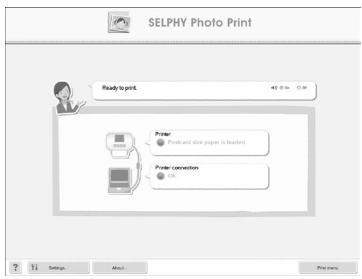
Confirm that the software has been started properly.
The software will start and the screen on the left will appear when a connection between SELPHY and the computer is established.
From now on, the software will automatically start when you perform Steps 2 to 4.
Windows
If the screen at the left does not appear, choose from the [Start] menu [All Programs] [Canon Utilities] [SELPHY Photo Print] [SELPHY Photo Print].
Macintosh
If the screen at the left does not appear, follow these steps to register your printer: After clicking [ ] in the menu, click [System Preferences], then [Print & Fax] to bring up the [Print & Fax] window. Click [+] , choose [CP790] from the pop-up window and click [Add]. After you have finished registering your printer, click [SELPHY Photo Print] from the Dock (the bar at the bottom of the desktop), and the screen at the left will appear.

SELPHY may not operate correctly if it is connected to a computer via a USB hub.
SELPHY may not function properly if other USB devices (with the exception of a USB mouse or USB keyboard) are used at the same time. Disconnect any other USB devices from your computer and then reconnect SELPHY.
- Do not put your computer into the standby mode (or sleep mode) while SELPHY is connected to the computer's USB port. If you accidentally do so, awaken the computer from the standby mode without disconnecting the USB cable.
For details on how to awaken the computer refer to the user guide provided with your computer.
Printing from Your Computer
Use the installed software (SELPHY Photo Print) to print images from the computer. The [Simple print] feature will be explained in this guide. Using this feature you can view all your images at once and choose which ones you want to print. If your computer is equipped with speakers, set the volume so that the audio guidance for necessary operations can be heard.
1

SELPHY Photo Print
2

How can you live in print?

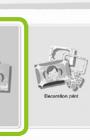
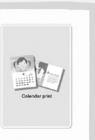


3
You can choose the conditions for the images to display.
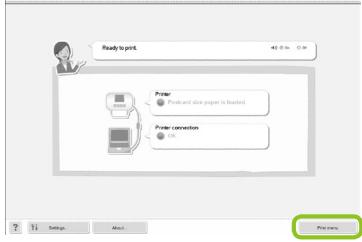
Display the print menu.
Click [Print menu].
If printing preparations are not complete (paper cassette and ink cassette inserted), you cannot click the Print Menu. Follow the audio guidance or onscreen instructions to perform the necessary operations.
Choose a print method.
Click [Simple print].
You can make prints with frames, stamps, and speech bubbles by clicking [Decoration print].
- You can make prints with calendars added by clicking [Calendar print].
Choose an image.
Images will display in a list within the [My Pictures] folder in Windows, and the [Pictures] folder in Macintosh.
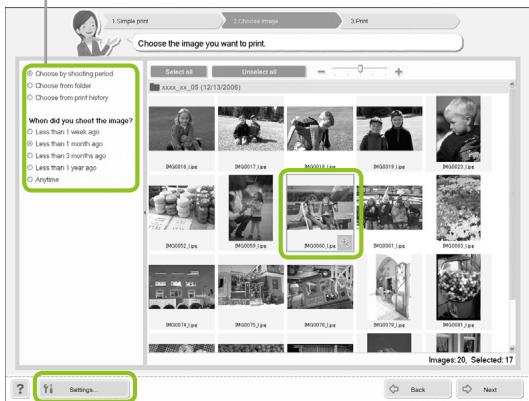
You can display images saved in another folder, if you press this button to choose a folder from the screen that appears.
- Click the selected image for printing.
The background color changes and the image is set for printing.
Use the same procedures to click all images you want to print.
If you click again, the background color switches back to the original color and the settings are canceled.

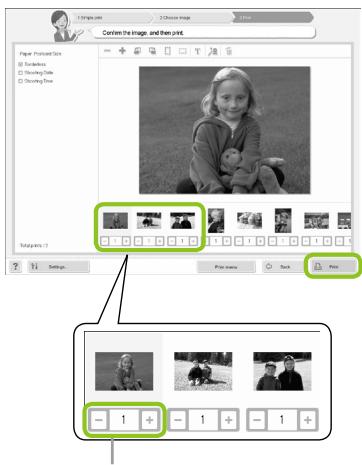
Press the - or + buttons to set the number of prints.
Choose the number of prints.
Choose the number of copies for each image.
Click [Print] to start printing.

Close the program.
Windows
When all printing is finished, Click × at the top right corner of the screen.
Macintosh
When all printing is finished, Click at the top left corner of the screen.

Turning off the Voice Guidance
The voice guidance may not play properly on some computers. If the voice guidance is difficult to hear, follow these steps to turn off the voice guidance before using the software.
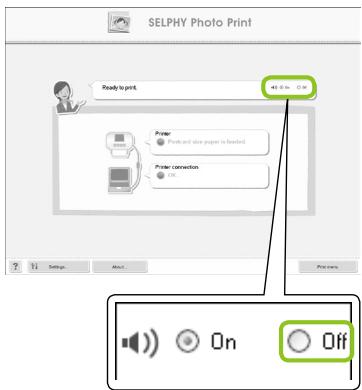
Turning off the Voice Guidance
While in the screen from Step 1 in "Printing from Your Computer" (p. 37), check the [Off] radio button.
Turn off voice guidance.
Printing from Your Digital Camera
Choose and print images directly from a camera that supports the PictBridge standard. A Canon brand camera will be used as an example to explain the print method. If operations are different for the camera you use, refer to the user guide for your camera.

Check that there is no memory card inserted and that no computer is connected to SELPHY.

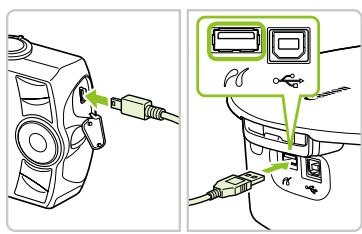
Connect SELPHY to the camera using the USB cable included with the camera.

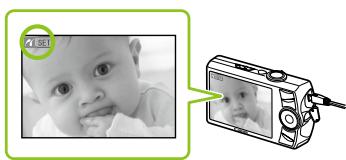
First turn on SELPHY, then turn on the camera and play back the images on the camera.

Depending on the camera you use, will appear on the camera's screen.
Make the necessary settings on your camera to choose an image for printing.
Printing starts.

You cannot stop printing with the (BACK) button. Use camera operations to stop printing.
- PictBridge is an industry standard established by the Camera & Imaging Products Association (CIPA). It allows any digital camera or video camera, regardless of the manufacturer or model, to print images taken with the camera directly to a printer without using a computer.
Printing Images Using Camera Specified Settings (DPOF Print)
You can make print settings and choose images to print on your camera and then print the images all at once. For details, refer to the user guide provided with your camera.

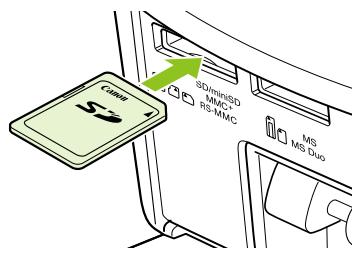
Insert a memory card containing DPOF settings made with the camera into the memory card slot.
[DPOF images remain Print images?] appears on the screen.
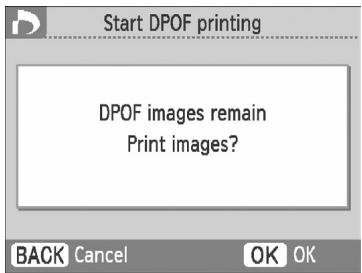

Press the OK button.

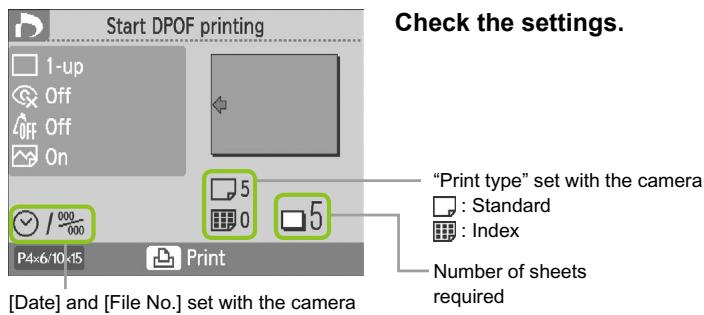


Print. Press the button to start printing.

The date and file number are the DPOF settings made with the camera (these settings cannot be changed with SELPHY).
The screen in Step 3 can be also displayed when you press the O(MENU) button and choose [DPOF Print], then press the OK button. [DPOF Print] only displays when a memory card is inserted that contains DPOF information set with the camera.
Printing from Your Mobile Phone
You can print pictures taken with infrared (IrSimple or IrDA IR) or Bluetooth compatible mobile phones without using a cable.

You cannot establish a wireless connection between a computer and SELPHY.
The maximum file size that can be transmitted is 2 - 3 MB (varies depending on mobile phone).
Data transmission time increases when data size is large. Therefore, the amount of time before printing will also increase.
Movies, e-mail, address book information, or images attached to an e-mail or downloaded from the Internet cannot be printed.
Depending on the mobile phone model you use, images saved on the memory card may not be printed.
SELPHY automatically sets the print orientation.
Depending on the paper size you use, the edges of the image may be cropped.
Infrared (IrSimple or IrDA IR) Wireless Printing
You can print pictures taken on Infrared (IrSimple or IrDA IR) compatible mobile phones without using a cable. For details on how to use your mobile phone or on printing methods via Infrared, refer to the user guide provided with your mobile phone.

Make sure that there is no memory card inserted and that no computer is connected to SELPHY.

Be sure the phone is no more than 20cm (8 in.) away from the infrared sensor.
(Be sure nothing is blocking the signal)
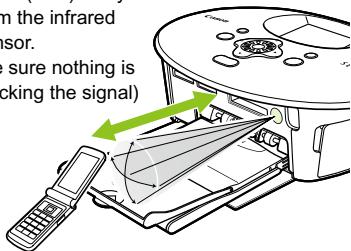
Available range 10^ in all directions
Transfer images from your mobile phone to SELPHY.
Printing starts after data transmission is completed.

If transmission cannot be completed, move the phone closer to and directly in front of the infrared sensor.
Bluetooth Printing
Use the (separately sold) Bluetooth Unit BU-30 for wirelessly printing images from Bluetooth enabled mobile phones. For details on how to use the mobile phone or on printing methods via Bluetooth refer to the user guide provided with the mobile phone.

Make sure that there is no memory card inserted and that no computer is connected to SELPHY.

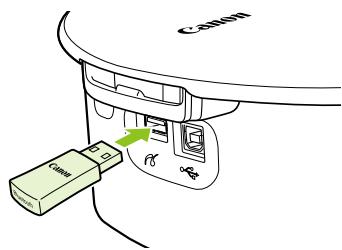
Insert the Bluetooth unit.
- Remove the cover attached to BU-30, and insert it as shown.
Turn on SELPHY. (p. 15)

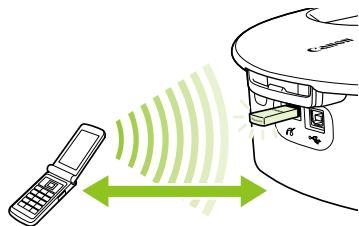
Up to approx. 10m (33 ft.)
Transfer images from your mobile phone to SELPHY.
Bluetooth unit blinks blue during data transmission.
Printing starts after data transmission is completed.

During transmission, the blue light on the Bluetooth unit will blink. If transmission is interrupted, the blinking will cease. Follow the instructions on your mobile phone and try again.
The following conditions could cause slow transmission and printing times or cause transmission to fail, even within the 10m range:
- There is an obstacle between the Bluetooth unit and the mobile phone
- There is interference from magnetic fields, static electricity, or radio waves in the area

Choose Canon CP790-XX:XX:XX (X stands for one digit) when choosing a target device name on your mobile phone.
Using the Battery Pack
Use the (separately sold) battery pack NB-CP2L for printing images in places without a power outlet. With a fully charged battery, you can print approximately 36 sheets of Postcard size paper.
Installing the Battery
1
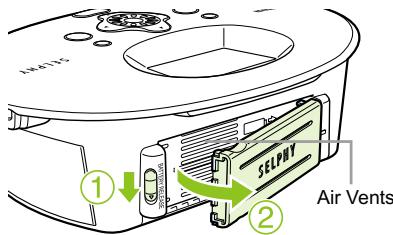
Remove the battery cover.
Slide and hold the cover lock towards ①, then remove the cover towards ②.
2
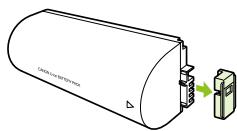
Remove the battery terminal cover.
3
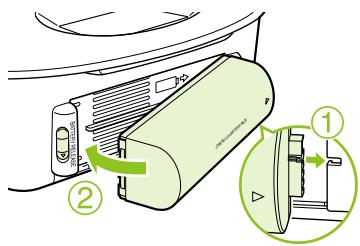
Attach the battery.
Insert the tab as shown in ① , then push as shown in ② until it clicks and locks into place.
Charging the Battery
Plug in SELPHY (p. 12).
Charging starts and appears on the screen.
Charging completes after approximately 4 hrs. and disappears.
If you press the button while the battery is charging (p. 15), SELPHY can be used. When you turn off the power (p. 15), appears and charging resumes.

For cautions concerning the battery refer to the user guide provided with the battery.
When is displayed and you press any button other than the button for 3 seconds or longer, will disappear. When the screen is turned off while the battery is charging and you press any button other than the button, will appear after approximately 10 seconds.
CAUTION
RISK OF EXPLOSION IF BATTERY IS REPLACED BY AN INCORRECT TYPE.
DISPOSE OF USED BATTERIES ACCORDING TO LOCAL REGULATION.
SELPHY Settings
You can personalize SELPHY to suit your tastes. The basic operation is explained first. For a detailed explanation of each setting, please see (p. 45). These settings will be saved even if SELPHY's power is turned off.

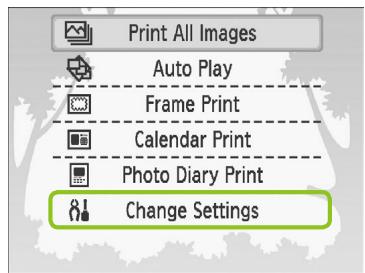
Display the Change Settings screen.
Press the O(MENU) button.
Press the buttons, or turn the wheel to choose [Change Settings], then press the OK button.

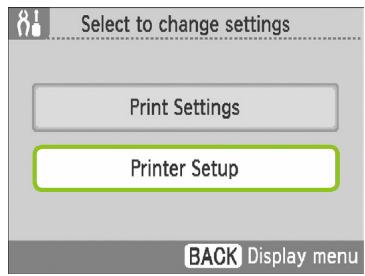
Display the printer setup screen.
Press the buttons, or turn the wheel to choose [Printer Setup], then press the OK button.

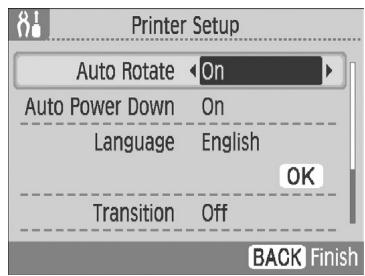
Change a setting.
Please refer to each item (p. 45) for settings and how to change settings.
After you have made your settings, press the O(BACK) button, and a confirmation screen appears.

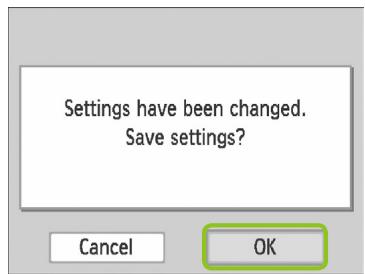
Make the setting.
Press the buttons, or turn the wheel to choose [OK], and press the OK button to make the selection.
The menu screen will appear. Press the (BACK) button to restore the image display screen.
Turn Off Auto Rotate
Images taken in vertical orientation will display on the printer vertically when the auto rotation feature on the camera is turned on. When this feature is turned off, all images display in horizontal orientation.
Set [Auto Rotate] to [Off].
Press the buttons, or turn the wheel to choose [Auto Rotate], then press the buttons to choose [Off].
Turn Auto Power Down On or Off
You can turn off the Auto Power Down setting, which automatically turns off the printer after approximately 5 minutes without user operations or printing.
Set [Auto Power Down] to [Off].
Press the buttons, or turn the wheel to choose [Auto Power Down], then press the buttons to choose [Off].
Change Auto Play Transitions
You can set a transition effect for when you are choosing pictures for printing (p. 15) or using auto play (p. 32).
Choose a transition effect.
Press the buttons, or turn the wheel to choose [Transition], then press the buttons to choose an effect.
Restore SELPHY's Default Setting
Will reset all of SELPHY's settings to their default.
Press the buttons, or turn the wheel to choose [Reset All], then choose [OK].
After the confirmation screen appears, pressing the OK button will return the printer to its default settings.
Troubleshooting
If you think there is a problem with SELPHY, first check the following. If the items below do not solve your problem, contact a Canon Customer Support Help Desk as listed on the included customer support list.
Power
Power will not turn on
- Confirm that the plug is connected. (p. 12)
- When using a (separately sold) battery, use a charged battery. (p. 43)
- Hold the button pressed until the start-up image appears on the screen. (p. 15)
Printing Problems
Cannot print
- Make sure that the ink and paper cassettes are correctly inserted. (p. 12)
- When the ink is spent, replace the ink cassette with a new one. When the paper is spent, refill the paper cassette with new paper. (p. 16)
- Are you using the correct combination of paper, paper cassette and ink cassette? (p. 10)
- Is SELPHY connected to more than one device at once? Do not connect simultaneously to a camera, memory card or computer.
Is the ink sheet slack? (p. 10) - Make sure that you are using the dedicated paper. (p. 11)
- Depending on the room temperature SELPHY may overheat and temporarily stop operating. This is not a malfunction. Wait until the temperature drops and SELPHY resumes. If SELPHY is connected to a computer, a message will appear on the computer screen. Do not cancel the print. Wait until printing resumes.
Cannot print from memory card, image does not display
- Is the memory card inserted all the way into the card slot with the label facing upward? (pp. 14, 15)
- Make sure you are using a supported image type. (p. 14)
- Have you inserted the memory card directly into the card slot without first inserting it into an adapter? (p. 14)
Printing from cameras
- Is SELPHY connected to the camera correctly? (p. 39)
- Confirm that your camera supports PictBridge. (p. 39)
Printing from computers
- Did you install the printer driver according to the correct procedures? (p. 35)
- Is SELPHY connected directly to a port on the computer with the USB cable?
- Problems Exclusive to Windows: Is the printer set to offline? If it is, Right-click the printer icon and cancel the offline setting.
- Problems Exclusive to Macintosh: Is SELPHY registered on the Printer List?
Cannot print the date
Printing from memory cards
Is the date imprint option set? (p. 21)
If you are using DPOF printing, the date imprint settings are configured on the camera used for the DPOF settings.
Printing from mobile phones
- The date cannot be printed on images sent from a mobile phone (pp. 41 - 42).
Printing from cameras
- Confirm that the date setting in your camera is set to [On]. However, if the setting is [Default], the date imprint settings of SELPHY will be used.
Cannot make clean prints
- Is the ink sheet or paper dusty?
Is dust lodged within SELPHY? (p. 48) - Has condensation formed within SELPHY? (p. 48)
- Is SELPHY placed near a device with a strong electromagnetic or magnetic field? (p. 9)
Colors on the computer display and the print are different
- Color generation methods are different with computer screens and prints. Moreover, the variance may be attributable to the environment in which the screen is viewed (color and strength of the light), or to the screen's color adjustment settings.
After using the computer to cancel a print in progress, an image that had already been printed was printed again when printing resumed
- When you restart printing on a Macintosh computer after canceling, an already printed image may print again when printing resumes.
Paper Problems
Paper will not fit into cassette
- Does the paper size match the size of the paper cassette? (p. 10)
Paper is not feeding properly
- Check the paper and paper cassette are correctly inserted. (p. 12)
Frequent paper jams
- Has too much paper been placed in the paper cassette?
Do not place 19 or more sheets in the cassette (13 or more for Wide size). - Have 19 or more sheets (13 or more for Wide size) collected on top of the paper cassette?
- Make sure that you are using the dedicated paper. (p. 11)
Cannot print the specified number of prints, paper left over
- Canceling a print is in progress or pulling on the ink sheet will consume ink sheet capacity. If paper runs out while printing many images, do not remove the ink cassette, as this will consume ink. Instead, replenish the paper without removing the ink cassette.
The paper is jammed
- If the paper is sticking out from the front or back (paper ejection slot) (p. 8) of SELPHY, gently tug on the paper to remove it. However, if a gentle tug is not sufficient to remove the paper, do not attempt to forcibly pull it out. Turn the printer off and on repeatedly until the paper is ejected.
If a problem occurs with SELPHY, a message and a possible solution appear on the screen. Follow the on-screen instructions to solve the problem. If a problem occurs while SELPHY is connected to a camera, the camera may also display an error message. Be sure to check both devices.
If following the instructions does not solve the problem and the same error message appears, contact your Canon Customer Support Help Desk.
Handling Precautions
- Do not apply excessive force to the printer. Force or impact on the printer may result in paper jams or equipment damage.
- Be careful not to spray the equipment with insecticides or volatile substances. In addition, do not store the equipment in contact with rubber or vinyl products for long periods of time. This may cause alteration of the casing.
Depending on the room temperature, SELPHY may overheat and temporarily stop operating. This is not a malfunction. SELPHY will resume normal printing as soon as it cools down. Temporary stoppages increase printing time and are most likely to occur when printing continuously, if a room is unusually warm, or if the air vents on the back of SELPHY are blocked and internal temperature is high. - Avoid condensation on the equipment when moving it from a cold to a hot place by putting it in an airtight, sealable plastic bag and allow for adjustment to temperature changes gradually before removing from the bag. In the event that condensation does form within the equipment, keep it at room temperature until the water droplets evaporate naturally before use.
When SELPHY gets dirty, wipe the casing with a soft dry cloth. - When dust or dirt has accumulated on the battery cover or vent (pp. 8, 43), be sure to remove the ink cassette (p. 16) before cleaning. If dust gets in through the vent, the printer may not print cleanly.

Never wipe using volatile solvents such as benzine, paint thinner, or diluted neutral solvent. They may cause deformation or peeling of the casing.
Specifications
All data is measured according to standard Canon testing procedures. We reserve the right to change specifications without notice.
SELPHY CP790
| Printing Method | Dye-sublimation thermal transfer (with overcoating) | |
| Print Resolution | 300 x 300 dpi | |
| Gradation | 256 shades per color | |
| Ink | Dedicated ink cassette (Y/M/C/overcoating) | |
| Paper | Postcard Size, L Size, Card Size (including full page label sheets, 8-label sheets), Wide Size | |
| Print Size | Borderless | Bordered |
| Postcard Size | 100.0 x 148.0 mm (3.94 x 5.83 in.) | 91.3 x 121.2 mm (3.59 x 4.77 in.) |
| L Size | 89.0 x 119.0 mm (3.50 x 4.69 in.) | 78.6 x 104.6 mm (3.09 x 4.12 in.) |
| Card Size | 54.0 x 86.0 mm (2.13 x 3.39 in.) | 49.5 x 66.2 mm (1.95 x 2.60 in.) |
| (per label) | 22.0 x 17.3 mm (0.87 x 0.68 in.) | - |
| Wide Size | 100.0 x 200.0 mm (3.94 x 7.87 in.) | 93.8 x 124.6 mm (3.69 x 4.90 in.) |
| Printing Speed*1 | Printing from Memory Cards/Connected to Cameras with PictBridge | |
| Postcard Size | Approx. 47 sec. | |
| L Size | Approx. 39 sec. | |
| Card Size | Approx. 24 sec. | |
| Wide Size | Approx. 60 sec. | |
| Feeding System | Automatic paper feed from paper cassette | |
| Ejection System | Automatic paper ejection on top of paper cassette | |
| LCD Monitor | 3.0-inch type, TFT LCD color Monitor, Approx. 230,000 dots | |
| Interface | ||
| USB | Connecting to a PictBridge compliant device: USB compliant Type A connector Connecting to a computer: USB compliant Type B connector | |
| Wireless | IrSimple, IrDA IR Bluetooth*2 | |
| Memory Cards | CF (CompactFlash) Card, Microdrive, xD-Picture Card*3, SD Memory Card, miniSD Card, SDHC Memory Card, miniSDHC Card, MultiMediaCard, MMCplus Card, HC MMCplus Card, MMCmobile Card, RS-MMC Card, microSD Card*3, microSDHC Card*3, MMCmicro Card*3, Memory Stick, Memory Stick PRO, Memory Stick Duo, Memory Stick PRO Duo, Memory Stick micro*3 | |
| Operating Temperatures | 5 - 40°C (41 - 104°F) | |
| Operating Humidity | 20 - 80% | |
| Power Source | Compact Power Adapter CA-CP200 W Battery pack NB-CP2L (sold separately) | |
| Power Consumption | 60 W or less (4 W or less on standby) | |
| Dimensions (excluding protrusions) | Printer only: 246.9 x 178.0 x 86.4 mm (9.72 x 7.01 x 3.40 in.) Printer and Basket: 276.8 x 198.0 x 211.6 mm (10.90 x 7.80 x 8.33 in.) | |
| Weight | Printer: Approx. 1,100 g (38.8 oz.), Basket: Approx. 400 g (14.1 oz.) | |
1 Measured from start of the yellow printing pass to final output.
2 Bluetooth Unit BU-30 (sold separately) is required.
*3 Dedicated adapter (commercially available) is required.
Compact Power Adapter CA-CP200 W
Rated Input
100 - 240 V AC (50/60 Hz) 1.5 A (100 V) - 0.75 A (240 V)
Rated Output
24 V DC, 2.2 A
Dimensions
122.0 × 60.0 × 30.5 ~mm (4.80 x 2.36 x 1.20 in.) (excluding power cord)
Operating Temperatures
0-45°C (32 - 113°F)
Weight
Approx. 310 g (10.9 oz.)
CANON INC.
30-2, Shimomaru 3-chome, Ohta-ku, Tokyo 146-8501, Japan
CANON EUROPA N.V.
Bovenkerkerweg 59-61, 1185 XB Amstelveen, The Netherlands
Trademark Acknowledgments
The SDHC logo and miniSDHC logo are trademarks.
- Portions of the code used in this firmware are based in part on the work of the Independent JPEG Group.
About This Guide
Reprinting, transmitting, or storing in a retrieval system any part of this guide without the permission of Canon is prohibited.
- Canon reserves the right to change the contents of this guide at any time without prior notice.
- Illustrations and screenshots in this guide may differ slightly from the actual equipment.
Every effort has been made to ensure that the information contained in this guide is accurate and complete. However, if you notice any errors or omissions, please contact the Canon Customer Support Help Desk indicated on the customer support list included with the product.
The above items notwithstanding, Canon accepts no liability for damages due to mistaken operation of the products.
This product is designed to achieve excellent performance when used with genuine Canon accessories. Canon shall not be liable for any damage to this product and/or accidents such as fire, etc., caused by the malfunction of non-genuine Canon accessories (e.g., a leakage and/or explosion of a battery pack). Please note that this warranty does not apply to repairs arising out of the malfunction of non-genuine Canon accessories, although you may request such repairs on a chargeable basis.

European Union (and EEA) only.
This symbol indicates that this product is not to be disposed of with your household waste, according to the WEEE Directive (2002/96/EC) and your national law. This product should be handed over to a designated collection point, e.g., on an authorized one-for-one basis when you buy a new similar product or to an authorized collection site for recycling waste electrical and electronic equipment (EEE). Improper handling of this type of waste could have a possible negative impact on the environment and human health due to potentially hazardous substances that are generally associated with EEE. At the same time, your cooperation in the correct disposal of this product will contribute to the effective usage of natural resources. For more information about where you can drop off your waste equipment for recycling, please contact your local city office, waste authority, approved WEEE scheme or your household waste disposal service.
For more information regarding return and recycling of WEEE products, please visit www.canon-europe.com/environment.
(EEA: Norway, Iceland and Liechtenstein)
SELPHY CP790
COMPACT PHOTO PRINTER
Brugervjledning til printeren
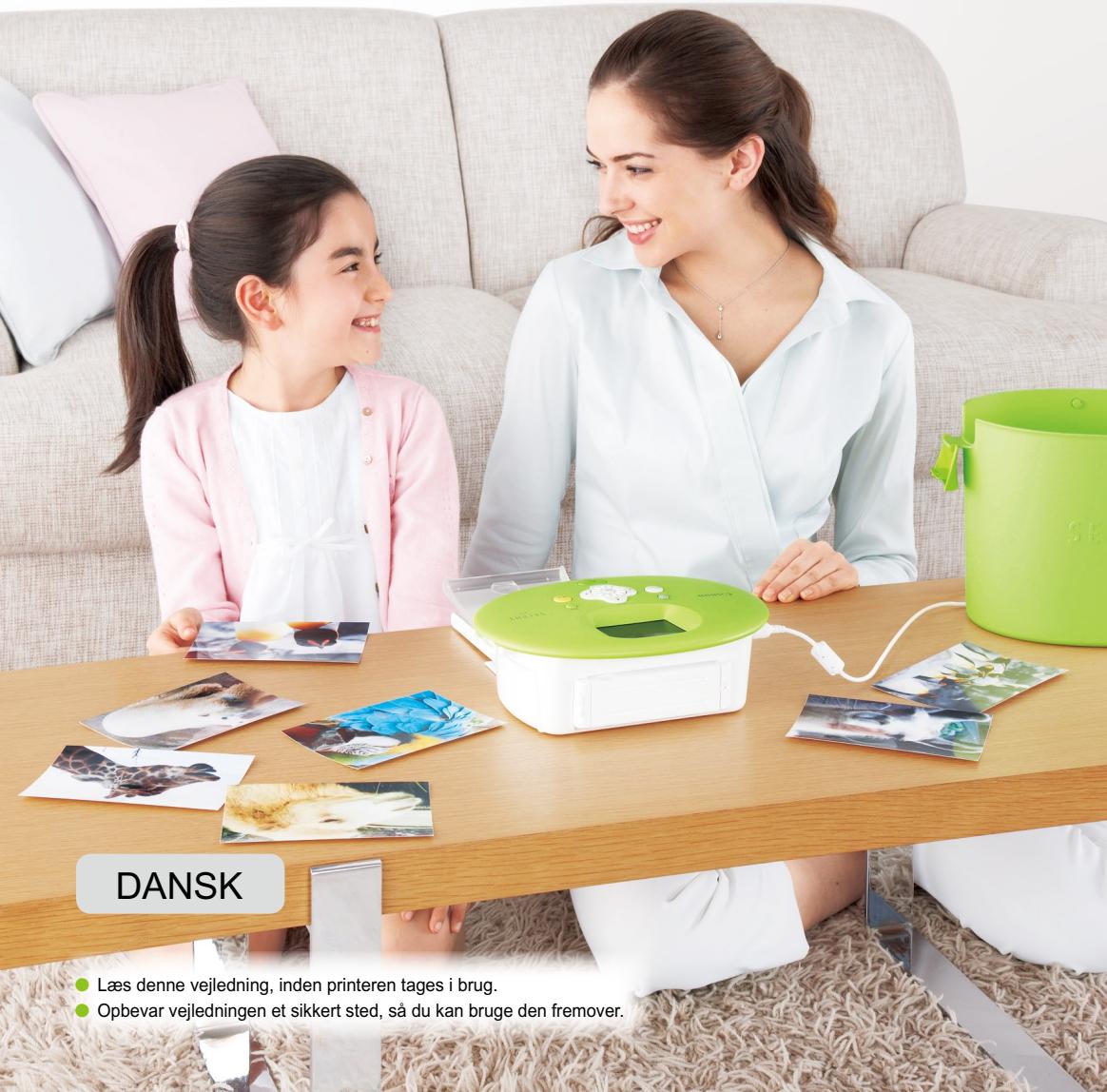
Gem minderne med SELPHY
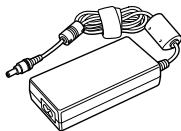
Kompakt strømadapter CA-CP200 W
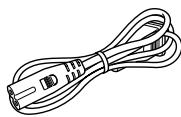
Netledning

□ CD-ROM: COMPACT PHOTO PRINTER Solution Disk
Vaelg for at aendre indst.
Print indstlinger
Printer setup
BACK
Vis menu
Søgning after billed
Kompakt strømadapter CA-CP200 W
Nominelt input
100 - 240 V AC (50/60 Hz) 1,5 A (100 V) - 0,75 A (240 V)
30-2, Shimomaruco 3-chome, Ohta-ku, Tokyo 146-8501, Japan
CANON EUROPA N.V.
30-2, Shimomaruco 3-chome, Ohta-ku, Tokyo 146-8501, Japan
CANON EUROPA N.V.
Bovenkerwerweg 59-61, 1185 XB Amstelveen, The Netherlands
Hinweise zu Marken

m = 311
L'impression commence.

Impression via Bluetooth
30-2, Shimomaruko 3-chome, Ohta-ku, Tokyo 146-8501, Japan
CANON EUROPA N.V.
Bovenkerwerweg 59-61, 1185 XB Amstelveen, Pays-Bas
Marques déposées
30-2, Shimomaruco 3-chome, Ohta-ku, Tokyo 146-8501, Japan
CANON EUROPA N.V.
Bovenkerkerweg 59-61, 1185 XB Amstelveen, The Netherlands
30-2, Shimomaruko 3-chome, Ohta-ku, Tokyo 146-8501, Japan
CANON EUROPA N.V.
Bovenkerkerweg 59-61, 1185 XB Amstelveen, The Netherlands
Kennisgevingen van handelsmerken

How would you like to print?


3
30-2, Shimomaruco 3-chome, Ohta-ku, Tokyo 146-8501, Japan
CANON EUROPA N.V.
Bovenkerkerweg 59-61, 1185 XB Amstelveen, The Netherlands
Tavaramerkkiokeudet
30-2, Shimomaruco 3-chome, Ohta-ku, Tokyo 146-8501, Japan
