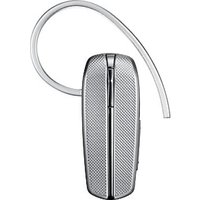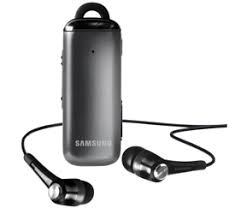
HM3700 - Headphones SAMSUNG - Free user manual and instructions
Find the device manual for free HM3700 SAMSUNG in PDF.


| Product Type | Bluetooth Headset |
| Brand | Samsung |
| Model | HM3700 |
| Bluetooth Version | 2.1 + EDR |
| Supported Profiles | Headset, Hands-Free, Serial Port, A2DP |
| Supported Audio Codecs | SBC, MP3, APT-X |
| Maximum Range | 10 meters |
| Standby Battery Life | Up to 180 hours |
| Talk Time | Up to 6 hours |
| Music Playback Time | Up to 5 hours |
| Charging Time | Approximately 2 hours |
| Power | Built-in rechargeable battery, travel adapter included |
| Features | Voice command, voice prompt (English), multipoint function, redial, call rejection, call hold, call transfer |
| Pairing | Simple (no PIN) for Bluetooth 2.1+, active pairing |
| Simultaneous Connection | Up to two Bluetooth phones or one phone and one music player |
| Included Accessories | Travel adapter, wired stereo earphones, alligator clip, shirt clip, earphone covers, ear hook, user guide |
| Maintenance | Clean with a soft, dry cloth |
| Safety | Avoid extreme temperatures (0°C to 45°C), humidity, do not disassemble, use Samsung-approved charger |
| Warranty | 1 year against material, design and manufacturing defects |
| Certifications | FCC, IC, UL (adapter) |
Frequently Asked Questions - HM3700 SAMSUNG
User questions about HM3700 SAMSUNG
0 question about this device. Answer the ones you know or ask your own.
Ask a new question about this device
Download the instructions for your Headphones in PDF format for free! Find your manual HM3700 - SAMSUNG and take your electronic device back in hand. On this page are published all the documents necessary for the use of your device. HM3700 by SAMSUNG.
USER MANUAL HM3700 SAMSUNG
Your headset overview. 4
Button functions 5
Charging the headset 6
Wearing the headset. 8
Using your headset
Turning the headset on or off 11
Using the voice command and voice prompts 11
Pairing and connecting the headset 15
Using call functions 19
Resetting the headset 22
Appendix
Frequently asked questions 23
Certification and Safety approvals 25
UL certified travel adapter 26
Warranty and parts replacement 27
Specifications 28
Please read this manual before operating your headset, and keep it for future reference. Graphics used in this manual are for illustration purposes. The actual products may vary.
Copyright
Copyright © 2011 Samsung Electronics
This user manual is protected under international copyright laws.
No part of this user manual may be reproduced, distributed, translated, or transmitted in any form or by any means, electronic or mechanical, including photocopying, recording, or storing in any information storage and retrieval system, without the prior written permission of Samsung Electronics.
Trademarks
- SAMSUNG, and the SAMSUNG logo are registered trademarks of Samsung Electronics.
- Bluetooth® is a registered trademark of the Bluetooth SIG, Inc. worldwide. More information about Bluetooth is available at www/bluetooth.com
- All other trademarks and copyrights are the property of their respective owners.
This product includes certain free/open source software.
The exact terms of the licenses, disclaimers, acknowledgements and notices are available on the Samsung's website opensource.samsung.com
Please read all Safety precautions before using your headset to ensure safe and proper use.

Safety precautions
- When using your headset while driving, follow local regulations in the region you are in.
- Never disassemble or modify your headset for any reason. Doing this may cause the headset to malfunction or become combustible. Bring the headset to an authorized service center to repair it.
- Keep your device and all accessories out of the reach of small children or animals. Small parts may cause choking or serious injury if swallowed.
- Avoid exposing your device to very cold or very hot temperatures (below 0^ or above 45^ ). Extreme temperatures can cause the deformation of the device and reduce the charging capacity and life of your device.
- Do not allow your device to get wet — liquids can cause serious damage. Do not handle your device with wet hands. Water damage to your device can void your manufacturer's warranty.
- Avoid using your device's light close to the eyes of children or animals.
- Do not use the device during a thunderstorm. Thunderstorms can cause the device to malfunction and increase the risk of electric shock.

Excessive exposure to loud sounds can cause hearing damage. Exposure to loud sounds while driving may distract your attention and cause an accident. Use only the minimum volume setting necessary to hear your conversation.
Getting started
Your headset overview
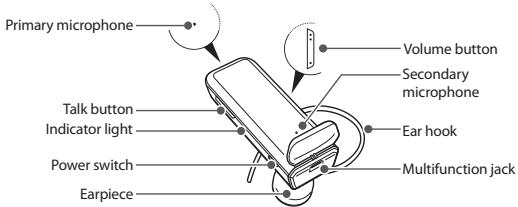

Make sure you have the following items: headset, travel adapter, stereo wired headset, alligator clip, shirt clip, ear rubbers, ear hook and user manual. The supplied items may vary.
Button functions
| Button | Function |
| Power switch | • Slide the switch to turn the headset on or off. |
| Talk | • Press and hold the Talk button for 3 seconds to enter Pairing mode. • While the voice prompt feature is turned off, press the Talk button to make or answer a call. • While the voice prompt feature is turned on, the Talk button works as a Voice command button. |
| Volume | • Press to adjust the volume. • Press and hold to turn the microphone on or off during a call. • Press and hold both Volume buttons simultaneously to turn the indicator light on or off. • In Pairing mode, press and hold the Volume up button for 3 seconds to turn the Voice prompt on or the Volume down button for 3 seconds to turn the Voice prompt off. |
Charging the headset
This headset has a rechargeable internal battery which is non-removable. Make sure the headset is fully charged before using it for the first time.
1 Connect the travel adapter to the charging socket on the headset.
2 Plug the travel adapter in to the wall outlet. During charging, the indicator light will turn red. If charging does not begin, unplug the travel adapter and plug it in again.
3 When the headset is fully charged, the red indicator light changes to blue. Unplug the travel adapter from the wall outlet and the headset.
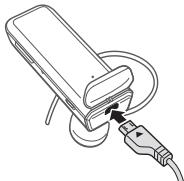

- Use only Samsung-approved chargers. Unauthorized or Non-Samsung chargers could cause damage to the headset or in extreme circumstances an explosion, it could also invalidate any warranty on the product.
- Repeatedly charging and discharging of the headset, over time will cause the battery performance to diminish. This is normal for all rechargeable batteries.

- Never make or receive calls while charging, always disconnect your headset from the charger and answer the call.
Checking the battery level
To check the battery level, press and hold the Volume down button and the Talk button at the same time. Depending on the battery level, the indicator light flashes 5 times in one of the following colors:
| Battery level | Indicator light color |
| Above 80% | Blue |
| 80 ~ 20% | Violet |
| Below 20% | Red |
When the headset battery is low
The headset beeps and the indicator light flashes red. If the headset powers off during a call, the call will be automatically transferred to the phone.
Wearing the headset
Using as a mono headset
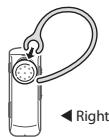
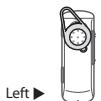
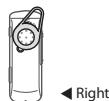
Depending on which ear you are going to wear the headset, simply adjust the ear hook accordingly.
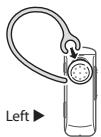
You can also use the optional ear rubbers instead of the ear hook. Remove the earpiece cover and attach the ear rubber. Then, rotate the ear rubber left or right slightly depending on which ear you are going to wear the headset.
Using as a stereo headset
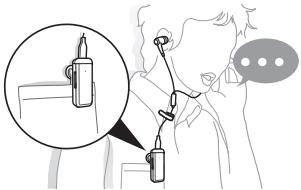
Use the supplied stereo earpiece with the alligator clip and the shirt clip.
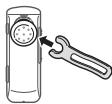
1 Remove the ear hook and attach the shirt clip.
2 Plug the connector of the stereo earpiece into the multifunction jack on the headset and wear the stereo earpiece.
3 Clip the headset to your clothes using the shirt clip and clip the stereo earpiece to your clothes using the alligator clip.
Using your headset
This section explains how to turn the headset on or off, pair and connect the headset to the phone, and use various functions.

- Activated functions and features may differ depending on the phone type.
- Some devices, especially those that are not tested or approved by the Bluetooth Special Interest Group (SIG), may be incompatible with your headset.
To ensure you get the best performance from your headset
- Keep the distance between your headset and device as small as possible and avoid placing your body or other objects in the signals path.
- If you usually use your mobile phone with your right hand, wear the headset on your right ear.
- Covering your headset or device could effect its performance so keep contact to a minimum.
The FreeSync application is a downloadable application for Android handsets that allows you access to your headsets settings as well as enhancing the messaging experience (text to speech). FreeSync is only supported by handsets running on the Froyo platform or later (version 2.2 or newer). You can download the FreeSync application from the Android market.
Turning the headset on or off
To turn the headset on
Slide up the power switch. The blue indicator light flashes 4 times.

Turning the headset on for the first time, it will automatically enter pairing mode for approx 3 minutes. For more information, see page 15.
To turn the headset off
Slide down the power switch. The indicator light flashes blue and red then turns off.
Using the voice command and voice prompts
Voice prompts will inform you about the current status of the headset and usage instructions. You can also control your headset using your voice but to do so you must ensure the voice prompt feature is turned on. Your headset can only recognize English.
Turning the voice prompt on or off
To turn voice prompts on
In Pairing mode, press and hold the Volume up button for 3 seconds. You will hear "Voice prompt is on". To enter Pairing mode, see page 15.
To turn voice prompts off
In Pairing mode, press and hold the Volume down button for 3 seconds. You will hear "Voice prompt is off".
Using the voice command
1 In Pairing or Standby mode, press the Talk button.
2 Wait until the headset asks you to "Say a command".
3 Say one of the voice commands loudly and clearly. See page 13.
- If you say a command with a low tone of voice or don't say any command within 5 seconds, you will hear "Say it again" the first time and then "Cancelled" if nothing is said the second time. If you hear "Say it again," please say a command clear with more loud voice. Even if you say so and hear "Cancelled," press the Talk button again.

- Your headset may inadvertently recognize voice commands from background sounds that are louder than your voice.
- You can not use voice commands while listening to music with your headset.
List of voice commands
| Action | Command |
| To stop the whole process of voice command | “Cancel” |
| To enter pairing mode | “Pair mode” |
| To answer or reject a call after you hear “Call from [phone number]. Say Answer or Ignore” | “Answer” or “Ignore” |
| To redial the last number you called on the currently connected phone | “Redial” (primary phone) or “Redial Two” (secondary phone) |
| To access the voice dialing feature of the connected phone, if the phone supports it | “Phone Voice Command” (primary phone) or “Phone Voice Command Two” (secondary phone)If the phone doesn’t support voice dialing, you will hear “Phone does not support voice dialing” |
| To check the current time | “What Time is it?”(available when using FreeSync application) |
List of voice prompts
| Status | Voice prompt |
| When you turn the headset on or off | “Power on” or “Power off” |
| When you enter Pairing mode | “Ready to pair. Search for the headset from the Bluetooth menu. Enter 0000 if prompted for a PIN” |
| When you turn the voice prompt on or off | “Voice prompt is on” or “Voice prompt is off” |
| When you turn Multi-point feature on or off | “Multi-point mode is on” or “Multi-point mode is off” |
| When you connect the headset to the devices | “Device is connected” or “Primary device is connected” or “Secondary device is connected” |
| When you disconnect the headset from a device | “Device is disconnected” or “Primary device is disconnected” or “Secondary device is disconnected” |
| When a call comes in | “Call from [phone number]. Say Answer or Ignore” |
| When you reject or end a call | “Call terminated” |
Pairing and connecting the headset
Pairing means a unique and encrypted wireless connection between two Bluetooth devices when they agree to communicate with each other.
In Pairing mode, two devices should be placed close enough to each other.
Pairing and connecting the headset with a phone
1 Enter Pairing mode. (The blue indicator light stays lit and stays for 3 minutes.)
- With the headset turned on, press and hold the Talk button for 3 seconds.
- If the headset is turned on for the first time, it will go into Pairing mode immediately.
2 Activate the Bluetooth feature on your phone and search for the headset (see your phone's user manual).
3 Select the headset (HM3700) from the list of devices found by your phone.
4 If requested, enter the Bluetooth PIN 0000 (4 zeros) to pair and connect the headset to your phone. Once pairing is completed, the headset will attempt to reconnect each time you turn it on.

- Your headset supports the Simple Pairing feature which allows the headset to be paired with a phone without requesting a PIN. This feature is available for phones that are compliant with Bluetooth version 2.1 or higher.
- If your phone supports Advanced Audio Distribution Profile (A2DP), you can also listen to music with your headset. You cannot control playback using your headset.
Pairing via the Active pairing feature
With the Active pairing feature, your headset automatically looks for a Bluetooth device within range and tries to make a connection with it.
Make sure the phone's Bluetooth visibility option is set on.
- In Pairing mode, press and hold the Talk button on the headset. The indicator light color changes to violet from blue. The headset will attempt active pairing for up to 20 seconds.

- The Bluetooth phone you want to connect with must not be paired with other devices. If the phone is already connected to another device, end the connection and restart the Active pairing feature.
- This feature may not be supported on some devices.
- When the headset pairs with your phone, a connection is made through the Hands-Free Profile. To make a connection through another profile, check the phone's user manual on how to pair the Bluetooth device.
Connecting with two Bluetooth phones
With the Multi-point feature activated, your headset can be connected to 2 Bluetooth phones at the same time.
To turn Multi-point feature on
In Pairing mode, press and hold the Volume up button. The blue indicator light flashes twice.
To turn Multi-point feature off
In Pairing mode, press and hold the Volume down button. The red indicator light flashes twice.
1 After connecting with the first Bluetooth phone, enter Pairing mode again.
2 Activate the Bluetooth feature on the second Bluetooth phone and search for the headset.
3 Select the headset (HM3700) from the list of devices found by the second Bluetooth phone.
4 If requested, enter the Bluetooth PIN 0000 (4 zeros) to connect the headset to the second Bluetooth phone.
5 Reconnect to the headset from the first Bluetooth phone.

Some phones may not be able to connect as a second Bluetooth phone.
Connecting the headset with a music device
You can also pair and connect your headset with a music device such as an MP3 player. The process of connecting to a music device is the same as for connecting with a phone. When connected to both devices (phone and music device) you can make or receive a call on the phone while listening to music from the music device.

- If your headset is already connected with the Bluetooth phone using Advanced Audio Distribution Profile (A2DP), you cannot connect with another music device.
- You cannot control playback using your headset.
- Noise reduction is off when the wired stereo headset is attached to the Bluetooth headset.
Reconnecting the headset
If the connection is lost while in use:
To reconnect to the paired phone (HFP)
- Press and hold the Talk button on the headset or use the Bluetooth menu on your phone.
To reconnect to the paired music device (A2DP)
- Press and hold the Volume up button on the headset or use the Bluetooth menu on your music device.

Your headset will attempt to automatically reconnect each time you turn it on. If the Multi-point feature is activated, your headset will attempt to reconnect to the two most recently connected devices. This feature may not be supported on some devices.
Disconnecting the headset
Turn off the headset or use the Bluetooth menu on your phone or music device.
Using call functions

- Available call functions may differ from phone to phone.
- For better sound quality during a call, avoid covering the secondary microphone.
- Some functions are only available when using the Hands-Free profile.
Making a call
Redialing the latest number
To redial the last number dialed on the primary phone,
Press and hold the Talk button.
To redial the last number dialed on the secondary phone,
Press the Talk button twice.

Some phones open the call log list. Press the Talk button again to dial the selected number.
Dialing a number by voice
To voice dial from the primary phone,
Press the Talk button.
Answering a call
Press the Talk button to answer a call when a call comes in.
Rejecting a call
Press and hold the Talk button to reject a call when a call comes in.

- If you receive calls on both connected devices at the same time you can only answer or reject the call on the primary phone.
- When you are listening to music, the music stops during a call.
Ending a call
Press the Talk button to end a call.
Options available during a call
You can use the following functions during a call.
Adjusting the volume
Press the Volume up or down button to adjust the volume.

You will hear a beep when the volume level of the headset reaches its lowest or highest level.
Muting the microphone
Press and hold the Volume up or down button to turn the microphone off so that the person with whom you are speaking cannot hear you. When the microphone is turned off, the headset beeps at regular intervals. Press and hold the Volume up or down button again to turn the microphone back on.
Transferring a call from the phone to the headset
Press the Talk button on the headset to transfer a call from the phone to the headset.
Placing a call on hold
Press and hold the Talk button to place the current call on hold.

When the headset is connected with two phones, this function is not available.
Answering a second call
- Press the Talk button to end the first call and answer a second call.
- Press and hold the Talk button to place the first call on hold and answer a second call. To switch between the current call and the held call, press and hold the Talk button.

When the headset is connected with two Bluetooth phones, you cannot answer a second call from the same phone. It may vary depending on your phone.
Resetting the headset
When the headset is paired with a device, it automatically saves connection and feature settings, such as the Bluetooth address or device type of the mobile phone. If you want to reset the connection settings in the headset;
1 In Pairing mode, simultaneously press and hold both Volume buttons and Talk button for 3 seconds. You will hear "Headset reset to manufacture default".
2 Press the Volume down button. You will hear "Deletion completed".
- If you don't press the Volume down button within 5 seconds, you will hear, 'Cancelled'. And the headset will enter Pairing mode.

When you reset the headset, all connection settings in the headset will be deleted and the connection with your phone will be lost. In order to use the headset, you will have to pair it again.
Appendix
Frequently asked questions
| Will my headset work with laptops, PCs, and PDAs? | Your headset will work with devices that support your headset's Bluetooth version and profiles. For specifications, see page 28. |
| Why do I hear static or interference while on a call? | Appliances such as cordless phones and wireless networking equipment may cause interference, which usually sounds like static. To reduce any interference, keep the headset away from other devices that use or produce radio waves. |
| Will my headset interfere with my car's electronics, radio, or computer? | Your headset produces significantly less power than a typical mobile phone. It also only emits signals that are in compliance with the international Bluetooth standard. Therefore, you should not expect any interference with standard consumer-grade electronics equipment. |
| Can other Bluetooth phone users hear my conversation? | When you pair your headset to your Bluetooth phone, you are creating a private link between only these two Bluetooth devices. The wireless Bluetooth technology used in your headset is not easily monitored by third parties because Bluetooth wireless signals are significantly lower in radio frequency power than those produced by a typical mobile phone. |
| Why do I hear an echo while on a call? | Adjust the headset volume, or move to another area and try again. |
| How do I clean my headset? | Wipe it with a soft dry cloth. |
| The headset does not fully charge. | The headset and the travel adapter may not have been connected properly. Separate the headset from the travel adapter, reconnect, and charge the headset. |
| I cannot use all the features described in the manual. | Available features may vary depending on the connected device. If your headset is connected to two devices at once, some features may be unavailable. |
Certification and Safety approvals
FCC
FCC ID: A3LHM3700
This device complies with part 15 of the FCC Rules. Operation is subject to the following two conditions:
(1) This device may not cause harmful interference, and
(2) this device must accept any interference received, including interference that may cause undesired operation.
The device and its antenna must not be co-located or operating in conjunction with any other antenna or transmitter.
Users are not permitted to make changes or modify the device in any way.
Changes or modifications not expressly approved by Samsung will void the user's authority to operate the equipment.
Industry Canada
IC ID:649E-HM3700
Operation is subject to the following two conditions: (1) This device may not cause interference and (2) this device must accept any interference, including interference that may cause undesired operation of the device. The term "IC." before the certification/registration number only signifies that registration was performed based on a Declaration of Conformity indicating that Industry Canada technical specifications were met. It does not imply that Industry Canada approved the equipment.
UL certified travel adapter
The travel adapter for this headset has met applicable UL safety requirements. Please adhere to the following safety instructions per UL guidelines.
FAILURE TO FOLLOW THE INSTRUCTIONS OUTLINED MAY LEAD TO SERIOUS PERSONAL INJURY AND POSSIBLE PROPERTY DAMAGE.
IMPORTANT SAFETY INSTRUCTIONS - SAVE THESE INSTRUCTIONS.
DANGER - TO REDUCE THE RISK OF FIRE OR ELECTRIC SHOCK, CAREFULLY FOLLOW THESE INSTRUCTIONS.
FOR CONNECTION TO A SUPPLY NOT IN NORTH AMERICA, USE AN ATTACHMENT PLUG ADAPTOR OF THE PROPER CONFIGURATION FOR THE POWER OUTLET.
THIS POWER UNIT IS INTENDED TO BE CORRECTLY ORIENTATED IN A VERTICAL OR HORIZONTAL OR FLOOR MOUNT POSITION.
Warranty and parts replacement
Samsung warrants this product as free of defects in material, design and workmanship for the period of one year from the original date of purchase.*
If during the period of warranty this product proves defective under normal use and service you should return the product to the retailer from whom it was originally purchased or a qualified service center. The liability of Samsung and its appointed maintenance company is limited to the cost of repair and/or replacement of the unit under warranty.
- The warranty is limited to the original purchaser.
- A copy of your receipt or other proof of purchase is required for a proper warranty service.
- The warranty is void if the product label is removed, or if the product has been subject to physical abuse, improper installation, modification, or repair by unauthorized third parties.
- Specifically exempt from any warranty are limited-life consumable components such as batteries and other accessories.
Samsung will not assume any responsibility for any loss or damage incurred in shipping. All repair work on Samsung products by unauthorized third parties voids any warranty.
Specifications
| Item | Specifications and description |
| Bluetooth version | 2.1 + EDR |
| Support profile | Headset Profile, Hands-Free Profile, Serial Port Profile, Advanced Audio Distribution Profile |
| Support A2DP Codec | SBC, MP3, APT-X |
| Operating range | Up to 33 feet (10 meters) |
| Standby time | Up to 180 hours* |
| Talk time | Up to 6 hours* |
| Play time | Up to 5 hours* |
| Charging time | Approximately 2 hours* |
- Depending on the phone type and usage, the actual time may vary.
Table des matieres
Foire aux questions. 54