
BHM3100 - Wireless Earbuds SAMSUNG - Free user manual and instructions
Find the device manual for free BHM3100 SAMSUNG in PDF.



| Product Type | Bluetooth Headset (wireless earbuds) |
| Brand | Samsung |
| Model | BHM3100 |
| Bluetooth Version | 2.1 + EDR |
| Supported Profiles | Headset Profile, Hands-free Profile |
| Operating Range | Up to 10 meters |
| Standby Time | Up to 180 hours |
| Talk Time | Up to 4.5 hours |
| Charging Time | Approximately 2 hours |
| Power Source | Built-in rechargeable battery, charges via charging cradle |
| Simple Pairing | Yes, no PIN code required (Bluetooth 2.1+) |
| Multi-point Function | Yes, simultaneous connection to two phones |
| Volume Control | Volume up/down buttons |
| Mute Microphone | Yes, by holding a volume button |
| Voice Dialing | Yes, via multifunction button |
| Call Rejection | Yes, by holding the multifunction button |
| Call Hold | Yes, via multifunction button |
| Call Transfer | Yes, from phone to headset |
| Cleaning | Soft, dry cloth |
| Storage Temperature | Avoid exceeding 50°C (122°F) |
| Warranty | 1 year (hardware and manufacturing defects) |
Frequently Asked Questions - BHM3100 SAMSUNG
User questions about BHM3100 SAMSUNG
0 question about this device. Answer the ones you know or ask your own.
Ask a new question about this device
Download the instructions for your Wireless Earbuds in PDF format for free! Find your manual BHM3100 - SAMSUNG and take your electronic device back in hand. On this page are published all the documents necessary for the use of your device. BHM3100 by SAMSUNG.
USER MANUAL BHM3100 SAMSUNG
EU A. 04/2010. Rev. 1.0
Slim with clarity of sound
Mono Headset
HM3100

Bluetooth®

English....1
Français....27
Italiano....53
Ελληνικά....79
Nederlands....105
Contents
Getting started
Your headset overview .... 3
Button functions....4
Charging the headset 5
Wearing the headset 9
Using your headset
Turning the headset on or off....10
Pairing and connecting the headset 11
Pairing via the Active pairing feature 14
Using call functions....15
Appendix
Frequently asked questions....20
Warranty and parts replacement 22
Correct disposal of this product....23
Correct disposal of batteries in this product 24
Specifications 25
Read this user manual before you start to use your new Bluetooth headset.
Bluetooth ® is a registered trademark of the Bluetooth SIG, Inc. worldwide — Bluetooth QD ID: B016563
More information about Bluetooth is available at www.bluetooth.com.

Safety precautions
- Never disassemble or modify your headset for any reason. Doing this may cause the headset to malfunction or become combustible. Bring the headset to an authorised service centre to repair it.
- When using your headset while driving, follow local regulations in the region you are in.
- Avoid storage at high temperatures (above 50 °C/122 °F), such as in a hot vehicle or in direct sunlight, as this can damage performance and reduce battery life.
- Do not expose the headset or any of its supplied parts to rain or other liquids.

Excessive exposure to sound at high volumes can cause hearing damage. Always turn the volume down before plugging the earphones into an audio source and use only the minimum volume setting necessary to hear your conversation or music.
Getting started
This section explains what to remember for the proper use of your Bluetooth headset.
Your headset overview
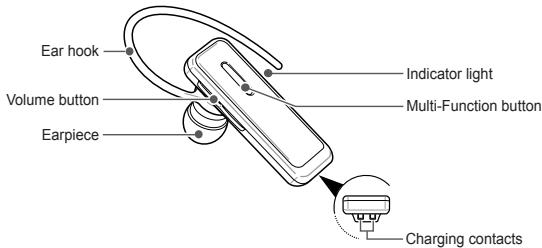

- Make sure you have the following items with your headset: Travel adapter, Charging cradle, Ear rubbers, Earhook, User manual.
• The items supplied with your headset may vary depending on your region.
Button functions

Multi-Function button
- Press and hold to turn the headset on or off.
- Press and hold to enter Pairing mode.
- Press to make or answer a call.
- Press to end a call.

Volume up or down button
- Press to adjust the volume.
- Press and hold to turn the microphone on or off.
- In Pairing mode, press and hold the Volume up button to turn the Multi-point feature on.
- In Pairing mode, press and hold the Volume down button to turn the Multi-point feature off.

You can hear a beep when the volume level of the headset reaches to the lowest or highest level.
Charging the headset
This headset has a rechargeable internal battery which is non-removable. Ensure that you fully charge the battery before using the headset for the first time.
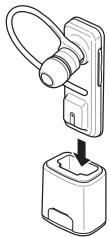
1 Plug the headset into the charging cradle.
2 Open the cover to the charger jack on the back of the charging cradle.
3 Plug the small end of the travel adapter into the charger jack.
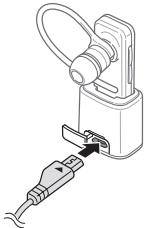
4 Plug the large end of the travel adapter into a power outlet.
During charging, the indicator light will turn red. If charging does not begin, unplug the travel adapter and plug it in again.
5 When the headset is fully charged, the indicator light changes to blue. Unplug the travel adapter from the power outlet and remove the headset from the charging cradle.

- Use only a Samsung-approved travel adapter. Unauthorised travel adapters may cause an explosion or damage to the headset.
- The battery will gradually wear out while charging or discharging because it is a consumable part.
- While charging, the headset goes into charging mode and deactivates other functions.
When the battery charge gets low
The headset beeps and the indicator light flashes red. Recharge the battery. If the headset powers off during a call, the call will be automatically transferred to the phone.
Checking the battery level
At the same time, press and hold the Multi-Function button and the Volume down button. Depending on the battery level, the indicator light flashes 5 times in one of the following colours:
| Battery level | Indicator light colour |
| Above 80% | Blue |
| 80 ~20% | Violet |
| Below 20% | Red |
Wearing the headset
Place the headset on your ear. Depending on what ear you are going to wear the headset, simply adjust the ear hook accordingly.
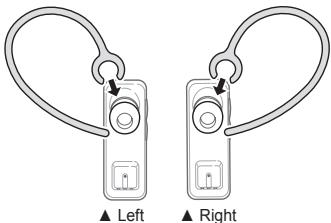
Using your headset
This section explains how to turn the headset on, pair and connect to the phone, and use various functions.

- Activated functions and features may differ depending on the phone type.
- Some devices, especially those that are not tested or approved by Bluetooth SIG, may be incompatible with your headset.
Turning the headset on or off
- To turn the headset on, press and hold the Multi-Function button for 4 seconds. The blue indicator light will flash 4 times.
- To turn the headset off, press and hold the Multi-Function button for 4 seconds. The indicator light turns off after the blue indicator light changes to red.
Pairing and connecting the headset
Pairing will create a unique and encrypted wireless link between two Bluetooth enabled devices, such as a Bluetooth phone and a Bluetooth headset.
To use the headset with other Bluetooth devices, the devices must be paired. When trying to pair the two devices, keep the headset and the phone reasonably close together. After pairing, you can connect the two devices.
Pairing and connecting the headset with a phone
1 Enter Pairing mode.
- Power off the headset. Press and hold the Multi-Function button for 8 seconds until the blue indicator light stays lit.
- If you turn on the headset for the first time, it proceeds into Pairing mode immediately.
2 Activate the Bluetooth feature on your phone and search for the headset (see your phone's user manual).
3 Select the headset (HM3100) from the list of devices found by your phone.
4 Enter the Bluetooth PIN (0000, 4 zeros) to pair and connect the headset to your phone.

Your headset supports the Simple Pairing feature which allows the headset to be paired with a phone without requesting a PIN. This feature is available for phones that are compliant with Bluetooth version 2.1 or higher.
The headset also can be paired via the Active pairing feature, see page 14.
Connecting with two Bluetooth phones
With the Multi-point feature activated, your headset can be connected with two Bluetooth phones at the same time.
1 After connecting with the first Bluetooth phone, power off the headset. Press and hold the Multi-Function button for 8 seconds until the blue indicator light stays lit.
2 Press and hold the Volume up button to activate the Multi-point feature.
3 Activate the Bluetooth feature on the second Bluetooth phone and search for the headset (see your phone's user manual).
4 Select the headset (HM3100) from the list of devices found by the second Bluetooth phone.
5 Enter the Bluetooth PIN (0000, 4 zeros) to connect the headset to the phone.
6 Reconnect to the headset from the first Bluetooth phone.

- You can set the headset automatically to reconnect to the recently connected phones each time you turn it on.
- To reconnect to the two most recently connected phones, activate the Multi-point feature. Press and hold the Volume up button in Pairing mode until the blue indicator light flashes twice.
- To reconnect to only the most recently connected phone, deactivate the Multi-point feature. Press and hold the Volume down button in Pairing mode until the red indicator light flashes twice.
- When the headset connects to two Bluetooth phones, some phones may not connect to the headset as the second Bluetooth phone.
Disconnecting the headset
To disconnect the headset from your phone,
- Turn off the headset.
• Use the Bluetooth menu on your phone.
Reconnecting the headset
When the headset is paired with a phone, it will attempt to automatically reconnect each time you turn it on.
If the headset does not automatically attempt to reconnect,
- Press the Multi-Function button.
• Use the Bluetooth menu on your phone.
Pairing via the Active pairing feature
With the Active pairing feature, your headset can automatically search for a Bluetooth phone and try to make a connection with it.
1 Power off the headset. Press and hold the Multi-Function button for 8 seconds to enter Pairing mode.
2 Press and hold the Multi-Function button until the violet indicator light turns on. The headset will switch to Active Pairing mode, search a Bluetooth phone within range, and attempt to pair with it.

- Ensure the phone you wish to connect to is within range of the headset. Place the headset and phone close to each other to avoid pairing with other devices.
- The headset will attempt Active pairing for up to 20 seconds.
- The Bluetooth phone you want to connect with must not be paired with other devices. If the phone is already connected to another device, end the connection and restart the Active pairing feature.
- This feature is available for mobile phones, but the phone's Bluetooth visibility option must be set to on.
• This feature may be unavailable depending on the some PDAs.
Using call functions
Making a call
Redialling the last number
Press the Multi-Function button to redial the last number of the most recently connected phone.
Press the Multi-Function button twice to redial the last number of the other phone, see page 12.

Depending on the phone, pressing the Multi-Function button will display call history instead of redialling.
Dialling a number by voice
Press and hold the Multi-Function button and say a name. You can dial a number of the first phone.

Available call functions may vary by the phone.
Answering a call
Press the Multi-Function button to answer a call when you hear incoming call tones.
When two calls from the two connected phones come in, you can answer the call of the first phone.
Ending a call
Press the Multi-Function button to end a call.
Rejecting a call
Press and hold the Multi-Function button to reject a call when a call comes in.
When two calls from the two connected phones come in, you can reject the call of the first phone.

This function is available only on the Hands-Free profile. For more information, see your phone's user manual.
Using options during a call
You can use the following functions to control your call during a call.
Adjusting the volume
Press the Volume up or down button to adjust the volume.
Muting the microphone
Press and hold the Volume up or down button to turn the microphone off so that the person with whom you are speaking cannot hear you. When the microphone is turned off, the headset beeps at regular intervals. Press and hold the Volume up or down button again to turn the microphone back on.
Transferring a call from the phone to the headset
Press the Multi-Function button to transfer a call from the phone to the headset.
Placing a call on hold
Press and hold the Multi-Function button to place the current call on hold.

- When the headset is connected with two phones, this function is not available.
- This function is available only on the Hands-Free profile. For more information, see your phone's user manual.
Answering a second call
- Press the Multi-Function button to end the first call and answer a second call of the same phone when you hear call waiting tones.
- Press and hold the Multi-Function button to place the first call on hold and answer a second call of the same phone when you hear call waiting tones.
- To switch between the current call and the held call, press and hold the Multi-Function button.

- When the headset is connected with two Bluetooth phones, you cannot answer a second call of the same phone.
- This function is available only on the Hands-Free profile. For more information, see your phone's user manual.
Answering a new call of the second phone
- Press the Multi-Function button to end the first call and answer a second call of the other phone when you hear call waiting tones.
- Press and hold the Multi-Function button to place the first call on hold and answer a second call of the other phone when you hear call waiting tones.
- To switch between the current call and the held call, press and hold the Multi-Function button.

This function is available only on the Hands-Free profile. For more information, see your phone's user manual.
Appendix
Frequently asked questions
| Will my headset work with laptops, PCs, and PDAs? | Your headset will work with devices that support your headset's Bluetooth version and profiles. For specifications, see page 25. |
| Why do I hear static or interference while on a call? | Appliances such as cordless phones and wireless networking equipment may cause interference, which usually sounds like static. To reduce any interference, keep the headset away from other devices that use or produce radio waves. |
| Will my headset interfere with my car's electronics, radio, or computer? | Your headset produces significantly less power than a typical mobile phone. It also only emits signals that are in compliance with the international Bluetooth standard. Therefore, you should not expect any interference with standard consumer-grade electronics equipment. |
| Can other Bluetooth phone users hear my conversation? | When you pair your headset to your Bluetooth phone, you are creating a private link between only these two Bluetooth devices. The wireless Bluetooth technology used in your headset is not easily monitored by third parties because Bluetooth wireless signals are significantly lower in radio frequency power than those produced by a typical mobile phone. |
| Why do I hear an echo while on a call? | Adjust the headset volume, or move to another area and try again. |
| How do I clean my headset? | Wipe it with a soft dry cloth. |
| The headset does not fully charge. | The headset and the travel adapter may not have been connected properly.Separate the headset from the travel adapter, reconnect, and charge the headset. |
Warranty and parts replacement
Samsung warrants this product as free of defects in material, design and workmanship for the period of one year from the original date of purchase.*
If during the period of warranty this product proves defective under normal use and service you should return the product to the retailer from whom it was originally purchased or qualified service centre. The liability of Samsung and its appointed maintenance company is limited to the cost of repair and/or replacement of the unit under warranty.
• The warranty is limited to the original purchaser.
- A copy of your receipt or other proof of purchase is required for a proper warranty service.
- The warranty is void if the serial number, date code label or product label is removed, or if the product has been subject to physical abuse, improper installation, modification, or repair by unauthorised third parties.
- Specifically exempt from any warranty are limited-life consumable components such as batteries and other accessories.
- Samsung will not assume any responsibility for any loss or damage incurred in shipping. All repair work on Samsung products by unauthorised third parties voids any warranty.
Correct disposal of this product

(Waste Electrical & Electronic Equipment)
(Applicable in the European Union and other European countries with separate collection systems)
This marking on the product, accessories or literature indicates that the product and its electronic accessories (e.g. charger, headset, USB cable) should not be disposed of with other household waste at the end of their working life. To prevent possible harm to the environment or human health from uncontrolled waste disposal, please separate these items from other types of waste and recycle them responsibly to promote the sustainable reuse of material resources.
Household users should contact either the retailer where they purchased this product, or their local government office, for details of where and how they can take these items for environmentally safe recycling.
Business users should contact their supplier and check the terms and conditions of the purchase contract. This product and its electronic accessories should not be mixed with other commercial wastes for disposal.
Correct disposal of batteries in this product

(Applicable in the European Union and other European countries with separate battery return systems)
This marking on the battery, manual or packaging indicates that the batteries in this product should not be disposed of with other household waste at the end of their working life. Where marked, the chemical symbols Hg, Cd or Pb indicate that the battery contains mercury, cadmium or lead above the reference levels in EC Directive 2006/66. If batteries are not properly disposed of, these substances can cause harm to human health or the environment.
To protect natural resources and to promote material reuse, please separate batteries from other types of waste and recycle them through your local, free battery return system.
The rechargeable battery incorporated in this product is not user replaceable. For information on its replacement, please contact your service provider.
Specifications
| Item | Specifications and description |
| Bluetooth version | 2.1+EDR |
| Support profile | Headset Profile, Hands-Free Profile |
| Operating range | Up to 33 feet (10 metres) |
| Standby time | Up to 180 hours* |
| Talk time | Up to 4.5 hours* |
| Charging time | Approximately 2 hours* |
* Depending on the phone type and usage, the actual time may vary.
Declaration of Conformity (R&TTE)
We,
Samsung Electronics
declare under our sole responsibility that the product
Bluetooth Headset : HM3100
to which this declaration relates, is in conformity with the following standards and/or other normative documents.
SAFETY EN 60950-1:2006
EMC EN 301 489-01 V1.8.1 (04-2008)
EN 301 489-17 V2.1.1 (2009)
RADIO EN 300 328 V1.7.1 (10-2006)
We hereby declare that [all essential radio test suites have been carried out and that] the above named product is in conformity to all the essential requirements of Directive 1999/5/EC.
which will be made available upon request.
(Representative in the EU)
Samsung Electronics Euro QA Lab.
Blackbushe Business Park, Saxony Way,
Yateley, Hampshire, GU46 6GG, UK*
2010.04.09
(place and date of issue)
CE
p.s.pdx2
Yong-Sang Park / S. Manager
(name and signature of authorised person)
* It is not the address of Samsung Service Centre. For the address or the phone number of Samsung Service Centre, see the warranty card or contact the retailer where you purchased your product.
Table des matières
Préparation
Blackbushe Business Park, Saxony Way,
Yateley, Hampshire, GU46 6GG, UK*
2010.04.09

Yong-Sang Park / S. Manager
Blackbushe Business Park, Saxony Way,
Yateley, Hampshire, GU46 6GG, UK*
2010.04.09
Blackbushe Business Park, Saxony Way,
Yateley, Hampshire, GU46 6GG, UK*
2010.04.09
CE
p.s.pdx2
Yong-Sang Park / S. Manager
(Elektrische & elektronische afvalapparatuur)
Bluetooth-headset: HM3100
Blackbushe Business Park, Saxony Way,
Yateley, Hampshire, GU46 6GG, UK*
2010.04.09


- SLIM WITH CLARITY OF SOUND
- MONO HEADSET
- CONTENTS
- GETTING STARTED
- USING YOUR HEADSET
- APPENDIX
- SAFETY PRECAUTIONS
- BUTTON FUNCTIONS
- MULTI-FUNCTION BUTTON
- VOLUME UP OR DOWN BUTTON
- CHARGING THE HEADSET
- WHEN THE BATTERY CHARGE GETS LOW
- CHECKING THE BATTERY LEVEL
- WEARING THE HEADSET
- TURNING THE HEADSET ON OR OFF
- PAIRING AND CONNECTING THE HEADSET
- PAIRING AND CONNECTING THE HEADSET WITH A PHONE
- CONNECTING WITH TWO BLUETOOTH PHONES
- DISCONNECTING THE HEADSET
- RECONNECTING THE HEADSET
- PAIRING VIA THE ACTIVE PAIRING FEATURE
- USING CALL FUNCTIONS
- MAKING A CALL
- REDIALLING THE LAST NUMBER
- DIALLING A NUMBER BY VOICE
- ANSWERING A CALL
- ENDING A CALL
- REJECTING A CALL
- USING OPTIONS DURING A CALL
- ADJUSTING THE VOLUME
- MUTING THE MICROPHONE
- TRANSFERRING A CALL FROM THE PHONE TO THE HEADSET
- PLACING A CALL ON HOLD
- ANSWERING A SECOND CALL
- ANSWERING A NEW CALL OF THE SECOND PHONE
- WARRANTY AND PARTS REPLACEMENT
- CORRECT DISPOSAL OF THIS PRODUCT
- CORRECT DISPOSAL OF BATTERIES IN THIS PRODUCT
- SPECIFICATIONS
- DECLARATION OF CONFORMITY (R&TTE)
- SAMSUNG ELECTRONICS
- BLUETOOTH HEADSET : HM
- TABLE DES MATIÈRES
- PRÉPARATION
- BLUETOOTH-HEADSET: HM
Brand : SAMSUNG
Model : BHM3100
Category : Wireless Earbuds