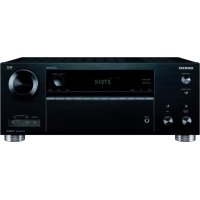
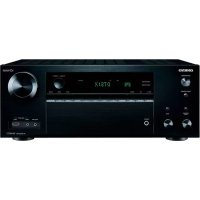
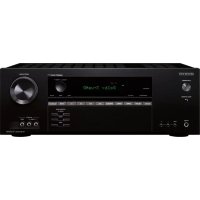
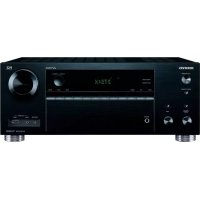
TX-NR515 - AV receiver ONKYO - Free user manual and instructions
Find the device manual for free TX-NR515 ONKYO in PDF.



| Product type | Audio-video receiver |
| Dimensions (W × H × D) | 435 mm × 173.5 mm × 328 mm |
| Weight (European model) | 9.2 kg |
| Power supply (European model) | 230 V AC, 50 Hz |
| Power consumption | 480 W |
| Standby power consumption | 0.2 W |
| Rated output power | 7 × 130 W at 6 ohms (IEC) |
| Speaker impedance | 6 Ω – 16 Ω |
| HDMI inputs | 8 (including 1 on front) |
| HDMI outputs | 2 (MAIN and SUB) |
| Digital audio inputs | 2 optical + 2 coaxial |
| Component video inputs | 1 input + 1 output |
| USB ports | 2 (front and rear) |
| Ethernet port | Yes |
| AM/FM tuner | Yes, with 40 presets |
| Supported audio formats (HDMI) | Dolby TrueHD, DTS-HD Master Audio, Dolby Digital Plus, DSD, multichannel PCM |
| Acoustic calibration | Audyssey 2EQ® (automatic) |
| Network functions | Web radio (vTuner), Pandora, Last.fm, Rhapsody, Slacker, SiriusXM, playback from DLNA server |
| MHL function | Yes, via front HDMI input |
| Headphone output | 1 (6.3 mm jack) |
| Care and cleaning | Wipe with a soft, dry cloth. Do not use solvents. |
| Safety | Do not expose to water. Disconnect during storms. Do not open the casing. |
| Supplied accessories | Remote control (RC-834M), AA/R6 batteries, FM antenna, AM loop antenna, calibration microphone, cable labels |
Frequently Asked Questions - TX-NR515 ONKYO
User questions about TX-NR515 ONKYO
0 question about this device. Answer the ones you know or ask your own.
Ask a new question about this device
Download the instructions for your AV receiver in PDF format for free! Find your manual TX-NR515 - ONKYO and take your electronic device back in hand. On this page are published all the documents necessary for the use of your device. TX-NR515 by ONKYO.
USER MANUAL TX-NR515 ONKYO
Voyant Dynamic EQ (55)
Voyant Dynamic Vol (55)
10 Prises video composite et audio analogue (BD/DVD IN, CBL/SAT IN, GAME IN, PC IN, TV/CD IN)
① ZONE2LINEOUTprises
12 SUBWOOFER PRE OUT prises
⑬ MONITOR OUT V prize
Welcome to initial setup. Have you connected all
the speakers and devices? Before starting, please connect speakers
and sources. Now, would you like to start initial setup?
1st Step: Audyssey 2EQ: Auto Setup
2nd Step : Source Connection
3rd Step: Remote Mode Setup
4th Step : Network Connection
Yes
No
HOME Exit
La lecture commence.

My Music
0:11
Great Artist
My Favorite
Conseil
TP (Traffic Program)
Types de programmes RDS (PTY)
- Speakers Type (Front) ( page 51)
- Powered Zone 2 (→ page 51)
- Surround Back/Front High (→ page 51)
- Ambient noise is too high.
①——Menu principal Speaker Setup
②—Speaker Configuration
③ Subwoofer
Yes ④ No
COAXIAL1, COAXIAL2, OPTICAL1, OPTICAL2:
■ Speakers Type (Front)
Normal:
Speaker Configuration
Left, Front High Left, Center, Front High Right, Right, Surround Right, Surround Back Right, Surround Back Left, Surround Left, Subwoofer
Left, Front High Left, Center\*1, Front High Right, Right, Surround Right, Surround Back Right, Surround Back Left, Surround Left
TrueHD Loudness Management
Off
On
Other Multich Source
Miscellaneous (Divers)
1
2
。
3
4
5
m = 311
DEMOVED
m = 311
HOME
m = 311
C
AD = AC = 1
Menu principal
Miscellaneous
Volume Setup

Maximum Volume
Off, 30 a 79
Audio Return Channel (ARC)
Off
Auto:
Top, Bottom, Left, Right
Upper Left, Upper Right, Lower Left, Lower Right
Remote Controller Setup
Remote ID
Remote ID
1,2 ou 3
18 Park Way, Upper Saddle River, N.J. 07458, U.S.A.
For Dealer, Service, Order and all other Business Inquiries: Tel: 201-785-2600
Fax: 201-785-2650
Hours: M-F 9am-5pm ET
http://www.us.onkyo.com/
For Product Support Team Only:
1-800-229-1687
Hours:M-F 9am-8pm / Sat-Sun 10am-8pm ET
http://www.us.onkyo.com/
Europe
ONKYO EUROPE ELECTRONICS GmbH
Liegnitzerstrasse 6, 82194 Groebenzell, GERMANY
Tel: +49-8142-4401-0 Fax: +49-8142-4208-213
http://www.eu.u.onkyo.com/
China, Hong Kong
ONKYO CHINA LIMITED
Unit 1033, 10/F, Star House, No 3, Salisbury Road, Tsim
Sha Tsui Kowloon, Hong Kong.
Tel: 852-2429-3118 Fax: 852-2428-9039
http://www.onkyochina.com
Asia, Oceania, Middle East, Africa
Please contact an Onkyo distributor referring to Onkyo
SUPPORT site.
http://www.intl.onkyo.com/support/firmware/index.html
The above-mentioned information is subject to change
without prior notice. Visit the Onkyo web site for the latest update.
| Sortie | HDMI | Composantes | Composite | |||||||||||
| Entrée | 4K*1 | 1080p/24 | 1080p | 1080i | 720p | 480p/576p | 480i/576i | 1080p | 1080i | 720p | 480p/576p | 480i/576i | 480i/576i | |
| HDMI | 1080p/24 | ✓ | ✓*2 | |||||||||||
| 1080p | ✓ | ✓ | ✓*2 | |||||||||||
| 1080i | ✓ | ✓ | ✓ | ✓*2 | ✓ | |||||||||
| 720p | ✓ | ✓ | ✓ | ✓ | ✓*2 | |||||||||
| 480p/576p | ✓ | ✓ | ✓ | ✓ | ✓ | ✓*2 | ||||||||
| 480i/576i | ✓ | ✓ | ✓ | ✓ | ✓ | ✓ | ✓*2 | |||||||
| Composantes | 1080p | ✓ | ||||||||||||
| 1080i | ✓ | |||||||||||||
| 720p | ✓ | |||||||||||||
| 480p/576p | ✓ | |||||||||||||
| 480i/576i | ✓ | ✓ | ✓ | ✓ | ✓ | ✓ | ✓*2 | ✓ | ||||||
| Composite | 480i/576i | ✓ | ✓ | ✓ | ✓ | ✓ | ✓ | ✓*2 | ✓ | |||||
(.aac/.m4a/.mp4/.3gp/.3g2/.AAC/.M4A/.MP4/ .3GP ou .3G2)

Mobile High-Definition Link
1 Vp-p/75 Ω (Composite)
87.5 MHz - 107.9 MHz
(Modèleseuropeens)
87,5 MHz - 108,0 MHz, RDS
522/530 kHz - 1611/1710 kHz
Stations programmables
40
Généralités
Alimentation
IN 1, IN 2, IN 3, IN 4, IN 5, IN 6, IN 7, AUX INPUT
Sortie
OUT MAIN, OUT SUB
3D, Audio Return Channel, DeepColor, x.v.Color, LipSync, CEC (RIHD)
Entres videos
Composantes
IN
Composite
BD/DVD, CBL/SAT, GAME, PC, USB
Sorties video
Composantes
OUT
Composite
MONITOR OUT
Entres audio
Numérique
Optiques : 2
Coaxiales : 2
Analogue
BD/DVD, CBL/SAT, GAME, PC, TV/CD
Sorties audio
Analogue
ZONE2 LINE OUT
18 Park Way, Upper Saddle River, N.J. 07458, U.S.A.
Tel: 800-229-1687, 201-785-2600 Fax: 201-785-2650
http://www.us.onkyo.com/
ONKYO EUROPE ELECTRONICS GmbH
Liegnitzerstrasse 6, 82194 Groebenzell, GERMANY
Tel: +49-8142-4401-0 Fax: +49-8142-4208-213
http://www.eu.onkyo.com/
ONKYO EUROPE ELECTRONICS GmbH (UK BRANCH)
The Coach House 81A High Street, Marlow, Buckinghamshire, SL7 1AB, UK
Tel: +44-(0)1628-473-350 Fax: +44-(0)1628-401-700
ONKYO CHINA LIMITED
Unit 1033, 10/F, Star House, No 3, Salisbury Road, Tsim Sha Tsui Kowloon, Hong Kong.
Tel: 852-2429-3118 Fax: 852-2428-9039
http://www.onkyochina.com/
ONKYO CHINA PRC
1301, 555 Tower, No.555 West NanJin Road, Jin an, Shanghai,
China 200041, Tel: 86-21-52131366 Fax: 86-21-52130396
http://www.cn.onkyo.com/
Using Internet Radio
Common Procedures in Internet Radio Menu
Note
- Available services may vary depending on the region.
1 Press NET.
A list of the network services appears, and the NET indicator lights. If it flashes, verify that the Ethernet cable is firmly connected to the AV receiver.
2 Select the desired service and press ENTER.
The top page of the selected service appears.
Using Multiple Accounts
The AV receiver supports multiple user accounts, which means you can freely switch between several logins. After registering user accounts, login is performed from the "Users" screen.
1 Press MENU while the Users screen is displayed.
The following menu items appear:
Add new user:
Remove this user:
You can either store a new user account, or delete an existing one.
Tip
- Some of the services don't allow the use of multiple user accounts.
- You can store up to 10 user accounts.
- To switch between accounts you must first log out from the current account, and log in again on the "Users" screen.
Pandora® internet radio -Getting Started (U.S. only) 2
Using Rhapsody (U.S. only) 3
Using the SiriusXM Internet Radio (North American only) 4
Using Last.fm Internet Radio 5
Using Slacker Personal Radio 6
Pandora® internet radio
-Getting Started (U.S. only)
Pandora is a free, personalized Internet radio service that plays the music you know and helps you discover music you'll love.
1 Use / to select "I have a Pandora Account" or "I'm new to Pandora" and then press ENTER.
If you are new to Pandora select "I'm new to Pandora". You will see an activation code on your TV screen. Please write down this code. Go to an Internet connected computer and point your browser to www.pandora.com/onkyo
Enter your activation code and then follow the instructions to create your Pandora account and your personalized Pandora Internet radio stations. You can create your stations by entering your favorite songs and artists when prompted. After you have created your account and stations you can return to your Onkyo receiver and press enter to begin listening to your personalized Pandora Internet radio.
If you have an existing Pandora account, you can add your Pandora account to your Onkyo receiver by selecting "I have a Pandora Account" and logging in with your email and password.
Tip
- If you want to use multiple user accounts, see "Using Multiple Accounts" ( page 1). Login can be made from the "Users" screen.
2 To play a station, use / to select the station from your station list, and then press ENTER.
Playback starts and the playback screen appears.
Create a New Station:
Enter the name of a song, artist, or genre and Pandora will create a unique radio station for you based on the musical qualities of that song, artist, or genre.
■ Menu Items
I like this song:
Give a song "thumbs-up" and Pandora will play more music like it.
I don't like this song:
Give a song "thumbs-down" and Pandora will ban that song from the current station.
Why is this song playing?:
Discover some of the musical attributes that Pandora uses to create your personal radio stations.
Don't play the song for a month:
If you are tired of a song, you can put the song to sleep and Pandora will not play it for one month.
Create station from this artist:
Creates a radio station from this artist.
Delete this station:
This will permanently delete a station from your Pandora account. All of your thumbs feedback will be lost should you choose to re-create the station with the same song or artist.
Create station from this song:
Creates a radio station from this song.
Rename this station:
Lets you rename the current radio station.
Bookmark this artist:
Pandora will bookmark your favorite artist for your profile on www.pandora.com.
Bookmark this song:
Pandora will bookmark the current song and allow you to buy them all from Amazon or iTunes in one step!
Add to My Favorites:
Adds a station to My Favorites list.
PANDORA' internet radio
PANDORA, the PANDORA logo, and the Pandora trade dress are trademarks or registered trademarks of Pandora Media, Inc. Used with permission.
Using Rhapsody (U.S. only)
1 Use / to select "Sign in to your account" and then press ENTER.
To use Rhapsody, you need an account. If you don't have one yet, you can create a new account at www.rhapsody.com/onkyo
If you have an existing Rhapsody account, select "Sign in to your account" and press ENTER.
Enter your user name (usually your email) and password in the next keyboard screen, or in Web Setup.
Using the keyboard screen
- Use / / and ENTER to enter your user name and password.
- Select "OK".
- Press ENTER. The "Confirm your entries" screen appears.
- Press ENTER.
Tip
- If you want to use multiple user accounts, see "Using Multiple Accounts" ( page 1). Login can be made from the "Users" screen.
2 Use / to select the menu, then press ENTER.
Search:
You can search for music by Artist, Album, or Track.
Music Guide:
You can play tracks from Genres, Top Artists, Top Albums, Top Tracks, New Releases, and Staff Picks.
Rhapsody Channels:
Listen to radio channels programmed by Rhapsody's top-notch editors.
Playlists:
Play your own personal playlists.
My Library:
Bookmark your favorite albums and tracks from the Rhapsody catalog using My Library.
Account Info:
Confirm your account information.
Sign Out:
Sign out from your Rhapsody account.
3 Use / to select a channel, and press ENTER or to start playback.
Playback starts and the playback screen appears.
You can control the tracks with the buttons on the remote control.
Enabled buttons:▶,■,■,▲,▶,■,▲,▶, RANDOM, REPEAT
Note
- On Rhapsody Channels, some of the buttons don't work.
■ Menu Items
Add track to My Library:
Bookmark currently-playing tracks.
Add album to My Library:
Bookmark currently-playing albums.
Add playlist to My Library:
Bookmark currently-playing playlists.
Add channel to My Channels:
Bookmark currently-playing Rhapsody radio channels.
Add to My Favorites:
Adds a track, channel or playlist to My Favorites list.
Tip
- You can remove bookmarked tracks, albums, and Rhapsody Channels from My Library.
Using the SiriusXM Internet Radio (North American only)
Your Onkyo AV receiver includes a free trial of SiriusXM Internet Radio. The "Account Info" screen shows how many days are left in your trial. After the trial period expires, if you want to continue listening to the service, you must subscribe. To subscribe go to www.siriusxm.com/internetradio with your computer.
When you subscribe, you will be provided with a username and password which has to be entered into the AV receiver.
To use SiriusXM Internet Radio, you must have your AV receiver connected to the Internet. Using the remote control, follow these steps:
1 Use / to select "Sign In", and then press ENTER. If you have an existing SiriUS account, you can sign in by selecting "Sign In". Enter your user name and password in the next keyboard screen, or in Web Setup. If you don't know your username or password, call Sirius XM at (888) 539-7474 for assistance.
Tip
- If you want to use multiple user accounts, see "Using Multiple Accounts" ( page 1). Login can be made from the "Users" screen.
Using the keyboard screen
- Use / / and ENTER to enter your user name and password.
- Select "OK".
- Press ENTER. The "Confirm your entries" screen appears.
- Press ENTER.
"Please wait..." appears and then "SiriusXM Internet Radio" screen appears which displays the category available for selection.
2 Use / to select the category and then press ENTER.
The channel list screen for the selected category appears.
3 Use / to select the desired channel and then press ENTER.
The playback screen for the selected channel appears and you can listen to SiriusXM Internet Radio. You can control the tracks with the buttons on the remote control.
Enabled buttons: I, II, I←, ▷→
■ Menu Items
Add to My Favorites:
Adds a channel to My Favorites list.
((SiriusXM))
SiriusXM Internet Radio subscriptions are sold separately and are governed by the Sirius Terms and Conditions (see www.sirius.com). Be sure to read this agreement before you purchase your subscription. Sirius, XM and all related marks and logos are trademarks of Sirius XM Radio Inc. and its subsidiaries. All rights reserved.
Using Last.fm Internet Radio
Last.fm is a music service that learns what you love...
Your new Onkyo AV receiver is very clever. If you have a free Last.fm account, it will keep track of all the songs you've just played. When you visit the Last.fm website, you can see personal charts of the music you've enjoyed, share them with friends and see what they like, too.
With thousands of biographies, reviews and an endless choice of personalised, ad-free radio stations, Last.fm is a great way to discover music. Pick up your free Last.fm account today at www.last.fm/join
Get a subscription and you can enjoy the best of ad-free Last.fm Radio on your Onkyo AV receiver without a computer!
Recommended Radio:
Discover smart personalised recommendations that adapt as your tastes change.
Artist Radio:
Pick any artist and we'll play you a whole station of music inspired by your choice.
My Library:
Sit back and enjoy selections from all the music you've heard since you joined Last.fm.
Tag Radio:
Polish funk? Death pop? Think of a style and we'll entertain you with it for hours.
Start your free trial straight away when you create your account and see for yourself what it's like to have the world's music at your fingertips. Latest prices and full information are available at www.last.fm/subSCRIBE
1 Use / to select "Sign in to your account", and then press ENTER.
If you have the existing Last.fm account, you can sign in to your account to select "Sign in to your account". Enter your user name and password in the next keyboard screen.
Using the keyboard screen
- Use / / / and the ENTER to enter your user name and password.
- Select "OK".
- Press ENTER. The "Confirm your entries" screen appears.
- Press ENTER.
"Please wait..." appears and then "Last.fm Internet Radio" screen appears.
Tip
- If you want to use multiple user accounts, see "Using Multiple Accounts" ( page 1). Login can be made from the "Users" screen.
2 Use to select menu and then press ENTER.
Search Station:
You can search station by Artist, Tag, or User Name.
Top Artists Station:
You can play tracks of top-rated artists.
Top Tags Station:
You can play tracks of top-rated tags.
Personal Station:
- You can play tracks from personalized station ("Your Library", "Your Neighbourhood" and "Your Recommendations").
Profile:
You can play tracks from "Recently Listened Tracks", "Library" and "Neighbours".
Account Info:
Confirm your account information.
Sign Out:
It signs out from your account.
3 Use / to select a station, and press ENTER or to start playback.
Playback starts and the playback screen appears.
■ Menu Items
I Love this track:
Track information is saved in Last.fm server, and playback frequency increases.
Ban this track:
Track information is saved in Last.fm server, and playback frequency reduces.
Add to My Favorites:
Adds a station to My Favorites list.
Using scribbling control
Use / to select "Enable", and then press ENTER.
- Internet radio services provided by a third party may be terminated with or without notice.
Internet radio services may not be available in some areas.
Using Slacker Personal Radio
1 If you do not have an account, create one on the Slacker website (www.slacker.com) with your computer.
If you already have a Slacker account, select "Sign in to your account" and then press ENTER.
The keyboard screen appears. You can enter information from the remote control or the keys on the main unit.
2 If there are no mistakes in the information you have entered, use / / to select "OK" then press ENTER.
An account information confirmation screen appears.
3 If you do not have an account, select "Access without Sign In" and press ENTER to use a restricted version of the service.
Note that use will be restricted.
Tip
- If you want to use multiple user accounts, see "Using Multiple Accounts" ( page 1). Login can be made from the "Users" screen.
4 Use / to select a menu item and then press ENTER.
To sign out, use to select "Sign out" from this screen and then press ENTER.
5 Use to select a station and then press ENTER or to start playback from the station.
The playback screen appears.
6 You can control the tracks with the buttons on the remote control.
Enabled buttons: ,II,
■ Menu Items
Rate Song as Favorite:
Stores information to server, making it more likely that the song will be played again.
Ban Song:
Stores information to server, making it less likely that the song will be played again.
Ban Artist:
Stores information to server, making it less likely that the songs from this artist will be played again.
Mark Favorite:
Adds the currently playing station to your favorites.
Unmark Favorite:
Deletes the currently playing station from your favorites.
Add song to Library:
Adds the currently playing track to your library.
Delete song from Library:
Deletes the currently playing track from your library.
Add to My Favorites:
Adds a station or song to My Favorites list.
Create a New Station :
I don't like this song :
Why is this song playing? :
Don't play the song for a month :
Create station from this artist :
Delete this station :
Create station from this song :
Rename this station :
Bookmark this artist :
Bookmark this song :
Add track to My Library :
Add album to My Library :
Add playlist to My Library :
Add channel to My Channels :
Top Artists Station :
Rate Song as Favorite :
Add song to Library :
Delete song from Library :
1 Utilice / para selectionar "I have a Pandora Account" o "I'm new to Pandora" y luego pulse ENTER.
Create a New Station:
I don't like this song:
Why is this song playing?:
Don't play the song for a month:
Create station from this artist:
Delete this station:
Create station from this song:
Rename this station:
Add to My Favorites:
Add track to My Library:
Add album to My Library:
Add playlist to My Library:
Add channel to My Channels:
Add to My Favorites:
Add to My Favorites:
Top Artists Station:
Puede reproductir pistas de "Recently Listened Tracks", "Library" y "Neighbours".
Account Info:
Add to My Favorites:
Rate Song as Favorite:
Add song to Library:
Delete song from Library:
Add to My Favorites:
Common Procedures in Internet Radio Menu
Note
- Available services may vary depending on the region.
1 Press NET.
A list of the network services appears, and the NET indicator lights. If it flashes, verify that the Ethernet cable is firmly connected to the AV receiver.
2 Select the desired service and press ENTER.
The top page of the selected service appears.
Using Multiple Accounts
The AV receiver supports multiple user accounts, which means you can freely switch between several logins. After registering user accounts, login is performed from the "Users" screen.
1 Press MENU while the Users screen is displayed.
The following menu items appear:
Add new user:
Remove this user:
You can either store a new user account, or delete an existing one.
Tip
- Some of the services don't allow the use of multiple user accounts.
- You can store up to 10 user accounts.
- To switch between accounts you must first log out from the current account, and log in again on the "Users" screen.
Using Last.fm Internet Radio 2
Using Last.fm Internet Radio
Last.fm is a music service that learns what you love...
Your new Onkyo AV receiver is very clever. If you have a free Last.fm account, it will keep track of all the songs you've just played. When you visit the Last.fm website, you can see personal charts of the music you've enjoyed, share them with friends and see what they like, too.
With thousands of biographies, reviews and an endless choice of personalised, ad-free radio stations, Last.fm is a great way to discover music. Pick up your free Last.fm account today at www.last.fm/join
UK and Germany only:
Get a subscription and you can enjoy the best of ad-free Last.fm Radio on your Onkyo AV receiver without a computer!
Recommended Radio:
Discover smart personalised recommendations that adapt as your tastes change.
Artist Radio:
Pick any artist and we'll play you a whole station of music inspired by your choice.
My Library:
Sit back and enjoy selections from all the music you've heard since you joined Last.fm.
Tag Radio:
Polish funk? Death pop? Think of a style and we'll entertain you with it for hours.
Start your free trial straight away when you create your account and see for yourself what it's like to have the world's music at your fingertips. Latest prices and full information are available at www.last.fm/subscribe
1 Use / to select "Sign in to your account", and then press ENTER.
If you have the existing Last.fm account, you can sign in to your account to select "Sign in to your account". Enter your user name and password in the next keyboard screen.
Using the keyboard screen
- Use / / and the ENTER to enter your user name and password.
- Select "OK".
- Press ENTER. The "Confirm your entries" screen appears.
- Press ENTER.
"Please wait..." appears and then "Last.fm Internet Radio" screen appears.
Tip
- If you want to use multiple user accounts, see "Using Multiple Accounts" ( page 1). Login can be made from the "Users" screen.
2 Use / to select menu and then press ENTER. Search Station:
You can search station by Artist, Tag, or User Name.
Top Artists Station:
You can play tracks of top-rated artists.
Top Tags Station:
You can play tracks of top-rated tags.
Personal Station:
You can play tracks from personalized station ("Your Library", "Your Neighbourhood" and "Your Recommendations").
Profile:
You can play tracks from "Recently Listened Tracks", "Library" and "Neighbours".
Account Info:
Confirm your account information.
Sign Out:
It signs out from your account.
3 Use / to select a station, and press ENTER or to start playback.
Playback starts and the playback screen appears.
Enabled buttons: , ,
■ Menu Items
I Love this track:
Track information is saved in Last.fm server, and playback frequency increases.
Ban this track:
Track information is saved in Last.fm server, and playback frequency reduces.
Add to My Favorites:
Adds a station to My Favorites list.
Using scribbling control
Use / to select "Enable", and then press ENTER.
- Internet radio services provided by a third party may be terminated with or without notice.
Internet radio services may not be available in some are
Top Artists Station:
Add to My Favorites:
Remote Control Codes
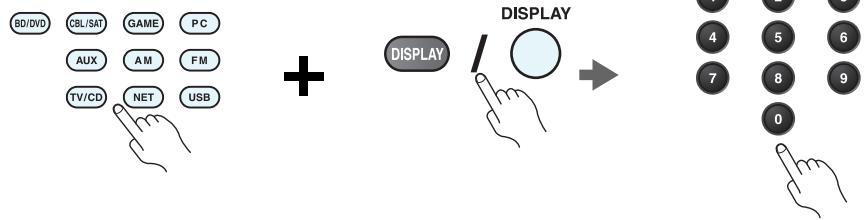
1 While holding down the REMOTE MODE button to which you want to assign a code, press and hold down [DISPLAY] (about 3 seconds).
The REMOTE MODE button/Remote indicator lights.
On Integra products, button names are capitalized. For example, "Remote Mode" button and "Display" button.
Notes:
- Remote control codes cannot be entered for [RECEIVER] and the multi zone button.
- Only TV remote control codes can be entered for [TV].
- Except for [RECEIVER], [TV], and the multi zone button, remote control codes from any category can be assigned for the REMOTE MODE buttons. However, these buttons also work as input selector buttons, so choose a REMOTE MODE button that corresponds with the input to which you connect your component. For example, if you connect your CD player to the CD input, choose [TV/CD] when entering its remote control code.
2 Within 30 seconds, use the number buttons to enter the 5-digit remote control code.
The REMOTE MODE button/Remote indicator flashes twice.
If the remote control code is not entered successfully, the REMOTE MODE button/Remote indicator will flash once slowly.
Notes:
- The flashing element of the remote controller will differ according to your AV receiver's model.
- The remote controller is preconfigured with remote controller presets of different components. By entering a code from the Remote Control Code list, you can activate the relevant preset for that component.
- When there are multiple codes related to one manufacturer, try and enter them one-by-one until it matches your component.
- Depending on the model and year of your component, compatibility is not guaranteed.
- With some models, the remote controller may not not work or its compatibility may be limited to part of the component's functionality.
- Besides, it is not possible to add new codes to the existing remote controller presets.
- Though the provided remote control codes are correct at the time of printing, they are subject to change by the manufacturer.
| Dedicated Onkyo Receiver | |
| Default | 62503 |
| Zone 2 | 62506 |
| Zone 3 | 62507 |
| Cable Set Top Box | |
| ADB | 02254, 02769 |
| Aon | 02769 |
| Arris | 02187 |
| AT&T | 00858 |
| Bright House | 01376, 01877 |
| BT Vision | 02294 |
| Cable & Wireless | 01068 |
| Cable One | 01376, 01877 |
| Cablecom | 01582 |
| Cablevision | 01376, 01877 |
| Charter | 01376, 01877, 02187 |
| Cisco | 01877, 00858, 01982, 02345, 02378 |
| Com Hem | 00817, 00660, 01666, 02015, 02447 |
| Comcast | 01376, 01877, 01982, 02187 |
| Cox | 01376, 01877 |
| Daeryung | 01877 |
| Digeo | 02187 |
| DX Antenna | 01500 |
| France Telecom | 00817 |
| Freebox | 01482 |
| Fujitsu | 01497 |
| Humax | 00660, 02142, 02447, 03051, 03053 |
| Insight | 01376, 01877 |
| J:COM | 03051, 03053 |
| Knology | 01877 |
| Kreatel | 01385 |
| Macab | 00817 |
| Mediacom | 01376, 01877 |
| Cable Set Top Box | |
| mio TV | 02802 |
| Motorola | 01376, 00858, 01562, 01982, 01998, 02378 |
| Moxi | 02187 |
| NEC | 01496 |
| Neuf TV | 03107 |
| Noos | 00817 |
| NTL | 01068, 01060 |
| Numericable | 02767 |
| Ono | 01068, 01562 |
| Optus | 01060 |
| Orange | 00817 |
| Pace | 01376, 01877, 01068, 01060, 01982 |
| Panasonic | 01488, 01982 |
| Philips | 00817, 01582, 02294, 02767 |
| Pioneer | 01877, 01500 |
| RCN | 01376 |
| Rogers | 01877 |
| Sagem | 00817 |
| Samsung | 01877, 01060, 01666, 02015, 02774 |
| Scientific Atlanta | 01877, 00858, 01982, 02345 |
| SFR | 03107 |
| Shaw | 01376 |
| SingTel | 01998, 02802 |
| Sony | 01460 |
| Stofa | 02015 |
| Suddenlink | 01376, 01877 |
| Sumitomo | 01500 |
| Telewest | 01068 |
| TeliaSonera | 01385 |
| Telus | 02345 |
| Thomson | 01582, 01982, 02769 |
| Time Warner | 01376, 01877, 02187 |
| Cable Set Top Box | |
| Toshiba | 01509 |
| UPC | 01582 |
| Verizon | 02378 |
| Videotron | 01877 |
| Virgin Media | 01068, 01060 |
| Visiopass | 00817 |
| VTR | 01376 |
| WideOpenWest | 01877 |
| Ziggo | 00660, 01666, 02015, 02142, 02447, 02774 |
| Cable/PVR Combination | |
| Arris | 02187 |
| Bright House | 01376, 01877 |
| Cable One | 01376, 01877 |
| Cablevision | 01376, 01877 |
| Charter | 01376, 01877, 02187 |
| Cisco | 01877, 01982 |
| Comcast | 01376, 01877, 01982, 02187 |
| Cox | 01376, 01877 |
| Digeo | 02187 |
| Freebox | 01482 |
| Humax | 02142, 03051, 03053 |
| Insight | 01376, 01877 |
| J:COM | 03051, 03053 |
| Knology | 01877 |
| Mediacom | 01376, 01877 |
| Motorola | 01376 |
| Moxi | 02187 |
| Numericable | 02767 |
| Pace | 01877 |
| Panasonic | 01982 |
| Philips | 01582, 02767 |
| Pioneer | 01877 |
| Rogers | 01877 |
| Cable/PVR Combination | |
| Samsung | 01877 |
| Scientific Atlanta | 01877, 01982 |
| Shaw | 01376 |
| Suddenlink | 01376, 01877 |
| Thomson | 01582 |
| Time Warner | 01376, 01877, 02187 |
| UPC | 01582 |
| Videotron | 01877 |
| VTR | 01376 |
| WideOpenWest | 01877 |
| Ziggo | 02142 |
| IPTV | |
| ADB | 02254, 02769 |
| Aon | 02769 |
| AT&T | 00858 |
| BT Vision | 02294 |
| Canal+ | 02657 |
| Cisco | 00858, 02345, 02378 |
| Kreatel | 01385 |
| mio TV | 02802 |
| Motorola | 01376, 00858, 01998, 02378 |
| Neuf TV | 03107 |
| Pace | 02657 |
| Scientific Atlanta | 00858, 02345 |
| SFR | 03107 |
| SingTel | 01998, 02802 |
| TeliaSonera | 01385 |
| Telus | 02345 |
| Thomson | 02769 |
| Verizon | 02378 |
| IPTV/PVR Combination | |
| ADB | 02769 |
| Aon | 02769 |
| AT&T | 00858 |
| BT Vision | 02294 |
| Cisco | 00858, 02345, 02378 |
| Kreatel | 01385 |
| Motorola | 00858, 02378 |
| Neuf TV | 03107 |
| Philips | 02294 |
| Scientific Atlanta | 00858 |
| SFR | 03107 |
| Verizon | 02378 |
| CD | |
| Advantage | 70032 |
| AH! | 70157 |
| Aiwa | 70157 |
| Arcam | 70157 |
| Atoll Electronique | 70157 |
| Audio Research | 70157 |
| Audiolab | 70157 |
| Audiomeca | 70157 |
| Audioton | 70157 |
| AVI | 70157 |
| Balanced Audio Technology | 70157 |
| Cairn | 70157 |
| California Audio Labs | 70029, 70303 |
| Cambridge | 70157 |
| Cambridge Audio | 70157 |
| Carver | 70157 |
| CCE | 70157 |
| Cyrus | 70157 |
| Denon | 70626, 70766 |
| DKK | 70000 |
| DMX Electronics | 70157 |
| Dynaco | 70157 |
| Genexxa | 70000, 70032 |
| CD | |
| Goldmund | 70157 |
| Grundig | 70157 |
| Harman/Kardon | 70157 |
| Hitachi | 70032 |
| Integra | 71817, 70101 |
| JVC | 70072 |
| Kenwood | 70626, 70157, 70036 |
| Krell | 70157 |
| Linn | 70157 |
| Loewe | 70157 |
| Magnavox | 70157 |
| Marantz | 70626, 70029, 70157 |
| Matsui | 70157 |
| MCS | 70029 |
| Memorex | 70032 |
| Meridian | 70157 |
| Micromega | 70157 |
| Miro | 70000 |
| Mission | 70157 |
| Myryad | 70157 |
| NAD | 70000, 70721 |
| Naim | 70157 |
| NSM | 70157 |
| Onkyo | 71817 |
| Optimus | 70000, 70032 |
| Panasonic | 70029, 70303 |
| Philips | 70626, 70157 |
| Pioneer | 70032, 70101 |
| Polk Audio | 70157 |
| Primare | 70157 |
| Proton | 70157 |
| QED | 70157 |
| Quad | 70157 |
| Quasar | 70029 |
| Radiola | 70157 |
| RCA | 70032 |
| CD | |
| Restek | 70157 |
| Revox | 70157 |
| Rotel | 70157 |
| SAE | 70157 |
| Sansui | 70157 |
| SAST | 70157 |
| Siemens | 70157 |
| Silsonic | 70036 |
| Simaudio | 70157 |
| Sonic Frontiers | 70157 |
| Sony | 70490, 70000 |
| Sylvania | 70157 |
| TAG McLaren | 70157 |
| Tandy | 70032 |
| Technics | 70029, 70303 |
| Thorens | 70157 |
| Thule Audio | 70157 |
| Traxdata | 70626 |
| Universum | 70157 |
| Victor | 70072 |
| Wards | 70000, 70032, 70157 |
| Yamaha | 70490, 70032, 70036 |
| Zonda | 70157 |
| CD-R | |
| Denon | 70626, 70766 |
| JVC | 70072 |
| Kenwood | 70626 |
| Marantz | 70626 |
| Onkyo | 71323 |
| Philips | 70626 |
| Sony | 70000 |
| MD | |
| Onkyo | 70868 |
| Sony | 70490, 70000 |
| MD | |
| Yamaha | 70490 |
| Cassette Deck | |
| Aiwa | 40029 |
| Arcam | 40076 |
| Audiolab | 40029 |
| Carver | 40029 |
| Denon | 40076 |
| Grundig | 40029 |
| Harman/Kardon | 40029 |
| Inkel | 40070 |
| JVC | 40244 |
| Kenwood | 40070 |
| Magnavox | 40029 |
| Marantz | 40029 |
| Myryad | 40029 |
| Onkyo | 42157 |
| Optimus | 40027 |
| Philips | 40029 |
| Pioneer | 40027 |
| Polk Audio | 40029 |
| Radiola | 40029 |
| RCA | 40027 |
| Revox | 40029 |
| Sansui | 40029 |
| Sony | 40243 |
| Thorens | 40029 |
| Victor | 40244 |
| Wards | 40027, 40029 |
| Yamaha | 40097 |
| Accessory | |
| Apple | 81115 |
| Jamo | 82228 |
| Logitech | 82182 |
| Onkyo | 82990, 81993, 82351 |
| Polk Audio | 82228 |
| Video - Accessory | |
| ADB | 02254, 02769 |
| Aon | 02769 |
| Apple | 02615 |
| AT&T | 00858 |
| BT Vision | 02294 |
| Canal+ | 02657 |
| Cisco | 00858, 02345, 02378 |
| Kreatel | 01385 |
| mio TV | 02802 |
| Motorola | 01376, 00858, 01998, 02378 |
| Neuf TV | 03107 |
| Pace | 02657 |
| Philips | 02294 |
| Scientific Atlanta | 00858, 02345 |
| SFR | 03107 |
| SingTel | 01998, 02802 |
| TeliaSonera | 01385 |
| Telus | 02345 |
| Thomson | 02769 |
| Verizon | 02378 |
| Receiver | |
| Onkyo | 52503 |
| Satellite Set Top Box | |
| @sat | 01300 |
| @Sky | 01334 |
| Acoustic Solutions | 01284 |
| ADB | 00642, 00887, 01259 |
| Akura | 01626 |
| Alba | 01284 |
| Allvision | 01334 |
| Satellite Set Top Box | |
| Amstrad | 00847, 01175, 01662, 01693 |
| Ansonic | 02418 |
| Arnion | 01300 |
| ASCI | 01334 |
| AssCom | 00853 |
| Astro | 00173, 01100 |
| Atlanta | 02418 |
| Atsat | 01300 |
| AtSky | 01334 |
| Audiola | 02418 |
| Aurora | 00879, 00642, 01433 |
| Aunar | 00879, 00642, 01259 |
| Avanit | 01631 |
| Awa | 02418 |
| Axil | 01413, 01457, 02418 |
| Axitronic | 01626 |
| Balmet | 01457 |
| Bell ExpressVu | 00775 |
| Belson | 02418 |
| Big Sat | 01457 |
| Black Diamond | 01284 |
| Blaupunkt | 00173 |
| Boshmann | 01413, 01631 |
| Boston | 01251 |
| Boxer | 01458 |
| British Sky Broadcasting | 00847, 01175, 01662 |
| BskyB | 00847, 01175, 01662 |
| Bush | 01284, 01291, 01626, 01645 |
| Canal Digital | 00853, 01334 |
| Canal Satellite | 00853, 02657 |
| Canal+ | 00853, 02657 |
| CanalSat | 00853, 02657 |
| Centrex | 01457 |
| Satellite Set Top Box | |
| CGV | 01413, 01567 |
| Chess | 01334, 01626 |
| CityCom | 01176 |
| Clatronic | 01413 |
| Clayton | 01626 |
| Com Hem | 01176, 01915 |
| Comag | 01413 |
| Comsat | 01413 |
| Coship | 01457 |
| Crown | 01284 |
| CS | 01631 |
| Cyfra+ | 01409 |
| Cyfrowy Polsat | 00853, 02527 |
| D-box | 00723, 01114 |
| Dantax | 01626 |
| Denver | 02418 |
| Dgtec | 01242, 01631, 02418 |
| Dick Smith Electronics | 02418 |
| Digi Raum Electronics | 01176 |
| Digiality | 01334 |
| Digifusion | 01645 |
| Digihome | 01284 |
| DigiLogic | 01284 |
| DigiQuest | 01300, 01457, 01631 |
| Digisky | 01457 |
| DigitalBox | 01100, 01631 |
| Digiwave | 01631 |
| DirecTV | 01377, 00099 |
| Dish Network | 00775 |
| Dishpro | 00775 |
| DishTV | 01300 |
| DRE | 01176 |
| Dream Multimedia | 01237 |
| DSE | 02280, 02418 |
| DSTV | 00879, 00642, 01433 |
| Satellite Set Top Box | |
| Durabrand | 01284 |
| Echostar | 00775, 00853, 01323, 01409, 02527 |
| Eco-Star | 01413 |
| Edison | 01631 |
| Elap | 01413, 01567 |
| Elbe | 02418 |
| Energy Sistem | 01631, 02418 |
| Engel | 01251 |
| EuroLine | 01251 |
| Europhon | 01334 |
| Europsat | 01413, 01611 |
| Expressvu | 00775 |
| Fagor | 01611 |
| Ferguson | 01291 |
| Finlux | 01626 |
| Fly Com | 01457 |
| FMD | 01413, 01457 |
| Foxtel | 00879, 01176, 01356 |
| Freesat | 02408 |
| Fuba | 00173, 01251 |
| Galaxis | 00853, 00879 |
| General Satellite | 01176 |
| Globo | 01251, 01334, 01626 |
| GOI | 00775 |
| Gold Box | 00853 |
| Gold Vision | 01631 |
| GoldMaster | 01334 |
| Goodmans | 01284, 01291 |
| Gradiente | 00099, 00887 |
| Grandin | 01626 |
| Grocos | 01409, 01457 |
| Grundig | 00847, 00853, 00173, 00879, 01284, 01291 |
| Haier | 02418 |
| Hallo | 01626 |
Satellite Set Top Box
| Hama | 01567 |
| Hanseatic | 01100 |
| Hirschmann | 00173 |
| Hitachi | 01284 |
| Hornet | 01300 |
| HTS | 00775 |
| Humax | 01377, 01176, 01427, 01675, 01808, 01882, 01915, 02144, 02408, 02616 |
| ID Digital | 01176 |
| ID Sat | 01334 |
| ILLUSION sat | 01631 |
| Imperial | 01195, 01334 |
| Indovision | 00887 |
| iNETBOX | 01237 |
| Inno Hit | 01626 |
| Innova | 00099 |
| inVion | 02418 |
| iotronic | 01413 |
| ISkyB | 00887 |
| ITT | 02418 |
| ITT Nokia | 00723 |
| Jadeworld | 00642 |
| Jaeger | 01334 |
| JVC | 00775 |
| KabelBW | 01195, 01882, 01915 |
| Kaon | 01300 |
| Kathrein | 00173, 01561, 01567 |
| Kenwood | 00853 |
| Koenig | 01631 |
| Kreiling | 01626 |
| Kreiselmeyer | 00173 |
| L&S Electronic | 01334 |
| LaSAT | 00173 |
| Lava | 01631 |
Satellite Set Top Box
| Leiko | 01626 |
| Lemon | 01334 |
| Lenoxx | 01611 |
| Linsar | 01284 |
| Listo | 01626 |
| Lodos | 01284 |
| Logik | 01284 |
| Macab | 00853 |
| Manhattan | 01300 |
| Maspro | 00173 |
| Matsui | 00173, 01284, 01626 |
| Maximum | 01334 |
| Mediabox | 00853 |
| Mediacom | 01206 |
| MediaSat | 00853 |
| Medion | 01334, 01626 |
| MegaSat | 01631 |
| Metronic | 01334, 01413, 01631, 02418 |
| Metz | 00173 |
| Moserbaer | 01251 |
| Movistar | 02527, 02761 |
| Multichoice | 00879, 00642, 01433, 02059, 02060 |
| MySky | 01356, 01693, 01850 |
| NEOTION | 01334 |
| Netsat | 00099, 00887 |
| Nikko | 00723 |
| Nokia | 00853, 00723, 01223 |
| Nordmende | 01611 |
| NPG | 01631 |
| Onn | 01284 |
| Optex | 01413, 01611, 01626 |
| Optus | 00879, 01356 |
| Orbis | 01334 |
| Orbitech | 01100, 01195 |
Satellite Set Top Box
| Pace | 00847, 00853, 00887, 01175, 01323, 01356, 01423, 01662, 01693, 01850, 02059, 02060, 02211, 02657 |
| Pacific | 01284 |
| Palcom | 01409, 01611 |
| Panasat | 00879, 01433 |
| Panasonic | 00847, 01304, 01404, 03099 |
| Panda | 00173 |
| Pass | 01567 |
| peeKTon | 01457, 02418 |
| Philips | 00099, 00853, 00173, 01114, 00887, 00133, 02211 |
| Phoenix | 02418 |
| Pino | 01334 |
| Pioneer | 00853, 01308 |
| PMB | 01611 |
| Premiere | 00723 |
| Pro Basic | 00853 |
| Proline | 01284 |
| QNS | 01404 |
| RCA | 01291 |
| Regal | 01251 |
| Roadstar | 00853 |
| Rollmaster | 01413 |
| Rownsonic | 01567 |
| SAB | 01251, 01300, 01631 |
| Sagem | 01114 |
| Saivod | 02418 |
| Samsung | 01377, 00853, 01175, 01206, 01458, 01662, 02986 |
| Sansui | 01251 |
| Sanyo | 01626 |
| Sat Control | 01300 |
Satellite Set Top Box
| Sat Industrie | 01611 |
| SAT+ | 01409 |
| Satplus | 01100 |
| SatyCon | 01631 |
| Schaub Lorenz | 02418 |
| Schneider | 01206, 01251 |
| Schwaiger | 01334, 01457, 01631 |
| Sedea Electronique | 01206, 01626 |
| SEG | 01251, 01284, 01626 |
| Servimat | 01611 |
| ServiSat | 01251 |
| Shark | 01631 |
| Sherwood | 01409 |
| Siemens | 00173, 01334, 01626, 02418 |
| Signatek | 02418 |
| SKY | 00099, 00847, 00887, 01175, 01662, 01693, 01850, 02754 |
| SKY Brazil | 00887 |
| SKY Deutschland | 02754 |
| SKY Italia | 00853, 01693, 01850 |
| SKY New Zealand | 02211 |
| SKY PerfecTV! | 02299, 02616, 03099 |
| Sky XL | 01251 |
| Sky+ | 01175, 01662 |
| Skymaster | 01334, 01409, 01567, 01611 |
| Skymax | 01413 |
| Skyplus | 01175, 01334 |
| SkySat | 01100 |
| Skyvision | 01334 |
| SM Electronic | 01409 |
| Smart | 01404, 01413, 01631 |
| SmartVision | 01457 |
| Sony | 00847, 00853, 01558, 02299 |
| Satellite Set Top Box | |
| Star | 00887 |
| Stream System | 01300 |
| Strong | 00853, 00879, 01284, 01300, 01409, 01626, 02418 |
| Sunny | 01300 |
| Sunstar | 00642 |
| Supernova | 00887 |
| Supratech | 01413 |
| Systec | 01334 |
| Sytech | 02418 |
| TBoston | 01251, 02418 |
| Teac | 01251 |
| Technical | 01626 |
| Technika | 01284 |
| TechniSat | 01100, 01195 |
| Technosat | 01206 |
| Techwood | 01251, 01284, 01626 |
| TELE System | 01251, 01409, 01611 |
| Telefonica | 02527, 02761 |
| Telestar | 01100, 01195, 01251, 01334, 01626 |
| Televes | 01300, 01334 |
| Televisa | 00887 |
| Tevion | 01409 |
| Thomson | 00847, 00853, 01175, 01046, 01291, 01662 |
| Tonna | 01611 |
| Topfield | 01206 |
| Toshiba | 01284 |
| Trevi | 01251 |
| Triax | 00853, 01251, 01291, 01413, 01611, 01626, 01631 |
| Tricolor TV | 01176 |
| True Visions | 02408 |
| Twinner | 01611 |
| Satellite Set Top Box | |
| UBC | 00642 |
| UEC | 00879, 01356 |
| United | 01251, 01626, 02418 |
| Unitymedia | 01882 |
| Universum | 00173, 01251 |
| Variosat | 00173 |
| VEA | 02418 |
| Vestel | 01251, 01284 |
| Viasat | 01195 |
| Vision | 01626 |
| Visiosat | 01413, 01457 |
| Vitecom | 01413 |
| Vivax | 02418 |
| Volcasat | 02418 |
| Wavelength | 01413 |
| Wharfedale | 01284 |
| Wisi | 00173 |
| Worldsat | 01251 |
| Woxter | 02418 |
| Xsat | 00847, 01323 |
| Xtreme | 01300 |
| Yakumo | 01413 |
| Yes | 00887 |
| Zehnder | 01251, 01334, 01413, 01631 |
| Zinwell | 02280, 02761 |
| Satellite Set Top Box | |
| @sat | 01300 |
| SAT/PVR Combination | |
| @sat | 01300 |
| Amstrad | 01175, 01662, 01693 |
| Atsat | 01300 |
| Bell ExpressVu | 00775 |
| British Sky Broadcasting | 01175, 01662 |
| SAT/PVR Combination | |
| BskyB | 01175, 01662 |
| Bush | 01645 |
| Canal Satellite | 02657 |
| Canal+ | 02657 |
| CanalSat | 02657 |
| Cyfrowy Polsat | 02527 |
| Digifusion | 01645 |
| DigiQuest | 01300 |
| DirecTV | 01377, 00099, 20739 |
| Dish Network | 00775 |
| Dishpro | 00775 |
| Dream Multimedia | 01237 |
| Echostar | 00775, 02527 |
| Edison | 01631 |
| Expressvu | 00775 |
| Foxtel | 01356 |
| Humax | 01176, 01427, 01675, 01808 |
| ID Sat | 01334 |
| iNETBOX | 01237 |
| Kaon | 01300 |
| Kathrein | 01561 |
| Maximum | 01334 |
| Mediacom | 01206 |
| MegaSat | 01631 |
| Movistar | 02527 |
| Multichoice | 02059, 02060 |
| MySky | 01356, 01693, 01850 |
| NEOTION | 01334 |
| Pace | 01175, 01356, 01423, 01662, 01693, 01850, 02059, 02060, 02211, 02657 |
| Panasonic | 01304, 03099 |
| Philips | 00099 |
| Samsung | 01175, 01206, 01662 |
| Sat Control | 01300 |
| SAT/PVR Combination | |
| Schneider | 01206 |
| Sedea Electronique | 01206 |
| SKY | 01175, 01662, 01693, 01850, 02754 |
| SKY Deutschland | 02754 |
| SKY Italia | 01693, 01850 |
| SKY New Zealand | 02211 |
| SKY PerfecTV! | 02299, 03099 |
| Sky+ | 01662 |
| Skyplus | 01175, 01334 |
| Smart | 01631 |
| Sony | 02299 |
| Stream System | 01300 |
| Strong | 01300 |
| Sunny | 01300 |
| TechniSat | 01195 |
| Technosat | 01206 |
| Telefonica | 02527 |
| Telestar | 01195 |
| Thomson | 01175, 01662 |
| Topfield | 01206 |
| Viasat | 01195 |
| Xtreme | 01300 |
| Television | |
| A.R. Systems | 10556, 10037 |
| Accent | 10037 |
| Acer | 11339 |
| Acoustic Solutions | 11037, 11667 |
| Action | 10650 |
| Addison | 10653 |
| AEG | 11037, 11324 |
| Agfaphoto | 12719 |
| Aiko | 10037 |
| Aim | 10037, 10499 |
| Akai | 10178, 10556, 10037, 10714, 10715, 10208, 11675 |
| Akiba | 10037 |
| Akito | 10037 |
| Akura | 10171, 10037, 10714, 10668, 11037, 11363, 11585, 11667, 11709 |
| Alba | 10037, 10714, 10668, 11037, 11585 |
| Alien | 11037 |
| Allstar | 10037 |
| Amstrad | 10171, 10037, 11037 |
| Anam | 10037 |
| Anam National | 10037, 10650 |
| Andersson | 11585 |
| Anitech | 10037 |
| Ansonic | 10037, 10668 |
| AOC | 10178, 10625, 11365 |
| Ardem | 10037, 10714 |
| Arena | 10037 |
| Aristona | 10556, 10037 |
| ART | 11037 |
| Art Mito | 11585 |
| Asberg | 10037 |
| Astra | 10037 |
| ATD | 10698 |
| Atlantic | 10037 |
| Audiosonic | 10037, 10714, 10715 |
| Audiovox | 11564 |
| Audioworld | 10698 |
| Aventura | 10171 |
| Axxon | 10714 |
| Baird | 10208 |
| Bang & Olufsen | 10565 |
| Barco | 10556 |
| Television | |
| Basic Line | 10556, 10037, 10668, 11037 |
| Baur | 10037, 10195, 10512 |
| Beaumark | 10178 |
| Beijing | 10208 |
| Beko | 10037, 10714, 10715, 11652 |
| Belson | 10698 |
| Belstar | 11037 |
| Beon | 10037 |
| Berthen | 10556, 10668 |
| Bestar | 10037 |
| Bexa | 12493 |
| Black Diamond | 11037 |
| Blaupunkt | 10195 |
| Blue Sky | 10556, 10037, 10625, 10714, 10668, 11037, 10715, 10499, 11324, 11363, 11652, 11709 |
| Boca | 11652 |
| Boman | 11324 |
| Bork | 11363 |
| BPL | 10037, 10208 |
| Brandt | 10625, 10714, 10560 |
| Brimax | 11709 |
| Brinkmann | 10037, 10668 |
| Brionvega | 10037 |
| Bush | 10556, 10037, 10714, 10668, 11037, 10698, 10208, 11585, 11652, 11667, 12719 |
| Byd:sign | 12140, 12209 |
| Camper | 10037 |
| Carad | 10668, 11037 |
| Carena | 10037 |
| Carrefour | 10037 |
| Cascade | 10037 |
| Television | |
| Casio | 10037 |
| Cathay | 10037 |
| CCE | 10037 |
| Centrum | 11037 |
| Centurion | 10037 |
| Changhong | 10508 |
| Chimei | 11666 |
| Clarivox | 10037 |
| Classic | 10499 |
| Clatronic | 10037, 10714, 11324 |
| Clayton | 11037 |
| Condor | 10037 |
| Conrowa | 10698 |
| Contec | 10037 |
| Cosmel | 10037 |
| CPTEC | 10625, 11363 |
| Crown | 10037, 10714, 10668, 11037, 10715, 10208, 11652 |
| Cyberpix | 11667 |
| D-Vision | 10556, 10037 |
| Daewoo | 10178, 10556, 10037, 10634, 10499, 12098 |
| Dansai | 10037, 10208 |
| Dantax | 10714, 11037, 10715, 11652 |
| Datsura | 10208 |
| Dawa | 10037 |
| Daytron | 10037 |
| De Graaf | 10208 |
| DEC | 11709 |
| Decca | 10037 |
| Denver | 10037, 11709 |
| Desmet | 10037 |
| Diamant | 10037 |
| Diamond | 10698 |
| Television | |
| Dick Smith Electronics | 10698 |
| Digatron | 10037 |
| Digihome | 11667 |
| Digiline | 10037, 10668 |
| Digitech | 11709 |
| Digitor | 10037, 10698 |
| Dixi | 10037 |
| DL | 11363 |
| DMTech | 12001 |
| Domeos | 10668 |
| Dream | 10037 |
| DSE | 10698 |
| Dual | 10037, 11037, 11585, 11667 |
| Durabrand | 10178, 10171, 10714, 11037, 11652 |
| Dux | 10037 |
| DX Antenna | 11817, 13817 |
| Dynatron | 10037 |
| Dynex | 12049 |
| e-motion | 11709 |
| E:max | 11324 |
| Easy Living | 11666, 11709 |
| ECE | 10037 |
| Elbe | 10556, 10037 |
| Electrograph | 11755 |
| Element | 11886 |
| Elfunk | 11037 |
| ELG | 10037 |
| Elin | 10037 |
| Elite | 10037 |
| Emerson | 10178, 10171, 10037, 10714, 10668, 11394, 11864, 11886 |
| Envision | 11365, 11506 |
| Epson | 11379 |
| Erres | 10037 |
| ESA | 10171 |
| ESC | 10037 |
| Euroman | 10037 |
| Europa | 10037 |
| Europhon | 10037 |
| Evesham | 11248, 11667 |
| Excello | 11037 |
| Exquisit | 10037 |
| Ferguson | 10037, 10625, 10560, 10195, 11037, 11585 |
| Fidelity | 10171, 10037, 10512 |
| Finlandia | 10208 |
| Finlux | 10556, 10037, 10714, 10715, 11248, 11667 |
| Firstline | 10556, 10037, 10714, 10668, 11037, 10208, 11363 |
| Fisher | 10208 |
| Flint | 10037 |
| Formenti | 10037 |
| Fraba | 10037 |
| Friac | 10037, 10499 |
| Fujicom | 11709 |
| Fujitsu | 10809 |
| Fujitsu Siemens | 10809, 11248, 11666 |
| Funai | 10171, 10714, 10668, 11037, 11394, 11666, 11817, 13817 |
| G-Hanz | 11363 |
| Gaba | 11037 |
| Galaxi | 10037 |
| Galaxis | 10037 |
| Gateway | 11755 |
| GE | 10178, 11454, 10625, 10560 |
| GEC | 10037 |
| Television | |
| Genesis | 10037 |
| Genexxa | 10037 |
| GFM | 10171, 11864, 11886 |
| Godrej | 11585 |
| Goldfunk | 10668 |
| GoldStar | 10178, 10037, 10714, 10715 |
| Goodmans | 10556, 10037, 10625, 10714, 10560, 10668, 10634, 11037, 10499, 11585, 11667 |
| Gorenje | 11585 |
| Gradiente | 10037 |
| Graetz | 10714 |
| Granada | 10037, 10560, 10208 |
| Grandin | 10556, 10037, 10714, 10668, 11037, 10715, 11652 |
| Grundig | 10556, 10037, 10195, 11223, 11667, 12625 |
| GVA | 11363, 12098 |
| H & B | 12001 |
| Haier | 10037, 10698, 10508 |
| Hallmark | 10178 |
| Hankook | 10178 |
| Hanseatic | 10556, 10037, 10625, 10714, 10634, 10499, 12001 |
| Hantarex | 10037 |
| Hantor | 10037 |
| Harwood | 10037 |
| Hauppauge | 10037 |
| HB | 11324 |
| HCM | 10037 |
| Highline | 10037 |
| Hinari | 10037, 10208 |
| Hisawa | 10714 |
| Television | |
| Hisense | 10556, 10508, 10208, 11363, 12098 |
| Hitachi | 10150, 10178, 10037, 10634, 11037, 10508, 10499, 10578, 11576, 11585, 11643, 11667, 11691, 12433 |
| Hitachi Fujian | 10150 |
| Hitec | 10698 |
| Hoeher | 10714 |
| Hornyphon | 10037 |
| Hugoson | 11666 |
| Humax | 11295 |
| Hypson | 10556, 10037, 10714, 10668, 11037, 10715 |
| Hyundai | 11037, 10698 |
| Iberia | 10037 |
| ICE | 10037 |
| iLo | 11394 |
| Imperial | 10037 |
| Indiana | 10037 |
| Ingelen | 10714 |
| Inno Hit | 11037, 11585 |
| Innova | 10037 |
| Insignia | 10171, 11423, 11564, 12049 |
| Integra | 11807, 13100, 13500 |
| Interbuy | 10037 |
| Interfunk | 10037, 10512 |
| Internal | 10556 |
| Intervention | 10037 |
| Irradio | 10037 |
| IRT | 10698 |
| Isukai | 10037 |
| ITS | 10037 |
| ITT | 10208 |
| ITT Nokia | 10208 |
| Television | |
| ITV | 10037 |
| JGC | 11709 |
| Jinfeng | 10208 |
| Jinxing | 10556, 10037, 10698 |
| JMB | 10556, 10634, 10499 |
| Jubilee | 10556 |
| JVC | 10650, 10653, 10508, 11428, 11601, 12271 |
| Kaisui | 10037 |
| Karcher | 10714, 11324 |
| Kathrein | 10556 |
| Kendo | 10037, 11037, 11585 |
| Kennex | 11037 |
| Kioto | 10556 |
| Kiton | 10037, 10668 |
| KLL | 10037 |
| Kneissel | 10556, 10037, 10499 |
| Koenig | 10037 |
| Kolin | 10150, 10037, 11610, 11755 |
| Kolster | 10037 |
| Konka | 10037, 10714 |
| Korpel | 10037 |
| Kosmos | 10037 |
| Kunlun | 10208 |
| L&S Electronic | 10714 |
| Lavic | 11363 |
| Lavis | 11037 |
| Lecson | 10037 |
| Lenco | 10037, 11037 |
| Leyco | 10037 |
| LG | 10178, 10556, 10037, 10714, 10715, 10698, 11423, 11768, 11840, 12182, 12358, 12424, 12834 |
| Liesenkoetter | 10037 |
| Lifetec | 10037, 10714, 10668, 11037, 12001 |
| Linsar | 11585 |
| Local India TV | 10208 |
| Local Malaysia TV | 10698 |
| Lodos | 11037 |
| Loewe | 10037, 10512, 11884 |
| Logik | 11037, 10698 |
| Logix | 10668 |
| Luma | 11037 |
| Lumatron | 10037, 10668 |
| Lumenio | 10037 |
| Lux May | 10037 |
| Luxor | 11037, 10208 |
| LXI | 10178 |
| M Electronic | 10037, 10714, 10634, 10195, 10512, 11652 |
| Madison | 10037 |
| Magnavox | 10171, 11454, 11365, 11506, 11755, 11867, 12372 |
| Magnum | 10037, 10714, 10715 |
| Manesth | 10037 |
| Manhattan | 10037, 10668, 11037 |
| Marantz | 11454, 10556, 10037 |
| Mark | 10037, 10714, 10715 |
| Master's | 10499 |
| Mastro | 10698 |
| Masuda | 10037 |
| Matsui | 10556, 10037, 10714, 10195, 11037, 10208, 11666, 11667 |
| Matsushita | 10650 |
| Maxent | 11755 |
| Maxess | 12493 |
| Meck | 10698 |
| Mediator | 10556, 10037 |
| Television | |
| Medion | 10556, 10037, 10714, 10668, 11037, 10698, 10512, 11248, 11585, 11667, 12001, 12719 |
| Megatron | 10178 |
| MEI | 11037 |
| Memorex | 10150, 10178, 11037 |
| Mercury | 10037 |
| Mermaid | 10037 |
| Metronic | 10625 |
| Metz | 10037, 10668, 10195, 11037, 11533 |
| MGA | 10150, 10178 |
| Micromaxx | 10037, 10714, 10668, 11037, 11324, 12001 |
| Microspot | 11614 |
| Mikomi | 11037, 11585 |
| Minato | 10037 |
| Minerva | 10195, 11248 |
| Ministry Of Sound | 11667 |
| Minoka | 10037 |
| Mirai | 11666 |
| Mitsubishi | 10150, 11250, 10178, 10556, 10037, 11037, 10512, 11171 |
| Mivar | 10609 |
| Moree | 10037 |
| Morgan's | 10037 |
| Maserbaer | 11585 |
| MTC | 10512 |
| MTlogic | 10714 |
| Mudan | 10208 |
| Multitec | 10037, 10668, 11037 |
| Multitech | 10037 |
| Myrica | 11666 |
| Myryad | 10556 |
| NAD | 10178, 10037 |
| Television | |
| Naiko | 10037 |
| Nakimura | 10037 |
| National | 10508, 10208 |
| NEC | 10178, 10653, 10508, 10499 |
| Neckermann | 10556, 10037 |
| NEI | 10037, 11037 |
| NEO | 11324 |
| Netsat | 10037 |
| NetTV | 11755 |
| Neufunk | 10556, 10037, 10714 |
| New Tech | 10556, 10037 |
| Newave | 10178 |
| Nikkai | 10037 |
| Nikkei | 10714 |
| Nikko | 10178 |
| Nokia | 10208 |
| Norcent | 11365 |
| Nordmende | 10037, 10714, 10560, 10195, 11585, 11667, 12001 |
| Normerel | 10037 |
| Nortek | 10668 |
| Novatronic | 10037 |
| Novita | 11585 |
| Nu-Tec | 10698 |
| O.K.Line | 11037, 11324 |
| Oceanic | 10208 |
| Odys | 12719 |
| Okano | 10037 |
| OKI | 11585, 11667 |
| Olevia | 11610, 12124 |
| Omni | 10698 |
| Onei | 11667 |
| Onida | 10653 |
| Onimax | 10714 |
| Television | |
| Onix | 10698 |
| Onkyo | 11807, 13100, 13500 |
| Onn | 11667, 11709 |
| Onyx | 11709 |
| Opera | 10037, 10714 |
| Optimus | 10650 |
| Orbit | 10037 |
| Orion | 10556, 10037, 10714, 11037, 12001 |
| Orline | 10037 |
| Ormond | 10668, 11037 |
| Osaki | 10556, 10037 |
| Osio | 10037 |
| Osume | 10037 |
| Otto Versand | 10556, 10037, 10195, 10512 |
| Pacific | 10556, 10714, 11037, 11324 |
| Palladium | 10556, 10037, 10714 |
| Palsonic | 10037, 10698 |
| Panama | 10037 |
| Panasonic | 11480, 10037, 10650, 10508, 10208, 11636, 12170 |
| Panavision | 10037 |
| Panda | 10698, 10508, 10208 |
| Pansonic | 11636 |
| Penney | 10178 |
| Perdio | 10037 |
| Perfekt | 10037 |
| Petters | 10037 |
| Philco | 10178, 10171, 10037, 11394 |
| Philips | 10178, 10171, 11454, 10556, 10037, 10512, 10605, 10690, 11394, 11506, 11867, 12372 |
| Phocus | 10714, 11652 |
| Phoenix | 10037 |
| Phonola | 10556, 10037 |
| Pioneer | 10037, 10698, 10512, 11457, 11636, 12171 |
| Plantron | 10037 |
| Playsonic | 10037, 10714, 10715, 11652 |
| Powerpoint | 10037, 10698 |
| Prinston | 11037, 10715 |
| Profitronic | 10037 |
| Proline | 10037, 10625, 10634, 11037 |
| Prosonic | 10037, 10714, 10668, 11324, 11585, 11667, 11709, 12001 |
| Protech | 10037, 10668, 11037 |
| Proton | 10178 |
| ProVision | 10556, 10037, 10714, 11324 |
| Pvision | 12001 |
| Pye | 10556, 10037 |
| Qingdao | 10208 |
| Quasar | 10650 |
| Quelle | 10037, 10668, 10195, 11037, 10512 |
| R-Line | 10037 |
| Radiola | 10556, 10037 |
| Radiomarelli | 10037 |
| RadioShack | 10178, 10037 |
| Radiotone | 10037, 10668, 11037 |
| RCA | 10178, 11454, 10625, 10560, 10618, 11781, 12247, 12403, 12429, 12434, 12746, 12932 |
| Realistic | 10178 |
| Recor | 10037 |
| Rectiligne | 10037 |
| Redstar | 10037 |
| Television | |
| Reflex | 10037, 10668, 11037 |
| Relisys | 11585 |
| Remotec | 10171, 10037 |
| Reoc | 10714 |
| Revox | 10037 |
| RFT | 10037 |
| Roadstar | 10037, 10714, 10668, 11037, 10715 |
| Rolson | 12001, 12098 |
| Rowa | 10037, 10698 |
| Saba | 10625, 10714, 10560 |
| Sagem | 10618 |
| Saivod | 10037, 10668, 11037 |
| Salora | 10208, 12001 |
| Sampo | 10178, 10171, 10650, 11755 |
| Samsung | 10178, 10556, 10037, 10618, 10650, 10208, 12051 |
| Sansui | 10171, 10037, 10714, 11248, 12001 |
| Sanyo | 11037, 10508, 10208, 11142, 11365, 11585, 11667, 11974 |
| SBR | 10556, 10037 |
| Schaub Lorenz | 10714, 11324, 11363, 11667, 12001 |
| Schneider | 10556, 10037, 10714, 10668, 11037 |
| Schoentech | 11037 |
| Scotch | 10178 |
| Scott | 10178 |
| Sears | 10178, 10171 |
| Seaway | 10634 |
| Seelver | 11037 |
| SEG | 10037, 10668, 11037, 12719 |
| SEI | 10037 |
| Television | |
| Sei-Sinudyne | 10037 |
| Serie Dorada | 10178 |
| Shanghai | 10208 |
| Sharp | 10650, 10818, 11165, 11423, 11659 |
| Shintoshi | 10037 |
| Shivaki | 10178, 10037 |
| Siam | 10037 |
| Siemens | 10037, 10195 |
| Siera | 10556, 10037 |
| Silva | 10037 |
| Silva Schneider | 10037 |
| Silver | 10715 |
| SilverCrest | 11037 |
| Sinudyne | 10037 |
| SKY | 10037, 11614, 11775 |
| Skyworth | 10037, 10698 |
| Sliding | 11324 |
| SLX | 10668 |
| Solavox | 10037 |
| Soniko | 10037 |
| Soniq | 12493 |
| Sonitron | 10208 |
| Sonneclair | 10037 |
| Sonoko | 10037 |
| Sonolor | 10208 |
| Sontec | 10037 |
| Sony | 10810, 11505, 11167, 11651, 11825 |
| Sounddesign | 10178 |
| Soundwave | 10037, 11037, 10715 |
| Sowa | 10178 |
| Squareview | 10171 |
| Standard | 10037, 11037, 11709 |
| Starlite | 10037 |
| Strato | 10037 |
| Television | |
| SunBriteTV | 11610 |
| Sungoo | 11248 |
| Sunny | 10037 |
| Sunstar | 10037 |
| Sunstech | 12001 |
| Sunwood | 10037 |
| Supersonic | 10208 |
| SuperTech | 10556, 10037 |
| Supra | 10178 |
| Svasa | 10208 |
| Swisstec | 11614, 11775 |
| Sylvania | 10171, 11394, 11864, 11886 |
| Symphonic | 10171, 11394 |
| Synco | 10178, 11755 |
| Syntax | 11610 |
| Sysline | 10037 |
| Tacico | 10178 |
| Talent | 10178 |
| Tashiko | 10650 |
| Tatung | 10037, 11248, 11324 |
| TCL | 10698, 12403, 12429, 12434, 13183 |
| TCM | 10714, 12001 |
| Teac | 10178, 10171, 10037, 10714, 10668, 11037, 10698, 10512, 11248, 11363, 11709, 11755 |
| Tec | 10037 |
| Tech Line | 10037, 10668 |
| Technica | 11037 |
| Technics | 10556, 10650 |
| Technika | 11667 |
| TechniSat | 10556 |
| Technisson | 10714, 11652 |
| Techno | 11585 |
| Technosonic | 10556, 10625, 10499, 11324 |
| Techvision | 11709 |
| Techwood | 11037, 11667 |
| TecnImagen | 10556 |
| Teco | 10178, 10653 |
| Tedelex | 10208, 11709 |
| Teknika | 10150 |
| TELE System | 11585 |
| Telecor | 10037 |
| Telefunken | 10037, 10625, 10714, 10560, 10698, 11585, 11667 |
| Telefusion | 10037 |
| Telegazi | 10037 |
| Telemeister | 10037 |
| Telesonic | 10037 |
| Telestar | 10556, 10037 |
| Teletech | 10037, 10668, 11037 |
| Teleview | 10037 |
| Tennessee | 10037 |
| Tensai | 10037, 11037, 10715 |
| Tesla | 10556, 10037, 10714, 11037, 11652 |
| Tevion | 10556, 10037, 10714, 10668, 11037, 11248, 11585, 11667 |
| Thomson | 10037, 10625, 10560 |
| Thorn | 10037, 10499, 10512 |
| Thorn-Ferguson | 10499 |
| TMK | 10178 |
| Tokai | 10037, 10668, 11037 |
| Tokaido | 11037 |
| Topline | 10668, 11037 |
| Toshiba | 10195, 11037, 10618, 10650, 10508, 11169, 11508, 11524, 11652, 12203 |
| Television | |
| Toyoda | 11709 |
| TRANS-continents | 10556, 10037, 10668, 11037 |
| Transonic | 10037, 10698, 10512, 11363 |
| Triad | 10556 |
| Trio | 11248 |
| Triumph | 10556, 10037 |
| TVTEXT 95 | 10556 |
| Uher | 10037 |
| Ultravox | 10037 |
| UMC | 11614, 11775 |
| Unic Line | 10037 |
| Uniden | 12122 |
| United | 10556, 10037, 10714, 11037, 10715, 11652 |
| Unitek | 11709 |
| Universal | 10037, 10714 |
| Universum | 10037, 10668, 10195, 11037, 10618, 10512 |
| Univox | 10037 |
| V7 Videoseven | 11666, 11755 |
| Vestel | 10037, 10668, 11037, 11585, 11667 |
| Vexa | 10037 |
| Victor | 10650, 10653, 11428 |
| Videocon | 10037, 10508 |
| VideoSystem | 10037 |
| Vidtech | 10178 |
| Viewsonic | 11365, 11564, 11755, 12049 |
| Vision | 10037 |
| Vistron | 11363 |
| Vivax | 11709 |
| Vizio | 11758, 12209 |
| Vortec | 10037 |
| Voxson | 10178, 10037 |
| Television | |
| VU | 11365, 12098 |
| Walker | 11667 |
| Waltham | 10037, 10668, 11037 |
| Wansa | 12098 |
| Wards | 10178 |
| Watson | 10037, 10714, 10668, 11037 |
| Wega | 10037 |
| Welltech | 10714, 11652 |
| Weltstar | 11037 |
| Westinghouse | 11755 |
| Wharfedale | 10556, 10037, 11324, 11667 |
| White Westinghouse | 10037 |
| Wilson | 10556 |
| Windsor | 10668, 11037 |
| Windy Sam | 10556 |
| Wintel | 10714 |
| World-of-Vision | 12001 |
| Wyse | 11365 |
| Xenius | 10634 |
| Xiahua | 10698 |
| XLogic | 10698 |
| Xrypton | 10037 |
| Yamaha | 10650, 11576 |
| Yamishi | 10037 |
| Yokan | 10037 |
| Yoko | 10037 |
| YU-MA-TU | 10037 |
| Zenith | 10178, 10037, 11365, 11423, 12358 |
| Zepto | 11585 |
| Zonda | 10698 |
| VCR | |
| DirecTV | 20739 |
| Go Video | 20614 |
| VCR | |
| Humax | 20739 |
| Panasonic | 20614, 20616 |
| Philips | 20739 |
| ReplayTV | 20614, 20616 |
| Sonic Blue | 20614, 20616 |
| Sony | 20636 |
| TiVo | 20636, 20739 |
| PVR | |
| DirecTV | 20739 |
| Go Video | 20614 |
| Humax | 20739 |
| Panasonic | 20614, 20616 |
| Philips | 20739 |
| ReplayTV | 20614, 20616 |
| Sonic Blue | 20614, 20616 |
| Sony | 20636 |
| TiVo | 20636, 20739 |
| TV/VCR Combination | |
| Amstrad | 10171 |
| Ferguson | 10625 |
| Fidelity | 10171 |
| GoldStar | 10037 |
| Grundig | 10556, 10037, 10195 |
| LG | 10178 |
| Mitsubishi | 10556 |
| Philips | 10556, 10037 |
| Radiola | 10556 |
| Saba | 10625 |
| Sanyo | 11974 |
| Schneider | 10556, 10037 |
| Sharp | 10818 |
| Siemens | 10037 |
| Sony | 11505 |
| Teac | 10178, 10171 |
| Technics | 10556 |
| Thomson | 10625 |
| DVD | |
| 3D LAB | 30539 |
| Accurian | 30675 |
| Acoustic Solutions | 30713 |
| AEG | 30675 |
| AFK | 31152 |
| Aiwa | 30533 |
| Akai | 30675 |
| Alba | 30539, 30713 |
| Ambiance | 33052 |
| Amstrad | 30713 |
| Anthem | 32820 |
| Aristona | 30539, 30646 |
| ASDA | 32213 |
| Audix | 30713 |
| Autovox | 30713 |
| Awa | 32587 |
| Basic Line | 30713 |
| Bel Canto Design | 31571 |
| Black Diamond | 30713 |
| Blue Parade | 30571 |
| Blue Sky | 30713 |
| Brandt | 30503 |
| Bush | 30713 |
| C-Tech | 31152 |
| California Audio Labs | 30490 |
| Cambridge Audio | 32808 |
| Centrum | 30675, 30713 |
| Changhong | 30627 |
| Cinetec | 30713 |
| Clatronic | 30675 |
| Clayton | 30713 |
| Crown | 30713 |
| DVD | |
| Dantax | 30539, 30713 |
| Denon | 30490, 30634, 31634, 32258, 32748 |
| Dick Smith Electronics | 31152 |
| Digihome | 30713 |
| DigiLogic | 30713 |
| Digix Media | 31394 |
| Disney | 30675 |
| DSE | 30675, 31152 |
| Dual | 30713 |
| Durabrand | 30675, 30713 |
| Dynex | 32596 |
| Dyon | 33052 |
| eBench | 31152 |
| Elfunk | 30713 |
| Elite | 31152 |
| Emerson | 30675, 32213 |
| EuroLine | 30675 |
| Ferguson | 30713 |
| Finlux | 30741 |
| Firstline | 30713 |
| Foehn & Hirsch | 33052 |
| Funai | 30675 |
| GE | 30522 |
| GFM | 30675 |
| Global Sphere | 31152 |
| Go Video | 30741 |
| GoldStar | 30741 |
| Goodmans | 30713, 31152 |
| GPX | 30741 |
| Grandin | 30713 |
| Grundig | 30539, 30713 |
| H & B | 30713 |
| Haaz | 31152 |
| Hanseatic | 30741 |
| DVD | |
| Harman/Kardon | 30582, 31229, 33228 |
| Henss | 30713 |
| Hitachi | 30573, 30713, 31664 |
| Hoeher | 30713 |
| HotMedia | 31152 |
| Humax | 30646 |
| Inno Hit | 30713 |
| Insignia | 30741, 30675, 32428, 32596 |
| Integra | 30503, 30571, 30627, 31612, 31634, 32147 |
| Irradio | 30646 |
| JVC | 30503, 30539, 30623, 30867, 31597, 31602, 32855 |
| Kendo | 30713 |
| Kennex | 30713 |
| Kenwood | 30490, 30534 |
| Lenco | 30713, 33052 |
| Lexicon | 32545 |
| LG | 30741, 31602 |
| Limit | 33052 |
| Lodos | 30713 |
| Loewe | 30539, 30741, 32474, 32783 |
| Logik | 30713 |
| Lumatron | 30741, 30713 |
| Lunatron | 30741 |
| Luxman | 30573 |
| Luxor | 30713 |
| Magnavox | 30503, 30539, 30646, 30675, 30713, 31354 |
| Manhattan | 30713 |
| Marantz | 30539, 32414, 32432, 33444 |
| Mark | 30713 |
| Matsui | 30713 |
| DVD | |
| Maxim | 30713 |
| MDS | 30713 |
| Medion | 30630, 30741 |
| Memorex | 32213 |
| Metz | 30571, 30713 |
| Micromedia | 30503, 30539 |
| Micromega | 30539 |
| Microsoft | 30522, 32083 |
| Minax | 30713 |
| Mitsubishi | 30713 |
| Momitsu | 33052 |
| NAD | 30741 |
| NEC | 30741, 31602 |
| Onkyo | 30503, 30627, 31612, 32147, 30571, 31634 |
| Oppo | 30575, 32545 |
| Orion | 30713 |
| Ormond | 30713 |
| Pacific | 30713 |
| Palladium | 30713 |
| Panasonic | 30503, 30490, 31579, 31641, 32523, 32710, 32859 |
| Pelican Accessories | 30533 |
| Philco | 30675 |
| Philips | 30503, 30539, 30646, 30675, 30713, 31340, 31354, 32056, 32084, 32434, 32689 |
| Pioneer | 30571, 30142, 30631, 31571, 32442, 32860 |
| Polk Audio | 30539 |
| Presidian | 30675 |
| ProAudio | 31394 |
| Proscan | 30522 |
| Proson | 30713 |
| Pye | 30539, 30646 |
| Radionette | 30741 |
| Radiotone | 30713 |
| RCA | 30522, 30571, 32213, 32587 |
| REC | 30490 |
| Red | 32213 |
| Redstar | 31394 |
| Roadstar | 30713 |
| Rotel | 30623 |
| Salora | 30741 |
| Samsung | 30490, 30573, 30199, 30820, 31635, 32069, 32329, 32489, 33195 |
| Sanyo | 30713 |
| Schneider | 30539, 30646, 30713 |
| Schoentech | 30713 |
| Scott | 31394 |
| SEG | 30713 |
| Semp | 30503 |
| Sharp | 30630, 30675, 30713, 32250, 32474, 32652, 32869 |
| Sherwood | 30741, 33052 |
| Shinsonic | 30533 |
| Silva Schneider | 30741 |
| SilverCrest | 31152 |
| Skantic | 30539, 30713 |
| SM Electronic | 31152 |
| Smart | 30713 |
| Sony | 30533, 30864, 31033, 31070, 31431, 31516, 31633, 32180 |
| Soundwave | 30713 |
| Star Clusters | 31152 |
| Strato | 31152 |
| Strong | 30713 |
| Supervision | 31152 |
| DVD | |
| Sylvania | 30630, 30675 |
| Symphonic | 30675 |
| Tamashi | 31394 |
| Tandberg | 30713 |
| Targa | 30741 |
| Tchibo | 30741 |
| TCL | 32587 |
| TCM | 30741 |
| Teac | 30571, 30741, 30675, 31394 |
| Technica | 30713 |
| Technics | 30490 |
| Techwood | 30713 |
| Teletech | 30713 |
| Theta Digital | 30571 |
| Thomson | 30522 |
| Toshiba | 30503, 31639, 32277, 32551, 32705, 33157 |
| Transonic | 31394 |
| TVE | 30713 |
| United | 30675, 30713, 31152 |
| Universum | 30741, 30713 |
| Urban Concepts | 30503 |
| Vestel | 30713 |
| Victor | 31597 |
| Vizio | 32563 |
| Vtrek | 32587 |
| Waltham | 30713 |
| Wellington | 30713 |
| Weltstar | 30713 |
| Wharfedale | 30713 |
| Windsor | 30713 |
| Windy Sam | 30573 |
| Xbox | 30522, 32083 |
| XLogic | 31152 |
| DVD | |
| Yamaha | 30490, 30539, 30646, 30817, 31354, 32298, 32299 |
| Zenith | 30503, 30741 |
| Blu-ray Disc | |
| Ambiance | 33052 |
| Anthem | 32820 |
| Cambridge Audio | 32808 |
| Denon | 32258, 32748 |
| Dyon | 33052 |
| Foehn & Hirsch | 33052 |
| Funai | 30675 |
| Harman/Kardon | 33228 |
| Insignia | 30675, 32428, 32596 |
| Integra | 32147, 32900, 32910, 33100, 33101, 33500, 33501 |
| JVC | 32855 |
| Lenco | 33052 |
| Lexicon | 32545 |
| LG | 30741, 31602 |
| Limit | 33052 |
| Loewe | 32474, 32783 |
| Magnavox | 30675 |
| Marantz | 32414, 32432, 33444 |
| Momitsu | 33052 |
| Onkyo | 32147, 32900, 32910, 33100, 33101, 33500, 33501 |
| Oppo | 32545 |
| Panasonic | 31641, 32523, 32859 |
| Philips | 32084, 32434, 32689 |
| Pioneer | 30142, 32442 |
| Samsung | 30199, 33195 |
| Sharp | 32250, 32474, 32652 |
| Sherwood | 33052 |
| Blu-ray Disc | |
| Sony | 31516, 32180 |
| Sylvania | 30675 |
| Toshiba | 32551, 32705, 33157 |
| Vizio | 32563 |
| Yamaha | 32298, 32299 |
| DVD-R | |
| Accurian | 30675 |
| Aristona | 30646 |
| Denon | 30490 |
| Emerson | 30675 |
| Funai | 30675 |
| Go Video | 30741 |
| GPX | 30741 |
| Hitachi | 31664 |
| Humax | 30646 |
| Irradio | 30646 |
| JVC | 31597 |
| LG | 30741 |
| Loewe | 30741 |
| Magnavox | 30646, 30675 |
| Medion | 30741 |
| Panasonic | 30490, 31579, 32523, 32710, 32859 |
| Philips | 30646, 31340 |
| Pioneer | 30631, 32860 |
| Pye | 30646 |
| RCA | 30522 |
| Samsung | 30490, 31635 |
| Schneider | 30646 |
| Sharp | 30630, 30675, 32869 |
| Sony | 31033, 31070, 31431, 31516, 31633, 32180 |
| Sylvania | 30675 |
| Targa | 30741 |
| Toshiba | 31639, 32277, 32551 |
| Victor | 31597 |
| Yamaha | 30646 |
| Zenith | 30741 |
| HD-DVD | |
| Integra | 32901, 33104 33504 |
| LG | 30741 |
| Microsoft | 32083 |
| Onkyo | 32901, 33104 33504 |
| Xbox | 32083 |
| TV/DVD Combination | |
| Akai | 11675 |
| Black Diamond | 11037, 30713 |
| Blue Sky | 11037, 30713 |
| Bush | 11037, 10698, 12719, 30713 |
| Centrum | 11037, 30713 |
| Crown | 11037, 30713 |
| DMTech | 12001 |
| Dual | 11037, 30713 |
| Dynex | 12049 |
| Elfunk | 11037, 30713 |
| Emerson | 11394, 11864, 11886, 30675 |
| Ferguson | 11037, 30713 |
| Goodmans | 11037, 30713 |
| Grandin | 30713 |
| Grundig | 30539 |
| H & B | 12001 |
| Hanseatic | 12001 |
| Hitachi | 11037, 11667, 30713 |
| Insignia | 12049 |
| JVC | 12271 |
| LG | 11423 |
| Logik | 11037, 30713 |
| Luxor | 11037, 30713 |
| TV/DVD Combination | |
| Magnavox | 12372 |
| Matsui | 11037, 30713 |
| Medion | 12719 |
| Nordmende | 12001 |
| Odys | 12719 |
| Panasonic | 12170 |
| Philips | 11454, 10556, 11394, 30539 |
| Powerpoint | 10698 |
| Prosonic | 12001 |
| Pvision | 12001 |
| RCA | 12746, 12932 |
| Schaub Lorenz | 12001 |
| SEG | 11037, 12719, 30713 |
| Sharp | 10818 |
| Soniq | 12493 |
| Sunstech | 12001 |
| Sylvania | 10171, 11394, 11864, 11886, 30630, 30675 |
| Teac | 10698 |
| Technica | 11037, 30713 |
| Telefunken | 10698 |
| Teletech | 11037, 30713 |
| Thomson | 10625 |
| Toshiba | 11524 |
| United | 11037, 30713 |
| Universum | 30713 |
| Vestel | 11037 |
| Viewsonic | 12049 |
| Weltstar | 11037, 30713 |