USER MANUAL LE32B450C4W SAMSUNG
If you have any questions or comments relating to Samsung products, please contact the SAMSUNG customer care centre.
| Country | Customer Care Centre | Web Site |
| AUSTRIA | 0810 - SAMSUNG (7267864, € 0.07/min) | www.samsung.com/at |
| BELGIUM | 02 201 2418 | www.samsung.com/be www.samsung.com/be_fr |
| CZECH REPUBLIC | 800 - SAMSUNG (800-726786) | www.samsung.com/cz |
| Distributor pro Českou republiku: Samsung Zrt., Česká organizační složka, Oasis Florenc, Sokolovská394/17, 180 00, Praha 8 |
| DENMARK | 8 - SAMSUNG (7267864) | www.samsung.com/dk |
| EIRE | 0818 717 100 | www.samsung.com/ie |
| FINLAND | 30 - 6227 515 | www.samsung.com/fi |
| FRANCE | 01 4863 0000 | www.samsung.com/fr |
| GERMANY | 01805 - SAMSUNG (7267864, € 0.14/Min) | www.samsung.de |
| HUNGARY | 06 - 80 - SAMSUNG (7267864) | www.samsung.com/hu |
| ITALIA | 800 - SAMSUNG (7267864) | www.samsung.com/it |
| LUXEMBURG | 02 261 03 710 | www.samsung.com/lu |
| NETHERLANDS | 0900-SAMSUNG (0900-7267864) (€ 0,10/Min) | www.samsung.com/nl |
| NORWAY | 3 - SAMSUNG (7267864) | www.samsung.com/no |
| POLAND | 0 801 1SAMSUNG(172678) 022 - 607 - 93 - 33 | www.samsung.com/pl |
| PORTUGAL | 808 20 - SAMSUNG (7267864) | www.samsung.com/pt |
| SLOVAKIA | 0800 - SAMSUNG (7267864) | www.samsung.com/sk |
| SPAIN | 902 - 1 - SAMSUNG (902 172 678) | www.samsung.com/es |
| SWEDEN | 0771 726 7864 (SAMSUNG) | www.samsung.com/se |
| SWITZERLAND | 0848 - SAMSUNG (7267864, CHF 0.08/min) | www.samsung.com/ch |
| U.K | 0845 SAMSUNG (7267864) | www.samsung.com/uk |
| TURKEY | 444 77 11 | www.samsung.com/tr |
| BELARUS | 810-800-500-55-500 | - |
| ESTONIA | 800-7267 | www.samsung.com/ee |
| LATVIA | 8000-7267 | www.samsung.com/lv |
| LITHUANIA | 8-800-77777 | www.samsung.com/lt |
| MOLDOVA | 00-800-500-55-500 | - |
| KAZAHSTAN | 8-10-800-500-55-500 | www.samsung.com/kz_ru |
| KYRGYZSTAN | 00-800-500-55-500 | - |
| RUSSIA | 8-800-555-55-55 | www.samsung.ru |
| TADJIKISTAN | 8-10-800-500-55-500 | - |
| UKRAINE | 8-800-502-0000 | www.samsung.com/ua www.samsung.com/ua_ru |
| UZBEKISTAN | 8-10-800-500-55-500 | www.samsung.com/kz_ru |
LCD TV user manual
imagine the possibilities
Thank you for purchasing this Samsung product. To receive more complete service, please register your product at
www.samsung.com/register
Model ____ Serial No. ____
Figures and illustrations in this User Manual are provided for reference only and may differ from actual product appearance. Product design and specifications may be changed without notice.
License

TruSurround HD, SRS and (●) symbol are trademarks of SRS Labs, Inc. TruSurround HD technology is incorporated under license from SRS Labs, Inc.

Manufactured under license from Dolby Laboratories. Dolby and the double-D symbol are trademarks of Dolby Laboratories.
Digital TV Notice
- Functionalities related to Digital TV(DVB) are only available in countries/areas where DVB-T (MPEG2 and MPEG4 AVC) digital terrestrial signals are broadcasted or where you are able to access to a compatible DVB-C(MPEG2 and MPEG4 AAC) cable-TV service. Please check with your local dealer the possibility to receive DVB-T or DVB-C signal.
- DVB-T is the DVB European consortium standard for the broadcast transmission of digital terrestrial television and DVB-C is that for the broadcast transmission of digital TV over cable. However, some differentiated features like EPG (Electric Programme Guide), VOD (Video on Demand) and so on, are not included in this specification. So, they cannot be workable at this moment.
- Although this TV set meets the latest DVB-T and DVB-C standards, as of [August, 2008], the compatibility with future DVB-T digital terrestrial and DVB-C digital cable broadcasts cannot be guaranteed.
- Depending on the countries/areas where this TV set is used some cable-TV providers may charge an additional fee for such a service and you may be required to agree to terms and conditions of their business.
- Some Digital TV functions might be unavailable in some countries or regions and DVB-C might not work correctly with some cable service providers.
- For more information, please contact your local Samsung customer care centre.
☐ Precautions When Displaying a Still Image
A still image may cause permanent damage to the TV screen
- Do not display a still image and partially still on the LCD panel for more than 2 hours as it can cause screen image retention. This image retention is also known as “screen burn”. To avoid such image retention, reduce the degree of brightness and contrast of the screen when displaying a still image.
- Watching the LCD TV in 4:3 format for a long period of time may leave traces of borders displayed on the left, right and centre of the screen caused by the difference of light emission on the screen. Playing a DVD or a game console may cause a similar effect to the screen. Damages caused by the above effect are not covered by the Warranty.
- Displaying still images from Video games and PC for longer than a certain period of time may produce partial after-images. To prevent this effect, reduce the ‘brightness’ and ‘contrast’ when displaying still images.
CONTENTS
■ Viewing the Control Panel 2
■ Accessories ...... 2
■ Viewing the Connection Panel....3
■ Remote Control 5
■ Installing Batteries in the Remote Control ....5
OPERATION
■ Viewing the menus....6
■ Placing Your Television in Standby Mode....7
■ Plug & Play Feature....7
■ Viewing the Display ....8
CHANNEL CONTROL
■ Configuring the Channel Menu....8
■ Managing Channels 11
PICTURE CONTROL
■ Configuring the Picture Menu....13
■ Using Your TV as a Computer (PC) Display....15
■ Setting up the TV with your PC 16
SOUND CONTROL
■ Configuring the Sound Menu....17
■ Selecting the Sound Mode ....18
SETUP
■ Configuring the Setup Menu....19
■ Configuring the Input Menu 22
■ Configuring the Support Menu....22
RECOMMENDATIONS FOR USE
■ Teletext Feature....24
■ Installing the Stand....25
■ Installing the Wall Mount Kit ....25
■ Using the Anti-Theft Kensington Lock 26
■ Securing the Installation Space....26
■ Securing the TV to the Wall....27
■ Troubleshooting....28
■ Specifications ....31
Symbol
#
Note
#
One-Touch Button
[Non-Text]
TOOLS Button
△
Press
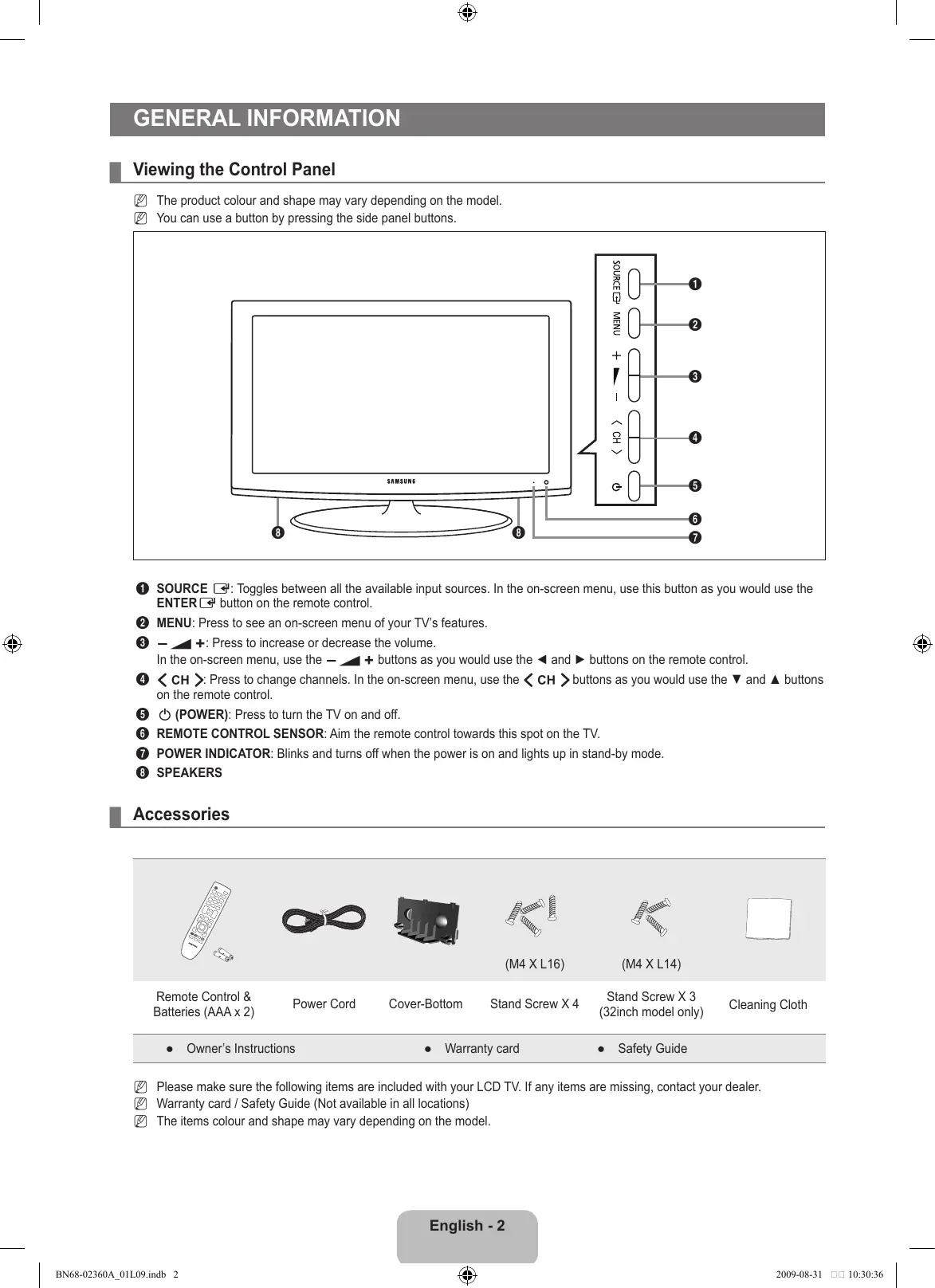
Viewing the Control Panel
The product colour and shape may vary depending on the model.
☐ You can use a button by pressing the side panel buttons.
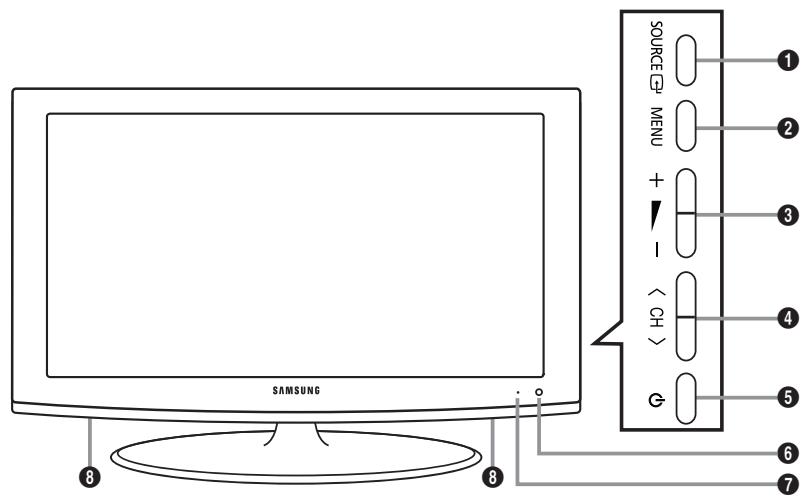
1 SOURCE ☐: Toggles between all the available input sources. In the on-screen menu, use this button as you would use the ENTER ☐ button on the remote control.
② MENU: Press to see an on-screen menu of your TV's features.
③ - ▲ +: Press to increase or decrease the volume.
In the on-screen menu, use the - ▲ + buttons as you would use the ◀ and ▶ buttons on the remote control.
4 : Press to change channels. In the on-screen menu, use the buttons as you would use the ▼ and ▲ buttons on the remote control.
⑤ ⏻ (POWER): Press to turn the TV on and off.
6 REMOTE CONTROL SENSOR: Aim the remote control towards this spot on the TV.
7 POWER INDICATOR: Blinks and turns off when the power is on and lights up in stand-by mode.
8 SPEAKERS
Accessories
| Remote Control & Batteries (AAA x 2) | Power Cord | Cover-Bottom | (M4 X L16) | (M4 X L14) | Cleaning Cloth |
| Owner's Instructions | Warranty card | Safety Guide |
☑ Please make sure the following items are included with your LCD TV. If any items are missing, contact your dealer.
Warranty card / Safety Guide (Not available in all locations)
The items colour and shape may vary depending on the model.
![[TV Rear Panel] DIGITAL AUDIO OUT (OPTICAL) PC IN PC/DVI AUDIO IN AUDIO OUT R-AUDIO-L HDMI IN COMPONENT IN R-AUDIO-L P3 P2 V SERVICE EXT (RGB) Power Input 12 11 10 9 [TV Side Panel] COMMON INTERFACE 7 HDMI IN3 6 AV IN VIDEO 1 AUDIO 8](/content/2020/05/25992/images/fabcf2cabc8027881fa5e5357311c71f40da4cdd88852bcd7344558aab883b8e.jpg)
The product colour and shape may vary depending on the model.
Whenever you connect an external device to your TV, make sure that power on the unit is turned off.
When connecting an external device, match the colour of the connection terminal to the cable.
① DIGITAL AUDIO OUT (OPTICAL)
- Connects to a Digital Audio component such as a Home theatre receiver.
When the HDMI IN jacks are connected, the DIGITAL AUDIO OUT (OPTICAL) jack on the TV outputs 2 channel audio only. If you want to hear 5.1 channel audio, connect the Optical jack on the DVD / Blu-ray player or Cable / Satellite Box directly to an Amplifier or Home Theatre, not the TV.
② PC IN
- Connect to the video output jack on your PC.
③ ANT IN
- Connects to an antenna or cable TV system.
4 PC / DVI AUDIO IN
- Connect to the audio output jack on your PC.
– DVI audio outputs for external devices.
⑤ AUDIO OUT [R-AUDIO-L]
- Connect RCA audio cables to AUDIO OUT [R-AUDIO-L] on the rear of your set and the other ends to corresponding audio in connectors on the Amplifier or DVD Home Theatre.
⑥ HDMI IN 1(DVI), 2, 3
- Connects to the HDMI jack of a device with an HDMI output.
No sound connection is needed for an HDMI to HDMI connection.
Use the HDMI IN 1(DVI) jack for DVI connection to an external device. Use a DVI to HDMI cable or DVI-HDMI adapter (DVI to HDMI) for video connection and the PC / DVI AUDIO IN jacks for audio.
You can also use the ports to connect to a PC.
What is HDMI?
‘High Definition Multimedia interface’ allows the transmission of high definition digital video data and multiple channels of digital audio.
The HDMI / DVI terminal supports DVI connection to an extended device with the appropriate cable (not supplied).
The difference between HDMI and DVI is that the HDMI device is smaller in size, has the HDCP (High Bandwidth Digital Copy Protection) coding feature installed, and supports multi-channel digital audio.
The TV may not output sound and pictures may be displayed with abnormal colour when DVD / Blu-ray player / Cable Boxes / Satellite receivers supporting HDMI versions older than 1.3 are connected. When connecting an older HDMI cable and there is no sound, connect the HDMI cable to the HDMI IN 1(DVI) jack and the audio cables to the PC / DVI AUDIO IN jacks on the back of the TV. If this happens, contact the company that provided the DVD / Blu-ray player / Cable Box / Satellite receiver to confirm the HDMI version, then request a firmware update. HDMI cables that are not 1.3 may cause annoying flicker or no screen display.
7 COMMON INTERFACE Slot
- When not inserting 'CI CARD' in some channels, 'Scrambled Signal' is displayed on the screen.
- The pairing information containing a telephone number, CI CARD ID, Host ID and other information will be displayed in about 2\~3 minutes. If an error message is displayed, please contact your service provider.
- When the channel information configuration has finished, the message ‘Updating Completed’ is displayed, indicating that the channel list is now updated.
You must obtain a CI CARD from a local cable service provider. Remove the CI CARD by carefully pulling it out with your hands since dropping the CI CARD may cause damage to it.
Insert the CI-Card in the direction marked on it.
The place of the COMMON INTERFACE Slot may be different depending on its model.
CAM is not supported in some countries and regions, check with your authorized dealer.
8 AV IN [VIDEO] / [R-AUDIO-L]
- Connect RCA cable to an appropriate external A/V device such as VCR, DVD or Camcorder.
- Connect RCA audio cables to [R-AUDIO-L] on your set and the other ends to corresponding audio out connectors on the A/V device.
⑨ KENSINGTON LOCK (depending on the model)
- The Kensington Lock (optional) is a device used to physically fix the system when used in a public place. If you want to use a locking device, contact the dealer where you purchased the TV.
The location of the Kensington Lock may be different depending on its model.
10 COMPONENT IN
- Connect component video cables (optional) to component connector (PR,PB,Y) on the rear of your set and the other ends to corresponding component video out connectors on the DTV or DVD.
- If you wish to connect both the Set-Top Box and DTV (or DVD), you should connect the Set-Top Box to the DTV (or DVD) and connect the DTV (or DVD) to component connector (P_R, P_B, Y) on your set.
- The P_R , P_B and Y connectors on your component devices (DTV or DVD) are sometimes labelled Y, B-Y and R-Y or Y, Cb and Cr.
- Connect RCA audio cables (optional) to [R-AUDIO-L] on the rear of your set and the other ends to corresponding audio out connectors on the DTV or DVD.
11 EXT (RGB)
| Connector | Input | Output |
| Video | Audio (L / R) | RGB | Video + Audio (L / R) |
| EXT | O | O | O | Only TV or DTV output is available. |
- Inputs or outputs for external devices, such as VCR, DVD, video game device or video disc players.
⑫ SERVICE
– Connector for software upgrades.
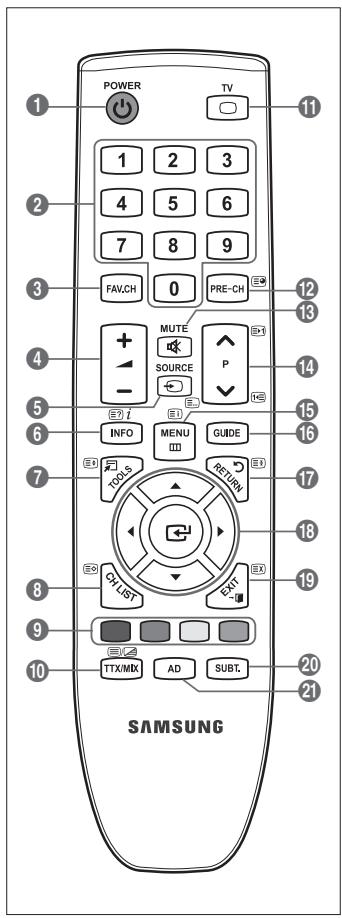
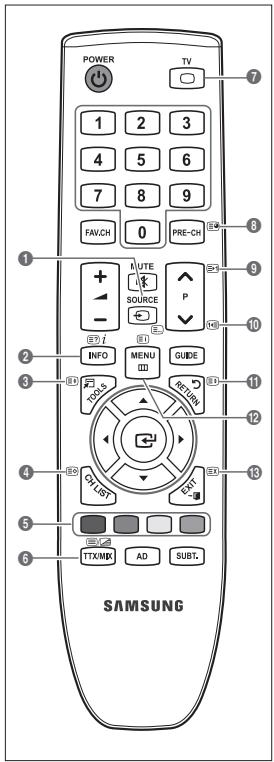
You can use the remote control up to a distance of about 23 feet from the TV.
The performance of the remote control may be affected by bright light.
The product colour and shape may vary depending on the model.
① POWER : Television Standby button.
② NUMERIC BUTTONS : Press to change the channel.
③ FAV.CH : Used to display Favourites Channel Lists on the screen.
4 - ▲ + : Press to increase or decrease the volume.
⑤ SOURCE : Press to display and select the available video sources.
6 INFO : Press to display information on the TV screen.
⑦ TOOLS : Use to quickly select frequently used functions.
⑧ CH LIST : Displays the Channel List on screen.
⑨ COLOURS BUTTONS : Use these buttons in the Channel list menus etc.
⑪ TV : Selects the TV mode directly.
12 PRE-CH : Enables you to return to the previous channel you were watching.
13 MUTE: Press to temporarily cut off the sound.
14 P ∧/P ∨ : Press to change channels.
15 MENU : Displays the main on-screen menu
16 GUIDE : Electronic Programme Guide (EPG) display
17 RETURN : Returns to the previous menu
18 UP ▲ / DOWN ▼ / LEFT ◀ / RIGHT ▶ / ENTER ☐ : Use to select on-screen menu items and change menu values.
19 EXIT : Press to exit the menu.
20 SUBT.: Digital subtitle display
21 AD : Audio Description selection.
Teletext Functions
5 : Teletext mode selection (LIST / FLOF)
6 ≡? : Teletext reveal
7 : Teletext size selection
8 : Teletext store
9 Fastext topic selection
10 ☐/☐ : Alternately select Teletext, Double, or Mix.
11 : Exit from the Teletext display
12 : Teletext sub page
14 ☑-1 : Teletext next page
1-☐ : Teletext previous page
15 ≡i : Teletext index
17 : Teletext hold
19 ☒x : Teletext cancel
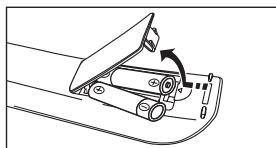
Installing Batteries in the Remote Control
- Lift the cover at the back of the remote control upward as shown in the figure.
- Install two AAA size batteries.
Make sure to match the ‘+’ and ‘-’ ends of the batteries with the diagram inside the compartment.
- Replace the cover.
Remove the batteries and store them in a cool, dry place if you won't be using the remote control for a long time.
If the remote control doesn't work, check the following:
• Is the TV power on?
- Are the plus and minus ends of the batteries reversed?
- Are the batteries drained?
- Is there a power outage or is the power cord unplugged?
- Is there a special fluorescent light or neon sign nearby?
natural_image
Diagram of a mechanical device with a rotating lever and base, showing no text or symbols.
Before using the TV, follow the steps below to learn how to navigate the menu in order to select and adjust different functions.
- Press the MENU button.
The main menu is displayed on the screen. Its left side has icons: Picture, Sound, Channel, Setup, Input, Application, Support.
- Press the ▲ or ▼ button to select one of the icons.
Press the ◀ or ▶ button to access the icon's sub-menu.
- Press the ▲ or ▼ button to move to items in the menu. Press the ENTER ↩ button to enter items in the menu.
- Press the ▲/▼/◄/► button to change the selected items.
Press the RETURN button to return to the previous menu.
- Press the EXIT button to exit from the menu.
Using the remote control buttons
| Button | Operations | Button | Operations |
| MENU [IMAGE] | Display the main on-screen menu. | ▲/▼/◄/►/ENTER [IMAGE] | Move the cursor and select an item.Select the currently selected item.Confirm the setting. |
| RUTURN[IMAGE] | Return to the previous menu. |
| EXIT→[IMAGE] | Exit the on-screen menu. |
■ Adjusting the Brightness to 80
- Press the MENU button to display the menu.
- Press the ENTER button to select Picture.
- Press the ▲ or ▼ button to select Brightness.
- Press the ENTER button.
- Press the ◀ or ▶ button until the brightness becomes 80.
- Press the ENTER button.
Press the EXIT button to exit from the menu.
Your set can be placed in standby mode in order to reduce the power consumption. The standby mode can be useful when you wish to interrupt viewing temporarily (during a meal, for example).
- Press the POWER ⏻ button on the remote control.
The screen is turned off and a standby indicator appears on your set.
- To switch your set back on, simply press the POWER ⏻ button again.
Do not leave your set in standby mode for long periods of time (when you are away on holiday, for example). It is best to unplug the set from the mains and aerial.
Plug & Play Feature
When the TV is initially powered on, basic settings proceed automatically and subsequently.
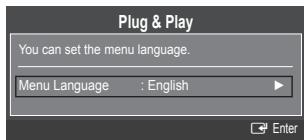
- Press the POWER button on the remote control. The message You can set the menu language. is displayed.
- Select the appropriate language by pressing the ▲ or ▼ button. Press the ENTER button to confirm your choice.
- Press the ◀ or ▶ button to select Store Demo or Home Use, then the ENTER □ button.
We recommend setting the TV to Home Use mode for the best picture in your home environment.
Store Demo mode is only intended for use in retail environments.
If the unit is accidentally set to Store Demo mode and you want to return to Home Use (Standard): Press the Volume button on the TV. When the volume OSD is displayed, press and hold the MENU button on the TV for 5 seconds.
- Press the ENTER button. Select the appropriate country by pressing the ▲ or ▼ button. Press the ENTER button to confirm your choice.
- Press the ▲ or ▼ button to select Air or Cable, then press the ENTER ↩ button.
Air: Air antenna signal.
Cable: Cable antenna signal.
- Press the ▲ or ▼ button to select the channel source to memorize. Press the ENTER ↩ button to select Start.
Digital & Analogue: Digital and Analogue channels.
Digital: Digital channels.
Analogue: Analogue channels.
When setting the antenna source to Cable, a step appears allowing you to set a value for the digital channel search. For more information, refer to Channel → Auto Store.
The channel search will start and end automatically.
Press the ENTER button at any time to interrupt the memorization process.
☑ After all the available channels are stored, the message Set the Clock Mode. is displayed.
- Press the ENTER button. Press the ▲ or ▼ button to select Auto, then Press the ENTER button.
If you select Manual, Set current date and time is displayed.
If you have received a digital signal, the time will be set automatically. If not, select Manual to set the clock. (refer to page 19)
-
The connection method to provide the best quality HD is offered. After confirming the method, press the ENTER button.
-
The message Enjoy your TV! is displayed. When you have finished, press the ENTER button.
If you want to reset this feature...
- Press the MENU button to display the menu. Press the ▲ or ▼ button to select Setup, then press the ENTER ↩ button.
- Press the ENTER button again to select Plug & Play.
- Enter your 4 digit PIN number. The default PIN number of a new TV set is 0-0-0-0.
If you want to change PIN number, use the Change PIN function. (refer to page 21)
The Plug & Play feature is only available in the TV mode.
Viewing the Display
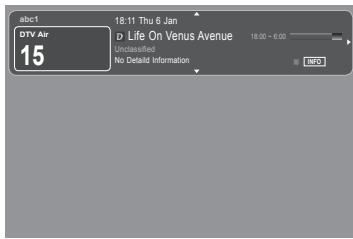
The display identifies the current channel and the status of certain audio-video settings.
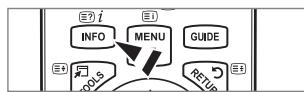
Press the INFO button to viewing the information.
Press the INFO button on the remote control. The TV will display the channel, the type of sound, and the status of certain picture and sound settings.
- ▲, ▼: You can view other channel's information. If you want to move to the currently selected channel, press ENTER button.
- ◀, ▶: You can view the desired program's information at the current channel.
Press the INFO button once more or wait approximately 10 seconds and the display disappears automatically.
CHANNEL CONTROL
Country
The PIN number input screen appears. Enter your 4 digit PIN number.
Analogue Channel
You can change the country for analogue channels.
Digital Channel
You can change the country for digital channels.
Auto Store
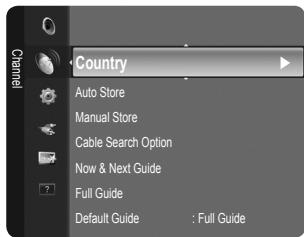
You can scan for the frequency ranges available to you (and availability depends on your country). Automatically allocated programme numbers may not correspond to actual or desired programme numbers.
If a channel is locked using the Child Lock function, the PIN input window appears.
Air / Cable
Antenna source to memorize
• Digital & Analogue: Digital and Analogue channels.
• Digital: Digital channels.
• Analogue: Analogue channels.
When selecting ‘Cable → Digital & Analogue’ or ‘Cable → Digital’
Provide a value to scan for cable channels.
- Search Mode → Full / Network / Quick
Quick
– Network ID: Displays the network identification code.
– Frequency: Displays the frequency for the channel. (Differs in each country)
- Modulation: Displays available modulation values.
– Symbol Rate: Displays available symbol rates.
☑ Scans for all channels with active broadcast stations and stores them in the TV’s memory.
If you want to stop Auto Store, press the ENTER button.
The Stop Auto Store? message will be displayed.
Select Yes by pressing the ◀ or ▶ button, then press the ENTER □ button.
Manual Store
☑ Scans for a channel manually and stores it in the TV’s memory.
If a channel is locked using the Child Lock function, the PIN input window appears.
Digital Channel
Manual store for digital channels.
Digital Channel is only available in DTV mode.
- Channel: Set the Channel number using the ▲, ▼ or number (0\~9) buttons.
- Frequency: Set the frequency using the number buttons.
- Bandwidth: Set the bandwidth using the ▲, ▼ or number (0\~9) buttons.
When it has finished, channels are updated in the channel list.
Analogue Channel
Manual store for analogue channel.
- Programme (Programme number to be assigned to a channel): Sets the programme number using the ▲, ▼ or number (0\~9) buttons.
- Colour System → Auto / PAL / SECAM / NTSC4.43: Sets the colour system value using the ▲ or ▼ button.
- Sound System → BG / DK / I / L: Sets the sound system value using the ▲ or ▼ button.
- Channel (When you know the number of the channel to be stored): Press the ▲ or ▼ button to select C (Air channel) or S (Cable channel). Press the ▶ button, then press the ▲, ▼ or number (0\~9) buttons to select the required number.
You can also select the channel number directly by pressing the number (0\~9) buttons.
If there is abnormal sound or no sound, reselect the sound standard required.
- Search (When you do not know the channel numbers): Press the ▲ or ▼ button to start the search. The tuner scans the frequency range until the first channel or the channel that you selected is received on the screen.
- Store (When you store the channel and associated programme number): Set to OK by pressing the ENTER button.
Channel mode
- P (Programme mode): When completing tuning, the broadcasting stations in your area have been assigned to position numbers from P00 to P99. You can select a channel by entering the position number in this mode.
- C (Air channel mode): You can select a channel by entering the assigned number to each air broadcasting station in this mode.
- S (Cable channel mode): You can select a channel by entering the assigned number for each cable channel in this mode.
☐ Cable Search Option (depending on the country)
Sets additional search options such as the frequency and symbol rate for cable network searches.
- Frequency (Start \~ Stop): Displays the frequency for the channel.
- Modulation: Displays available modulation values.
- Symbol Rate: Displays available symbol rates.
Now & Next Guide / Full Guide
The EPG (Electronic Programme Guide) information is provided by the broadcasters. Programme entries may appear blank or out of date as a result of the information broadcast on a given channel. The display will dynamically update as soon as new information becomes available.
For detailed procedures on using Now & Next Guide and Full Guide, refer to the descriptions on page 10.
You can also display the guide menu simply by pressing the GUIDE button. (To configure the Default Guide, refer to the descriptions.)
Now & Next Guide
For the six channels indicated in the left-hand column, displays the Current programme and the Next programme information.
Full Guide
Displays the programme information as time ordered One hour segments. Two hours of programme information is displayed which may be scrolled forwards or backwards in time.
☐ Default Guide → Now & Next Guide / Full Guide
You can decide whether to display either the Now & Next Guide or the Full Guide when the GUIDE button on the remote control is pressed.
Channel List
For detailed procedures on using the Channel List, refer to the 'Managing Channels' instructions.
You can select these options by simply pressing the CH LIST button on the remote control.
Channel Mode
When press the P ∨/∧ button, Channels will be switched within the selected channel list.
Added Ch.
Channels will be switched within the memorized channel list.
Favourite Ch.
Channels will be switched within the favourite channel list.
Fine Tune
If the reception is clear, you do not have to fine tune the channel, as this is done automatically during the search and store operation. If the signal is weak or distorted, you may have to fine tune the channel manually.
☑ Fine tuned channels that have been saved are marked with an asterisk ‘*’ on the right-hand side of the channel number in the channel banner.
To reset the fine-tuning, select Reset by pressing the ▲ or ▼ button and then press the ENTER ← button.
Only Analogue TV channels can be fine tuned.
Using the Now & Next Guide / Full Guide
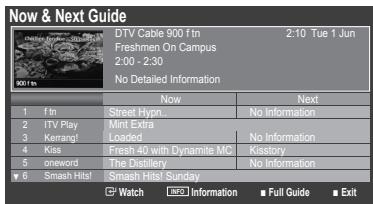
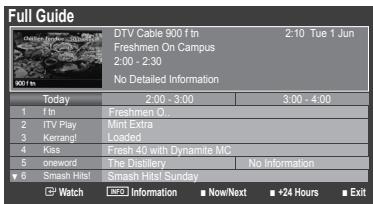
| To... | Then... |
| Watch a programme in the EPG list | Select a programme by pressing the ▲, ▼, ◀, ► button. |
| Exit the guide | Press the blue button |
| If the next programme is selected, it is scheduled with the clock icon displayed. If the ENTER button is pressed again, press the ◀, ► button to select Cancel Schedules, the scheduling is cancelled with the clock icon gone. |
| View programme information | Select a programme of your choice by pressing the ▲, ▼, ◀, ► button. Then press the INFO button when the programme of your choice is highlighted. The programme title is on the upper part of the screen centre. |
| Please click on INFO button for detailed information. Channel Number, Running Time, Status Bar, Parental Level, Video Quality Information (HD / SD), Sound Modes, Subtitle or Teletext, languages of Subtitle or Teletext and brief summary of the highlighted programme are included on the detailed information. ‘...’ will be appeared if the summary is long. |
| Toggle between the Now & Next Guide and Full Guide | Press the red button repeatedly. |
| In Full GuideScrolls backwards quickly (24 hours).Scrolls forwards quickly (24 hours). | Press the green button repeatedly. Press the yellow button repeatedly. |
Using this menu, you can Add / Delete or set Favourite channels and use the programme guide for digital broadcasts.
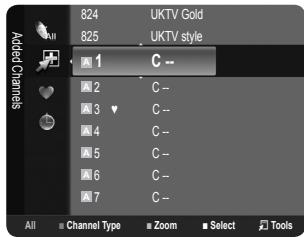
All Channels
Shows all currently available channels.
Added Channels
Shows all added channels.
Favourites
Shows all favourite channels.
To select the Favourites channels you have set up, press the FAV.CH button on the remote control.
Programmed
Shows all current reserved programmes.
Select a channel in the All Channels, Added Channels or Favourites screen by pressing the ▲ / ▼ buttons, and pressing the ENTER button. Then you can watch the selected channel.
Using the Colour buttons with the Channel List
— Red (Channel Type): Toggle between your TV, Radio, Data / Other and All.
– Green (Zoom): Enlarges or shrinks a channel number.
- Yellow (Select): Selects multiple channel lists. You can perform the add / delete, add to Favourites / delete from Favourites, or lock / unlock function for multiple channels at the same time. Select the required channels and press the yellow button to set all the selected channels at the same time. The √ mark appears to the left of the selected channels.
- TOOLS (Tools): Displays the Delete (or Add), Add to Favourite (or Delete from Favourite), Lock (or Unlock), Timer Viewing, Edit Channel Name, Sort, Edit Channel Number, Select All (or Deselect All), Auto Store menu. (The Options menus may differ depending on the situation.)
Channel Status Display Icons
• A : An analogue channel.
- ✓: A channel selected by pressing the yellow button.
• ♥ : A channel set as a Favourite.
• ☐: A programme currently being broadcast.
• 🔒 : A locked channel.
- 📊 : A reserved programme
Press the TOOLS button to use the option menu.
☑ Option menu items may differ depending on the channel status.
Add / Delete
You can delete or add a channel to display the channels you want.
All deleted channels will be shown on All Channels menu.
A gray-coloured channel indicates the channel has been deleted.
The Add menu only appears for deleted channels.
You can also delete a channel from the Added Channels or Favourites menu in the same manner.
■ Add to Favourite / Delete from Favourite
You can set channels you watch frequently as favourites.
Press the TOOLS button to display the Tools menu. You can also set the add to (or delete from) Favourite by selecting Tools → Add to Favourite (or Delete from Favourite).
The ‘♥’ symbol will be displayed and the channel will be set as a favourite.
All favourite channels will be shown on Favourites menu.
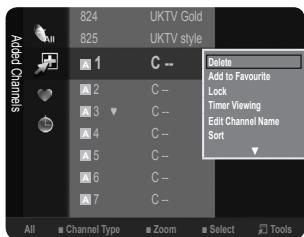
Lock / Unlock
You can lock a channel so that the channel cannot be selected and viewed. This function is available only when the Child Lock is set to On. (see page 21)
The PIN number input screen appears. Enter your 4 digit PIN number.
The default PIN number of a new TV set is 0-0-0-0. You can change the PIN, by selecting Change PIN from the menu.
The ‘☐’ symbol will be displayed and the channel will be locked.
Timer Viewing
If you reserve a programme you want to watch, the channel is automatically switched to the reserved channel in the Channel List; even when you are watching another channel. To reserve a programme, set the current time first. (See page 19)
Only memorized channels can be reserved.
You can set the channel, day, month, year, hour and minute directly by pressing the number buttons on the remote control.
☑ Reserving a programme will be shown in the Programmed menu.
Digital Programme Guide and Viewing Reservation
When a digital channel is selected, and you press the ▶ button, the Programme Guide for the channel appears. You can reserve a programme according to the procedures described above.
■ Edit Channel Name (analogue channels only)
Channels can labelled so that their call letters appear whenever the channel is selected.
The names of digital broadcasting channels are automatically assigned and cannot be labelled.
■ Edit Channel Number (digital channels only)
You can also edit the channel number by pressing the number buttons on the remote control.
Sort (analogue channels only)
This operation allows you to change the programme numbers of the stored channels. This operation may be necessary after using the auto store.
Select All / Deselect All
- Select All: You can select all the channels in the channel list.
- Deselect All: You can deselect all the selected channels.
You can only select Deselect All when there is a selected channel.
Auto Store
For further details on setting up options, refer to page 8.
If a channel is locked using the Child Lock function, the PIN input window appears.
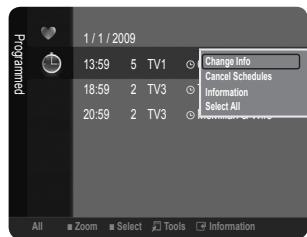
You can view, modify or delete a reservation.
Press the TOOLS button to use the option menu.
Change Info
Select to change a viewing reservation.
Cancel Schedules
Select to cancel a viewing reservation.
Select to view a viewing reservation. (You can also change the reservation information.)
Select All
Select all reserved programmes.
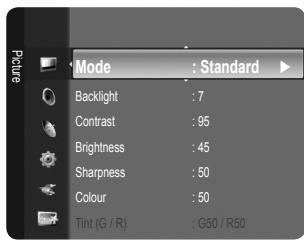
Mode
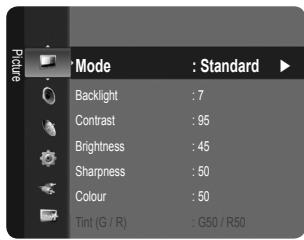
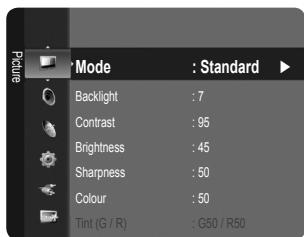
You can select the type of picture which best corresponds to your viewing requirements.
Press the TOOLS button to display the Tools menu. You can also set the picture mode by selecting Tools → Picture Mode.
Dynamic
Selects the picture for high-definition in a bright room.
Standard
Selects the picture for the optimum display in a normal environment.
Movie
Selects the picture for viewing movies in a dark room.
Backlight / Contrast / Brightness / Sharpness / Colour / Tint (G/R)
Your television has several setting options that allow you to control the picture quality.
- Backlight: Adjusts the brightness of LCD back light.
- Contrast: Adjusts the contrast level of the picture.
- Brightness: Adjusts the brightness level of the picture
- Sharpness: Adjusts the edge definition of the picture.
• Colour: Adjusts colour saturation of the picture.
- Tint (G/R): Adjusts the colour tint of the picture.
☑ Select a picture mode to be adjusted first. The adjusted values are saved for each picture mode.
When you make changes to Backlight, Contrast, Brightness, Sharpness, Colour or Tint (G/R), the OSD will be adjusted accordingly.
In analogue TV, Ext., AV modes of the PAL system, you cannot use the Tint (G/R) Function.
In PC mode, you can only make changes to Backlight, Contrast and Brightness.
Settings can be adjusted and stored for each external device you have connected to an input of the TV.
The energy consumed during use can be significantly reduced if the brightness level of the picture is reduced, which will reduce the overall running cost.
Samsung's new TVs allow you to make even more precise picture settings than previous models. See below to adjust detailed picture settings.
Advanced Settings is available in Standard or Movie mode.
In PC mode, you can only make changes to Gamma and White Balance from among the Advanced Settings items.
Black Tone → Off / Dark / Darker / Darkest
You can select the black level on the screen to adjust the screen depth.
■ Dynamic Contrast → Off / Low / Medium / High
You can adjust the screen contrast so that the optimal contrast is provided.
Gamma
You can adjust the Primary Colour (Red, Green, Blue) Intensity.
Colour Space
Colour Space is a colour matrix composed of red, green and blue colours. Select your favourite Colour Space to experience the most natural colour.
- Native: Native Colour Space offers deep and rich colour tone.
- Auto: Auto Colour Space automatically adjusts to the most natural colour tone based on programme sources.
White Balance
You can adjust the colour temperature for more natural picture colours.
- R-Offset / G-Offset / B-Offset / R-Gain / G-Gain / B-Gain: You can adjust the Colour ‘temperature’ in the light areas by changing the values of R, G, B. Recommended for advanced users only.
- Reset: The previously adjusted white balance will be reset to the factory defaults.
Flesh Tone
You can emphasize the pink ‘flesh tone’ in the picture.
Changing the adjustment value will refresh the adjusted screen.
■ Edge Enhancement → Off / On
You can emphasize object boundaries in the picture.
Picture Options
In PC mode, you can only make changes to the Colour Tone and Size from among the items in Picture Options.
Colour Tone → Cool / Normal / Warm1 / Warm2
You can select the most comfortable colour tone to your eyes.
Settings can be adjusted and stored for each external device you have connected to an input of the TV.
Warm1 or Warm2 is only activated when the picture mode is Movie.
Size
You can select the picture size which best corresponds to your viewing requirements.
Press the TOOLS button to display the Tools menu. You can also set the size by selecting Tools → Picture Size.
• Auto Wide: Automatically adjusts the picture size to the 16:9 aspect ratio.
- 16:9: Adjusts the picture size to 16:9 appropriate for DVDs or wide broadcasting.
- Wide Zoom: Magnify the size of the picture more than 4:3.
- Zoom: Magnifies the 16:9 wide picture (in the vertical direction) to fit the screen size.
- 4:3: This is the default setting for a video movie or normal broadcasting.
- Screen Fit: Use the function to see the full image without any cut-off when HDMI (720p / 1080i) or Component (1080i) signals are input.
Depending on the input source, the picture size options may vary.
The items available may differ depending on the selected mode.
In PC Mode, only 16:9 and 4:3 mode can be adjusted.
Settings can be adjusted and stored for each external device you have connected to an input of the TV.
Temporary image retention may occur when viewing a static image on the set for more than two hours.
Wide Zoom: Press the ▶ button to Select Position, then press the ENTER button. Press the ▲ or ▼ button to move the picture up / down. Then press the ENTER button.
Zoom: Press the ▶ button to Select Position, then press the ENTER ☑ button. Press the ▲ or ▼ button to move the picture up and down. Then press the ENTER ☑ button. Press the ▶ button to Select Size, then press the ENTER ☑ button. Press the ▲ or ▼ button to magnify or reduce the picture size in the vertical direction. Then press the ENTER ☑ button.
☑ After selecting Screen Fit in HDMI (1080i) or Component (1080i) mode: Select Position by pressing the ◀ or ▶ button. Use the ▲, ▼, ◀ or ▶ button to move the picture.
Reset: Press the ◀ or ▶ button to select Reset, then press the ENTER ↩ button. You can initialize the setting.
☑ If you use the Screen Fit function with HDMI 720p input, 1 line will be cut at the top, bottom, left and right as in the Overscan function.
Screen Mode → 16:9 / Wide Zoom / Zoom / 4:3
When setting the picture size to Auto Wide in a 16:9 wide TV, you can determine the picture size you want to see the 4:3 WSS (Wide Screen Service) image or nothing. Each individual European country requires different picture size so this function is intended for users to select it.
• 16:9: Sets the picture to 16:9 wide mode.
- Wide Zoom: Magnify the size of the picture more than 4:3.
- Zoom: Magnify the size of the picture vertically on screen.
• 4:3: Sets the picture to 4:3 normal mode.
This function is available in Auto Wide mode.
This function is not available in PC, Component or HDMI mode.
Digital NR → Off / Low / Medium / High / Auto
If the broadcast signal received by your TV is weak, you can activate the Digital Noise Reduction feature to help reduce any static and ghosting that may appear on the screen.
When the signal is weak, select one of the other options until the best picture is displayed.
HDMI Black Level → Normal / Low
You can directly select the black level on the screen to adjust the screen depth.
This function is active only when the external input connects to HDMI (RGB signals).
Film Mode → Off / Auto
The TV can be set to automatically sense and process film signals from all sources and adjust the picture for optimum quality.
Film Mode is supported in TV, AV, COMPONENT(480i / 1080i) and HDMI(480i / 1080i).
☐ Picture Reset → Reset Picture Mode / Cancel
Resets all picture settings to the default values.
☑ Select a picture mode to be reset. The reset is performed for each picture mode.
- Reset Picture Mode: Current picture values return to default settings.
Using Your TV as a Computer (PC) Display
Setting Up Your PC Software (Based on Windows XP)
The Windows display-settings for a typical computer are shown below. The actual screens on your PC will probably be different, depending upon your particular version of Windows and your particular video card. However, even if your actual screens look different, the same basic set-up information will apply in almost all cases. (If not, contact your computer manufacturer or Samsung Dealer.)
- First, click on 'Control Panel' on the Windows start menu.
- When the control panel window appears, click on 'Appearance and Themes' and a display dialog-box will appear.
- When the control panel window appears, click on 'Display' and a display dialogbox will appear.
- Navigate to the 'Settings' tab on the display dialog-box.
The correct size setting (resolution): Optimum-1360 x 768 pixels
If a vertical-frequency option exists on your display settings dialog box, the correct value is '60' or '60 Hz'. Otherwise, just click 'OK' and exit the dialog box.
Display Modes
Both screen position and size will vary depending on the type of PC monitor and its resolution. The resolutions in the table are recommended.
D-Sub and HDMI/DVI Input
| Mode | Resolution | Horizontal Frequency (KHz) | Vertical Frequency (Hz) | Pixel Clock Frequency (MHz) | Sync Polarity (H / V) |
| IBM | 640 x 350 | 31.469 | 70.086 | 25.175 | +/- |
| 720 x 400 | 31.469 | 70.087 | 28.322 | -/+ |
| MAC | 640 x 480 | 35.000 | 66.667 | 30.240 | -/- |
| 832 x 624 | 49.726 | 74.551 | 57.284 | -/- |
| VESA CVT | 720 x 576 | 35.910 | 59.950 | 32.750 | -/+ |
| 1280 x 720 | 44.772 | 59.855 | 74.500 | -/+ |
| 1280 x 720 | 56.456 | 74.777 | 95.750 | -/+ |
| VESA DMT | 640 x 480 | 31.469 | 59.940 | 25.175 | -/- |
| 640 x 480 | 37.500 | 75.000 | 31.500 | -/- |
| 640 x 480 | 37.861 | 72.809 | 31.500 | -/- |
| 800 x 600 | 37.879 | 60.317 | 40.000 | +/+ |
| 800 x 600 | 46.875 | 75.000 | 49.500 | +/+ |
| 800 x 600 | 48.077 | 72.188 | 50.000 | +/+ |
| 1024 x 768 | 48.363 | 60.004 | 65.000 | -/- |
| 1024 x 768 | 56.476 | 70.069 | 75.000 | -/- |
| 1024 x 768 | 60.023 | 75.029 | 78.750 | +/+ |
| 1360 x 768 | 47.712 | 60.015 | 85.500 | +/+ |
| VESA GTF | 1280 x 720 | 52.500 | 70.000 | 89.040 | -/+ |
When using an HDMI/DVI cable connection, you must use the HDMI IN 1(DVI) jack.
The interlace mode is not supported.
The set might operate abnormally if a non-standard video format is selected.
Separate and Composite modes are supported. SOG is not supported.
Setting up the TV with your PC
☑ Preset: Press the SOURCE button to select PC mode.
Auto Adjustment
Auto Adjustment allows the PC screen of set to self-adjust to the incoming PC video signal. The values of fine, coarse and position are adjusted automatically.
This function does not work in DVI-HDMI mode.
Press the TOOLS button to display the Tools menu. You can also set the Auto Adjustment by selecting Tools → Auto Adjustment.
Screen
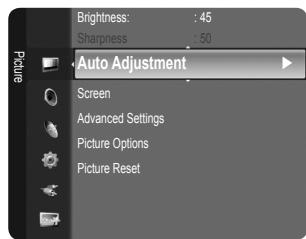
Coarse / Fine
The purpose of picture quality adjustment is to remove or reduce picture noise. If the noise is not removed by Fine-tuning alone, then adjust the frequency as best as possible (Coarse) and Fine-tune again. After the noise has been reduced, readjust the picture so that it is aligned on the centre of screen.
PC Position
Adjust the PC's screen positioning if it does not fit the TV screen. Press the ▲ or ▼ button to adjusting the Vertical-Position. Press the ◀ or ▶ button to adjust the Horizontal-Position.
Image Reset
You can replace all image settings with the factory default values.
Mode → Standard / Music / Movie / Clear Voice / Custom
You can select a sound mode to suit your personal preferences.
Press the TOOLS button to display the Tools menu. You can also configure the sound mode by selecting Tools → Sound Mode.
Standard
Selects the normal sound mode.
Music
Emphasizes music over voices.
Movie
Provides the best sound for movies.
Clear Voice
Emphasizes voice over other sounds.
Custom
Recalls your customized sound settings.
Equalizer
The sound settings can be adjusted to suit your personal preferences.
Mode
You can select a sound mode to suit your personal preferences.
Balance
Controls the balance between the right and left speakers.
100Hz / 300Hz / 1KHz / 3KHz / 10KHz (Bandwidth Adjustment)
To adjust the level of different bandwidth frequencies
Reset
Resets the equalizer settings to the default values.
☐ SRS TruSurround HD → Off / On
SRS TruSurround HD is a patented SRS technology that solves the problem of playing 5.1 multichannel content over two speakers. TruSurround delivers a compelling, virtual surround sound experience through any two-speaker playback system, including internal television speakers. It is fully compatible with all multichannel formats.
☐ Audio Language (digital channels only)
You can change the default value for audio languages. Displays the language information for the incoming stream.
You can only select the language among the actual languages being broadcast.
While viewing a digital channel, this function can be selected.
When sound is emitted from both the main speaker and the audio receiver, a sound echo may occur due to the decoding speed difference between the main speaker and the audio receiver. In this case, use the TV Speaker function.
The Audio Format appears according to the broadcasting signal.
While viewing a digital channel, this function can be selected.
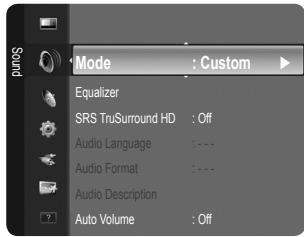
☐ Audio Description (digital channels only)
This is an auxiliary audio function that provides an additional audio track for visually challenged persons. This function handles the Audio Stream for the AD (Audio Description), when it is sent along with the Main audio from the broadcaster. Users can turn the Audio Description On or Off and control the volume.
Press the AD button on the remote control to select Off or On.
■ Audio Description → Off / On
Turn the audio description function on or off.
Volume
You can adjust the audio description volume.
Volume is active when Audio Description is set to On.
☐ Auto Volume → Off / On
Each broadcasting station has its own signal conditions, and so it is not easy to adjust the volume every time the channel is changed. This feature lets you automatically adjust the volume of the desired channel by lowering the sound output when the modulation signal is high or by raising the sound output when the modulation signal is low.
☐ Speaker Select → External Speaker / TV Speaker
If you want to hear the sound through separate speakers, cancel the internal amplifier.
The volume and MUTE buttons do not operate when the Speaker Select is set to External Speaker.
If you select External Speaker in the Speaker Select menu, the sound settings will be limited.
☐ Sound Reset → Reset All / Reset Sound Mode / Cancel
You can restore the Sound settings to the factory defaults.
Selecting the Sound Mode
You can set the sound mode in the Tools menu. When you set to Dual I II, the current sound mode is displayed on the screen.
| Audio Type | Dual 1 / 2 | Default |
| A2 Stereo | Mono | MONO | Automatic change |
| Stereo | STEREO ↔ MONO |
| Dual | DUAL 1 ↔ DUAL 2 | DUAL 1 |
| NICAM Stereo | Mono | MONO | Automatic change |
| Stereo | MONO ↔ STEREO |
| Dual | MONO ↔ DUAL 1DUAL 2 ← | DUAL 1 |
If the stereo signal is weak and an automatic switching occurs, then switch to the mono.
This function is only activated in stereo sound signal. It is deactivated in mono sound signal.
This function is only available in TV mode.
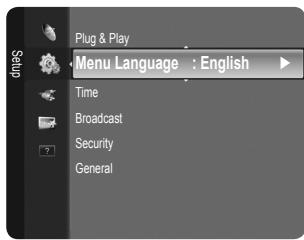
You can set the menu language.
Time
Clock
Setting the clock is necessary in order to use the various timer features of the TV.
The current time will appear every time you press the INFO button.
If you disconnect the power cord, you have to set the clock again.
- Clock Mode
You can set up the current time manually or automatically.
— Auto: Set the current time automatically using the time from the digital broadcast.
- Manual: Set the current time to a manually specified time.
Depending on the broadcast station and signal, the auto time may not be set correctly. If this occurs, set the time manually.
The Antenna or cable must be connected in order to set the time automatically.
- Clock Set
You can set the current time manually.
Set up this item when you have set Clock Mode to Manual.
☐ You can set the day, month, year, hour and minute directly by pressing the number buttons on the remote control.
Sleep Timer → Off / 30 min / 60 min / 90 min / 120 min / 150 min / 180 min
The sleep timer automatically shuts off the TV after a preset time (30, 60, 90, 120, 150 and 180 minutes).
The TV automatically switches to standby mode when the timer reaches 0.
To cancel the Sleep Timer function, select Off.
Press the TOOLS button to display the Tools menu. You can also set the sleep timer by selecting Tools → Sleep Timer.
Timer 1 / Timer 2 / Timer 3
Three different on / off timer settings can be made. You must set the clock first.
- On Time: Set the hour, minute, and activate / inactivate. (To activate the timer with the setting you've chosen, set to Activate.)
- Off Time: Set the hour, minute, and activate / inactivate. (To activate the timer with the setting you've chosen, set to Activate.)
• Volume: Select the desired turn on volume level.
• Antenna: Select Air or Cable.
• Channel: Select the desired channel.
- Repeat: Select Once, Everyday, Mon\~Fri, Mon\~Sat, Sat\~Sun or Manual.
When Manual is selected, press the ▶ button to select the desired day of the week. Press the ENTER □ button over the desired day and the √ mark will appear.
You can set the hour, minute and channel by pressing the number buttons on the remote control.
Auto Power Off
When you set the timer On, the television will eventually turn off, if no controls are operated for 3 hours after the TV was turned on by the timer. This function is only available in timer On mode and prevents overheating, which may occur if a TV is on for too long time.
Broadcast
Subtitle
You can activate and deactivate the subtitles. Use this menu to set the Subtitle Mode. Normal under the menu is the basic subtitle and Hard of hearing is the subtitle for a hearing-impaired person.
- Subtitle → Off / On : Switches subtitles on or off.
- Mode → Normal / Hard of hearing: Sets the subtitle mode.
- Subtitle Language: Set the subtitle language.
If the programme you are watching does not support the Hard of hearing function, Normal automatically activates even though Hard of hearing mode is selected.
English is the default in cases where the selected language is unavailable in the broadcast.
You can select these options simply by pressing the SUBT. button on the remote control.
Digital Text → Disable / Enable (UK only)
If the programme is broadcast with digital text, this feature is enabled.
MHEG (Multimedia and Hypermedia Information Coding Experts Group)
An International standard for data encoding systems used in multimedia and hypermedia. This is at a higher level than the MPEG system which includes data-linking hypermedia such as still images, character service, animation, graphic and video files as well as multimedia data. MHEG is user runtime interaction technology and is being applied to various fields including VOD (Video-On-Demand), ITV (Interactive TV), EC (Electronic Commerce), tele-education, tele-conferencing, digital libraries and network games.
Teletext Language
You can set the Teletext language by selecting the language type.
☑ English is the default in cases where the selected language is unavailable in the broadcast.
Preference
- Primary Audio Language / Secondary Audio Language / Primary Subtitle Language / Secondary Subtitle Language / Primary Teletext Language / Secondary Teletext Language
Using this feature, users can select one of the languages. The language selected here is the default when the user selects a channel.
If you change the language setting, the Subtitle Language, Audio Language, and the Teletext Language of the Language menu are automatically changed to the selected language.
The Subtitle Language, Audio Language, and the Teletext Language of the Language menu show a list of languages supported by the current channel and the selection is highlighted. If you change this language setting, the new selection is only valid for the current channel. The changed setting does not change the setting of the Primary Subtitle Language, Primary Audio Language, or the Primary Teletext Language of the Preference menu.
Common Interface
- CI Menu
This enables the user to select from the CAM-provided menu. Select the CI Menu based on the menu PC Card.
- Application Info.
This contains information on CAM inserted in the CI slot and displays it.
The Application Info inserting is about the 'CI CARD'. You can install the CAM anytime whether the TV is ON or OFF.
- Purchase the CI CAM module by visiting your nearest dealer or by phone.
- Insert the 'CI CARD' into the CAM in the direction of the arrow until it fits.
- Insert the CAM with the 'CI CARD' installed into the common interface slot.
(Insert the CAM in the direction of the arrow, right up to the end so that it is parallel with the slot.)
- Check if you can see a picture on a scrambled signal channel.
☑ CAM is not supported in some countries and regions, check with your authorized dealer.
Security
Before the setup screen appears, the PIN number input screen appears. Enter your 4 digit PIN number.
The default PIN number of a new TV set is 0-0-0-0. You can change the PIN by selecting Change PIN from the menu.
Child Lock → Off / On
This feature allows you to prevent unauthorized users, such as children, from watching unsuitable programme by muting out video and audio.
☐ You can lock some channels in Channel List. (refer to page 12)
Child Lock is available only in TV mode.
Parental Lock
This feature allows you to prevent unauthorized users, such as children, from watching unsuitable programme by a 4-digit PIN (Personal Identification Number) code that is defined by the user.
The Parental Lock item differs depending on the country.
When the Parental Lock is set, the ‘☐’ symbol is displayed.
Allow All: Press to unlock all TV ratings.
Block All: Press to lock all TV ratings.
Change PIN
You can change your personal ID number that is required to set up the TV.
If you forget the PIN code, press the remote control buttons in the following sequence, which resets the PIN to 0-0-0-0: POWER(Off) → MUTE → 8 → 2 → 4 → POWER(On).
General
Game Mode → Off / On
When connecting to a game console such as PlayStation ^™ or Xbox ^™ , you can enjoy a more realistic gaming experience by selecting the game menu.
To disconnect the game console and connect another external device, cancel game mode in the setup menu.
If you display the TV menu in Game Mode, the screen shakes slightly.
Game Mode is not available in regular TV and PC mode.
If Game Mode is On:
– Picture mode is automatically changed to Standard and users cannot change the mode.
- Sound mode is automatically changed to Custom and users cannot change the mode. Adjust the sound using the equalizer.
The Reset Sound function is activated. Selecting the Reset function after setting the equalizer resets the equalizer settings to the factory defaults.
Energy Saving → Off / Low / Medium / High / Picture Off / Auto
This feature adjusts the brightness of the TV in order to reduce power consumption. When watching TV at night, set the Energy Saving mode option to High to reduce eye fatigue as well as power consumption.
If you select Picture Off, the screen is turned off and you can only hear the sound. Press any button to get out of Picture Off.
In the Tools menu, Picture Off function is not supported.
Press the TOOLS button to display the Tools menu. You can also set the Energy Saving option by selecting Tools → Energy Saving.
Melody → Off / Low / Medium / High
A melody sound can be set to come on when the TV is powered On or Off.
The Melody does not play
- When no sound is output from the TV because the MUTE button has been pressed.
- When no sound is output from the TV because the (-) Volume button has been pressed.
- When the TV is turned off by Sleep Timer function.
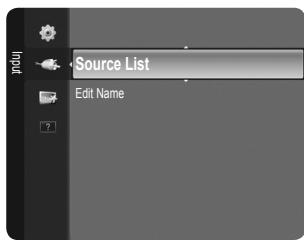
Source List
Use to select TV or other external input sources such as DVD / Blu-ray players / Satellite receivers (Set-Top Box) connected to the TV. Use to select the input source of your choice.
Press the SOURCE button on the remote control to vi7ew an external signal source. TV mode can be selected by pressing the TV button.
TV / Ext. / AV / Component / PC / HDMI1/DVI / HDMI2 / HDMI3
☐ You can choose only those external devices that are connected to the TV. In the Source List, connected inputs will be highlighted and sorted to the top. Inputs that are not connected will be sorted to the bottom.
Ext. and PC always stay activated.
TOOLS (Tools): Displays the Edit Name and Information menus.
Edit Name
Name the device connected to the input jacks to make your input source selection easier.
VCR / DVD / Cable STB / Satellite STB / PVR STB / AV Receiver / Game / Camcorder / PC / DVI / DVI PC / TV / IPTV / Blu-ray / HD DVD / DMA
When connecting an HDMI/DVI cable to the HDMI IN 1(DVI) port, you should set the HDMI1/DVI mode to DVI or DVI PC in the Edit Name of the Input mode. In this case, a separate sound connection is required.
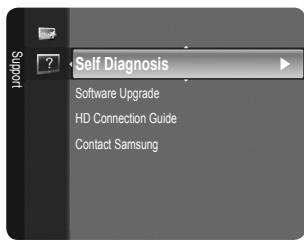
Self Diagnosis
Picture Test
If you think you have a picture problem, perform the picture test. Check the colour pattern on the screen to see if the problem still exists.
- Yes: If the test pattern does not appear or there is noise in the test pattern, select Yes. There may be a problem with the TV. Contact Samsung's call centre for assistance.
- No: If the test pattern is properly displayed, select No. There may be a problem with your external equipment. Please check your connections. If the problem still persists, refer to the external device's user manual.
Sound Test
If you think you have a sound problem, please perform the sound test. You can check the
sound by playing a built-in melody sound through the TV. 'Does the problem still exist with this sound test?' appears on the screen.
If you hear no sound from the TV's speakers, before performing the sound test, make sure Speaker Select is set to TV speaker in the Sound menu.
The melody will be heard during the test even if Speaker Select is set to External Speaker or the sound is muted by pressing the MUTE button.
- Yes: If during the sound test you can hear sound only from one speaker or not at all, select Yes. There may be a problem with the TV. Contact Samsung's call centre for assistance.
- No: If you can hear sound from the speakers, select No. There may be a problem with your external equipment. Please check your connections. If the problem still persists, refer to the external device's user manual.
Unlike analogue channels, which can vary in reception quality from ‘snowy’ to clear, digital (HDTV) channels have either perfect reception quality or you will not receive them at all. So, unlike analogue channels, you cannot fine tune a digital channel. You can, however, adjust your antenna to improve the reception of available digital channels.
If the signal strength meter indicates that the signal is weak, physically adjust your antenna to increase the signal strength. Continue to adjust the antenna until you find the best position with the strongest signal.
Software Upgrade
To keep your product up-to-date with new Digital Television features then software upgrades are periodically broadcast as part of the normal Television signal. It will automatically detect these signals and display the software upgrade banner. You are given the option to install the upgrade.
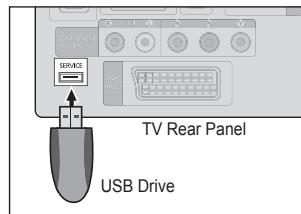
BY USB
Insert a USB drive containing the firmware upgrade into TV. Please be careful to not disconnect the power or remove the USB drive while upgrades are being applied. The TV will turn off and turn on automatically after completing the firmware upgrade. Please check the
firmware version after the update is completed. When software is upgraded, video and audio settings you have made will return to their default (factory) settings.
We recommend you write down your settings so that you can easily reset them after the upgrade.
BY Channel
Upgrades the software using the broadcasting signal.
If the function is selected during the software transmission period, this function searches for available software and downloads the software.
The time required to download the software is determined by the signal status.
Standby Mode Upgrade
To continue software upgrade with master power on, Select On by pressing the ▲ or ▼ button. 45 minutes after entering standby mode, a manual upgrade is automatically conducted. Since the power of the unit is turned on internally, the screen may be on slightly for the LCD product. This phenomenon may continue for more than 1 hour until the software upgrade is completed.
Alternative Software
To display the software version information.
HD Connection Guide
This menu presents the connection method that provides the optimal quality for the HD TV.
Refer to this information when connecting external devices to the TV.
View this information when your TV does not work properly or when you want to upgrade the software.
You can view the information regarding the call centre, product and software file download method.
Teletext Feature
Most television stations provide written information services via Teletext. The index page of the Teletext service gives you information on how to use the service. In addition, you can select various options to suit your requirements by using the remote control buttons.
For Teletext information to be displayed correctly, channel reception must be stable. Otherwise, information may be missing or some pages may not be displayed.
You can change Teletext pages by pressing the numeric buttons on the remote control.
① ≡... (mode)
Press to select the Teletext mode (LIST/FLOF). If you press it in the LIST mode, it switches into the List save mode. In the List save mode, you can save Teletext page into list using the ☐(store) button.
② ≡? (reveal)
Used to display the hidden text (answers to quiz games, for example). To display normal screen, press it again.
3 (size)
Press to display the double-size letters in the upper half of the screen. For lower half of the screen, press it again. To display normal screen, press it once again.
4 (store)
Used to store the Teletext pages.
⑤ Colour buttons (red/green/yellow/blue)
If the FASTEXT system is used by a broadcasting company, the different topics covered on a Teletext page are colour-coded and can be selected by pressing the coloured buttons. Press one of them corresponding to the required. The page is displayed with other coloured information that can be selected in the same way. To display the previous or next page, press the corresponding coloured button.
6 ≡/(Z) (Teletext on/mix)
Press to activate Teletext mode after selecting the channel providing the Teletext service. Press it twice to overlap the Teletext with the current broadcasting screen.
⑦ □ (exit)
Exit from the Teletext display.
8 (sub-page)
Used to display the available sub-page.
9 ≡1 (page up)
Used to display the next Teletext page.
10 1≡ (page down)
Used to display the previous Teletext page.
11 (hold)
Used to hold the display on a given page if the selected page is linked with several secondary pages which follow on automatically. To resume, press it again.
12 ≡i (index)
Used to display the index (contents) page at any time while you are viewing Teletext.
13 ≡x (cancel)
Used to display the broadcast when searching for a page.
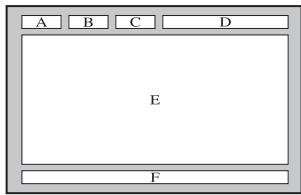
The Teletext pages are organized according to six categories:
| Part | Contents |
| A | Selected page number. |
| B | Broadcasting channel identity. |
| C | Current page number or search indications. |
| D | Date and time. |
| E | Text. |
| F | Status information.FASTEXT information. |
Teletext information is often divided between several pages displayed in sequence, which can be accessed by:
— Entering the page number
– Selecting a title in a list
– Selecting a coloured heading (FASTEXT system)
Teletext level supported by the TV is version 2.5 which is capable of displaying additional graphics or text.
Depending upon the transmission, blank side panels can occur when displaying Teletext.
In these cases, additional graphics or text is not transmitted.
☑ Older TV's which do not support version 2.5 are not capable of displaying any additional graphics or text, regardless of the Teletext transmission.
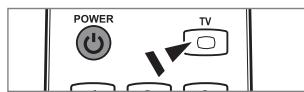
Press the TV button to exit from the Teletext display.
Teletext 16:9, picture is 16:9
Installing the Stand
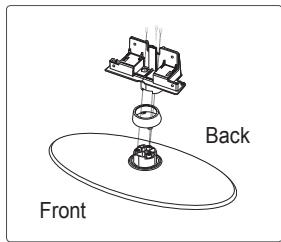
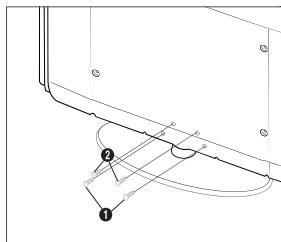
☑ Preset: Place the Guide Stand and Cover Neck onto the stand and fasten it using the screws. Applicable to 32inch models only.
- Attach your LCD TV to the stand.
Two or more people should carry the TV.
Make sure to distinguish between the front and back of the stand when assembling them.
To make sure the TV is installed on the stand at a proper level, do not apply excess downward pressure to the upper left of right sides of the TV.
- Fasten two screws at position ① and then fasten two screw at position ②.
Stand the product up and fasten the screws. If you fasten the screws with the LCD TV placed down, it may lean to one side.
Installing the Wall Mount Kit
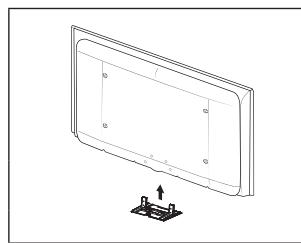
Wall mount items (sold separately) allow you to mount the TV on the wall.
For detailed information on installing the wall mount, see the instructions provided with the Wall Mount items. Contact a technician for assistance when installing the wall mounted bracket.
Samsung Electronics is not responsible for any damage to the product or injury to yourself or others if you elect to install the TV on your own.
Do not install your Wall Mount Kit while your TV is turned on. It may result in personal injury due to electric shock.
natural_image
Technical line drawing of a flat-screen monitor with mounting bracket (no text or symbols)
Using the Anti-Theft Kensington Lock
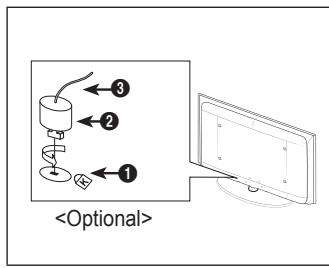
The Kensington Lock is a device used to physically fix the system when using it in a public place. The appearance and locking method may differ from the illustration depending on the manufacturer. Refer to the manual provided with the Kensington Lock for proper use. The locking device has to be purchased separately. The location of the Kensington Lock may be different depending on its model.
- Insert the locking device into the Kensington slot on the LCD TV (①) and turn it in the locking direction (②).
- Connect the Kensington Lock cable (③).
- Fix the Kensington Lock to a desk or a heavy stationary object.
Securing the Installation Space
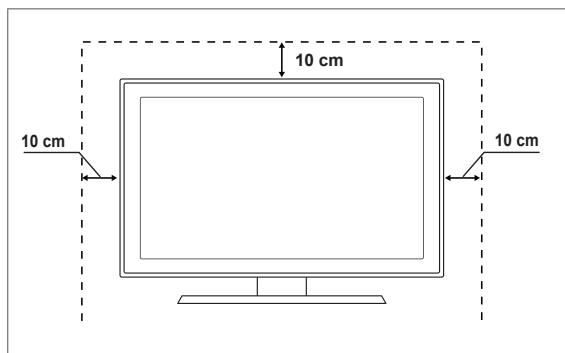
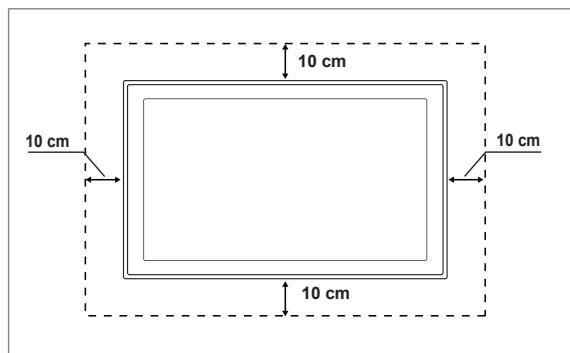
Keep the required distances between the product and other objects (e.g. walls) to ensure proper ventilation.
Failing to do so may result in fire or a problem with the product due to an increase in the internal temperature of the product.
Install the product so the required distances shown in the figure are kept.
When using a stand or wall-mount, use parts provided by Samsung Electronics only.
- If you use parts provided by another manufacturer, it may result in a problem with the product or an injury due to the product falling.
- If you use parts provided by another manufacturer, it may result in a problem with the product or fire due to an increase in the internal temperature of the product due to poor ventilation.
The appearance may differ depending on the product.
When installing the product with a stand
When installing the product with a wall-mount

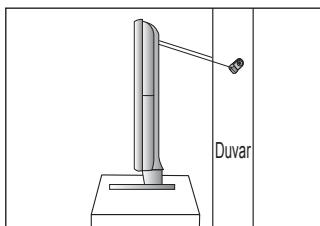
Caution: Pulling, pushing, or climbing on the TV may cause the TV to fall. In particular, ensure your children do not hang over or destabilize the TV; doing so may cause the TV to tip over, causing serious injuries or death. Follow all safety precautions provided on the included Safety Flyer. For added stability, install the anti-fall device for safety purposes, as follows.
■ To avoid the TV from falling:
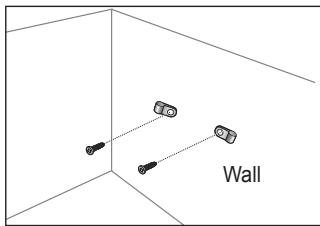
- Put the screws into the clamps and firmly fasten them onto the wall. Confirm that the screws have been firmly installed onto the wall.
☐ You may need additional material such as an anchor depending on the type of wall.
Since the necessary clamps, screws, and string are not supplied, please purchase these additionally.
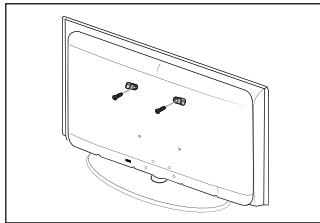
- Remove the screws from the centre back of the TV, put the screws into the clamps, and then fasten the screws onto the TV again.
Screws may not be supplied with the product. In this case, please purchase the screws of the following specifications.
Screw Specifications
- For a 17 \~ 29 Inch LCD TV: M4 X L15
- For a 32 \~ 40 Inch LCD TV: M6 X L15
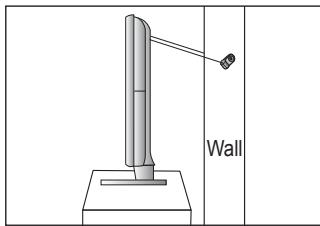
- Connect the clamps fixed onto the TV and the clamps fixed onto the wall with a strong string and then tie the string tightly.
Install the TV near to the wall so that it does not fall backwards.
It is safe to connect the string so that the clamps fixed on the wall are equal to or lower than the clamps fixed on the TV.
☐ Untie the string before moving the TV.
- Verify all connections are properly secured. Periodically check connections for any sign of fatigue for failure. If you have any doubt about the security of your connections, contact a professional installer.
natural_image
Line drawing of a flat-screen monitor with two connectors and a stand (no text or symbols)
natural_image
Diagram of a vertical pole with a hanging object and labeled 'Wall' (no text or symbols on the diagram itself)
If you have any questions of TV, first refer to this list. If none of these troubleshooting tips apply, please visit 'www.samsung.com' site, then click on Support or contact Call Centre on list of last page.
This TFT LCD panel uses a panel consisting of sub pixels which require sophisticated technology to produce. However, there may be few bright or dark pixels on the screen. These pixels will have no impact on the performance of the product.
| Issue | Solution |
| Picture Quality | First of all, please perform thePicture Testto confirm that your TV is properly displaying test image.Go toMENU - Support - Self Diagnosis - Picture TestIf the test image is properly displayed, the poor picture may caused by the source or signal. |
| TV image does not look as good as it did in the store. | If you have an analogue Cable/Set top box, upgrade to an Box. Use HDMI or Component cables to deliver HD picture quality.Cable/Satellite subscriber : Try HD(High Definition) stations from channel line up.Antenna connection: Try HD stations after performing Auto programme.Many HD channels are upscaled from SD(Standard Definition) contents.Adjust Cable/Set top box video output resolution to 1080i or 720p.Confirm that you are watching the TV at the minimum distance recommended based on the size and definition of the signal you are displaying. |
| Picture is distorted : macroblock, small block, dots, pixelization | Compression of video contents may cause picture distortion especially on fast moving pictures such as sports and action movies.Low signal level or bad quality can cause picture distortion. This is not a TV issue. |
| Wrong or missing colour with Component connection. | Make sure the Component cables are connected to the correct jacks. Incorrect or loose connections may cause colour problems or the screen will be blank. |
| Poor colour or brightness. | AdjustPictureoptions in the TV menu. (Picture mode,Colour, Brightness,Sharpness)AdjustEnergy Savingoption inSetupmenu.Try picture reset to view the default picture setting. (Go toMENU - Picture - Picture Reset) |
| Dotted line on the edge of screen. | If picture size is set toScreen Fit, change to16:9.Change cable/set top box resolution. |
| Picture is black and white with AV (Composite) input only. | Connect video cable(Yellow) to Green jack of component input 1 of the TV. |
| Picture freezes or is distorted when changing channels or picture is delayed. | If connected with cable box, please try to reset cable box. (reconnect AC cord and wait until cable box reboots. It may take up to 20 minutes.)Set output resolution of cable box to 1080i or 720p. |
| Sound Quality | First of all, please perform theSound Testto confirm that your TV audio is properly operating.Go toMENU - Support - Self Diagnosis - Sound TestIf the audio is OK, the sound problem may caused by the source or signal. |
| No sound or sound is too low at maximum volume. | Please check the volume of external device connected to your TV then, adjust the TV volume accordingly. |
| Picture is good but no sound. | Set theSpeaker Selectoption to TV speakerin the sound menu.Make sure audio cables from an external device are connected to correct audio input jacks on the TV.Check connected device's audio output option. (ex: You may need to change your cable box' audio option to HDMI when you have HDMI connected to your TV.)If you are using a DVI to HDMI cable, a separate audio cable is required.Deactivate SRS function if you are setting the volume over 30 value.Remove plug from headphone jack. (if available on your TV) |
| Noise from speaker. | Check cable connections. Make sure a video cable is not connected to an audio input.For Antenna/Cable connection, check signal strength. Low signal level may cause sound distortion. |
| No Picture, No Video | |
| TV won't turn on. | Make sure the AC power cord is plugged in securely to the wall outlet and the TV.Make sure the wall outlet is working.Try pressing the POWER button on the TV to make sure the remote is working properly. If the TV turns on, it may be caused by Remote Control. To fix the Remote problem, refer to ‘Remote control does not work’ below. |
| TV turns off automatically. | Check if the Sleep Timer is set to On in the Setup menu.If connected the TV to your PC, check your PC power settings.Make sure the AC power cord is plugged in securely to the wall outlet and the TV.If there is no signal for about 10 ~ 15 minutes with Antenna/Cable connection, the TV will turn off. |
| No picture/Video. | Check cable connections.(remove and reconnect all cables of TV and external devices)Set your external device's (Cable/Set top Box, DVD, Blu-ray etc) video output to match the connections to the TV input. For example, external device's output: HDMI, TV's input: HDMI.Make sure your connected device is powered on.Make sure to select the TV's correct source by pressing the SOURCE button on the TV remote. |
| RF(Cable/Antenna) Connection | |
| Cannot receive all channels. | Make sure Antenna cable is connected securely.Please try Plug & Play to add available channels to the channel list. Go to MENU - Setup - Plug & Play and wait for all available channels are stored.Verify Antenna is positioned correctly. |
| Picture is distorted: macroblock, small block, dots, pixelization | Compression of video contents may cause picture distortion especially on fast moving pictures such as sports and action movies.Low signal level can cause picture distortion. This is not a TV issue. |
| PC Connection | |
| ‘Not Supported Mode’ message. | Set your PC's output resolution and frequency so it matches the resolutions supported by the TV. |
| PC is always shown on source list even if not connected. | This is normal; PC is always shown on the source list even though a PC is not connected. |
| Video is OK but there is no audio with HDMI connection. | Check the audio output setting on your PC. |
| Others | |
| Picture is not shown in full screen. | Black bars on each side will be shown on HD channels when displaying upscaled SD (4:3) contents.Black bars on Top & Bottom will be shown on movies that have aspect ratios different from your TV.Adjust picture size option on your external device or TV to full screen. |
| Remote control does not work. | Replace the remote control batteries with correct polarity (+ -).Clean the transmission window located on the top of the remote.Try pointing the remote directly at the TV from 5~6 feet away. |
| Can not control TV power or volume with Cable/Set top box remote control. | Programme the Cable/Set top box remote control to operate the TV. Refer to Cable/Sat user manual for SAMSUNG TV code. |
| ‘Not Supported Mode’ message. | Check the supported resolution of the TV and adjust the external device’s output resolution accordingly. Refer to resolution settings in this manual. |
| Plastic smell from TV. | This smell is normal and will dissipate over time. |
| TV Signal Information is unavailable in the Self Diagnostic Test menu. | This function is only available with digital channels with an Antenna (RF/Coax) connection. |
| TV is tilted to right or left side. | Remove the stand base from TV and reassemble. |
| Can not assemble stand base. | Make sure TV is placed on flat surface. If can not remove screws from TV, please use magnetized screw driver. |
| Channel menu is grey out.(unavailable) | Channel menu is only available when TV source is selected. |
| Your settings are lost after 30 minutes or every time TV is turned off. | If TV is in theStore Demo mode, it will reset audio and picture settings every 30 minutes. Please change fromStore Demo mode toHome Use mode in thePlug & Play procedure. Press theSOURCEbutton to select TV mode, go toMENU → Setup → Plug & Play → ENTER. |
| Intermittent loss of audio or video. | Check cable connections and reconnect.Can be caused by using overly rigid or thick cables. Make sure the cables are flexible enough for long term use. If wall mounting, we recommend using cables with 90 degree connectors. |
| You may see small particles if you look closely at the edge of the bezel surrounding the TV screen. | This is part of the product’s design and is not a defect. |
| ‘Scramble signal’ or ‘Weak Signal/No Signal’ with CAM CARD(CI). | Check that CAM has CI Card installed into the common interface slot.Pull out CAM from the TV and insert into the slot again. |
| When turned off and 45 minutes later, TV is turned on itself. | It is normal, the TV operate OTA (Over The Air) function itself to upgrade firmware downloaded during watching. |
| Recurrent picture/sound issue. | Check and change signal/source. |
| Model Name | LE26B450 | LE32B450 |
| Screen Size (Diagonal) | 26 inch | 32 inch |
| PC Resolution (Optimum) | 1360 x 768 @ 60Hz | 1360 x 768 @ 60Hz |
| Sound (Output) | 5W X 2 | 10W X 2 |
| Dimensions (WxDxH) | | |
| Body | 670 x 75 x 455 mm | 800 x 85 x 531 mm |
| With stand | 670 x 216 x 495 mm | 800 x 252 x 577 mm |
| Weight | | |
| With Stand | 8 kg | 12 kg |
| Environmental Considerations | | |
| Operating Temperature | 10°C to 40°C (50°F to 104°F) | 10°C to 40°C (50°F to 104°F) |
| Operating Humidity | 10% to 80%, non-condensing | 10% to 80%, non-condensing |
| Storage Temperature | -20°C to 45°C (-4°F to 113°F) | -20°C to 45°C (-4°F to 113°F) |
| Storage Humidity | 5% to 95%, non-condensing | 5% to 95%, non-condensing |
| Stand Swivel | | |
| Left / Right | 0° | -10° ~ 10° |
☑ Design and specifications are subject to change without prior notice.
This device is a Class B digital apparatus.
For the power supply and Power Cons
The image contains a graphical icon of a pencil inside a square frame. There is no text or mathematical content to extract.
Remarque
#
Bouton tactile
[Non-Text]
Bouton TOOLS

Appuyez sur
natural_image
Simple gray curved line drawing on white background (no text or symbols)
① DIGITAL AUDIO OUT (OPTICAL)
⑤ AUDIO OUT [R-AUDIO-L]
natural_image
Mechanical assembly diagram showing a lever mechanism with no text or symbols
MHEG (Multimedia and Hypermedia Information Coding Experts Group)
natural_image
Technical line drawing of a flat-screen monitor with mounting base (no text or symbols)
natural_image
Diagram showing three connected components labeled 'Mur' in a 3D coordinate system (no text or symbols beyond label)
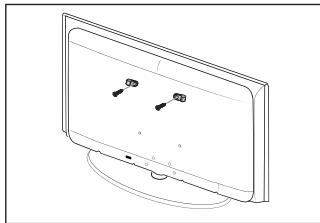
natural_image
Line drawing of a flat-screen monitor with two small buttons on the screen (no text or symbols)
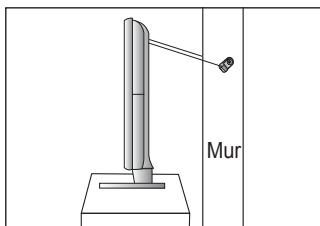
The image contains a graphical icon of a pencil inside a square frame. There is no text or mathematical content to extract.
Hinweis
[Non-Text]
Zielwahltaste
[Non-Text]
TOOLS-Taste
△
Drücken
Bedienfeld
① DIGITAL AUDIO OUT (OPTICAL)
⑤ AUDIO OUT [R-AUDIO-L]
natural_image
Diagram of a mechanical device with rotating components and a curved base (no text or symbols)
Anzeigen von Menüs
SENDERSTEUERUNG
MHEG (Multimedia and Hypermedia Information Coding Experts Group)
natural_image
Technical line drawing of a flat-screen monitor with mounting base (no text or symbols)
natural_image
Line drawing of a flat-screen monitor with two small accessories on its screen (no text or symbols)
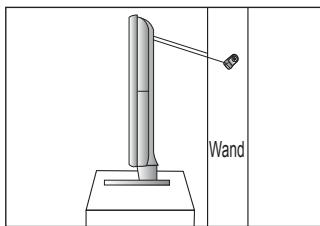
① DIGITAL AUDIO OUT (OPTICAL)
⑤ AUDIO OUT [R-AUDIO-L]
natural_image
Diagram of a mechanical device with a rotating lever and adjustment knob (no text or symbols)
Het scherm bekijken
MHEG (Multimedia and Hypermedia Information Coding Experts Group)
De muurbevestiging installeren
natural_image
Technical line drawing of a flat-screen monitor with mounting base (no text or symbols)
natural_image
Line drawing of a flat-screen monitor with indicator lights and a stand (no text or symbols)
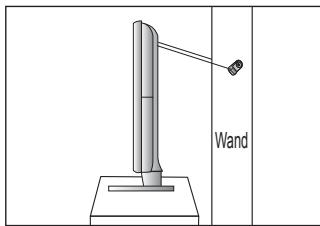
The image contains a graphical icon of a pencil inside a square frame. There is no text or mathematical content to extract.
Nota
[Non-Text]
Tasto One-Touch
[Non-Text]
Tasto TOOLS
△
Premere
① DIGITAL AUDIO OUT (OPTICAL)
⑤ AUDIO OUT [R-AUDIO-L]
natural_image
Technical line drawing of a mechanical component with no visible text or symbols
CONTROLLO CANALE
☐ SRS TruSurround HD → Off / On
MHEG (Multimedia and Hypermedia Information Coding Experts Group)
6 ≡/(Z) (Teletext on/mix)
natural_image
Technical line drawing of a flat-screen monitor with mounting base (no text or symbols)
natural_image
Line drawing of a flat-screen monitor with two connectors and a curved cable (no text or symbols)
The image contains a graphical icon of a pencil inside a square frame. There is no text or mathematical content to extract.
Nota
#
① DIGITAL AUDIO OUT (OPTICAL)
⑤ AUDIO OUT [R-AUDIO-L]
natural_image
Diagram of a mechanical component with rotating arm and base, no text or symbols present
☐ SRS TruSurround HD → Des. / Act.
natural_image
Technical line drawing of a flat-screen monitor with mounting base (no text or symbols)
natural_image
Line drawing of a flat-screen monitor with two connectors and a stand (no text or symbols)
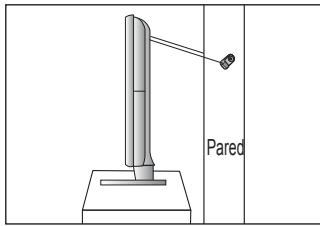
The image contains a graphical icon of a pencil inside a square frame. There is no text or mathematical content to extract.
Nota
[Non-Text]
Tecla rápida
[Non-Text]
Botão TOOLS
△
Carregue
⑤ AUDIO OUT [R-AUDIO-L]
natural_image
Diagram of a mechanical device with rotating components and a curved base (no text or symbols)
MHEG (Multimedia and Hypermedia Information Coding Experts Group)
6 (activar teletexto/sobrepor)
natural_image
Technical line drawing of a rectangular electronic device with mounting base and internal components (no text or symbols)
natural_image
Line drawing of a flat-screen monitor with two connectors and a cable (no text or symbols)
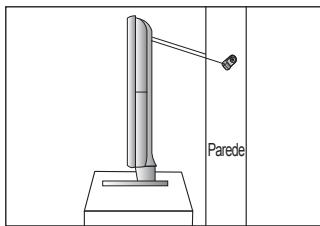
The image contains a graphical icon of a pencil inside a square frame. There is no text or mathematical content to extract.
Opomba
[Non-Text]
Gumb na dotik
[Non-Text]
Gumb TOOLS
A
Pritisnite
① DIGITAL AUDIO OUT (OPTICAL)
⑤ AUDIO OUT [R-AUDIO-L]
- Priključite avdio kabla RCA na AUDIO OUT [R-AUDIO-L] na hrbtni strani televizorja in druga konca na ustrezne spojnike avdio vhoda na ojačevalniku ali domačem kinu DVD.
⑥ HDMI IN 1(DVI), 2, 3
natural_image
Diagram of a mechanical component with an arrow indicating rotation, no text or symbols present
Ogled menijev
Ogled prikaza
Prikaz označuje trenutni kanal in stanje določenih zvočnih in slikovnih nastavitev.
Za ogled informacij pritisnite gumb INFO.
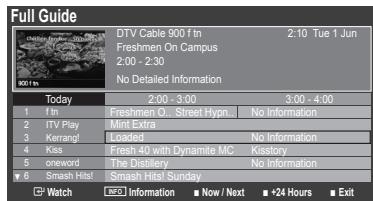
■ Add to Favourite / Delete from Favourite
Select All/Deselect All
Backlight / Contrast / Brightness / Sharpness / Colour / Tint (G/R)
Coarse/Fine
Namen prilagajanja kakovosti slike je odstraniti ali zmanjšati šum slike. Če šum ni odstranjen s fino naravnavo, čim bolje nastavite frekvenco (Coarse) in znova fino naravnajte. Po zmanjšanju šumov znova nastavite sliko tako, da bo poravnana na sredino zaslona.
PC Position
☐ SRS TruSurround HD → Off / On
☐ Speaker Select → External Speaker / TV Speaker
MHEG (Multimedia and Hypermedia Information Coding Experts Group)
- Primary Audio Language / Secondary Audio Language / Primary Subtitle Language / Secondary Subtitle Language / Primary Teletext Language / Secondary Teletext Language
Child Lock → Off / On
Energy Saving → Off / Low / Medium / High / Picture Off / Auto
Melody → Off / Low / Medium / High
TV / Ext. / AV / Component / PC / HDMI1/DVI / HDMI2 / HDMI3
Sound Test
Standby Mode Upgrade
natural_image
Technical line drawing of a rectangular panel with mounting base and internal components (no text or symbols)
natural_image
Line drawing of a computer monitor with two connectors and a stand (no text or symbols)
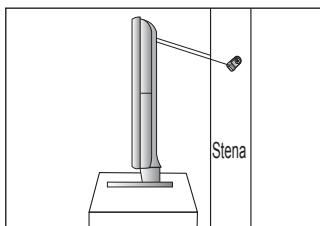
① DIGITAL AUDIO OUT (OPTICAL)
⑤ AUDIO OUT [R-AUDIO-L]
natural_image
Mechanical assembly diagram showing a lever mechanism with no text or symbols
Menülere bakış
Monitöre Bakış
☐ SRS TruSurround HD → Kpalı / Açık
MHEG (Multimedia and Hypermedia Information Coding Experts Group)
natural_image
Technical line drawing of a rectangular electronic device with mounting base and internal components (no text or symbols)
natural_image
Line drawing of a flat-screen monitor with two small icons on the screen (no text or symbols)