EasyManual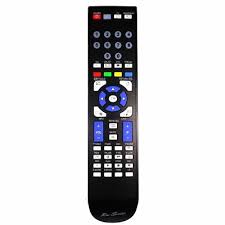
LE22S81BH - TV SAMSUNG - Free user manual and instructions
Find the device manual for free LE22S81BH SAMSUNG in PDF.


User questions about LE22S81BH SAMSUNG
0 question about this device. Answer the ones you know or ask your own.
Ask a new question about this device
Download the instructions for your TV in PDF format for free! Find your manual LE22S81BH - SAMSUNG and take your electronic device back in hand. On this page are published all the documents necessary for the use of your device. LE22S81BH by SAMSUNG.
USER MANUAL LE22S81BH SAMSUNG
LE22S8 Contact SAMSUNG WORLDWIDE If you have any questions or comments relating to Samsung products, please contact the SAMSUNG customer care centre. Customer Care Centre 800-112233 0771-400002 0825-022062 01805-471101 0640-985985 800-194194 015-2197000 0-801-B2BSAM (222726) 808-B2BSAM 0902024-010 0870-2416893 LCD TV installation manual imagine the possibilities Thank you for purchasing this Samsung product. To receive more complete service, please register your product at www.samsung.com/global/register Model Serial No. BN68-01569H-00 01569H-00L07-0523.indb 1 2008-05-23 ¿ÀÈÄ 5:14:24 Precautions When Displaying a Still Image A still image may cause permanent damage to the TV screen.
- Do not display a still image on the LCD panel for more than 2 hours as it can cause screen image retention. This image retention is also known as "screen burn". To avoid such image retention, reduce the degree of brightness and contrast of the screen when displaying a still image.
- Watching the LCD TV in 4:3 format for a long period of time may leave traces of borders displayed on the left, right and center of the screen caused by the difference of light emission on the screen. Playing a DVD or a game console may cause a similar effect to the screen. Damages caused by the above effect are not covered by the Warranty.
- Displaying still images from Video games and PC for longer than a certain period of time may produce partial after-images. To prevent this effect, reduce the ‘brightness’ and ‘contrast’ when displaying still images. © 2008 Samsung Electronics Co., Ltd. All rights reserved. 01569H-00L07-0523.indb 2 2008-05-23 ¿ÀÈÄ 5:14:24 English Contents
CONNECTING AND PREPARING YOUR TV
List of Parts··············································································································································2
Installing the Stand···································································································································2
Installing the Wall Mount Kit·····················································································································2
Viewing the Control Panel························································································································3
Viewing the Connection Panel·················································································································4
Viewing the Remote Control·····················································································································6 Symbol Note English - 1 01569H-00L07-0523.indb 1 2008-05-23 ¿ÀÈÄ 5:14:24 List of Parts Please make sure the following items are included with your LCD TV. If any items are missing, contact your dealer. M4 X L16 M4 X L16 Data Cable Power Cord Stand Screw X4 Stand Owner’s Instructions Remote Control & Batteries (AAA x 2) Safety Guide The stand and stand screw may not be included depending on the model. Installing the Stand
Connect your LCD TV and the stand. ➣ Two or more people should carry the TV. ➣ Make sure to distinguish between the front and back of the stand when assembling them. Fasten two screws at position 1 and then fasten two screw at position 2. ➣ Stand the product up and fasten the screws. If you fasten the screws with the LCD TV placed down, it may lean to one side. ➣ The stand is installed for models with the screen size of 37 inch and above. Installing the Wall Mount Kit Wall mount items (sold separately) allow you to mount the TV on the wall. For detailed information on installing the wall mount, see the instructions provided with the Wall Mount items. Contact a technician for assistance when installing the wall mounted bracket. Samsung Electronics is not responsible for any damage to the product or injury to yourself or others if you elect to install the TV on your own. Do not install your Wall Mount Kit while your TV is turned on. It may result in personal injury due to electric shock.
Remove the stand and cover the bottom hole with a cap and fasten with two screws. English - 01569H-00L07-0523.indb 2 2008-05-23 ¿ÀÈÄ 5:14:25 Viewing the Control Panel The product colour and shape may vary depending on the model. 1 SOURCE Toggles between all the available input sources (TV, Ext., AV, S-Video, Component, PC, HDMI). In the on-screen menu, use this button as you use the ENTER button on the remote control. 2 MENU Press to see an on-screen menu of your TV’s features.
Press to change channels. In the on-screen menu, use the buttons as you use the ▲ and ▼ buttons on the remote control. (Without the Remote Control, you can turn on the TV by using the Channel buttons.) 5 Speakers
Press to decrease or increase the volume. In the on-screen menu, use the buttons as you use the ◄ and ► buttons on the remote control. (Power) Press to turn the TV on and off. Power Indicator Blinks and turns off when the power is on and lights up in stand-by mode. Remote Control Sensor Aim the remote control towards this spot on the TV. English - 01569H-00L07-0523.indb 3 2008-05-23 ¿ÀÈÄ 5:14:25 Viewing the Connection Panel
HDMI/DVI IN
The product colour and shape may vary depending on the model. Whenever you connect an external device to your TV, make sure that power on the unit is turned off. When connecting an external device, match the colour of the connection terminal to the cable. 1 Connecting Set-Top Box, VCR or DVD Connector EXT Input Output Video Audio (L/R) RGB Only TV output is available - Inputs or outputs for external devices, such as VCR, DVD, video game device or video disc players. 2 DATA - Used to support data communication between the TV and the SBB. - The TV jack type is RJ-12.
3 HDMI / DVI IN [R-AUDIO-L]
- Supports connections between HDMI-connection-enabled AV devices (Set-Top Boxes, DVD players) - No additional Audio connection is needed for an HDMI to HDMI connection. - When using an HDMI/DVI cable connection, you must use the HDMI IN / DVI IN jack. ➣ What is HDMI? - “High Definition Multimedia interface” allows the transmission of high definition digital video data and multiple channels of digital audio. - The HDMI/DVI terminal supports DVI connection to an extended device with the appropriate cable (not supplied). The difference between HDMI and DVI is that the HDMI device is smaller in size, has the HDCP (High Bandwidth Digital Copy Protection) coding feature installed, and supports multi - channel digital audio.
4 PC IN [PC] / [AUDIO]
- Connect to the video and audio output jack on your PC. English - 01569H-00L07-0523.indb 4 2008-05-23 ¿ÀÈÄ 5:14:26 5 ANT IN To view television channels correctly, a signal must be received by the set from one of the following sources: - An outdoor aerial / A cable television network / A satellite network 6 Headphones jack - Headphone may be connected to the headphone output on your set. While the head phone is connected, the sound from the built-in speakers will be disabled. 7 Connecting External A/V Devices - Connect RCA or S-Video cable to an appropriate external A/V device such as VCR, DVD or Camcorder. - Connect RCA audio cables to [R-AUDIO-L] on the rear of your set and the other ends to corresponding audio out connectors on the A/V device. 8 SERVICE - Service connection for qualified service engineer. 9 COMPONENT IN - Connect component video cables (optional) to component connector ("PR", "PB", "Y") on the rear of your set and the other ends to corresponding component video out connectors on the DVD. - If you wish to connect both the Set-Top Box and DVD, you should connect the Set-Top Box to the DVD and connect the DVD to component connector ("PR", "PB", "Y") on your set. - The PR, PB and Y connectors on your component devices (DVD) are sometimes labeled Y, B-Y and R-Y or Y, Cb and Cr. - Connect RCA audio cables (optional) to [R-AUDIO-L] on the rear of your set and the other ends to corresponding audio out connectors on the DVD. 0 Kensington Lock (depending on the model) - The Kensington Lock (optional) is a device used to physically fix the system when used in a public place. - If you want to use a locking device, contact the dealer where you purchased the TV. - The location of the kensington Lock may be different depending on its model. English - 01569H-00L07-0523.indb 5 2008-05-23 ¿ÀÈÄ 5:14:26 Viewing the Remote Control 1 Television Standby button 2 Selects the TV mode directly 3 Number buttons for direct channel access 4 One/Two-digit channel selection 5 + : Volume increase : Volume decrease 6 Temporary sound switch-off 7 Use to quickly select frequently used functions. 8 Use to see information on the current broadcast 9 Colour buttons : Use these buttons in the Channel list, etc. ! Displays the Channel List on screen @ Available source selection # Previous channel $ P : Next channel P : Previous channel % Returns to the previous menu ^ Control the cursor in the menu & Exit the on-screen menu
- Picture size selection ( Displays the main on-screen menu ) Selects the HDMI mode directly. a Picture effect selection
Teletext Functions 2 Exit from the teletext display 7 Teletext size selection 8 Teletext reveal 9 Fastext topic selection 0 Alternately select Teletext, Double, or Mix. ! Teletext store @ Teletext mode selection (LIST/FLOF) # Teletext sub page $ P : Teletext next page P : Teletext previous page % Teletext hold & Teletext cancel ( Teletext index TOOLS P.SIZE he performance of the remote control may be affected by bright light. English - 01569H-00L07-0523.indb 6 2008-05-23 ¿ÀÈÄ 5:14:26 This page is intentionally left blank. 01569H-00L07-0523.indb 7 2008-05-23 ¿ÀÈÄ 5:14:26 Installation du support······························································································································2
Installation du support mural····················································································································2
Installation du support
agina successiva $ P<: P Teletext P>: P agina precedente Teletext % Mantieni Teletext & Annulla Teletext ( Indice Teletext Uzaktan Kumanda ve Piller (AAA x 2) TL (Korea Testing Laboratory) 222-13, Guro-Dong, Guro-Gu Seoul, Korea, 152-848 Tel. : +82 2 860 1493 Faks. : +82 2 860 1482 EMC: