
SC-MX20EL - Camcorder SAMSUNG - Free user manual and instructions
Find the device manual for free SC-MX20EL SAMSUNG in PDF.



| Product type | Digital flash memory camcorder |
| Brand | SAMSUNG |
| Model | SC-MX20EL (also SC-MX20, SC-MX20B, SC-MX20H, SC-MX20L, SC-MX20R, SC-MX20C, SC-MX20CH) |
| Power | Rechargeable battery pack (IA-BP85ST) and AC adapter |
| Storage media | Internal memory (C and CH models) and memory card (type not specified) |
| Display | LCD (Liquid Crystal Display) |
| Zoom | Optical and digital zoom lever (W/T) |
| Microphone | Built-in microphone |
| Speaker | Built-in speaker |
| Connections | USB port, AV (video/audio) port, DC input, charging cradle connector |
| Included software | CyberLink MediaShow4 (video editing software) |
| Included accessories | Battery pack, AC adapter, USB cable, AV cable, installation CD, quick start guide; charging cradle, case and bag optional |
| Main functions | Video recording, playback, Easy mode (EASYQ), LCD equalizer, iCHECK |
| Repairability and spare parts | Parts and accessories available from Samsung dealers and service centers |
| General information | PDF user manual on CD, printed quick start guide included |
Frequently Asked Questions - SC-MX20EL SAMSUNG
User questions about SC-MX20EL SAMSUNG
0 question about this device. Answer the ones you know or ask your own.
Ask a new question about this device
Download the instructions for your Camcorder in PDF format for free! Find your manual SC-MX20EL - SAMSUNG and take your electronic device back in hand. On this page are published all the documents necessary for the use of your device. SC-MX20EL by SAMSUNG.
USER MANUAL SC-MX20EL SAMSUNG
Memory Camcorder quick start guide
SC-MX20
SC-MX20B
SC-MX20H
SC-MX20L
SC-MX20R
SC-MX20C
SC-MX20CH
SC-MX20E
SC-MX20EL
SC-MX20ER
- Your memory camcorder comes with CD manual and Quick start guide(printed). For more detailed instructions, refer to the user manual(PDF) provided on the CD.
imagine the possibilities
Thank you for purchasing this Samsung product.
To receive more complete service, please
register your product at
www.samsung.com/global/register
getting to know your memory camcorder
Your new memory camcorder comes with the following accessories. If any of these items is missing from your box, call Samsung's Customer Care Center.
The exact shape of each item may vary by model.

Battery pack
(IA-BP85ST)
AD43-00180A
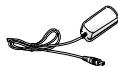
AC power adaptor
(AA-E9 type)
AD44-00116B

Audio/Video Cable
AD39-00155A
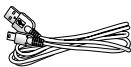
USB Cable
AD39-00153A

Software CD
AD46-00192A

User manual CD
AD46-00192B

Quick start guide
AD68-03076B
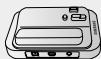
Cradle*
AD97-16073A

Pouch*
AD69-00932A

Carrying Case*
AD69-00929A

The contents can vary depending on the sales region.
- Parts and accessories are available at your local Samsung dealer and service center.
The memory card is not included.
- You have to connect the AC power adaptor to the cradle when connecting external devices using the cradle.
- Your camcorder includes user manual CD and quick start guide(printed). For more detailed instructions, refer to the user manual (PDF) on the provided CD.
* (Option) : This is an optional accessory. To buy this one, contact your nearest Samsung dealer.
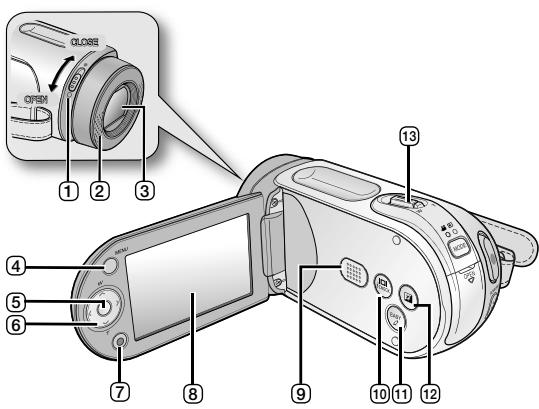
Lens open/close switch
(2) Internal microphone
3 Lens
4 MENU button
OK button
6 Control button ( / / / / W / T)
⑦ Recording start/stop button
⑧ LCD screen
9 Built-in speaker
10 10/ iCHECK button
EASYQbutton
12 LCD ENHANCED button
13 Zoom lever (W/T)
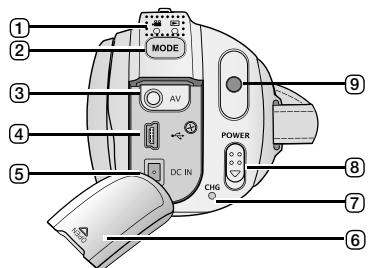
1 MODE indicator
(Record 0 /Player(
2 MODE button
3 AV cable jack
④ USB jack (USB)
(5) DC IN jack (DC IN)
6 Jack cover
7 Charging indicator (CHG)
8 POWER switch

Recording start/stop button

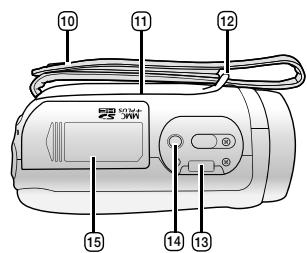
Grip belt

Swivel Hand-grip

Grip belt hook

Cradle receptacle

Tripod receptacle

Memory card/ Battery slot cover
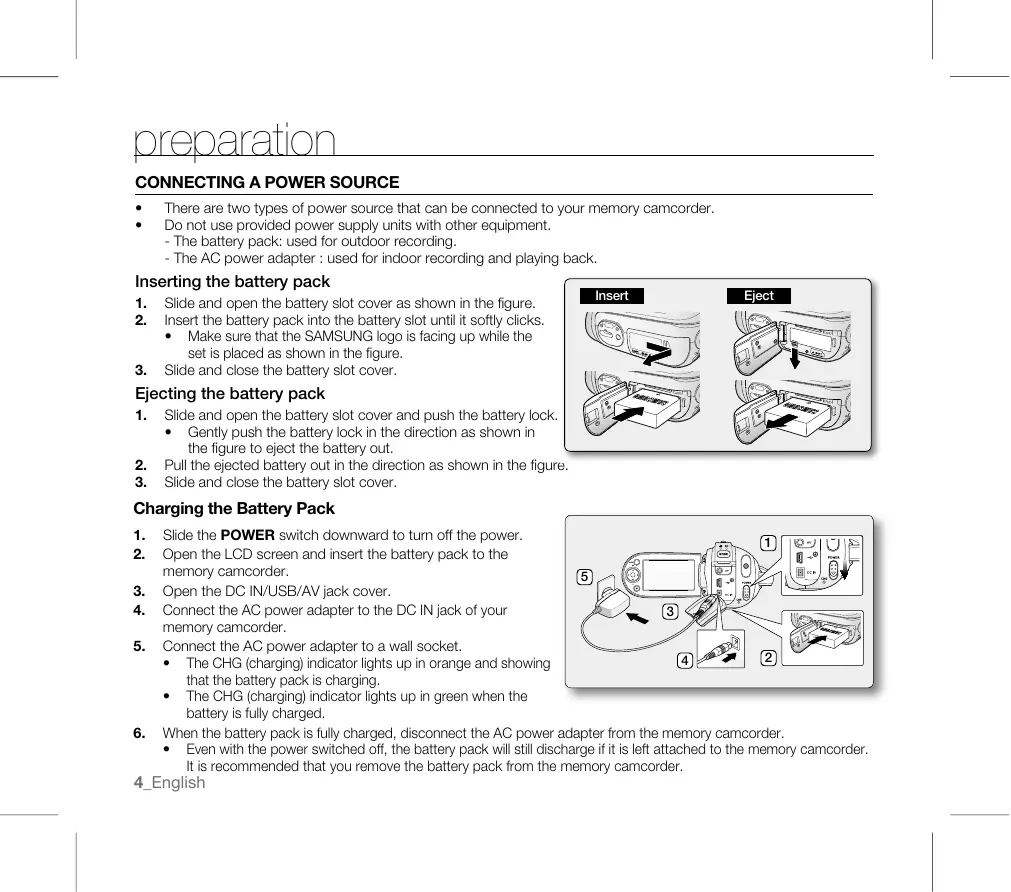
CONNECTING A POWER SOURCE
There are two types of power source that can be connected to your memory camcorder.
- Do not use provided power supply units with other equipment.
- The battery pack: used for outdoor recording.
- The AC power adapter : used for indoor recording and playing back.
Inserting the battery pack
- Slide and open the battery slot cover as shown in the figure.
-
Insert the battery pack into the battery slot until it softly clicks.
-
Make sure that the SAMSUNG logo is facing up while the set is placed as shown in the figure.
- Slide and close the battery slot cover.
Ejecting the battery pack
-
Slide and open the battery slot cover and push the battery lock.
-
Gently push the battery lock in the direction as shown in the figure to eject the battery out.
-
Pull the ejected battery out in the direction as shown in the figure.
- Slide and close the battery slot cover.
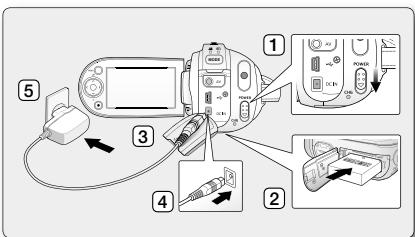
Charging the Battery Pack
-
Connect the AC power adapter to a wall socket.
-
Slide the POWER switch downward to turn off the power.
- Open the LCD screen and insert the battery pack to the memory camcorder.
- Open the DC IN/USB/AV jack cover.
-
Connect the AC power adapter to the DC IN jack of your memory camcorder.
-
The CHG (charging) indicator lights up in orange and showing that the battery pack is charging.
-
The CHG (charging) indicator lights up in green when the battery is fully charged.
-
When the battery pack is fully charged, disconnect the AC power adapter from the memory camcorder.
- Even with the power switched off, the battery pack will still discharge if it is left attached to the memory camcorder. It is recommended that you remove the battery pack from the memory camcorder.
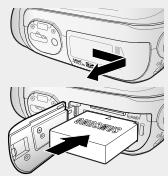
Insert
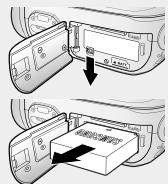
Eject
about the storage media
SELECTING THE STORAGE MEDIA (SC-MX20C/MX20CH/MX20E/MX20EL/MX20ER ONLY)
- You can record on the built-in memory or a memory card, so you should select the desired storage media before starting recording or playback.
-
Before inserting or ejecting the memory card, turn the memory camcorder off.
-
Press the MENU button.
The menu list will appear.
- Press the Control button ( / ) to select "Settings".
- Press the Control button ( / ) to select "Storage", then press the OK button.
- Press the Control button (A/V) to select "Memory" or "Card", then press the OK button.
"Memory": When using the built-in memory.
"Card": When using the memory card.
- Press the MENU button to exit.
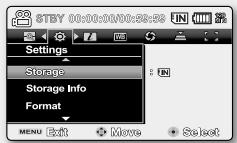
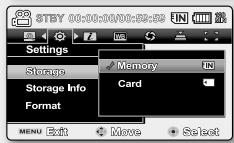
INSERTING / EJECTING THE MEMORY CARD
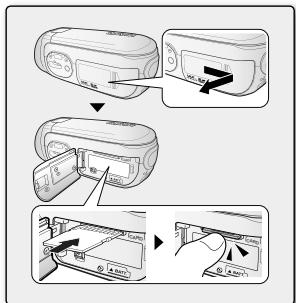
Inserting a memory card
- Turn the memory camcorder off.
- Slide the memory card slot cover to the right to open the cover.
- Insert the memory card into the memory card slot in the direction of the arrow shown in the figure until it softly clicks.
- Close the cover.
Ejecting a memory card
- Turn the memory camcorder off.
- Slide the memory card slot cover to the right to open the cover.
- Slightly push the memory card inwards to pop it out.
- Pull the memory card out of the memory card slot and close the cover.
RECORDING MOVIE IMAGES
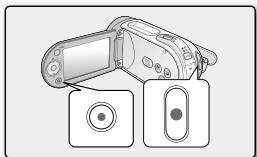
Memory camcorder provides two Recording start/stop buttons.
One is on the rear side of the camcorder and the other one is on the LCD panel.
Select the Recording start/ stop button according to the use.
-
Turn the memory camcorder on.
-
Connect a power source to the memory camcorder.
(A battery pack or an AC power adapter) - Slide the POWER switch downward to turn on the power.
- Set the appropriate storage media. (SC-MX20C/MX20CH/MX20E/MX20EL/MX20ER only) (If you want to record on a memory card, insert the memory card.)
-
Set the Lens open/close switch to open (O). - page 3
-
Check the subject on the LCD screen.
-
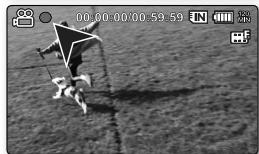
Press the Recording start/stop button.
The recording indicator () will display and recording will start.
- Pressing the Recording start/stop button again during recording will set the memory camcorder to recording pause mode.
- When recording is finished, turn the memory camcorder off.
playback
MOVIE IMAGES PLAYBACK
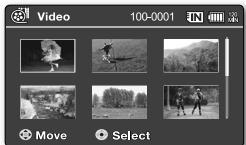
You can find a desired movie image quickly using thumbnail index view.
-
Turn the memory camcorder on.
-
Slide the POWER switch downward to turn on the power.
-
Set the appropriate storage media. (SC-MX20C/MX20CH/MX20E/MX20EL/MX20ER only) (If you want to record on a memory card, insert the memory card.)
-
Open the LCD screen.
-
Adjust brightness or contrast of the LCD screen.
-
Press the MODE button.
-
Switches to Movie Play mode (▶).
The recorded movie images are displayed in thumbnail index view. -
Use the Control button ( / / / ) to select the desired movie images, and the press the OK button.
-
Shortcut menu for playback will be displayed for a while.
The selected movie images are played according to Play Option setting. - To stop playback and return to the thumbnail index view, move the zoom lever.
INSTALLING THE CYBERLINK MEDIASHOW4
CyberLink MediaShow4 is a software for easy of editing MPEG, AVI, and other video files, still images, and other contents for creating a movie.
Before you begin:
Quit any other software you are using. (Check that there are no other application icons on the status bar.)
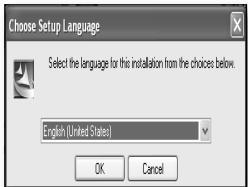

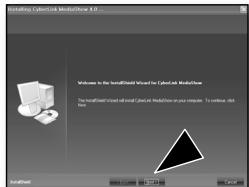

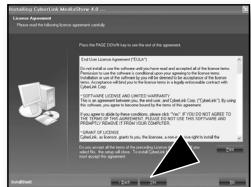

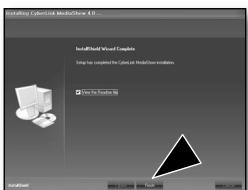

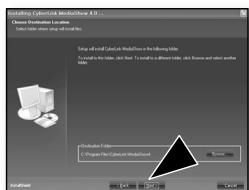

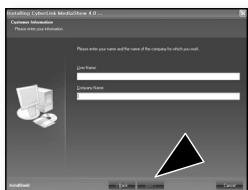

If you perform installation of software that is already installed, uninstallation will start.
In this case, perform the installation again after uninstallation is finished.
- This manual only refers to software installation and PC connection.
For more details on software, refer to the "Online help/Read me" on the CyberLink MediaShow4 CD.
CONNECTING THE USB CABLE
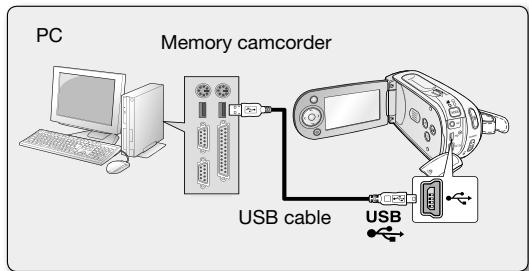
Connect the USB cable to copy movie images in a recording medium to the PC and vice versa. When the USB cable is connected in Record / Play mode, the product will switch to USB mode immediately.
- Connect the memory camcorder to the PC with a USB cable.

- Don't apply excessive force when inserting or extracting a USB jack.
- Insert a USB jack after checking the direction of its insertion is correct.
It is recommended to use the AC adapter as the power supply instead of the battery pack. - When the USB cable is connected, turning on or off the camcorder causes malfunctions of the PC.
connecting to other devices
CONNECTING TO A TV
- To playback your recordings, the television must be NTSC compatible.
- We recommend that you use the AC power adaptor as the power source for the memory camcorder.
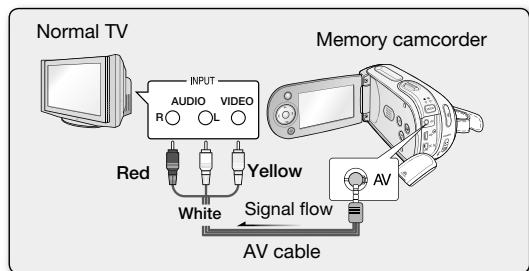
Use the provided AV cable to connect the memory camcorder to a TV as follows:
- Connect the end of the AV cable with the single plug to the AV jack of the memory camcorder.
- Connect the other end with video (yellow) and left (white) / right (red) audio cables to the TV.
Caméscope à mémoire

CD do manual doeware

Guia de iniciarado
Suporte*

Bolsa*

de transporte*
