
PL101 - Camera SAMSUNG - Free user manual and instructions
Find the device manual for free PL101 SAMSUNG in PDF.



| Product Type | Digital Camera |
| Brand | Samsung |
| Model | PL101 |
| Dimensions (W x H x D) | 95.7 x 56 x 20.3 mm |
| Weight | 111 g (without battery or memory card) |
| Power Supply | Rechargeable lithium-ion battery BP70A, 740 mAh; AC adapter |
| Sensor Type | 1/2.33" CCD (approx. 7.79 mm) |
| Effective Resolution | 12.2 megapixels |
| Lens | Samsung f=6.3-18.9 mm (35-105 mm equivalent), aperture F3.0 (W)-F5.6 (T) |
| Main Display | 2.7" QVGA (230,000 pixels) |
| Front Display | 1.5" TFT LCD (61,000 pixels) |
| Focus | Auto TTL (multi, center, face detection, tracking) |
| Shutter Speed | Auto 1/8-1/1500 s; Program 1-1/1500 s; Night 8-1/1500 s; Fireworks 2 s |
| Internal Storage | Approx. 5 MB |
| External Storage | SD card (up to 4 GB guaranteed) or SDHC (up to 8 GB guaranteed) |
| Connectivity | USB and Audio/Video port (compatible with USB or A/V cable) |
| Main Functions | Auto mode, Program, Night, Fireworks, self-portrait (front display), video |
| Maintenance and Cleaning | Avoid dust and moisture; clean memory card with a soft cloth |
| Safety | Do not use near gas/explosives; keep out of reach of children; avoid flash too close to eyes |
| Spare Parts | Battery BP70A, charger, USB cable, A/V cable, case (optional) |
Frequently Asked Questions - PL101 SAMSUNG
User questions about PL101 SAMSUNG
0 question about this device. Answer the ones you know or ask your own.
Ask a new question about this device
Download the instructions for your Camera in PDF format for free! Find your manual PL101 - SAMSUNG and take your electronic device back in hand. On this page are published all the documents necessary for the use of your device. PL101 by SAMSUNG.
USER MANUAL PL101 SAMSUNG
For more information, refer to the User Manual included on the supplied CD-ROM.
This Quick Start Manual has been specially designed to guide you through the basic functions and features of your device. Please read the Quick Start Manual and User Manual carefully to ensure safe and correct use.
ENG/GER/FRE/SPA/ITA/DUT/POR
Contents

Health and safety information 2
Camera layout 4 13
Setting up your camera 5 12
Unpacking 5
Inserting the battery and memory card 6
Charging the battery 6
Turning on your camera. 7
Selecting options 7
Capturing photos or videos 8 27
Playing files 9 55
Transferring files to a PC (Windows) 10
Specifications 11 91
Health and safety information

Warnings
Do not use your camera near flammable or explosive gases and liquids
Do not use your camera near fuels, combustibles, or flammable chemicals. Do not store or carry flammable liquids, gases, or explosive materials in the same compartment as the camera or its accessories.
Keep your camera away from small children and pets
Keep your camera and all accessories out of the reach of small children and animals. Small parts may cause choking or serious injury if swallowed. Moving parts and accessories may present physical dangers as well.
Prevent damage to subjects' eyesight
Do not use the flash in close proximity (closer than 1 m/3 ft) to people or animals. Using the flash too close to your subject's eyes can cause temporary or permanent damage.
Handle and dispose of batteries and chargers with care
- Use only Samsung-approved batteries and chargers. Incompatible batteries and chargers can cause serious injuries or damage to your camera.
- Never place batteries or cameras on or in heating devices, such as microwave ovens, stoves, or radiators. Batteries may explode when overheated.

Cautions
Handle and store your camera carefully and sensibly
- Do not allow your camera to get wet—liquids can cause serious damage. Do not handle your camera with wet hands. Water damage to your camera can void your manufacturer's warranty.
-
Avoid using or storing your camera in dusty, dirty, humid, or poorly-ventilated areas to prevent damage to moving parts and internal components.
-
Exercise caution when connecting cables or adapters and installing batteries and memory cards. Forcing the connectors, improperly connecting cables, or improperly installing batteries and memory cards can damage ports, connectors, and accessories.
- Do not insert foreign objects into any of your camera's compartments, slots, or access points. This type of damage may not be covered by your warranty.
Protect batteries, chargers, and memory cards from damage
- Avoid exposing batteries or memory cards to very cold or very hot temperatures (below 0^ / 32^ or above 40^ / 104^ ). Extreme temperatures can reduce the charging capacity of your batteries and can cause memory cards to malfunction.
- Prevent memory cards from making contact with liquids, dirt, or foreign substances. If dirty, wipe the memory card clean with a soft cloth before inserting in your camera.
Camera layout
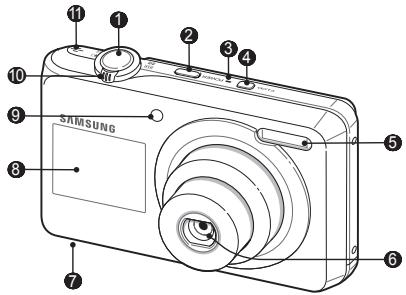
1 Shutter button
2 POWER button
3 Microphone
4 Front LCD button
⑤ Flash
6 Lens
Battery chamber cover
8 Front display
9 AF-assist light/timer lamp
10 Zoom button
1 Speaker
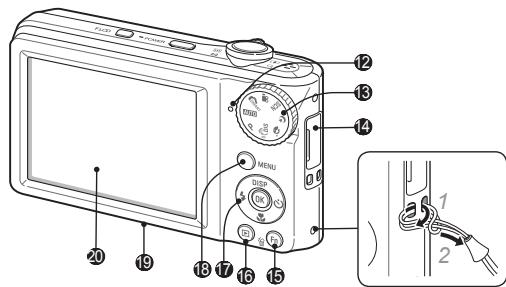
12 Status lamp
18 Mode dial
14 USB and A/V port (Accepts USB cable or A/V cable)
15 Function button
16 Playback button
Navigation button/OK button
18 MENU button
19 Tripod mount
20 Main display
Setting up your camera
Unpacking
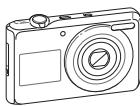
Camera
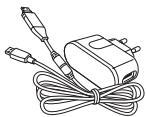
AC adapter/USB cable
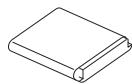
Rechargeable battery
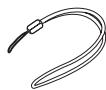
Strap
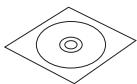
Software CD-ROM (User manual included)

Quick Start Manual
Optional accessories
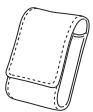
Camera case
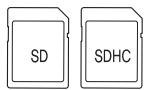
Memory card
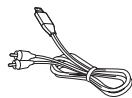
AV cable
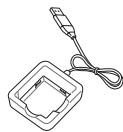
Battery charger

English
Setting up your camera
Inserting the battery and memory card
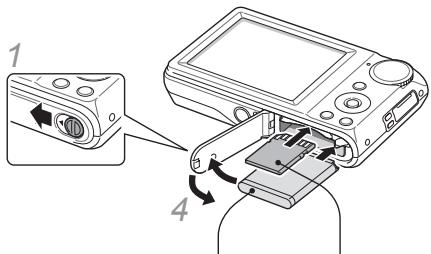
3 With the Samsung logo facing up
2 With the gold-colored contacts facing up
Removing the battery
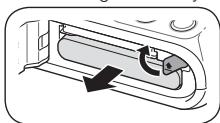
Removing the memory card
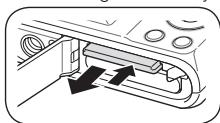
Push gently until the card disengages from the camera and then pull it out of the slot.
Charging the battery
Before using the camera for the first time, you must charge the battery.
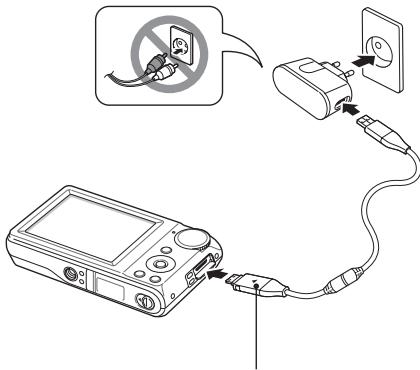
Indicator light
Red:Charging
- Green: Fully charged
Turning on your camera
1 Press [POWER].
- The initial setup screen appears when you turn on your camera for the first time.
![SAMSUNG PL101 - Press [POWER]. - 1](/content/2024/11/23873/images/0700f9efbe18e0c5690642611698ca1ba4579906f7be0f2aa1ab6bf13e243fe3.jpg)
2 Select a language, set the date and time, and select a time zone.
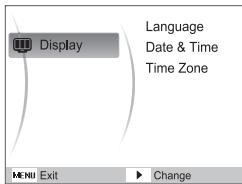
Selecting options
1 In Shooting mode, press [MENU].
2 Use the navigation buttons to scroll to an option or menu.
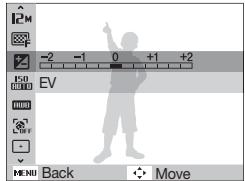
- To move left or right, press [F] or [O].
- To move up or down, press [DISP] or [].
3 Press [OK] to confirm the highlighted option or menu.
- Press [MENU] again to go back to the previous menu.
![SAMSUNG PL101 - Press [OK] to confirm the highlighted option or menu. - 1](/content/2024/11/23873/images/67eb3a2d6756c7532583d5d624a4a00206e5912486c3a7b9a0f74ece336b3d05.jpg)
Capturing photos or videos
Taking a photo
1 Rotate the mode dial to AUTO.
2 Align your subject in the frame.
3 Press [Shutter] halfway down to focus automatically.
- A green frame means the subject in focus.
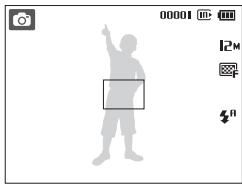
4 Press [Shutter] all the way down to take the photo.
Taking a photo of yourself using the front display
The front display will help you take self-portraits.
1 In Shooting mode, press [Front LCD] once.
- The front display turns on in the Self-portrait mode.
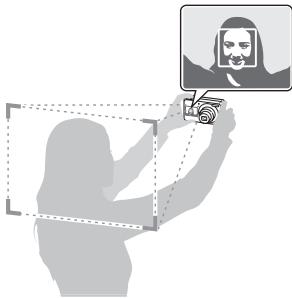
2 Press [Shutter] halfway down to focus.
3 Press [Shutter] all the way down to take the photo.
Recording a video
1 Rotate the mode dial to
2 Align your subject in the frame.
3 Press [Shutter].
- Press [OK] to pause or resume.
4 Press [Shutter] again to stop the recording.

Number of photos by resolution (for 1 GB SD)
| Resolution | Super Fine | Fine | Normal | |
| 12M | 4000 X 3000 | 147 | 284 | 403 |
| 10M | 3984 X 2656 | 167 | 313 | 441 |
| 9M | 3840 X 2160 | 202 | 367 | 528 |
| 8M | 3264 X 2448 | 211 | 374 | 537 |
| 5M | 2560 X 1920 | 339 | 566 | 792 |
| 3M | 2048 X 1536 | 510 | 802 | 1,065 |
| 2M | 1920 X 1080 | 735 | 1,144 | 1,437 |
| 1M | 1024 X 768 | 1,287 | 1,670 | 1,872 |
These figures are measured under Samsung's standard conditions and may vary depending on shooting conditions and camera settings.
Playing files
Viewing photos
1 Press [O].
2 Press [ ] or [ ] to scroll through files.
- Press and hold to scroll through files quickly.
Viewing videos
1 Press [□].
2 Press [OK].
3 Use the following buttons to control playback.
| [+] | Scan backward |
| [OK] | Pause or resume playback |
| [?] | Scan forward |
| [Zoom] left or right | Adjust the volume level |
Transferring files to a PC (Windows)
1 Connect the camera to your computer with the USB cable.
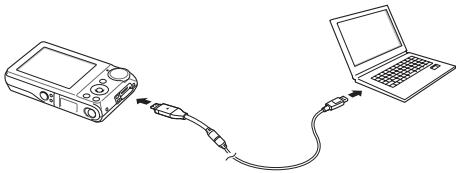
2 Turn on the camera.
- The computer recognizes the camera automatically.
- For Windows Vista, select Run Installer.exe from the AutoPlay window.
3 Select a folder on your computer to save new files.
- If your camera has no new files, the pop-up window for saving new files will not appear.
4 Select Yes.
- New files will be transferred to your computer. You can now use the Intelli-studio program.


Note
About Intelli-studio
Intelli-studio is a program that allows you to play back and edit files. You can also upload files to websites, such as Flickr or YouTube.
Specifications
| Image sensor | • Type: 1/2.33" (approx. 7.79 mm) CCD • Effective pixels: approx. 12.2 mega-pixels • Total pixels: approx. 12.4 mega-pixels |
| Lens | • Focal length: Samsung lens f = 6.3 - 18.9 mm (35 mm film equivalent: 35 - 105 mm) • F-stop range: F3.0 (W) - F5.6 (T) |
| Display | • Main Display: 2.7" (approx. 6.9 cm) QVGA (230 K) • Front Display: 1.5" (approx. 3.8 cm) 61 K TFT LCD |
| Focusing | TTL auto focus (Multi AF, Center AF, Face Detection AF, Tracking AF) |
| Shutter speed | • Auto: 1/8 - 1/1,500 sec. • Program: 1 - 1/1,500 sec. • Night: 8 - 1/1,500 sec. • Fireworks: 2 sec. |
| Storage | • Internal memory: approx. 5 MB • External memory (Optional): SD card (up to 4 GB guaranteed), SDHC card (up to 8 GB guaranteed) Internal memory capacity may not match these specifications. |
| DC power input connector | 20 pin |
| Rechargeable battery | Lithium-ion battery (BP70A, 740 mAh) |
| Dimensions (W x H x D) | 95.7 x 56 x 20.3 mm |
| Weight | 111 g (without battery and memory card) |
| Operating temperature | 0 - 40°C |
| Operating humidity | 5 - 85 % |
Inhalt

Info zu Intelli-studio
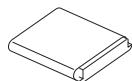
Batterie rechargeable
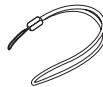
Dragonne
Specifications 11 91
NL-2
Please refer to the warranty that came with your product or visit our website http://www.samsungimaging.com/ for after-sales service or inquiries.


AD68-04782A (1.0)