 EasyManual
SF4303WMCX - Microwaves SMEG - Free user manual and instructions
Find the device manual for free SF4303WMCX SMEG in PDF.


User questions about SF4303WMCX SMEG
0 question about this device. Answer the ones you know or ask your own.
Ask a new question about this device
Download the instructions for your Microwaves in PDF format for free! Find your manual SF4303WMCX - SMEG and take your electronic device back in hand. On this page are published all the documents necessary for the use of your device. SF4303WMCX by SMEG.
USER MANUAL SF4303WMCX SMEG
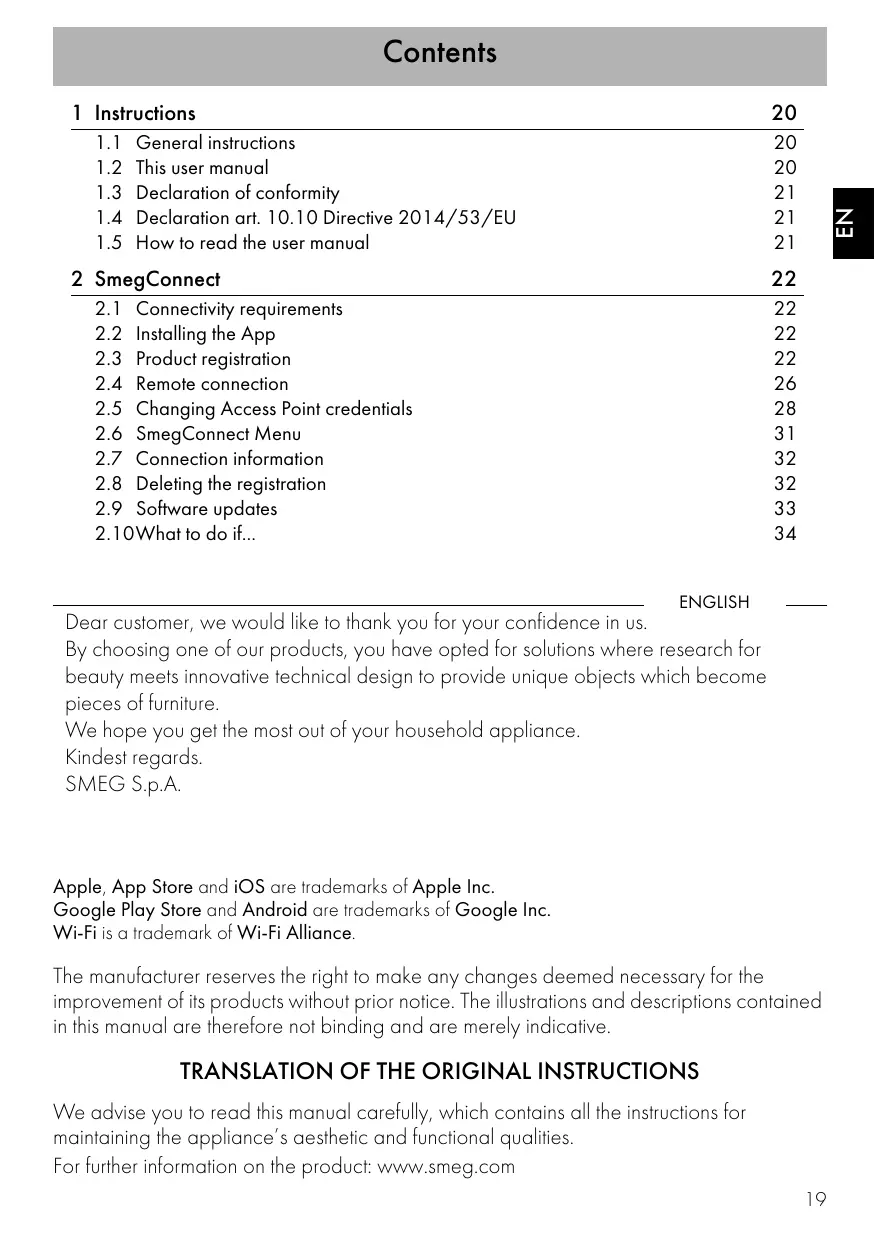
General instructions This user manual Declaration of conformity Declaration art. 10.10 Directive 2014/53/EU How to read the user manual
2.1 Connectivity requirements
2.2 Installing the App
2.3 Product registration
2.4 Remote connection
2.5 Changing Access Point credentials
2.6 SmegConnect Menu
2.7 Connection information
2.8 Deleting the registration
customer, we would like to thank you for your confidence in us. By choosing one of our products, you have opted for solutions where research for beauty meets innovative technical design to provide unique objects which become pieces of furniture. We hope you get the most out of your household appliance. Kindest regards. SMEG S.p.A.
Apple, App Store and iOS are trademarks of Apple Inc. Google Play Store and Android are trademarks of Google Inc. Wi-Fi is a trademark of Wi-Fi Alliance. The manufacturer reserves the right to make any changes deemed necessary for the improvement of its products without prior notice. The illustrations and descriptions contained in this manual are therefore not binding and are merely indicative.
TRANSLATION OF THE ORIGINAL INSTRUCTIONS
We advise you to read this manual carefully, which contains all the instructions for maintaining the appliance’s aesthetic and functional qualities. For further information on the product: www.smeg.com
Instructions 1 Instructions
1.1 General instructions
- In order to be used the App requires a Wi-Fi network with an Internet router, via which the appliance and the mobile device are connected.
- If the signal is too weak, install a Wi-Fi repeater close to the appliance.
- When outside the range of the Wi-Fi network, it is assumed that a data connection will be available for the mobile device in order for the App to be used. WARNING: depending on your mobile network operator contract, additional costs may be incurred.
- The appliance can operate offline as a “non-connected” electrical domestic appliance but cannot be controlled via the App when the Wi-Fi or data connection is disabled.
- For safety reasons and in compliance with current legislation, some functions cannot be activated remotely.
- In compliance with the provisions regarding electromagnetic compatibility, the appliance belongs to group 2 and class B (EN 55011).
- This appliance complies with the current standards and directives regarding safety and electromagnetic compatibility. However, it is recommended that people who have pacemakers fitted, maintain a minimum distance of 20-30 cm between the pacemaker and the device when it is in operation. Contact the pacemaker manufacturer for further information.
- For safety reasons and in compliance with current legislation, Microwave, Combined microwave, Grill, Vapor Clean and Pyrolytic functions (where available) can be set but not activated remotely.
1.2 This user manual
This user manual is an integral part of the appliance and must therefore be kept in its entirety and within the user’s reach for the whole working life of the appliance. Read this user manual carefully before using the appliance.
1.3 Declaration of conformity
The manufacturer, SMEG, declares that the following types of radio equipment:
SF4303WMCX - SF4303WVCPX
SF4104WVCPN - SF4104WVCPS
SF4604WVCPNR - SF4604WVCPNX
SFP6604WTPNR - SFP6604WTPNX
SF4106WMCS - SF4106WVCPS
SFP6106WSPS - SFP6106WTPS
SF4606WMCNR - SF4606WMCNX
SF4606WVCPNR - SF4606WVCPNX
SFP6606WTPNR - SFP6606WTPNX
comply with the directive 2014/53/EU.
- Frequency: 2400-2497 MHz.
- Maximum output power: +18.5 dBm.
- The appliance operates in the ISM 2.4 GHz band.
- The maximum stand-by power consumption of the appliance connected to the mains is 2.0 W. The full text of the EU declaration of conformity is available at the following Internet address: www.smeg.com/smegconnect/ direttiva_red
1.4 Declaration art. 10.10
Directive 2014/53/EU This radio equipment is NOT subject to restrictions on putting into service or of existing requirements for authorisation of use in any EU Member State.
1.5 How to read the user manual
This user manual uses the following reading conventions: Instructions General information on this user manual, on safety and final disposal. Use Information on the use of the appliance and its accessories. Information
The appliance is equipped with SmegConnect technology that allows the user to control the appliance via an App on his/her smartphone or tablet computer. For further information, please refer to the booklet provided and / or visit the website www.smeg.com The registration process involves alternating between carrying out operations on the App
2.1 Connectivity requirements
- Smartphone or tablet running iOS version 10.x or later or Android version 5.1 or later.
- Wi-Fi network (2.4 GHz band, WPA2 protected) active and available in the place where the appliance is installed.
- Internet connection.
- Name and password of the home Wi-Fi network or WPS (Wi-Fi Protected Setup) mode available.
2.2 Installing the App
- Download the SmegConnect App to your mobile device - smartphone or tablet computer from the App Store (Apple devices) or Google Play Store (Android devices) and install it.
and on the display of the appliance Make sure that you are close to the appliance.
If the Registration Failed message appears on the display during the registration process, it means that some steps of the procedure were not carried out correctly or it was stopped. The registration procedure can be interrupted by pressing the RETURN button (available only on some screens). Use Creating an account
1. Launch the SmegConnect App.
2. Enter the information required in order to
register. the fields marked with an asterisk “ ” are mandatory.
3. A confirmation e-mail is sent to the
address that has been entered when the registration procedure has been completed.
There is no need to activate the “Connectivity” setting on the appliance beforehand. The procedure starts automatically.
4. Touch the SETTINGS
button (at the bottom right) on the main menu display on the appliance.
8. Select the registration procedure for the
required product. Connecting to the appliance
2. In the following Welcome Username
field, touch Add product.
3. In the following Add product screen,
select the type of product that you wish to connect to (in this case “oven”).
6. Press the CONFIRM button within one
2. Select Proceed with manual
3. Go to the Wi-Fi settings on the mobile
device and select the “smegconnect” network.
4. Enter the password “smeg0001” and
wait for the connection to be established.
5. Go back to the SmegConnect App and
7. Enter the Access Point information:
- Name of the home Wi-Fi network.
- Wi-Fi password. The appliance supports network names (SSID) of up to 24 characters (spaces included) and WPA2 security settings (not WEP or WPA)
8. Touch Next and wait.
9. Wait for the welcome screen to appear.
1. Select Automatic mode (WPS) on the
appliance. The “Registration completed” screen appears on the display of the appliance.
2. Select Proceed with automatic
registration. The Wi-Fi icon (in the information area at the top right) remains on steadily. The product registration procedure has been completed. The SETTINGS menu now appears on the appliance’s display for the remote control to be activated. Make sure that you activate the Remote Control in order to control the appliance via the App.
3. Within two minutes, press the WPS
button on your router.
4. Touch the CONFIRM button
2.4 Remote connection
5. Wait for the welcome screen to appear.
When the Wi-Fi icon on the appliance’s display (in the information area at the top right) remains on steadily, the product registration procedure has been completed. The SETTINGS menu now appears on the appliance’s display for the remote control to be activated. Make sure that you activate the Remote Control in order to control the appliance via the App.
For safety reasons and in compliance with current legislation, some functions can be set, but not activated remotely. Once the appliance has been registered, it can be connected or disconnected from the Internet at any time. The remote connection is only available when the appliance has been registered. The remote connection is already active when the registration procedure has been completed. Remote Control on the other hand is not enabled. Use To connect the appliance: button (at the
enable the Connectivity.
button to Remote Control.
Remote control is only available if the Connectivity is set to On. Remote control can also be enabled by pressing the symbol (at the top right). The symbol changes colour when the remote control is enabled The remote control is disabled in some cases when the door is opened. Depending on the status of the appliance, it is not always possible to start a new function from the App (for example, if it is taking in water it is not possible to start a static function from the App).
7. Touch the CONFIRM
button to activate the remote connection.
It is now possible to control the appliance via your smartphone or tablet computer. Use
2.5 Changing Access Point credentials
The procedure for changing the Access Point credentials can be interrupted by pressing the RETURN button (only available on some screens). To change your Access Point credentials (network name or password):
2. Access the Product Info screen and
button on the main menu display on the appliance.
2. Select Proceed with manual
3. Go to the Wi-Fi settings on the mobile
device and select the “smegconnect” network.
4. Enter the password “smeg0001” and
wait for the connection to be established.
5. Go back to the SmegConnect App and
9. Wait for the welcome screen to appear.
- Name of the home Wi-Fi network (SSID)
- Wi-Fi password (key).
8. Touch Next and wait.
The “Registration completed” screen appears on the display of the appliance. The Wi-Fi icon (in the information area at the top right) remains on steadily, the product registration procedure has been completed. The SETTINGS menu now appears on the appliance’s display for remote control to be activated. Make sure that you activate the Remote Control in order to control the appliance via the App.
Use Automatic mode (WPS) When the Wi-Fi icon on the appliance’s display (in the information area at the top right) remains on steadily, the product registration procedure has been completed.
1. Select Automatic mode (WPS).
2. Select Proceed with pairing.
The SETTINGS menu now appears on the appliance’s display for remote control to be activated. Make sure that you activate the Remote Control in order to control the appliance via the App.
3. Within two minutes, press the WPS
button on you router.
4. Touch the CONFIRM button
6. Go to the Wi-Fi settings on the mobile
device and select the “smegconnect” network.
7. Enter the password “smeg0001” and
wait for the connection to be established.
8. Go back to the SmegConnect App and
5. Wait for the welcome screen to appear.
Use 10.Touch Next on the SmegConnect App. Enter the new Access Point information. When the Wi-Fi icon on the appliance’s display (in the information area at the top right) remains on steadily, the product registration procedure has been completed. The SETTINGS menu now appears on the appliance’s display for the remote control to be activated.
2.6 SmegConnect Menu
This menu allows you to display some technical information about the connection:
- Cloud: Cloud connection status (Not connected/Connected).
- Wi-Fi: access point connection status (not connected or the strength of the signal when connected).
- Access Point SSID: name of the Wi-Fi network.
- IPv4 network address: IPv4 address of the connectivity card.
- IPv6 network address: IPv6 address of the connectivity card.
- MAC address: MAC address of the connectivity card.
- Wi-Fi FW release: Firmware version of the connectivity card.
- SW Compliance ID: software version of the product (RED directive). This information may be useful when requesting assistance. Make sure that you activate the Remote Control in order to control the appliance via the App.
9. Press the CONFIRM button within one
The following information about the connection can be found in the Connectivity and Other Info menu of the App:
- Appliance registration date
- Strength of the Wi-Fi signal
- Mac address of the connectivity card
- Firmware version of the connectivity card
- IPv4 and IPv6 network addresses
- SW Compliance ID (identification of compliance with the essential requirements of the RED directive).
2.8 Deleting the registration
To delete the registration of the appliance Go to the Connectivity and Other Info menu in the product Settings menu of the App and follow the instructions. The product can be registered again following the procedure described above. To delete the user registration
- Go to the My account menu on the App and follow the instructions.
To cancel the registration of the appliance on the product:
1. Touch the SETTINGS
button on the main menu display on the appliance.
button to confirm that you wish to cancel the registration. This procedure only deletes the registration and restores the factory settings for the SmegConnect menu. The appliance does not need to be connected to the cloud to delete the registration on the appliance. The deletion is only local. Remember to delete the registration on the App as well. The product can be registered again following the procedure described above. Use Appliance connectivity software updates are occasionally issued. If the device is connected to the home WLAN network, updates are detected and downloaded automatically. In general, updates are installed automatically, but in some cases, confirmation from the user is required. During the short update procedure with confirmation from the user, it is not possible to use the appliance normally. At the end of the update procedure, the following appears on the display: The appliance can now be used normally.
- Touch the CANCEL button to cancel the update procedure.
- Touch the CONFIRM button to confirm the update procedure. The new software version can be seen in the SmegConnect menu under Wi Fi FW release. During installation, the connectivity service is suspended temporarily (this lasts for approximately 2 minutes).
2.10 What to do if...
During connection, CONNECTION continues to flash on the display (trying to connect...). If this continues for more than one minute, there may be problems with the remote connection:
- Make sure that the Wi-Fi router is switched on.
- Make sure that the Wi-Fi router is not too far away from the appliance.
- Check the Wi-Fi network (2.4 GHz band).
- Check the Internet connection.
- Check to see if a connection might have been previously activated.
- Unplug the appliance and try to connect again later.
- Unplug the appliance from the power socket and then switch it on again after having made sure that it was switched off. The registration or change Access Point procedures do not work:
- Make sure that the Wi-Fi router is switched on.
- Make sure that the Wi-Fi router is not too far away from the appliance.
- Check the Wi-Fi network (2.4 GHz band).
- Make sure that the WAP2 security settings mode is available.
- Make sure that the name of the network does not exceed 32 characters (including spaces).
- Check the Internet connection.
- Check the status of the data connection, if the mobile device uses this to access the Internet.
- Try the procedure again later.
- Unplug the appliance from the power socket and then switch it on again after having made sure that it was switched off. ErrE appears on the display: appliance faulty.
- Contact technical support. ErrF appears on the APP: appliance faulty.
- Contact technical support. For further information see:
- the Advice FAQ Connectivity section on the App
- the web page www.smeg.it/faq/ smegconnect/