
VOLAR HD 2 - USB TV Tuner AVERMEDIA - Free user manual and instructions
Find the device manual for free VOLAR HD 2 AVERMEDIA in PDF.



| Product Type | USB TV Tuner |
| Brand | AVERMEDIA |
| Model | VOLAR HD 2 |
| Main functions | Digital terrestrial television (DTT) reception, recording, timeshift, video playback |
| Connectivity | USB 2.0, TV antenna input |
| Approximate dimensions | 7 x 2 x 1 cm |
| Approximate weight | 20 g |
| Power supply | Via USB port |
| Compatible operating systems | Windows 7, Windows 8.1 |
| Included software | AVerTV 3D (download from AVerMedia website) |
| Supported video resolution | HD up to 1080i |
| TV standards | DVB-T/T2 |
| Care and cleaning | Clean with a soft, dry cloth. Avoid liquids. |
| Safety | Do not expose to moisture or extreme temperatures. Unplug during thunderstorms. |
| Replacement parts and repairability | No replacement parts available. Repair by a professional only. |
| General information | Use with a suitable TV antenna. Driver installation required. |
Frequently Asked Questions - VOLAR HD 2 AVERMEDIA
User questions about VOLAR HD 2 AVERMEDIA
0 question about this device. Answer the ones you know or ask your own.
Ask a new question about this device
Download the instructions for your USB TV Tuner in PDF format for free! Find your manual VOLAR HD 2 - AVERMEDIA and take your electronic device back in hand. On this page are published all the documents necessary for the use of your device. VOLAR HD 2 by AVERMEDIA.
USER MANUAL VOLAR HD 2 AVERMEDIA
All the screen shots in this documentation are only example images. The images may vary depending on the product and software version. Information presented in this documentation has been carefully checked for reliability; however, no responsibility is assumed for inaccuracies. The information contained in this documentation is subject to change without notice.
Copyright
©2015 by AVerMedia Technologies, Inc. All rights reserved. No part of this publication, in whole or in part, may be reproduced, transmitted, transcribed, altered or translated into any language in any form by any means without the written permission of AVerMedia Technologies, Inc. Information and specification contained in this manual are subject to change without notice and do not represent a commitment on the part of AVerMedia. For more information, please refer to www.avermedia.com. "AVerMedia" and "AVerTV" are trademarks or registered trademarks of AVerMedia Technologies, Inc. The pictures contained in this manual are provided for reference purposes only. Made in Taiwan (Expect Accessories).
Headquarters
Address No.135, Jian 1st Rd., Zhonghe Dist., New Taipei City 23585, Taiwan
Website www.avermedia.com
Telephone +886-2-2226-3630
Benelux
AVerMedia Technologies Europe
Address Kwartsweg 50, 2665 NN Bleiswijk, The Netherlands
Website www.avermedia.com/Support/
Telephone +31-10-7600-500
v1.0
05/2015
Important Safety Instructions and Disclaimer
WARNING: Failure to follow these safety instructions could result in fire, electric shock, other injury or damage to device or other property, and/or loss of life. AVerMedia is not responsible for damage or injury arising from failure to follow safety instructions relating to the product's use.
General Guidelines and Warning
- Read and follow these instructions.
- Do not use the device on uneven or unstable surfaces.
- Do not use this device in a wet environment or near water.
- Unplug the device before cleaning. Clean only with a dry cloth.
- Use in a well ventilated environment. Do not block any ventilation openings.
- Use the device within the specified temperature range.
- Use power sources within the specified voltage range.
- Do not place heavy objects on the device.
- Do not install near heat sources such as radiators or stoves.
- Do not defeat the safety purposes of the polarized or grounding-type plug.
- Protect the power cord from being walked on or pinched, particularly where the cord connects with plugs or adapters.
- Only use the attachments and accessories specified by the manufacturer.
- Unplug this device during lightning storms or when unused for prolonged time.
- Do not modify or disassemble the device in any way.
Refer all servicing to qualified personnel. - Do not dispose the device as general household waste. Dispose in accordance with local environmental laws.
General Battery Instructions
- Never short circuit the battery terminals.
- Store the batteries in a cool dry place.
- Keep the battery away from children.
- Keep the battery away from fire.
- Stop using or charging the battery immediately if the battery becomes or appears damaged, gives off an odor, becomes discolored or deformed, starts to balloon or swell, leaks.
- Never store or charge the battery inside your car or in extreme temperature. Extreme temperatures might ignite the battery and cause fire.
- Do not dispose of used batteries in domestic waste. Dispose of batteries at special collection points or return to point of sale if applies.
Removable Battery for Remote Control
- Do not charge the batteries.
- Do not mix old with new batteries.
- Do not attempt to disassemble the battery.
- Do not expose the battery to water or rain.
- Use of carbon-zinc battery for remote control is strongly recommended. Use of other types of batteries, such as alkaline or rechargeable (nickel-cadmium) may cause battery current overload or battery leakage and corrosion which can damage the remote control.
- Do not mix different types of batteries: alkaline, standard (carbon-zinc) or rechargeable (nickel-cadmium).
- Remove the batteries during long periods of non-use. Always remove exhausted batteries from the remote control. Battery leakage and corrosion can damage the remote control, dispose of batteries safely.
Battery Warranty
Your battery is guaranteed to be free of manufacturer's defects at the time of purchase. Batteries that have been mishandled, abused, or damaged by the user are not covered under warranty. AVerMedia Technologies, Inc. is not liable for any loss or damage, whether direct or indirect, incidental or consequential, or from any special situation, arising from the use, misuse, or abuse of this product.
Limited Warranty
AVerMedia warrants that the Product is free from defects in material and/or workmanship under normal use.
AVerMedia does not warrant that the operation of the Product will be uninterrupted or error-free. The Limited Warranty does not cover:
The warranty period has expired;
Product that has (a) serial numbers or the warranty sticker that have been removed tampered, damaged or altered, or (b) nonconforming.
Product purchased from an unauthorized distributor;
- Product has been tested, altered, modified, repaired or serviced by someone other than AVerMedia (or its authorized service centers);
- Failure to adhere to user's manual.
Product that are operated in combination with third party's software which may be obtained by user or provided by AVerMedia in the product packaging.
- Product that are operated in combination with third party's device(s)/equipment(s), or the damage is caused from computer viruses
- damage caused by (a) misuse, abuse, neglect, improper use of the physical or operating environment (such as the exterior ruptures, moisture, exposure to temperature, high or low humidity, power overload, placement subject to extreme environments that include a lack of ventilation or stacking, throwing, soaking, etc.) or modification; (b) improper or unauthorized installation, wiring, repair, testing or (c) use of the Product outside AVerMedia published guidelines (d) accident, fire, acts of God or force majeure such as natural disasters, environmental distress, or lightning; power surges; (e)improper maintenance or failure to use the information content in accordance with the Product.
- Other than the above, similar circumstances not attributable to AVerMedia.
Warranty Period
The term of the warranty begins from the date of purchase. Your dated sales receipt showing the date of purchase is the proof of purchase. The warranty period varies by product and is generally 1 or 2 years; consult your original AVerMedia product packaging or user information provided by AVerMedia and local
in-country distributor at the time of purchase for the warranty term specific to your product ("Warranty Period").
How to Obtain Warranty Service - Contact your local in-country distributor
To obtain warranty service, an original or copy of the sales receipt from the original retailer is required.
- A separate warranty may be provided by international distributors. This warranty is provided by the local in-country distributor and this distributor provides local service for your device. Distributor warranties are only valid in the area of intended distribution.
- When a Product or part is replaced, the replacement item becomes your property and the returned product or part becomes the property of AVerMedia or its distributor.
Usage of Personal Contact Information
If you obtain service under this warranty, you agree to and fully authorize AVerMedia or its distributor to store, use, and handle information related to the warranty service, as well as your personal contact information, including but not limited to your name, phone number, address, and email. AVerMedia or its distributor requires this information to perform the necessary service set forth by this warranty. For warranty service and outcome satisfaction, AVerMedia reserves the right to contact you in order to understand the problems that occur during usage of the product; the company may also notify you about any product recalls or safety issues. To achieve satisfactory results, you agree to fully license AVerMedia to transfer his/her customer information to the country or region of the original purchase. This allows AVerMedia to undertake the scope of product or parts maintenance of the warranty service. AVerMedia may also disclose this information under certain legal requirements.
How to provide Warranty Service
Services may vary by geographic region, please contact AVerMedia or its distributor for a response regarding the appropriate services for your Product. The Warranty Service may be provided by the following types.
a. Customer Delivery Service
According to "Customer Delivery Service," the customer must pay for their own product to be delivered to a designated service center for repair or replacement, and all risks are borne by the customer. The
customer may retrieve the product after the repair or replacement process has been completed. Should the customer fail to collect the product, the company will handle the product as it sees fit without incurring any liability.
b. Mail-In Service
According to "Mail-In Service," customers will be required to pay for their own products to be mailed to a designated service center for repair or replacement, and all the risks are borne by the customer. After the product has been repaired or replaced, AVerMedia will send the product back to the customer at their own expense and bear all risks, except where otherwise specified by service dealers.
c. Customers' Two-Way Mail Service
According to "Customers' Two-Way Mail Service," customers will be required to pay for their own product to be delivered to a designated service center for repair or replacement, and all the risks are borne by the customer. After the product has been repaired or replaced, the product will be returned to the customer, for which all delivery and other risks are borne by the customer. If the customer fails to arrange for the return transport of the product, the company will handle the product as it sees fit without incurring any liability.
No On-Site Service
AVerMedia and its distributor do not provide on-site service, including but not limited to, installation, maintenance, instructing, troubleshooting problems, the usage of the product or the warranty service. In the event that calling, updating software, or other means fail to resolve the issue, AVerMedia and its distributor will arrange warranty service as specified under "Scope of Warranty Services (a)."
Limitation of Liability
AVerMedia accepts responsibility for the damage of loss of products only under the following circumstances: when the company has a product in store or when a product is being transported by the company.
If any information contained in the product (including confidential information, proprietary information, or personal information) is missing or revealed, AVerMedia or its service dealers are without responsibility.
Under any circumstances, if the solutions proposed under the warranty have not fulfilled its basic purpose, AVerMedia, its subsidiaries, suppliers, and dealers do not assume any burden of liability: (a)
loss, damage, or disclosure of client data; (b) special damages, incidental damages, punitive damages, or consequential damages, including but not limited to loss of profits, loss of business revenue, goodwill, or anticipated damage to balance loss, and even if the possibility has been raised, whether the claim is based on contract, warranty, negligence, strict liability, or other liability. Under the circumstances that AVerMedia, its subsidiaries, suppliers and distributors assumes responsibility for damages caused by any reason, the amount of its total liability shall not exceed the actual payable of direct damages, nor shall it exceed the amount paid by the customer for the product.
Prejudice to the foregoing restriction does not apply to personal injury or death caused by injury, nor does it apply to the compensation required by law for AVerMedia to assume with regards to real or tangible property.
Where the law does not exclude or limit incidental or consequential damages, the above limitations or exclusions may not apply to the customer.
Other Rights
This warranty provides the customer with specific legal rights. The customer may be subject to jurisdiction in accordance with the relevant laws in his or her district, but the customer is subject to the laws and regulations that govern the country or state where the product was originally purchased. This warranty does not affect any legal rights, including the limitations or exclusions laid out by this contract; instead, the control of the consumer goods sold is governed by the relevant laws or regulations born of consumer rights.
Table of Contents
Package Contents 2
Making Connections 4
Installation 6
English 6
Francais 8
Espanol 10
Portugues 12
Italiano 15
Deutsch 17
Remote Control 20
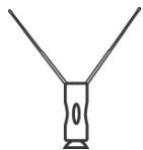
1 Package Contents
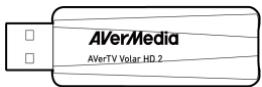
A
C
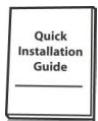
B
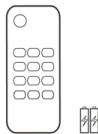
D
| A | B | |
| English | AVerTV Volar HD 2 | Quick Installation Guide |
| François | Guide d'installation rapide | |
| Espanol | Guía de instalación<rápida | |
| Português | Guía de instalación<rápida | |
| Italiano | Guida di installatione rápida | |
| Deutsch | Schnellinstallations-anleitung | |
| C | D | |
| English | High Gain Antenna | Remote Control (Batteries included) |
| François | Antenne à haut gain | Télécommande (Piles incluses) |
| Espanol | Antena de alta ganancia | Mando a Distancia (Pilas incluidas) |
| Portugués | Antena de alto alcance | Controle remoto (Pilhas incluidas) |
| Italiano | Antenna a elevato guadagno | Telecomando (Batterie incluse) |
| Deutsch | Hochempfindliche Antenne | Fernbedienung (einschließlich Batterienien) |
2 | Making Connections
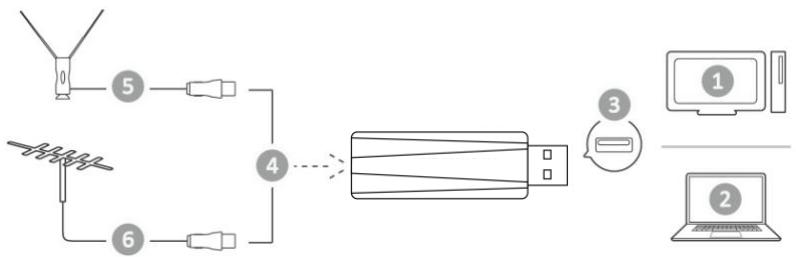
| 1 | 2 | 3 | |
| English | PC | Notebook | USB Port |
| François | Ordinateur de bureau | Ordinateur portable | Port USB |
| Espanol | Organador personal | Organador Portátil | Puerto USB |
| Português | PC | Portálil | Porto USB |
| Italiano | PC | Notebook | Porta USB |
| Deutsch | PC | Notebook | USB-Anschluß |
| 4 | 5 | 6 | |
| English | OR | High Gain Antenna | TV Antenna (75Ω) |
| Français | OU | Antenne à haut gain | Antenne TV |
| Español | O | Antena de alta ganancia | Antena de TV |
| Português | OU | Antena de alto alcance | Antenna de TV |
| Italiano | O | Antenna a elevato guadagno | Antenna TV |
| Deutsch | Oder | Hochempfindliche Antenne | TV Antenne |
3 Installation
English
Installing Drivers and the TV Software Utility
After the device is installed properly, turn on the computer. The system will automatically detect the new device. Simply cancel the wizard, download and install the driver and TV software from our official website at http://www.avermedia.com/support.
Installing Drivers and the Application in Windows® 7 / Windows® 8.1
- Launch software package you downloaded from AVerMedia Official website.
- If the "User Account Control" dialog box appears, select Allow/Yes to continue the process.
- Click Next to continue the installation process.
- Read the license agreement and if you agree to the terms, select "I accept the terms of the license agreement" and then click Next.
- Choose Complete to install all the necessary software, including AVerTV 3D, and Driver. Then click Next. For advanced users, it is recommended that you choose Custom to select the software you want. To choose a different destination folder, click Browse.
- Then click Finish to complete the installation.

- The product does not come with a software DVD decoder. If users can playback DVD or MPEG-2 video files on the computer, there is no need to install a DVD decoder.
However, if the Decoded Error message appears on the screen, please install the compatible DVD decoder via the Windows XP Media Center Edition Partners site.
- The 3DTV functions in AVerTV 3D are not supported under the Windows XP operating system.
Activating the AVerTV 3D Application
Windows 7
To run the application from the Programs menu, choose Start → Programs / All Programs → AVerMedia → AVerTV 3D → AVerTV 3D.
Windows® 8.1
Click on AVerTV 3D on the Metro Start screen or double click on AVerTV 3D on the Desktop.
Uninstalling Application and Drivers
Windows 7
- To remove the installed TV software utility from the system, simply choose Start → All Programs → AVerMedia → AVerTV 3D → Uninstaller.
- When the "User Account Control" dialog box appears, select Allow/Yes.
- Select Remove All → Next → OK → Finish.
Windows® 8.1
- Right click on AVerTV 3D on the Metro Start screen, and click on Uninstall.
- In Programs and Features, select AVerTV 3D → Uninstall/Change.
- Select Remove All → Next → OK → Finish.
Français
1 Switch between available signal sources.
2 Turn on/off the application
3 Display TV in full screen.
4 Switch between available audio modes.
Switch to PVR mode and record the current program or video into your hard drive.
6 Rewind the playback.
7 Advance the playback.
End the playback or recording.
8 End the TimeShift mode and return to real-time TV or Radio mode.
9 Play the last recorded or played file. / Freeze the playback.
10 Display information.
11 Launch the Electronic Program Guide.
12 Volume up/down.
13 Go up or down to the next active channel.
Select a TV channel.
14 Under the 16-Channel preview mode, use 2 4 6 8 to highlight the intended channel.
15 Go to the previously selected channel.
16 Tum on/off the sound.
| François | Espanol | |
| 1 | Commutez entre les sources de signal disponibles. | Cambia entre las fuentes de Signals disponibles. |
| 2 | Activer/Désactiver l'application | Activa/Desactiva la aplicación. |
| 3 | Affichage de la télévision ou de la videoe en plein écran. | Visualización de la television o el video a pantalla completa. |
| 4 | Basculer entre les langues disponibles. | Cambia entre las fuentes de Signals disponibles. |
| 5 | Basculer en mode PVR et enregistrer le programme ou la videoe courante sur votre disque dur. | Altema al modo PVR y grabe el programa o el video actual en el disco duro. |
| 6 | Retour de la lecture. | Retrocede la reproduccion. |
| 7 | Avancer la lecture. | Avanzar la reproduccion. |
| 8 | Terminer la lecture ou l'enregistrement. Terminer le mode Déplacement Temporel et returner en mode télévision ou Radio en temps réel. | Terminar la reproduction o la grabación. Finalizar el modo Time Shift y volver al modo TV o radio en tiempo real. |
| 9 | Lecture du dernier fjichier enregistré ou lu. / Figer la lecture. | Reproduce elultimate archivo grabado o reproducido. / Congela la reproduccion. |
| 10 | Afficher les informations. | Display information. |
| 11 | Lancer le Guide électrique des Programmes. | Va al canal activo anterior o suiviente. |
| 12 | Augmenter/baiser le volume. | Sube/baja el volumen. |
| 13 | Monter ou descendre vers la chaine active suivante. | Avanza o retrocede un canal. |
| 14 | Sélectionner une chaine de télévision Sous le mode d'aperçu 16 chaines, utilisez 2 4 6 8 pourmettre la chaine souhaïée en surbrillance | SeLECTIONAR un canal de TV. Bajo el modo de vista previa de 16 canales, use 2 4 6 8 para resaltar el canal deseado |
| 15 | Aller à la chaine précédemment Sélectionnée. | Se desplaza al elemento anterior de la lista de reproduction. |
| 16 | Activer/Désactiver le son. | Apaga/encienda el sonido. |
| Português | Italiano | |
| 1 | Mudar entre fontes de sinais disponíveis. | Cambia tra le origini del segnale disponibili. |
| 2 | Ligar/desligar a aplicação. | Attivare/disattivare il suono. |
| 3 | Exibir TV ou video emanela inteira. | Visualizza le informazioni. |
| 4 | Alternar entre os lingualas disponveis. | Cambia tra le modalità audio disponibili. |
| 5 | Alternna para o modo PVR e grava o programa ou video atual em seu disco rigido. | Attiva la modalità PVR per registrar il programma o il video corrente nell'unità disco rigido. |
| 6 | Retrocede a reprodução. | Riavolge la riproduzione. |
| 7 | Avança a reprodução. | Va avanti ad intervali. |
| 8 | Para a reprodução ou a gravação. Para o modo TimeShift e returna ao modo TV ou rádio em tempo real. | Termina la riproduzione o la registrazione. Disattiva la modalità Differita e torna alla modalità Radio o TV in tempo reale. |
| 9 | Reproduz o ultimate archival reproducido ou gravado. / Congela a reprodução. | Riproduce l'ultimo file riprodotto o registrato. / Sospende la riproduzione. |
| 10 | Exibe informações. | Visualizza le informazioni. |
| 11 | Inicia o Guía Eletrônicos de Programação (só DVB-T) | Avvia la Guida ai programmi elettronica. (solo DVB-T) |
| 12 | Subir volume / Descer volume. | Volume su / Volume giù |
| 13 | Sobe ou desce para oproximo canal ativo. | Passa al canale attivo successivo versus l'alto o verso il basso |
| 14 | Selecionar um canal de TV. No modo de visualização de 16 canais, use as teclas 2 4 6 8 para realçar o canal desejado. | Selezione un canale TV In modalità di anteprima a 16 canali, utilizeszare 2 4 6 8 per evidenziare il canale desiderato. |
| 15 | Ir ao canal selecionado anteriamente. | Va al canale precedentemente selezionato. |
| 16 | Desligar/ligar o som. | Attivare/disattivare il suono. |
Battery Safety Information
- Store the batteries in a cool dry place.
- Do not dispose of used batteries in domestic waste. Dispos of batteries at special collection points or return to point of sale if applies.
- Remove the batteries during long periods of non-use. Always remove exhausted batteries from the remote control. Battery leakage and corrosion can damage this remote control, dispose of batteries safely.
- Do not mix old and new batteries.
- Do not mix different types of batteries: alkaline, standard (carbon-zinc) or rechargeable (nickel-cadmium).
- Do not dispose of batteries in a fire. The batteries may explode or leak.
- Never short circuit the battery terminals.

Français
European Community Compliance Statement

Class B
This product is herewith confirmed to comply with the requirements set out in the Council Directives on the approximation of the laws of the Member States relating to Electromagnetic Compatibility Directive (EMC) 2014/30/EU.

The mark of crossed-out wheeled bin indicates that this product must not be disposed of with your other household waste. Instead, you need to dispose of the waste equipment by handing it over to a designated collection point for the recycling of waste electrical and electronic equipment. For more information about where to drop off your waste equipment for recycling, please contact your household waste disposal service or the shop where you purchased the product.
Product name: TV Dongle
- Copyright
- Headquarters
- Benelux
- Important Safety Instructions and Disclaimer
- General Guidelines and Warning
- General Battery Instructions
- Removable Battery for Remote Control
- Battery Warranty
- Limited Warranty
- Warranty Period
- How to Obtain Warranty Service - Contact your local in-country distributor
- Usage of Personal Contact Information
- How to provide Warranty Service
- a. Customer Delivery Service
- b. Mail-In Service
- c. Customers' Two-Way Mail Service
- No On-Site Service
- Limitation of Liability
- Other Rights
- Table of Contents
- Package Contents
- | Making Connections
- Installation
- English
- Installing Drivers and the TV Software Utility
- Installing Drivers and the Application in Windows® 7 / Windows® 8.1
- Activating the AVerTV 3D Application
- Windows 7
- Windows® 8.1
- Uninstalling Application and Drivers
- Battery Safety Information
- Français
- European Community Compliance Statement
Brand : AVERMEDIA
Model : VOLAR HD 2
Category : USB TV Tuner