
L-310 - Mobile Phone LOGICOM - Free user manual and instructions
Find the device manual for free L-310 LOGICOM in PDF.


User questions about L-310 LOGICOM
0 question about this device. Answer the ones you know or ask your own.
Ask a new question about this device
Download the instructions for your Mobile Phone in PDF format for free! Find your manual L-310 - LOGICOM and take your electronic device back in hand. On this page are published all the documents necessary for the use of your device. L-310 by LOGICOM.
USER MANUAL L-310 LOGICOM
Type: Feature phone GSM/BT
| DBT (ar 3.1.a) | EN60950-1:2006+A11:2009+A1:2010+A12:2011+A2:2013 |
| CEM (ar 3.1.b) | EN 55022:2010 - EN 55024:2010 |
| EN 61000-3-2:2006+A1 :2009+A2 :2009 - EN 61000-3-3:2008 | |
| EN 301 489-1 V1.9.2 - EN 301 489-3 V1.6.1 - EN 301 489-7 V1.3.1 - EN 301 489-17 V2.2.1 - EN 301 489-24 V1.5.1 | |
| RADIO (ar 3.2) | EN 301 511 V9.0.2 |
| EN 300 328 V1.9.1 | |
| SANTE | EN 62209-1:2006 - EN 62209-2:2010 - EN 50566:2013 - EN 50360:2001/A1:2012 |
| EN 62479:2010 | |
| Acoustique | EN50332-1:2013 - EN50332-2:2013 |
Composer: Appeler le contact
Editor: Editor les informations du contact
UE declaration of conformity
CE
We, LOGICOM SA – 55 rue de Lisbonne – 75008 PARIS, declare that the following EU declaration of conformity is establish in our entire responsibility:
Brand: LOGICOM
Commercial model name : L-310
Type: Feature phone GSM/BT
To which this declaration complies with the essential requirements and other relevant provisions of Directive R&TTE (1999/5/UE) under the following relevant harmonized standards:
| LVD (ar 3.1.a) | EN60950-1:2006+A11:2009+A1:2010+A12:2011+A2:2013 |
| EMC (ar 3.1.b) | EN 55022:2010 - EN 55024:2010 |
| EN 61000-3-2:2006+A1 :2009+A2 :2009 - EN 61000-3-3:2008 | |
| EN 301 489-1 V1.9.2 - EN 301 489-3 V1.6.1 - EN 301 489-7 V1.3.1 - EN 301 489-17 V2.2.1 - EN 301 489-24 V1.5.1 | |
| RADIO (ar 3.2) | EN 301 511 V9.0.2 |
| EN 300 328 V1.9.1 | |
| HEALTH | EN 62209-1:2006 - EN 62209-2:2010 - EN 50566:2013 - EN 50360:2001/A1:2012 |
| EN 62479:2010 | |
| Acoustic | EN50332-1:2013 - EN50332-2:2013 |
And the essential requirements of the following directives and regulations: ErP 2009/125/EC - (No 278/2009 et 1275/2008
Thank you for choosing this digital mobile phone with colour screen. Read this manual in order to fully understand and use your GSM mobile phone. You will appreciate its features and just how easy it is to use.
The mobile phone with colour screen is designed for a GSM network environment. This is a dual-Sim Stand-by phone, but it is impossible to use the second SIM card when a call is in progress with the first SIM card. In addition to the traditional call functions, the phone also offers many functions, each as practical as the others: contacts, messages, audio and video player, camera and camcorder, games, Bluetooth, an alarm, a calculator, the date and time, etc. This phone is the ideal accessory for your professional as well as leisure activities. As such, all of its functions meet your needs.
The colour screen phone complies with the mobile telephone requirements and is certified by the competent authorities.
The company reserves the right to modify the content of this manual without notice.
Please read before using
Safety and care information
- Read these instructions carefully.
- Keep these instructions.
- Follow all these instructions.
Heed the warnings. - Clean only with a soft cloth (dry or slightly damp).
- Do not attempt to disassemble the device; it would no longer be covered by the warranty.
- Do not bring sharp objects directly into contact with the surface and do not spray any cleaning product directly onto the screen.
- Do not exert excessive pressure on the screen and do not put objects on it. This could damage the screen.
- Use the spare parts specified by the manufacturer.
- After any service or repair carried out on this product, ask the technician to perform a safety check.
- Use only the spare parts/accessories specified by the manufacturer.
- Refer to a qualified person for any repairs. Repair is required if the device is damaged in some manner or other, if the power cord or plug is damaged, if liquid has been spilled or objects have fallen on the device, or if the device has been exposed to rain or moisture, or has been dropped.
- Do not expose the device to direct sunlight or other source of extreme heat or cold.
- Respect the privacy of others when using your Smartphone.
- Keep the device away from all metal objects (coins, keys, etc.).
- Do not leave near a magnetic field as this could cause data to be lost or could damage the device.
- Do not drop the device.
- Do not expose the device to shocks, friction or impact.
- In order to prevent data loss, remember to make a (computer or paper) back-up of information saved on the device.
- To prevent interference, do not use the device near other electronic devices, a pacemaker or medical equipment.
- Operating temperature: 0 - 40^ C .
NOTE: In order to reduce any risk of fire or electric shock:
- Do not expose this device to rain or moisture.
- Do not expose the product to water droplets or to splashes and do not place any object filled with liquid, such as a vase, on the device.
- Do not use the product near flammable or explosive materials.
- The power plug is used to disconnect the device and must always be easily accessible.
- In order to completely disconnect the device from the electricity supply, the power plug must be disconnected from the power outlet.
- Do not attempt to override the safety features of the polarised plug or the earth connection. A polarised plug has two pins, one of which is wider than the other. A plug with an earth connection has two flat pins and a third round pin for the earth connection. The widest pin and the third pin constitute the important safety features designed to protect you. If you cannot manage to fully insert the plug into the wall outlet, contact your electrician to replace the obsolete wall socket.
- Disconnect this device during electrical storms or when not in use for an extended period.
- Switch off the device in places presenting risk of explosion and when travelling by plane.
- Do not touch the power cord with wet hands and do not pull on the charger to disconnect it.
- The power cord must be placed so that it will not be stepped on or crushed particularly at the outlet, where it is plugged in or where it is connected to the device.
- Do not overload the power outlet. Use the power supply only as indicated.
- Do not install this device near heat sources such as electric hobs, cookers or others (including amplifiers).
- Dispose of the battery properly.
Package contents
- 1 x Phone
- 1 x Charger - Model : XOA-L1A5-011C5211-R / 5V / 0.5A
1 x User guide
NOTE: The packaging materials, such as the adhesive tape, plastic film, string and labels, are not part of this product.
Installing SIM card and memory card
1. SIM card
First, insert a valid SIM card into your phone before using it. The SIM card is supplied by the network operator.
All of the information pertaining to the network connection is saved in the chip of the SIM card, such as the contacts, phone numbers and SMS for contacts in the directory. You can extract the SIM card from your phone and insert it into any other mobile phone (new mobile phones automatically read SIM cards).
In order to prevent losing or damaging the information saved on the SIM card, do not touch the metal contacts, and keep the card away from any source of electricity or magnetic field. If the SIM card is damaged, you cannot use the telephone in a normal manner.
Recommendation: Make sure the telephone is turned off before removing the SIM card from it. A SIM card cannot be inserted or removed when the phone is connected to an external power supply. There is a risk of damage to the SIM card and the phone.
2. Inserting and removing the SIM card
The metal contact surface of the SIM card can be scratched easily. Remove the SIM card from its support carefully before installing it.
- Turn off the phone, remove the back cover, battery or any other external power supply.
- Insert the normal side (without angled edge) of the SIM card into the cavity provided for this purpose, with the metal contacts facing downwards. Insert the second SIM car in the same way.
- To remove the SIM card, pull it directly outwards and remove it completely.
Recommendation: This manual does not provide any additional information on inserting the second SIM card. Refer to the general instructions for inserting a SIM card. If you insert only one SIM card, some of the options on the menu will not be available.
3. Memory card
Insert the card into the memory card reader following the steps below Remove the back cover from the phone, and then remove the battery. Push the metal clip in the direction of the arrow shown in photo (1) to raise it up Insert the memory card into the slot provided, with the metal contacts facing downwards, refer to photo (2) Close the metal clip and drag it in the direction of the arrow shown in photo (3) to lock the memory card
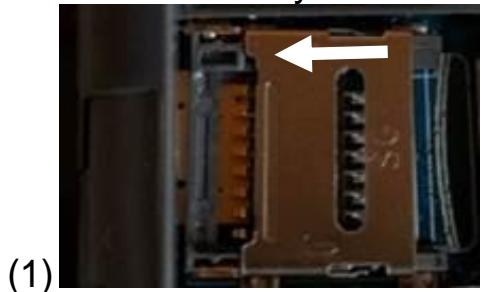
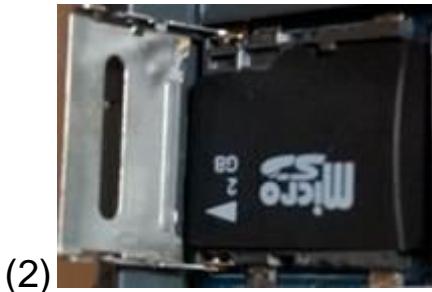
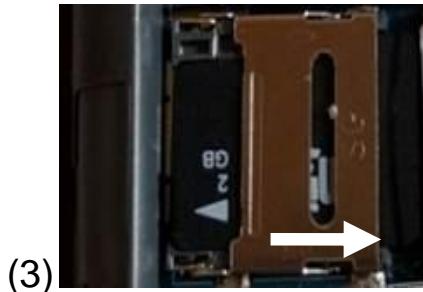
Tip: If the memory card does not work, check that it is inserted correctly and also check the metal contact points. You can also try to format the memory card. You shouldn't have to close the metal clip with a lot of strength.
Installation and charge of battery
Installing the battery
- Remove the back cover from the phone.
- Place the end of the battery that has the metal contacts against the battery connector.
- Gently push the battery down and press on the other end of it to snap it in.
CAUTION: Risk of explosion if battery is replaced by an incorrect type.
Model: 5C 600 / Li-ion rechargeable battery (3.7V) / 600mAh
To replace the battery, please enquire with the after-sales service of your dealer.
Dispose of used batteries according to the instructions.
Charging the battery:
- To charge the battery, connect the USB cable (supplied) to the USB port of your Feature phone and the other end to the mains adaptor (supplied). Then connect the mains adaptor to a power outlet.
- The battery charge icon illuminates during charging and indicates the charge status.
- When the battery is fully charged, you can disconnect the USB cable from the device then from the power outlet.
IMPORTANT:
- The Feature phone is only recharged via its USB port.
- Ensure your Feature phone is fully discharged before charging it for the first time.
- The battery must be charged for at least 5 to 8 hours when first charged.
- After a long period without use, It should be necessary to do many cycles of charging / discharging to obtain maximum power capacity
Note: You can use the device when it is being charged. In this case, the battery may take longer to charge fully.
Safety information for charging the battery:
- To recharge the battery, only use the mains adaptor supplied with your device. Do not use any other power supply or electrical device.
- The power outlet to which the device is connected must be near the equipment and must always be easily accessible.
- Always wait at least 5 seconds after switching off the device before restarting it. Switching the device off and then back on again immediately may damage the electrical circuits.
- Do not disassemble, open or shred the battery contents. Do not dispose of batteries in fire or water. Do not charge the battery if the room temperature exceeds 45^ C. Keep the battery in a clean and dry place. Avoid leaving the battery under sunlight.
- Do not short circuit the battery. Do not keep the battery in a place where it can be shorted by other metal objects.
- Keep the battery away from children, in case of swallowed, consult a doctor immediately. In case of battery leak, take care to not allow the liquid come in contact with skin or eyes, if this case happens, wash thoroughly with water and consult a doctor.
- For all repairs or to replace the battery, consult a qualified technician.
- The lifetime of the battery depends largely on how you use it. Do not expose the battery to temperatures less than 0^ C or greater than 60^ C . Its performance may be altered.
- Significant electromagnetic interference or electrostatic discharge may cause malfunction or loss of data. If the device is not working properly, restart the Smartphone or unplug the mains adaptor from the power outlet then plug it in again.
- Remove when it's possible the battery when the Smartphone is not used during a long period.
- Dispose of the battery and the Smartphone separately. Do not pu the battery in the household waste, for further information about recycling of the battery, contact your municipality, your local waste or the store where you purchased the product.
Security password
PIN code
The PIN code (Personal Identification Number) is used to prevent illegal use of your SIM card. Generally, PIN code and SIM card are provided together. If you input the PIN code incorrectly three times in succession, input the PUK code to unlock the SIM card. Contact your network operator for more information.
PIN2code:
Input your PIN 2 code to use certain services such as a service call. If you input the PIN2 code incorrectly three times in succession, input the PUK2 code to unlock the SIM card. Contact your network operator for more information.
- PUK code
To change the locked PIN code, input the PUK (Personal Unlock Key) code. Usually PUK2 code and SIM card are provided together. Otherwise, contact your network operator. If you enter an incorrect PUK code ten times in succession, the SIM card can no longer be used. Please contact your network operator to purchase a new card. The PUK code cannot be changed. If you lose the code, contact your service provider.
- PUK2 code
When you change the locked PIN2 code, input the PUK2 code. If you enter an incorrect PUK2 code ten times in succession, the functions that require the PIN2 code will not be able to be used. Please contact your network operator to purchase a new card. The PUK2 code cannot be changed. If you lose the code, contact your service provider.
Main menu
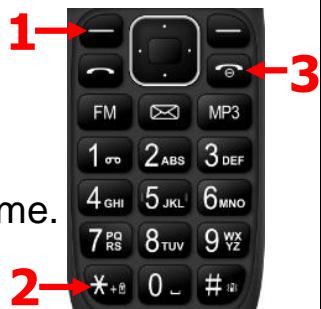
To Lock/Unlock the keyboard, press the menu key (1) then the star key (2).
To Turn on/Turn off the phone, press the On/Off key (3) for a long time.
These keys FM MP3 allow you respectively to enter FM radio, message and music menu.
You can save a phone number in the memory of the phone or in the SIM cards.
Add a new contact: Create a new contact
View: View detailed information on the contact
Send a text message: Send a message to the contact
Dial: Call the contact
Edit Edit the contact's information
Delete: Delete the selected contact
Copy: Copy the contact to the phone or to the SIM card
Contact settings: Edit additional numbers / Overview of the capacity of the SIM cards and of the phone
1. Message
1.1.Compose a message
Compose a new message, insert a number and other
1.2. Inbox
All messages received are saved in this inbox.
1.3. Draft box
This function allows you to retrieve the SMS that you have saved.
1.4. Outbox
Outbox holds the messages that failed to be sent.
1.5. Sent messages
This function allows you to save all of the messages that have been sent successfully.
1.6. SMS settings
Allows you to change the default message parameters and to consult the message memory.
2. Contacts
You can save a phone number in the memory of the phone or in the SIM cards.
Add a new contact: Create a new contact
View: View detailed information on the contact
Send a text message: Send a message to the contact
Dial: Call the contact
Edit Edit the contact's information
Delete: Delete the selected contact
Copy: Copy the contact to the phone or to the SIM card
Contact settings: Edit additional numbers / Overview of the capacity of the SIM cards and of the phone
3. Call centre
This function allows you to view the recent call journal and to change the call settings.
3.1. Call History
Missed calls: See the number of the missed calls
Calls made: See the recent list of various calls made
Received calls: See the recent list of various calls received
All Calls: View all calls made, received and missed
Delete call journals: Delete the selected calls
Call time View the duration of the last call, dialled and received calls
3.2. Call settings
SIM call settings: Change the functions for call waiting, call diverting, call limiting and line switching
Advanced settings: Change the functions for automatic redial, call time recall and answer mode
4. Multimedia
4.1. Camera:
Press the central button to take pictures
Options:
Switch to the camcorder: Switches from photo taking mode to video mode
Pictures: Go to the photo album
Camcorder Settings: Allows you to adjust the settings for anti-flicker, scene mode, white balance and timer
Photo settings: Allows you to set the picture size and quality
Storage: Allows you to store data on the phone or on the memory card
Restore default settings: This function allows you to restore factory-set settings for the camera
4.2. Picture viewer
View: Go to the photo album
Send: Send a photo using Bluetooth
Use as: Define the selected picture as a wallpaper or boot picture
Rename: Renames selected file
Delete: Allows you to delete selected picture
Storage: Allows you to view the photos in the phone or in the SIM card
Picture information: Allows you to view the details of the pictures
4.3. Video recorder
Press the central button to record a video
Options:
Change camera: Switch from video to picture taking mode
Camcorder settings: Set the anti-flicker setting to 50Hz or 60Hz
Video settings: Set the video quality
Storage: Allows you to store data on the phone or on the memory card
4.4. Play video
| Button | Function |
| Left and right directional buttons | Press once to go to the previous or next title Press continuously to rewind or fast forward in the title |
| Up directional button | Press to switch to full screen mode |
| Down directional button | Press to stop playing |
| Central Button | Press to play/pause the title |
| Star and pound key | Press to decrease/increase the volume |
4.5. Playing audio
| Button | Function |
| Left and right directional buttons | Press once to go to the previous or next title Press continuously to rewind or fast forward in the title |
| Up directional button | Press to repeat a track or an album |
| Down directional button | Press to activate random play |
| Central Button | Press to play/pause the title |
| Star and pound key | Press to decrease/increase the volume |
4.6. Sound recorder
This function allows you to record and listen to your audio recordings. Interrupted recordings are automatically saved and can be found in the list of files.
4.7. FM radio
List of channels: Select, delete and edit saved stations
Manual input: Allows you to search and save stations by frequency
Auto search and save: Automatically searches for and saves channels
Settings: The background music allows you to go back to the main interface and continue listening to the radio.
5. Settings
5.1. User profiles
User profiles allow you to define the operation of your phone when a call or message is received and to configure the sound for keys, among other things. You can customise these profiles or keep their default configuration according to your needs. Select and customise the profiles adequately according to the situation. The various modes available are General, Silent and Outdoor.
5.2. Phone settings
Date and time: Configure the date and time of the device, as well as how they are displayed
Language: Configuring the language of the device
Preferred input methods: Configuring the preferred text input method
Display:
Wallpaper: Define a picture as the default wallpaper
Auto lock Define the duration for keyboard auto-lock
Date and time display Activate or deactivate the date and time on the screen
Shortcuts: can be set by the up directional button
Special keys: Define shortcuts for the four directional buttons
Flight mode: Activate or deactivate the flight mode
Various settings: Adjust the screen brightness and the duration of the backlight
5.3. Safety settings
SIM safety
PIN lock: Activate or Deactivate the PIN code. If PIN code verification is activated, you must input your PIN code each time the phone is started.
Change PIN: Change PIN
Change PIN2: Change PIN2
Phone security: Lock the phone with a password. The phone's initial password is 0000.
5.4. Double SIM settings: Activate SIM1 only/SIM2 only/ Dual-SIM mode
5.5. Connectivity
Bluetooth:
Power: Activate or Deactivate the Bluetooth function.
Visibility: Activate or Deactivate Bluetooth visibility.
My device: Search for compatible Bluetooth equipment
Change the device name: View and change the Bluetooth name
Note: To minimize exposure to electromagnetic fields, we recommend deactivating the Bluetooth when you are not using it.
Data connection SIM: Choose the SIM card for the data connection
Data count: Choose the settings for mobile data
5.6. Restoring the settings
This function allows you to restore factory-set settings. The default password for setting reinitialisation is "0000".
6. File manager:
Allows you to browse through the files on the phone and on the external memory
7. Playing Games
Serpent: Launches the Nin ja Climb game
Game settings: Makes it possible to activate the audio and set the volume for games
8. Organizer
Calendar: Displays the full date
Calculator: Allows the phone to be used for simple calculations
Alarm: Alarm settings
- Services: select SIM1/SIM2 to access the corresponding menus
Recycling
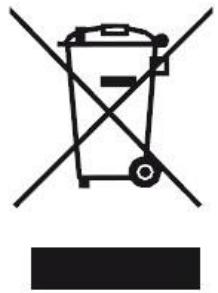
The symbol shown here and on the product means that the product is classed as Electrical or Electronic Equipment and should not be disposed with other household or commercial waste at the end of its working life.
The Waste Electrical and Electronic Equipment (WEEE) Directive (2012/19/EU) has been put in place to recycle products using best available recovery and recycling techniques to minimise the impact on the environment, treat any hazardous substances and avoid the
increasinglandfill.
Product disposal instructions for residential users:
If you no longer use the device, remove and dispose of the battery, as well as the device, in compliance with the local recycling procedures. For more information please contact your local authority or the retailer where the product was purchased.
Product disposal instructions for business users:
Business users should contact their suppliers and check the terms and conditions of the purchase contract and ensure that this product is not mixed with other commercial waste for disposal.
Warning on using the phone while driving
In France, in accordance with Article R412-6-1 of the French highway code, drivers are not permitted to use hand-held phones whilst the vehicle is moving.
The penalty for non-compliance with this article is a fine and point penalty on your driving licence.
It is also forbidden to wear any system such as earphones, pedestrian kits, headsets, headphones, susceptible to limit the attention or the hearing of the drivers.
NOTE: this legislation applies only in France. During trips abroad, please refer to the legislation in place in your country of origin before travelling.
Listening safety
- Before using the pedestrian kit, check that the volume is not set to maximum to prevent hearing loss.
- The high volume settings are intended for individuals with reduced hearing capacity and not for those with normal hearing.
- Do not use the pedestrian kit while driving.
- Adjust the volume so that you can hear the sounds around you.
- Listening to a portable audio player at high volumes can damage your hearing and lead to hearing impairment (deafness, ringing ears, tinnitus and hyperacusis).
In order to prevent these risks it is recommended not to use the device at full volume; use must not exceed one hour per day.
- This product complies with the EN 60950-1:2006+A11:2009+A1:2010+A12:2011+A2:2013 standard "Information technology equipment - Safety - Part 1: General requirements" in accordance with the order of 25 July 2013 implementing
Article L. 5232-1 of the French public health code concerning portable audio players.
- Do not use pre-amplified or amplified models of headphones or earphones (i.e. with individual volume control and/or self-powered by batteries), as they do not ensure adherence to the maximum volume.
- To prevent possible hearing damage, do not listen at high volume levels for long periods.
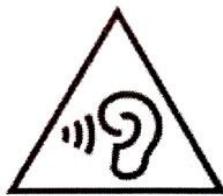
Electromagnetic waves safety information (SAR)
Your device is designed to not exceed the radio wave limits recommended by the European authorities. These limits include safety margins to ensure the protection of all persons regardless of their age or health.
The SAR (specific absorption rate) of mobile phones quantifies the maximum level of exposure of the user to electromagnetic waves, for aural use. French legislation stipulates that the SAR must not exceed 2W / kg averaged over 10g of tissue.
The value of the SAR is determined on the basis of the highest level of radio frequencies emitted during laboratory tests.
The actual value of the SAR during use of the phone is lower than this level.
The value of the SAR of the phone can vary according to the following factors: how far/close the phone is to a relay antenna, use of accessories and others.
The maximum SAR level of your device is given in the following table:
| Position | Connectivity | SAR value |
| Head | GSM 900 / DCS 1800 | 0.584 W/kg |
| Body (Clearance of 0 cm) | GSM 900 / DCS 1800 | 1.563 W/kg |
The body SAR value is tested at a distance of 0 cm .
NOTE: The SAR value may vary, depending on national reporting and testing requirements and the network band.
NOTE:
- Do not use your mobile phone in certain locations such as aircraft, hospitals, service stations and professional garages or while driving a vehicle. The electromagnetic waves from the mobile phone can disrupt the performance of electronic devices used in these locations.
We recommend that you switch off your phone or switch it to flight mode in these locations to avoid interference.
-
If you use an electronic implant (pacemaker, insulin pump, neurostimulation, etc.). Maintain a distance of 15~cm between the mobile phone and your electronic implant.
-
When using an earphone, pregnant women should keep the phone away from their abdomen and teenagers should keep the phone away from their lower abdomen.
Advice to reduce the level of exposure to radiation:
- Please use your mobile phone where reception is good to reduce the quantity of radiation received (avoid using in an underground car park or when travelling (train or car)).
- A reception icon indicates the quality of reception on your phone. A 4-band display means that reception is good
- In order to limit exposure to radiation, we recommend using an earphone kit.
- In order to limit the detrimental consequences of prolonged exposure to radiation, we recommend that adolescents keep the phone away from their lower abdomen, and that pregnant women keep the phone away from their abdomen.
The warranty scope of application
If you encounter any problems:
A contact form and complete FAQ are available on our website:
www(logicom-europe.com
If none of these platforms does solve your problem, contact your retailer.
The LOGICOM supplier warranty is valid for normal use of the device as defined in the instructions.
This warranty excludes damage caused by external circumstances.
Specifically, the warranty does not apply if the device is damaged as a result of a bump or drop, an operating error, a connection that does not comply with these instructions, lightning, a surge, or inadequate protection against heat, humidity, or freezing temperatures.
The warranty is applicable only in metropolitan France.
- The warranty does not cover user manuals or applications, settings, content or data of any kind.
- The warranty does not cover normal usury of the product. (Screens, batteries and camera)
- The warranty does not cover damage to the product due to misuse, including in particular those caused by objects, a pressure drop.
- The warranty does not cover any use of the label with the precautions outlined in the manual.
- The warranty does not cover defects caused to the product with another product connected or used with an accessory or software not provided by British Telecom.
- The warranty does not cover any damage to the battery.
- The warranty does not cover the product or its accessories if it has been disassembled or modified in any way.
- The warranty does not cover any unidentifiable product by serial number or (s) number (s) IMEI. If its elements have been removed, altered or defaced, the warranty does not apply.
- The warranty does not cover damage done to the product caused by exposure to moisture, conditions that extreme heat or cold, corrosion, oxidation, with any liquid whatsoever.
- The warranty does not cover any damage to (s) player (s) or SIM MicroSD reader.
The legal warranty for hidden defects applies in compliance with Articles 1641 et seq. of the French Civil Code.
Made in PRC
© 2016 Logicom SA.