
ELITE - Mouse LOGITECH - Free user manual and instructions
Find the device manual for free ELITE LOGITECH in PDF.



| Product type | Universal infrared remote control |
| Brand | Logitech |
| Model | ELITE (Harmony 350) |
| Power source | 2 AA batteries (included) |
| Connectivity | Infrared (IR), USB (for synchronization) |
| Number of controllable devices | Up to 8 |
| Device buttons | 4 buttons, short or long press |
| Favorite channels buttons | 5 programmable buttons |
| Color buttons | Yes (menu navigation) |
| Activities | Watch TV (automatic device setup) |
| Configuration | Via MyHarmony software on PC (setup.myharmony.com) |
| Compatibility | IR devices: TV, audio/video receivers, cable/satellite receivers, Blu-ray players |
| Care and cleaning | Clean with a soft, dry cloth. Do not use abrasive products. Protect from moisture and extreme temperatures. |
| Safety | Do not expose to water. Replace batteries with identical ones. Remove batteries if not used for an extended period. |
| Spare parts and repairability | Standard AA batteries. For any other repairs, contact Logitech support. |
| General information | Remote designed to simplify control of your multimedia system. Use only the included USB cable. |
Frequently Asked Questions - ELITE LOGITECH
User questions about ELITE LOGITECH
0 question about this device. Answer the ones you know or ask your own.
Ask a new question about this device
Download the instructions for your Mouse in PDF format for free! Find your manual ELITE - LOGITECH and take your electronic device back in hand. On this page are published all the documents necessary for the use of your device. ELITE by LOGITECH.
USER MANUAL ELITE LOGITECH
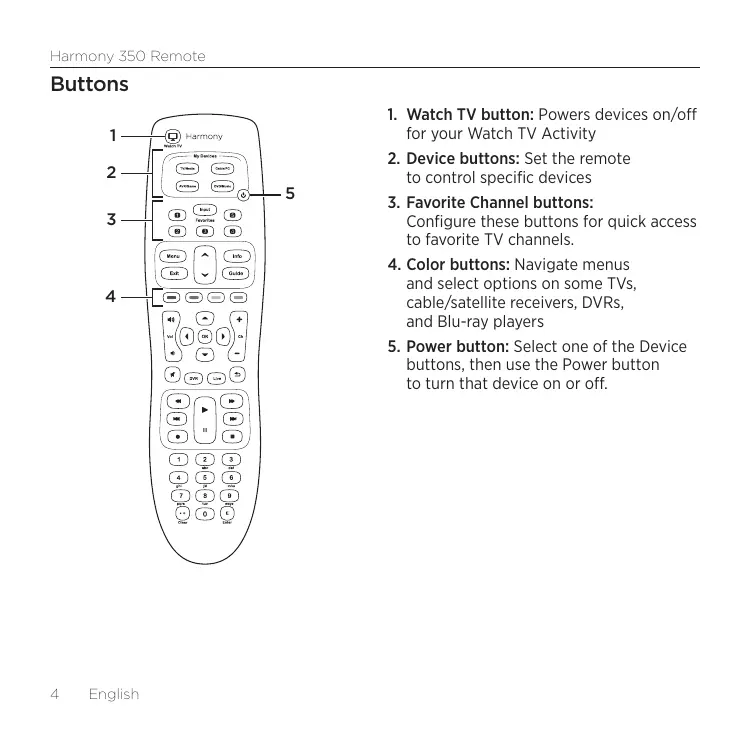
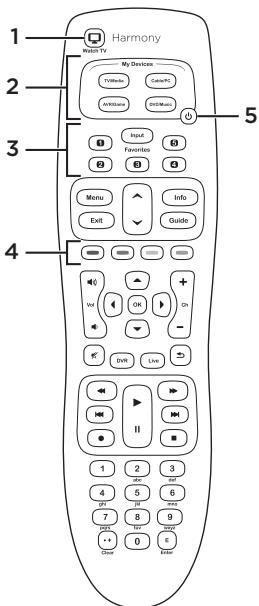
- Watch TV button: Powers devices on/off for your Watch TV Activity
- Device buttons: Set the remote to control specific devices
- Favorite Channel buttons: Configure these buttons for quick access to favorite TV channels.
- Color buttons: Navigate menus and select options on some TVs, cable/satellite receivers, DVRs, and Blu-ray players
- Power button: Select one of the Device buttons, then use the Power button to turn that device on or off.
How the remote works
Harmony 350 is an infrared (IR) remote that controls other IR devices such as TVs, audio/video receivers, and cable/satellite receivers. Here are a few of the key features:

Watch TV
Watch TV button
Set up a Watch TV Activity to automatically power on/off devices you use to watch TV, such as your TV, audio/video receiver, and cable/satellite receiver. After pressing the Watch TV button, be sure to keep the remote pointed at your devices until the Device buttons turn off. Press the Watch TV button again to turn off all the devices.
Device buttons
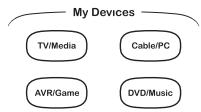
Control up to eight devices individually using these four Device buttons, each with a short press or a longer two second press. Each Device button will light up when an IR command is being sent.
Favorite Channel buttons
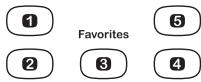
Program up to five Favorite Channels for your TV or cable/ satellite receiver.
To set up your new Harmony remote, visit setup.myharmony.com to download and install MyHarmony software on your computer.
Setting up your Harmony 350
1. Install the batteries
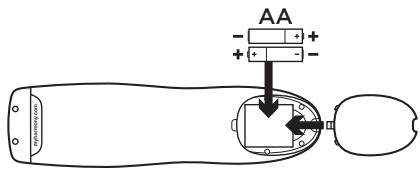
Insert the two AA batteries (included) into the battery compartment.
2. Gather your device information
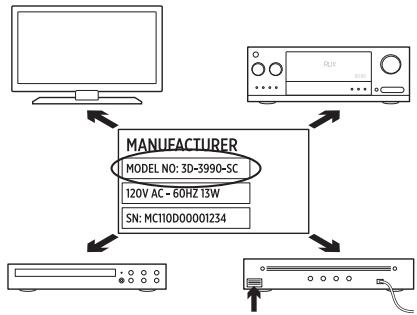
In order for Harmony 350 to control your entertainment system, we'll need to know the manufacturer and model number of each of the devices you own.
The manufacturer and model number of your devices are typically printed on the front bezel, or on a label located on the bottom or the back of your entertainment devices. Write them down in the table provided on the back page of this Setup Guide for quick reference during setup.
3. Complete setup online.
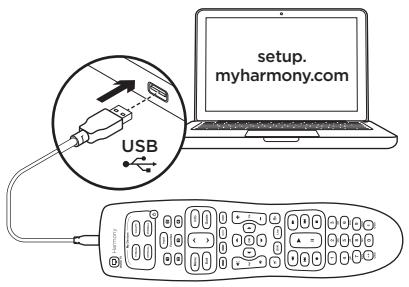
Complete the setup online via setup.myharmony.com
a. Open a browser on your computer and go to setup.myharmony.com b. Download and install the MyHarmony computer software c. Follow the on-screen instructions to create a Harmony account and set up your remote.
Test your remote
Once you've completed the online setup and synchronized your Harmony 350, please test it.
- Unplug your Harmony 350 from your computer and take it to your entertainment system.
- To test your remote, press the Watch TV button. Make sure to keep the remote pointed at your devices until the Device buttons are no longer lit. If you did not set up a Watch TV Activity, test by pressing the Power button to power a device on and off.
- To make changes, launch the MyHarmony software on your computer, and sign in to your account.
Note: Once setup is complete, use Harmony 350 as your only remote; using other remotes could cause the devices in Watch TV Activity to become out of sync.
Frequently asked questions
- How do I customize buttons or change my Favorite Channels?
Launch the MyHarmony software on your computer and sign in to your account.
Click on the Buttons or Favorites tab and follow the on-screen instructions. After changes are made, make sure to connect your remote using the included USB cable and click Sync to update it.
Troubleshooting
- The remote does not seem to work with my device.
First ensure that fresh batteries are inserted properly into the remote.
Then check that one of the four Device buttons flashes when a button is pressed.
Refer to support.myharmony.com/350 for more information.
- Pressing the Watch TV button does not properly power on all my devices and set them to the correct inputs.
The devices must be in the same power state, on or off, at all times in order for the Watch TV button to function properly. Use the Device buttons in combination with the Power button to keep the devices in the same power state. Refer to support.myharmony.com/350 for more information.
Get support
For more detailed information, please visit support.myharmony.com/350
- Finding answers to questions
Visit our knowledgebase at support.myharmony.com/350
- Getting help with online setup
Many screens and pages presented to you during the online setup contain 'Learn more' or 'Help' links designed to provide additional information or assistance with various features.
- Logitech's Harmony Remote user forums
Visit the Harmony Remote User Forums located at forums.logitech.com
support.myharmony.com/350
| Manufacturer (e.g., Sony®, Pioneer®) Hersteller (z. B. Sony®, Pioneer®) Fabricant (par exemple: Sony®, Pioneer®) Fabrikant (bijv. Sony®, Pioneer®) Tilverkare (t.ex. Sony®, Pioneer®) Producent (f.eks. Sony®, Pioneer®) Producent (f.eks. Sony®, Pioneer®) Valmistaja (esimerkiki si Sony®, Pioneer®) | Model Number (e.g., DV-414, Explorer 3100) Modellnummer (z. B. DV-414, Explorer 3100) Numero de modulo (par exemple: DV-414, Explorer 3100) Modelnummer (bijv. DV-414, Explorer 3100) Modellnummer (t.ex. DV-414, Explorer 3100) Modelnummer (f.eks. DV-414, Explorer 3100) Modellnummer (f.eks. DV-414, Explorer 3100) Mallinumo (esimerkiki si DV-414, Explorer 3100) |


Brand : LOGITECH
Model : ELITE
Category : Mouse