EasyManual
DROBO - Data Storage DATA ROBOTICS - Free user manual and instructions
Find the device manual for free DROBO DATA ROBOTICS in PDF.


User questions about DROBO DATA ROBOTICS
0 question about this device. Answer the ones you know or ask your own.
Ask a new question about this device
Download the instructions for your Data Storage in PDF format for free! Find your manual DROBO - DATA ROBOTICS and take your electronic device back in hand. On this page are published all the documents necessary for the use of your device. DROBO by DATA ROBOTICS.
USER MANUAL DROBO DATA ROBOTICS
EN Please check the following website for the most up to date Drobo FS User Guide. www.drobo.com/support
I. Introduction 1
II. Getting started 3
Three easy steps 3
Selecting hard drives 3
Choosing capacity 4
A note about drive capacity 4
Keeping your product up-to-date 4
Best Practices. 5
III. Drobo FS Setup 6
Install Drobo Dashboard 6
Inserting drives into Drobo FS. 6
Connect Drobo FS to your network 7
Ethernet 7
Connect power 7
Initialize your Drobo FS. 7
Drobo FS Lights 8
IV. Using Drobo Dashboard with your Drobo FS 9
Drobo Dashboard basics 9
The main page 9
Advanced Controls: Data tab 10
Advanced Controls: Tools tab 11
Drobo FS Settings 11
General Tab. 12
Network Tab. 13
Admin Tab 14
Shares Tab. 15
Alerts Tab 16
Additional features 16
DroboCopy 17
Keeping Drobo Dashboard up-to-date 17
Saving power 17
Accessing Files on your Drobo FS. 18
What to do when not using your Drobo FS. 20
V. Tips and Troubleshooting 21
VI. Index 26
I. Introduction
Thank you for giving another Drobo® storage device a good home! We at Data Robotics, Inc.™ have been working since 2004 to make protecting, storing and managing your digital content truly effortless.
Why Drobo?
The Drobo family of products provides effortless, safe and expandable storage. There are many different ways to store and protect digital content, but Drobo is the only fully automatic storage device that performs many data management tasks without user effort. Here's what you can expect:
Fully automated data protection and management
- Drobo automatically configures itself for data protection so you don't have to.
- When a drive fails, your data is still safe (and all drives do eventually fail).
- Drobo senses any corrupted data and ensures that you only access non-corrupt data.
- No downtime to add capacity. Just add a drive to an empty Data Bay, or replace a smaller drive with a larger one regardless of capacity, speed, or manufacturer.
- After a drive is installed into an empty bay, the new drive capacity is immediately available and protected.
- Drobo can act as one large drive, making it easier to find what you've stored on it.
- Drobo's Data Bay indicator lights tell you everything you need to know!
Infinite expansion
- Upgrading capacity is as simple as adding ink to a printer.
- Mix 'n match any 3.5" (SATA) hard drives; no worrying about matching make, model or capacity of Drobo's existing drives.
- Upgrade forever—just replace Drobo's smallest drive with a larger capacity drive. No data migration or reconfiguration is required.
BeyondRAID™ storage technology
What does it mean to go BeyondRAID? Going beyond traditional RAID means leaving choices between striping and mirroring, limitations on expandability, drive sizing, and drive ordering behind. BeyondRAID™ technology is the next generation of storage that brings together safety, reliability, expandability, efficiency and of course ease-of-use.
BeyondRAID can be adopted without any change in infrastructure, allowing you to maintain your current file system and operating system—eliminating the friction costs typically associated with moving to a new technology platform.
Standard RAID levels are full of compromises. Do you want striping or mirroring? A two-disk or four-disk RAID set? BeyondRAID is able to solve these issues because it is built on an advanced virtualization platform. If you already understand how RAID 0, 1, 5 or 6 operate(s), you understand the fundamentals of BeyondRAID since BeyondRAID relies on the same underlying algorithms.
Welcome to the world's best storage experience.
Who is Data Robotics, Inc.?
Data Robotics, Inc. was formed in 2004 in California's Silicon Valley with a vision to take the pain out of storage management. Data Robotics, Inc. developed the technology inside Drobo for people who "have to" protect their valuable digital assets, but "hate to" – because it's complex and time consuming. For those people, we created Drobo, the world's first storage robot. It is a fully automated data storage system that provides the only truly effortless, safe and expandable storage solution. Unlike outdated technologies that emerged twenty plus years ago and the frustrating products on the market today, Drobo is an industry-changing product line that combines the advanced concepts of storage virtualization and cybernetics, to take the pain out of storage management.
II. Getting started
Drobo FS is designed to share data over a network. This eliminates the problems of physically moving your storage device between computers and having to take into account different file system formats in order to share your data.
Three easy steps
To set your Drobo FS up, you will need to do the following:
- Install Drobo Dashboard – After installation, launch Drobo Dashboard and leave it running while you complete the setup.
- Insert drives – Use any 3.5" SATA drives. Start with at least two drives to protect your valuable data. If you plan to use Dual Disk Redundancy, start with at least three drives. All data on the drives will be erased.
- Connect cables - Connect the Drobo FS to your network and then connect power.
Drobo Dashboard will automatically discover your Drobo FS. It will take a few minutes for your Drobo FS to finish its initial setup. After the Drobo FS is ready, you can create new shares, add users, and change other settings.
You will find more details on the setup in the "Drobo FS Setup" section on page 6.
Selecting hard drives
Drobo devices are unlike typical storage devices. They make it extremely easy to increase storage capacity in the future by simply inserting additional drives or replacing smaller drives with larger ones. This means you can buy the storage you need today and then easily expand later. You can save hundreds of dollars over time.
Drobo storage devices don't care what manufacturer, capacity or speed of hard drive you install. They accept all standard 3.5-inch internal SATA hard drives. SSD, SCSI and older IDE or ATA-type drives will not work.
Warning! Please note that when adding hard drives to your Drobo storage device, any pre-existing data on those drives will be erased.
Choosing capacity
The number and capacity of drives determine how much usable protected storage Drobe FS provides. Take the guesswork out by using our Capacity Calculator at www.drobe.com/calculator, a web-based tool which determines the actual usable protected capacity, based on any combination of drives. To calculate the approximate capacity yourself, omit the largest drive and then add-up the capacity of the remaining drives. If you plan to use dual disk redundancy, omit the largest two drives. For example (largest drives are crossed out):
Single Disk (Default) Redundancy
| # Drives | Drive Capacities | Usable Protected Capacity | |
| 3 | 250GB + 250GB + 250GB | = 500GB | |
| 4 | 250GB + 250GB + 250GB + 500GB | = 750GB | |
| 4 | 750GB + 250GB + 250GB + 500GB | = 1000GB | |
Dual Disk Redundancy
| # Drives | Drive Capacities | Usable Protected Capacity |
| 4 | 250GB + 250GB + 250GB + 500GB | = 500GB |
| 5 | 750GB + 500GB + 500GB + 500GB + 250GB | = 1250GB |
| 5 | 750GB + 1000GB + 500GB + 500GB + 500GB | = 1500GB |
A note about drive capacity
Some years ago, computer manufacturers and hard drive manufacturers started using different systems for measuring capacity. The net result is that not all of a drive's rated capacity is available to your computer. For example, a 750GB drive will have approximately 700GB worth of capacity. This discrepancy has nothing to do with Drobo storage devices.
Keeping your product up-to-date
During your initial setup, Drobo Dashboard asks if you want to check for updates automatically. We highly recommend you select the "Yes" option to assure optimal performance of your Drobo FS. This feature enables you to keep both Drobo Dashboard and your product's firmware current. Subsequently, you will receive a notice when a newer version is available. You can check for the most current versions at www.drobo.com/support/updates.
Best Practices
There are a number of things you can do to protect your valuable data. Using a Drobo storage product is obviously a major step. However, there are additional actions you can take to provide even greater safety for your data. To learn more about this important topic, please visit our Best Practices site at www.drobo.com/support/best_practices.
III. Drobo FS Setup
Install Drobo Dashboard
If you have not already installed Drobo Dashboard, insert the Drobo Resource CD that came with your Drobo FS into your computer. (Make sure it is connected to your network.) You can also download Drobo Dashboard at: www.drobo.com/support/updates. From the on-screen menu, select "Install." After Drobo Dashboard is installed, it will start automatically. Drobo Dashboard assigns "Drobo-FS" as the default name for your Drobo FS and automatically formats the volume when it first discovers your Drobo FS. To change the name of your Drobo FS, see page 13.
Inserting drives into Drobo FS
Once you've chosen the number and capacities of drives to install, all you have to do is remove the face plate of your Drobo FS by simply pulling it off and then sliding the drives into the Data Bays. It doesn't matter which drive goes into which Data Bay. You should note that any pre-existing data on the drives will be erased. Be sure not to touch any exposed hard drive circuit boards after unpacking.
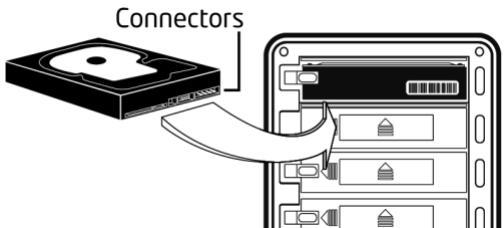
First orient the drive connectors so that they are pointed towards the Drobo FS and are at the bottom of the drive (as shown). Open the Drive Lock by pressing it towards the left and slide the drive into the Data Bay until you feel the connector "mate" at the rear of the Drobo FS. If the connectors seat properly, the Drive Lock will snap behind the drive, securing it into place.
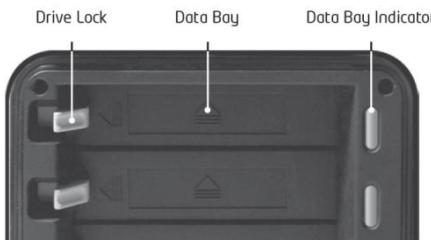
Tip: Insert the drive with top silver plate facing up (circuit board down).
Connect Drobo FS to your network
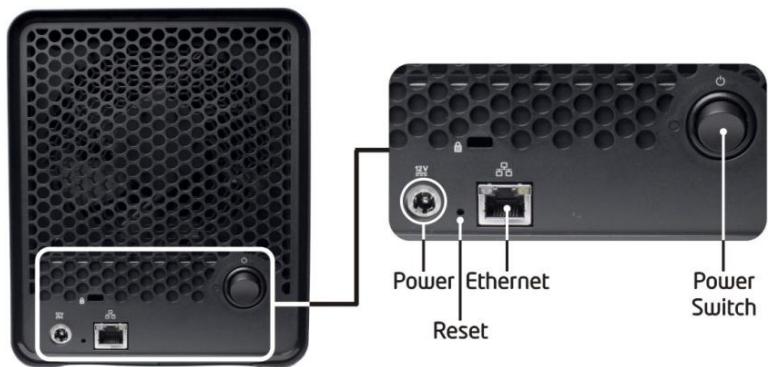
Ethernet
Your Drobo FS connects to a network using an Ethernet port. Use the Ethernet connection on the back of the Drobo FS to connect to a router or switch. Use the Ethernet cable included with the original Drobo FS.
Note: Drobo FS supports a gigabit (1000 Mbit/s) connection. It will auto-negotiate the highest connection speed available to the router or switch. You will not get optimal performance if you are using a slower connection (10/100 Mbit/s).
Connect power
Once you have connected Drobo FS to your network, the next step is to connect it to an AC power source. Simply connect the power cord to the back of the Drobo FS and to your power source. Then press the toggle power button on the back of the unit to turn your Drobo FS on.
Note: As with all electronic equipment, we recommend connecting your Drobo FS to a surge protector or uninterruptible power supply (UPS), designed for electronics.
Initialize your Drobo FS
Your Drobo FS is set to automatically obtain an IP address (DHCP) on your network. When you connect Drobo FS to the network, Drobo Dashboard will automatically discover it. After Drobo Dashboard discovers your Drobo FS, you can set a static IP address if desired. If you don't have DCHP and need to use a static IP address, you should directly connect the Drobo FS to your computer's Ethernet connection for the initial setup. See the section, "Tips and Troubleshooting" on page 21 for further information on direct-connect and setting the IP address of your Drobo FS.
After you do the initial setup of your Drobo FS, you can then set up shares, users, etc. Drobo Dashboard will prompt you for share names, usernames, etc. Please see page 15 for further information on managing shares.
Drobo FS Lights
One of the many benefits of your Drobo FS is a series of lights that tell you everything you need to know, without your having to launch any application software on your computer. Remember, Drobo FS is designed to actively monitor and protect your data at all times.
Drobo FS will automatically take any necessary actions and display them using the following lights:
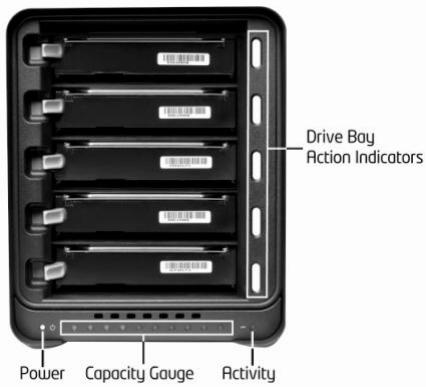
Drive Lights
Green: No action is required. All drives are healthy.
Solid Yellow: Add a drive or replace the current drive with a larger drive soon. Drobo FS is running out of disk space.
Blinking Yellow and Green: Do not remove these drives or power down. Drobo FS is working to protect your data.
Solid Red: Add a drive or replace the current drive with a larger drive immediately. Drobo FS is critically low on space.
Blinking Red: Replace this drive immediately. This drive has failed and needs to be replaced.
Power Light
Green: The power is on and Drobo FS is ready.
Yellow: Drobo FS is in standby mode.
Red: Drobo FS has overheated. Disconnect the data cable and then the power cable. Let it cool down for at least 30 minutes and then restart.
Activity Light
Blinking Green: Data is actively being transferred between your computer and Drobo FS.
Capacity Gauge
Blue: Displays the percentage of your Drobo FS that is full, in 10% increments.
IV. Using Drobo Dashboard with your Drobo FS
Drobo Dashboard is used to set up, configure, and interact with your Drobo FS.
Drobo Dashboard basics
Drobo Dashboard is the recommended companion application that keeps you informed of the status of your Drobo FS and allows you to customize Drobo FS to best fit your storage needs.
Note: To install Drobe Dashboard, you will need to have administrative rights on your computer.
The main page
Open Drobo Dashboard and you will see the main page. This page gives you a quick overview of the status and storage usage your Drobo FS. If you have more than one Drobo device, you can switch between Drobos by clicking on the appropriate tab at the top of the window.
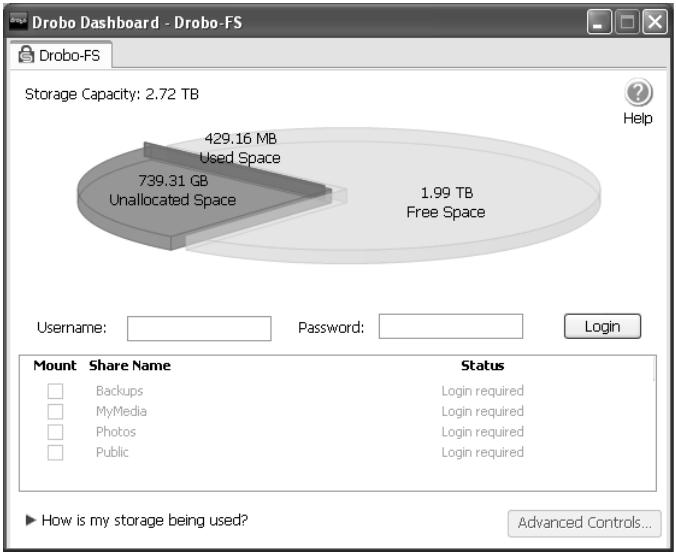
The pie chart shows you how much storage space is being used and how much free space remains. By placing your mouse over the pie chart, you will see a summary of the health of your Drobo FS. If you have set up an administrative username and password, this screen allows you to log into your Drobo FS in order to manage the device. (The first time Drobo Dashboard launches, you will see a message telling you that the administrative username and password have not been set up yet.)
Though it is not necessary, for security purposes, we advise you to set up an administrative username and password in order to manage your Drobo FS.
Are you curious about how your disks are being used? Click "How is my storage being used?" The capacity breakdown bar will appear showing you how your Drobo FS is using storage.
- Available for data: Total protected space on Drobo FS that is available to store data
- Reserved for expansion: Unusable capacity reserved for future use when one hard drive is larger than the others. This space will become available when you add a larger capacity hard drive or replace a smaller drive with a larger one.
- Used for protection: Storage capacity that is used to protect your data against a drive failure
Overhead: Capacity used by Drobo FS for management
You can explore different hard drive combinations using the Capacity Calculator web tool at www.drobo.com/calculator.
Advanced Controls: Data tab
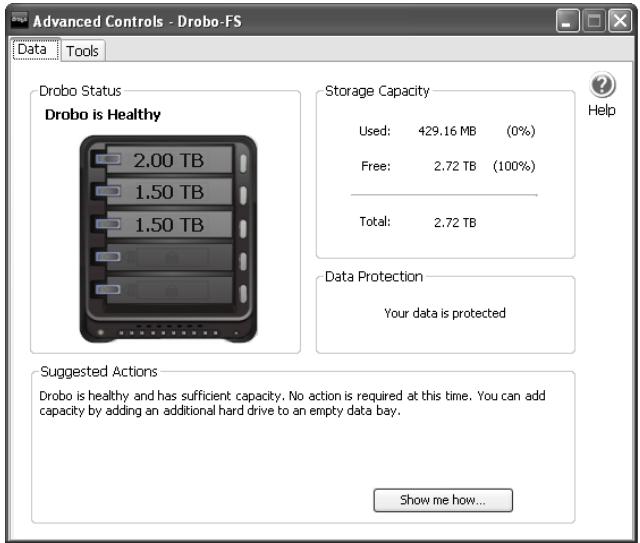
The Data tab in Advanced Controls gives you in-depth details on the status of your Drobo FS. You should go to this screen if Drobo FS is in
the process of protecting your data (blinking green and yellow lights) and you would like to know when it will finish. The progress is shown in the "Data Protection" section.
Advanced Controls: Tools tab
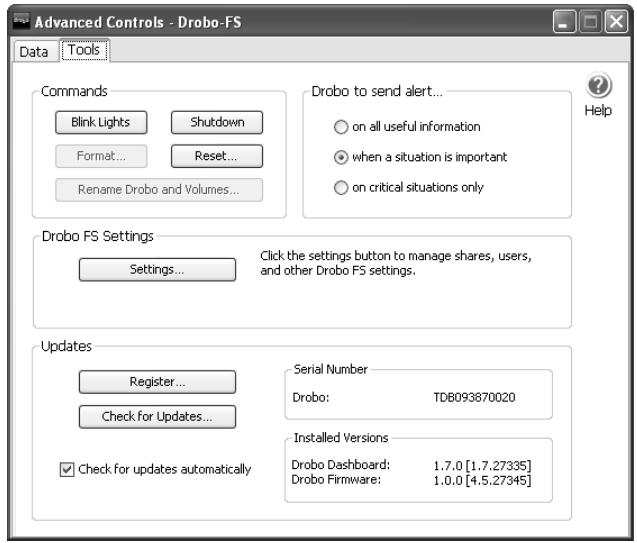
The Tools tab gives you access to controls that allow you to customize your Drobo FS. In this window you can change settings specific to your Drobo FS and, if necessary, reset your Drobo FS (erasing all data on the drives). Additionally, this page displays useful information about your Drobo FS, including the serial number and the installed versions of firmware and Drobo Dashboard. It also provides an easy way to check for updates of Drobo Dashboard and your unit's firmware. See page 17 for further details.
Drobo FS Settings
By clicking the "Settings" button on the Tools page, you can adjust a host of settings to suit your individual needs for your Drobo FS. You can manage the shares on your Drobo FS, set a login and password for the administration of your device and set up email alerts. Also, this is where you can enable dual disk redundancy, set the time period for disk drive spin down and dim the indicator lights.
General Tab
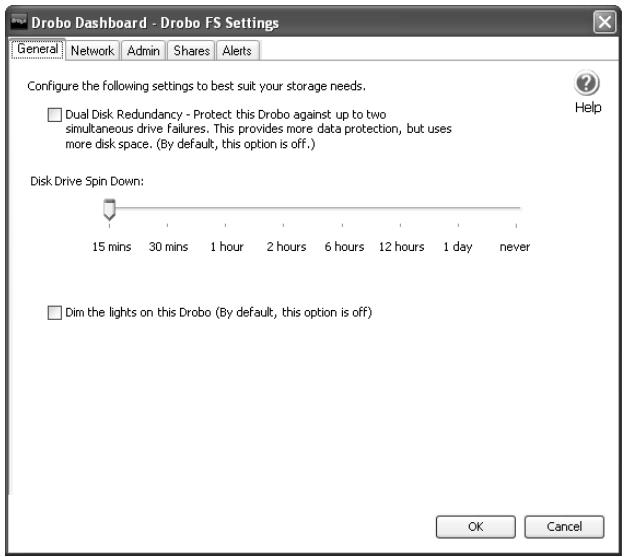
The General tab allows you to customize your Drobo FS to suit your individual needs. Here you can protect your data from two hard drives failing, set the time for the hard drives to spin down and also dim the lights of your Drobo FS.
Dual disk redundancy
Dual disk redundancy is a setting that will protect your stored data against two simultaneous drive failures. When this additional safeguard is enabled, the amount of usable space is reduced in order to provide this added protection. To use dual disk protection, you are required to have at least three hard disks in your Drobo FS and sufficient free disk space if there is already data on your Drobo FS.
By default, this setting is disabled. To enable it, go to Advanced Controls -> Tools -> Settings -> General. Dual disk protection can be enabled or disabled at anytime as long as you meet the minimum requirements mentioned above. Note that when you switch from single disk redundancy (default) to dual disk redundancy, your Drobo FS will perform a relayout of your data. The drive lights will blink green and yellow during this process. Depending on the amount of data on your Drobo FS, this could take quite a while to complete. Do not turn the power off any time the drive lights are blinking green and yellow. However, you can shut down your computer during this process.
Disk drive spin down
By default, Drobo FS automatically spins down the hard drives after 15 minutes of inactivity. This helps save electricity and can prolong the life of the drives. However, it will take the Drobo FS a few moments to spin the drives back up again when you try to access them. If you want to change this setting, go to Advanced Controls -> Tools -> Settings -> General. Then use the slider to set the desired time interval for spinning down the drives.
Indicator lights
You can set the indicator lights to full intensity (default) or low intensity. When the hard drives spin down, the indicator lights automatically dim. They are visually distinguishable from even the low brightness setting. Note that the change in the brightness takes a few seconds.
Network Tab
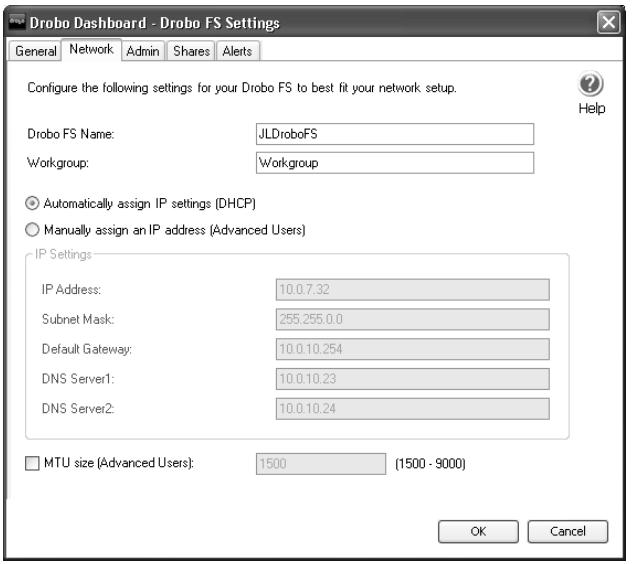
Use this screen to rename your Drobo FS, and to set a static IP address, if necessary. For advanced users, this screen also allows you to use jumbo frames. Click the box at the bottom of the screen (MTU) and set the desired size.
Note: The name of your Drobo FS must be no more than 14 characters and cannot contain any special characters or spaces.
AdminTab
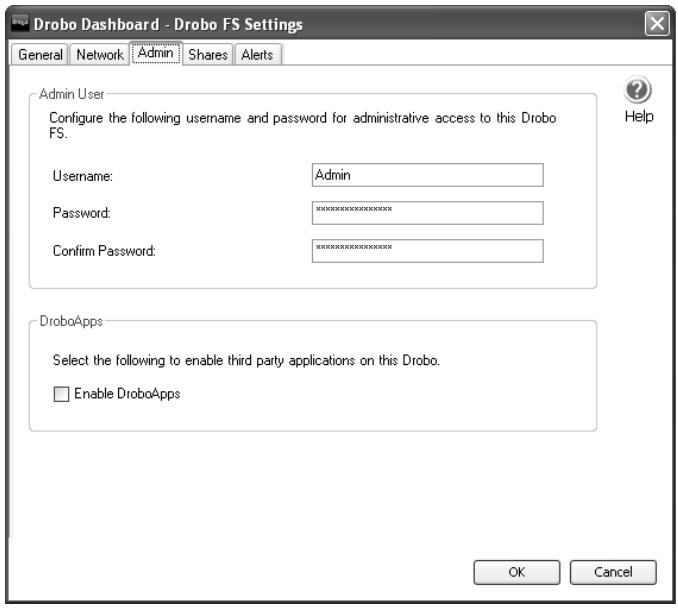
This screen is used to assign a username and password for the administration of your Drobo FS. As the administrator, you can log into any share as well. After setting up a username and password, you will be required to login to your Drobo FS in order to change any settings.
Note that after you set a username and password, Drobo Dashboard will not ask you to login in again unless you previously clicked theLogout button. TheLogout button is on the Drobo Dashboard main page.
This screen also allows you to Enable DroboApps if desired. For more information on DroboApps, please see: www.drobo.com/droboapps/
Shares Tab
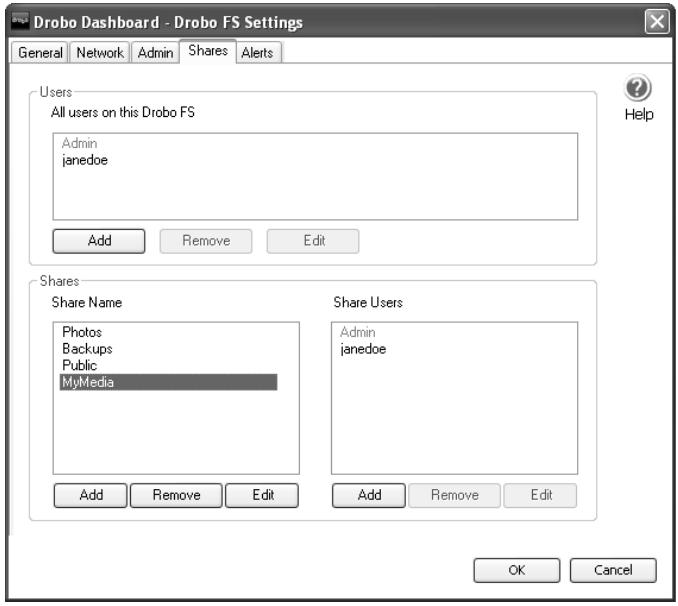
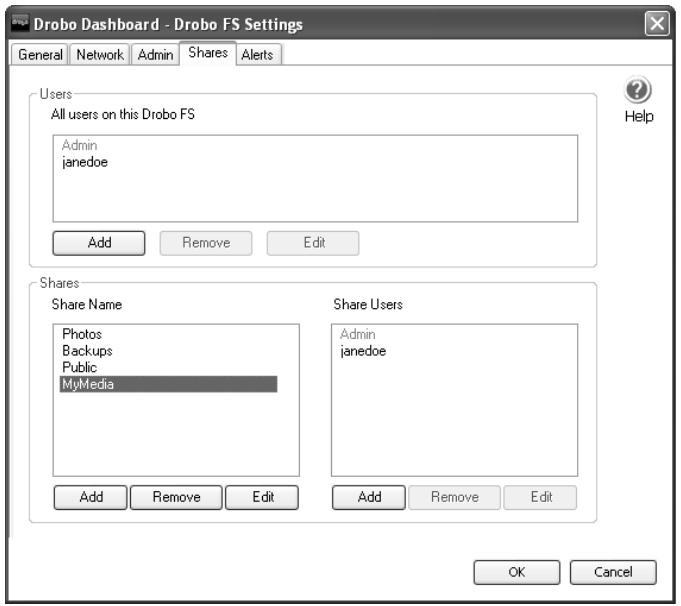
The Shares screen allows you to manage your shares. Each share will show up as a unique drive letter in Windows or a volume in Mac OS X. You can create a maximum of 32 shares on your Drobo FS. In order to manage the shares on your Drobo FS, you should first set up the Administration username and password.
To create a new share:
- In the Share Name panel, click Add.
- Provide a unique name for the new share (32 characters maximum).
- Click OK.
- Highlight (click) the new share name and select the user(s) you want to have access to the new share. The Users pane will list all users already setup on the Drobo FS. Highlight the user and click Add in the "Users who can use this share" pane.
- If you want to add a new user, in the Users panel, click Add and fill in the username and password. Note that usernames must be unique and can include letters, numbers, dots (. ) and underscores ( ). Also, both the username and password are case-sensitive.
You can edit and delete both shares and users in this screen. Note that deleting a share erases all data on that share. Drobo Dashboard will display a warning prior to deletion.
Alerts Tab
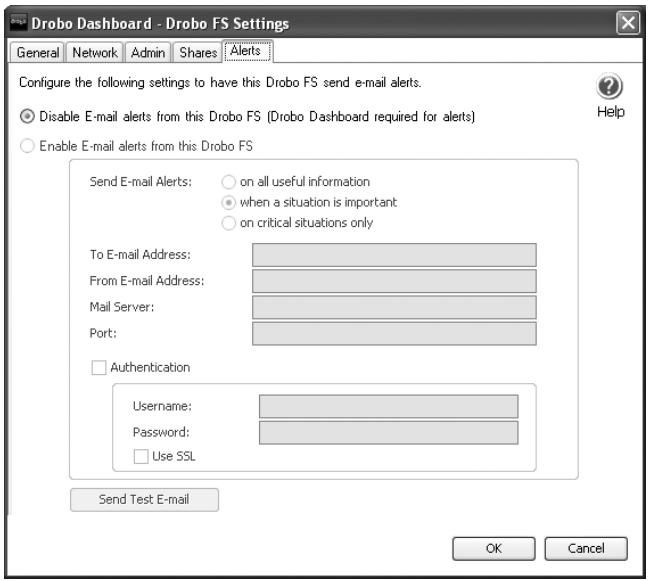
This tab allows you to enable email alerts directly from your Drobo FS. Use this screen to set the desired alert level. After that, Drobo Dashboard does not have to be running for the alerts to be emailed to your designated email address. Nor does your computer have to be turned on for this feature to work.
Drobo Dashboard can also send email alerts based on a selected alert level for all Drobo devices attached to your computer (including any DroboShares and Drobo FS units on your network). To access this option on a PC, launch Drobo Dashboard and right-click the Drobo Dashboard icon in the System Tray and select "Email Settings..." On a Mac, launch Drobo Dashboard and go to the Drobo Dashboard menu and select "Email Settings..."
Additional features
Drobo Dashboard provides the following additional functionality on your Drobo FS, enabling you to make custom backups.
DroboCopy
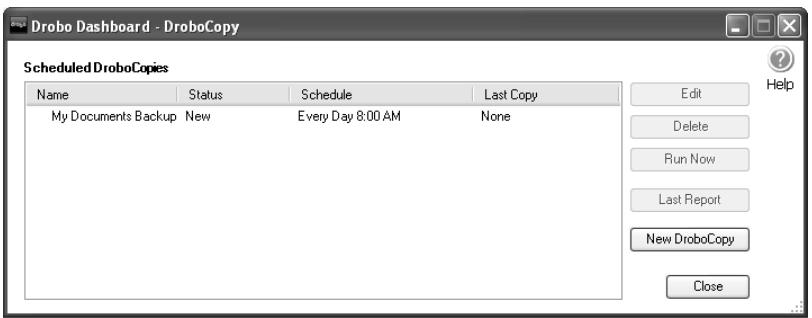
DroboCopy provides an easy way to back up files to your Drobo FS. Select the folder you want to back up, the location you want to back it up to, the time you want it to run, and you are all set. Your selected backup folder and all the items within it will be copied the first time DroboCopy runs. Subsequently, only new and updated files will be copied to the destination folder. (Updated files will replace older files.)
To start using DroboCopy on a PC, launch Drobo Dashboard, right-click the Drobo Dashboard icon (pie chart) in the System Tray (Notification Area) and select "DroboCopy Settings..." On a Mac, launch Drobo Dashboard and go to the Drobo Dashboard menu and select "DroboCopy Settings..." In the DroboCopy window click "New DroboCopy" and pick the folders you would like to use for your DroboCopy.
Note: Drobo Dashboard must be running for the scheduled backups to work.
Keeping Drobo Dashboard up-to-date
We recommend that during the installation of Drobo Dashboard, you choose, "Yes" when asked "Do you want to check for updates automatically?" This will keep your Drobo FS in optimal operating condition. If you chose, "No" for any reason, you can go to Advanced Controls -> Tools and check the "Check for updates automatically" box. You can also use this same screen to "Check for updates" to see if your Drobo FS has the latest versions of software and firmware. For more information, see www.drobo.com/support/updates.
Saving power
If you are concerned about saving power, you don't need to worry about turning off your Drobo FS when not using it. Drobo FS
automatically goes into a power saving mode (spins down the hard drives) when it has not been accessed for 15 minutes (default) or the time you chose earlier.
Note: Drobo FS allows you to modify the time intervals for disk drive spin down. See page 13 for details.
Accessing Files on your Drobo FS
After you have set up shares on your Drobo FS, you can access the shares in either of the following ways:
A. Using Drobo Dashboard
We recommend installing Drobo Dashboard on all computers that will be accessing your Drobo FS. This is the easiest way to mount shares on those computers. The shares are listed on the main Drobo Dashboard page. By clicking in the "Mount" check box next to the share name, you can mount the network drive on your computer. Drobo Dashboard will automatically mount the selected shares every time you restart your computer so that they are always available to you when you are connected to the network. If the share is protected, you must first log in using your username and password (both case-sensitive) before you can click on the mount checkbox. You can install Drobo Dashboard from the Resource CD that came with your Drobo FS or you can download the latest version at: www.drobo.com/support/updates.
B. Using Your Computer Operating System
Once Drobo FS is set up, you can access the shares just as you would any normal network drive or volume:
Windows XP
- Open My Computer.
- Click "My Network Places."
- Click "Add a network place" (This opens the Add Network Places wizard.)
- Click Next.
- Click "Choose another network location."
-
You can click the Browse button and locate the share you want to access; or you can manually enter the share name: \drobo-fs\sharename (Note: replace "drobo-fs" and "sharename" with the names you chose for your Drobo FS.)
-
Choose a name for your network drive and click Next.
- The wizard will confirm your actions and give you the chance to open the network place (i.e., the Drobo FS share) when you click Finish.
Your Drobo FS share will show up in the "Network Drives" panel of My Computer.
Windows Vista/7
- Open Computer.
- Click the "Map network drive" button on the tools menu.
- You can click the Browse button and locate the share you want to access; or you can manually enter the share name: \drobo-fs\sharename (Note: replace "drobo-fs" and "sharename" with the names you chose for your Drobo FS.)
- After you either choose from the list or type the address, click Finish.
The share will now show up in Computer or Windows Explorer.
If you only want to access the drive, but not mount it in Windows:
- Open Computer
- In the left panel, either double-click "Network" or single-click the triangle next to "Network."
- Locate the name of your Drobo FS in the list and open it.
- Choose the share you want to access.
- Click the share name and it will either prompt you for a username and password or otherwise open the share in the Explorer window.
Mac OS X
- Open the primary Mac volume.
- In the left panel of Finder, click the triangle just to the left of "Shared"
- Locate your Drobo FS from the list and open it.
- Choose the share you want to mount by simply double-clicking the share name.
- If necessary, enter your username and password. (Both are case-sensitive.)
- The share will mount on your desktop.
What to do when not using your Drobo FS
If you are not going to be using your Drobo FS for an extended period of time, then it is a good idea to shut it down. Make sure that no applications on your computer are using the Drobo FS by checking the activity light. If applications are using your Drobo FS, they may prevent it from properly disconnecting.
Open Drobo Dashboard and click Advanced Controls -> Tools. Then click the "Shutdown" button. Make sure the power light is off before disconnecting the data cable or power cord.
If you do not have access to Drobo Dashboard for any reason, then:
- Check the activity indicator to assure there is no data being transferred to or from your Drobo FS.
- Disconnect your Drobo FS from the network.
- Toggle the power switch on the back of your Drobo FS.
- When the power indicator goes off, it is safe to remove the power cord and data cable from the back of the Drobo FS.
V. Tips and Troubleshooting
This section addresses some common questions about your Drobo storage device. We also offer free access to our knowledge base, support FAQ's and Best Practices. Please visit www.drobo.com/support for the latest technical information on your Drobo FS.
Q. How do I download the latest versions of Drobo Dashboard and Drobo FS Firmware?
A. To download the latest versions of software, click Advanced Controls -> Tools -> Check For Updates... You can check our website for the latest versions: www.drobo.com/support/updates.
Note: You must have administrator privileges on your computer in order to install the upgrade for Drobo Dashboard.
Q. How do I add capacity to my Drobo FS?
A. You can either add a standard 3.5" SATA hard drive to an empty Data Bay or replace the smallest capacity drive with a larger capacity drive. It's okay to do this while Drobo FS is running; you do not need to shut it down.
Q. How can I tell how much capacity Drobo FS has left?
A. The main page of Drobo Dashboard provides the most accurate information. (See page 9.) You can get an approximate idea by simply checking the blue capacity gauge on the front of Drobo FS. Each blue light represents 10% of available capacity that contains protected data. If you observe three blue lights, you have approximately 70% still available for data.
Q. Will my computer tell me how much space is used on Drobo FS?
A. Yes, actual space used and available space are represented accurately by your operating system.
Q. Can I connect my Drobo FS directly to a computer?
A. The only reasons you should ever have to direct-connect your Drobo FS to your computer is when you do not have DHCP on your network and have to assign a static IP address during setup or if a change on the network (e.g., changing routers) requires a change to the network settings. If either of these situations applies to you, please keep the following in mind:
-
Drobo Dashboard is required for setup.
-
Even though Drobo FS has a gigabit interface, if your computer network port is not gigabit, the Drobo FS will auto-negotiate to the slower speed (10/100) of your Ethernet port. Performance will vary, accordingly.
- If you are going to connect your Drobo FS directly to your computer's Ethernet interface, make sure the computer's network port is set up to use DHCP to automatically assign an IP Address.
- If your computer has only one Ethernet connection and you are already using it to connect to a network, then you will need to purchase and install a standard (1 Gbps) Ethernet add-on card that is compatible with your computer.
Setup:
- Connect one end of the supplied Ethernet cable to the (Ethernet) port on the back of your Drobo FS. Then connect the other end to an available network port on your computer.
- Plug the supplied power cord into the power port on the back of your Drobo FS and to your power source.
- Toggle the power switch on the back of the Drobo FS.
- After the boot sequence, Drobo Dashboard should recognize your Drobo FS and you can begin the user setup.
Note: If you want to set a static IP address, go to Advanced Controls -> Tools -> Settings -> Network.
Q. How can I wipe all the data from my drives and reset my Drobo FS?
A. WARNING: THIS PROCEDURE WILL CLEAR ALL THE DATA STORED ON DROBO FS. There are two ways to reset your Drobo FS. First, in Advance Controls -> Tools tab, click the "Reset..." button. The on-screen instructions will walk you through the process.
The second way is to first safely shut down your Drobo FS. Next, locate the small unmarked reset hole, next to the power connector. Insert a straightened paper clip through the unmarked hole. You should be able to feel the switch depress. While keeping the switch depressed, power your Drobo FS back up. Keep the reset switch depressed until the boot process completes and the drive bay indicators are solid green.
Q. Do I need to format new drives that I add to Drobo FS?
A. When you add a drive to an empty Drive Bay or upsize an existing drive after the initial formatting during setup, you will get immediate access to any additional capacity. You do not have to format each drive added to Drobo FS. The only time a format is required is when a new storage pool (i.e., volume) is created. Drobo Dashboard automatically formats all volumes, including the initial volume.
Q. Will the magnets that hold the face plate on endanger my data?
A. No. In fact, the magnets inside your hard drive(s) are much stronger and closer to the hard drive media than the face plate of your Drobo FS.
Q. How do I back-up data on Drobo FS?
A. Data on Drobo FS is intrinsically "backed-up," but of course that doesn't protect against fire, theft or accidentally deleted files. You can duplicate data from Drobo FS onto any other media through your computer, or attach a second Drobo device to your computer, duplicate the data, and move it to a different secure location (such as office or home). You can also use DroboCopy or any other backup software program to backup data to your Drobo FS or from your Drobo FS to another storage device. Please visit our Best Practices site at www.drobo.com/support/best_practices for more information.
Q. Is there a foolproof way to protect my data on the Drobo FS?
A. If the Drobo FS is the only source of your data, then that would be considered your "primary" storage. The only way to fully protect your data is to maintain a true backup. (A "backup" implies a secondary source of your data.) While Drobo FS does protect your data from a single or dual drive failure, in the unlikely event that an additional drive fails before you replace a defective drive, then your data can be lost.
Many customers use another Drobo device to back up the data on their Drobo FS so that they have two copies of their data. It all depends on how important this data is to you and/or how easy it would be to rebuild or recreate this data. When most companies back up their data, they store the second (or even a third) copy of the data at a different location. This way, they are prepared to be back in business fairly quickly should something happen to the office or data center. For more information, please visit our Best Practices site at: www.drobo.com/support/best_practices.
Q. Why don't I see more capacity after I delete a large number of files?
A. You will, just be patient. Drobo FS takes this opportunity to optimize data layout while reclaiming newly created "empty" space.
Q. Why is there data on Drobo FS before I copy data to it?
A. Your operating system and the Drobo FS firmware both place a small amount of formatting information on the drives prior to any data transfer.
Q. Why does Drobo FS seem extremely slow when it's almost full?
A. Instead of refusing to copy files when its capacity is nearly full (over 95% ), Drobo FS instead enters "slow down" mode to alert you to check the blue capacity gauge. If all ten blue lights are lit, it's time to add capacity.
Q. My drive bay lights are flashing green and yellow. What does this mean?
A. Your Drobo FS is actively working to protect your data. You can still use your Drobo FS normally, but do not power the unit off when the lights are flashing, and do not add or remove drives until the lights stop flashing.
Q. Why am I not receiving any e-mail alerts?
A. Contact your e-mail provider to double-check the information that you entered when you set up e-mail alerts. Additionally there are helpful websites such as the one listed below which may contain the information you need: www.emailaddressmanager.com/tips/email-settings.html
Q. Does Drobo FS use RAID?
A. No, the patent-pending technology (called BeyondRAID™) within Drobo FS is not RAID and was developed specifically to perform data management and configuration tasks automatically so that you don't have to. Drobo FS does utilize advanced storage concepts such as virtualization, but it is not a derivative of RAID. See page 2 for more information on BeyondRAID.
Q. Should I periodically defragment the drives inside of Drobo FS?
A. No, this type of optimization is performed by Drobo FS automatically.
Q. What happens to my data if there is a power outage?
A. Drobo FS manages interruptions to power automatically and has an internal rechargeable battery that allows data being written during an outage to complete.
As with all electronic equipment, we recommend connecting your Drobo FS to a surge protector or uninterruptible power supply (UPS) designed for electronics.
Q: Can I extend the warranty on my Drobo FS?
A. Yes, you can purchase additional hardware and phone support by purchasing DroboCare. To learn more about DroboCare visit: www.drobo.com/drobocare. Also see our DroboCare FAQ at: http://support.datarobotics.com/app/answers/detail/a_id/343.
Q. How do I get support for Drobo FS?
A. If you did not register your Drobo FS during setup, first go to www.drobo.com/registration to register your Drobo FS. Then go to www.drobo.com/support for details on how to contact support. This site provides support FAQs, our Knowledge Base and Best Practices to help you get the most from your Drobo FS.
Q. How do I safely shut down my Drobo FS?
A. The recommended way to safely shut your Drobo FS down is to use Drobo Dashboard. Click Advanced Controls -> Tools -> Shutdown. Wait until the power light turns off. You can now safely disconnect the data cable and/or the power cord.
If you do not have access to Drobo Dashboard for any reason, then:
- Check the activity indicator to assure there is no data being transferred to or from your Drobo FS.
- Disconnect your Drobo FS from the network.
- Toggle the power switch on the back of your Drobo FS.
- When the power indicator goes off, it is safe to remove the power cord and data cable from the back of the Drobo FS.
VI. Index
access files
Drobo Dashboard, 18
Mac OS X, 19
Windows Vista/7, 19
WindowsXP,18
Admin tab, 14
errors, 24
Alerts tab, 16
backup, 23
Best Practices, 5
BeyondRAIDTM,2,24
capacity, 4, 21, 24
capacity breakdown bar, 10
Data tab, 10
direct-connect, 21
drive capacity, 4
DroboApps
enable, 14
DroboCopy, 17
dual disk redundancy, 12
e-mail alerts, 16, 24
email settings
access, 16
firmware version, 11
format, 23
General tab, 12
inserting drives, 6
installed versions, 11
IP address
DHCP, 7
jumboframes,13
lights/LEDs
dimming, 13
lights/LEDs, 8
Network tab, 13
rename Drobo FS, 13
reset, 22
SATA, 3
serial number, 11
settings, 11
shares
creating, 15
tab, 15
shutdown, 20, 25
software version, 11
spin down disk drives, 13
Tools tab, 11
users
add, 15
password, 15
username, 15
workgroup, 13
Data Robotics, Inc. supports lawful use of technology and does not endorse or encourage the use of its products for purposes other than those permitted by copyright law.
Copyright 2010 Data Robotics, Inc. Data Robotics, Drobo, DroboShare, DroboPro, DroboElite, and BeyondRAID are trademarks of Data Robotics, Inc., which may be registered in some jurisdictions. All other trademarks used are the property of their respective owners.
Information supplied by Data Robotics, Inc. is believed to be accurate and reliable at the time of printing, but Data Robotics, Inc. assumes no responsibility for any errors that may appear in this document. Data Robotics, Inc. reserves the right, without notice, to make changes in product design or specifications. Information is subject to change without notice.
Drobo FS
Benutzerhandbuch
data robotics, inc.
Hinweis
EN Please check the following website for the most up to date Drobo FS User Guide. www.drobo.com/support
Werist Data Robotics,Inc.?
F. WiebekommeichSupport fur Drobo FS?
E-Mail-Warnings, 19, 29
Extras (Registerkarte), 13
Firmwareversion,13
Formatieren, 27
Freigaben
Erstellen,18
Registerkarte, 18
Herunterfahren, 23
Herunterfahren von
Laufwerken, 15
EN Please check the following website for the most up to date Drobo FS User Guide. www.drobo.com/support
www.drobo.com/droboapps/
Onglet Partages
EN Please check the following website for the most up to date Drobo FS User Guide. www.drobo.com/support
I. Safety and Warranty
Safety
This product was designed and manufactured to meet strict quality and safety standards. There are, however, some installation and operational precautions of which you should be particularly aware.
Please read these instructions before operating Drobo, DroboPro, DroboElite or DroboShare and save them for future reference.
-
Read all instructions: All safety & operating instructions should be read and understood before operation.
-
Retain instructions: The safety and operating instructions should be retained for future reference.
-
HeedWarnings: All warnings on the appliance and in the operating instructions should be followed.
-
Follow Instructions: All operating and usage instructions should be followed.
-
Drobo, DroboPro, DroboElite, and DroboShare are to be used with UL Listed ITE Equipment only.
-
Avoid Water and Moisture: Drobo, DroboPro, DroboElite, and DroboShare should not be used near water (for example, near a bathtub, washbowl, kitchen sink, laundry tub, in a wet basement, or near a swimming pool).
-
Provide Adequate Ventilation: Drobo, DroboPro, DroboElite, and DroboShare should each be situated so that its location or position does not interfere with its proper ventilation. For example, Drobo should not be situated against a surface that may block the ventilation openings or placed in a built-in installation such as a bookcase or cabinet that may impede the flow of air through the ventilation openings. Additionally, no other device other than a Drobo should be placed on top of DroboShare.
-
Protect from Heat: Drobo, DroboPro, DroboElite, and DroboShare should be situated away from heat sources such as radiators, heat registers, stoves, or other appliances (including amplifiers) that produce heat.
-
Protect Power Cords: Power supply cords should be routed so that they are not likely to be walked on or pinched by items placed upon or against them, paying particular attention to cords and plugs, convenience receptacles, and the point at which they exit from the product.
-
Avoid Object and Liquid Entry: Never push objects of any kind into Drobo, DroboPro, DroboElite, and DroboShare ventilation slots except drives compliant with the User Guide as they may touch dangerous voltage points or short the parts, resulting in the risk of fire or electric shock. Never spill liquid of any kind onto Drobo.
-
TO PREVENT ELECTRIC SHOCK, MATCH WIDE BLADE OF ELECTRICAL PLUG TO WIDE SLOT AND INSERT FULLY.
-
DROBO, DROBOPRO, AND DROBOELITE CONTAIN A LITHIUM BATTERY WHICH CAN EXPOSE IF MISHANDLED. BATTERY IS NOT FIELD OR USER-SERVICEABLE. Please dispose of battery in a manner consistent with local jurisdictions.
-
DRIVES IN DROBO, DROBOPRO, AND DROBOELITE WILL RETAIN HEAT AFTER USE. PLEASE USE CAUTION WHEN REMOVING DRIVES FROM DROBO, DROBOPRO, OR DROBOELITE. TO SAFELY REMOVE DRIVES, PRESS THE DRIVE LATCH TO RELEASE THE DRIVE AND ALLOW THE DRIVE TO COOL IN THE DATA BAY FOR 10 MINUTES BEFORE COMPLETELY REMOVING THE DRIVE FROM DROBO, DROBOPRO, OR DROBOELITE. FAILURE TO FOLLOW THIS PROCEDURE MAY RESULT IN INJURY FROM HOT DRIVES.
-
Damage Requiring Service: Drobo, DroboPro, DroboElite, and DroboShare should be serviced by an employee of Data Robotics, Inc. or a Data Robotics, Inc. Authorized Reseller ("qualified service personnel"), and should be serviced when: A. THE POWER SUPPLY CORD OR PLUG IS DAMAGED OR FRAYED;
B. LIQUID HAS SPILLED INTO DROBO, DROBOPRO, DROBOELITE, OR DROBOSHARE;
C. DROBO, DROBOPRO, DROBOELITE, OR DROBOSHARE HAS BEEN EXPOSED TO RAIN OR WATER;
D. DROBO, DROBOPRO, DROBOELITE, OR DROBOSHARE DOES NOT OPERATE NORMALLY WHEN YOU FOLLOW THE OPERATING INSTRUCTIONS;
E. DROBO, DROBOPRO, DROBOELITE, OR DROBOSHARE HAS BEEN DROPPED OR THE CHASSIS DAMAGED;
F. DROBO, DROBOPRO, DROBOELITE, OR DROBOSHARE EXHIBITS A DISTINCT CHANGE IN PERFORMANCE.
- Use only the supplied USB 2.0, FireWire 800, Ethernet, and power cables when operating Drobo, DroboPro, DroboElite, or DroboShare.
Servicing - The user should not attempt to service Drobo, DroboPro, DroboElite, or DroboShare beyond that described as user service items in the FAQ section of this manual, the Troubleshooting sections of the Help Files, or the support Knowledge Base. All other servicing should be referred to qualified service personnel.
Cleaning - Unplug Drobo, DroboPro, DroboElite, or DroboShare from the wall outlet before cleaning. Do not use liquid or aerosol cleaners; use a damp cloth. If Drobo, DroboPro, DroboElite, or DroboShare comes in contact with any liquid, unplug the power adaptor and let Drobo dry thoroughly before plugging back in.
Power Source - Drobo, DroboPro, DroboElite, or DroboShare should be operated only from the type of power source indicated on the marking label or in this User Guide. If you are not sure of the type of power supplied to your home or business, consult your local power company.
Overloaded Power Outlets - Do not overload wall outlets and extension cords, this can result in risk of fire or electric shock.
Electric Shock - To reduce the risk of electric shock, do not disassemble Drobo, DroboPro, DroboElite, or DroboShare. Doing so will void the warranty. Take it to a qualified service person when service or repair work is required. Opening or removing covers may expose you to dangerous voltage or other risks. Incorrect reassembly can cause electric shock when Drobo or DroboShare is used.
Moving - Avoid moving Drobo, DroboPro, DroboElite, or DroboShare while it is plugged in to avoid shock and vibration damage to the installed hard disk drives.
Electrostatic Discharge - The components inside your Drobo and disk drives are sensitive to static electricity, also known as electrostatic discharge. Before you install any disk drive, we recommend that you do the following: 1) Avoid static-causing surfaces such as carpeted floors, plastic, and packing foam; 2) Discharge yourself by touching an unpainted metal surface such as a desk or rack mount; 3) Remove disk drives from their antistatic bags only when you are ready to use them. Be sure to follow any additional recommendations that the disk drive manufacturers provides.
Repair Technician Warning! - Before opening the DroboPro or DroboElite unit or removing the power supply assembly, the AC cord MUST be unplugged from the outside of the unit and the unit must be unpowered. The System Earthing connections of the internal AC cable must not be removed if the system is powered on for service access.
DroboPro Specifications & Systems Requirements - Power Supply: AC Input: 100/240 VAC, 1.8/0.75 A, 50/60 Hz; Operating Temperature: 10^ - 35^ (50^ - 95^) ; Non-operating (storage): -10^ - 60^ (14^ - 140^) ; Altitude (operating): 2,438 m (8,000 ft.); Operating Humidity: 5% - 80% ; Dimensions: 12.17'' wide x 5.46'' tall x 14.1'' long (309mm wide x 138.9mm tall x 357.4mm long); Weight: 16 lbs 3 ozs.; Storage: Accepts up to eight 3.5'' SATA I or II internal desktop hard drives; Interfaces: USB 2.0, FireWire 800, and iSCSI; Drobo Dashboard Application (required for iSCSI): Microsoft® Windows® Operating Systems, Apple® Macintosh® OS-X v10.4+ (10.5.6+ required for iSCSI); File system support: NTFS, HFS+, FAT32, and EXT3.
DroboElite Specifications & Systems Requirements - Power Supply: AC Input: 100/240 VAC, 1.8/0.75 A, 50/60 Hz; Operating Temperature: 10^ - 35^ (50^ - 95^) ; Non-operating (storage): -10^ - 60^ (14^ - 140^) ; Altitude (operating): 2,438 m (8,000 ft.); Operating Humidity: 5% - 80% ; Dimensions: 12.17^ wide x 5.46^ tall x 14.11^ long (309mm wide x 138.9mm tall x 357.4mm long); Weight: 16 lbs 3 oz.; Storage: Accepts up to eight 3.5^ SATA I or II internal desktop hard drives; Interfaces: USB 2.0 (Admin only), and iCSI; Drobo Dashboard Application (required for iCSI): Microsoft® Windows® Operating Systems, Apple® Macintosh® OS-X v10.5+; File system support: NTFS, HFS+, FAT32, and EXT3.
Drobo Specifications & Systems Requirements - Power Supply: AC Input: 100-240VAC~2.5A, 50-60Hz; DC Output: 12-17VDC 6.6A & 80W Max.; Drobo Power Consumption: 4A @ 12V (48W); Operating Temperature: 10^ - 35^ ( 50^ - 95^ ); Non-operating (storage): -10^ - 60^ ( 14^ - 140^ ); Altitude (operating): 2,438 m (8,000 ft.); Operating Humidity: 5% - 80% ; Dimensions: 6.0'' wide × 6.3'' tall × 10.7'' long ( 152.4mm wide × 160mm tall × 271.8mm long); Weight: 6 lbs. 11.3 ozs. (without power supply); Storage: Accepts up to four 3.5'' SATA I or II internal desktop hard drives; Interfaces: USB 2.0 and FireWire 800 (2nd Generation Only); Drobo Dashboard Application (optional): Microsoft® Windows® Operating Systems, Apple® Macintosh® OS-X v10.4+; File system support: NTFS, HFS+, FAT32, and EXT3 (via DroboShare).
Drobo S Specifications & Systems Requirements - Power Supply: AC Input: 100-240VAC~2.5A, 50-60Hz; DC Output: 12-17VDC 6.6A & 80W Max.; Drobo Power Consumption: 4A @ 12V (48W); Operating Temperature: 10^ - 35^ ( 50^ - 95^ ); Non-operating (storage): -10^ - 60^ ( 14^ - 140^ ); Altitude (operating): 2,438 m (8,000 ft.); Operating Humidity: 5% - 80% ; Dimensions: 5.9'' wide x 7.3'' tall x 10.3'' long (150.3mm wide x 185.4mm tall x 262.3mm long); Weight: 8 lbs. (without power supply); Storage: Accepts up to five 3.5'' SATA I or II internal desktop hard drives; Interfaces: USB 2.0, FireWire 800, eSATA; Drobo Dashboard Application (recommended): Microsoft® Windows® Operating Systems XP SP3+, Apple® Macintosh® OS-X v10.5+; File system support: NTFS, HFS+, FAT32, and EXT3.
Drobo FS Specifications & Systems Requirements - Power Supply: AC Input: 100-240VAC~2.5A, 50-60Hz; DC Output: 12-17VDC 8.33A & 100W Max.; Drobo Power Consumption: 5A @ 12V (60W); Operating Temperature: 10^ - 35^ ( 50^ - 95^ ); Non-operating (storage): -10^ - 60^ ( 14^ - 140^ ); Altitude (operating): 2,438 m (8,000 ft.); Operating Humidity: 5% - 80% ; Dimensions: 5.9'' wide x 7.3'' tall x 10.3'' long (150.3mm wide x 185.4mm tall x 262.3mm long); Weight: 8 lbs. (without power supply); Storage: Accepts up to five 3.5'' SATA-compliant internal desktop hard drives; Interface: Ethernet; Drobo Dashboard Application (recommended): Microsoft® Windows® Operating Systems XP SP3+, Apple® Macintosh® OS-X v10.5+; File system support: EXT3.
DroboShare Specifications & Systems Requirements - Power Supply: AC Input: 100-240VAC~2.5A, 50-60Hz; DC Output: 12-17VDC 6.6A & 80W Max.; DroboShare Power Consumption: 500mA @ 12V (6W); Operating Temperature: 10^ - 35^ (50^ - 95^) ; Non-operating (storage): -10^ - 60^ (14^ - 140^) ; Altitude (operating): 2,438 m (8,000 ft.); Operating Humidity: 5% - 80% ; Dimensions: 6.0'' wide x 1.75'' tall x 10.7'' long (152.4mm wide x 44.5mm tall x 271.8mm long); Weight: 2 lbs. 4 ozs. (1.02Kg) (without power cable); Network attached storage: Accepts only Drobo storage devices; Interfaces: USB 2.0 (for attaching 1^st / 2^nd Generation Drobo) and Gigabit Ethernet; Drobo Dashboard Application: Microsoft® Windows® Operating Systems, Apple® Macintosh® OS-X v10.4+
FCC Compliance & Advisory Statement - This equipment has been tested and found to comply with the limits for a Class B digital device, pursuant to Part 15 of the FCC Rules. These limits are designed to provide reasonable protection against harmful interference in a residential installation. This equipment generates, uses and can radiate radio frequency energy and if not installed and used in accordance with the instructions, may cause harmful interference to radio communications. However, there is no guarantee that interference will not occur in a particular installation. If this equipment does cause harmful interference to radio or television reception, which can be determined by turning the equipment off and on, the user is encouraged to try to correct the interference by one or more of the following measures: 1) Reorient or relocate the receiving antenna. 2) Increase the separation between the equipment and receiver. 3) Connect the equipment into an outlet on a circuit different from that to which the receiver is connected. 4) Consult the dealer or an experienced radio/TV technician for help. Any changes or modification not expressly approved by the party responsible for compliance could void the user's authority to operate the device. Where shielded interface cables have been provided with the product or specified additional components or accessories elsewhere defined to be used with the installation of the product, they must be used in order to ensure compliance with FCC regulations.
This Class B digital apparatus meets all requirements of the Canadian interference-Caising Equipment Regulations. Cet appeareil numeroque de la classe B respecte toutes les exigences du Reglement sur le materiel brouilleur du Canada. Please see http://www.drobo.com for additional compliancy information.
Industry Canada Statement
Complies with the Canadian ICES-003 Class B specifications. Cet appoureil numérique de la classe B est conforme à la norme NMB-003 du Canada. This device complies with RSS 210 of Industry Canada.
This Class B device meets all requirements of the Canadian interference-causing equipment regulations.
VCCI Class B Statement
VCCI 标本B 基準にい
情報處理裝置等電波障害自主規制にいて
Europe-EU Declaration of Conformity
The equipment complies with the EU directives 89/336/EEC, 73/23/EEC, and 93/68/EEC. This equipment is in conformity with the essential requirements of EU directives: EN 55022: 1998 plus A1:2000 & A2:2003, EN 55024: 1998 plus A1:2001 & A2:2003, EN 61000-3-2: 2000 plus A2:2005, EN 61000-3-3: 1995 plus A1:2001 & A2:2005, and EN 60950-1: 2000+A11:2004.
Hereby, Data Robotics, Inc., declares that this Disk Storage Array and Network Attached Storage link appliance are in compliance with the essential requirements and other relevant provisions of Directive 1999/5/EC.

Disposal and Recycling Information
When this product reaches its end of life, dispose of the product and batteries used with it according to your local environmental laws and guidelines.
For information about Data Robotics' recycling program, go to www.datarobotics.com/support/wee/.
European Union
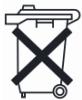
The symbol above means that according to local laws and regulations your product should be disposed of separately from household waste. When this product reaches its end of life, take it to a collection point designated by local authorities. Some collection points accept products for free. The separate collection and recycling of your product at the time of disposal will help conserve natural resources and ensure that it is recycled in a manner that protects human health and the environment.
Battery Disposal
Your Drobo, DroboPro, DroboElite, and DroboShare have internal batteries that preserve settings when the unit is off. Do not attempt to change the battery. Only a Data Robotics, Inc. certified technician can change the battery. When the product has reached the end of its useful life, please dispose of it according to your local environmental laws and guidelines.
Data Robotics' warranty obligations are limited to the terms set forth herein. Data Robotics warrants against defects in materials and workmanship under normal use for: (i) a period of ONE (1) YEAR, Data Robotics-branded hardware product other than DroboPro; and (ii) a period of TWO (2) YEARS, Data Robotics-branded hardware product; sold outside of Europe; and (iii) for a period of TWO (2) YEARS for Data Robotics-branded hardware product sold in Europe; from the date of retail purchase by the original end-user purchaser ("Warranty Period"). If a hardware defect arises and a valid claim is received within the applicable Warranty Period, at its option, Data Robotics will either: (1) repair the hardware defect at no charge, using new or refurbished replacement parts; or (2) exchange the product with a product that is new or which has been manufactured from new or serviceable used parts and is at least functionally equivalent to the original product; or (3) refund the purchase price of the product, provided the product for which the refund is provided is returned to Data Robotics and such product shall become Data Robotics' property.
EXCLUSIONS AND LIMITATIONS
This Limited Warranty applies only to hardware products manufactured by or for Data Robotics that can be identified by the "Data Robotics" trademark, trade name, or logo affixed to them. The Limited Warranty does not apply to any non-Data Robotics hardware products or any software, even if packaged or sold with Data Robotics hardware. Manufacturers, suppliers, or publishers, other than Data Robotics may provide their own warranties to the end-user purchaser, but Data Robotics, to the extent permitted by law, provides its products "as is". Software distributed by Data Robotics with or without the Data Robotics brand name (including, but not limited to system software) is not covered under this Limited Warranty. Refer to the licensing agreement accompanying the software for details of your rights with respect to its use.
Data Robotics does not warrant that the operation of the product will be uninterrupted or error-free. Data Robotics is not responsible for damage arising from failure to follow instructions relating to the product's use.
In no event does this warranty apply: (a) to damage caused by use with non-Data Robotics products; (b) to damage caused by accident, abuse, misuse, flood, fire, earthquake or other external causes; (c) to damage caused by operating the product outside the permitted or intended uses described by Data Robotics; (d) to damage caused by service (including upgrades and expansions) performed by a party other than an authorized representative of Data Robotics or a Data Robotics Authorized Reseller; (e) to a product or part that has been modified to significantly alter functionality or capability without the written permission of Data Robotics; (f) to consumable parts, such as batteries, unless damage has occurred due to a defect in materials or workmanship; or (g) if any Data Robotics serial number has been removed or defaced.
TO THE EXTENT PERMITTED BY LAW, THIS WARRANTY AND REMEDIES SET FORTH ABOVE ARE EXCLUSIVE AND IN LIEU OF ALL OTHER WARRANTYES, REMEDIES AND CONDITIONS, WHETHER ORAL OR WRITTEN, STATUTORY, EXPRESS OR IMPLIED, AND DATA ROBOTICS SPECIFICALLY DISCLAIMS ANY AND ALL STATUTORY OR IMPLIED WARRANTYES, INCLUDING, WITHOUT LIMITATION, WARRANTYES OF MERCHANTABILITY, FITNESS FOR A PARTICULAR PURPOSE AND WARRANTYES AGAINST HIDDEN OR LATENT DEFECTS. IF DATA ROBOTICS CANNOT LAWFULLY DISCLAIM STATUTORY OR IMPLIED WARRANTYES THEN TO THE EXTENT PERMITTED BY LAW, ALL SUCH WARRANTYES SHALL BE LIMITED IN DURATION TO THE DURATION OF THIS EXPRESS WARRANTY AND TO REPAIR OR REPLACEMENT SERVICE AS DETERMINED BY DATA ROBOTICS IN ITS SOLE DISCRETION. No Data Robotics reseller, agent, or employee is authorized to make any modification, extension, or addition to this warranty.
EXCEPT AS PROVIDED IN THIS WARRANTY AND TO THE EXTENT PERMITTED BY LAW, DATA ROBOTICS IS NOT RESPONSIBLE FOR DIRECT, SPECIAL, INCIDENTAL OR CONSEQUENTIAL DAMAGES RESULTING FROM ANY BREACH OF WARRANTY OR CONDITION, OR UNDER ANY OTHER LEGAL THEORY, INCLUDING BUT NOT LIMITED TO LOSS OF USE; LOSS OF REVENUE; LOSS OF ACTUAL OR ANTICIPATED PROFITS (INCLUDING LOSS OF PROFITS ON CONTRACTS); LOSS OF THE USE OF MONEY; LOSS OF ANTICIPATED SAVINGS; LOSS OF BUSINESS; LOSS OF OPPORTUNITY; LOSS OF GOODWILL; LOSS OF REPUTATION; LOSS OF, DAMAGE TO OR CORRUPTION OF DATA; OR ANY INDIRECT OR CONSEQUENTIAL LOSS OR DAMAGE HOWSOEVER CAUSED INCLUDING THE REPLACEMENT OF EQUIPMENT AND PROPERTY, ANY COSTS OF RECOVERING, PROGRAMMING, OR REPRODUCING ANY PROGRAM OR DATA STORED OR USED WITH DATA ROBOTICS PRODUCTS AND ANY FAILURE TO MAINTAIN THE CONFIDENTIALITY OF DATA STORED ON THE PRODUCT. THE FOREGOING LIMITATION SHALL NOT APPLY TO DEATH OR PERSONAL INJURY CLAIMS. DATA ROBOTICS DISCLAIMS ANY REPRESENTATION THAT IT WILL BE ABLE TO REPAIR ANY PRODUCT UNDER THIS WARRANTY OR MAKE A PRODUCT EXCHANGE WITHOUT RISK TO OR LOSS OF THE PROGRAMS OR DATA.
CONSUMER PROTECTION LAWS
FOR CONSUMERS WHO ARE COVERED BY CONSUMER PROTECTION LAWS OR REGULATIONS IN THEIR COUNTRY OF PURCHASE OR, IF DIFFERENT, THEIR COUNTRY OF RESIDENCE, THE BENEFITS CONFERRED BY THIS WARRANTY ARE IN ADDITION TO ALL RIGHTS AND REMEDIES CONVEYED BY SUCH CONSUMER PROTECTION LAWS AND REGULATIONS. Some countries, states and provinces do not allow the exclusion or limitation of incidental or consequential damages or
exclusions or limitations on the duration of implied warranties or conditions, so the above limitations or exclusions may not apply to you. This warranty gives you specific legal rights, and you may also have other rights that vary by country, state or province. This Limited Warranty is governed by and construed under the laws of the country in which the product purchase took place. Data Robotics, the warrantor under this Limited Warranty, is identified at the end of this document according to the country or region in which the product purchase took place.
OBTAINING WARRANTY SERVICE
Product Replacement: No product may be returned directly to Data Robotics without first contacting Data Robotics for a Return Material Authorization ("RMA") number. If it is determined that the Product may be defective, you will be given an RMA number and instructions for Product return. An unauthorized return, i.e. one for which an RMA number has not been issued, will be returned to you at your expense.
Technical Support: During the Warranty Period, the original end-user purchaser, as part of its limited warranty coverage, is entitled to access Data Robotics' online help resources to address any question about the Drobo product ("Online Help Resources"). For a period of ninety days from purchase by the original end-user purchaser ("Technical Support Access Period"), as part of its limited warranty coverage, if the Online Help Resources don't address the support issue, such original end user purchaser is entitled to initiate a support request online at www.datarobotics.com/support. After the Technical Support Access Period, support requests may be made at an additional fee. In response to support requests, a Data Robotics representative or Data Robotics Authorized Reseller will help determine whether your product requires service and, if it does, will inform you how Data Robotics will provide it. Data Robotics or its Data Robotics Authorized Resellers will provide warranty service on products that are tendered or presented for service during the Warranty Period, as permitted by law. Warranty service will be provided from the country from where the product is shipped. Service options, parts availability and response times will vary according to country. You may be responsible for shipping and handling charges if the product cannot be serviced in the country it is in. In accordance with applicable law, Data Robotics may require that you furnish proof of purchase details and/or comply with registration requirements before receiving warranty service. Please refer to the online product documentation for more details on this and other matters on obtaining warranty service.
Data Protection: You should make periodic backup copies of the data and programs contained on the product's hard drive to protect your data and as a precaution against possible operational failures. Before you deliver your product for warranty service it is your responsibility to keep a separate backup copy of the system software, application software and data, and disable any security passwords. You will be responsible for reinstalling all such software, data and passwords. Data Robotics and its Authorized Resellers are not liable for any damage to or loss of any programs, data, or other information stored on any media, or any non-Data Robotics product or part not covered by this warranty. Recovery and reinstallation of system, application software, and user data are not covered under this Limited Warranty.
DROBOCARE
DroboCare Support program enhances the standard warranty, and is available for an additional fee. DroboCare Support program is comprised of the following:
(A) The DroboCare Support program term is one year, and is renewable as long as the Drobo product for which it is provided is still being sold.
(B) The Technical Support Access Period is the duration of the DroboCare Support program term.
(C) Product Replacement occurs after receiving Technical Support- the replacement product will be shipped to you promptly, before receipt of your product. You are still required to return the original product as instructed.
GENERAL INFORMATION
The information contained herein is subject to change without notice. The only warranties for Data Robotics products and services are set forth in the warranty statements accompanying the products and services. Nothing herein should be construed as constituting an additional warranty. Data Robotics shall not be liable for technical or editorial errors or omissions contained herein.
GPL License Code - Drobo FS, DroboPro, DroboElite, and DroboShare utilize some GPL licensed Linux code. To obtain a copy of the Linux source code used in our product, please e-mail your request with your name and company affiliation to gpiirequest@drobo.com.